Your Aesthetix CRM Dashboard is built from individual widgets, small panels that each show a piece of practice data like new leads, booked consults, or revenue. From Dashboard in the left-hand menu, you can switch into Edit Mode to drag widgets into a new order, resize them, or remove ones you don't use. Every change is temporary until you click Save Changes, so it's safe to experiment.
Interactive walkthrough
Interactive walkthrough
Use this when you simply want to move a widget to a different spot on the layout.
Open your Dashboard.
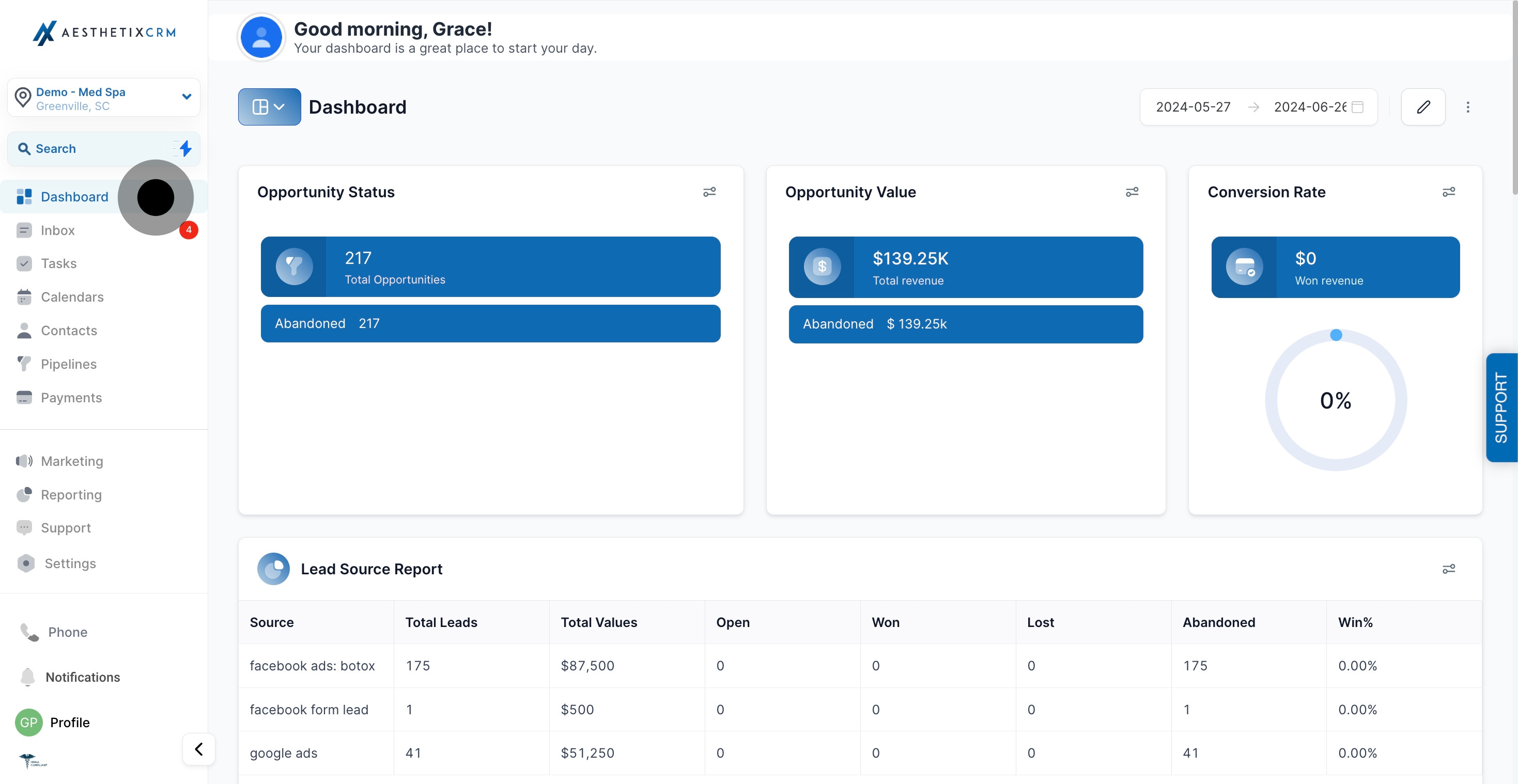
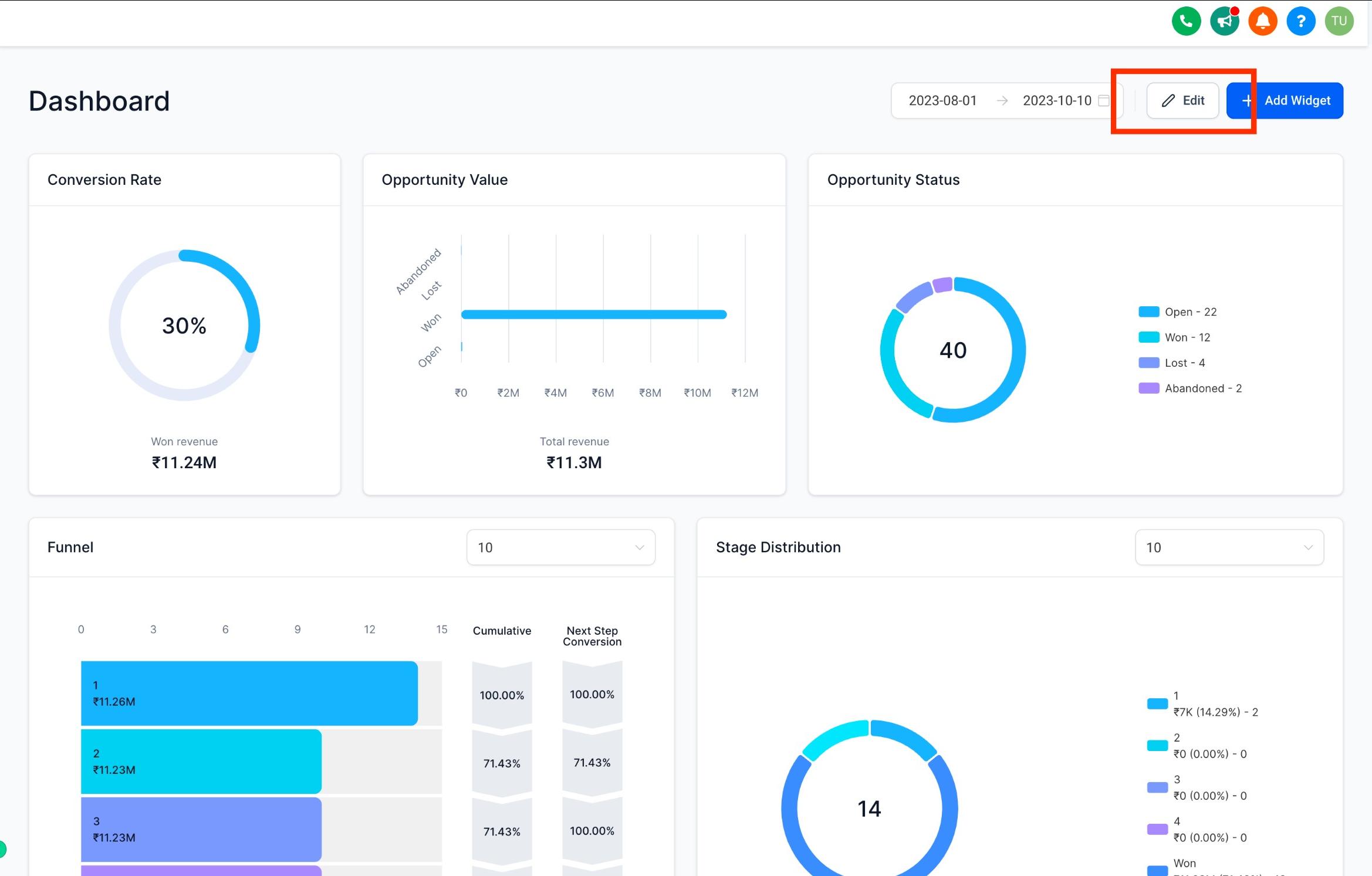
Click the Edit button to enter Edit Mode.
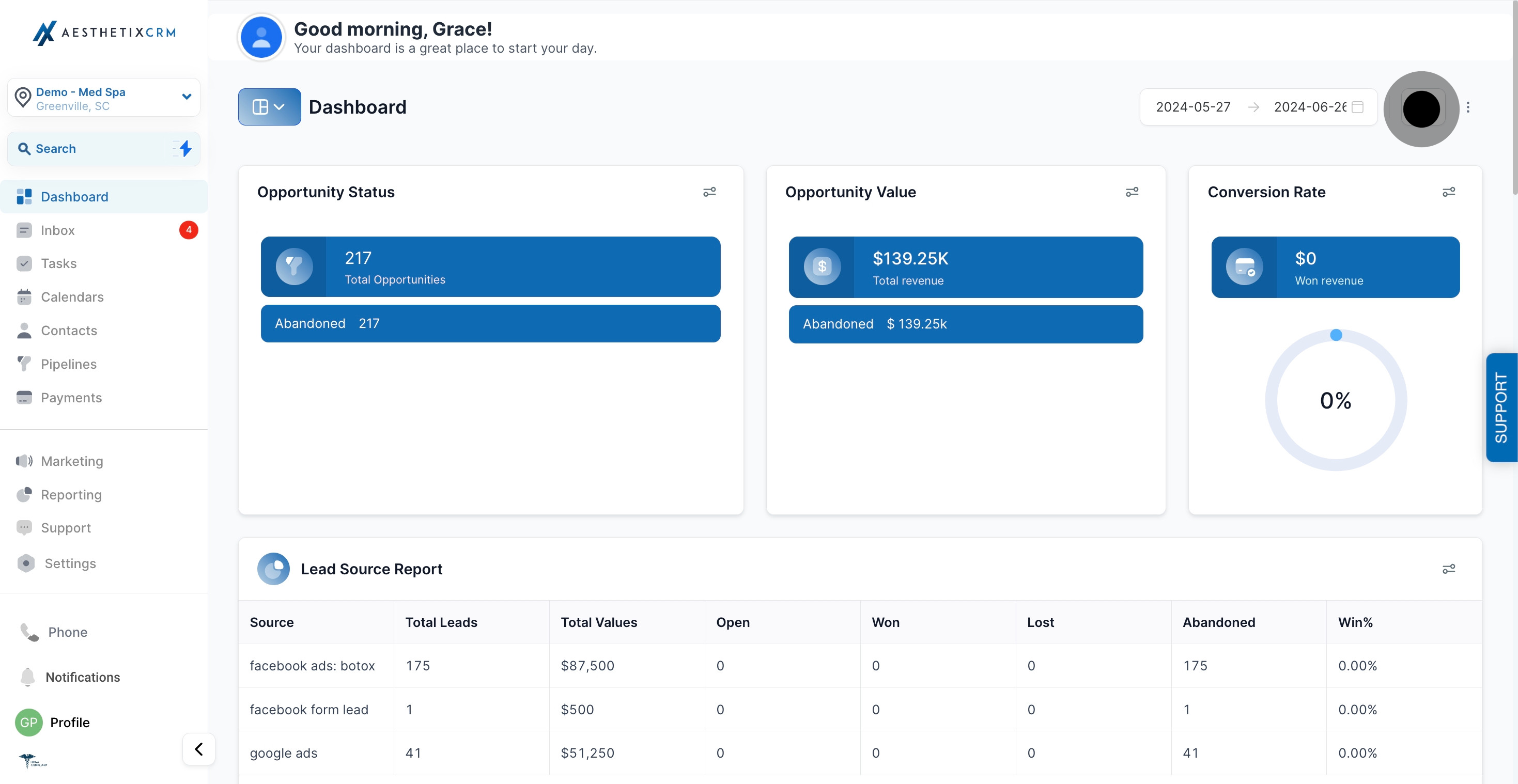
Select the widget and drag it to the desired location on the grid.
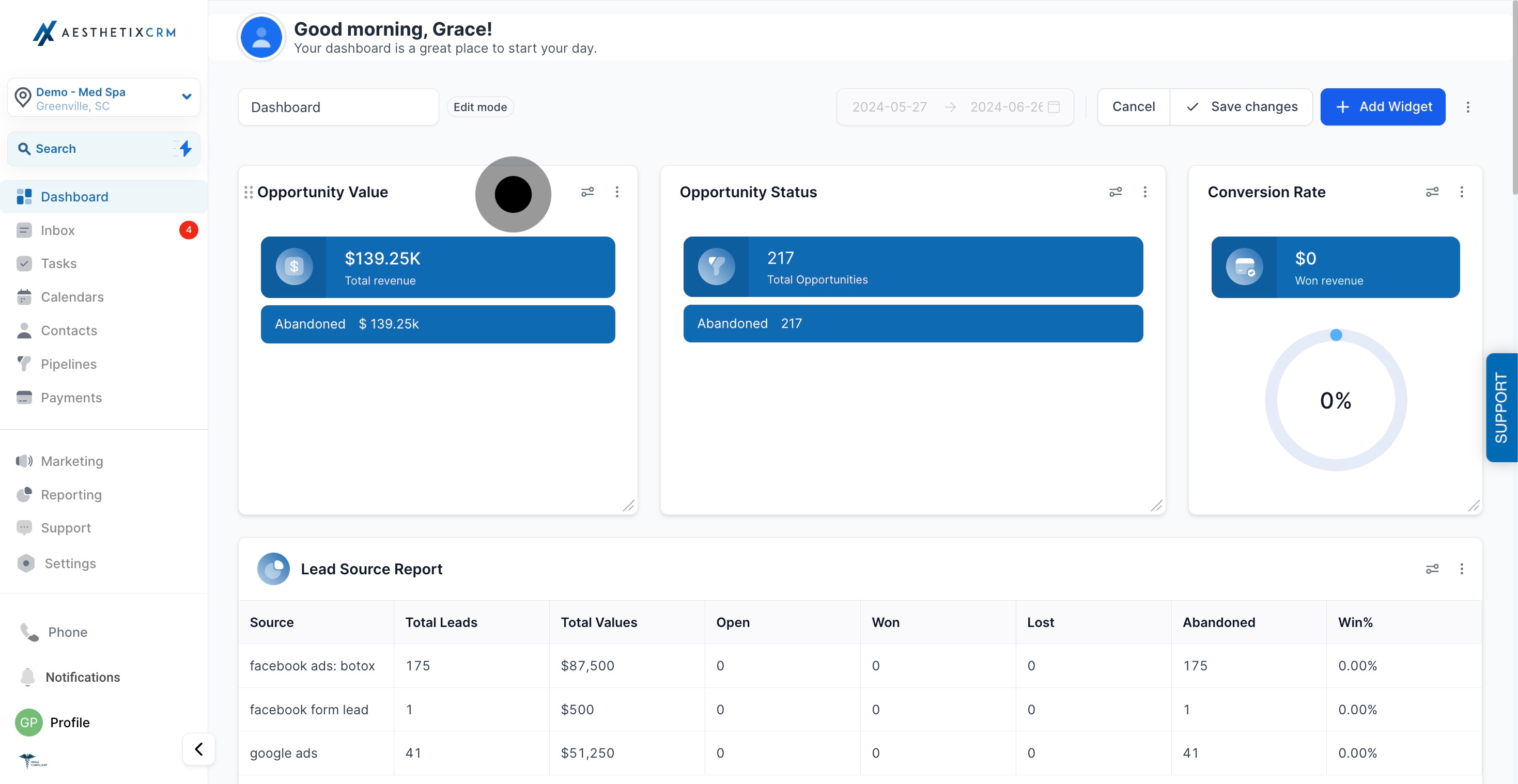
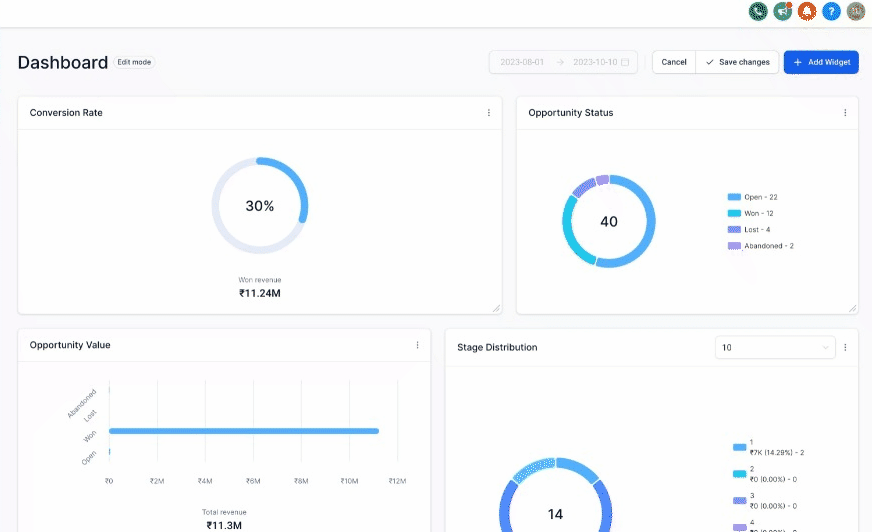
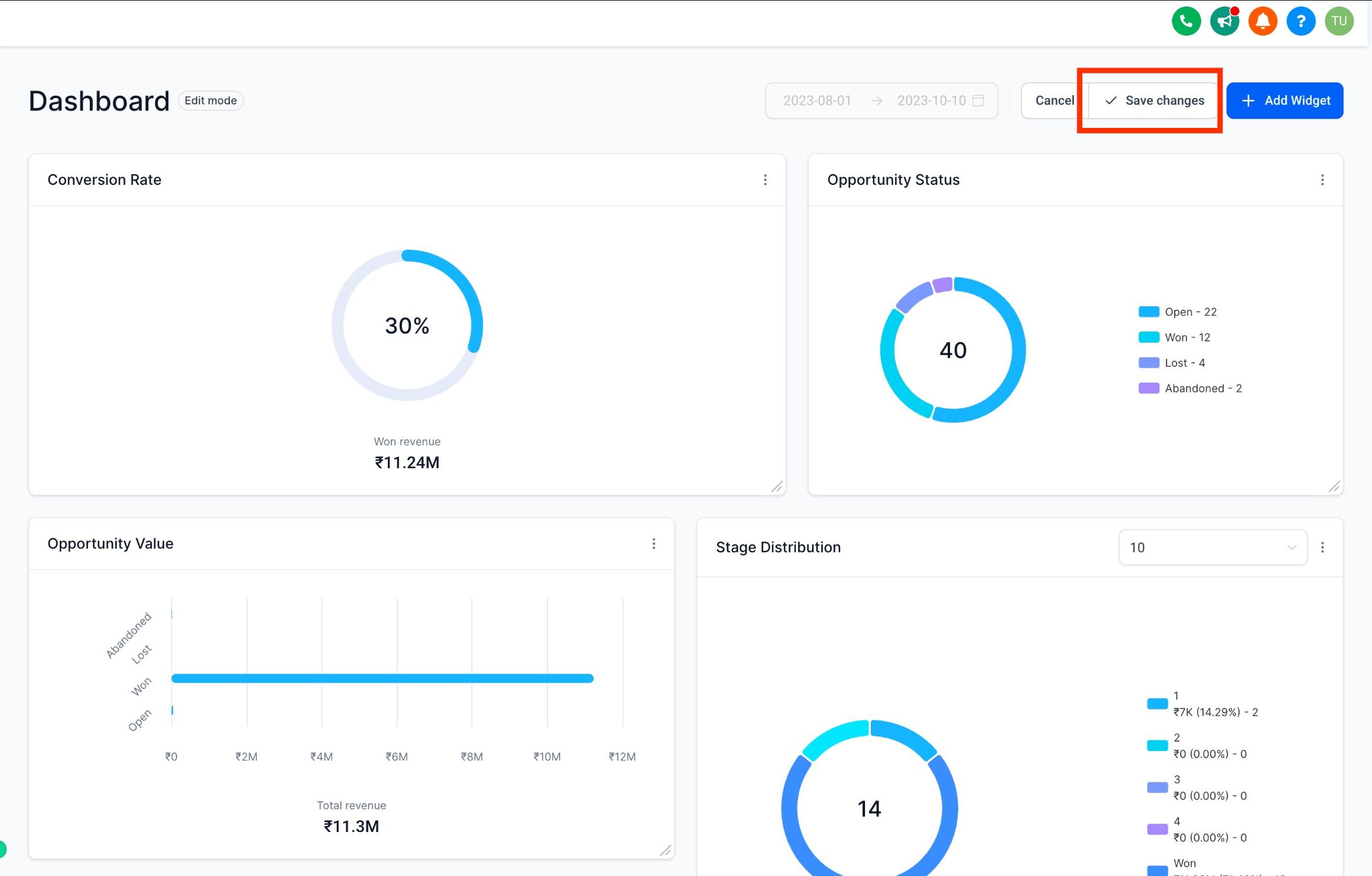
Click Save Changes to lock in the new layout.
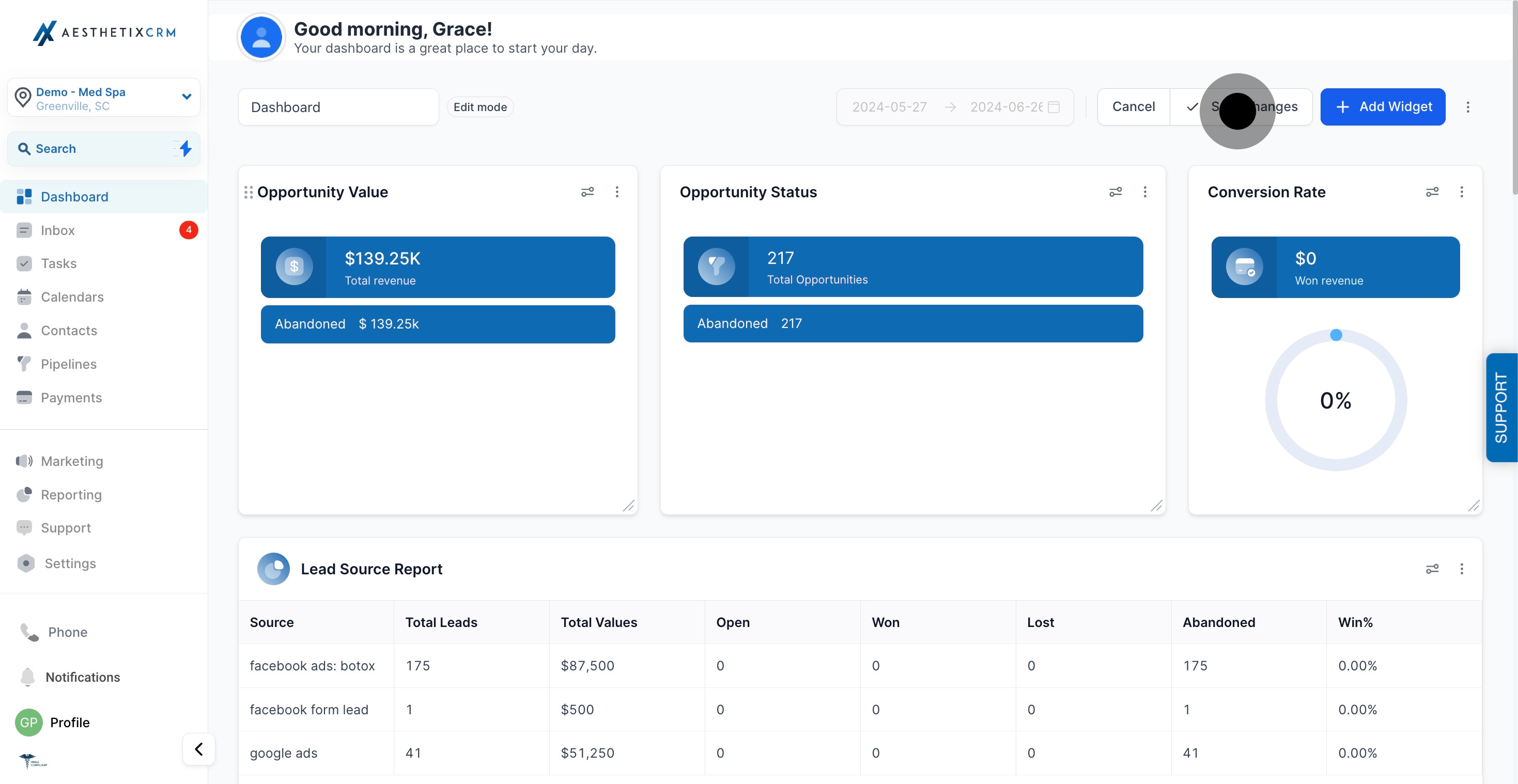
If you drop a widget in the wrong spot, just drag it again while you're still in Edit Mode, nothing is final until you save. If you'd rather back out entirely, click Cancel and your widgets will snap back to their last saved positions.
Some widgets are easier to read bigger (a lead-source chart, for example), while others are fine small. You can resize any widget independently of moving it.
On your Dashboard, click the Edit button to switch into Edit Mode.
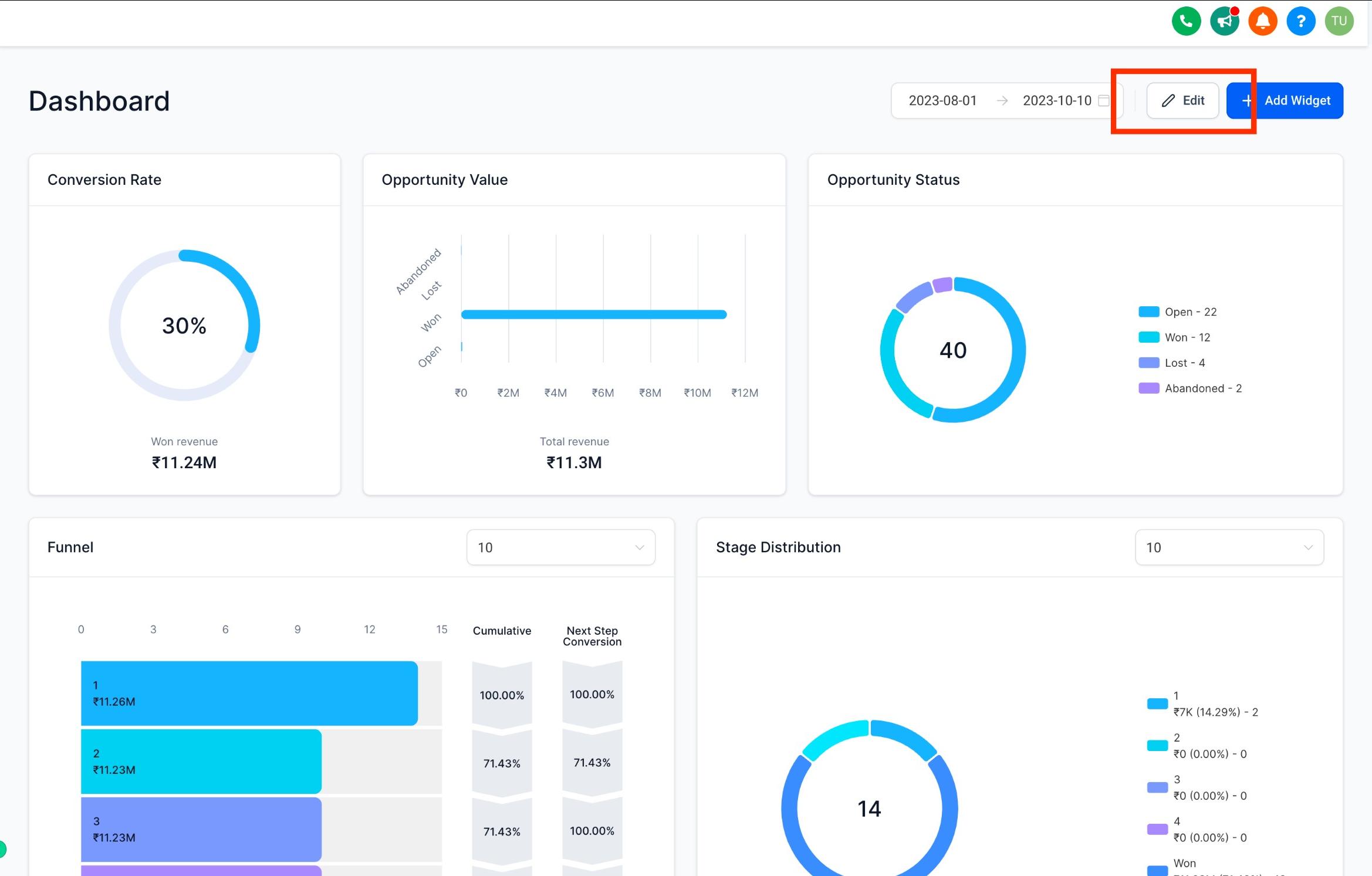
Hover over a corner of the widget until the resize arrow icon appears, then click and drag to expand or shrink it.
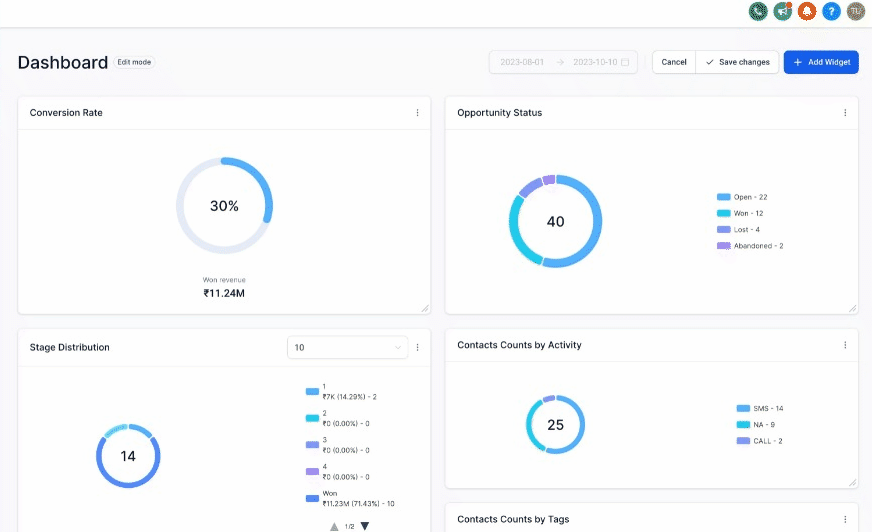
Click Save Changes once the widget is the size you want.
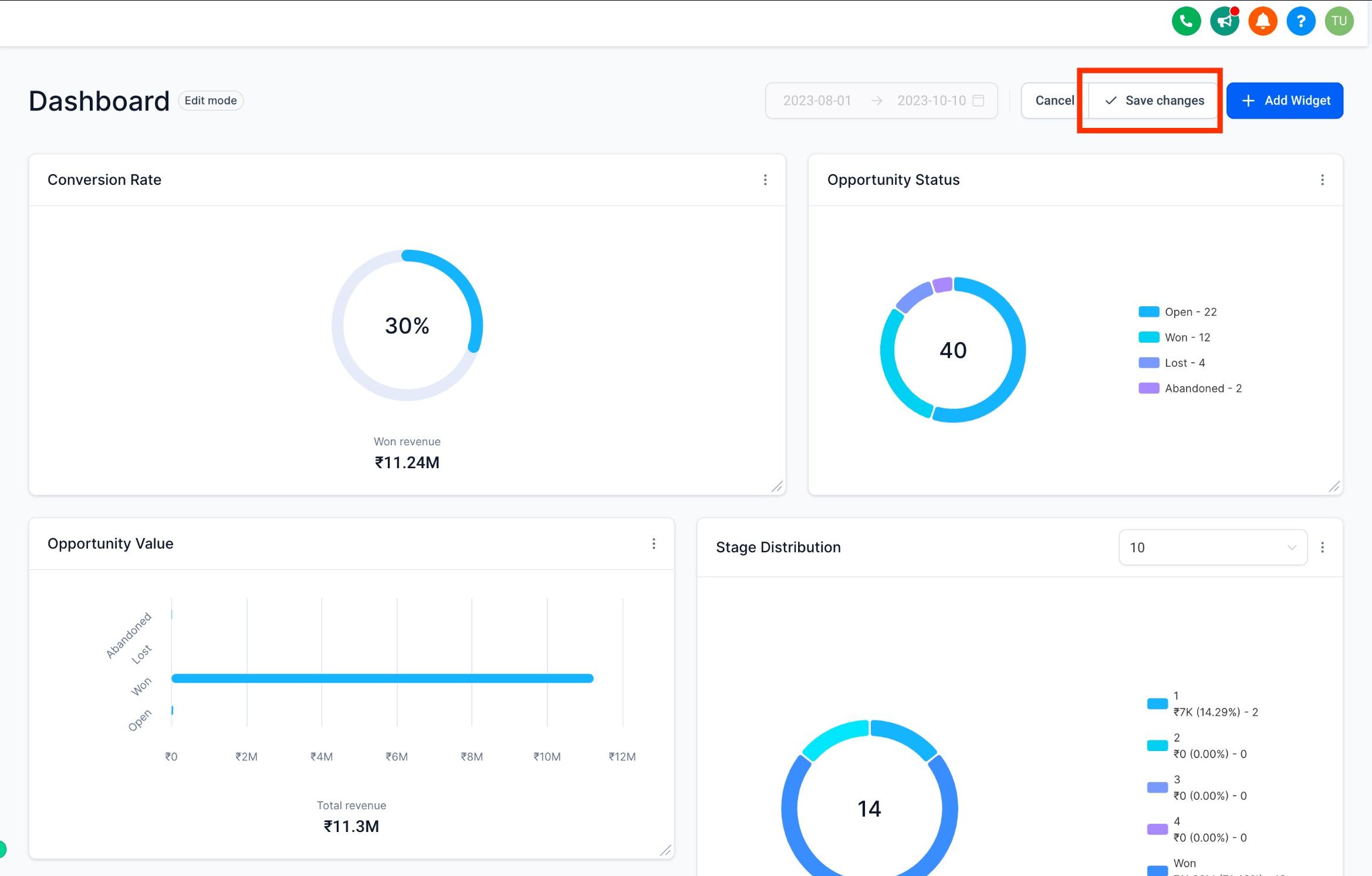
As with rearranging, clicking Cancel instead of Save Changes restores your widgets to their previous size and position.
Remove widgets your practice doesn't reference, so the Dashboard stays focused on the numbers that matter.
Open your Dashboard to get started.
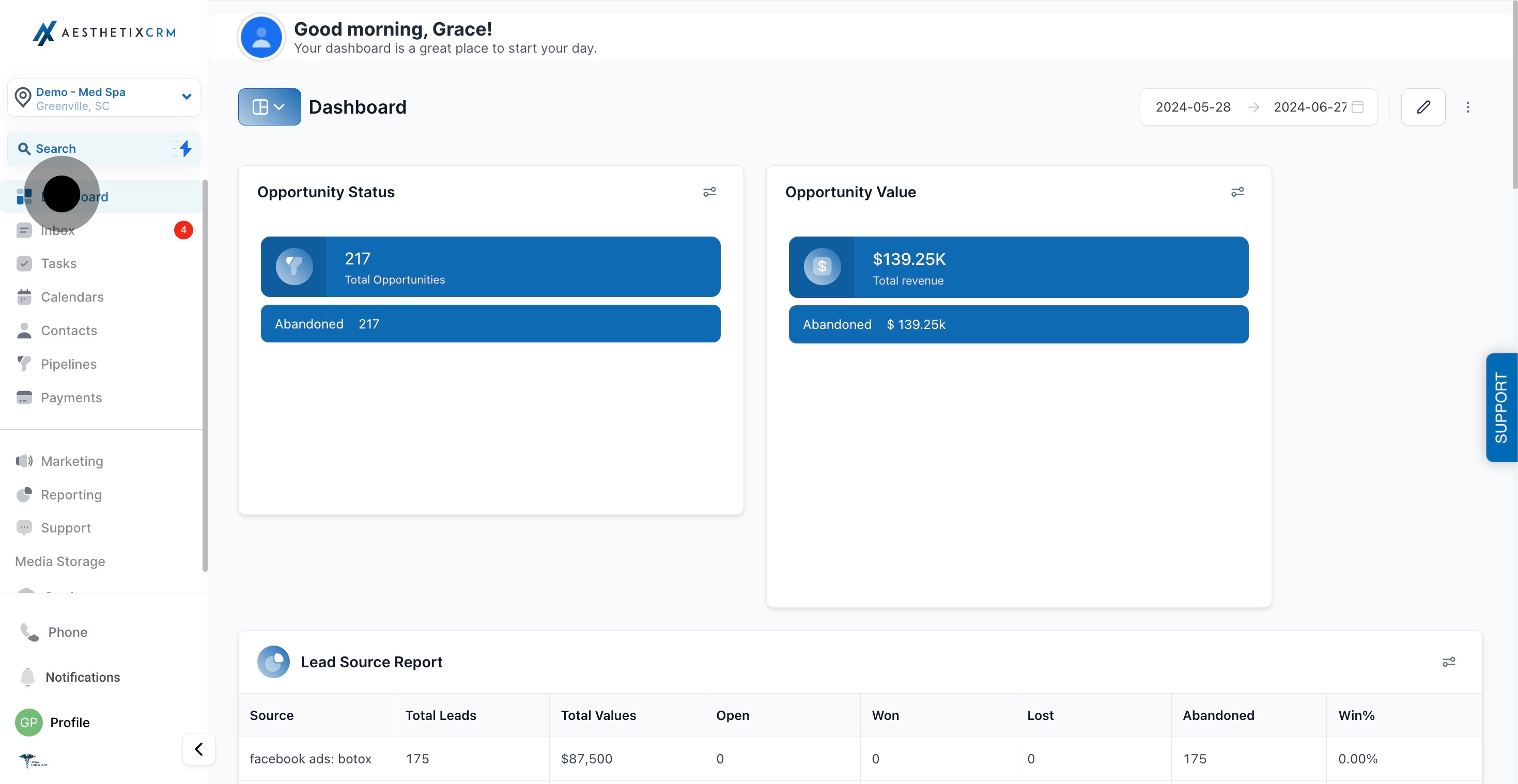
Click Edit to make changes.
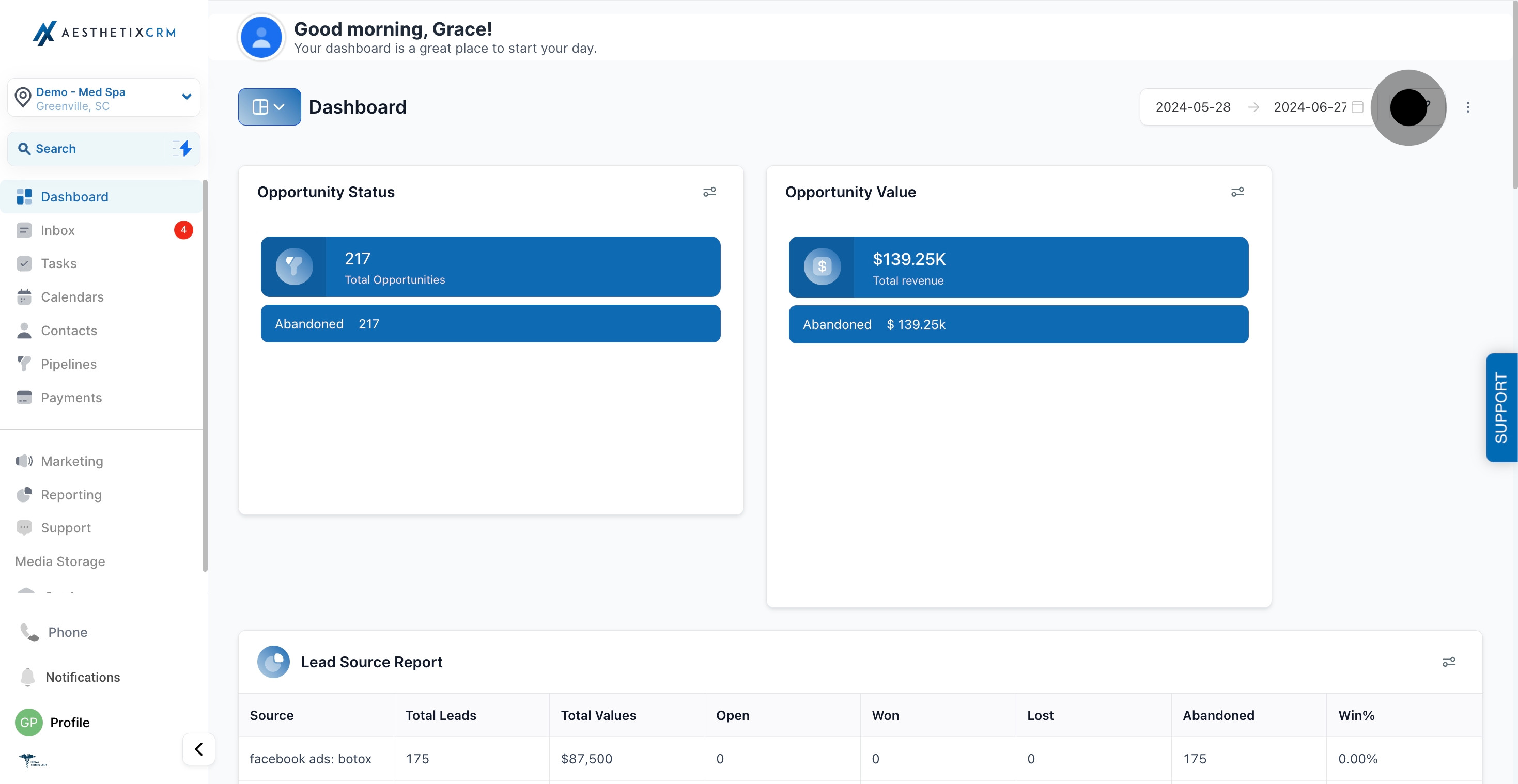
Locate the widget you want to remove and click the three-dot menu (...) in its upper-right corner to open the dropdown.
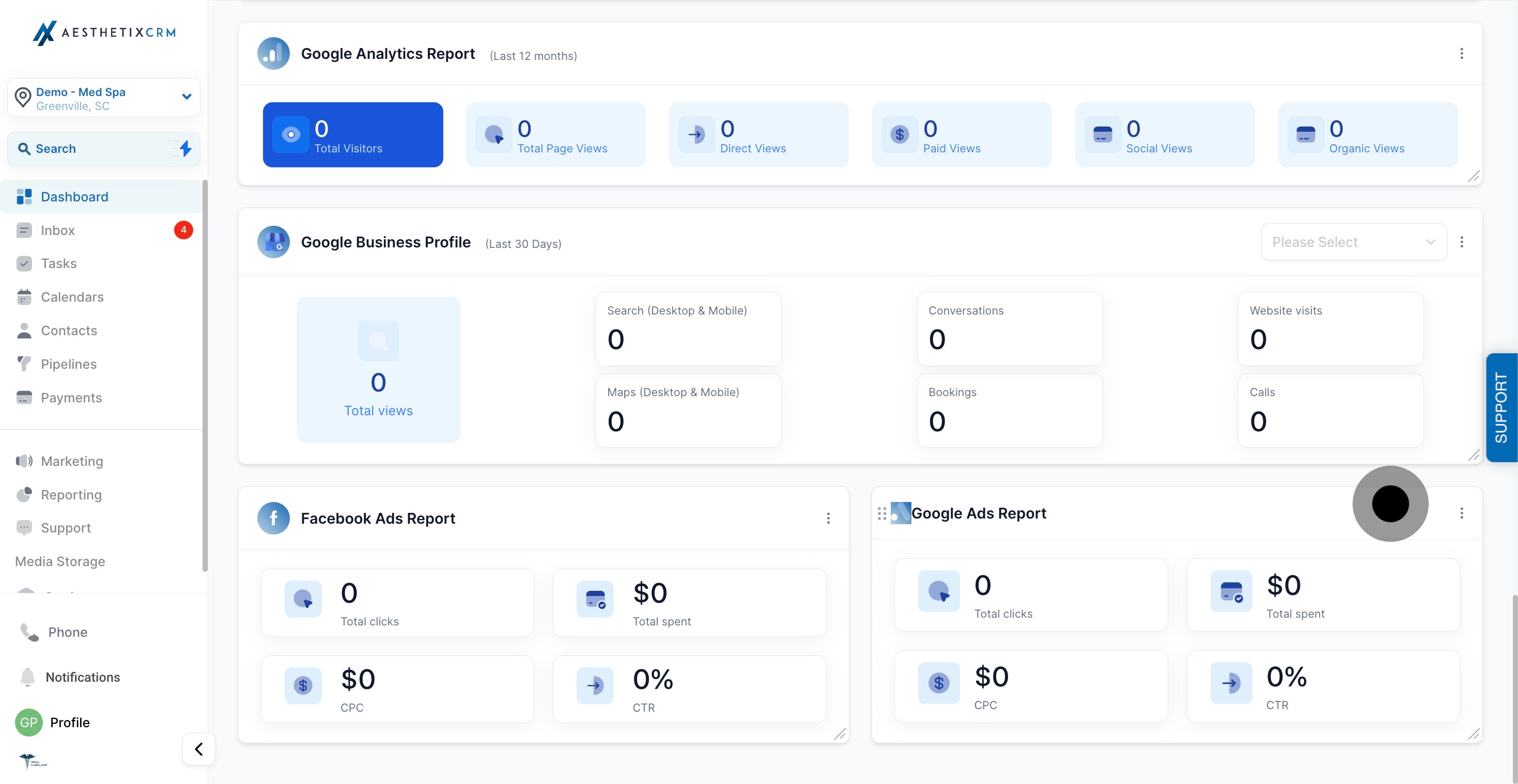
Select Delete to remove the widget from the layout.
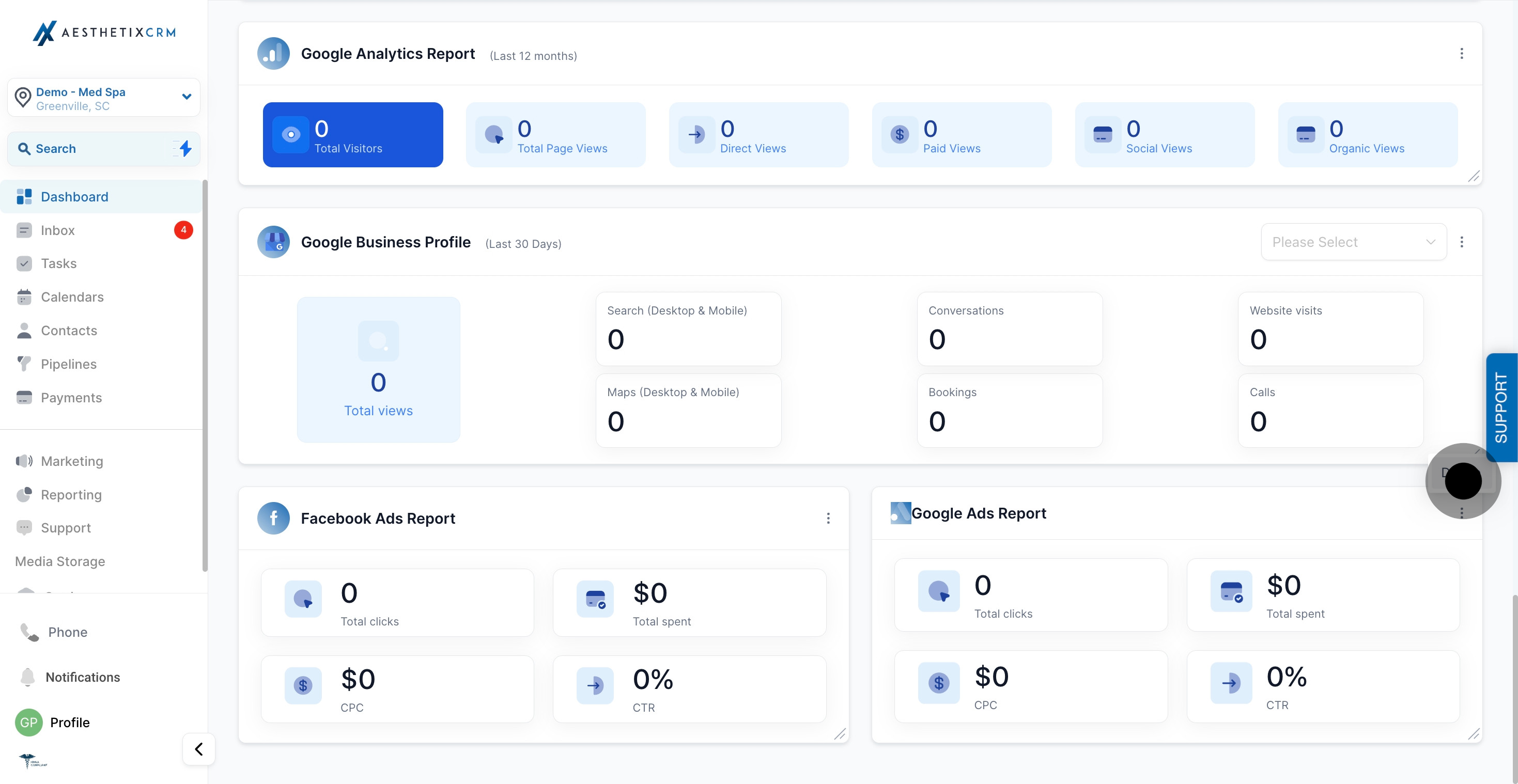
Click Save Changes to update the Dashboard.
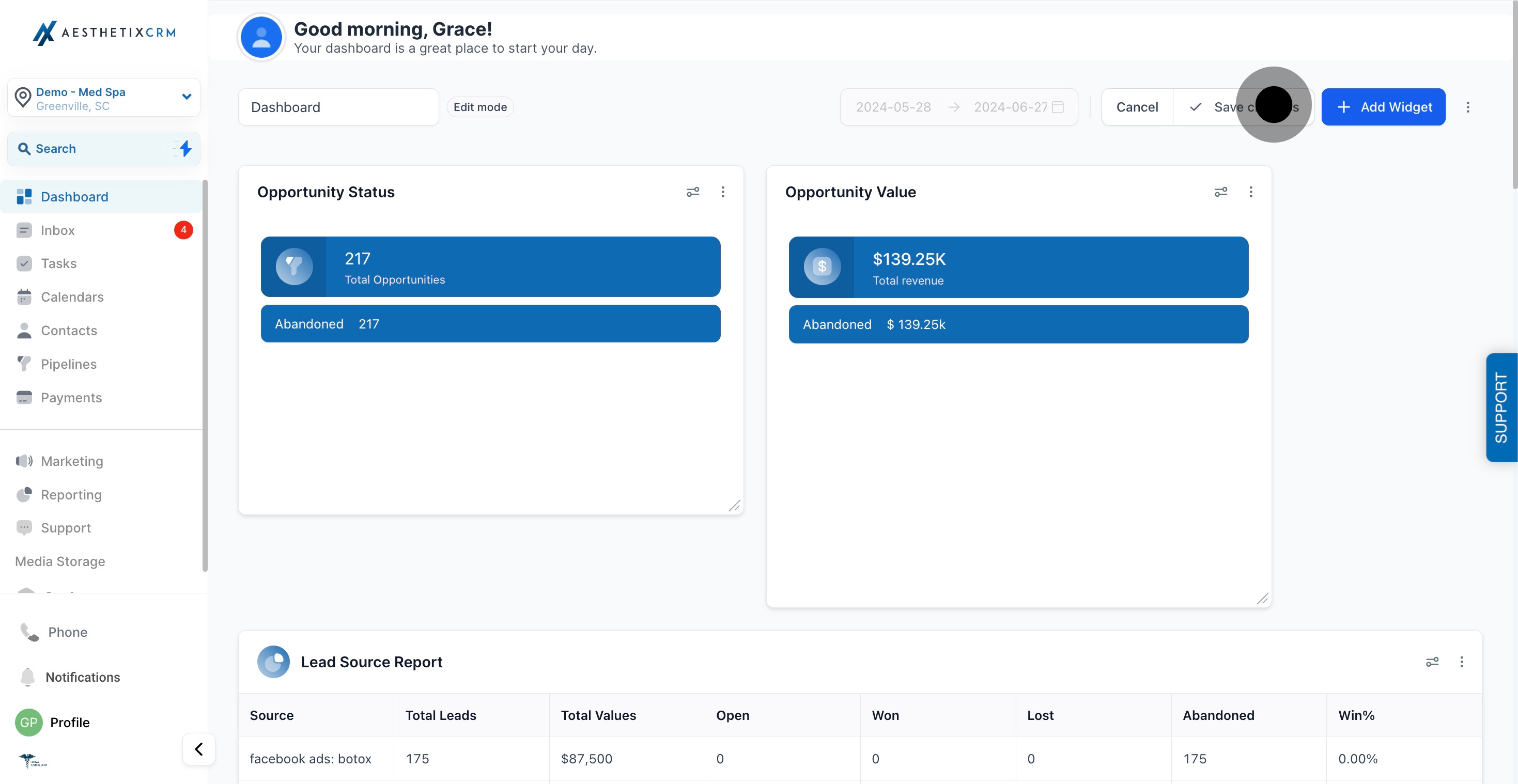
Changed your mind partway through? Click Cancel instead of Save Changes and the widget you were about to delete stays right where it was. If you remove a widget you actually need later, you can bring it back from the widget picker in your Dashboard's Add Widget flow, it doesn't disappear from the library, only from your current layout.
Will rearranging or resizing widgets affect what my team members see? In most cases, layout changes only apply to your own personal view of the Dashboard. Admin users may have the option to set a shared layout that applies to everyone on the account.
What happens if I move or resize a widget by mistake? Nothing is permanent until you click Save Changes. While you're still in Edit Mode, you can keep dragging, resizing, or repositioning widgets as many times as you like.
Do I have to click Save Changes for my edits to stick? Yes. Rearranging, resizing, and removing widgets all happen live on screen, but none of it is saved to your Dashboard until you click Save Changes. Click Cancel instead and everything reverts.
Can I resize a widget without moving it, or vice versa? Yes, these are independent actions. You can drag a widget's corner to resize it in place, or drag the whole widget to a new spot without changing its size.
Is there a limit to how large or small I can make a widget? Widgets resize within the Dashboard's grid, and some have a practical minimum size so their data stays readable. If a widget looks cut off or crowded, try giving it a bit more room.
What happens to a widget's data when I resize it? Nothing changes about the underlying data, a resized widget still pulls the same report or metric. Resizing only changes how much detail is visible at once.
Can I get a removed widget back? Yes. Deleting a widget only removes it from your current layout, not from the system. Add it back anytime through the Add Widget option on your Dashboard.
Do I need to be in Edit Mode to rearrange, resize, or remove widgets? Yes, all three actions require you to click Edit first. Outside of Edit Mode, your Dashboard is view-only.
If I don't see an Edit option on my Dashboard, what should I do? Dashboard customization availability can depend on your account setup and permissions. Check with your practice administrator if the Edit button isn't visible for your login.
Will my saved layout carry over if I log in from a different device? Your saved layout is tied to your Aesthetix CRM account, not the device, so your rearranged, resized, and removed widgets will follow you when you log in elsewhere.
