Dashboard Summary AI reads an entire dashboard and writes a plain-English summary of what's going on: what grew, what dipped, and where you should look next. Instead of scanning a dozen widgets before your morning huddle, you get the story behind the numbers in a few seconds. You'll find it in Aesthetix CRM on any dashboard in the Dashboards area of your account.
Dashboard Summary AI is a built-in analysis tool that reviews a dashboard's widgets for the current date range and filters, then generates a short narrative covering key movements, growth patterns, and potential risks. It also offers:
Context-rich insights. The summary doesn't just say a number moved, it points to likely peaks, dips, and possible causes, plus suggested next steps to validate with your team.
Follow-up questions. From the summary, you can ask natural-language questions to dig into what's driving a trend (custom widgets only, see below).
Widget-level insights. Hover any individual chart, table, or KPI widget and pull an AI insight card without leaving the dashboard.
This is especially useful for a busy med-spa owner or front-desk manager who needs a quick read on the week's leads, booked consults, and revenue without decoding every widget by hand.
Instant narrative. See the story behind your numbers in seconds, no manual analysis required.
Proactive detection. Surface downward trends early (a dip in booked consults, a slow week for a channel) so you can intervene before performance slips.
Guided exploration. Ask follow-up questions from the summary to understand what's driving an anomaly.
Focused diagnosis. Hover any widget for a concise AI insight to validate its setup, trend, or comparison.
A dashboard-wide summary is ideal for daily standups and weekly reviews. It translates dozens of metrics, like new leads, booked consults, revenue, and pipeline value, into a clear briefing you can read in under a minute.
Open the dashboard you want summarized and set your date range and any filters the way you want them evaluated.
Click Summarize Dashboard with AI in the dashboard header.
Review the summary callouts for wins, risks, and suggested next steps.
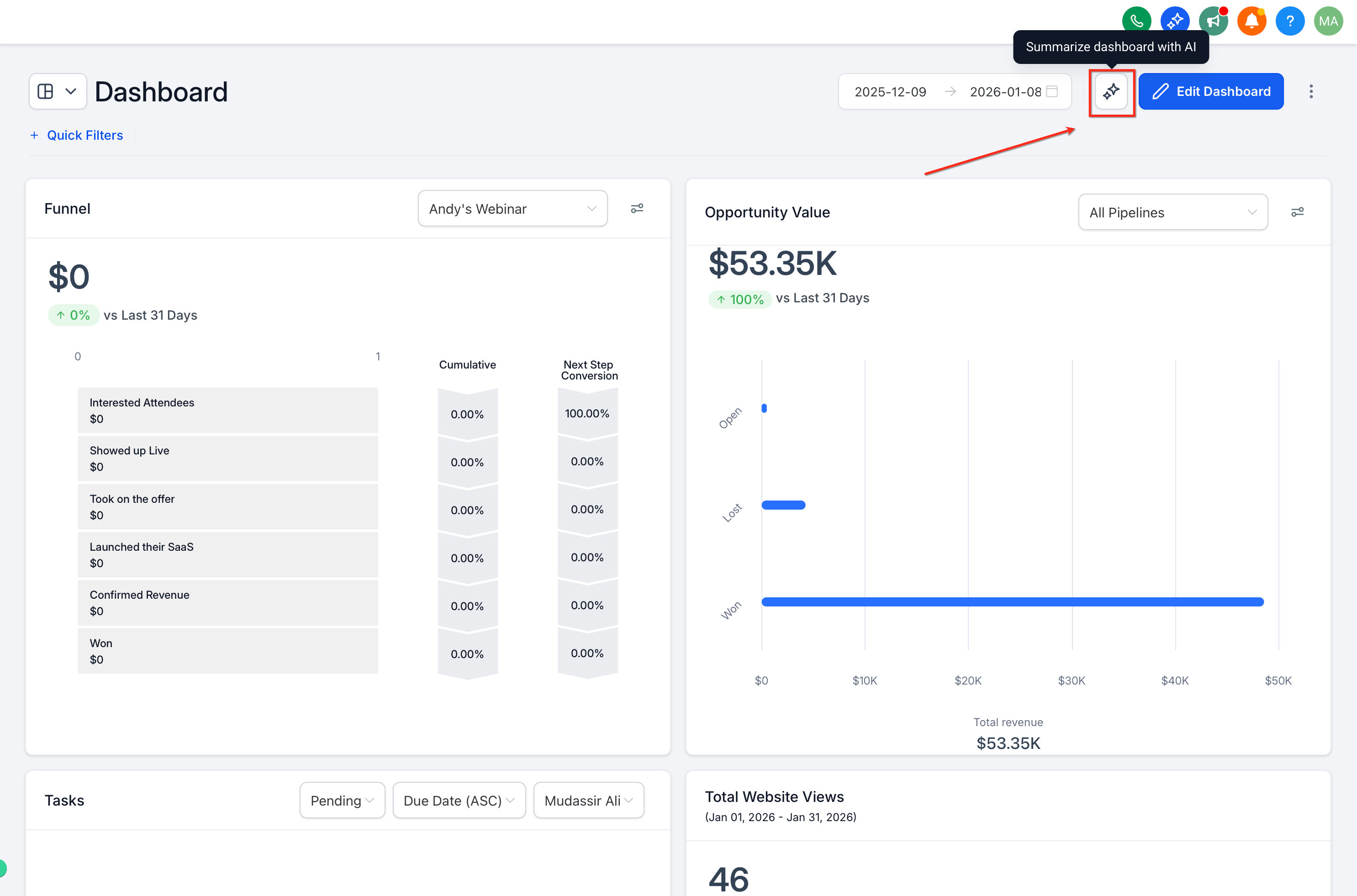
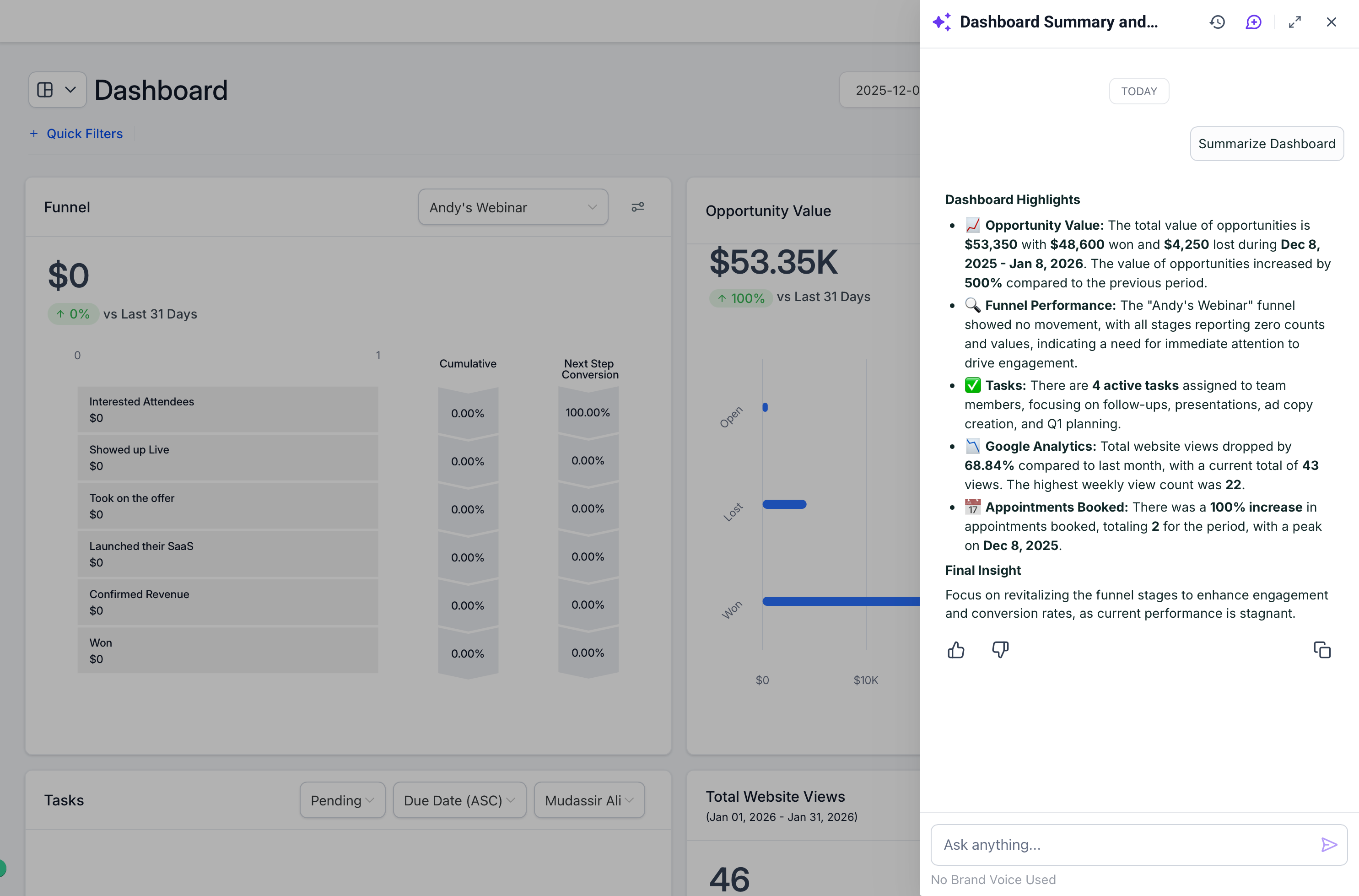
The summary respects whatever date range and filters are active when you click Summarize, so if you change either one, run it again to get an updated narrative.
Once you have a summary, you can use the follow-up field to ask natural-language questions, such as "What are the key driving trends?" or "Why did revenue dip this week?"
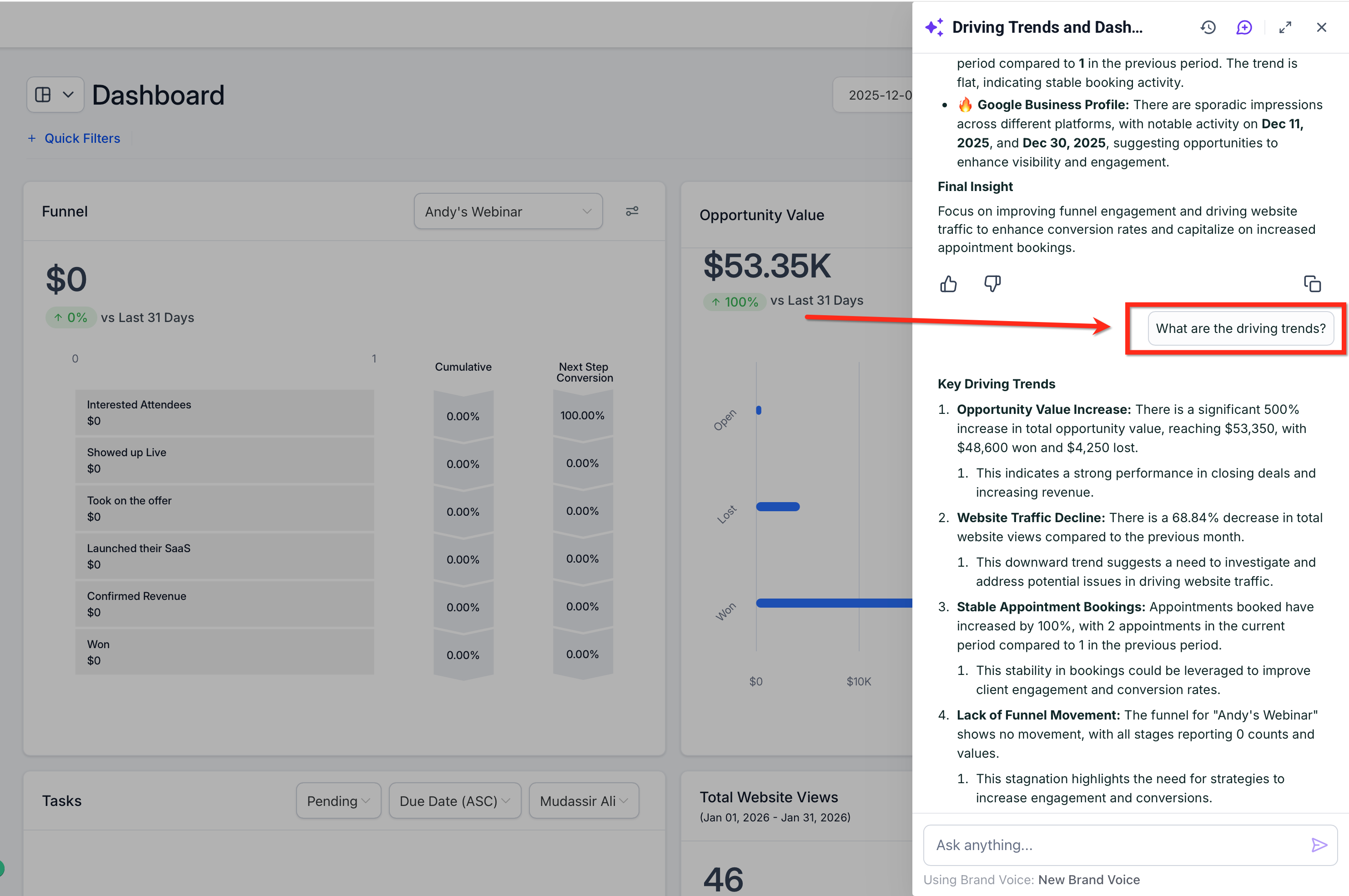
Follow-up questions only work on custom widgets, not on standard, prebuilt widgets. If you want to ask deeper questions about a particular metric, build it out as a custom widget first.
When one KPI looks off but you don't need a full dashboard summary, you can pull an insight for just that widget.
Hover over the chart, table, or KPI widget you want to check.
Click the AI icon that appears on the widget.
Read the widget insight card for context on the trend or comparison.
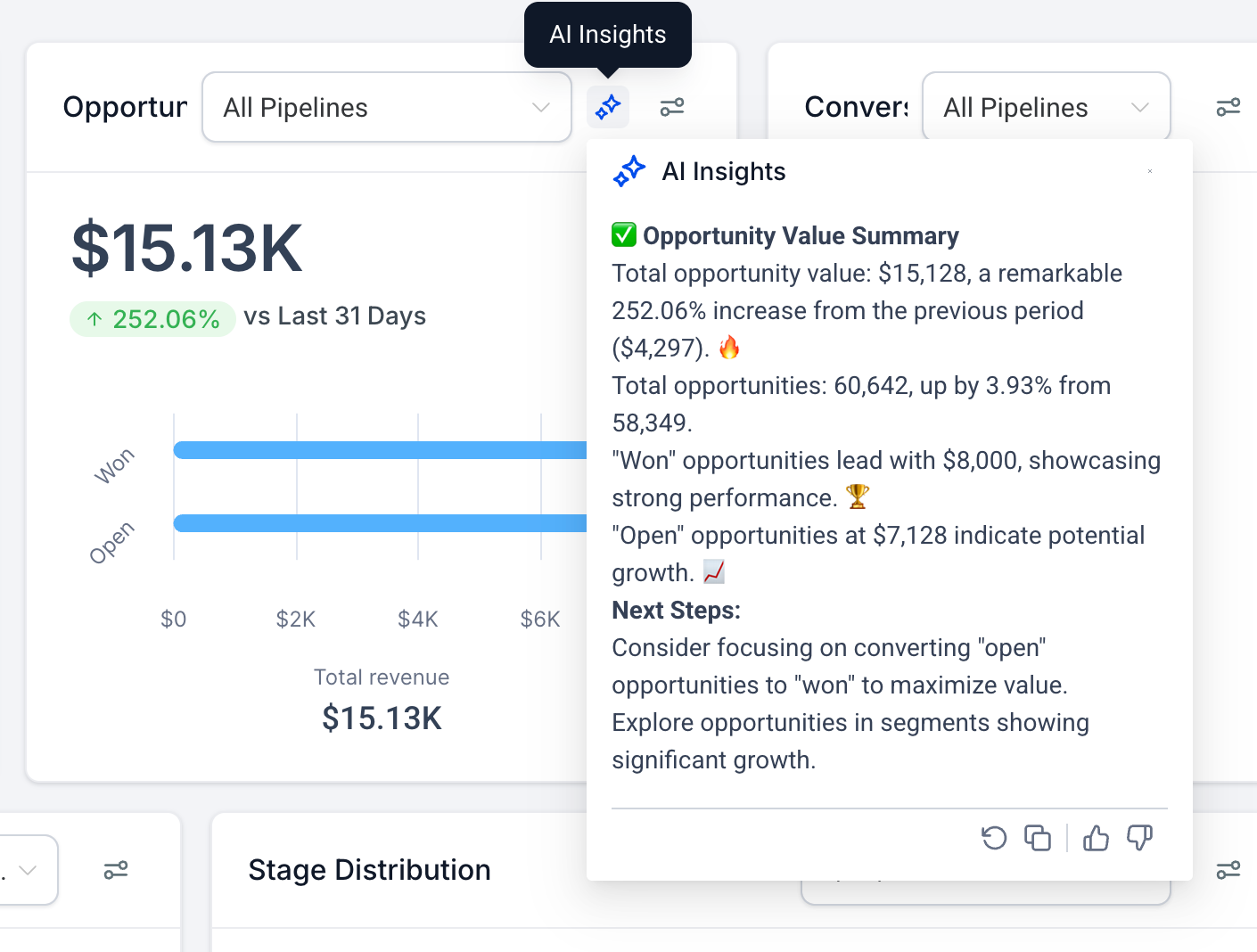
Widget insights are a fast way to pinpoint an outlier without opening multiple reports or cross-referencing other dashboards. If you're still building out or adjusting the widgets on your dashboard, see the guide on creating and adding dashboard widgets.
Dashboard Summary AI runs on the AI Employee engine, so it needs AI Employee active on your account before the Summarize button will appear.
Go to Settings > Company and confirm the AI Employee toggle is turned on.
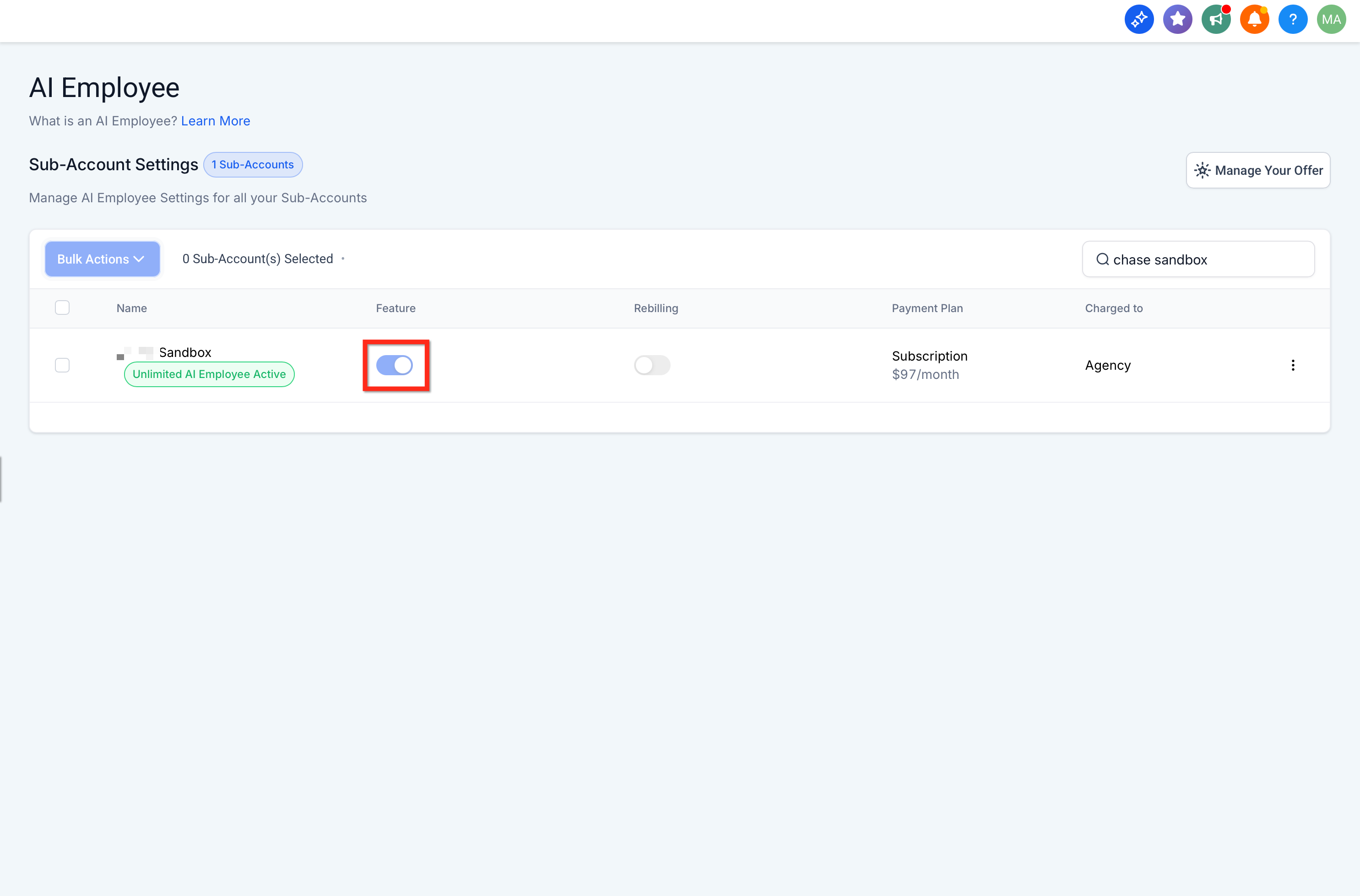
Open any dashboard. If AI Employee is active, you'll see Summarize Dashboard with AI in the header.
If you don't see the button, check with whoever manages your account settings, or reach out to Aesthetix CRM support to have AI Employee enabled. AI Employee is a paid add-on, so ask support for current pricing on your plan.
AI Employee also powers AI-driven appointment booking and Conversational AI; if you haven't set those up yet, see the AI Employee overview article for the full feature set.
I don't see the Summarize Dashboard with AI button. What should I check? Confirm AI Employee is enabled under Settings > Company. If it's off, turn it on or ask your account admin or Aesthetix CRM support to enable it.
Do summaries reflect my current date range and filters? Yes. The summary is generated for whatever date range and filters are active on the dashboard at the moment you click Summarize. Change either one and run it again to refresh the narrative.
Why do follow-up questions only work on some widgets? Follow-ups pull their context from custom widget configurations. Standard, prebuilt widgets don't support follow-up questions, so build or edit a custom widget if you want to ask deeper questions about that metric.
Can I get an AI insight for just one widget instead of the whole dashboard? Yes. Hover over any chart, table, or KPI widget and click the AI icon that appears to generate a widget-level insight card.
What kind of insights does the AI actually give me? Expect plain-language notes on what changed (peaks, dips, notable trends), possible reasons why, and suggested next steps, not just raw numbers restated in sentence form.
Is Dashboard Summary AI included with my plan, or is it an add-on? It runs on AI Employee, which is a separate paid add-on. If AI Employee isn't active on your account, contact Aesthetix CRM support for current pricing and to get it turned on.
Does the AI make changes to my dashboard or data? No. Dashboard Summary AI only reads and summarizes existing widget data. It doesn't edit widgets, change filters, or alter any underlying records.
Can I use Dashboard Summary AI on a dashboard I haven't finished building? Yes, but the summary is only as useful as the widgets on the dashboard. If key metrics like leads, booked consults, or revenue aren't on the dashboard yet, add them first so the AI has something meaningful to summarize.
