Your Dashboard rolls up leads, booked consults, revenue, and other metrics into daily and weekly totals. The time zone you set determines which local day or week a given lead, appointment, or sale actually counts toward. Aesthetix CRM lets you set a time zone at the dashboard level, and it also lets each logged-in team member override that time zone for their own view, which matters most for multi-location practices where staff and locations sit in different time zones.
This is the default time zone applied to a dashboard for anyone who views it.
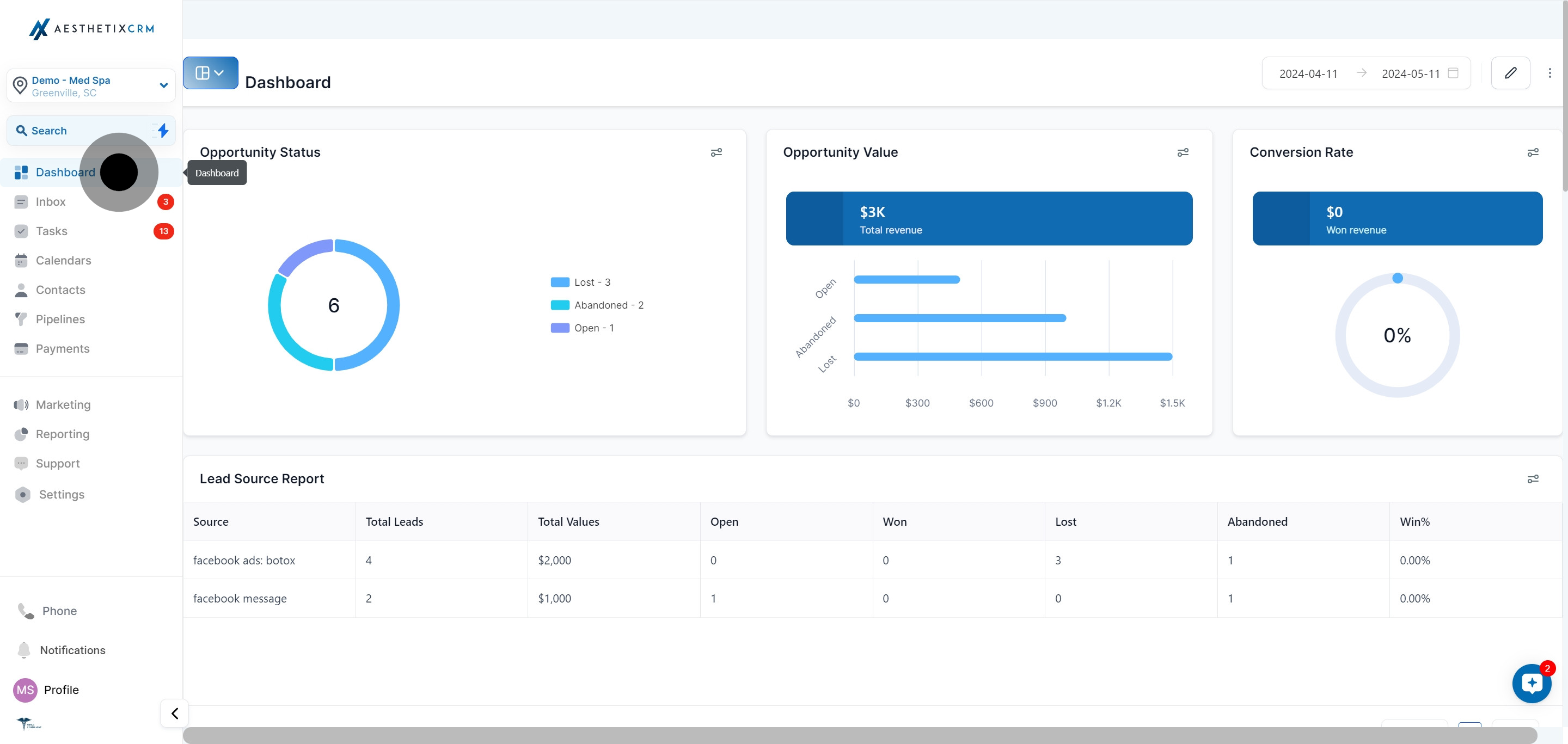
Open the dashboard you want to update from the left-side navigation bar.
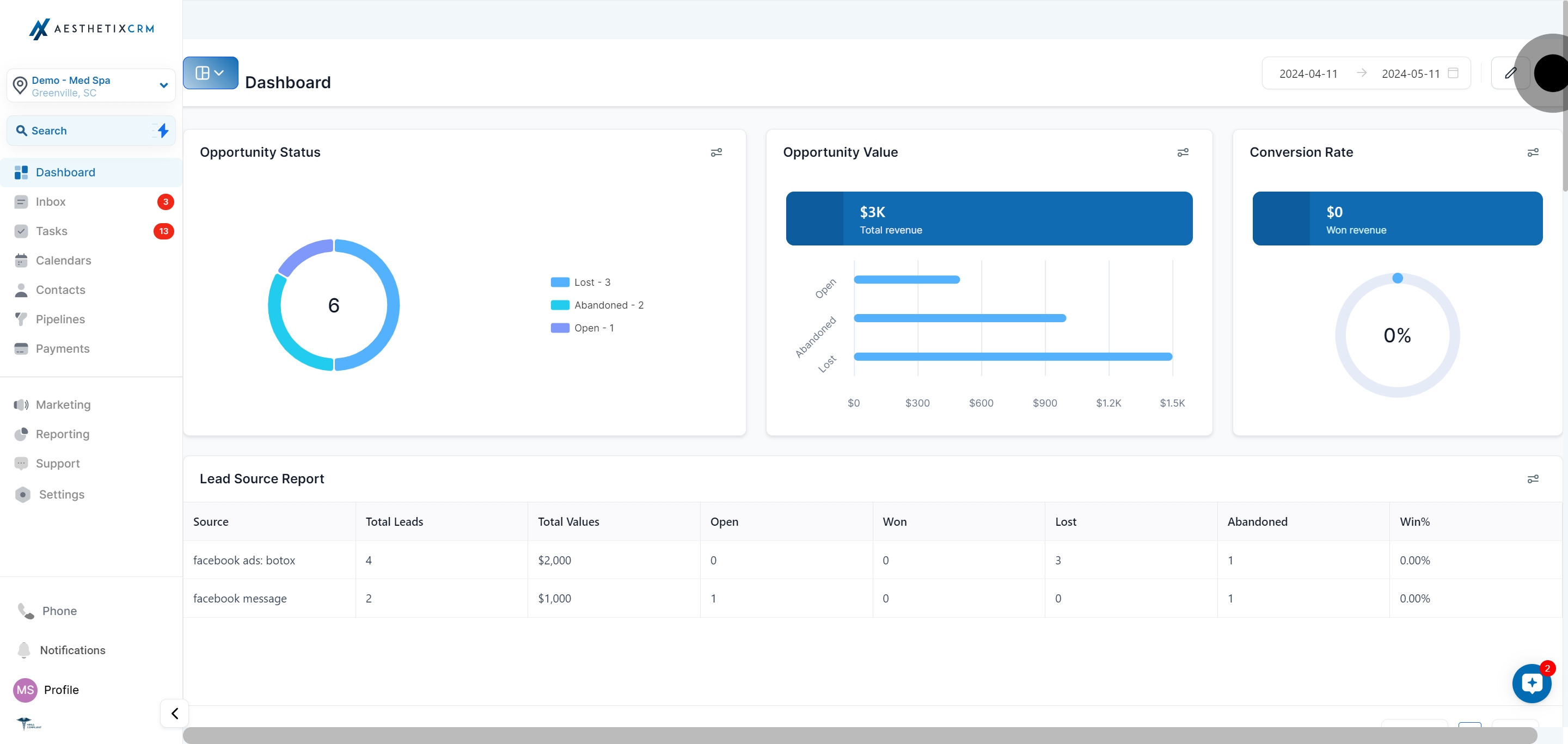
Click the three-dot menu icon in the top right corner of the dashboard.
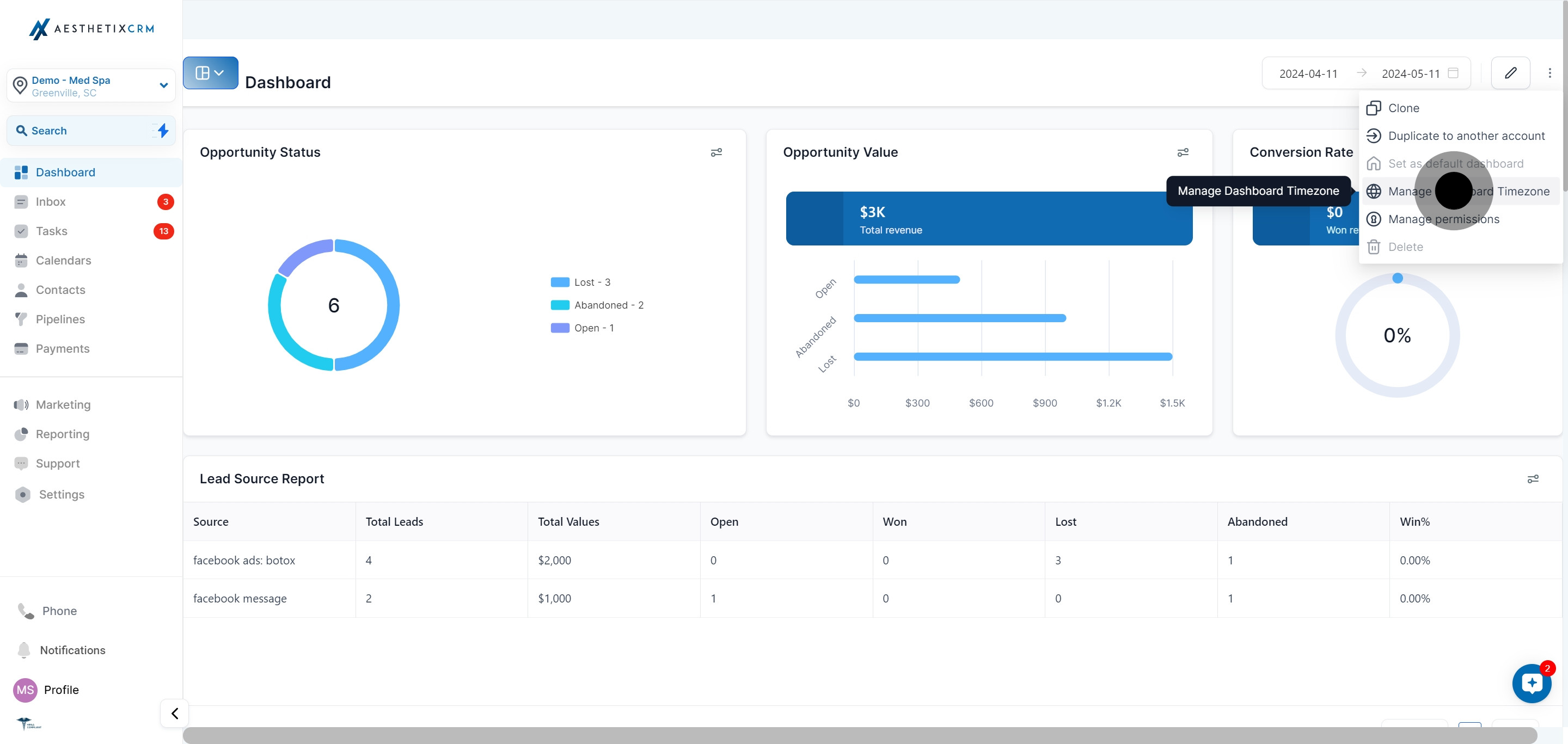
Select Manage Dashboard Timezone from the dropdown.
Choose your preferred time zone from the list.
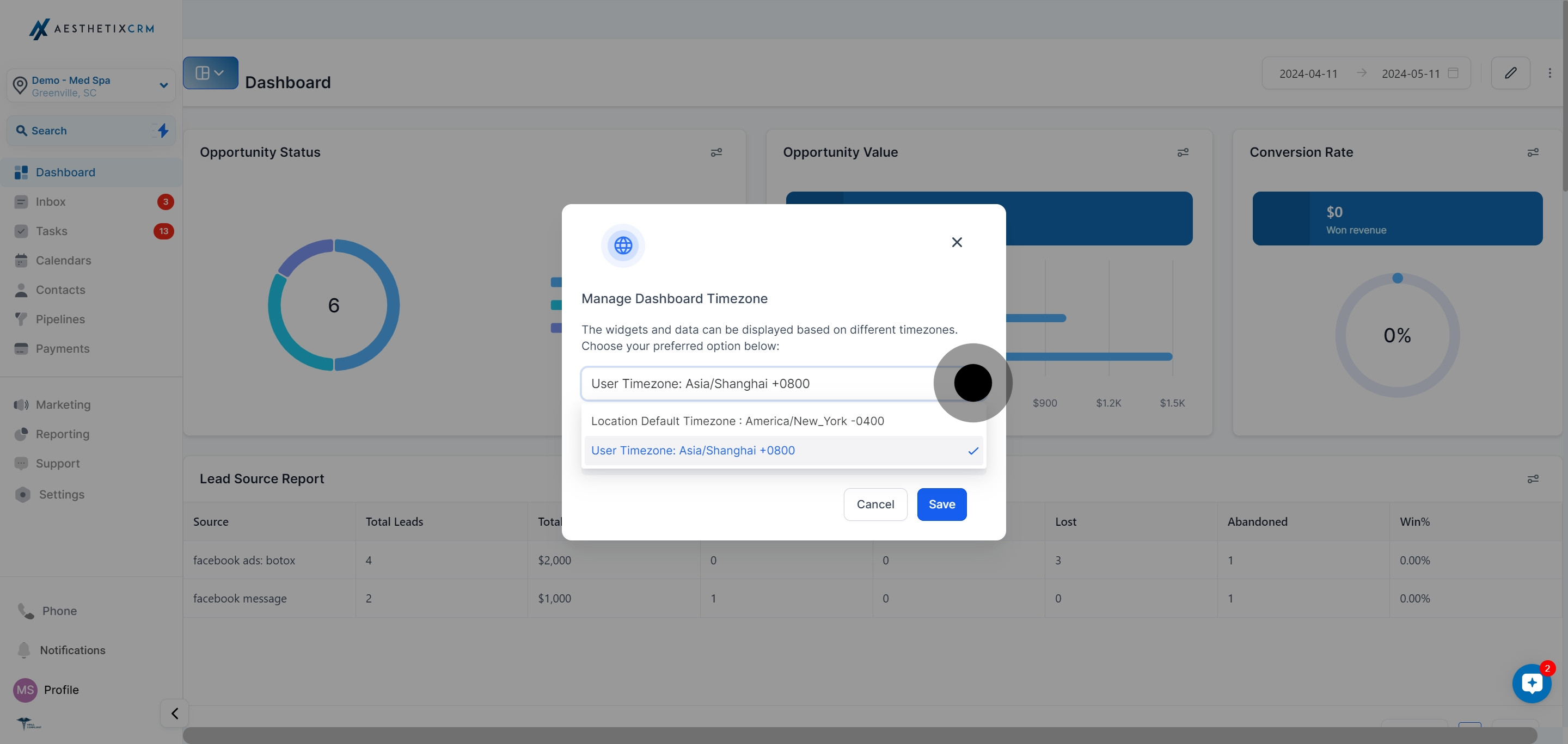
Click Save to apply the change.
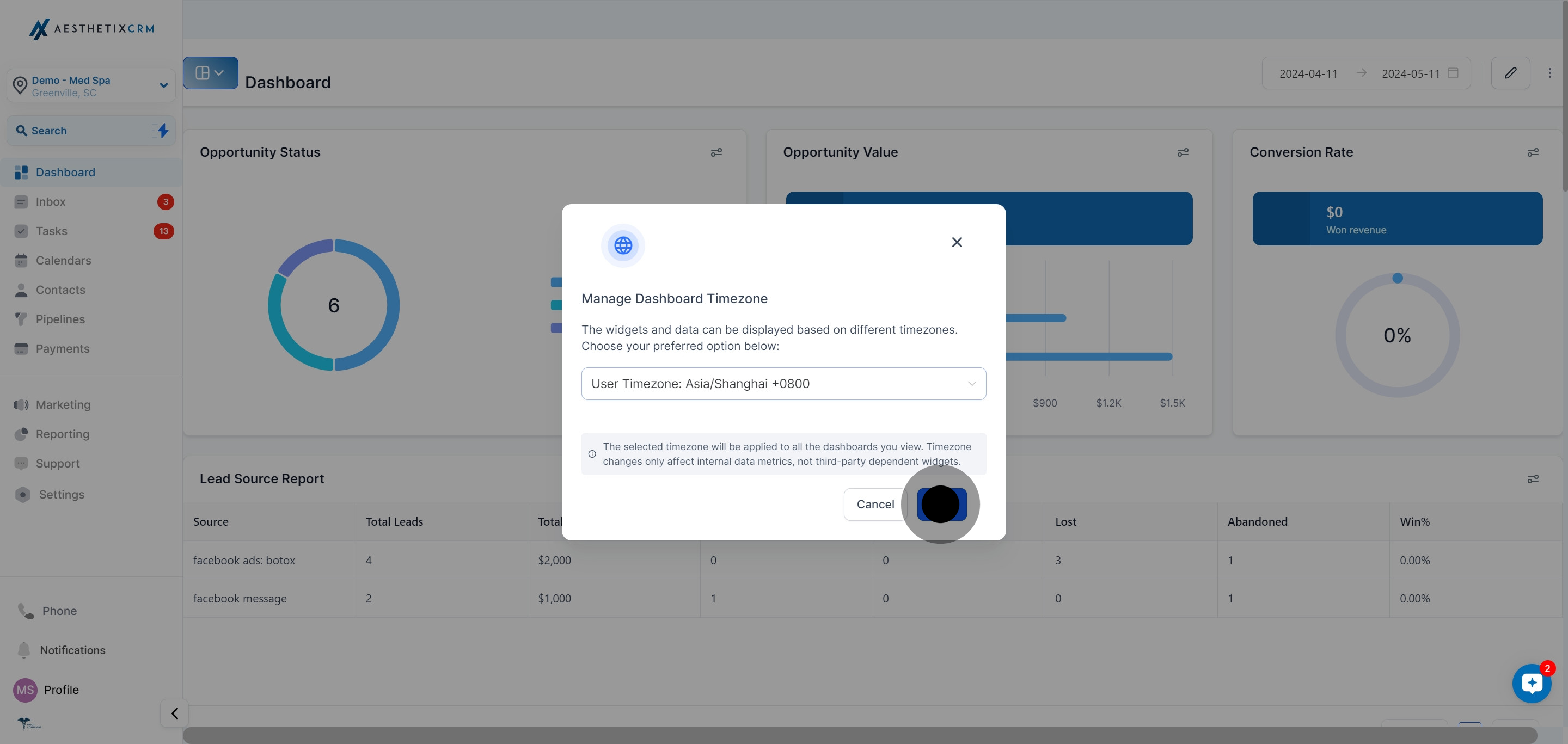
If you view a dashboard that someone else built (a shared dashboard, for example) and want to see the numbers in your own local time instead of the dashboard's default, you can override the time zone for your logged-in view without changing it for anyone else.
Open the dashboard, whether it's a private dashboard or one shared with you, by selecting Dashboard from the left-side navigation bar.
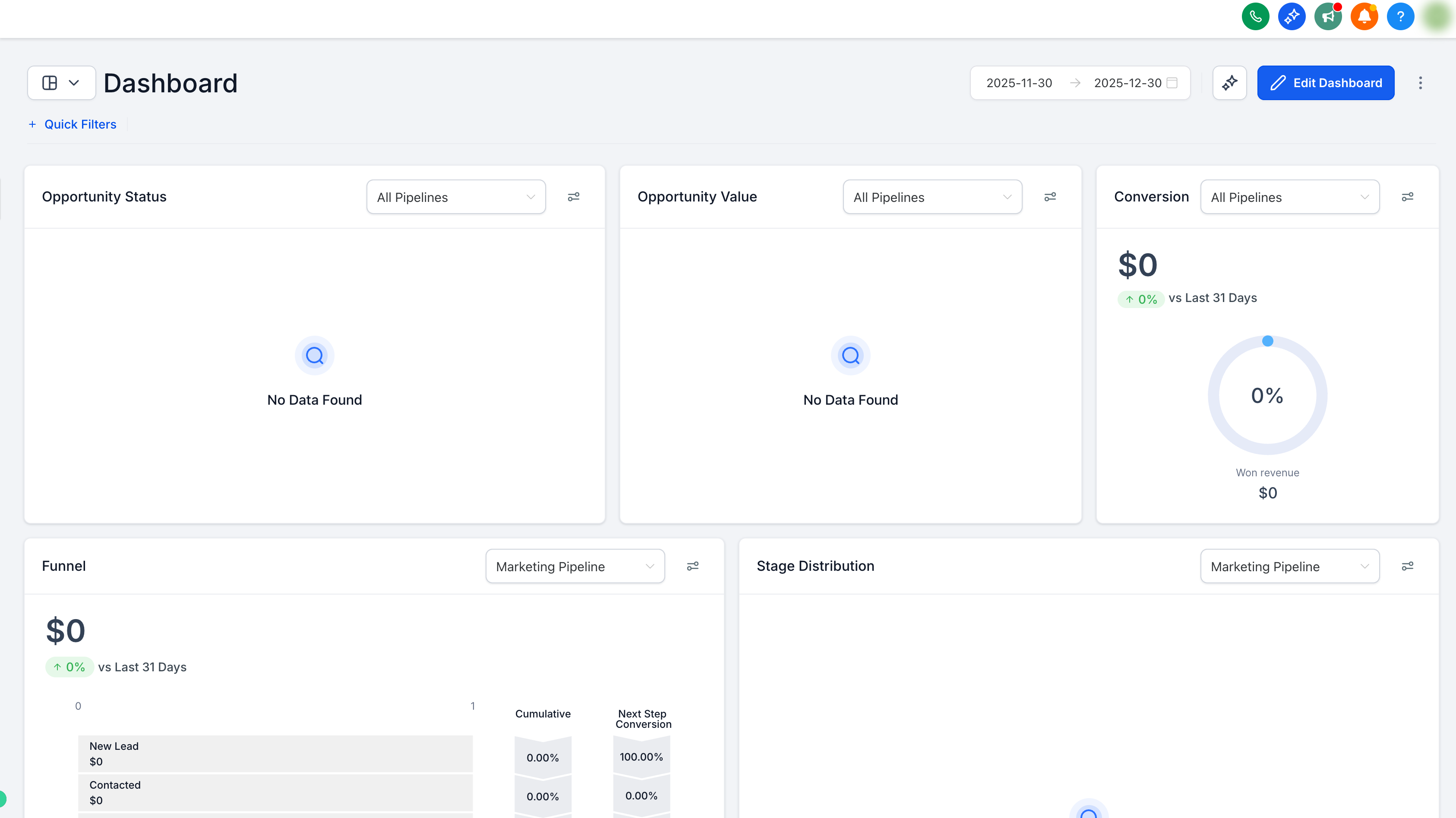
Click the three-dot menu icon in the top right corner and select Manage Dashboard Timezone from the dropdown.
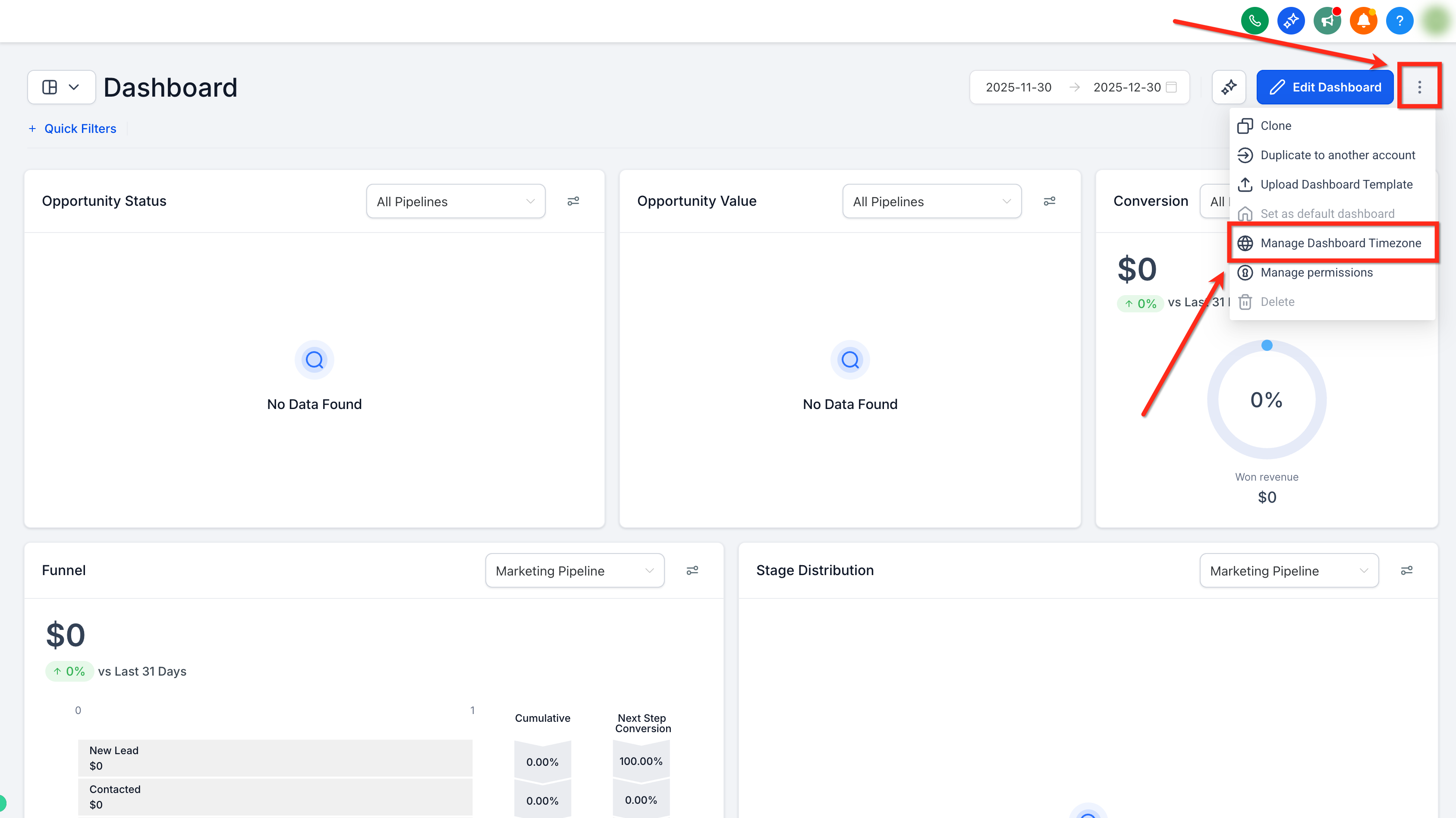
Choose your preferred time zone from the dropdown and save your changes.
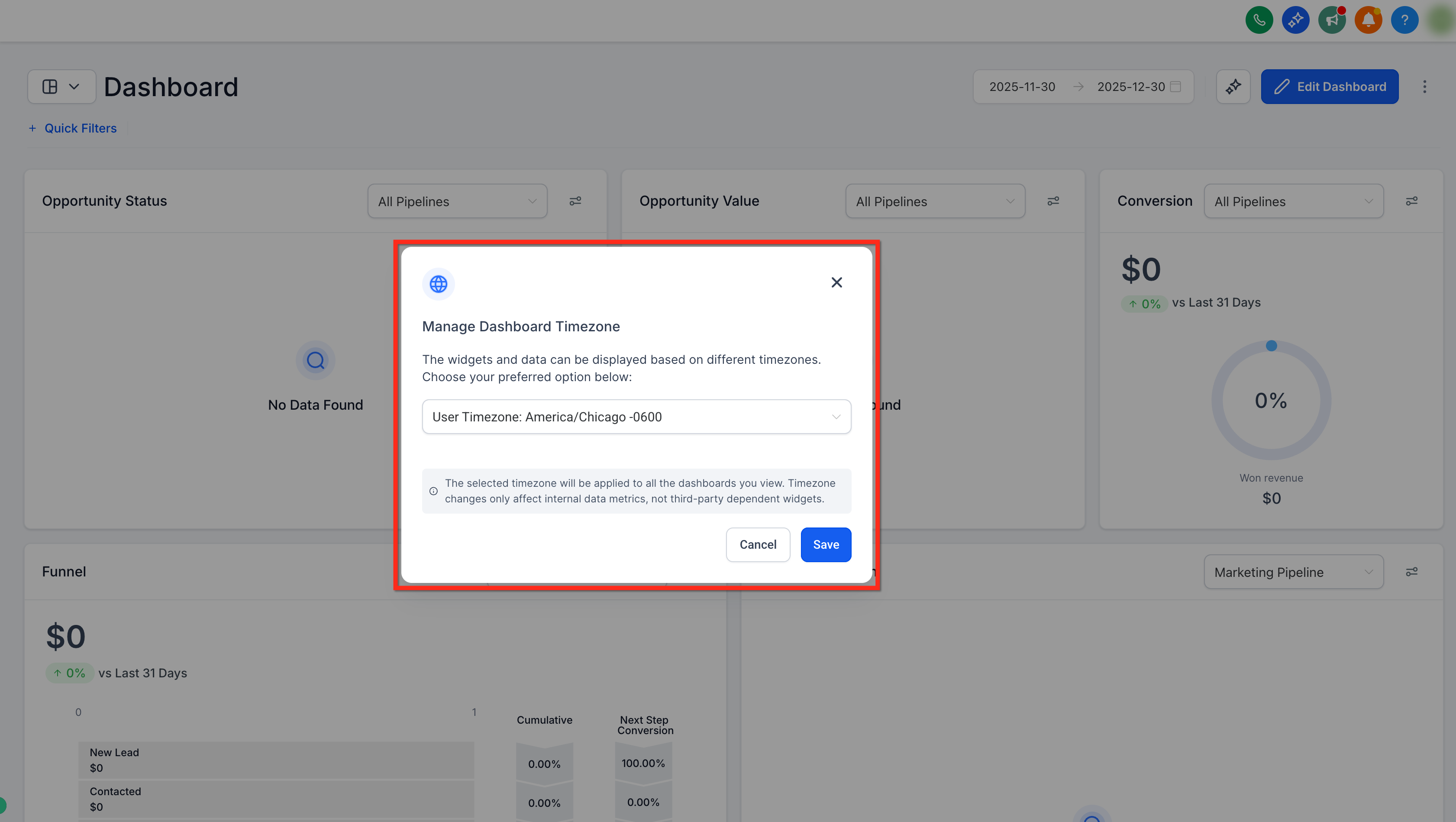
Whichever time zone you set applies to every dashboard you view, not just the one you were on when you changed it.
The time zone change only affects internal data metrics (leads, appointments, revenue, and similar totals). It does not affect widgets that pull data from a connected third-party source, since those follow the time zone reported by that source.
This is available to anyone with dashboard access, on any plan, so front-desk staff, providers, and practice owners can each view the numbers in the time zone that makes sense for them.
For practices with more than one location, set the dashboard-level time zone to match your primary location, then have staff at other locations use their own logged-in override so each person reads daily and weekly totals in their own local time.
What's the difference between the dashboard-level time zone and my personal override? The dashboard-level time zone is the default everyone sees when they open that dashboard. Your personal override only changes how the dashboard looks when you, specifically, are logged in and viewing it. Other users are unaffected by your override.
Will changing my time zone affect what my team sees? No. Your logged-in-user time zone override only changes your own view. If you change the dashboard-level time zone instead, that changes the default for everyone who views that dashboard.
Does this affect when leads or appointments actually happened? No. It only changes which local day or week a lead, appointment, or sale is grouped into on the dashboard. The underlying record and its actual timestamp are unchanged.
Why do my dashboard totals not match a connected ad platform or other outside tool? Widgets that pull from a third-party source use that source's own time zone and reporting logic, so a time zone change on your dashboard won't shift those numbers. This is expected and not a sign of a data issue.
We have multiple locations in different time zones. Which time zone should we use? Set the dashboard-level time zone to your practice's primary location, then have staff at other locations set their own logged-in override so their daily and weekly totals line up with their local business day.
Do I need a specific plan or role to change the dashboard time zone? No. Anyone with access to view a dashboard can manage its time zone settings, regardless of plan or role.
Where do I go to build or customize the dashboards themselves? Time zone settings only control how data is grouped. To build, edit, or customize the widgets and layout of a dashboard, use the other Dashboard Basics guides in this collection.
I changed the time zone but the numbers didn't update. What should I do? Confirm you clicked Save after selecting the new time zone, then refresh the dashboard. If totals still look off, check whether the metric in question comes from a connected third-party widget, since those follow their own source time zone rather than your dashboard setting.
