Dashboards in Aesthetix CRM can stay private to the person who built them, or be shared with your team at different access levels. This is useful for a practice where the owner or office manager wants a full view of leads, bookings, and revenue, while providers and front-desk staff only need to glance at a read-only summary.
You manage this from Dashboards in the left navigation. Every dashboard has its own permissions, so you can keep sensitive financial boards locked down while sharing a simple appointments board with the whole team.
Each dashboard can be assigned one of the following levels:
Level | What it allows |
|---|---|
Full | Create, edit, share, and delete the dashboard |
Edit | Edit the dashboard and its widgets, but cannot delete the dashboard |
View | Read-only access to the dashboard |
No Access | The dashboard does not appear for that person at all |
Private | Visible only to the person who created it |
Here is how each action on a dashboard maps to these levels:
Action | Full | Edit | View | No Access | Private | Owner |
|---|---|---|---|---|---|---|
Manage permissions | Yes | No | No | No | No | Yes |
Delete dashboard | Yes | No | No | No | No | Yes |
Set as default dashboard | Yes | No | No | No | No | Yes |
Edit dashboard | Yes | Yes | No | No | No | Yes |
Clone dashboard | Yes | Yes | No | No | No | Yes |
View dashboard | Yes | Yes | Yes | No | No | Yes |
Only the dashboard's owner, or someone with Full permission, can change who has access to it.
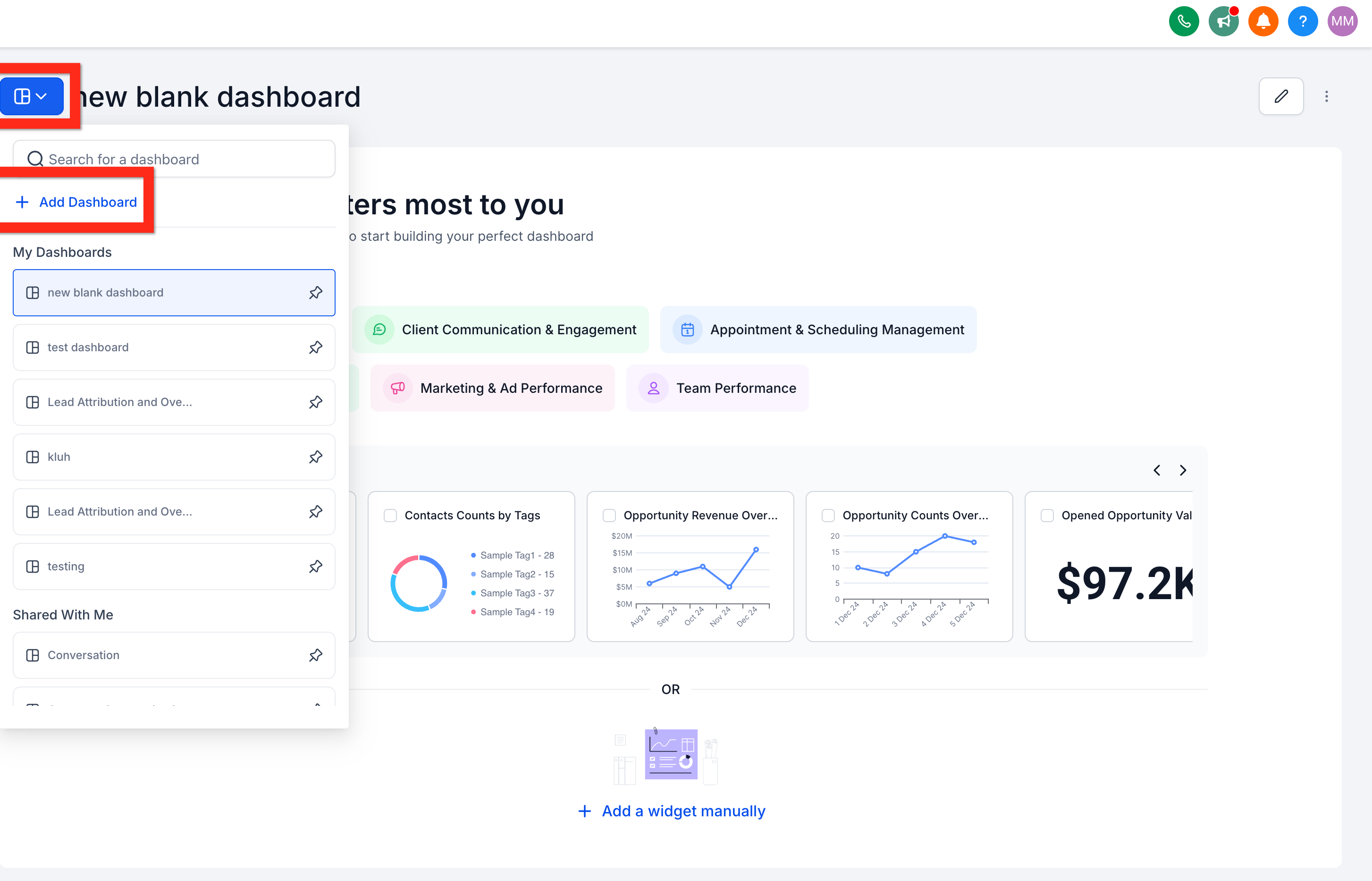
Go to Dashboards, click the dashboard selection menu, then click Add Dashboard.
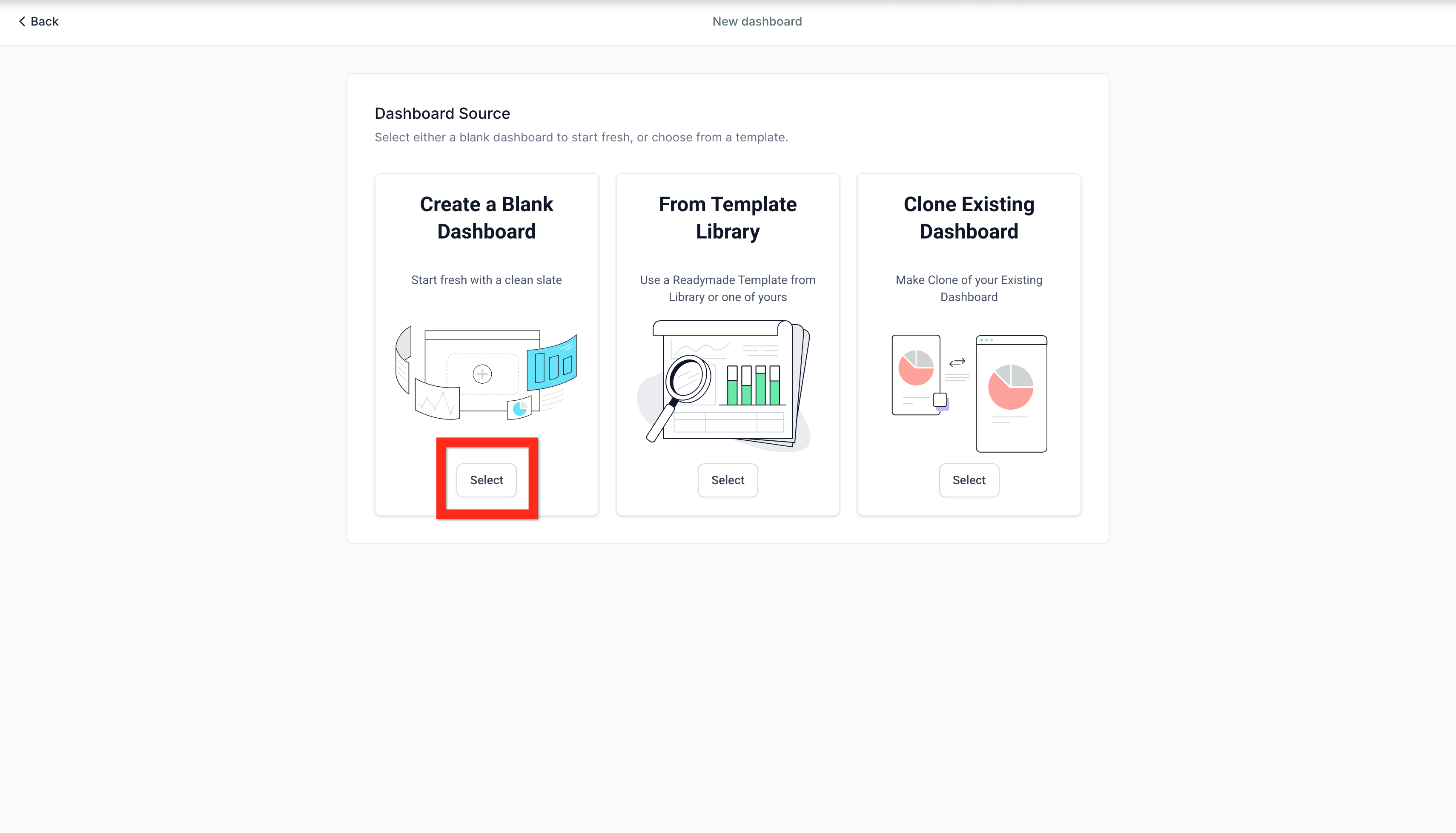
Under Create a Blank Dashboard, click Select.
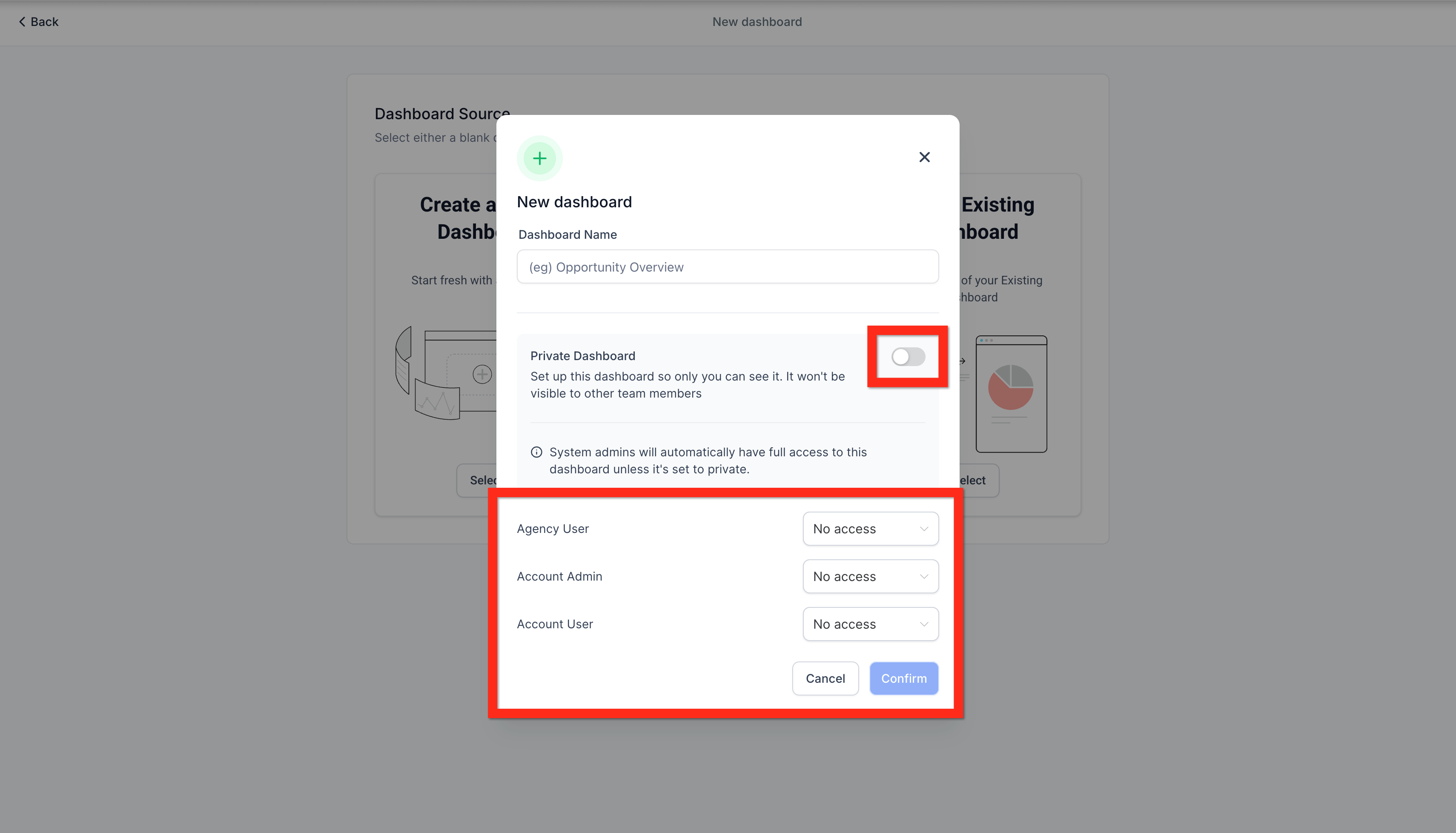
On the New Dashboard window, leave the dashboard set to Private if you want it visible only to you, or turn Private off to open the sharing settings and choose access levels for your team. Click Confirm to create the dashboard with those permissions.
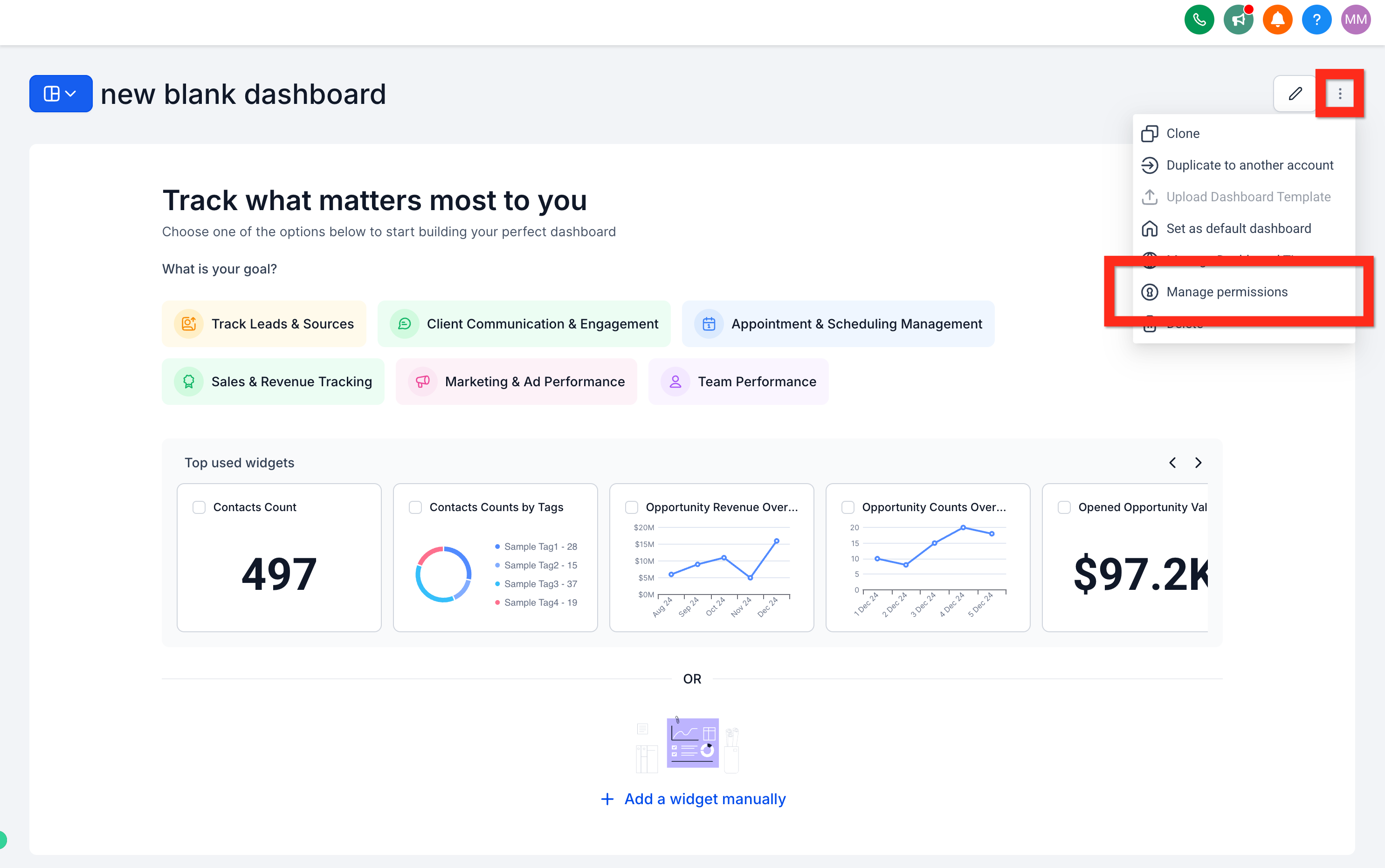
You can also open or change permissions on a dashboard that already exists.
Navigate to your Dashboard.
Open the options menu, shown as three vertical dots on the dashboard.
Select Manage Permissions.
Use the Private toggle to switch the dashboard between private (only you can see it) and shared.
If you turn sharing on, set an access level for each role listed in the modal, for example Admins and Users, using the dropdown next to each one. Choose Private, View, Edit, or Full for each depending on what that role should be able to do with this dashboard.
Click Save to apply the changes and return to the dashboard.
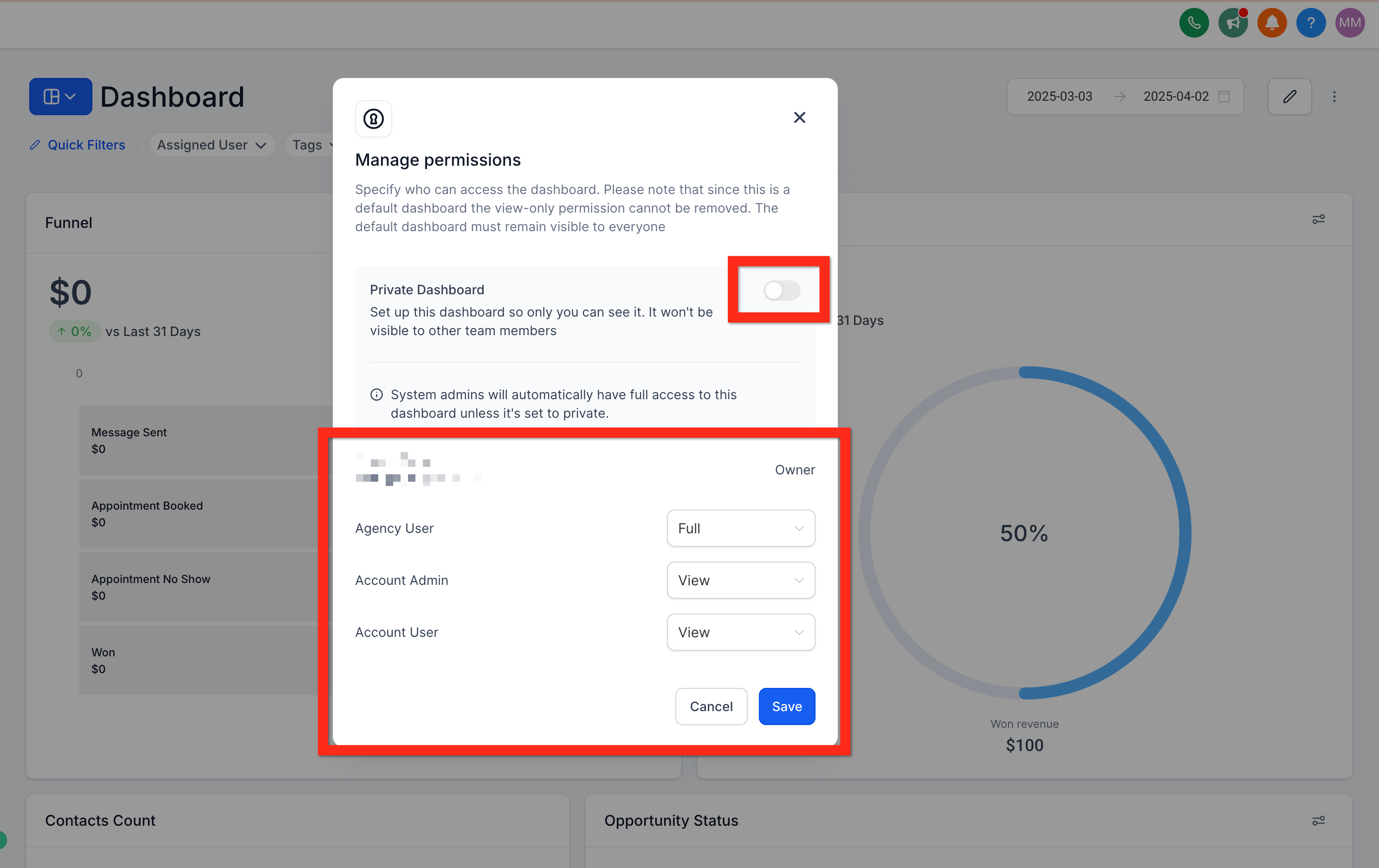
Which roles you can set permissions for depends on your own access level in Aesthetix CRM. Someone with full administrative access to the account sees the complete set of roles available for that dashboard.
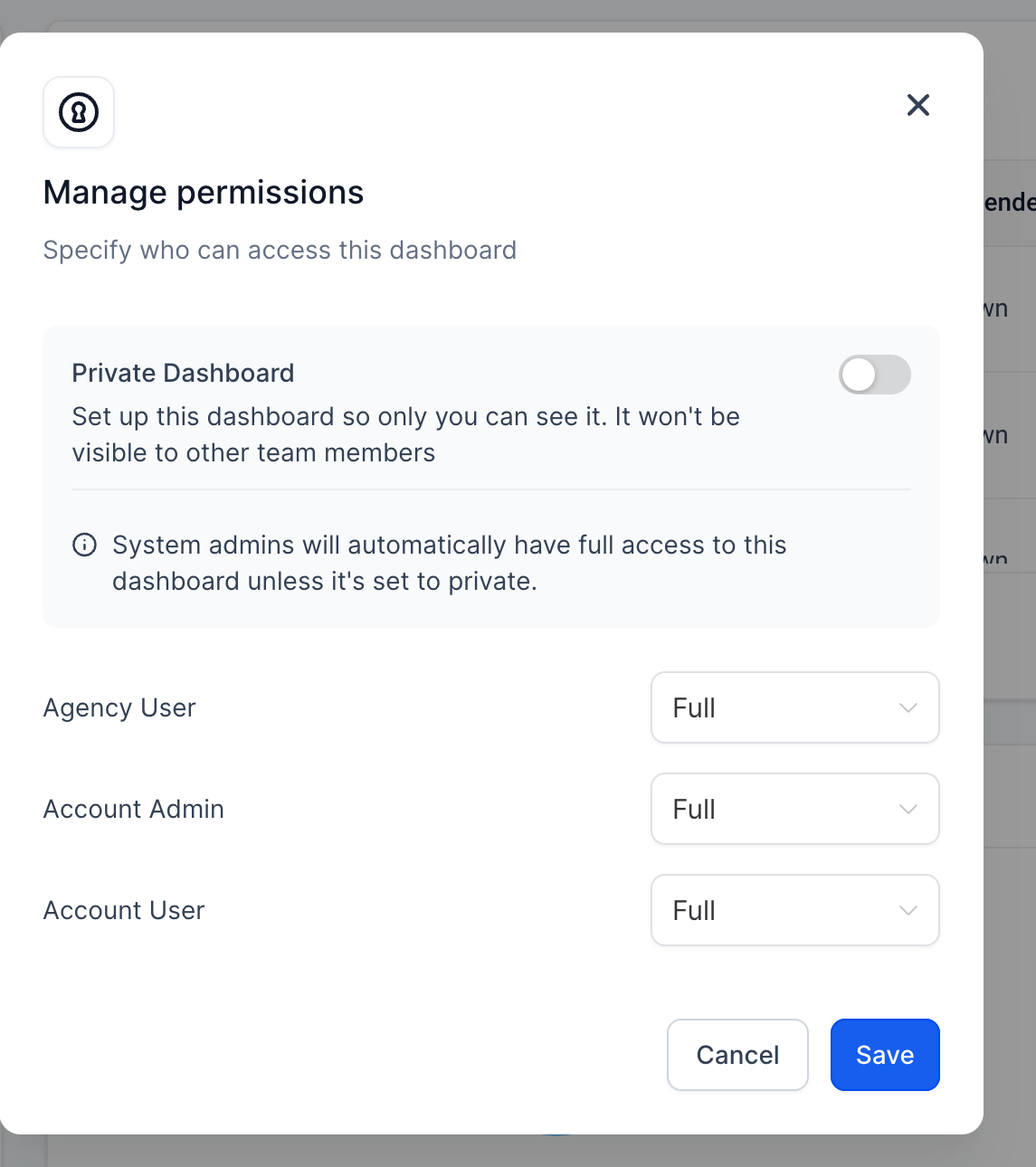
Someone with a standard admin role typically sees a smaller set, usually Account Admin and Account User.
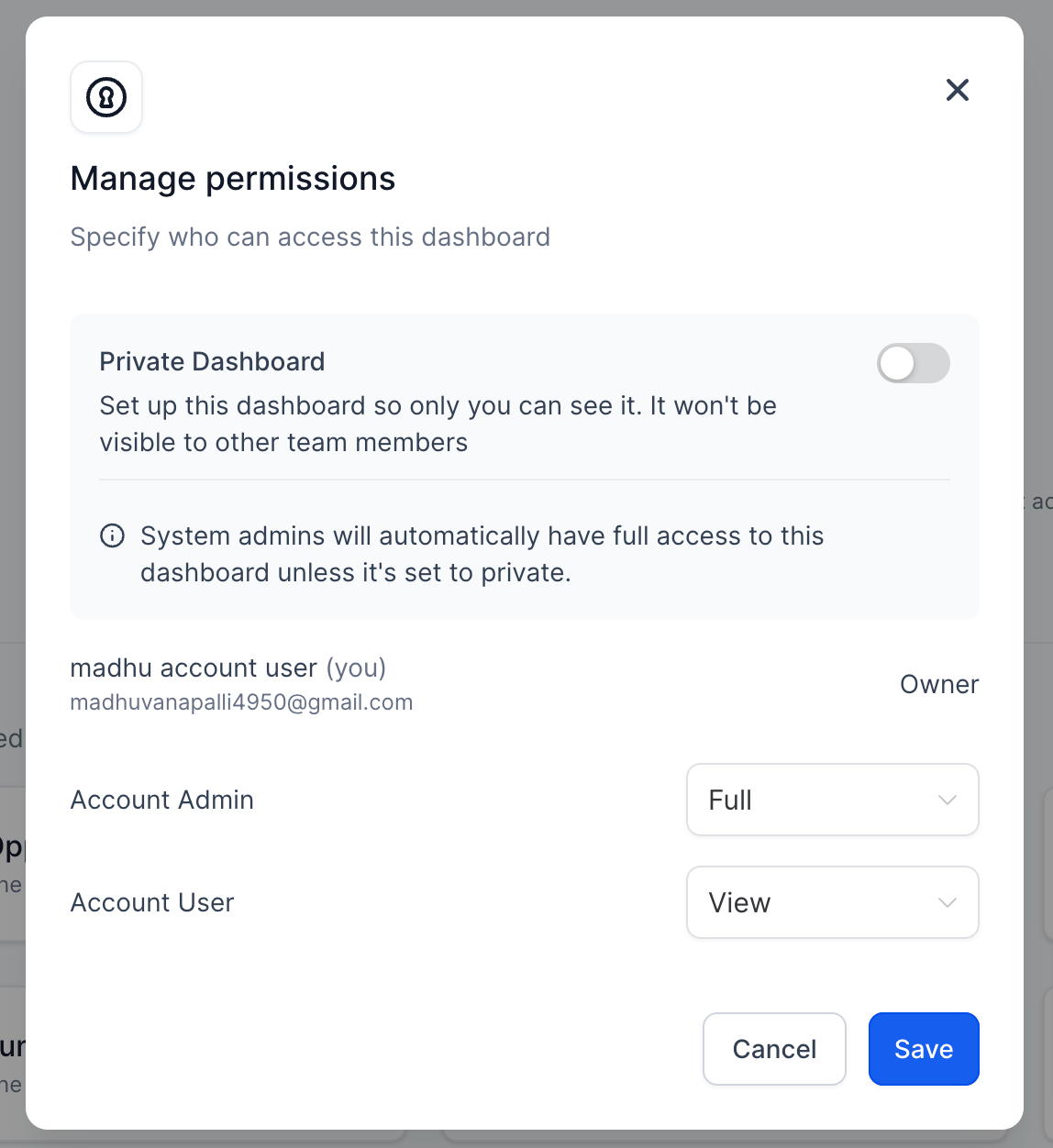
For a med-spa team, a practical setup looks like this:
Owner or office manager (Account Admin): Full or Edit access to every dashboard, including revenue and pipeline boards.
Providers and front-desk staff (Account User): View access to a simplified dashboard showing leads, booked consults, and appointment counts, without editing rights.
Dashboard permissions follow a hierarchy so that access stays consistent across your team: Account Admins sit above Account Users.
Permissions set for a higher-level role always override permissions for a lower-level role beneath it. A lower-level role can never end up with more access than the role above it. For example, if a dashboard is set to Account Admin: Edit and someone tries to set Account User: Edit, the Account User access is automatically brought down to View instead, since Users cannot exceed what Admins allow.
The Export Data permission controls whether a person can export the underlying data behind a dashboard's widgets, not just view it on screen. This lets you share a dashboard broadly for visibility while still limiting who can pull the raw data out of it, which is worth restricting for boards that include contact names, lead sources, or other identifying details.
Dashboards in Aesthetix CRM show aggregate counts, such as number of leads, booked consults, or revenue, not clinical chart notes. Even so, some widgets can surface contact names or lead sources, so it is still good practice to limit dashboard access to team members who need it for their role rather than sharing every board with the entire practice.
What happens if I don't set any permissions on a new dashboard? If you leave a dashboard shared without customizing per-role access, it is generally visible to your team by default. Set it to Private, or configure specific role access, if you want to restrict it.
What does Private actually restrict? A Private dashboard is visible only to the person who created it. No other role, regardless of their permission level elsewhere in Aesthetix CRM, can see or open it until it's shared.
Can front-desk staff export dashboard data if they only have View access? No. View access lets someone see the dashboard on screen, but exporting the underlying widget data requires the separate Export Data permission to be granted.
Who is allowed to change a dashboard's permissions? Only the dashboard's owner, or a user with Full permission on that dashboard, can open Manage Permissions and change access levels for others.
What's the real difference between Edit and Full? Edit lets someone update the dashboard and its widgets. Full adds the ability to delete the dashboard, set it as a default, and manage who else has access to it.
Can I remove someone's access to a dashboard after sharing it? Yes. Reopen Manage Permissions on that dashboard and change their role to No Access, or turn the dashboard back to Private if you want to remove sharing entirely.
If I lower a Users role's access, does it affect their access to other dashboards? No, permissions are set per dashboard. Changing access on one dashboard does not change what that role can see on any other dashboard.
Does the practice owner automatically have full access to every dashboard? An Account Admin has broad access to shared dashboards, but a dashboard set to Private is only visible to the person who created it, even for an Admin, unless that person shares it.
