Aesthetix CRM gives you two ways to reuse a dashboard instead of building a new one from scratch. Clone makes a copy of a dashboard inside your own account, useful when you want a variation of a layout you already built. Duplicate copies a dashboard into a different account or location, useful for multi-location practices that want the same KPI board across every clinic. Both actions start from the same place: Dashboard, then the three-dot menu on the board you want to copy.
Use Clone when you want to keep your original dashboard exactly as it is and build a variant of it, for example a version with different date filters or an extra widget, without starting from a blank board.
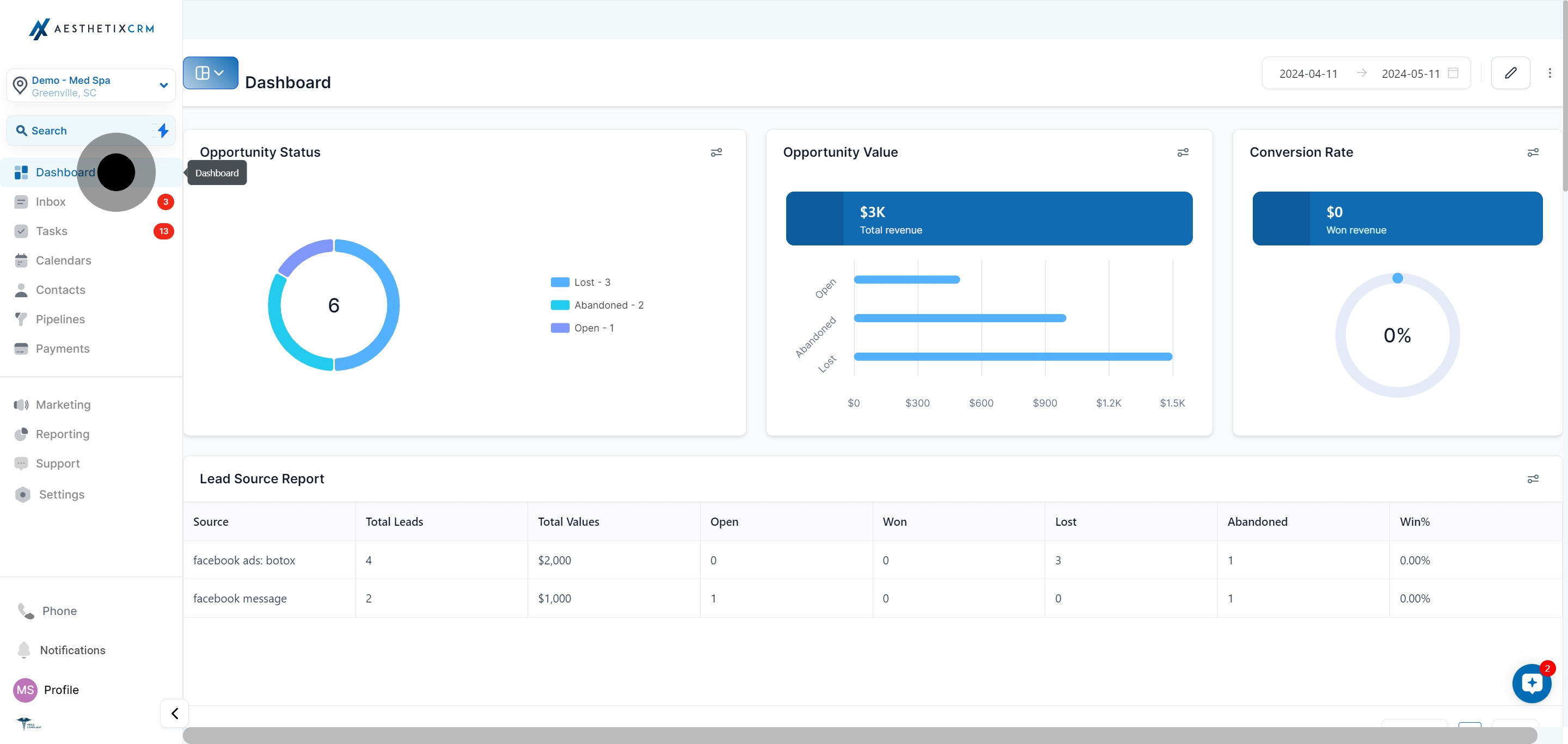
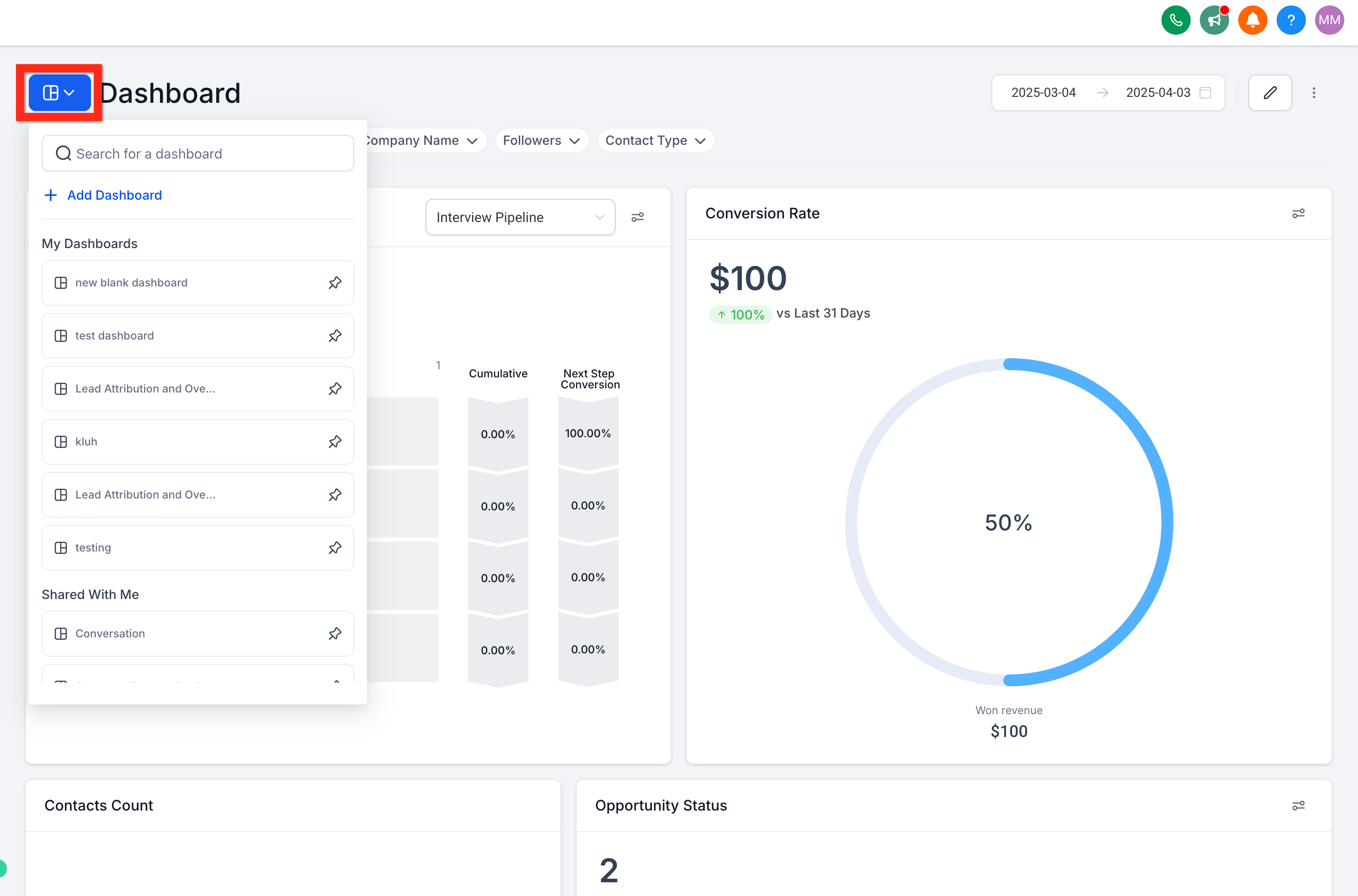
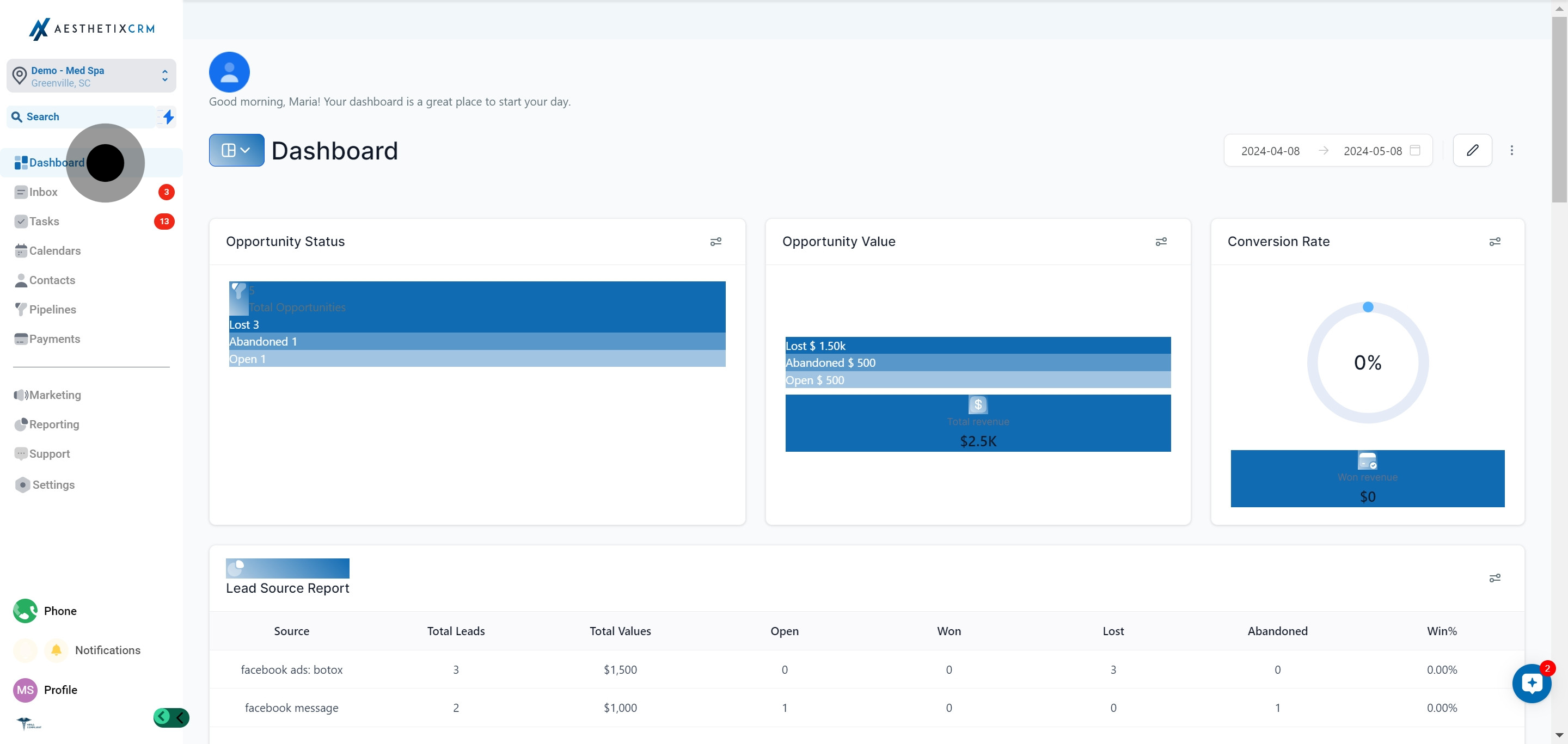
From the left menu, select Dashboard.
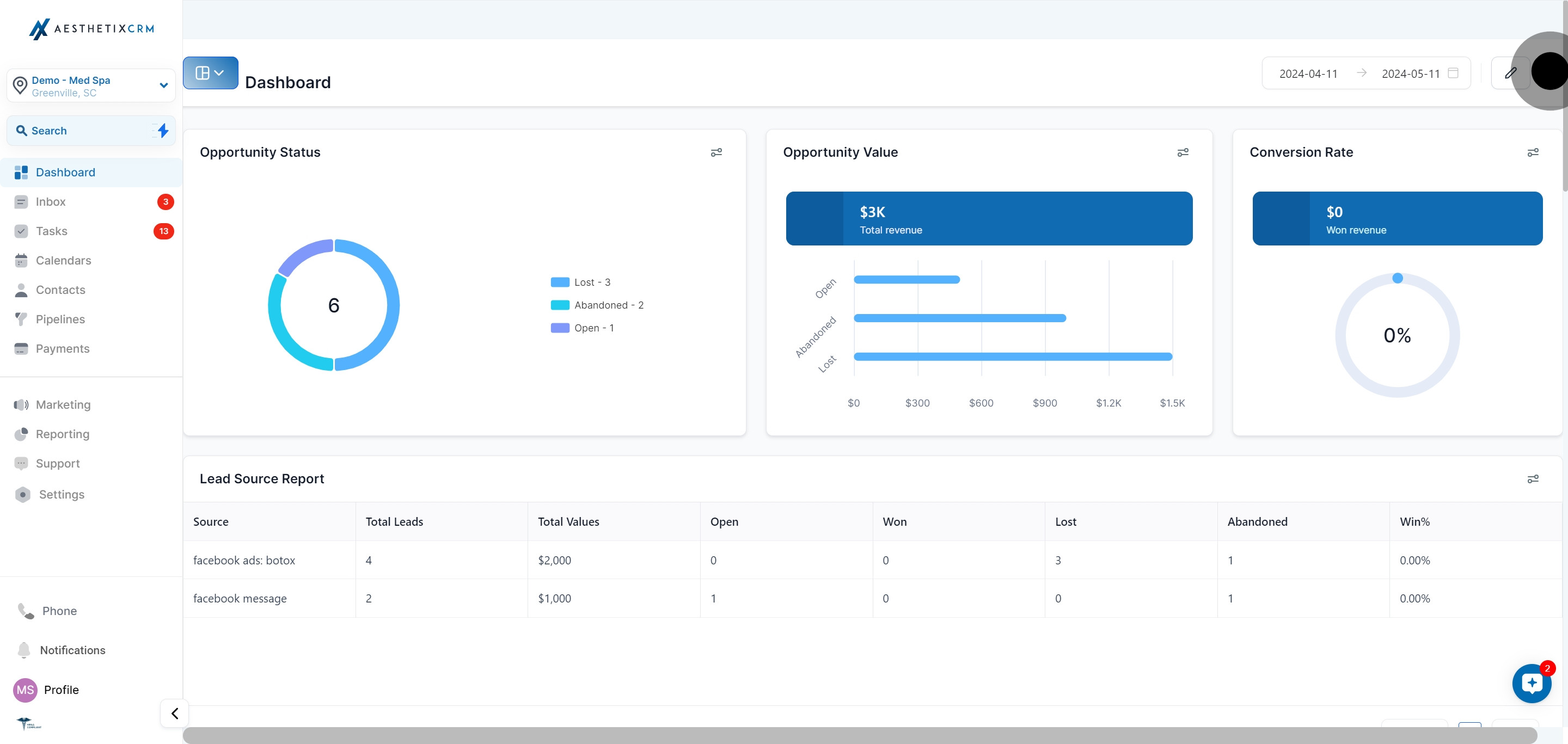
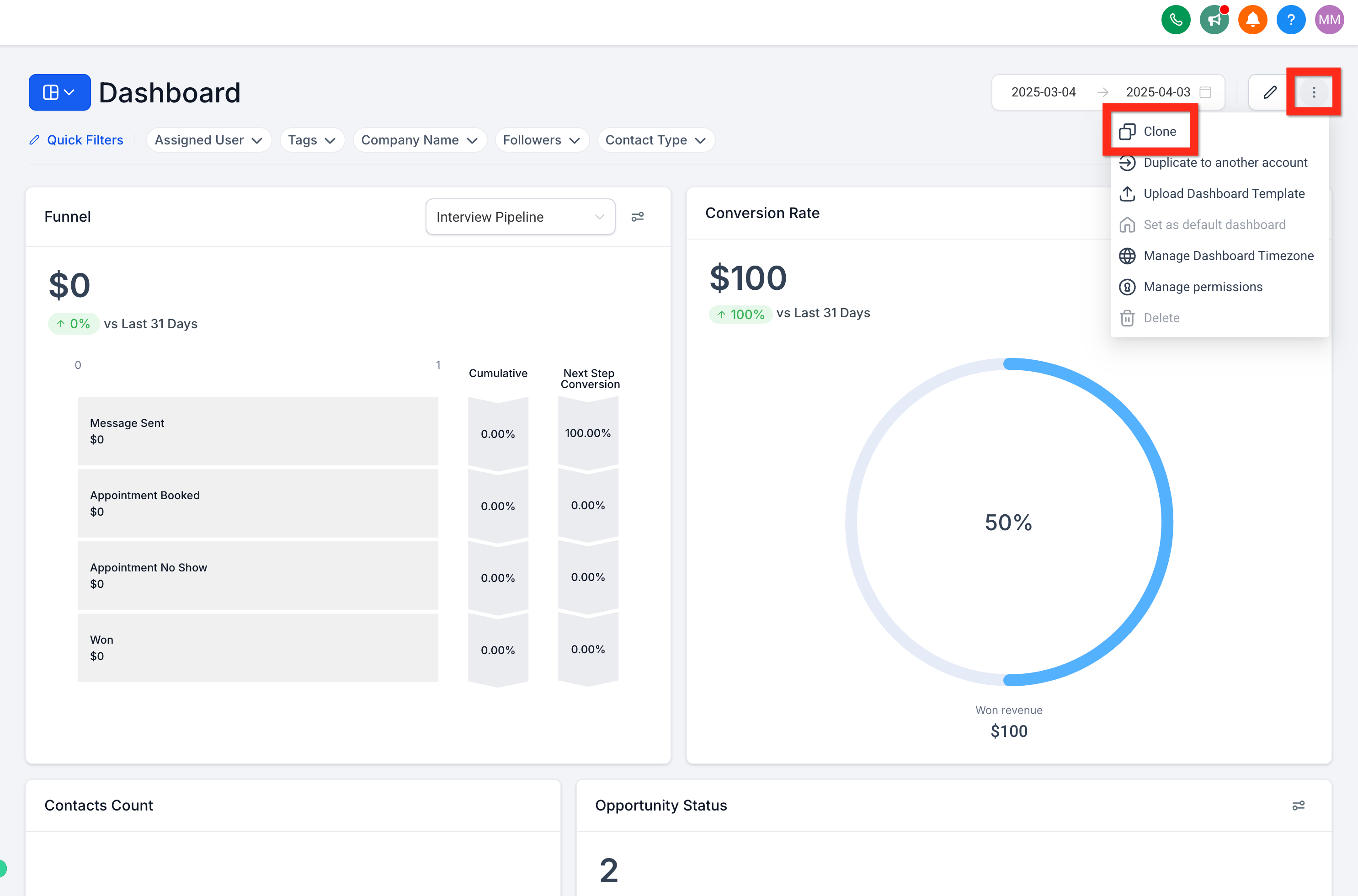
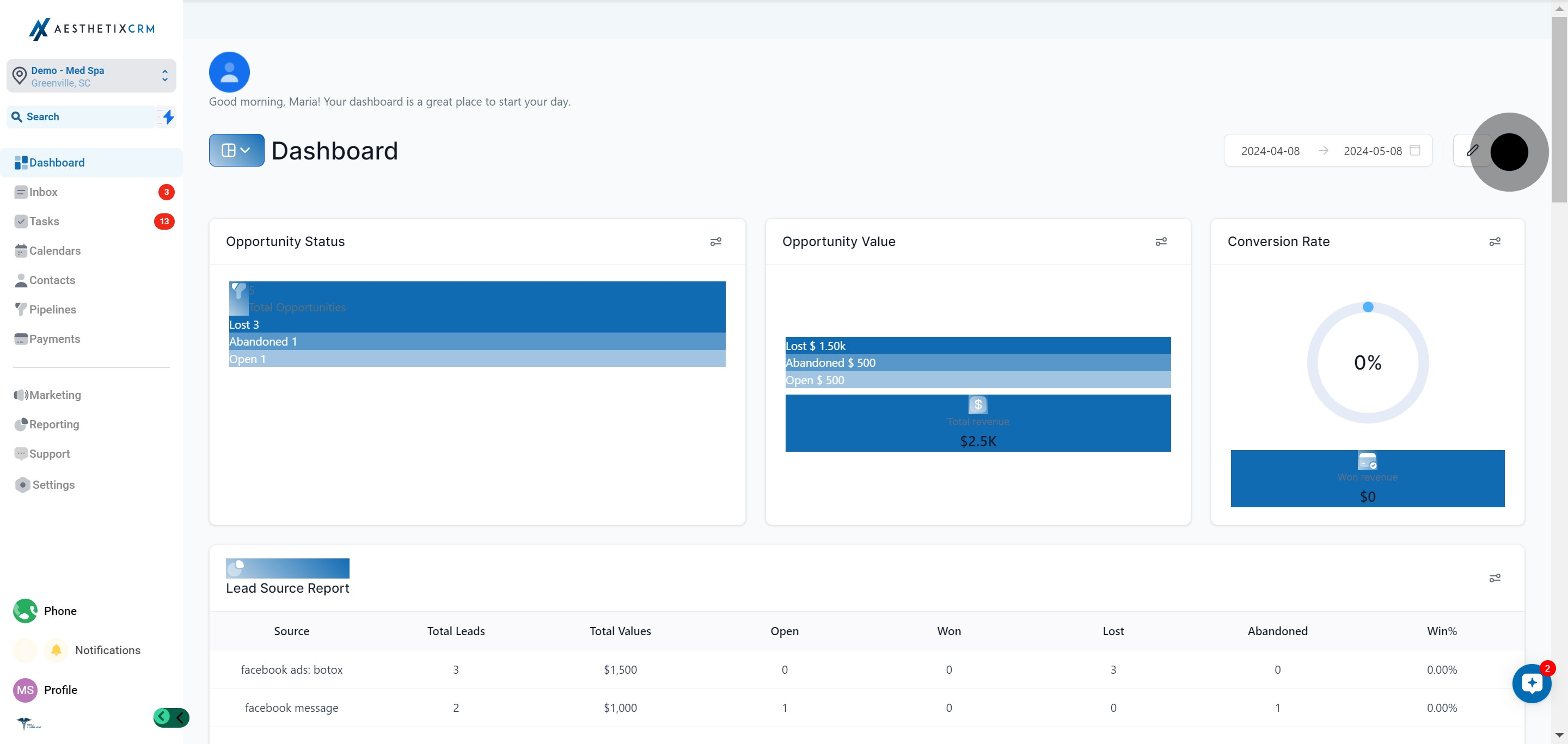
On the dashboard you want to copy, click the three-dot menu icon to see more options.
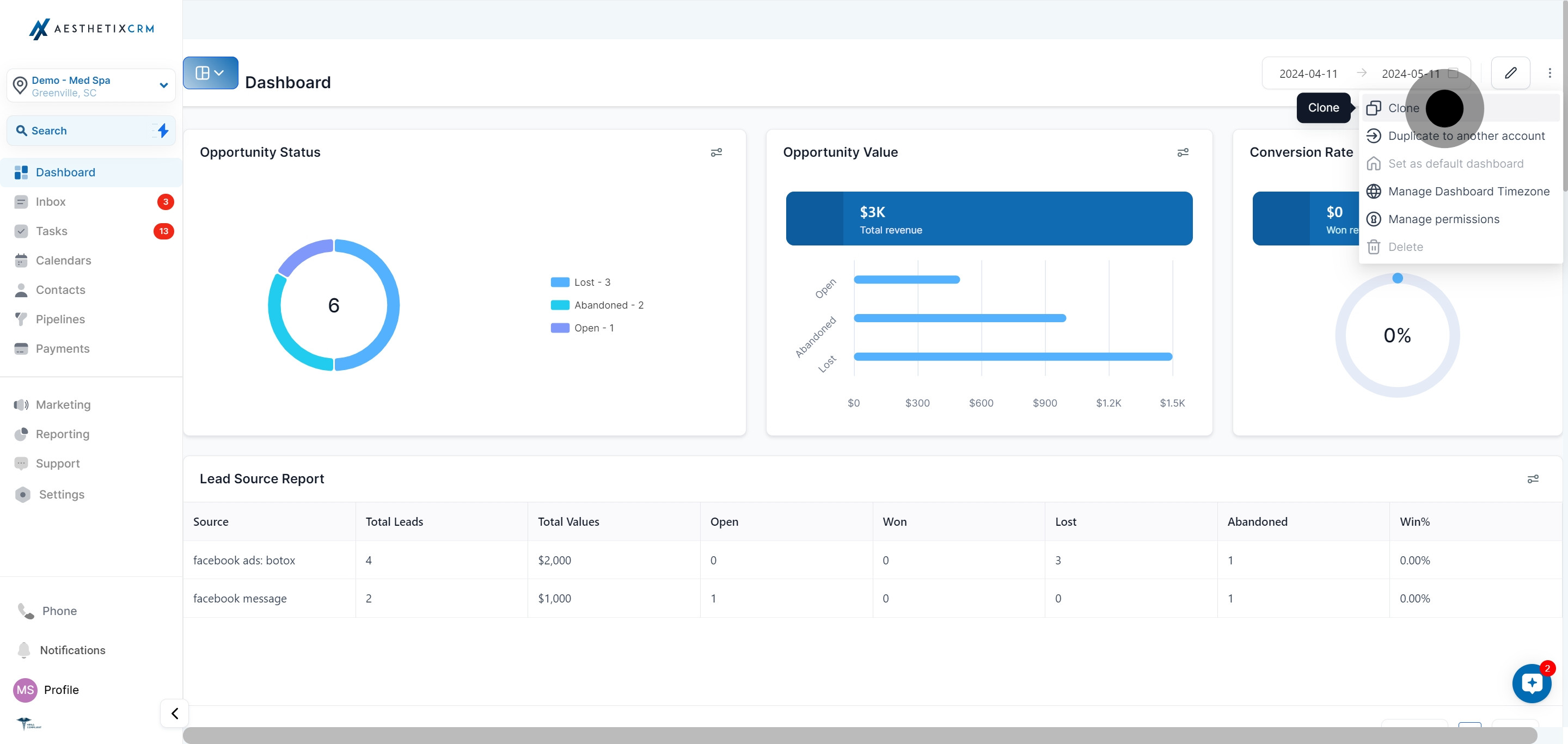
Select Clone from the dropdown.
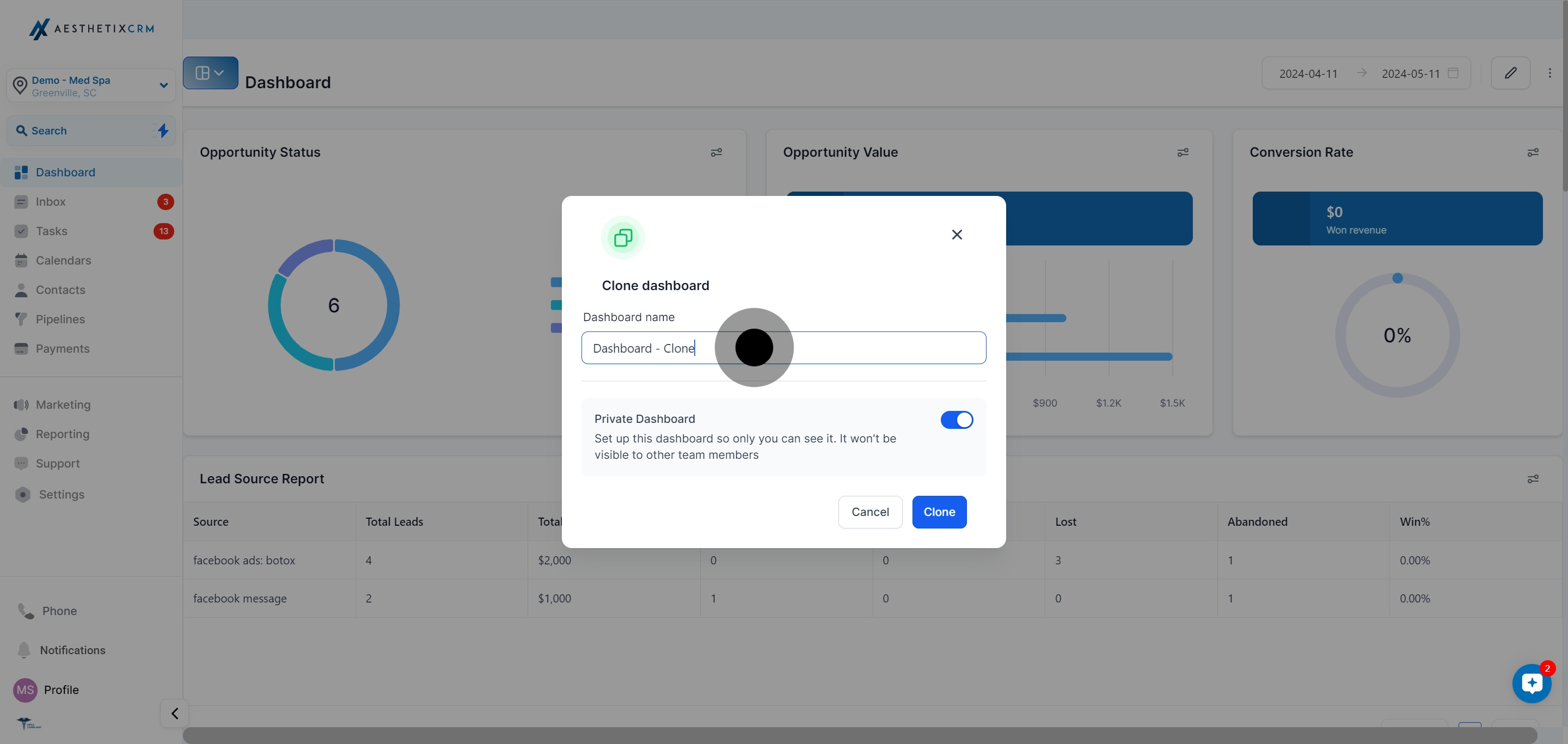
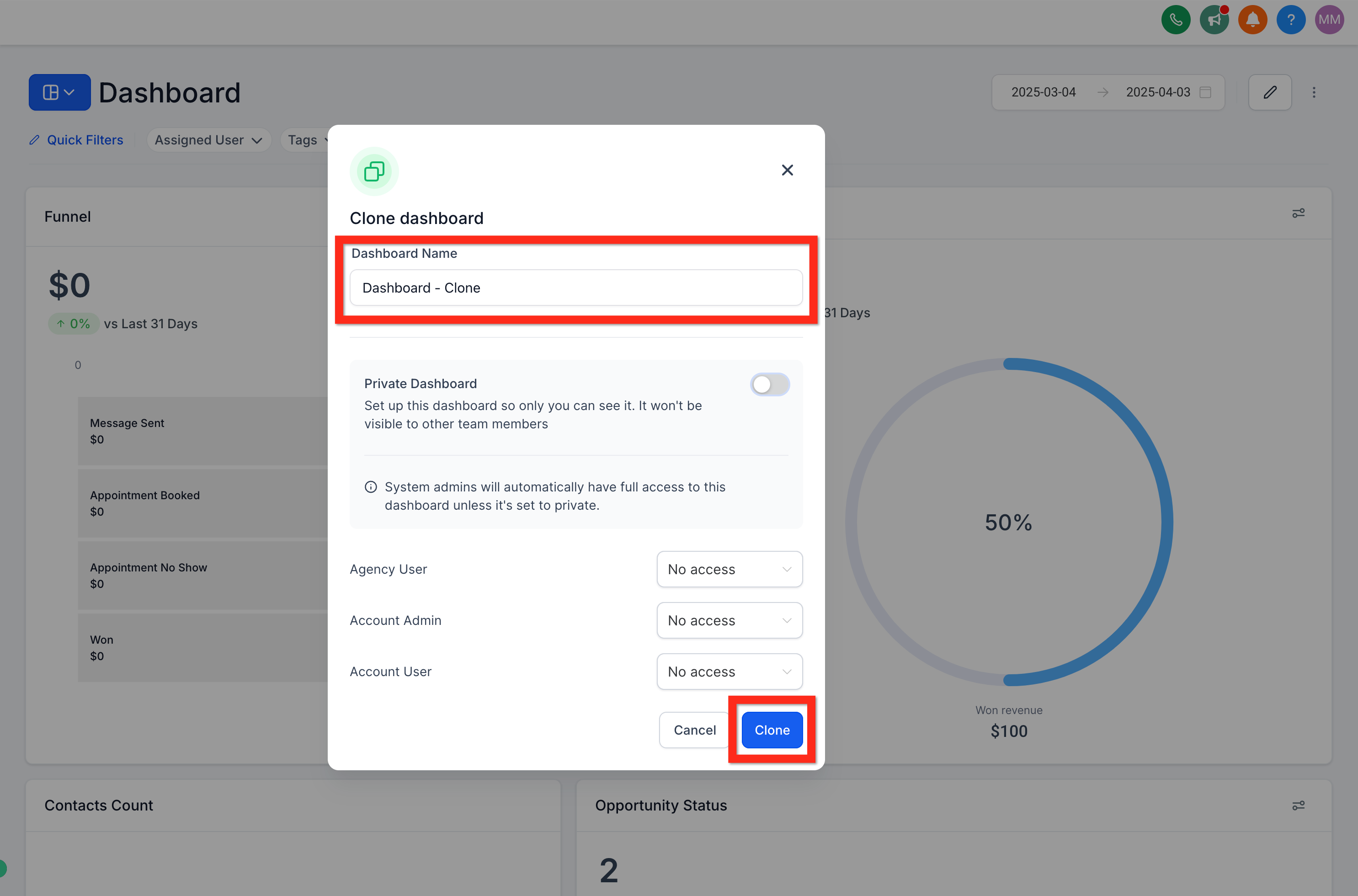
In the Clone Dashboard window, rename the new dashboard so you can tell it apart from the original, and set who can view or edit it.
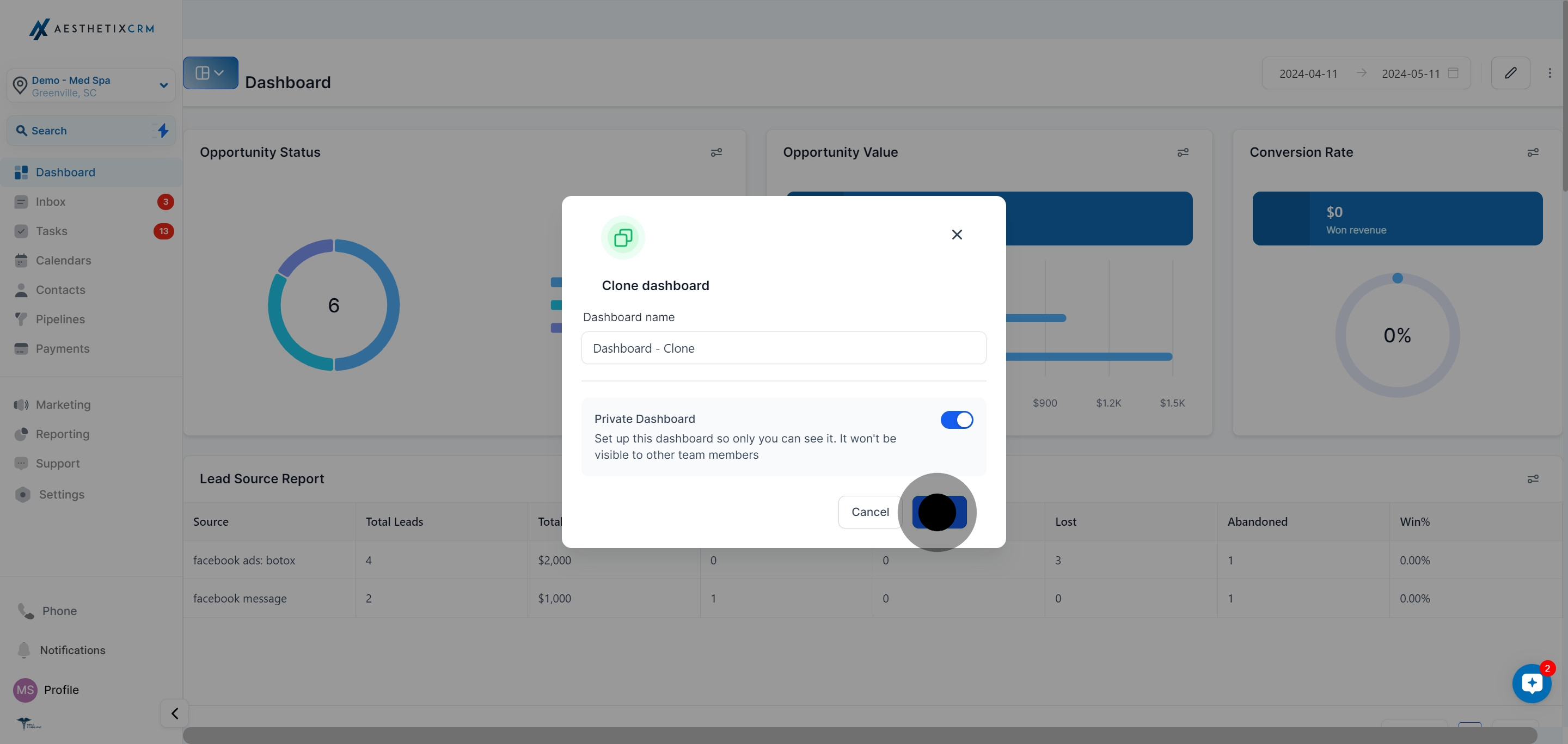
Click Clone to finish. The new dashboard appears in your dashboard list with the same widgets and data sources as the original, ready to edit on its own.
Because a clone stays inside the same account, its widgets keep pulling from the same data sources as the original: leads, calendars, pipelines, and revenue reporting. Nothing needs to be reconnected.
Use Duplicate when you manage more than one account or location and want to copy a dashboard layout you built for one clinic into another, instead of rebuilding every widget by hand. You need access to both the source and target accounts to complete this.
Open the dashboard you want to copy, then click its three-dot menu.
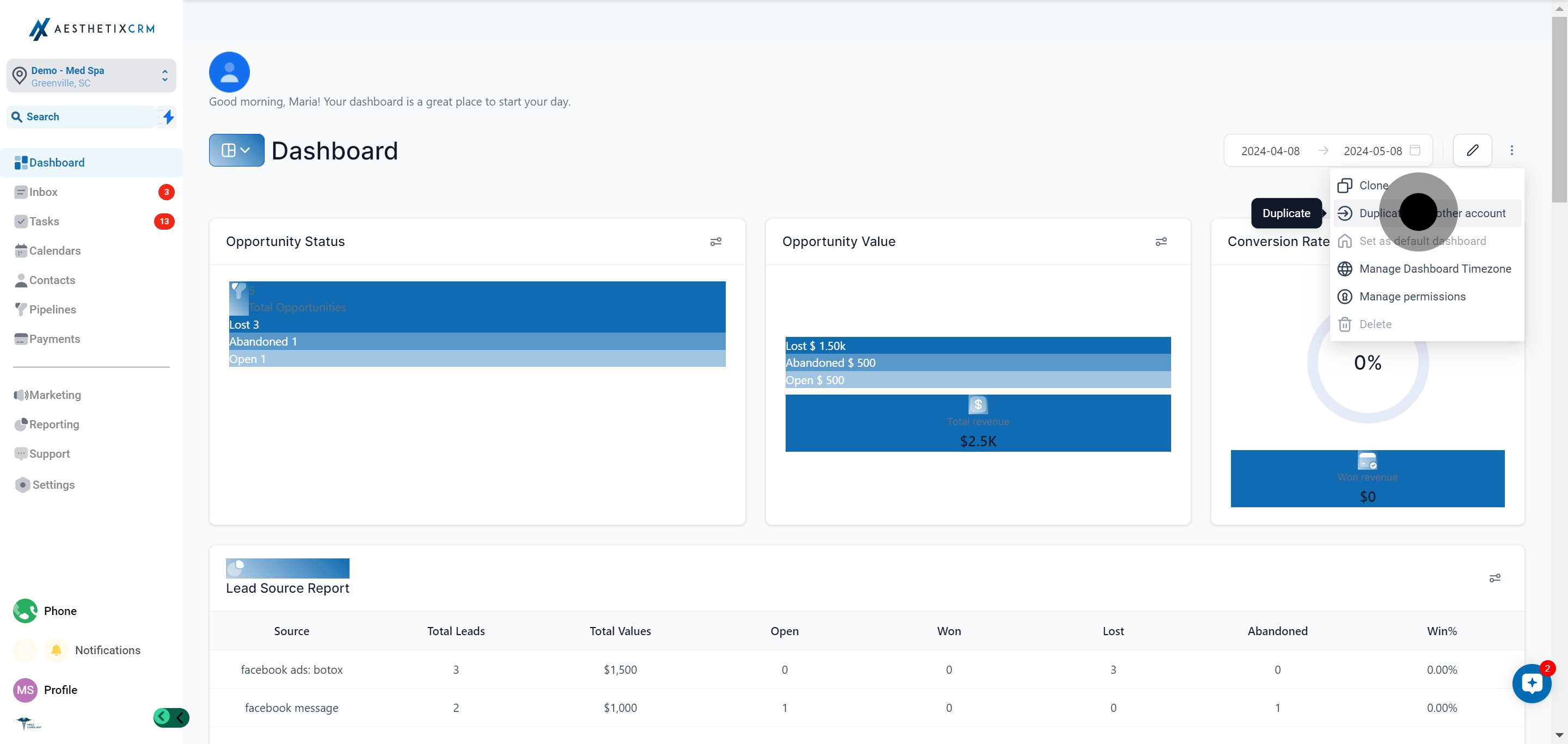
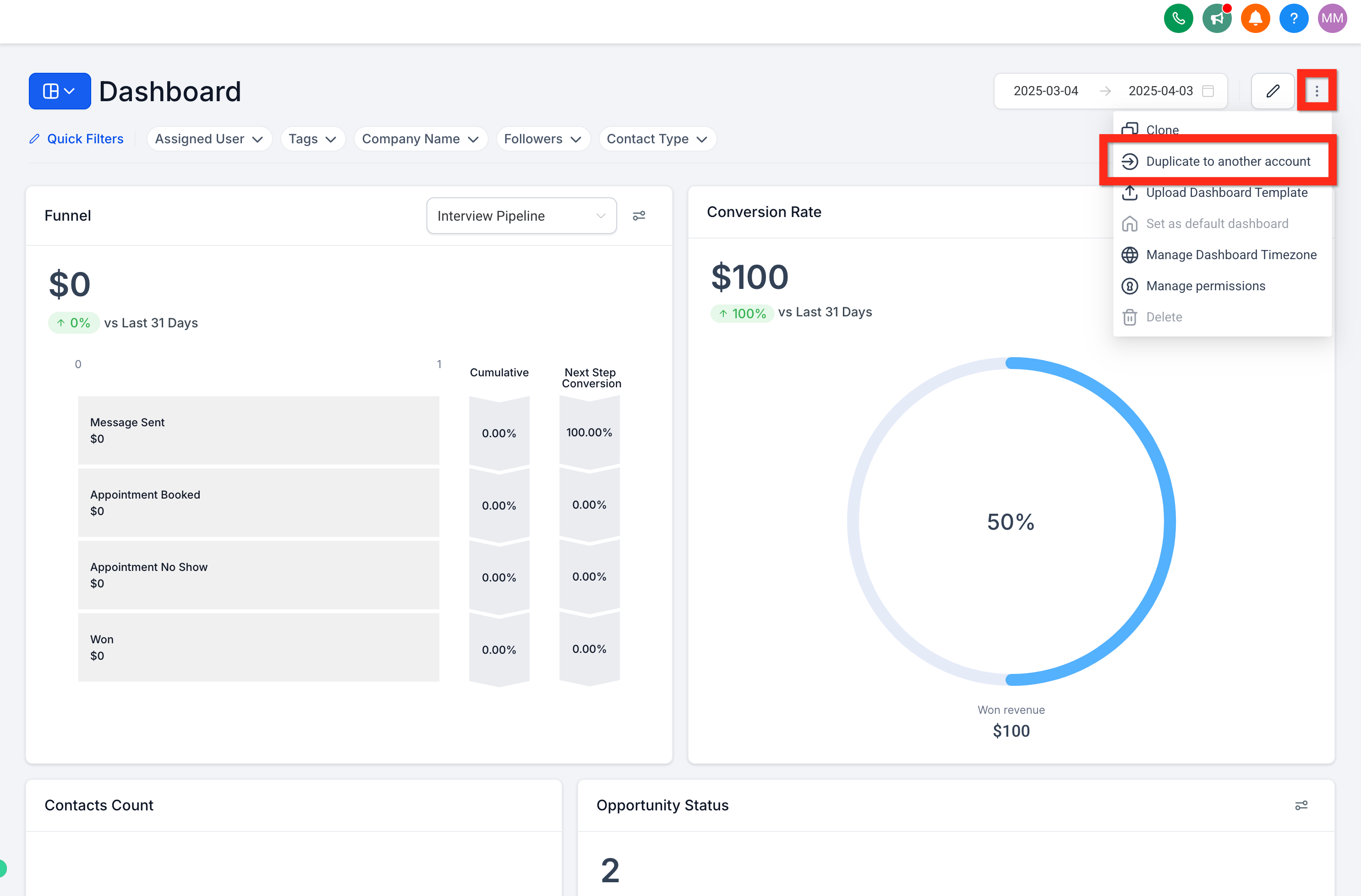
Choose Duplicate to another account from the dropdown.
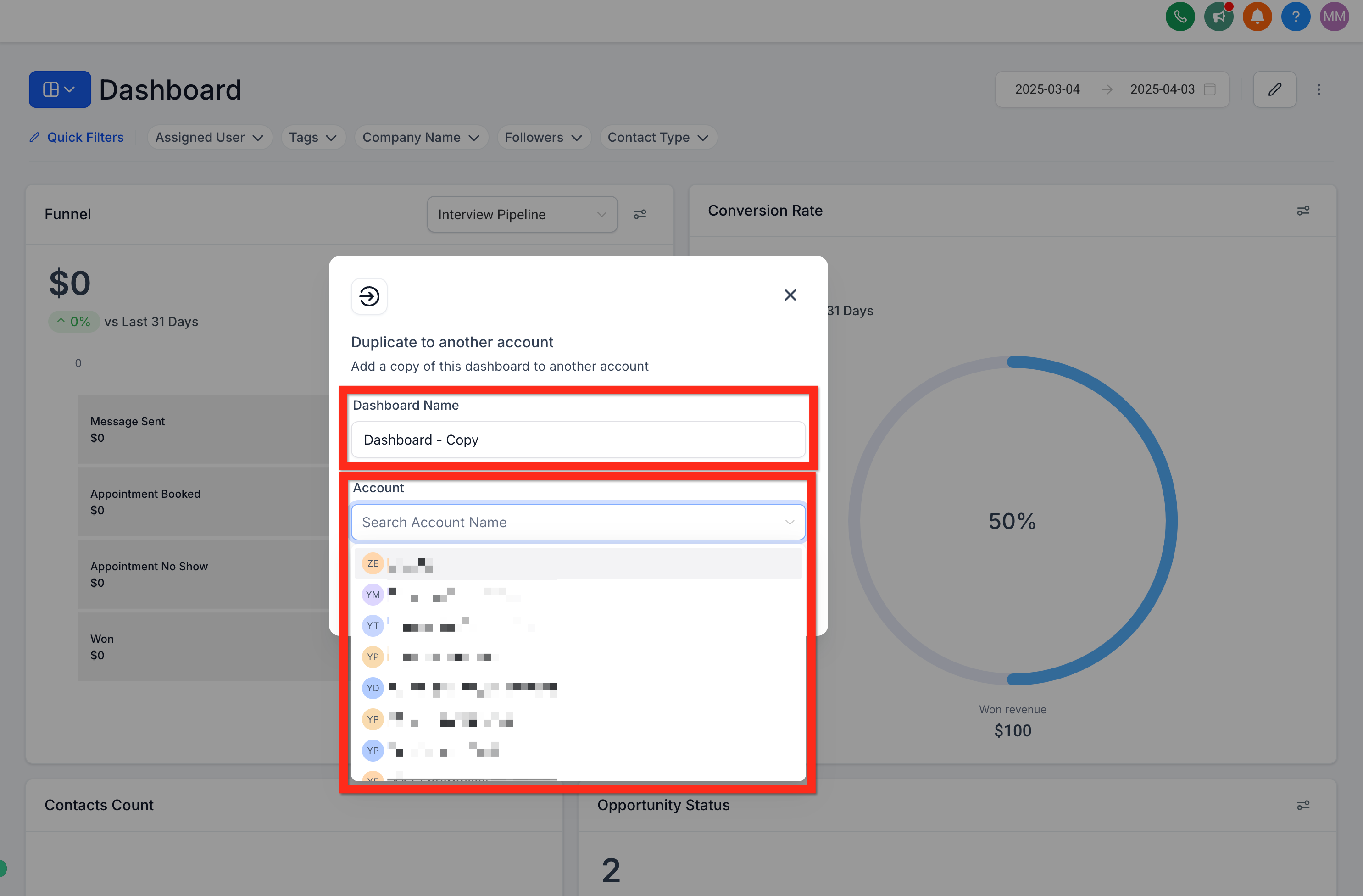
Update the dashboard's name if you want it to read differently in the target account.
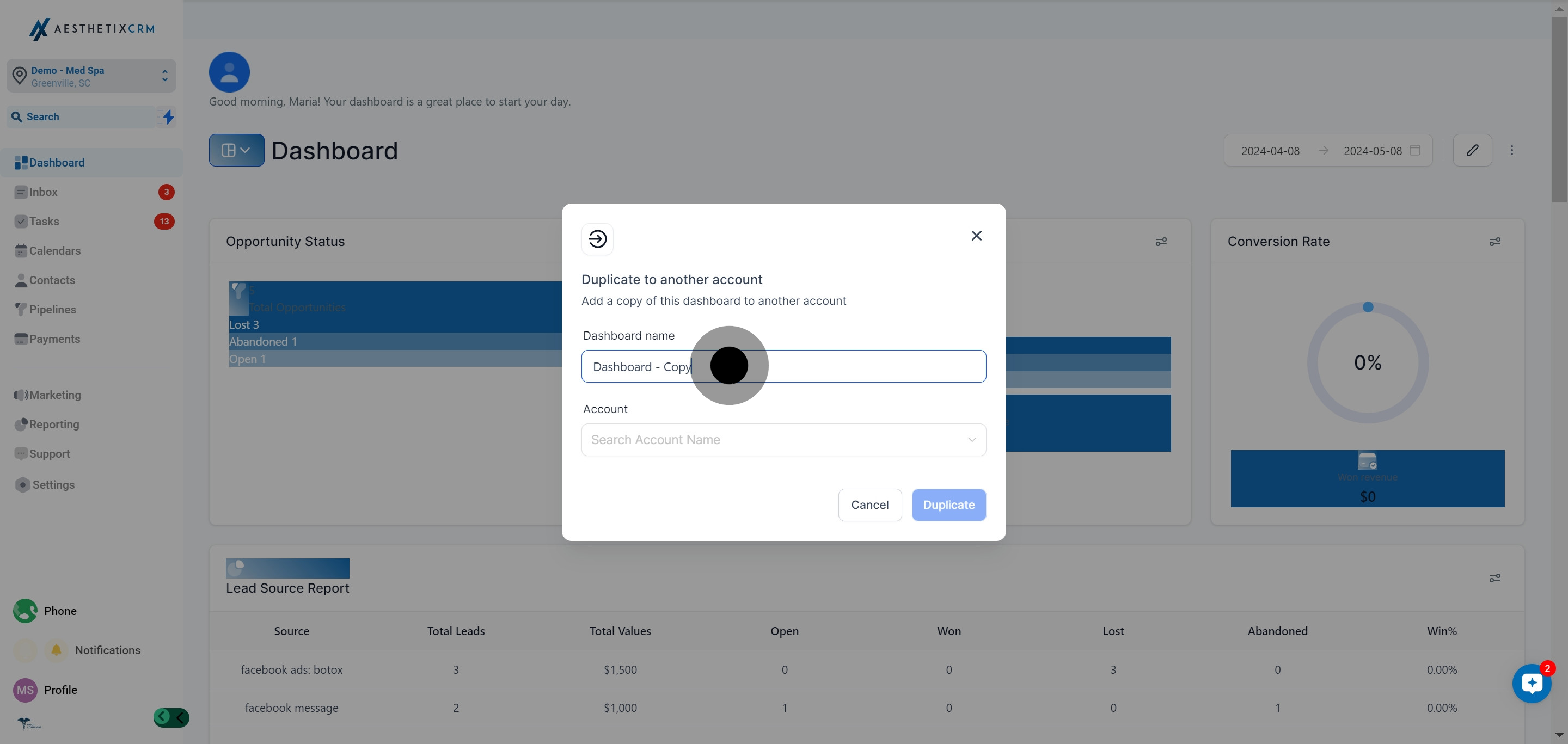
Choose the target account or location from the dropdown menu.
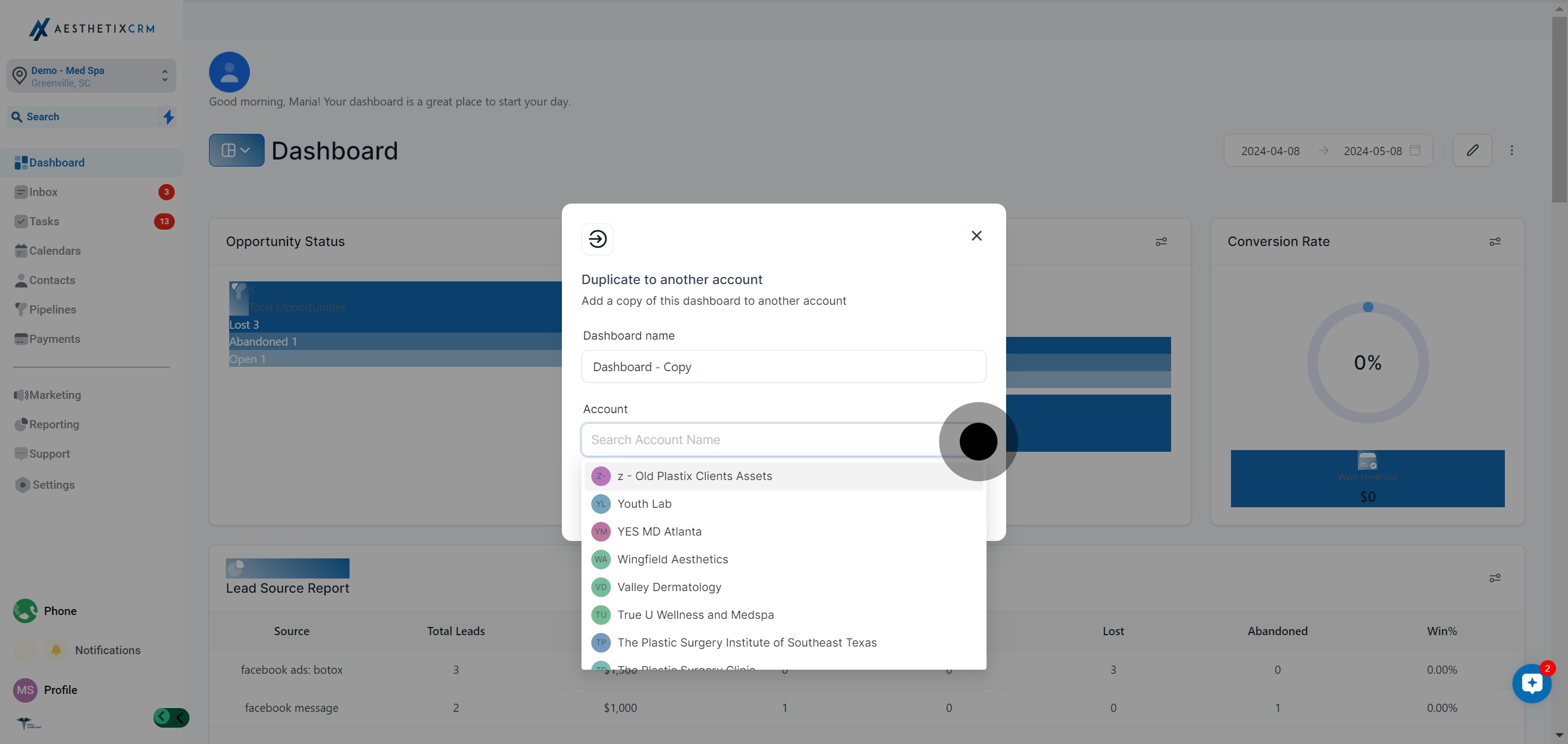
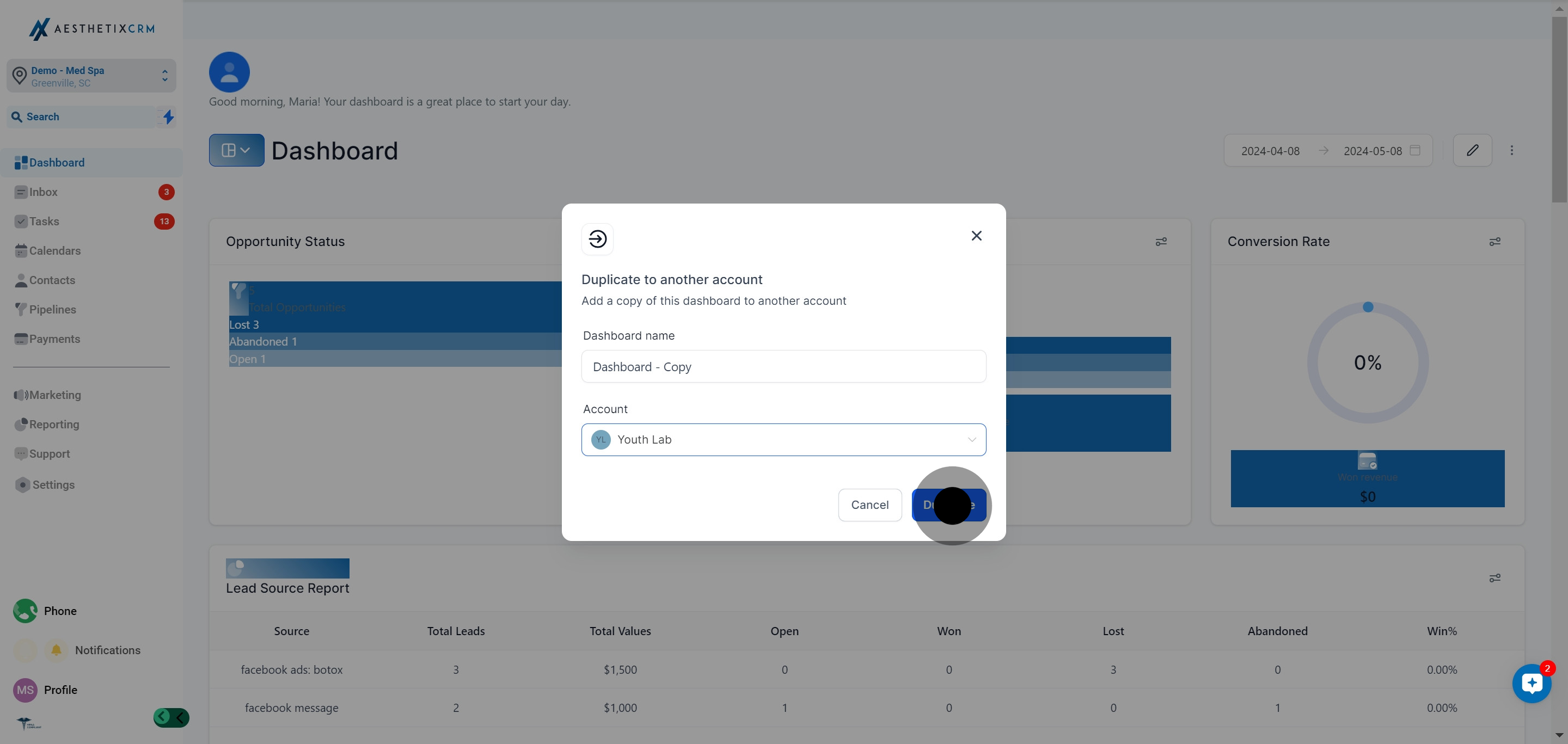
Click Duplicate to create the copy in the target account.
Unlike a clone, a duplicated dashboard does not carry its data connections over to the new account. If any widgets on the original dashboard pull from custom values or other data sources that do not exist in the target account, those widgets will show up with a red border and an "error while loading data" message once the duplicate is created.
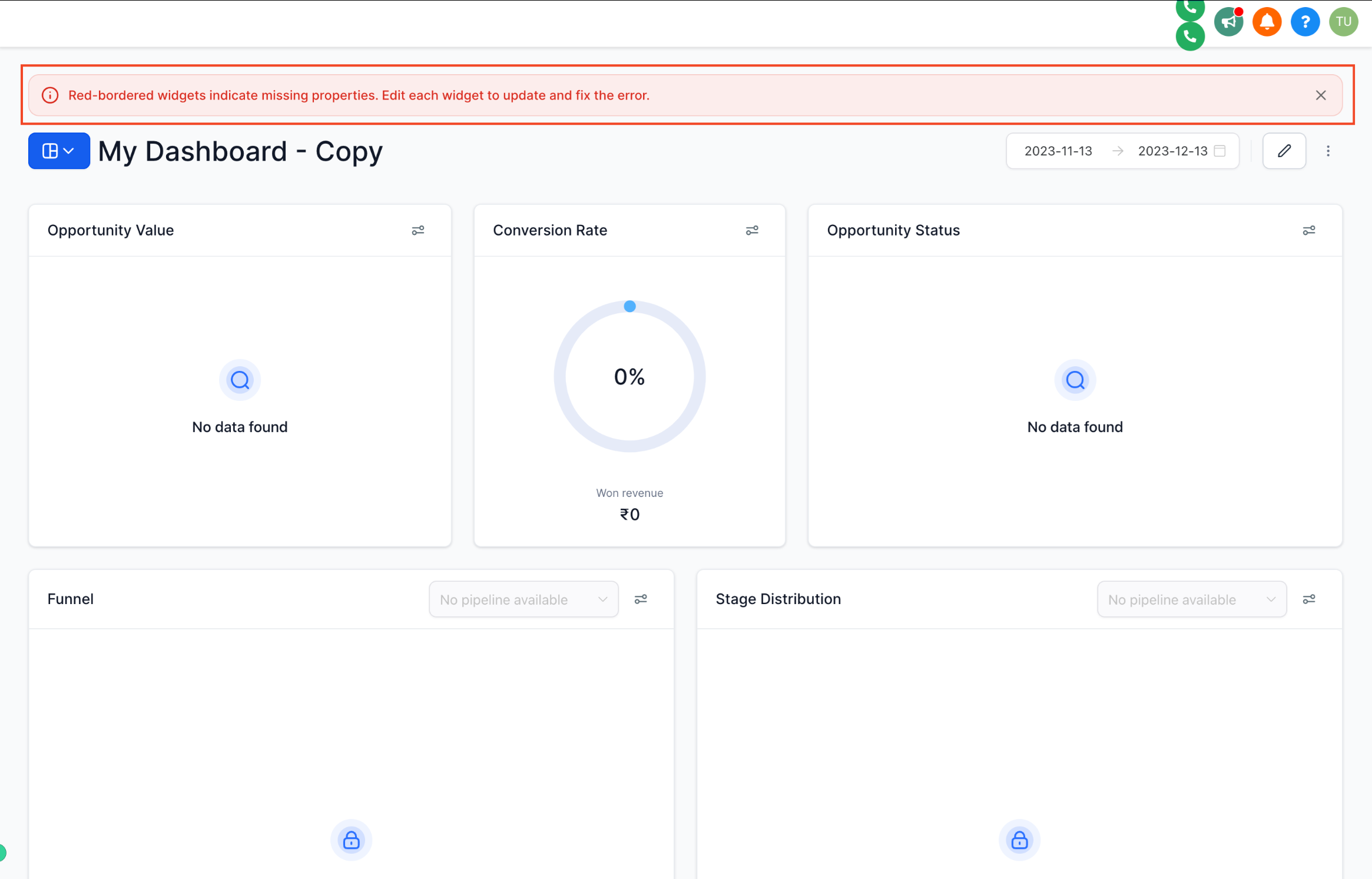
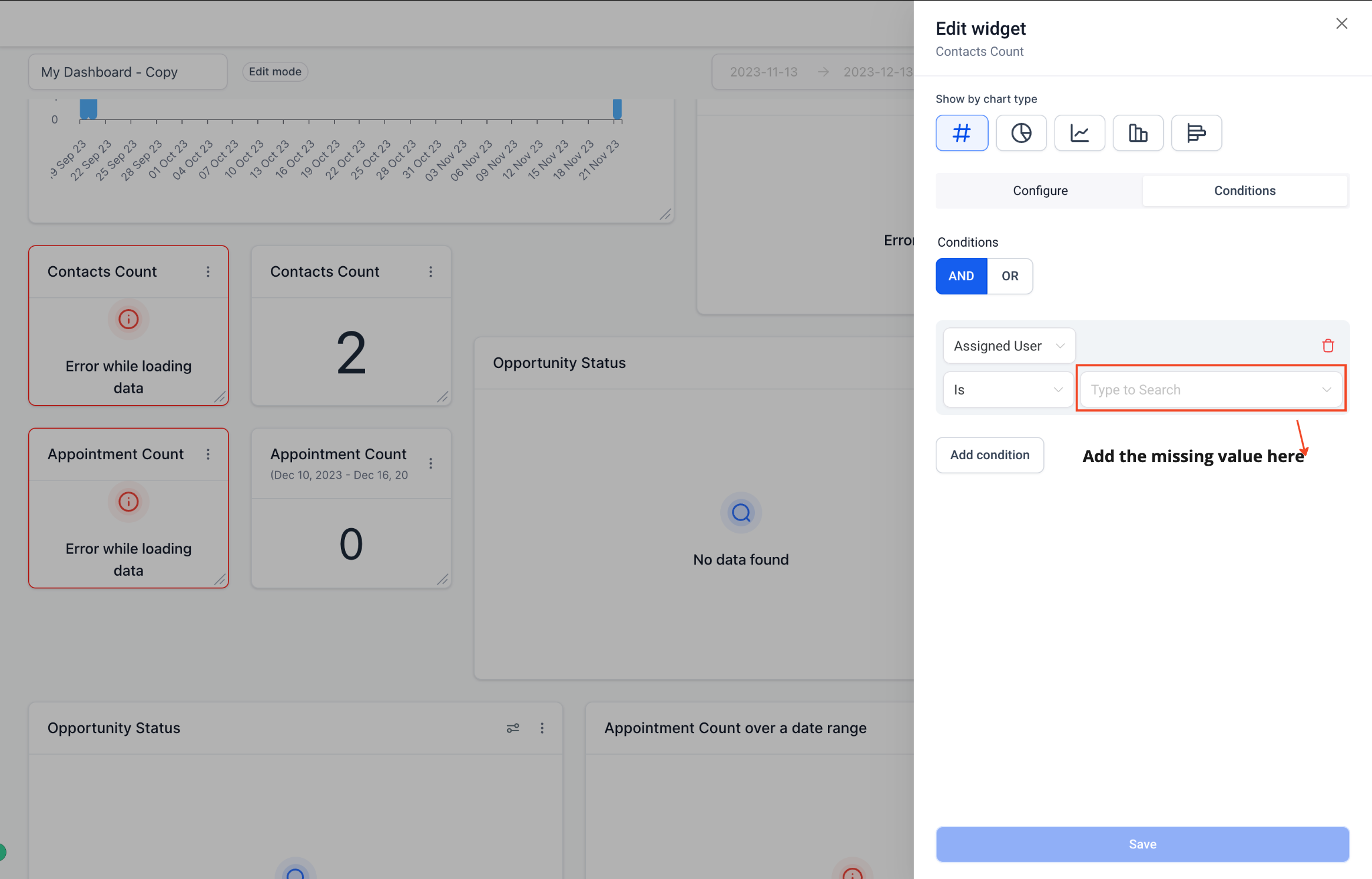
When you see this, either delete the affected widget or reconnect it to the correct data source in the target account. Do this before sharing the duplicated dashboard with your team so nobody sees broken widgets on a live KPI board.
What is the difference between cloning and duplicating a dashboard? Cloning makes a copy of a dashboard inside the same account, keeping all of its data connections intact. Duplicating copies a dashboard into a different account or location, which means you may need to reconnect some of its data sources afterward.
Can I clone a dashboard as many times as I want? Yes. There is no limit on how many clones you can make of a dashboard within your account.
Do I need special permissions to duplicate a dashboard to another location? You need access to both the account you are copying from and the account you are copying to. If you cannot see the target account in the dropdown, you have not been granted access to it.
Will my widgets look the same after I clone a dashboard? Yes. Since a clone stays in the same account, every widget keeps its original data source, so the new dashboard displays the same numbers as the original until you edit it.
Why do some widgets show a red border after I duplicate a dashboard? This happens when a widget's data source, such as a custom value, does not exist in the target account. Delete the widget or connect it to an equivalent data source in that account to fix it.
Can I rename a dashboard while cloning or duplicating it? Yes. Both processes let you type a new name for the copy before you finish, so you can tell it apart from the original in your dashboard list.
Does cloning or duplicating a dashboard affect the original? No. The original dashboard is untouched. Both actions create a brand-new, separate copy that you can edit freely.
Can I set different viewing permissions on a cloned dashboard? Yes. When you clone a dashboard, you can set its access permissions independently from the original, so you can restrict who sees the new copy.
Is there a way to duplicate a dashboard to more than one location at once? No. Duplication is done one target account at a time. To copy a dashboard to several locations, repeat the duplicate steps for each one.
