Your Dashboard is the practice-KPI board you see when you log into Aesthetix CRM, showing leads, booked consults, revenue, pipeline value, and channel attribution at a glance. This guide covers editing the dashboard itself: entering edit mode, renaming it, adding or removing widgets, and saving or discarding your changes. Configuring what an individual widget shows (its data source, filters, and chart type) is covered separately in Widgets & Charts.
Interactive walkthrough
Interactive walkthrough
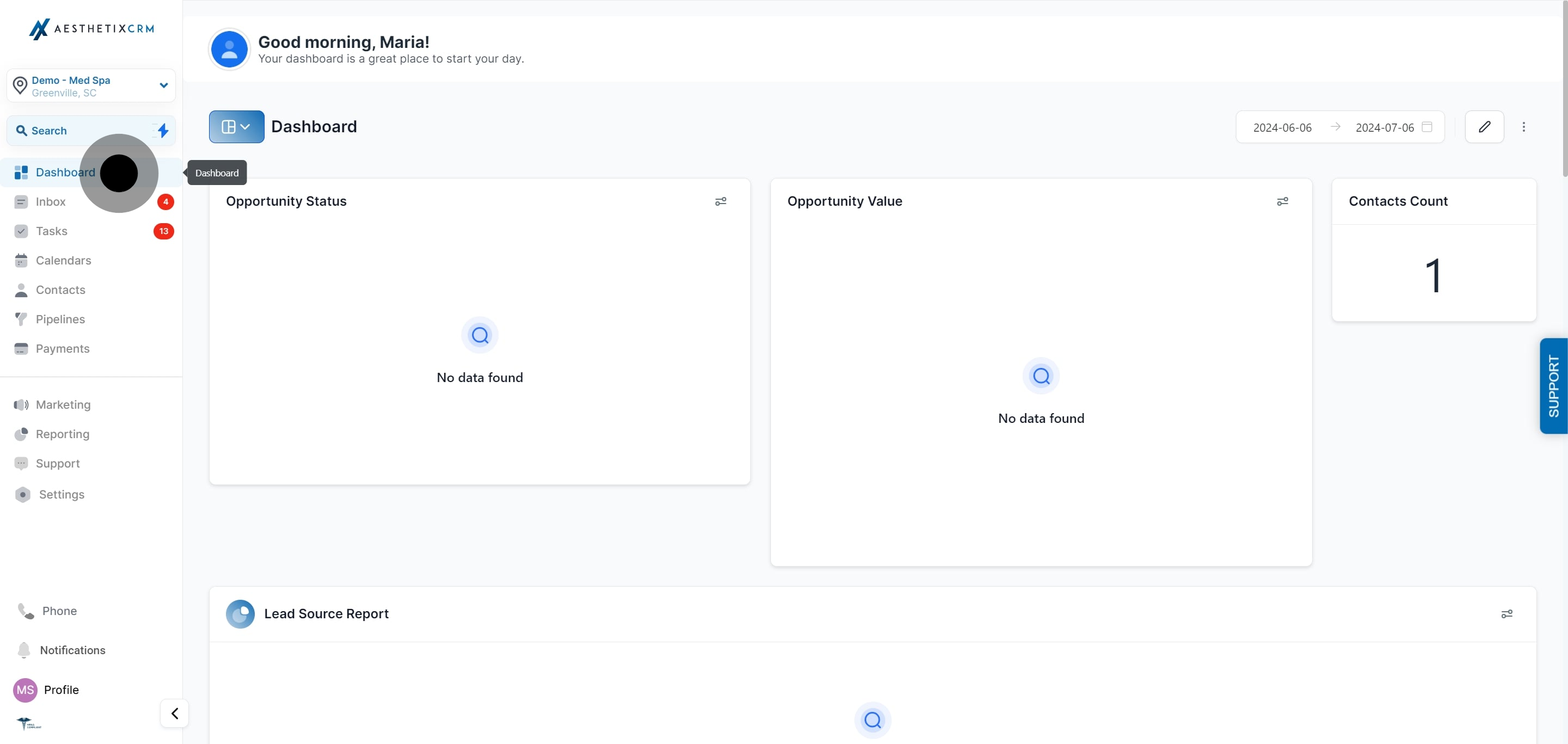
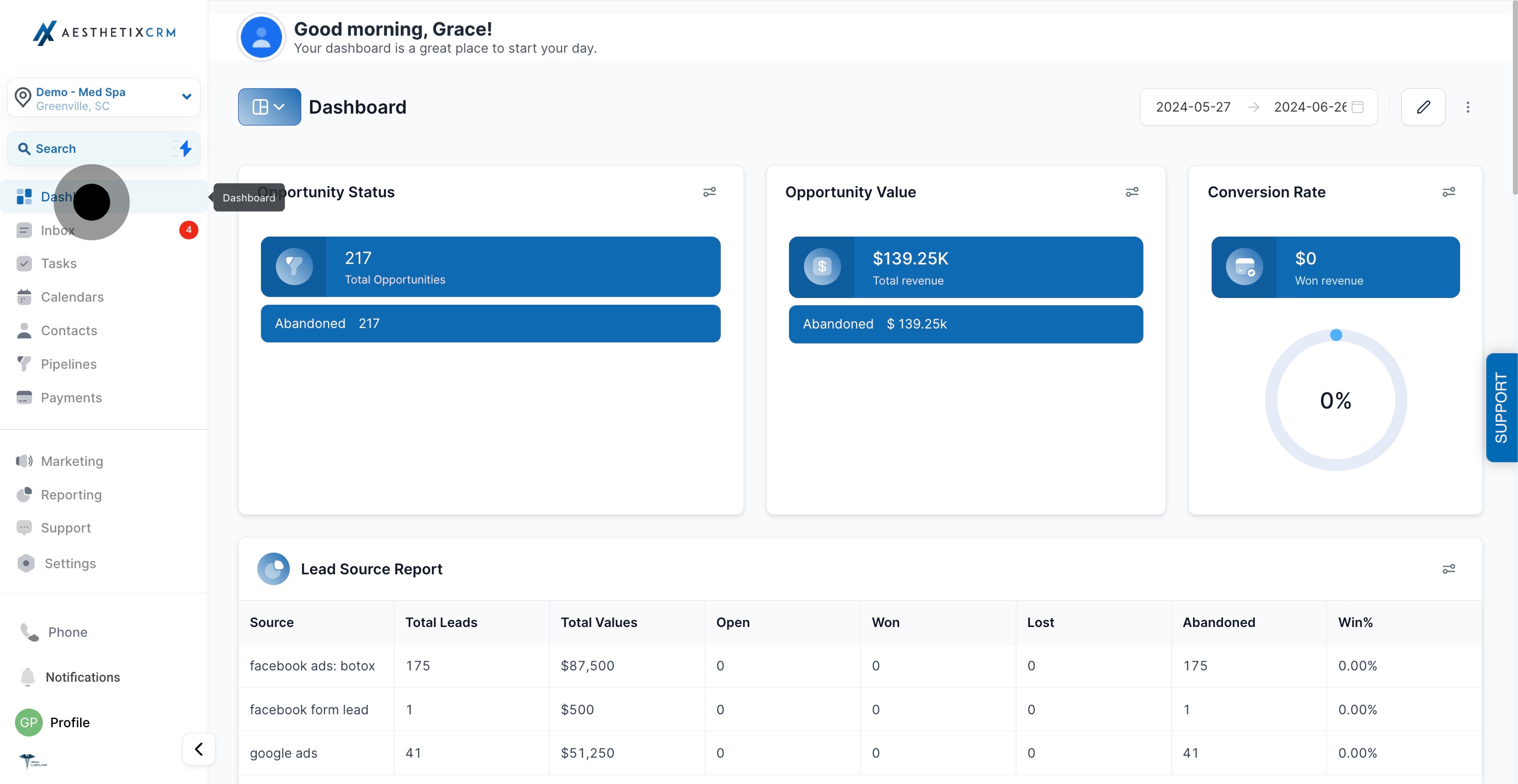
From the main menu, click Dashboard.
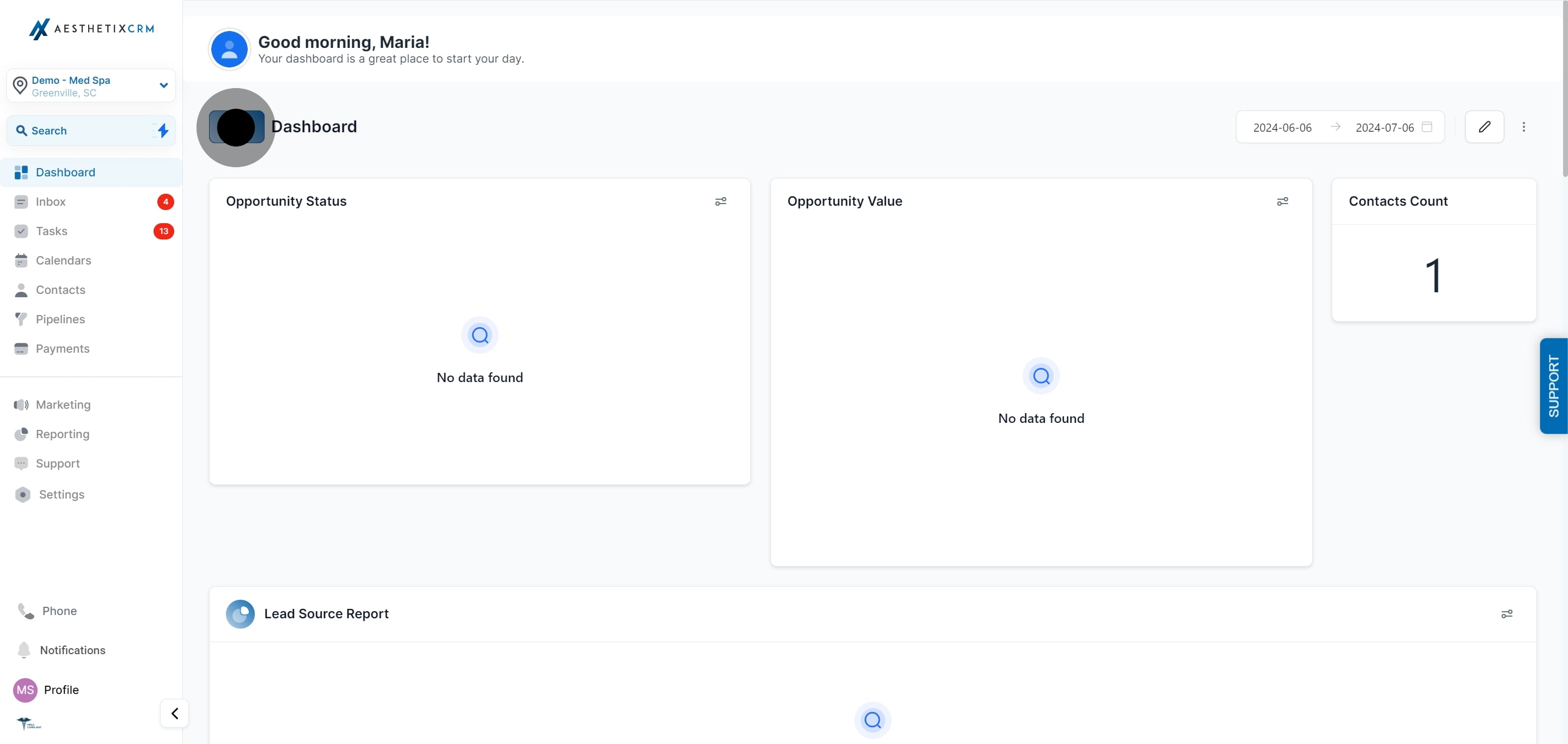
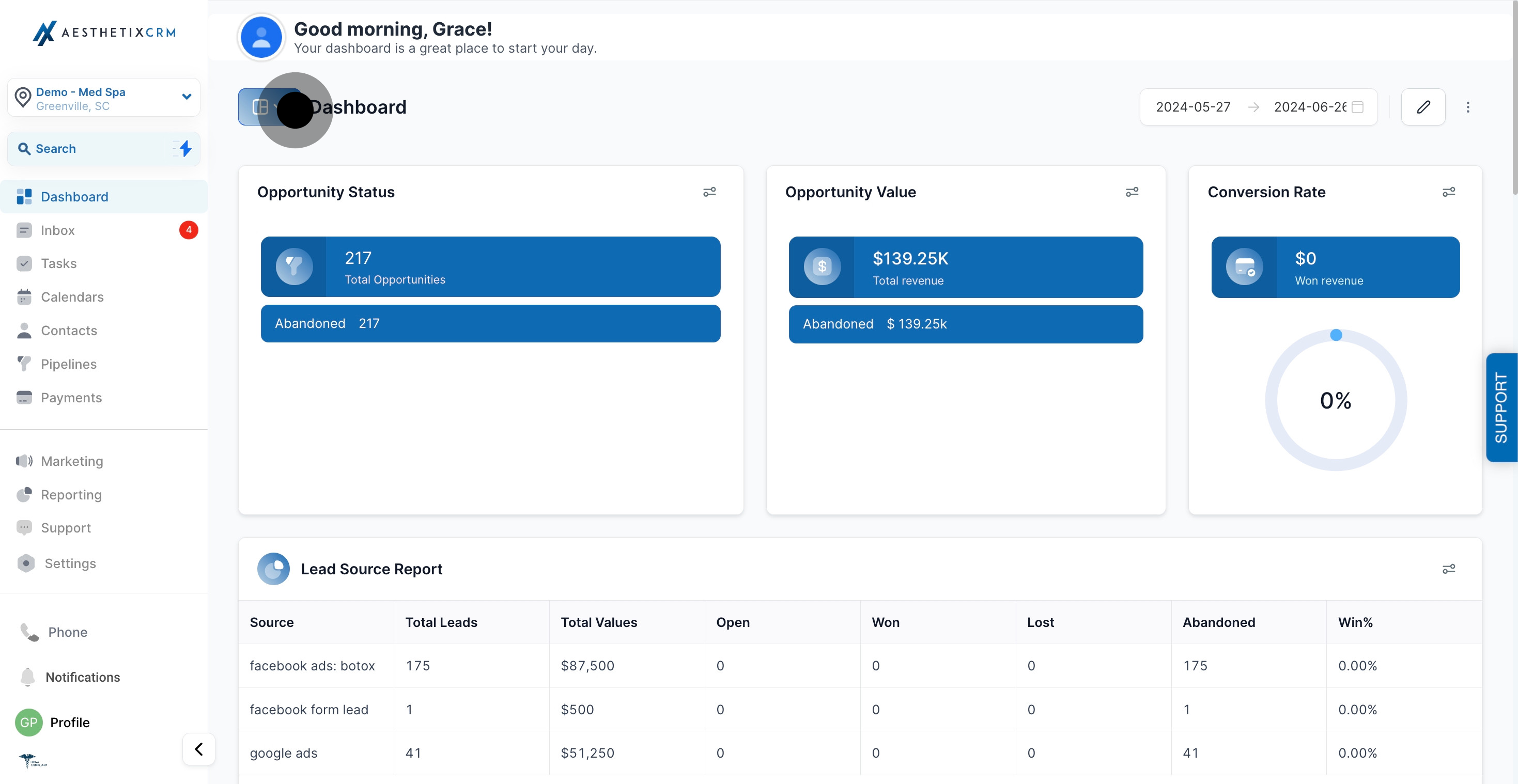
Click the dashboard navigation button at the top to expand the list and switch between the dashboards on your account.
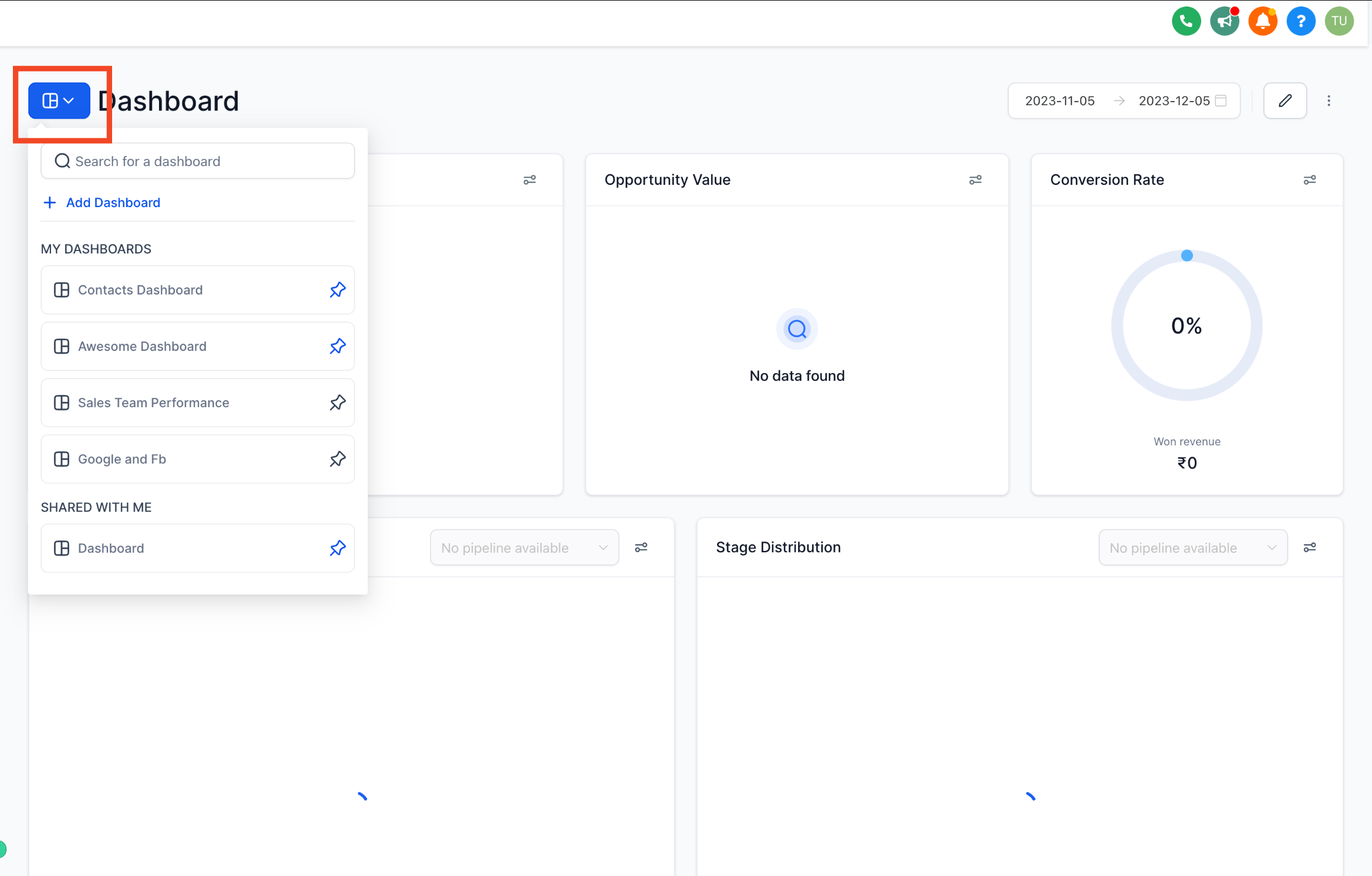
Only dashboard owners can edit a dashboard. If you don't see an edit option, ask whoever created the dashboard to grant you access, or see the permissions section below.
To build a brand new dashboard instead of editing this one, click Add Dashboard.
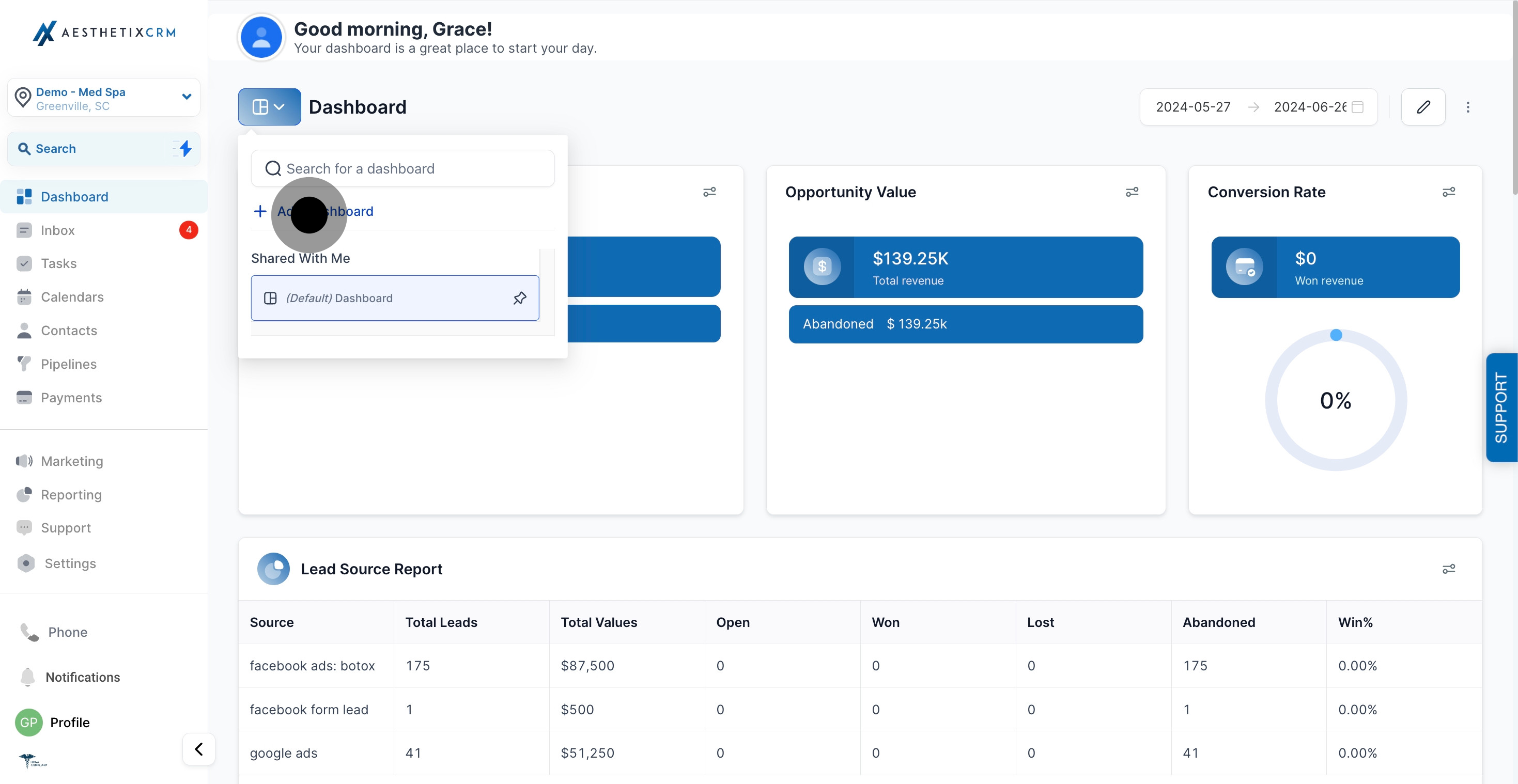
Use the date range selector in the top right to adjust the reporting window for the entire dashboard. This affects every widget on the page at once, separate from any date filters set on an individual widget.
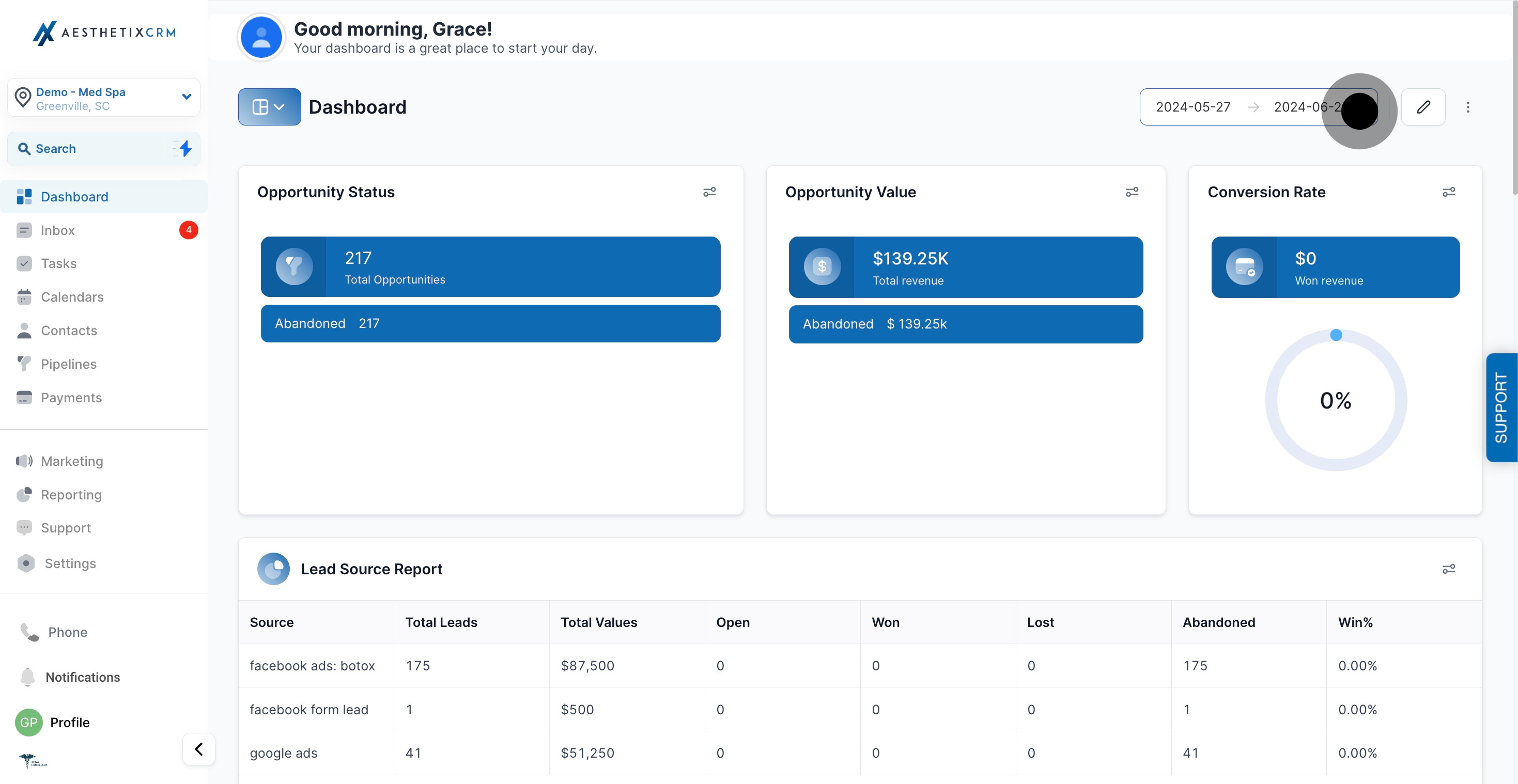
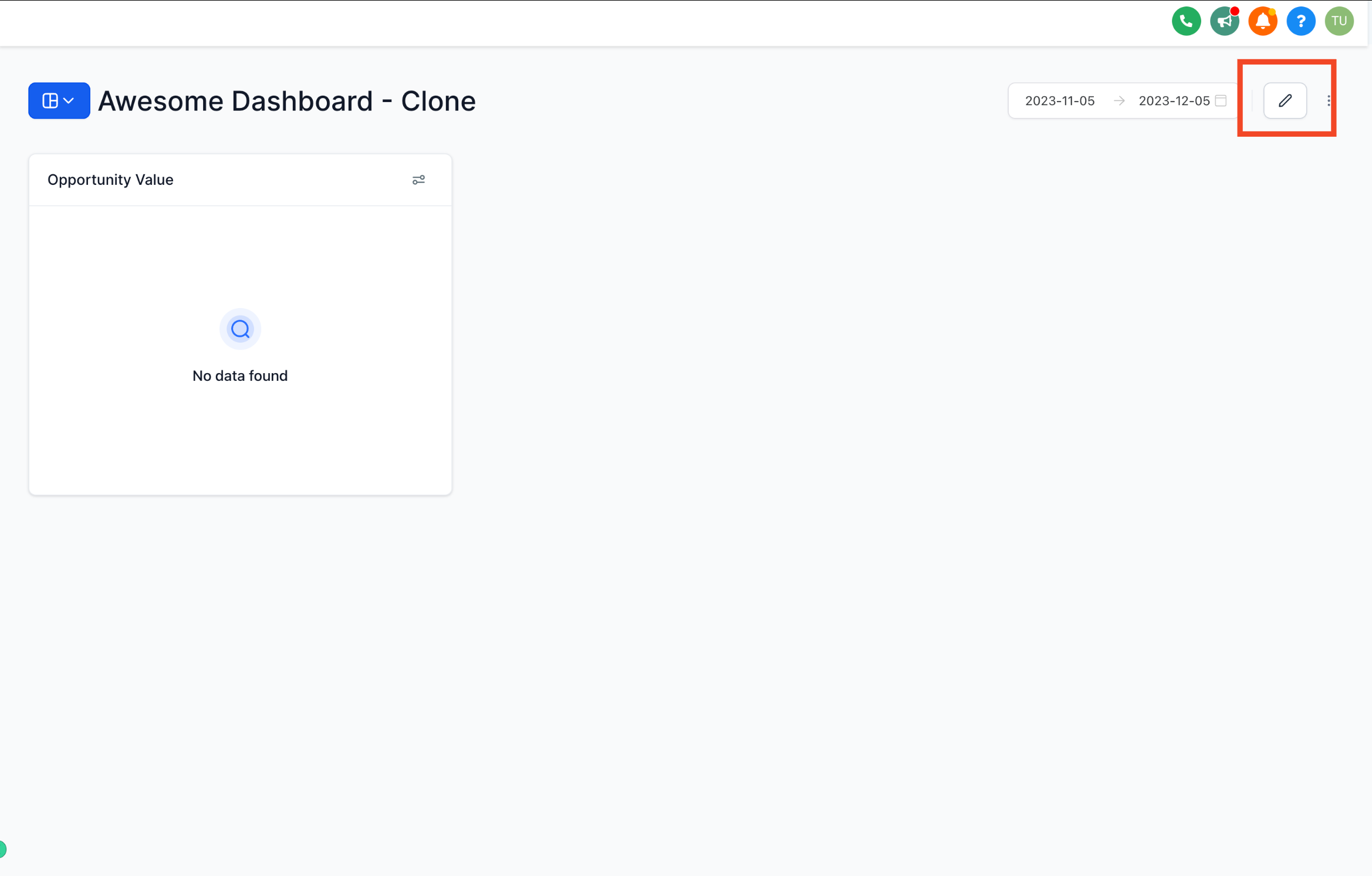
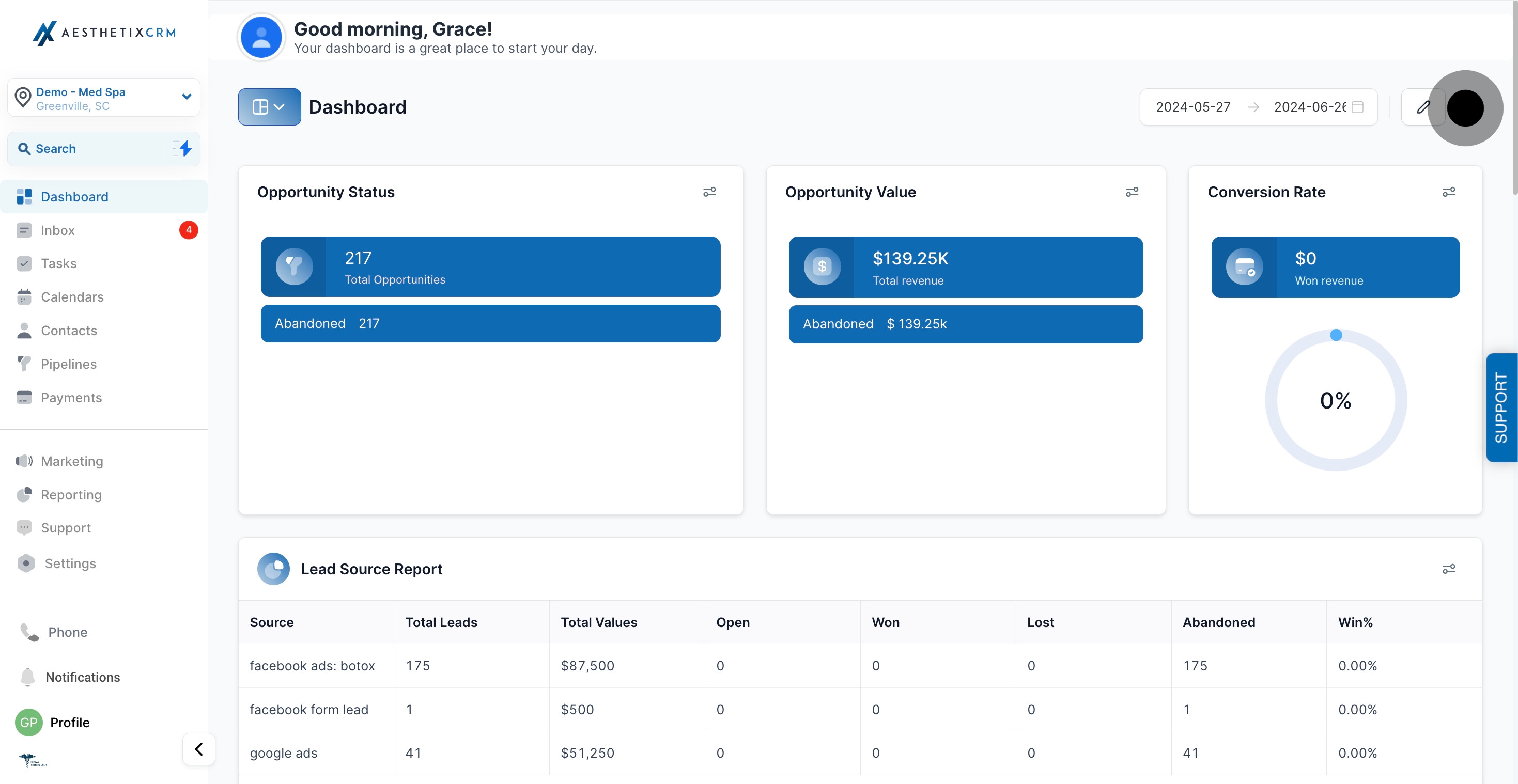
With the dashboard you want to change open, click the pencil (edit) icon in the top right corner. This puts the whole dashboard into edit mode, where you can rename it, add or remove widgets, and rearrange the layout.
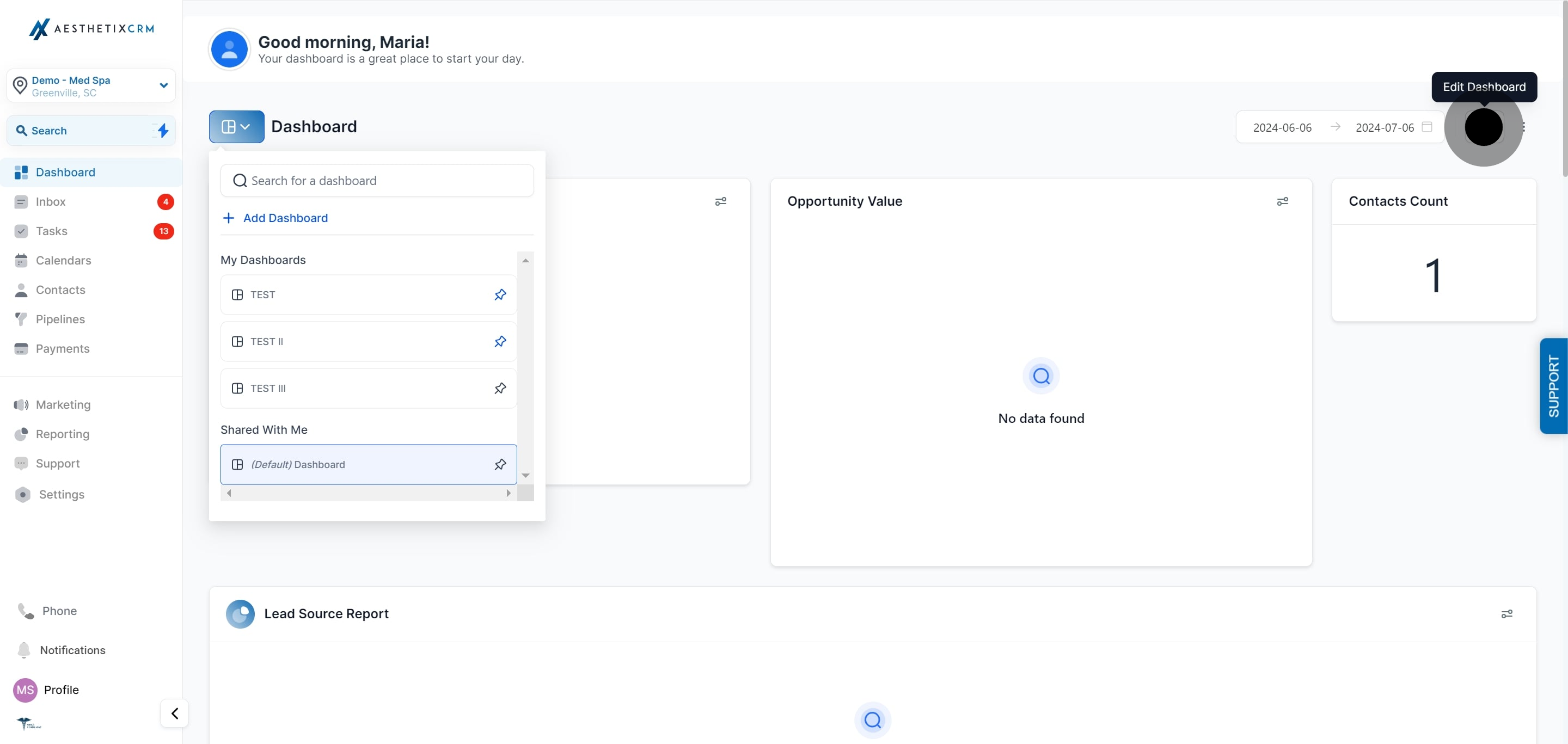
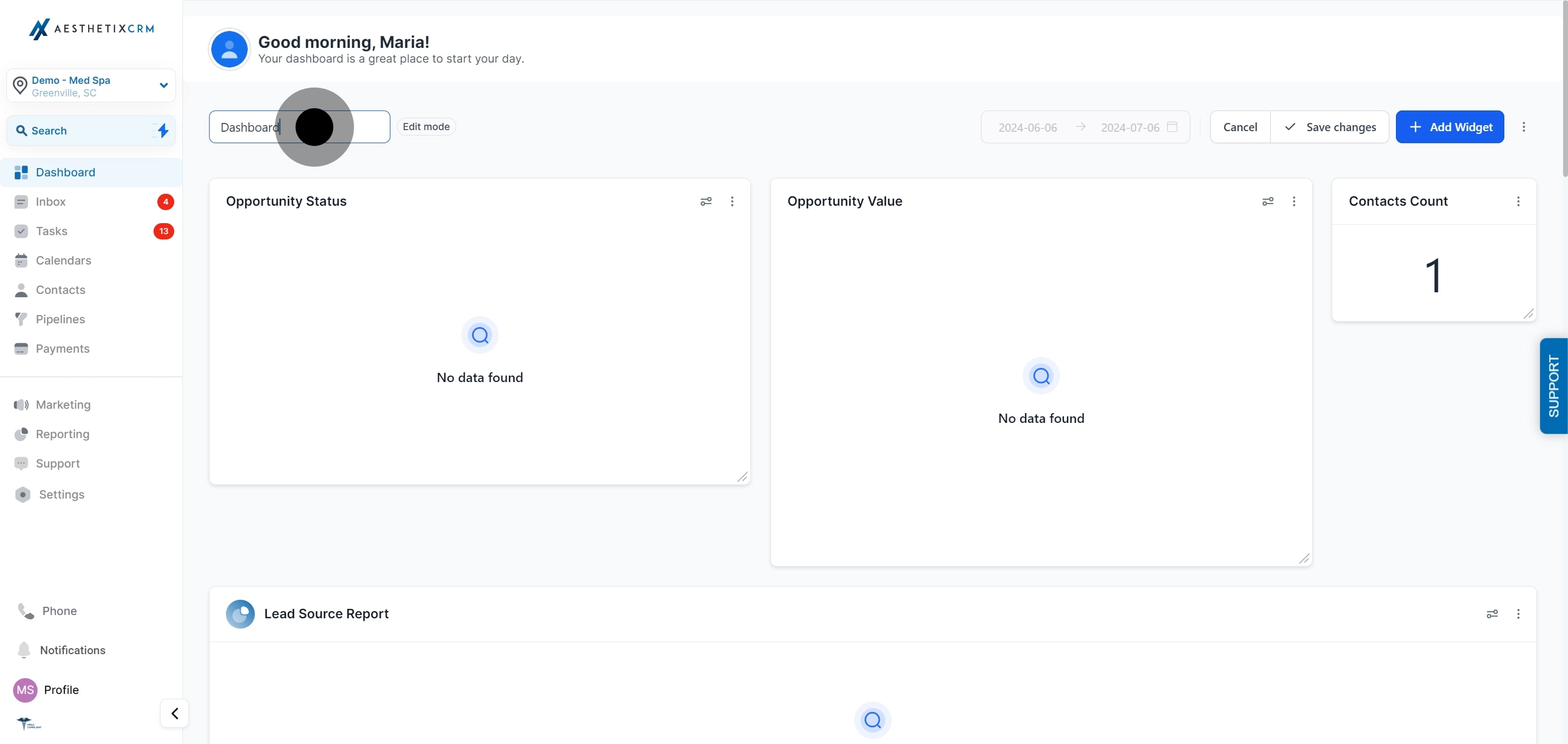
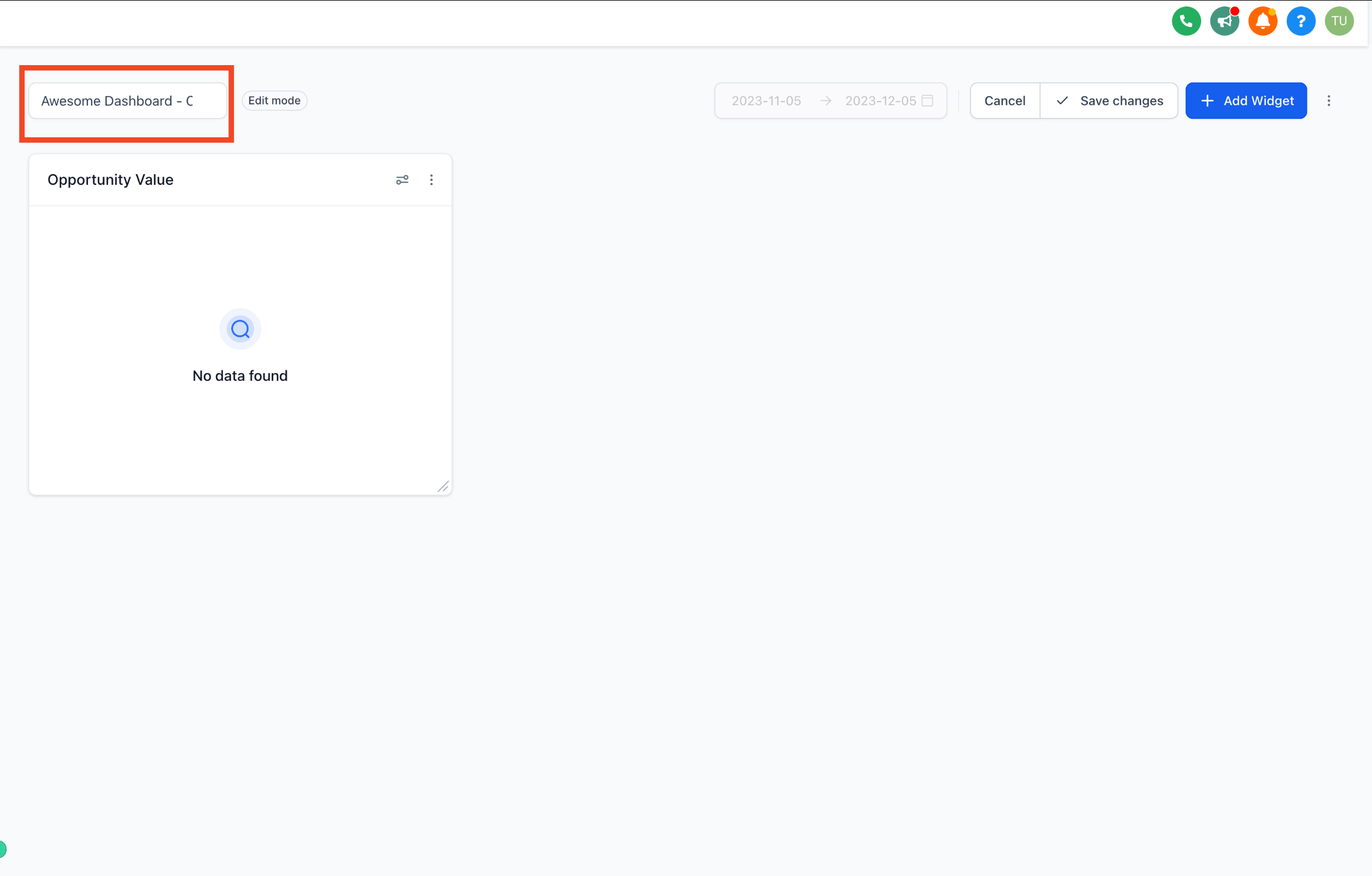
While in edit mode, click into the dashboard name field and type the new name. A clear name matters most once you have several dashboards (for example, "Front Desk Overview" versus "Owner KPIs").
You can also open the dashboard's details icon to edit its name and description without going through the full edit flow.
In edit mode, click Add Widget (or Add Widgets) to bring in a new chart, table, or number card.
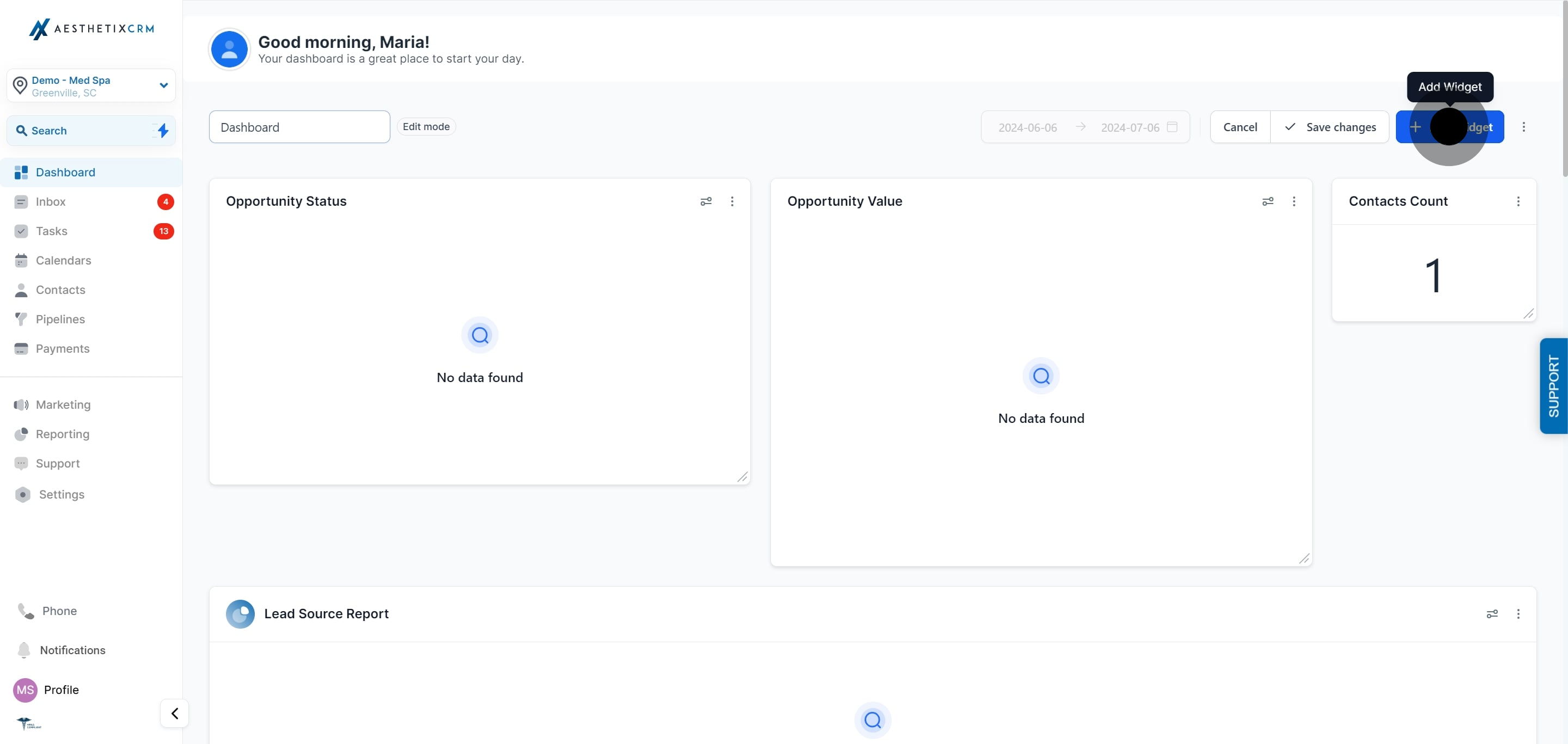
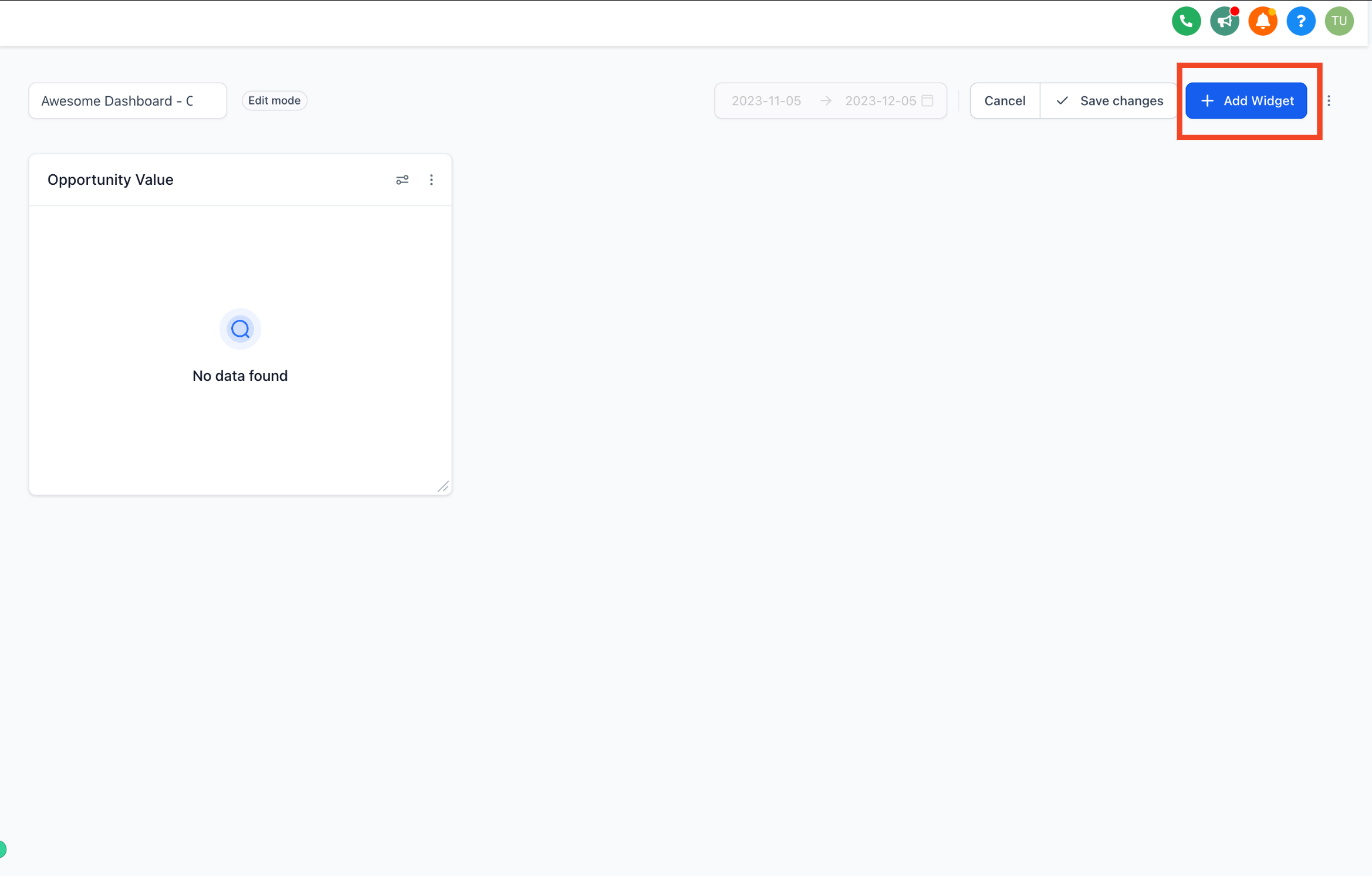
Once a widget is on the dashboard, drag it to reposition it or resize it by its corner handle. For a full walkthrough of the widget types available and how to configure what each one measures, see Widgets & Charts.
In edit mode, open the three-dot menu in the corner of the widget you want to remove and choose Delete.
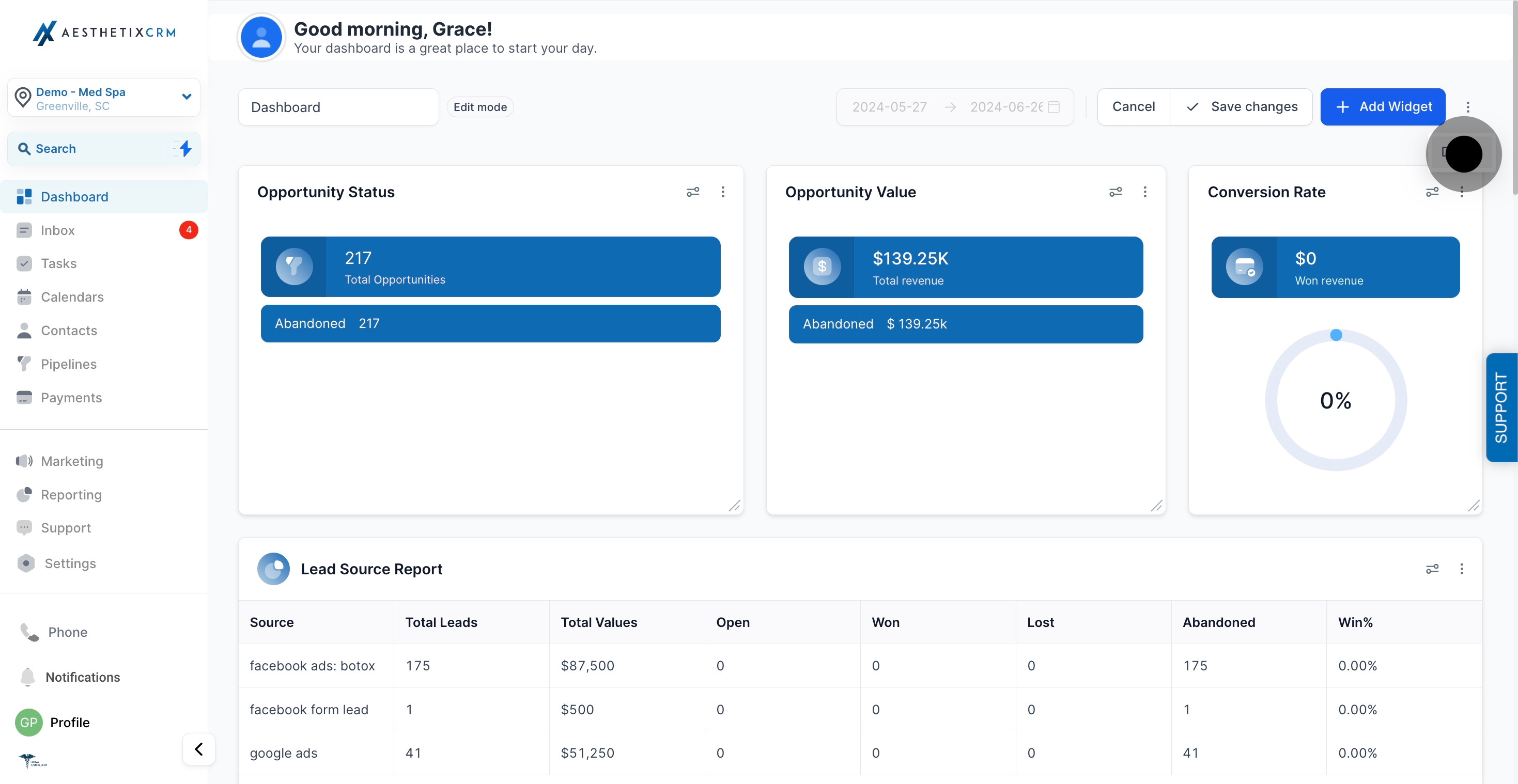
Deleting a widget only removes it from this dashboard's layout. It does not delete any underlying data, and you can always add the widget type back later from Add Widget.
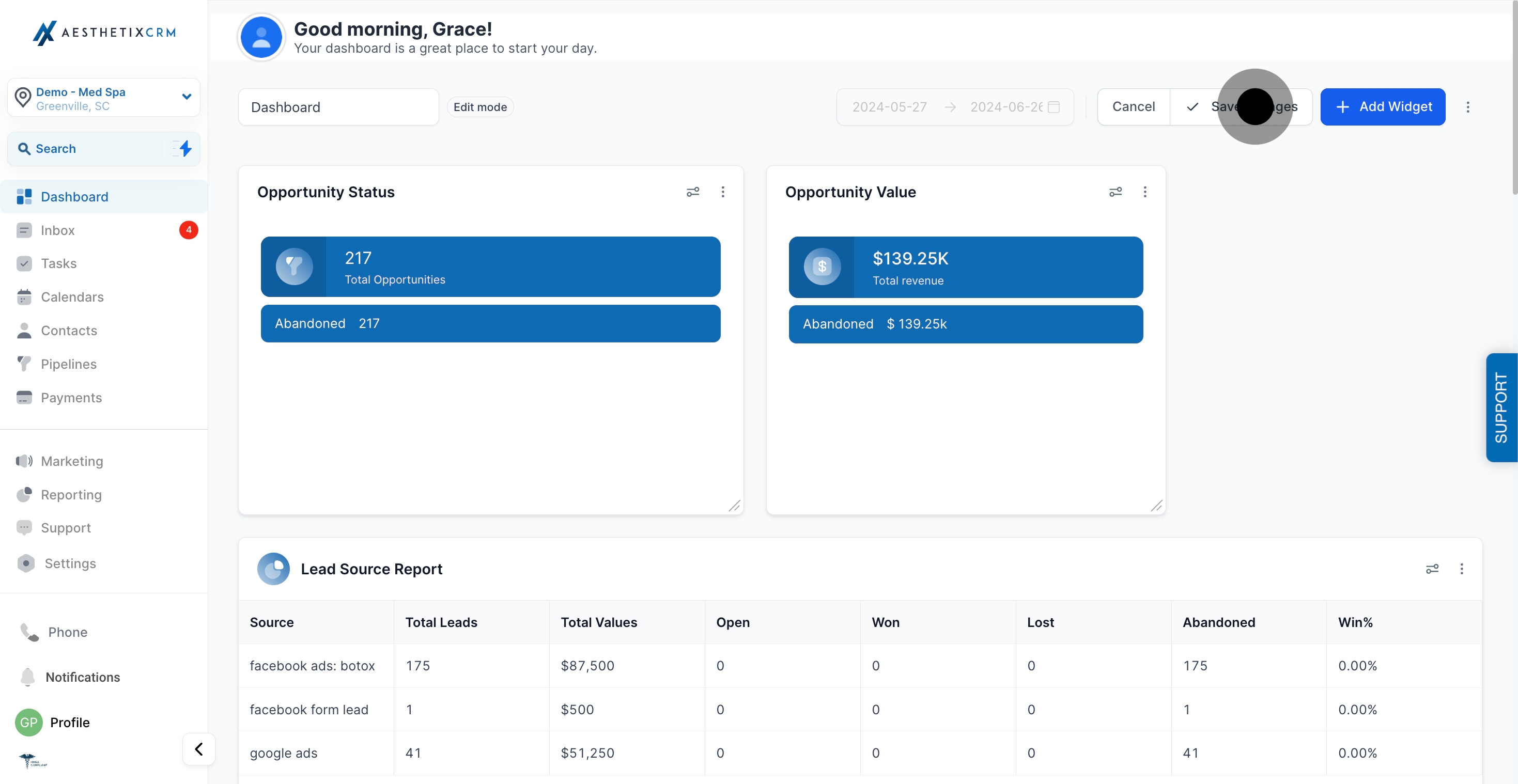
Once you've made your edits (name, widgets, or layout), click Save Changes to apply and finalize the modifications.
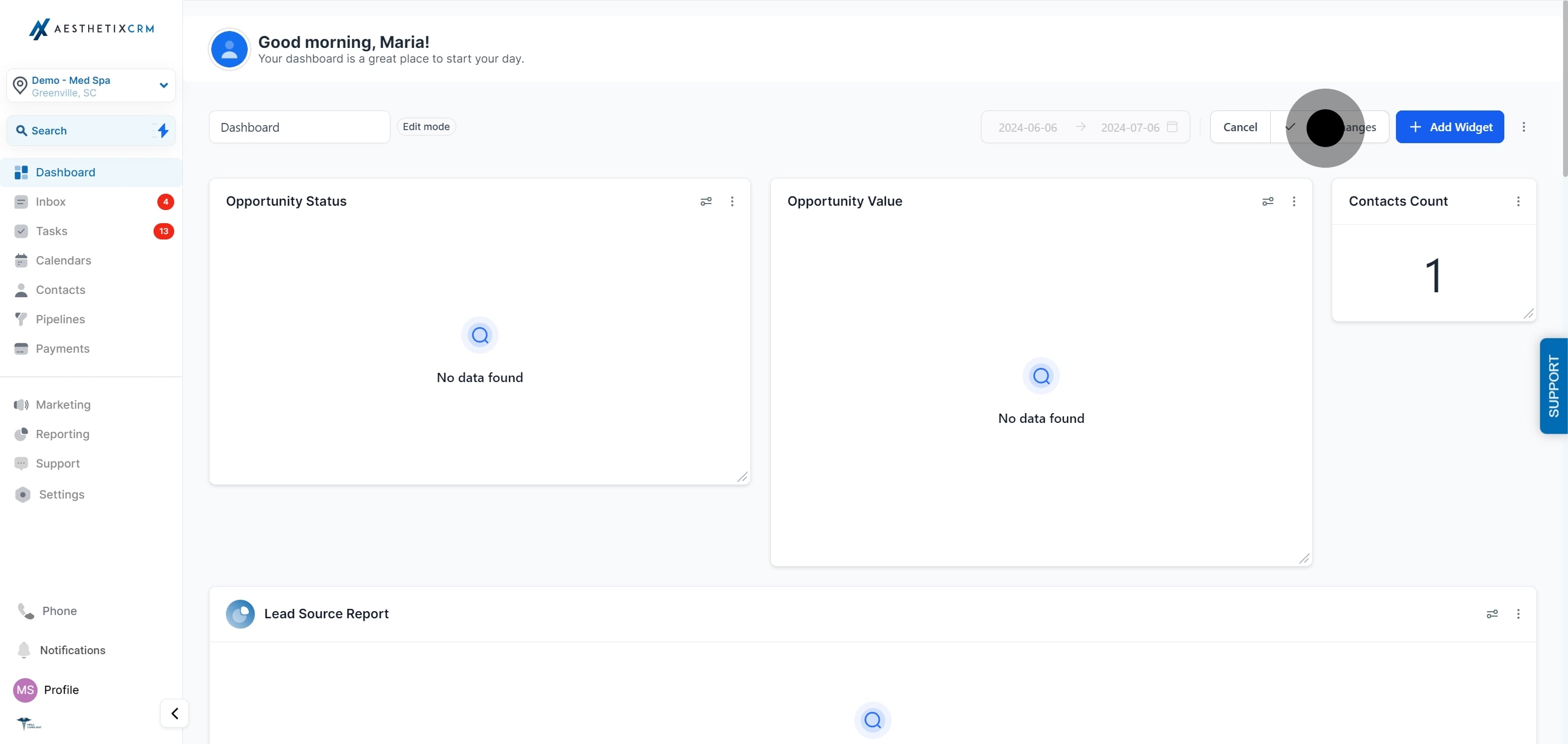
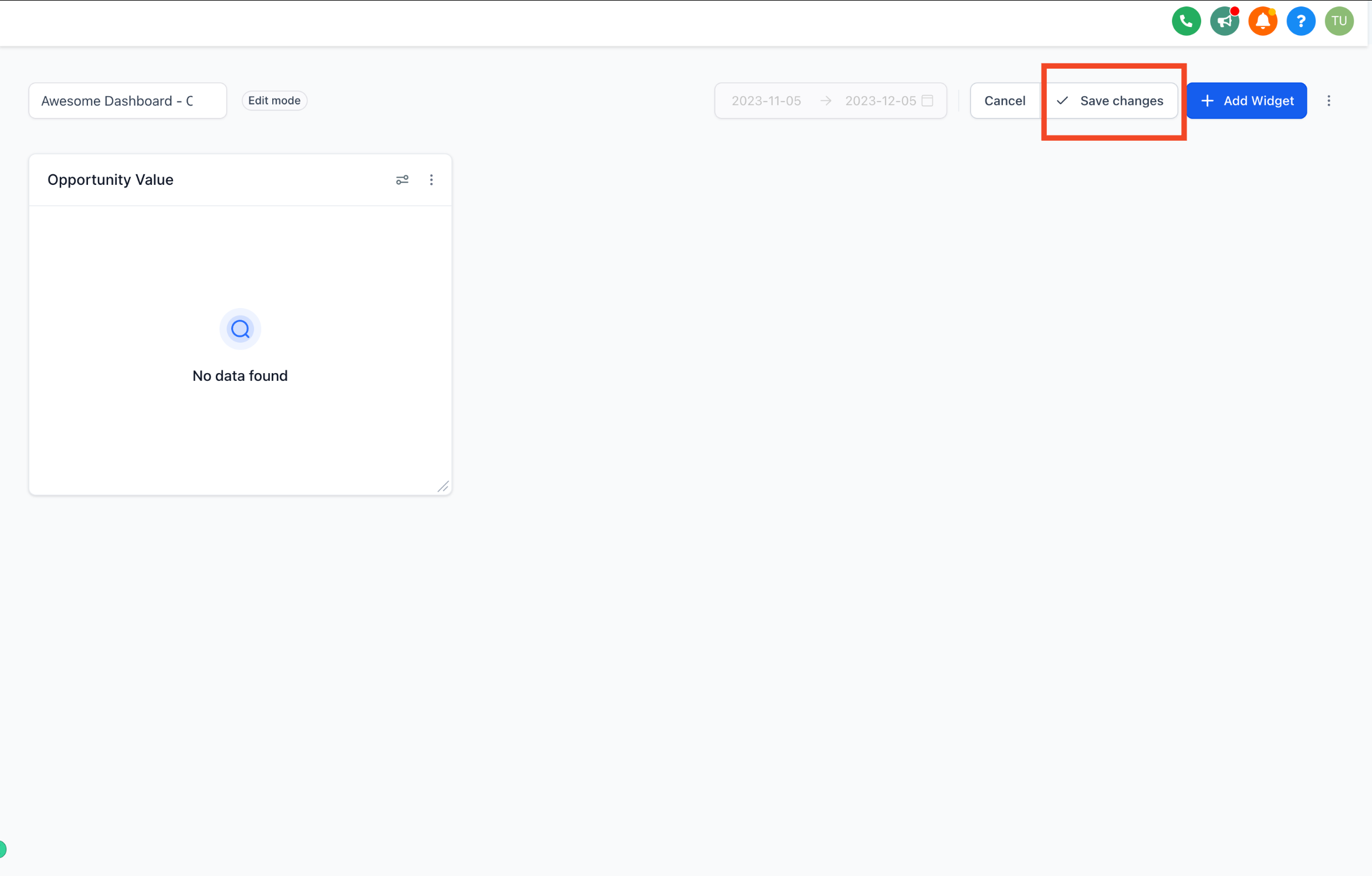
If you decide you don't want to keep the changes, click Cancel instead to discard them and return to the dashboard as it was before you entered edit mode.
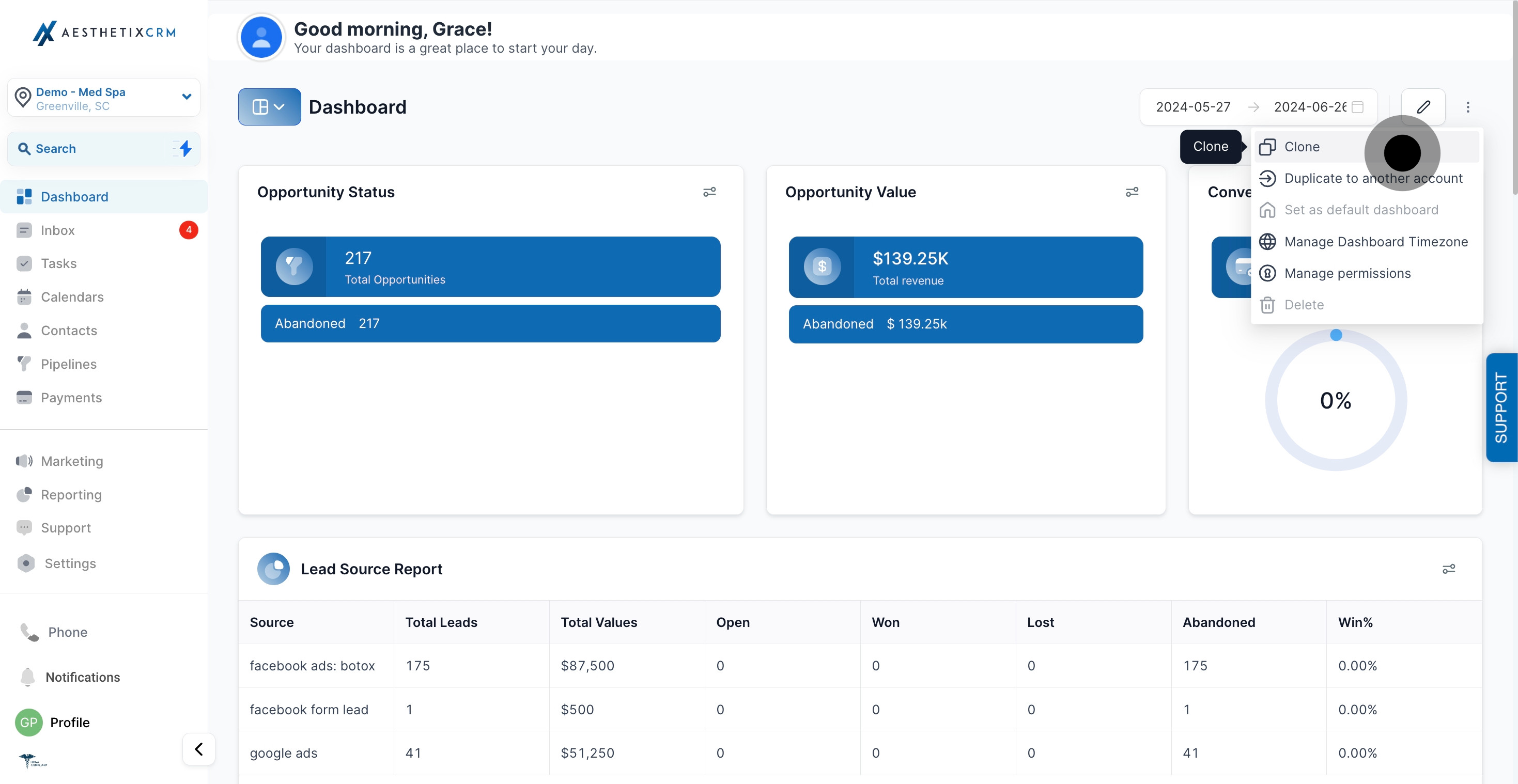
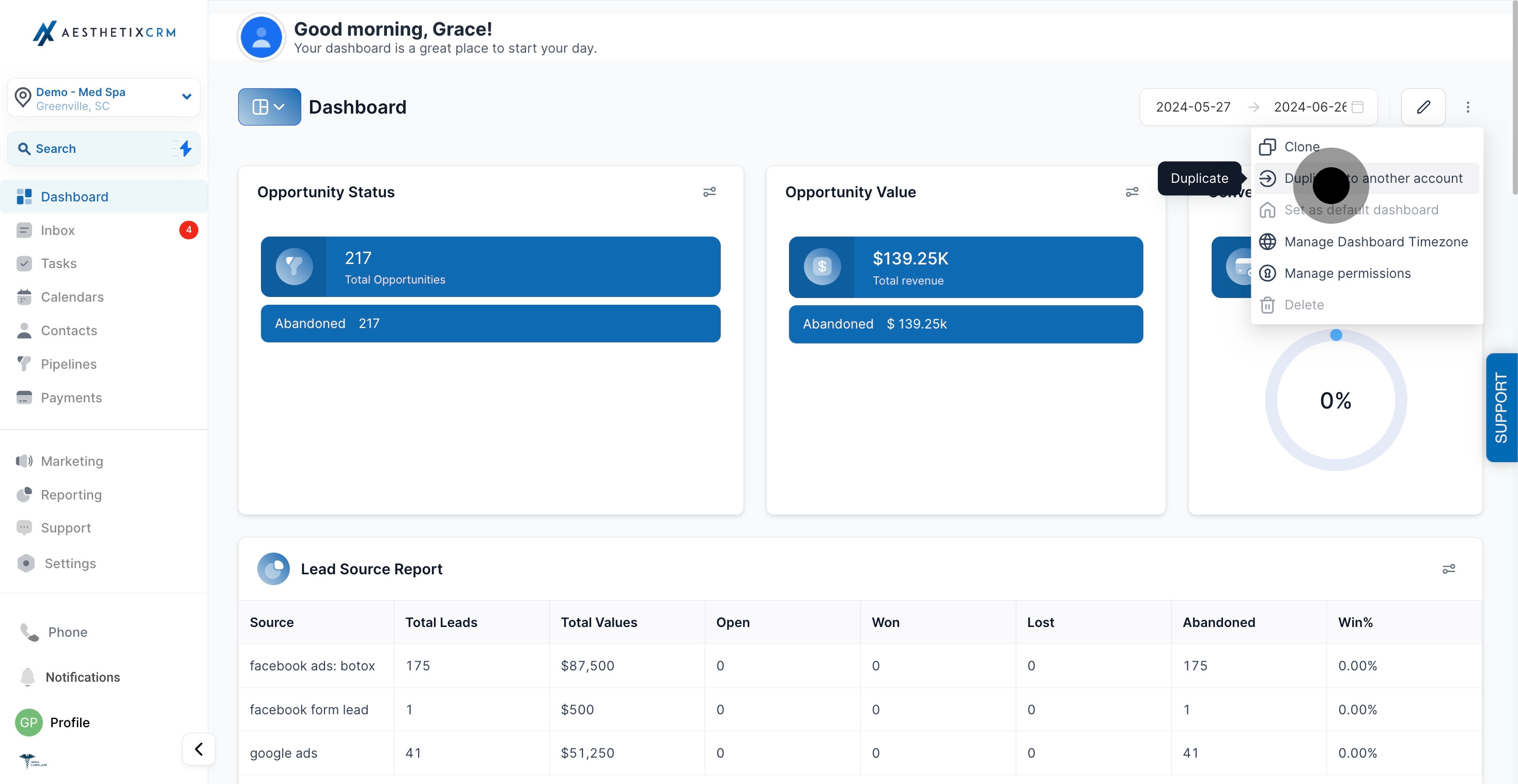
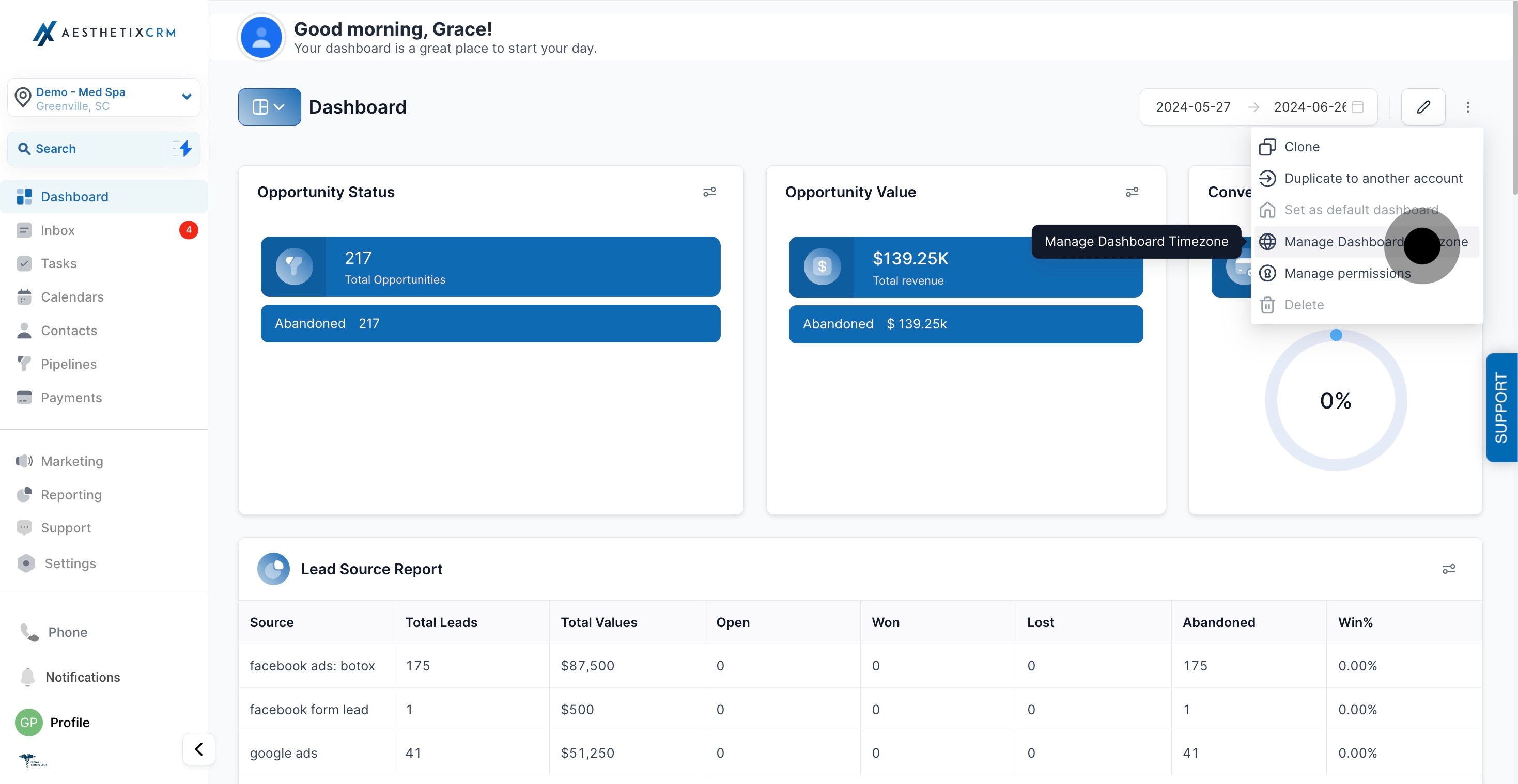
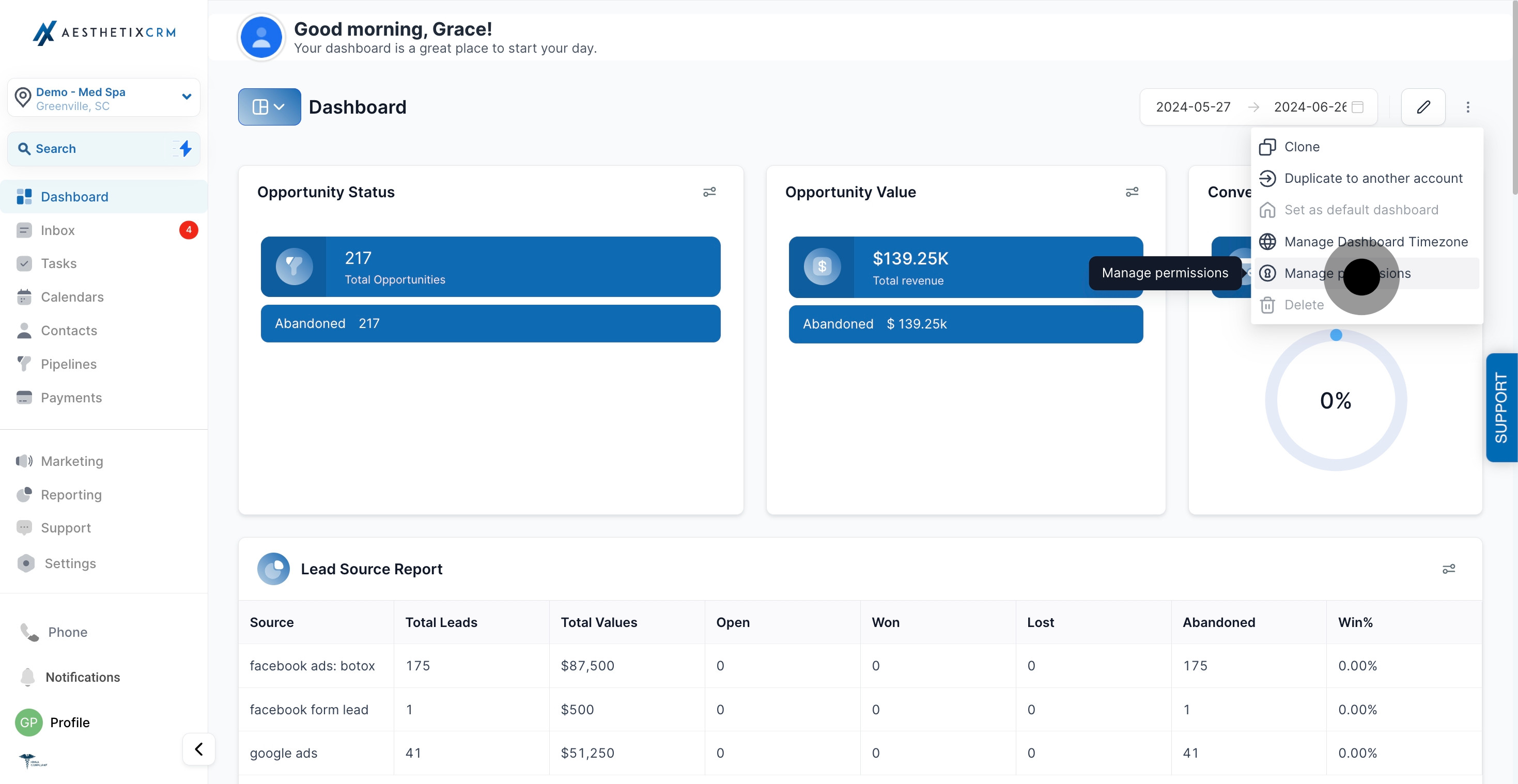
These options live alongside the edit controls and are worth knowing about while you're setting up a dashboard:
Additional options icon: opens a menu with clone, duplicate, timezone, and permission settings for the dashboard.
Clone: creates a full copy of the current dashboard, layout and widgets included, so you can use it as a starting point for a new view without rebuilding from scratch.
Duplicate to another location: if your practice manages more than one location in Aesthetix CRM, this copies the dashboard's layout over to another location instead of just cloning it within the same one.
Manage Dashboard Timezone: sets the timezone used to calculate date ranges for this dashboard's widgets. Set this to your practice's local timezone so daily and weekly numbers line up with your actual business hours.
Manage Permissions: controls which team members can view or edit this specific dashboard. Use this to keep sensitive views, like revenue or provider performance, limited to owners and managers.
Multiple custom dashboards, widgets, and custom reports are available depending on your Aesthetix CRM plan. If you only see one dashboard and can't add another, check your plan's feature list or reach out to your account owner.
Who is allowed to edit a dashboard? Only the dashboard's owner can enter edit mode by default. Other team members need to be granted access through Manage Permissions before they can make changes.
What's the difference between editing the dashboard and editing a widget? Editing the dashboard changes the layout itself: its name, which widgets are on it, and where they're positioned. Editing a widget changes what that individual widget measures and how it displays, which is covered in Widgets & Charts.
Will I lose my changes if I navigate away without saving? Yes. If you leave edit mode or click Cancel before clicking Save Changes, your edits are discarded and the dashboard reverts to its last saved version.
Does deleting a widget delete the underlying data? No. Removing a widget only takes it off that dashboard's layout. The data it was pulling from (leads, appointments, revenue, and so on) is untouched, and you can re-add the same widget type at any time.
Can I have more than one dashboard? Yes, click Add Dashboard to create additional dashboards for different views, such as a front-desk overview versus an owner-level revenue view. Availability of multiple dashboards depends on your Aesthetix CRM plan.
What does cloning a dashboard do? Clone creates a copy of the current dashboard, including its layout and widgets, so you can adjust the copy without affecting the original.
Can I copy a dashboard to a different location? If your account manages multiple locations, use Duplicate to another location from the additional options menu to push a dashboard's layout to another location instead of rebuilding it manually.
Why do my dashboard numbers look off compared to what I expect? Check the date range selector and the dashboard's timezone under Manage Dashboard Timezone. Both affect how data is bucketed and can shift totals if they don't match your practice's actual hours.
Can I control who sees a dashboard with sensitive numbers, like revenue? Yes, use Manage Permissions to limit viewing or editing access to specific team members, so financial or performance dashboards stay visible only to owners and managers.
How do I add a new widget to my dashboard? Enter edit mode, click Add Widget, choose the widget type you want, and configure it. Detailed widget configuration options are covered in Widgets & Charts.
