Your Dashboard is the command center for your practice inside Aesthetix CRM. With one glance you can see new leads, booked consultations, revenue collected, pipeline value, and conversion rate, along with upcoming appointments, recent contacts, tasks, and manual follow-ups. Instead of digging through separate screens, the Dashboard pulls the numbers that matter most into a single view so you can make faster, better-informed decisions about your practice.
The Dashboard also surfaces marketing insight: lead source reports, pipeline performance, stage distribution, and campaign results from your connected ad accounts and web analytics give you a clear read on where patients are coming from and how well each channel converts.
Click Dashboard in the left-hand navigation to open your default dashboard.
Every dashboard, whether it's your default view or one you built yourself, shares the same toolbar for switching modes, adjusting dates, and filtering what's shown.
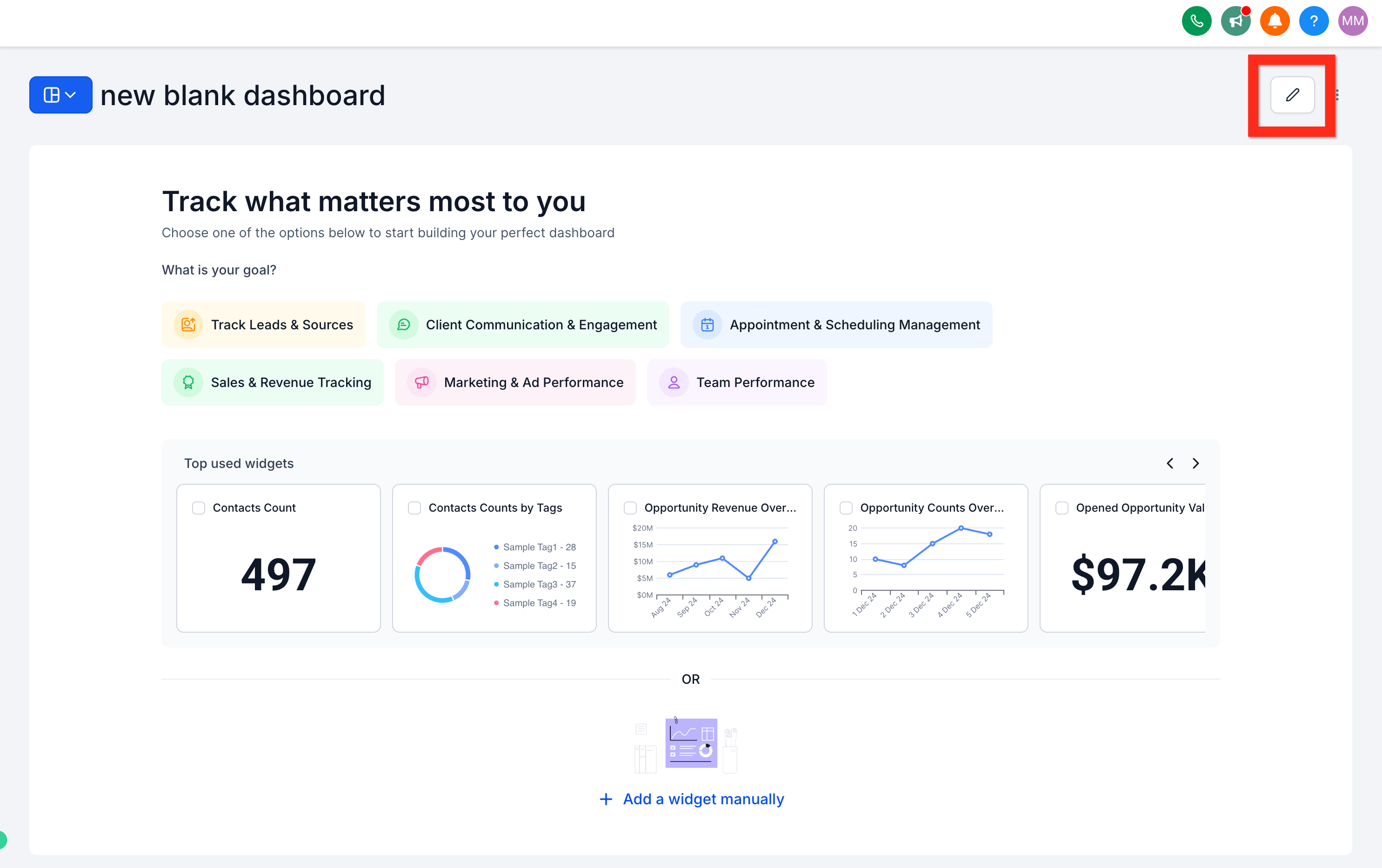
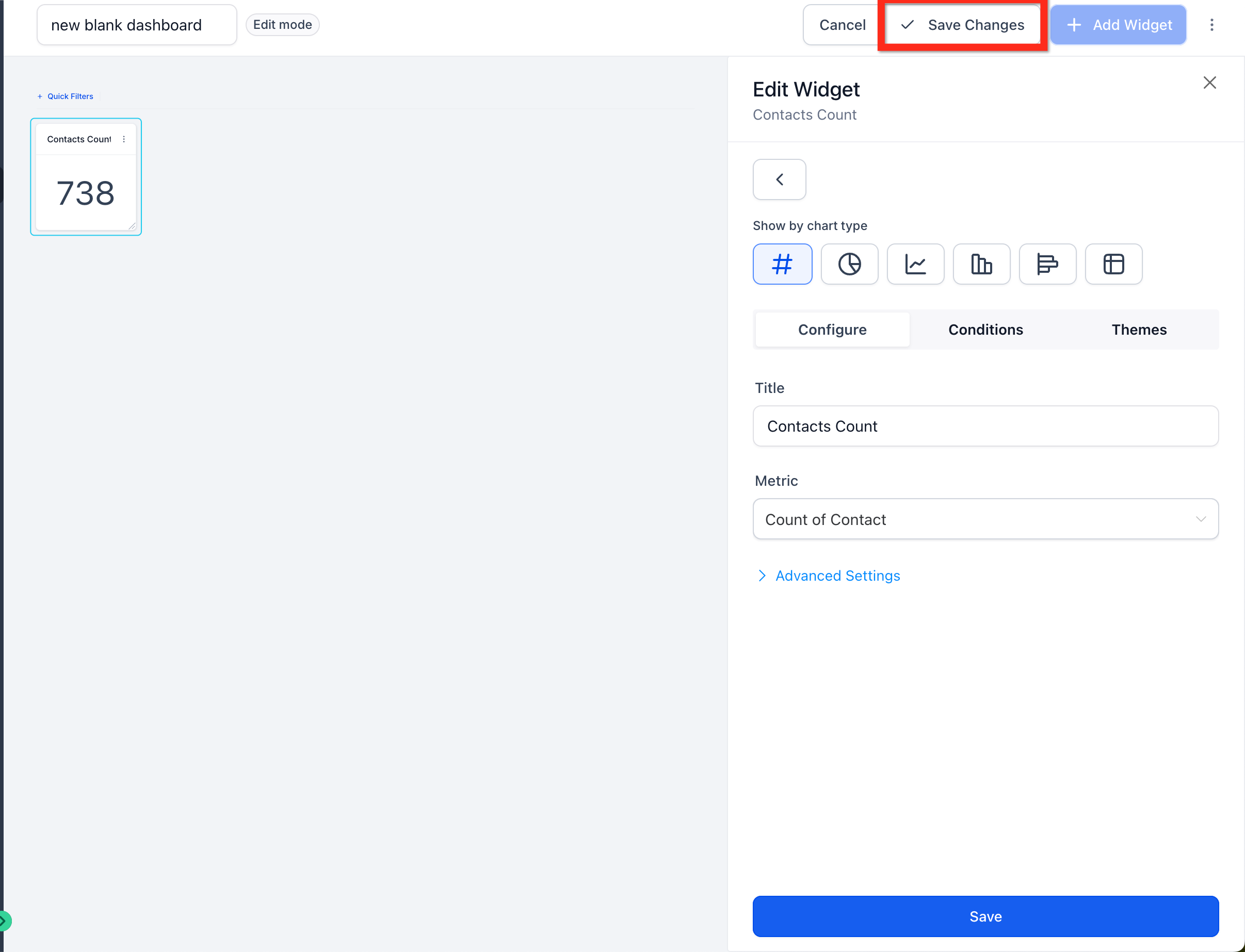
View mode and Edit mode A dashboard is always in one of two modes. View mode is the day-to-day state: you can change dates and filters and check on activity, but the widget layout is locked. Edit mode is where you rearrange widgets, add or remove them, or change the dashboard's theme or title; click the pencil icon to enter it, then click Save Changes to lock the layout back in and return to view mode.
Date range and comparison range Use the date picker to set the date range for the dashboard you're viewing. Your selection is saved automatically per user, so the dashboard opens with your last chosen range the next time you visit. You can also set a dashboard-level comparison range; widgets use it by default, but a widget with its own comparison setting configured will use that instead.
Quick Filters Click Quick Filters to open a side panel where you can adjust which data the dashboard's widgets are pulling from. Active filters appear as pills along the toolbar; click a pill to reopen that filter and adjust it.
Summarize with AI Click Summarize with AI to have AI generate a written overview of the selected dashboard's data instead of reading through each widget yourself.
Every account starts with a default dashboard made up of the widgets below. Each one gives you a focused slice of your practice's activity.
Calendar Widget Shows the appointments on your schedule at a glance: who you're meeting with, when, and for how long. Use it to check in with a patient before their visit or to reschedule quickly if something changes.
Contacts Widget Displays up to 8 contacts you or your team have recently interacted with, either personally or through automations, so you can keep track of active conversations without leaving the dashboard.
Task Widget Lists assigned tasks and reminders, either for a single team member or for everyone on your account.
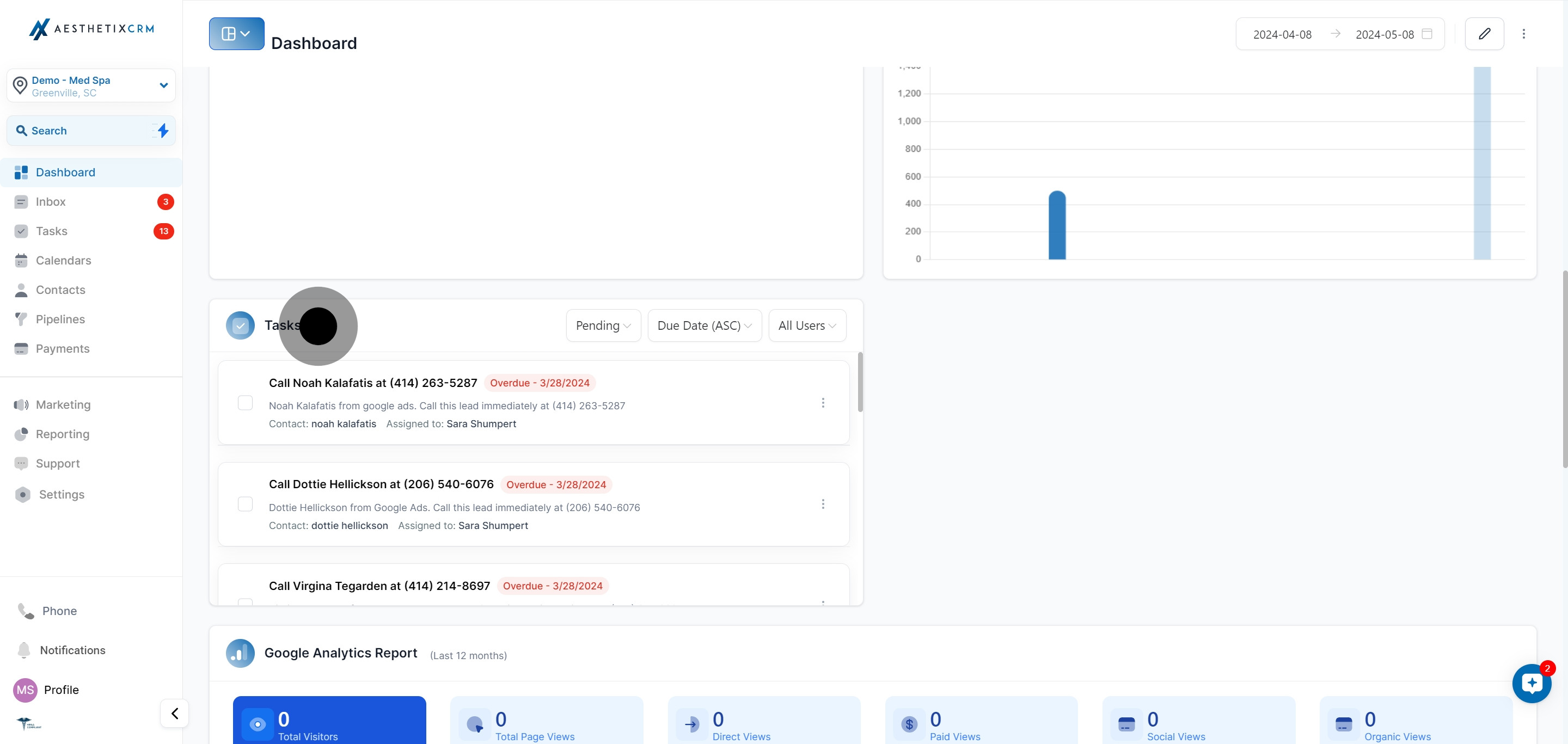
Manual Actions Widget Surfaces the leads and patients who need a manual follow-up, such as a phone call or text your team needs to send by hand rather than through an automated workflow.
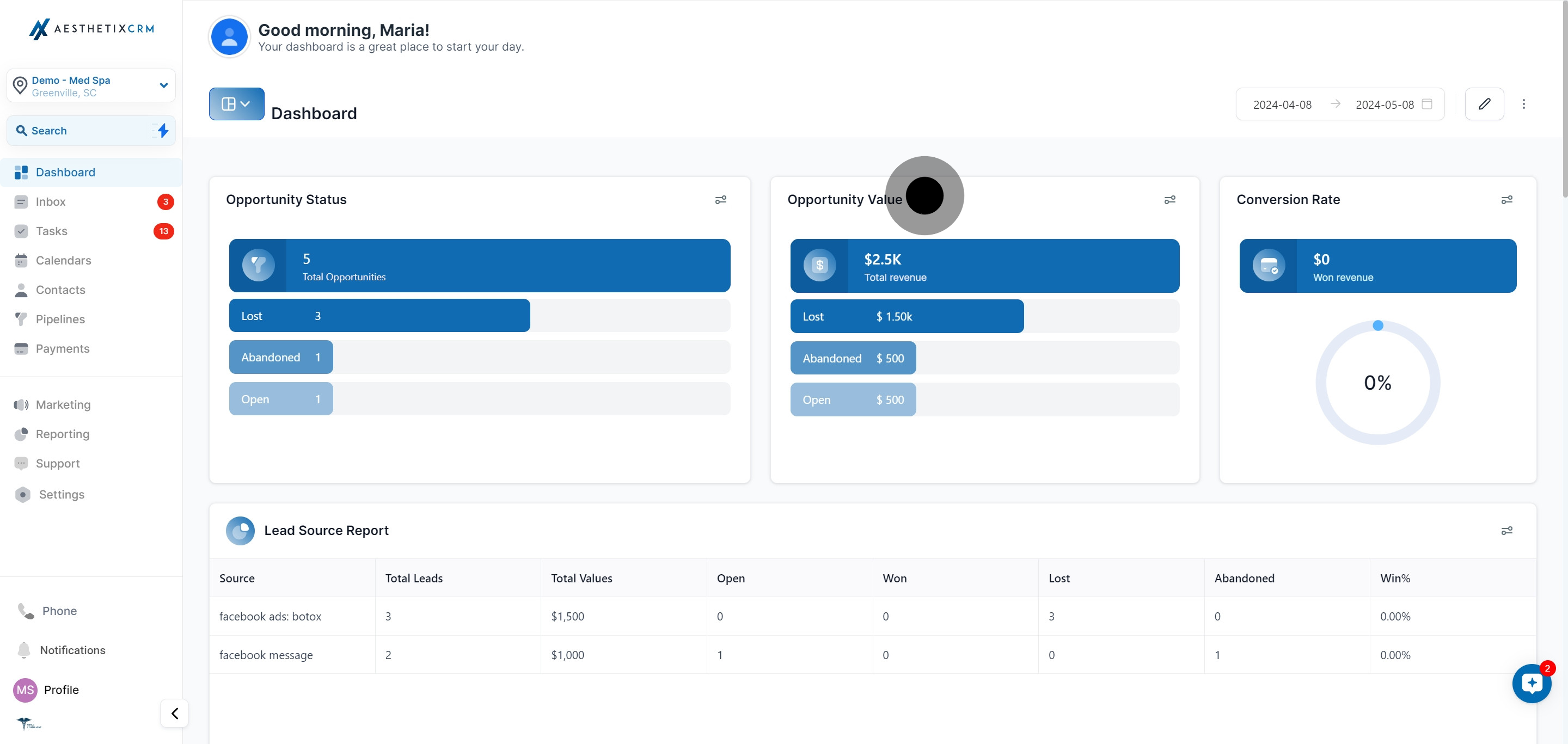
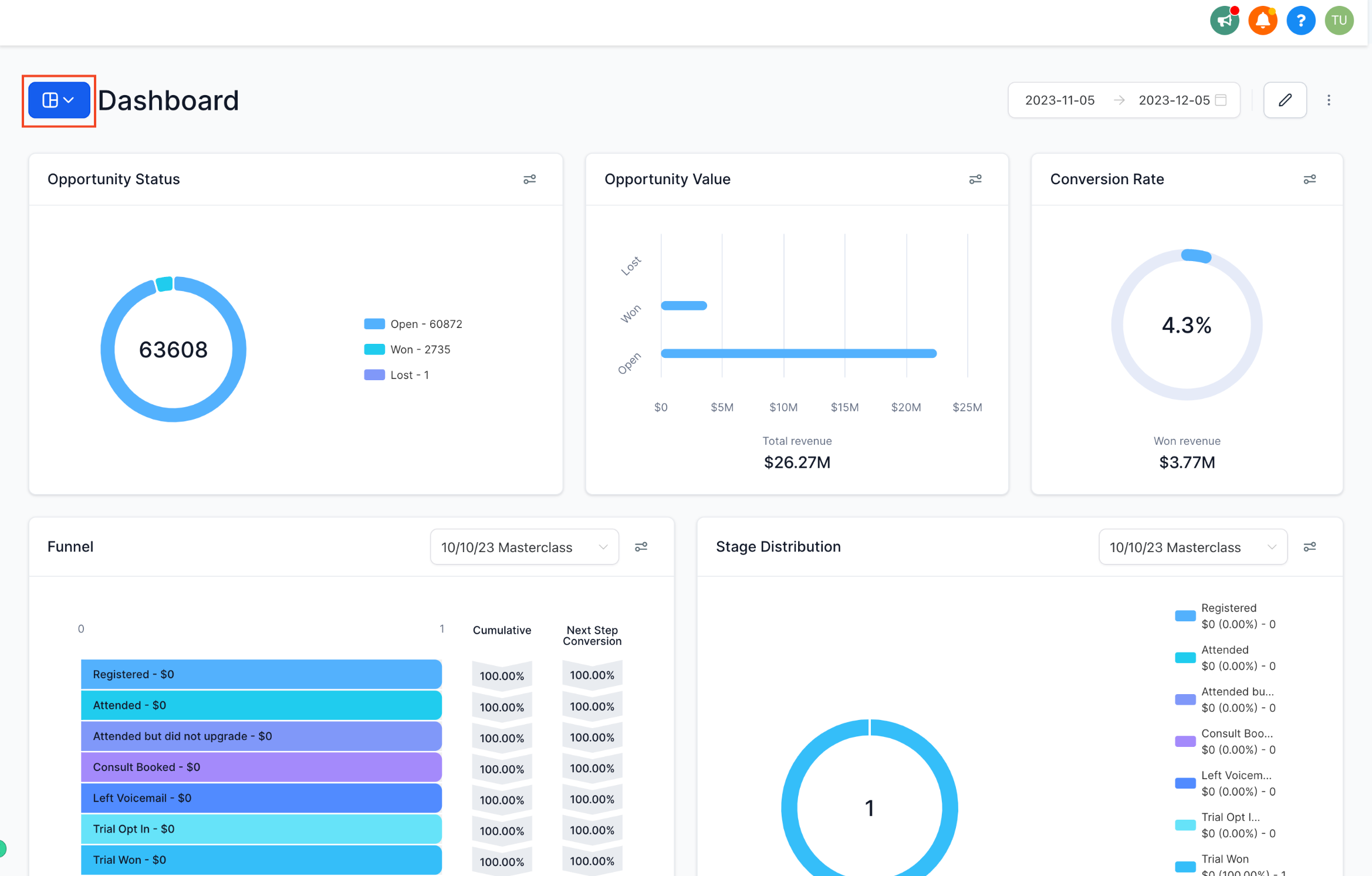
Lead Widget (Opportunity Status) Shows the count of contacts sitting in your pipelines, broken out by status: Closed, Open, or Lost.

Revenue Widget (Opportunity Value) Estimates the total value of every lead across your pipelines, with a breakdown by Closed, Open, and Lost status so you can see revenue booked versus revenue still in play.
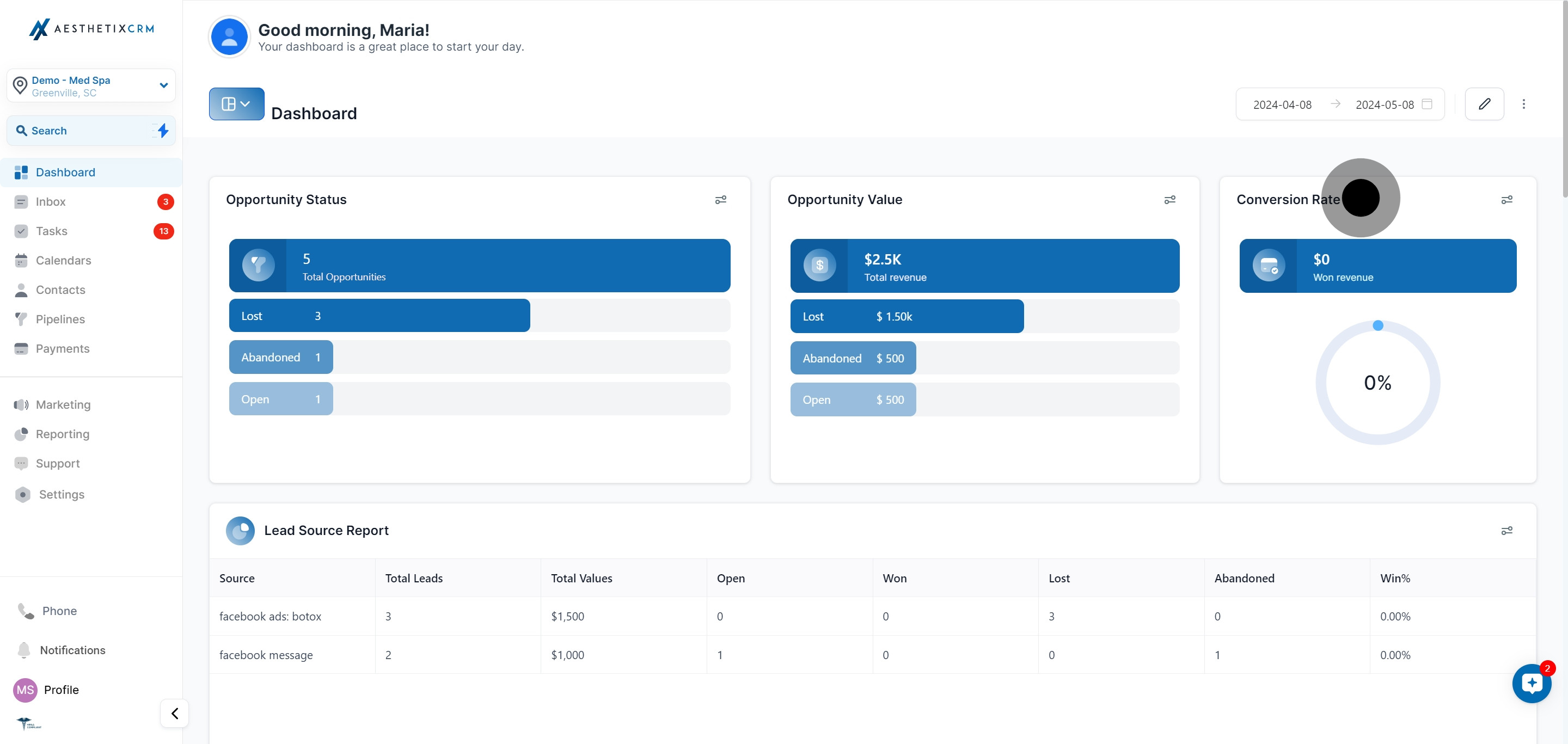
Conversion Widget (Conversion Rate) Gives a quick read on how efficiently your practice, or an individual team member, is closing or marking opportunities as Won.
Appointments Widget Summarizes calendar event performance: how many appointments were booked, showed, no-showed, and cancelled over the selected period.
Lead Source Report Widget Breaks down your traffic sources with the number of leads, pipeline value, and status tied to each one, so you can see which channels are actually driving booked patients.
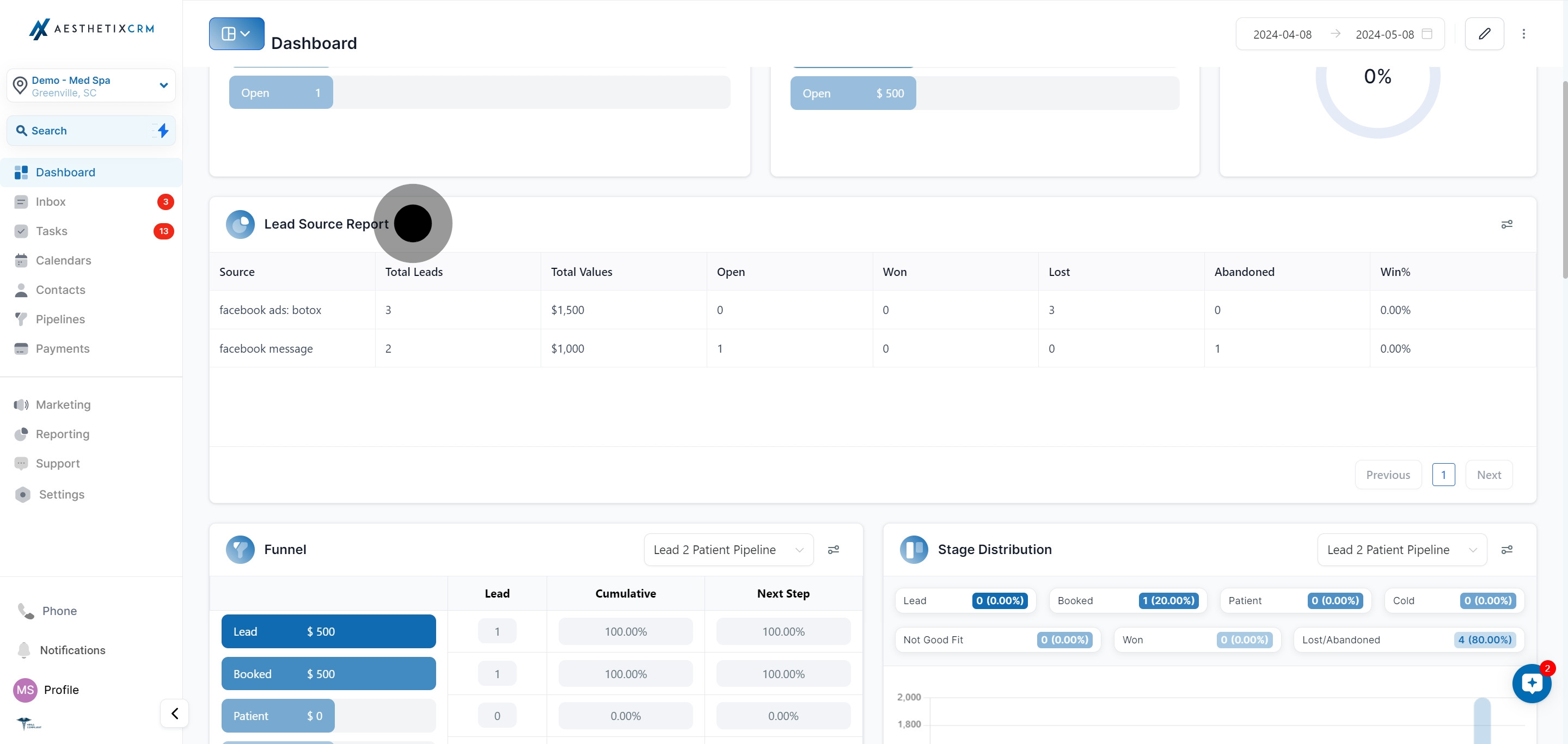
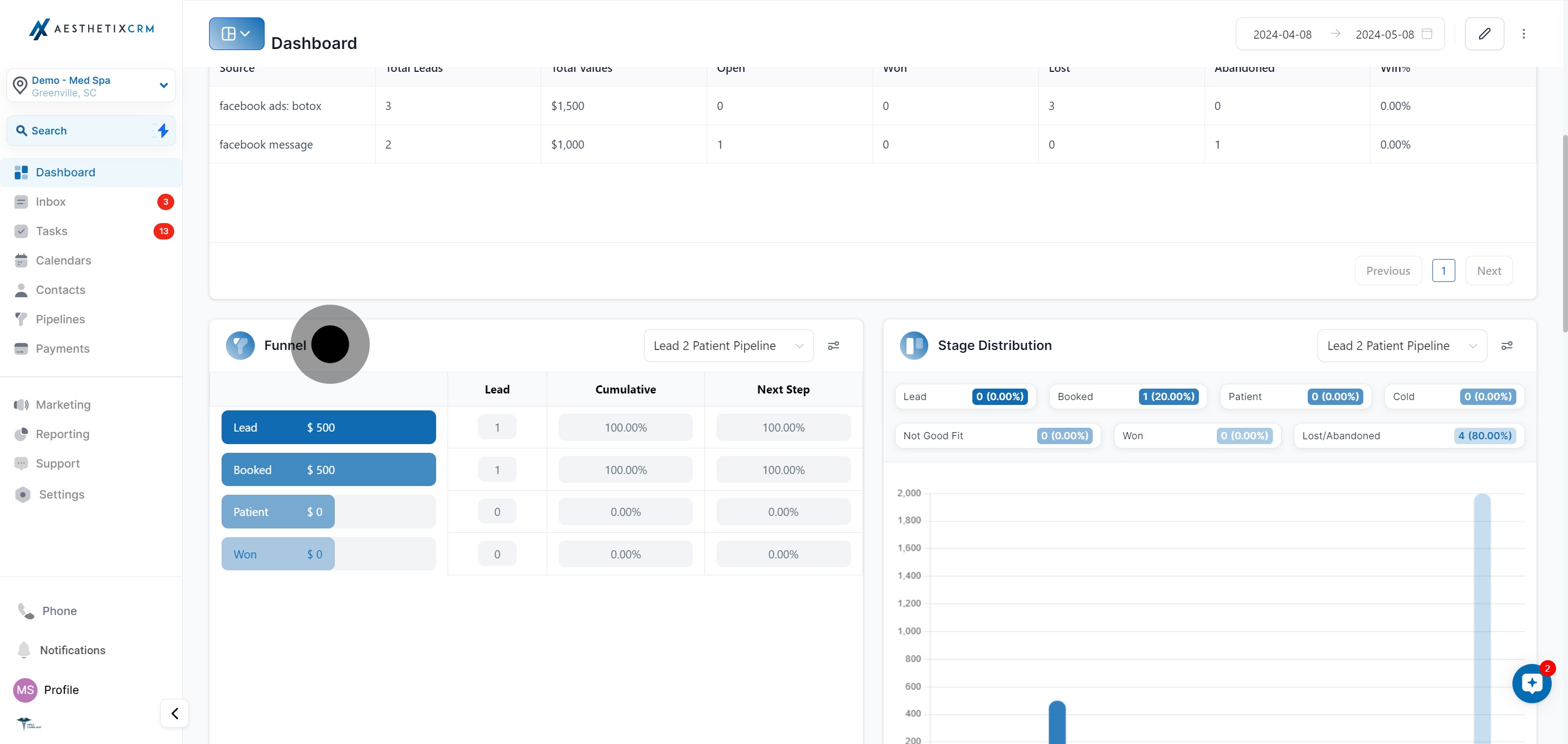
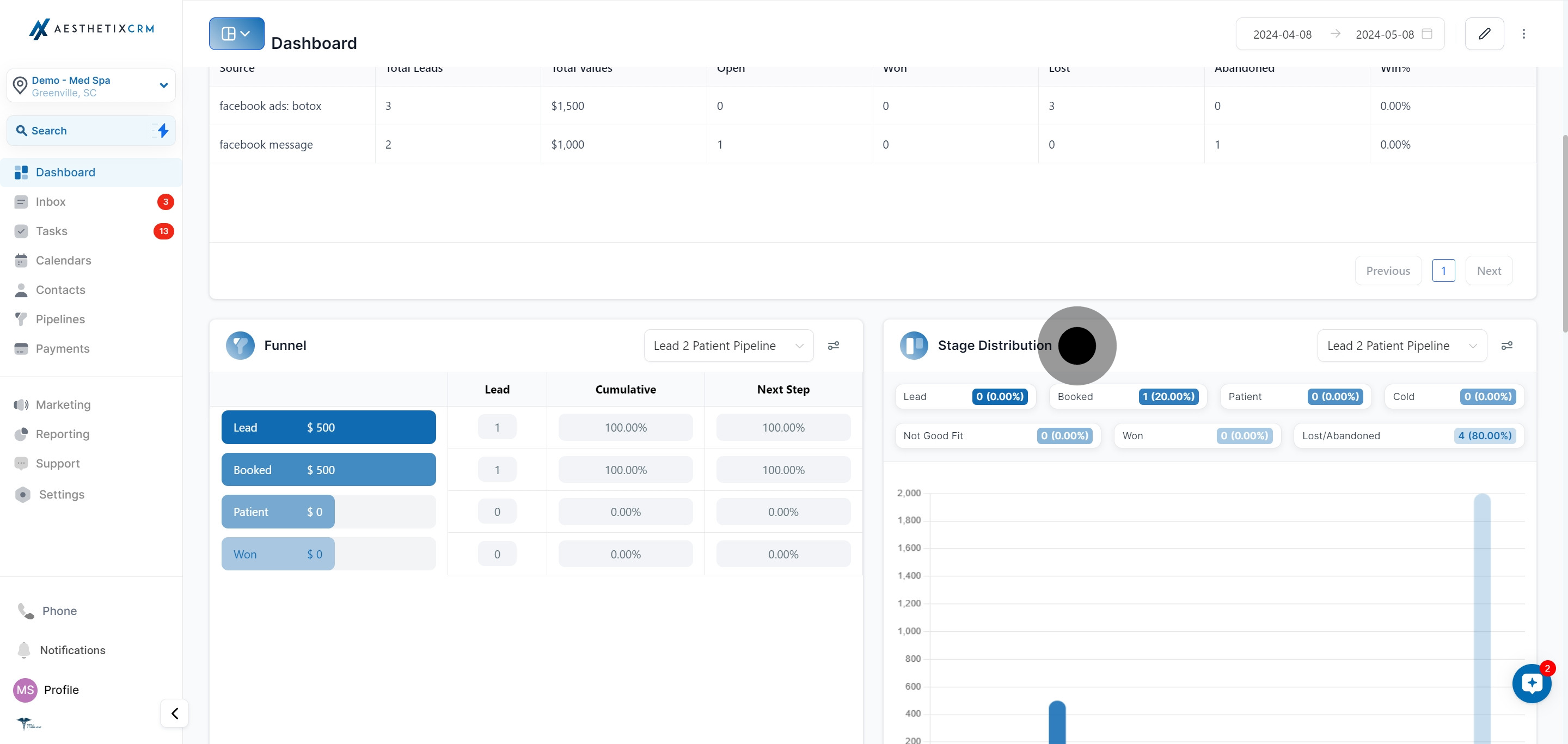
Pipeline Performance Widget Visualizes where your opportunities sit across the stages of your pipelines, including funnel detail and stage distribution, so bottlenecks are easy to spot.
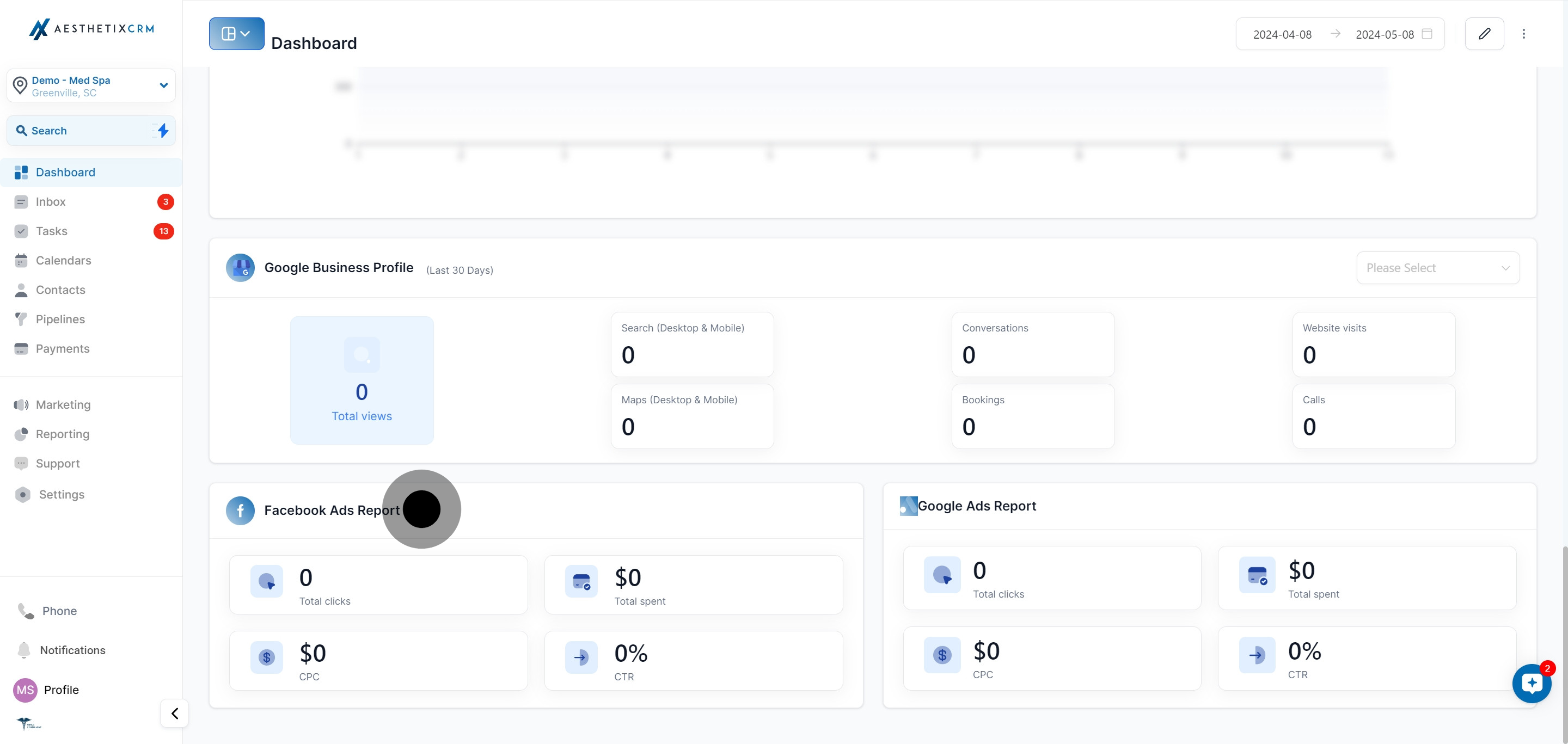
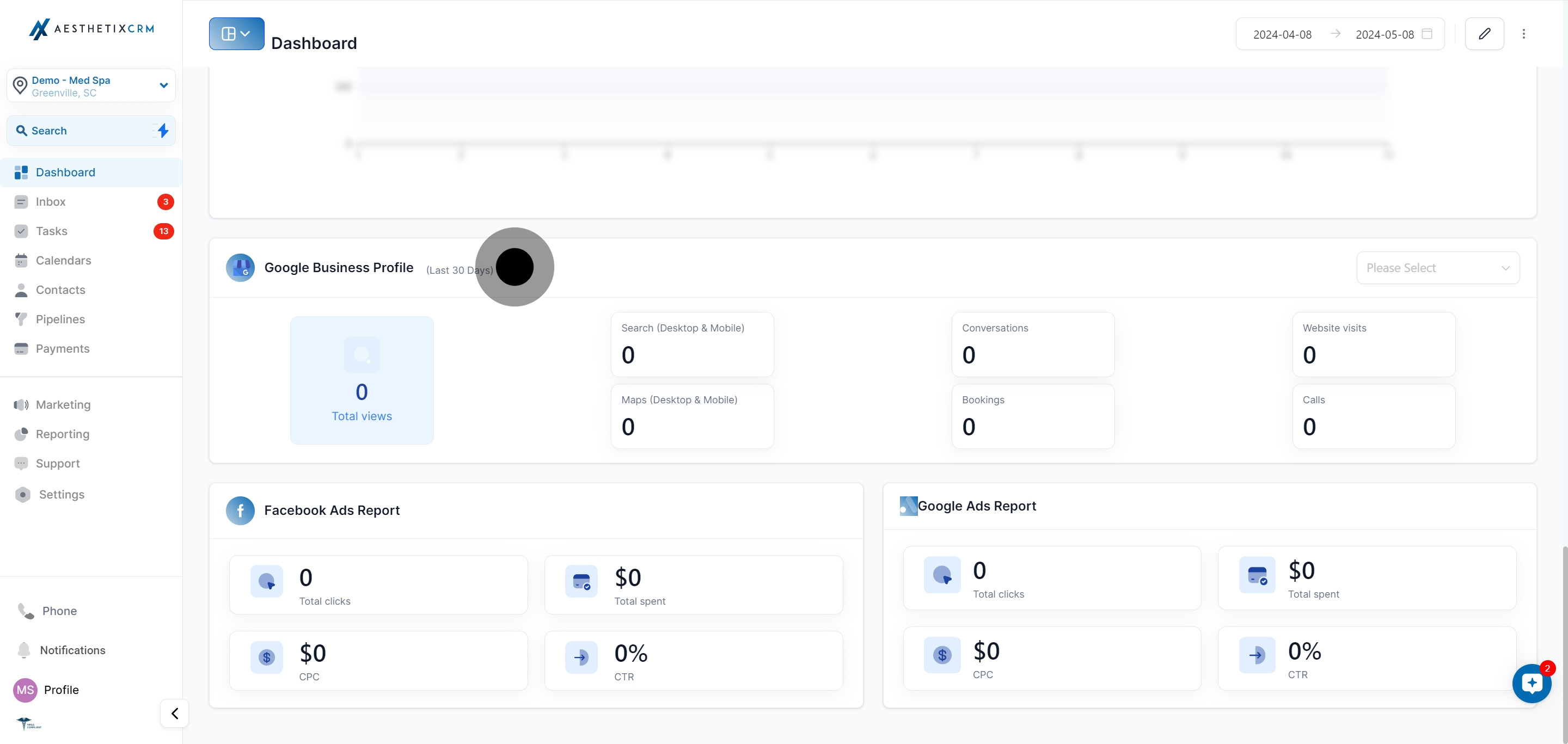
Facebook Ads Widget Pulls in total impressions, total clicks, click-through rate, average cost per click, and total spend for your connected Facebook ad account.
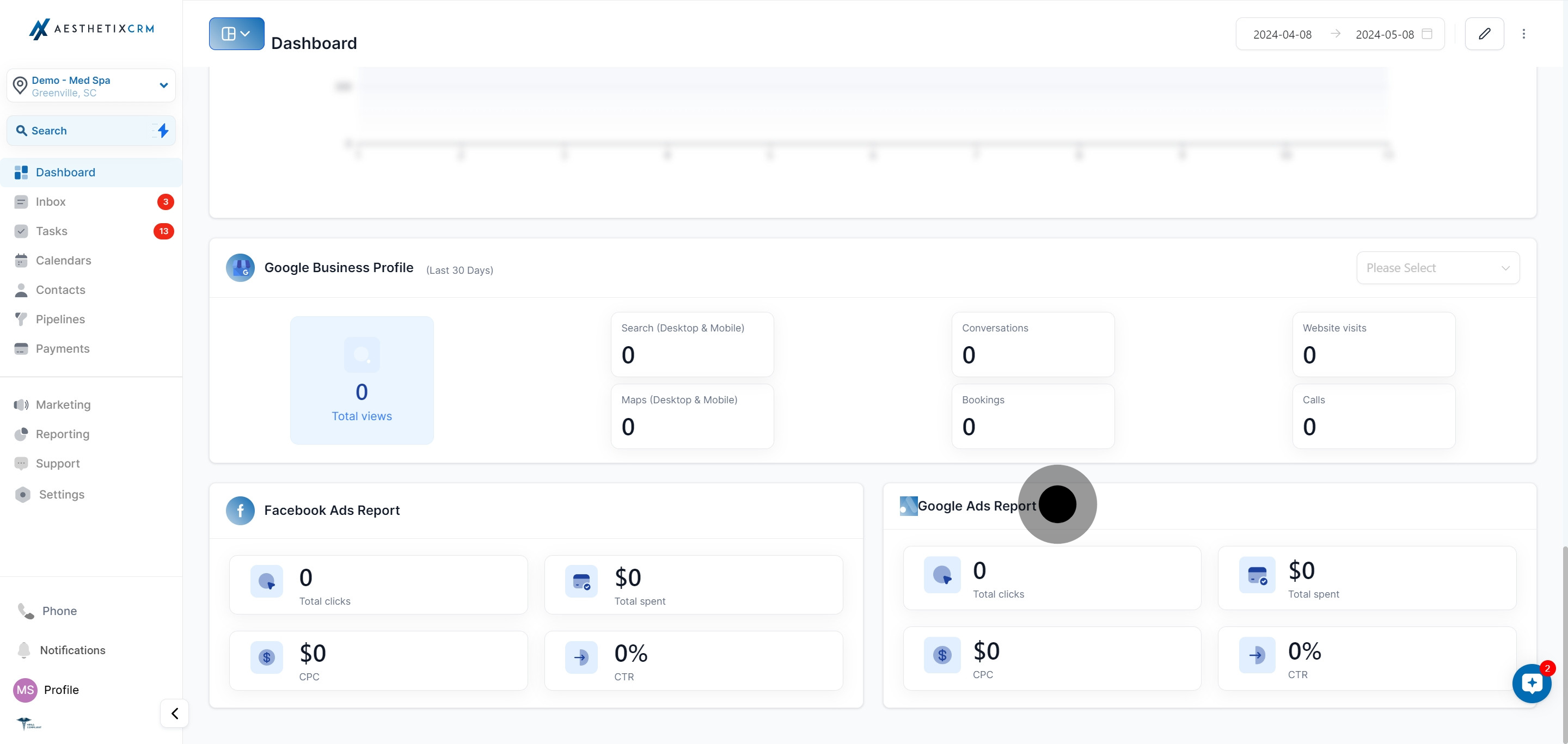
Google Ads Widget Shows performance data for your connected Google Ads account in the same style as the Facebook Ads widget.
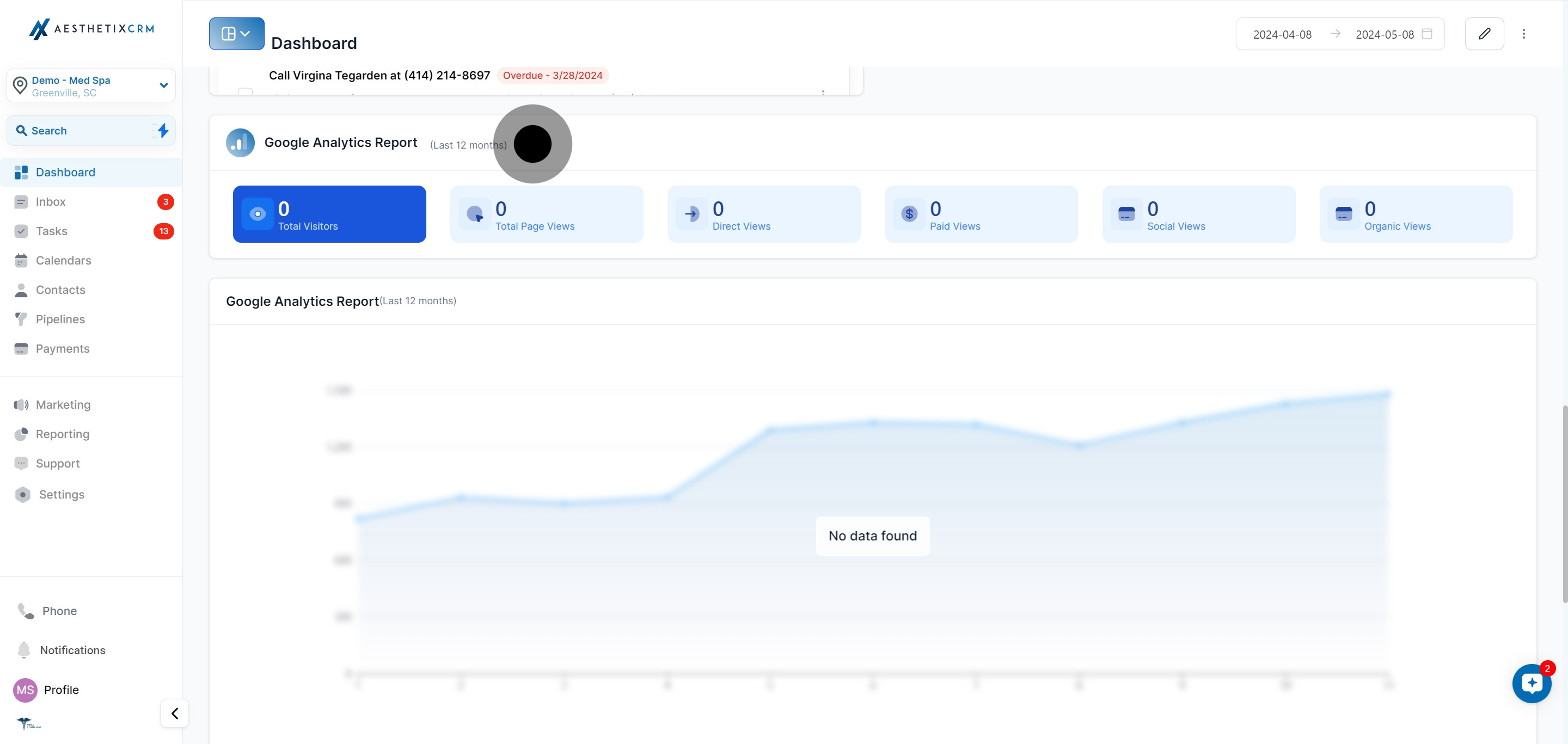
Google Analytics Widget Displays website visitor data pulled straight from your connected Google Analytics property, so you don't need to leave Aesthetix CRM to check traffic trends.
Google Business Profile Widget Monitors your online presence with data from your connected Google Business Profile, including recent activity over the selected date range.
The dashboard you land on when you click Dashboard is your default view, but it doesn't have to be the only one. Custom Dashboards let you build additional, purpose-built views (a Front Desk dashboard, a Marketing dashboard, an Owner dashboard) with their own widgets, layout, and even color theme. You can create as many dashboards as you need and set any one of them as your default.
Key benefits of custom dashboards:
Multiple dashboards: Build a dedicated view for front desk, marketing, or ownership, and set whichever one you use most as the default.
Custom widgets and metrics: Add, edit, and update the metrics on each widget so it surfaces exactly what that team needs.
Scheduled reports: Have any dashboard's data emailed to your team automatically on a schedule you choose.
Full customization: Personalize colors, themes, and backgrounds.
Multiple visualizations: View the same data as scorecards, time series, bar and column charts, donut and pie charts, or tables, depending on the widget.
Go to the Dashboard area in the left-hand navigation.
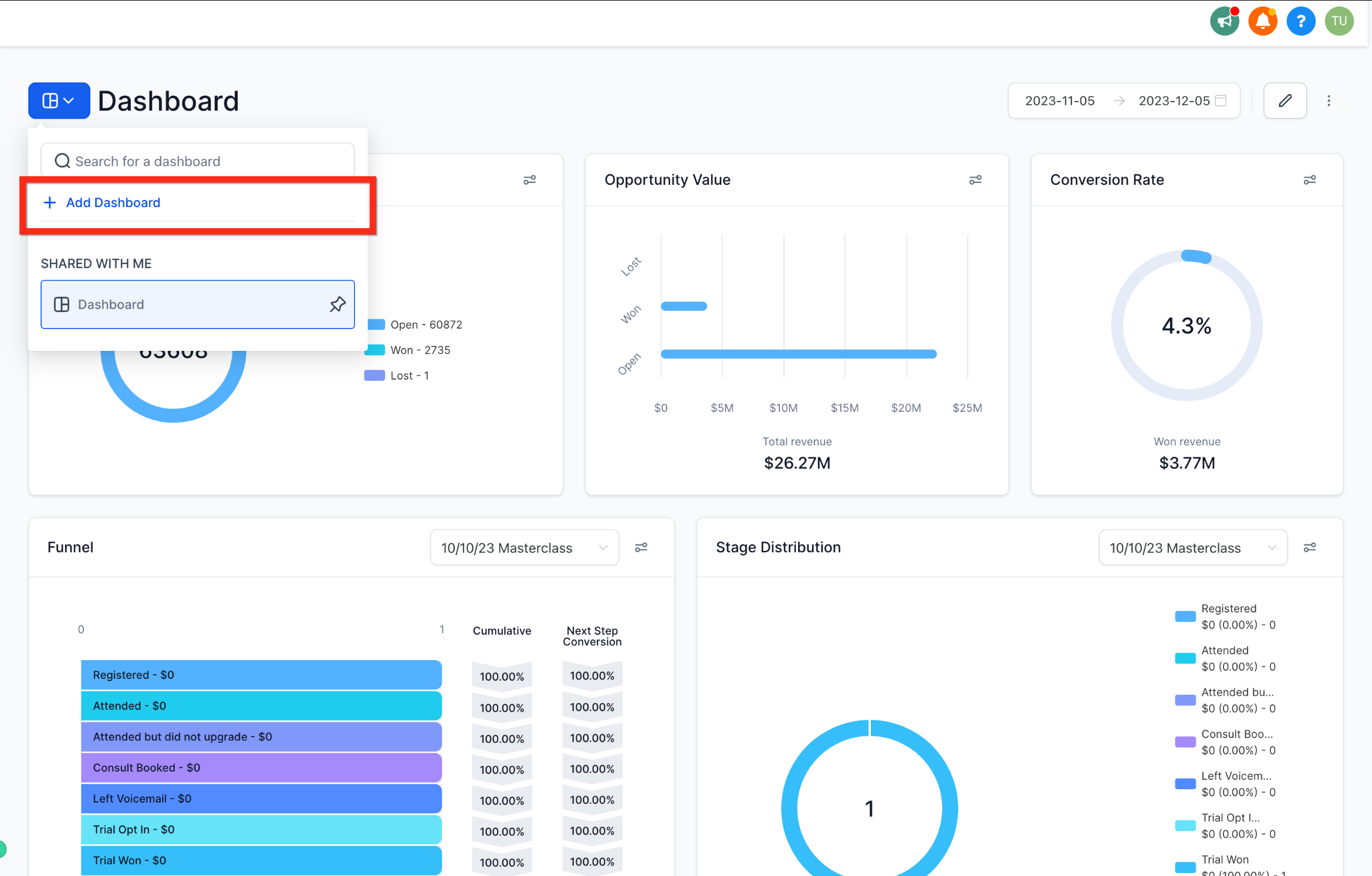
Click the Dashboard Selection Menu, then click "+ Add Dashboard" in the dropdown.
If you don't see this button, make sure you're in dashboard view mode.
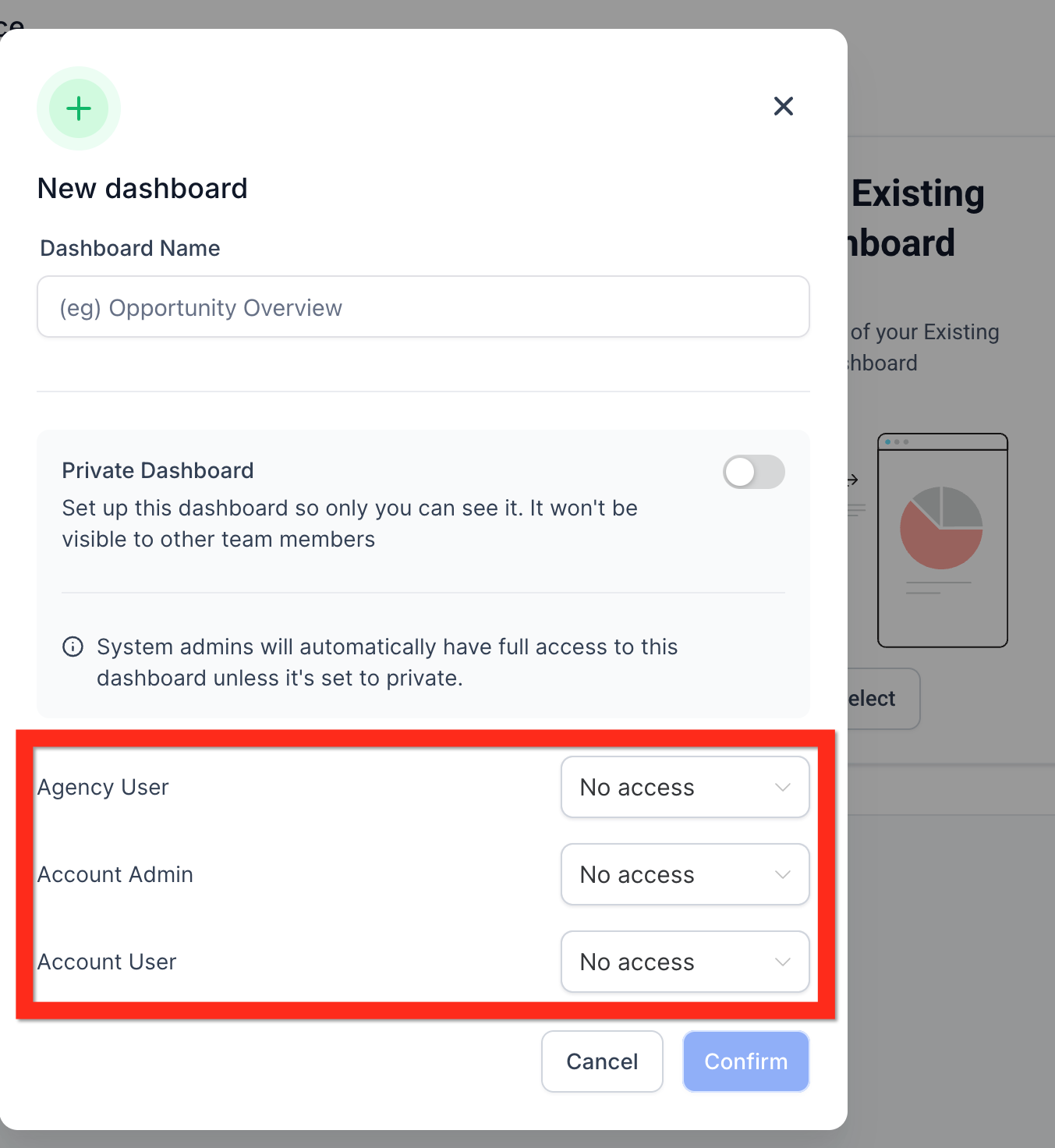
Type a name into the Dashboard Name field.
Use the Private Dashboard toggle to control who can see it. Turn it ON to keep the dashboard private to you, or OFF to share it with your team. If it's off, set access levels for Agency User, Account Admin, and Account User.
If this toggle is missing, make sure you're still on the New Dashboard page.
Click "Confirm" to create the dashboard. This opens a new, blank dashboard.
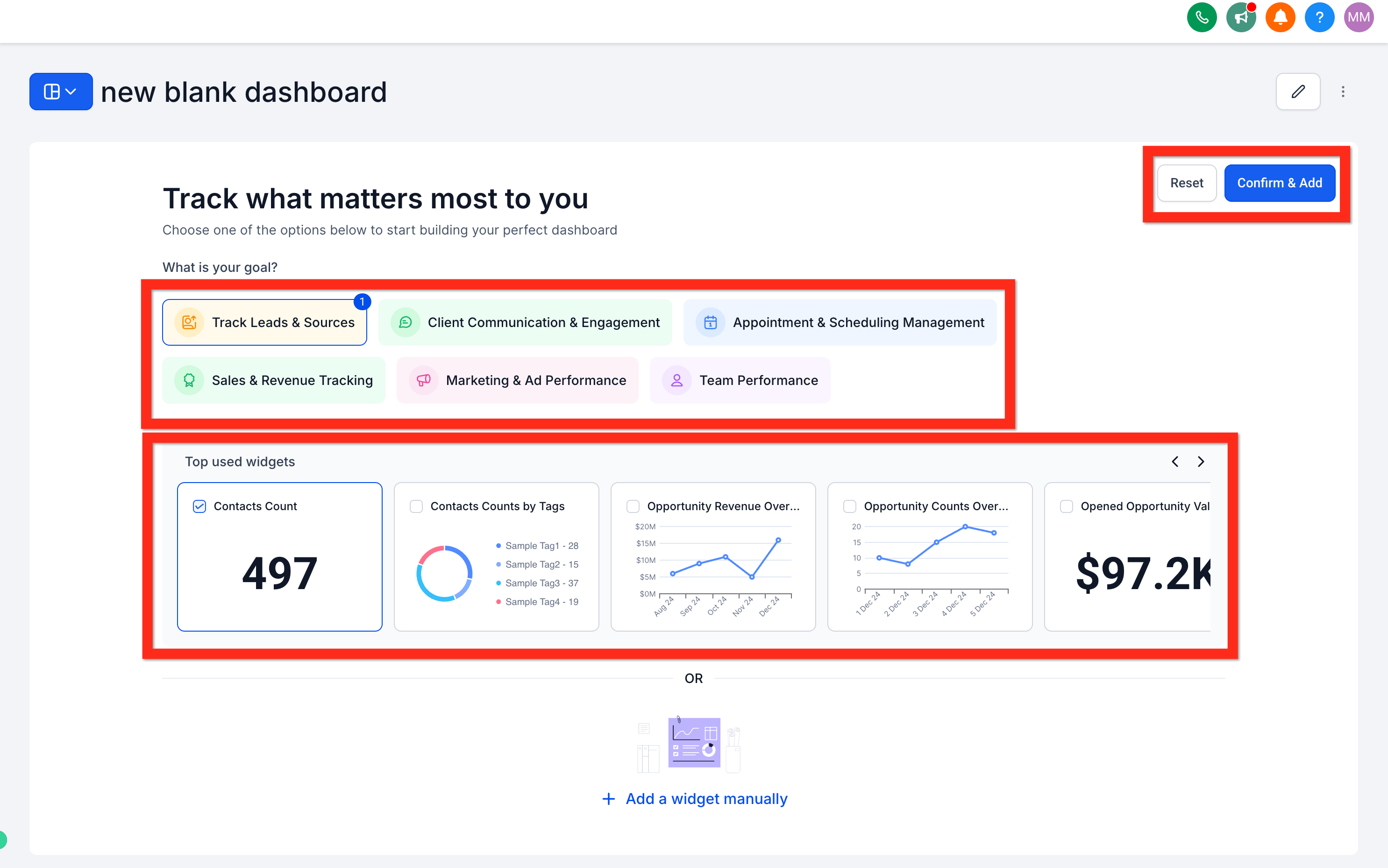
Choose how you want to add widgets. A blank dashboard always opens on the Quick Start Widgets page, where you have three options:
Use suggested widgets: Answer "What is your goal?" or browse "Top used widgets" to select one or more popular widgets, then click "Confirm & Add" to insert them quickly.
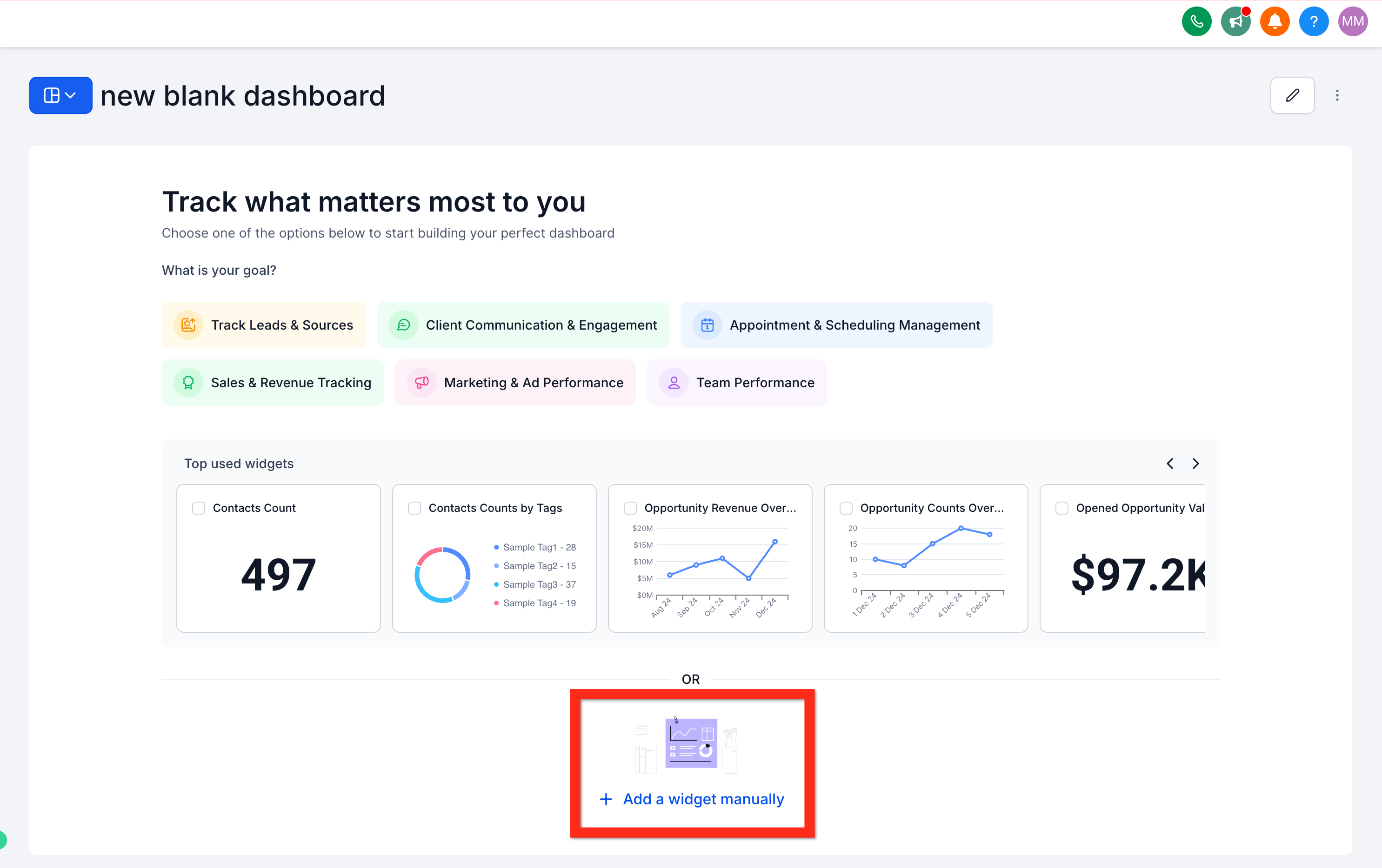
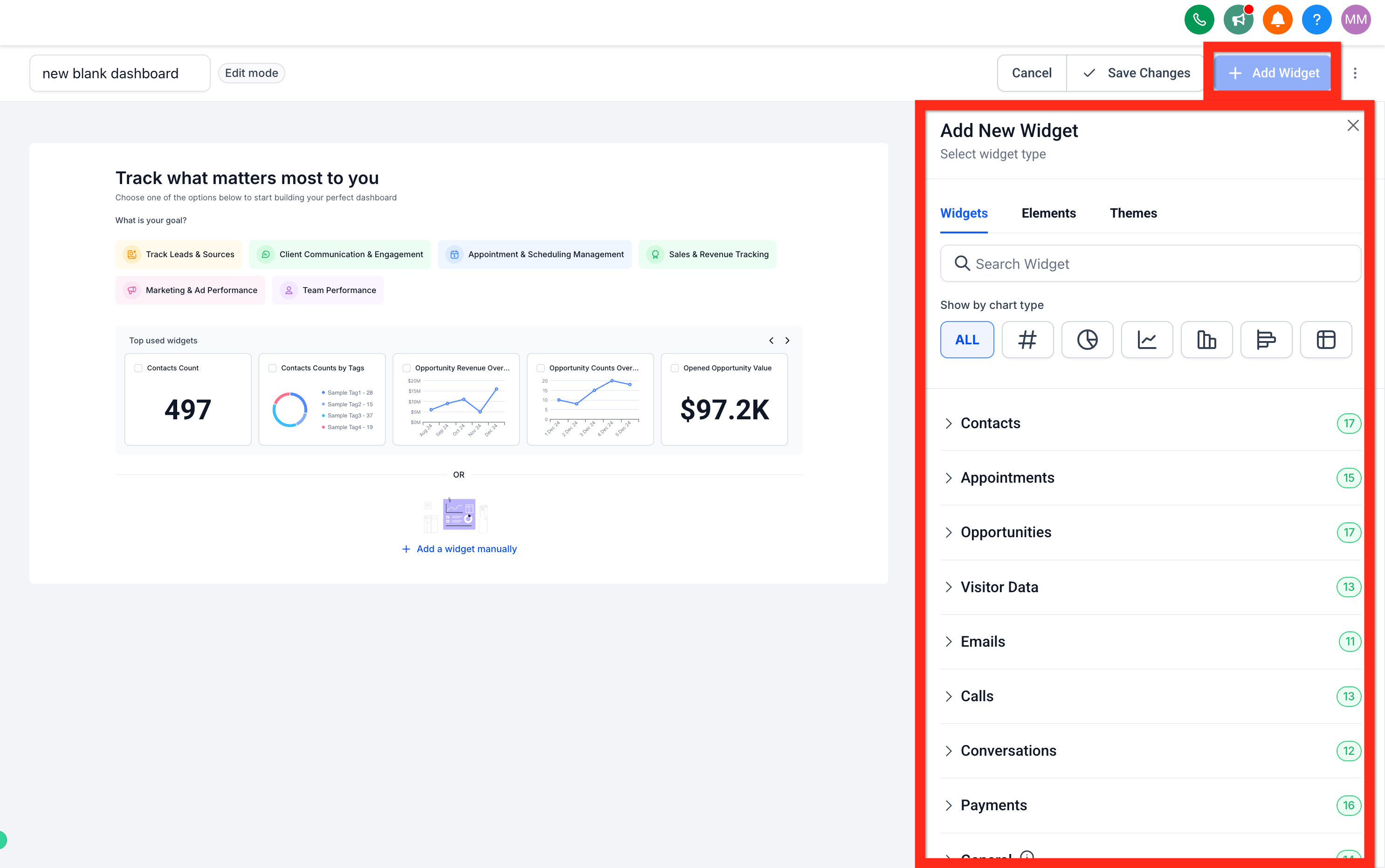
Add a widget manually: Click "+ Add a widget manually" to open the Add New Widget panel.
Add a widget in edit mode: Click the Edit button (pencil icon), then click "+ Add Widget". If you don't see this button, make sure you've entered edit mode first.
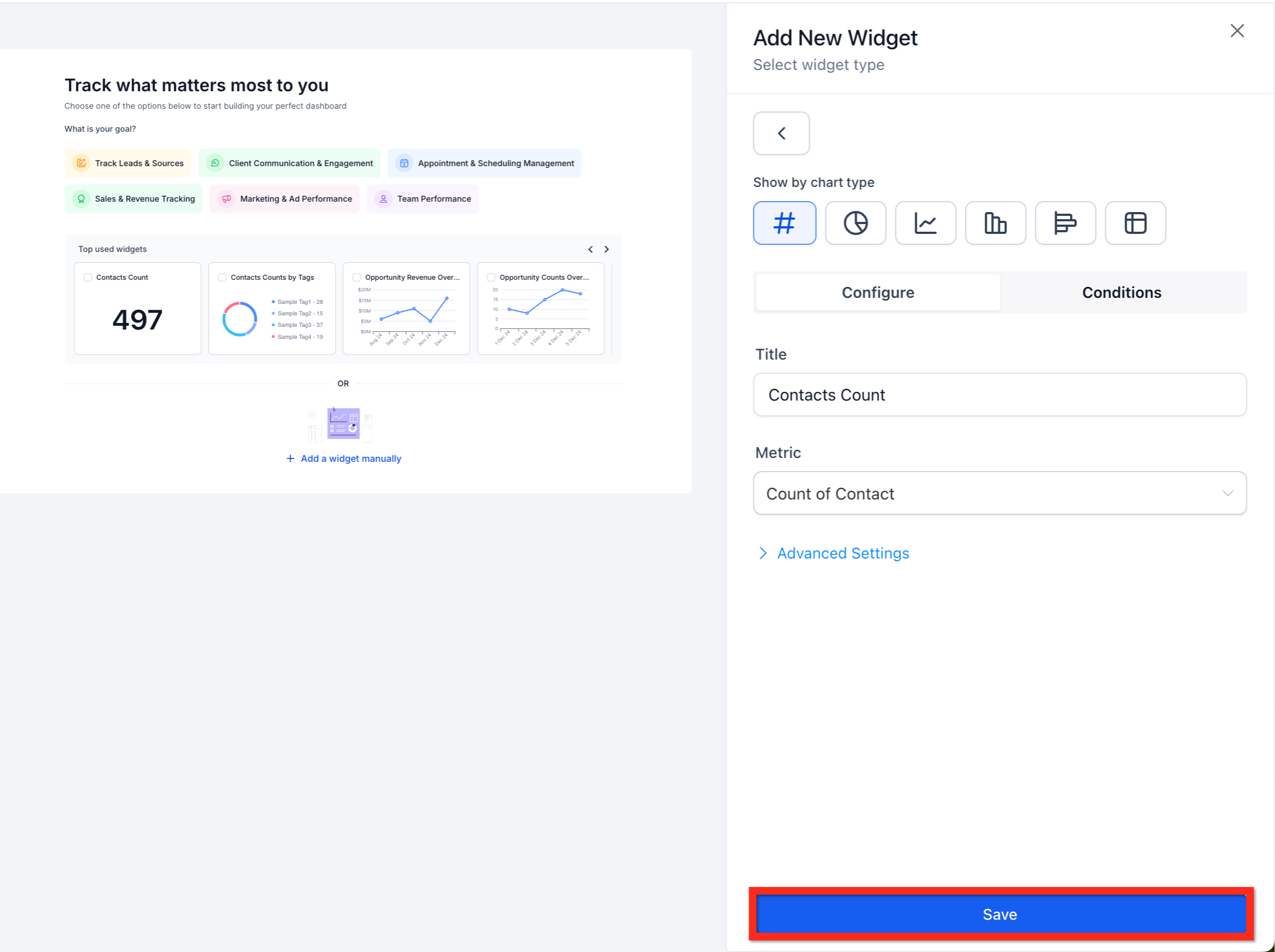
If you're adding a widget manually or from edit mode, use the Add New Widget panel to choose the widget type and configure its metrics, filters, and display style.
Click "Save" within the widget panel to add it to the dashboard.
Click "✓ Save Changes" to finish. This saves your layout and exits edit mode.
You can duplicate an existing dashboard from its dashboard actions menu and then adjust the widgets, filters, and theme on the copy, which is a fast way to spin up a similar view for another team.
The Dashboard is your day-to-day, at-a-glance view: the KPIs your front desk and practice owners check every morning (leads, booked consults, revenue, pipeline value, conversion). The Reporting collection goes deeper, with dedicated report types for attribution, call activity, and other detailed breakdowns. Ad-network performance also has its own home in Ad Manager's Ad Reporting, and your online reputation metrics live in Review Management. Think of the Dashboard as your summary view, and Reporting (along with Ad Manager and Review Management) as the place to dig into specifics.
What KPIs does the default Dashboard show? New leads, booked consultations and appointments, revenue collected, pipeline value, and conversion rate, along with your calendar, recent contacts, and outstanding tasks.
Can I have more than one dashboard? Yes. Custom Dashboards let you create as many additional dashboards as you need, each with its own widgets and layout, and you can set any one of them as your default.
Who can see a custom dashboard? That's controlled by the Private Dashboard toggle. Turn it on to keep the dashboard visible only to you, or turn it off and set access levels for Agency User, Account Admin, and Account User.
Can I schedule a dashboard to be emailed automatically? Yes. Scheduled reports let you send any dashboard's data to your team at whatever frequency you choose, including to recipients who don't have a login.
What chart types can widgets use? Depending on the widget, you can display data as a scorecard, time series, bar or column chart, donut or pie chart, or table.
Why don't I see the "+ Add Dashboard" button? Make sure you're in dashboard view mode rather than editing an existing widget. The button only appears in the Dashboard Selection Menu while you're viewing dashboards.
Can I duplicate a dashboard instead of building one from scratch? Yes. Use the dashboard actions menu to duplicate an existing dashboard, then adjust its widgets, filters, and theme.
Where do I go for deeper reporting than the Dashboard provides? Check the Reporting collection for detailed report types, Ad Manager's Ad Reporting for ad-network performance, and Review Management for reputation and review metrics.
Do the ad widgets require my ad accounts to be connected first? Yes. The Facebook Ads and Google Ads widgets only populate once those accounts are connected in Aesthetix CRM; the Google Analytics and Google Business Profile widgets work the same way.
What's the difference between view mode and edit mode? View mode is what you see day-to-day: you can change dates and filters, but the widget layout is locked. Edit mode, entered from the pencil icon, is where you rearrange, add, or remove widgets and adjust the theme; click Save Changes when you're done to lock it back in.
Can I set a comparison date range for my dashboard? Yes. Set a dashboard-level comparison range from the date picker and widgets will use it automatically, unless a specific widget has its own comparison setting configured, in which case that setting takes over.
Can AI summarize my dashboard for me? Yes. Click Summarize with AI to get a written overview of the selected dashboard's data without reading through each widget individually.
