If your practice sells products through the Store in Aesthetix CRM (skincare lines, retail add-ons, gift cards, and more), you can sync that catalog to a Facebook Shop and run catalog ads directly from Meta's Commerce Manager. Catalog ads pull product images, names, and prices straight from your synced catalog, so patients see up-to-date products without you building individual ad creative for each item.
This guide covers the catalog-specific setup inside Meta's Commerce Manager: connecting your Product Catalog, meeting the sync requirements, and launching ads from your catalog items. For general Facebook and Instagram ad creation (audiences, budgets, campaign objectives), see the Ads Manager collection. This guide stays scoped to the catalog source itself.
Your Facebook Shop needs a few things in place before catalog products will sync and ads can run:
The Facebook Page must have a Product Catalog connected to it. Without this connection, products will not sync.
The Facebook Page must have the category "E-commerce Website" set, or the shop will not get listed in the Shops section. You can manage this from the Facebook Page itself: go to the About section, then Contact and basic info, and update Categories.
The Facebook Page must be connected to your Aesthetix CRM store under the Shops section for the sync to take place.
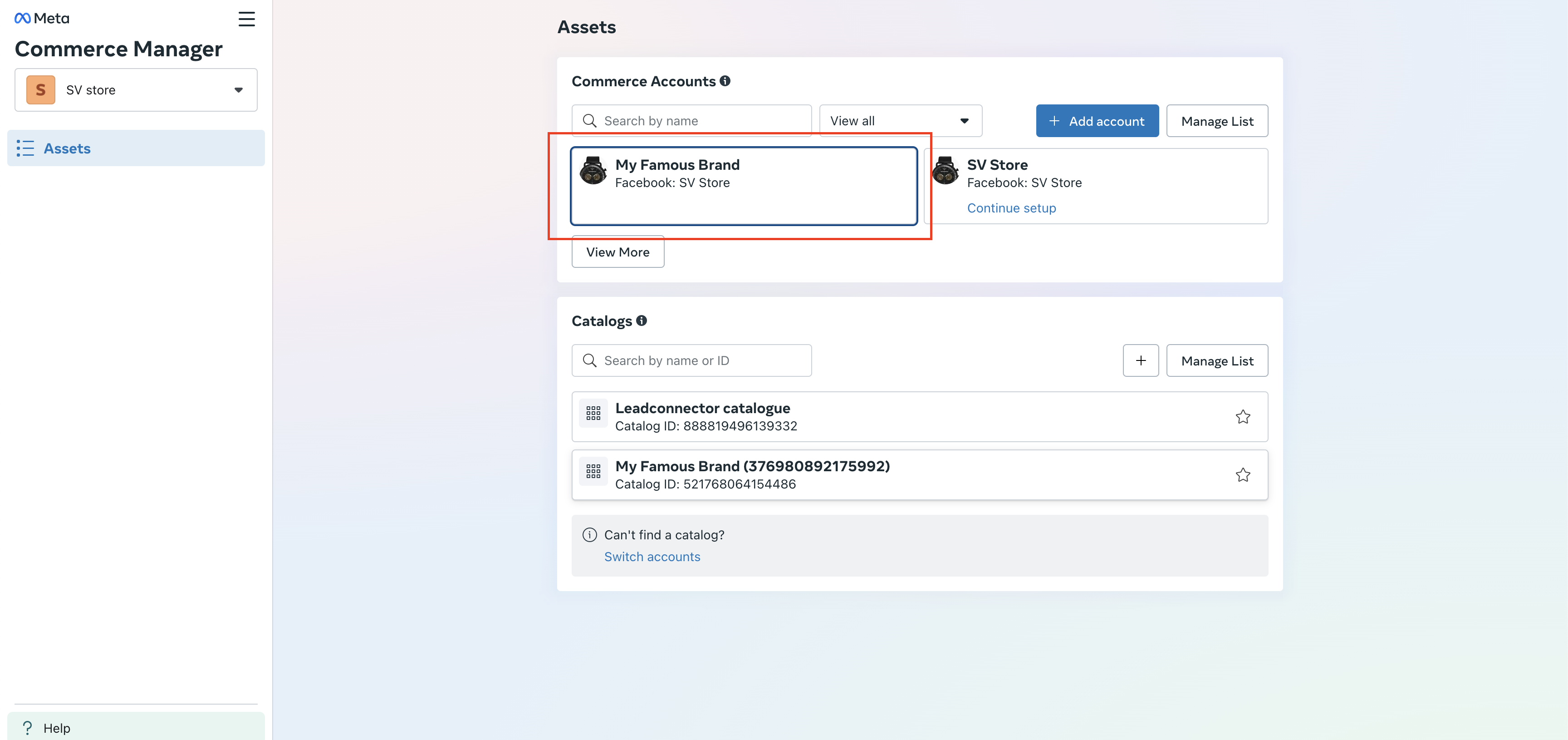
From Meta's Commerce Manager, open the shop connected to your practice's Facebook Page.
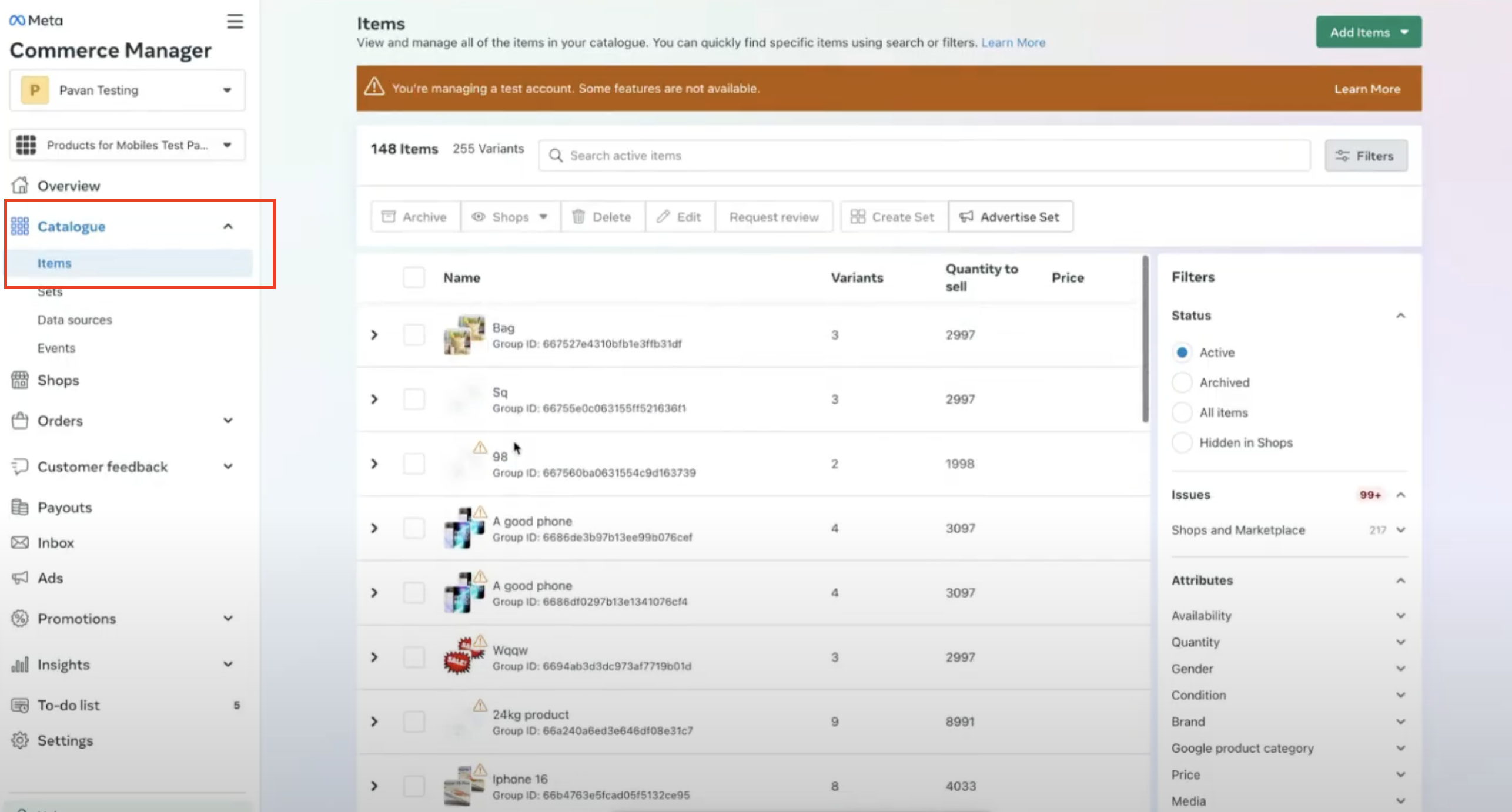
Go to Catalogue > Items to view every product that has synced over from your Aesthetix CRM store.
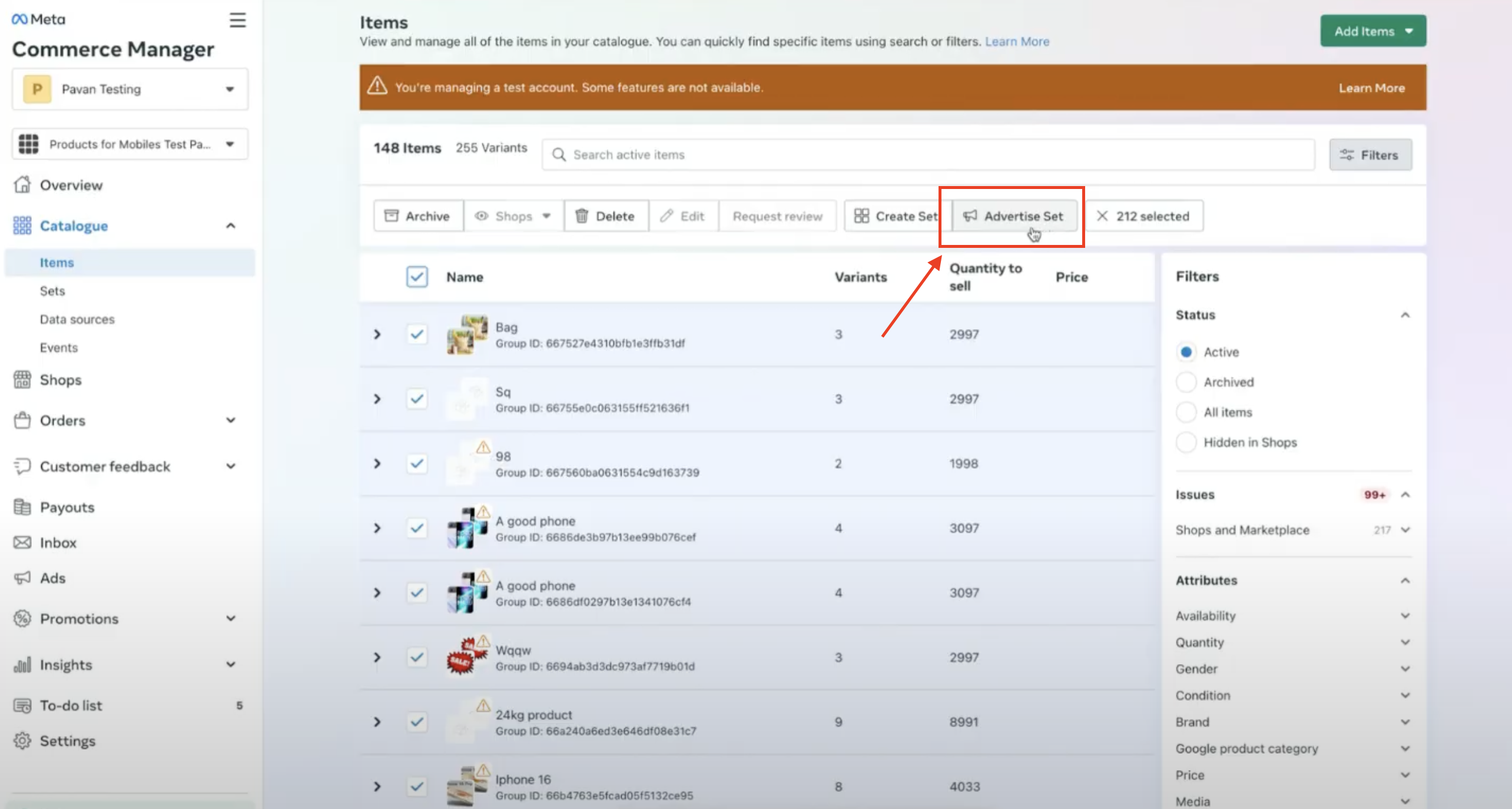
Select the products you want to advertise, then click Advertise Set to start building the ad. This launches Meta's ad creation flow with your selected catalog items pre-loaded, so the ad automatically pulls each product's synced image, name, and price.
From here, campaign settings such as audience, placement, and budget follow the same flow as any other Facebook or Instagram ad. See the Ads Manager collection for guidance on building out those campaign details.
Keep these limits in mind when planning catalog ads, since they can affect which products show up and how they behave:
Only one-time products sync to the Meta catalog. Recurring (subscription) products are not supported in Meta Commerce Manager and will not appear as ads.
If inventory tracking is turned off, or if "continue selling out of stock" is enabled, Meta requires an inventory quantity, so it sets the synced quantity to 999. This is expected behavior, not an error.
Product catalog setup, taxes, and coupon configuration for your Store live in the Payments collection. If a product isn't appearing the way you expect in your shop, confirm its setup there first.
If your practice sells through Shopify or WooCommerce instead of (or alongside) the native Store, catalog connections for those platforms are configured from the Integrations collection.
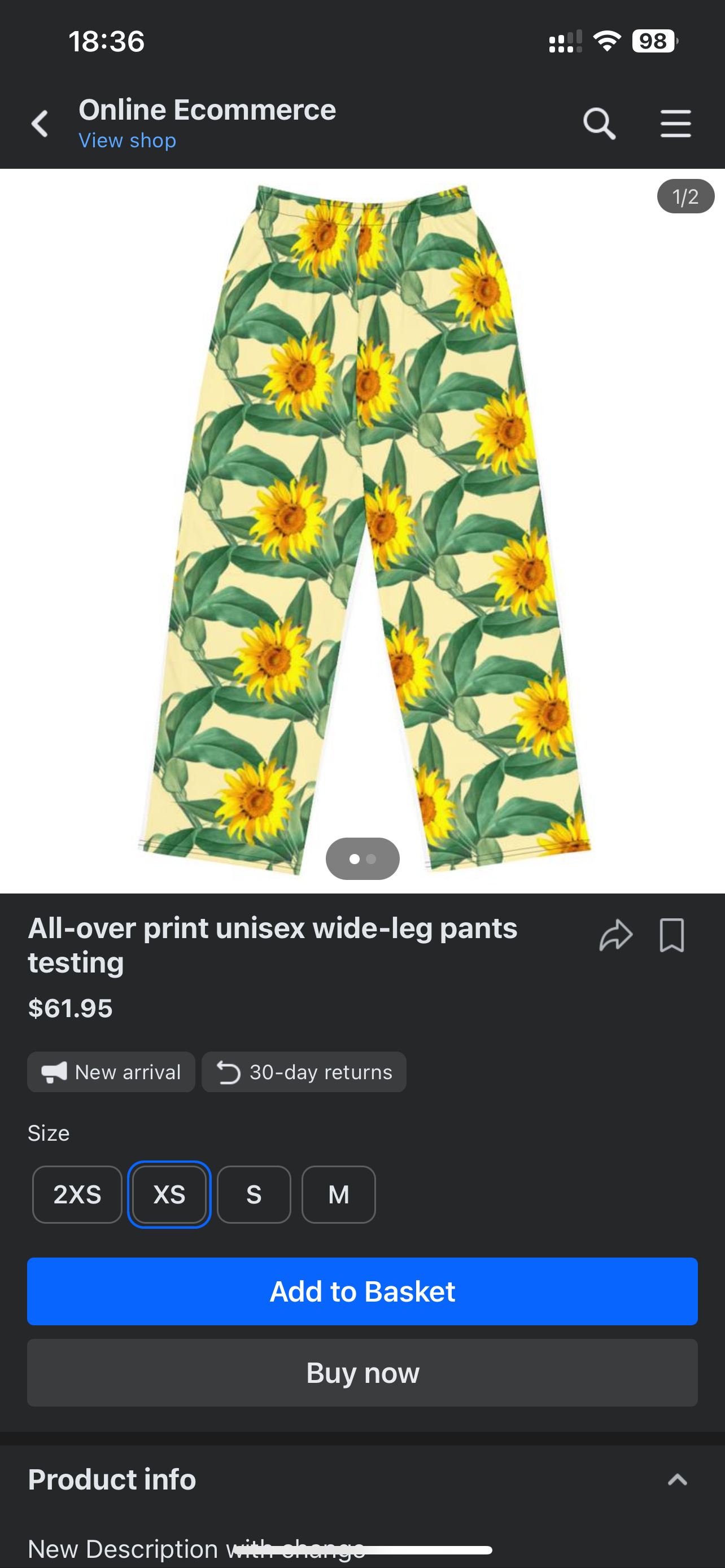
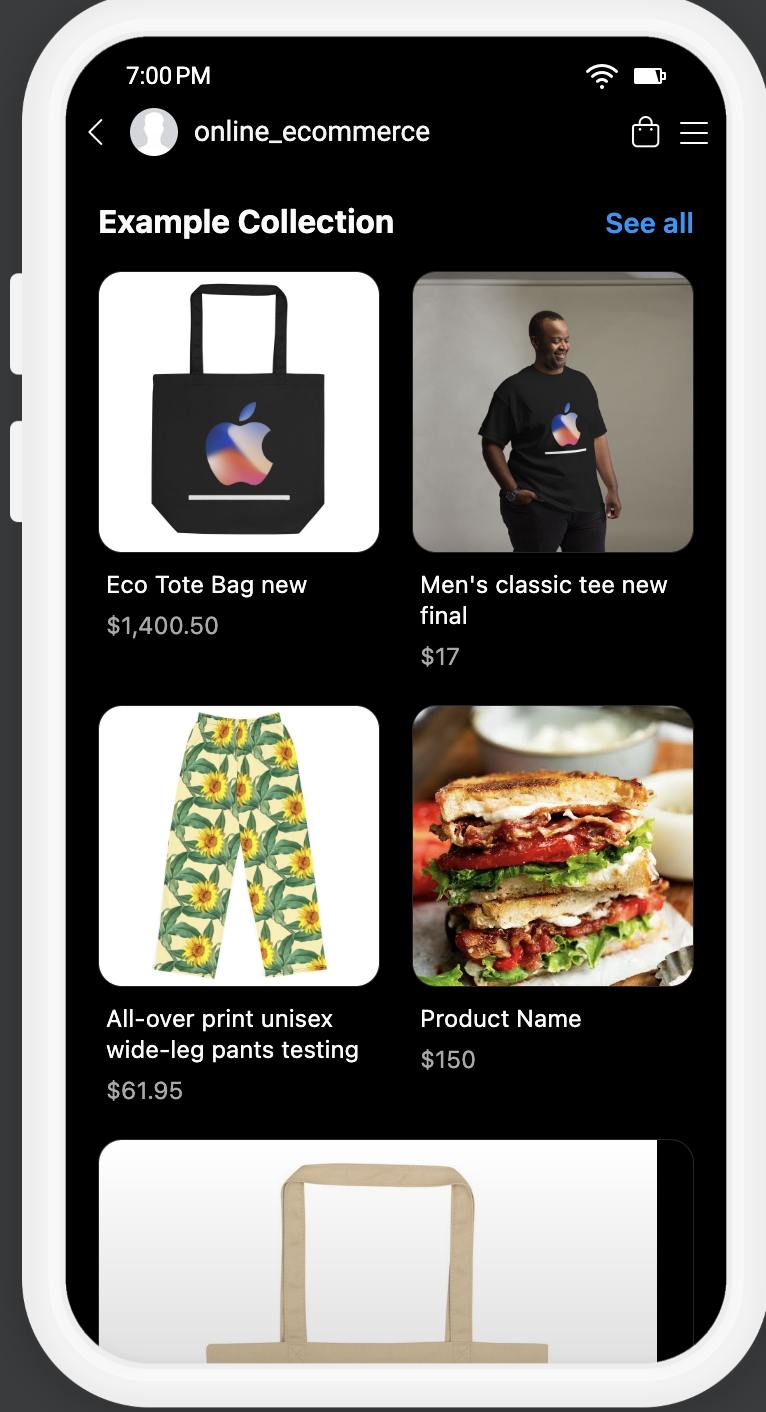
Once synced, your products appear as a browsable shop on both Facebook and Instagram, giving prospective patients a familiar shopping experience without leaving the app.
Preview of a Facebook shop:
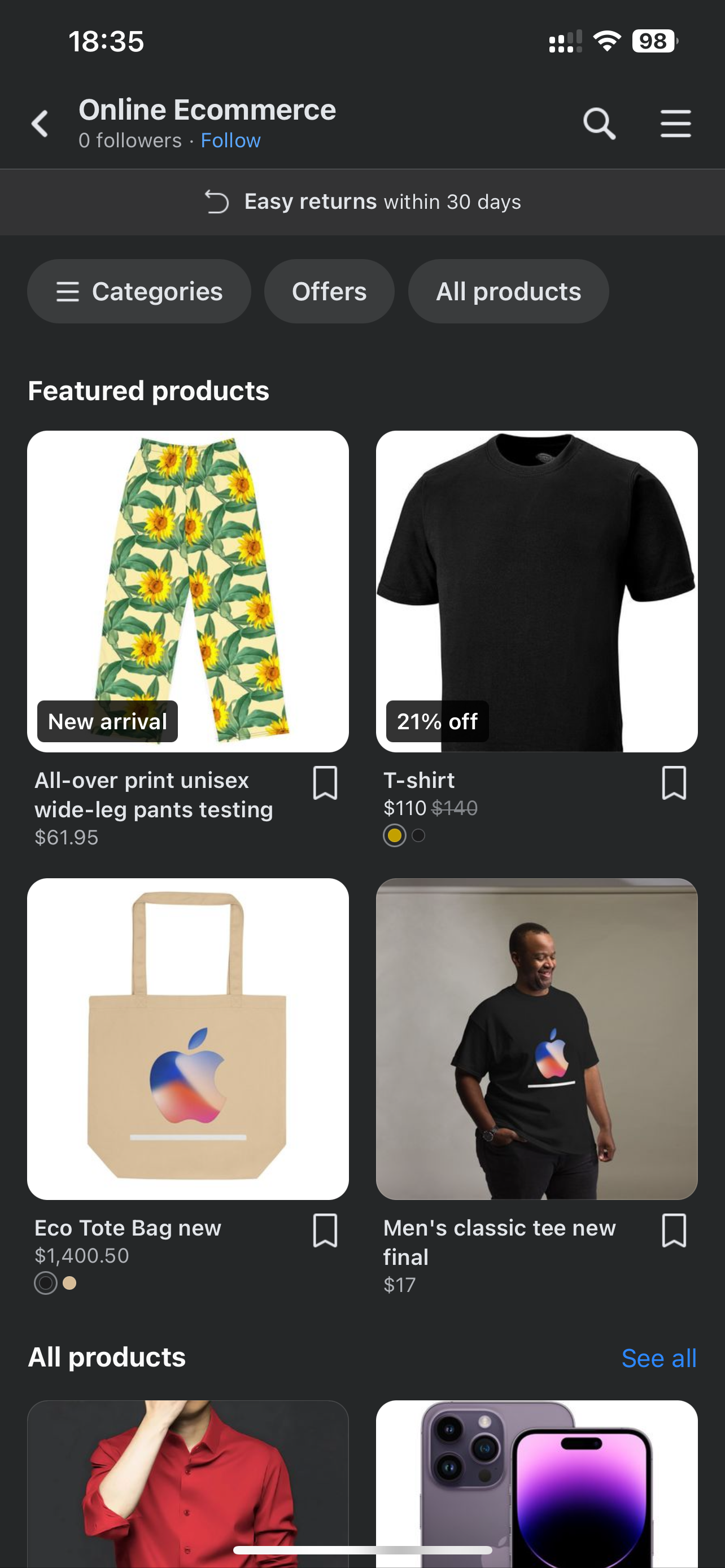

Preview of an Instagram shop:
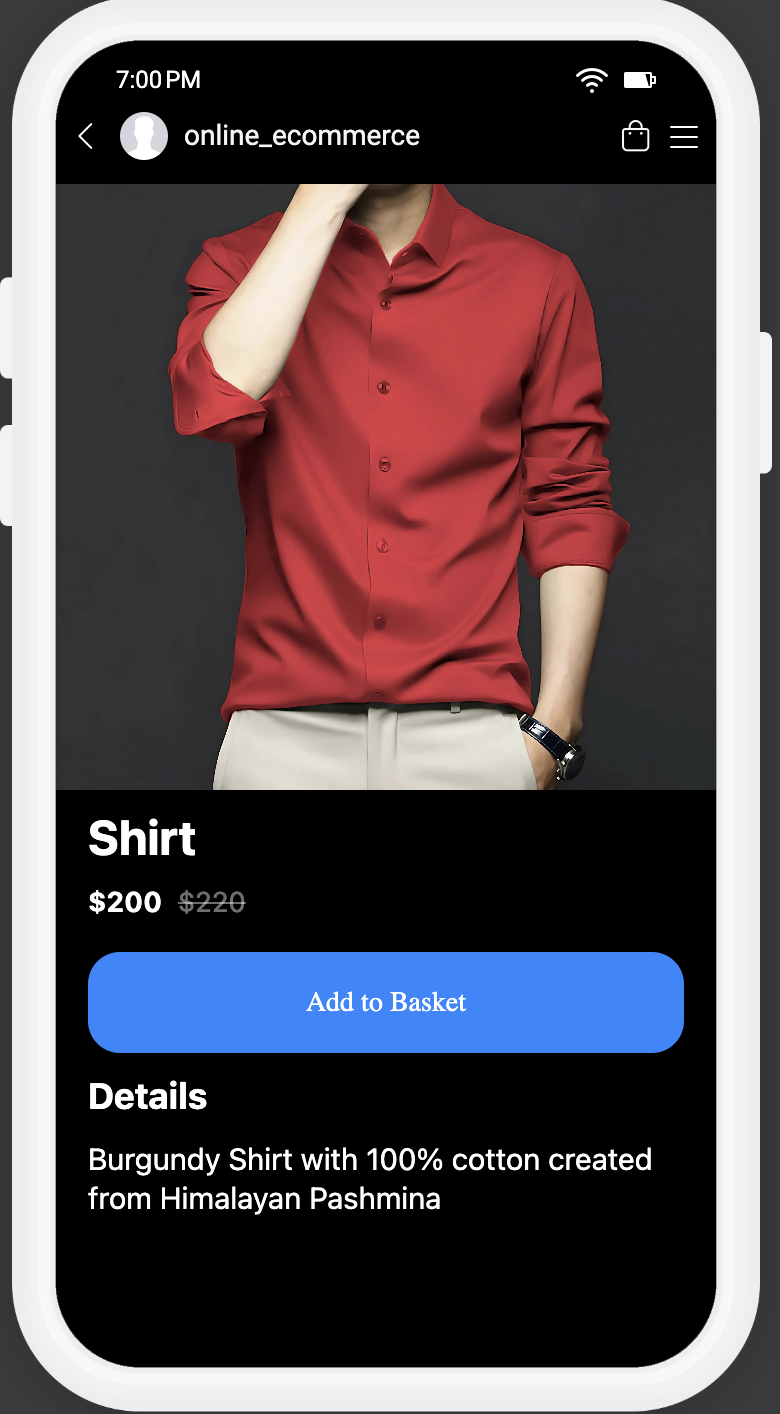

Do I need a separate product catalog for Facebook, or does it use my Aesthetix CRM store? It uses your Aesthetix CRM store. Once your Facebook Page has a Product Catalog connected and is linked to your store under Shops, your existing store products sync automatically.
Why isn't a product showing up in my Facebook Shop? Check that the product is a one-time purchase (recurring products don't sync), that your Facebook Page has the Product Catalog connection in place, and that the page category is set to "E-commerce Website." Also confirm the product itself is active and priced correctly in your Store settings under Payments.
Can I run ads on subscription or membership products through the catalog? No. Meta Commerce Manager only supports one-time products in catalog sync. Recurring products won't appear as catalog items and can't be advertised this way.
What happens if I don't track inventory on a product? Meta requires an inventory number for catalog items, so if tracking is off, or "continue selling out of stock" is enabled, the synced quantity defaults to 999. This doesn't affect your actual Store inventory, only what Meta displays.
Where do I set my ad budget, audience, and targeting? Those settings are part of Meta's standard ad creation flow, which opens when you click Advertise Set. For broader guidance on building Facebook and Instagram campaigns, see the Ads Manager collection.
Do catalog ads work for Shopify or WooCommerce products too? Catalog sync described here is for the native Aesthetix CRM Store. If you sell through Shopify or WooCommerce, connect those platforms from the Integrations collection, and check their own catalog sync options with Meta.
Will patients see the same shop on Instagram and Facebook? Yes. Once your catalog is synced, the same products appear as a shoppable catalog on both platforms, pulling from the same Product Catalog connection.
Can I control which specific products get advertised? Yes. From Catalogue > Items, select only the products you want to include before clicking Advertise Set. You aren't required to advertise your entire catalog at once.
