Facebook and Instagram Shops let you publish your Aesthetix CRM store's product catalog directly onto your practice's Facebook Page and Instagram profile, so patients can browse and buy retail products (skincare lines, wellness add-ons, gift cards, and similar items) without leaving those apps. This guide covers creating your shop on Meta's side, connecting it to your Aesthetix CRM store, keeping your catalog in sync, and running catalog ads.
This integration connects to your native Aesthetix CRM Store. If your practice sells through Shopify or WooCommerce instead, connect that platform from Integrations and manage your Facebook/Instagram Shop from within Shopify's or WooCommerce's own sales channel tools rather than from here.
This part happens entirely in Meta's own tools (Meta Business Suite and Commerce Manager), not inside Aesthetix CRM. You need an active Facebook Shop before you can connect anything on the Aesthetix CRM side.
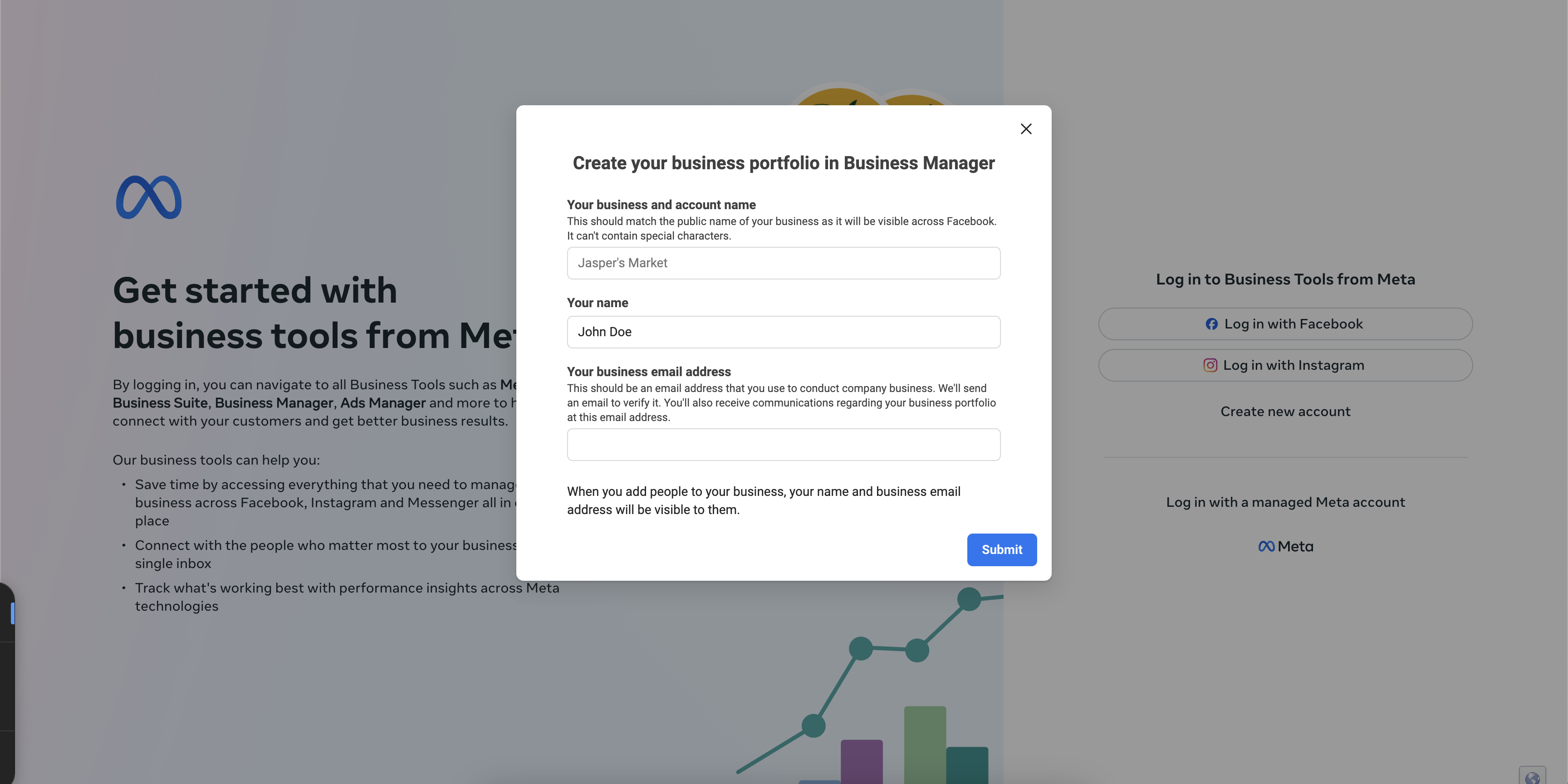
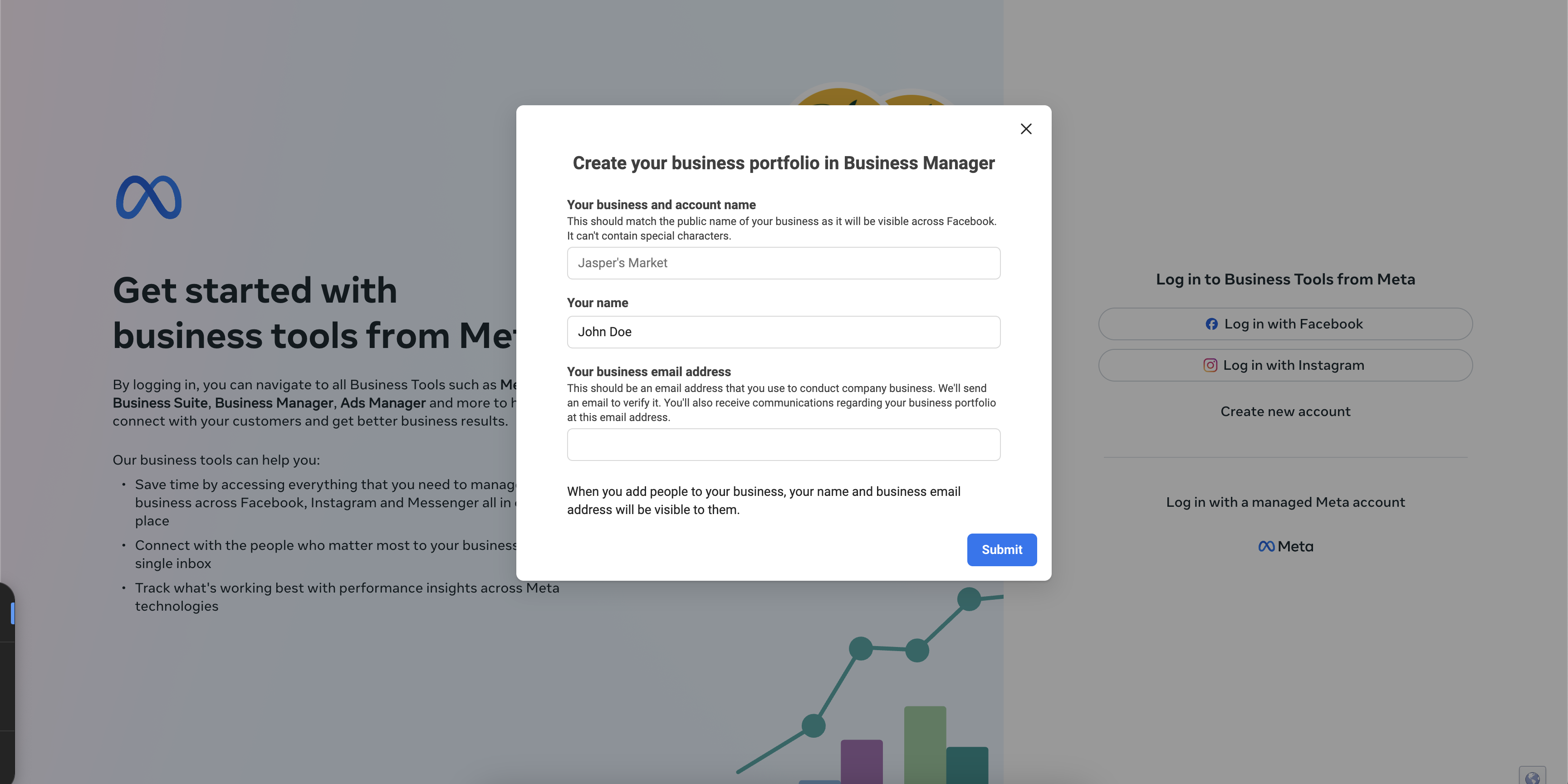
Create one at business.facebook.com if your practice doesn't already have one, then complete the Business Portfolio details after logging in.
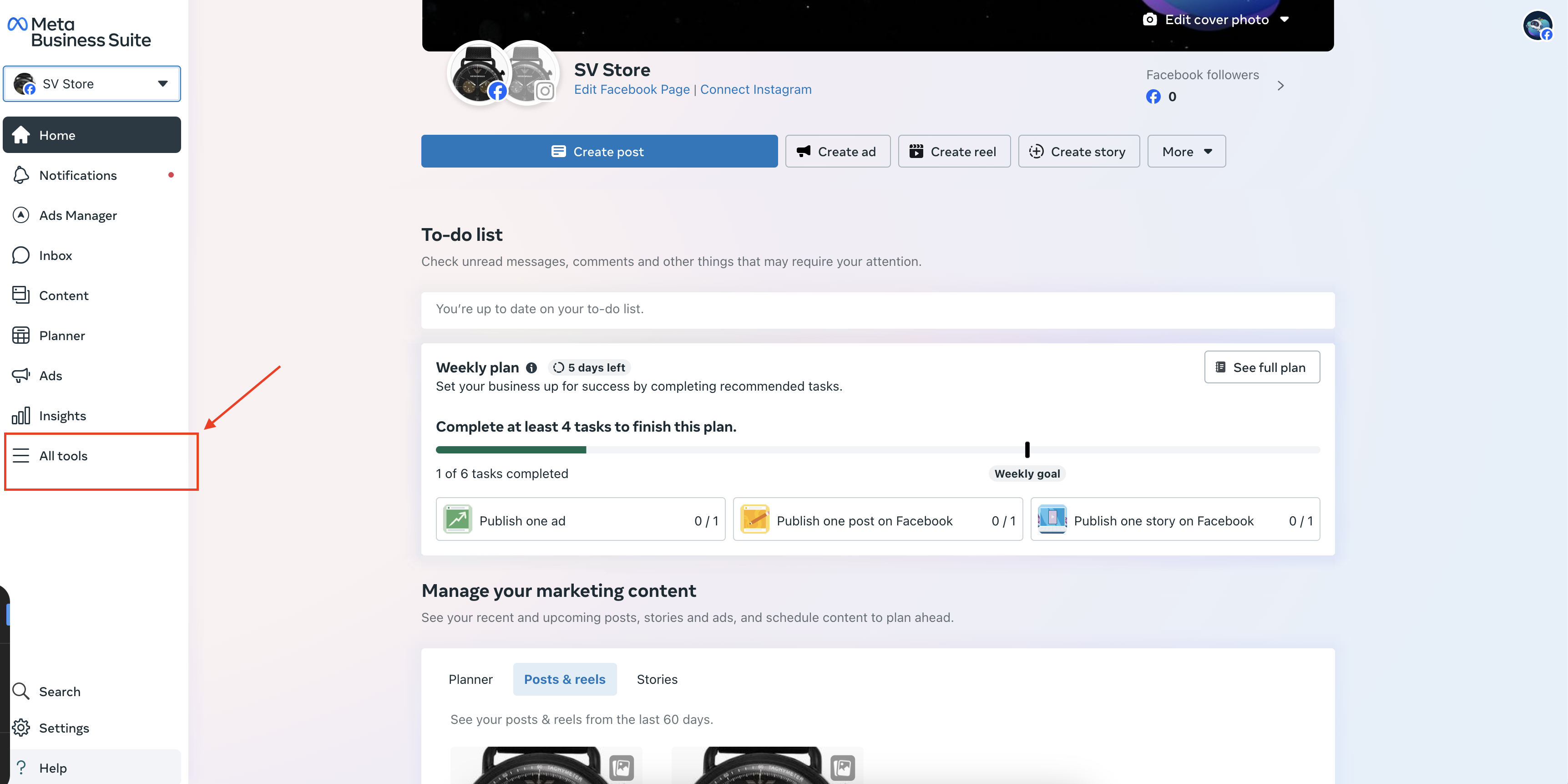
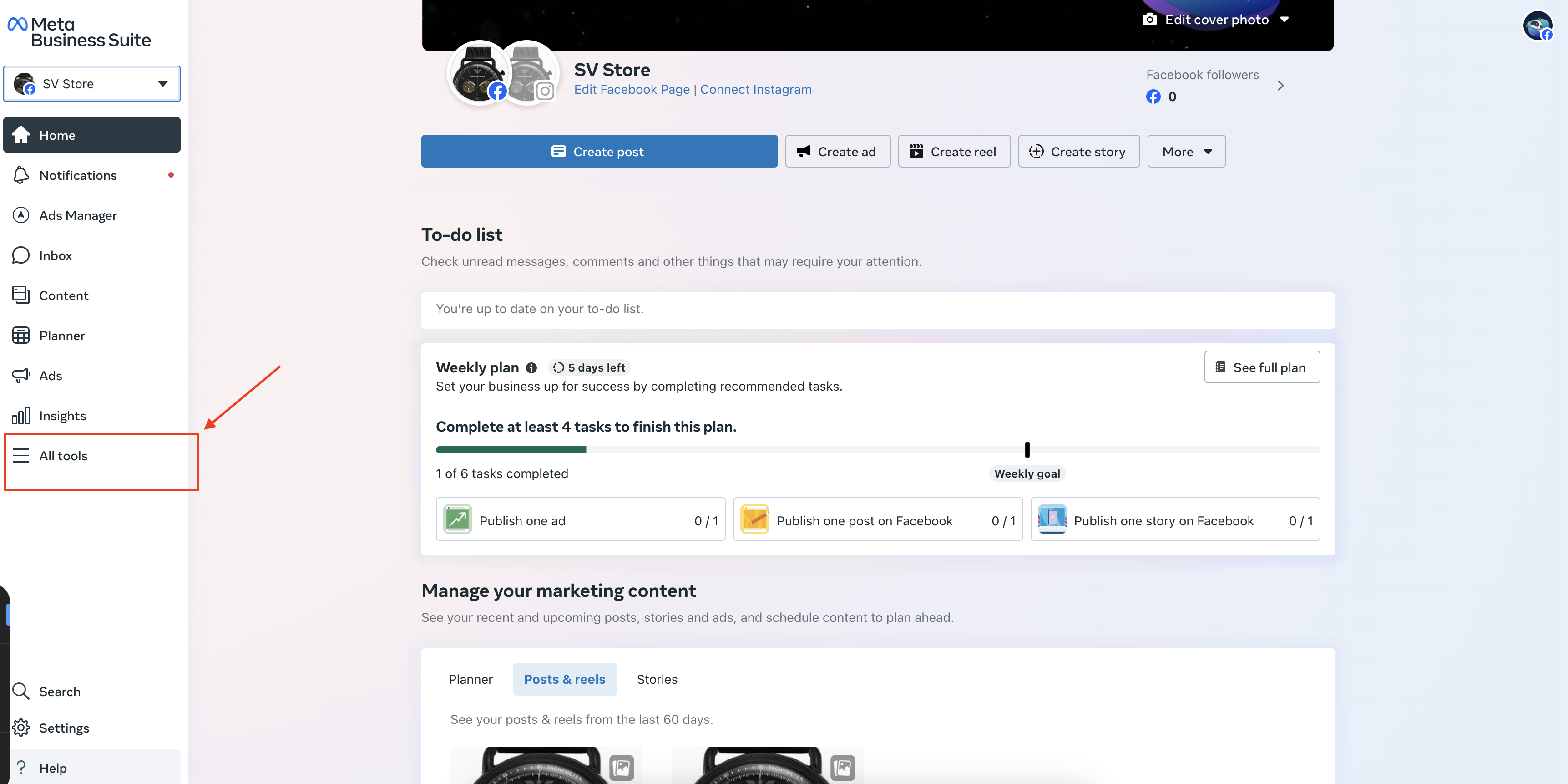
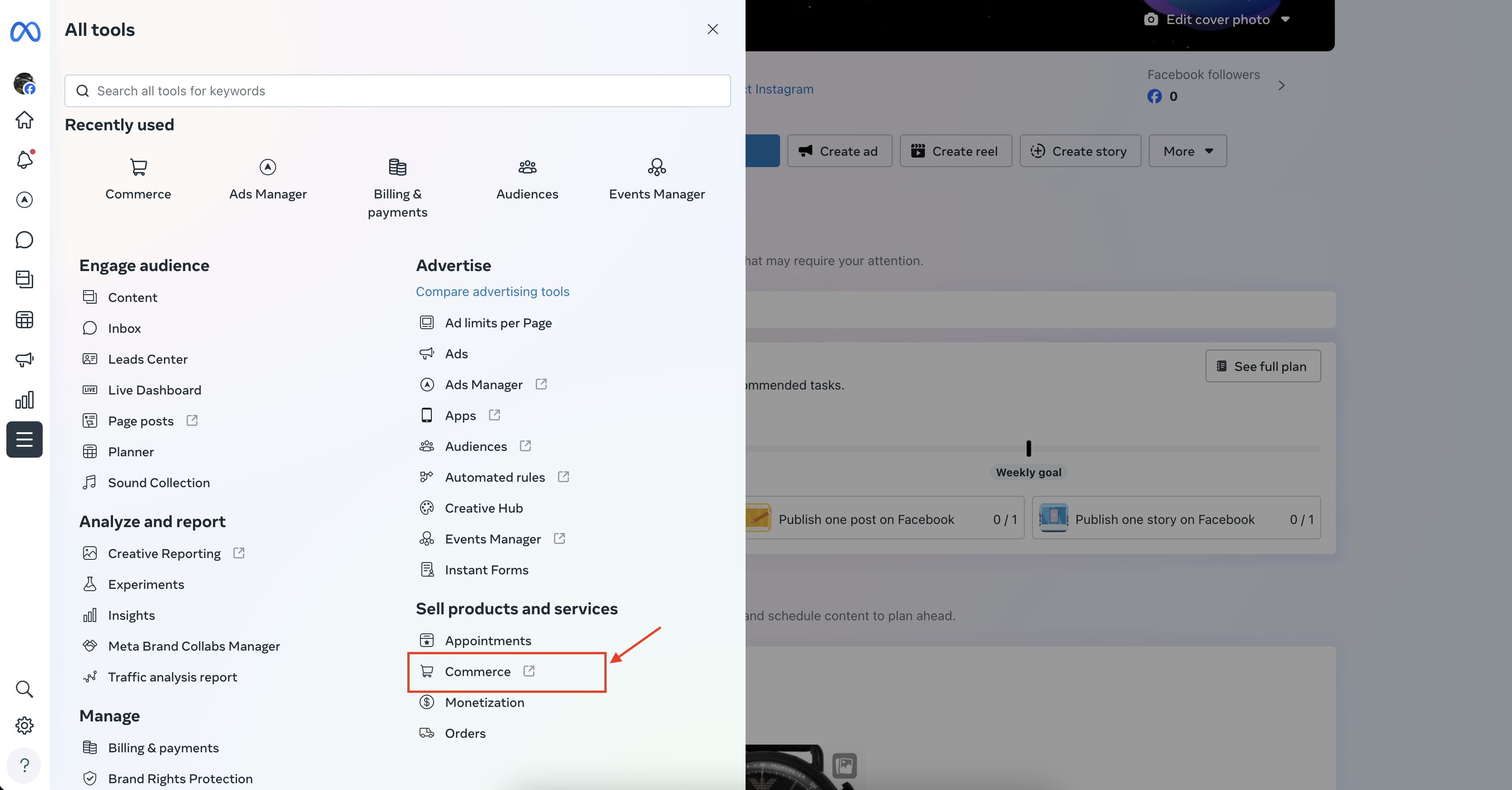
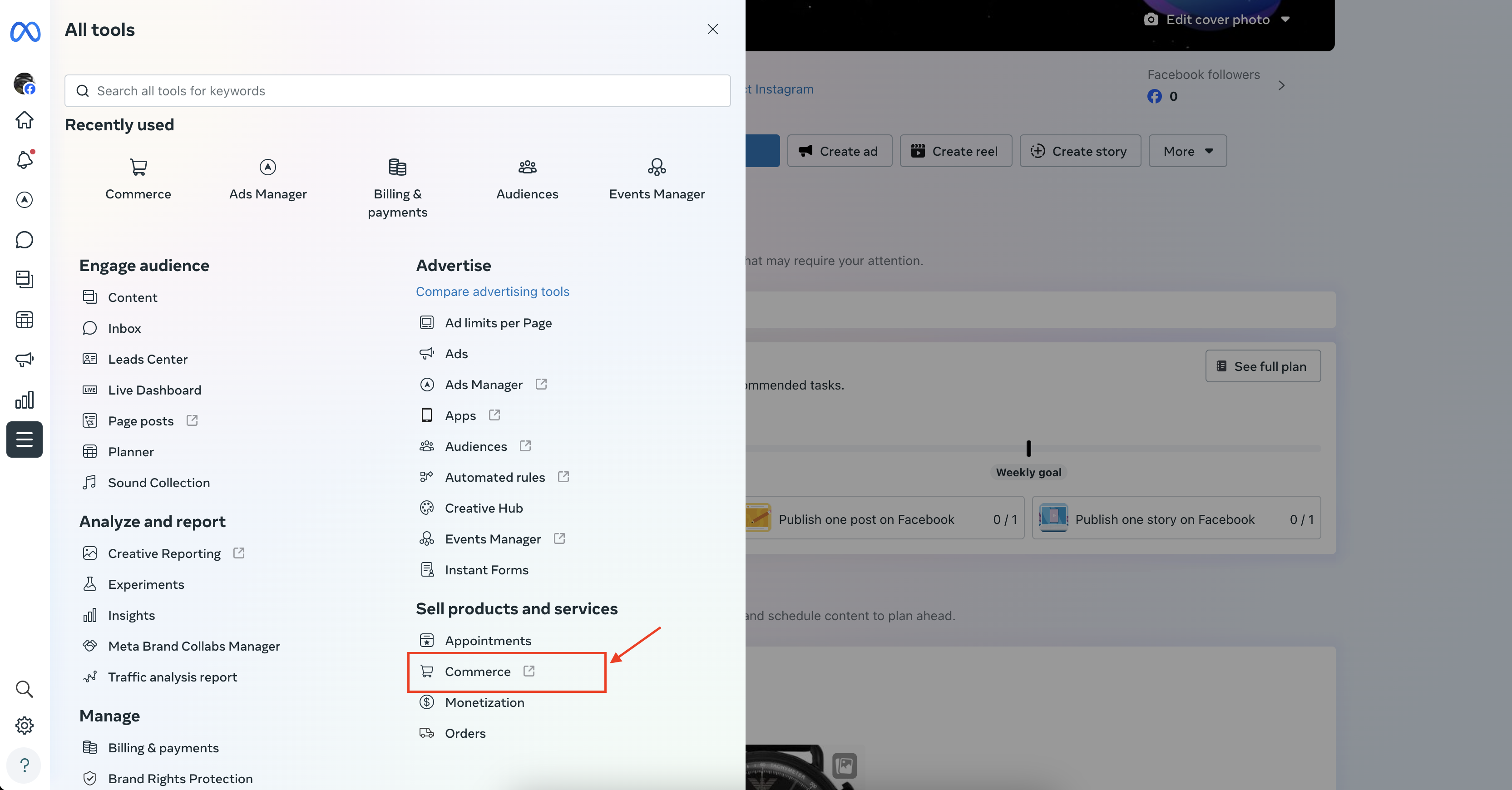
Go to All tools > Commerce in the left menu of Meta Business Suite.
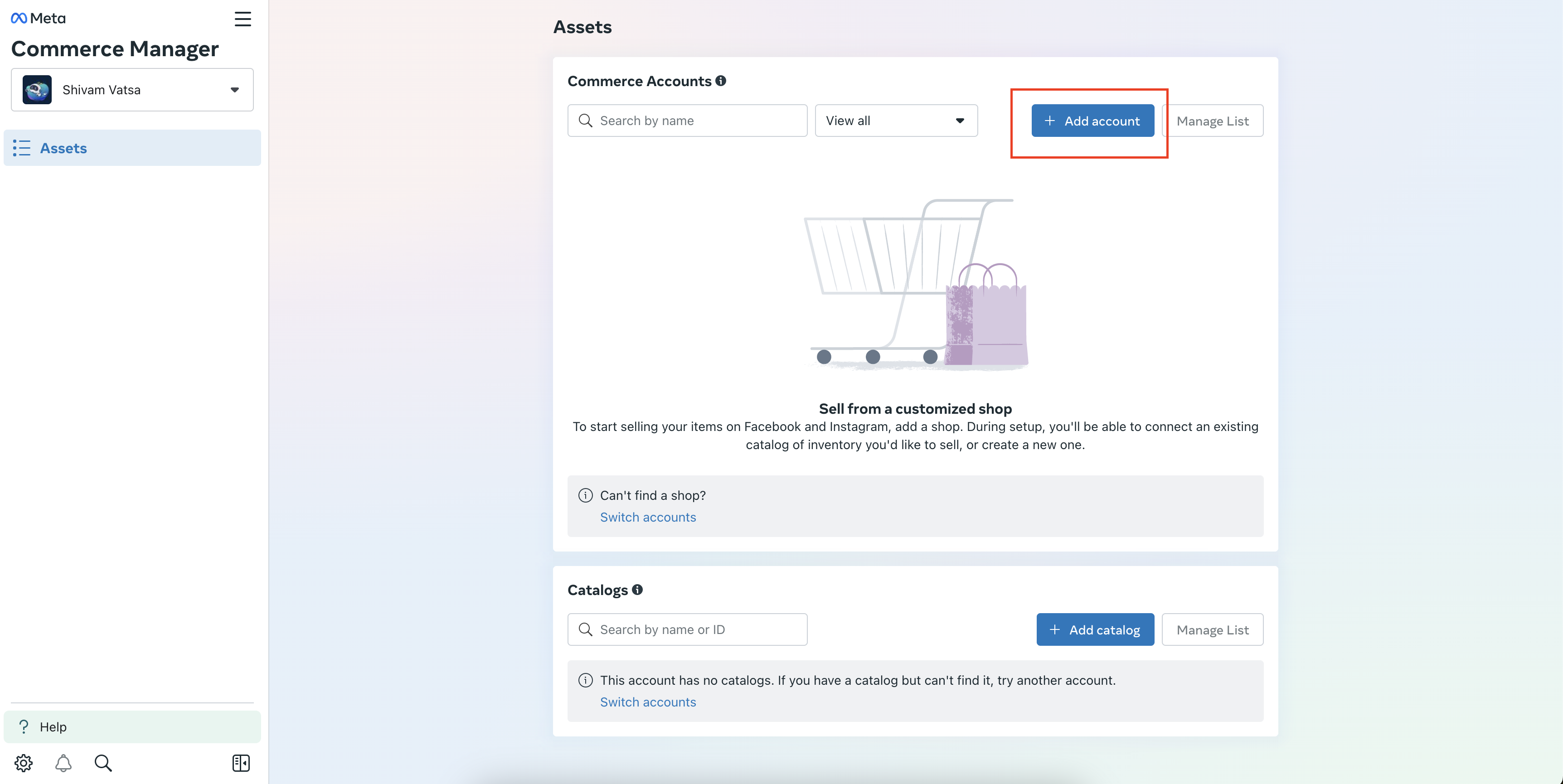
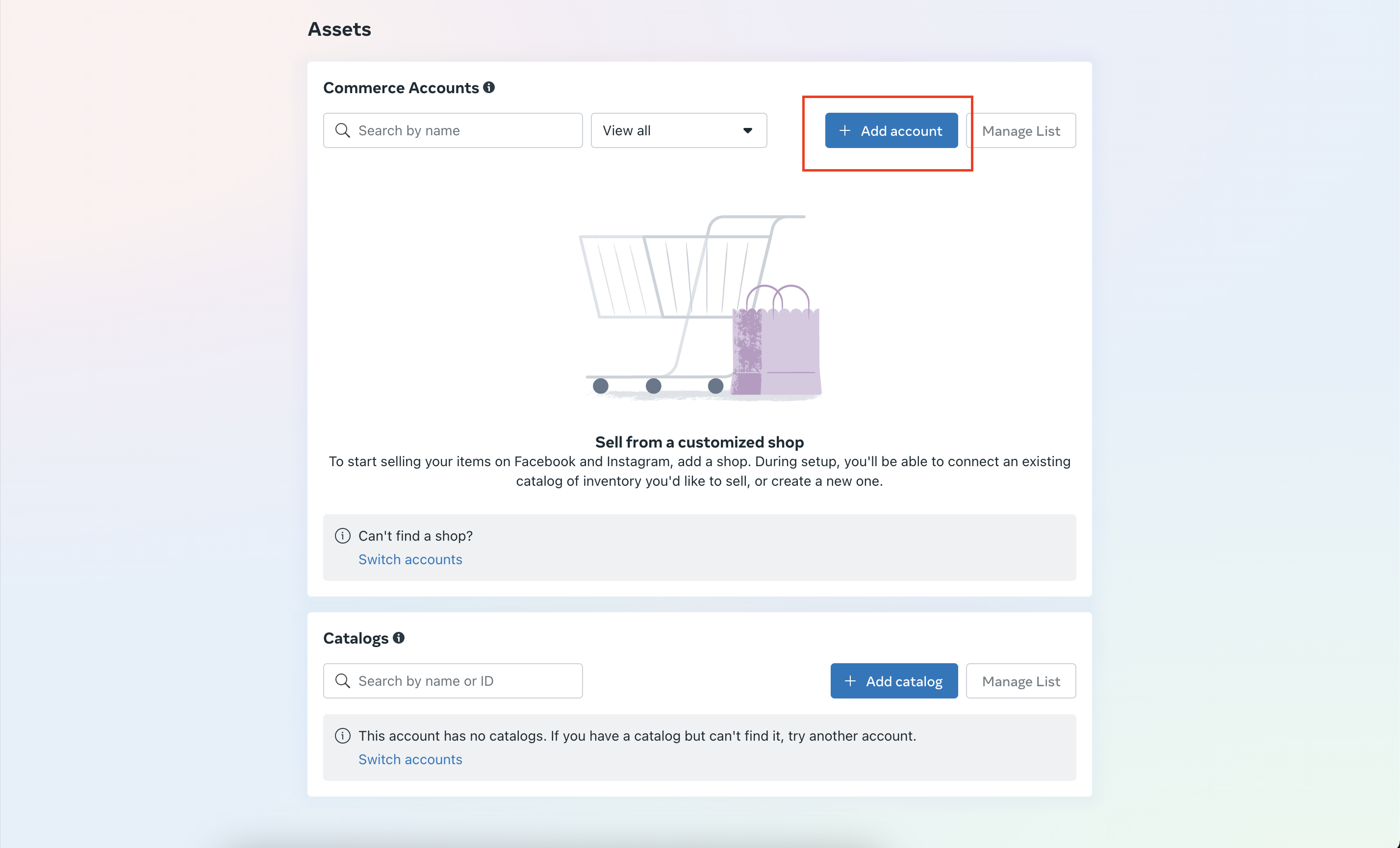
Click Add account to start creating a shop.
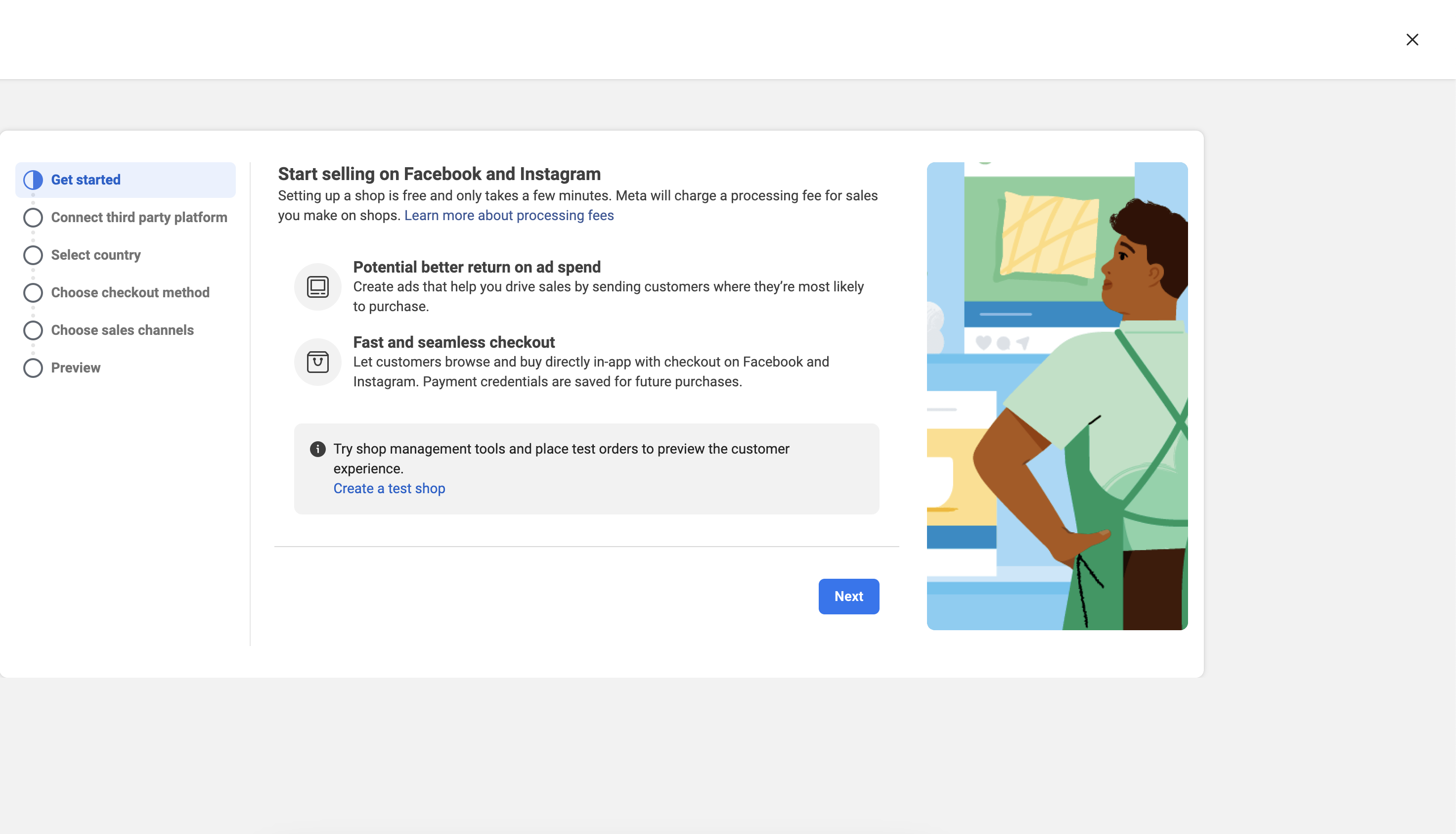
Complete the shop creation flow.

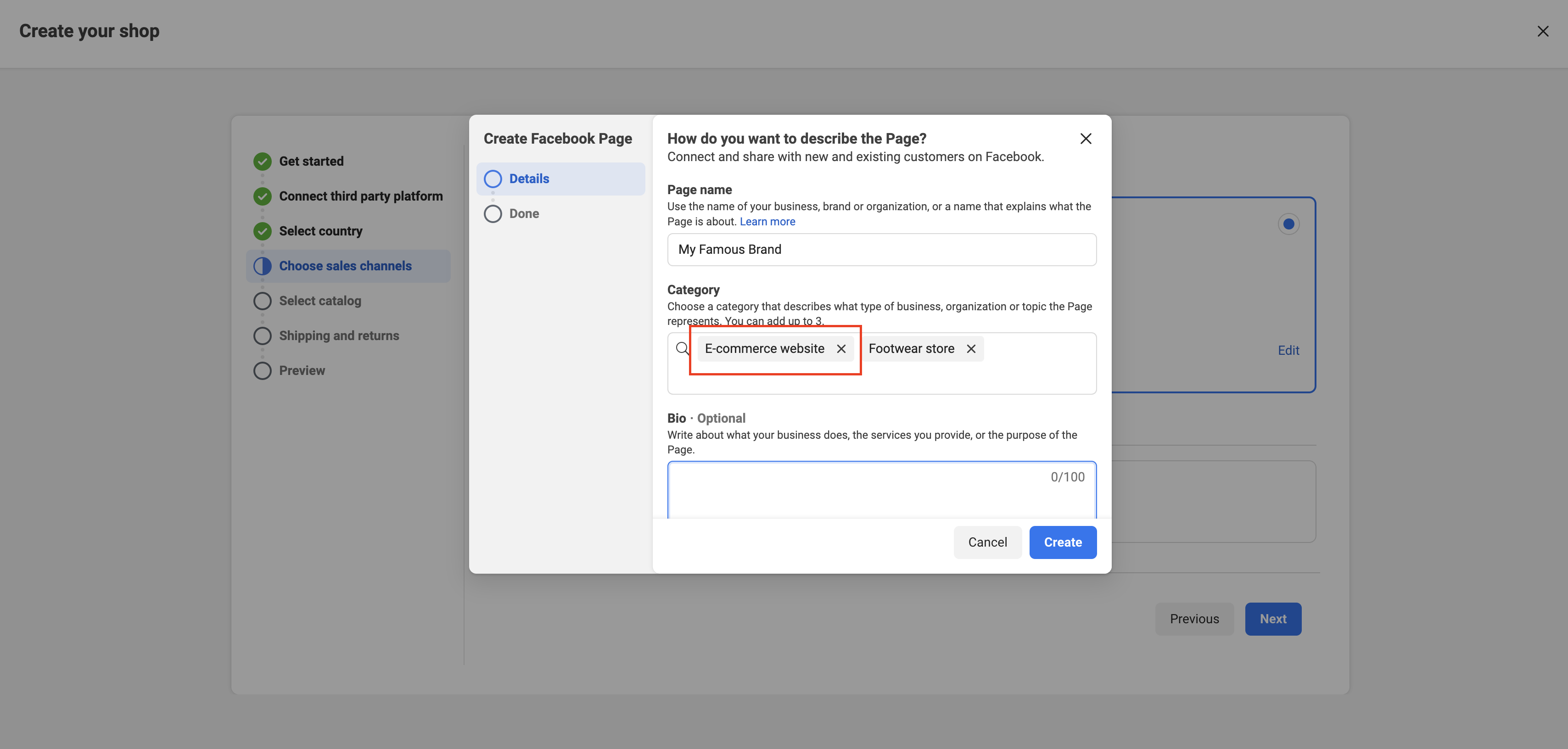
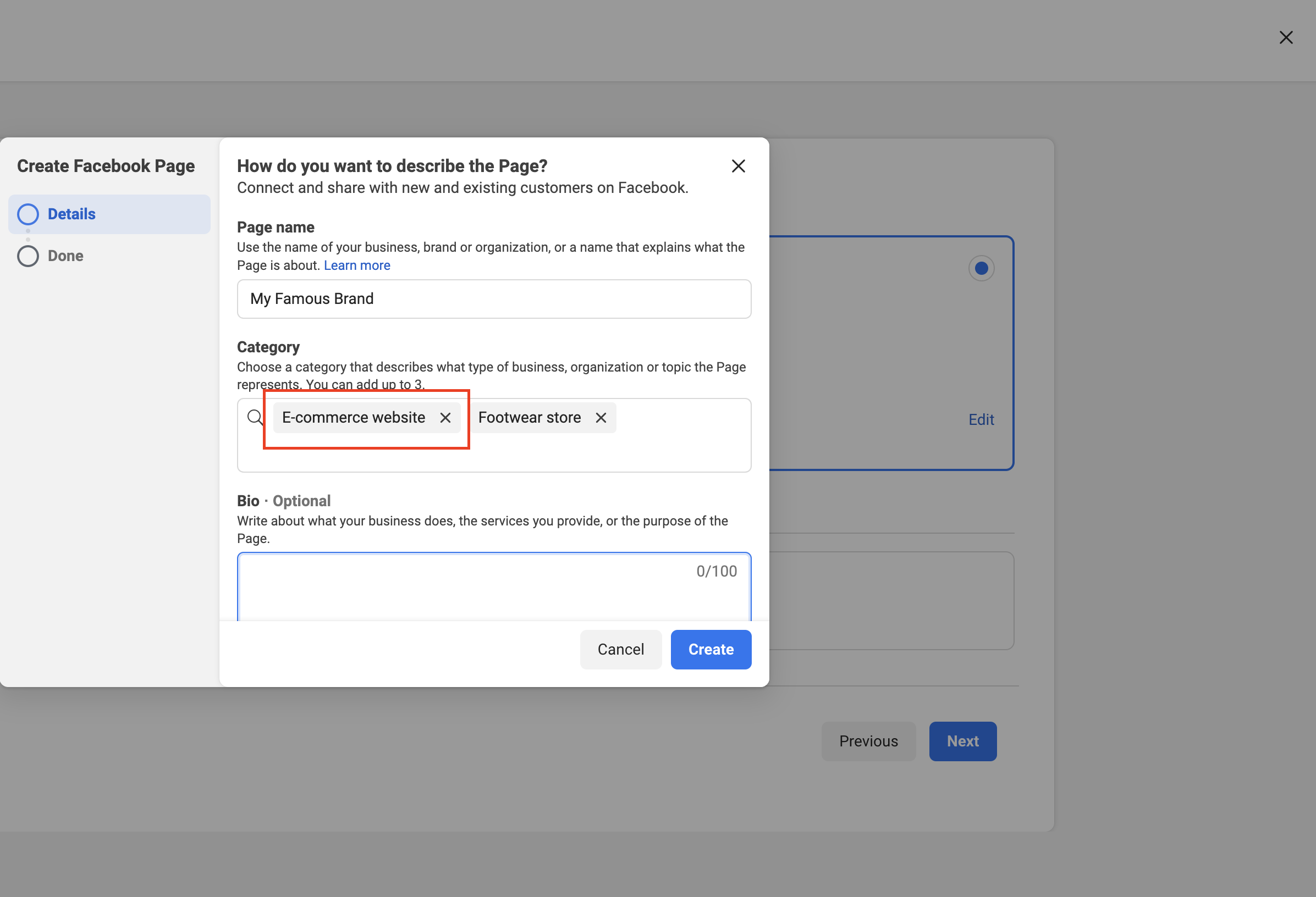
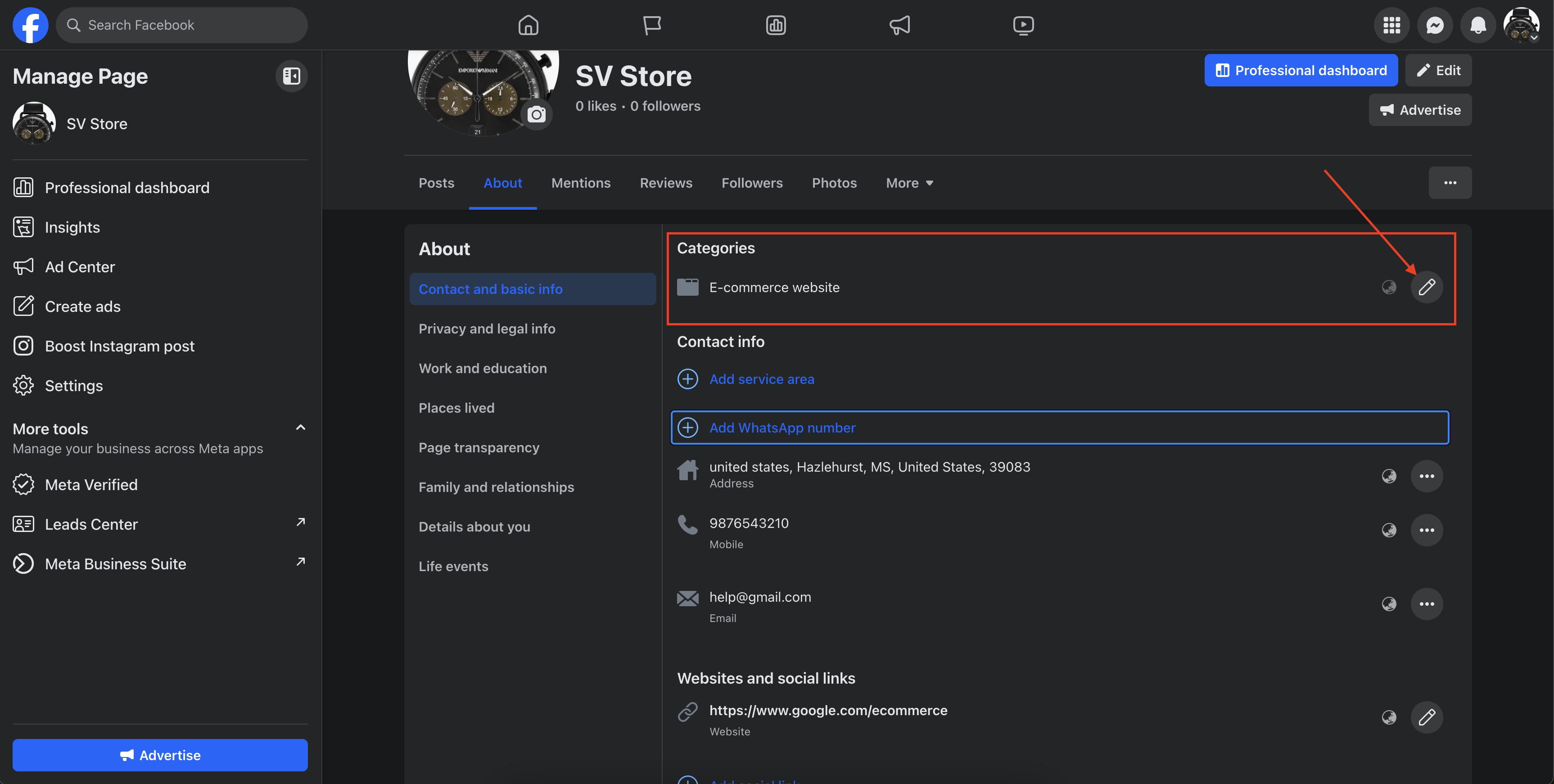
A Facebook Page is required for the sales channel. When you create the Page, set its category to E-commerce Website. This category is mandatory for the integration to work. If you skip it here, you can add it later from the Page's About section.

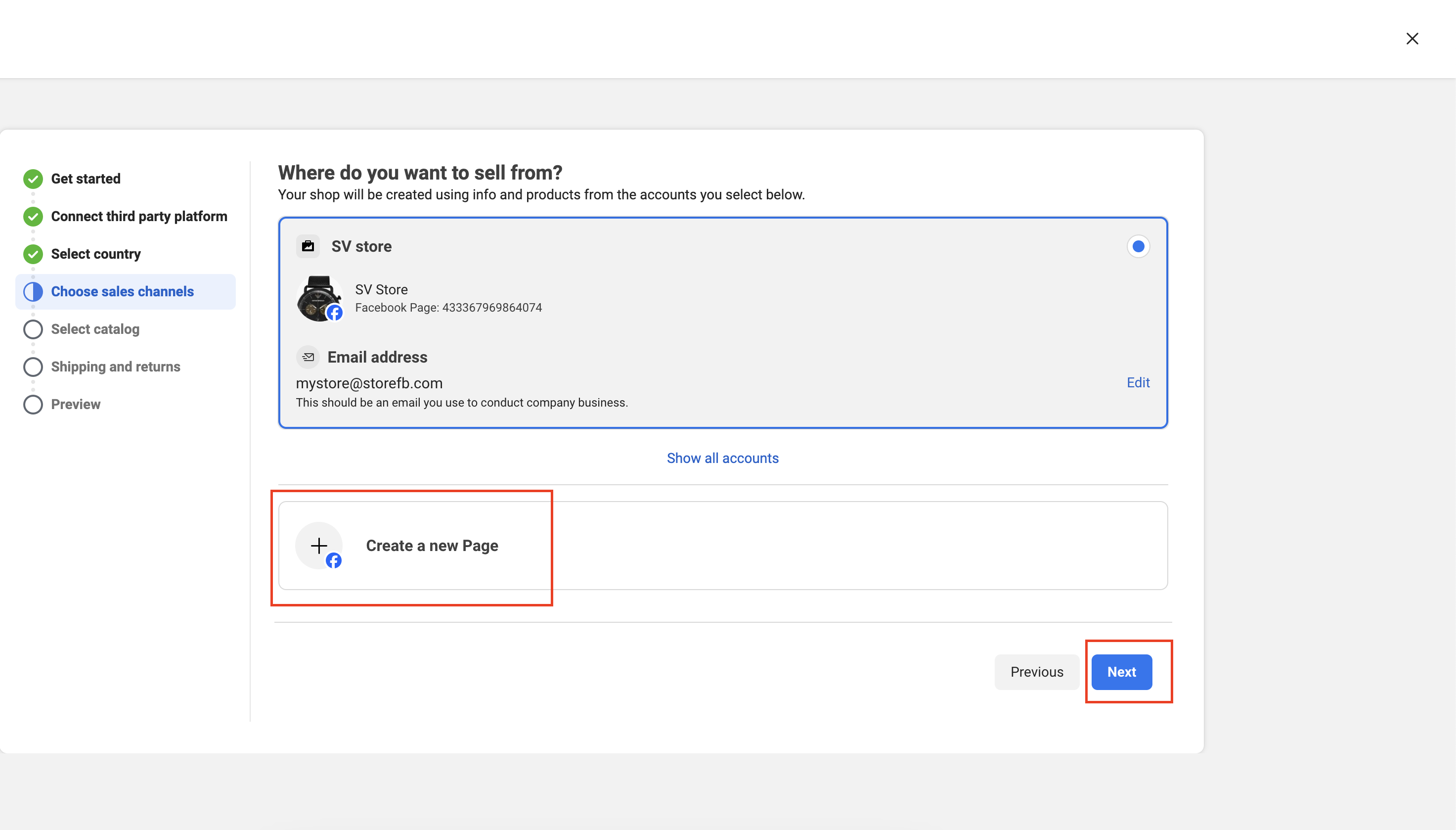
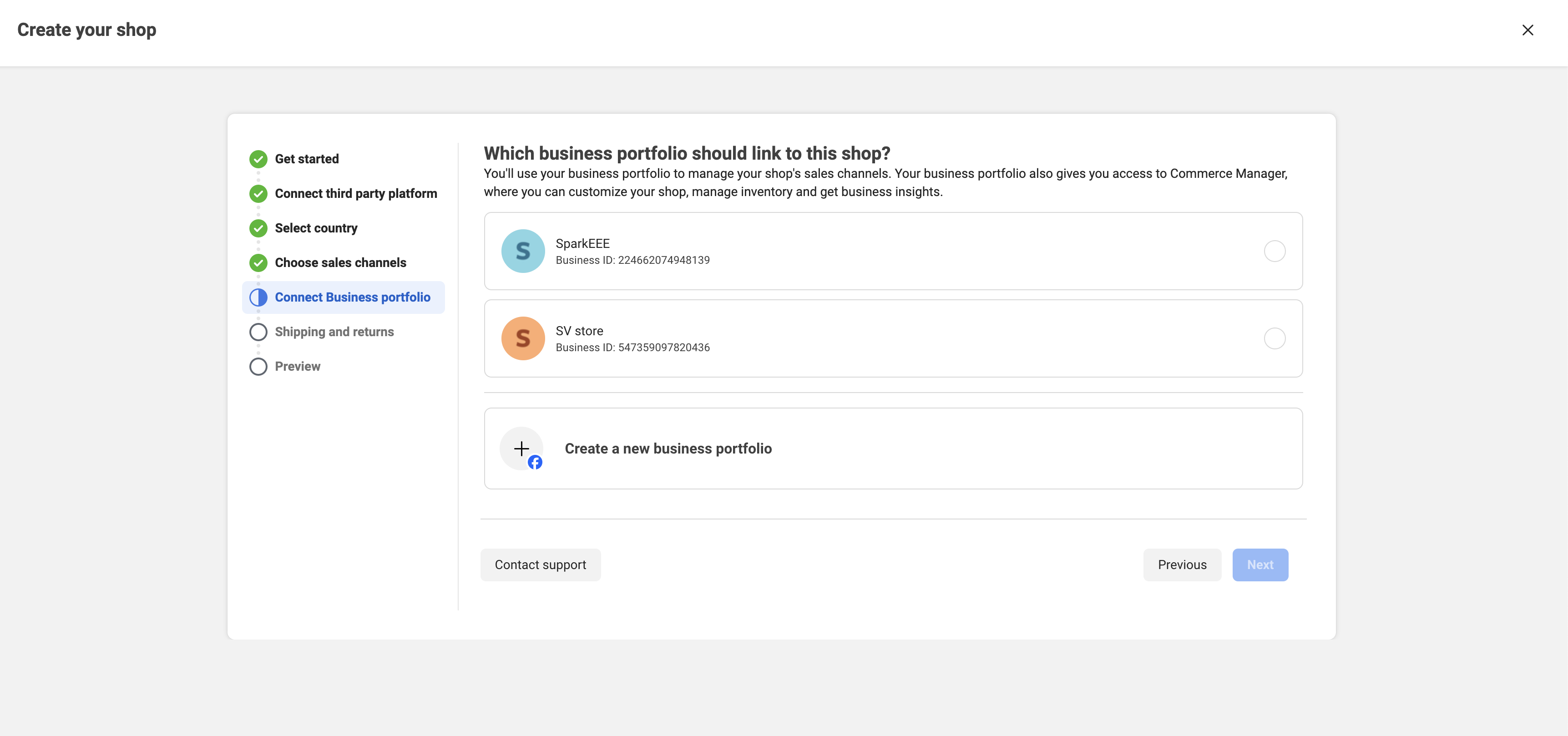
Choose an existing Business Portfolio, or create a new one, in this step.
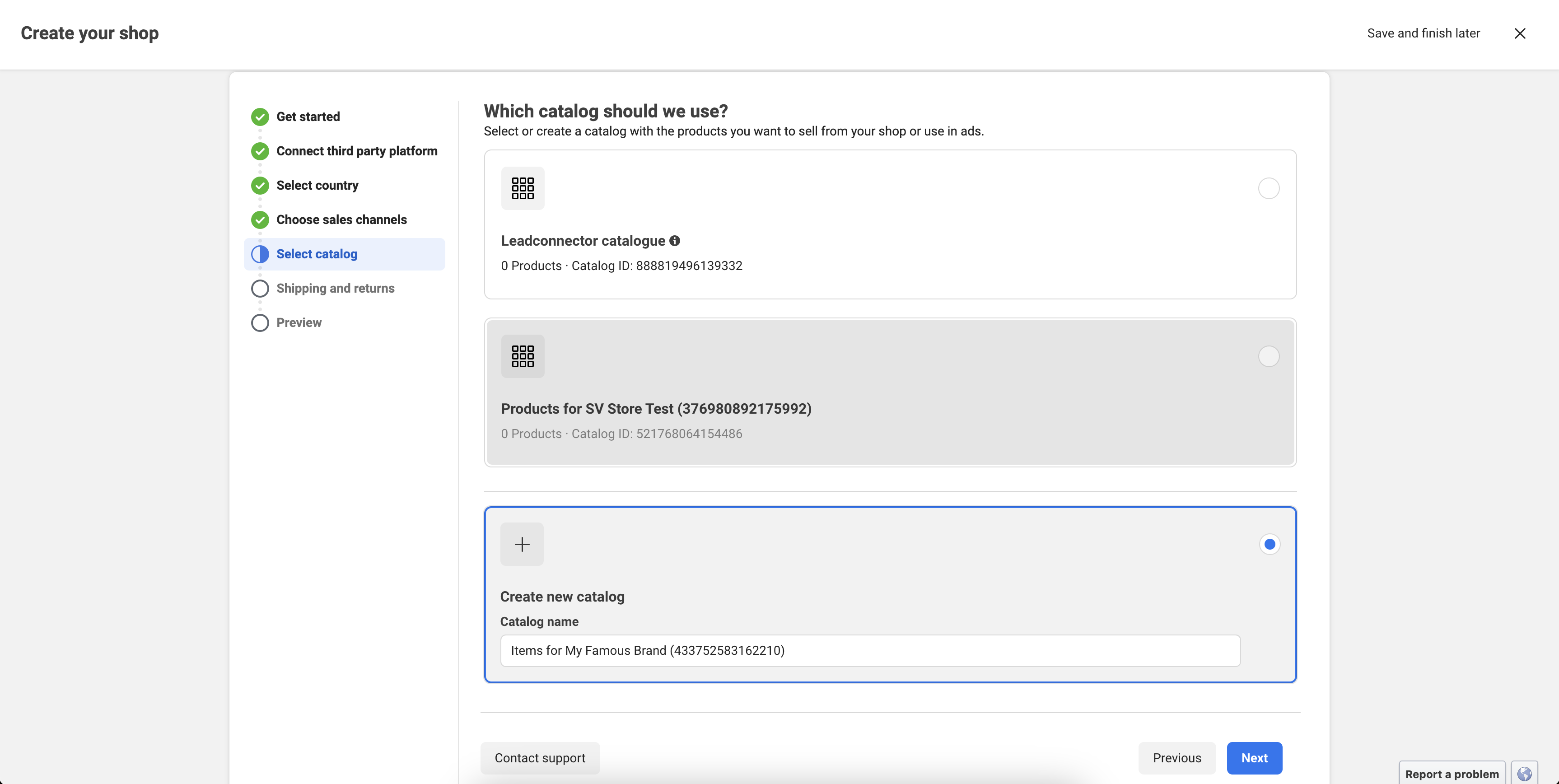
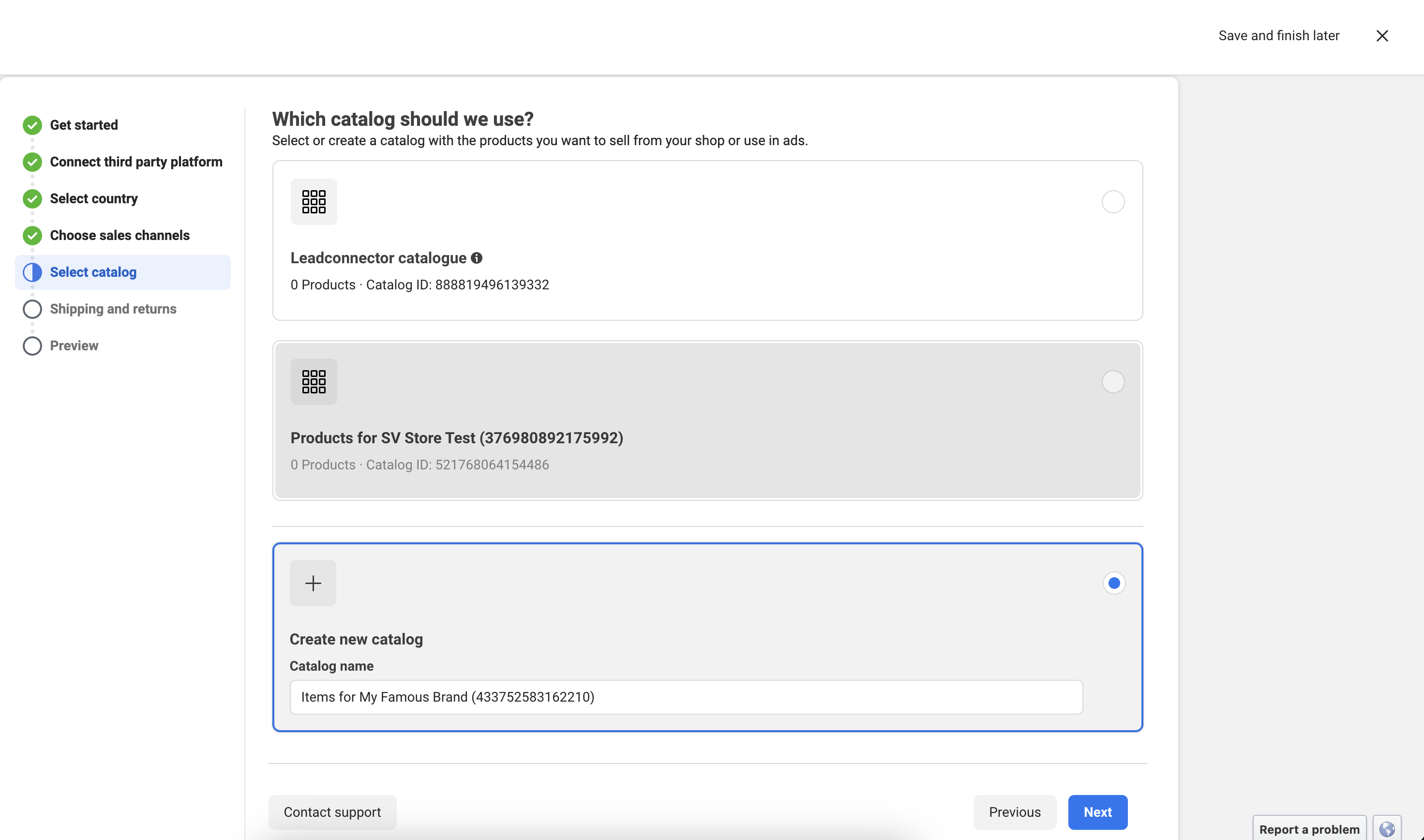
Create a product catalog and click Next. Complete the remaining steps and agree to Meta's terms to submit.
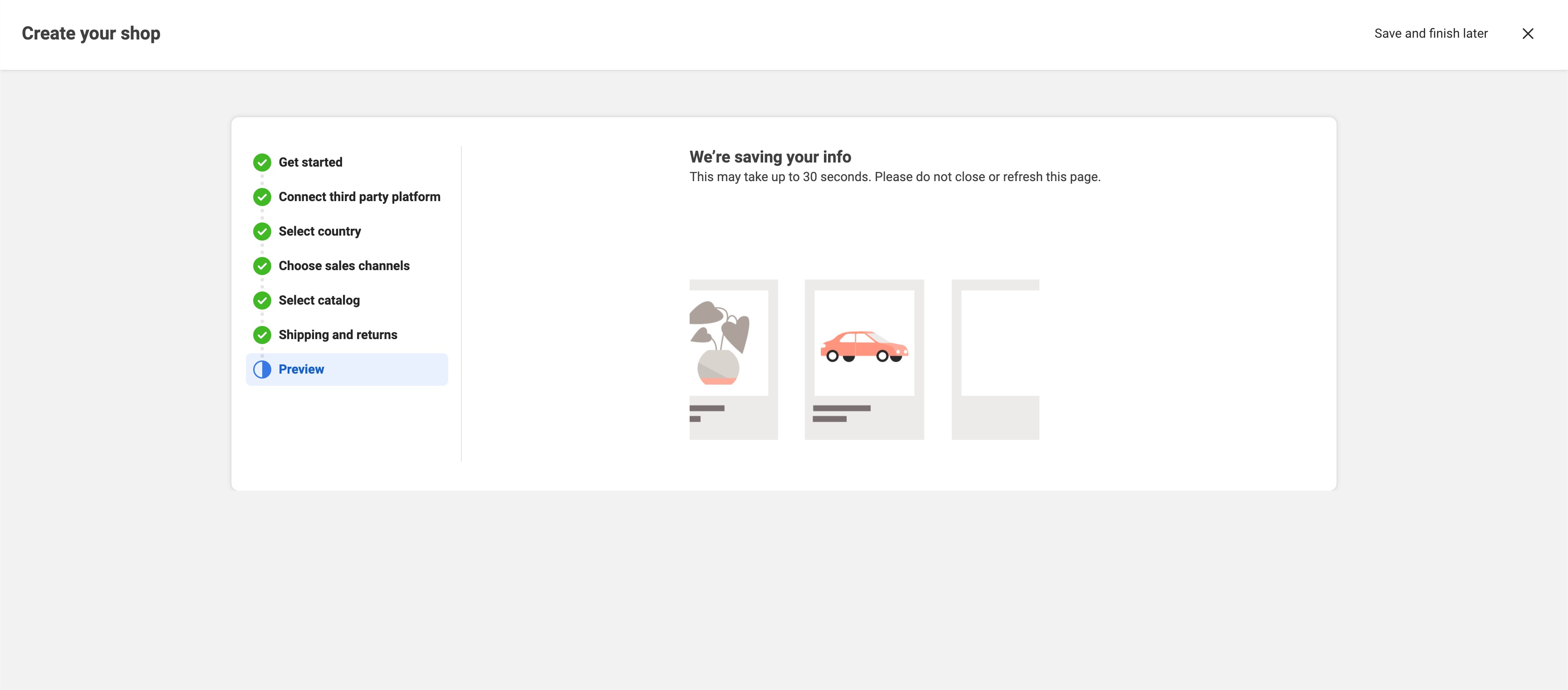
Your Facebook Shop setup is complete.

Open the shop you just created.
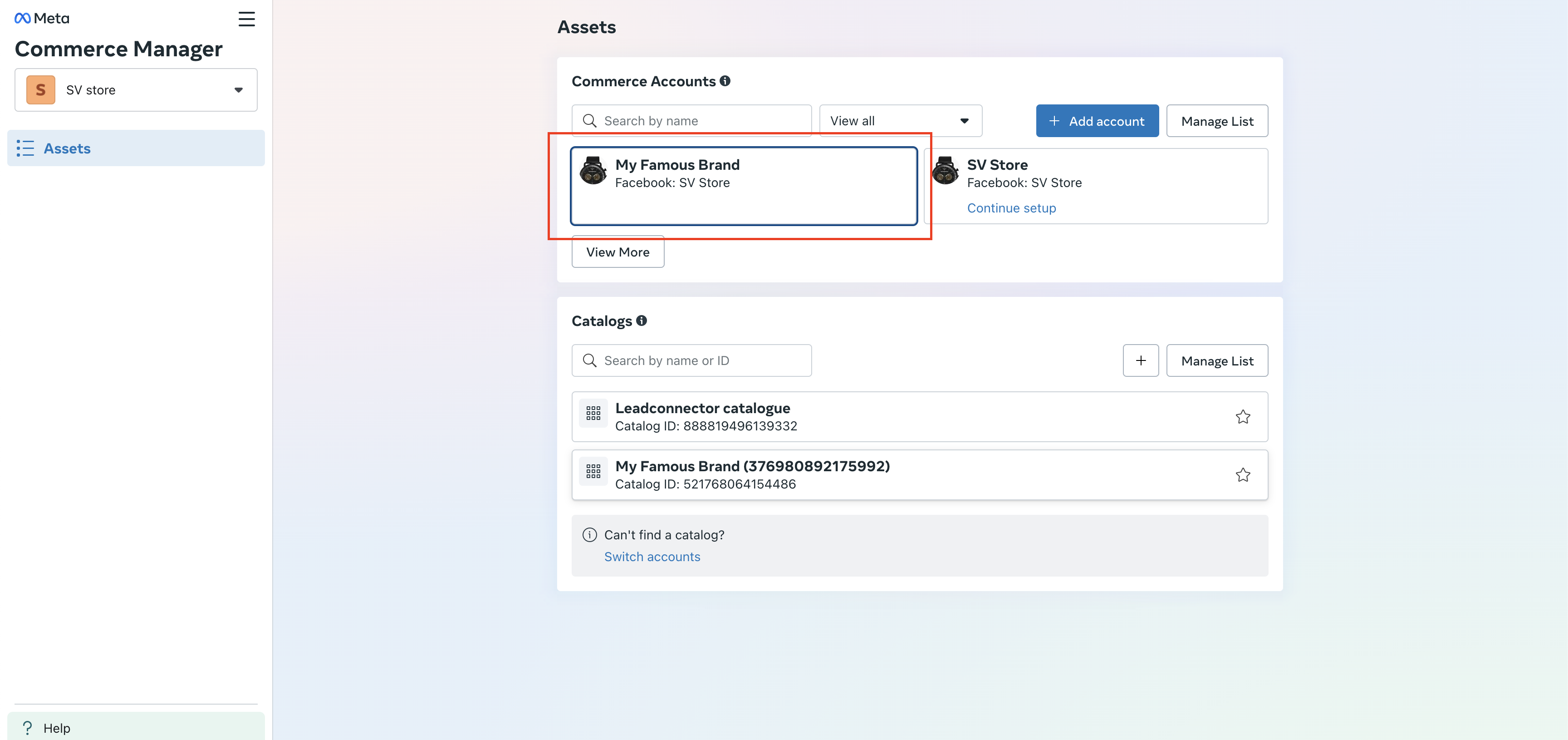
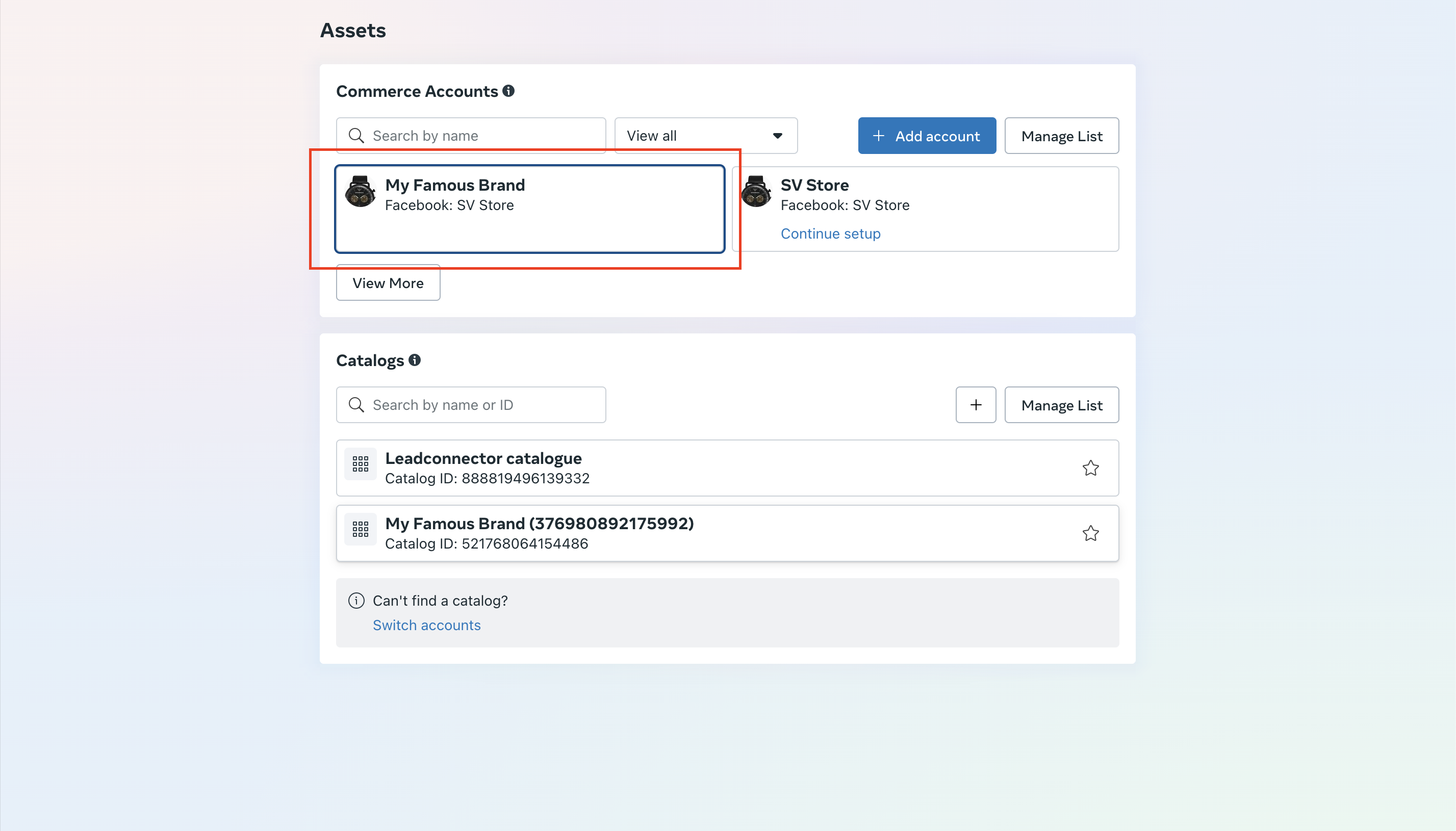
Click Settings and add the Instagram sales channel.
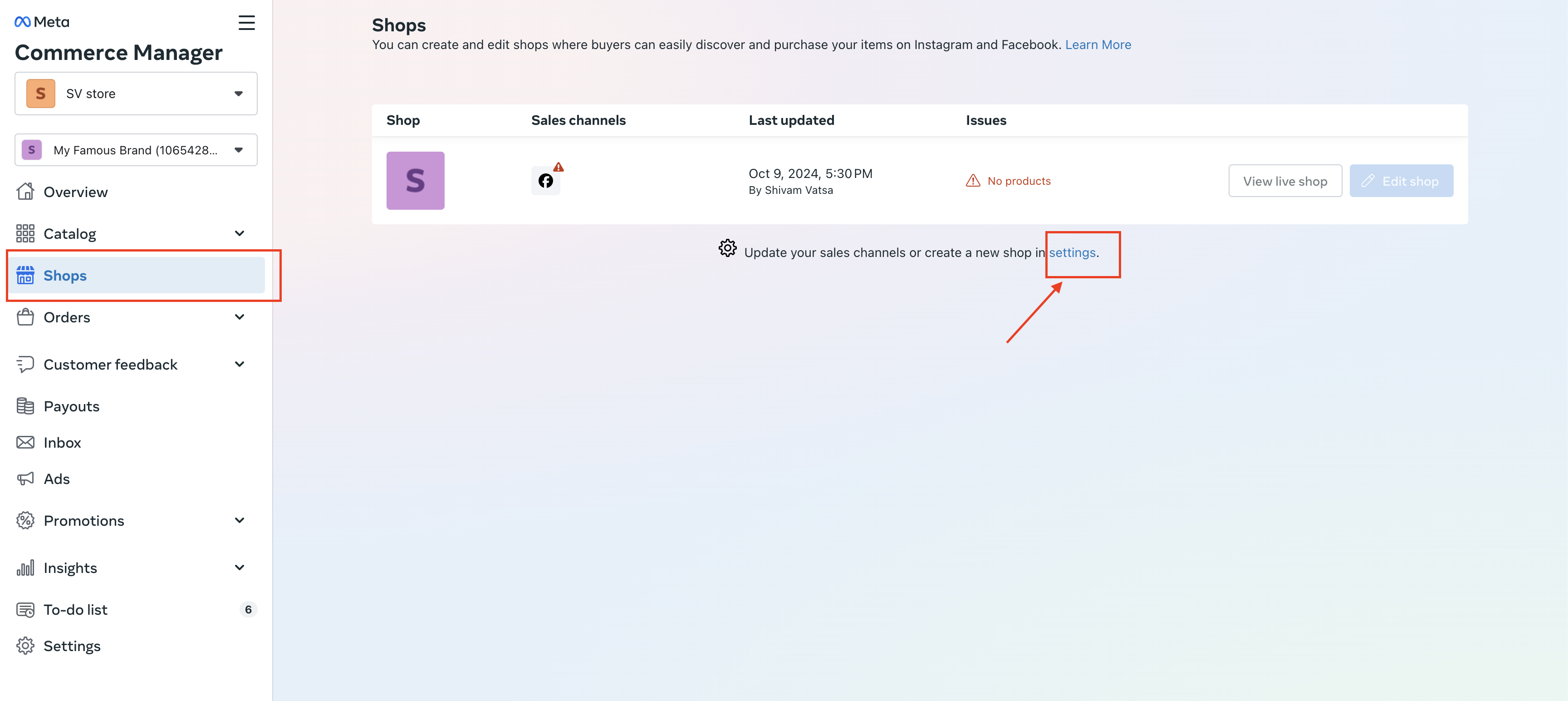
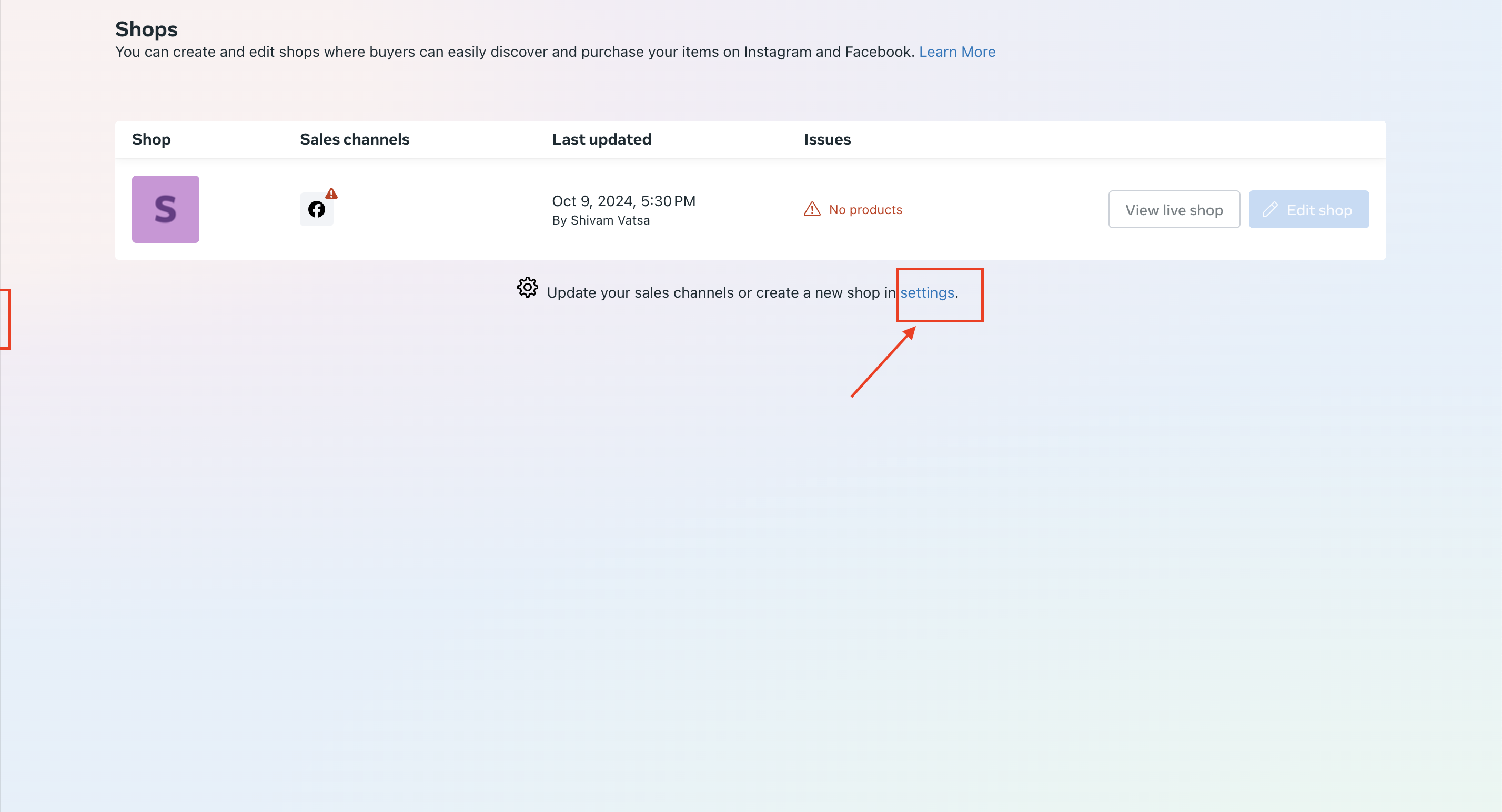
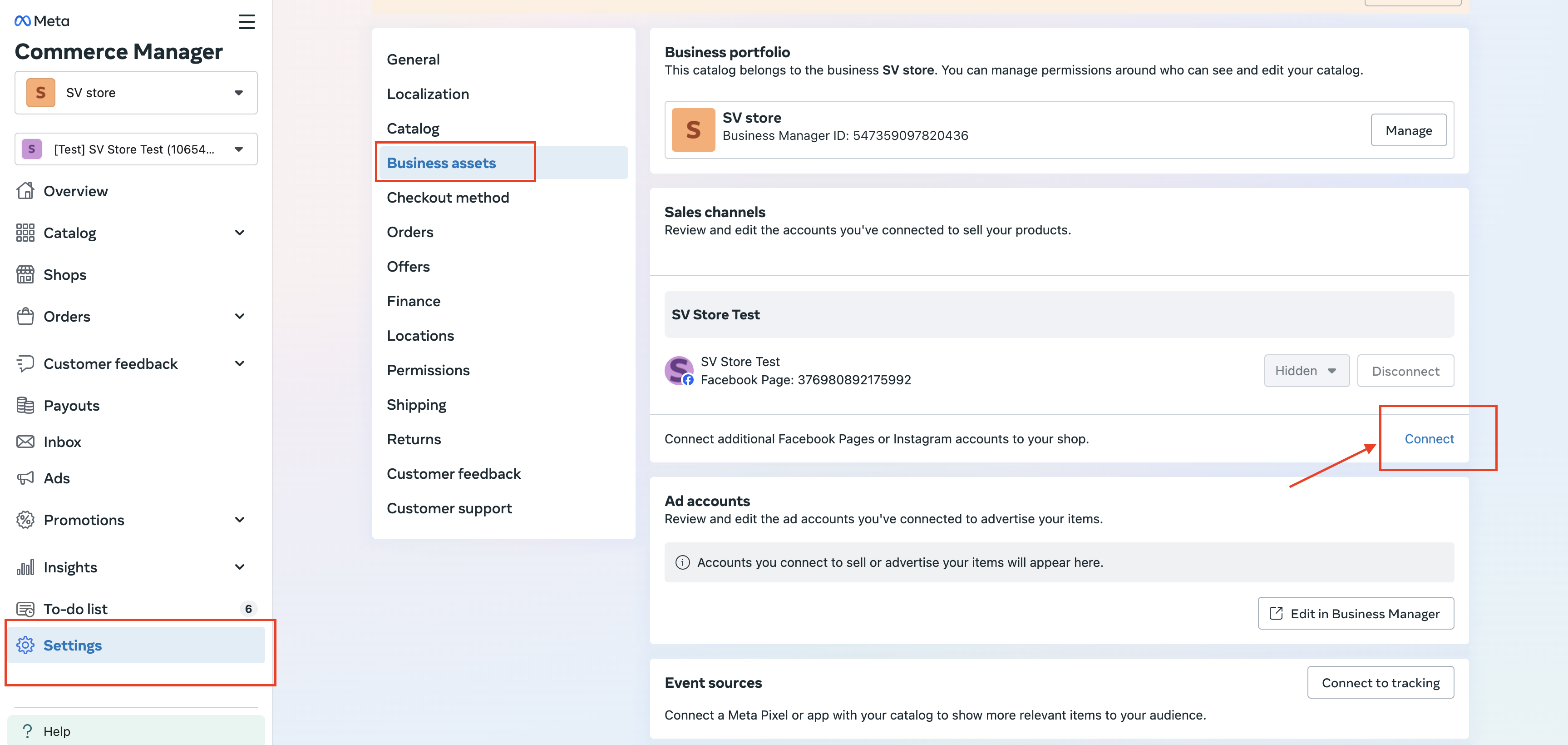
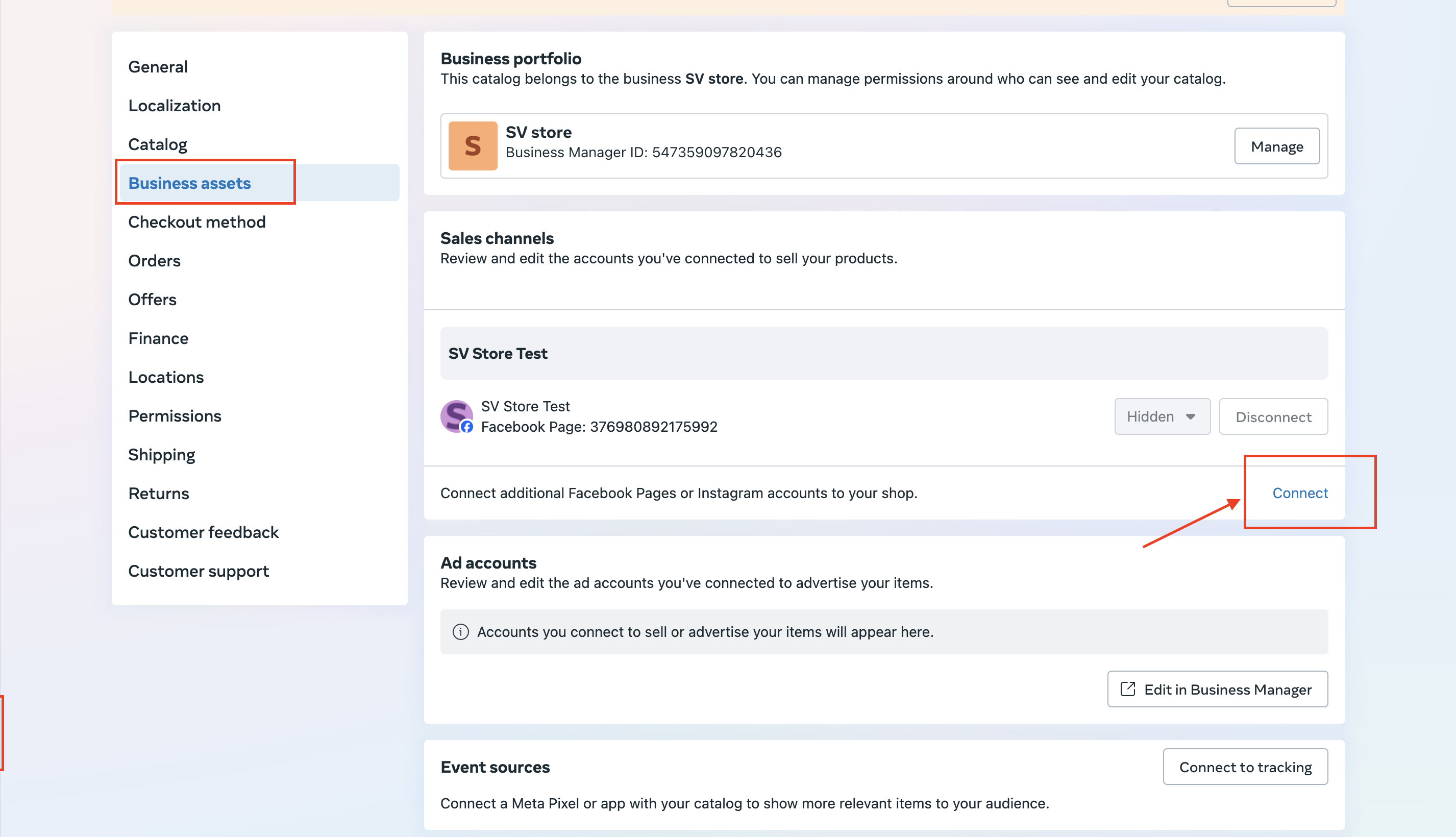
Click Connect to link your Instagram account to the shop.
Once your Facebook and Instagram Shops exist, connect them to your Aesthetix CRM store so your product catalog and inventory sync automatically.
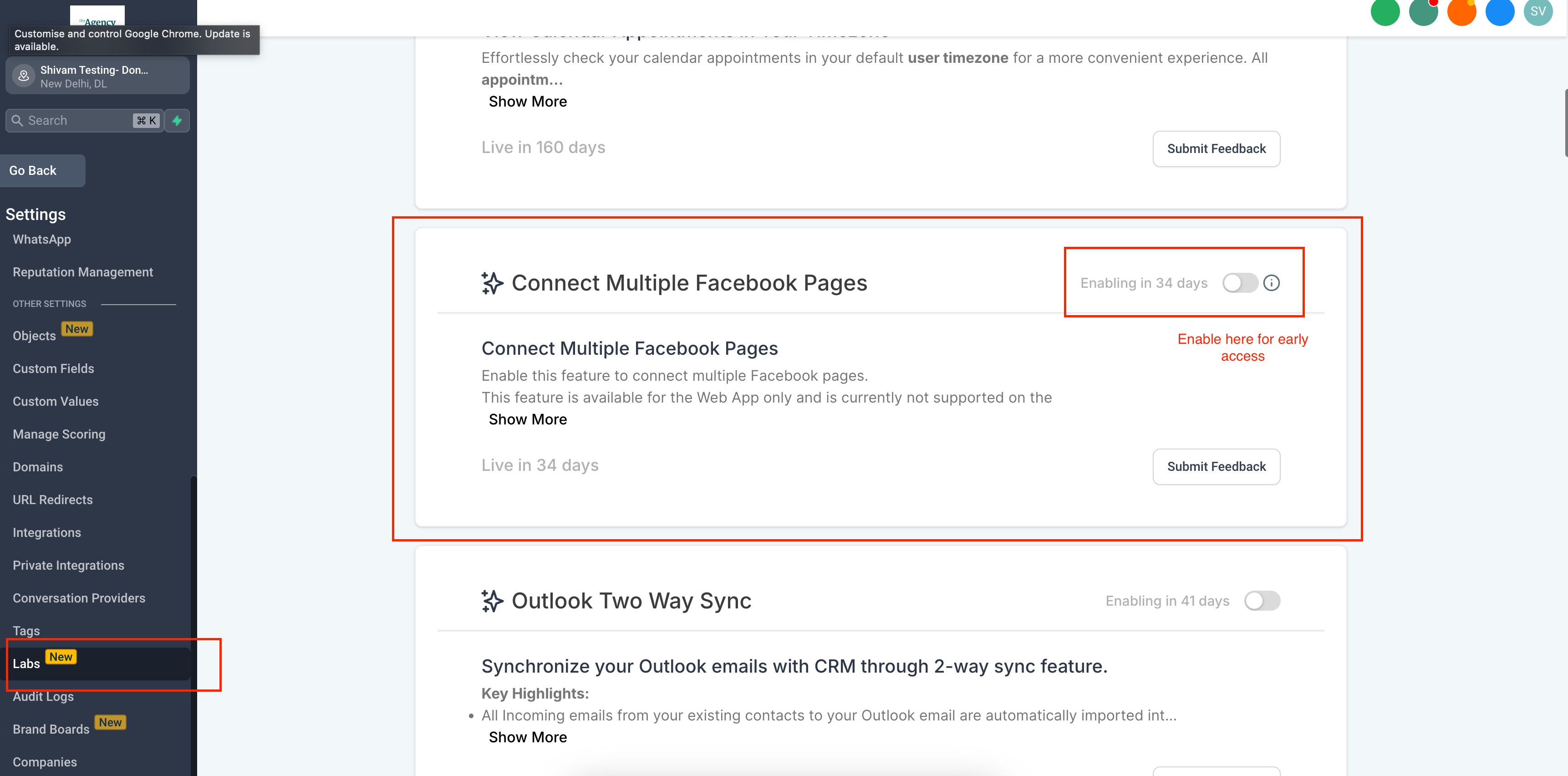
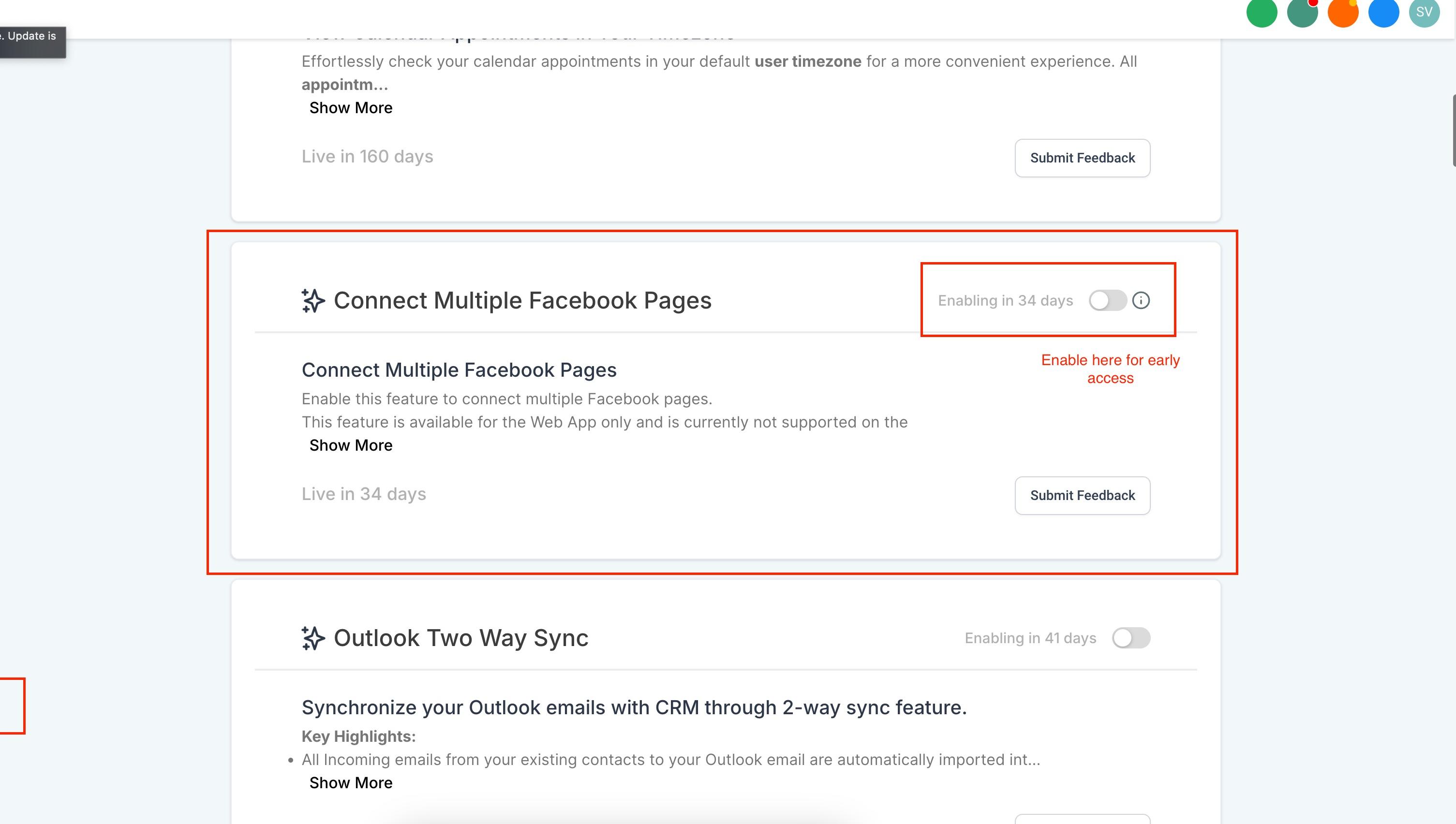
Go to Settings > Labs and enable the Multiple Facebook Pages feature. This has to be on before you can connect Shops.
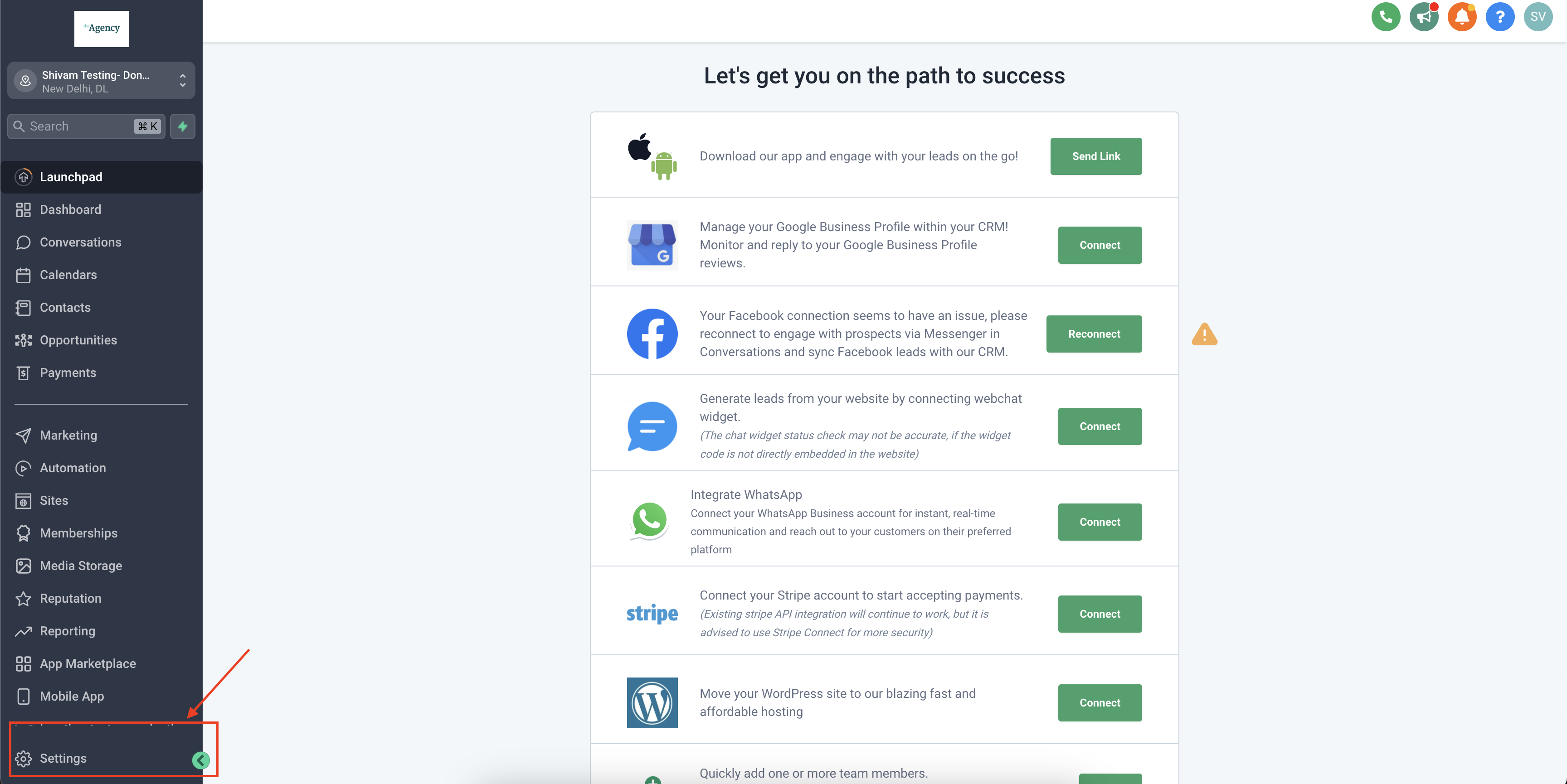
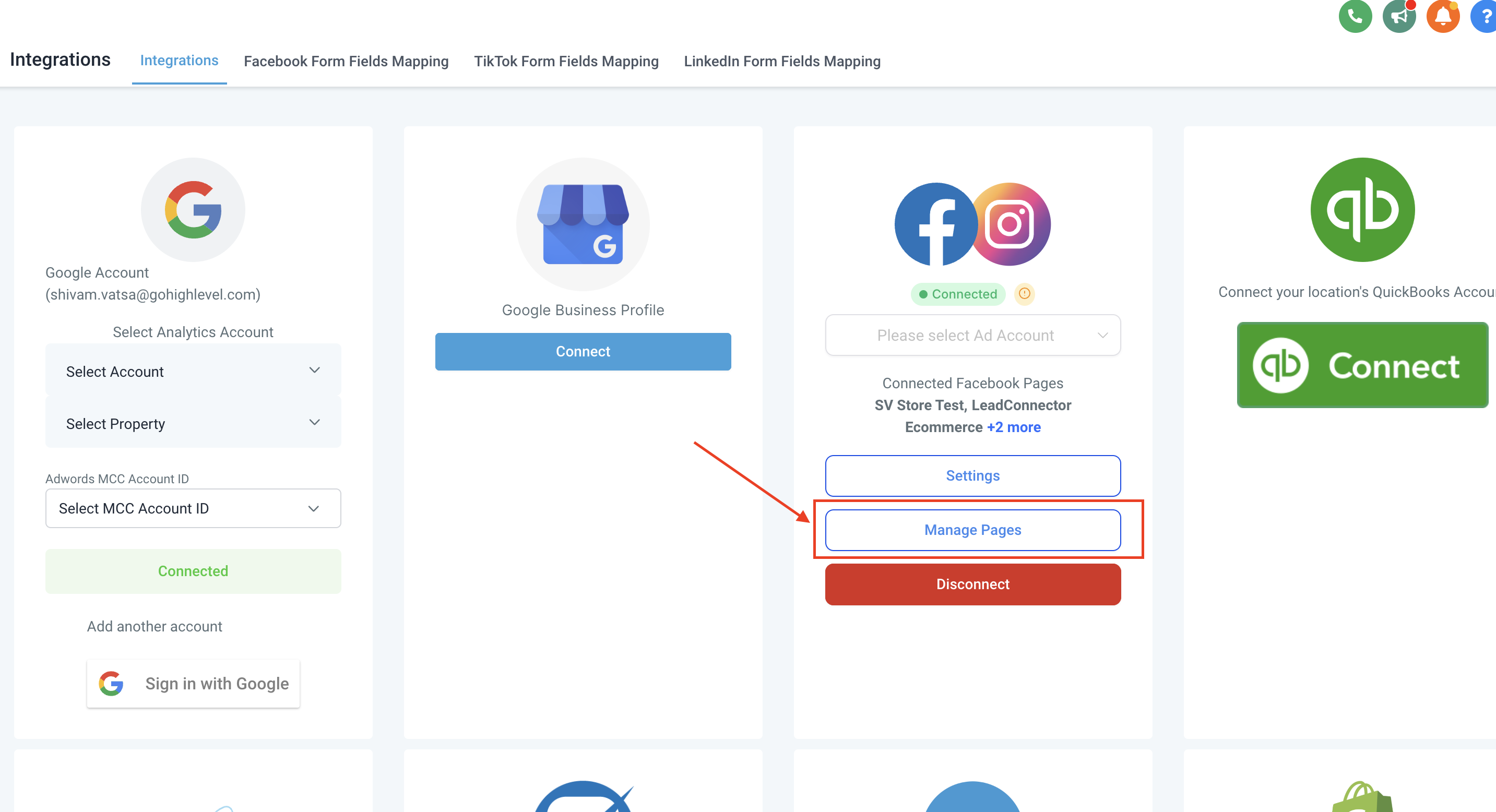
Navigate to Settings > Integrations > Facebook & Instagram to access the integration.
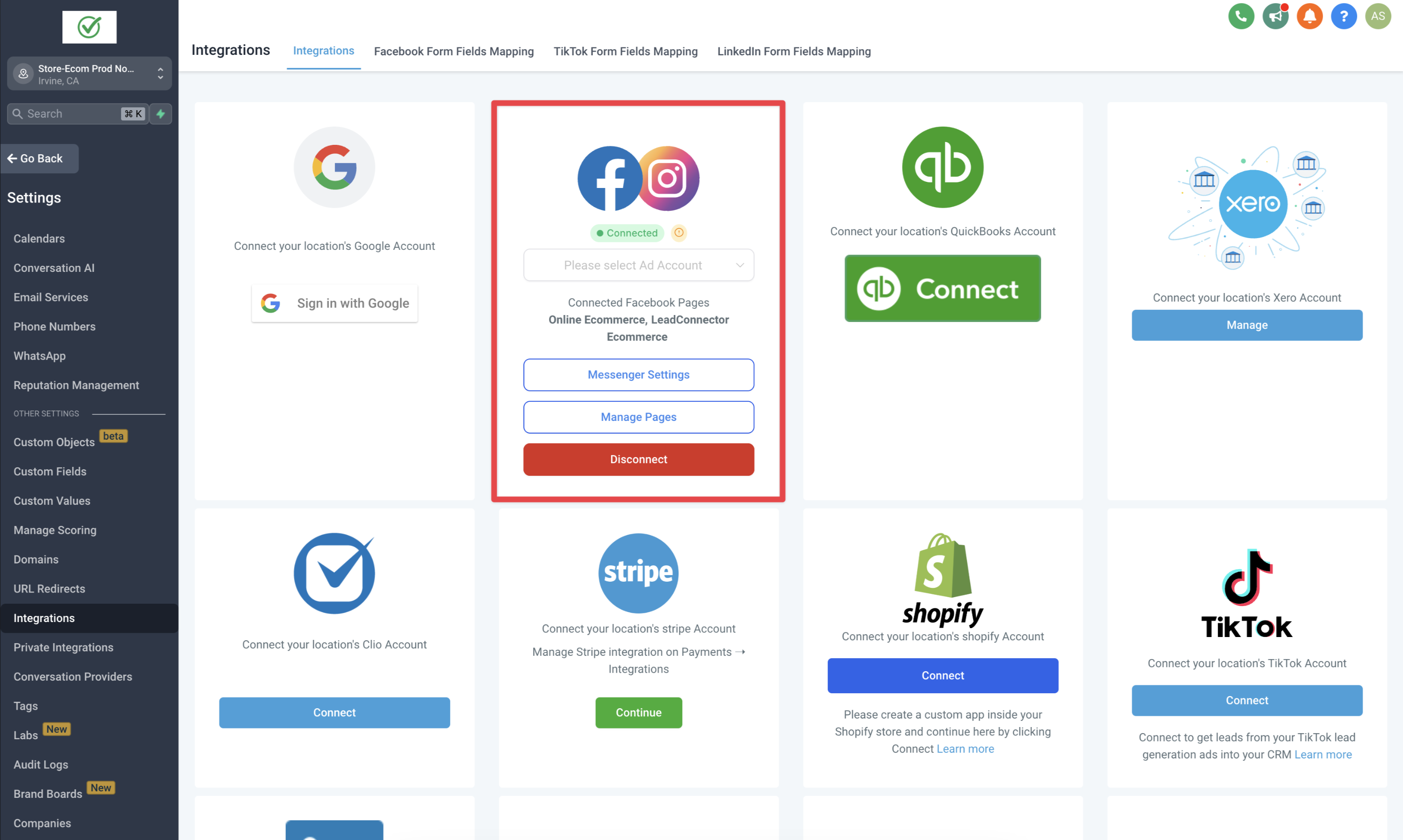
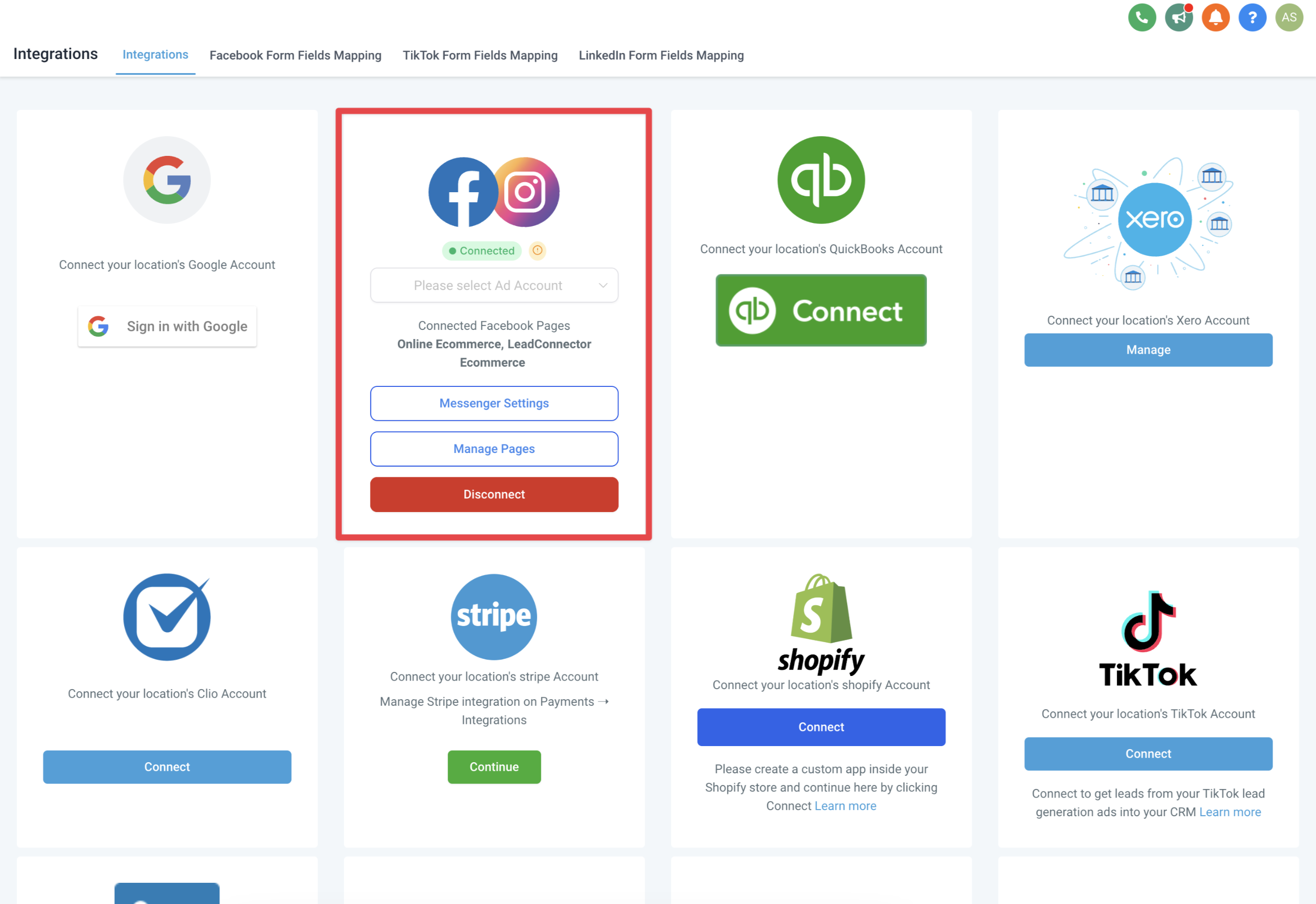
If this is your first time connecting, log in with your Facebook account and grant the requested permissions.
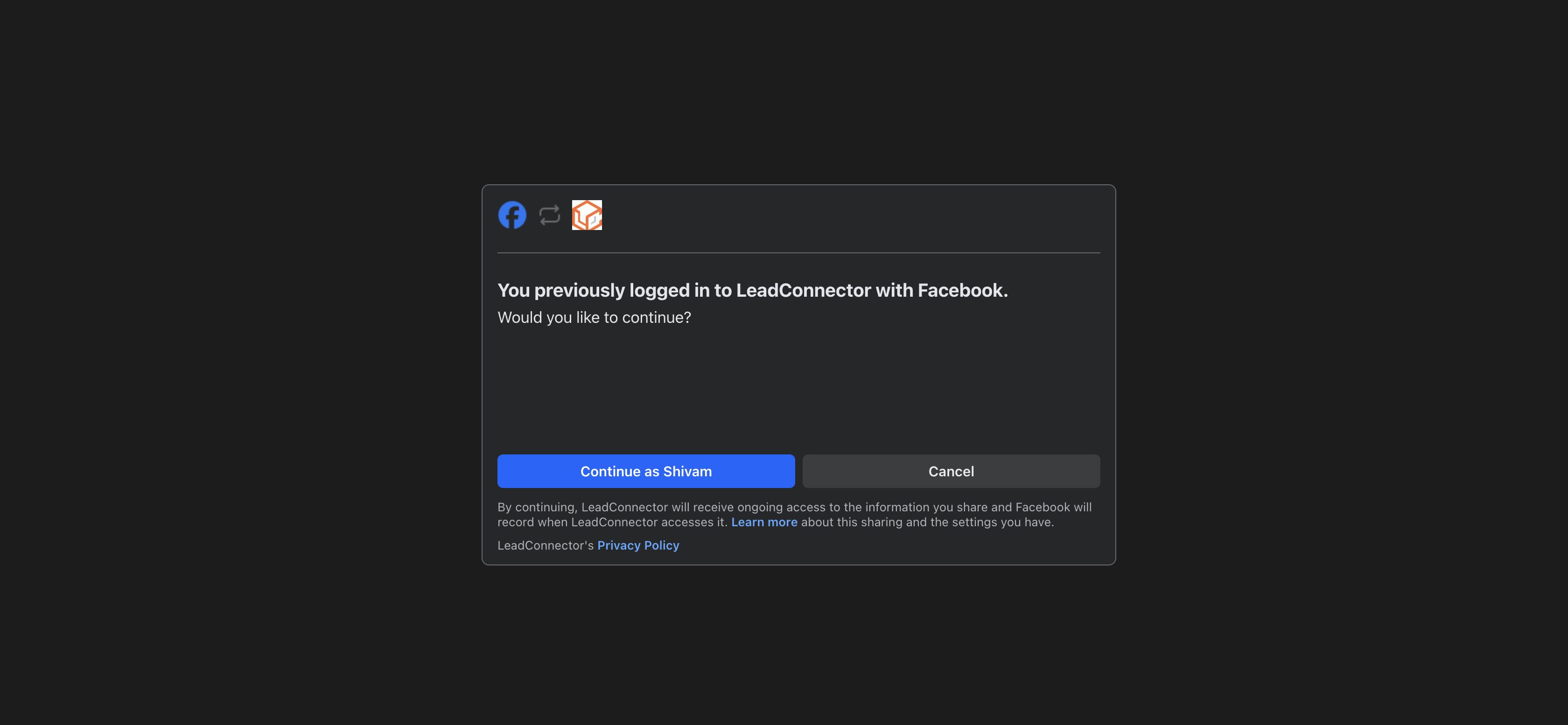
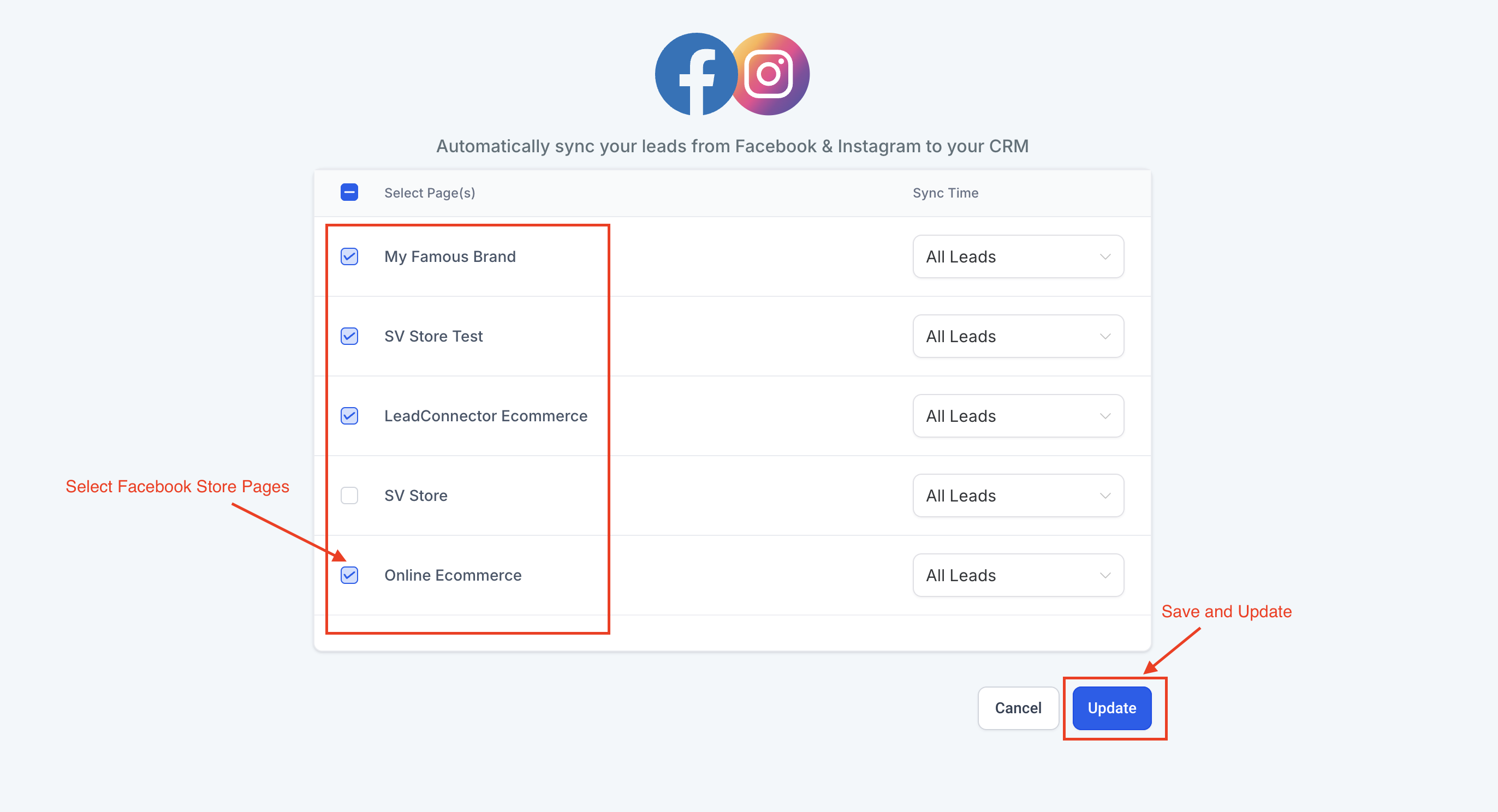
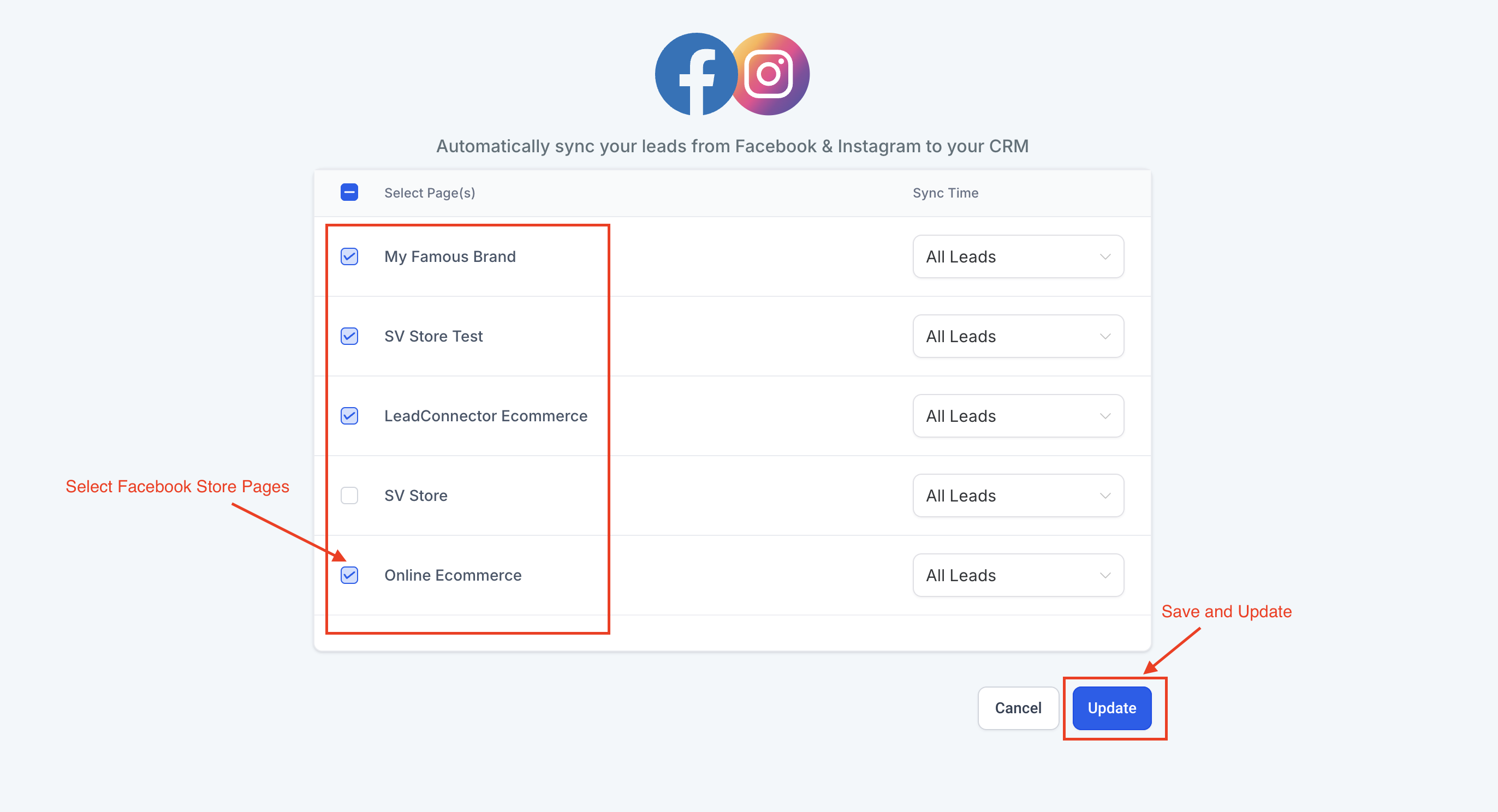
Then, in the Manage Pages section, select the Facebook/Instagram Shop pages you want to connect to your Aesthetix CRM store.
If your practice already had Facebook/Instagram connected before Shops was added to the integration, you'll need to reconnect it:
Confirm Multiple Facebook Pages is enabled under Settings > Labs.
Disconnect, then reconnect the integration inside Aesthetix CRM.
Before reconnecting, remove the LeadConnector integration on the Facebook side as well. On Facebook, this is found under your Profile > Settings & Privacy > Settings, then search for "business integrations." Seeing "LeadConnector" listed there is expected, it's simply the name Facebook shows for this connection.
Reconnect. Shops should now be enabled.
If the necessary permission scope wasn't granted, you'll see an error stating Catalog Management is disabled. Reconnect and approve the full permission set to clear it.
In the Facebook and Instagram integration card, open Messenger Settings to link your selected shop pages to your Aesthetix CRM store. The Shops tab shows your selected pages, and each one needs to be connected to a store for products to publish and sync.
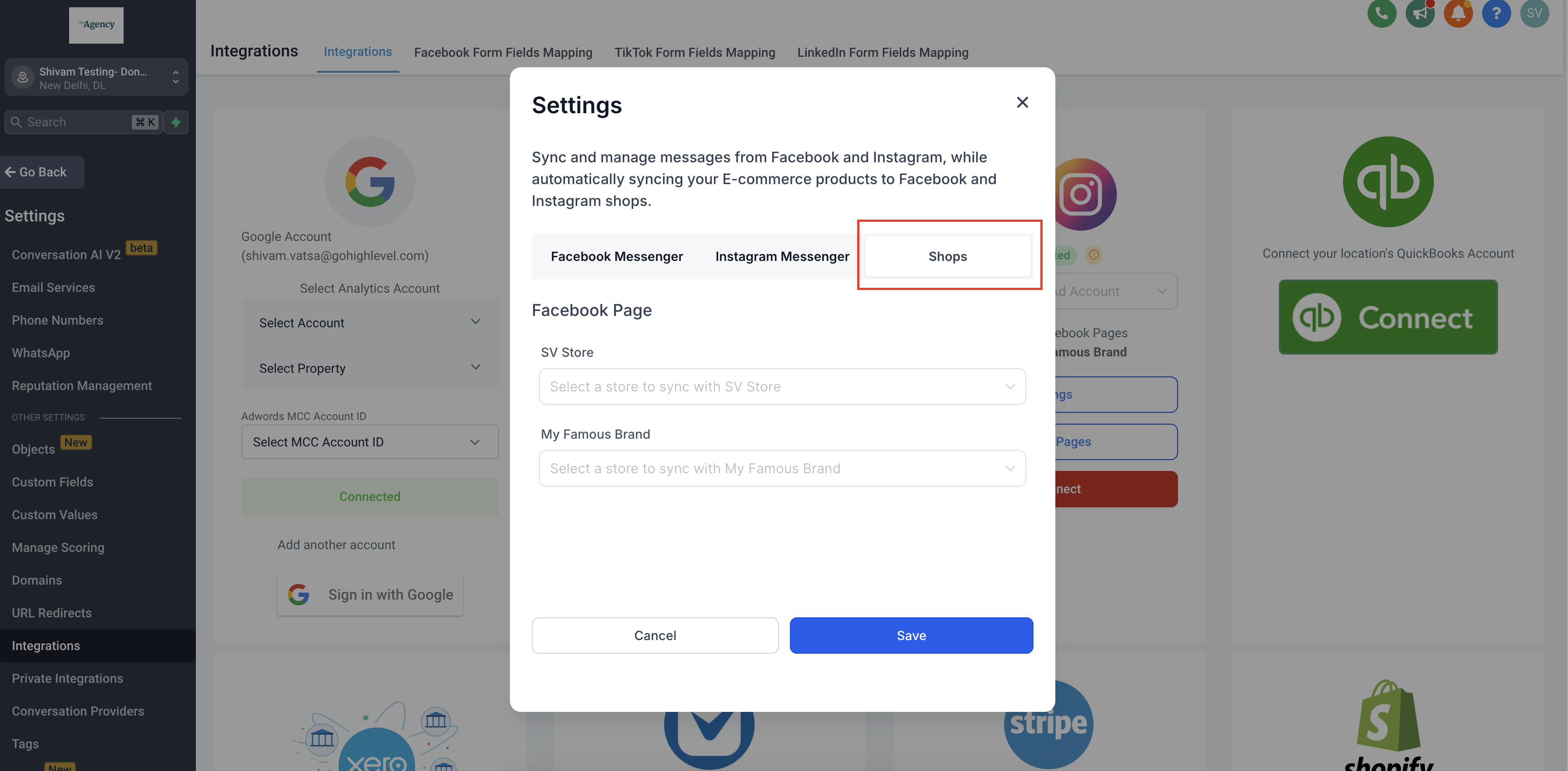
For each connected page, you can turn product sync on or off as needed.
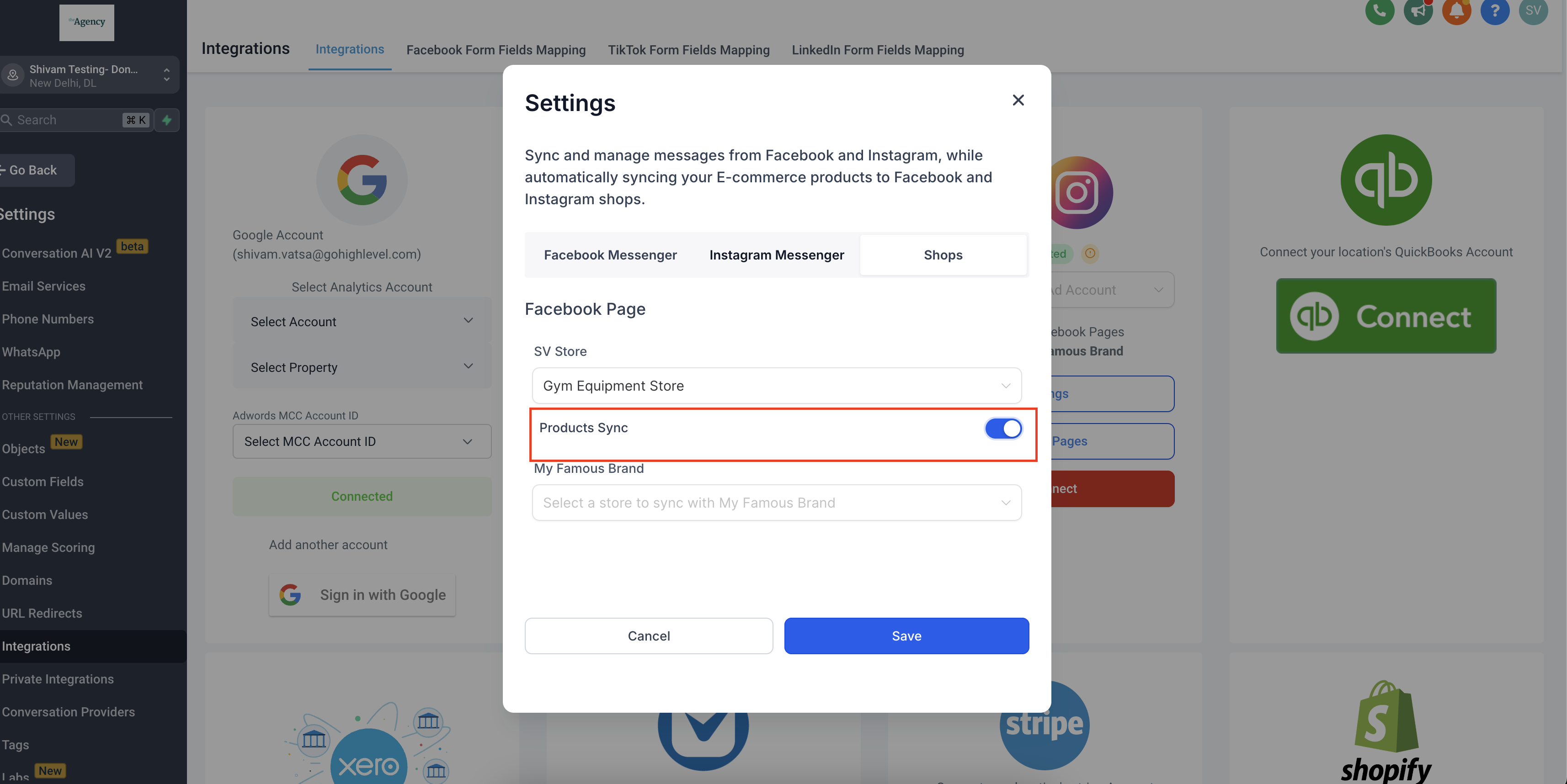
Once enabled, products flow from your Aesthetix CRM store into the Facebook Shop catalog automatically, and inventory stays in sync from a single source.
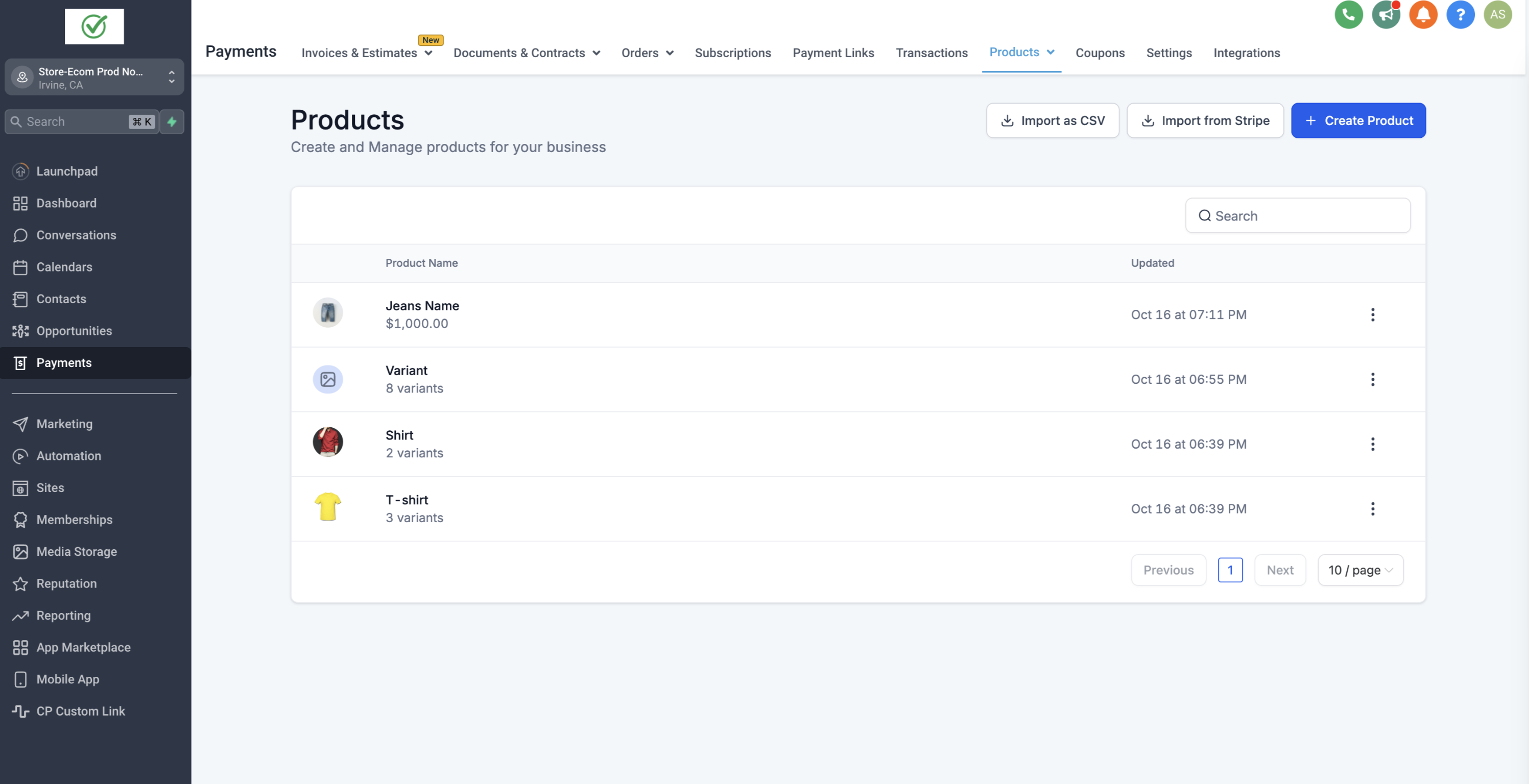
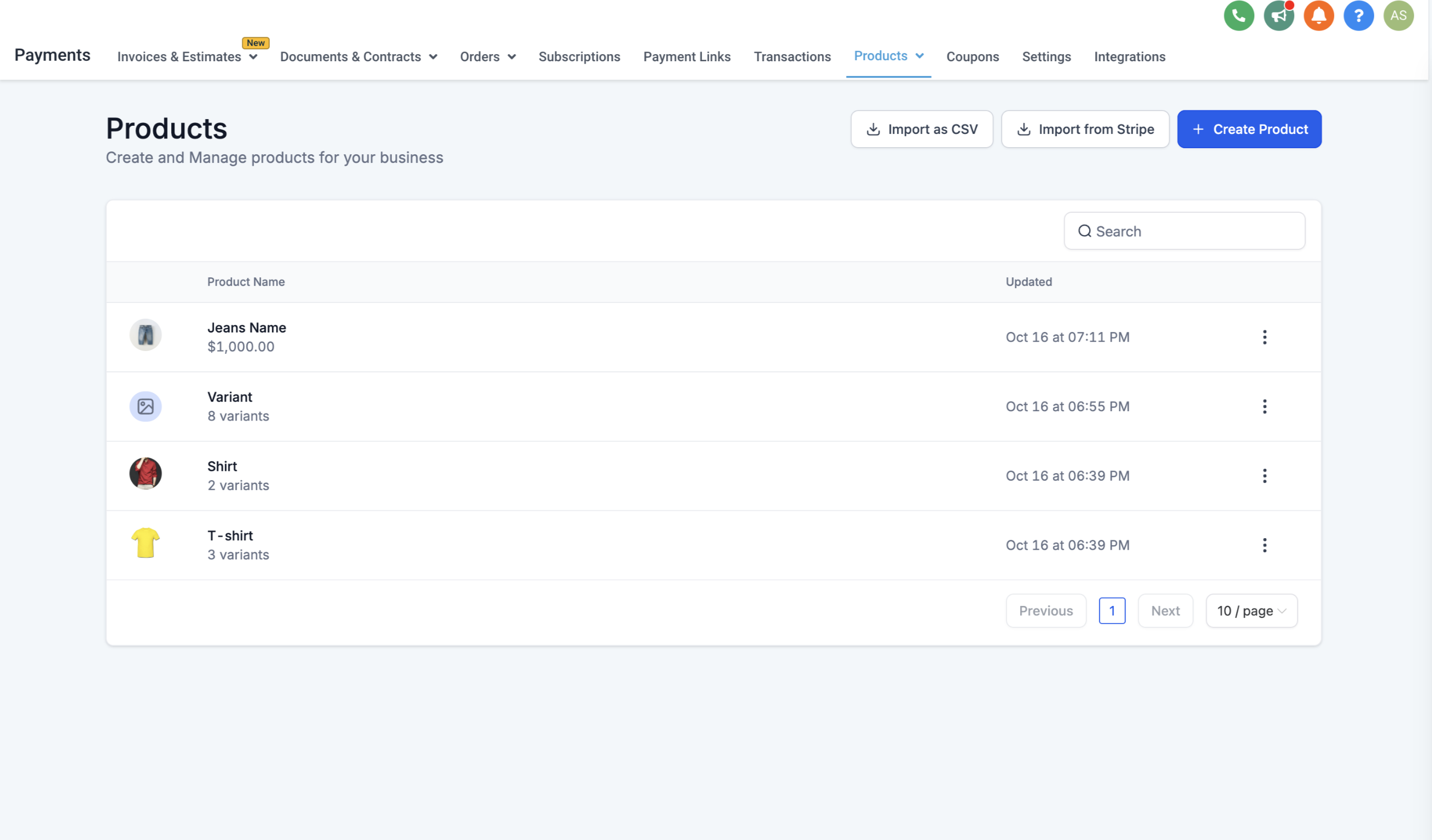
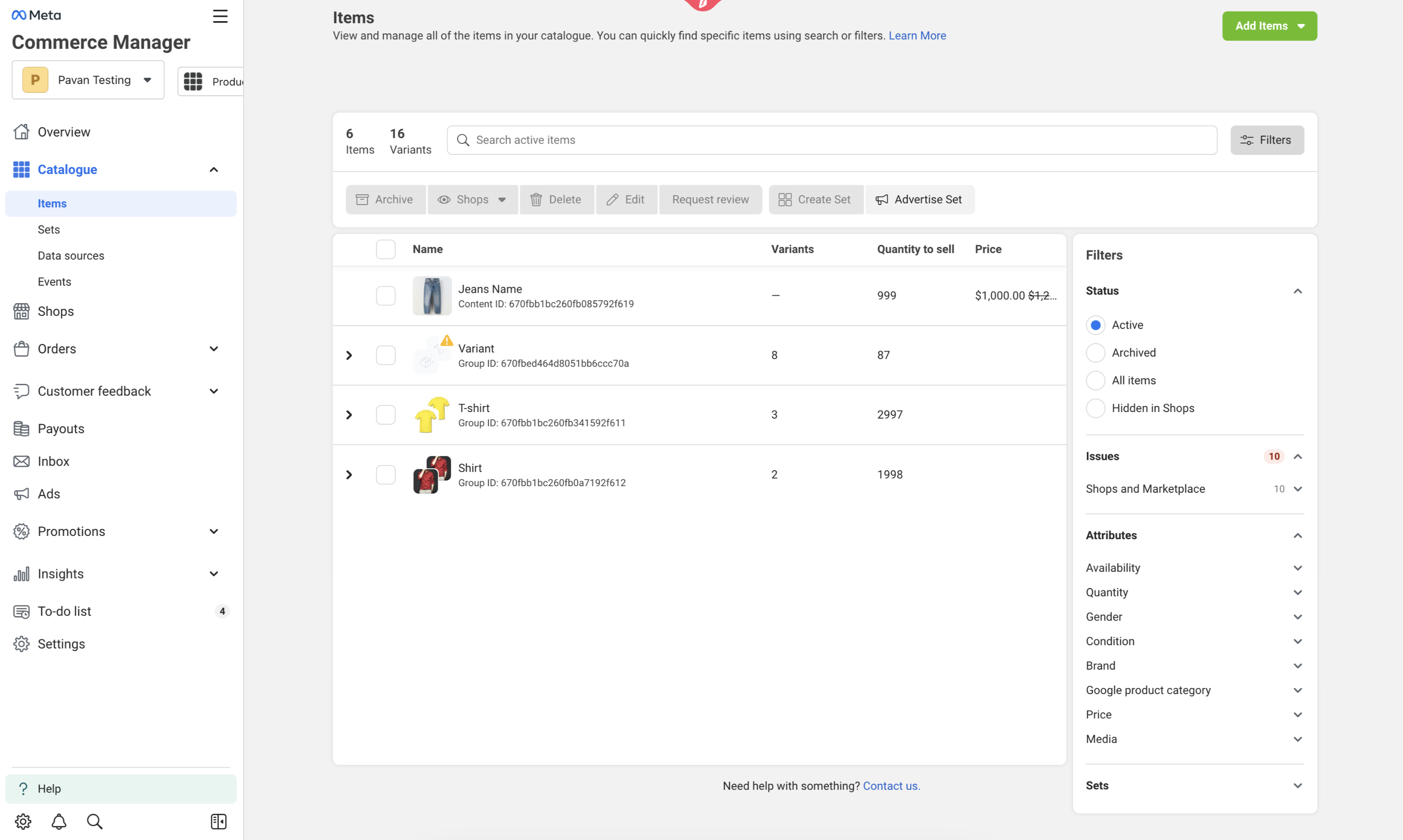
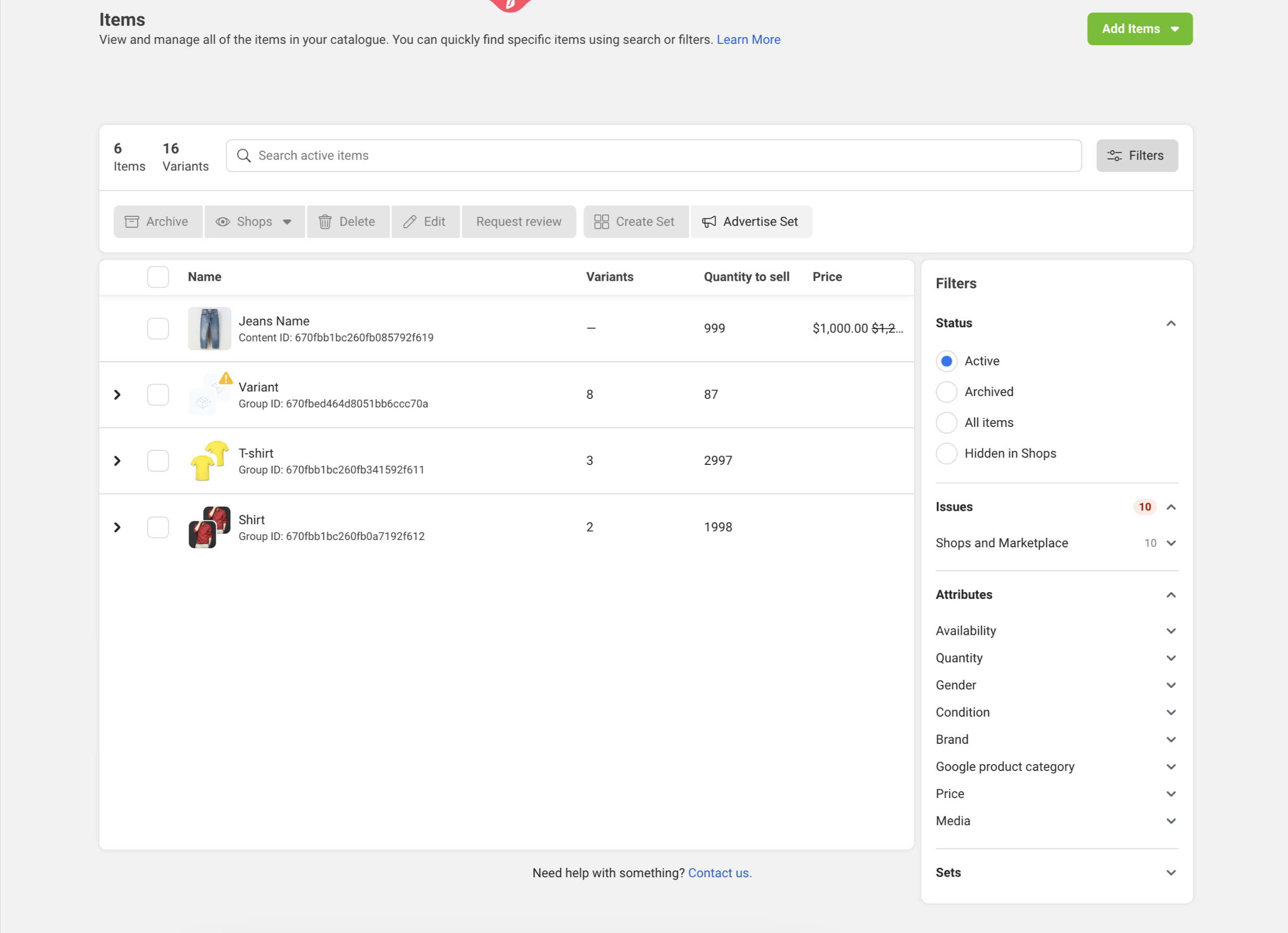
Once your catalog is syncing, you can advertise the synced products directly from Meta's tools:
Open your shop.
Go to Catalogue > Items.
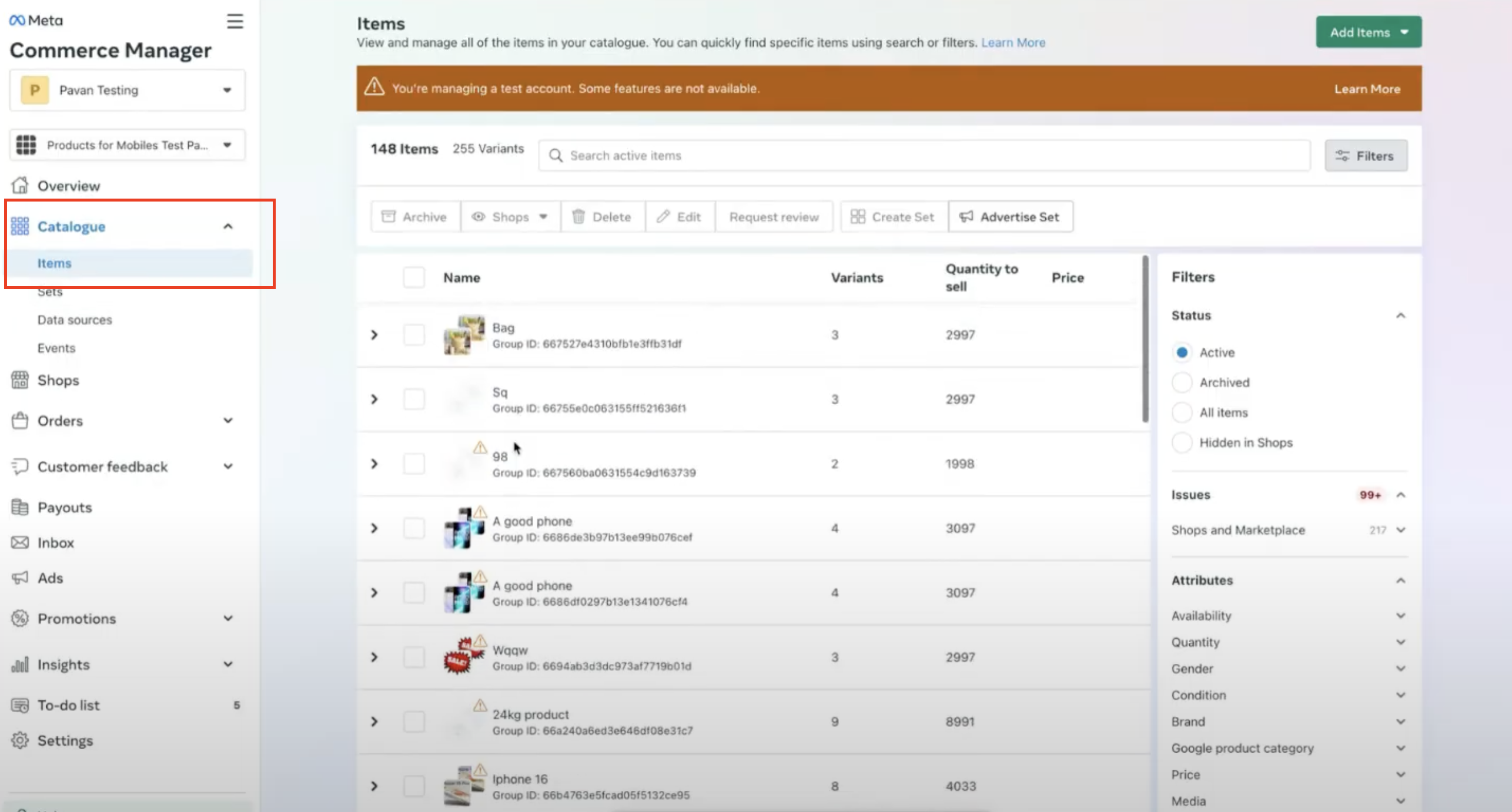
Select the products you want to advertise and click Advertise to set up the ad set.
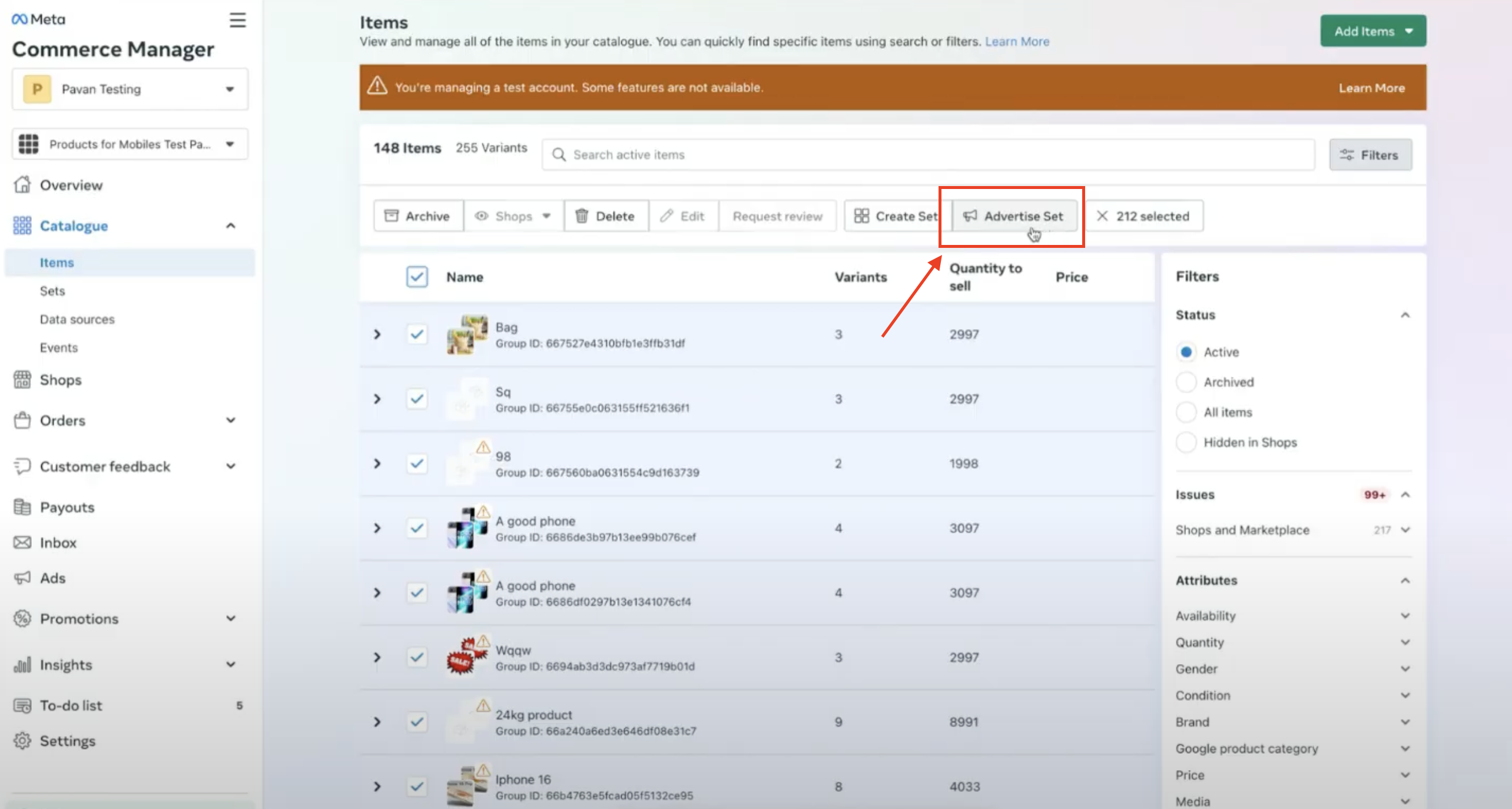
Product ads created this way run through Meta's own ad tools against your synced catalog. For broader ad planning and reporting across your practice's campaigns, use Ads Manager inside Aesthetix CRM.
The Facebook Page must have a Product Catalog connected for syncing to happen.
The Facebook Page needs the E-commerce Website category to appear under the Shops section. Manage this from the Page's About section, under Contact and Basic Info > Categories.
The Facebook Page must be connected to an Aesthetix CRM store under Shops for sync to run.
Only one-time purchase products sync to the Meta catalog. Recurring or subscription products are not supported in Meta Commerce Manager.
If Track Inventory is turned off, or "continue selling when out of stock" is enabled, Aesthetix CRM reports an inventory quantity of 999 to Meta, since Meta Commerce Manager requires an inventory number.
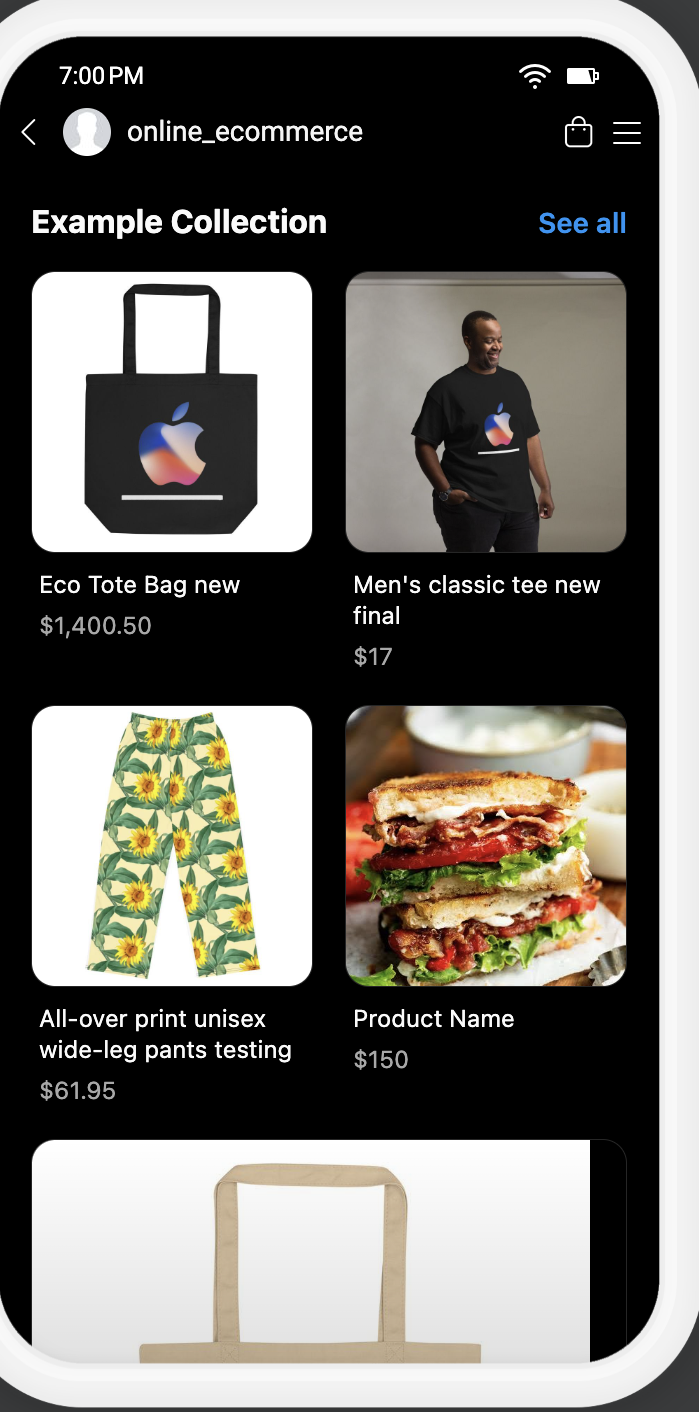
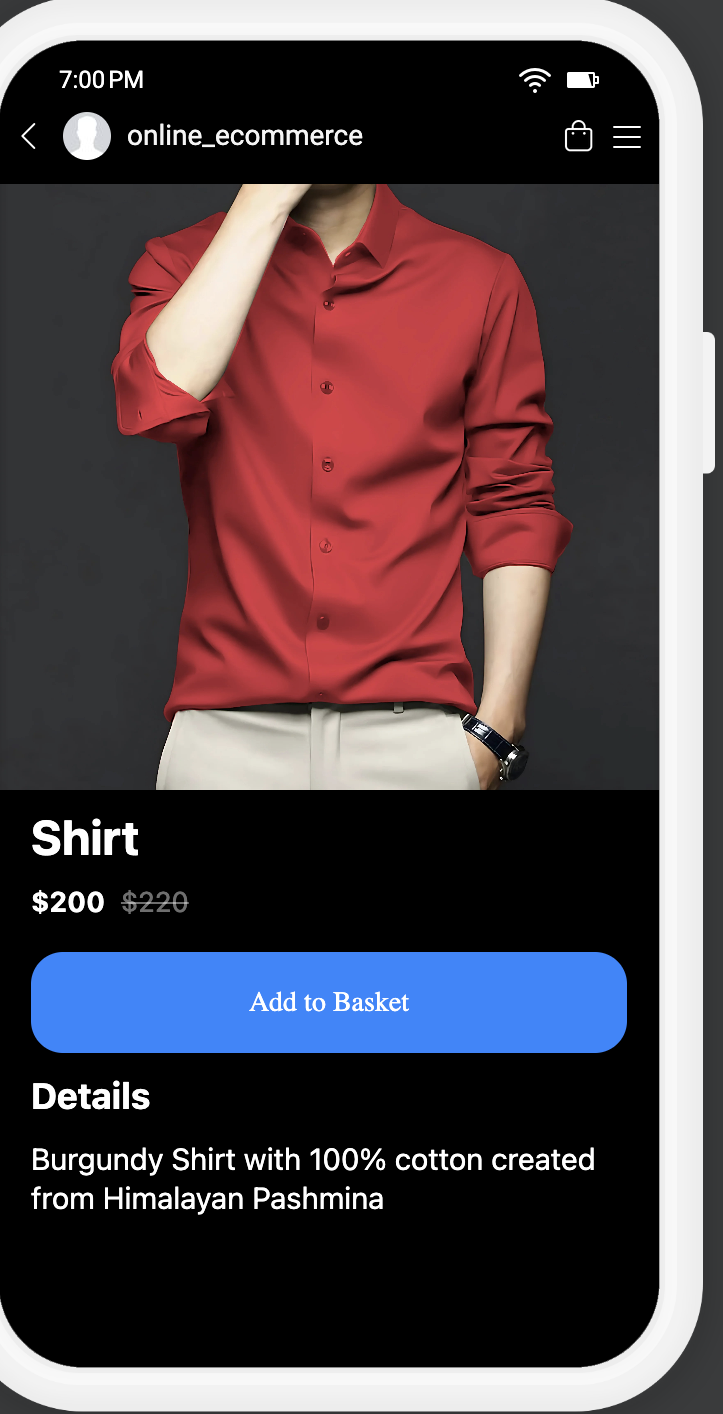
Once your catalog syncs, your products appear as a browsable shop directly inside Facebook and Instagram.
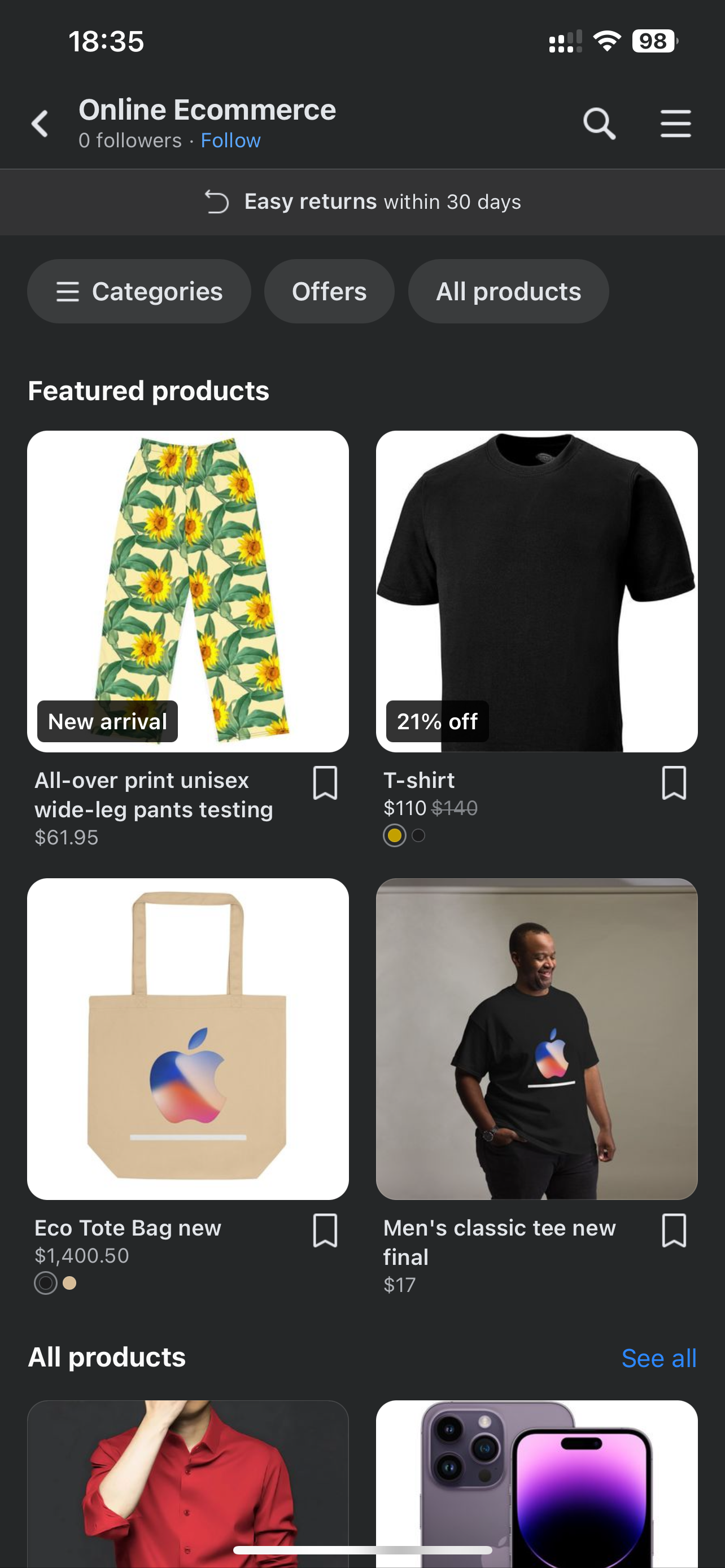
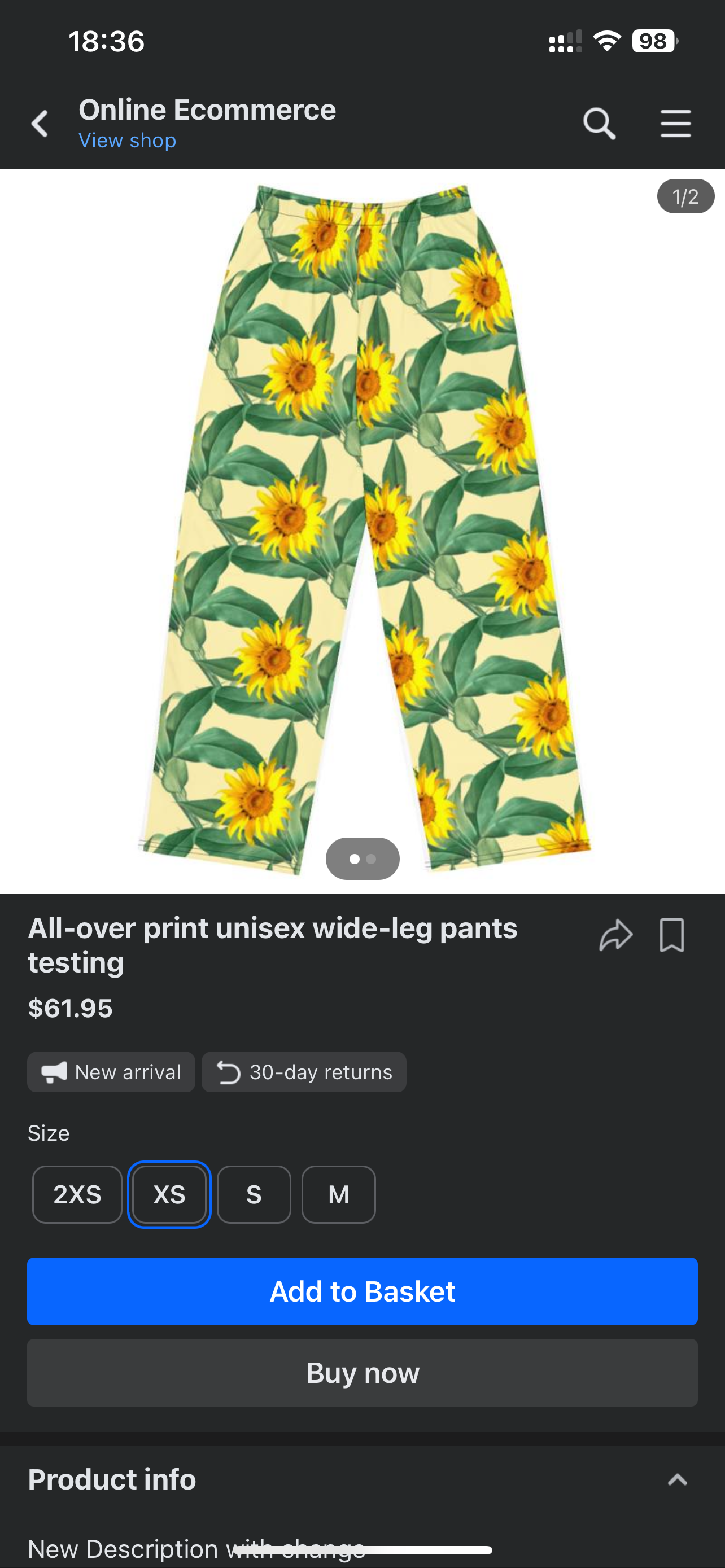
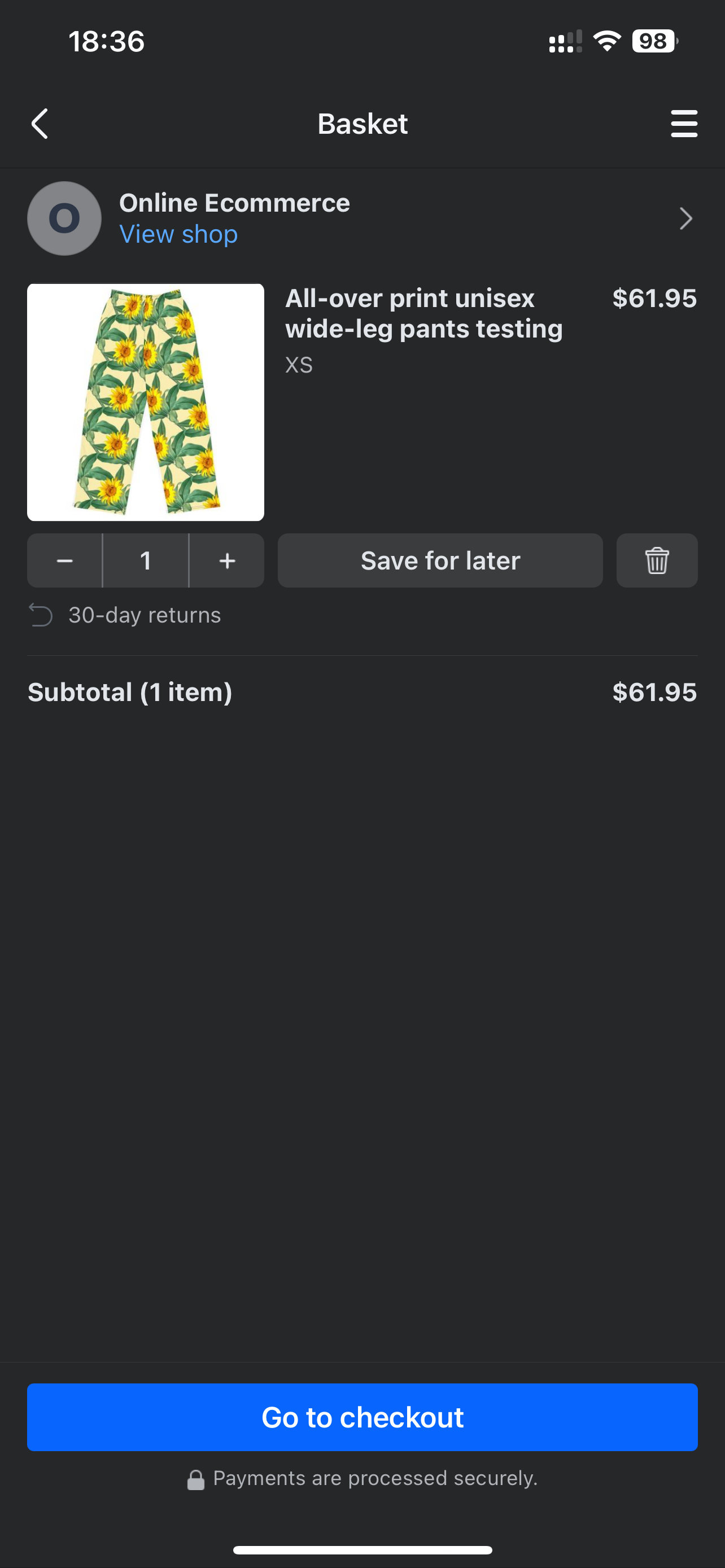
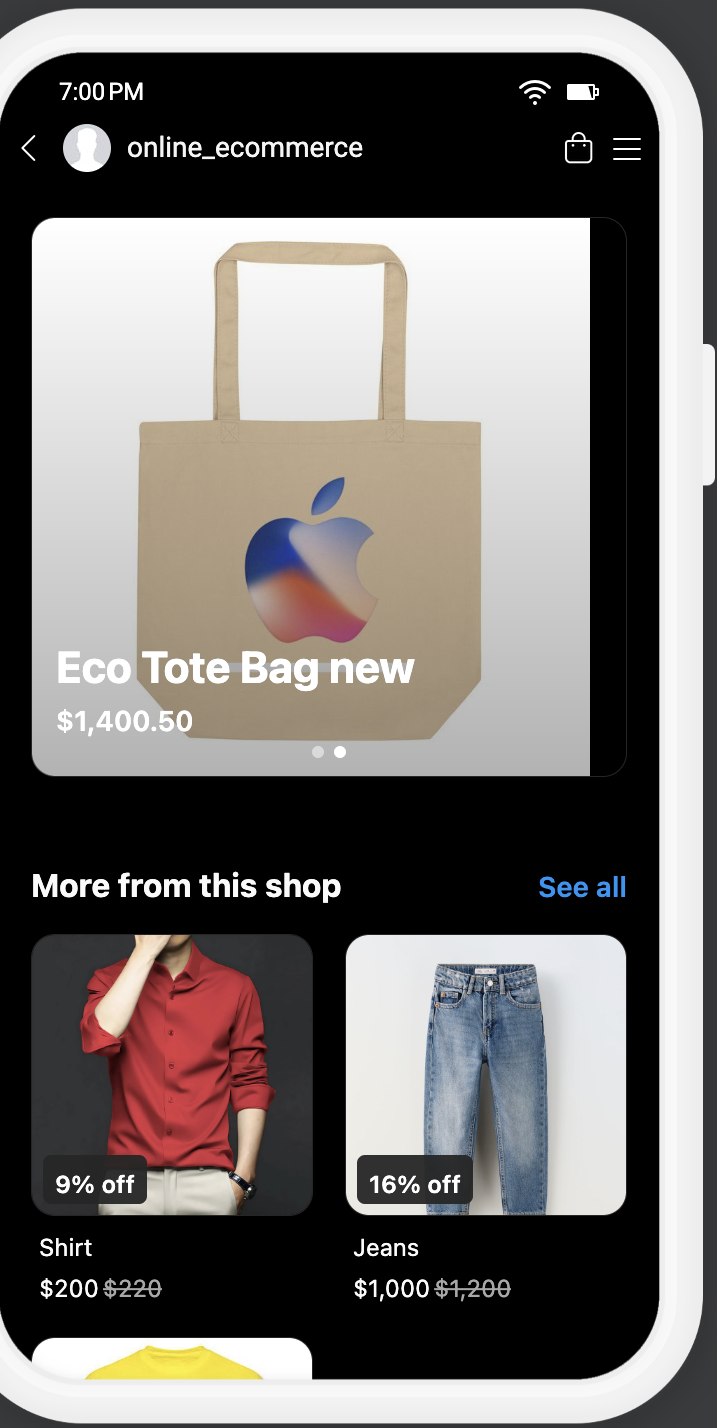
When a patient completes checkout by tapping through to your website instead of buying inside the Facebook or Instagram app, that order runs through your Aesthetix CRM store's checkout and whatever payment provider you have connected to it, not through Meta.
Use AX Pay, Aesthetix CRM's built-in payment provider, for these checkouts. It offers better rates than Stripe and keeps every synced-catalog sale, refund, and payout in one place. See the AX Pay help article for setup details.
Product pricing, tax settings, and coupons are configured in your Store settings and covered in the Payments guides, not here.
Do I need separate shops for Facebook and Instagram? No. You create one Facebook Shop first, then add Instagram as a sales channel on that same shop from within Meta's tools.
Can I connect Shopify or WooCommerce products to Facebook/Instagram Shops through Aesthetix CRM? No. This integration syncs your native Aesthetix CRM Store catalog. If your practice sells through Shopify or WooCommerce, connect that platform under Integrations and manage its Facebook/Instagram Shop connection from that platform directly.
Why don't I see Shops as an option after connecting Facebook/Instagram? Confirm Multiple Facebook Pages is enabled under Settings > Labs. If you connected the integration before this feature existed, disconnect it, remove the LeadConnector business integration on the Facebook side, then reconnect.
Why is my Facebook Page missing from the Shops list? The Page most likely needs the E-commerce Website category. Add it from the Page's About section under Contact and Basic Info > Categories, then it should become eligible for Shops.
Do subscription or recurring products sync to Facebook and Instagram Shops? No. Meta Commerce Manager only supports one-time purchase products. Recurring products stay out of the synced catalog.
What inventory number does Meta show if I don't track inventory? Aesthetix CRM reports a quantity of 999, since Meta requires some inventory number even when your store isn't tracking stock levels.
Where does payment actually happen when a patient buys through Facebook or Instagram? It depends on the checkout flow Meta uses for your Page. If checkout redirects to your website, payment runs through your Aesthetix CRM store and its connected payment provider (AX Pay recommended). If Meta's own in-app checkout is used instead, Meta handles that transaction on its side.
Can I run ads on the products in my synced catalog? Yes. From your shop, go to Catalogue > Items, select the products you want to promote, and click Advertise to set up the ad.
