Print-on-demand lets your practice sell branded merchandise, think spa robes, water bottles, candles, or apparel with your logo, without buying inventory upfront or managing shipping yourself. A third-party provider prints and ships each item only after a patient orders it. Aesthetix CRM connects to two popular print-on-demand providers, Printful and Printify, from your store's Integrations settings (Payments > Integrations, or search the App Marketplace).
This is not core to running a med spa, and most practices will never need it. It is useful mainly for a small branded gift-shop line (robes, mugs, candles) alongside your regular treatment offerings. If you are not planning to sell merchandise, you can skip this guide entirely.
Product catalog setup, taxes, and coupons for your store are covered in the Payments section. Connecting Shopify or WooCommerce as your storefront is covered under Integrations. This guide covers only the print-on-demand fulfillment connection itself.
Printful is an on-demand printing and fulfillment service. Once connected, any product you create, update, or delete in your Printful store syncs live to your Aesthetix CRM store, and any order placed in your store is pushed to Printful automatically for production and shipping.
What it does:
Imports products from your Printful store into your Aesthetix CRM store location.
Keeps products in sync: creations, edits, and deletions on the Printful side reflect in your store in real time.
Automatically creates a matching order in Printful whenever a patient checks out in your store.
Syncs shipping and fulfillment status back to your store, including partial and complete fulfillments.
Sends the patient an email notification once their order ships, with tracking details supplied by Printful.
Click into your Payments (or Store) settings, then open Integrations.
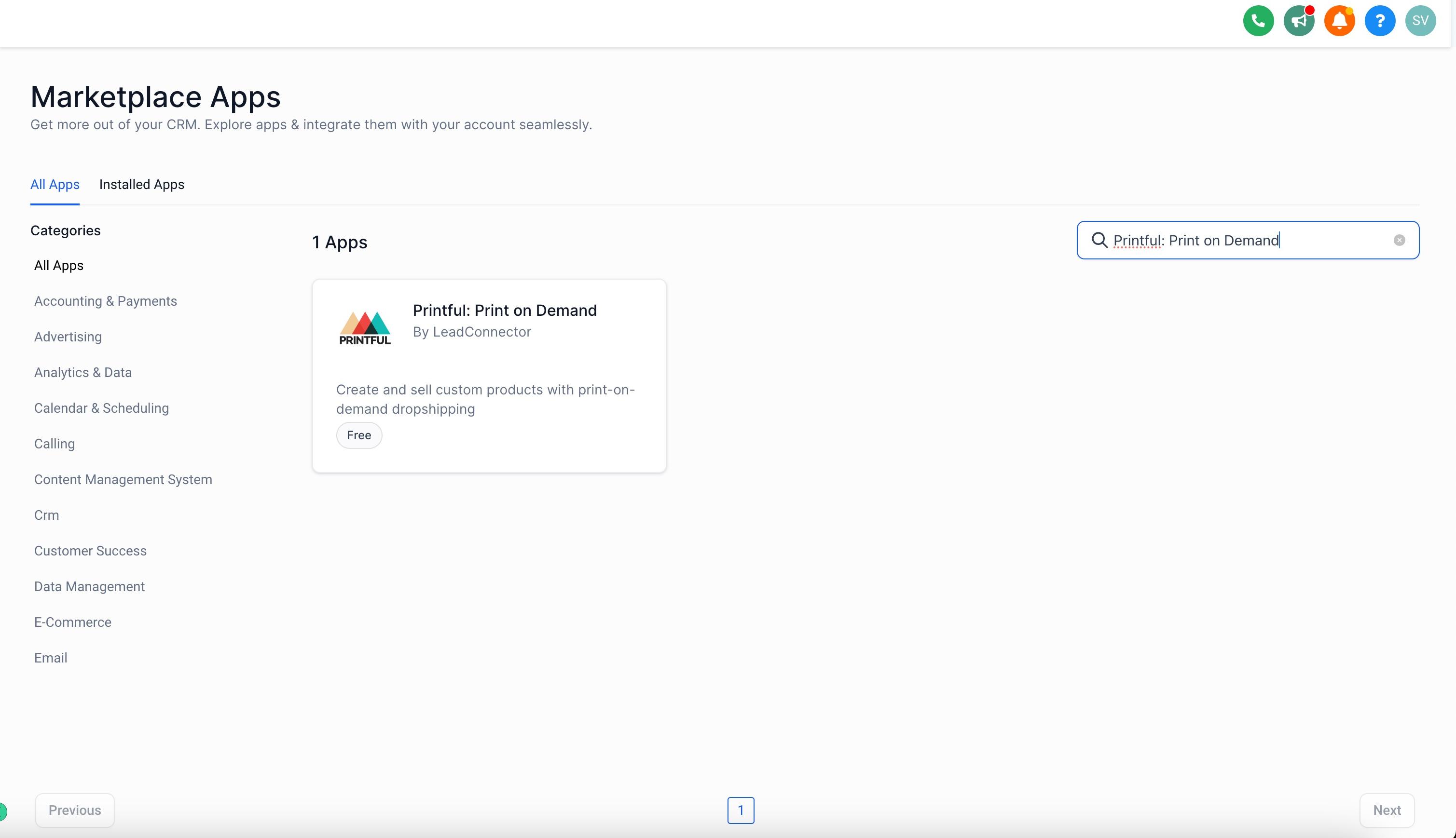
Search for Printful and select View App.
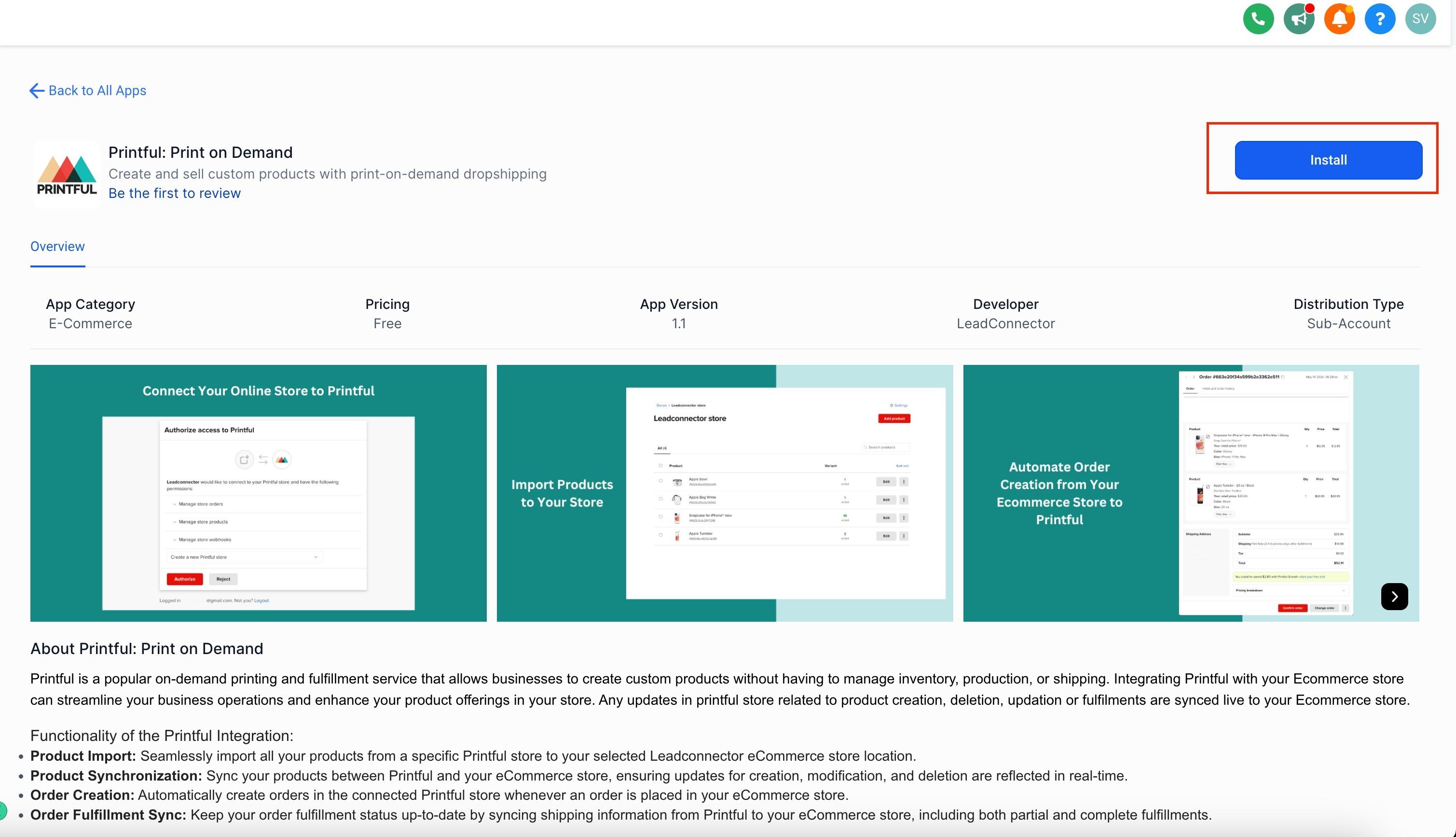
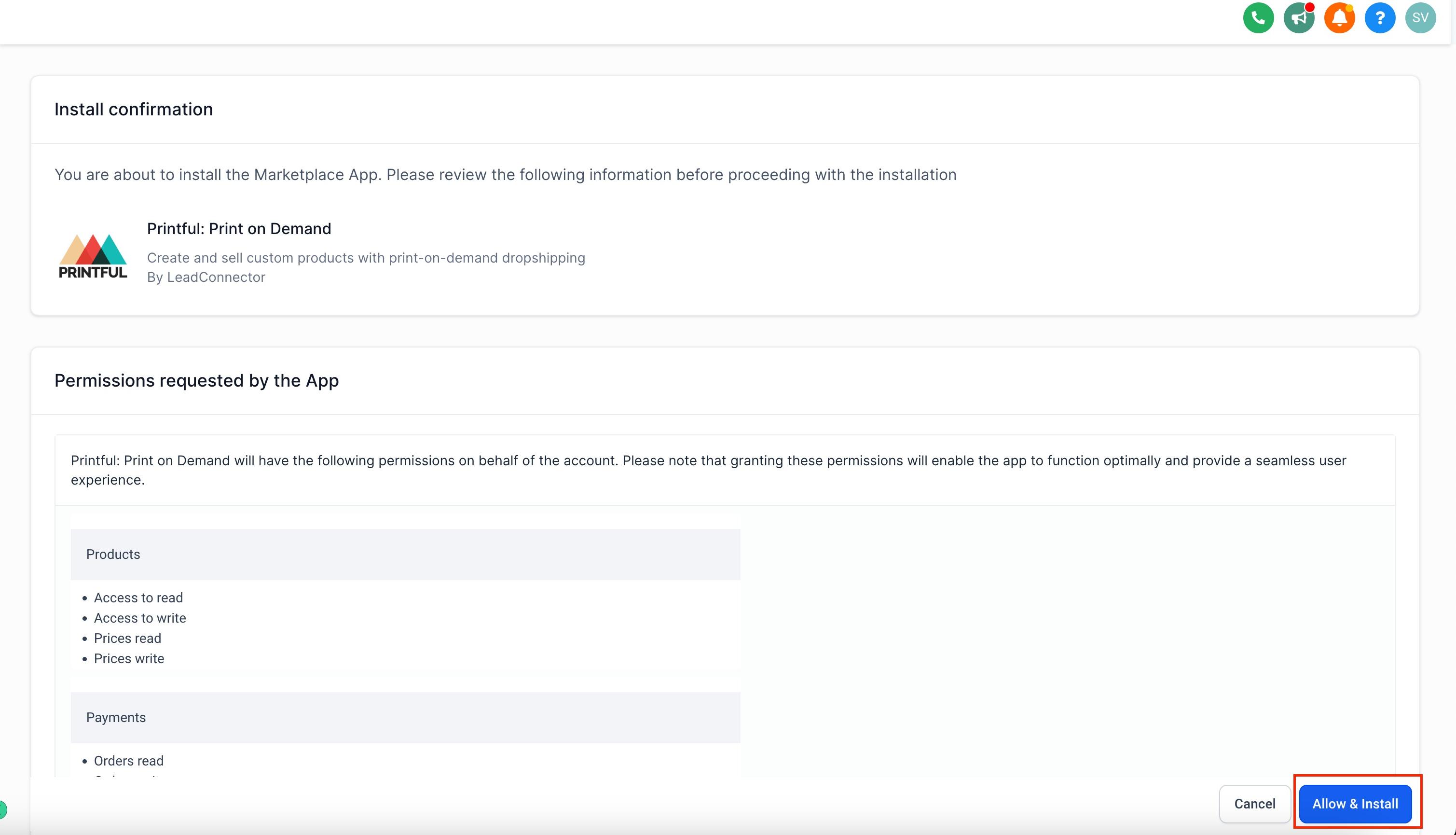
Select Install, then Allow & Install to grant the permissions needed to complete the connection.
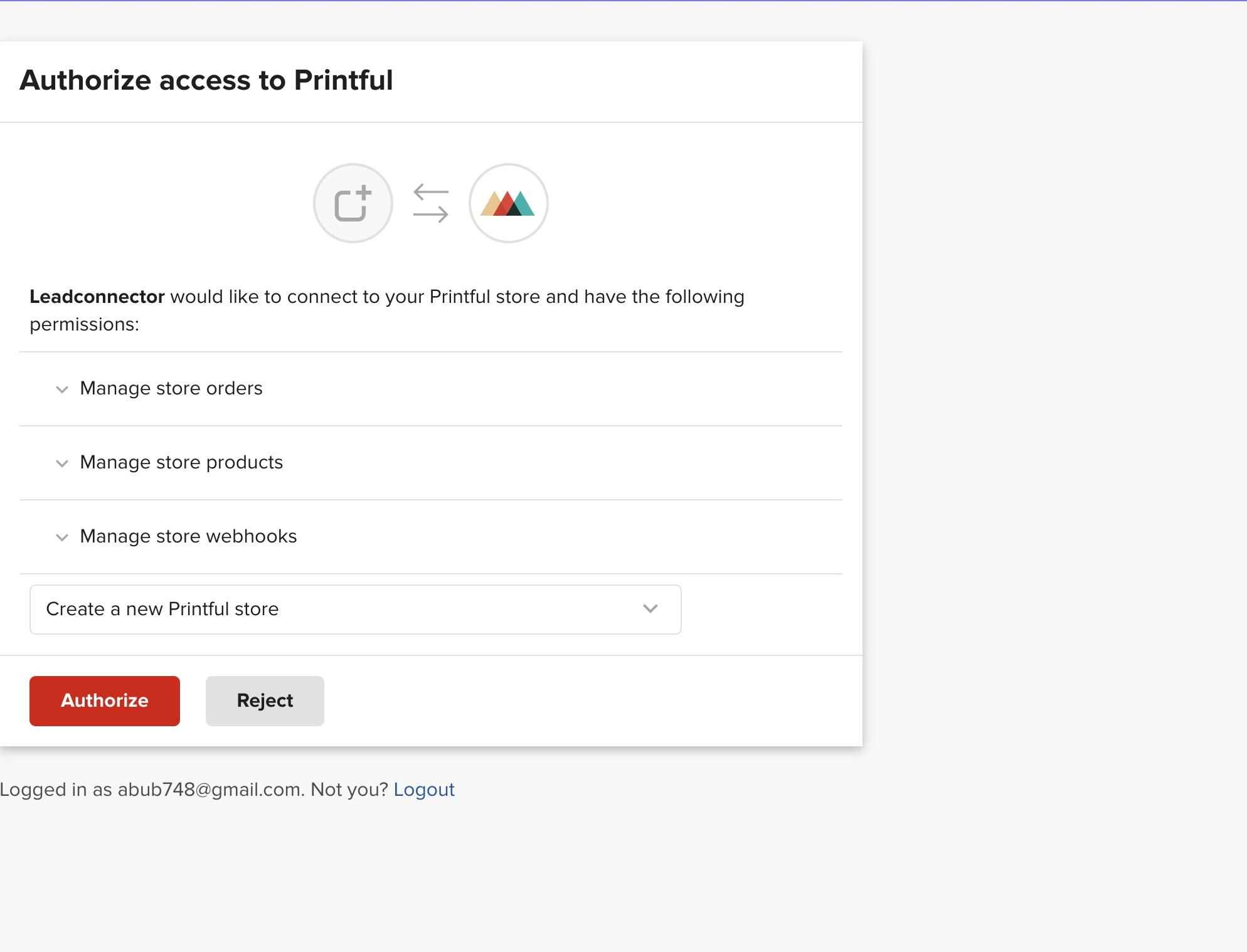
If no store exists yet in your Printful account, choosing "Create new store" during setup automatically creates one for you.
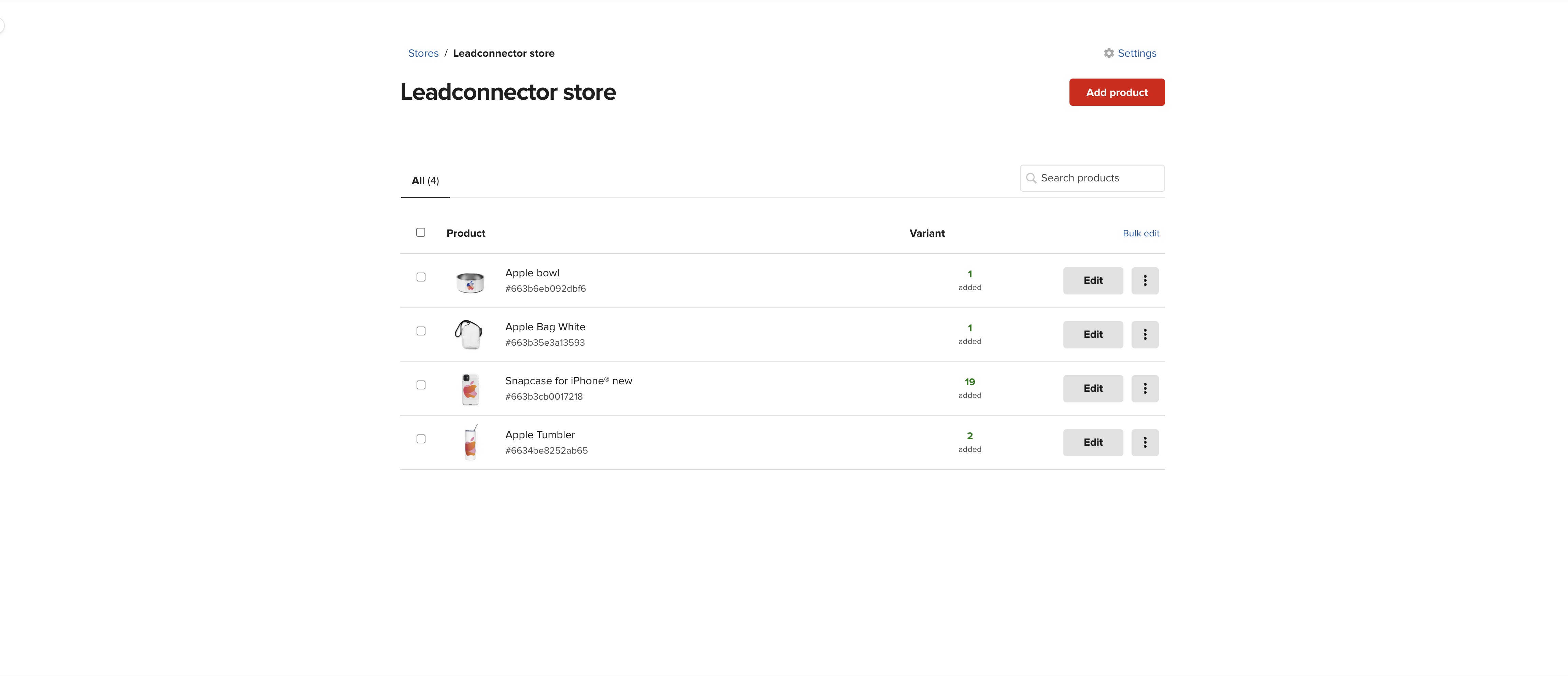
Once connected, choose the Printful store you want to pull from and import its products into your Aesthetix CRM store location.
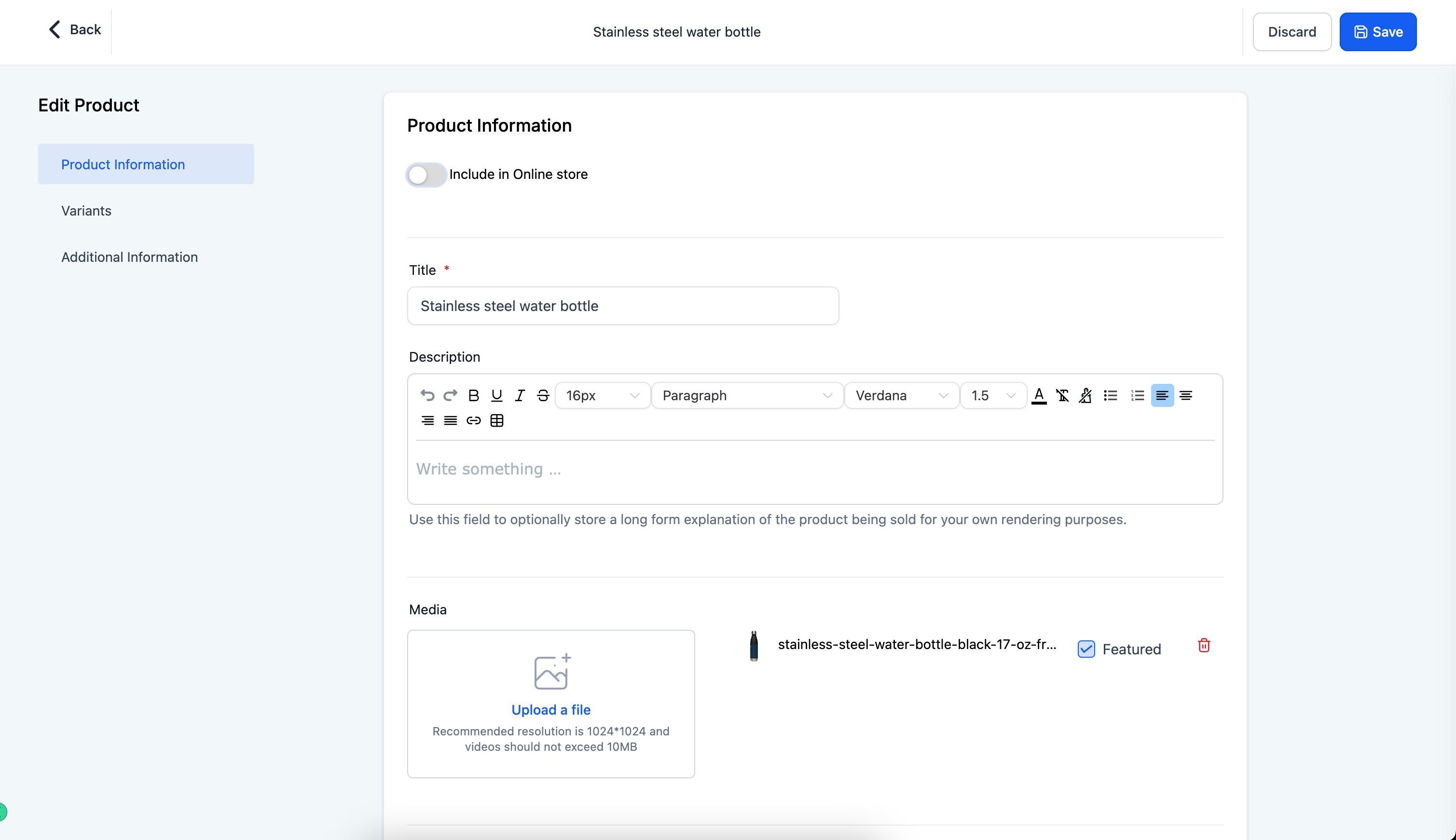
A few things to know:
Imported products are not published by default. You must manually enable each one from the Product page in your Payments section before patients can see or buy it.
Product descriptions are not pulled from Printful in the current version. Add or edit descriptions directly on the product's detail page in Aesthetix CRM.
Review each product before publishing: some items are only deliverable to certain regions, based on Printful's own catalog restrictions.
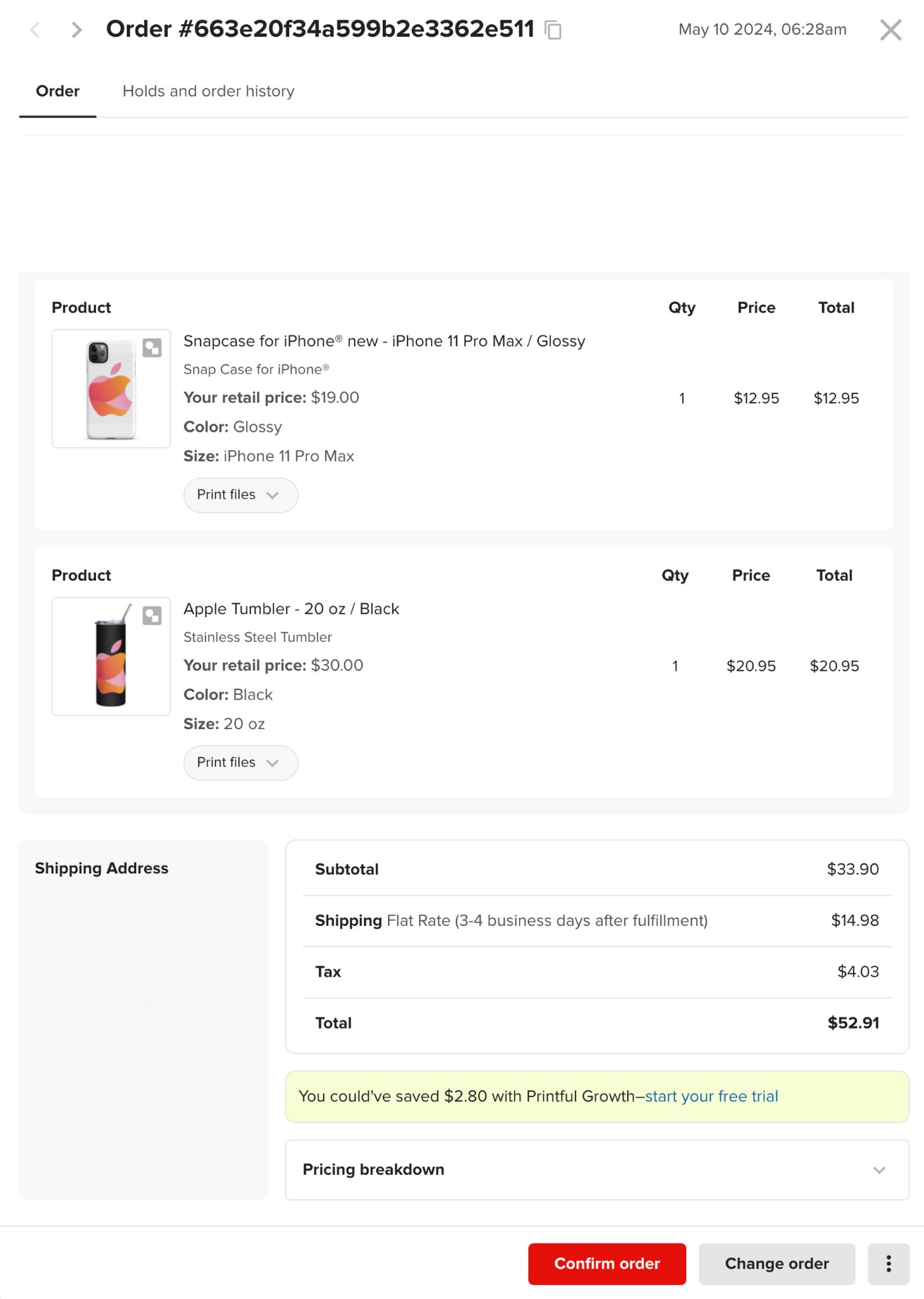
Once a product is published, any order placed in your store automatically creates a matching order in your connected Printful store.
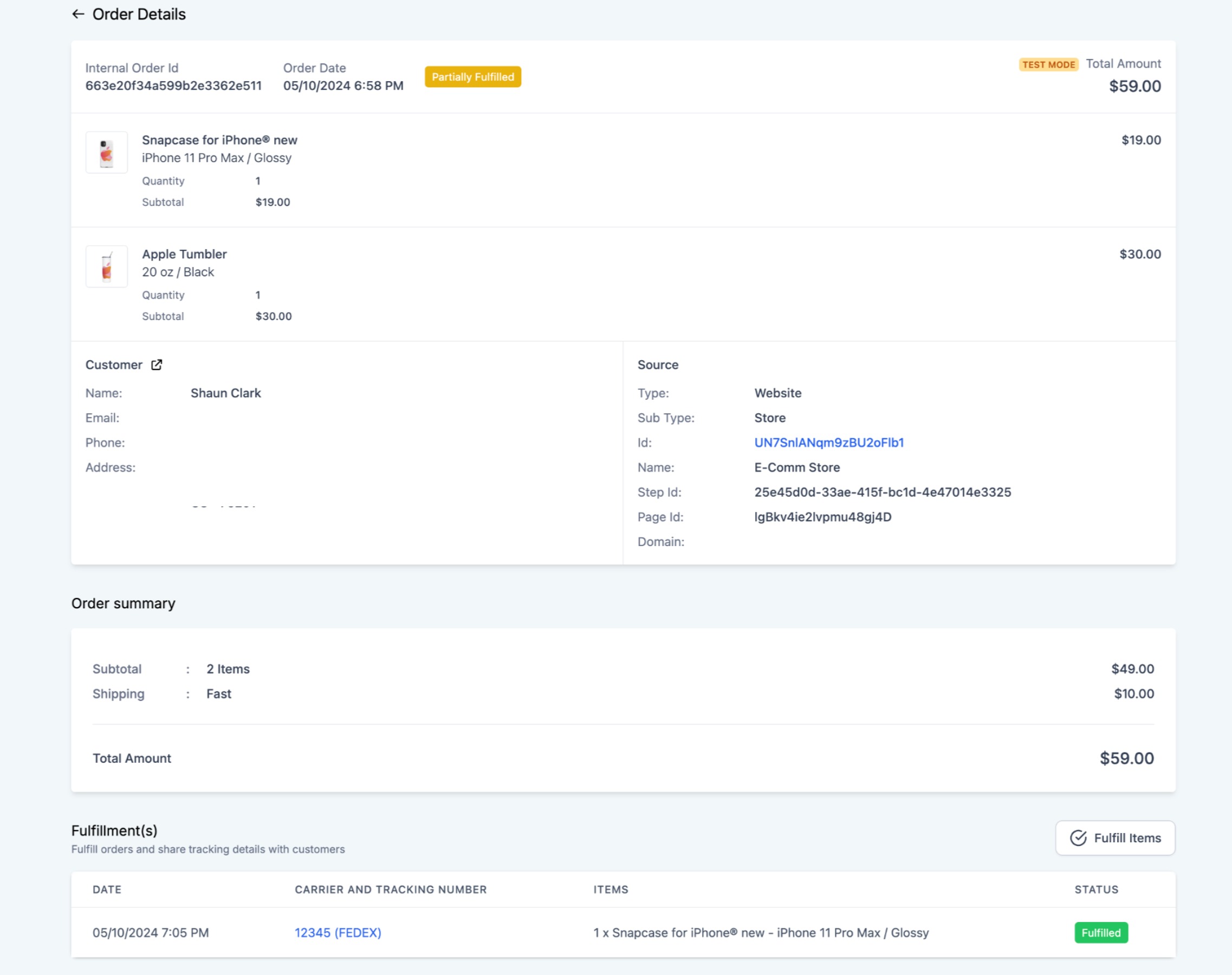
Fulfillment status (partial or complete) syncs back from Printful to your store as shipments go out, keeping the patient's order status current.
Important notes for Printful:
A single Printful store can connect to multiple Aesthetix CRM store locations.
Uninstalling the integration does not delete products already imported into your store.
The delivery address on the order must be correct and within a region Printful supports for that product. If it is not, the order will not be created or synced in Printful, and you will need to correct it manually.
Printify works the same way in concept: it connects your Aesthetix CRM store to Printify's catalog of 1,000+ customizable products and 85+ print providers worldwide, so you can sell custom branded goods without holding stock.
Key benefits:
Access a large catalog of customizable products to launch a merch line quickly.
Printify routes orders to whichever of its print providers offers the best regional pricing and delivery speed for that facility.
Variants, prices, and images stay in sync automatically as you update products in Printify.
Orders push to Printify and enter production without any manual re-entry on your part.
You get automatic partial and complete fulfillment updates as items ship.
One Printify account can manage multiple storefronts, with performance tracked per location.
You will need an API token from Printify before you can connect it to your store.
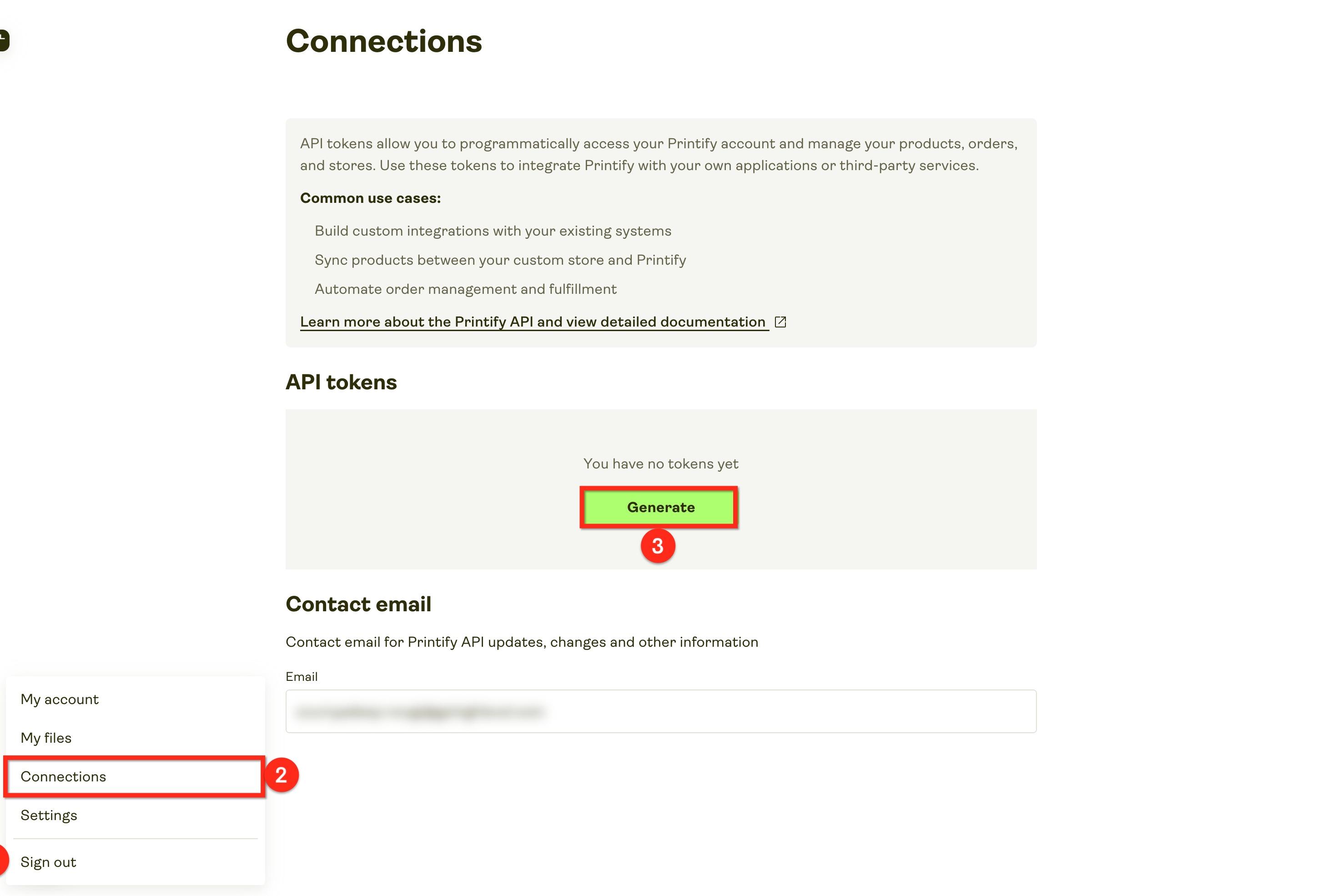
Log in to Printify and click Account.
Click Connections.
Under API Tokens, click Generate.
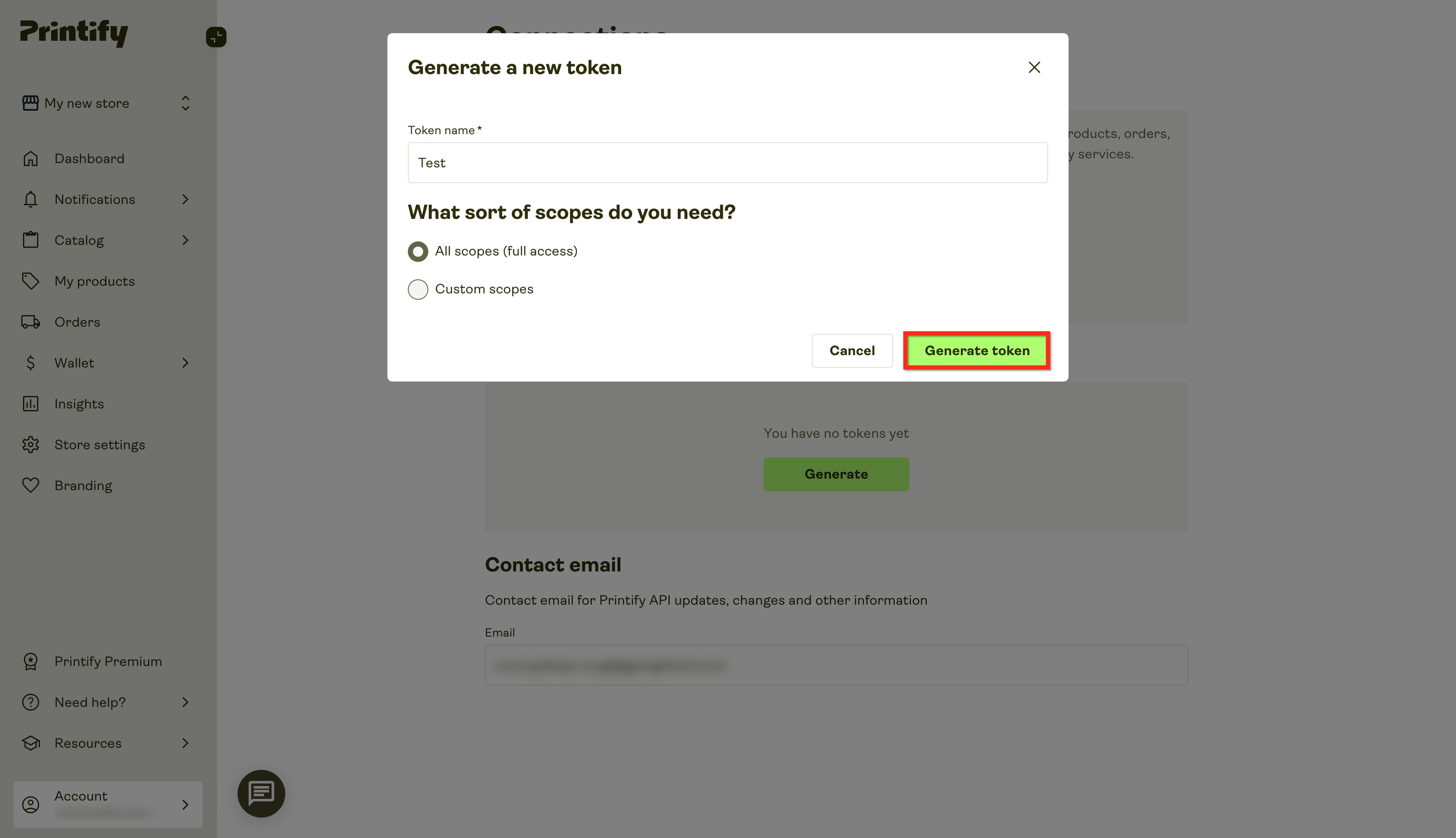
Name the token, select the scopes it needs, and click Generate.
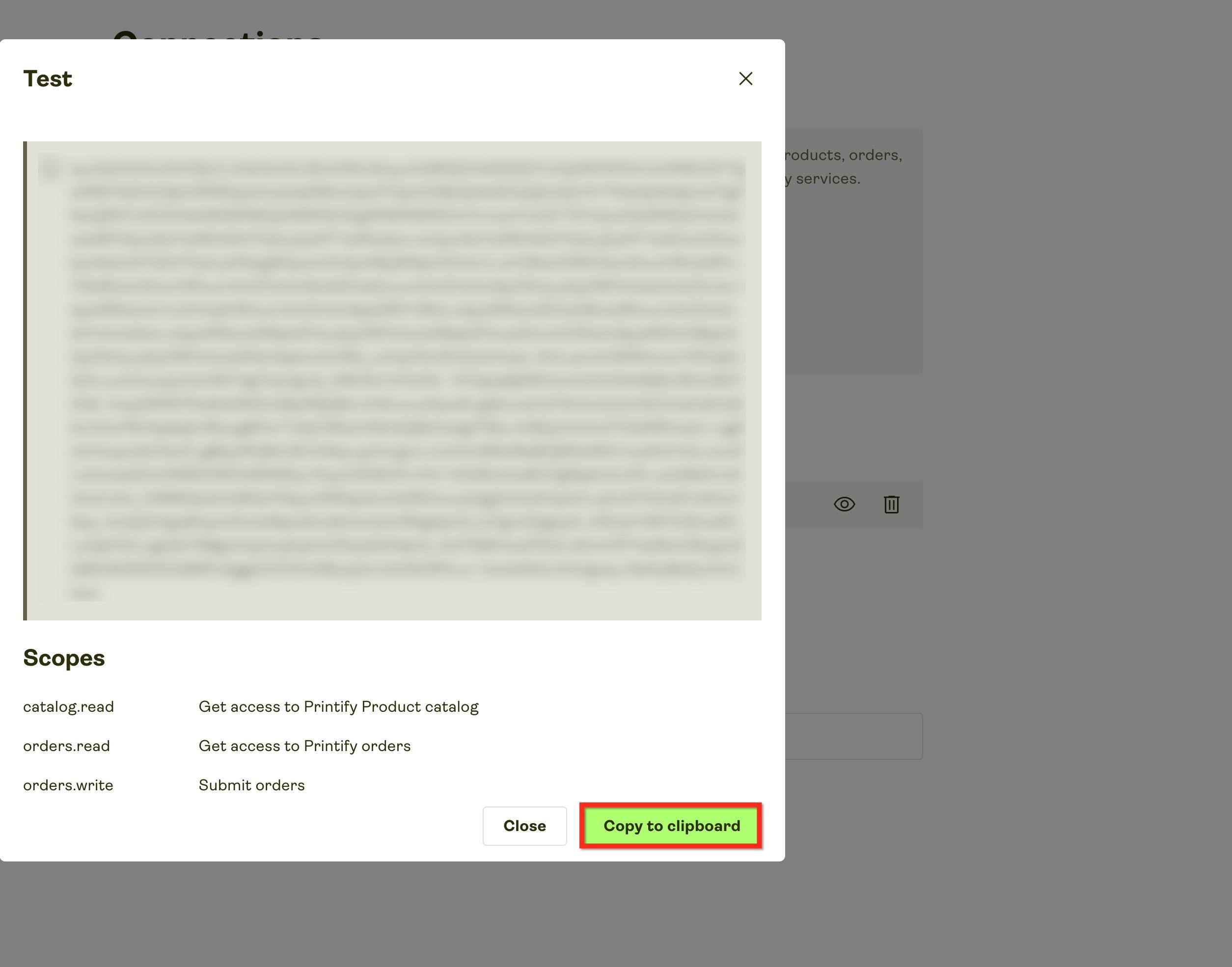
Click Copy to Clipboard to copy the key. You will paste this into Aesthetix CRM in the next step.
From your account, open the App Marketplace.
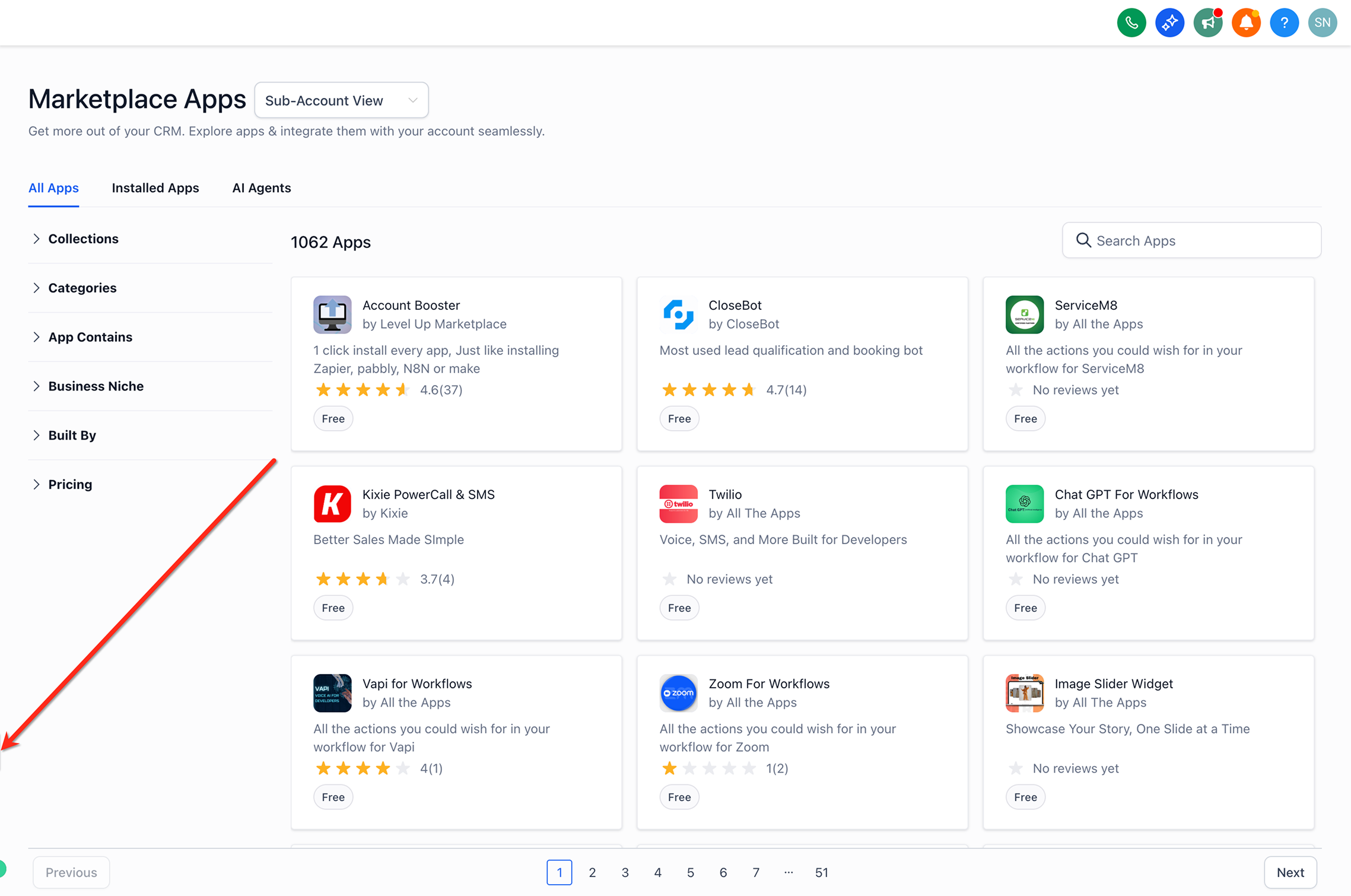
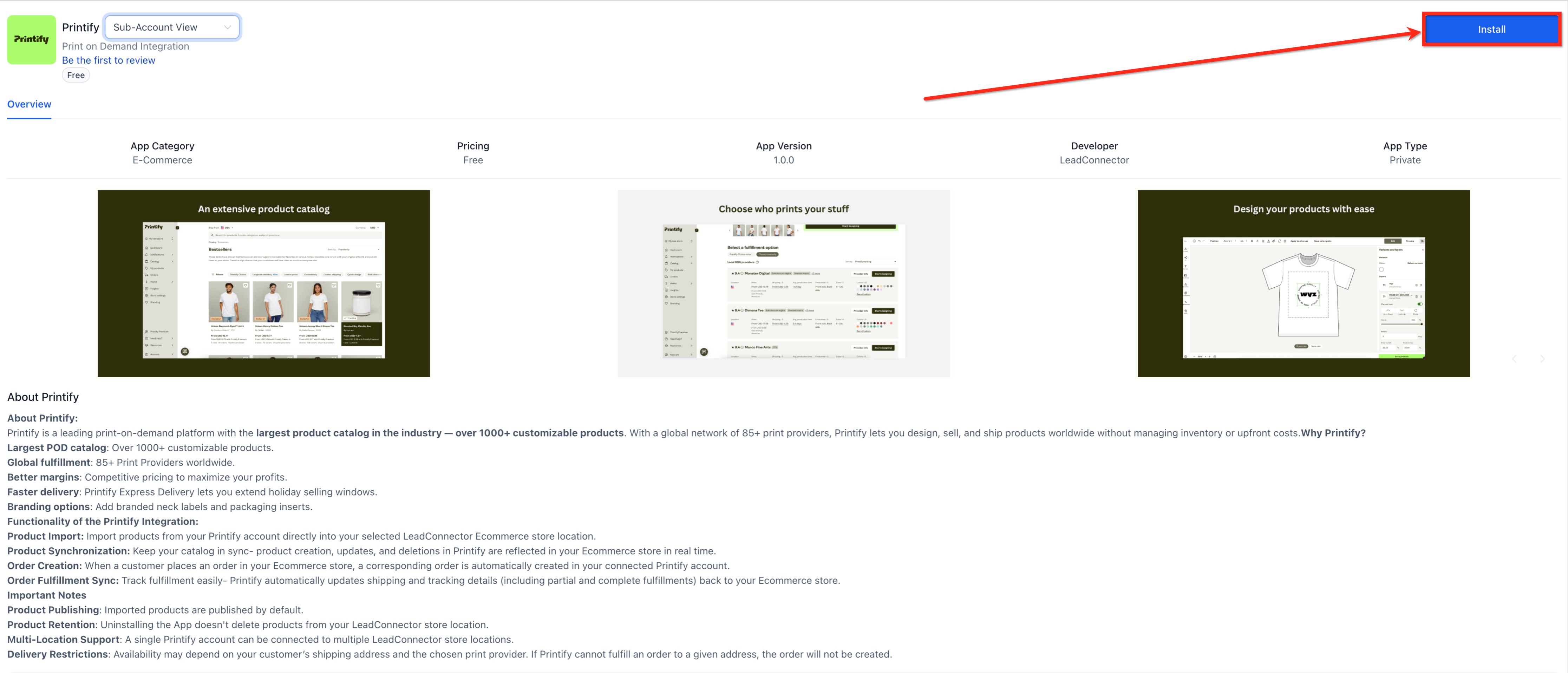
Search for Printify and click Install.
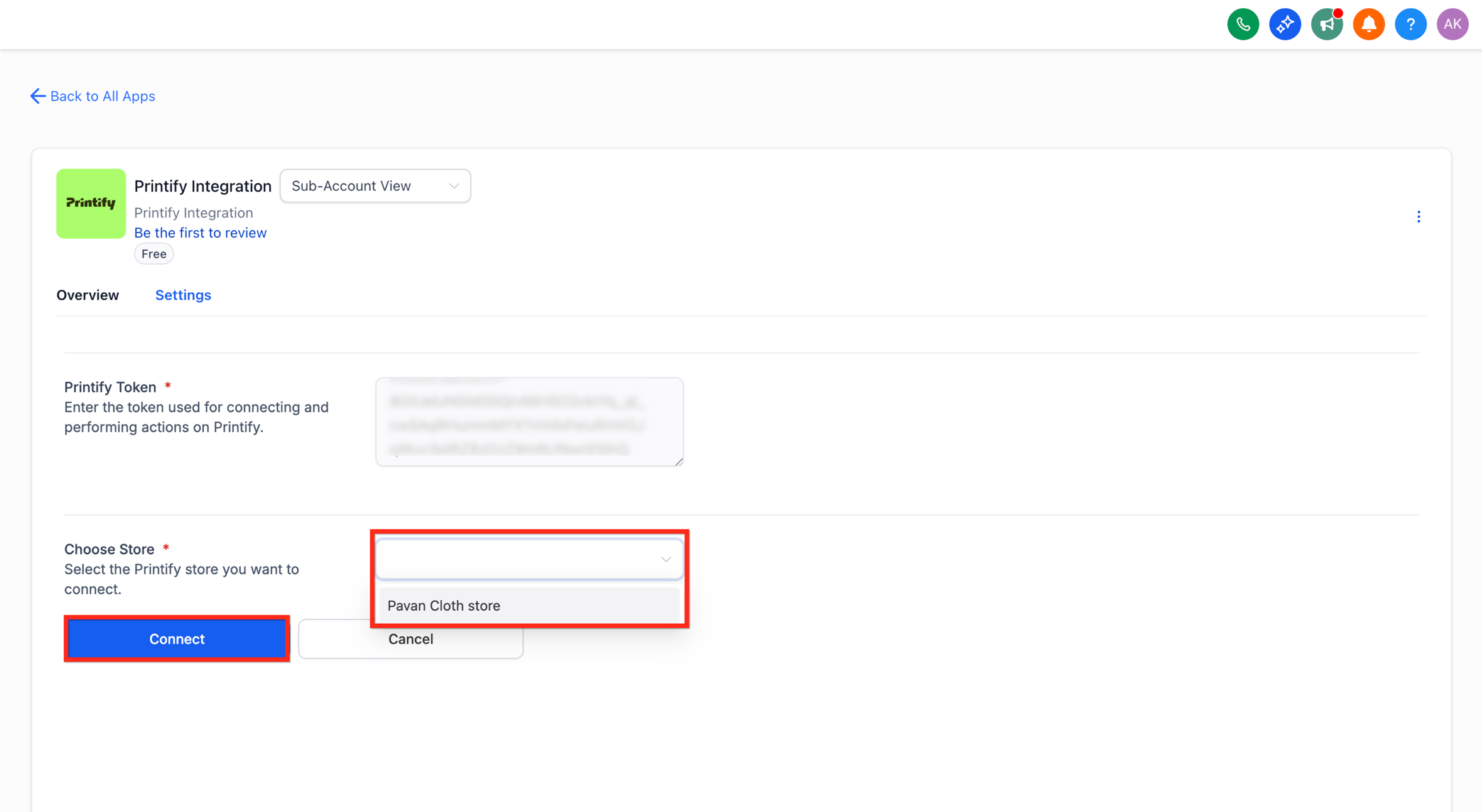
Paste your Printify API token into the Printify Token field and click Continue.
Choose an existing Printify store, or create a new one, and click Connect.
Import products and publish them directly into your store.
Enable automatic fulfillment inside Printify so new orders flow through without manual work, then start selling.
Important notes for Printify:
Imported products publish live by default, the opposite of Printful's behavior. Double-check pricing and details before importing if you are not ready to sell yet.
Printify only manages inventory and orders for products already synced from Printify; all product design happens inside Printify itself.
Uninstalling the integration does not delete products already imported into your store.
Printify only creates an order if one of its print providers can actually fulfill the destination country, variant, and shipping method selected. If no provider can service the order, your store will show it as unfulfilled until you edit the order to a deliverable variant or provider.
One Printify account can connect to multiple store locations. Orders and reporting stay separated by location, while product creation and billing remain centralized on the Printify account.
Both work on the same on-demand model: no inventory, orders synced automatically, fulfillment tracked back into your store. The differences that matter most when choosing one:
Printful | Printify | |
|---|---|---|
Default publish state | Off (you enable manually) | On (published live immediately) |
Product descriptions | Not synced from provider | Synced automatically |
Print provider network | Printful's own facilities | 85+ third-party print providers |
Product catalog size | Smaller, curated | 1,000+ products |
If you only need a handful of branded items (robes, candles, mugs) and want tighter control before anything goes live, Printful's manual-publish default is safer. If you want a larger catalog to choose from and don't mind double-checking pricing before import, Printify works well too.
Print-on-demand orders still run through your store's checkout, which uses whatever payment provider you've connected under Payments. Consider switching to AX Pay, Aesthetix CRM's own payment processor, which offers better rates than Stripe. See the AX Pay help article for setup details.
Can I design products directly inside Aesthetix CRM? No. All product design and mockups happen inside Printful or Printify. Aesthetix CRM mirrors whatever you import from those platforms.
What happens if I delete a product in Printify or Printful? It is disabled in your Aesthetix CRM catalog the next time products sync. It is not deleted automatically from your store's records.
Are there extra fees from Aesthetix CRM for using these integrations? No. Aesthetix CRM does not add a fee for connecting Printful or Printify. Any production, printing, and shipping fees come from the provider itself.
How do refunds work? Process the refund from within Aesthetix CRM. A refund request is then sent to the provider for any items that haven't shipped yet.
What happens if a patient's shipping address isn't serviceable? The provider rejects the order and your store shows it as unfulfilled with no available provider. Edit the order to select a deliverable variant or provider, then resubmit.
Do I need to manually re-enter order details for the provider? No. Once connected, every checkout in your store automatically creates a matching order with the provider, including line items, addresses, and shipping details.
Can I fulfill an order manually instead of relying on automatic sync? Yes. Turn off automatic fulfillment and process the order directly inside Printful or Printify. Aesthetix CRM will still receive status updates as the order ships.
Can one provider account serve more than one store location? Yes, for both Printful and Printify. A single provider account can connect to multiple Aesthetix CRM store locations, with orders and reporting tracked separately by location.
Is this a good fit for a med spa's core business? Not usually. Print-on-demand is best treated as a small side offering, like a branded gift-shop item, rather than a primary revenue channel. Most practices won't need it, and it's entirely optional.
Where do I manage taxes, coupons, or my payment provider for these products? Those live under Payments, not this integration. This guide covers only connecting the print-on-demand provider and syncing orders and fulfillment.
