If your practice sells retail products (skincare, supplements, take-home kits) through your Aesthetix CRM store, the Inventory Management page gives you one place to see stock levels across every product variant, decide whether a product can still be purchased once it runs out, and search for items by SKU or name. You'll also add each product's weight, dimensions, and SKU from the Pricing/Variant page, which keeps your catalog ready for future shipping needs.
In Aesthetix CRM, go to Payments.
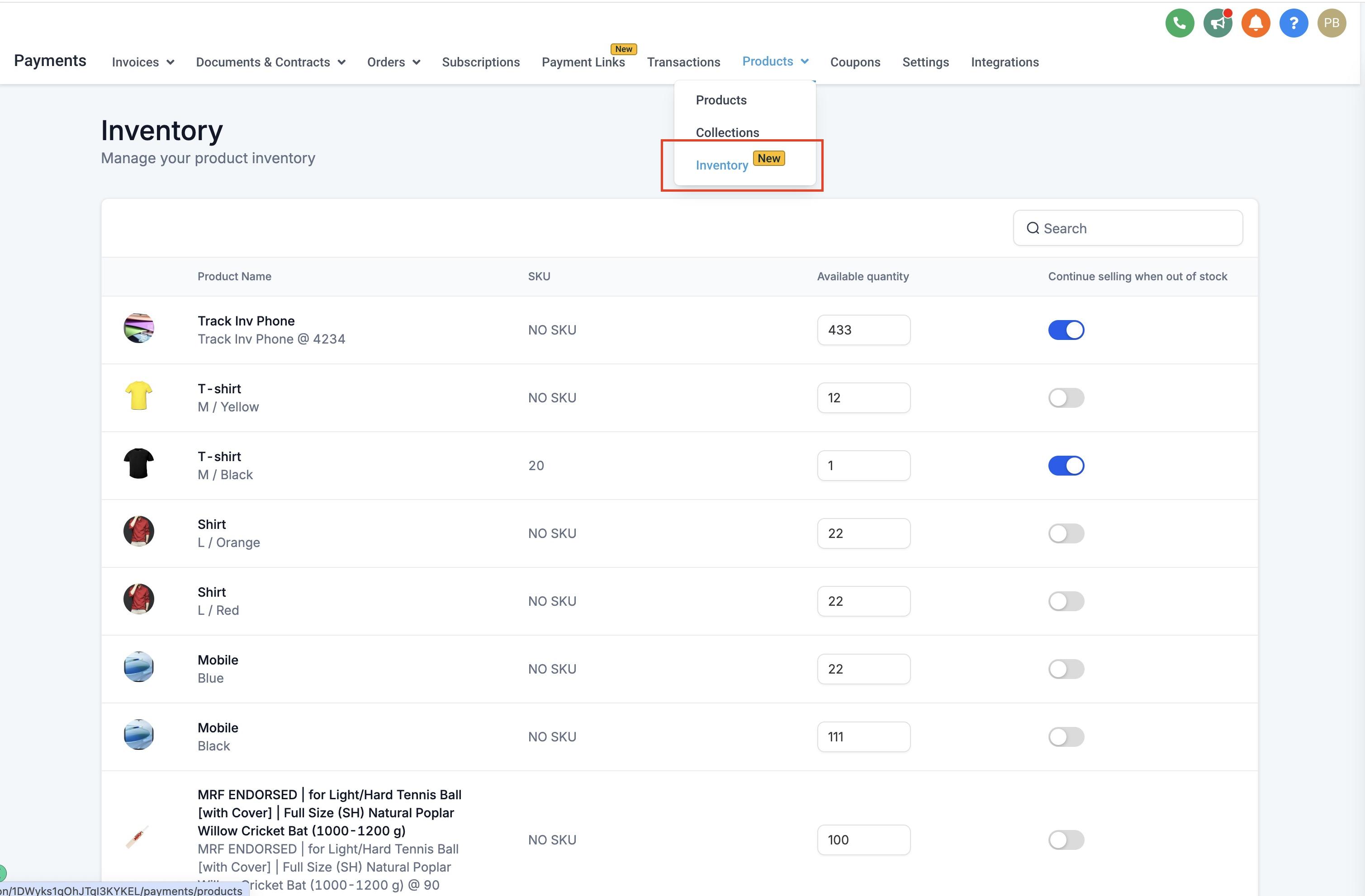
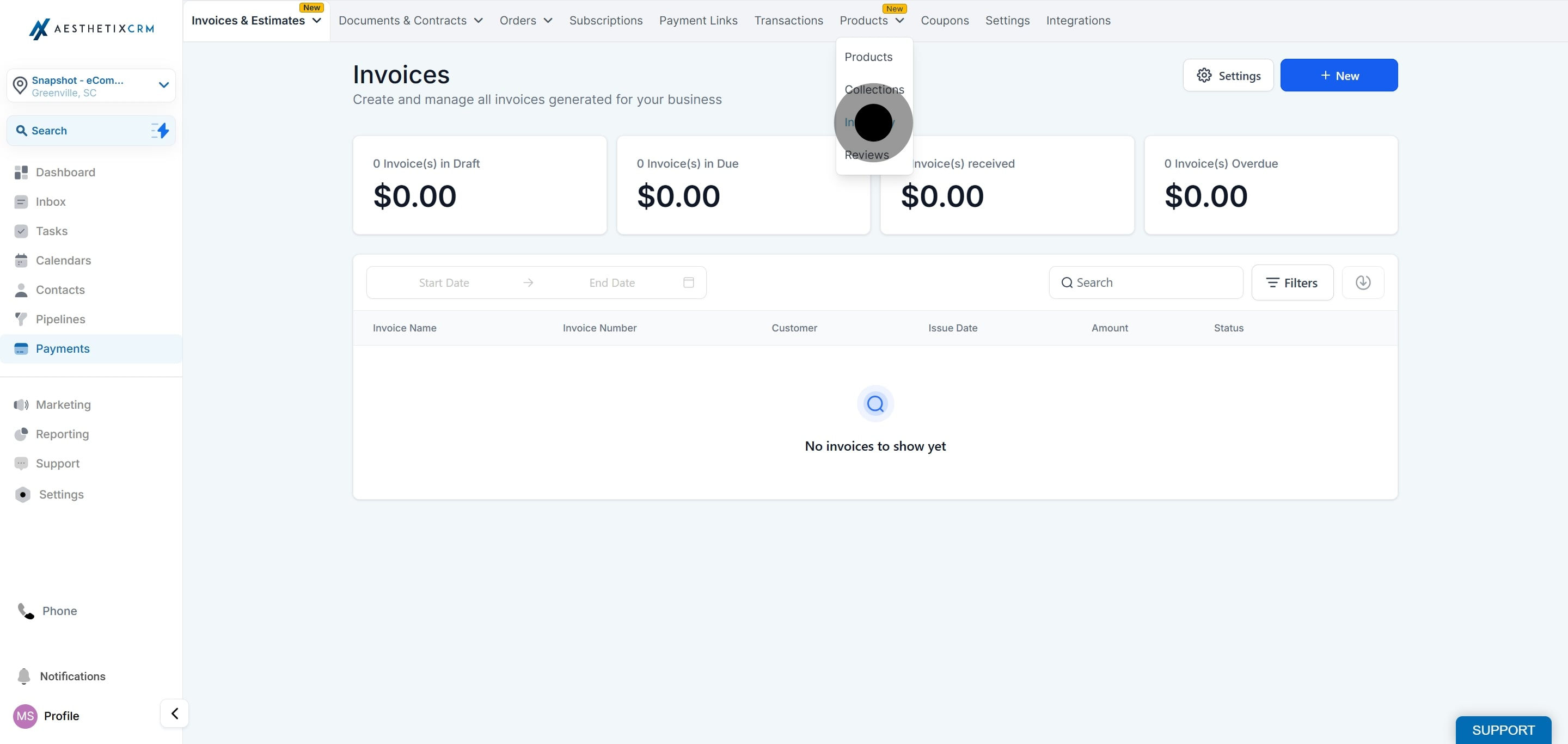
Under Products, click Inventory.
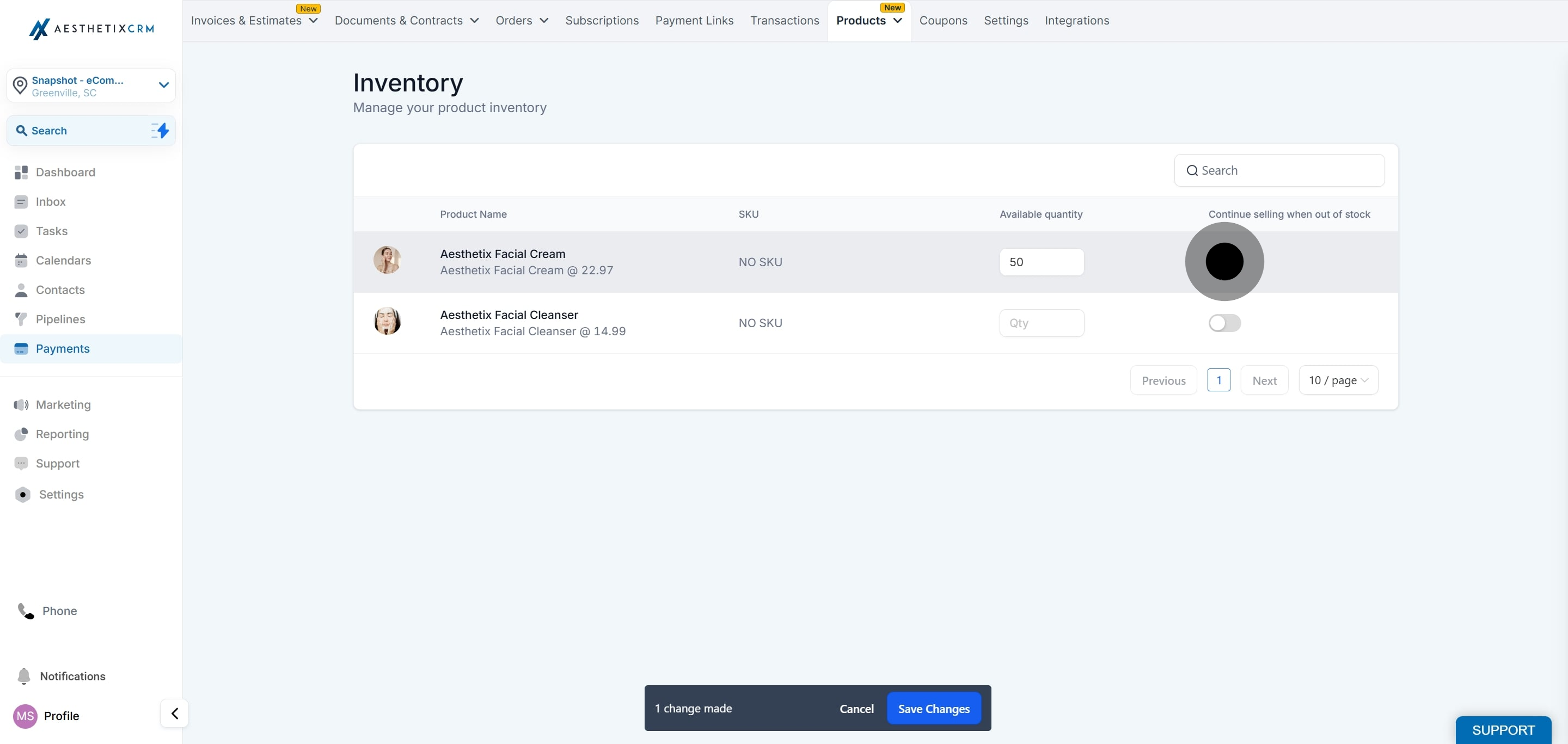
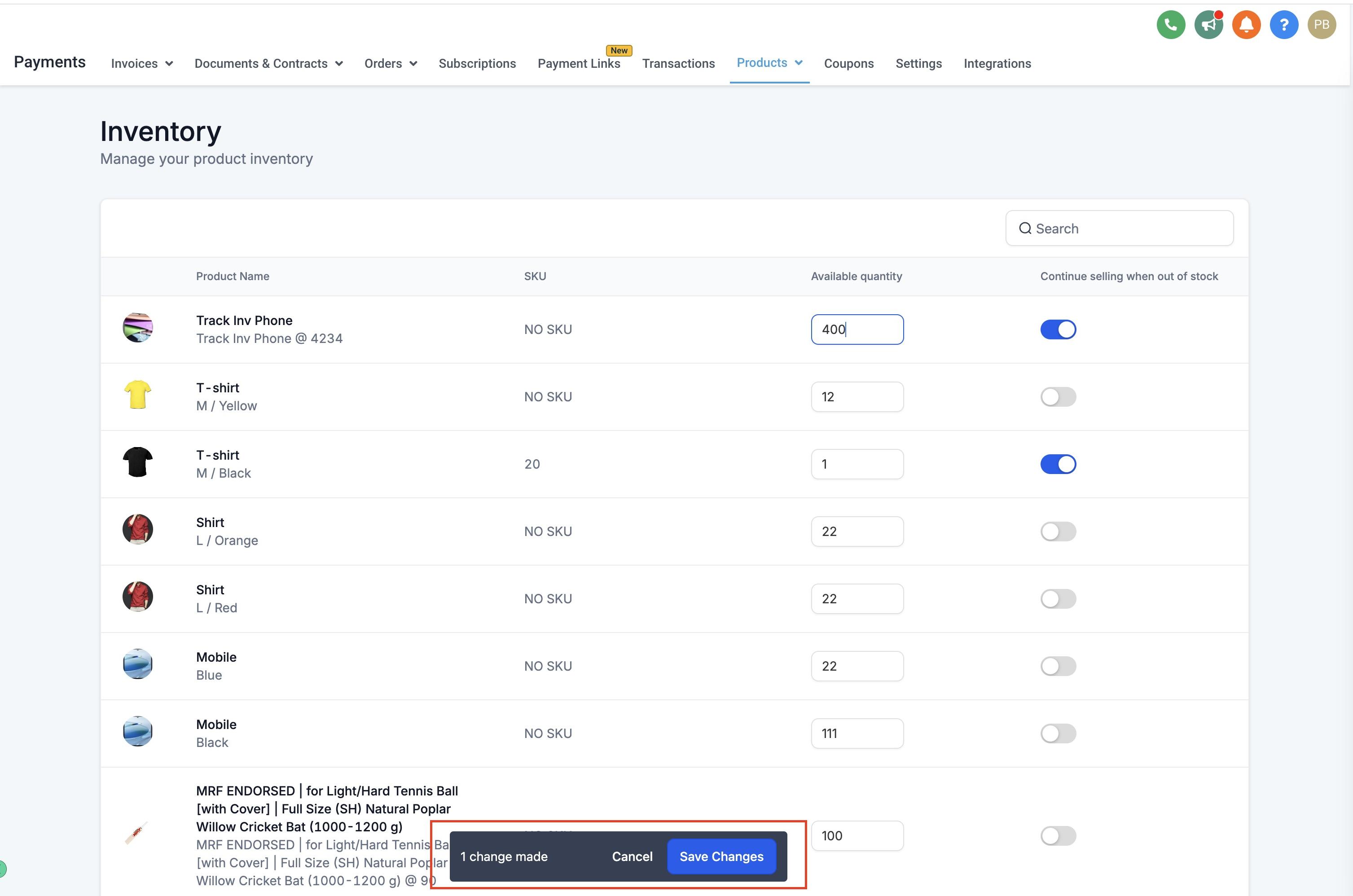
On the Inventory Management page, you can update the on-hand quantity for any product variant, whether that's a specific size, scent, or bundle. If you want patients to be able to keep ordering after a product sells out, turn on Continue selling when out of stock for that item.
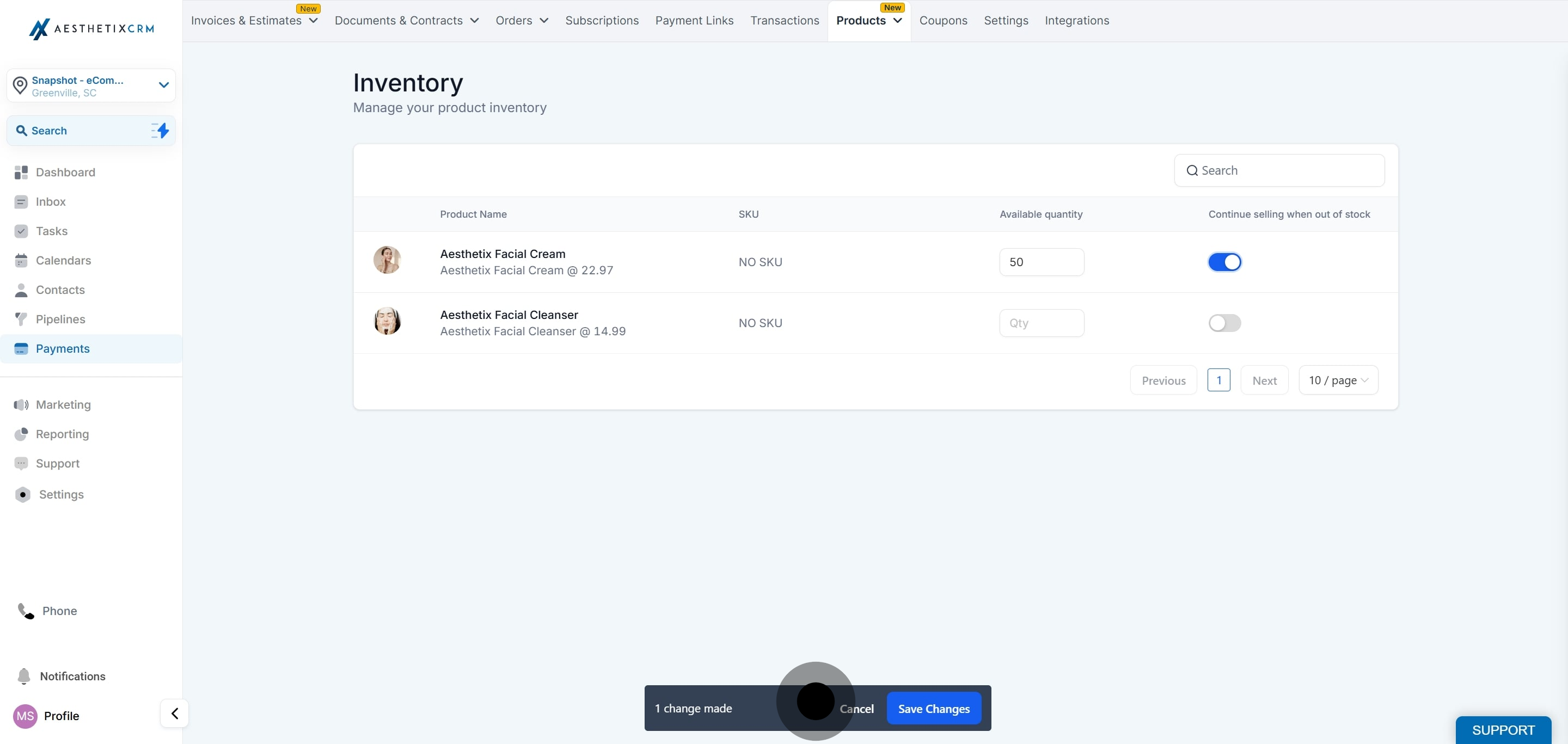
After making inventory changes, click Save to apply them or Cancel to discard them. You'll be blocked from leaving the page until you do one or the other, so unsaved edits won't slip through unnoticed.
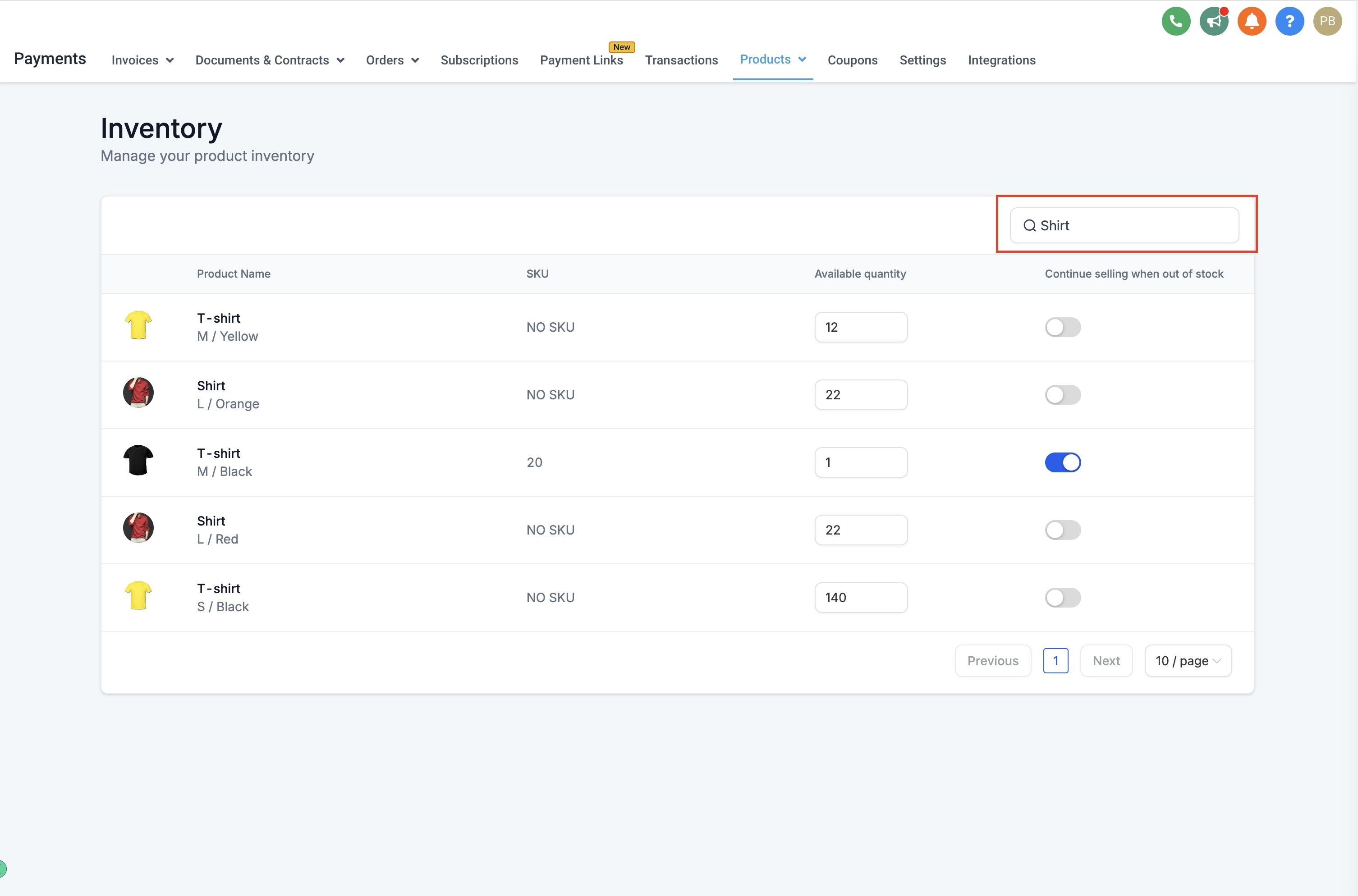
To find a specific product quickly, search by SKU or by product/variant name.
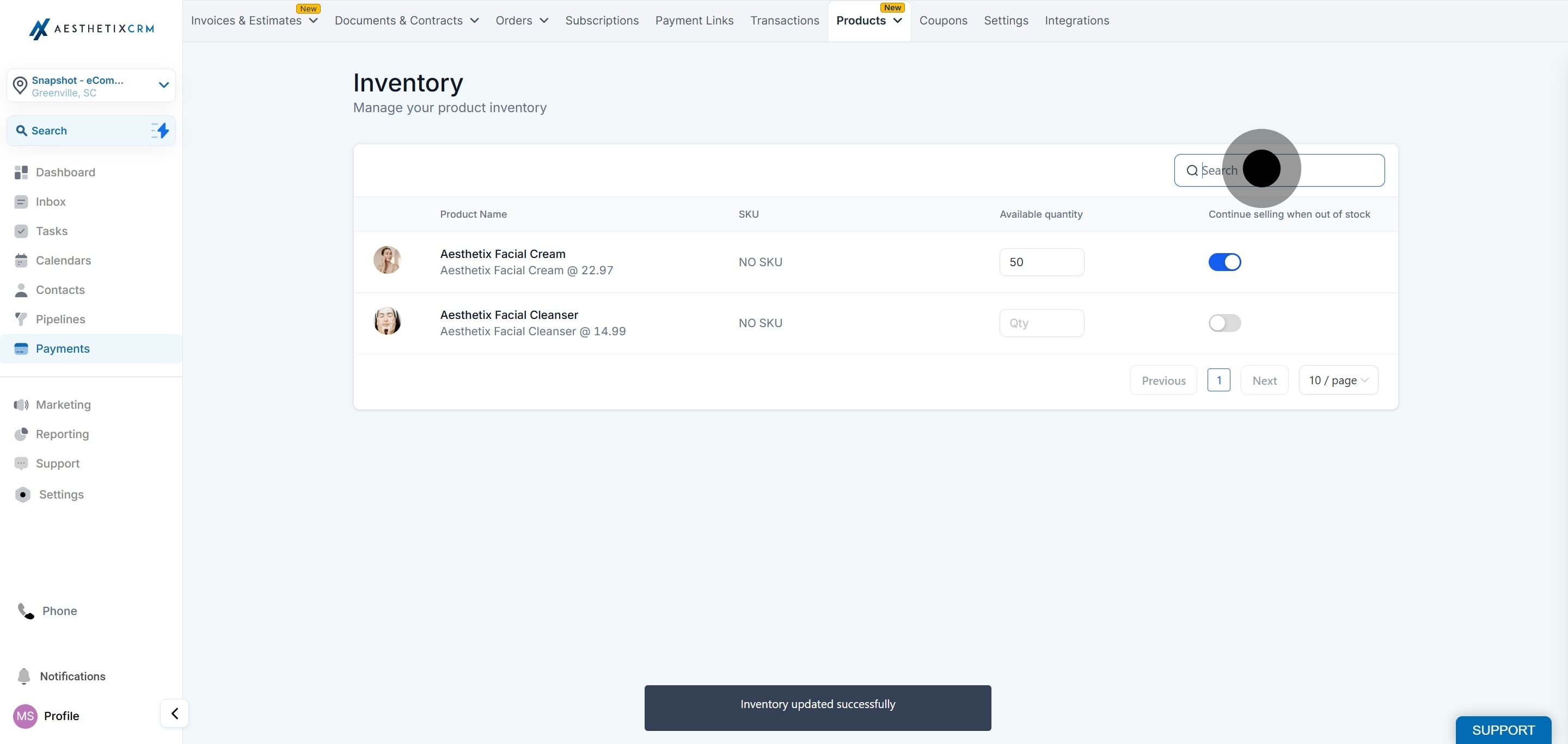
A few things to keep in mind:
If you haven't set a SKU for a variant, it displays as "NO SKU" on the Inventory page until you add one.
Clicking a product variant from the Inventory page takes you straight to that variant's detail page, where you can adjust pricing, weight, dimensions, and other settings.
Inventory counts here apply to your native Aesthetix CRM store. If you're selling through a connected Shopify or WooCommerce store, stock levels for those channels are managed on the connected platform (see the Integrations collection for connecting Shopify or WooCommerce).
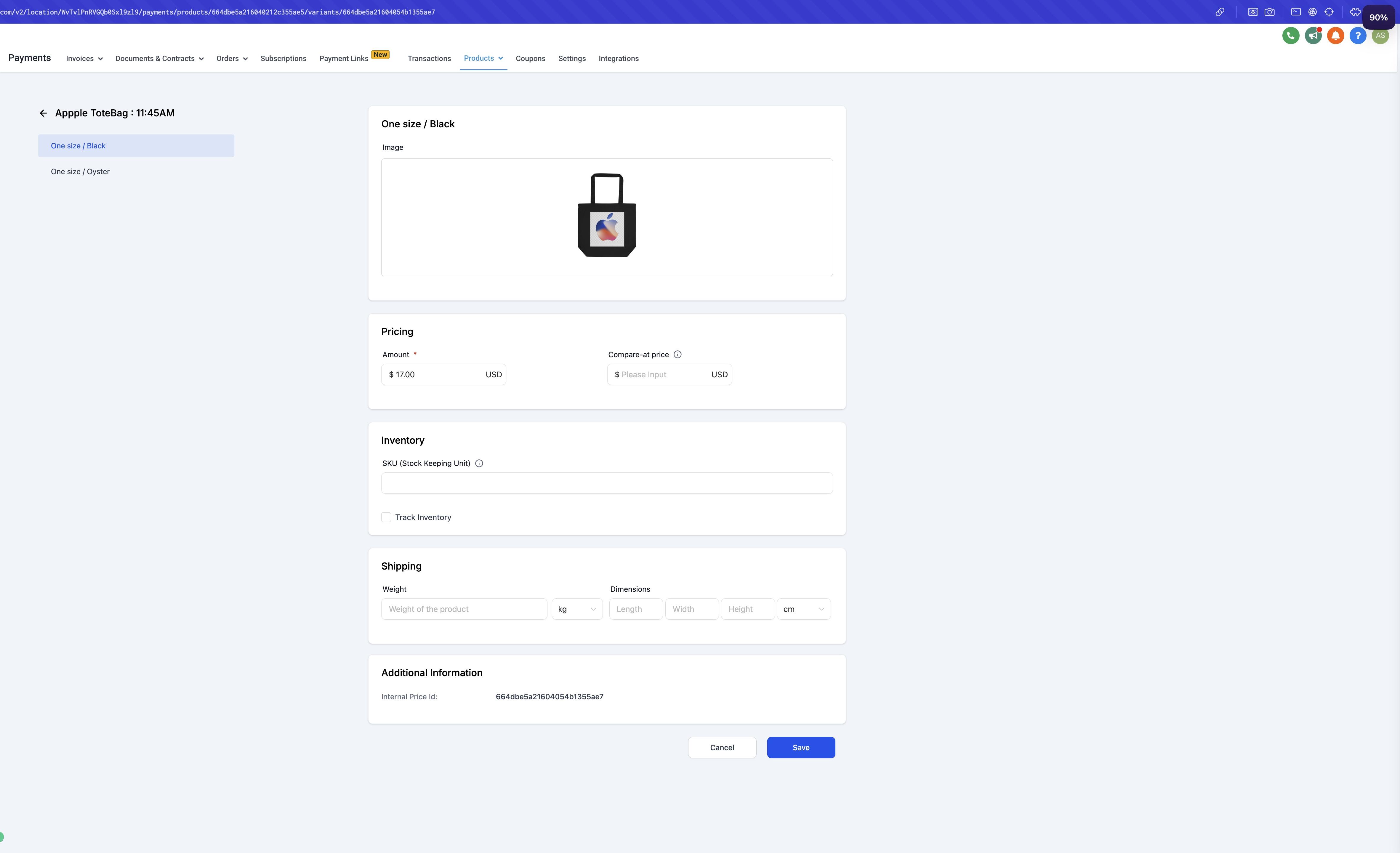
Weight, dimensions, and SKU live on each product's Pricing/Variant page, alongside the ability to track inventory for that specific variant. These fields matter most for physical retail products you plan to ship, and they keep your catalog organized even for products you hand out in-office.
Go to Payments > Products, open (or create) the product, and add or select a price/variant to open its Pricing/Variant page.
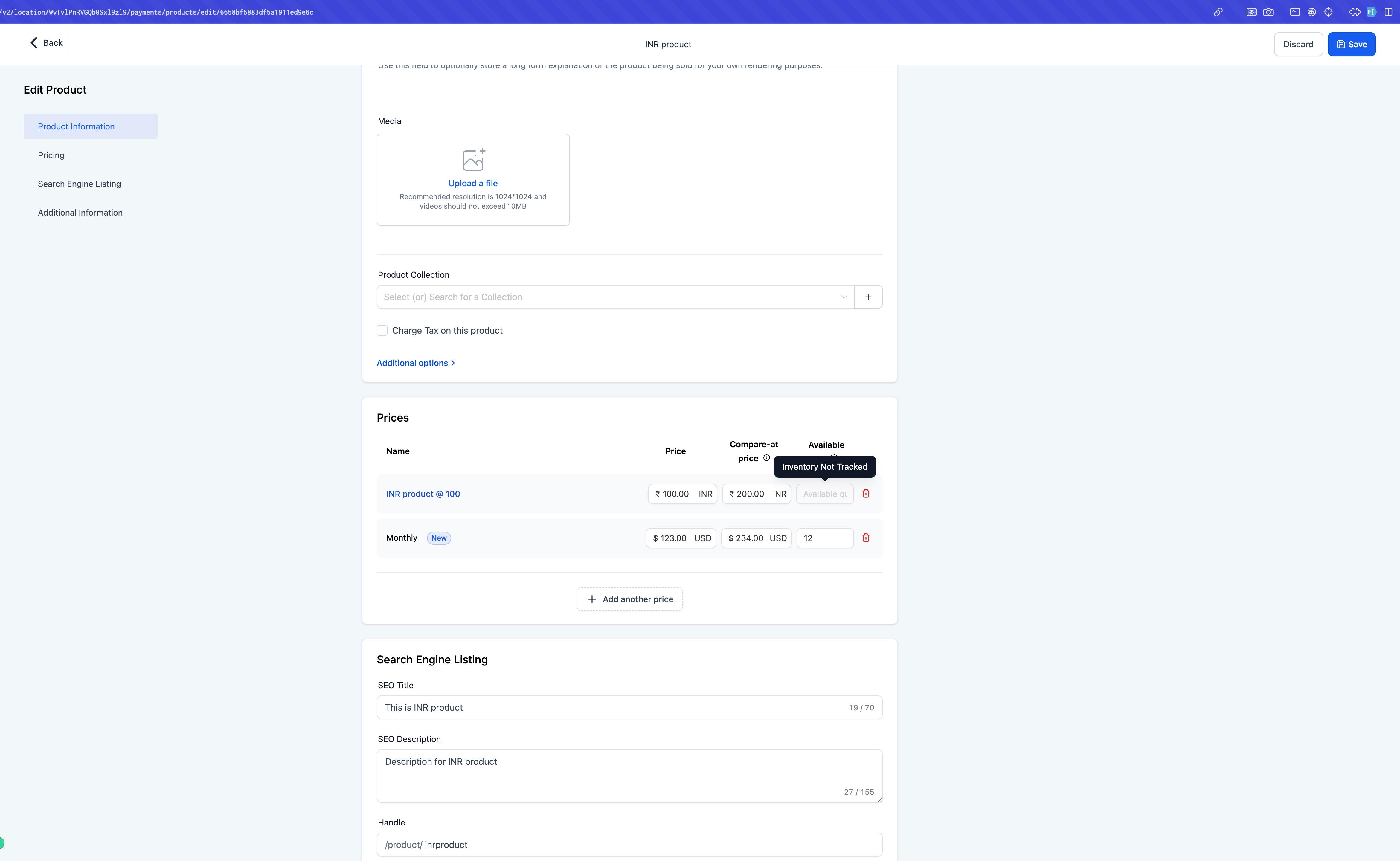
If you're creating a new price or variant, it's tagged New until you save it. The full Pricing/Variant page (where weight, dimensions, SKU, inventory, and any digital files live) only becomes available after you save.
On the Pricing/Variant page, enter the product's weight, dimensions, and SKU, and turn on inventory tracking for that variant if you want its stock counted on the Inventory Management page.
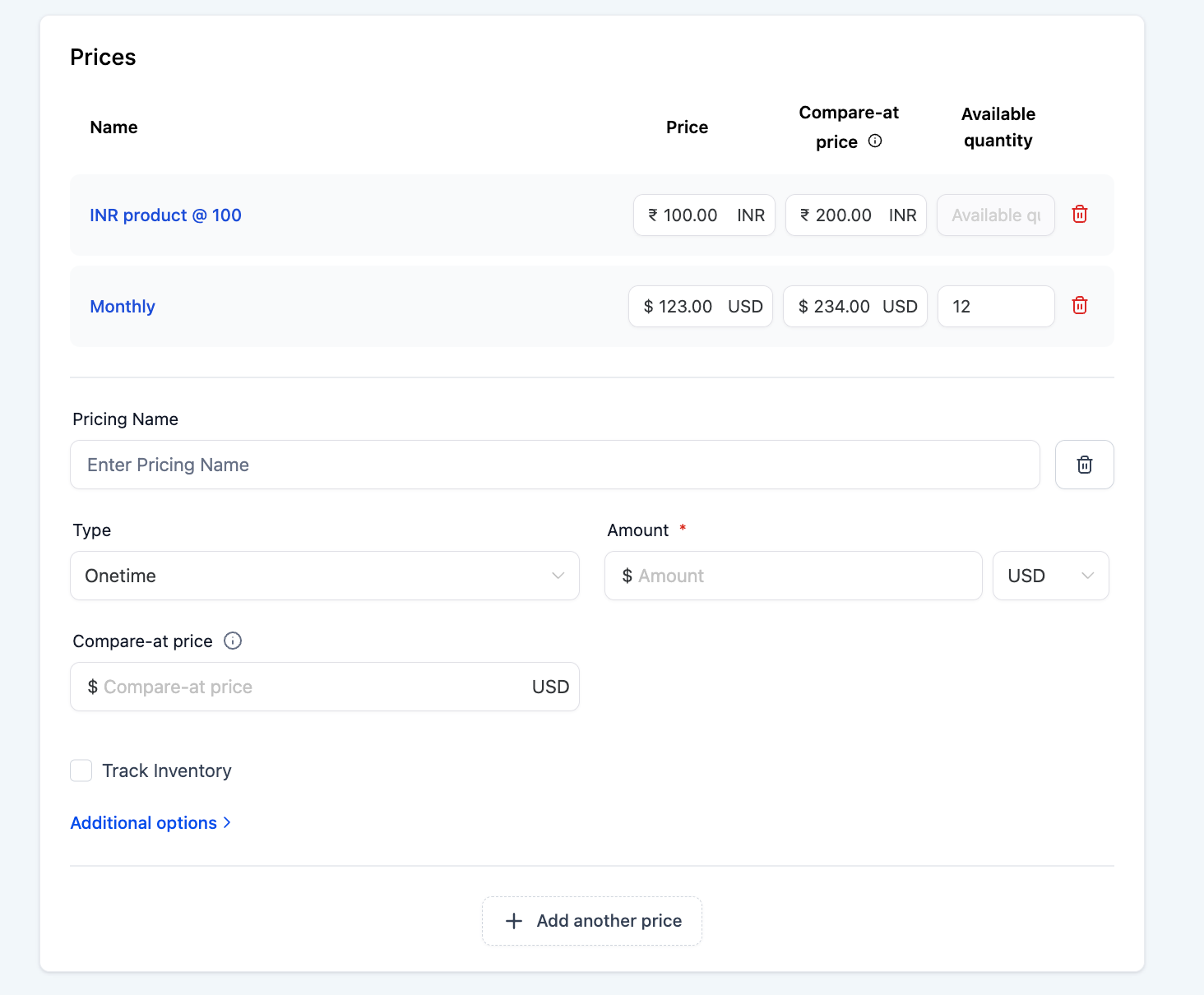
From the pricing/variant list, each tile highlights on hover so it's clear it's clickable, opening the detailed Pricing/Variant page. Each tile also has quick Edit and Delete actions, so you can make small changes without opening the full detail page.
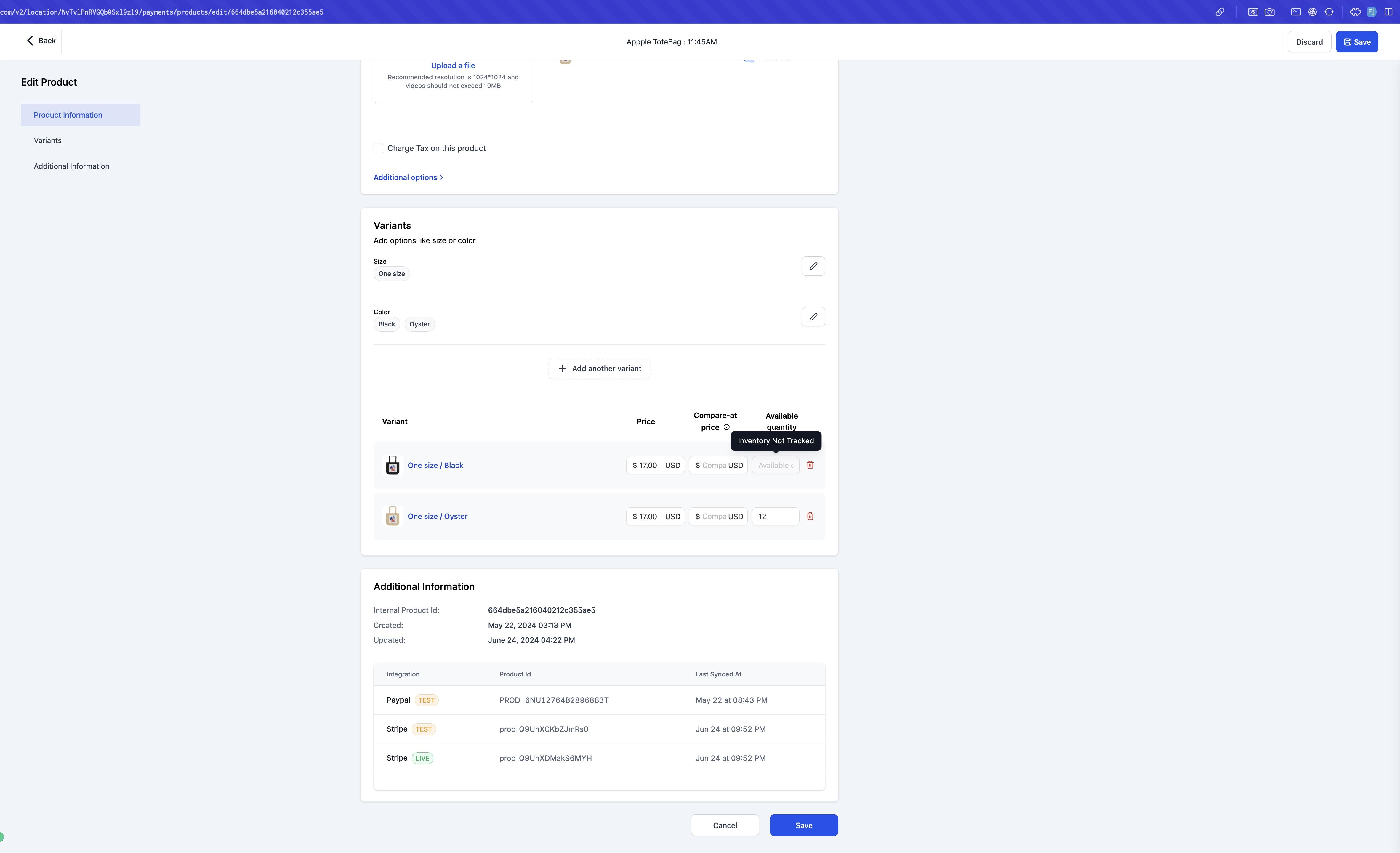
Where do I go to manage inventory for my store's products? In Aesthetix CRM, go to Payments, then under Products click Inventory. From there you can update quantities, toggle overselling, and search for products.
What happens if a product runs out of stock? By default, patients can no longer purchase that variant once its quantity hits zero. If you'd rather keep accepting orders (for example, to fulfill as a backorder), turn on "Continue selling when out of stock" for that variant.
Can I leave the Inventory page without saving my changes? No. Aesthetix CRM blocks navigation away from the Inventory Management page until you either click Save to apply your edits or Cancel to discard them.
What shows up if a product doesn't have a SKU yet? It displays as "NO SKU" on the Inventory Management page until you add one from the product's Pricing/Variant page.
Where do I add a product's weight, dimensions, and SKU? Open the product from Payments > Products, then open its Pricing/Variant page. Weight, dimensions, SKU, and inventory tracking are all set there per variant.
Do I need to fill in weight and dimensions for every product? Not required for every product, but they're worth adding for anything you ship, since they support your shipping setup. Products you only hand out in-office can skip them.
Does inventory tracking here apply to Shopify or WooCommerce orders? No. This Inventory Management page tracks stock for your native Aesthetix CRM store. If you connect Shopify or WooCommerce, inventory for those storefronts is managed on the connected platform.
Can I edit a product's price or delete a variant without opening the full detail page? Yes. From the pricing/variant list, each tile has quick Edit and Delete actions so you can make fast changes without navigating into the detailed Pricing/Variant page.
Where do I set up taxes, coupons, or payment providers for my store? Those live in the Payments collection alongside your product catalog setup, separate from day-to-day inventory management.
Is there a limit to how many product variants I can track inventory for? The Inventory Management page is built to handle updates across all of your product variants at once, including search by SKU or name, so you can manage a full retail catalog from a single screen.
