If your practice sells retail products, skincare lines, or take-home kits through your Aesthetix CRM store, you can connect a shipping carrier integration so patients see accurate, real-time shipping costs at checkout and your team can print labels and track orders without leaving the platform. Aesthetix CRM natively supports two shipping integrations, Shippo and ShipStation, and also supports a custom carrier build for practices with development resources. Shipping setup lives under your store's Payments settings and Settings > Integrations. Product catalog, taxes, coupons, and checkout/payment provider setup live in Payments (see that article); connecting Shopify or WooCommerce as your store platform lives in Integrations.
Shippo gives your store access to live rates from major carriers, printable shipping labels, and the option to mark up delivery fees.
In your Shippo account, this is found under Settings > Advanced > API > Live Token.
Click Generate Live Token.

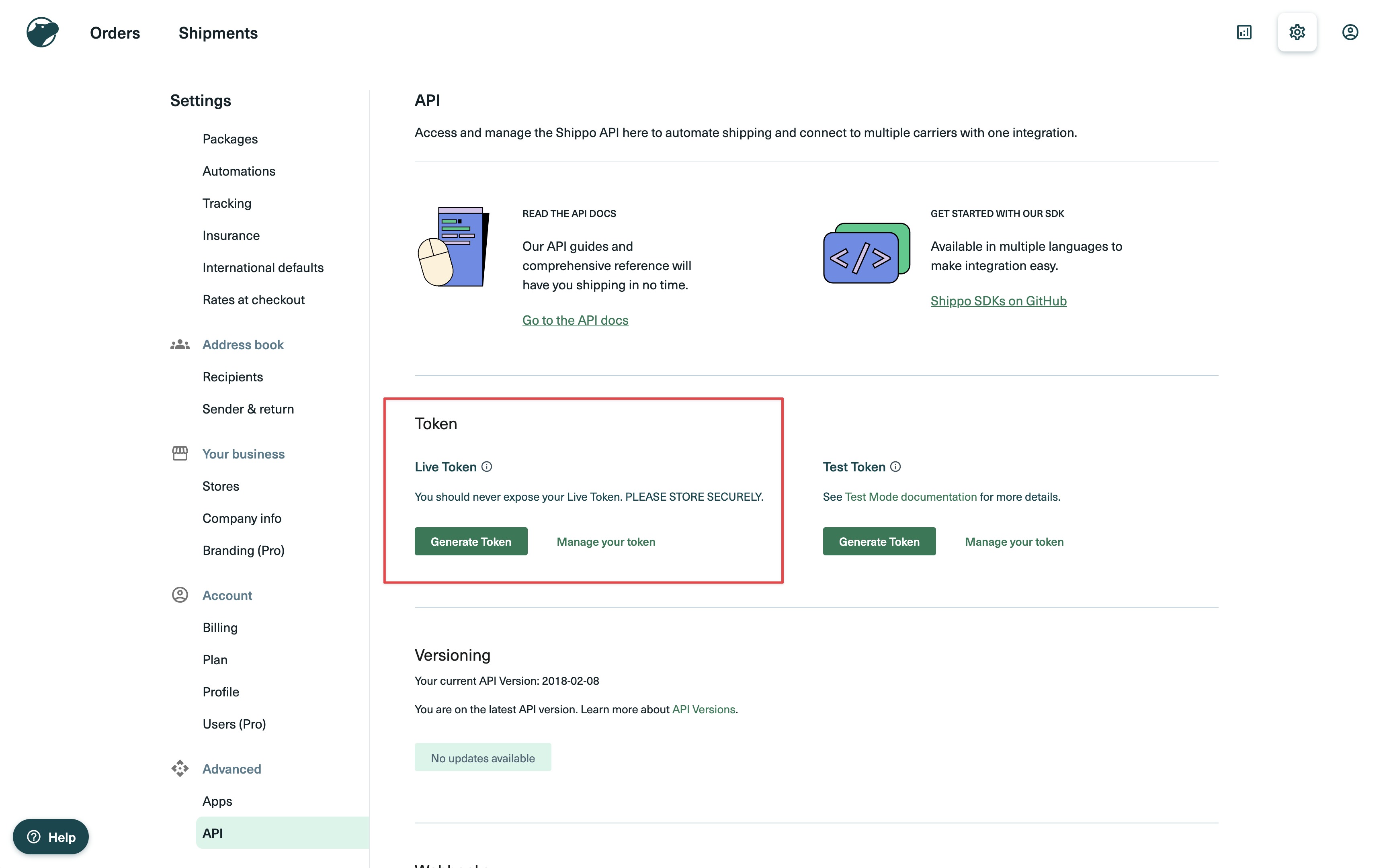
Copy the live token. You'll paste this into Aesthetix CRM in a later step.

Package template:
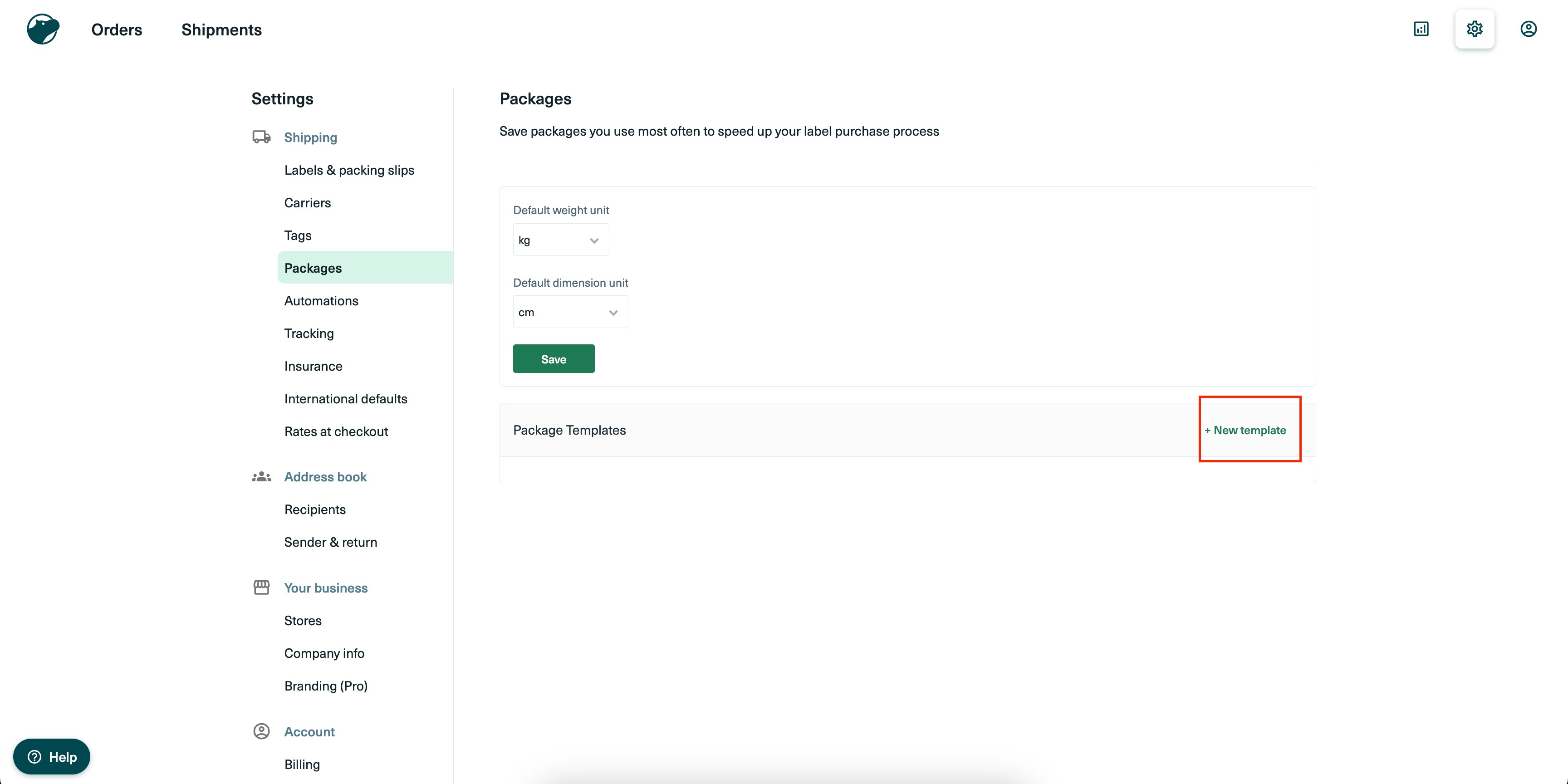
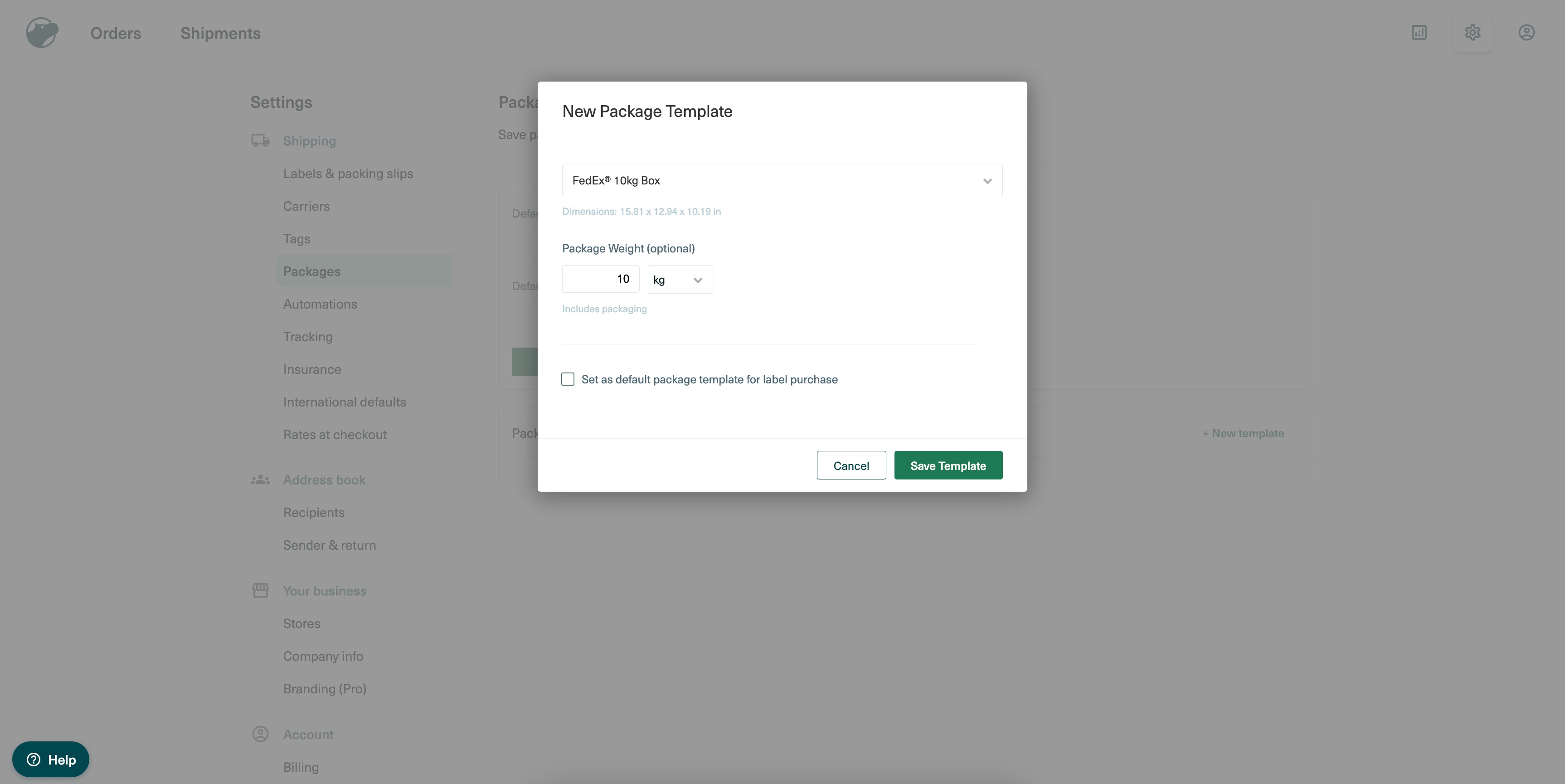
Package templates are found under Settings > Shipping > Packages > Add New Template.

Choose either custom dimensions or a standard carrier-provided parcel size.

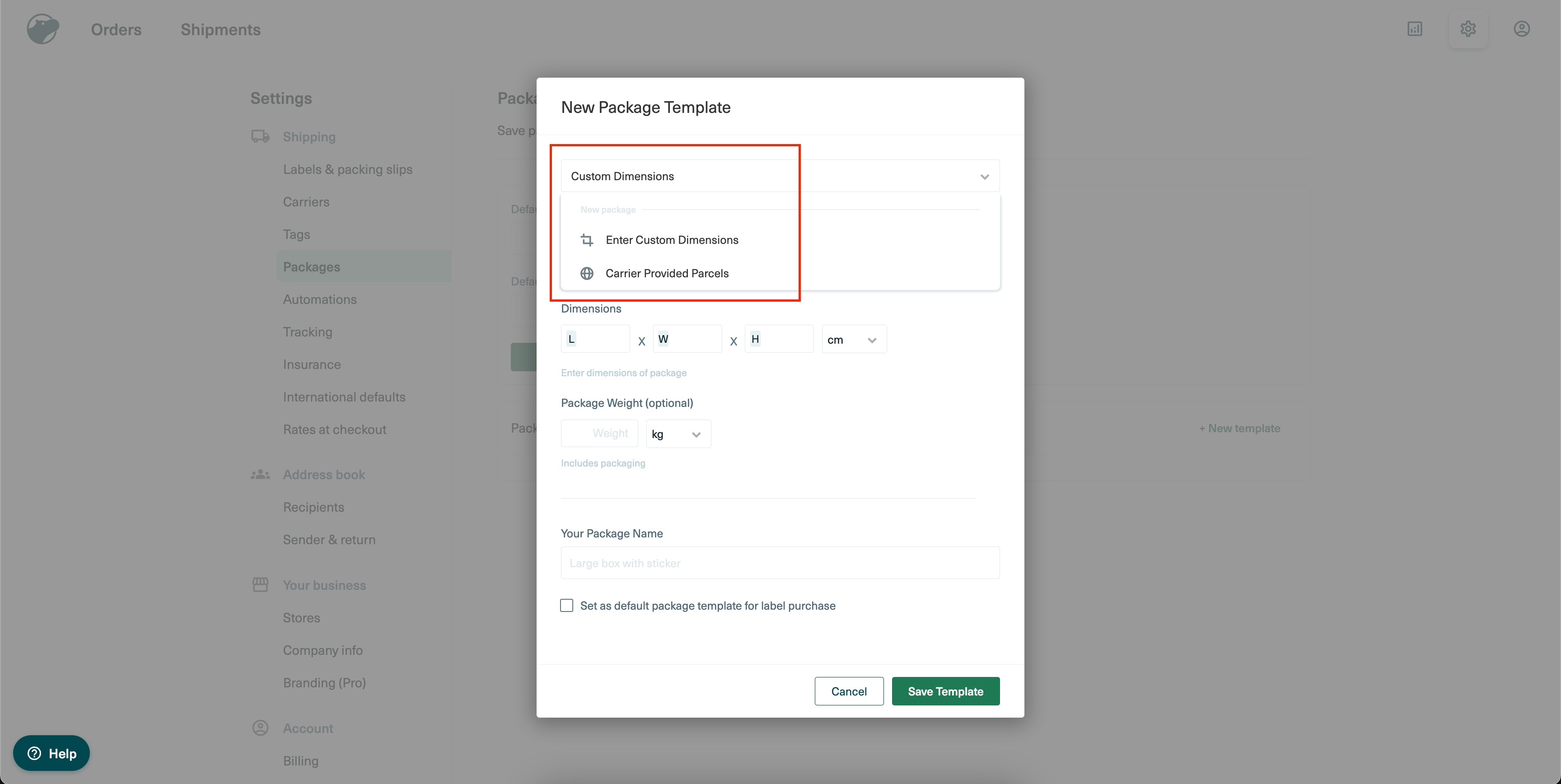
If you choose a standard carrier-provided parcel:

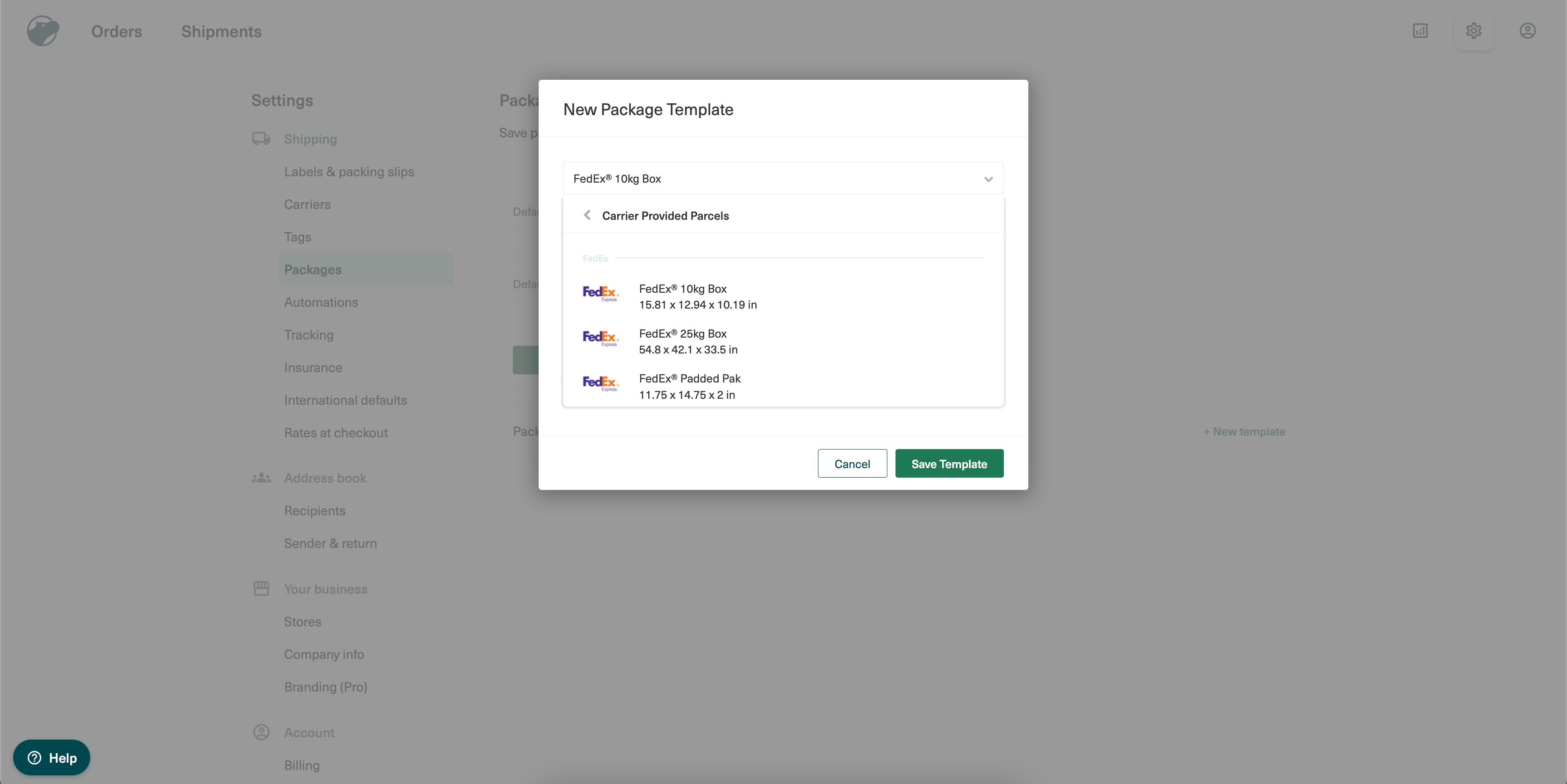
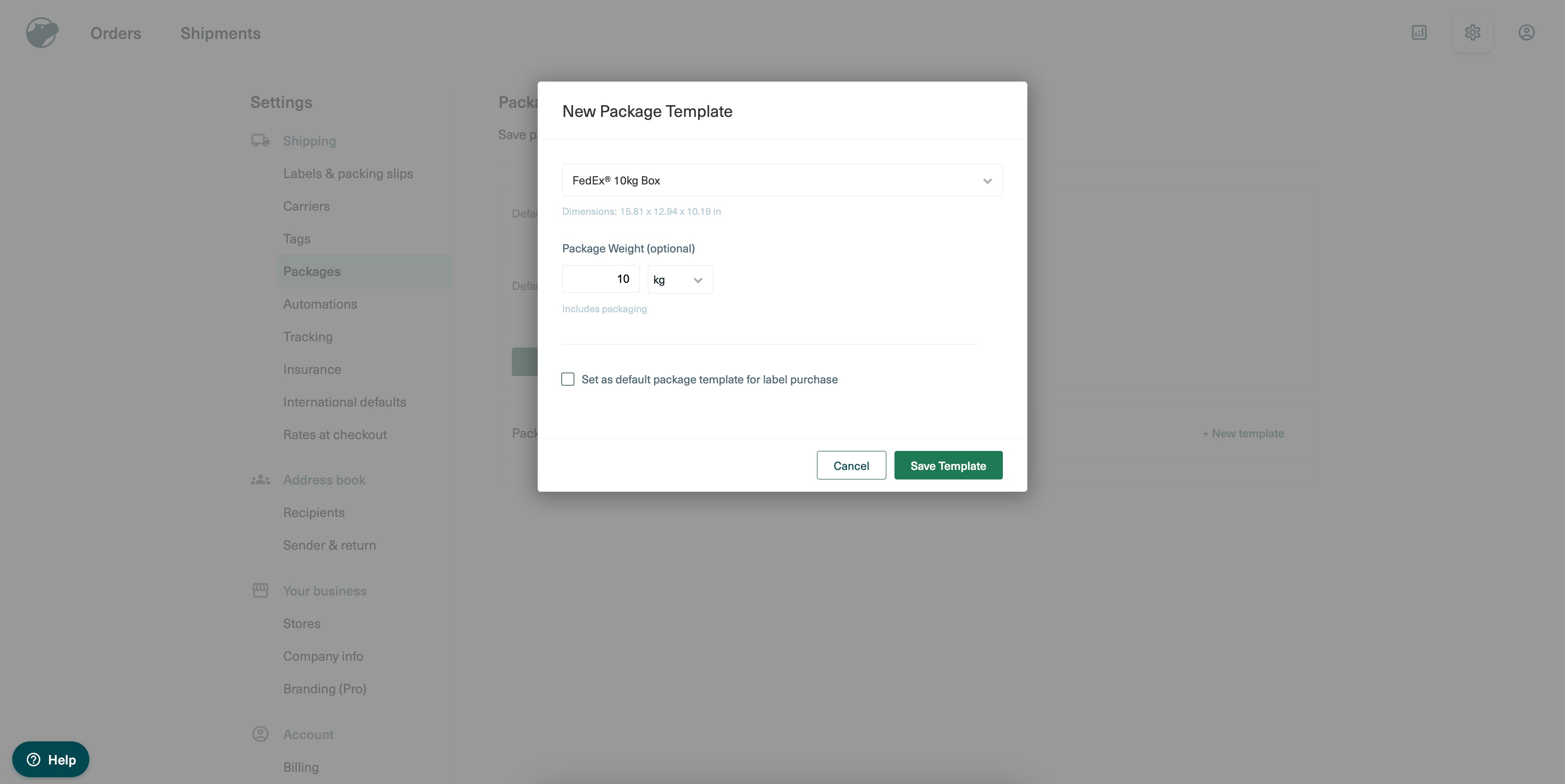
For carrier-provided parcels, set the package weight here. If you want this template to be your default, check the box.
Shipping origin:
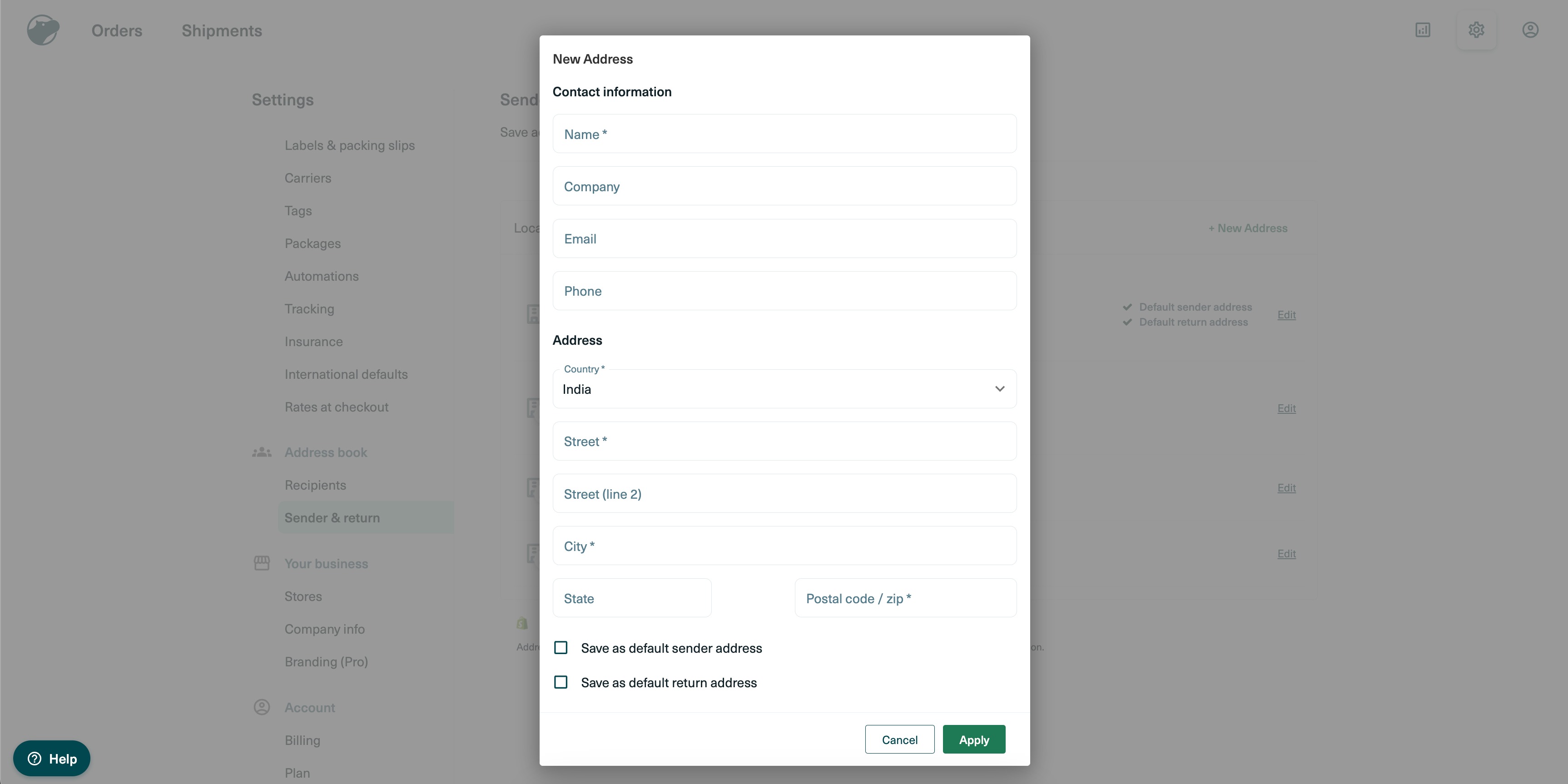
Your sender and return address is set under Settings > Address Book > Sender & Return > Add New Address.

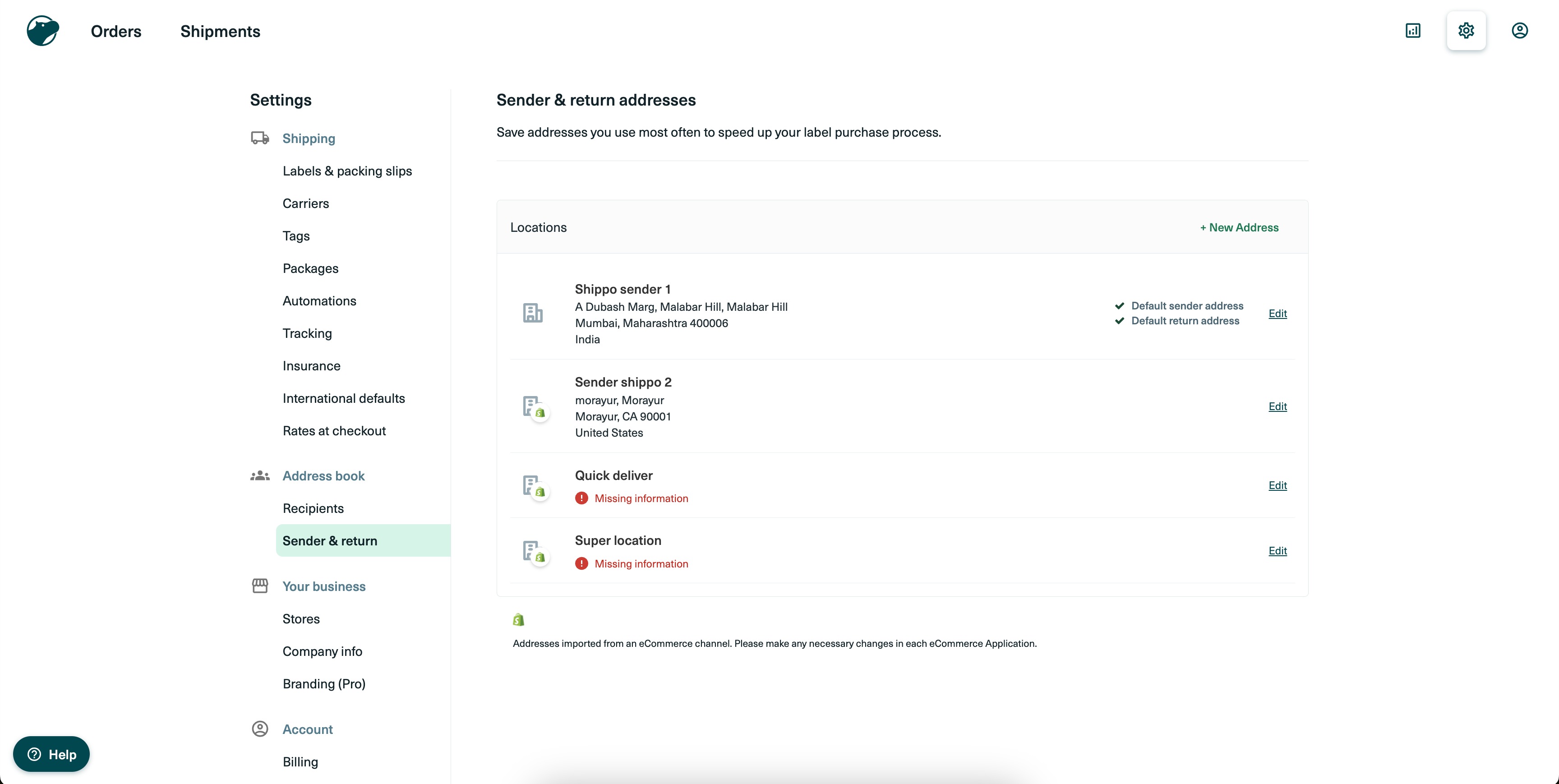
Add the complete address and select it as your default sender and/or return address, if needed.

Shipping options:
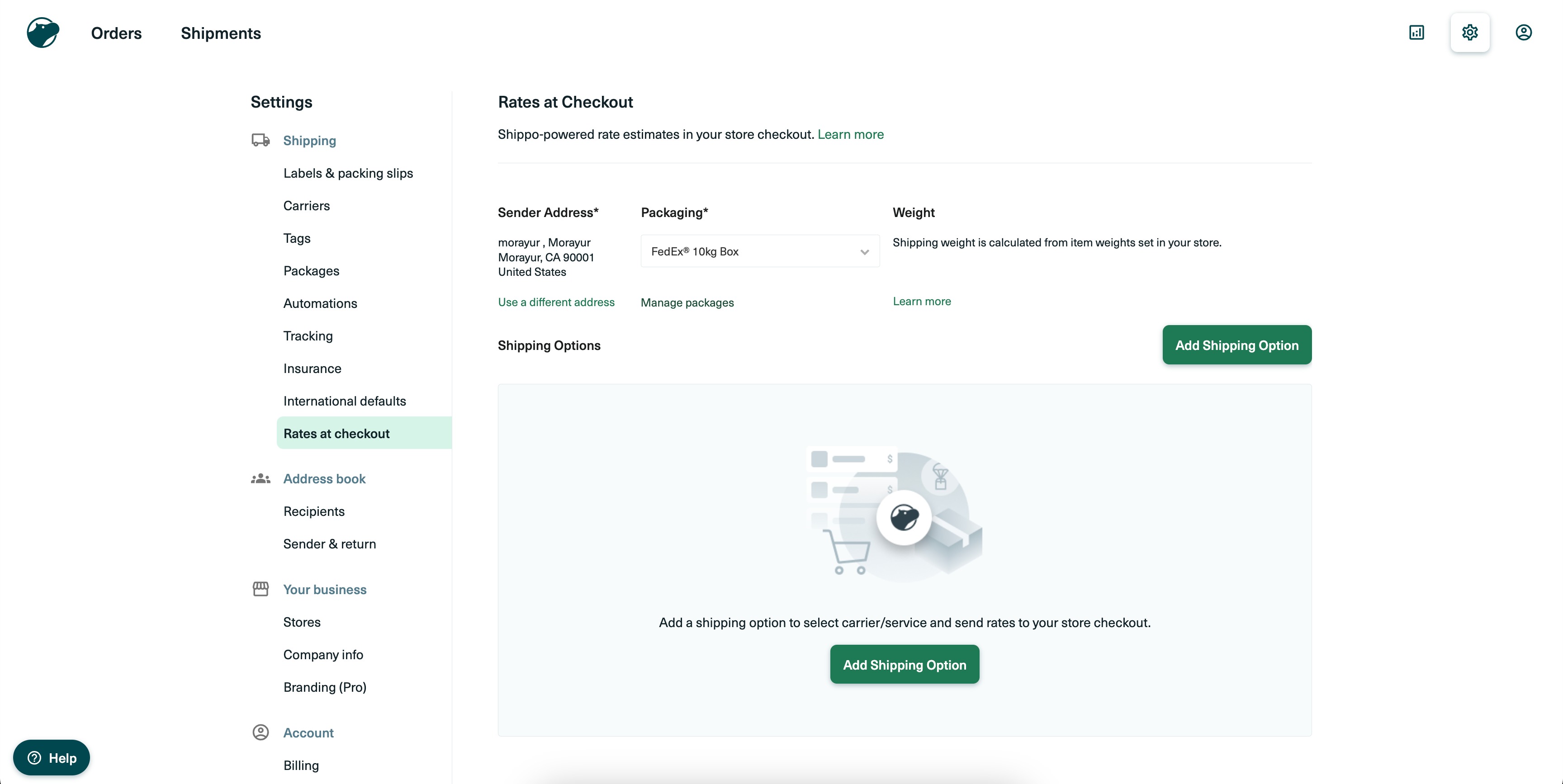
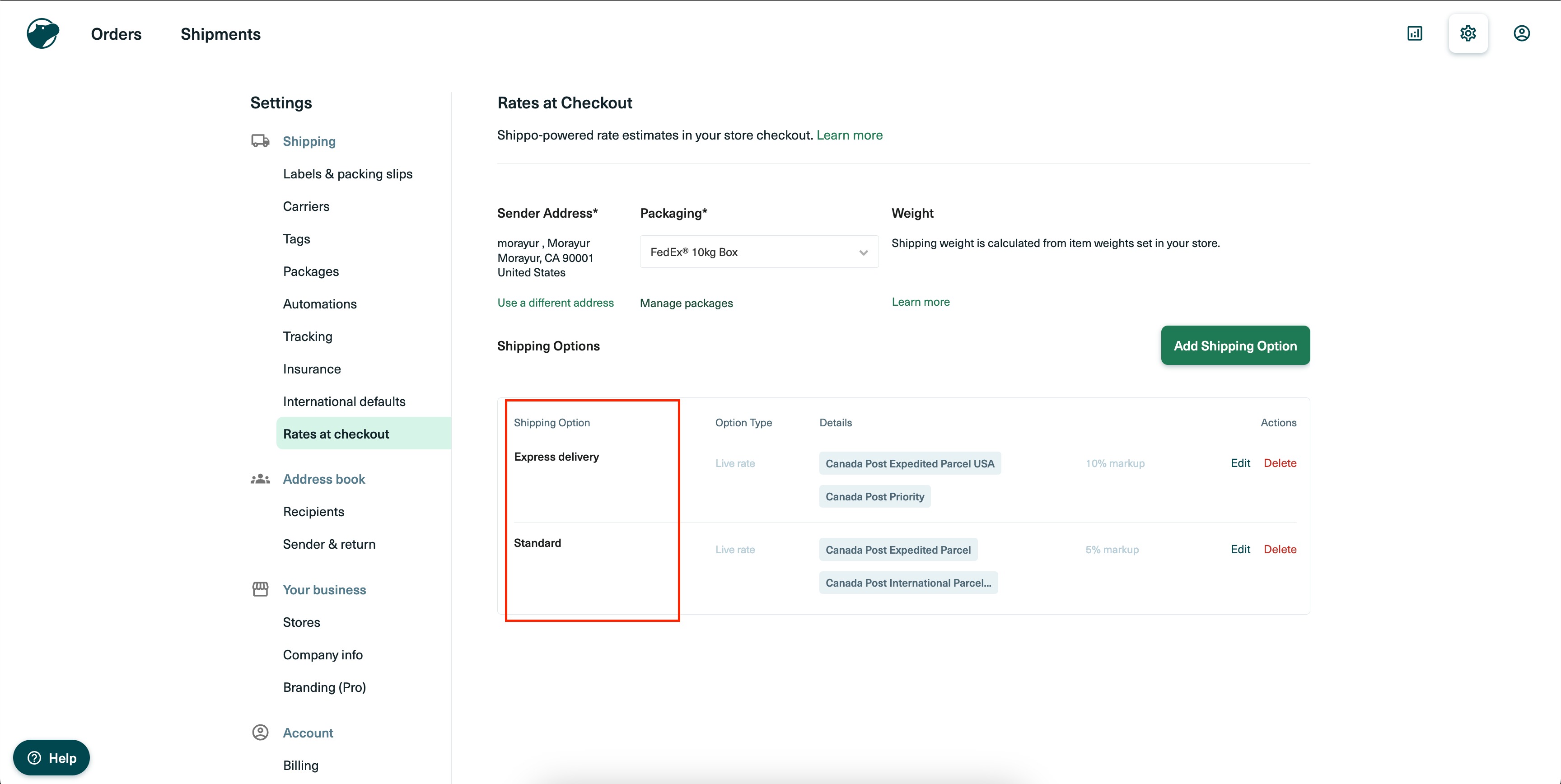
Shipping options are set under Settings > Shipping > Rates at Checkout > Add Shipping Option.

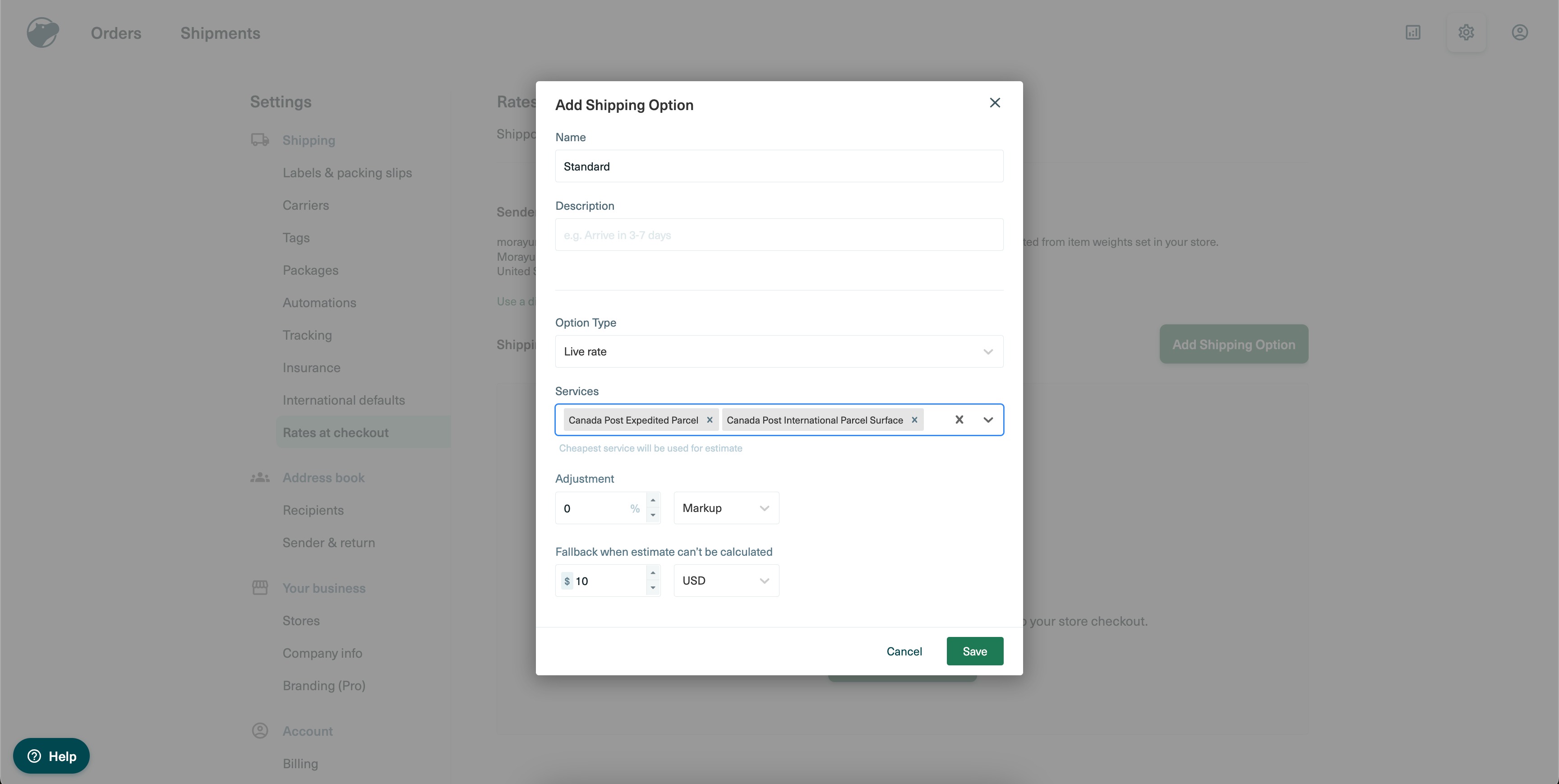
Choose the Live Rate option and select the carrier services you want to offer.

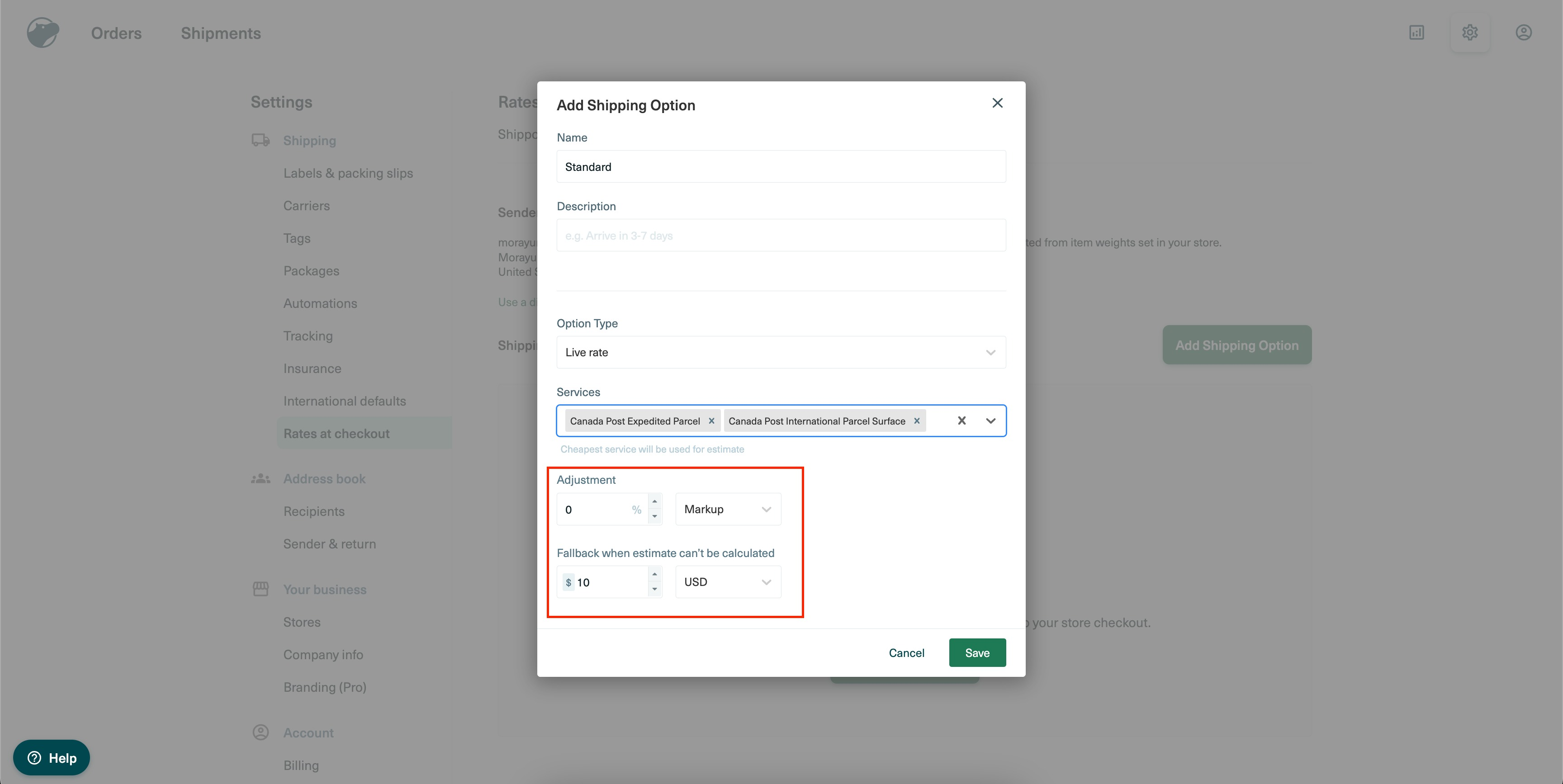
Optional: charge a markup on delivery. This adds a percentage- or flat-fee charge on top of the live carrier rate, and it's a small way to recover some of your shipping and packaging costs. You can also set a fallback delivery fee that applies if live rates can't be fetched for some reason.
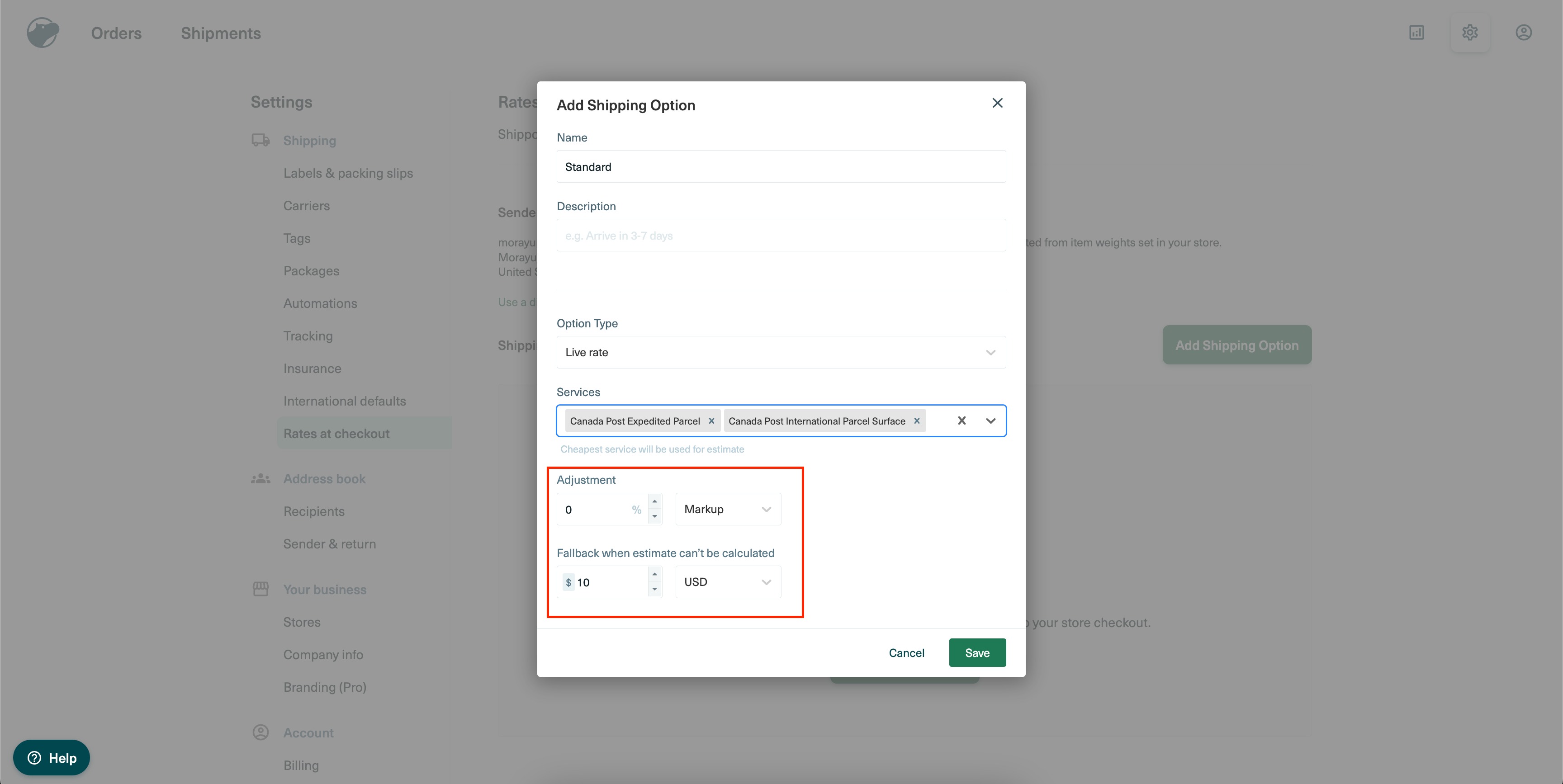
Whatever name you give a live rate here is exactly what patients see listed under Shipping Options at checkout, so keep the labels clear (for example, "Standard Shipping" or "Priority Shipping").
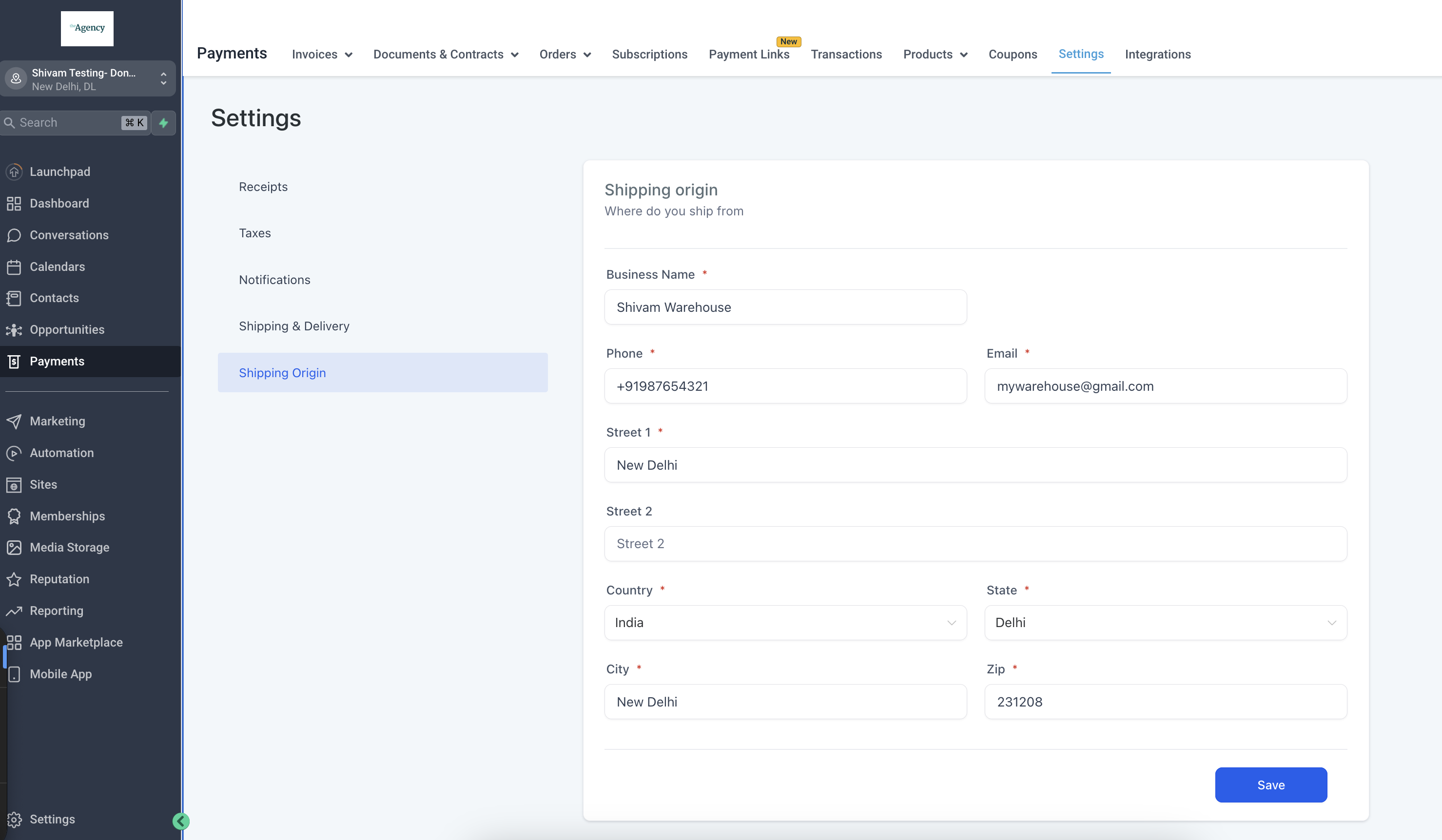
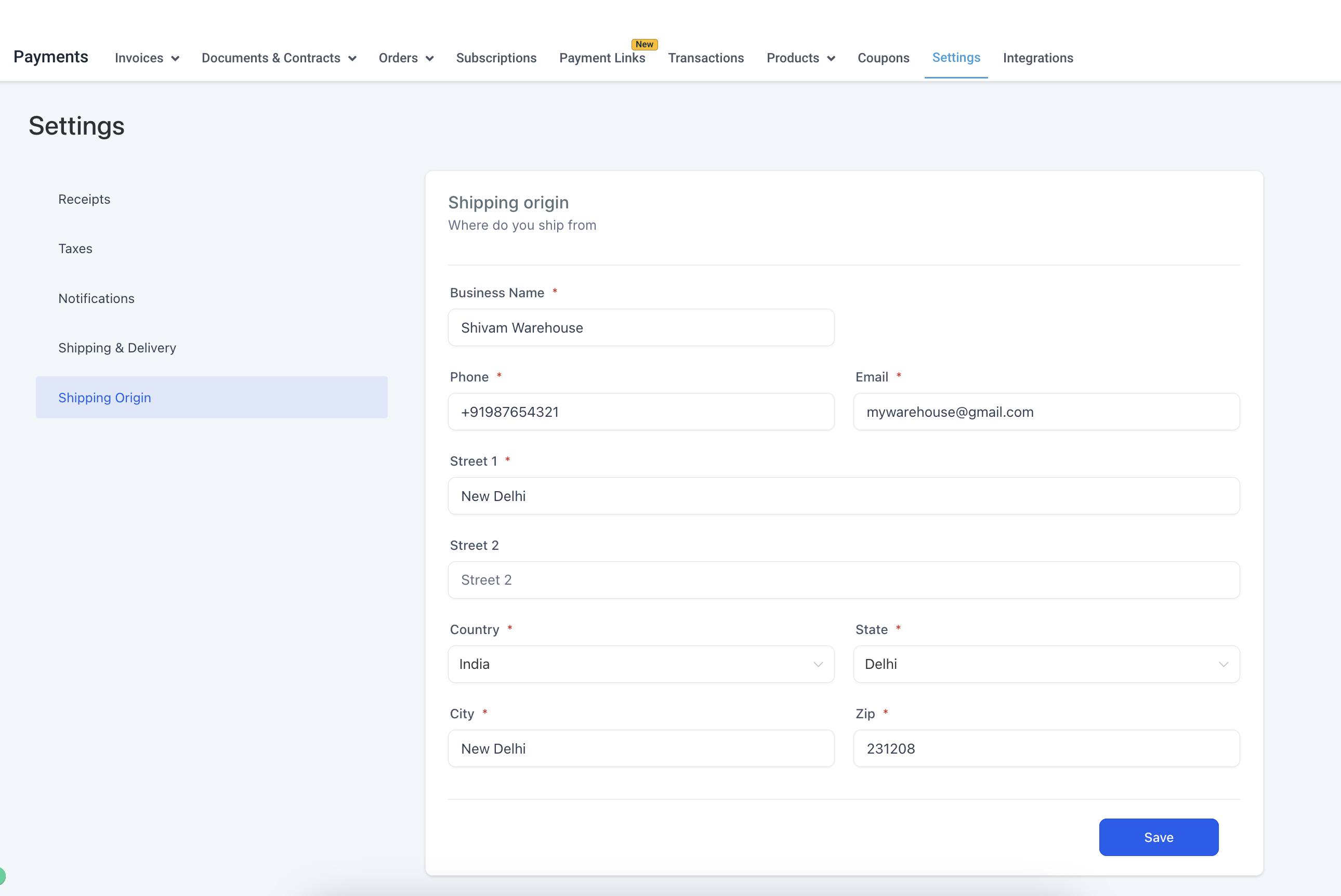
In your store's payment section, set the shipping origin that Shippo will treat as the sender's address when it creates a label for an order. This is found under Payments > Settings > Shipping Origin. Add the details and save.
Note: This must be a valid, complete address. If it isn't, Shippo will block you from purchasing shipping labels and return an error.
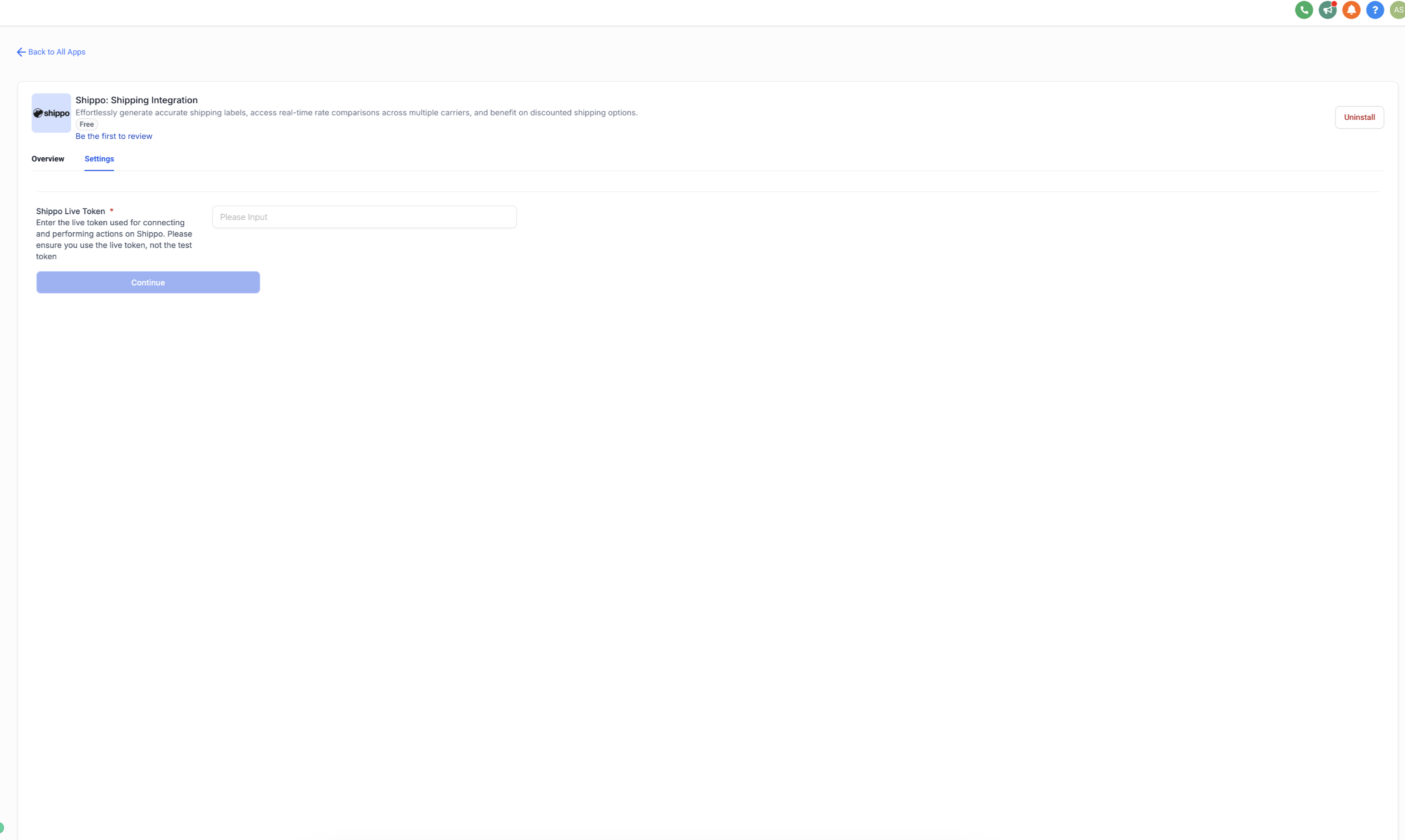
In Settings > Integrations, search for Shippo and install the app. Once it's installed, you'll be prompted to add your live token to continue.
Paste the live token you generated in Step 1.
Turn on live rates once your package template, shipping origin, and shipping options are all fully set up in Shippo.
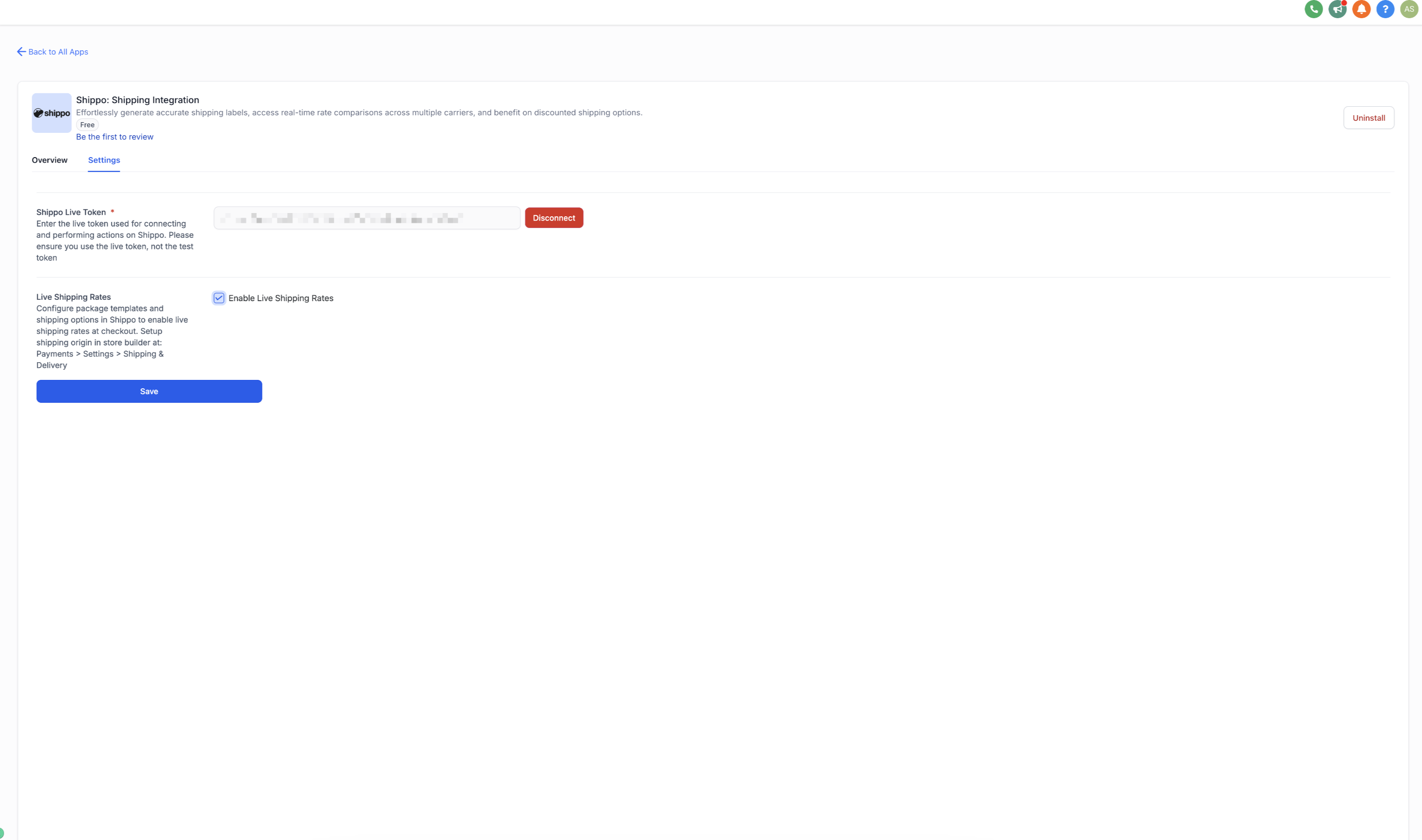
If anything is missing from your Shippo setup (package template, shipping origin, or shipping options), you'll see an error message here until it's resolved.
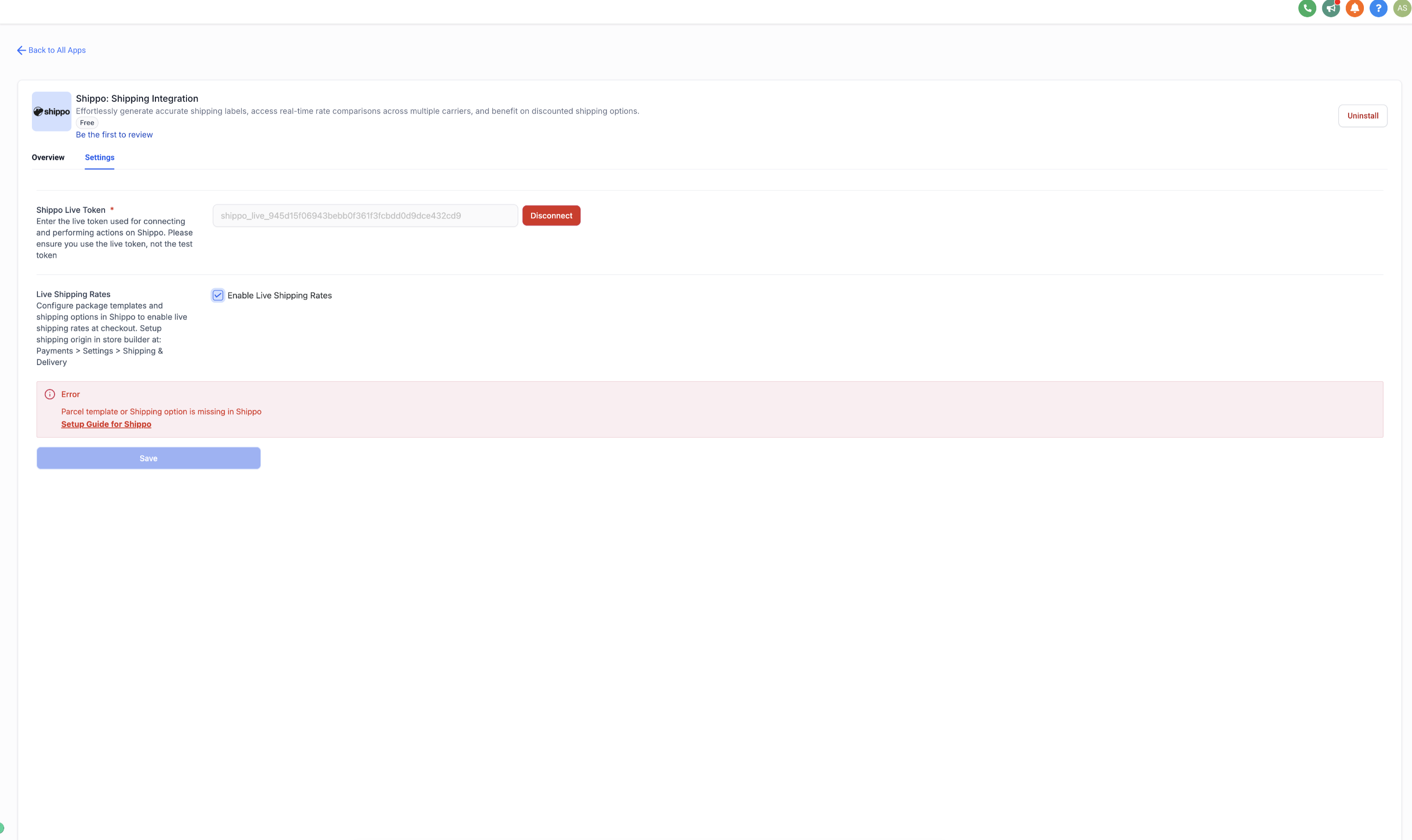
Check or uncheck the box to enable or disable live shipping rates for your store, then click Save.
ShipStation acts as a bridge between your Aesthetix CRM store and your shipping carriers. It automatically syncs new orders into ShipStation, where you can generate labels, compare live rates across 50+ carriers, and manage all your shipments from one dashboard. Tracking updates sync back and are shared automatically with patients and customers.
Key benefits:
Automated syncing: orders placed in your store sync to ShipStation automatically.
Live carrier rates: patients and customers see real-time shipping options at checkout from your configured carriers.
Discounted shipping: access ShipStation's pre-negotiated carrier rates, or connect your own carrier accounts.
Centralized fulfillment: manage shipments, print labels, and track orders from a single dashboard.
Branded notifications: tracking details are shared with patients and customers through your store's own notifications.
Go to Settings > Integrations.
Search for ShipStation Integration.
Click View App, then Install.
Click Allow & Install to finish.
Open the ShipStation app.
Go to the Settings tab.
Enter your ShipStation Live API Key and API Secret. You can generate these from your ShipStation account under Settings > Account > API Settings.
Click Connect.
Important: Use the live API key only. Test tokens are not supported.
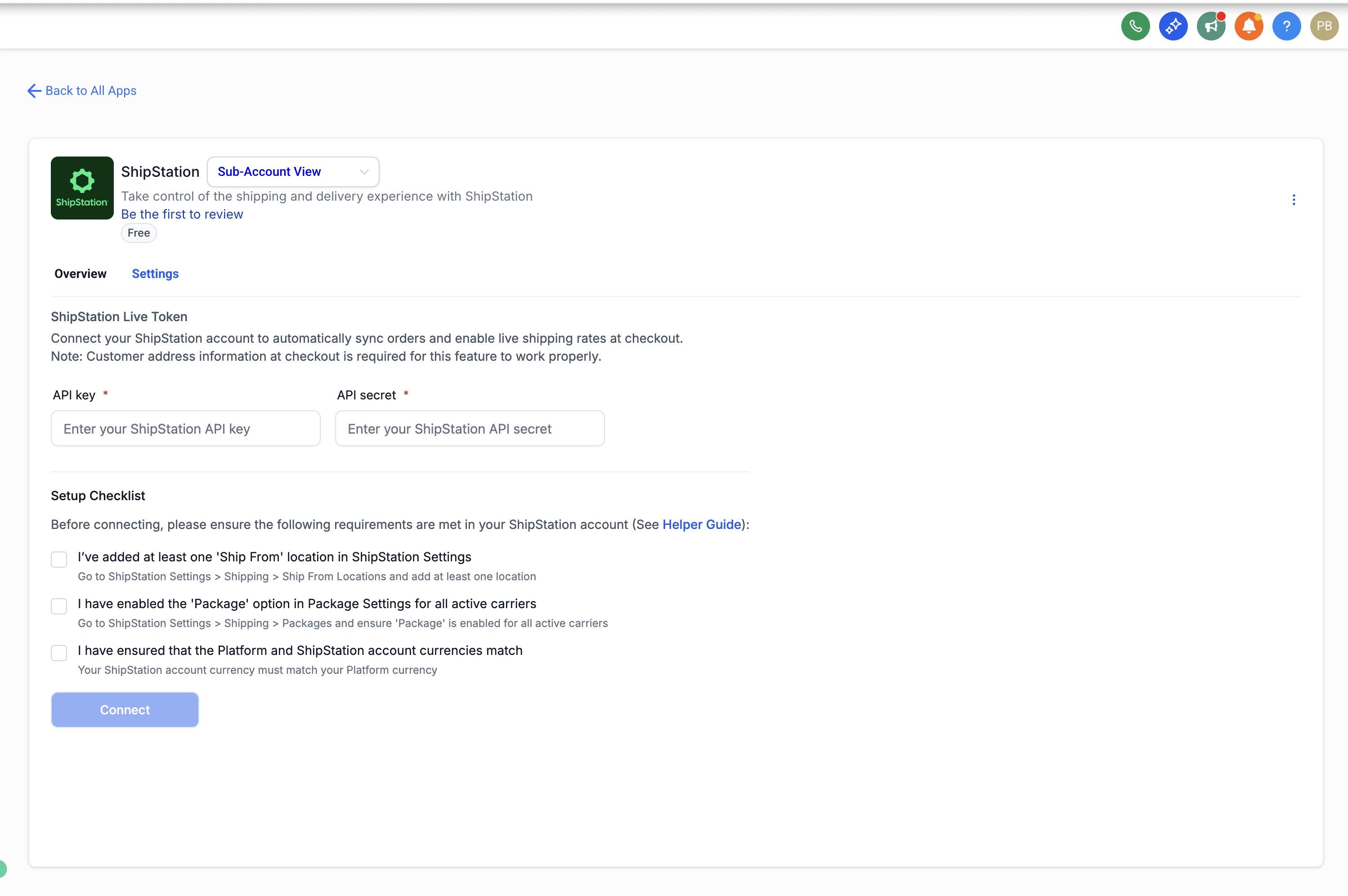
Before you finalize the integration, a few things need to be configured on the ShipStation side so rates and fulfillment work correctly:
Make sure at least one Ship From location is created, under ShipStation > Settings > Shipping > Ship From Locations.
Enable the Package option for every active carrier, under ShipStation > Settings > Shipping > Packages.
Confirm your ShipStation account currency matches your store's currency.
Once everything checks out, check the boxes in the integration settings and click Connect.
Shipping options are what patients and customers see at checkout. You can add live carrier services and a fallback flat rate so a shipping price always shows, even if live rates can't be fetched.
Click + Add Shipping Option.
Enter a Shipping Option Name (this is what shows at checkout).
Select one or more carrier services (for example, USPS Priority Mail, UPS Ground, FedEx 2Day).
Set a Fallback Value, a flat rate that applies if live rates are unavailable.
Click Create.
You can repeat this to offer multiple tiers, such as Standard, Express, and Priority, each tied to different carrier services.
Before going live, confirm patients and customers see the right options:
Add a product to your cart in your store.
Go to the checkout page.
Review the shipping step. ShipStation-powered live rates should display; if they're unavailable, your fallback rate should apply instead.
Once connected, ShipStation becomes your hub for managing labels and tracking:
Orders automatically sync to your ShipStation dashboard.
Generate and print labels, mark orders as shipped, and manage fulfillment from inside ShipStation.
Tracking numbers sync back to your store and are shared automatically with patients and customers.
If your practice works with a carrier that isn't natively supported by Shippo or ShipStation, and you have development resources available, Aesthetix CRM's API supports building a custom shipping carrier integration. This is a development project rather than a click-through setup, so it's best suited to practices or agencies with an in-house or contracted developer.
At a high level, a custom carrier integration involves:
A backend service that can handle authorization, receive webhooks from both Aesthetix CRM and the carrier, and call both APIs.
A database to securely store your authorization tokens, the carrier's API credentials, and the mapping between store orders and the carrier's shipment records.
A simple frontend (often a custom settings page) where your team enters and manages the carrier's API credentials.
Registering your service as a shipping carrier with Aesthetix CRM so it appears in your store's shipping settings, then implementing a live-rates callback that Aesthetix CRM calls during checkout to fetch real-time rates from your carrier.
Order and fulfillment syncing, where your backend listens for order-created and order-status webhooks, creates the shipment with your carrier, and then, once the carrier reports a tracking number, creates the fulfillment record back in Aesthetix CRM so the customer is notified.
Clean disconnection, removing the registered carrier and any stored credentials if the integration is ever uninstalled.
For most practices, Shippo or ShipStation will cover carrier needs without any custom development. A custom integration is really only worth the investment if you have a carrier relationship or negotiated rates that aren't otherwise reachable through those two.
Tip: While you're reviewing your store's Payments settings for shipping, it's a good time to double check your checkout payment provider too. Aesthetix CRM's own payment processor, AX Pay, typically offers better rates than Stripe. See the AX Pay help article for details on switching your store's payment provider.
Do I need both Shippo and ShipStation? No. Pick one carrier integration for your store. Both provide live rates and label generation; Shippo is often simpler to set up for a single practice, while ShipStation gives access to 50+ carriers and more advanced fulfillment tooling if you ship a higher volume of retail products.
Why aren't live rates showing at checkout? Confirm the customer entered a valid, complete shipping address and that the carrier services you selected are active in your Shippo or ShipStation account. An incomplete shipping origin address on your end will also block live rates.
What happens if live rates aren't available at checkout? The fallback flat rate you configured during setup will apply automatically, so customers always see a shipping cost.
Can I use a test or sandbox API token? No. Both Shippo and ShipStation require a live API token or key. Test/sandbox credentials are not supported and the rate lookups will fail.
Why would my ShipStation rates be wrong or missing? This is usually a currency mismatch between your store and your ShipStation account. Make sure both are set to the same currency.
Can I mark up shipping costs? Yes, with Shippo. You can add a percentage-based or flat markup on top of live carrier rates when you set up shipping options, letting you recover part of your packaging and handling costs.
How do patients and customers get their tracking number? Once you mark an order as shipped in Shippo or ShipStation, the tracking number and carrier syncs back to your Aesthetix CRM store automatically and is shared with the customer through your store's order notifications.
Can I offer multiple shipping speeds, like Standard and Express? Yes. In either integration you can create multiple shipping options, each tied to a different carrier service, so customers can choose based on speed and cost.
Where do I set up my product catalog, taxes, and coupons? Those live in your store's Payments settings, covered in the Payments article for E-commerce. This article only covers carrier and label setup.
Do I need a developer to use Shippo or ShipStation? No. Both are click-through integrations built for store owners. A developer is only needed if you're building a fully custom carrier integration outside of Shippo and ShipStation.
