If your practice sells physical products through your Aesthetix CRM Store (skincare, retail add-ons, or take-home kits), you can generate shipping labels and packing slips directly from an order without leaving the app. You can print for an entire order or for just the items you're fulfilling right now.
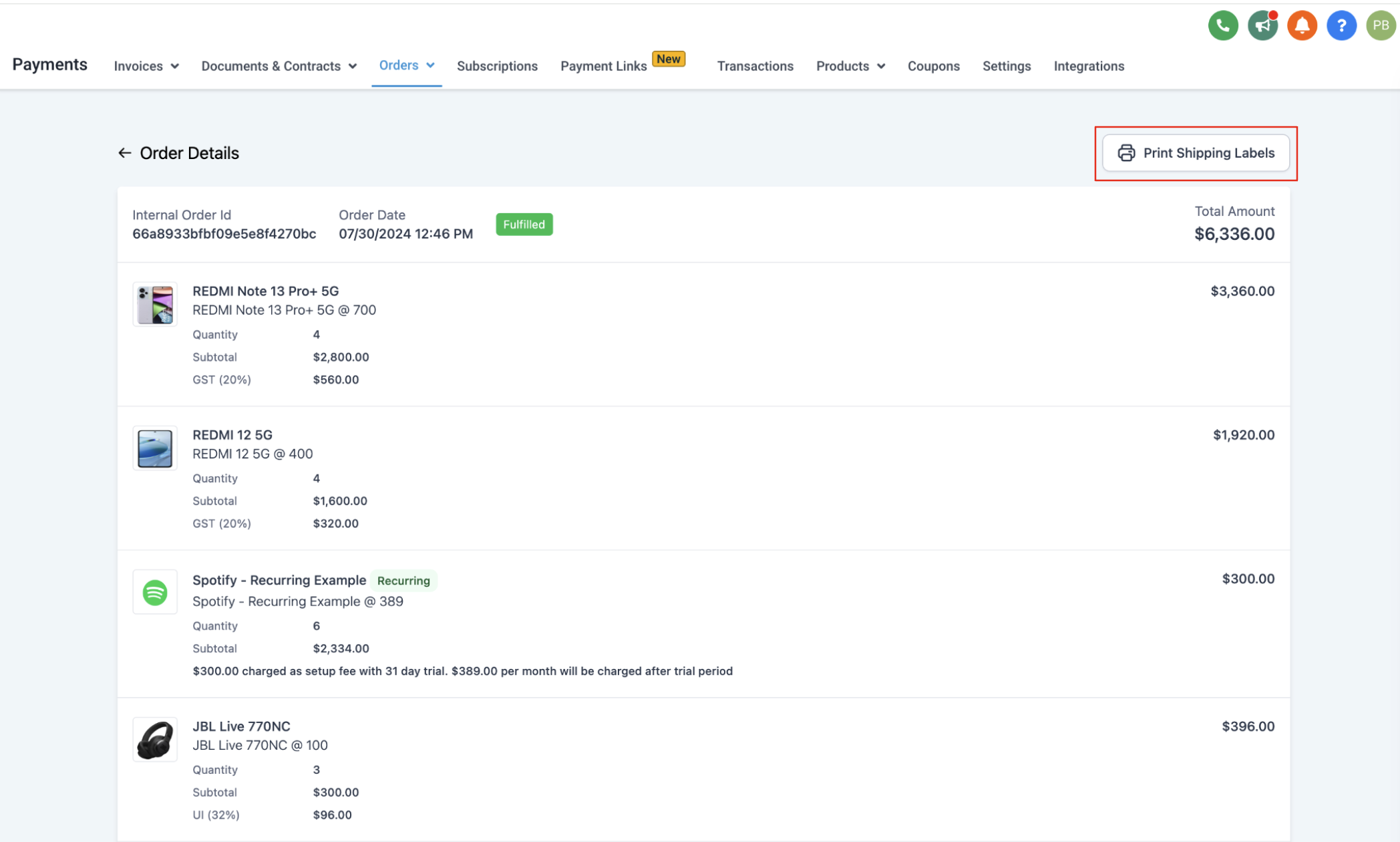
Go to Payments > Orders, open any Store order, and click Print Shipping Label. This same button generates both the shipping label and the packing slip, depending on where you click it from.
Every generated label and packing slip includes:
Order ID
Order date
Your store name
Shipping address and billing address
Order notes, when the customer adds notes during checkout (this section appears above the items list)
An itemized list of products, with variant name, product image, SKU, and quantity for each line item
Your sender's address (your store's address)
Currently, the billing and shipping addresses print the same on labels and slips. This will become editable separately once the billing address field is released on the checkout page.
Open the order and click Print Shipping Label. This downloads a single PDF containing all unfulfilled and fulfilled items, with each fulfillment listed on its own page.

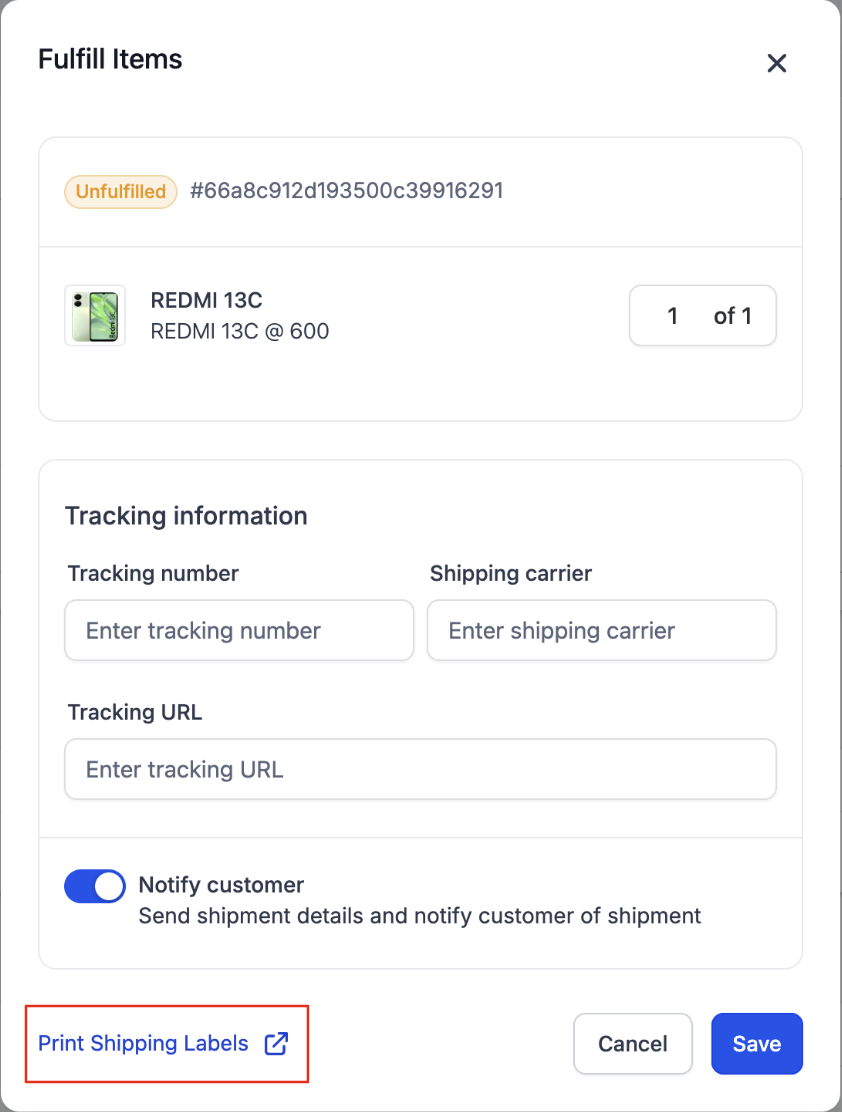
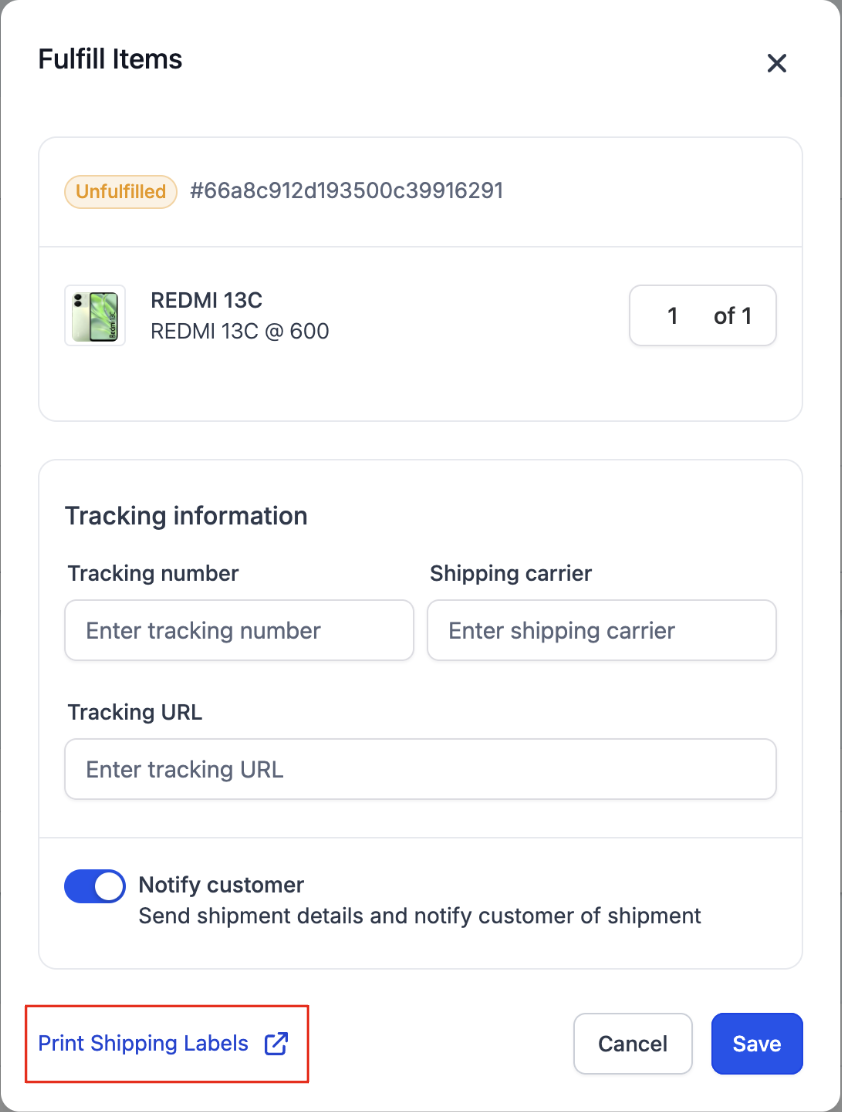
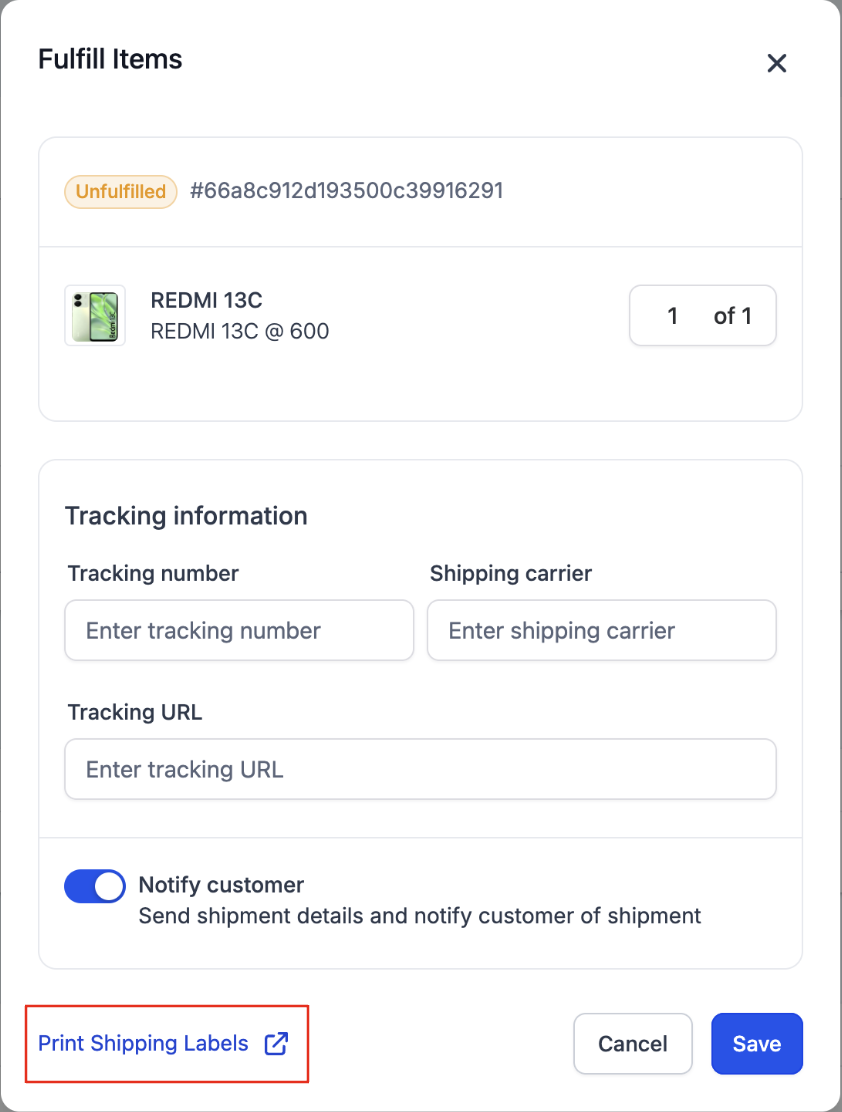
While you're fulfilling an order, the items and quantities you've selected are listed on screen. Click Print Shipping Label from this fulfillment view and Aesthetix CRM generates a label covering only those selected items, not the whole order.



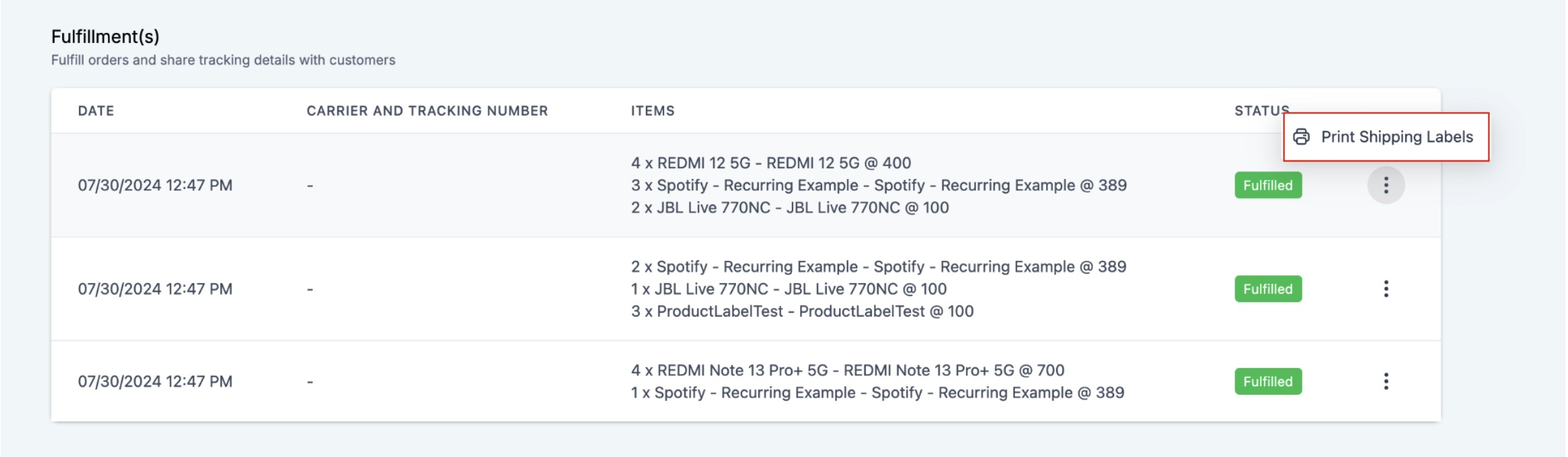
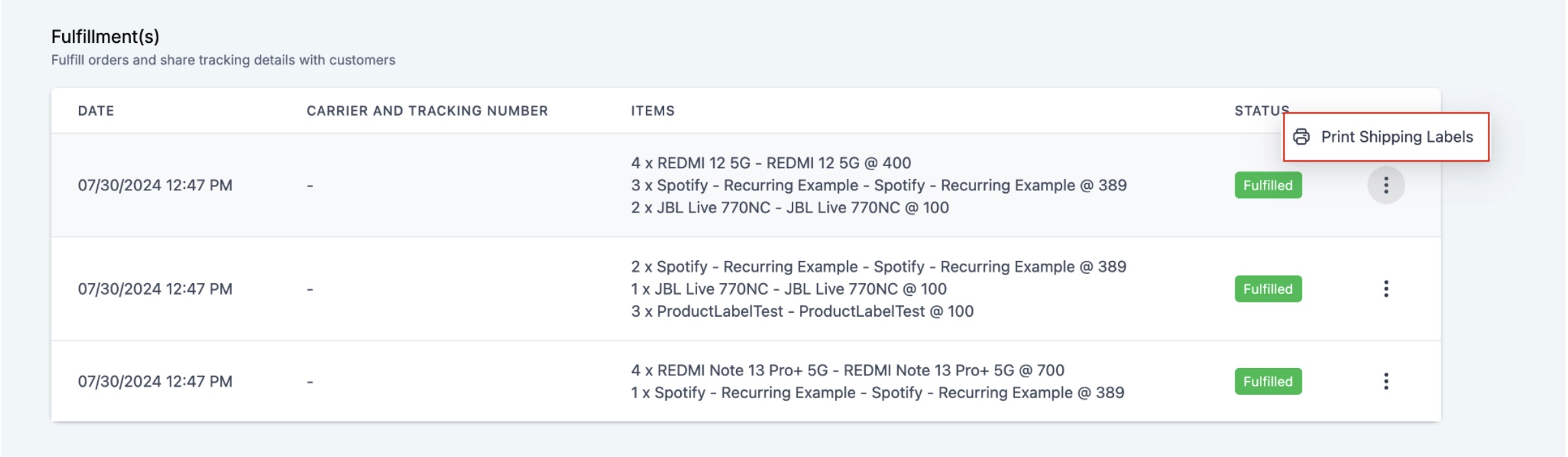
If an order has already been partially fulfilled, open it and click the three dots next to that partial fulfillment. This gives you the option to download the packing slip or shipping label for just that specific fulfillment, separate from the rest of the order.
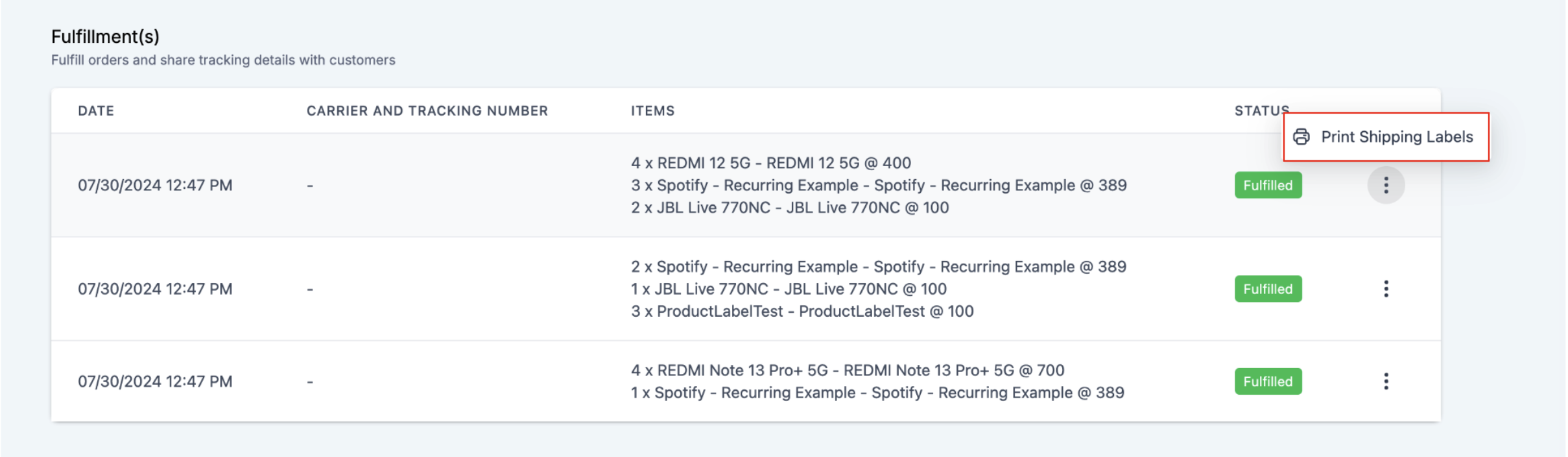
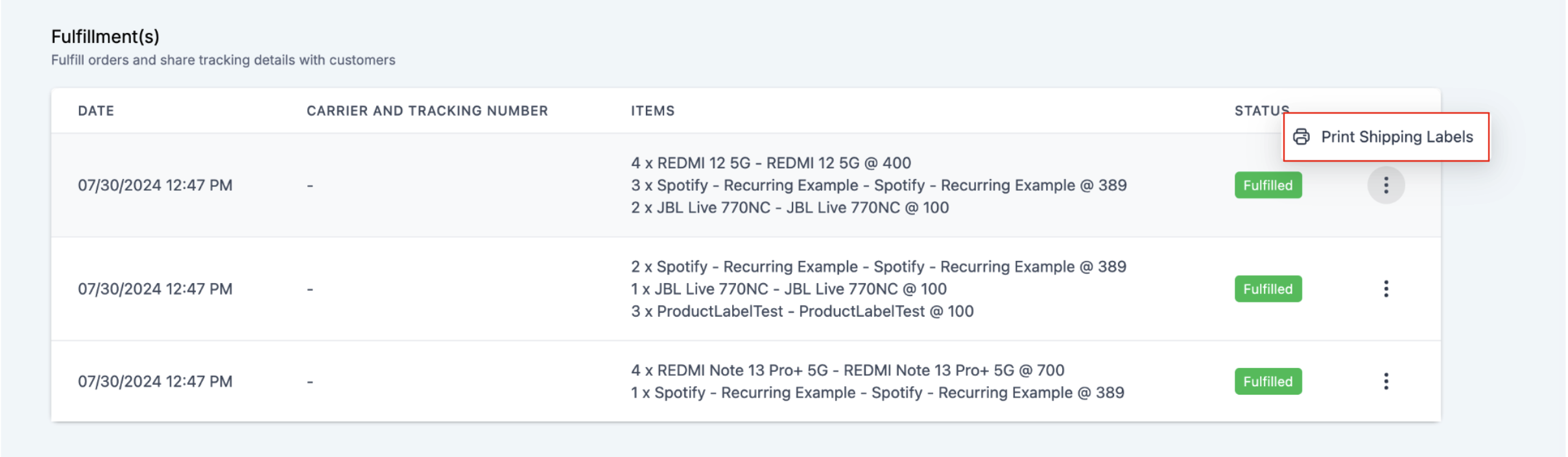
Once a fulfillment is complete, you can still return to it and reprint the packing slip or label for your records, or to hand a fresh copy to a delivery courier.
Shipping labels and packing slips can only be generated for native Aesthetix CRM Store orders. If you're processing orders through a connected Shopify or WooCommerce store instead, use that platform's own label and slip tools (see the Integrations collection for how those connections work).
The order notes section appears above the items list only when the customer added notes during checkout.
Product SKUs are pulled from your product or variant setup and appear in the line items table.
For orders with multiple partial fulfillments, each fulfillment prints on its own page when you generate labels for the full order.
Billing and shipping addresses currently print identically on every label and slip, since there isn't yet a separate editable billing address field at checkout.
This feature only produces the printable document. It does not purchase carrier postage or generate a tracking number, so you'll still need your shipping carrier or a service like Shippo or ShipStation to buy postage and get tracking if you want it.
Packing slips and shipping labels include a patient's name and home address. Treat printed copies the same as any other document containing patient information: don't leave them out where unauthorized staff or visitors can see them, and dispose of misprints securely.
Product catalog setup, taxes, coupons, and checkout/payment configuration for your Store live in the Payments collection. This guide covers what happens after a sale, once you're packing and shipping the order.
Does this work for every order in my store, or only Store orders? Only native Aesthetix CRM Store orders support the built-in label and packing slip generator. Orders that come through a connected Shopify or WooCommerce store use that platform's own fulfillment tools instead.
Can I print a label for just part of an order? Yes. During fulfillment, only the items and quantities you've selected are included on the generated label. You can also reopen a partially fulfilled order later and print a label or slip for that specific fulfillment alone.
What information shows up on the label or packing slip? The order ID, order date, your store name, the shipping and billing address, any order notes the customer added at checkout, an itemized product list (variant name, product image, SKU, and quantity), and your store's sender address.
Will a customer's checkout notes show up on the packing slip? Yes. When a customer adds notes during checkout, an order notes section prints above the items list. If no notes were added, that section simply doesn't appear.
Why are the shipping and billing addresses the same on my label? Right now labels and slips always print the same address for both fields. This will be adjustable once a separate billing address field is added to the checkout page.
Does this feature buy postage or create a tracking number for me? No. It only generates the printable label and packing slip document. You'll still need your carrier account or a shipping service to purchase postage and get a tracking number.
Where do I go to generate a label after checking out an order? Go to Payments > Orders, open the order, and click Print Shipping Label. You can do this from the order details page, from the fulfillment screen, or from a partial fulfillment's options menu.
What happens if an order has multiple partial fulfillments? Each fulfillment is listed on its own page when you generate a shipping label for the full order, so you can keep each shipment's paperwork separate.
Can I reprint a label or slip after the order is already fulfilled? Yes. You can return to a completed order at any time and print the label or packing slip again for your records or for the courier.
Is there a limit to how many labels I can print for one order? No. You can print as many times as you need, whether that's the full order, an individual fulfillment, or a reprint after the fact.
Do I need a specific plan to use this feature? No, label and packing slip printing is a standard part of the Store feature for any account with Ecommerce orders enabled.
