Every purchase made through your practice's store, order forms, funnels, or payment links shows up as an order in Aesthetix CRM. The Orders dashboard is where you review what patients bought, check payment status, and pull the data you need for bookkeeping, fulfillment, and reporting. You'll find it under Payments > Orders.
The Orders dashboard lists every order placed through your account, whether it came from your native Store, an order form, a funnel checkout, or a payment link. Each order shows the patient's name, the products purchased, the total amount, the payment status, and where the order originated.
Use the filters at the top of the dashboard to narrow the list down by:
Order status (for example, Completed or Pending)
Date range
Source type (Store Checkout, Funnel, Payment Link, Form, and so on)
Product type (one-time purchase vs. recurring/subscription product)
Click into any order to see its full detail: line items, quantities, taxes, discounts, coupon codes, and the payment method used at checkout. This is also your starting point for fulfillment, once an order comes in, you move it into your fulfillment workflow to pack, ship, or deliver the purchase.
AX Pay tip: If you haven't set up a payment provider yet, use AX Pay, Aesthetix CRM's own payment processor. AX Pay offers better rates than Stripe and keeps checkout, payouts, and order records in one place. See the AX Pay help article for setup steps, and see the Payments collection for product catalog, tax, and coupon configuration.
When you need order data outside the dashboard (for reconciliation, financial analysis, or product performance tracking), export it as a CSV file.
Go to Payments > Orders.
(Optional) Apply filters, such as order status, date range, source type, or product type, to narrow the export to only the orders you need.
Click Download.
Check your email for the secure download link.
Security note: The export link expires after 7 days. If it expires, just start a new export, exports are always generated fresh, so you can re-export past orders at any time.
Only users with View Orders and Export Orders permissions can download order exports.
An order can include multiple products and multiple taxes, so a single order can spread across several rows in the exported file. This row-per-line-item structure gives you product-level pricing and tax detail for accurate bookkeeping, and it follows a few consistency rules:
0 vs. blank values: A column shows 0 only when the field applies and the true value is zero. It's left blank when the field doesn't apply at all (for example, the payment method column is blank on an order that was never paid).
Stable column order: Columns are always in the same order, so the export works cleanly with pivot tables, spreadsheet imports, and BI tools.
Grouping multi-row orders: When an order spans multiple rows, use the Internal order id column to group all of that order's rows back together for totals.
Column | What it contains | Example |
|---|---|---|
Internal order id | Unique identifier for the order |
|
Location id | Your account identifier |
|
Customer id | ID of the patient who placed the order |
|
Customer name | Patient's display name |
|
Customer email | Email collected at checkout | |
Customer phone | Phone collected at checkout |
|
Payment method | Method used; blank if the order was never paid |
|
Currency | Currency of the order |
|
Sub total | Value of items before discounts and exclusive taxes |
|
Discount | Discount applied to the order |
|
Total tax amount (excluded in prices) | Tax added on top of the subtotal |
|
Total tax amount (included in prices) | Tax already built into item prices |
|
Total amount | Final total after discounts, taxes, and misc. charges |
|
Coupon code | Code used at checkout, if any |
|
Status | Payment status of the order |
|
Live mode | Whether the order was placed in your live or test environment |
|
Total products | Total number of products on the order |
|
One-time products | Number of one-time products on the order |
|
Recurring products | Number of subscription products on the order |
|
Source type | Where the order was created |
|
Source id | Internal ID of the source |
|
Source name | Display name of the source |
|
Order date | Date the order was finalized |
|
Order time | Time the order was finalized |
|
Timezone | Timezone of the order record |
|
Line item name | Product name |
|
Line item quantity | Quantity purchased |
|
Line item price | Price per unit |
|
Line item discount | Discount allocated to this line |
|
Line item subtotal | Subtotal for this product line |
|
Line item product id | System identifier for the product |
|
Line item price id | Identifier for the specific price or variant |
|
Tax name | Type of tax applied |
|
Tax amount | Tax amount for this line |
|
Address line 1 | Shipping/billing street, if captured |
|
City | City |
|
State | State/Region |
|
Country | Country |
|
Postal code | Zip or postal code |
|
Processing charge name | Name of any misc. charge |
|
Processing charge amount | Value of the misc. charge |
|
Because products and taxes each get their own row, one order can generate several lines in the export, all sharing the same Internal order id.
Example 1: An order with 3 products and 2 exclusive taxes could produce 6 rows: 2 rows for the products plus rows for each tax name applied against each product.
Example 2: An order with 3 products where 2 taxes are exclusive on product 1, the same 2 taxes are inclusive on product 2, and product 3 has no tax at all could produce 5 rows: one row per product, plus separate tax columns labeled to distinguish exclusive taxes from taxes already included in the price. The row for the untaxed product simply has no values in the tax columns.
In both cases, filter or pivot on Internal order id in your spreadsheet to see each order as a single total.
If you're moving from another platform, you can bring your historical sales data into Aesthetix CRM by importing transactions or orders from a CSV file. This keeps your revenue dashboards and patient timelines accurate instead of starting from zero.
Importing lets you:
Bring in historical sales data from a previous system
Have that data immediately reflected in your revenue dashboards and metrics
Create new patient records or update existing ones as part of the import
Set separate timestamps for when the sale actually happened vs. when it was added to Aesthetix CRM
Preview and validate your file before it's committed
Download a sample CSV and format guide to build your file correctly
Transactions and Orders are imported separately, and they behave differently:
A transaction reflects a payment event on its own, without necessarily creating a linked itemized order.
An order represents an itemized sale and automatically generates its own linked transaction entry when imported.
Go to Payments > Transactions.
Click Import.
Download the sample CSV and make sure your data matches the required format.
Upload your file and review the preview screen for validation issues.
Confirm the import.
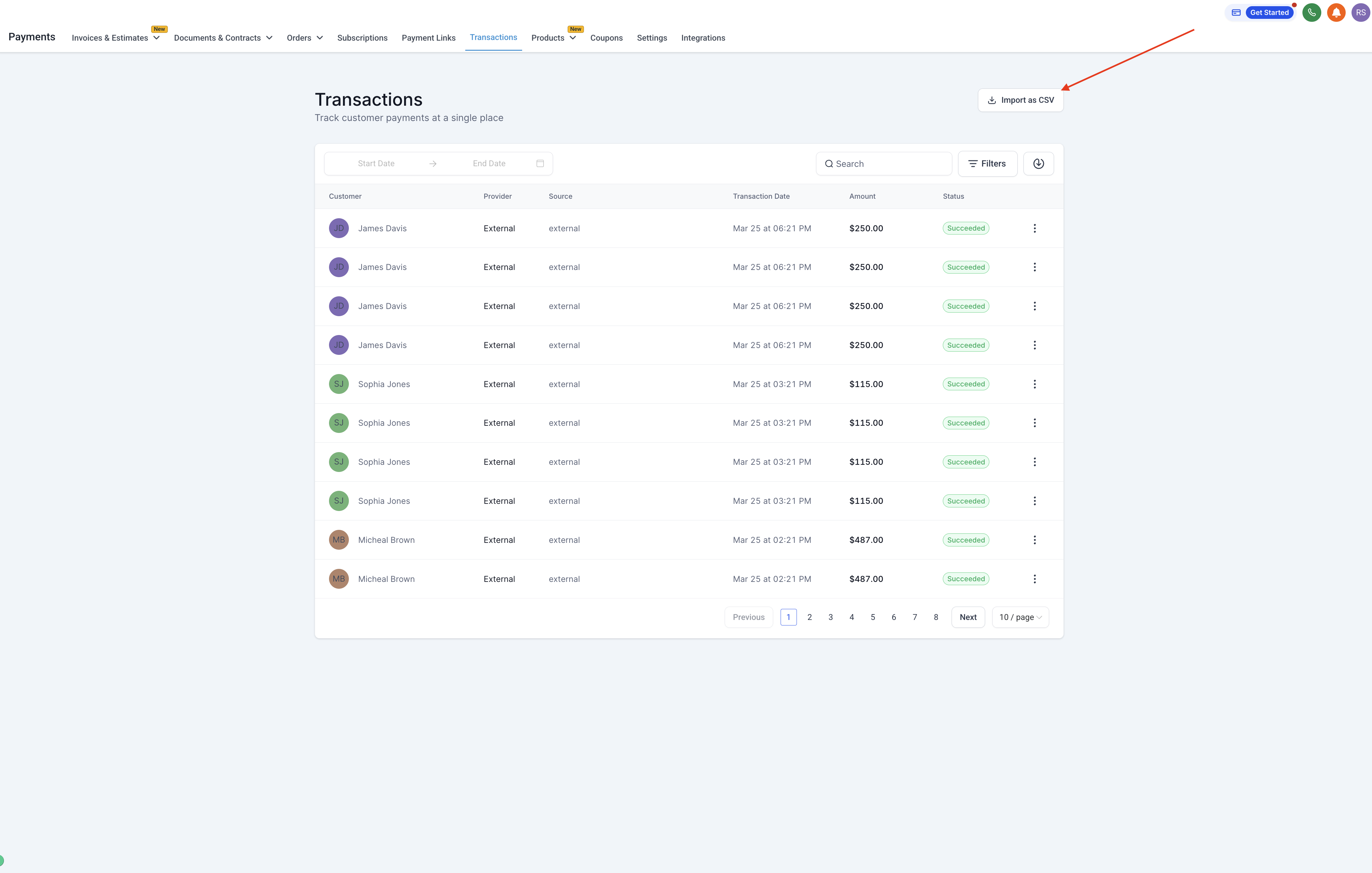
Transactions affect your revenue metrics as soon as they're added.
Go to Payments > Orders.
Click Import, then upload your properly formatted CSV.
Review your data in the preview screen.
Confirm the import. Each order record automatically creates its own transaction entry.
Both order and transaction entries you import will show up on your dashboards and reports right alongside orders placed directly through your account.
To avoid errors during import:
Field names must match the required format exactly, use the downloadable sample CSV as your template.
Include patient contact details (name, email, or phone) so Aesthetix CRM can match the record to an existing patient or create a new one. Matching happens by email or phone, so existing patients won't be duplicated.
Set both the actual transaction date and the date it's being added to Aesthetix CRM, since these can differ when you're backdating historical data.
Once imported, check your Revenue dashboard to confirm the data landed correctly, and review affected patient timelines to see the imported activity. You can also set up workflows that trigger on new orders or transactions, whether they came in through checkout or through an import.
Why am I seeing multiple rows for the same order in my export? Each product and each tax line needs its own row for accurate accounting, so an order with several products or taxes will span multiple rows in the CSV, all sharing the same Internal order id.
Why is the Payment method column empty on some orders? An order only shows a payment method once a transaction has actually occurred. Unpaid or abandoned orders will have a blank payment method.
Will unpaid or abandoned orders show up in my export? Yes, unless you filter them out using the order status filter before exporting.
Can this export show me subscription billing history? No. The Orders export shows order-level subscription presence, meaning how many recurring products were on the order, not a full billing history. For that, use a subscriptions-specific export.
Can I re-export the same date range more than once? Yes. Every export is generated fresh, so you can pull the same range again whenever you need an updated file.
Will importing historical transactions duplicate my existing patients? No. Aesthetix CRM tries to match imported records to existing patients by email or phone before creating a new patient record.
Can I backdate an imported transaction? Yes. You can set the actual transaction date separately from the date it's added to Aesthetix CRM, which is useful when importing historical data.
Can I import refunds or voided transactions? Not currently. Only successful, completed transactions and orders can be imported.
Who can export or import order data? Exporting requires View Orders and Export Orders permissions. Importing is available to users with access to the Payments section of your account.
Where do I set up my product catalog, taxes, or coupons? Those live in the Payments collection, not here. Orders is where you view and manage the sales that come out of your product and checkout setup.
