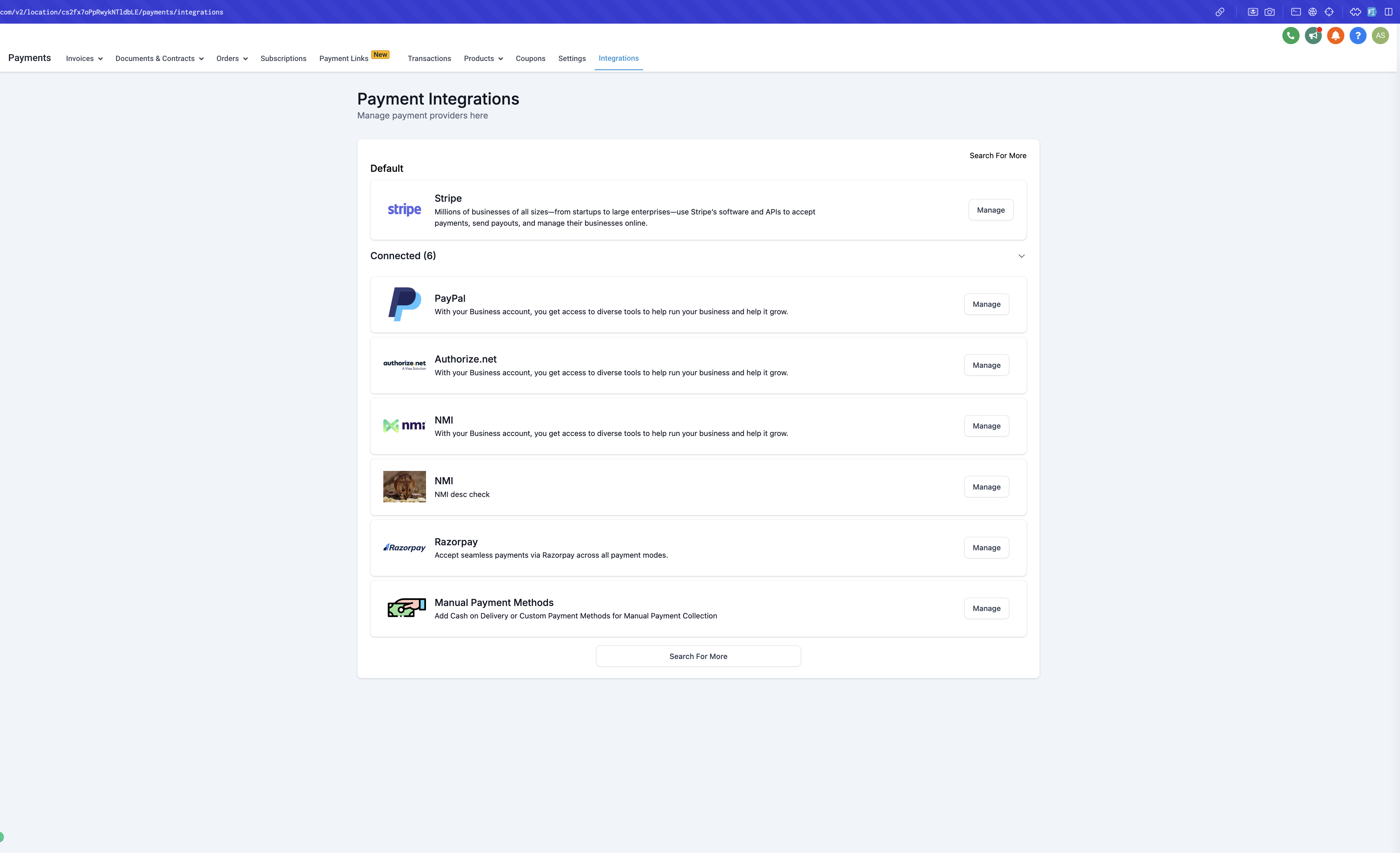
Manual payment methods let a patient check out without paying online, then settle the balance in person, such as when they pick up a retail product at the front desk or pay at their next visit. You can offer Cash on Delivery or build a fully custom manual payment option, and choose exactly where it shows up: your Store checkout, your Order Forms, or both. Setup lives under Payments > Integrations > Manual Payment Methods in your Aesthetix CRM account.
Tip: If you also want patients to pay online at checkout, connect a card processor under Payments. Aesthetix CRM recommends AX Pay, our built-in payment provider with better card rates than Stripe. See the AX Pay guide in the Payments collection for setup and rate details.
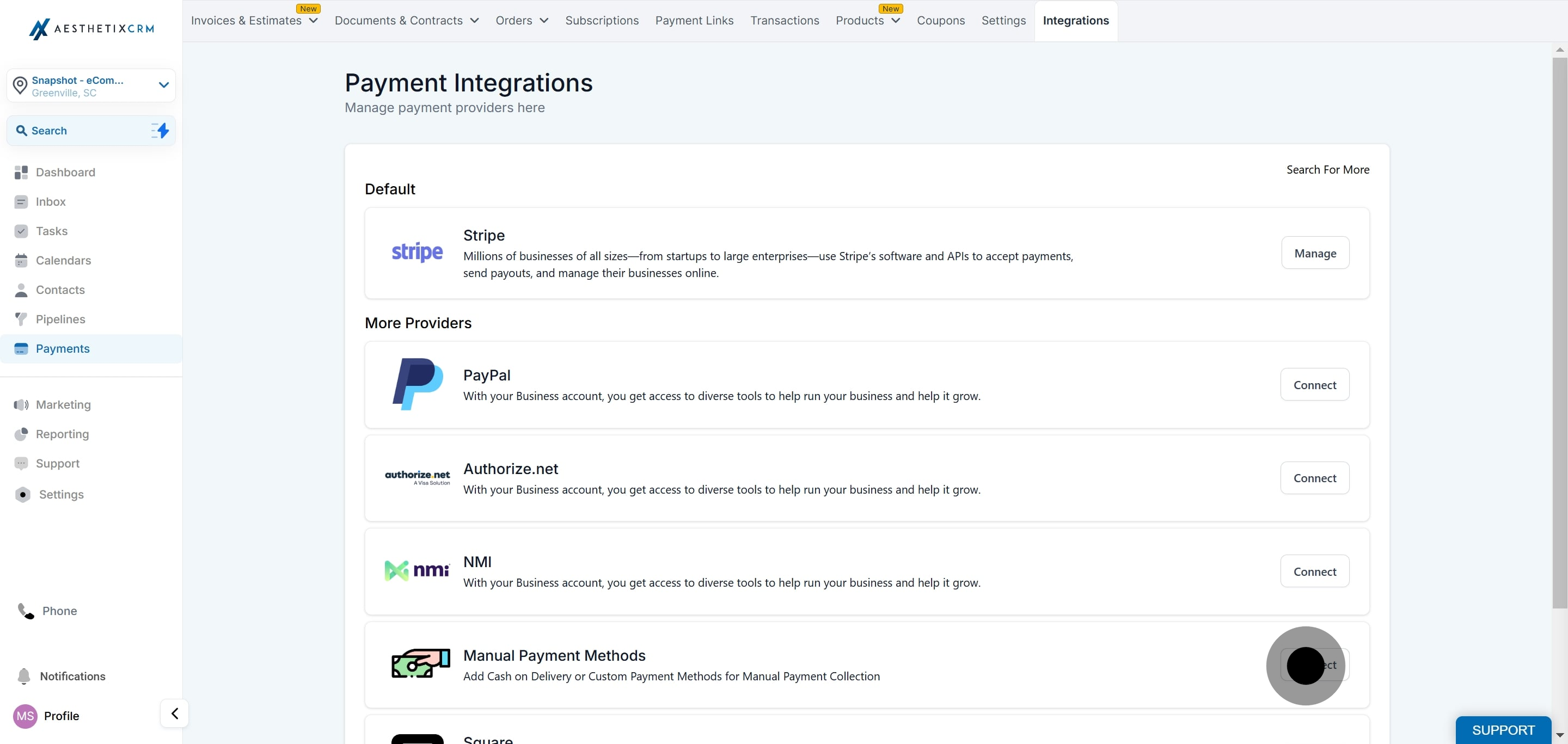
Go to Payments > Integrations, then click into Manual Payment Methods.
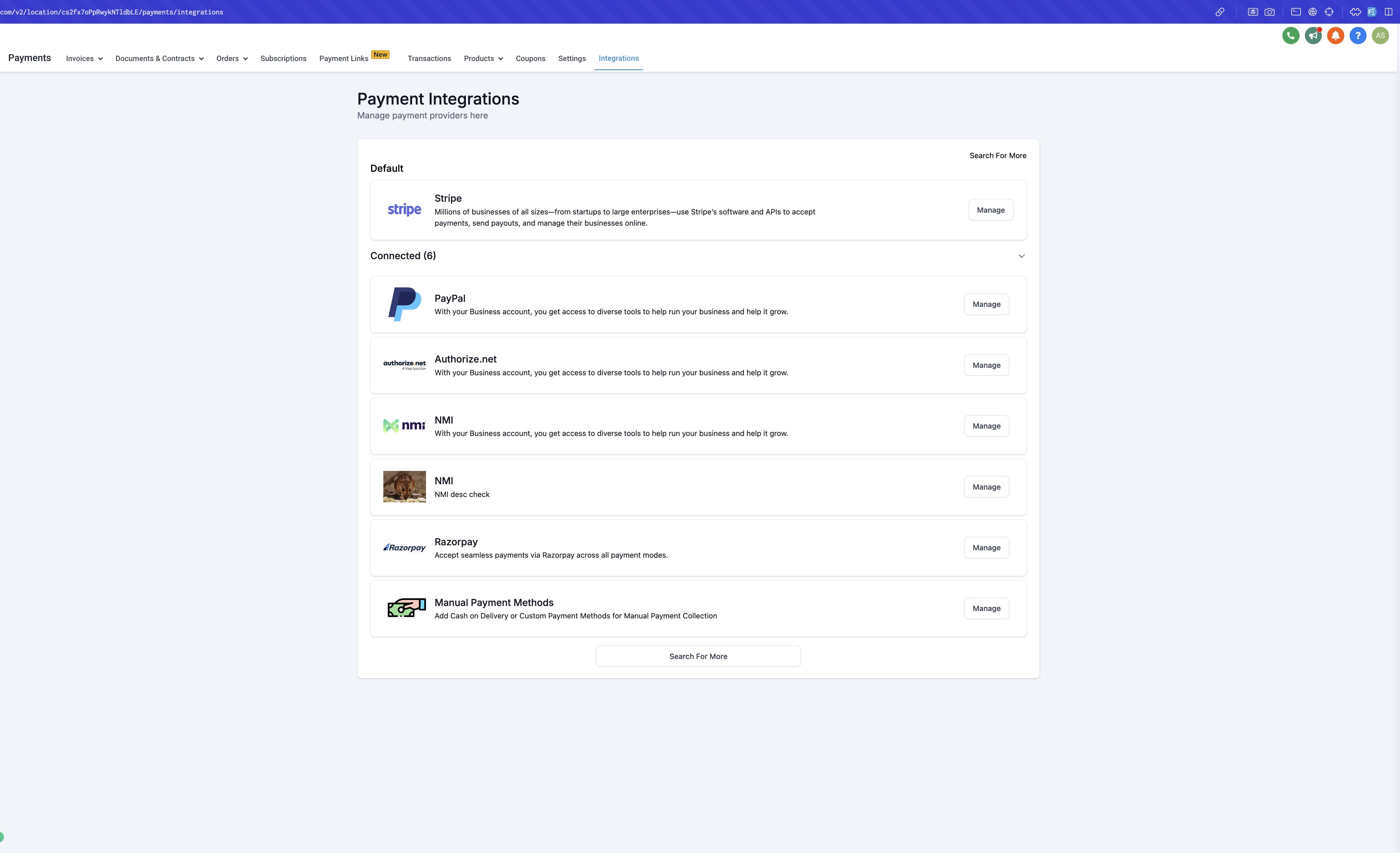
Open the Integrations tab.
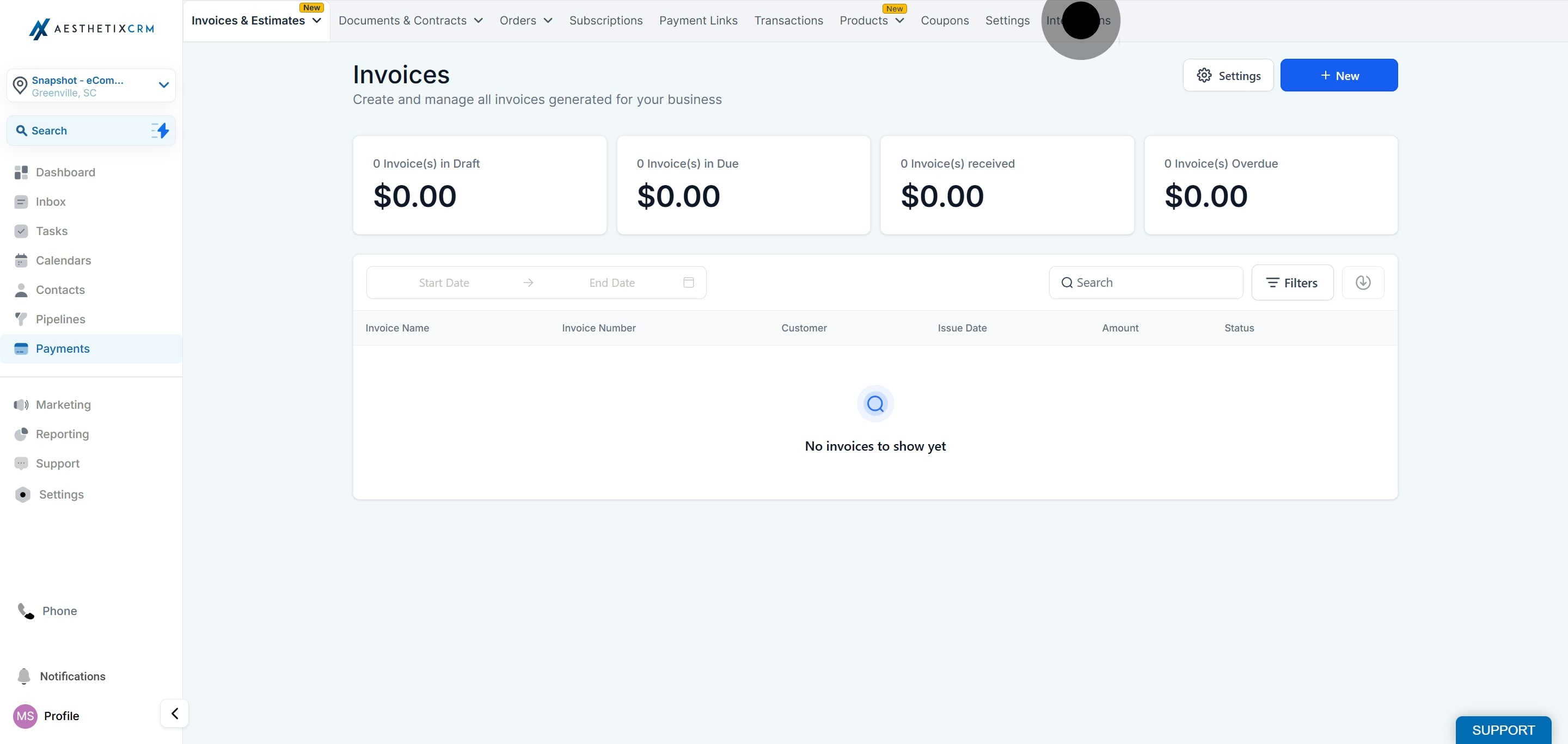
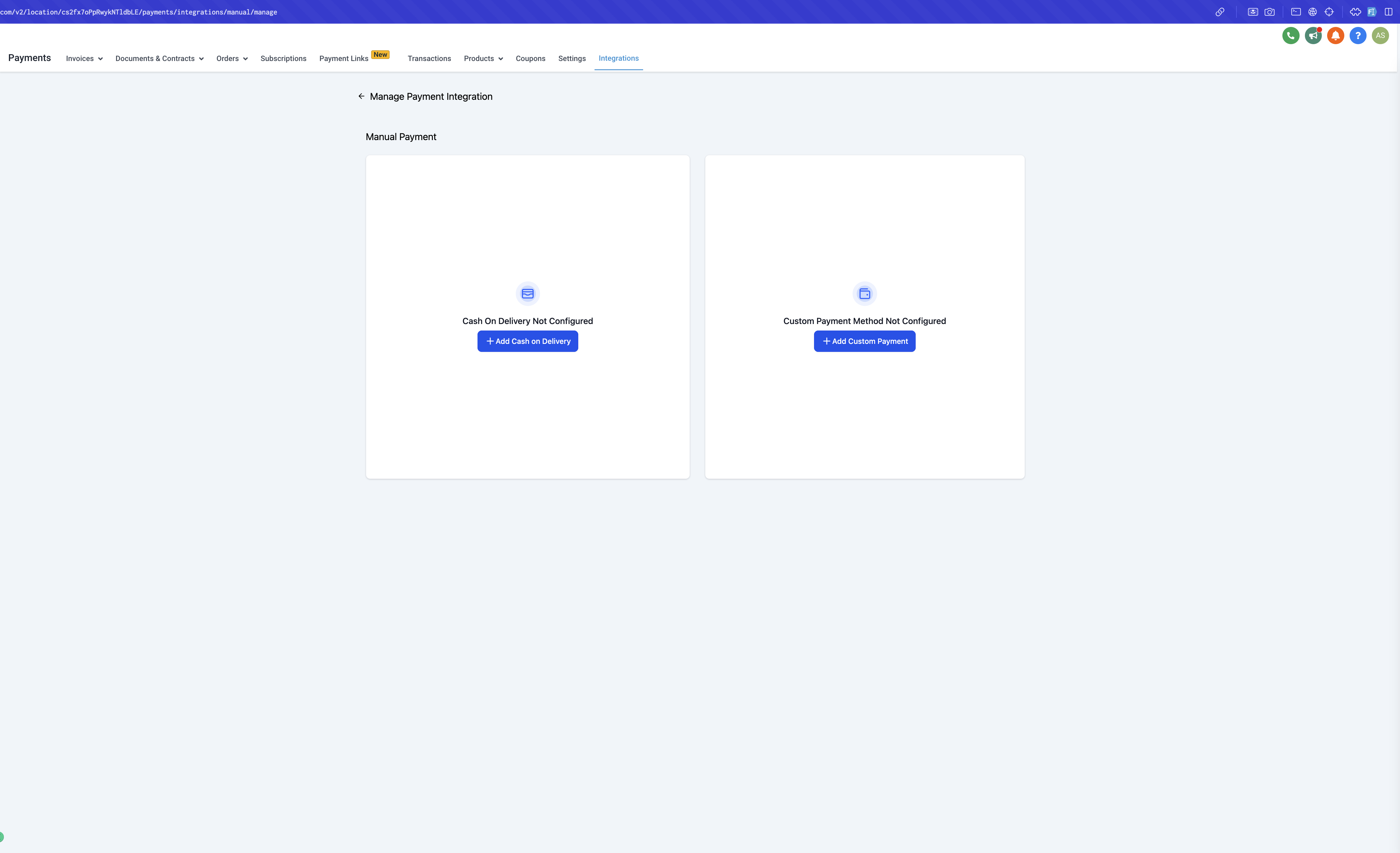
Select Manage Payment Methods.
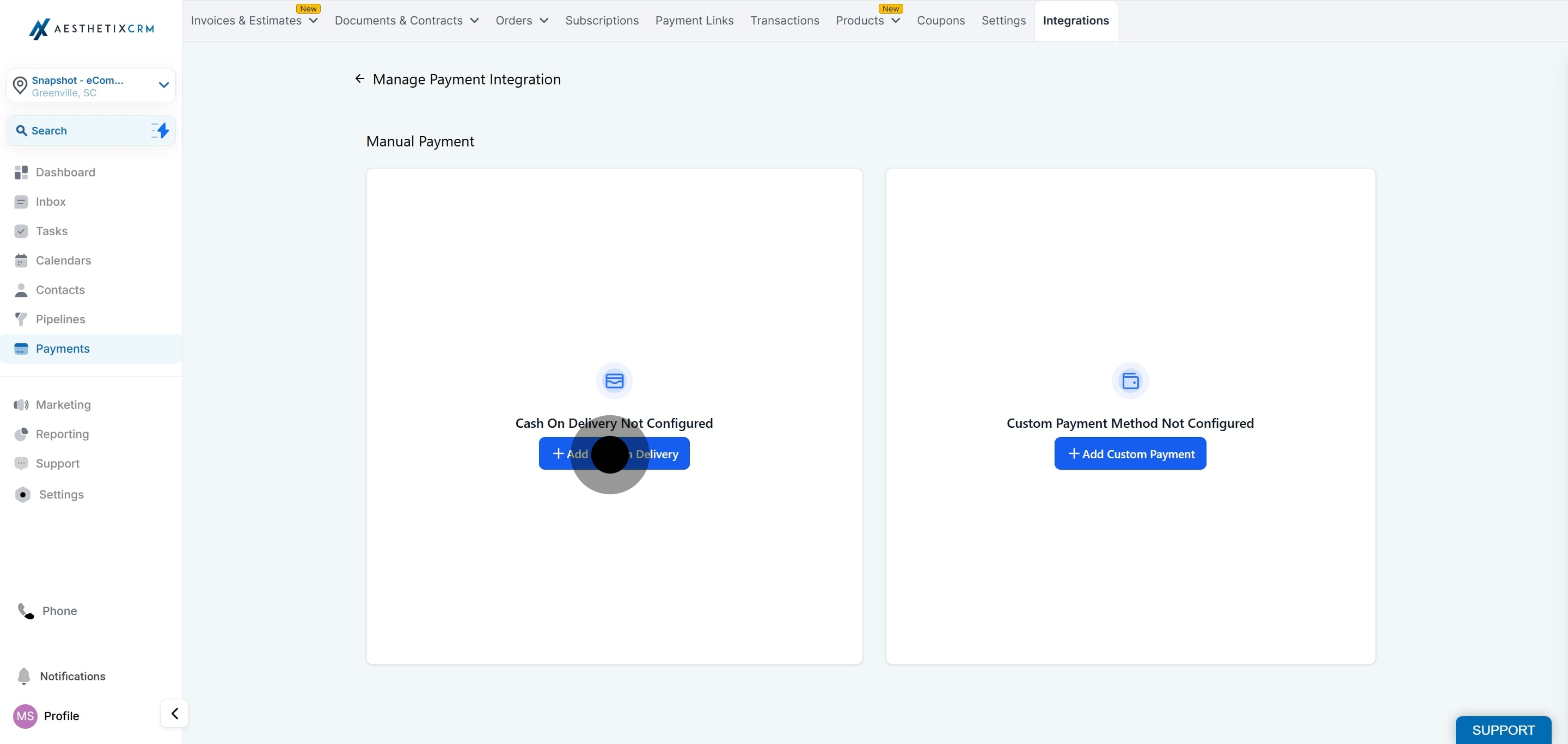
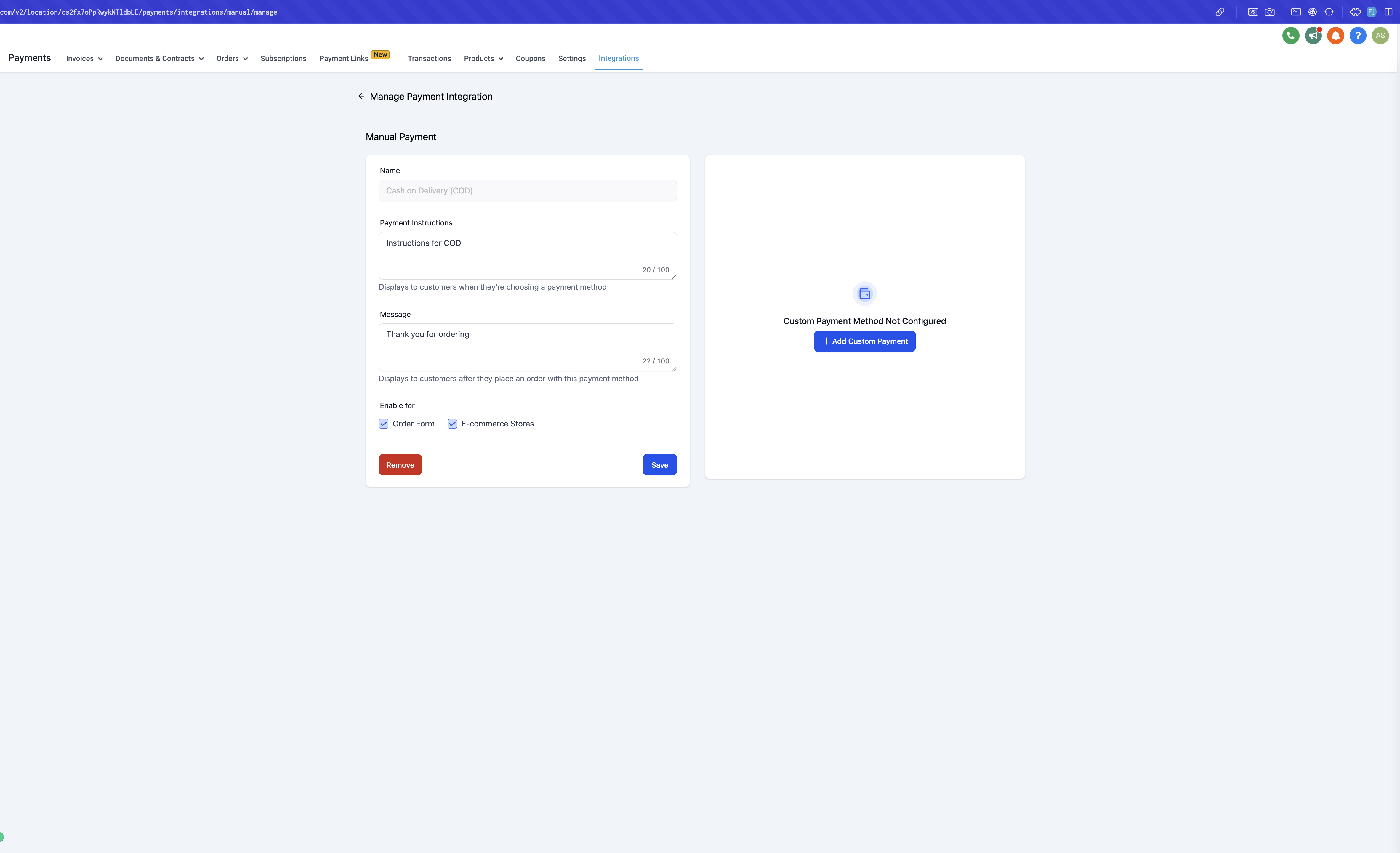
Choose Cash on Delivery, or create a Custom Payment Method if you want a different label (for example, "Pay at Pickup" or "Pay at Your Next Visit").
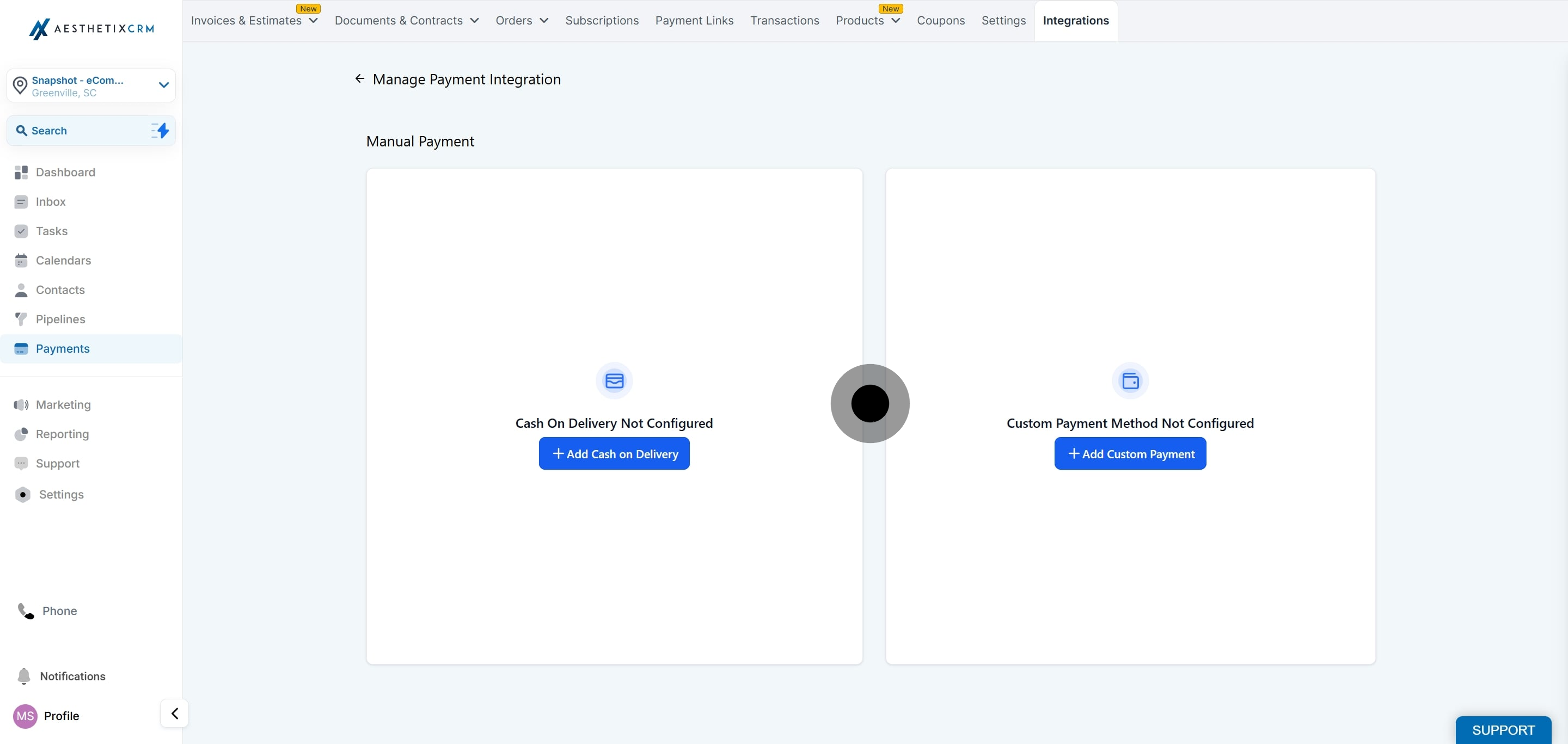
Add the payment method.
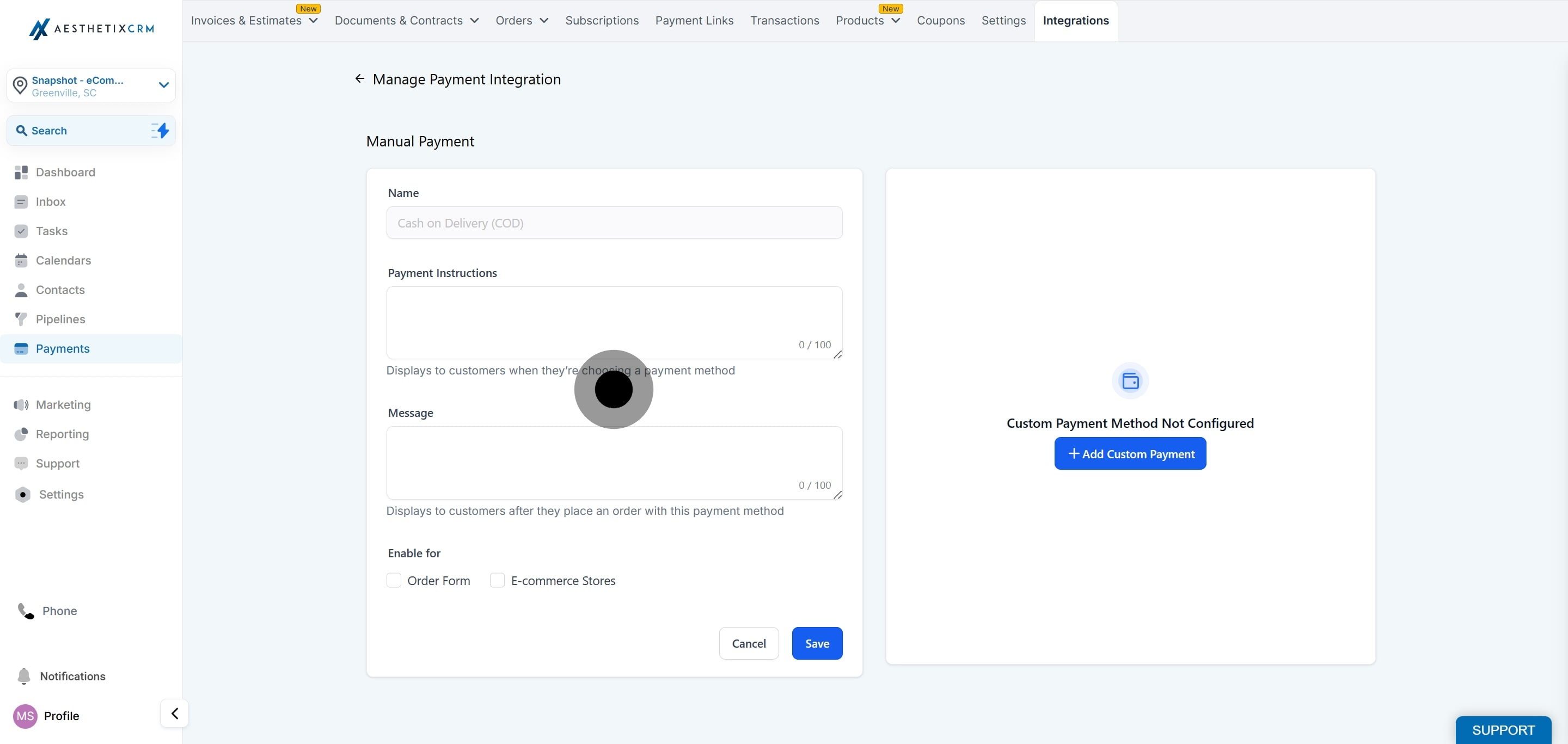
Configure the optional Payment Instructions and Messages fields so patients know what to expect (for example, "Please bring exact change" or "Balance due at checkout").
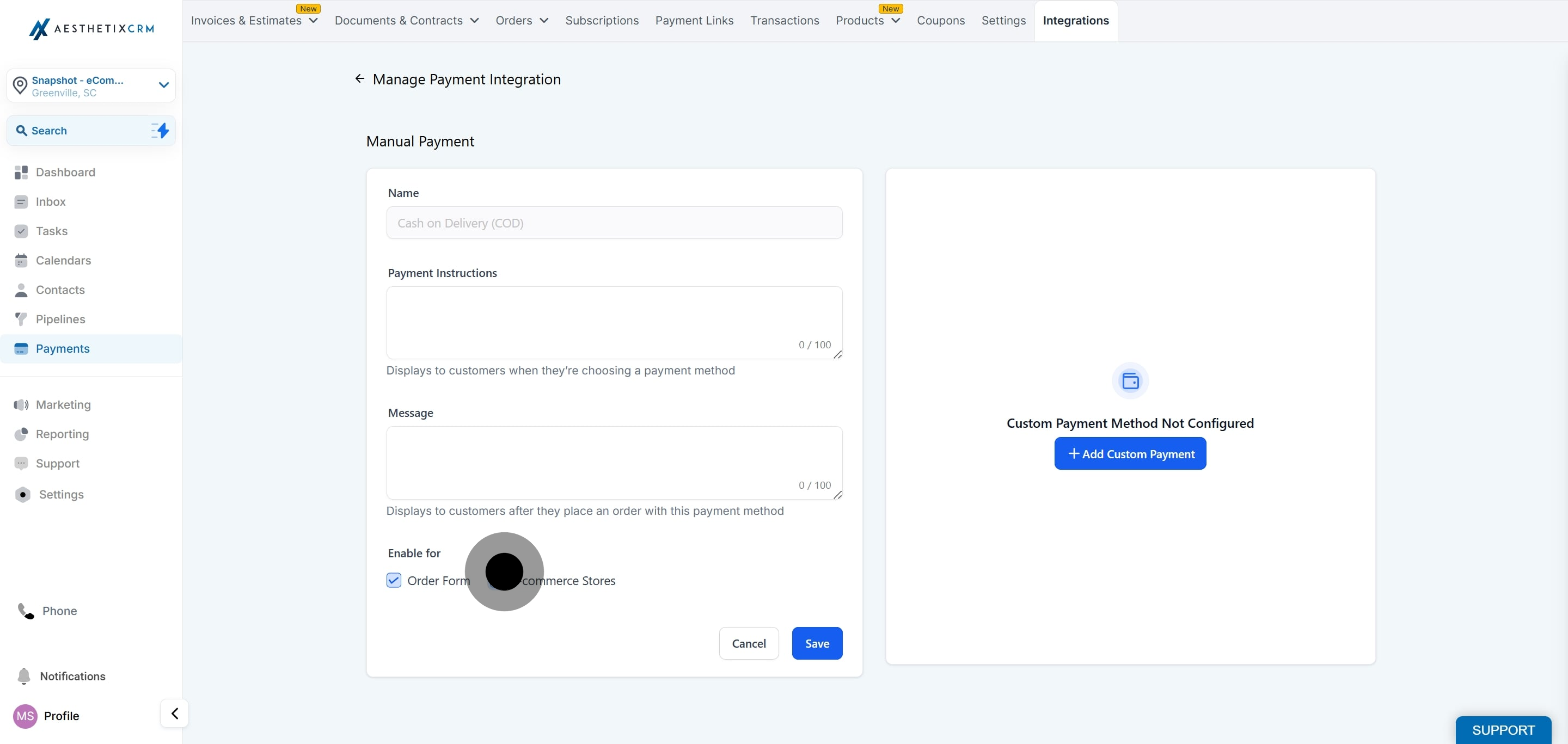
Decide where the method should be available: Order Forms, E-commerce Store, or both. It only appears at checkout once you enable it here.
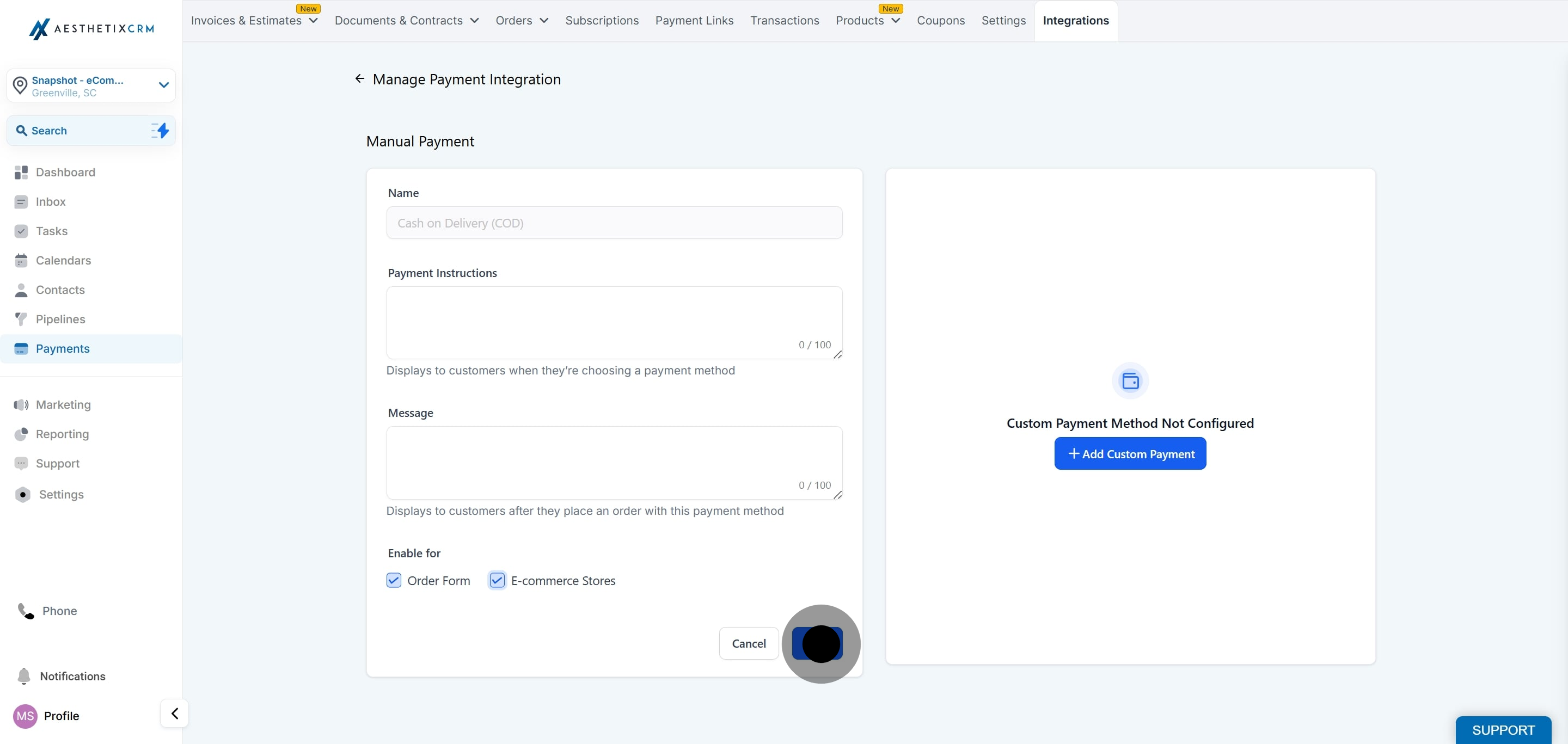
Click Save to apply your configuration.
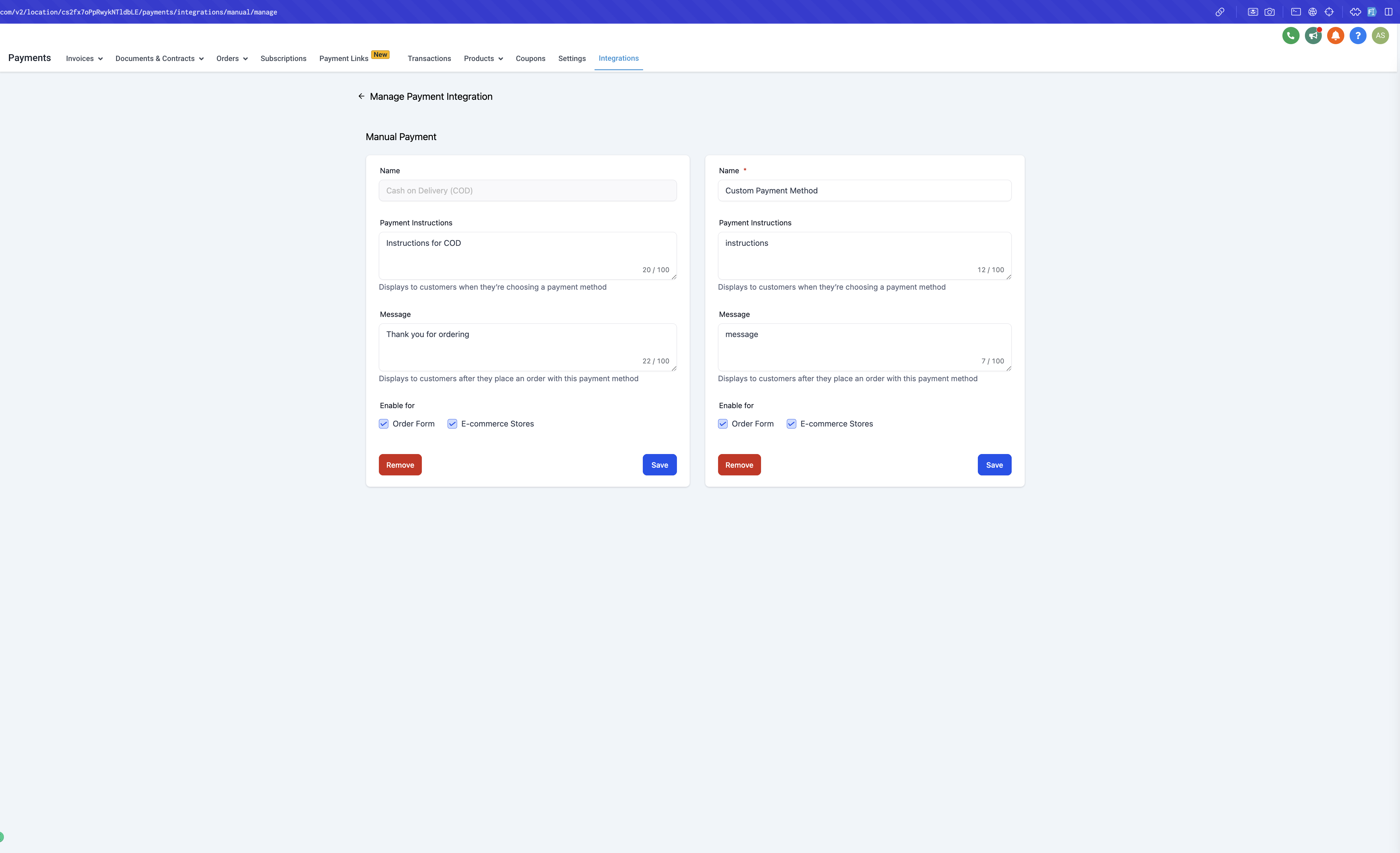
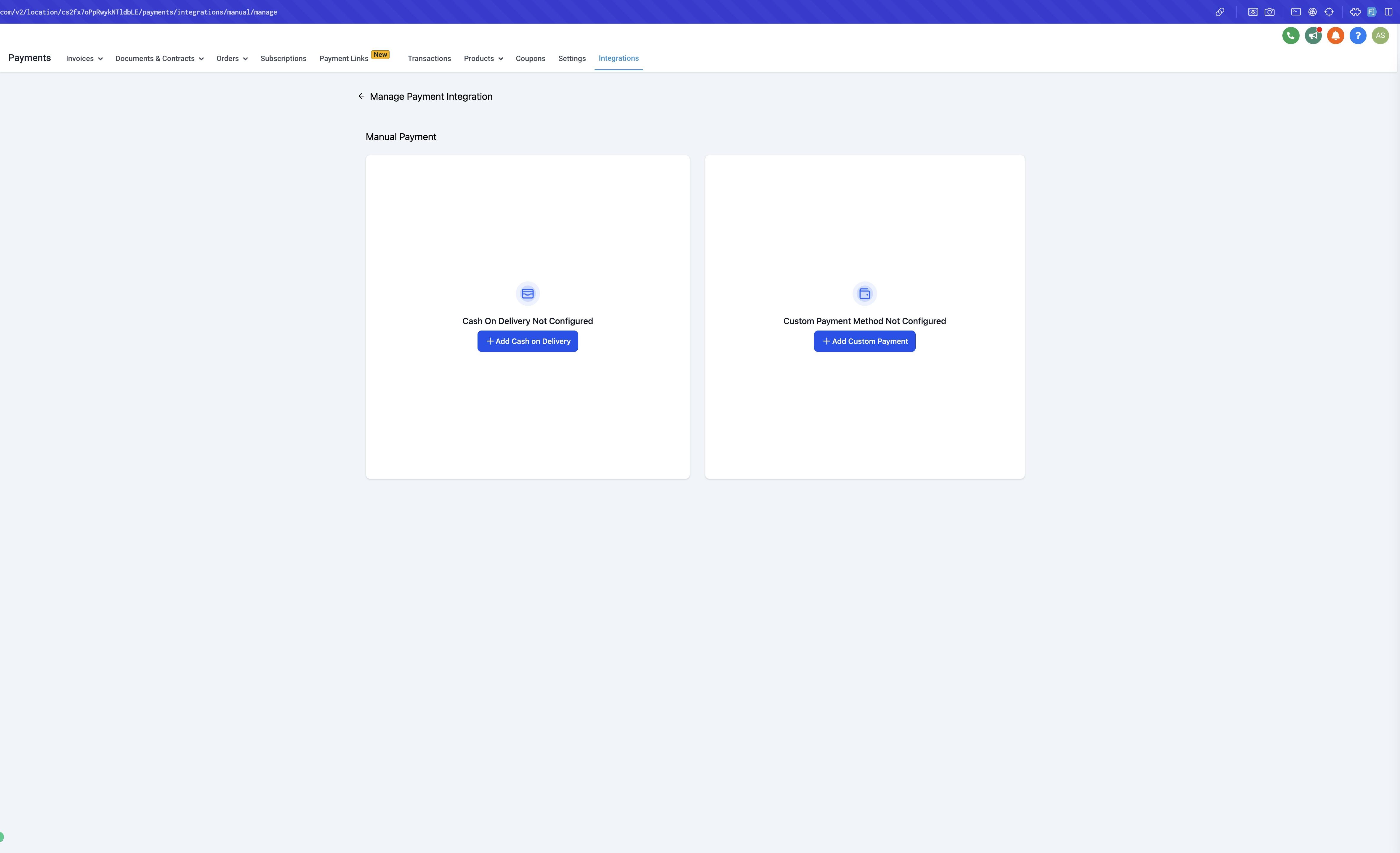
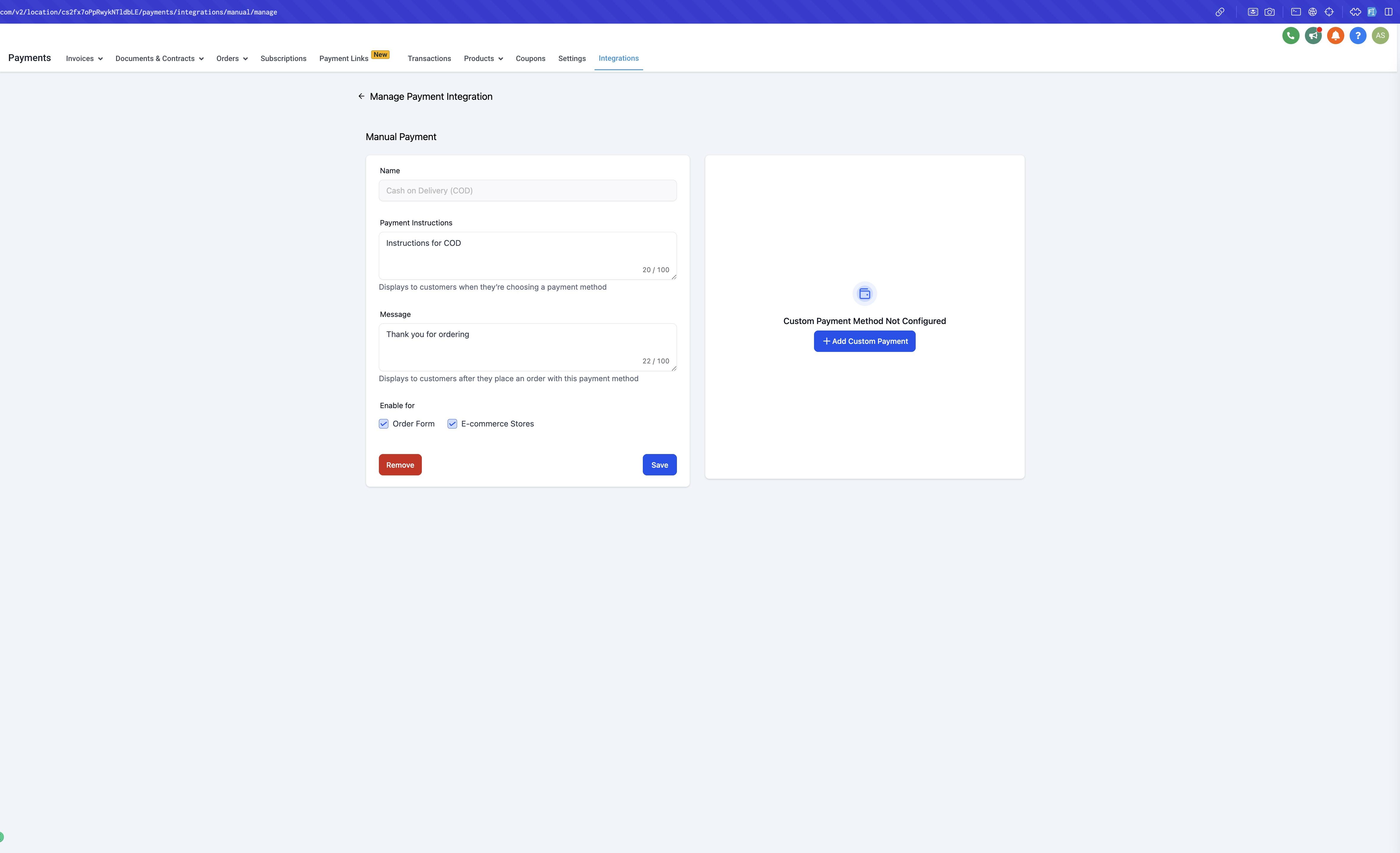
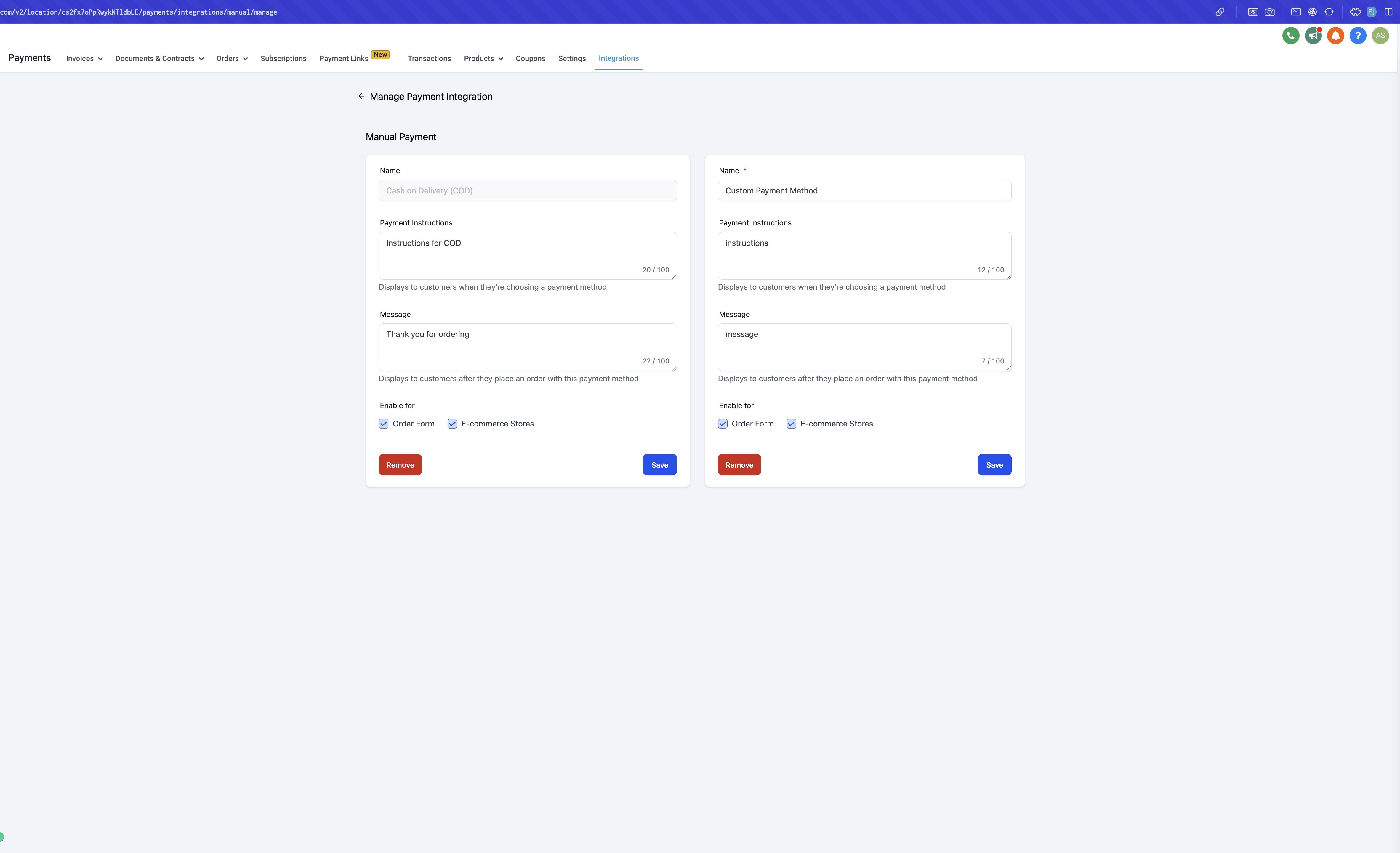
You can set up Cash on Delivery and a Custom Payment Method at the same time, and manual payment methods can be configured independently of any online payment integration, so you don't need a card processor connected first.
Once enabled, the manual option appears alongside any online payment methods at checkout. The patient selects it, sees your Payment Instructions and Messages, and completes the order without entering card details.
Manual payment orders are not marked paid automatically. Once you actually collect the payment (cash at the front desk, a card run manually, etc.), you need to update the order yourself.
Go to Payments > Orders.
Open the relevant order and click Collect Payment.
Choose the Payment Mode from the dropdown, and optionally add a note about the payment.
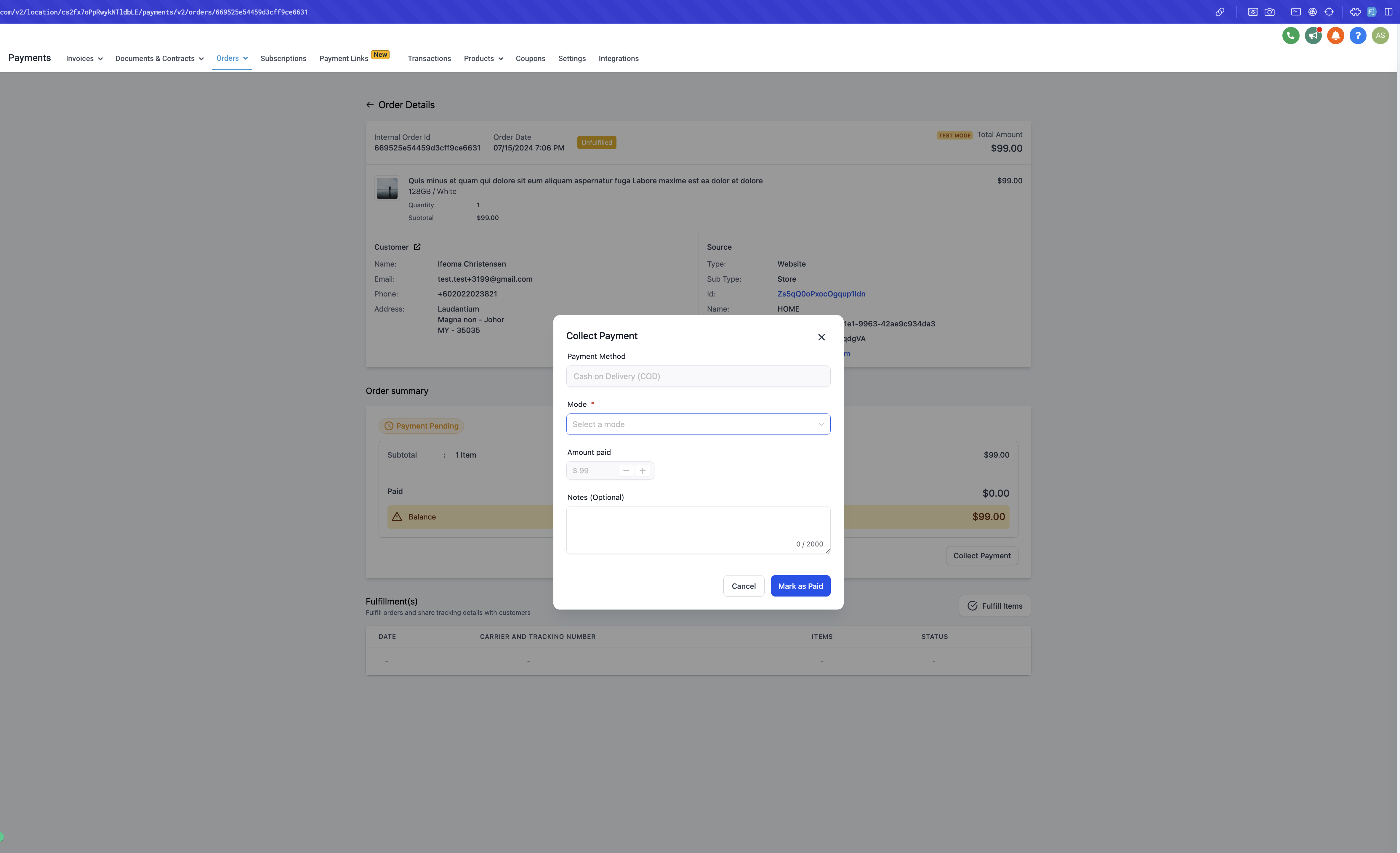
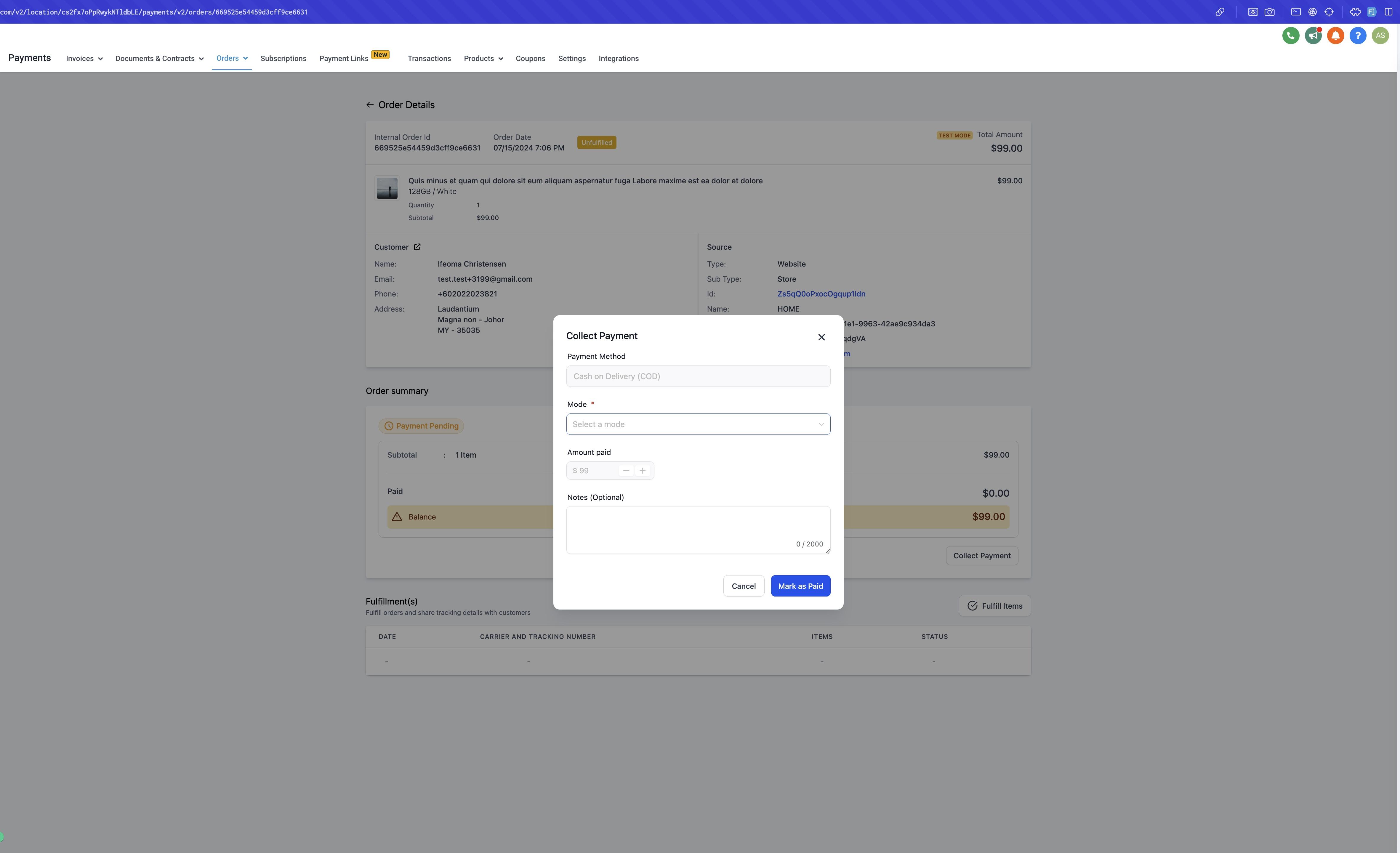
Mark the order as paid. The transaction status updates to reflect the payment mode you selected.
This Collect Payment flow only applies to manual payment method orders, and once an order is marked as paid, that status cannot be reverted, so confirm the payment before saving.
Recurring products: manual payment methods will not show at checkout if the order includes a recurring (subscription) product. Those still require an online payment method.
Visibility: if a manual payment method isn't enabled for Order Forms or your Store, it simply won't appear at checkout for that surface.
Independent setup: manual payment methods work whether or not you have an online payment provider connected.
Multiple methods: Cash on Delivery and a Custom Payment Method can run side by side, so you could offer "Cash on Delivery" for retail pickup and a separate "Pay at Front Desk" custom method for services.
Product catalog, taxes, and coupons for your Store are managed elsewhere in Payments, not in this screen. See the Payments collection for that setup.
Do I need an online payment provider connected before I can use manual payment methods? No. Manual payment methods can be set up and used on their own, independent of any online payment integration.
Can I offer both Cash on Delivery and a Custom Payment Method? Yes, you can enable both at the same time and let patients choose whichever fits their situation.
Where do patients pay if they choose a manual payment method? Nowhere online. They complete checkout without entering payment details, and you collect payment in person, such as at pickup, delivery, or their next appointment.
Can I rename "Cash on Delivery" to something that fits my practice better? Yes. Create a Custom Payment Method instead and give it a label that matches your workflow, such as "Pay at Your Appointment."
Why isn't my manual payment method showing at checkout? Check that you enabled it for the correct surface (Order Forms, E-commerce Store, or both) and that the order doesn't include a recurring product, since recurring products always require an online payment method.
How do I mark a manual order as paid once I've collected payment? Go to Payments > Orders, open the order, click Collect Payment, choose the Payment Mode, and mark it paid. This only applies to manual payment method orders.
Can I undo marking an order as paid by mistake? No. Once a manual payment order is marked as paid, that status cannot be reverted, so double-check the details before saving.
Should I use manual payment methods for online card payments too? No. For online card payments, connect a payment provider under Payments. Aesthetix CRM recommends AX Pay for better card processing rates than Stripe. Manual methods are meant for in-person or offline payment only.
Do manual payment methods work on both my Store and my Order Forms? Yes, you can enable them independently for each, so a method can appear on your Store checkout, your Order Forms, or both.
Can I add instructions so patients know how to complete a manual payment? Yes. Use the Payment Instructions and Messages fields when you configure the method to explain exactly what the patient should expect.
