Aesthetix CRM lets you present additional products to patients right after they complete a purchase in your online store, before they reach the Thank You page. Used well, this turns a single purchase (a serum, say) into a larger order by offering a complementary product (a cleanser, an SPF, a travel case) at the moment a patient is most ready to buy. Upsell offers are built with the Upsell element in the Page Builder, on a page that lives in the same funnel or website as your store's checkout page.
This feature applies to your native Aesthetix CRM store checkout. If your practice sells through Shopify or WooCommerce instead, connect those platforms from the Integrations collection; upsell pages only trigger on checkouts that run through your native store.
Once a patient finishes checkout, they can be redirected through one or more upsell pages before landing on the Thank You page. Each upsell page offers a product with a "Buy Now" button. If the patient buys, a new, separate order is created for that item. If they don't want it, a skip button sends them straight to the next step. You can chain several upsell pages together to build a full post-purchase sequence, for example: Checkout → Upsell 1 (cleanser) → Upsell 2 (SPF) → Thank You.
1. Create a dedicated upsell page. Add a new page alongside your existing store pages, then add a full-width section with a row inside it. It's best to build a page dedicated only to the upsell offer rather than adding the Upsell element to an existing page, since the element must be placed after checkout, never before (adding it to a pre-checkout page will cause an error).
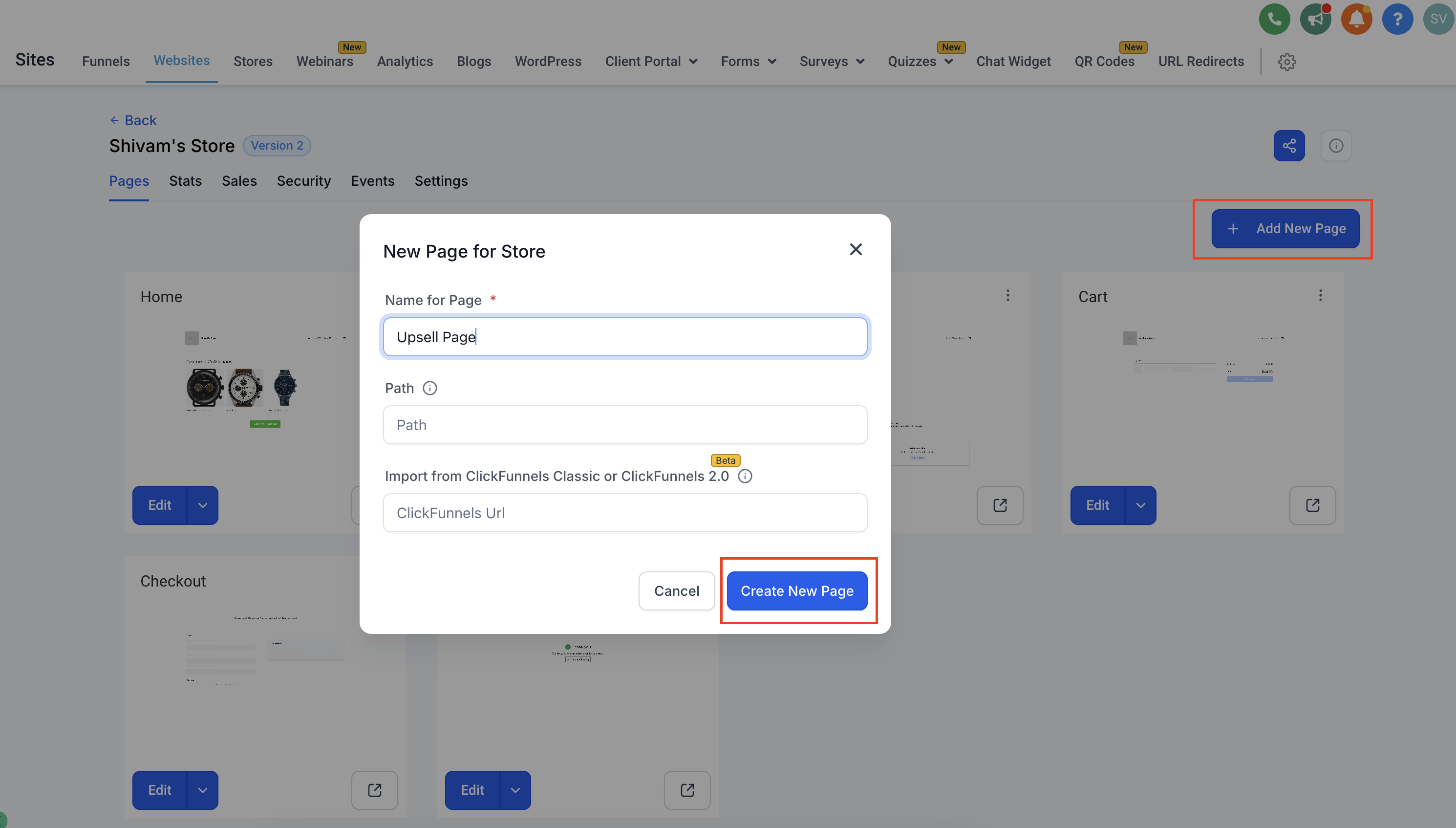
Open the page for editing.
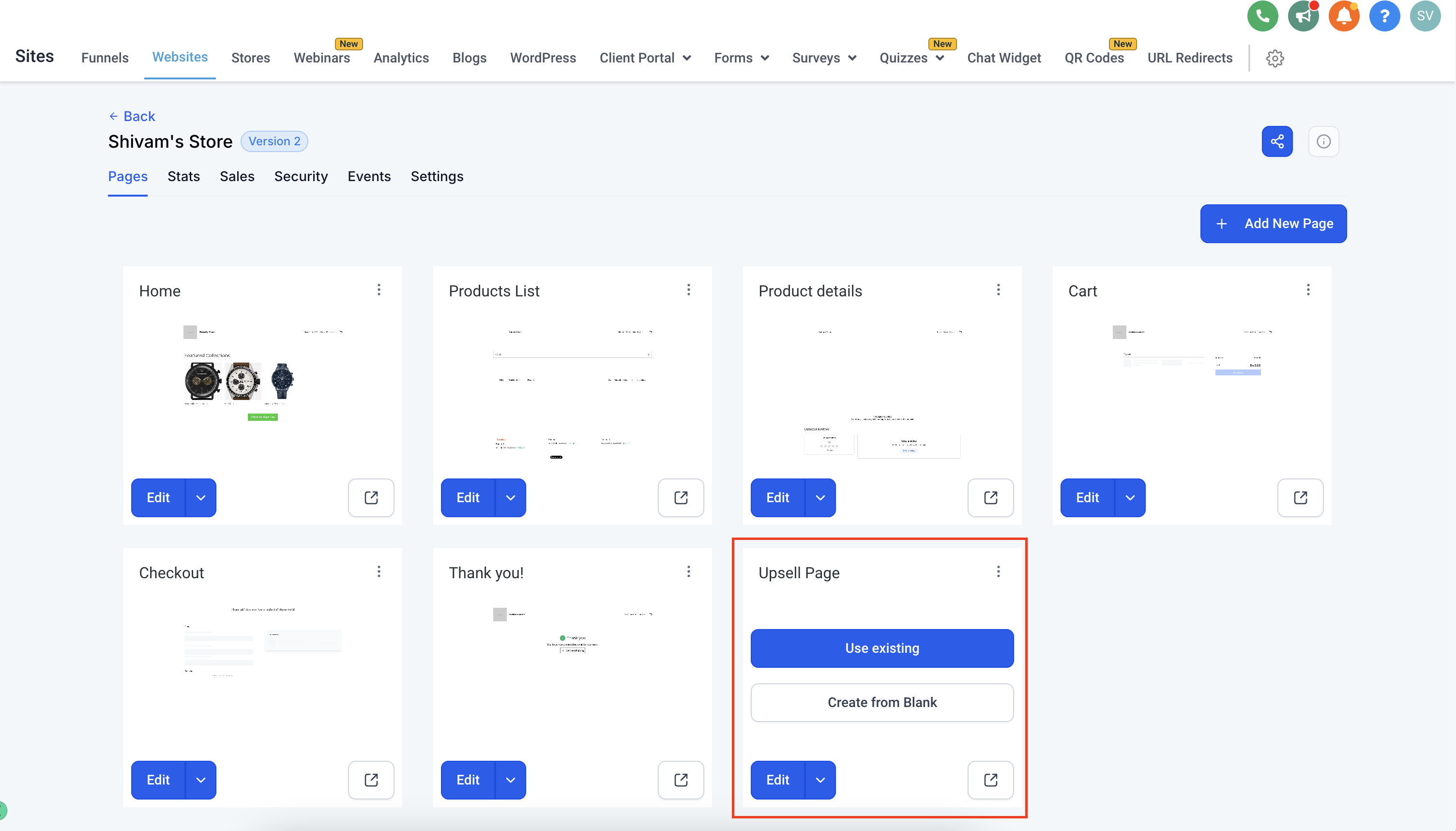
2. Add the Upsell element. Click Add Element and drag the Upsell element into your row. You can add multiple Upsell elements as separate columns within the same row, which is how you present a bundle: put the serum in one column and the cleanser in the next so the patient sees the complete bundle together on one page.
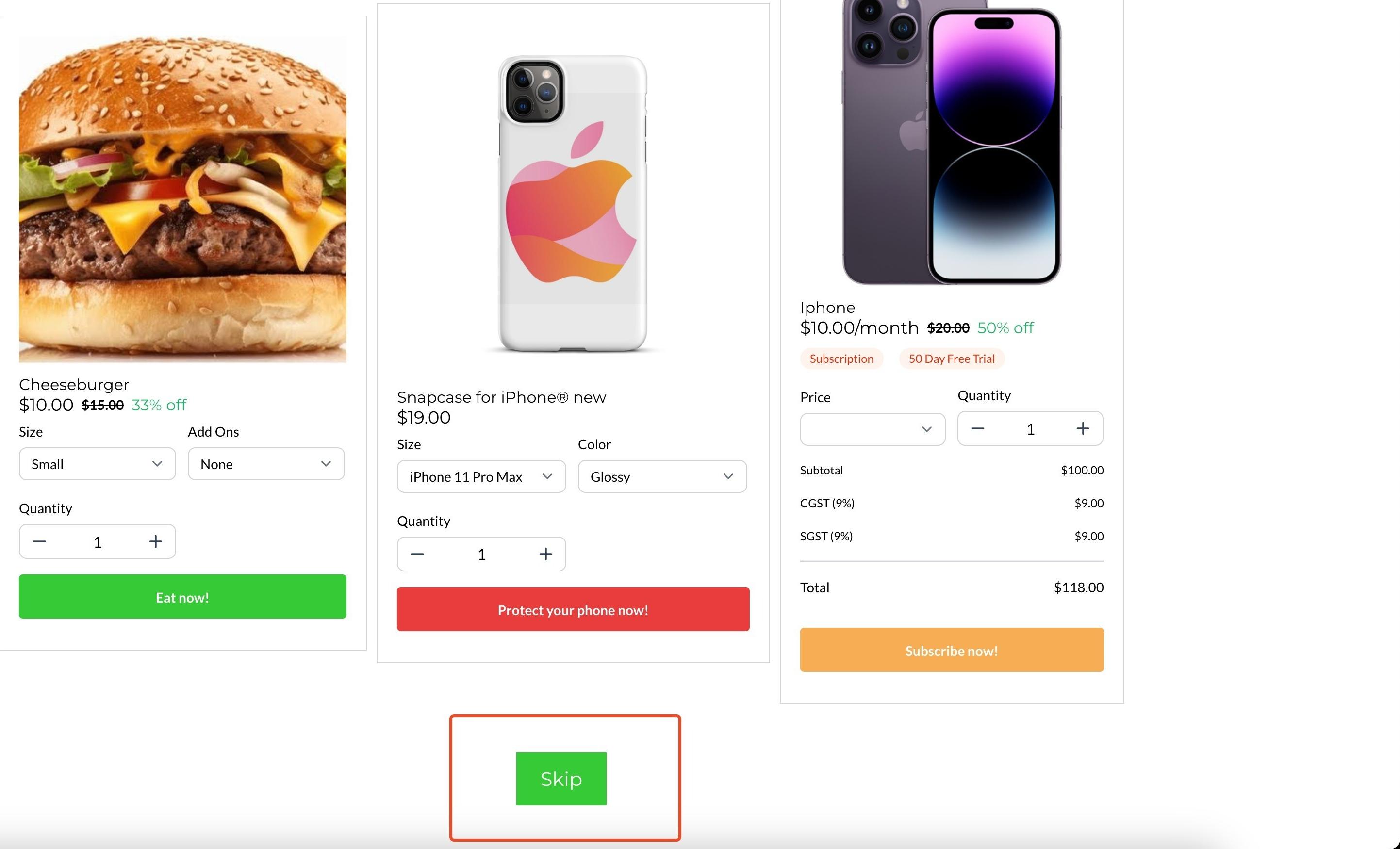
3. Configure the Upsell element. Select the element to open its settings, then search for and select the product it should offer. Set the Sale Action, which controls where the patient goes after clicking "Buy Now." Sale Action can redirect to another upsell page (to continue the sequence) or to the Thank You page (if this is the final offer). Also add a Button whose action skips the offer and links straight to the Thank You page, this lets patients who don't want the add-on move on without buying.
Each Upsell element has its own shipping toggle in the builder preview, letting you turn shipping charges on or off per offer. When shipping is enabled, patients can choose a shipping rate from a dropdown on the upsell component.
Always add the skip button before publishing. Without it, a patient who doesn't want the upsell item has no way to continue and gets stuck on the page.
4. Point your checkout page to the upsell page. On your store's checkout page, set its Sale Action to "Go to page" and select the upsell page you created. This is what redirects patients into your upsell sequence right after they check out.
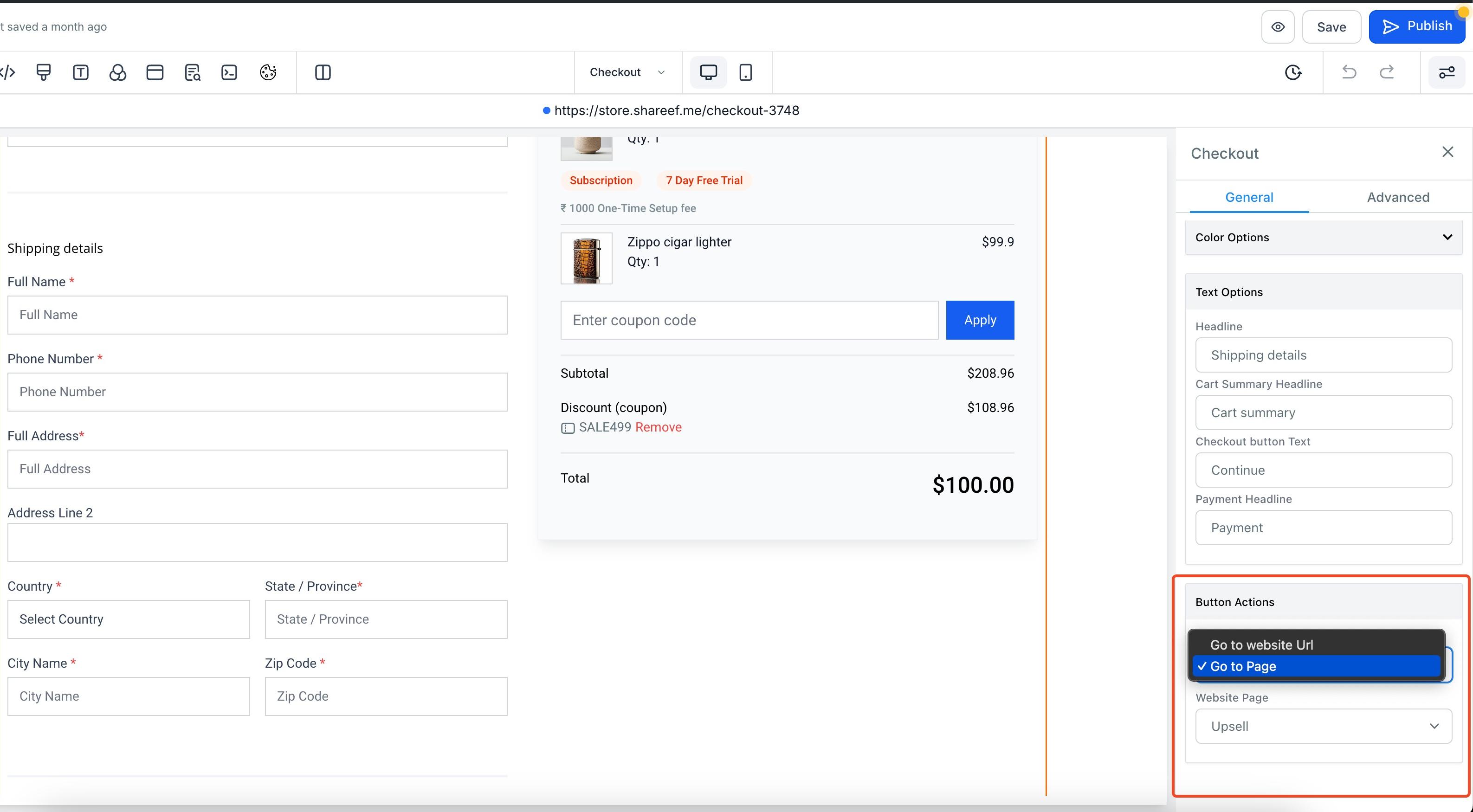
Preview the full flow end to end before going live to confirm the redirects, skip button, and shipping options all behave the way you expect.
The Upsell element must sit on a page that comes after checkout. Adding it before checkout causes an error.
Every completed upsell purchase creates a new, separate order from the original sale.
Shipping is configured per Upsell element, so you can charge shipping on some offers and not others.
Always include a skip path. If you don't, patients must buy the upsell item to reach the Thank You page.
For the cleanest experience, use a page dedicated to the upsell rather than repurposing another store page.
Aesthetix CRM doesn't currently have a separate "bundle" product type with its own bundled price. In practice, the way to offer a bundle (for example, a serum paired with a matching cleanser) is to use the Upsell element as described above: either present the paired product as the upsell offer right after the main purchase, or place multiple Upsell elements in the same row so patients see both products as a set on one page. Your product catalog, pricing, taxes, and coupon codes are managed from the Payments collection; set those up there before building your upsell pages.
Tip: If you're taking payment for upsell and bundle purchases, consider routing your store through AX Pay, Aesthetix CRM's own payment provider, which offers better rates than Stripe. See the AX Pay help article for setup details.
Does the upsell offer replace the original checkout? No. The original order is completed first. If a patient accepts an upsell offer, it creates a second, separate order for that item.
Can I offer more than one upsell in a row? Yes. Chain multiple upsell pages together by setting each page's Sale Action to redirect to the next upsell page, ending with a final redirect to the Thank You page.
What happens if I forget to add a skip button? The patient gets stuck on the upsell page. They'll have to purchase the offered item to move forward, since there's no other way to reach the Thank You page. Always add a skip button linked to the Thank You page.
Can I charge shipping on an upsell product? Yes. Each Upsell element has its own shipping toggle. Turn it on to let patients pick a shipping rate from a dropdown, or leave it off if the item ships free or doesn't need shipping.
Is there a dedicated bundle feature with a combined bundle price? Not currently. Bundles are built using the Upsell element, either as a post-checkout offer or as multiple products shown together in one row on the same page. There is no single bundle SKU with its own discounted price yet.
Where do I manage the products, taxes, and coupons that appear in upsell offers? Product catalog, taxes, and coupon setup live in the Payments collection. Configure your products there first, then select them inside the Upsell element.
Can I add the Upsell element to my checkout page directly? No. It must go on a separate page that patients reach after checkout. Adding it to a pre-checkout page causes an error.
Do upsell pages work if I sell through Shopify or WooCommerce? No. Upsell pages trigger on checkouts run through your native Aesthetix CRM store. If you sell through Shopify or WooCommerce (connected via Integrations), those platforms' own upsell or cross-sell tools apply instead.
How many products can I show on one upsell page? As many as you can fit as columns within a row, since each Upsell element is a separate column. For a clean bundle presentation, two or three complementary products in one row usually reads best.
Will accepting an upsell change the patient's original order total? No. The upsell purchase is a new order. The original order total is unaffected.
