Reviews and ratings let patients who've purchased retail products from your store (skincare, supplements, take-home devices, and similar) leave star ratings and written feedback that show up on your product pages. It's a simple way to build social proof for the products your practice sells online, and every review passes through your approval before it ever goes live. The feature lives in your store builder (for turning it on and styling it) and under Payments > Products > Reviews (for moderating and replying to submissions).
Reviews and ratings can be enabled separately on two places in your store builder:
The Product Details page (the individual page for one product)
The Product List page (the grid or list of products in your store)
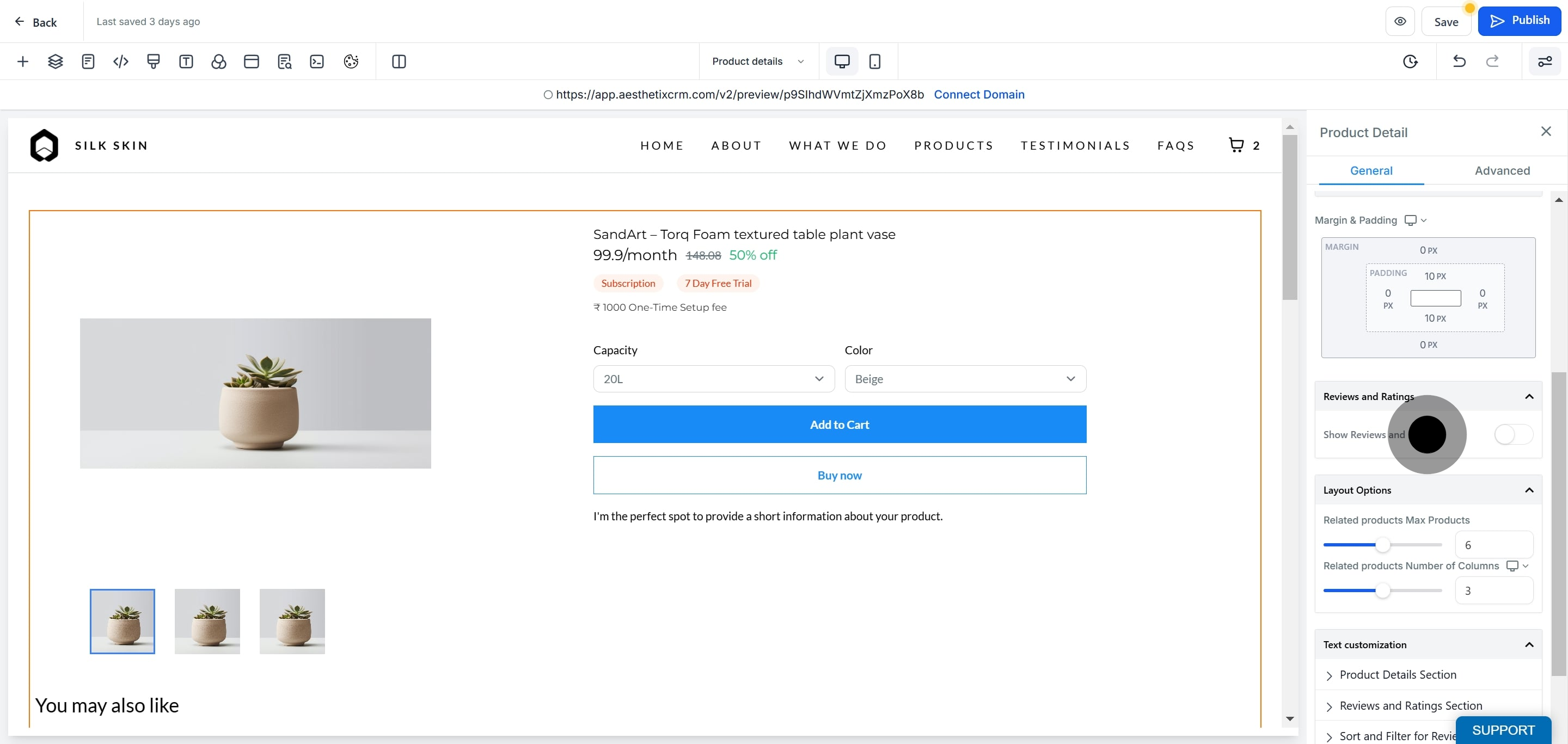
On each, turn on the Show Reviews and Ratings toggle to display star ratings and a review count in the builder preview. You can also turn the Show Ratings Count toggle on or off independently on either page if you want to show the stars without the number of ratings next to them.
To start, open the product element in your store builder and enable the toggle from there.
Once the feature is enabled, customers will find a Reviews and Ratings section at the bottom of the Product Details page for any product. From there:
The customer clicks Write a Review, which opens a submission form.
Required fields: Name, Email.
Optional fields: Contact Number, Headline, Description.
After submitting, the customer sees an on-page confirmation message. The review does not appear on your store yet, it sits in Pending until you approve it.
Every submission is automatically screened for spam and bots by Cloudflare Turnstile. This verification typically runs in the background with no interruption, though a customer may occasionally see a visible challenge before the review goes through. There's nothing for you to set up or configure.
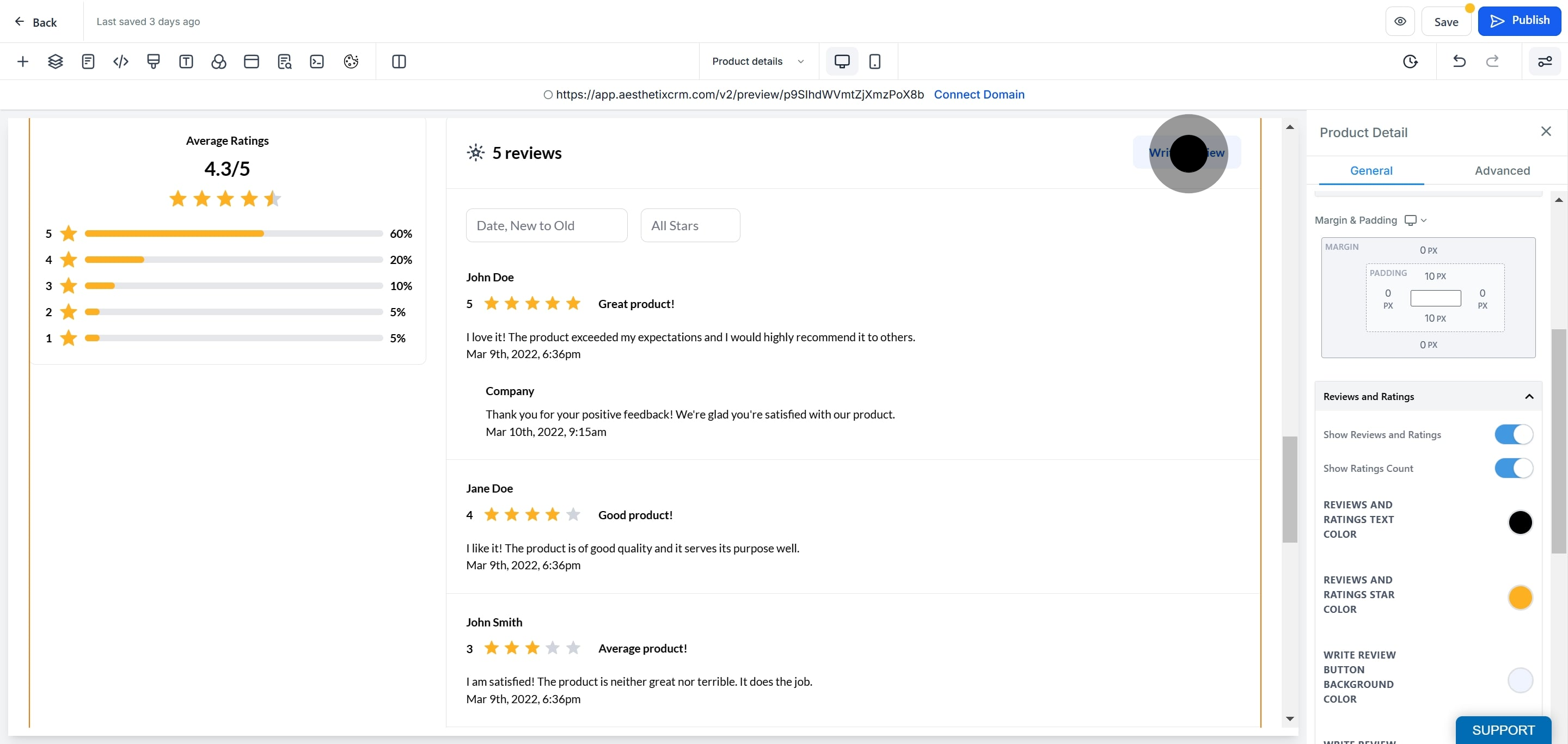
Once approved, the review is automatically published and appears on the Product Details page for that product.
Star colors and the fonts used in the reviews and ratings block can be customized directly in the builder preview, with a few limits to keep in mind:
Font size is fixed, since the review block has to accommodate multiple levels of content (name, headline, description, rating).
Font family automatically matches the other content fonts already used on the page.
Font color stays consistent across every review shown, you can't set a different color per review.
From the Reviews dashboard, you can filter submissions by Time Frame, Ratings, Product Name, and Store Name to make it easier to manage reviews across a large catalog.
To publish or moderate reviews and ratings, go to Payments > Products > Reviews.
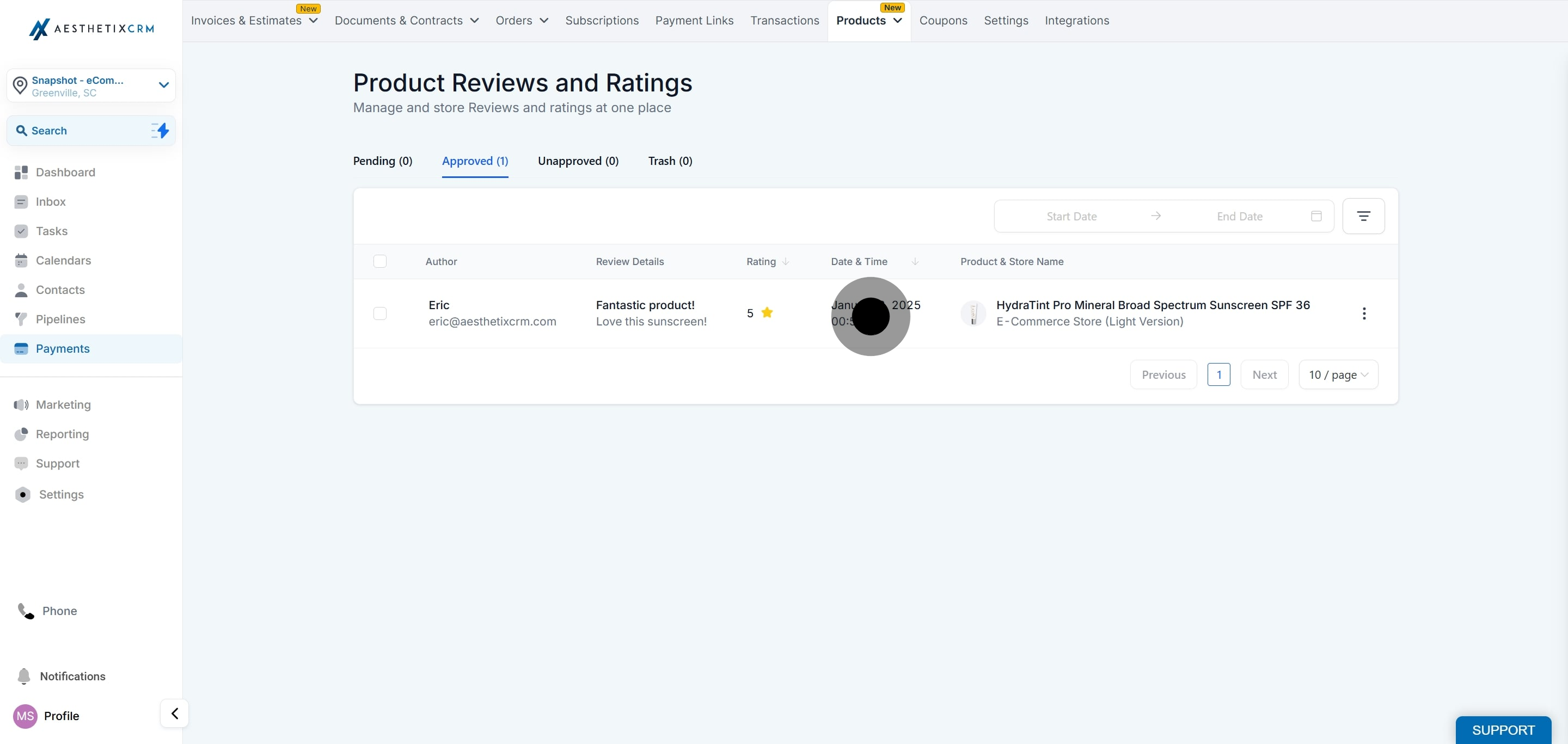
When a customer submits a review, it lands in the Pending section of the Reviews dashboard. From there you can take action on individual reviews, or select multiple and apply a bulk action:
Approve, publishes the review to the store.
Unapprove, pulls a previously approved review back off the store.
Move to Trash, removes it from the active list.
Note that your product catalog itself, including pricing, taxes, and coupons, is managed under Payments rather than in this Reviews screen. This article only covers the reviews and ratings feature.
Approved reviews are automatically displayed on the store, and you can reply to any individual review from the store owner side.
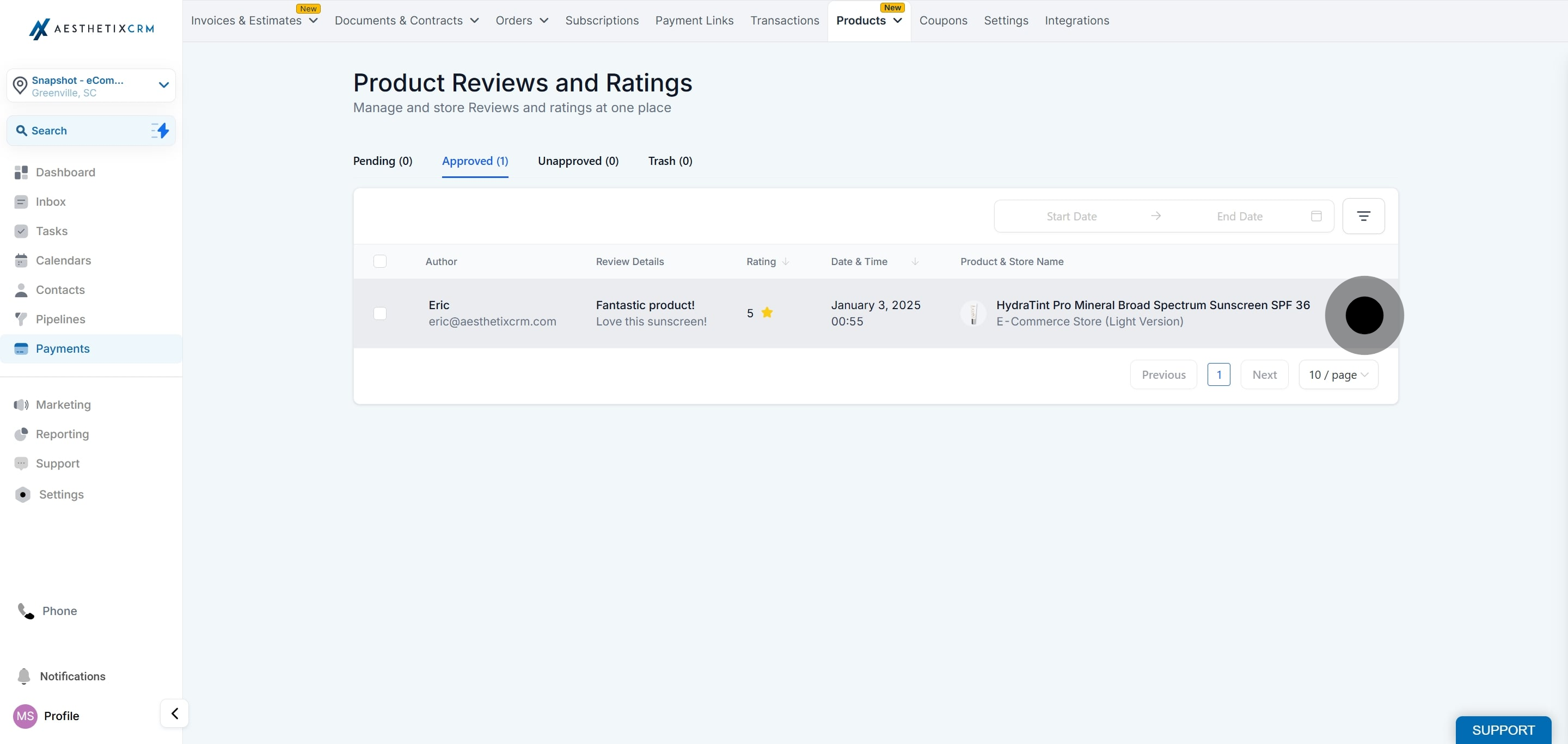
Select the review from the side menu.
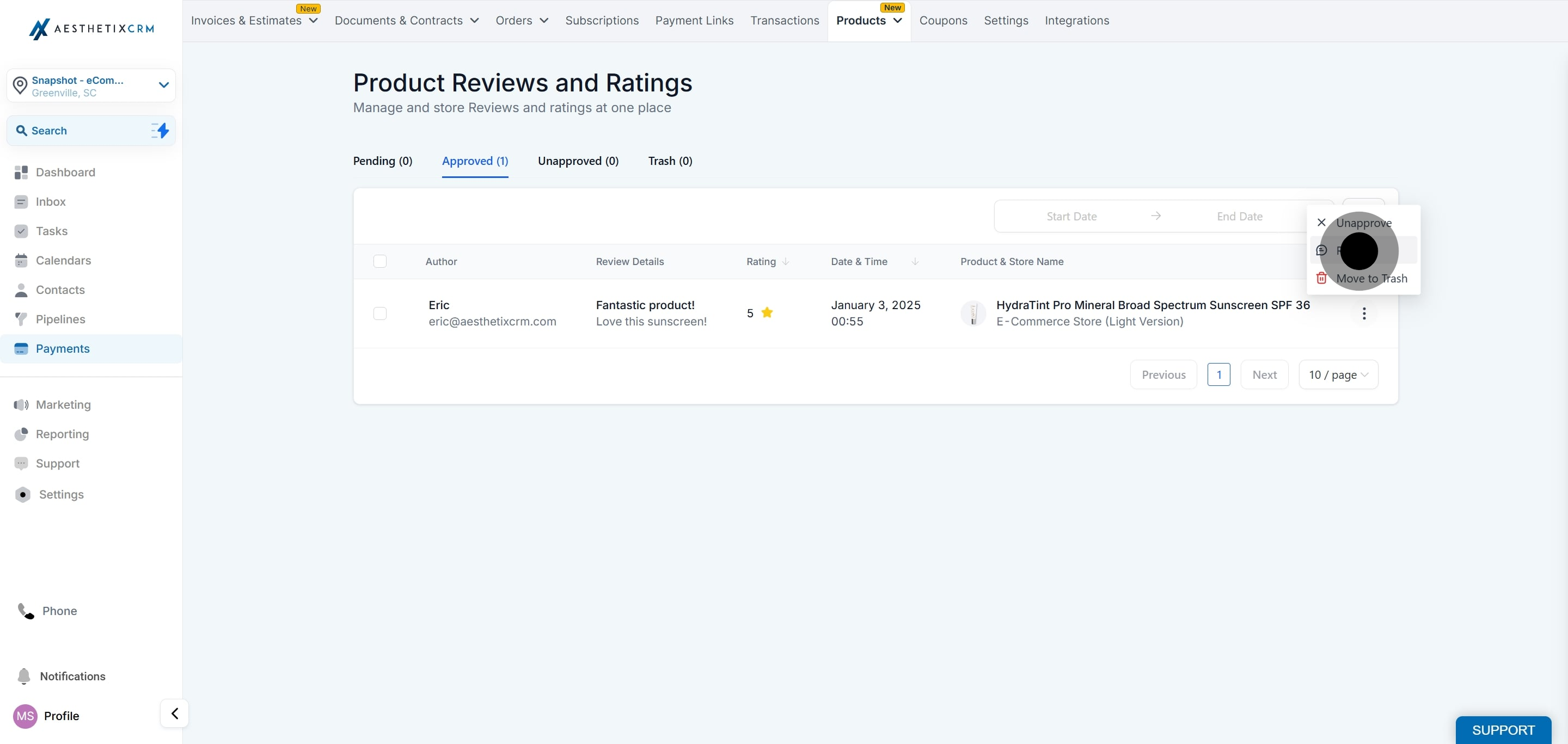
Click Reply.
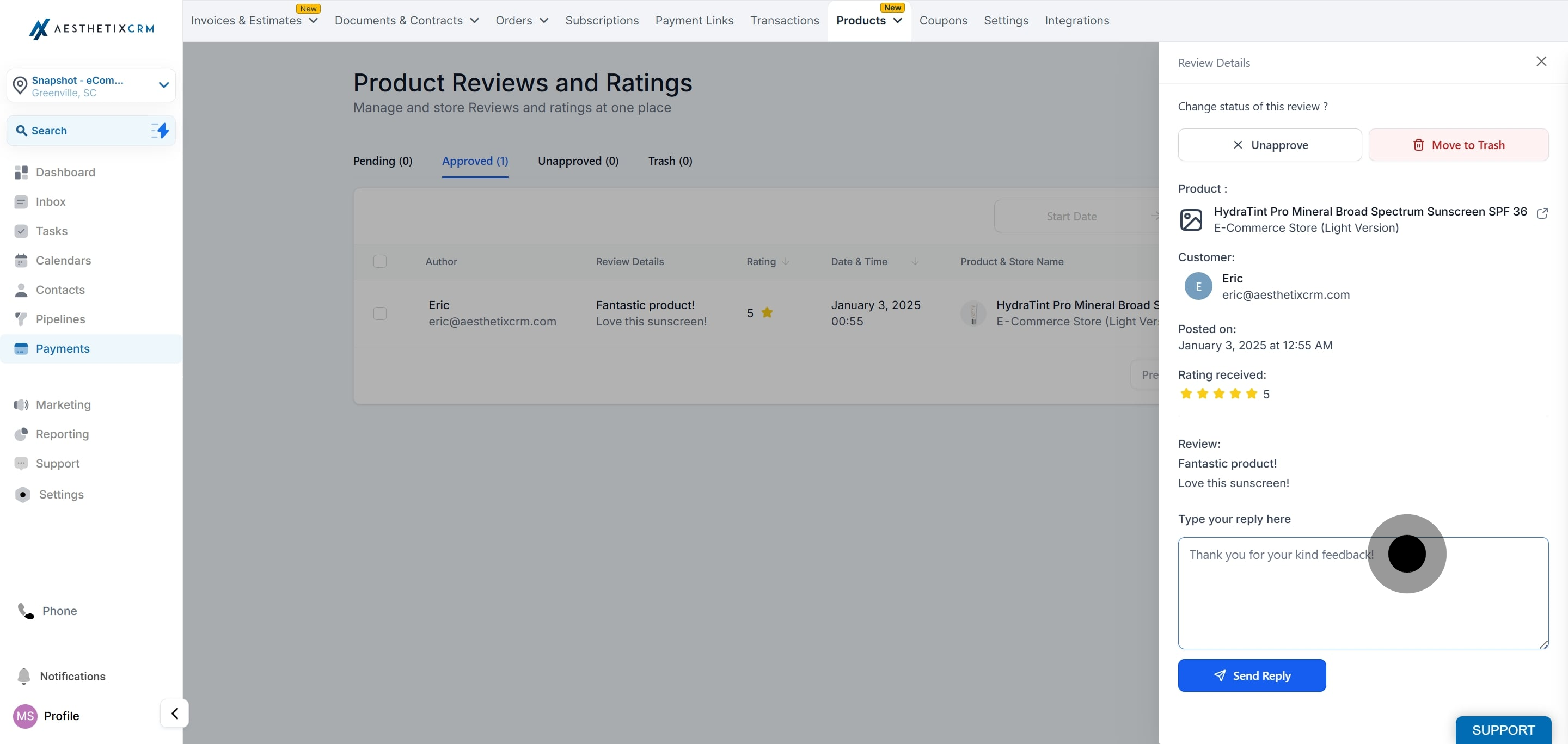
Type your reply in the text field.
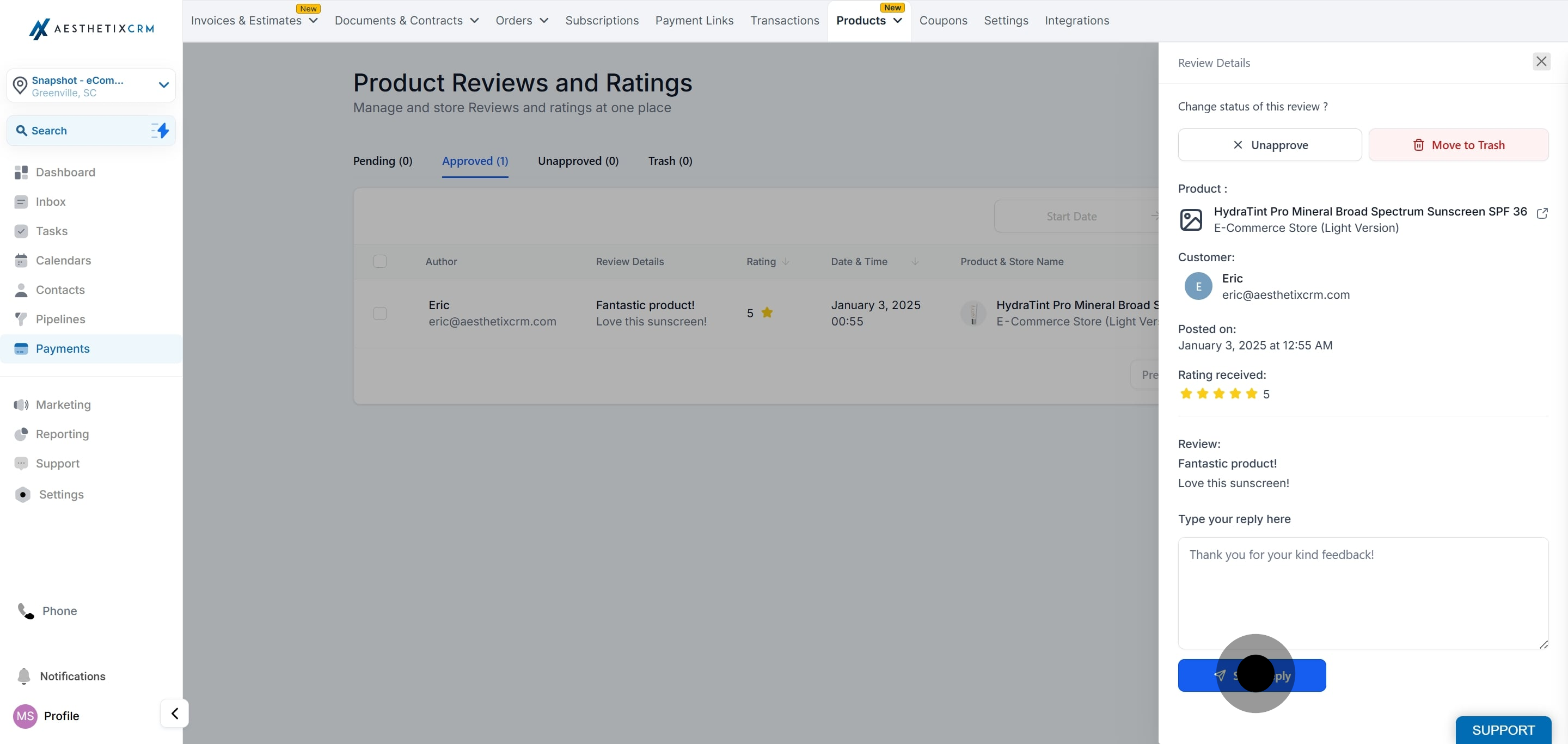
Click Send Reply.
Moving a review to Trash doesn't permanently delete it. Reviews can only be permanently deleted from the Trash section in the Admin Preview, and bulk actions are available there too if you're clearing out several at once.
A quick note on privacy: because review submissions are written by patients and published publicly, briefly scan each one before approving for anything that identifies a specific treatment, condition, or health detail tied to that patient. When in doubt, edit or decline the review rather than publish it as written.
Do I have to turn on reviews separately for the product list and the product page? Yes. The Show Reviews and Ratings toggle is independent on the Product Details page and the Product List page, so you can enable it on one, both, or neither.
Can customers leave a review without an account? Yes. The review form only requires a name and email address. Contact number, headline, and description are optional.
Do reviews go live automatically? No. Every submission lands in Pending and only appears on your store after you approve it from Payments > Products > Reviews.
Can I reply to a customer's review? Yes. Select the review from the side menu, click Reply, type your response, and send it. Your reply is tied to that review.
Can I hide the number of ratings but still show the stars? Yes. The Show Ratings Count toggle controls the rating count separately from the star display, so you can show one without the other.
How do I permanently remove a review? Move it to Trash first, then delete it permanently from the Trash section in the Admin Preview. Reviews aren't permanently deleted any other way.
Can I change the font or color of the reviews section? Star colors and fonts can be adjusted in the builder preview, but font size is fixed and font color applies uniformly to all reviews, you can't style them individually.
Can I filter reviews by product or star rating? Yes. The Reviews dashboard lets you filter by Time Frame, Ratings, Product Name, and Store Name.
Where do I manage the products themselves, like pricing or coupons? Product catalog details such as pricing, taxes, and coupons are handled under Payments in your account, separate from the Reviews moderation screen covered here.
Should I worry about patients including health information in a review? It's worth a quick check. Since reviews are customer-written and published publicly, scan pending submissions for any identifying treatment or health detail before approving, and edit or decline anything that shouldn't be public.
Does Aesthetix CRM protect the review form from spam and bots? Yes. Every submission passes through automatic Cloudflare Turnstile verification. It normally runs invisibly in the background, though a customer may occasionally see a visible challenge before the review submits. There's no setup required on your part.
