The Related Products element lets you display similar or complementary retail items on a product's detail page in your Aesthetix CRM online store. When a patient views a product, like a post-treatment serum or a skincare bundle, they'll also see a curated row of other items they may want to add to their order, which helps increase average order value without any manual merchandising work.
Open your store in the Page Builder and navigate to a product's Product Details page.
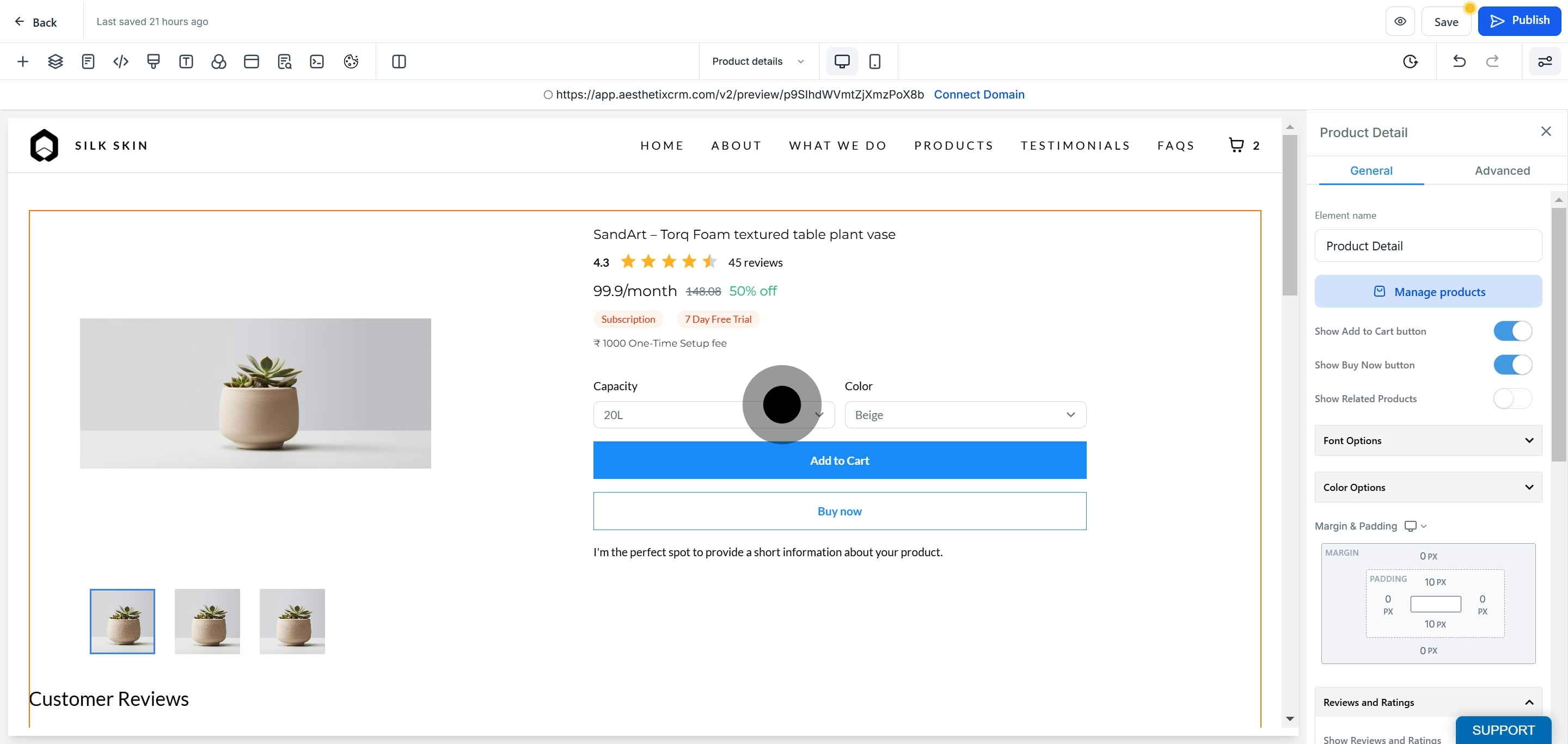
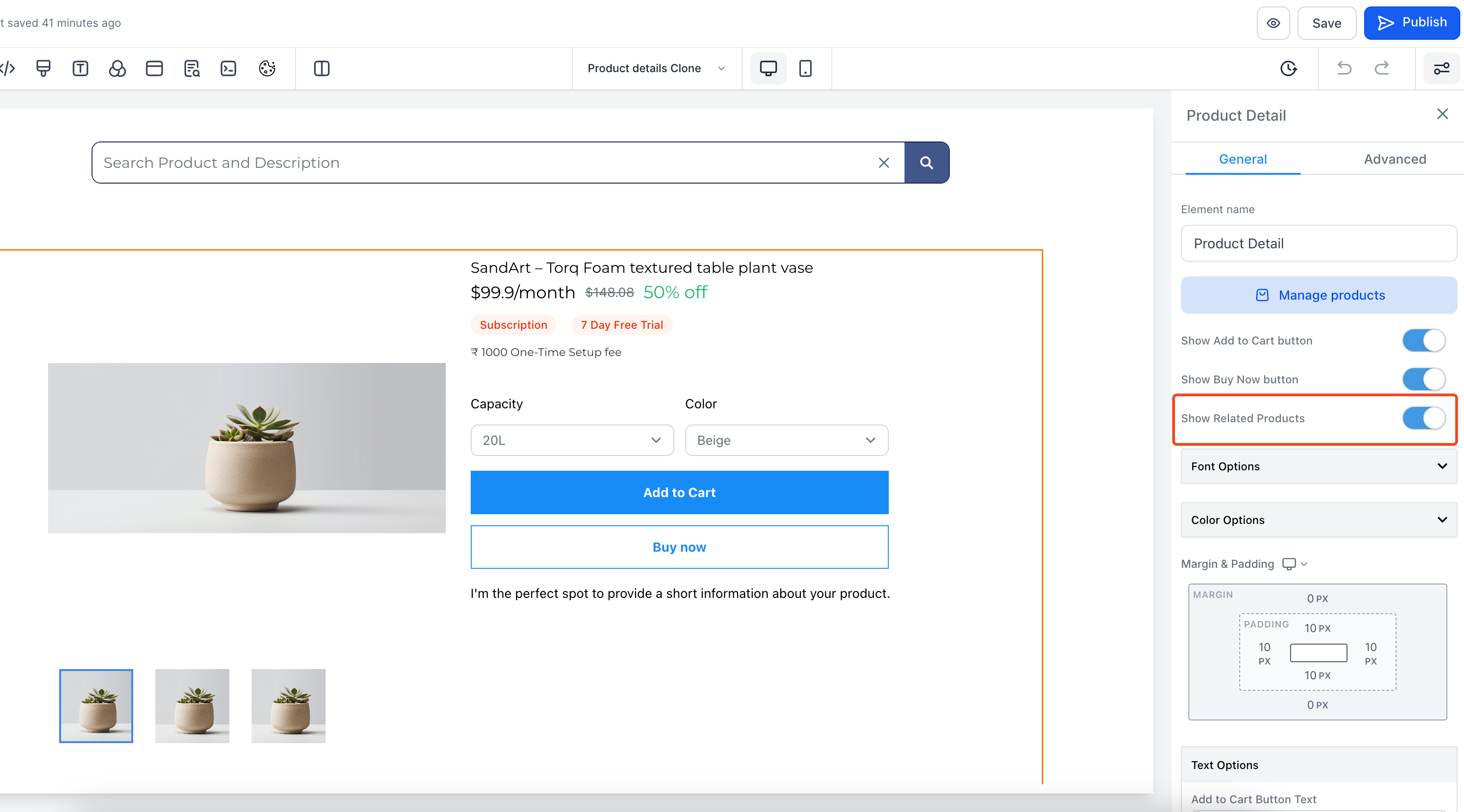
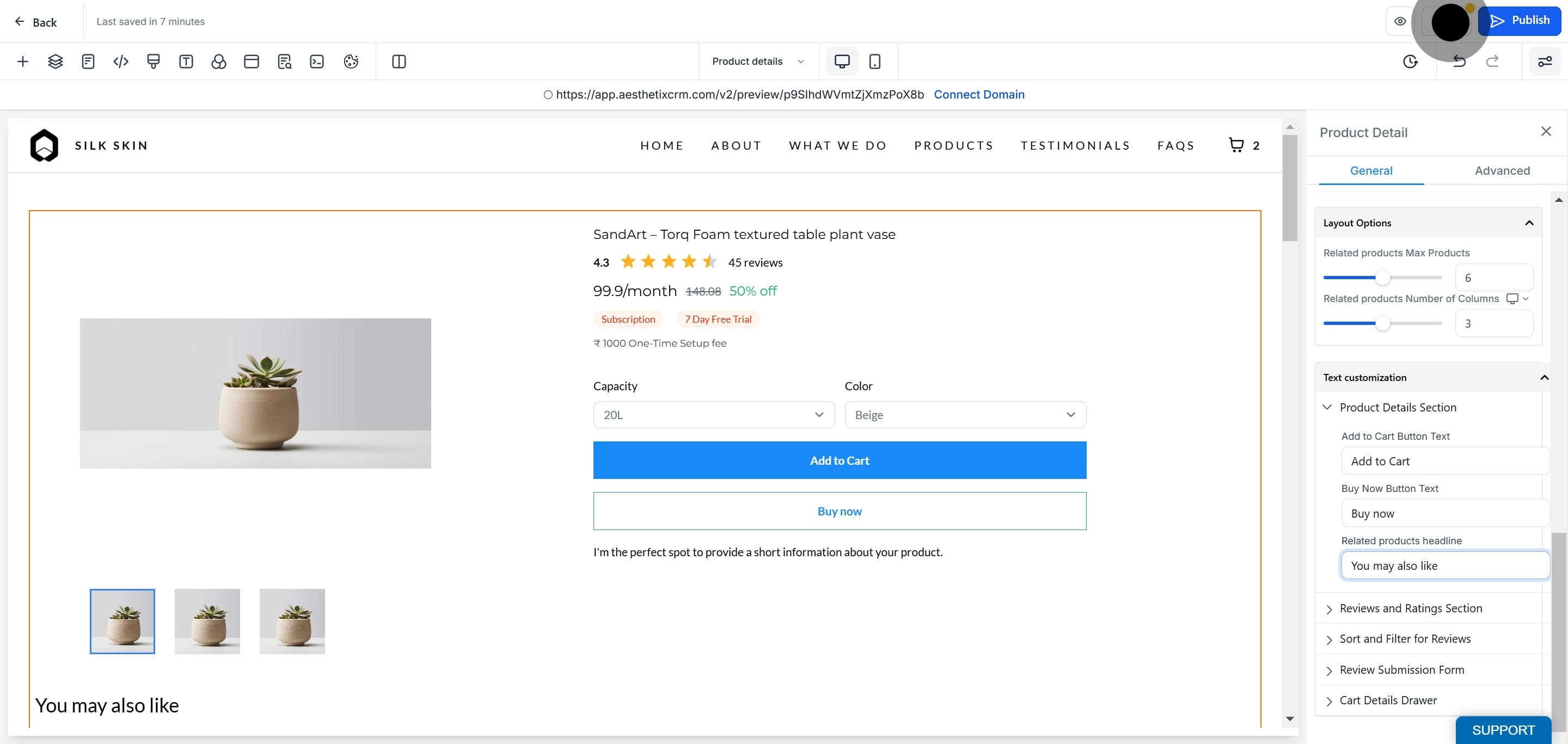
Select the Product Details section, then click into the Related Products element.
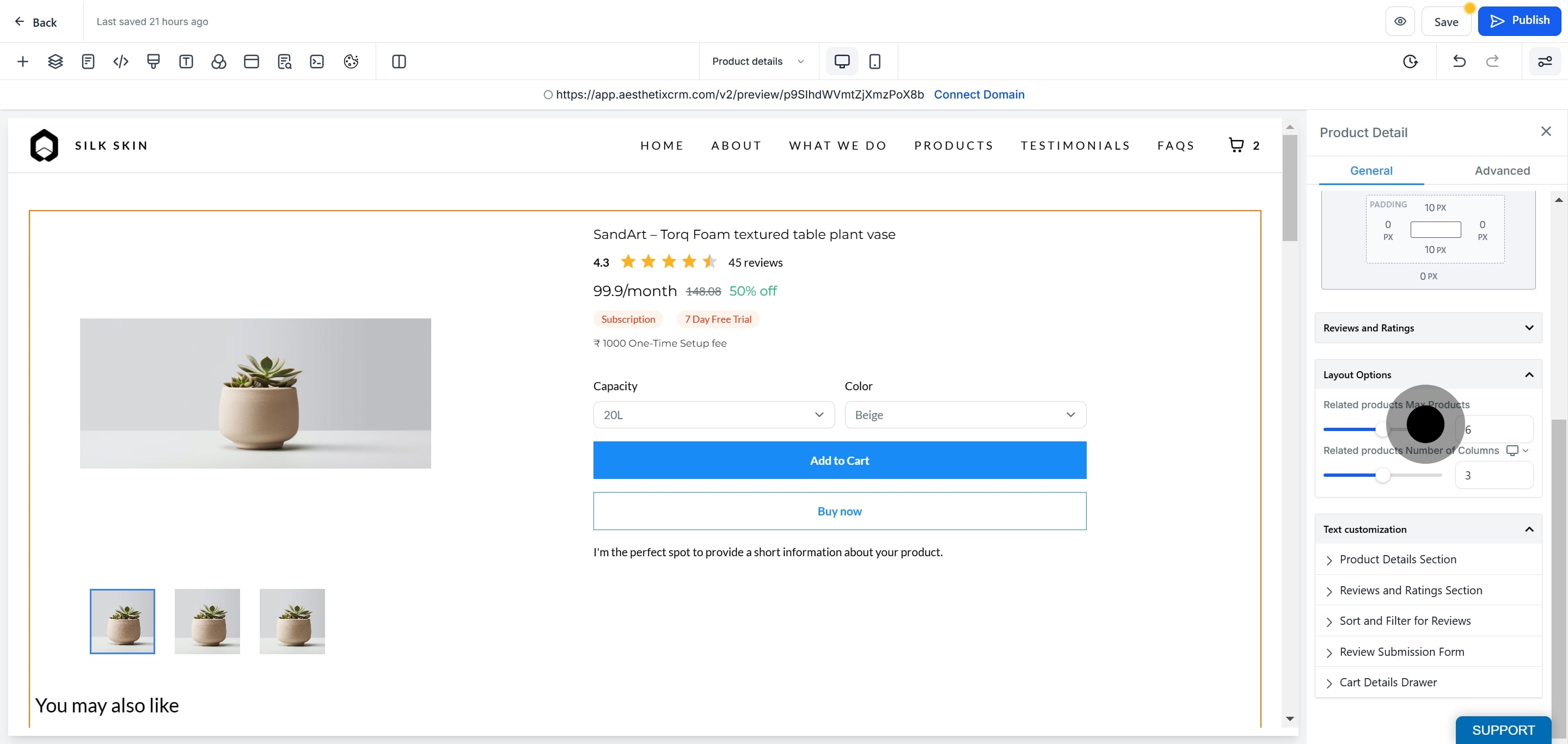
Turn on the Show Related Products toggle to display similar items beneath the product description.
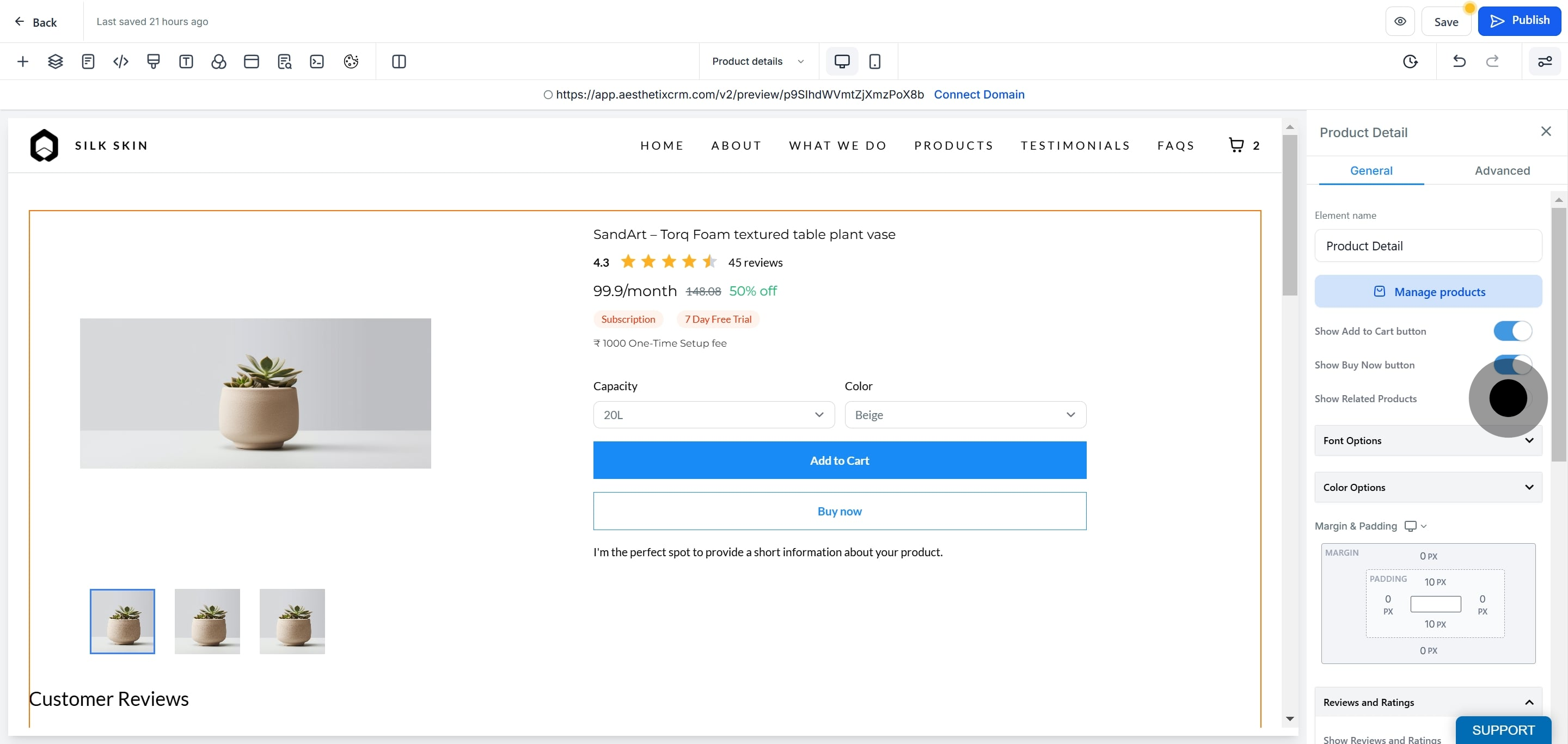
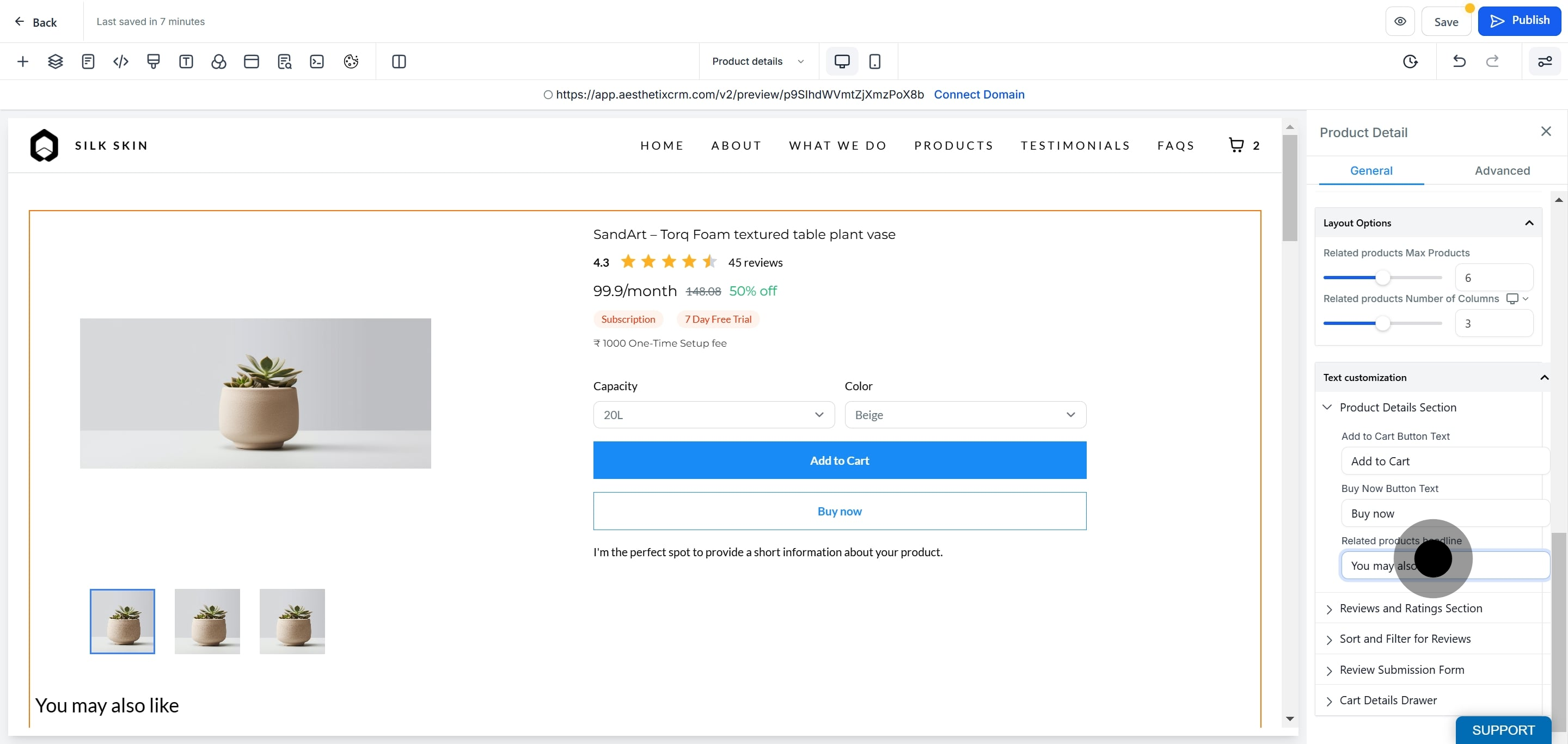
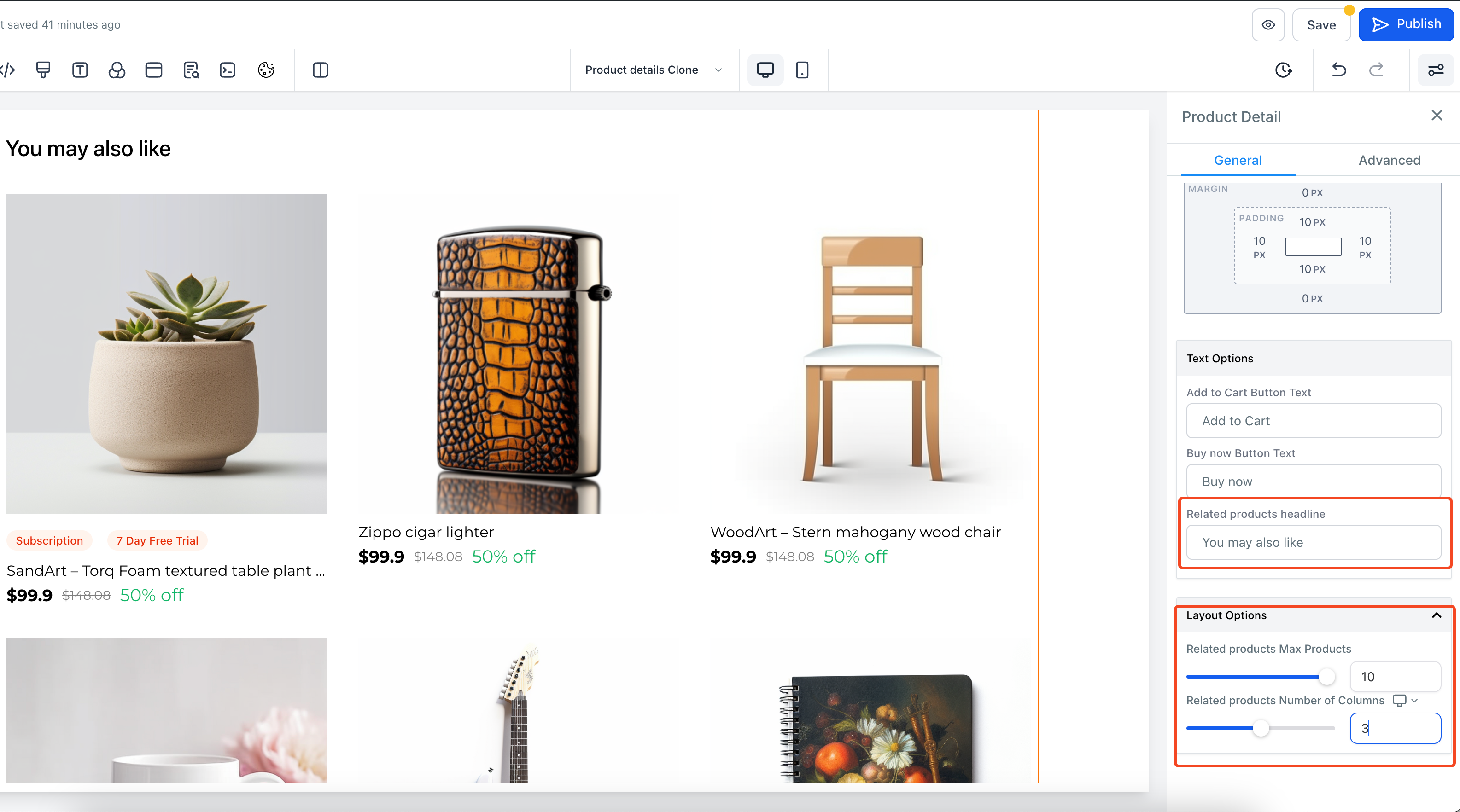
Customize the layout and content of the section to match your store's design. You can adjust:
Number of products shown (default: 6)
Number of columns per row, set separately for desktop (default: 3) and mobile (default: 2)
Section heading, which reads "You may also like" by default and can be renamed (for example, "Complete Your Routine" or "Recommended for You")
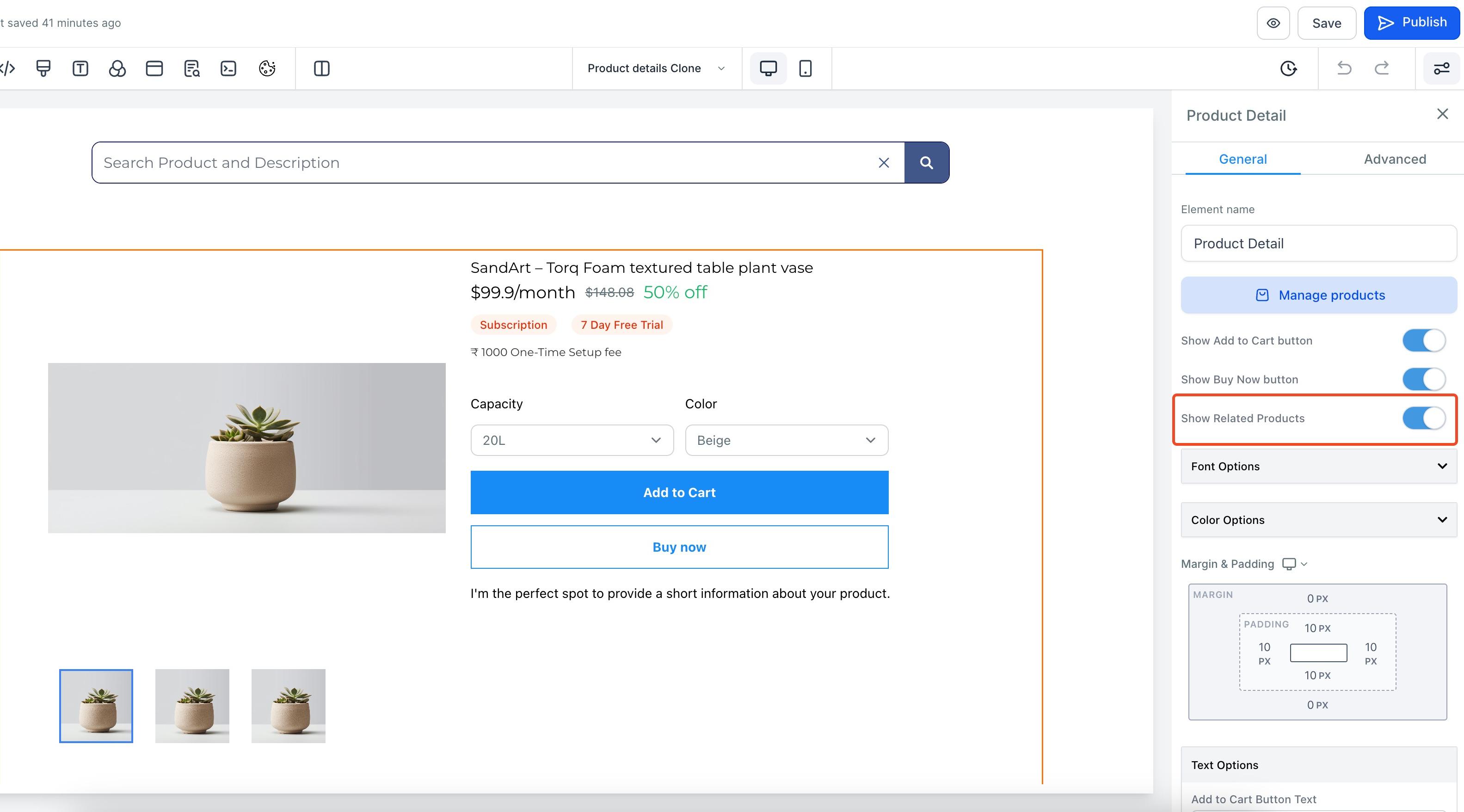
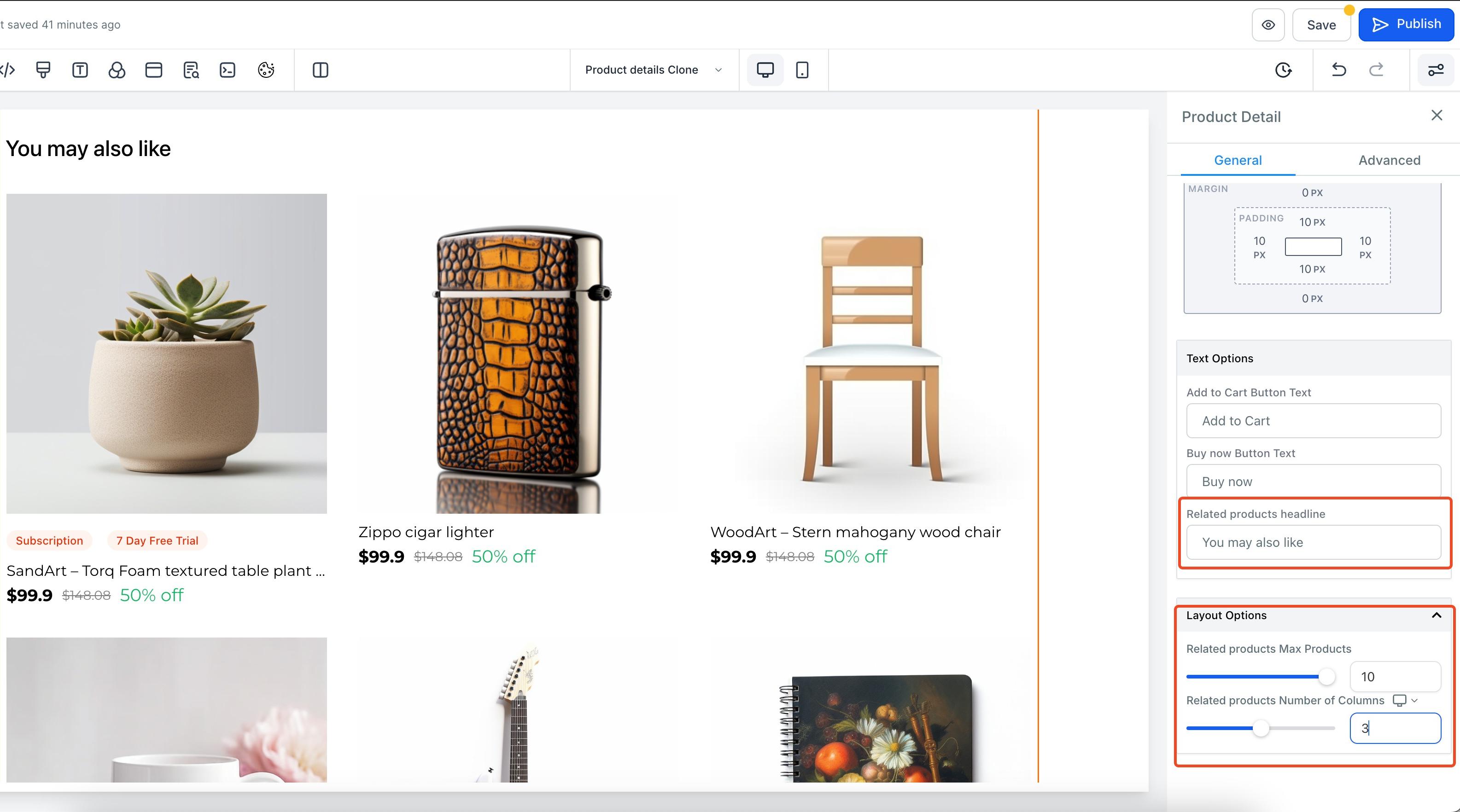
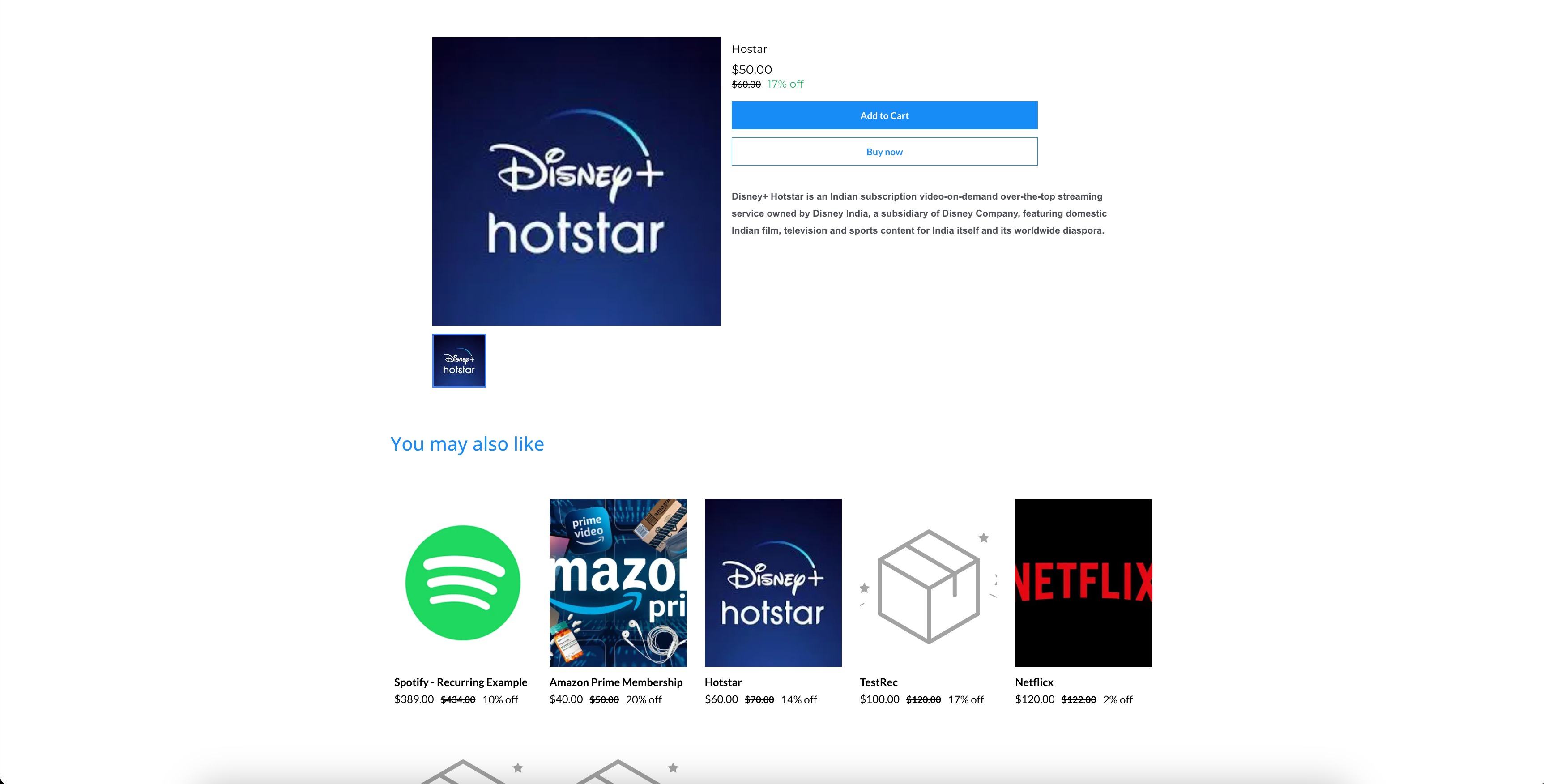
Update the related products headline and fine-tune the layout options to fit your storefront's branding.
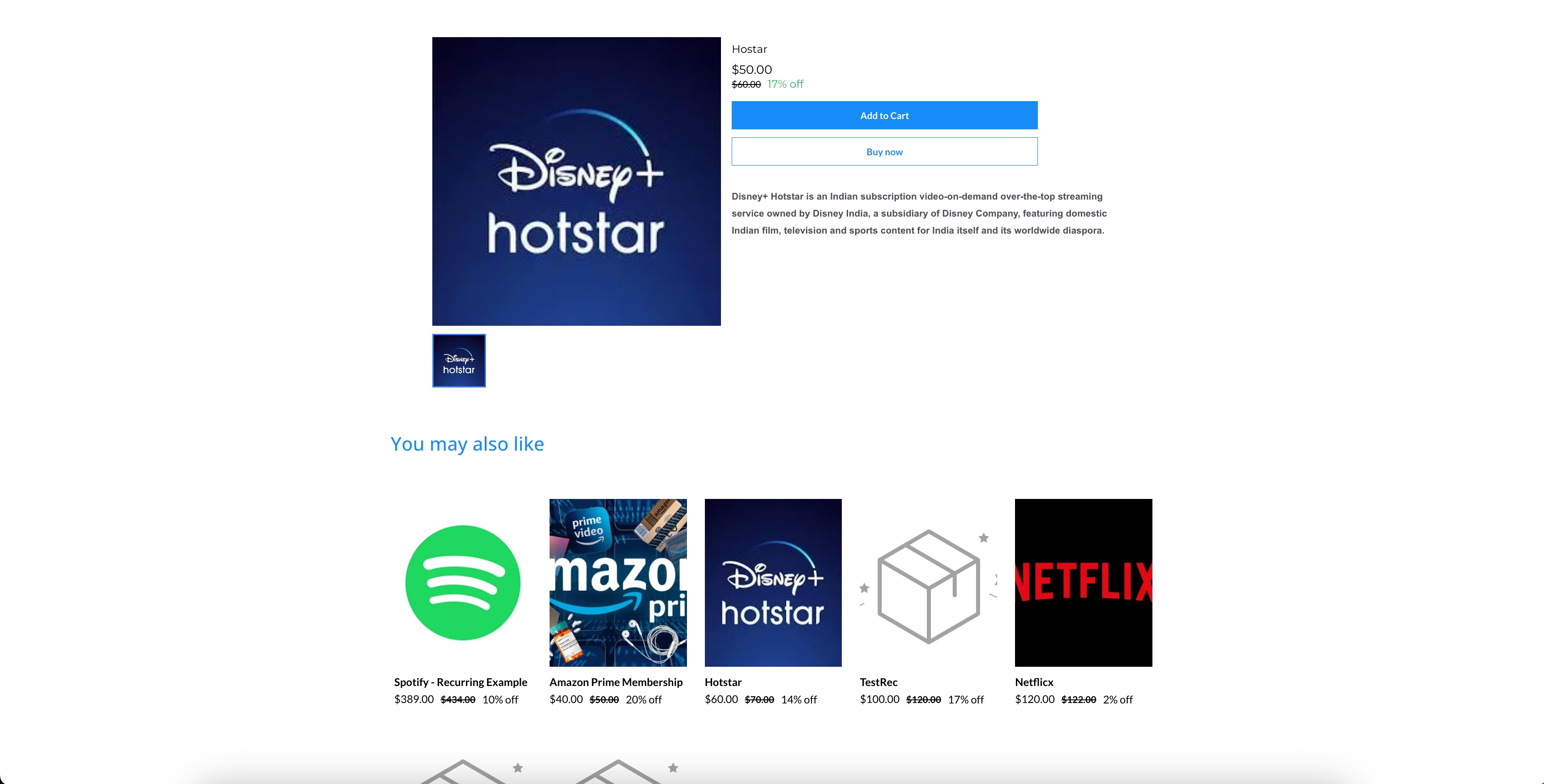
Preview the product page to confirm the related products row displays the way you expect on your live storefront.
Click Save, then Publish, to push the changes live.
Related products are pulled automatically from your product collections, not selected one by one:
Any product that shares a collection with the product being viewed is eligible to appear as a related product. For example, if "Brightening Serum" is added to both the "Skincare" and "Summer Refresh" collections, every other product in those two collections becomes eligible to show alongside it.
Products from the first shared collection are shown first, followed by products from the next shared collection, until the section reaches the number of products you configured.
Regardless of how many collections a product belongs to, related products are capped at a maximum of 10 per page.
If a product doesn't share a collection with any other product, no related items will display for it. Organize your catalog into collections (by category, treatment area, or product line) if you want this feature to work consistently across your storefront.
Product images in both the related products row and your main product list are automatically cropped to a 1:1 (square) aspect ratio. This keeps thumbnails consistent in size and alignment across your entire storefront, regardless of the original image dimensions you uploaded. For the cleanest result, use square (or close to square) product photos when possible.
Does enabling Related Products require any coding or custom development? No. It's a built-in toggle on the Product Details element inside the Page Builder. You enable it, adjust a few settings, and publish.
Why isn't a product showing up in the related products row? It most likely doesn't share a collection with the product being viewed. Add both products to at least one common collection and the relationship will appear automatically.
Can I manually hand-pick which products show as related, instead of relying on collections? Not currently. Related products are generated automatically based on shared collections. To control the results, manage which collections each product belongs to.
How many related products can display at once? You can configure the number shown per page (default is 6), but the total is always capped at 10 regardless of how many qualifying products exist.
Can I change the column layout for desktop versus mobile? Yes. Desktop and mobile column counts are set independently, so you can show more items per row on desktop while keeping mobile easy to scroll.
Can I rename the "You may also like" heading? Yes. The heading text is fully editable, so you can match your brand voice, for example "Pairs Well With" or "Complete Your Routine."
Will this feature work if a product only belongs to one collection? Yes, as long as at least one other product shares that same collection. A product with zero shared collections won't show any related items.
Do I need to republish the page every time I add a new product to a collection? No. Related products are pulled dynamically based on current collection membership, so new matching products will appear automatically without republishing the page. You only need to republish if you change the element's settings, like the heading or layout.
Does this affect my store's checkout or product pricing setup? No. This element only controls what displays on the product detail page. Pricing, taxes, coupons, and checkout configuration are managed separately.
Where can I set up product collections if I haven't already? Collections are managed from your store's product catalog settings. Group products by category, treatment type, or promotion so the Related Products element has data to work with.
