Product labels (also called ribbons) are small badges, like "New" or "Sale," that appear on a product's image in your online store. They help patients and shoppers quickly spot featured, seasonal, or discounted retail items without you having to redesign the product card. Labels live in the Payments section of Aesthetix CRM, under Products.
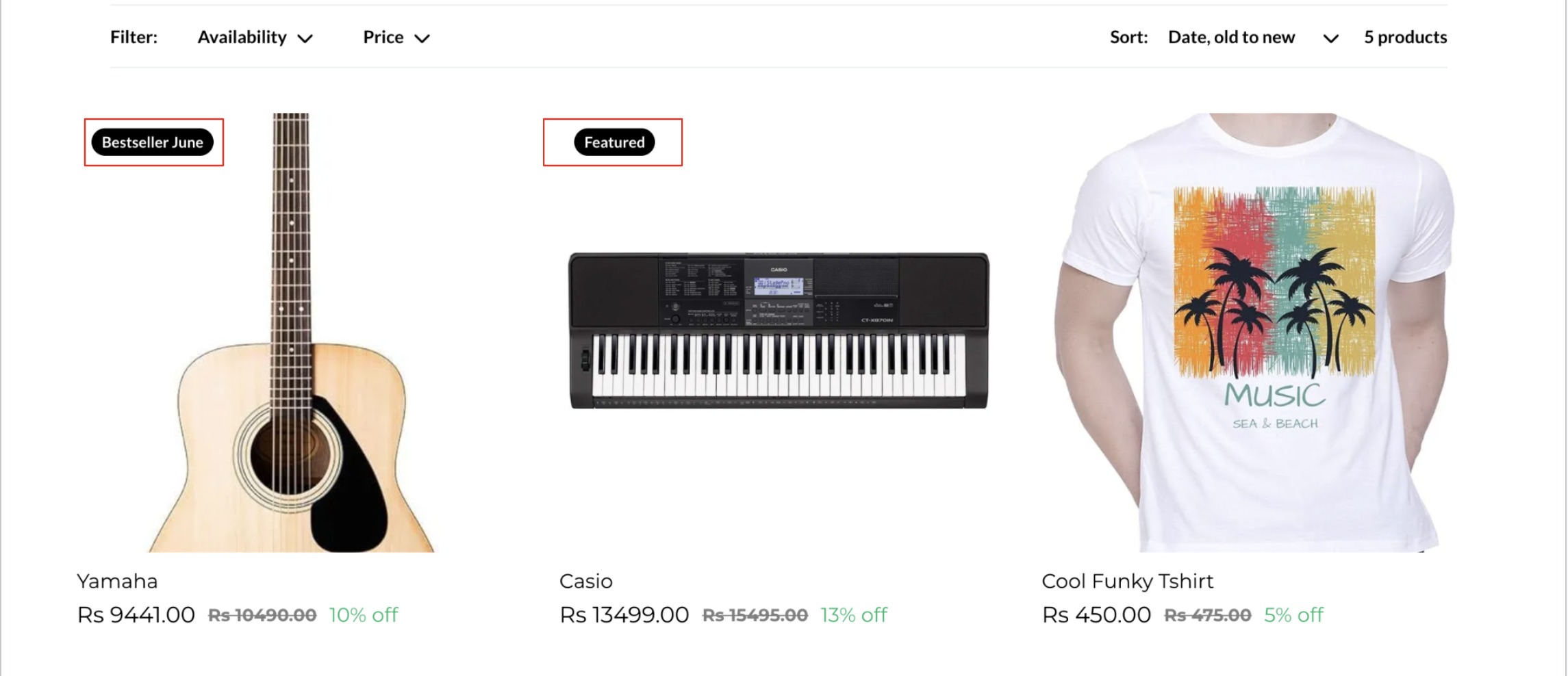
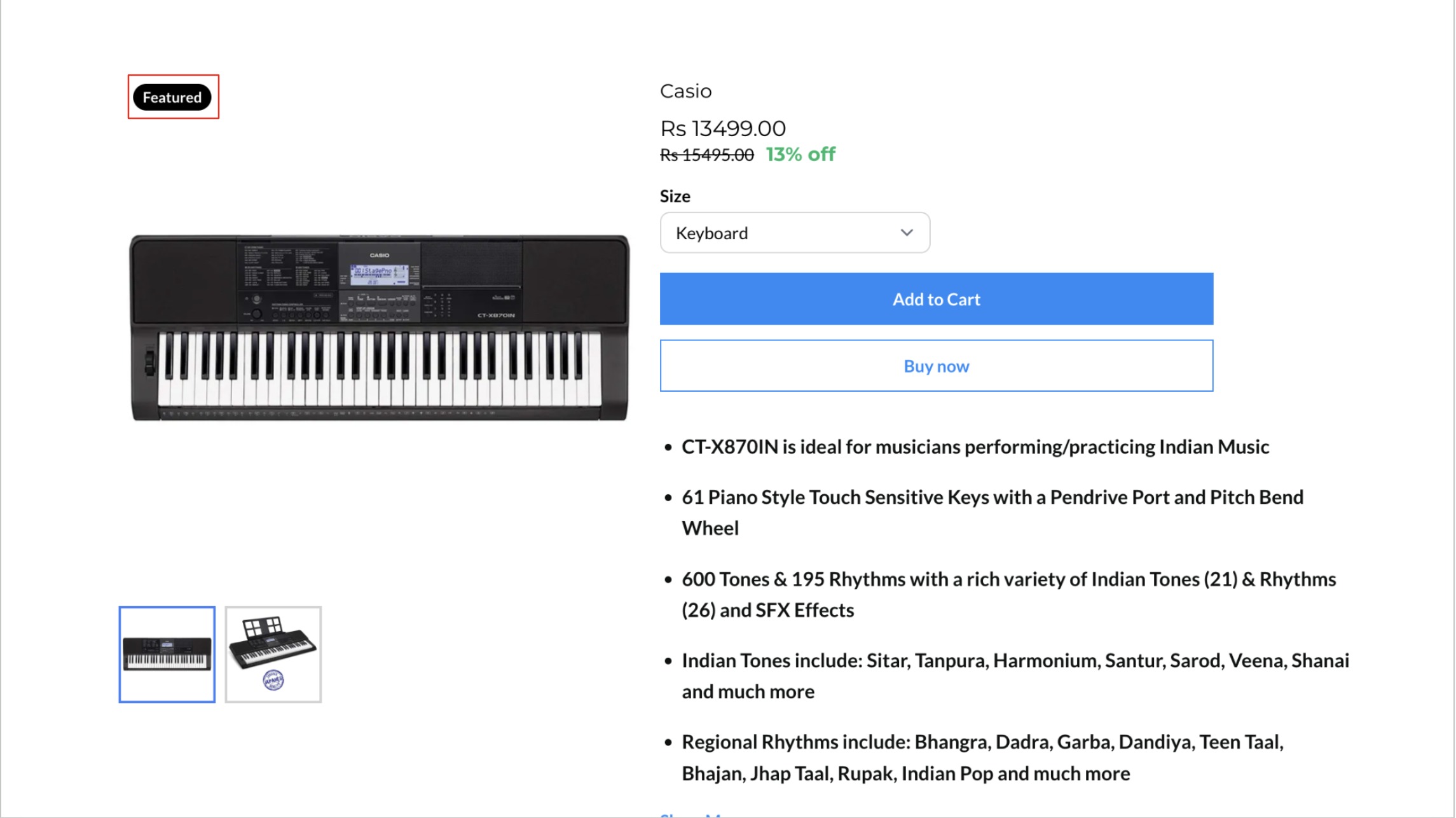
Highlight a product on both the product list page and the individual product detail page.
Can be scheduled with an optional start and end date/time, so a "Sale" ribbon can appear for a promotion and disappear automatically when it ends.
Apply per product, so different retail items (skincare lines, supplements, gift cards, merchandise) can carry different labels at the same time.
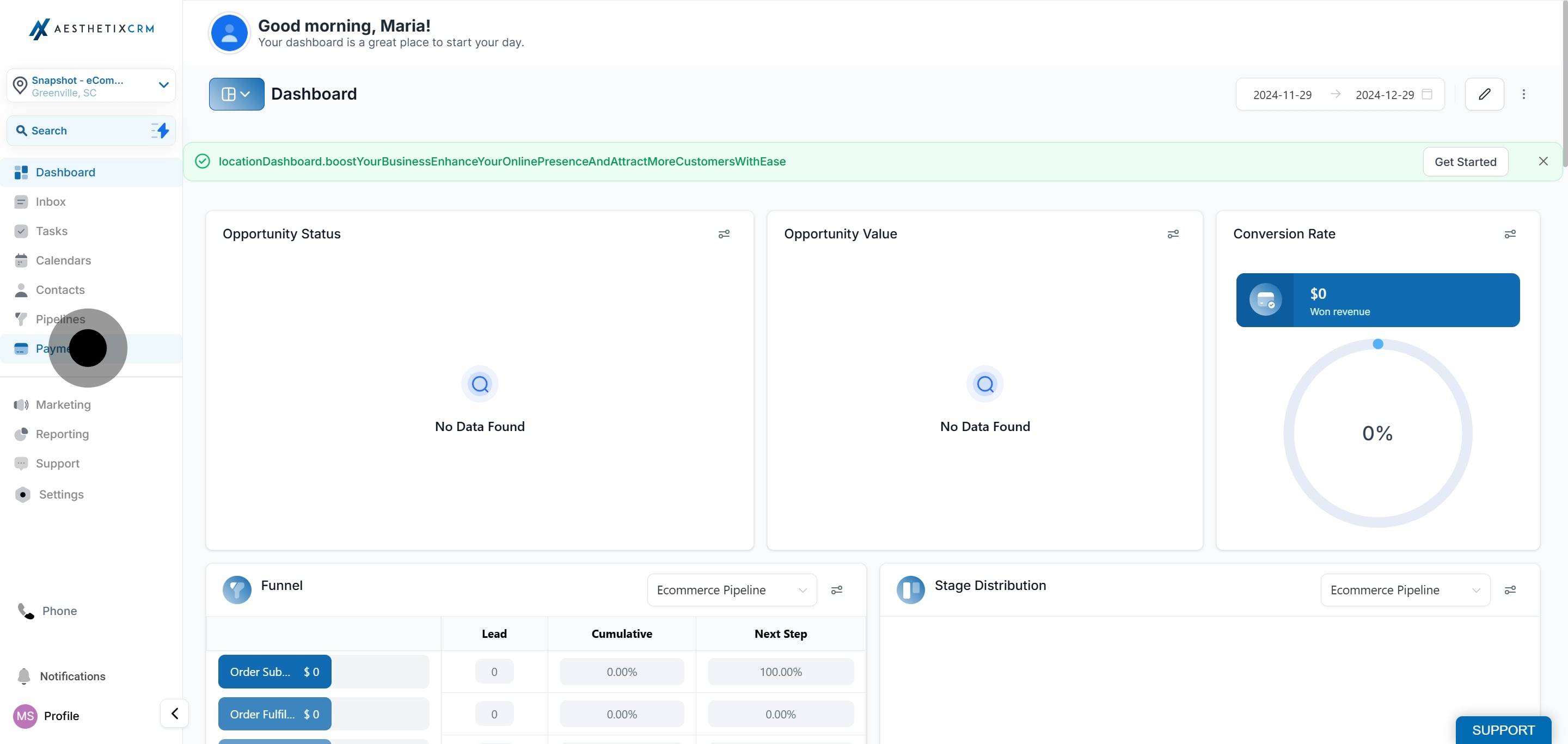
Navigate to the Payments section.
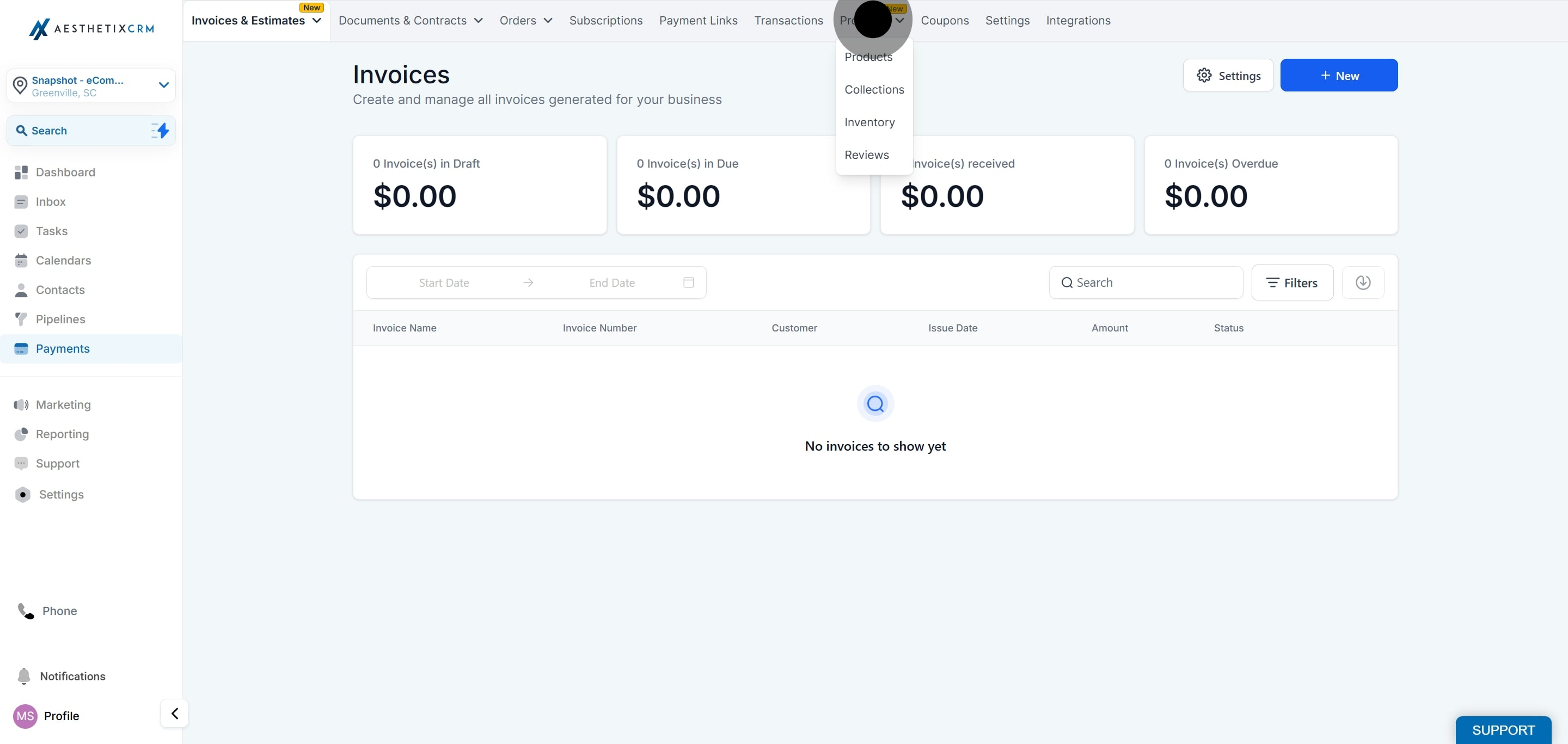
Select the Products tab.
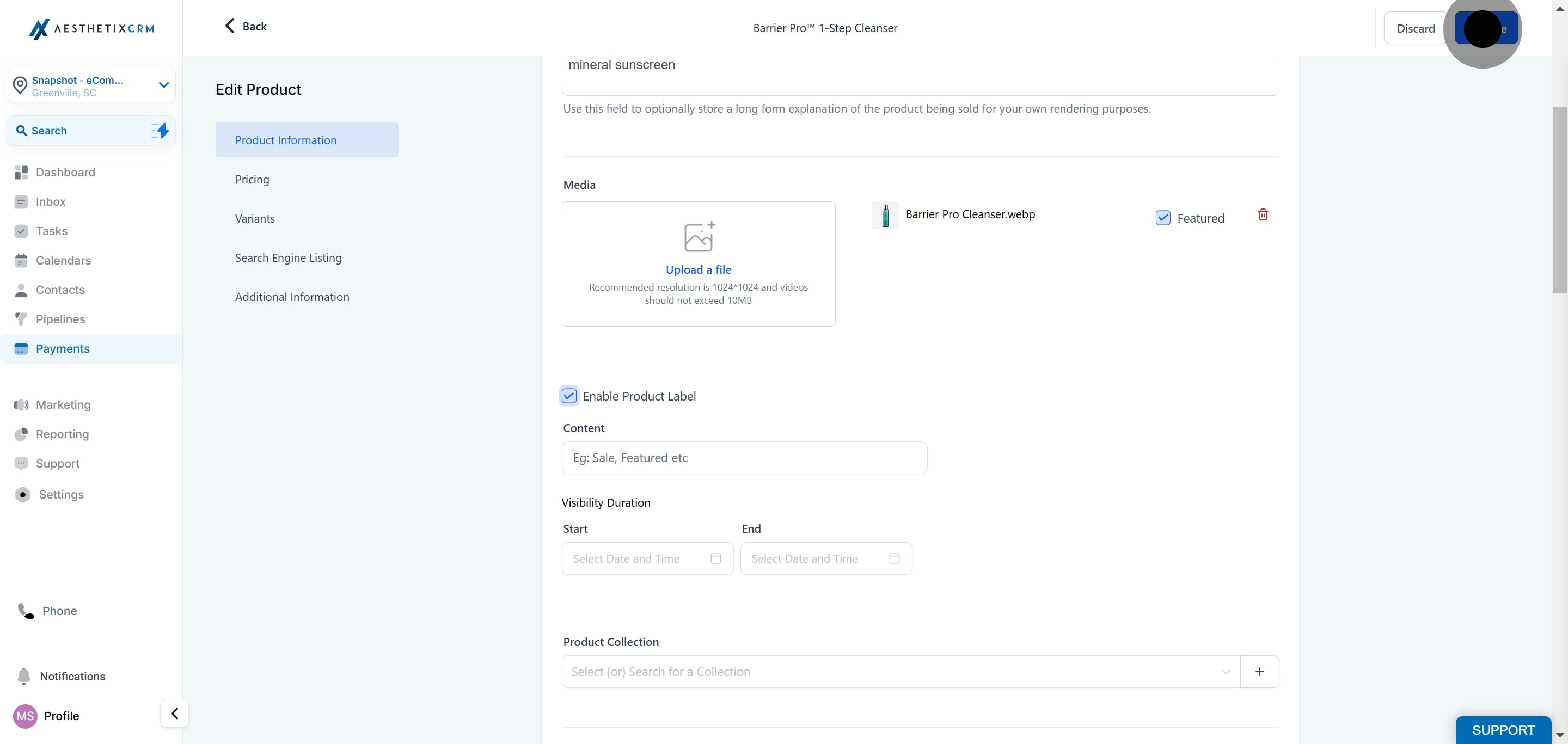
Open the product you want to label and enable the Product Label feature to highlight or categorize it.
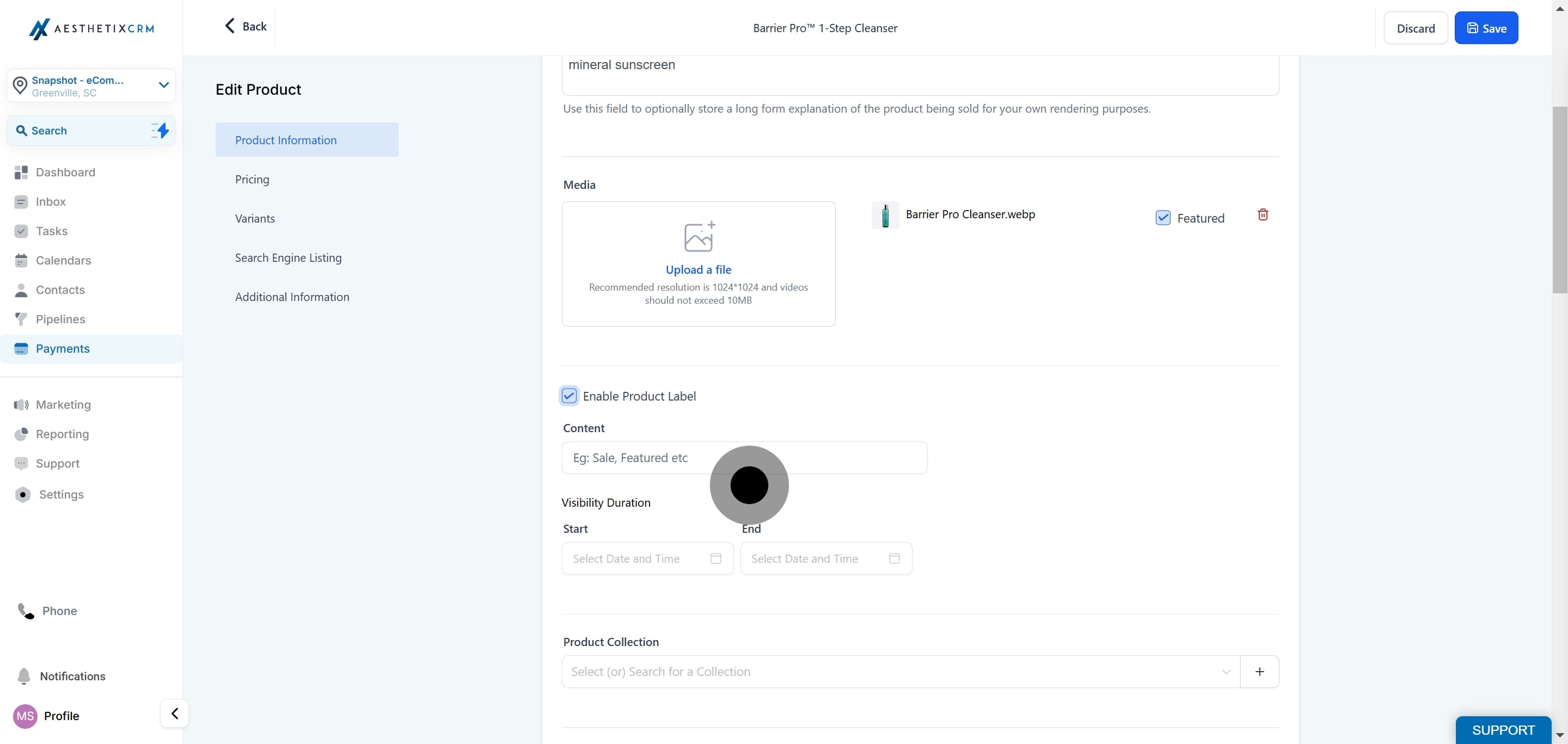
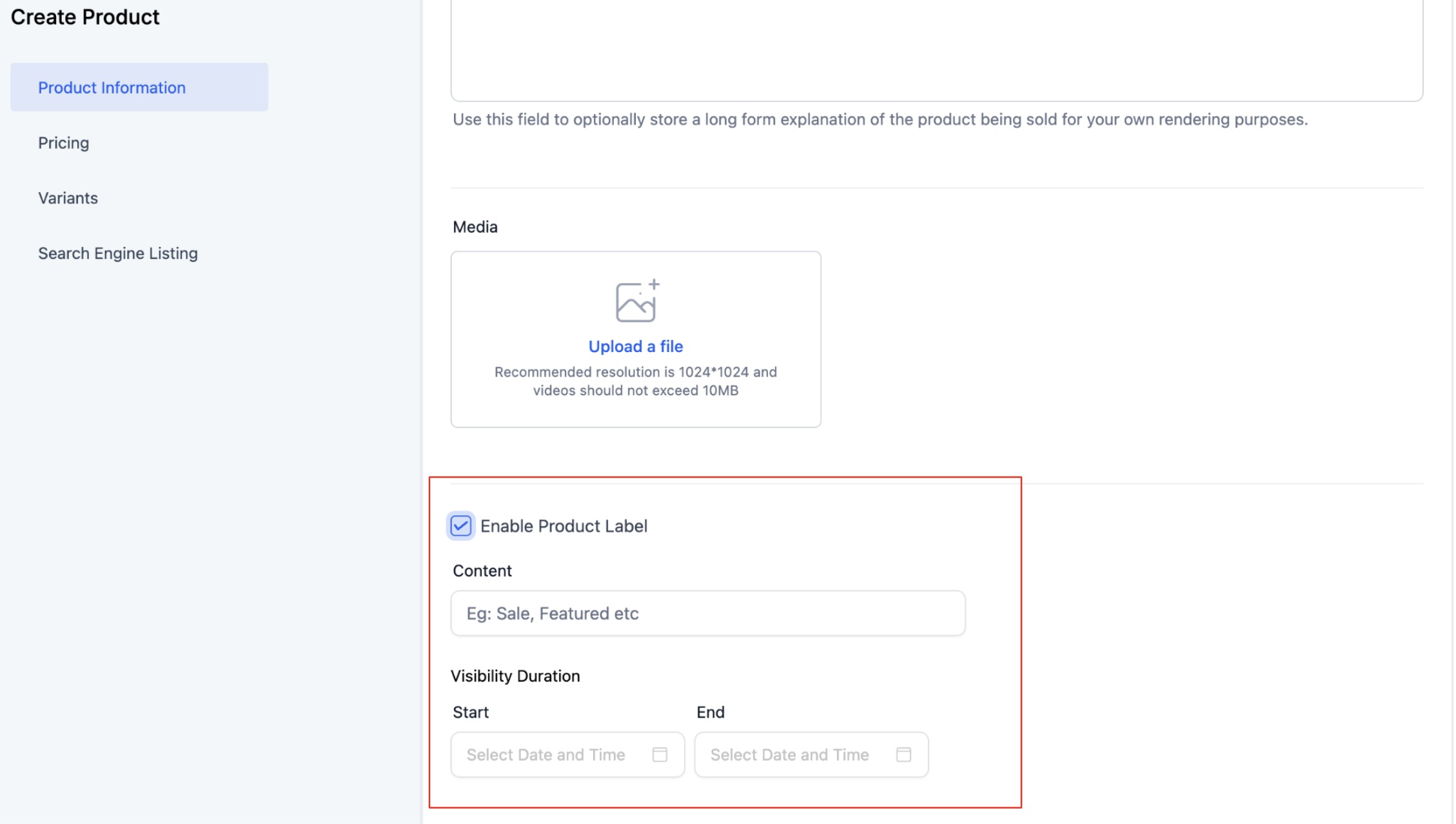
If you want the label to appear only for a limited time, set an optional starting and ending date and time. Otherwise, leave the dates blank to keep the label showing indefinitely.
Click "Save/Publish" to apply the changes and view them live on your storefront.
Once published, the label appears wherever that product is shown on your storefront:
Start and end date/time are set according to your account's time zone, not the shopper's.
The end date and time must be later than the start date and time.
The end date and time must also be later than the current date and time, or the label will not display at all.
You can add a distinct label to every product independently, with its own schedule (or no schedule, for an always-on badge).
For the underlying product catalog, taxes, and coupons, see the product catalog articles in Payments. Checkout and payment provider setup are also covered in Payments, not here. This guide covers only the display badge itself.
Where do product labels appear? On the product list page (where all store items are browsed) and on the individual product's detail page.
Can I use a label without setting a schedule? Yes. Leave the start and end date fields blank and the label will stay on the product until you turn it off or edit it.
Why isn't my scheduled label showing up? The most common cause is a time zone mismatch or a past end date. Double check that the end date and time is later than both the start date and the current date and time, and remember the schedule uses your account's time zone.
Can two different products have two different labels at the same time? Yes. Labels are set per product, so you can run a "New" badge on a recently added retail item and a "Sale" badge on another at the same time.
Can I add more than one label to the same product? No, each product supports one active label at a time. If you need to switch messaging, edit the existing label instead of stacking a second one.
Does a label affect the product's price or checkout? No. Labels are a visual badge only. Pricing, taxes, and checkout behavior are configured separately in the product catalog.
Will the label disappear automatically when the promotion ends? Yes, as long as you set an end date and time. Once that time passes, the label is automatically removed from the storefront without any further action.
Do I need to republish my website after enabling a label? Clicking Save/Publish on the product applies the label live. You do not need to separately republish your funnel or website pages.
