Browsing a long product catalog without a way to search it makes for a frustrating shopping experience. The Search Bar element lets patients search your storefront by product name or description and jump straight to what they're looking for, instead of scrolling through every product on your store.
You can add search to your store in two ways:
As a standalone element you drag onto any page in the page builder.
As a toggle inside your navigation menu settings.
The standalone element gives you full control over its appearance. The navigation menu toggle is faster to turn on but offers fewer styling options (more on that below).
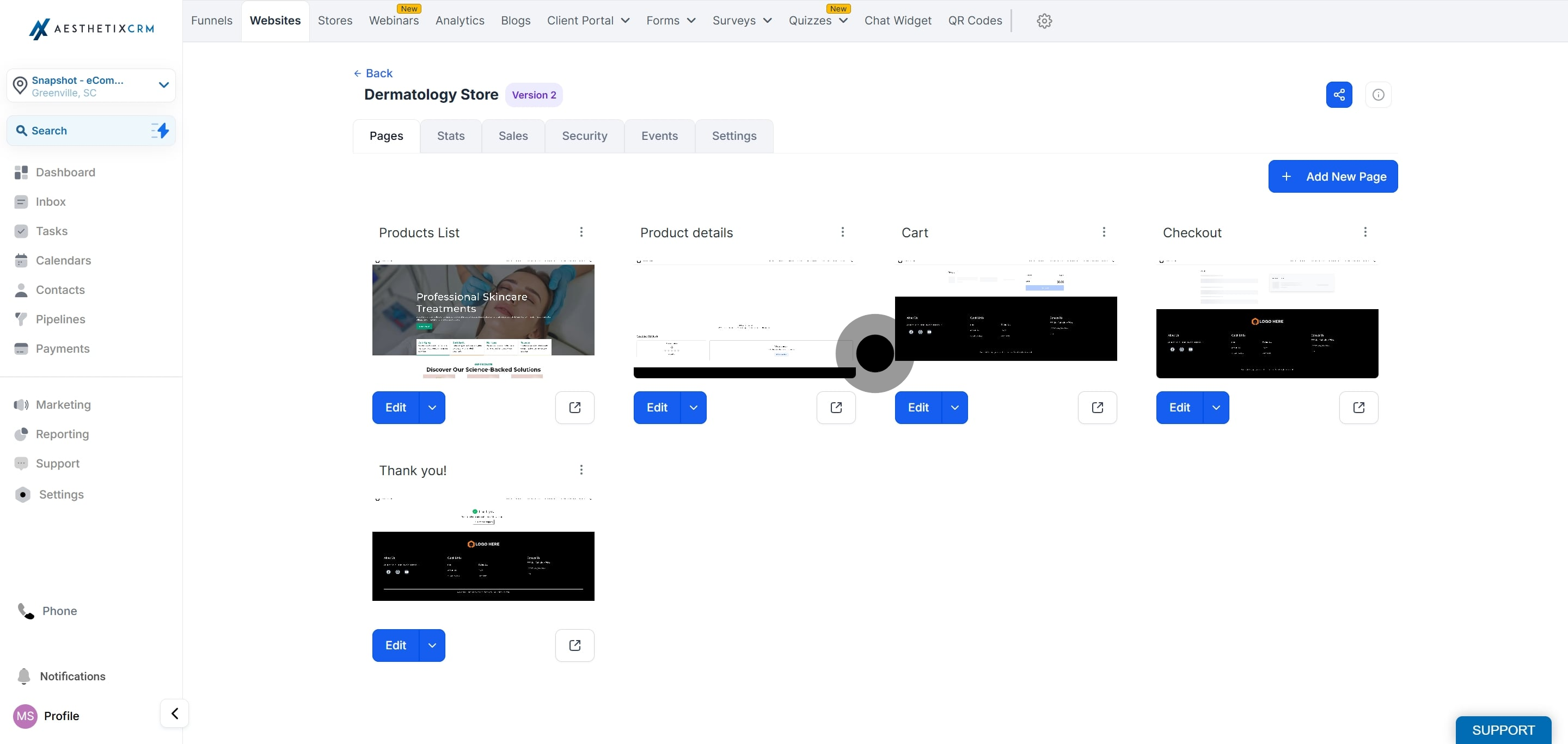
Navigate to the page builder of your store.
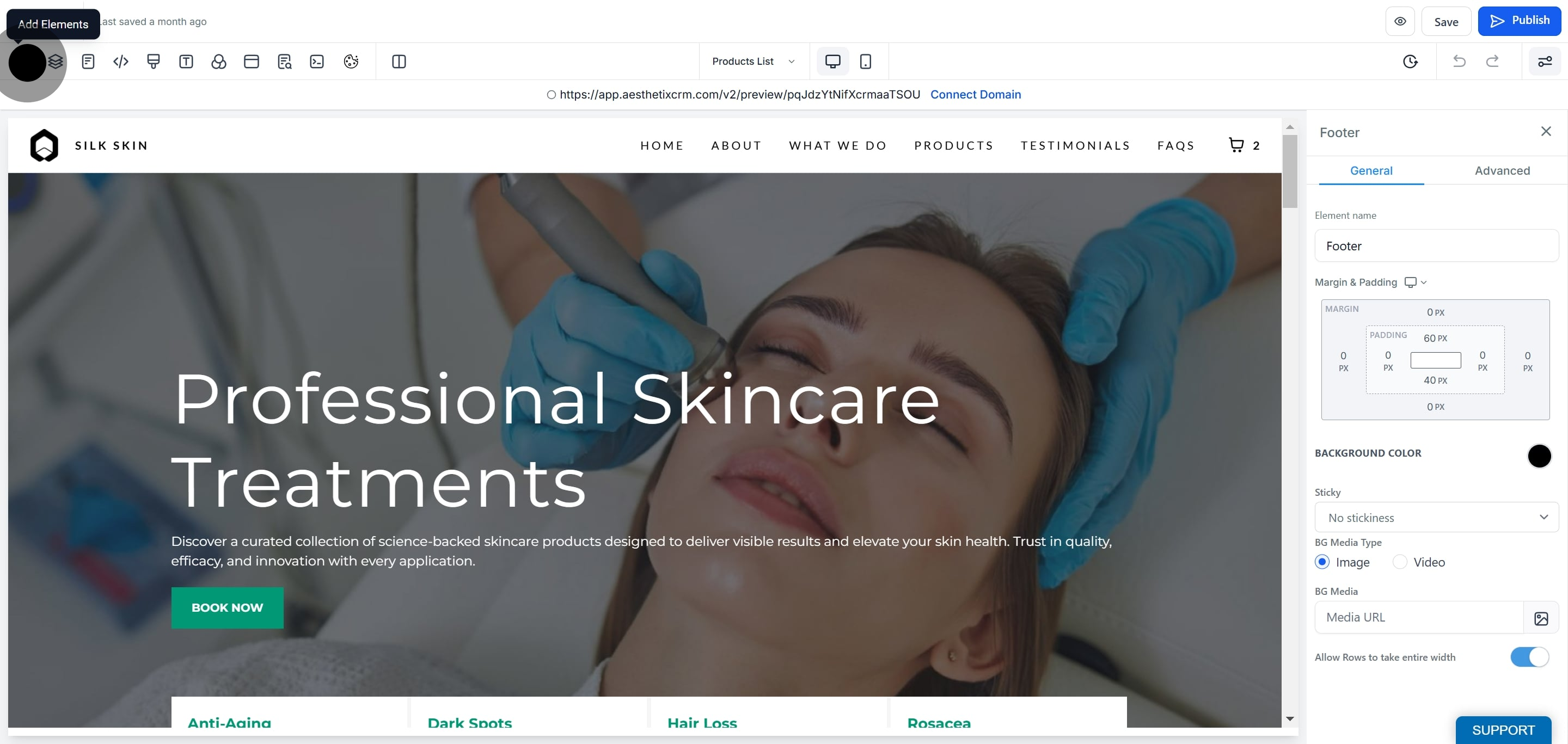
Click on the element panel, then find Search bar under the Store section of "Add elements."
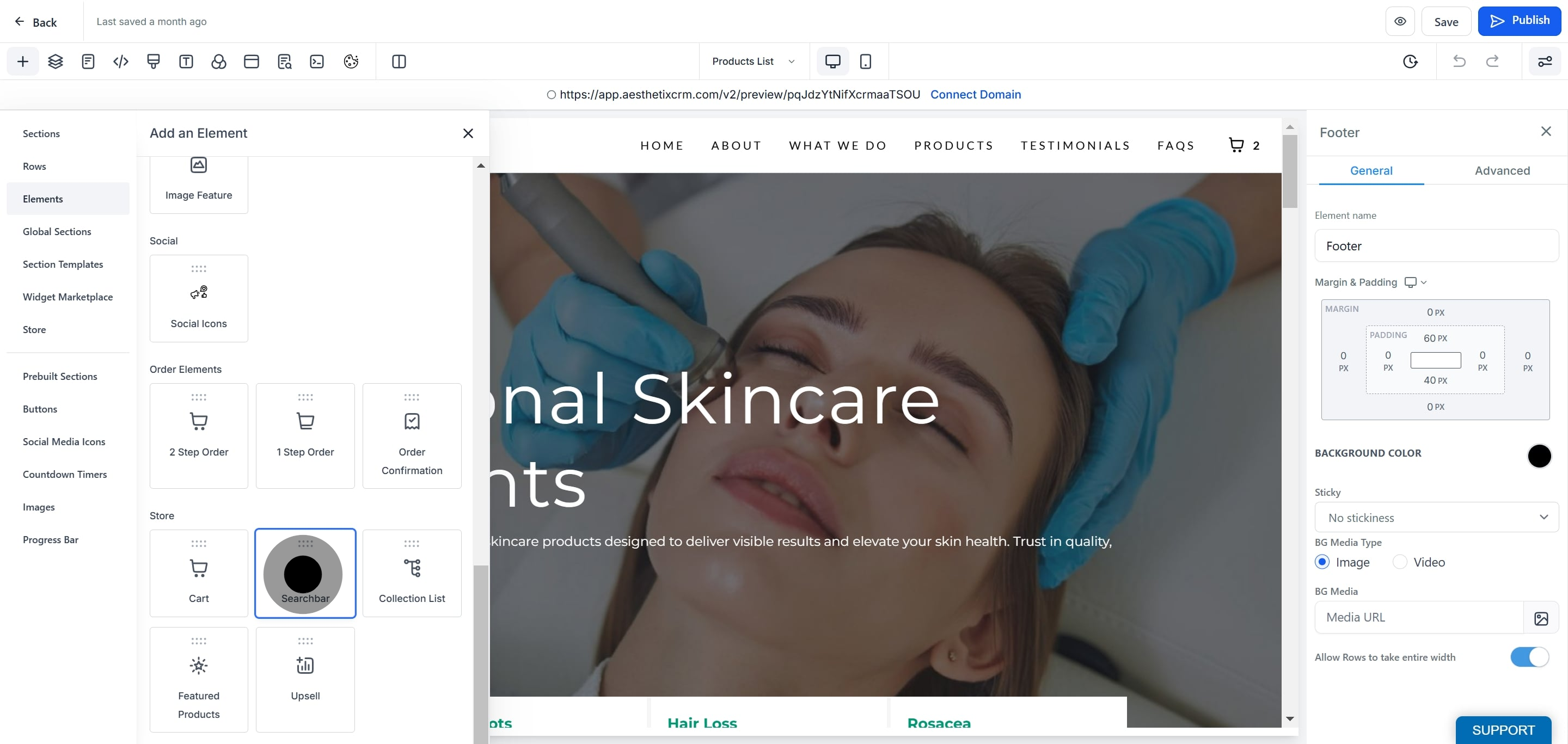
Add the Search bar element to your page.
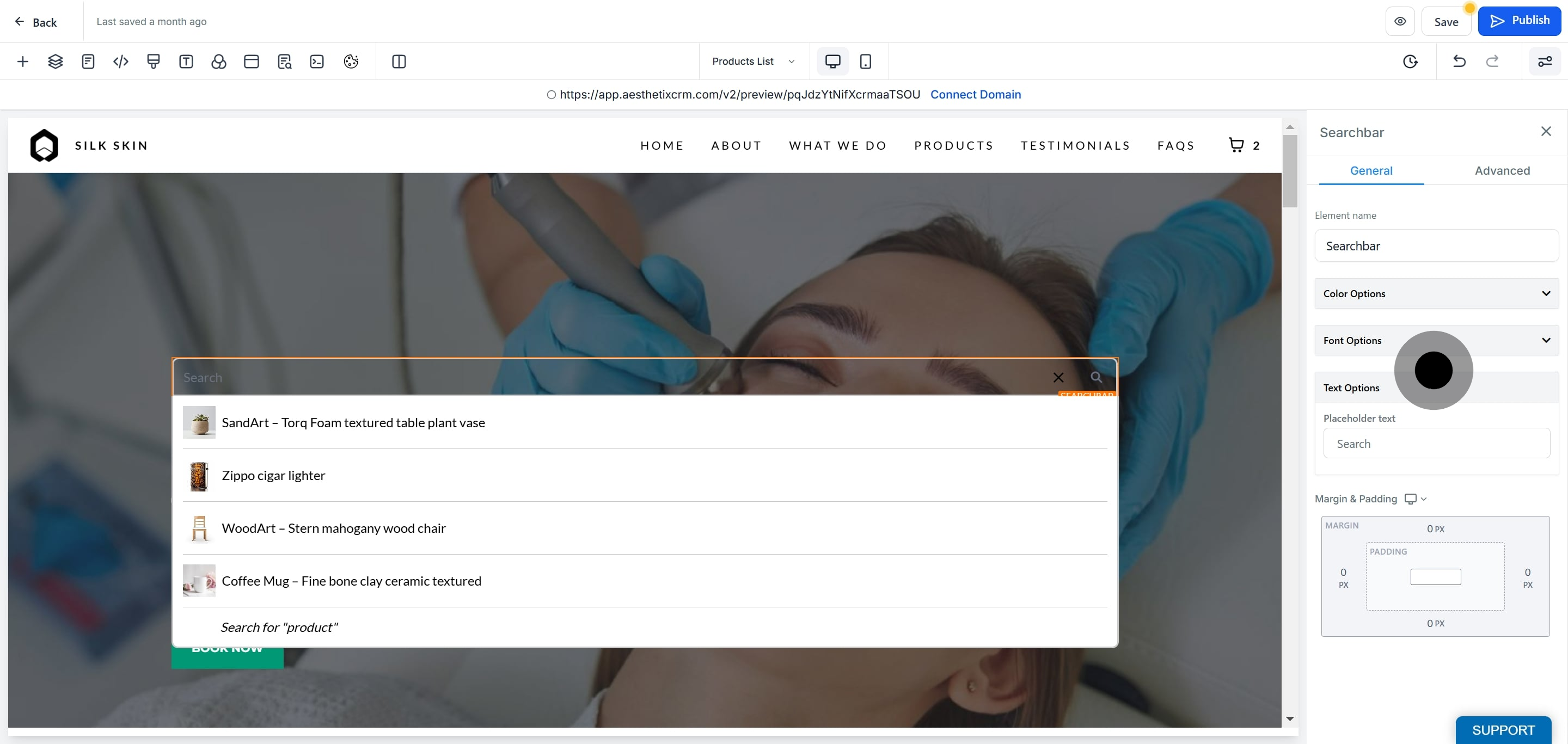
Click into the element to configure its properties, such as Text Options.
Click Save to apply your changes.
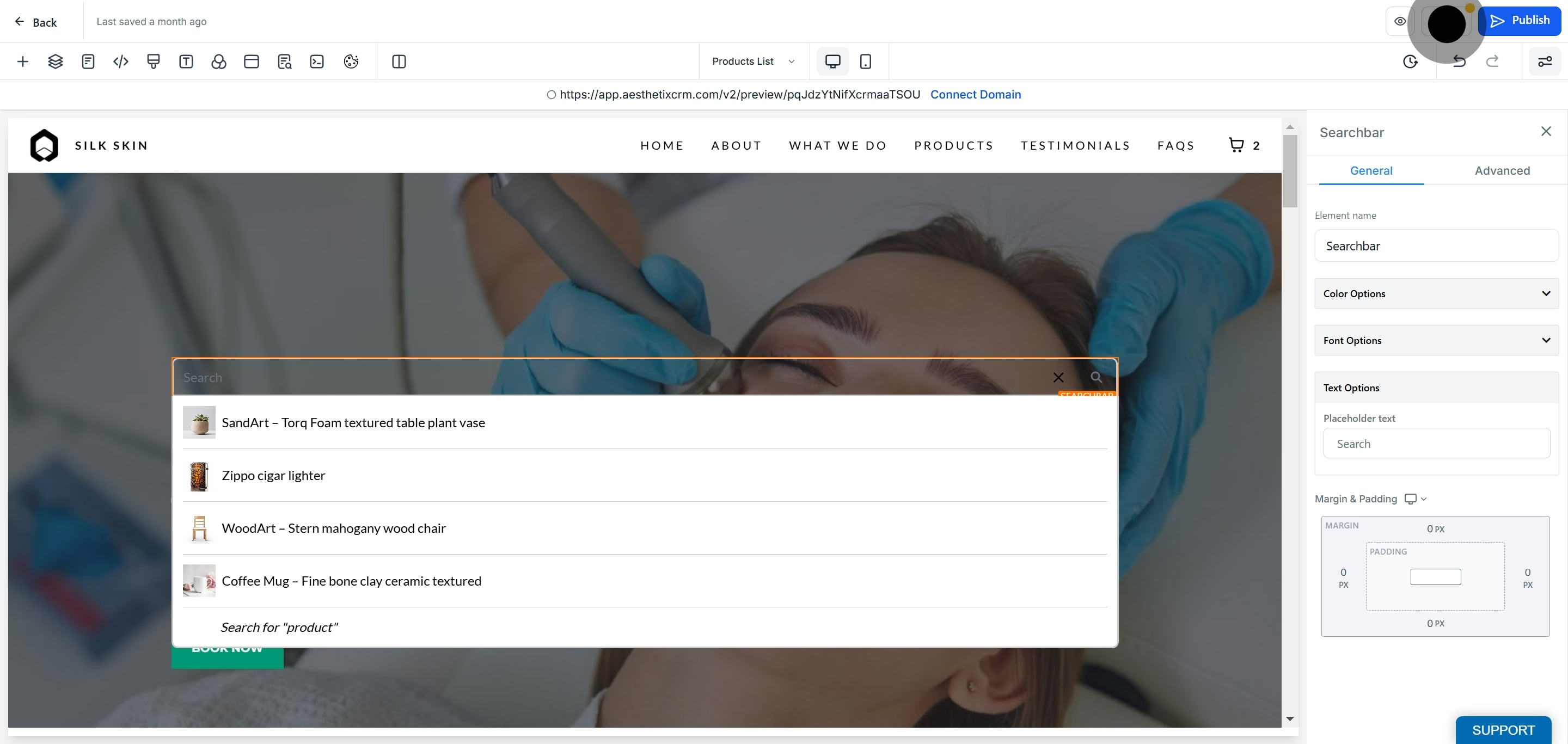
Once you publish the page, the Search Bar will appear live on your storefront.
If you'd rather have search available site-wide instead of on a single page, you can turn it on directly in your navigation menu:
Open your navigation menu settings.
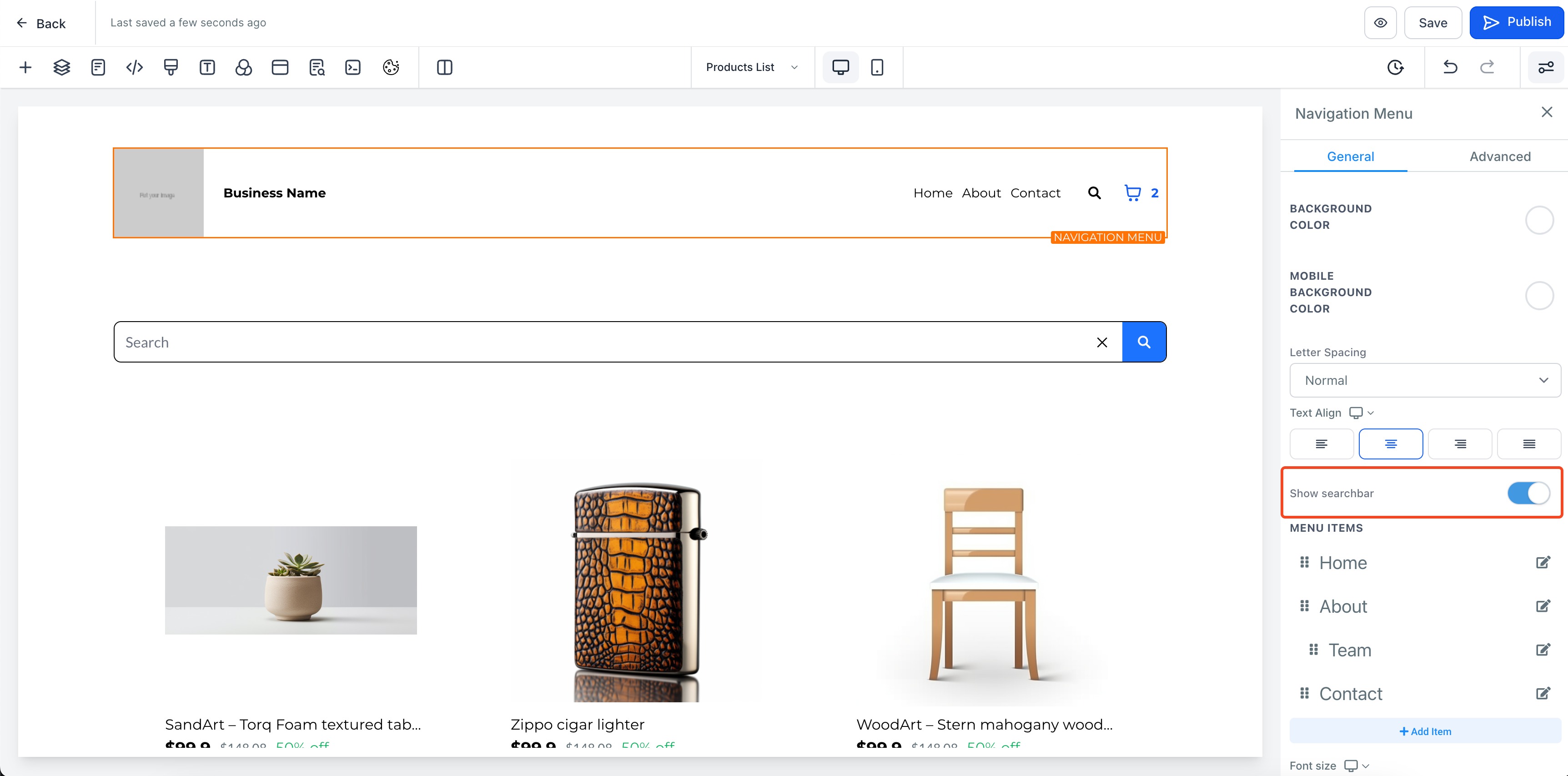
Turn on the Show Search Bar toggle.
Save and publish your changes.
Keep in mind that navigation menu customization for the Search Bar is limited. If you want full control over colors, fonts, and borders, use the standalone element instead.
Whichever method you use, the Search Bar has several properties you can configure to match your practice's branding:
Search button color
Search input box text and background color
Search dropdown text and background color
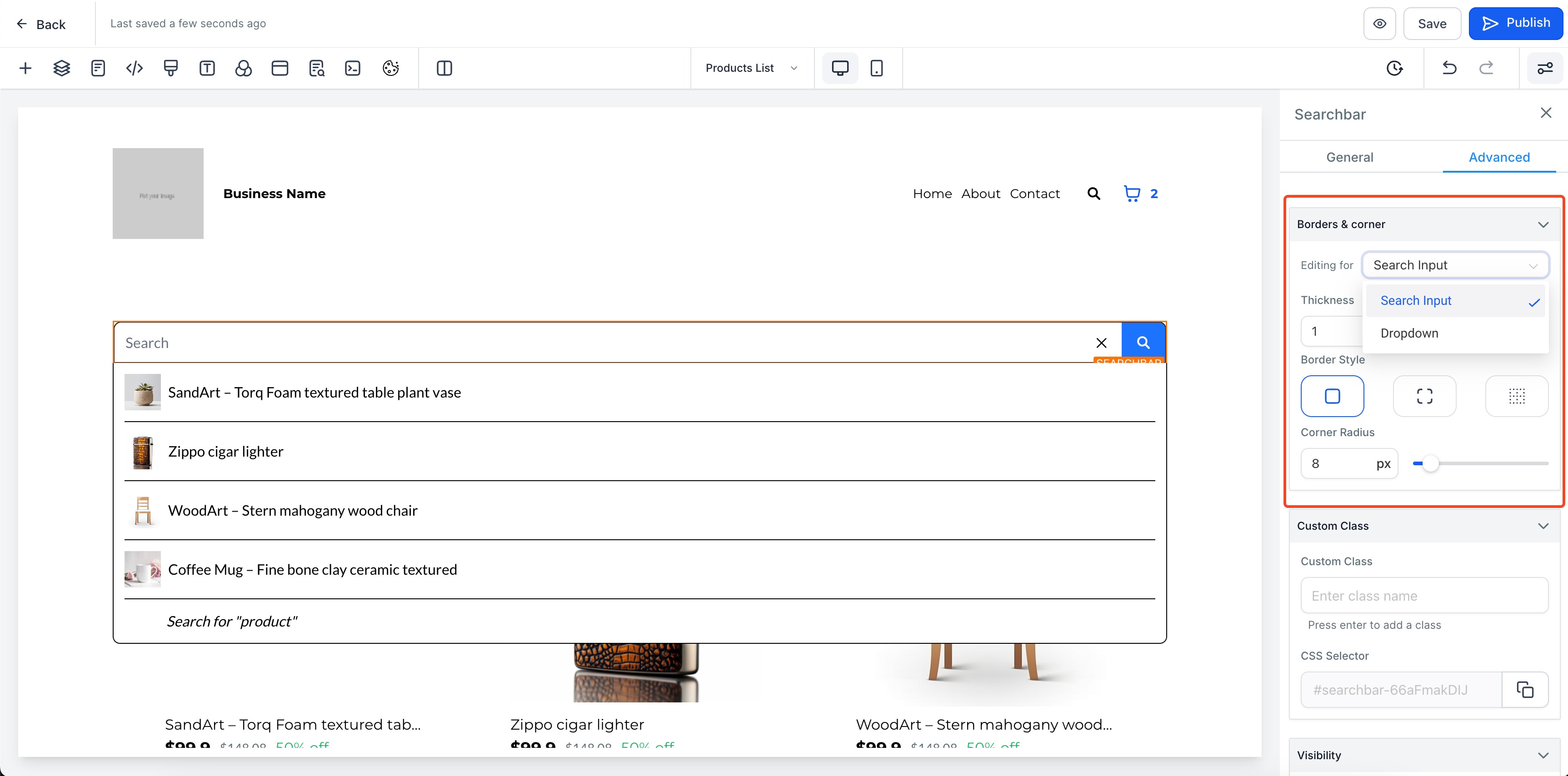
Border color for the input field and the dropdown
Font size and font weight
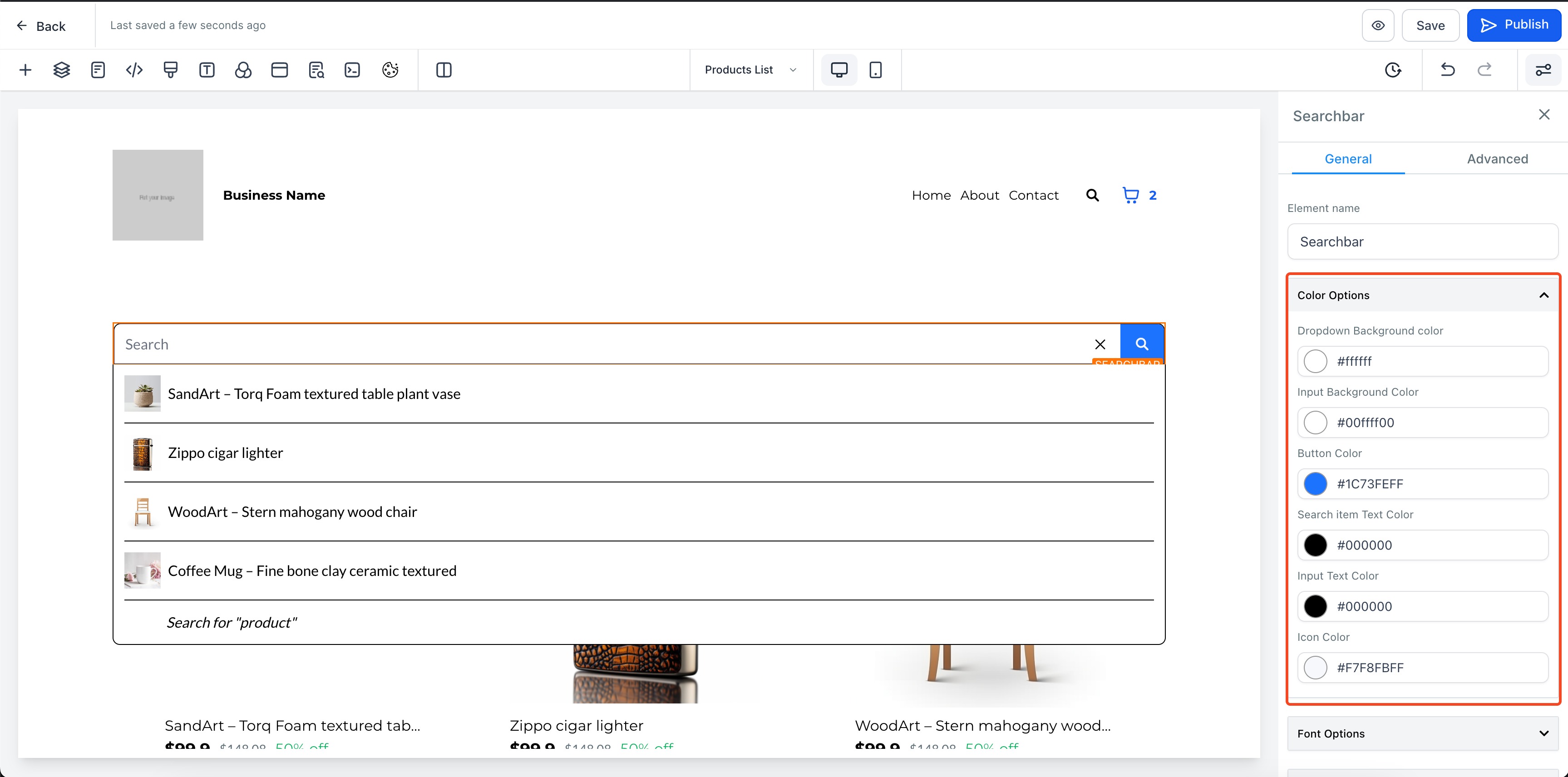
Understanding what the Search Bar actually searches helps set expectations for patients using your store:
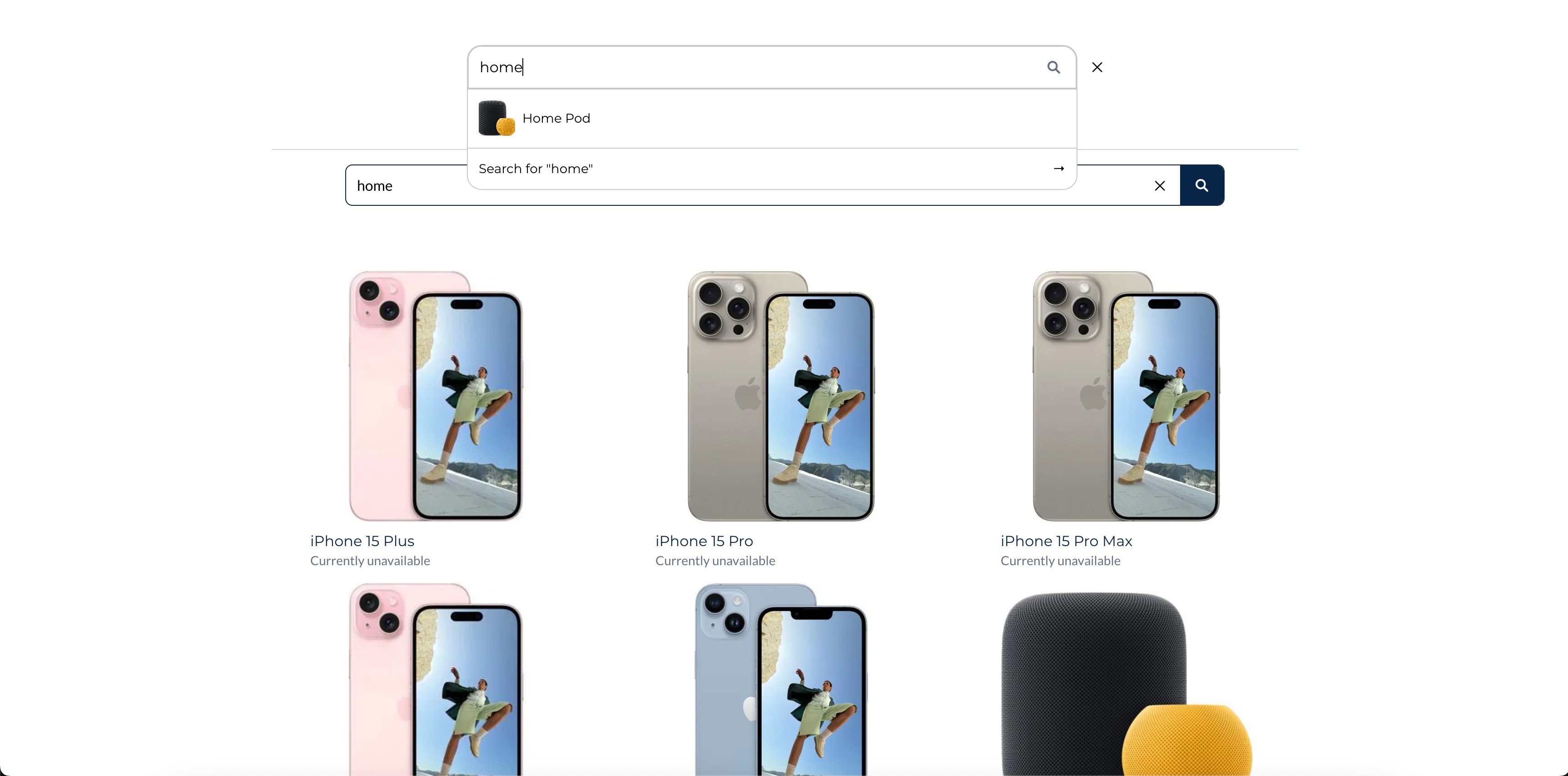
Search suggestions (the dropdown): As a patient types, the dropdown shows matches based on the product title or name only.
Full search results: When a patient clicks the search icon or presses enter, they're taken to your product list page, where results are matched against both the product title and the product description. This tends to surface more results than the dropdown suggestions.
Only websites that include a store can add the Search Bar element to a page, whether that page is a store page or not.
The navigation menu version of the Search Bar has limited styling options. Full customization is only available on the standalone element.
Search only matches against product title, name, and description. It does not search other fields like categories, tags, or variant details.
Where do I find the Search Bar element? It's in the page builder's "Add elements" panel, under the Store section.
Can I add a search bar without editing a specific page? Yes. Turn on the "Show Search Bar" toggle in your navigation menu settings to add search site-wide without placing an element on a page.
What can I customize about the Search Bar? The search button color, input box text and background color, dropdown text and background color, border colors, and font size and weight.
What does the search box actually search? The dropdown suggestions match on product title or name only. The full results page (after a patient submits a search) matches on both title and description.
Where does clicking a search result take a patient? Clicking search takes patients to your product list page, showing all matching results.
Can I add the Search Bar to pages that aren't part of my store? Yes, as long as your website includes a store, you can add the Search Bar element to any page, store-related or not.
Why can't I fully customize the search bar in my navigation menu? The navigation menu version is a simplified toggle with limited styling options. For full control over appearance, add the standalone Search Bar element through the page builder instead.
Do I need to publish my page for the Search Bar to show up? Yes. Save your changes and publish the page (or your site, if you enabled it through the navigation menu) before the Search Bar appears live for patients.
