Your online store's General settings control the labels, headings, and button text that patients see as they browse products and check out, along with how prices are formatted for different visitors. These settings live inside the Store Builder in your Aesthetix CRM account, separate from the payment provider, product catalog, and tax setup that live under Payments.
In your Aesthetix CRM account, go to your Store and open the Store Builder.
Select the store component you want to work with (for example, Product List, Product Detail, Cart, or Upsell).
On the right side panel, open the Settings tab, then choose the General section.
Each store component has its own General settings, so changes you make to the Product Detail page do not automatically apply to the Product List or Upsell pages. Repeat these steps for each component that needs updating.
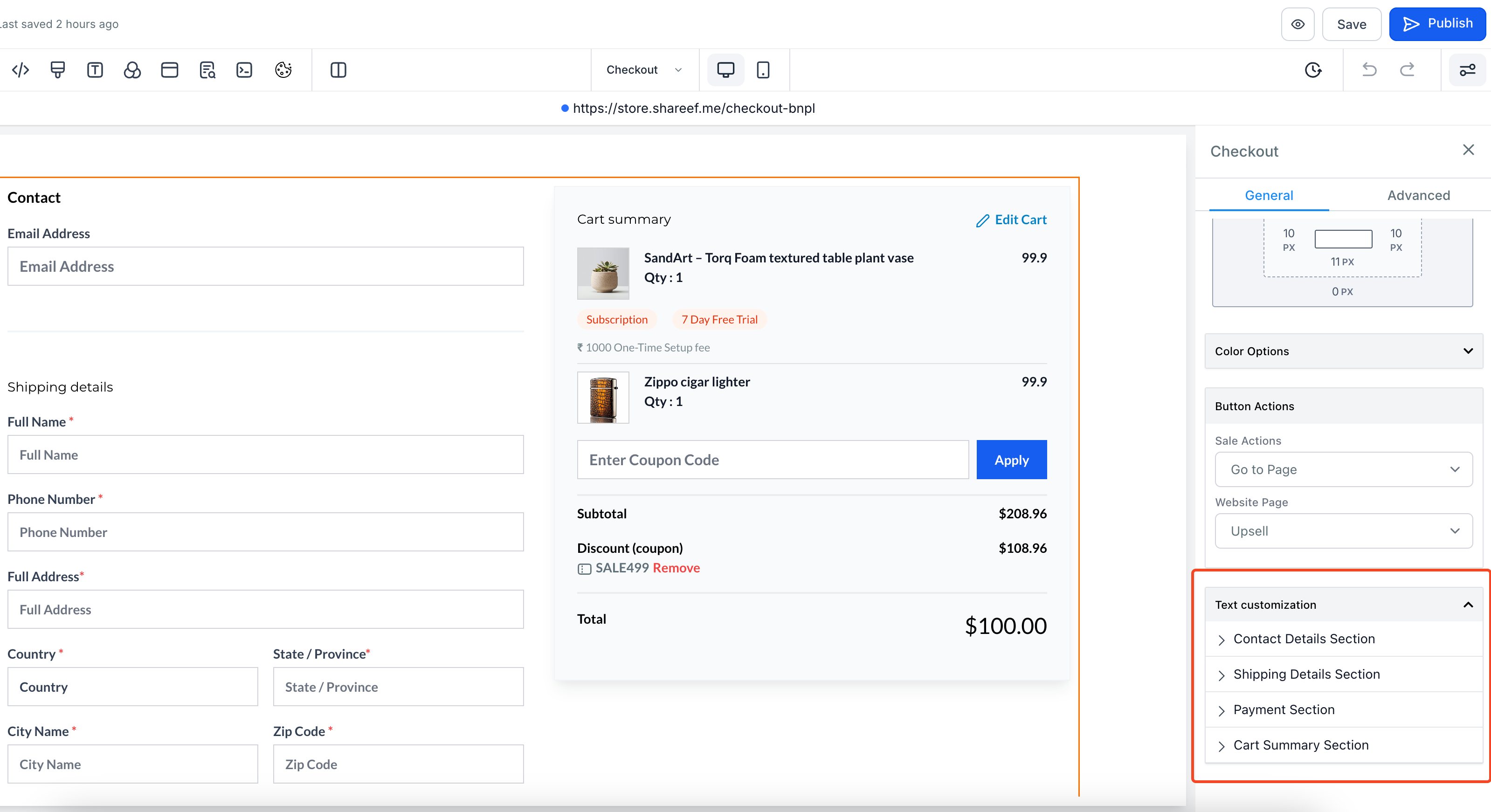
All of the editable text for a store component, labels, headings, button copy, and section titles, now lives in one place: the Text Customization section at the bottom of General settings. This replaced the older setup where the same text options were scattered across separate Button Options and Form Options fields.
With a store component selected, scroll to the bottom of the General settings tab to find Text Customization.
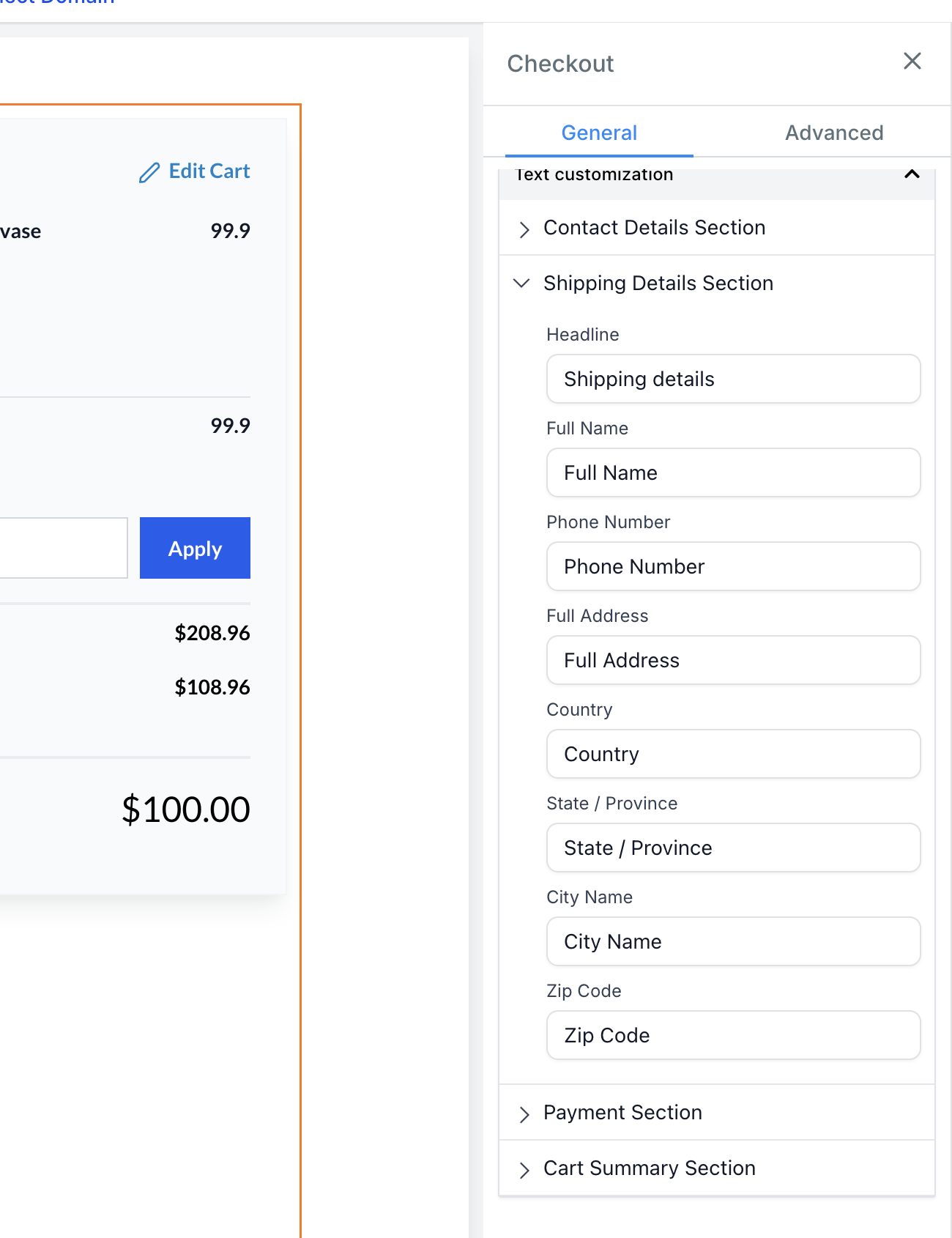
Text options are grouped into sub-sections that match the parts of the component you're editing (for example, Shipping Details, Payment Section, Order Summary).
Open a sub-section and edit the text, labels, or headings as needed. Use this to match your practice's voice, for example changing "Add to Cart" to "Add Treatment to Cart" or renaming a shipping label to fit a pickup-only policy.
Repeat for any other sub-sections you want to customize.
Save your changes, then click Publish to push the updated text live on your store.
A few things worth knowing before you dive in:
Some text, such as error messages and "no results" empty states, doesn't show up in the builder preview but can still be customized from the Text Customization section.
If your store used the older Button Options or Form Options fields, that text has already been carried over into the new Text Customization section. The old fields are no longer available, so make future edits from Text Customization only.
You don't have to update anything for your store to keep working. Existing stores continue to run normally with their current text even if you never open this section.
Store settings also include a locale-based currency formatting option, which controls how prices are displayed to visitors based on their browser or regional locale rather than showing every visitor the same fixed format. For example, a visitor in a locale that uses a comma as a decimal separator sees prices formatted with a comma (1.234,56) instead of the US-style period (1,234.56), and currency symbols are positioned according to that same locale convention.
Turn this on from your store's General settings if you serve patients across regions with different formatting expectations. If it's off, prices display using a single fixed format for every visitor regardless of location. This setting only changes how a price is displayed; it does not convert the underlying price or charge patients in a different currency.
Tip: If you take payments through your store, connect AX Pay, Aesthetix CRM's own payment provider, for better processing rates than Stripe. See the AX Pay help article for setup steps.
Choosing a payment provider, setting up checkout, and managing products, taxes, or coupons: see the Payments collection.
Connecting a Shopify or WooCommerce store: see the Integrations collection.
Reviewing changes made to your store settings over time: see the shared store audit log article in the Funnels/Websites collection, which tracks edits across all Store Builder activity.
Do I need to update every store component's text, or just the ones patients actually see? Just update the components you use. If your store doesn't include an Upsell step, for example, you can skip customizing its text entirely.
Will customizing text break anything if I make a mistake? No. Text Customization only changes labels and copy, not functionality. If something reads oddly, reopen the section and edit it again before publishing.
I used to customize button text under a separate "Button Options" field. Where did that go? It's been merged into Text Customization along with Form Options. Any text you had set previously carried over automatically, and future edits should be made from the Text Customization section.
Why don't my error message changes show up in the builder preview? Certain text, like error states and empty search results, isn't rendered in the live preview because those states only appear under specific conditions on the storefront. Your edits are still saved and will display correctly to patients when those conditions occur.
Does locale-based currency formatting change the actual price my patients pay? No. It only changes how the number is displayed (decimal separators, symbol placement) based on the visitor's locale. The underlying price and currency stay the same.
Can I customize text differently for different languages? Text Customization controls the copy shown for each component, but it is not a translation tool. If you serve patients in multiple languages, plan your labels and headings with that audience in mind, since the text you enter is what all visitors to that component will see.
Do I need to republish after every text change? Yes. Saving stores your edits, but you need to click Publish for the updated text to appear on your live store.
Where do I go to change my store's payment provider or product pricing? That's handled in the Payments collection, not in Store Settings. Store Settings only controls display text and formatting.
Can I see a history of who changed store settings and when? Yes, store-wide changes are tracked in the shared store audit log, covered in the Funnels/Websites collection.
Is there a limit to how much text I can customize? No hard limit is documented. Focus your edits on the labels and sections that matter most to the patient experience, such as checkout and shipping details, rather than rewriting every field.
