Before you send patients to your online store, it's worth running a test order to make sure everything behaves the way it should. A test order walks through the entire purchase flow, from adding a product to checkout to confirmation, without charging a real payment method. You'll find the store and payment settings under Sites > Stores, and completed orders under Payments > Orders.
Run through a test purchase in any of these situations:
Before launching your store to the public.
After changing payment or shipping settings.
To confirm the buying experience feels right, from product selection through order confirmation.
To verify that confirmation emails and texts go out to both the customer and your team.
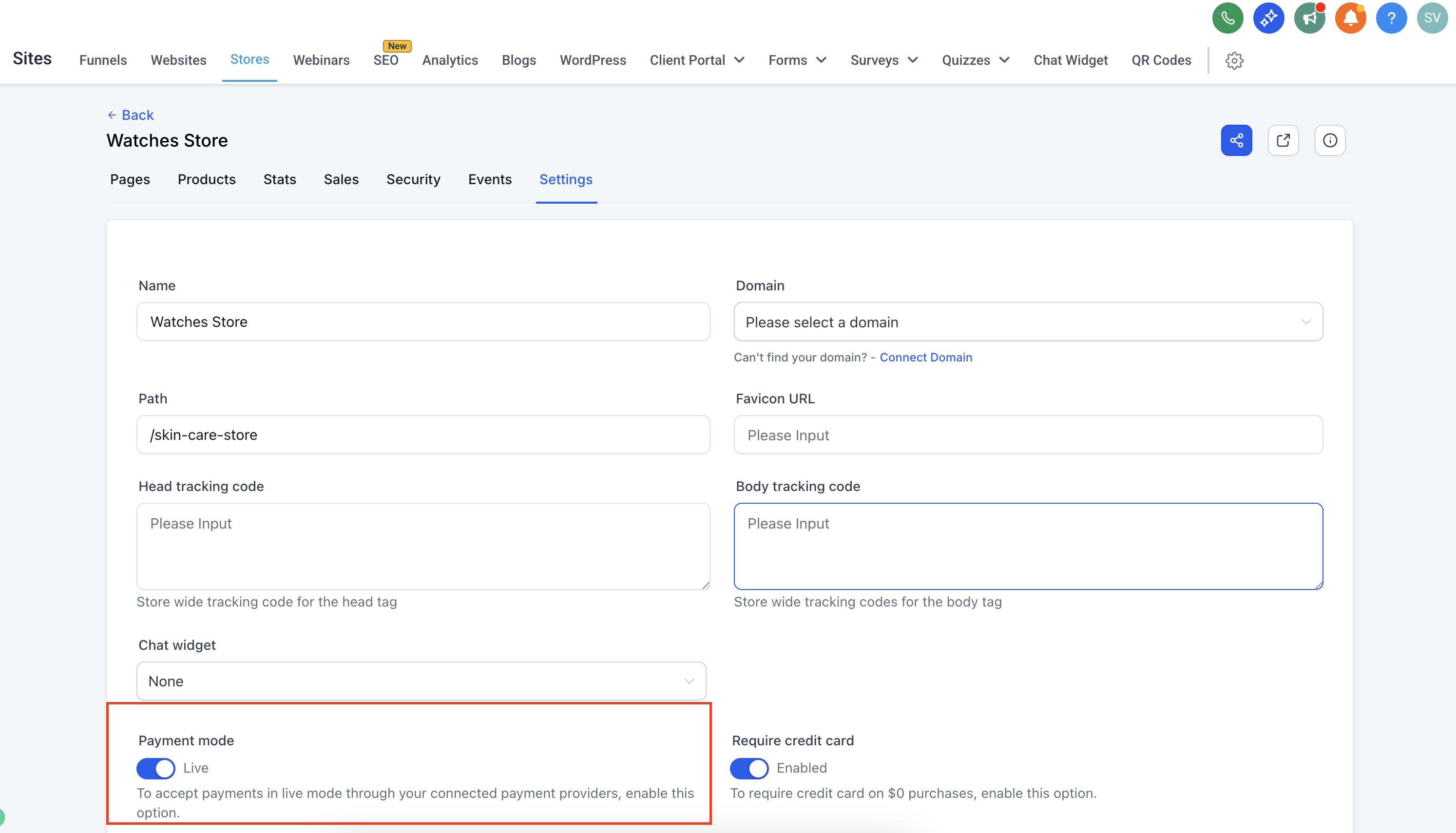
Go to Sites > Stores, select your store, then open Store Settings > Payment Mode. Toggle Test Mode on and save your changes. This tells your payment gateway to simulate the transaction instead of processing a real charge.
AX Pay tip: When you're ready to go live, we recommend connecting AX Pay, Aesthetix CRM's own payment processor, which offers better rates than Stripe for your store checkout. See the AX Pay help article for setup steps. Test Mode works the same way regardless of which gateway you connect.
Open your live store frontend (this is the same page prospective patients will see) and add one or more products to the cart.
Fill in shipping and customer information as if you were a real patient. Confirm that address fields, tax calculations, and shipping options all display correctly.
With Test Mode enabled, use one of the standard dummy card numbers below if your gateway supports them:
Card Type | Number | Expiry | CVV |
|---|---|---|---|
Visa |
| Any future date | Any 3 digits |
Mastercard |
| Any future date | Any 3 digits |
These numbers won't charge anything, but they'll trigger the full checkout flow so you can see exactly what a patient would experience.
Once you've completed the test purchase, check that:
The order appears under Payments > Orders.
You (and the test customer) receive the expected confirmation emails or texts. Make sure notifications are turned on under Payments > Settings > Notifications.
The order status (pending, fulfilled, etc.) updates the way you'd expect.
One test order confirms the basics, but it's worth repeating the process with a few variations to catch anything that only shows up under certain conditions:
Different shipping methods or delivery locations.
A discount code, if you offer coupons.
Different product types (physical, digital, or bundled items).
For details on setting up coupons, taxes, and your product catalog, see the Payments guides. If your store is connected through Shopify or WooCommerce rather than the native Store, check the Integrations guides for that connection, since checkout behavior there is managed by the connected platform.
Once you've confirmed everything works:
Turn Test Mode off so your store can accept real payments.
Restore any product prices you temporarily changed for testing.
Not receiving confirmation emails or texts? Double-check your notification settings under Payments > Settings > Notifications.
Checkout page won't load? Confirm your payment gateway is correctly connected under Store Settings > Payment Mode.
Will a test order charge a real card? No. As long as Test Mode is turned on, dummy card numbers simulate the transaction without moving any money.
Do I need Test Mode on to place a test order? Yes. Test Mode is what tells your payment gateway to simulate the charge instead of processing it for real.
Can I use my own real card number to test? It's not recommended. Use the dummy card numbers provided while Test Mode is active so you don't risk an accidental real charge.
Where do test orders show up? In the same place as real orders, under Payments > Orders. You'll want to remove or ignore test orders before reporting on real sales.
Will patients see anything different during a test order? No. Test Mode uses your live storefront, so you're seeing exactly what a real patient would see during checkout.
What if my confirmation emails never arrive? Check that notifications are enabled under Payments > Settings > Notifications, and confirm the email address you used during the test is correct.
Should I test discount codes too? Yes, if you offer coupons in your store. Run a separate test order applying a discount code to confirm the pricing math and confirmation details are correct.
Do I need to test every product in my catalog? Not necessarily, but it's a good idea to test at least one of each product type you sell (physical, digital, or bundled), since each can behave differently at checkout.
What should I do once testing is complete? Turn Test Mode off, restore any prices you changed, and remove or ignore the test orders when reviewing your sales reports.
Is Test Mode something I need to re-enable every time I make a change? Only when you're specifically testing again, such as after updating payment or shipping settings. Leave it off during normal operation so real orders can process.
