Aesthetix CRM does its best to automatically attribute every lead to the Facebook ad, ad set, and campaign that drove it. Once that attribution is flowing correctly, you can view campaign performance right inside Aesthetix CRM under Reporting > Facebook Ads, without logging into Facebook at all. This guide covers how to set up accurate attribution and how to read the reporting dashboard once your data is coming in.
Facebook ad performance also appears under Ads Manager > Ad Reporting, which covers connecting and reporting on ads directly from the Ads Manager side of Aesthetix CRM. This guide focuses on the dedicated Facebook Ads Reporting dashboard under Reporting.
When you run Facebook Ads, Aesthetix CRM tries to attribute each new lead to the specific ad and ad set that generated it. For the most reliable reporting and to help you spot your winning campaigns, we recommend combining three things:
Facebook UTM tracking parameters (covered below)
Your Facebook pixel
Facebook Conversion API, configured in Workflows
If you are sending traffic to a landing page, make sure your Facebook pixel and Facebook Conversion API are set up in Workflows before you launch the campaign. Attribution reporting depends on this being in place from the start.
A few notes before you begin:
Facebook will not add your UTM parameters to links when you are only viewing an ad as a preview. You will only see the tracking populate once the ad is actually approved and running.
Do not use special characters or emojis in any UTM parameter or in any value you need Aesthetix CRM to track.
First-ad attribution data is only recorded for contacts who come in through specific entry points. For every other entry point, first attribution will be empty.
Form submissions
Survey submissions
Calendar bookings
Contacts coming directly from a Facebook Lead Form
Two-step order forms
Chat widget conversations
Inbound calls (this only works for click-to-call scenarios; it will not work if a lead calls your number pool directly)
Once attribution is working, the following fields populate automatically at the contact level:
Field | Merge field |
|---|---|
Source | Determined by Aesthetix CRM's source classification logic |
Campaign Name |
|
Adset Name |
|
Ad Name |
|
Campaign Id |
|
fbclid |
|
gclid |
|
Referrer |
|
Facebook attribution only works reliably if your campaign, ad set, and ad names are unique. Reusing a name across campaigns, or renaming something mid-flight, breaks the link between the ad and the leads it generates.
Correct setup example, using a med spa promotion:
Campaign Name: Campaign - Spring Botox Promo
Ad Set: Campaign#1 - Spring Botox Promo - Audience #1 (Downtown radius, 20 miles, W&M)
Ads (each name must be unique):
Ad#1: Spring Botox Promo - Carousel Ad - Audience #1
Ad#2: Spring Botox Promo - Video Ad - Audience #1
Ad#3: Spring Botox Promo - Image Ad - Audience #1
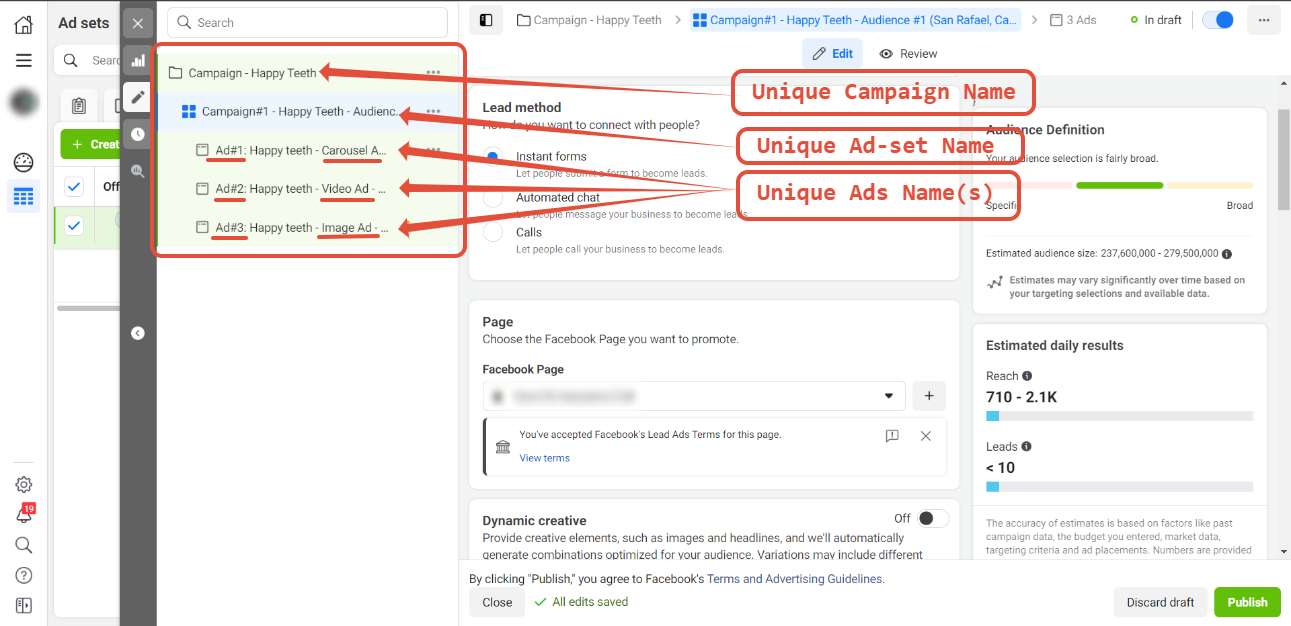
Keep the following in mind once a campaign is live:
Campaign, ad set, and ad names cannot be changed during the lifetime of that campaign, ad set, or ad. If a name needs to change, create a new campaign, ad set, or ad instead of renaming the existing one.
If you edit a campaign, ad set, or ad in place instead of creating a new one, Aesthetix CRM will keep attributing new leads back to the original campaign name.
Open your Facebook Ads Manager and select the campaign you want to add UTM parameters to, then go to Manage ads > Ads > Edit.
Scroll down to the "Tracking" section.
Click "Build a URL parameter."
Complete the following steps inside the URL parameter builder:
Click "Campaign Source" and type fb_ad into the field.
Click "Campaign Medium" and select {{adset.name}} from the dropdown.
Click "Campaign Name" and select {{campaign.name}} from the dropdown.
Click "Campaign Content" and select {{ad.name}} from the dropdown.
Click "Add Parameter."
Enter campaign_id as the parameter name, then set the value to {{campaign.id}} from the dropdown.
Click "Apply" to save your changes.
Facebook will take some time to review and approve your ad. Once it's approved, your ad will start running and Aesthetix CRM will begin tracking it through the UTM parameters you just built.
Before any live data can appear in your reporting dashboard, connect your Facebook Ads account to Aesthetix CRM:
Go to Settings > Integrations.
Select Facebook Ads.
Follow the prompts to authorize Aesthetix CRM to access your Facebook Ads account.
Until this connection is made, the Facebook Ads Reporting dashboard shows sample data only, so you can see how the layout works before your real numbers populate it.
Once your account is connected and your ads are running, head to Reporting > Facebook Ads to see your live performance data. The dashboard shows results at the campaign, ad set, and ad level, along with demographic detail on who is engaging with your ads. What you can see and edit here depends on your assigned user permissions.
Go to Reporting.
Select Facebook Ads.
Choose your date range. Aesthetix CRM shows the last 30 days by default. To change it, click the calendar selector in the top right, choose your dates, and confirm with the checkmark button. Setting a precise date range keeps the data you're reviewing relevant and accurate.
Use the search bar to jump straight to a specific campaign by name. Other campaigns will drop out of view while you search.
Click "Columns" to choose which data points appear in the table. Toggle the fields you want, then click the Columns tab again to save your selection.
Review the summary charts at the top of the dashboard:
Campaign Impressions Timeline: total impressions at the campaign level over your selected date range.
Clicks: how many times users clicked your ad, plotted by day, week, or month.
Conversions: how many users completed the action tied to your ad's goal, plotted over your date range.
Client Spend: total spend on a given ad.
Average CPC: the average cost per click.
Cost per Conversion: the average cost per conversion.
Click any campaign in the list to open its detail view, showing Campaign Name, Status (live or paused), Start Date, End Date, Impressions, Clicks, Conversions, Client Spend, Average CPC, and Cost per Conversion for that specific campaign.
From a campaign's detail view, select the "Ad Sets" tab to see performance broken out by individual ad set, which helps you identify which audience or targeting combination is performing best.
Select the "Ads" tab to see performance for each individual ad within the campaign, useful for reviewing creative and copy performance.
Select the "Engagement" tab to see a breakdown of post reactions, comments, and shares, which helps you gauge how well your ad content is resonating.
Use the Objectives dropdown in the top left of the report to see what marketing objective was set for a given campaign when it was created (for example, lead generation or traffic).
Use everything you see here to optimize your campaigns going forward: adjust targeting, test new ad creative, or update ad copy to improve click-through and conversion rates.
Each metric on the dashboard tells you something different about how a campaign is performing. Together, they give you a full picture of reach, cost efficiency, and return on investment.
Impressions The number of times your ad was displayed to users. This measures visibility and reach.
Clicks How many times users clicked on your ad, including clicks on links, headlines, and call-to-action buttons. Higher clicks generally signal stronger engagement.
Conversions How many times a user completed the action your ad was built for, such as submitting a form, booking a consult, or making a purchase.
Client Spend Total campaign cost, including both ad spend and any additional management fees.
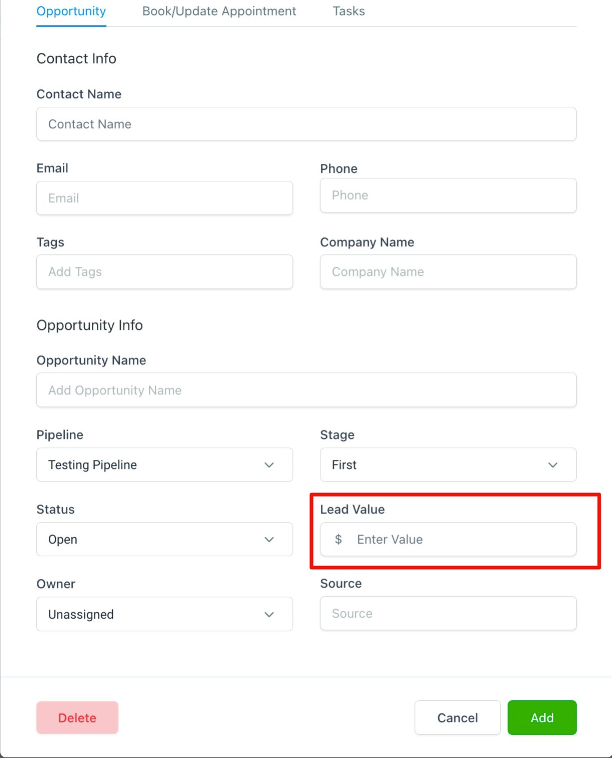
Only authorized users can edit this value, which keeps spend reporting accurate and controlled.
Average CPC (Cost per Click) How much you're paying, on average, for each click. Audience targeting, competition, ad placement, and ad quality all influence this number.
Cost per Conversion (CPA) How much it costs to generate one conversion.
Cost per Conversion = Total Ad Spend divided by Number of Conversions
Conversion Rate The percentage of users who took action after interacting with your ad.
Conversion Rate = (Conversions divided by Total Interactions) multiplied by 100
Revenue The total value generated from successful conversions, typically pulled from opportunities marked as won.
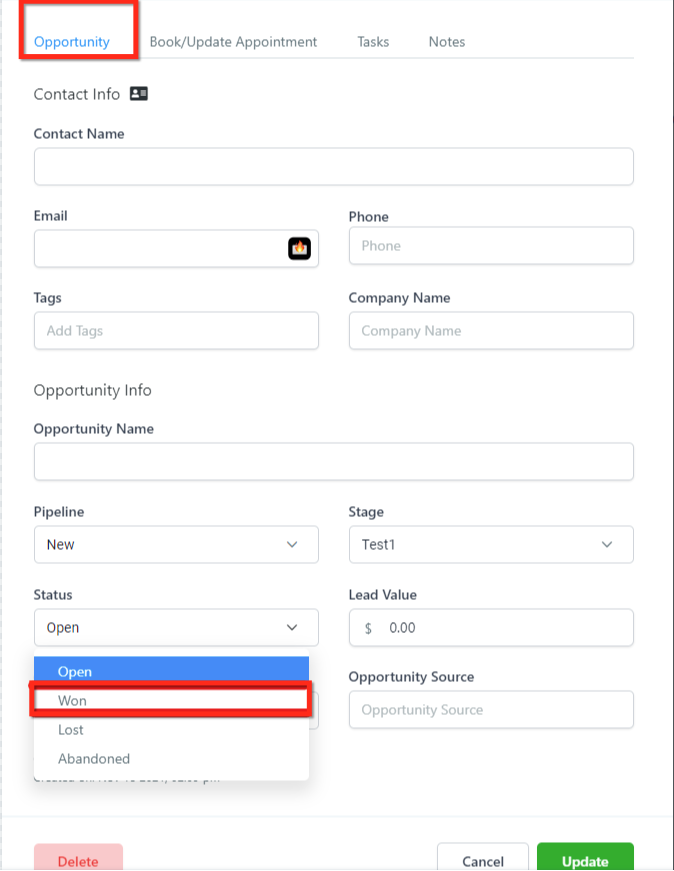
Enter revenue values as numbers only. Aesthetix CRM handles formatting automatically.
ROI (Return on Investment) Overall profitability, comparing revenue generated to campaign cost.
ROI = (Revenue minus Ad Spend) divided by Ad Spend, multiplied by 100
A positive ROI means the campaign is profitable. A negative ROI flags a campaign that needs optimization.
Sales Completed opportunities that converted into paying patients, the final stage of the funnel.
CPS (Cost per Sale) How much you spend, on average, to generate one completed sale.
CPS = Total Campaign Cost divided by Number of Sales
Leads Prospective patients who showed interest by taking an action, such as submitting a form or reaching out directly.
CPL (Cost per Lead) How much it costs to generate a single lead.
CPL = Total Campaign Cost divided by Total Leads
A lower CPL means more efficient lead generation.
I don't see UTM parameters when previewing my ad in Facebook. This is expected. Facebook does not add UTM parameters to links while you're only viewing an ad as a preview.
I'm not seeing first attribution data for some contacts. First-ad attribution only records for contacts coming from the entry points listed above (forms, surveys, calendar, Facebook Lead Forms, two-step order forms, the chat widget, and click-to-call). Contacts arriving through any other path will show empty first attribution.
I changed my ad, ad set, or campaign and now reporting looks off. Campaign, ad set, and ad names must stay unique and unchanged for the life of that campaign. If you edited a name in place rather than creating a new campaign, ad set, or ad, Aesthetix CRM will keep attributing new leads back to the original name.
Do I need a Facebook Business Account or Ads Manager to use this? Yes. If you haven't set one up yet, create a Facebook Business Manager account and a Facebook Ad account first, then connect that account to Aesthetix CRM under Settings > Integrations.
I'm running Facebook Lead Ads. Do I still need UTM parameters? Yes. We recommend adding UTM parameters even on lead-gen ads for more accurate, complete reporting, using the same steps outlined above.
Where should I add UTM parameters: the tracking field or the destination URL? Add them in the Tracking section of your ad, not the destination URL. This ensures every link click and page visit is tracked with a unique identifier tied to that click.
What is the Objectives dropdown for? It sits in the top left of the ad report and shows the marketing objective that was set for a campaign when it was created, such as lead generation or traffic.
Why are some metrics missing or showing zero? This usually means your Facebook Ads account isn't fully connected yet, or your ad data hasn't finished syncing. Confirm the integration under Settings > Integrations and give it time to sync.
How often does the reporting data update? Most data updates in near real time, though some metrics can take longer to process depending on Facebook's own reporting delays.
Why does Client Spend appear higher than I expected? Client Spend includes both your raw ad spend and any additional management fees, so it reflects your total campaign investment rather than ad cost alone.
What's the difference between CPL and CPS? CPL measures the cost to generate a single lead. CPS measures the cost to generate a single completed sale. Both help you judge efficiency at different stages of the funnel.
Are these metrics the same as what I'd see natively in Facebook Ads Manager? The underlying data is the same, but Aesthetix CRM's reporting is consolidated and simplified so you can analyze performance without leaving your account.
Will editing my campaign name after launch fix broken reporting? No. Once a campaign, ad set, or ad is live, changing its name breaks attribution continuity. Create a new campaign, ad set, or ad instead, and let the original one finish its run.
