Google Ads is one of the most common ways med spas and aesthetics practices drive new patient leads, but the reporting only tells an accurate story when your integration, tracking, and naming are set up correctly. If your Google Ads numbers in Aesthetix CRM look off (missing data, duplicate entries, or leads attributed to the wrong campaign) it almost always traces back to one of three things: the integration connection, your UTM tracking template, or duplicate naming across campaigns, ad groups, and ads.
This guide walks through each of those areas so you can find and fix the issue. Google Ads reporting lives under Reporting > Google Ads Reporting in Aesthetix CRM. If you're looking for ad performance metrics instead of a tracking fix, see Ads Manager > Ad Reporting.
Reporting problems are almost always caused by one of the following:
An incorrectly connected (or disconnected) Google Ads integration
A misconfigured or duplicated UTM tracking template
Duplicate names across campaigns, ad groups, or ads
Working through each section below in order will resolve the vast majority of reporting issues.
A properly connected integration is required for reporting to function at all. Start here before checking anything else.
What to verify:
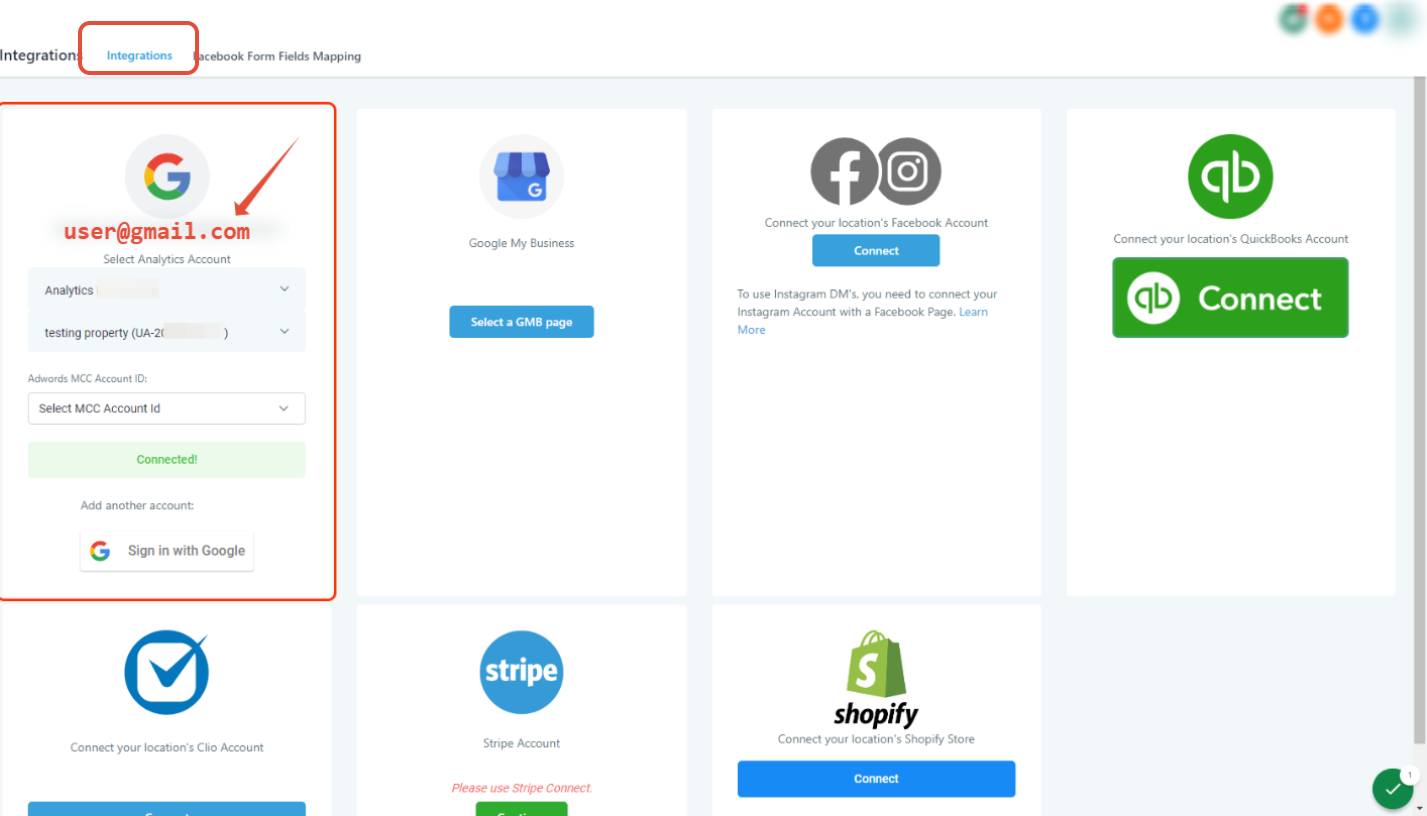
The integration is active and shows as connected
The Google account (Gmail address) used on the integration is the same one associated with your Google Ads account
The connected user has the maximum available permissions in that Google Ads account
If the integration is connected, confirm the email address tied to it matches the account you actually manage your ads from.

Next, make sure that connected email has Admin-level access inside your Google Ads account, not just standard user access.

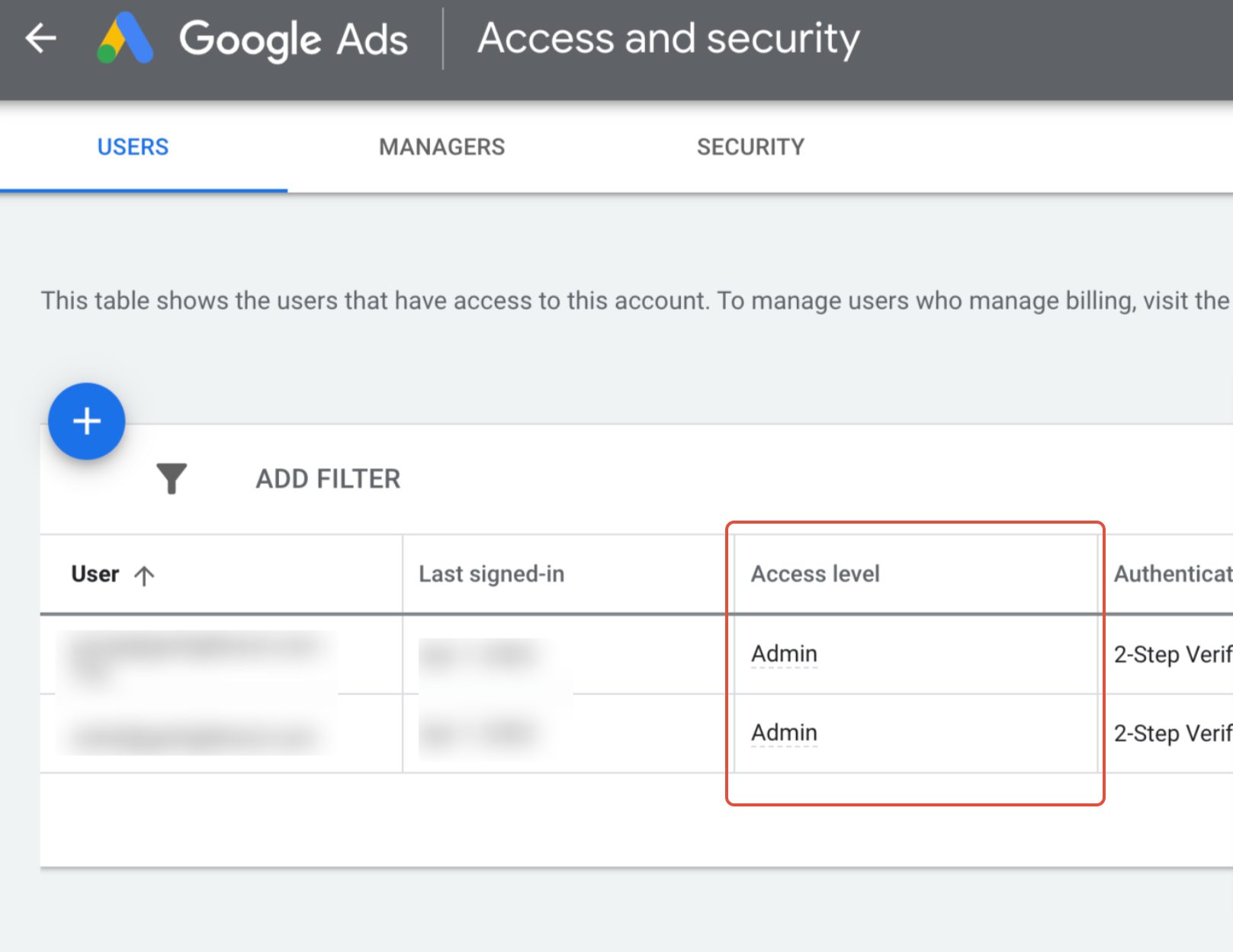
Important: The Google account connected in the integration must hold a User or Admin role inside the Google Ads account. It cannot be set to a Manager-only role, or data will fail to sync properly.
Tracking templates are what allow Aesthetix CRM to attribute leads, sales, and ROI back to the right campaign. A UTM tracking template can only be applied in one location:
Account settings
Campaign settings
Ad settings
If a tracking template is applied in more than one of these places, Google Ads follows this hierarchy: Account > Campaign > Ad. Whichever level is most specific wins, which can cause confusing results if you assumed a different template was active.
Best practices:
Apply your tracking template in only one location
Avoid setting up duplicate or conflicting templates at different levels
Do not modify the standard tracking template structure once it's working
Important: UTM tracking is case-sensitive. It must match your template exactly, with no extra spaces, no capital letters, and no formatting changes. Even a small typo or an unexpected capital letter can break attribution entirely.
Google Ads campaign, ad group, and ad names all need to be unique. If the same name is reused across different ad groups or ads, Aesthetix CRM cannot tell them apart, and reporting will show duplicate or merged entries.
Field | Value |
|---|---|
Campaign Name | Winter Specials |
Campaign ID | 12345 |
Ad Group 1 | Botox Promo |
Ad (Ad Group 1) | *New Patient Offer |
Ad Group 2 | Filler Promo |
Ad (Ad Group 2) | *New Patient Offer |
In this example, "*New Patient Offer" is used as the ad name in two different ad groups. Because the name isn't unique, a lead generated by either ad will show up in reporting attributed to "New Patient Offer" without distinguishing which ad group actually drove it. If a prospective patient converts through either ad, Aesthetix CRM has no way to tell which ad group deserves credit, since both share an identical UTM value:
https://example.com?utm_source=adwords&utm_medium={NewPatientOffer}&utm_campaign={WinterSpecials}&utm_content={promo}&utm_keyword={botox}&utm_matchtype={e}&campaign_id={12345}&ad_group_id={123456789}&ad_id={promo}Field | Value |
|---|---|
Campaign Name | Winter Specials |
Campaign ID | 12345 |
Ad Group 1 | Botox Promo Location A |
Ad (Ad Group 1) | New Patient Offer 1.1 Location A |
Ad Group 2 | Filler Promo Location B |
Ad (Ad Group 2) | New Patient Offer 1.2 Location B |
Adding a distinguishing detail (a location, an offer version, a target audience) to each name keeps every campaign, ad group, and ad unique, so reporting attributes each lead and conversion to the correct source.
Important note on renaming: If you rename an existing Google Ads campaign, ad group, or ad, it does not update the UTM parameters already tied to your prior data. Reporting will keep attributing new activity to the old parameter values, not the new name, until fresh parameters are generated.
Best practice: Instead of renaming an existing campaign, ad group, or ad, create a new one. In Google Ads Reporting's list view, Aesthetix CRM will display the updated name, but the underlying data can stop attributing sales, leads, and ROI correctly if it's still tied to the old UTM parameters.
Why is my Google Ads reporting data missing in Aesthetix CRM? This is almost always caused by a disconnected or incorrectly configured integration, a connected account that lacks admin permissions, or a UTM tracking template that isn't applied correctly.
Why am I seeing duplicate entries in my reporting? Duplicate entries usually happen when the same campaign, ad group, or ad name is reused in more than one place. Give each one a unique name to resolve this.
Can I apply a UTM tracking template at more than one level? You can, but it isn't recommended. If templates exist at the account, campaign, and ad levels at the same time, Google Ads applies them in this order: Account, then Campaign, then Ad, which can produce results you didn't expect.
Does renaming a campaign or ad fix my tracking issue? No. Renaming a campaign, ad group, or ad does not update the UTM parameters already attached to it. New activity will continue attributing to the old parameter values. Create a new campaign, ad group, or ad instead.
Why does case sensitivity matter for UTM tracking? Google Ads tracking parameters must match your template exactly. A stray capital letter or extra space is enough to break attribution, even if the rest of the template is correct.
What permission level does my connected Google account need? The Google account connected to your integration needs a User or Admin role inside your Google Ads account. A Manager-only role will prevent data from syncing correctly.
Where do I go to see actual ad performance instead of fixing tracking? Once your setup is correct, ad-level performance metrics (spend, clicks, conversions) are available under Ads Manager > Ad Reporting. This guide focuses specifically on fixing broken or missing attribution.
How long does it take for a fix to show up in reporting? Once the integration, tracking template, or naming issue is corrected, new activity should attribute correctly going forward. Historical data tied to the old setup will not retroactively correct itself.
