Google Ads Reporting gives you live performance data for your practice's Google search, display, and video campaigns without leaving Aesthetix CRM. You'll find it under Reporting > Google Ads once your account is connected. This guide covers connecting your account, setting up UTM tracking so clicks attribute correctly, and reading every metric on the reporting dashboard.
Before any data will show up, connect your Google Ads account to Aesthetix CRM and make sure tracking is configured correctly.
Go to Settings > Integrations > Google and authorize Aesthetix CRM to access your Google Ads account. The Google user account you connect needs Administrator access or Google Ads Manager Account (MCC) access, otherwise Aesthetix CRM won't be able to pull full reporting data.
MCC stands for My Client Center, Google's term for a manager account that can oversee more than one Google Ads account. If your practice (or a marketing partner) manages multiple Google Ads accounts, you'll see an MCC ID in addition to the standard Client Account ID. Make sure you select the correct one when connecting, or your reporting data will pull from the wrong account.

The MCC ID appears in the top right corner of your Google Ads account.

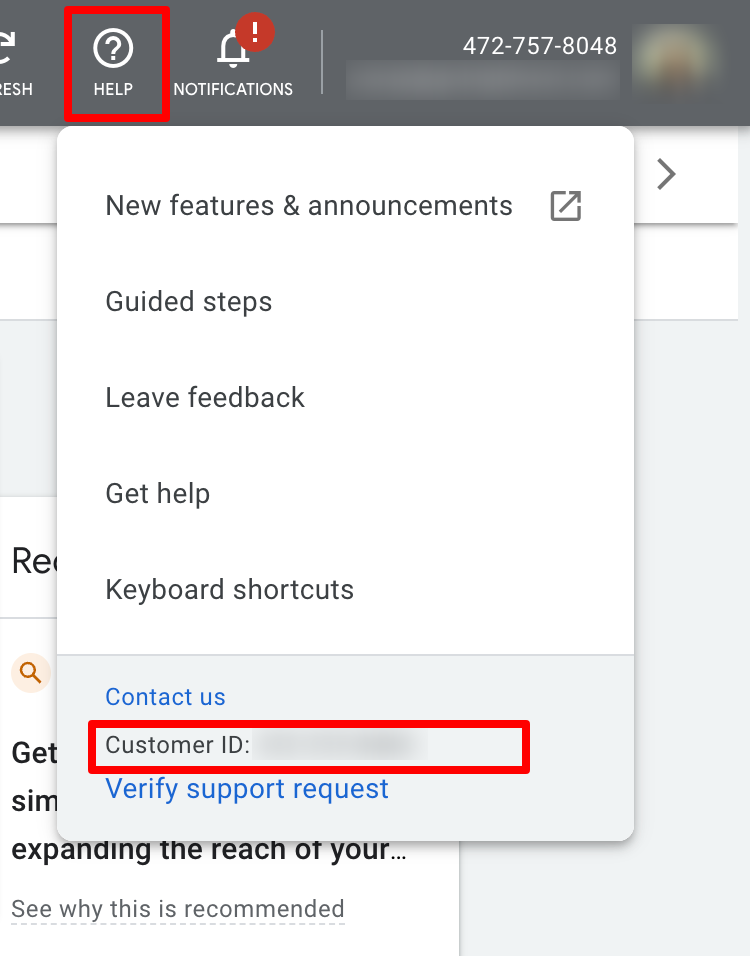
The Client Account ID appears when you click the help section of your Google Ads account.
The UTM tracking template can be added at the Account, Campaign, or Ad Group level in Google Ads. We recommend adding it once at the account level so every campaign inherits it automatically.
UTM Tracking Template (copy this exactly):
{lpurl}?utm_source=adwords&utm_medium={adname}&utm_campaign={campaignname}&utm_content={adgroupname}&utm_keyword={keyword}&utm_matchtype={matchtype}&campaign_id={campaignid}&ad_group_id={adgroupid}&ad_id={creative}How it works: the tracking template must include a ValueTrack parameter that inserts your final URL, like {lpurl}. When your ad is clicked, Google fills in these parameters and appends them to your landing page URL. If your template is missing the URL insertion parameter, your landing page link will break, so double-check the template before saving.
If you want to add more than one ValueTrack parameter to a single URL, append them together with an ampersand (&), for example {lpurl}?matchtype={matchtype}&device={device}.
Example
Final URL: http://example.com
Tracking template: {lpurl}?utm_source=adwords&utm_medium={adname}&utm_campaign={campaignname}&utm_content={adgroupname}&utm_keyword={keyword}&utm_matchtype={matchtype}&campaign_id={campaignid}&ad_group_id={adgroupid}&ad_id={creative}
Landing page URL after a click:
{lpurl}?utm_source=adwords&utm_medium=spring_promo&utm_campaign=laser10&utm_content=hero_banner&utm_keyword=botoxdeal&utm_matchtype=e&campaign_id=12345&ad_group_id=2394984903&ad_id=93844980940&gclid=84843ewhfb834nedhj4u49
To add the template, go to your Google Ads account, then Account Settings > Tracking:

Paste the tracking template URL into the Tracking template field:

After saving, run a test click and confirm the majority of your active campaigns show the landing page as found. Fix any campaign that errors out.
Note that Google previously used utm_source=google as a default. That value is deprecated, though ad blockers may still reference it when identifying and stripping UTM parameters from a URL, so don't be surprised if you still see it referenced in older documentation.
As an extra safeguard, you can add a small tracking script to your website that fires if the UTM template ever fails to capture attribution data. It tracks clicks on a given link and sends that data to Google Analytics. The only thing you need to customize is the URL of the tracking page, which should match your own site.

Campaign, Ad, and Ad Group names need to be unique.
Name parameters can't be changed during the lifetime of a campaign, ad set, or ad. If a name needs to change, create a new campaign/ad set/ad instead of renaming the existing one.
If you rename a campaign, ad set, or ad without creating a new one, Aesthetix CRM will keep referencing the original name in its reporting, since Google Ads still reports the old name under the hood. This will skew your historical reporting.
The Objectives dropdown (top left of the reporting screen) shows the objective you selected for that campaign in Google Ads when it was created.

Once your account is connected, go to Reporting in the main menu and select Google Ads from the dropdown. You'll be able to view campaigns, ad groups, ads, and keywords, all without leaving Aesthetix CRM or logging into Google Ads separately.
Choose a date range: by default, Aesthetix CRM shows the last 30 days of data. Click the calendar icon in the top right corner, pick your preferred date range, and click the green checkmark to refresh the report.
Search for a campaign: use the search bar to quickly find a specific campaign by name. Other campaigns will drop out of the view while you search.
Submit feedback: if the numbers on your dashboard don't match what you see in your actual Google Ads account, click Submit Feedback. A sidebar opens where you can write a subject and message and attach a file (a screenshot is helpful) to illustrate the discrepancy, then click the green Send Message button.
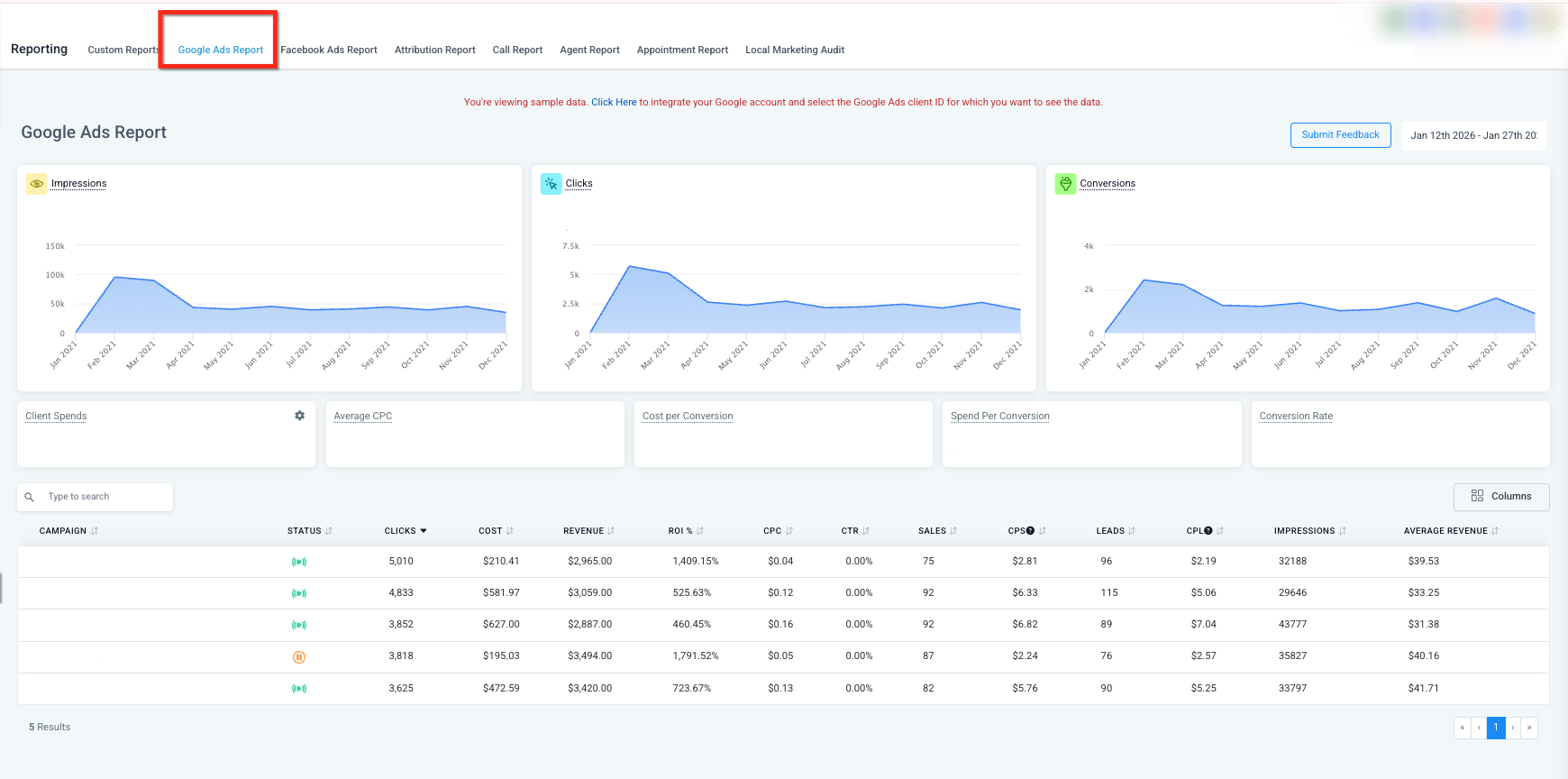
The main dashboard summarizes how your Google Ads account is performing at a glance, with impressions, clicks, conversions, spend, and more. Use it to quickly assess overall performance before drilling into individual campaigns, ad groups, ads, or keywords.
Each metric below explains what it measures, why it matters, and how it's commonly used when reviewing results.
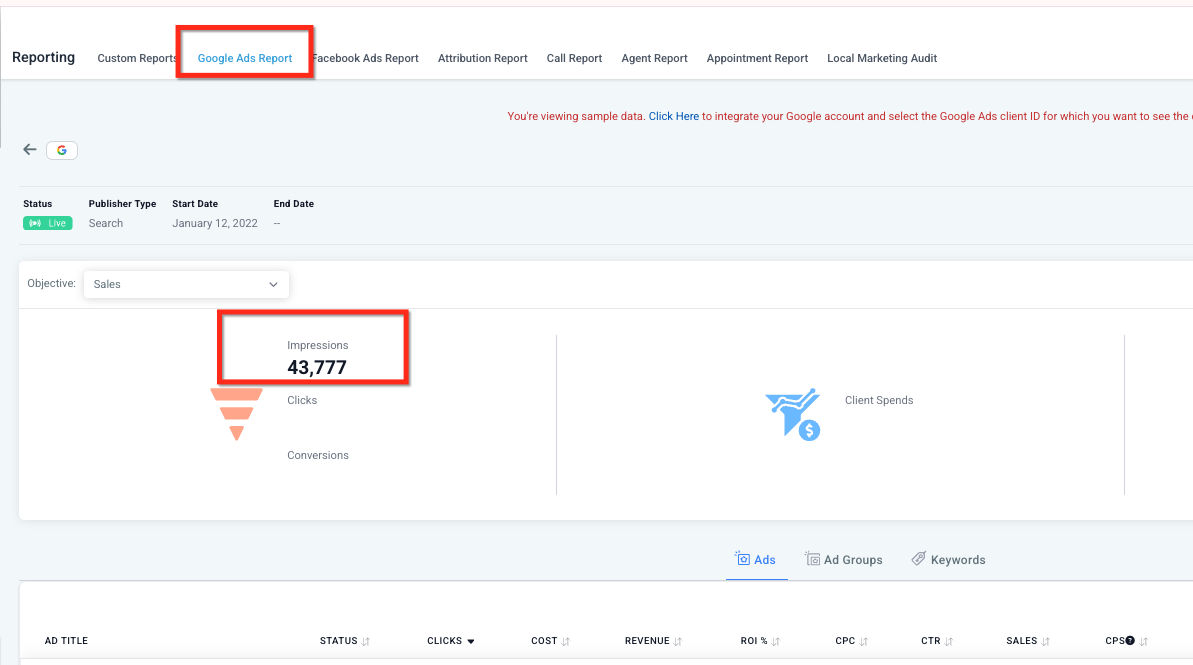
Impressions: the number of times an ad was shown to users, including search results and partner placements. A higher impression count generally means your ads are eligible to show more often based on targeting, bids, and budget.
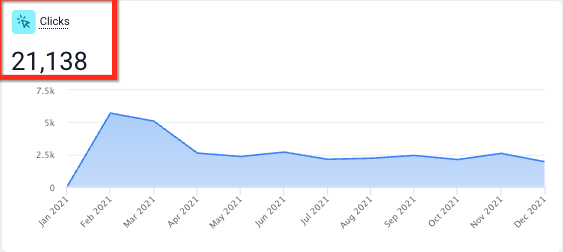
Clicks: how many times users interacted with an ad by clicking it (a headline, call button, or other clickable element). Clicks are a useful signal for how compelling your ad messaging is to the audience seeing it.
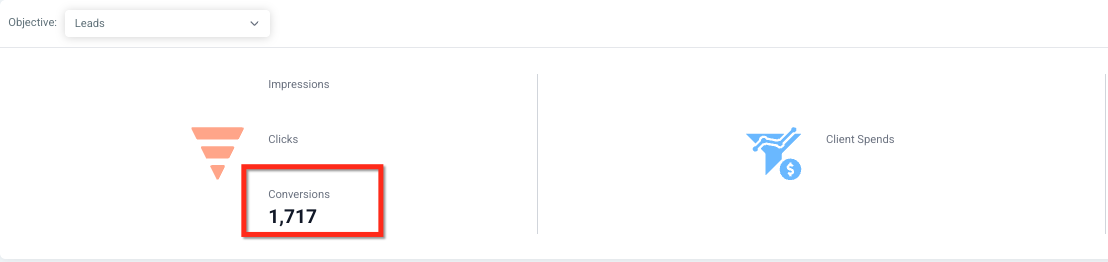
Conversions: the number of valuable actions completed after someone interacts with an ad, such as form submissions, phone calls, purchases, or other actions you've defined as a conversion. A higher conversion count generally means stronger alignment between your ads, your audience, and your landing page.
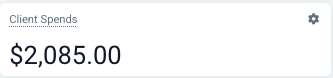
Client Spend: total advertising spend for the period, plus any configured management fees. This metric may be restricted based on user permissions and isn't necessarily visible to every team member.
Average CPC (Cost per Click): the typical amount paid per click.
Formula: Total Ad Spend ÷ Total Clicks
Higher CPC often reflects more competitive targeting or higher-cost audiences.
Cost per Conversion (CPA): the average cost to generate one conversion.
Formula: Total Ad Spend ÷ Total Conversions
This metric helps you evaluate how efficiently a campaign generates meaningful actions, not just clicks.
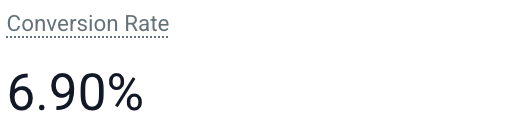
Conversion Rate: the percentage of clicks that resulted in a conversion.
Formula: (Conversions ÷ Clicks) x 100
Example: 50 conversions from 1,000 clicks is a 5% conversion rate. A higher conversion rate generally reflects stronger ad messaging and landing page relevance.
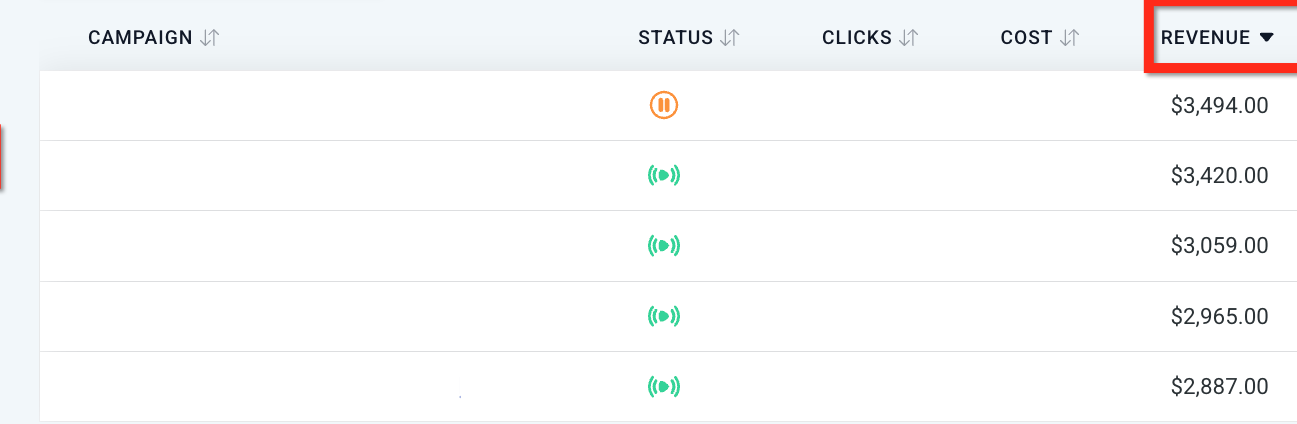
Revenue: total value attributed to closed, won deals that originated from ad-driven leads. This is based on a numeric value field set on each deal, so make sure that field only contains numbers.
ROI (Return on Investment): how profitable your advertising is.
Common formula: (Revenue - Ad Spend) ÷ Ad Spend
ROI can be reviewed at the overall account level or broken out by individual campaign.
Sales: the number of deals that have moved to a closed/won status, connecting ad performance to actual booked business.
CPS (Cost per Sale): the average cost to generate one sale.
Formula: Total Ad Spend ÷ Number of Sales
This metric is most useful when your pipeline stages and deal tracking are kept accurate and up to date.
Leads: new prospects created from the campaign that are still in an open status (not yet closed or lost). Leads may come from forms, chat conversations, phone calls, or other tracked actions.
CPL (Cost per Lead): the average cost to generate a lead.
Formula: Total Ad Spend ÷ Number of Leads
CPL is helpful for comparing efficiency across different campaigns and audiences.
Every campaign in the list opens into a detailed view when clicked, and you can move between four levels of detail using tabs: Campaigns, Ad Groups, Ads, and Keywords.
When you open a specific campaign, a summary card shows:
Field | What it shows |
|---|---|
Campaign Name | The name of the selected campaign |
Campaign Status | Whether the campaign is live or paused |
Publisher Type | The Google Ads format: Search, Display, or Video |
Start Date | When the campaign began |
End Date | When the campaign ended (if applicable) |
Campaign Objective | A filter/dropdown showing the objective set for the campaign |
Below the summary card, campaign-level stats (impressions, clicks, conversions, client spend, average CPC, cost per conversion, conversion rate) are shown with percentage change compared to the prior period of the same length as your selected date range.
Each level (Campaigns, Ad Groups, Ads, Keywords) shows a data table you can use to evaluate performance. The available columns are consistent across levels wherever the metric applies:
Column | What it shows |
|---|---|
Campaign / Ad Group / Ad Title / Keyword | The name of the item at that level |
Status | Live or paused |
Clicks | Total clicks |
Cost | Total spend |
Revenue | Revenue attributed to closed deals |
ROI | Return on investment, shown as a percentage |
CPC | Cost per click |
Sales | Number of deals closed/won |
CPS | Cost per sale |
Conversion Rate | Percentage of clicks that converted |
Leads | Number of leads generated |
CPL | Cost per lead |
Impressions | Number of times the ad was shown |
Average Revenue | Average revenue generated |
The Keywords tab additionally shows Impressions, Cost, CPC, Conversions, Cost per Conversion, and Conversion Rate for each keyword used in your campaigns, so you can see which search terms are actually driving results.

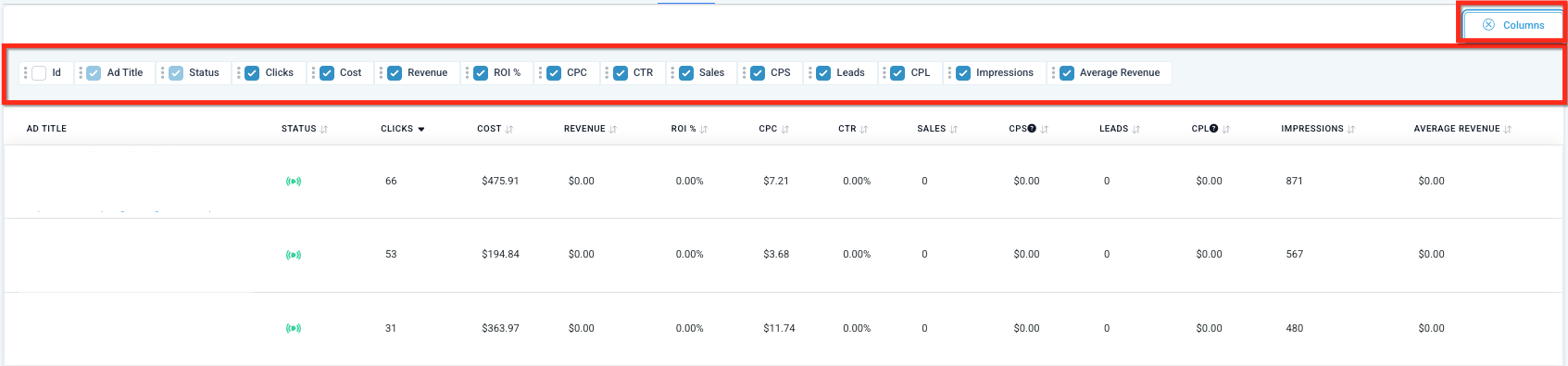
Click Columns on any table to choose exactly which stats you want visible (ID, campaign, status, clicks, cost, revenue, ROI, CPC, CTR, sales, CPS, leads, CPL, impressions, average revenue, and more). Toggle the checkboxes for the data that matters most to you, then click the Columns tab again to save your view.
Use these reports to make decisions, not just observe numbers. Consider increasing bids on high-performing keywords, pausing ad groups with high CPL or CPS and low conversion volume, and adjusting ad copy to improve click-through and conversion rates. Reviewing this data on a regular cadence (weekly at minimum) makes it easier to catch underperforming campaigns before they burn through budget.
Google Ads reporting also appears under Ads Manager > Ad Reporting if you set up and launch campaigns natively from Aesthetix CRM's Ad Manager. That reporting view is oriented around campaigns you built inside Aesthetix CRM, while this Reporting tab view is built for Google Ads accounts and campaigns managed directly in Google. If your practice runs paid search through both, check both views.
Why don't my Google Ads reporting numbers match what I see in my Google Ads account directly? Differences usually come from mismatched time zones, date ranges, attribution rules, or filters. Confirm both views are set to the same date range before comparing. If numbers still don't line up, use the Submit Feedback button to flag the discrepancy.
Do I need to add the UTM tracking template for reporting to work? Yes. Without the UTM tracking template on your Google Ads account, Aesthetix CRM can't reliably attribute clicks and conversions back to the right campaign, ad group, or keyword.
What access level does my Google account need to connect Google Ads? The Google account you connect should have Administrator access or Google Ads Manager Account (MCC) access. Standard/read-only access won't pull complete reporting data.
What's the difference between an MCC Account ID and a Client Account ID? The MCC ID belongs to a manager account that can oversee multiple Google Ads accounts. The Client Account ID belongs to a single, individual Google Ads account. Make sure you're selecting the correct one when you connect.
Why are my Revenue and ROI numbers showing as zero or inaccurate? Revenue and ROI depend on deals in your pipeline having a numeric value set and being marked closed/won. Double-check that the value field on each deal contains only numbers.
Can I see performance for a specific keyword or ad group instead of the whole campaign? Yes. Open any campaign, then use the Ad Groups, Ads, or Keywords tabs to break performance down to that level.
Why do CPL or CPS look high for one of my campaigns? This usually means high spend paired with low lead or sale volume. Review the campaign's targeting, ad copy, landing page, and conversion tracking setup.
Can I rename a campaign without affecting my reporting history? No. Google Ads reports the old name in its data for anything created before the rename, which will skew historical reporting in Aesthetix CRM. If a name needs to change, create a new campaign instead.
Is Google Ads reporting the same as Ads Manager > Ad Reporting? Not exactly. This Reporting tab pulls data from your connected Google Ads account (including campaigns you manage directly in Google). Ads Manager > Ad Reporting is oriented around campaigns built and launched natively inside Aesthetix CRM's Ad Manager.
How often is the reporting data refreshed? Reporting reflects the date range you select and updates when you change or refresh that range. If numbers look stale, adjust the date range and click the green checkmark to pull the latest data.
