Aesthetix CRM can email a summary of your account's activity to your team on a recurring schedule, so admins, providers, and front desk staff can see how the practice is performing without logging in to check dashboards. You'll find this under Reporting > Report Scheduler.
Each summary email covers activity for a chosen timeframe (the period since the last report went out). Here's what each metric means.
Metric | What It Measures |
|---|---|
Active Users | Team members who logged in at least once during the timeframe, on the web or the mobile app (iOS and Android). Shown as a ratio, for example 79/100, where 79 is active users and 100 is total users created in your account during that timeframe. This includes both Admins and Users. |
Contacts | Count of contacts created in your account within the timeframe. |
Submissions: Product Forms | Total submissions across all forms created in Aesthetix CRM within the timeframe. |
Submissions: Surveys | Total submissions across all surveys created in Aesthetix CRM within the timeframe. |
Submissions: FB Forms | Total submissions from connected Facebook lead forms within the timeframe. |
Calls: Inbound | Calls a contact made to your team within the timeframe. |
Calls: Outbound | Calls your team made to a contact within the timeframe (does not include automated calls). |
Calls: Talk Time | Total duration of calls between your team and contacts. |
SMS: Inbound | Text messages a contact sent to your team within the timeframe. |
SMS: Outbound | Text messages your team sent to a contact within the timeframe (does not include automated texts). |
Email: Inbound | Emails a contact sent to your team within the timeframe. |
Email: Outbound | Emails your team sent to a contact within the timeframe (does not include automated emails). |
Facebook: Inbound/Outbound | Messages exchanged with contacts through Facebook. |
GMB: Inbound/Outbound | Messages exchanged with contacts through Google Business Profile messaging. |
Instagram: Inbound/Outbound | Messages exchanged with contacts through Instagram. |
Appointments | Count of appointments created within the timeframe, regardless of their current status. This counts appointments created, not appointments held. |
Reviews | Count of reviews received for your account. |
Sentiment: Positive/Negative | Count of positive and negative sentiment detected across conversations. |
Conversations: Unread | Count of conversations that haven't been read. |
Conversations: Missed | A conversation is marked Missed if the initial inbound message isn't responded to within 5 minutes. This rule only applies to new conversations. |
For a deeper look at reviews and sentiment, see the Review Management collection. Review Management covers how reviews are collected and how to respond to them.
Report scheduling lets you choose which dashboards to include, how often the report sends, and who receives it.
Open the Report Scheduler. In Aesthetix CRM, go to Reporting in the left sidebar and select Report Scheduler.
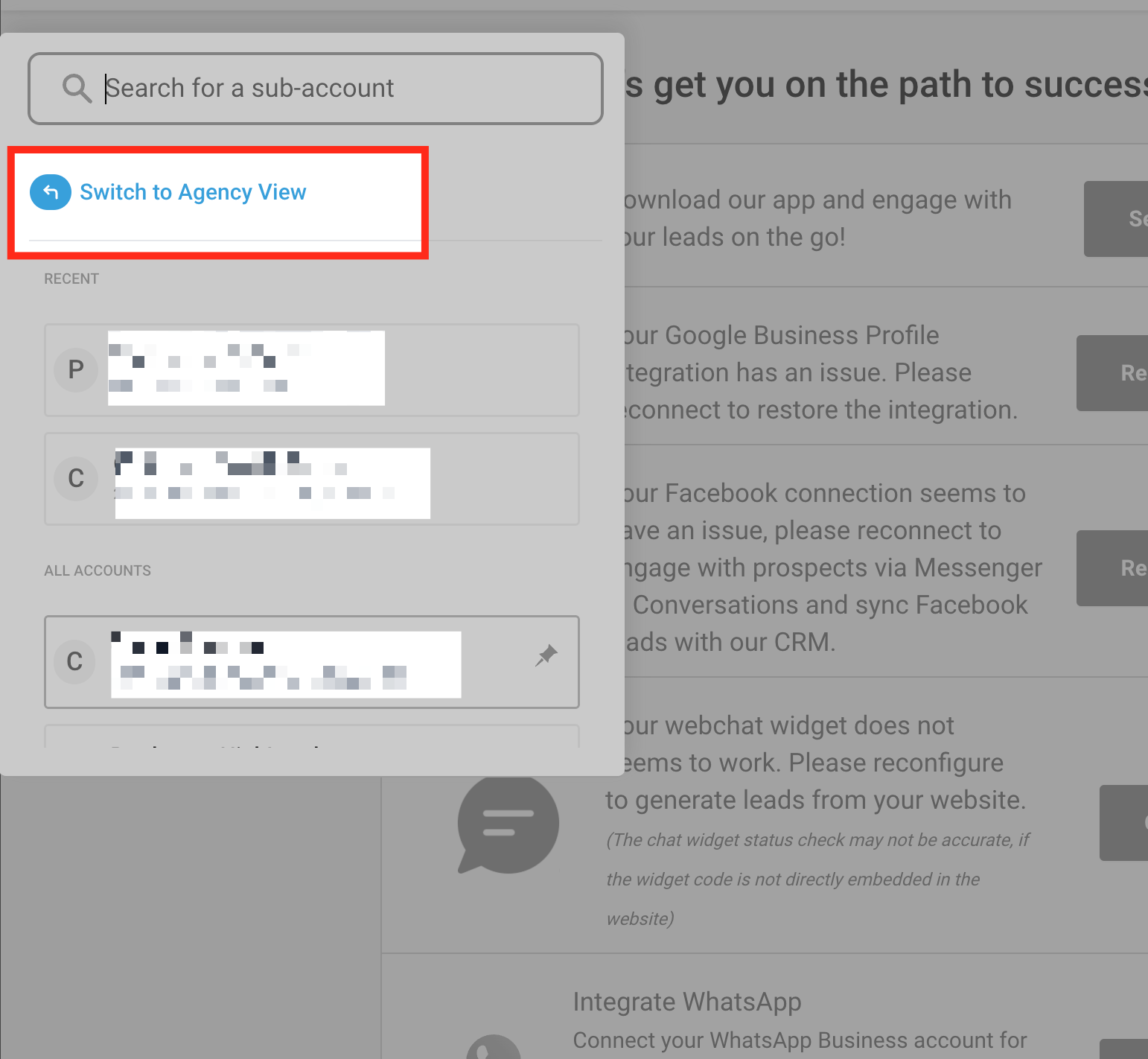
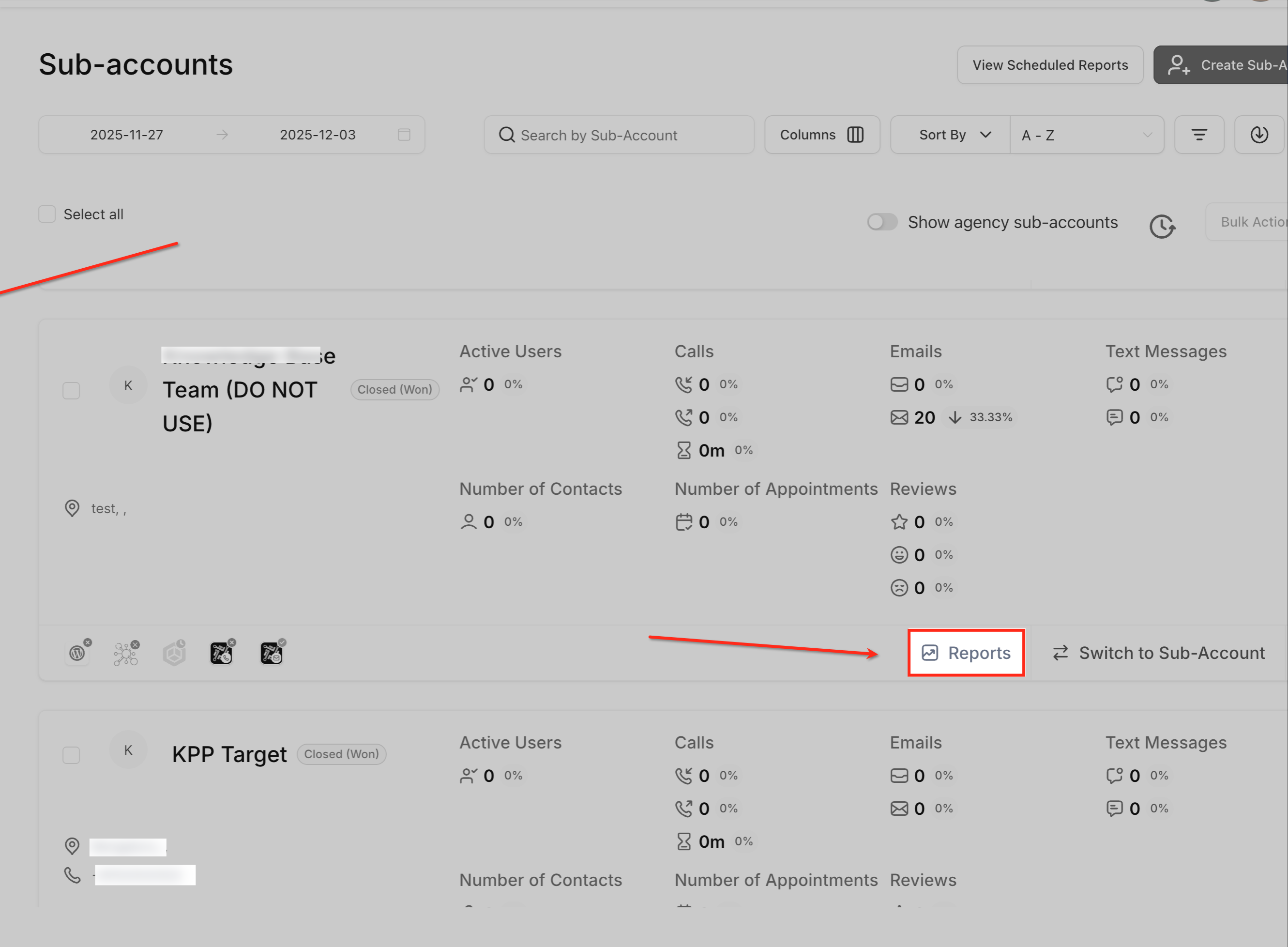
Open your report schedule. From the Reporting screen, click into your account's scheduled reports to view or create a schedule.
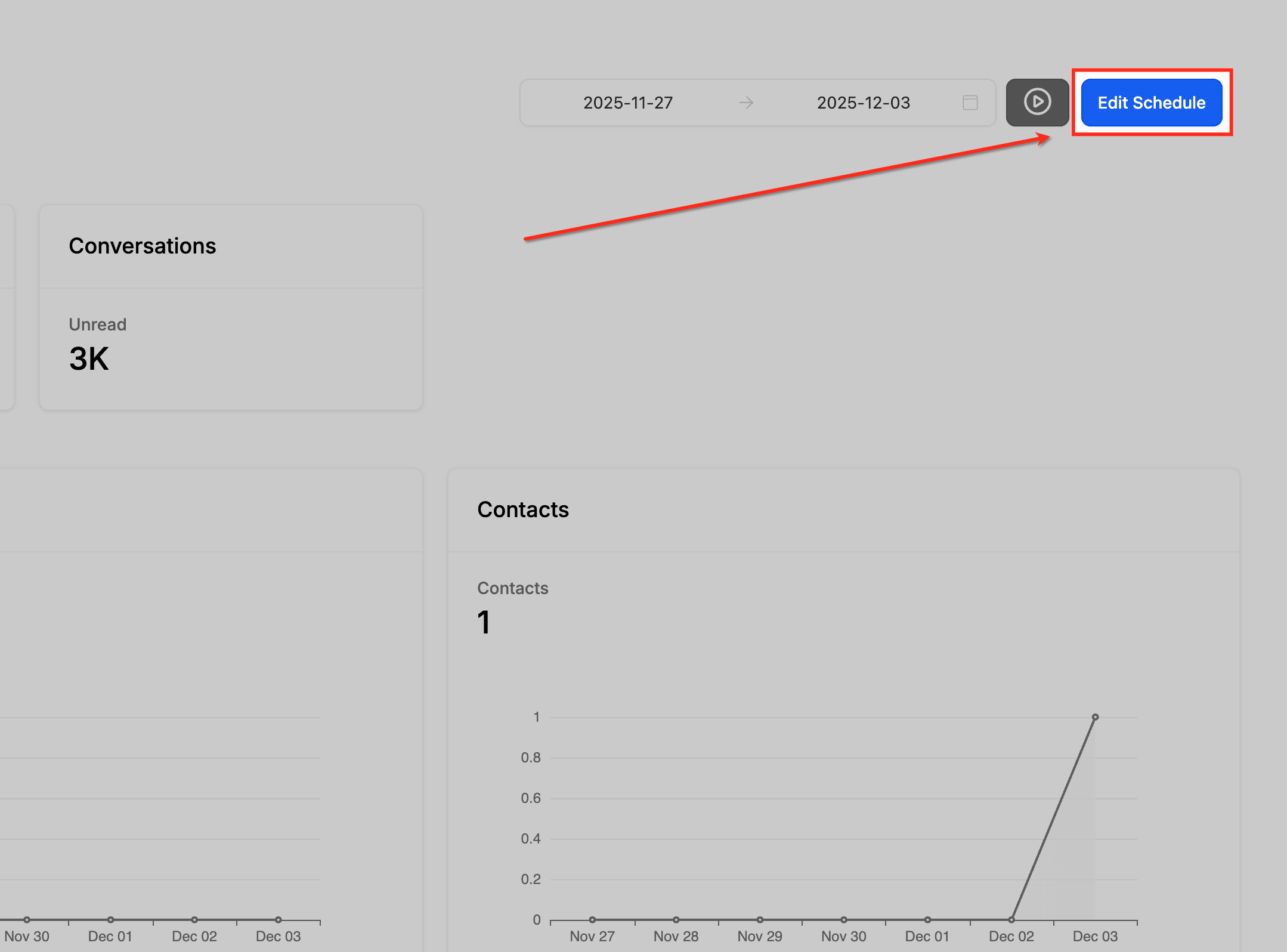
Edit the schedule. Click Edit Schedule to review or update the current automated report settings, including frequency, timing, recipients, and included dashboards, without starting over.
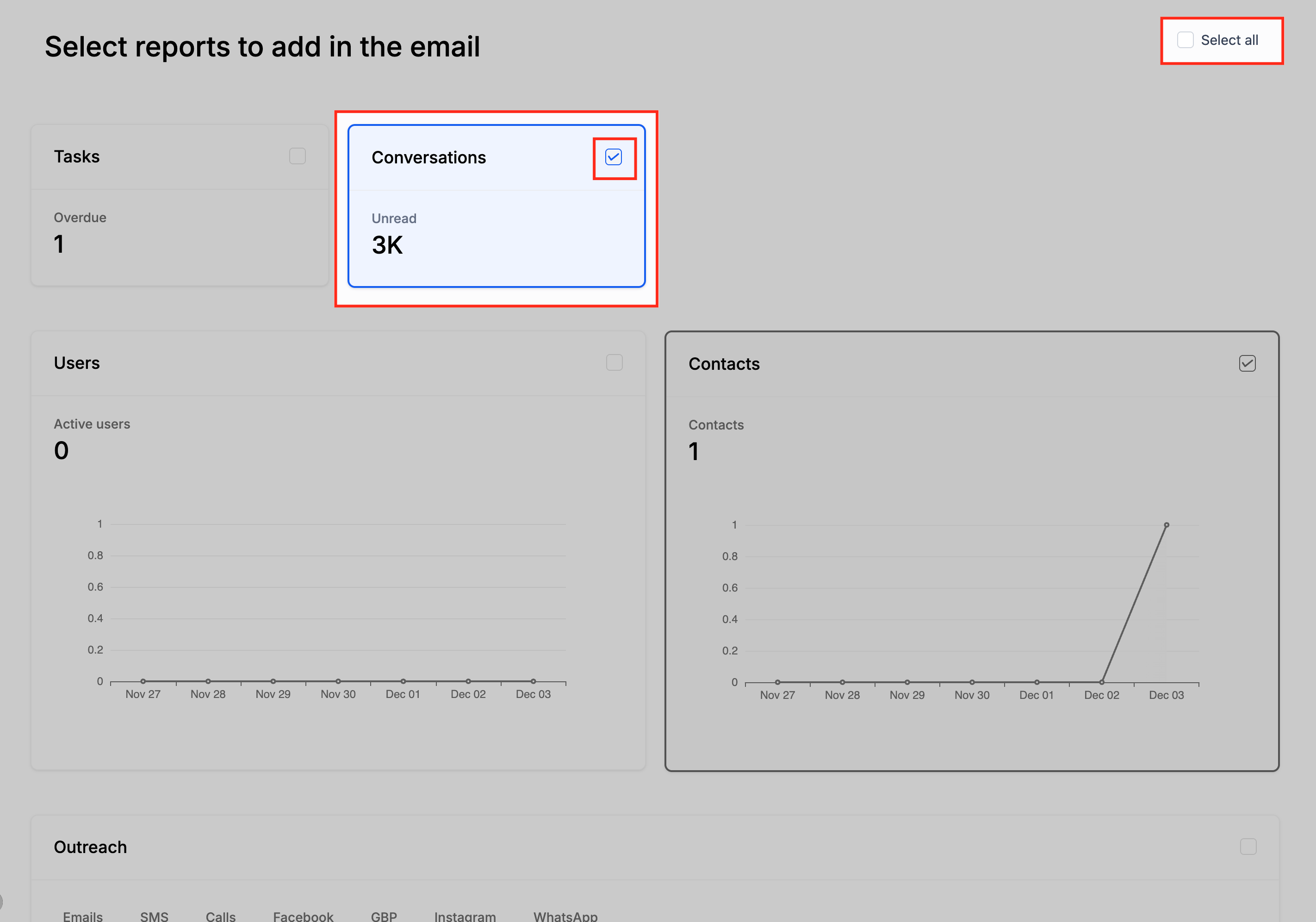
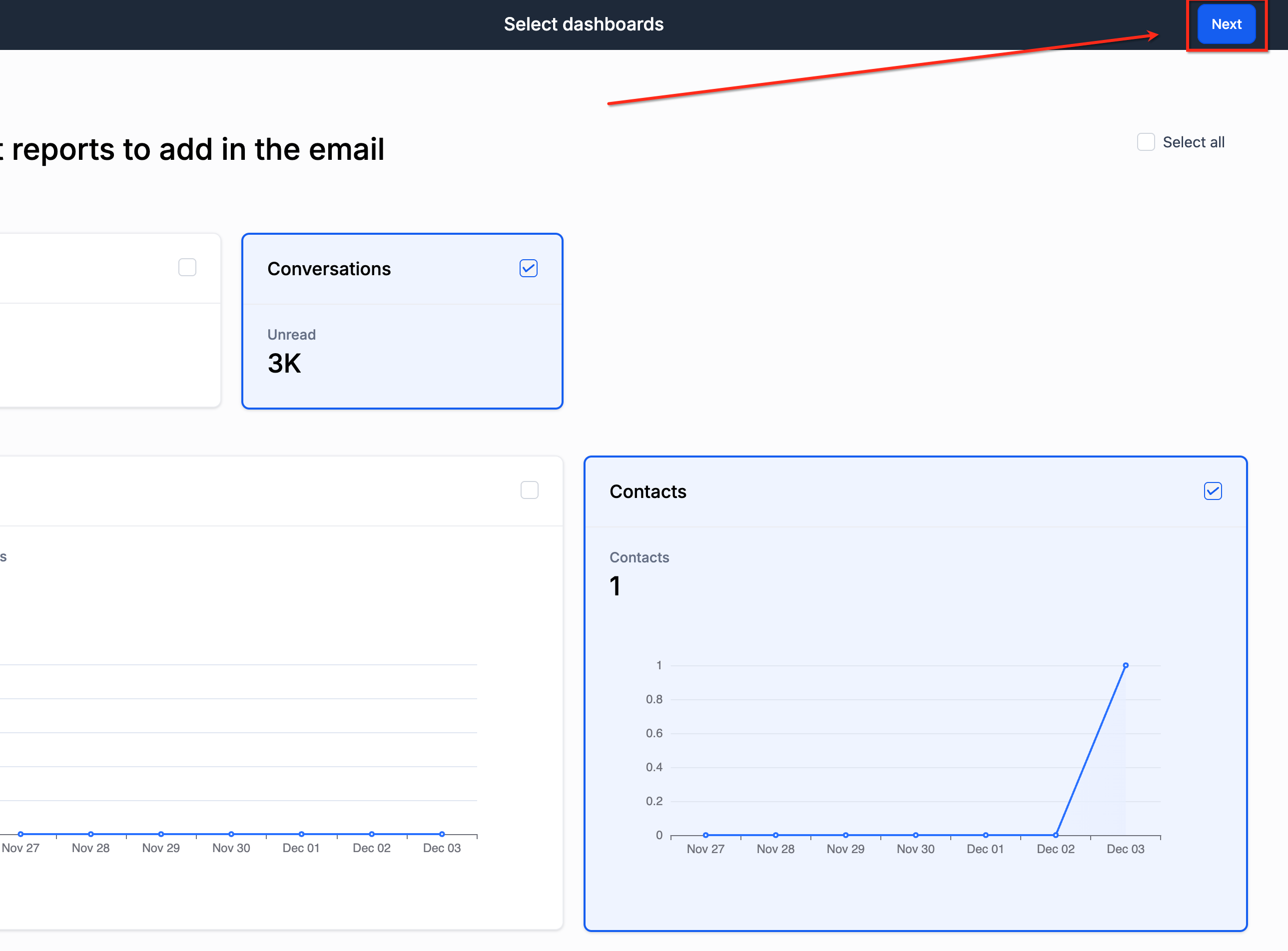
Select report dashboards. Choose which dashboards to include in the email by checking the box on each card. You can enable individual metrics, such as Conversations or Contacts, or use Select all to send a full performance summary.
Move to the next step. Click Next in the upper-right corner to continue to the configuration screen, where you'll set the email subject, frequency, timing, and recipients.
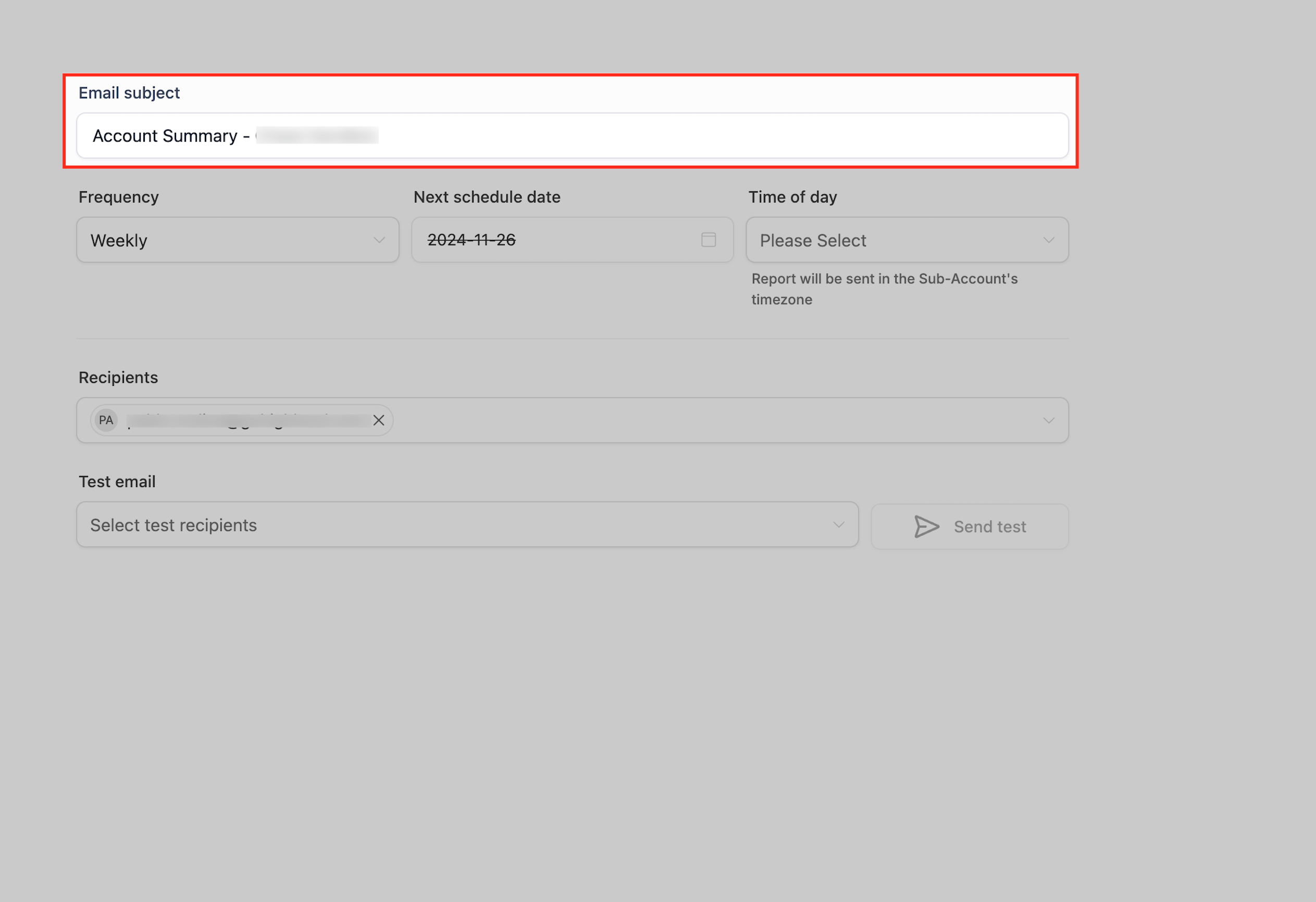
Enter an email subject. Add the subject line that will appear on the report email. A clear subject helps recipients recognize the report as soon as it lands in their inbox.
When you schedule a report, you'll set three things: frequency, start date, and time.
Daily: Sends every day at the configured time.
Weekly: Sends every week on the same weekday as the chosen start date. For example, if the start date is a Tuesday, weekly reports always send on Tuesday.
Monthly: Sends every month on the same calendar day as the start date. For example, if the start date is the 5th, reports send on the 5th each month.
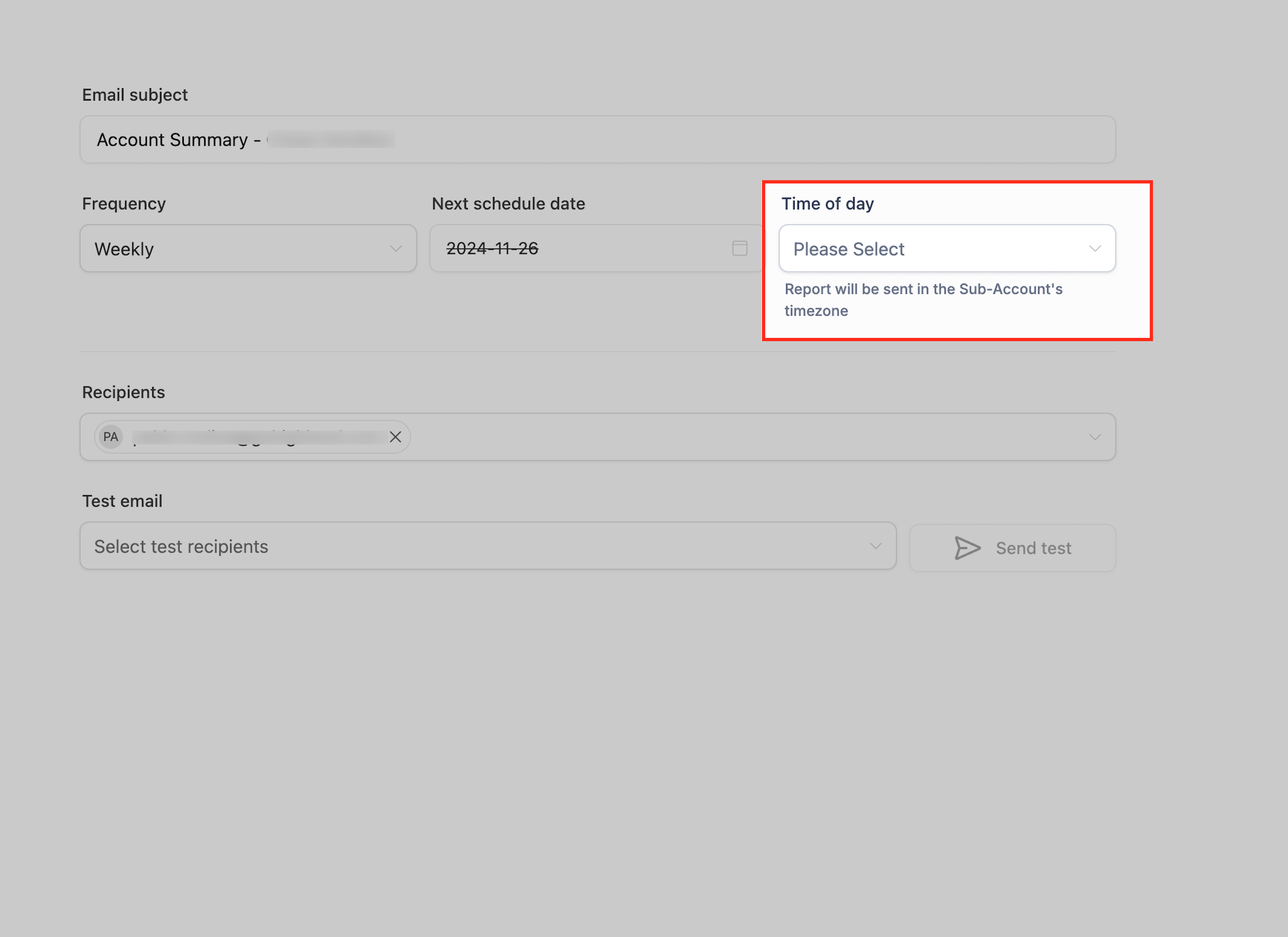
Reports are delivered based on your account's timezone.
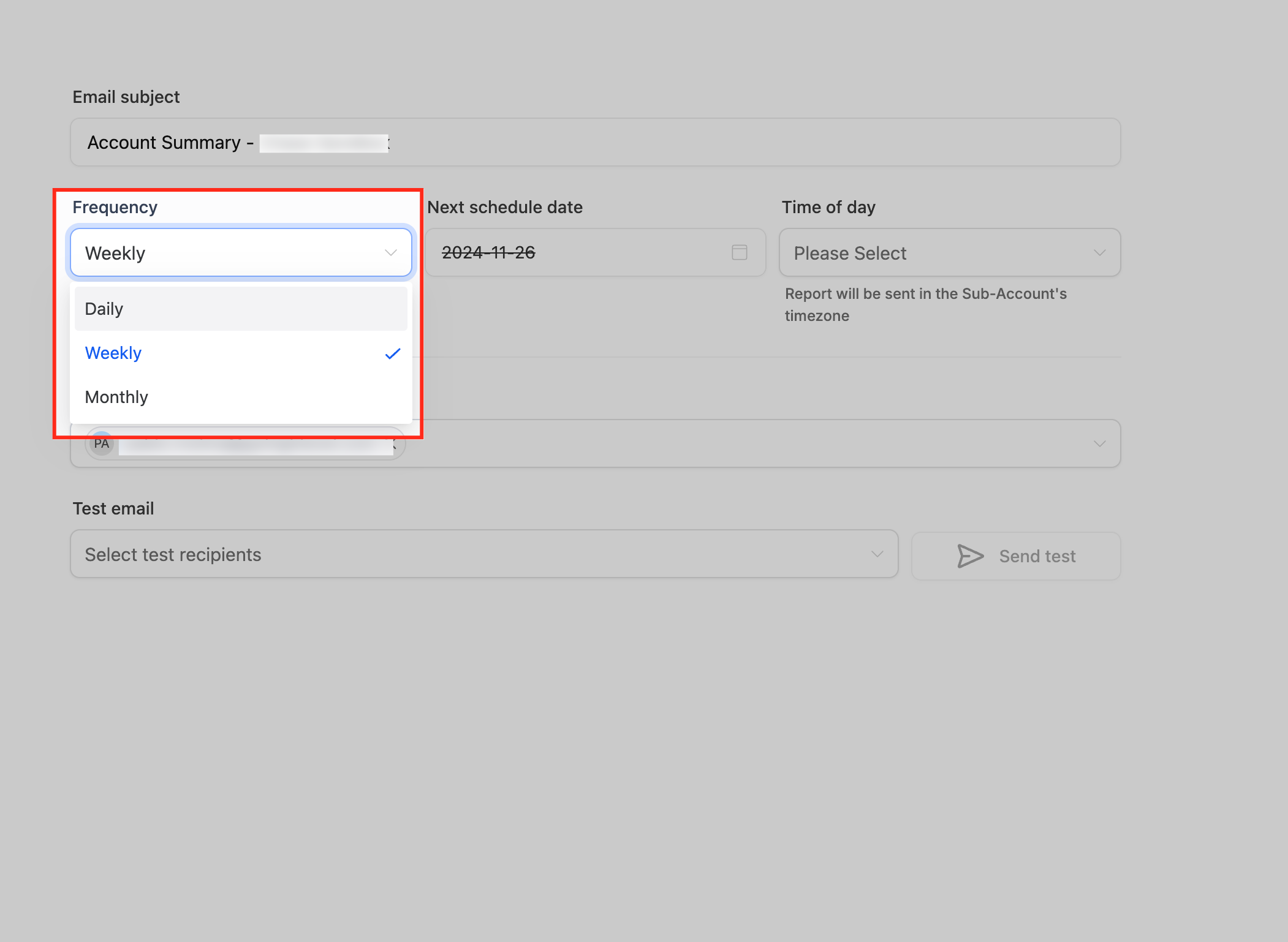
Choose report frequency. Select Daily, Weekly, or Monthly from the Frequency dropdown. This determines how often recipients receive updates based on the dashboards you included.
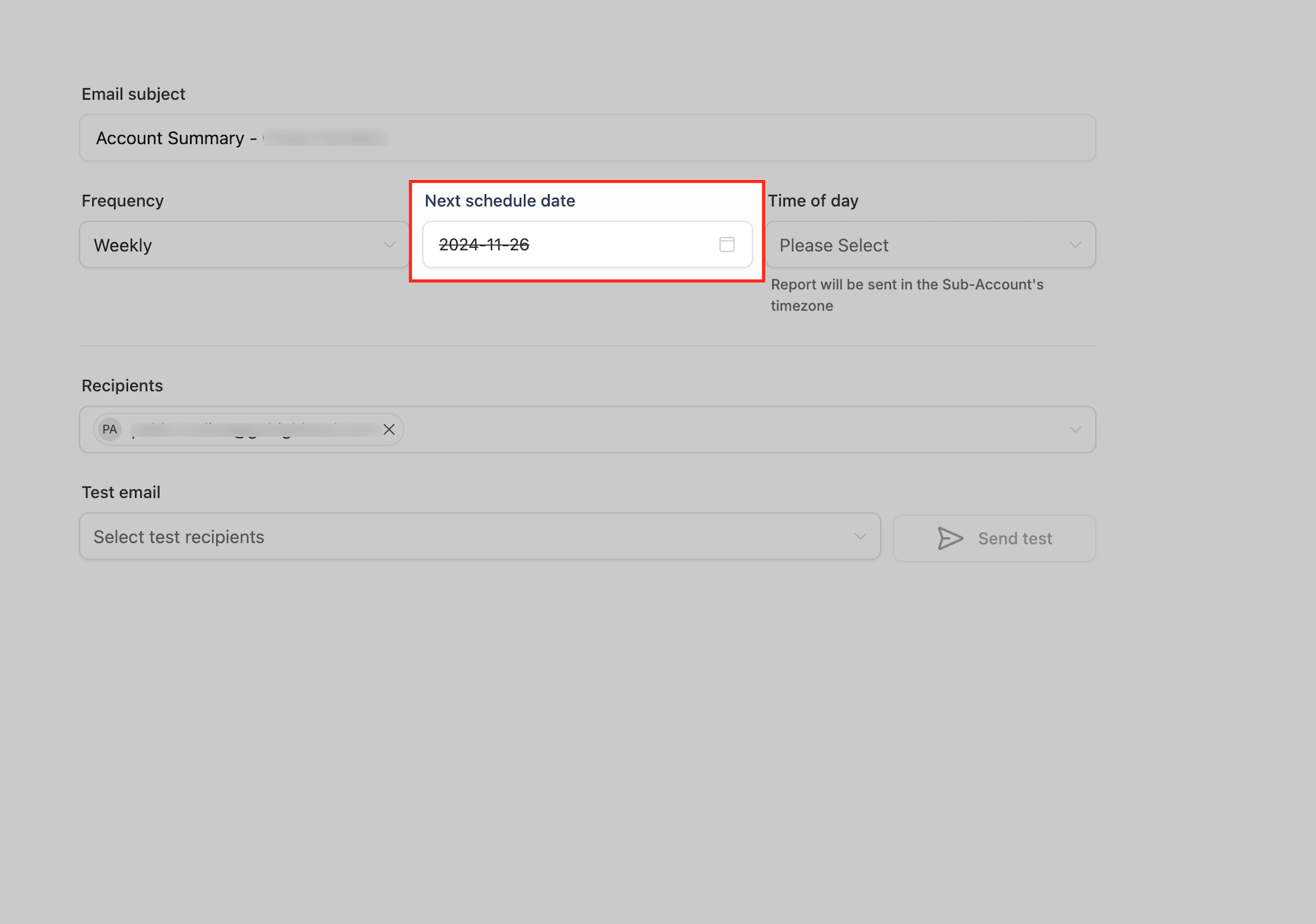
Set the next schedule date. Choose the date the first report should go out in the Next schedule date field. This date also sets the recurring day for Weekly or Monthly schedules.
Select delivery time. Choose the time of day the report should send from the dropdown. It will be delivered according to your account's timezone.
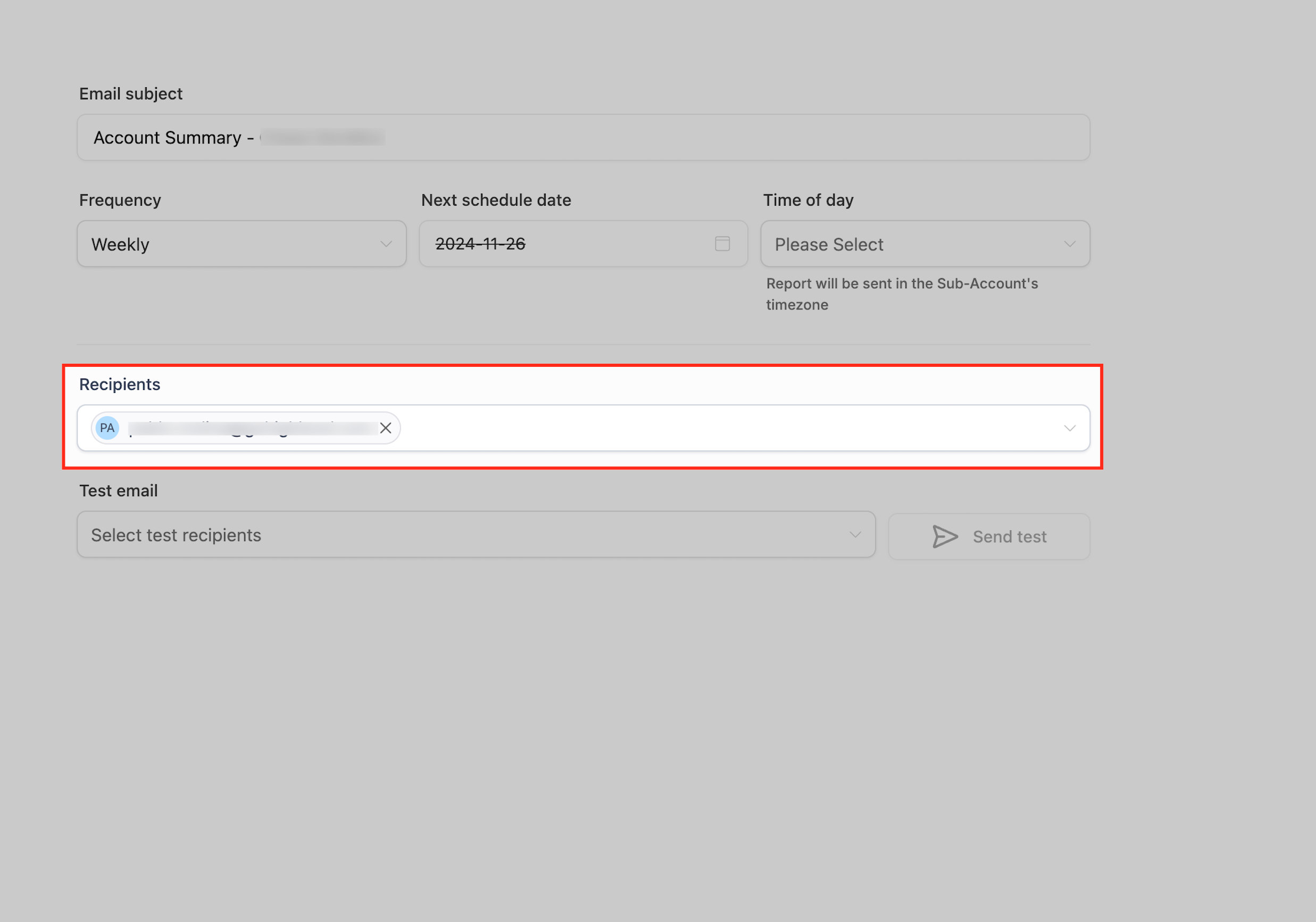
Add report recipients. Use the Recipients field to add one or more email addresses. You can include admins, providers, or other team members who need visibility into account activity.
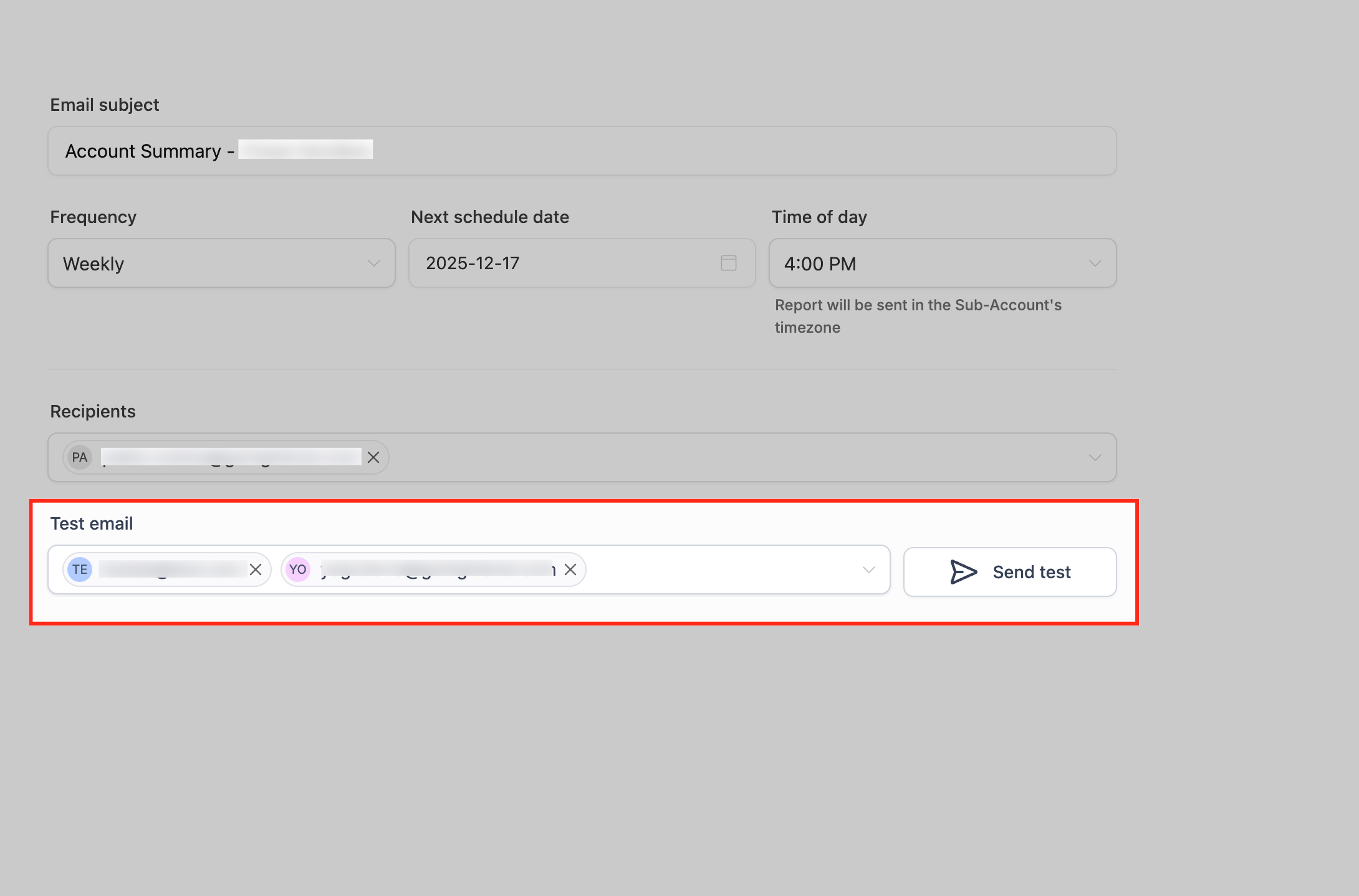
Send a test email. Add an address to the Test email field and click Send test to receive a preview of the report before it's officially scheduled. Use this to confirm the content and formatting look right before finalizing.
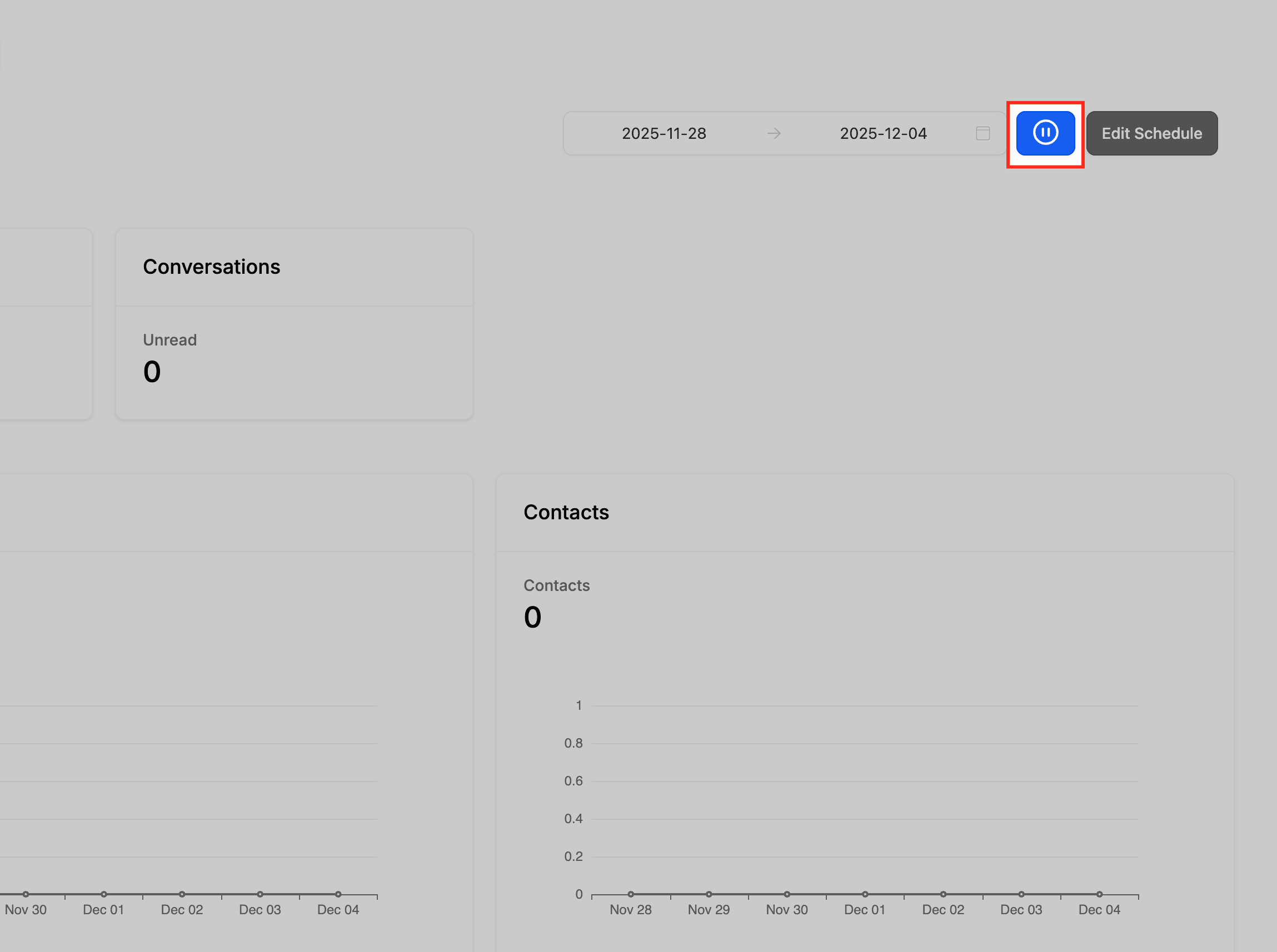
Pause or resume the schedule. Use the Pause/Resume toggle to stop or restart delivery without deleting or recreating the schedule. A pause icon means the report is active and clicking it will pause delivery; a play icon means it's paused and clicking it will resume delivery.
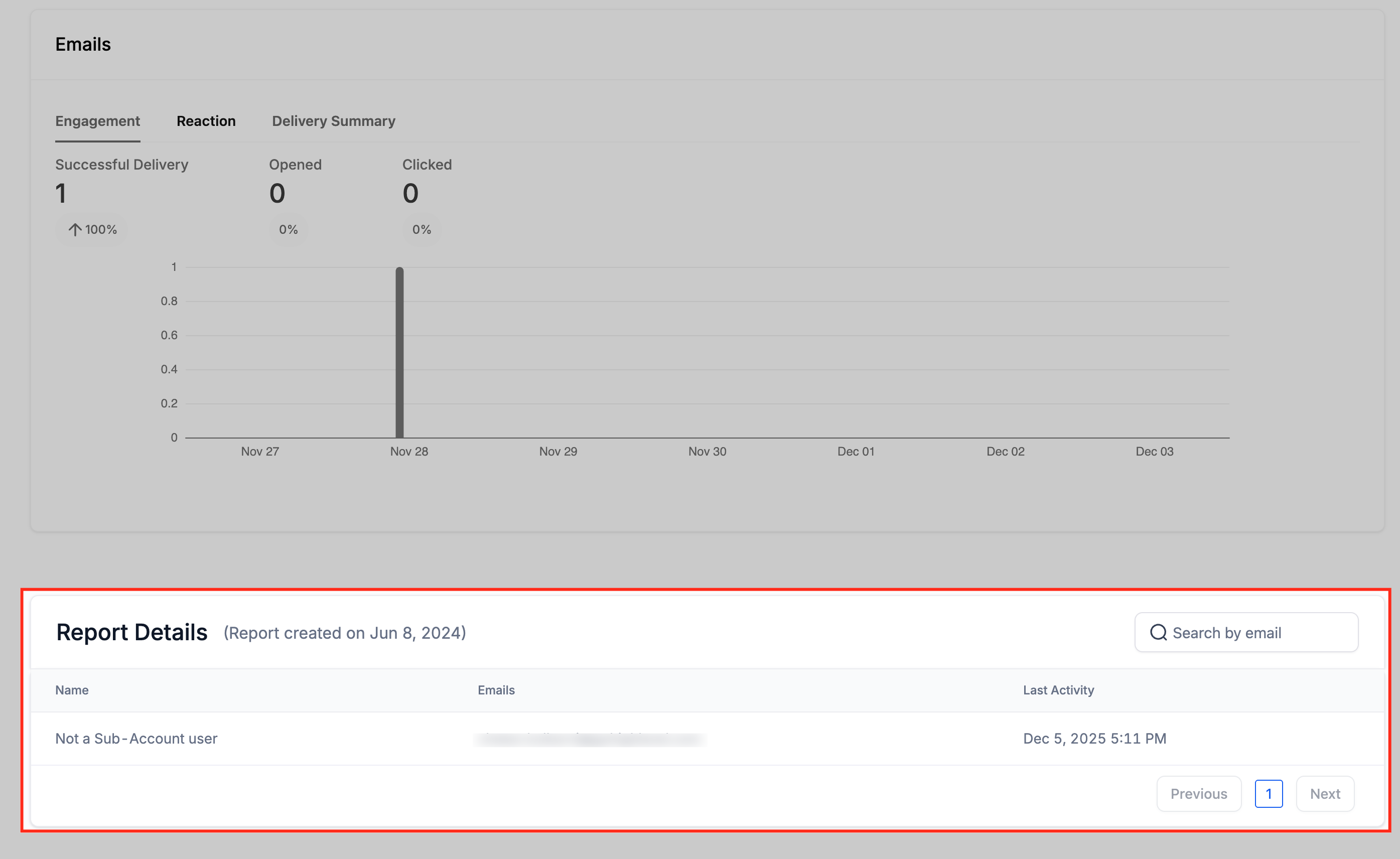
View the report summary. Scroll to the bottom of the Reports screen to see a delivery log of which email addresses received the report and when.
What timeframe does the summary email cover? It covers the period since your last report, based on the frequency you set (the day before for daily, the past week for weekly, or the past month for monthly).
Can I choose which dashboards appear in the report? Yes. On the Select Report Dashboards step, check the boxes for the metrics you want included, or use Select all to send everything.
Can I add multiple recipients to a report? Yes. Enter multiple email addresses separated by a comma and a space.
Do recipients need special permissions to receive reports? No. Anyone you add to the Recipients field will receive the report regardless of their role.
What happens if I pause a report? No reports will send until you resume the schedule. Your configuration is saved, so resuming picks up where you left off.
Does an appointment count in the report mean the appointment happened? No. The Appointments metric counts appointments created during the timeframe, not appointments that were held or completed.
Why doesn't the Active Users count match my total team size? Active Users only counts team members who logged in at least once during the timeframe. Team members who didn't log in, or who were created after the report window started, won't be counted as active.
What counts as a Missed conversation? A conversation is marked Missed if the initial inbound message from a contact isn't responded to within 5 minutes. This only applies to new conversations, not ongoing ones.
Can I send a test copy before the real schedule starts? Yes. Use the Test email field to send a preview to yourself or a colleague before the report goes live to all recipients.
