
Knowing where your patients actually come from is one of the fastest ways to improve marketing ROI at your practice. The Source Report, found inside Attribution Reports in Aesthetix CRM, breaks down every contact, opportunity, and website session by the marketing source that produced it, so you can see exactly which channels are worth your ad spend and which ones aren't pulling their weight.
Inside Attribution Reports, the Source Report segment lets you monitor and evaluate the revenue generated and the share of total sales tied to different metrics, including contacts in your CRM, opportunities, and website sessions. It goes a step further than the Conversion Report by also showing you the origin of each conversion and the attribution tied to that source, giving you a more detailed picture of what's actually driving new patients to your practice.
Your access to individual components of the report may vary depending on your user permissions.
From the left-hand menu, select Reporting.
Select Attribution Reports.
Click Source Report.
Choose the kind of data you want included in your attribution report so you get information tailored to what you're actually trying to measure. Your options are:
Forms: evaluate the performance of different lead-generation forms on your website (intake forms, contact forms, consult request forms).
Surveys: evaluate the performance of surveys used to qualify or gather information from prospective patients.
Calendars: see how scheduled events and appointment bookings influence patient engagement and conversions.
To conduct a precise analysis, set filters and a specific date range for the period you want to review.
Once you've set your filters, click the refresh button to conveniently update all the data below without reloading the entire browser tab.
The Source Report is organized into three views, each answering a different question about where your patients came from.
The Referrals Report gives you a full breakdown of your referral data, showing which sources played a significant role in generating contacts, creating opportunities, and starting sessions.
The Campaigns Report breaks down your campaign data, highlighting the sources and individual campaigns that resulted in new contacts, new opportunities, and increased user sessions. This is the view to use when you're comparing specific ad campaigns against each other rather than broad channels.
This report gets granular, showing you:
The event type, meaning the specific action or engagement that occurred during the session
The source, meaning the platform or channel the visitor arrived from
Contact details for the individual involved in the session
The marketing campaign tied to that session, along with the UTM parameters used to track it
The specific webpage where the session started, plus the exact date and time
Once you're looking at the data you care about, you have a few ways to work with it further:
Export Data: click the export button to download the report as an Excel spreadsheet for deeper analysis or to share with your team.
Change Data Columns: click the columns button to add or remove columns from the table so it only shows the data that's relevant to your analysis.
Filter Session Events Report: click the filter button to narrow the table down to exactly the rows you want to see.
Attribution tracks the source of each contact based on how they first interacted with your practice and how they most recently interacted before converting. Understanding attribution helps you identify top-performing marketing channels, measure campaign effectiveness, discover growth opportunities, and improve your conversion strategy.
Every contact stores two types of attribution data so you get a complete view of their journey:
First Attribution: the first interaction a contact ever had with your practice (for example, submitting an intake form)
Latest Attribution: the most recent interaction before they converted (for example, booking a consult)
First attribution never changes once it's set. Latest attribution updates every time the contact has a new tracked interaction.
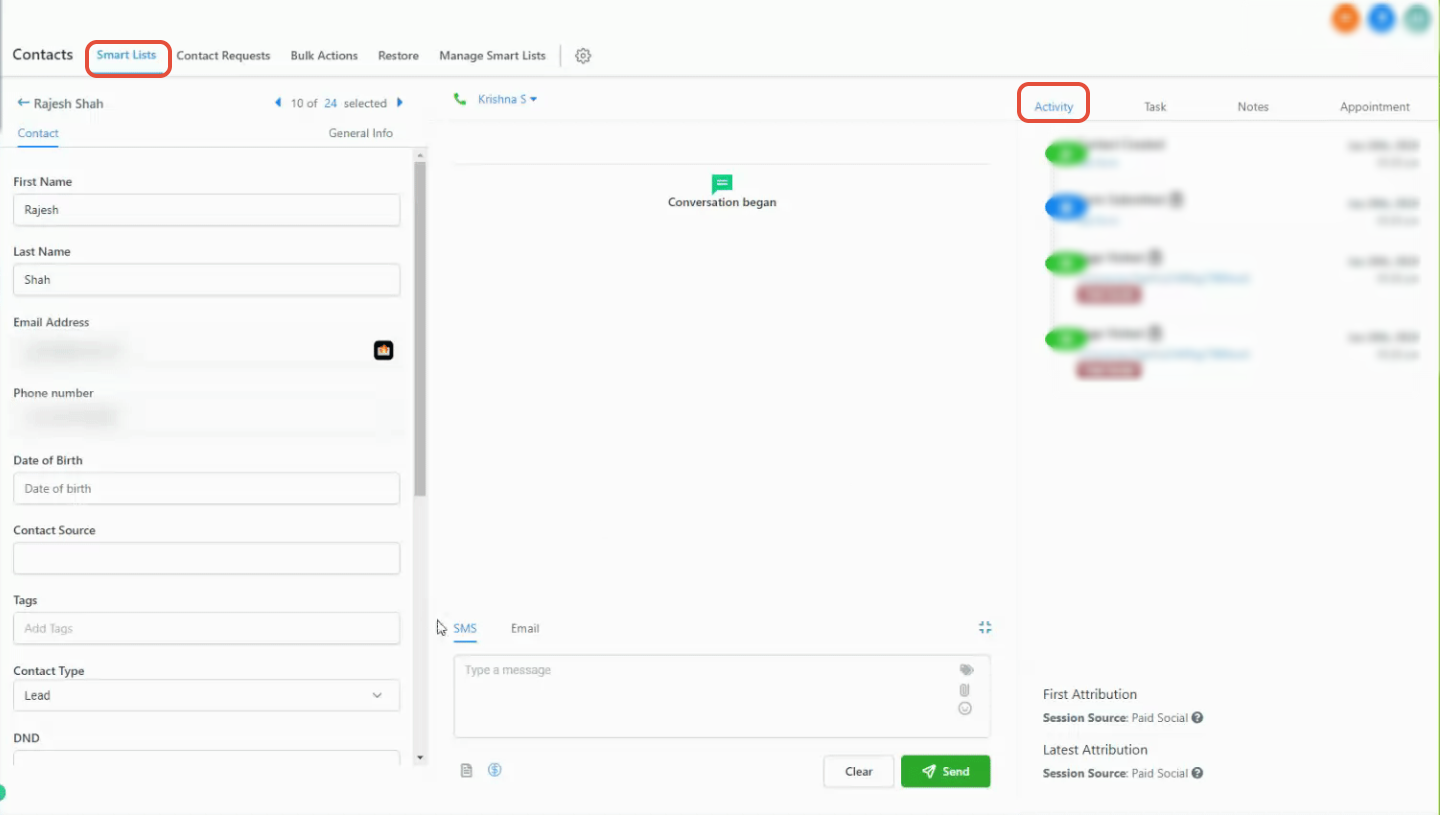
Attribution data lives directly inside each contact record, making it easy to review a patient's journey at a glance.
Open the contact record.
Navigate to the activity section.
View the attribution details in the bottom-right panel.
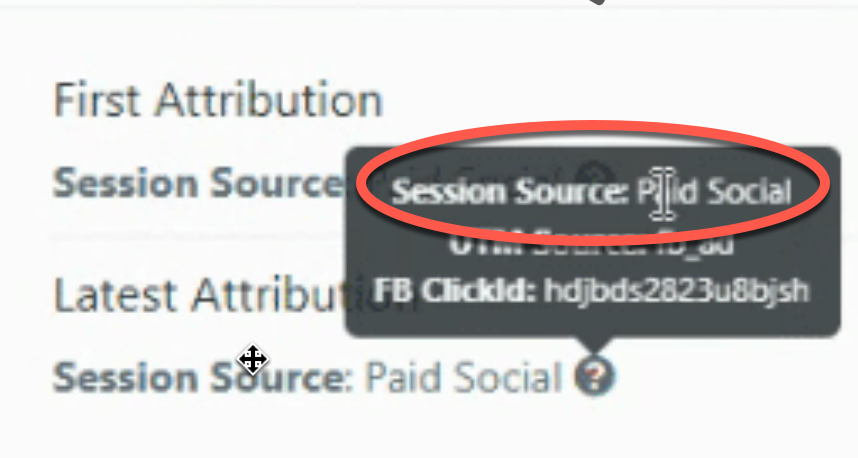
This view shows both the first and latest attribution sources within the contact's profile, along with the activity timeline and session source details. Hover over the attribution source to see additional tracking details, such as session data.
Contacts are automatically categorized into a source based on how they entered your system.
Paid channels
Paid Search: traffic from search ads
Paid Social: traffic from paid social campaigns
Organic channels
Organic Search: traffic from search engines (non-paid)
Social Media: traffic from social platforms
Other traffic sources
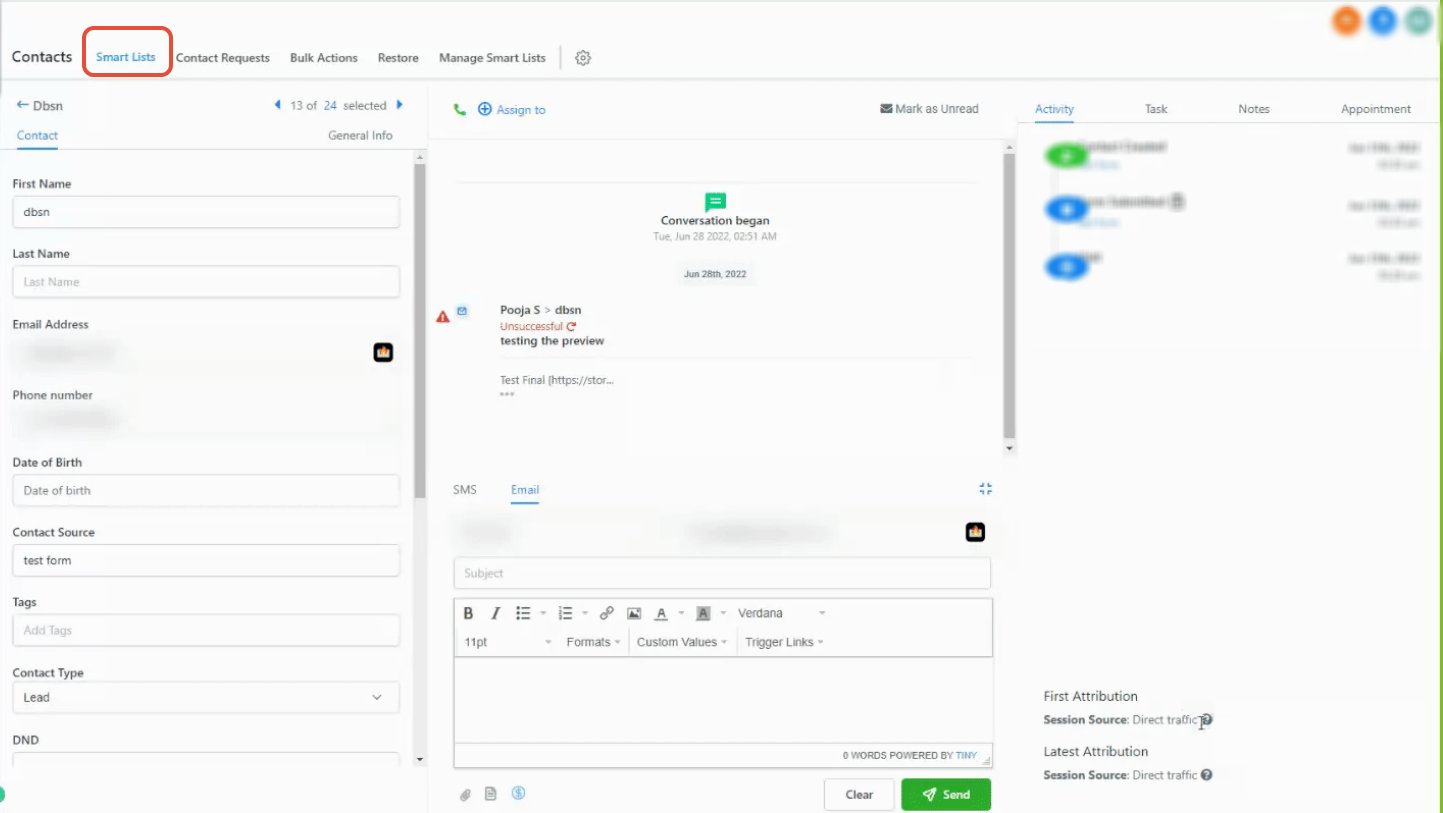
Direct Traffic: no identifiable source (for example, someone typed your URL directly)
Referrals: traffic from external websites
Others: calls, SMS, emails, or messaging platforms
System-based sources
CRM UI: contacts created manually inside Aesthetix CRM
Third-Party: contacts that came in through an integration or external tool
Attribution is captured when a contact performs one of these actions during a tracked session:
Submitting a form or survey
Booking a calendar appointment
Starting a chat interaction (after submitting their details)
Submitting an order form
Attribution is only recorded when these actions happen on tracked pages or forms. If a prospective patient fills out a form that isn't being tracked, that conversion won't show up in your attribution data.
Attribution is assigned using a structured rule system based on URL parameters (UTMs), click identifiers, and referring domains. In simplified terms:
Paid search identifiers route to Paid Search
Paid social identifiers route to Paid Social
A social platform referral routes to Social Media
A search engine referral routes to Organic Search
An external website referral routes to Referral
No source data at all routes to Direct Traffic
Messaging or communication activity routes to Others
Manual creation routes to CRM UI
Integration tools route to Third-Party
To make sure your paid campaigns get tracked correctly, your landing page URLs need proper tracking parameters applied. Use consistent tracking parameters across your campaigns, and make sure the values match exactly, since they're case-sensitive. Getting this right up front is what keeps your Source Report accurate later.
If attribution data looks missing or wrong for a contact, check the following:
URL formatting. Remove extra spaces or typos, and make sure tracking parameters are formatted correctly.
Keep visitors on the same page. Attribution is only captured if the form submission happens on the same page the visitor landed on. Redirecting a visitor before they submit a form can break tracking.
Avoid custom modifications. Don't alter the standard tracking format on your links. Changes to the expected structure can break attribution tracking entirely.
Beyond the individual report views above, the source reporting dashboard also gives you a top-level summary of your lead generation efforts:
Lead source summary: total leads generated, cost per lead, conversion rate, and revenue per lead across all sources combined. If your cost per lead looks high, that's usually a sign to adjust your targeting or ad copy.
By source: a breakdown of the same metrics per individual source, so you can spot which channels are generating a lot of leads but converting poorly, and which are quietly outperforming.
By user: each team member's lead data broken down the same way, useful for spotting coaching opportunities or recognizing top performers on your front desk or sales team.
By quality: qualified leads, disqualified leads, and qualification rate per source. If one source is sending you a lot of disqualified leads, it's worth revisiting your targeting or your ad messaging.
Use these views together to guide real decisions: run A/B tests on ad copy, targeting, and landing pages, and revisit your marketing budget allocation so you're putting money behind the channels that are actually filling your appointment book.
For ad-platform-specific reporting (Meta, Google, and other ad account performance), see Ads Manager's Ad Reporting. For reputation and review-related reporting, see Review Management. Flagship attribution concepts that apply across the whole platform are also covered in the Essential Guides collection.
Where do I find the Source Report? Go to Reporting, select Attribution Reports, then click Source Report.
What's the difference between the Source Report and the Conversion Report? The Conversion Report shows you conversion totals. The Source Report goes further by showing you where those conversions actually came from and how each source is attributed.
What's the difference between first and latest attribution? First attribution is locked in at a contact's very first tracked interaction with your practice and never changes. Latest attribution updates every time that contact has a new tracked interaction, right up until they convert.
Why is a contact showing "Direct Traffic" as their source? It means no identifiable source was detected for that visit, usually because the person typed your website URL directly or opened a bookmarked link with no tracking parameters attached.
Why is a contact's source showing as "Others"? This category typically covers communication channels like phone calls, SMS, or messages rather than website traffic.
Can I track attribution from patients who came through an outside integration? Yes. Contacts that arrive through an integration or external tool are categorized under Third-Party sources.
Why is attribution missing for some of my contacts? Attribution isn't recorded unless the qualifying action (form submission, calendar booking, chat, or order form) happened on a page or form that's actually being tracked. Double-check your URL formatting and make sure visitors aren't being redirected before they submit.
Can I export my Source Report data? Yes. Use the Export button to download the report as an Excel or CSV file for deeper analysis or to share with your team.
Can I choose what data shows in the Source Report table? Yes. Use the Columns button to add or remove columns, and the Filter button to narrow the table down to exactly the data you want to review.
Does my access to the Source Report depend on my permission level? Yes. Which components and tabs you can see and interact with depend on your assigned user permissions in Aesthetix CRM.
