The Appointment Report gives you a complete view of every appointment booked through your Aesthetix CRM calendars: how many were booked, confirmed, showed, no-showed, or canceled, where they came from, and which calendars and team members are driving them. You'll find it under Reporting > Appointment Report in the left-hand menu.
Important EMR note: the Appointment Report only reflects bookings made through native Aesthetix CRM calendars. If your practice books patients through your EMR (electronic medical record) instead, those visits are tracked separately in the contact's Last Visit Date and Next Visit Date custom fields, not in this report. Practices that split scheduling between native calendars and an EMR should treat the Appointment Report as a view of native-calendar activity only.

Click Reporting in the main left-hand menu.
Select Appointment Report from the menu (or dropdown).
By default, the report shows data from the past 30 days across all calendars.
Use the filters at the top of the report to narrow the data down to exactly what you need:
Date range: click the calendar icon and choose the date range you want to analyze. This controls every chart and metric on the page.
Calendar: filter by a specific calendar (for example, "Botox Consults" or "Laser Follow-Ups") or view all calendars combined.
Booked vs. Created: filter by when the appointment was booked (the scheduled appointment time) or created (when the appointment record was added to the system), depending on which timeline you're analyzing.
Time frame: refine further by selecting specific time windows within your date range.
The top of the report shows numeric tiles for each appointment status within your selected date range and calendar:
Metric | What it tells you |
|---|---|
Booked Appointments | Total appointments scheduled in the period, across the calendar(s) you're viewing. Use it to gauge overall booking volume. |
Confirmed Appointments | How many booked appointments were confirmed by the patient or your team. |
Showed Appointments | How many patients actually attended their appointment. This is your real conversion number. |
No Shows | How many patients didn't attend their scheduled appointment. Track this to spot calendars or channels with reminder or follow-up gaps. |
Canceled Appointments | How many appointments were canceled within the period. |
Results for every tile shift depending on the date range and calendar you have selected, so always confirm your filters before drawing conclusions from the numbers.
Two charts break down where your appointments are coming from:
Appointment Channel: a donut chart showing how appointments were booked. A common channel is "Booked By Lead," meaning the patient scheduled the appointment themselves (for example, through an online booking widget). In the Channel chart, "Event Sync" appointments are events with at least one attendee that were synced into Aesthetix CRM from a third-party calendar (Google, Outlook, iCloud, or Calendly).
Appointment Source: shows the origin of booked appointments (such as a specific funnel, form, or workflow). If a source needs to be corrected for a particular appointment, open that appointment and choose a different option from the source dropdown.
The report also surfaces several ranked views to help you spot patterns at a glance:
Top Performing Calendars: your calendars ranked by number of bookings, so you can see which services or providers are generating the most appointments.
Top 5 Users by Number of Appointments: the team members booking the most appointments, useful for recognizing high performers or identifying coaching opportunities.
Most Popular Days: which days of the week receive the most bookings, helpful for staffing and schedule planning.
Top 5 Calendars with Cancellations: the calendars with the highest cancellation counts, a good starting point for investigating scheduling friction or a policy that needs adjusting.
Top 5 Calendars with Reschedules: the calendars with the highest reschedule counts.
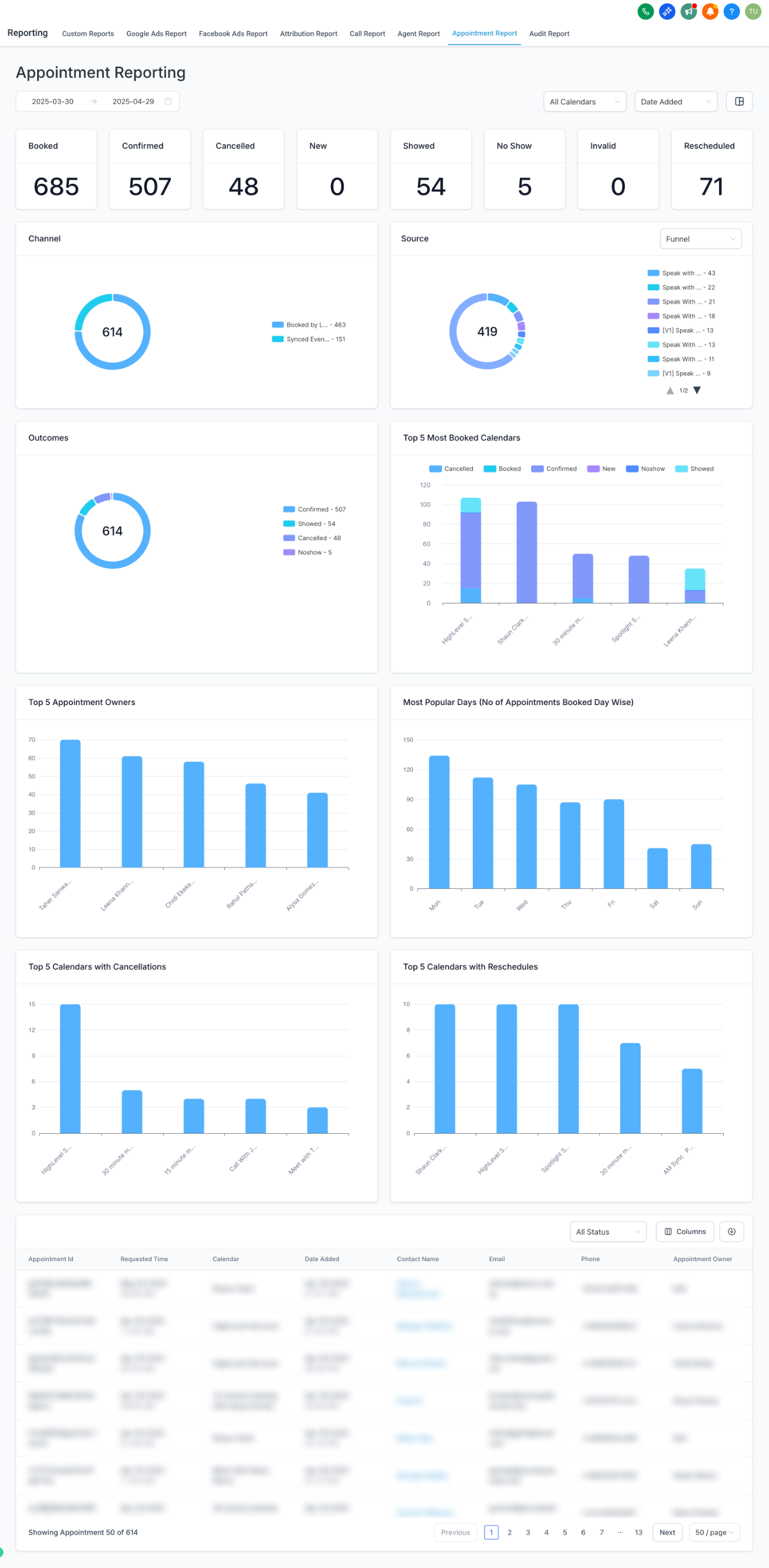
The Appointment Outcome chart compares results across all appointments in your selected date range, showing the split between outcomes like completed, canceled, and rescheduled. This view is especially useful when you're evaluating the effectiveness of a specific promotion or campaign that drove bookings.
Below the charts, the Appointment Data Table lists every individual appointment in your selected range with full detail: calendar used, requested appointment time, booking time, booking party, source, and outcome.
Filtering the table: use the Appointment Outcome filter above the table to narrow it down to a specific result, such as showed, no-showed, or canceled appointments.
Customizing columns: click into the column settings to choose which fields display. Available columns include:
Appointment ID
Calendar
Requested Time
Date Added
Contact Name
Phone
Appointment Owner
Created By
Mode
Source
Outcome
Exporting data: click the Export button to download the table as a CSV or Excel file. This is useful for sharing appointment performance with your team or building deeper analysis outside the CRM.
Because the export includes patient names, emails, and phone numbers, treat downloaded files as containing PHI: store and share them only through secure, access-controlled channels consistent with your practice's HIPAA policies.
If you need a report that combines appointment data with other metrics, such as revenue or pipeline value, build a custom dashboard instead. Dashboards let you add and configure individual widgets pulling from key areas of Aesthetix CRM, including appointment data, so you can put exactly the metrics you want on one screen.
Appointment-related reporting also appears elsewhere in Aesthetix CRM depending on what you're measuring: ad performance tied to booked appointments lives in Ad Manager's Ad Reporting, reputation and review metrics live in Review Management, and flagship attribution reporting (tracing a booked appointment back to its original marketing source) lives in the Essential Guides collection.
Regularly reviewing your Appointment Report helps you run a tighter front desk:
Watch your no-show rate by calendar and consider adding or adjusting appointment reminders (email or SMS) for calendars where it's high.
Review your cancellation and rescheduling policies for calendars that show up repeatedly in the "Top 5 Calendars with Cancellations" or "Reschedules" views.
Use the per-user breakdown to identify coaching opportunities and recognize team members who are converting the most bookings into shows.
Track the Appointment Channel chart over time to see whether self-service booking (patients booking themselves) is growing relative to staff-booked appointments.
Does the Appointment Report include appointments booked through my EMR? No. The Appointment Report only tracks bookings made through native Aesthetix CRM calendars. EMR-booked visits are tracked in the contact's Last Visit Date and Next Visit Date custom fields instead.
What's the default date range when I open the report? The report defaults to the past 30 days. Use the calendar icon at the top of the report to change it.
What does "Booked By Lead" mean in the Channel chart? It means the patient (lead) booked the appointment themselves, typically through an online booking widget or funnel, rather than a staff member booking it on their behalf.
What counts as an "Event Sync" appointment? An appointment synced into Aesthetix CRM from a connected third-party calendar (Google, Outlook, iCloud, or Calendly) that has at least one attendee.
Can I filter by a single calendar instead of all calendars combined? Yes. Use the Calendar filter at the top of the report to view data for one specific calendar or all calendars together.
How do I export the appointment data for a team meeting or deeper analysis? Click the Export button on the Appointment Data Table to download the current view as a CSV or Excel file.
Can I change which columns show in the data table? Yes. Open the column settings and choose from options like Appointment ID, Calendar, Contact Name, Email, Phone, Appointment Owner, Source, and Outcome.
What's the difference between filtering by "booked" and by "created"? "Booked" filters by the scheduled appointment time, while "created" filters by when the appointment record itself was added to the system. Use whichever timeline matches the question you're trying to answer.
Where do I go if I need a report that mixes appointment data with revenue or other metrics? Build a custom dashboard and add individual widgets. Dashboards let you combine appointment metrics with other data sources on a single screen.
Is the exported appointment data safe to share by email? Exported files include patient names, emails, and phone numbers, so treat them as PHI. Share and store them only through secure, access-controlled channels in line with your practice's HIPAA policies.
