Call Reporting gives you a single view of every phone call tied to your practice, both incoming and outgoing. It shows you who is calling, how those calls were handled, how your team is performing on the phone, and where your call volume is coming from, so you can spot missed opportunities and coach your front desk or care coordinators with real data.

From the left-hand menu, click Reporting.
Select Call Reporting from the tabs at the top of the page.
Your access to certain widgets and columns may depend on your user permissions. Call data reflects the phone numbers connected to your practice's phone system.
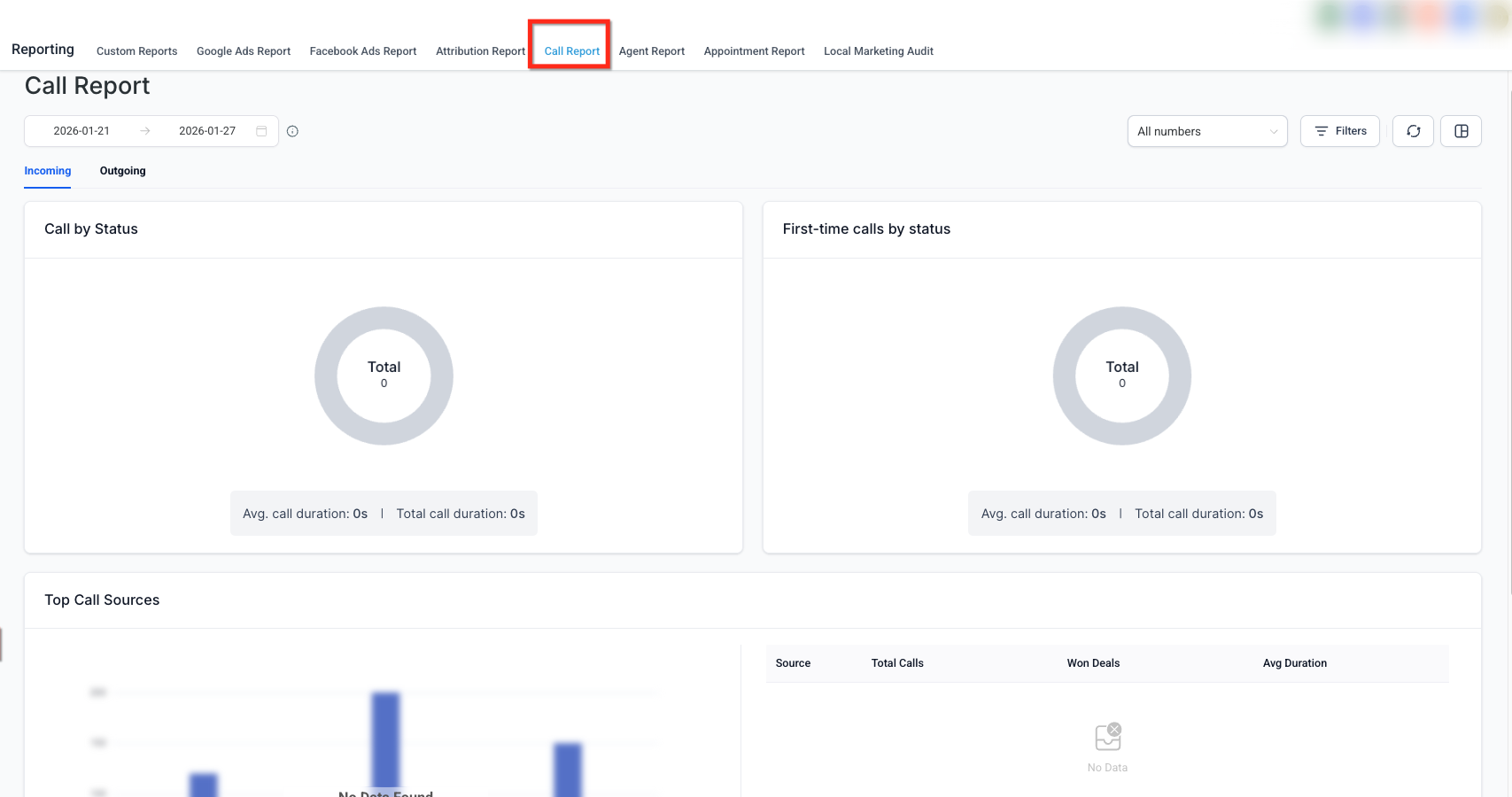
Before reviewing your metrics, narrow the report to the numbers and time period you care about:
All Numbers: Select a single phone number or view combined data across every number connected to your practice.
Date Range: Click the date range selector to set a custom window. The default view shows the last 30 days, and you can go back as far as 180 days.
Filter Call Data: Click this button after setting your filters to refine the report to the exact criteria you selected.
Refresh: Click to pull the latest call activity into the report without leaving the page.
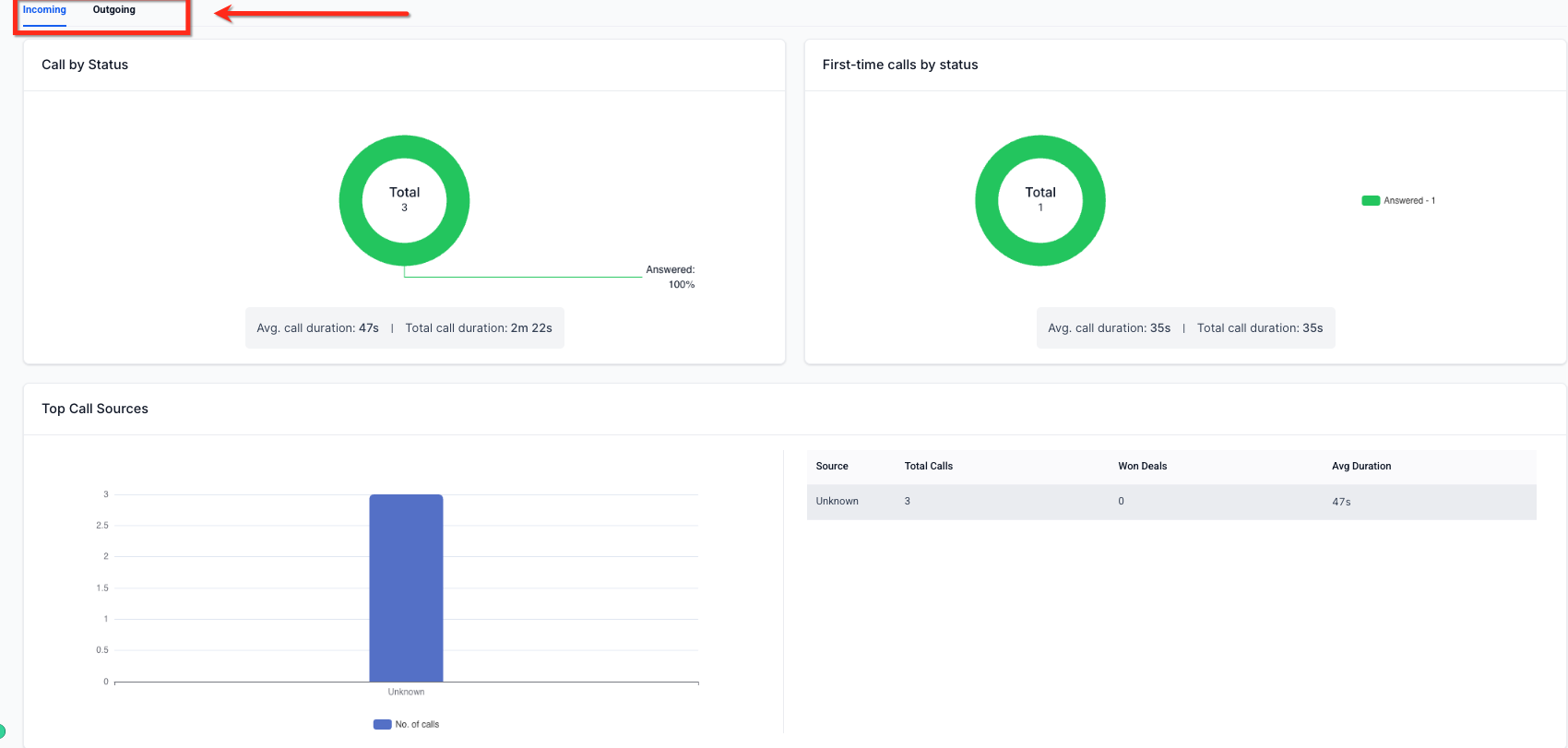
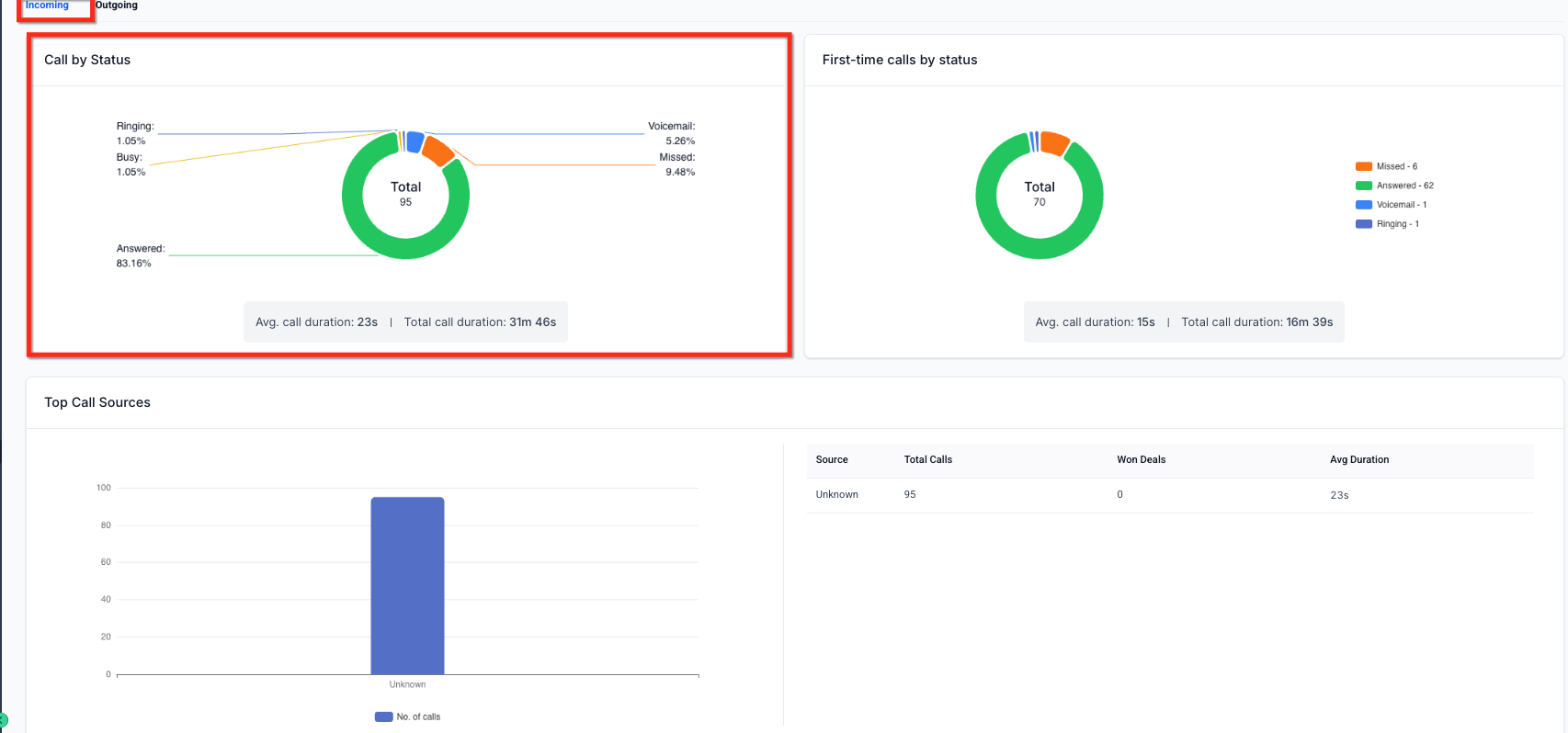
The incoming call view focuses on how patients and prospective patients are reaching your practice and how well your team is handling those calls.
Call by Status: A donut chart breaks down incoming calls into answered, missed, busy, and failed, with the total call count in the center. Average call duration and total call duration appear alongside it.
First-Time Call by Status: The same breakdown, but limited to callers reaching your practice for the first time. This helps you see whether new leads are actually getting through.
Top Call Sources: A table showing where your inbound calls originated (for example, Unknown, Direct, or Paid Search), along with total calls, won deals, and average duration for each source. This is useful for understanding which marketing channels are driving phone inquiries.
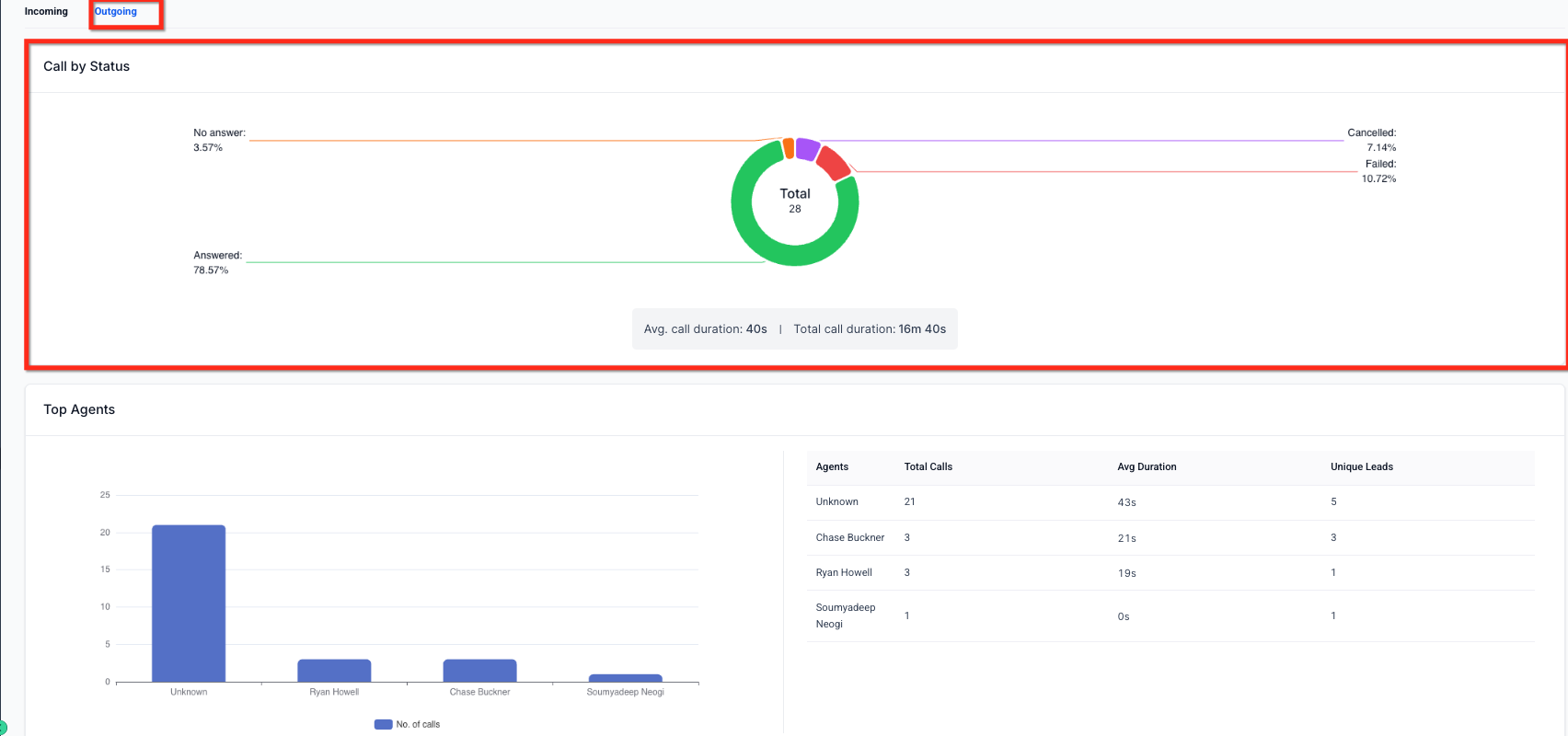
The outgoing call view shows how your team is performing on calls placed to patients and leads.
Call by Status: Tracks outbound call outcomes (answered, missed, busy, failed) the same way as the incoming view.
Top Agents: A table listing each team member who made or received calls, with total calls, average duration (with an indicator showing whether it's trending up or down versus the prior period), and unique leads reached. Use this to identify coaching opportunities and recognize strong performers.
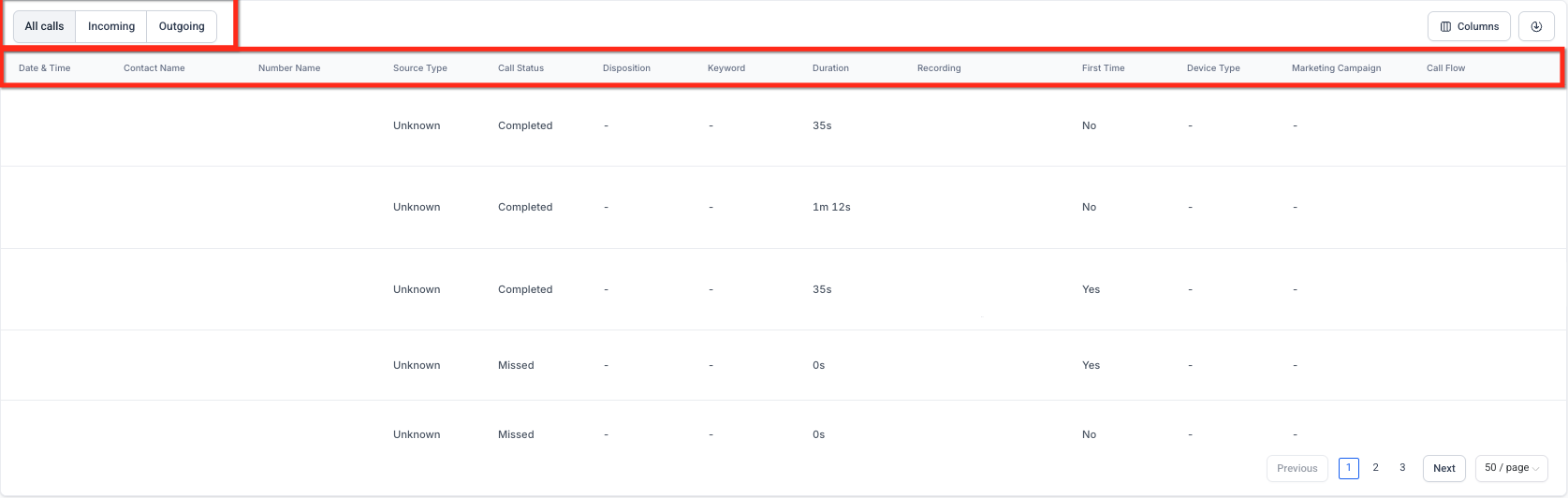
Below the summary widgets, the Call Reporting Table lists every individual call in chronological order. Filter it to Incoming, Outgoing, or All calls. Each row can include:
Column | What it shows |
|---|---|
Date & Time | When the call took place. |
Contact Name | The patient or lead's name, or "Unknown" if not in your contacts, plus the number they called from. |
Number Name | Which of your practice numbers received or placed the call. |
Source Type | Where the call originated (Unknown, Direct, Paid Search, etc.). |
Call Status | Answered, failed, busy, or missed. |
Keyword | Any keyword tied to the call, where available. |
Duration | Length of the call. |
Recording | Playback of the recorded call, if one exists. If the call wasn't recorded or the caller hung up before connecting, this shows "No recording." |
First Time | Whether the caller was reaching your practice for the first time ("Yes") or has called before ("No"). |
Calls that pass through an automated menu (IVR) or get transferred between team members can generate more than one recording, one for each leg of the call. Use the recording selector on that call's row to switch between segments and review the full interaction from start to finish.


Because call recordings and transcripts can include details a patient shares about their health or treatment history, treat them as protected health information. Limit access to staff who need it for quality review or coaching, and avoid downloading or sharing recordings outside your practice's secure systems.
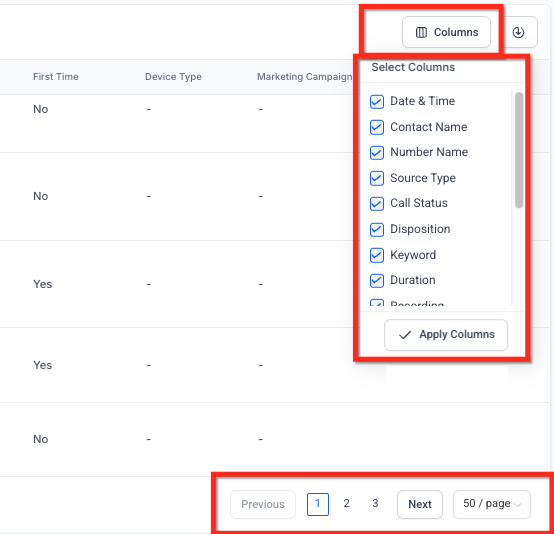
You aren't locked into the default columns in the Call Reporting Table:
Click Columns to open the column picker.
Check the boxes for the data points you want visible (or click a blue check to remove a column).
Click Apply Columns to update the table.
When you're ready to share or dig deeper in a spreadsheet, click Export and download your call data as a CSV or Excel file. Only the columns you've selected are included in the export.
Use these numbers as more than a scoreboard. A high missed-call rate on incoming calls usually points to a staffing or routing gap during your busiest hours. A low first-time answer rate can mean new leads are slipping through before they ever book a consult. And consistently short outbound call durations from a specific team member may signal a coaching opportunity rather than efficiency.
Appointment-side metrics (booked, completed, and no-show consults) are covered separately in the Appointment Reporting guide within this same Reporting section, so you can connect call activity to what actually gets booked.
Can I view data for just one phone number instead of all of them? Yes. Use the number filter at the top of the report to select a single number or view combined data across all numbers connected to your practice.
How far back can I pull call data? The date range selector supports up to 180 days at a time. For anything older, you'll need to run separate exports covering each period.
Why does a call show "No recording"? This happens when the call wasn't recorded or when the caller disconnected before the call actually connected.
Can I see both incoming and outgoing calls in the same report? Yes. Incoming and outgoing calls each have their own summary widgets, and the historical call table lets you filter between Incoming, Outgoing, or All.
Why does a call have more than one recording? Calls that route through an automated menu or get transferred generate a separate recording for each leg of the call. Use the recording selector on that row to review each segment.
Can I control which columns appear when I export? Yes. Whatever columns you've selected in the Columns picker are the ones included in your CSV or Excel export.
What counts as a "first-time" call? A call is marked "First Time: Yes" when the caller isn't already in your contacts. Repeat callers show "No."
Does Call Reporting track deals won from calls? Yes, within the Top Call Sources table for incoming calls, which shows won deals alongside total calls and average duration for each source.
