Calendar Custom Values & FAQ
Custom Values let you drop your own reusable data, like a front desk phone extension, a virtual consult link, or a provider name, directly into calendar fields using merge fields. This article covers where you can use them, how to set them up, and why appointment merge fields sometimes don't populate the way you expect.
Custom Values are available in the merge field selector anywhere a calendar field supports merge fields, including:
Appointment title
Meeting location (custom)
Email notifications
SMS reminders
Workflow messages triggered by appointments
You can also insert assigned user values into the post-booking experience, so patients see who they are scheduled with right after they book. These values are supported on:
The calendar confirmation page and thank-you message
The next funnel step after a booking, when the calendar element's redirect action is set to Go to next step
Assigned user values pull from the user linked to the contact or appointment, letting you display the assigned provider's name, email, phone number, or other supported details once the appointment is booked.
Go to Settings > Custom Values.
Click New Custom Value.
Enter a name and a value.
Click Save.
Once saved, the Custom Value is available anywhere the merge field selector appears.
Go to Calendars.
Open an existing calendar or create a new one.
Navigate to Calendar Settings.
Click into any text field that supports merge fields (for example, Appointment Title or a notification message).
Click the merge field icon (the { } icon).
In the selector, scroll to the Custom Values section, or use the search bar to find your value.
Select the Custom Value. It's inserted as a token, for example {{custom_values.your_key}}.
Click Save.
Book a test appointment to confirm the value displays correctly before rolling it out to patients.
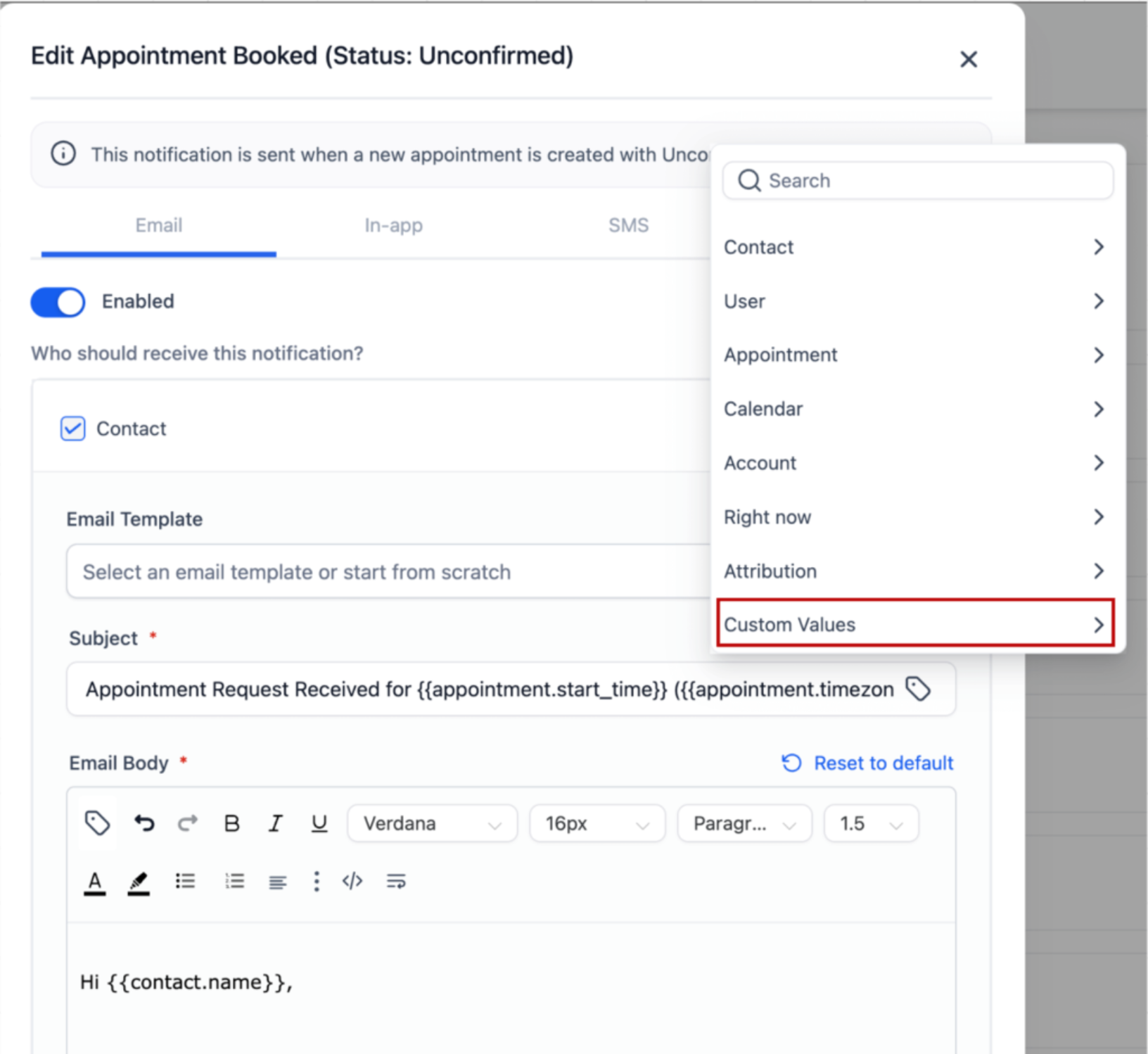
Using Custom Values across your calendars helps you personalize confirmations and reminders, keep messaging consistent across every appointment type, cut down on manual copy-pasting, and scale your scheduling as your practice adds providers and locations.
The most common support question in this area involves appointment merge fields like {{appointment.start_time}} not populating, an appointment reminder not firing at the right time, or an "Add to Google Calendar" / "Add to iCal / Outlook" link not working when a patient tests it.
In almost every case, this comes down to the trigger used on the workflow.
The fix: the workflow or campaign must use the Appointment or Customer Booked Appointment trigger for appointment merge fields to populate. These triggers are what tell the system which specific appointment the merge fields should pull from. See the Workflows collection for the full trigger list and setup details.
If a workflow instead uses Pipeline Stage Changed (or any non-appointment trigger) to send appointment reminders, the system has no specific appointment to reference, so {{appointment.start_time}} and related fields come through blank.
To confirm the fix worked, book an actual test appointment. Custom Values and appointment merge fields only populate against a real, scheduled appointment, not a manually created contact or a test send with no appointment attached.
If you need to manually add a patient to an appointment reminder workflow rather than letting the booking trigger it automatically, select the appointment's start time as the event start date when you add them. This ensures the reminder timing lines up with the actual appointment instead of the moment you added the patient.
If a patient's appointment is rescheduled manually, go to the Appointments tab and switch the status from Confirmed to Reschedule. This automatically removes the patient from the original appointment reminder workflow and re-enrolls them with the new appointment time, so they don't receive reminders for the old slot.
If you'd rather let patients reschedule themselves, add the reschedule link merge field to your appointment reminder messaging. That way patients can move their own appointment without a call to the front desk, and the reminder workflow updates automatically.
Do I need to enable anything to use Custom Values in calendars? No. Custom Values are available by default in any calendar field that supports merge fields.
Can I use Custom Values with workflows? Yes. They work in email and SMS actions tied to appointment triggers, the same way they work directly in calendar settings.
Can I show the assigned provider's name on the booking confirmation page? Yes. Assigned user values are supported on the calendar confirmation page, the thank-you message, and the next funnel step after a booking (when the redirect action is set to Go to next step). They pull from the user linked to the contact or appointment.
Can I combine Custom Values with other merge fields, like patient name or appointment time? Yes. You can use as many merge fields as you need in the same field, including a mix of Custom Values and standard appointment or contact fields.
What happens if I update a Custom Value later? Future messages will use the updated value. Any messages already sent won't retroactively change.
Are Custom Values supported on mobile? Yes. They work the same way in calendar-related fields on the Aesthetix CRM mobile app.
Why is {{appointment.start_time}} showing up blank in my reminder?
This almost always means the workflow or campaign is using a trigger other than Appointment or Customer Booked Appointment. Switch the trigger and test with a real booked appointment.
Why isn't my appointment reminder firing at the correct time? Check the workflow trigger first. If it's not an appointment-based trigger, the workflow doesn't know which appointment's start time to reference, so timing (and any merge fields tied to it) won't be accurate.
The "Add to Google Calendar" link in my test email doesn't work. What's wrong? Test emails sent without a real, booked appointment attached often won't populate the calendar link correctly. Book an actual test appointment and resend to confirm.
Can I test Custom Values without booking a real appointment? Not reliably for appointment-specific merge fields. Non-appointment Custom Values (like a phone number or a static link) will populate in a test send, but anything tied to appointment data needs a real booked appointment to test against.
Where do I manage the triggers that control appointment reminders? In the Workflows collection. Search for the Appointment or Customer Booked Appointment trigger types, and confirm that any workflow sending appointment merge fields is built on one of those triggers rather than a pipeline or contact-based trigger.
