Calendar sync problems usually show up the same way: a patient appointment booked in Aesthetix CRM never appears on your Google Calendar, or a calendar that used to sync fine suddenly stops. This guide walks through why sync breaks, how to reconnect it, how to get notified the moment it happens, and a related issue where contact info doesn't carry over correctly on a funnel page. Calendar connections themselves (Google, Outlook, iCloud, Zoom, Calendly) live under Settings > My Profile > Calendar Settings, in the same place covered in the Connections guide for this collection.
When a connected Google Calendar stops syncing with Aesthetix CRM, it's almost always because Google has revoked access on its end rather than anything going wrong inside your account. Common causes include:
You changed your Google account password, which automatically revokes third-party access.
Permissions for Aesthetix CRM were manually removed in your Google account settings.
Google flagged suspicious activity on the account and blocked access as a security precaution.
The OAuth token (the secure credential that keeps the connection alive) expired or was invalidated.
When any of these happen, new patient appointments stop reflecting on your Google Calendar until you reconnect.
If your calendar has disconnected, follow these steps to re-authenticate it.
Go to Settings in your account.
Select My Profile, then open Calendar Settings.
Click the delete (trash) icon next to the connected Google account.
Check the acknowledgement box in the confirmation pop-up and click Confirm.
From Settings > My Profile > Calendar Settings, click + Add New.
Sign in with your Google account and grant the requested permissions again.
Book or edit a test appointment and confirm it shows up correctly on your Google Calendar. If sync issues continue after reconnecting, reach out to Aesthetix CRM support so we can dig into the account-level cause.
Rather than discovering a sync failure days later when a patient appointment goes missing, you can turn on disconnection alerts so you know the moment a calendar or video conferencing integration drops. Notifications are triggered for:
Google Calendar
Outlook Calendar
iCloud Calendar
Zoom
Microsoft Teams
Go to My Profile > Notifications.
Scroll to the Calendar section.
Turn on the channels you want for each notification type: In-App, Email, and SMS. Push notifications work on both the web app and the mobile app.
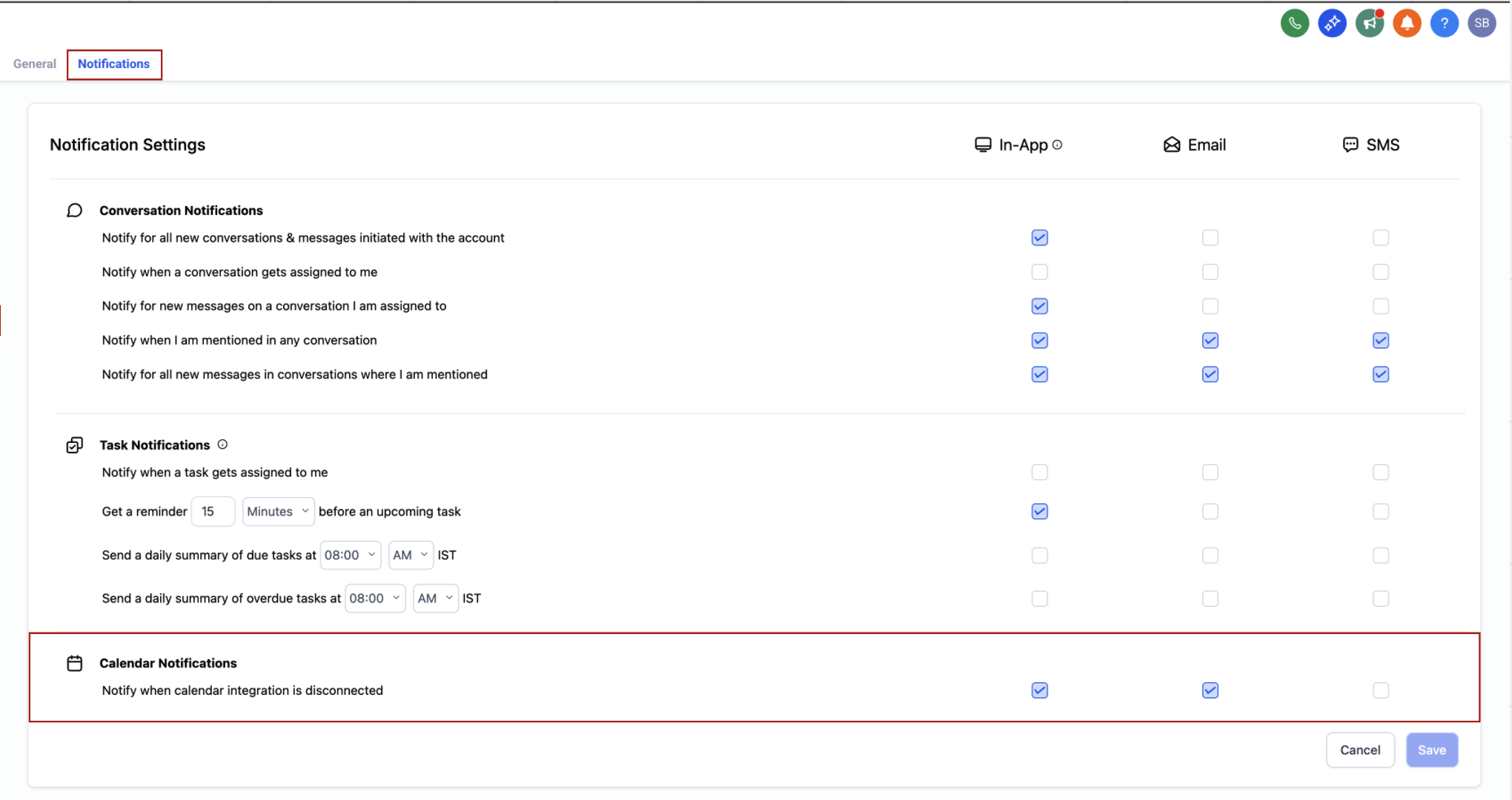
By default, Email and In-App notifications are already enabled. You can change any of these preferences at any time from the same screen.
Once enabled, you're notified through every channel you've turned on:
Email, including the integration name, what it means for your bookings, and reconnection steps:
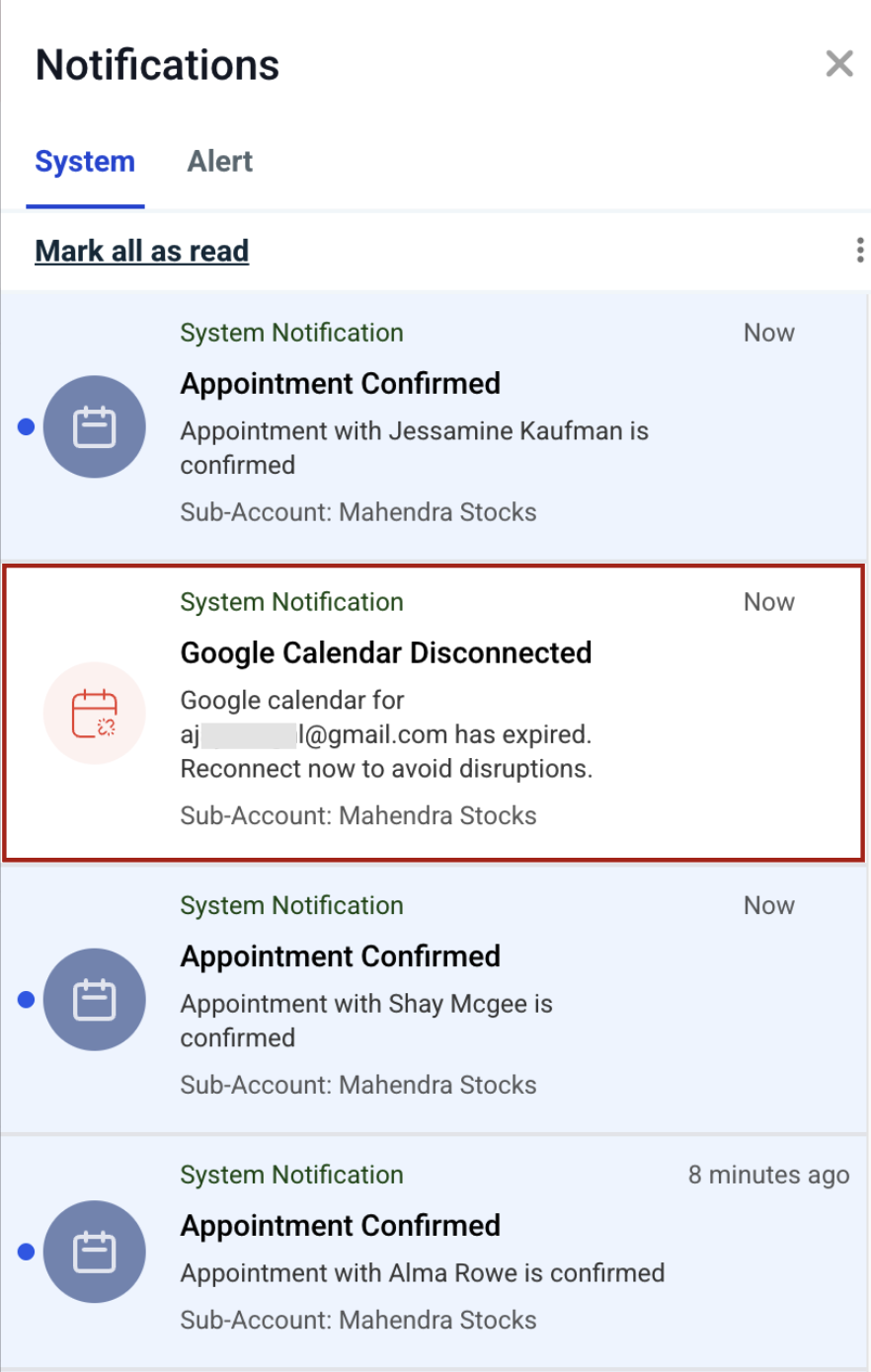
In-App, shown in your web browser and on the mobile app:
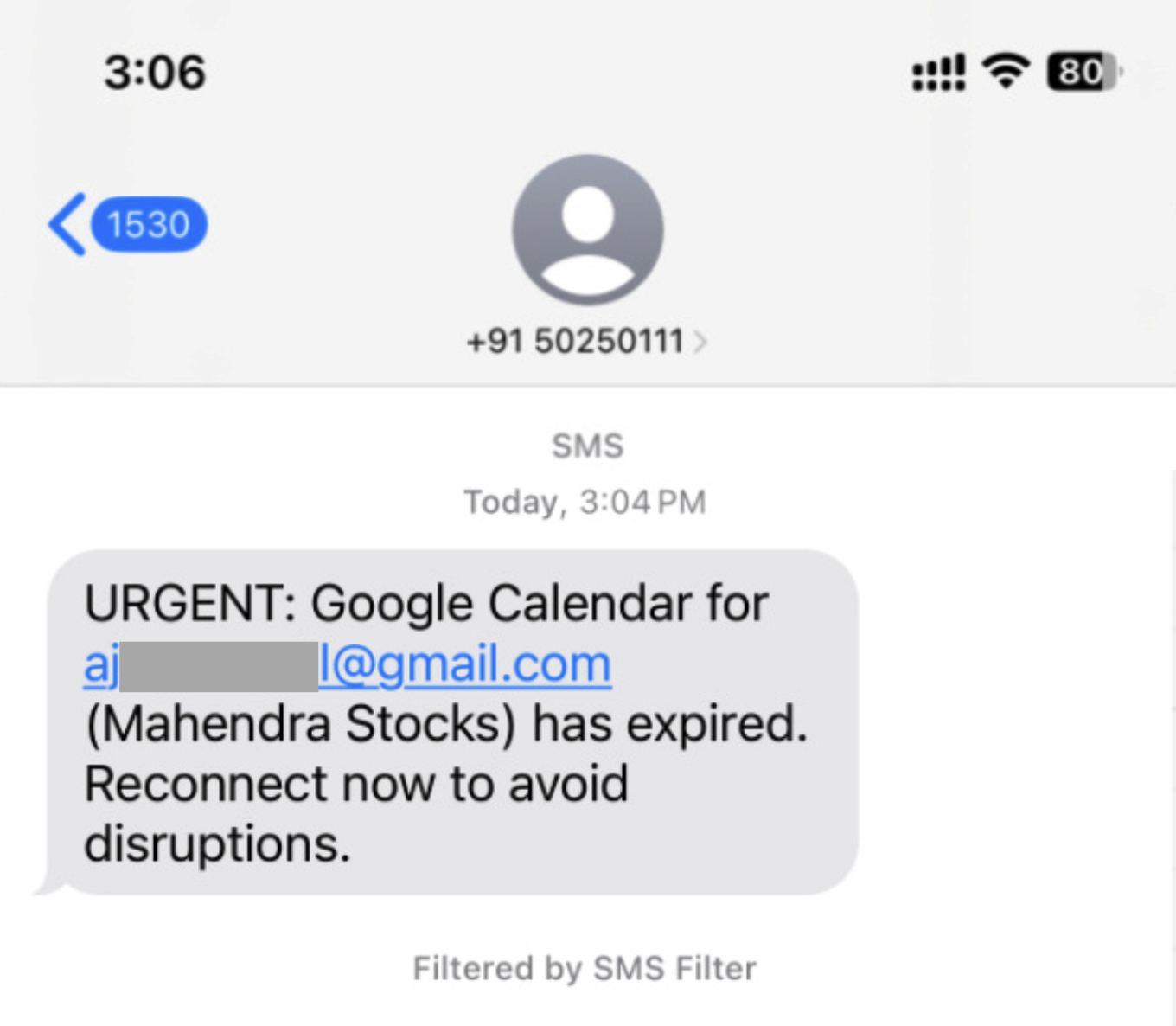
SMS, sent to your configured number with the integration and account details:
These alerts go only to the individual user whose calendar disconnected, not to other admins on the account.
Email and SMS notifications may incur charges depending on your account's messaging setup. Check your communication settings if you're unsure.
SMS only sends if a phone number is configured for that user at the account level. No number configured means no SMS alert, even if the setting is turned on.
If you're placing both a booking calendar and an intake form on the same funnel or website page, contact information can fail to carry over between the two ("sticky contact" behavior) if they're built inconsistently. To avoid this, use the native calendar and form elements together, or use custom HTML/JS embeds for both. Mixing a native element with a custom embed on the same page is what typically breaks the handoff. For details on placing calendars and forms on funnel or website pages, see the Funnels/Websites guides; intake form setup itself lives in the Forms collection.
How do I know if my calendar integration is broken? New patient appointments stop appearing on your connected calendar, or you see a "disconnected" status in Calendar Settings. If you've turned on disconnection notifications, you'll also get an email, in-app, or SMS alert as soon as it happens.
Do I have to reconnect every time I change my Google password? Yes. Changing your Google password automatically revokes access for connected apps, including Aesthetix CRM. You'll need to delete and re-add the connection.
Will I lose existing appointments if my calendar disconnects? No. Appointments already booked in Aesthetix CRM stay intact. Once you reconnect, syncing simply resumes going forward.
Can I sync more than one Google calendar to a single user? Each user can sync one primary Google calendar at a time. If you need to switch which calendar is connected, do it from Calendar Settings.
Who receives disconnection alerts, the whole team or just me? Only the individual user whose calendar disconnected receives the notification. Location and account-level admins are not automatically notified.
Why didn't I get an SMS alert when my calendar disconnected? SMS alerts require a phone number configured for your user at the account level. If none is set, SMS won't send even if the setting is enabled. Confirm your number under My Profile.
My calendar and form are on the same funnel page, but contact details aren't carrying over. Why? This usually happens when one element is a native calendar/form block and the other is a custom HTML or JS embed. Use matching element types (both native or both custom embeds) so contact data passes correctly between them.
Does reconnecting a calendar affect my other integrations, like Zoom or Outlook? No. Each integration is authenticated separately. Reconnecting Google Calendar has no effect on Outlook, iCloud, Zoom, or Microsoft Teams connections.
Is there a cost to receiving disconnection notifications? In-app notifications are free. Email and SMS notifications may carry charges depending on your account's messaging configuration, so review your communication settings if cost is a concern.
What should I do if reconnecting doesn't fix the sync issue? Test with a new appointment after reconnecting. If it still isn't reflecting on your calendar, contact Aesthetix CRM support so we can investigate further on the account side.
