When a calendar shows the wrong availability, whether that means slots are missing, double-booked, or a patient ends up assigned to the wrong provider, the cause is almost always a setting inside Calendars > Calendar Settings rather than a bug. This guide walks through the most common booking and availability problems and exactly where to look to fix each one.
Before digging through individual settings, use the built-in troubleshooting tool. It gives you a full breakdown of why a specific slot is or isn't available.
Go to Calendars > Calendar Settings.
Locate the calendar in question.
Click the Troubleshoot (wrench) icon.
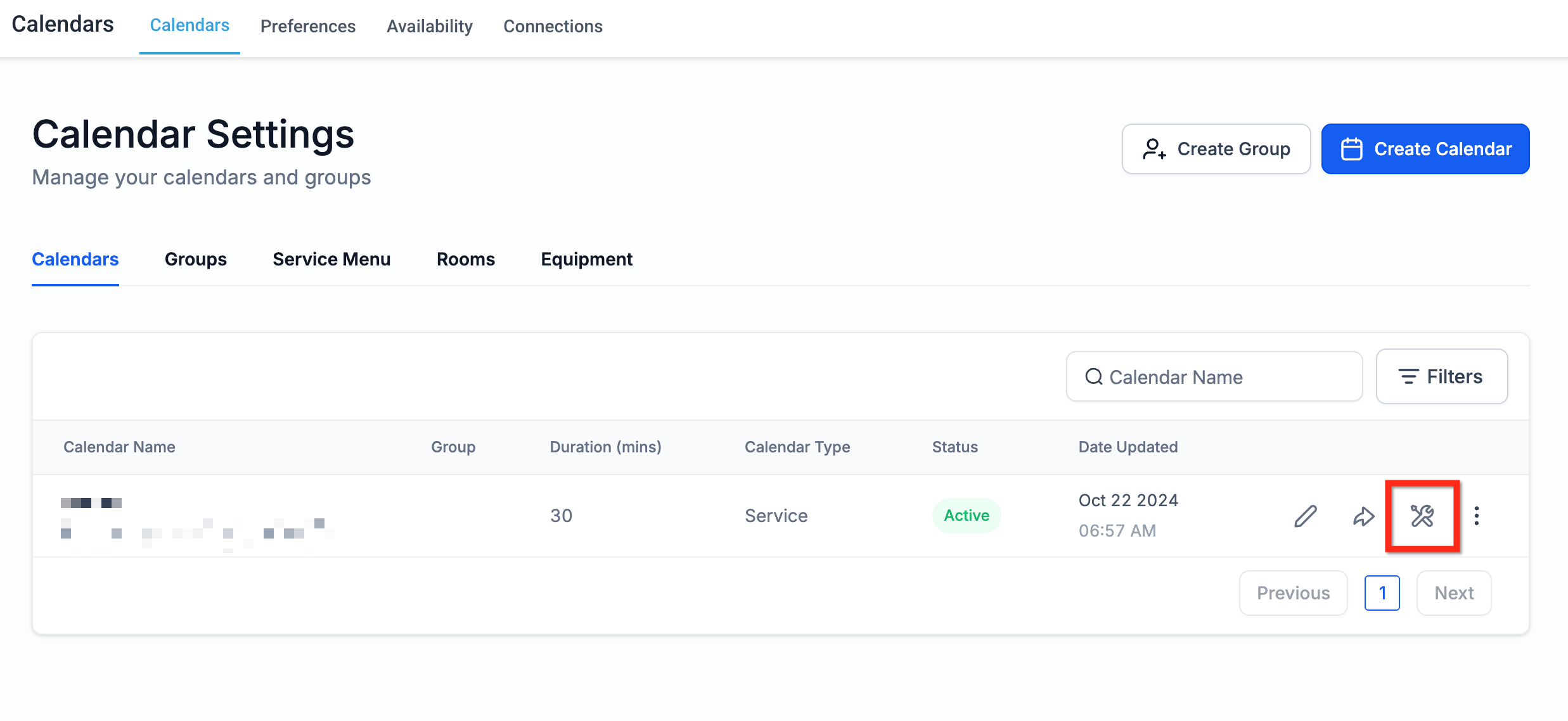
The tool checks:
Capacity rules
Buffer logic
Timezone checks
User assignment rules
External calendar conflicts
Use it first, then use the sections below to correct whatever it flags.
It's easy to edit a similarly named calendar by mistake, especially at practices running several Service Calendars for different treatments or locations.
Go to Calendars > Calendar Settings.
Find the calendar you intend to change and click the Edit (pencil) icon.
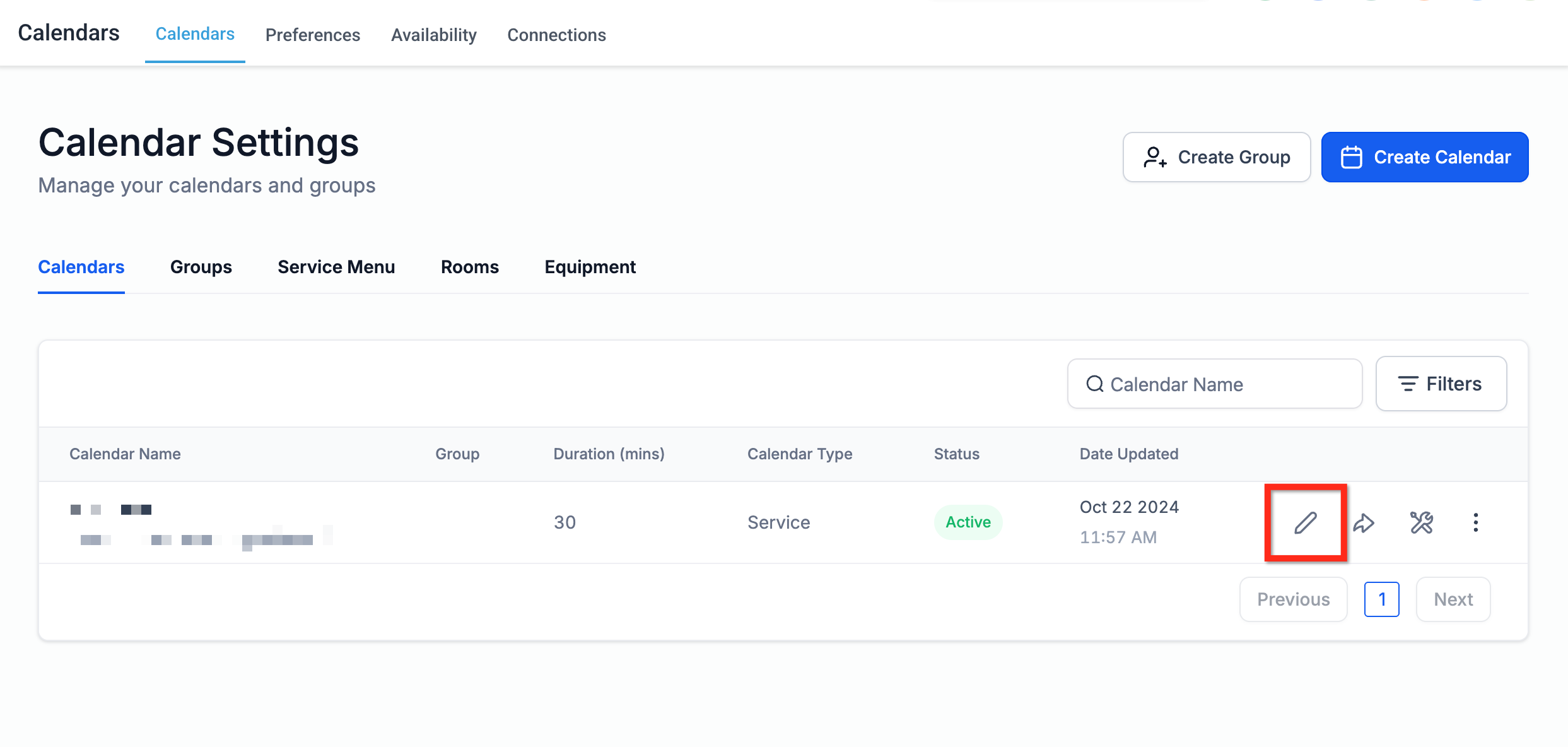
Confirm the Calendar Name, Calendar Type, and Calendar Group all match what you expect before making further changes.
Inside the calendar editor, open the Availability tab and confirm:
Weekly hours are set correctly for each day your practice takes appointments.
No date-specific override is unintentionally blocking a day or time range.
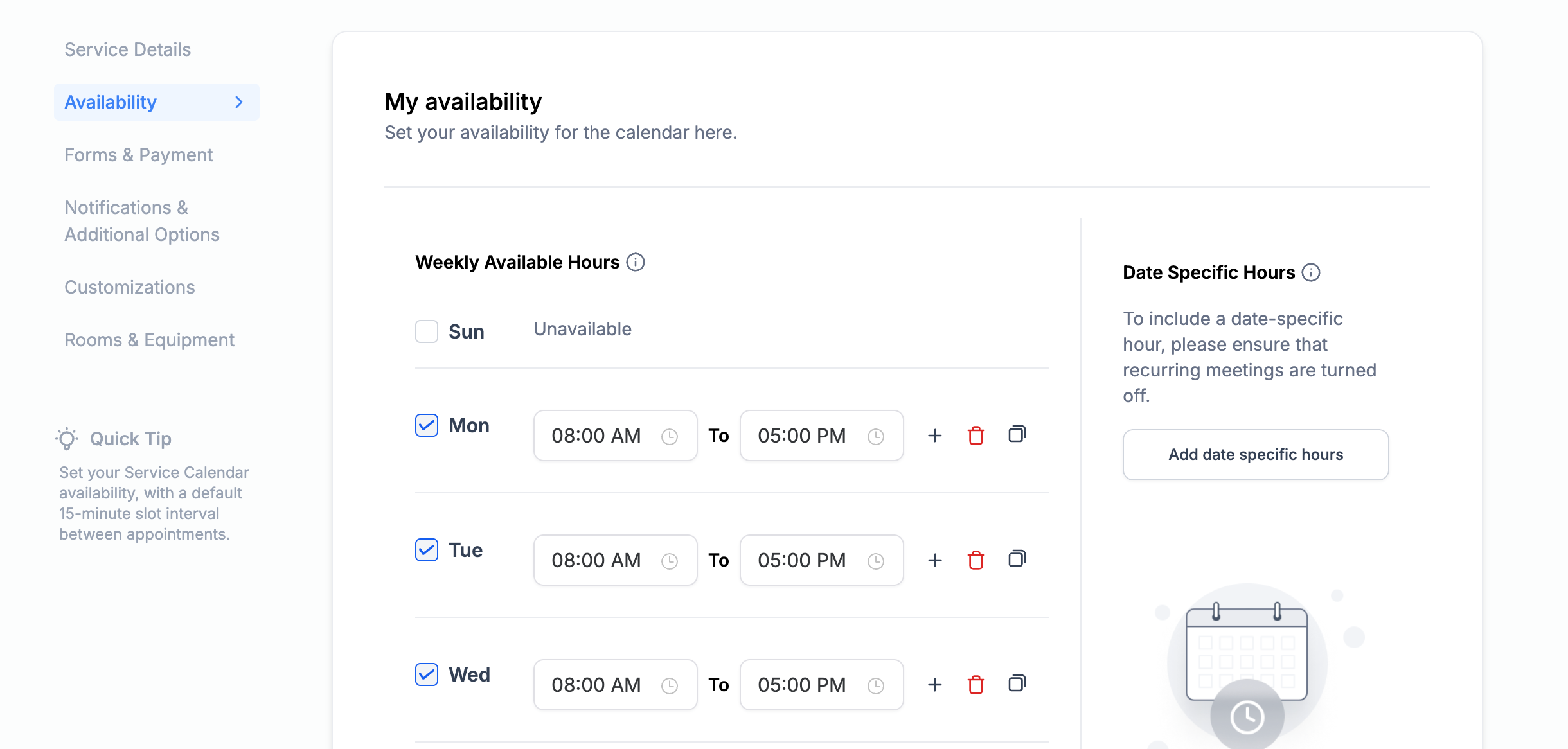
If recurring meetings are enabled for that calendar, date-specific overrides may not apply the way you expect, so double-check the interaction if you use both.
Time slots depend entirely on which providers are assigned to the calendar. Under Service Details, confirm at least one team member is selected.
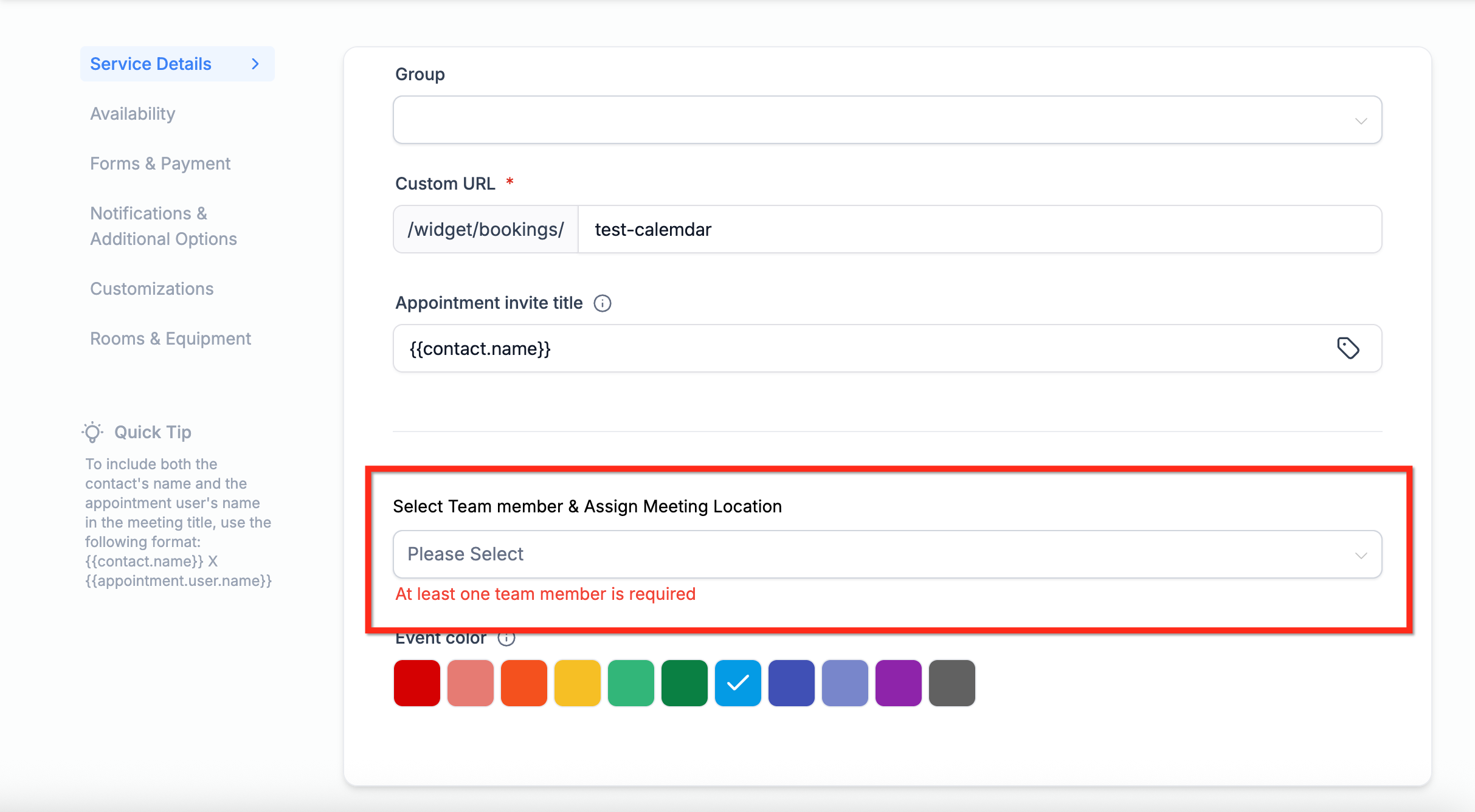
If no provider is assigned, no slots will appear to patients at all, even if working hours and availability look correct.
Under the Availability tab, review:
Service interval: how frequently new slots start (every 15 minutes, 30 minutes, and so on).
Service duration: how long each appointment is reserved for.
Post buffer time: cleanup or prep time blocked off after an appointment.
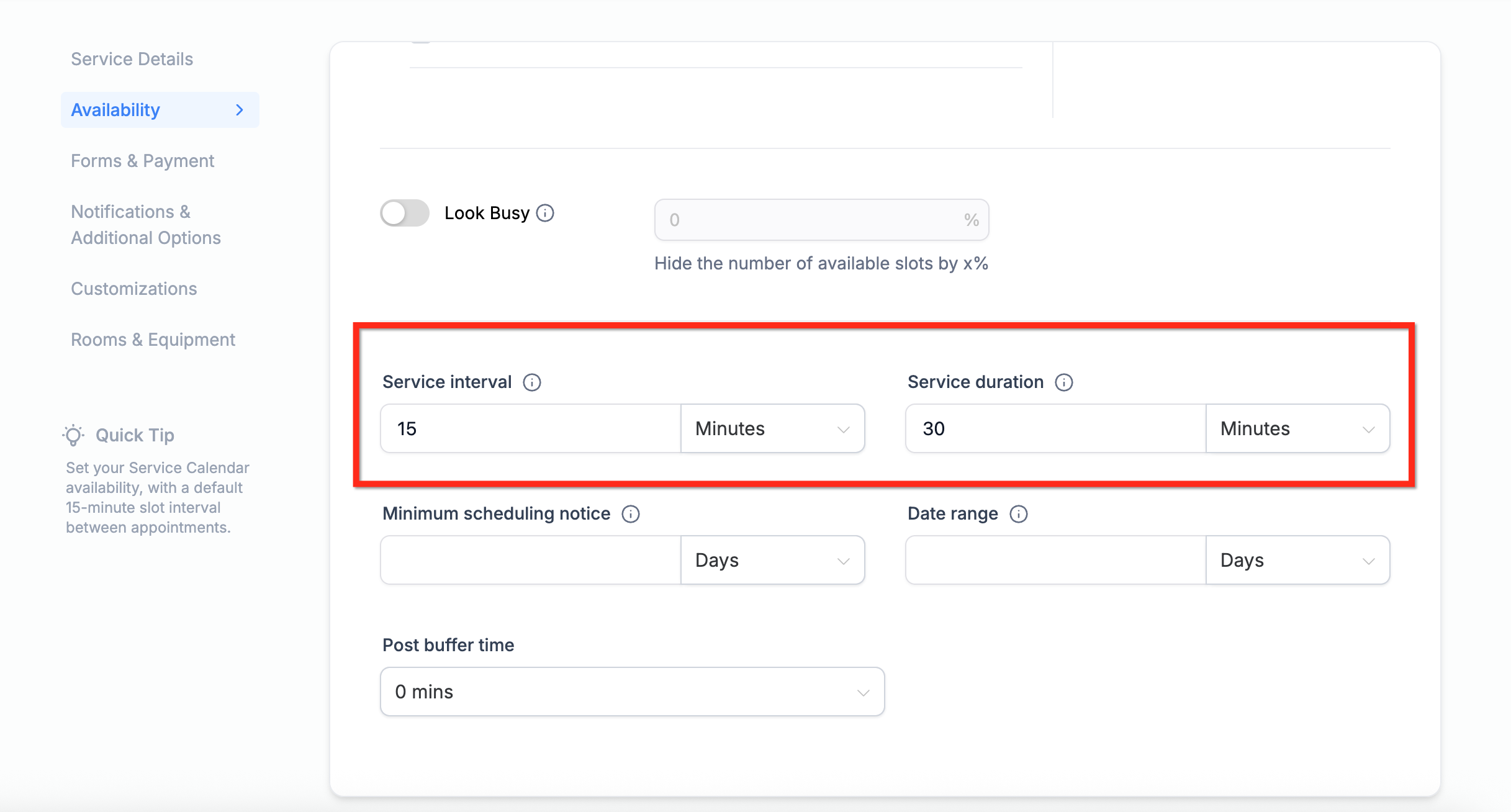
An interval and duration combination that doesn't divide evenly can create unexpected gaps or hide slots you'd expect to see. If patients report that slots "should" be open but aren't, this is one of the first places to check.
Some calendar types, like Class or Event calendars, allow more than one booking in the same time slot. If your practice uses group treatments, workshops, or open-house style events, slot visibility depends on capacity rather than a single open/closed state.
Here's how capacity works:
Each confirmed appointment reduces that slot's remaining capacity by 1.
If an appointment overlaps more than one time slot, each affected slot's capacity is reduced by 1.
A slot is only fully blocked once its defined capacity limit is reached.
Overlapping appointments no longer block every affected slot outright, they simply consume capacity.
If a slot isn't showing as available, check whether that slot's maximum appointment limit has already been reached rather than assuming the calendar itself is misconfigured.
If a provider has connected a Google, Outlook, or iCloud calendar, events on that external calendar can affect what's available for booking in Aesthetix CRM. This is configured per user under Settings > My Profile, where each connected calendar can be set as either the Primary Calendar or included in Check for Conflicts.
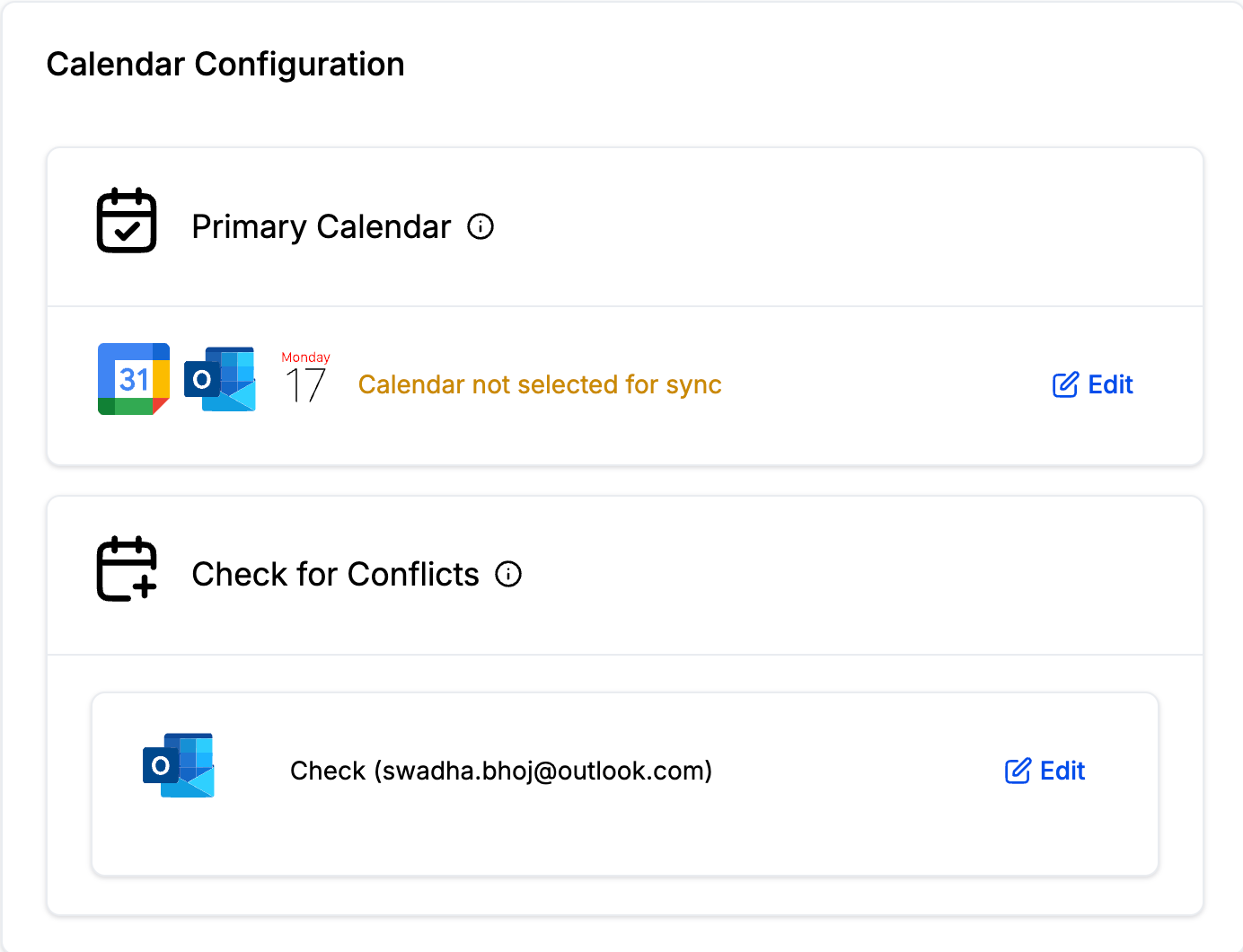
Check for Conflicts works one direction only: any event pulled in from a connected Google, Outlook, or iCloud calendar blocks that time from being booked, but no new appointments are created on the external calendar from this setting. If a calendar is disabled under Check for Conflicts, it's usually because it's already selected as the Primary Calendar instead.
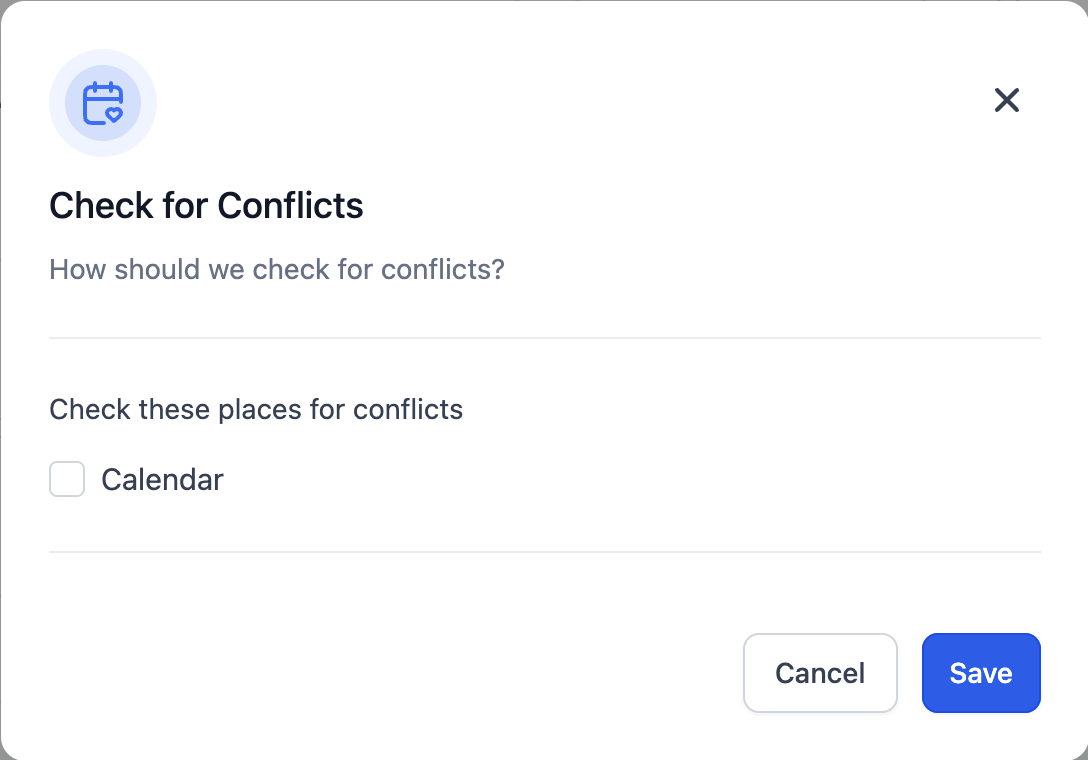
If a synced external event is marked Busy, it will block that time range in Aesthetix CRM regardless of what your internal working hours say. External conflicts always take priority over internal availability settings, so review the provider's connected calendar events first when a slot that should be open isn't showing.
Calendar sync setup itself (connecting Google, Outlook, iCloud, or Zoom) lives under the Connections sub-collection. This section only covers how conflicts from an already-connected calendar affect availability.
Google account not showing up when connecting a calendar? If you open the account picker to connect a Google calendar and don't see any Google accounts listed, even though you're already signed in to Aesthetix CRM with a Google account, click Add another account in the picker and select that same Google account. Google's account picker doesn't always surface an already-signed-in account automatically, and adding it manually resolves the issue.
Timezone mismatches are a frequent, easy-to-miss cause of slots appearing at the wrong time or not appearing at all. Check all three of these:
The provider's user profile timezone.
The timezone the calendar is being viewed in.
The timezone shown to the patient on the public booking page.
A time that looks available to your front desk may not line up with what a patient in a different timezone sees, and vice versa. When patients report seeing different available times than staff do, this is almost always the reason.
On Round Robin, Service, Class, and Collective (group) calendars, it's possible for a booking to land with a different provider than the patient intended, especially when the calendar is embedded in a funnel or landing page. This usually comes down to how the booking widget determines routing:
Round Robin logic, availability priority, and user-assignment rules all influence which provider actually receives the booking, even if a specific provider appeared available.
If the calendar is embedded through a funnel, confirm the funnel step is pointed at the correct calendar or calendar link, since a misconfigured embed can route bookings to the wrong group calendar entirely.
If clients should be able to choose a specific provider rather than being routed automatically, enable staff selection in the calendar's settings for Round Robin calendars.
For calendars embedded on funnel or website pages, review the embed setup under Funnels/Websites if reassignment issues only happen through a specific page rather than the direct booking link.
If you use AI to handle appointment booking through chat or voice, keep in mind that AI-driven booking only works with native Aesthetix CRM calendars, not calendars tied to your EMR. If bookings made through AI Employee show the same slot, conflict, or reassignment issues described above, work through this guide the same way you would for a manually booked appointment, the underlying calendar rules are identical.
Why does a provider show as available but never actually gets booked? Round Robin logic, availability priority, or user assignment settings can prevent a provider from receiving bookings even though their calendar looks open. Review the assignment rules for that specific calendar.
Why are booking slots not lining up with our stated working hours? Check the slot interval, service duration, and buffer settings first, then check for external calendar conflicts and timezone mismatches, all four can shift what actually shows as available.
Do overlapping appointments block an entire time slot? No. Each overlapping appointment reduces that slot's remaining capacity by 1. A slot is only fully blocked once its capacity limit is reached, which mainly applies to Class and Event calendars that allow multiple bookings per slot.
Why do available slots look different across devices or browsers? This is usually a browser cache issue or a timezone mismatch between the device and the calendar's configured timezone. Clearing cache or double-checking each device's timezone setting usually resolves it.
Can patients choose a specific provider instead of being auto-assigned? Yes, on Round Robin calendars. Enable staff selection in the calendar's settings so patients can pick a preferred provider instead of being routed automatically.
What does the Calendar Troubleshooting Tool actually check? It lists every rule currently affecting a slot's visibility, including capacity limits, buffer times, timezone logic, and provider assignment rules, so you don't have to check each setting manually.
A connected Google calendar shows an event as busy, but Aesthetix CRM still lets patients book that time. Why? Confirm that calendar is enabled under Check for Conflicts in Settings > My Profile. If it's set as the Primary Calendar instead, or not connected at all, its busy events won't block bookings.
Why did a patient get assigned to the wrong provider on a group calendar? This is typically caused by Round Robin or availability priority rules, or by a funnel embed pointing at the wrong calendar link. Confirm the routing logic and, if the calendar is embedded on a funnel page, confirm the embed points to the correct calendar.
I don't see any Google accounts listed when trying to connect a calendar. What should I do? Click Add another account in the Google account picker and select the same Google account you're trying to connect, even if you're already signed in to Aesthetix CRM with that account. The account picker doesn't always list an already-signed-in account on its own.
