When a patient can't find an open time on your booking widget, or your front desk can't figure out why a calendar looks empty, the Calendar Troubleshooting Tool tells you exactly why. It's a built-in diagnostic view inside every calendar in Aesthetix CRM that shows, slot by slot, whether a time is bookable and if not, the specific reason it's blocked. There's nothing to install or turn on: it's available from Calendar Settings for every calendar type, including Service, Team/Collective, and Round Robin calendars.
Misconfigured calendars are one of the most common causes of missed bookings. A gap in staff availability, a disconnected Google or Outlook account, or a scheduling conflict can quietly stop patients from booking a consult without anyone at your practice noticing until a lead complains. The Troubleshooting Tool gives you:
Instant visibility into setup issues in real time, including availability gaps, unassigned staff, or Google/Outlook sync failures.
Self-service diagnostics so your team can identify the problem without opening a support ticket.
Faster booking recovery, since you can see the exact reason a slot is blocked instead of guessing.
Multi-calendar support, covering Team, Collective, and Round Robin calendars in addition to single-provider Service Calendars.
Sync insight tied to individual users, so you can tell whether a booking issue is a calendar-wide problem or specific to one staff member's connected account.
There are two ways to open the Troubleshooting Tool, depending on where you're working.
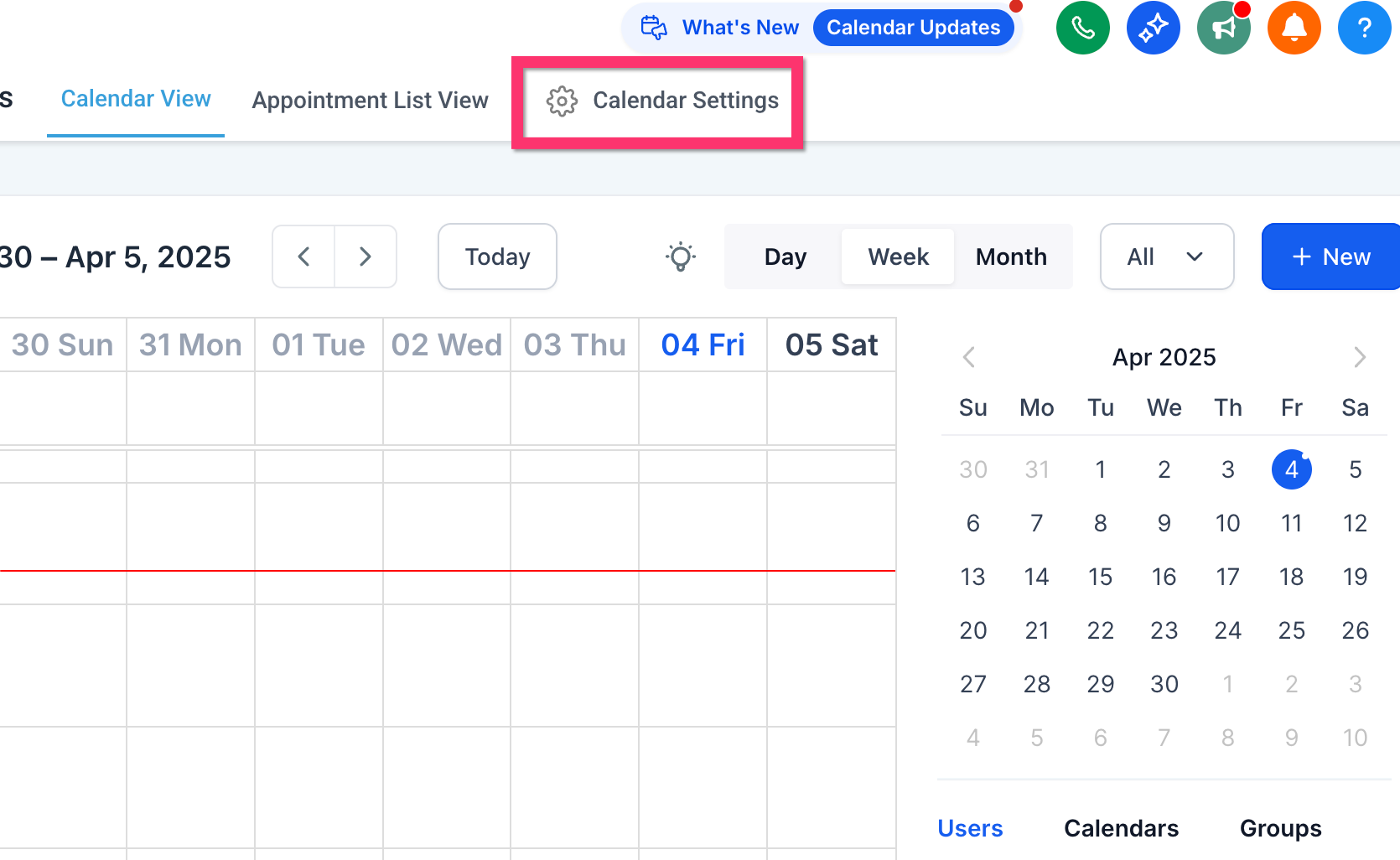
Step 1: Go to Settings > Calendars, then click Calendar Settings at the top of the page.
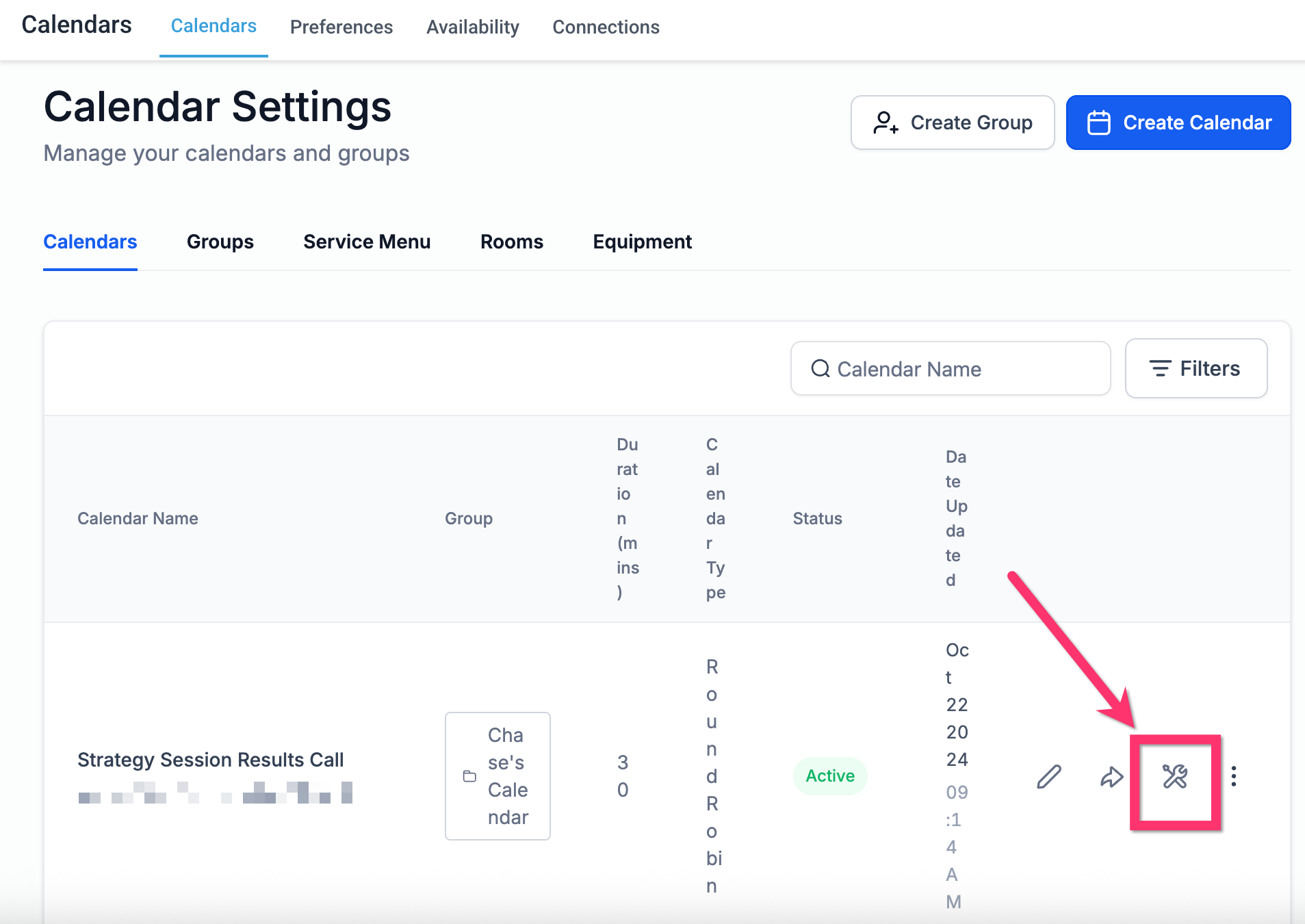
Step 2: Find the calendar you want to check and click the wrench icon next to it to open the tool.
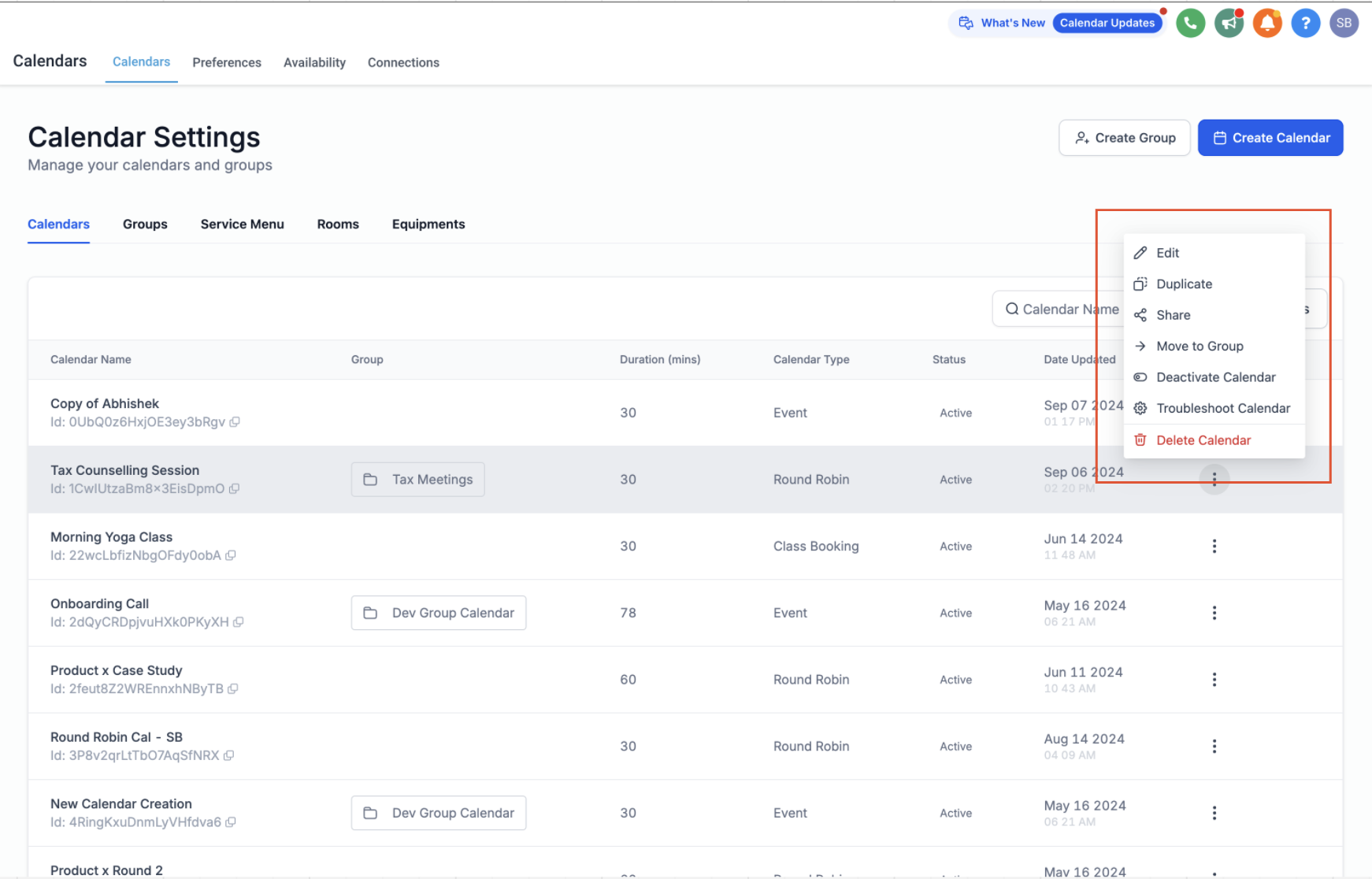
You can also open it from the three-dot menu on a calendar: click the ⋮ icon next to the calendar and select Troubleshoot Calendar.
If you're already editing a specific calendar, you don't need to back out to the list.
Step 1: Open Settings > Calendars > [Your Calendar], then click Troubleshoot Calendar in the top-right header.
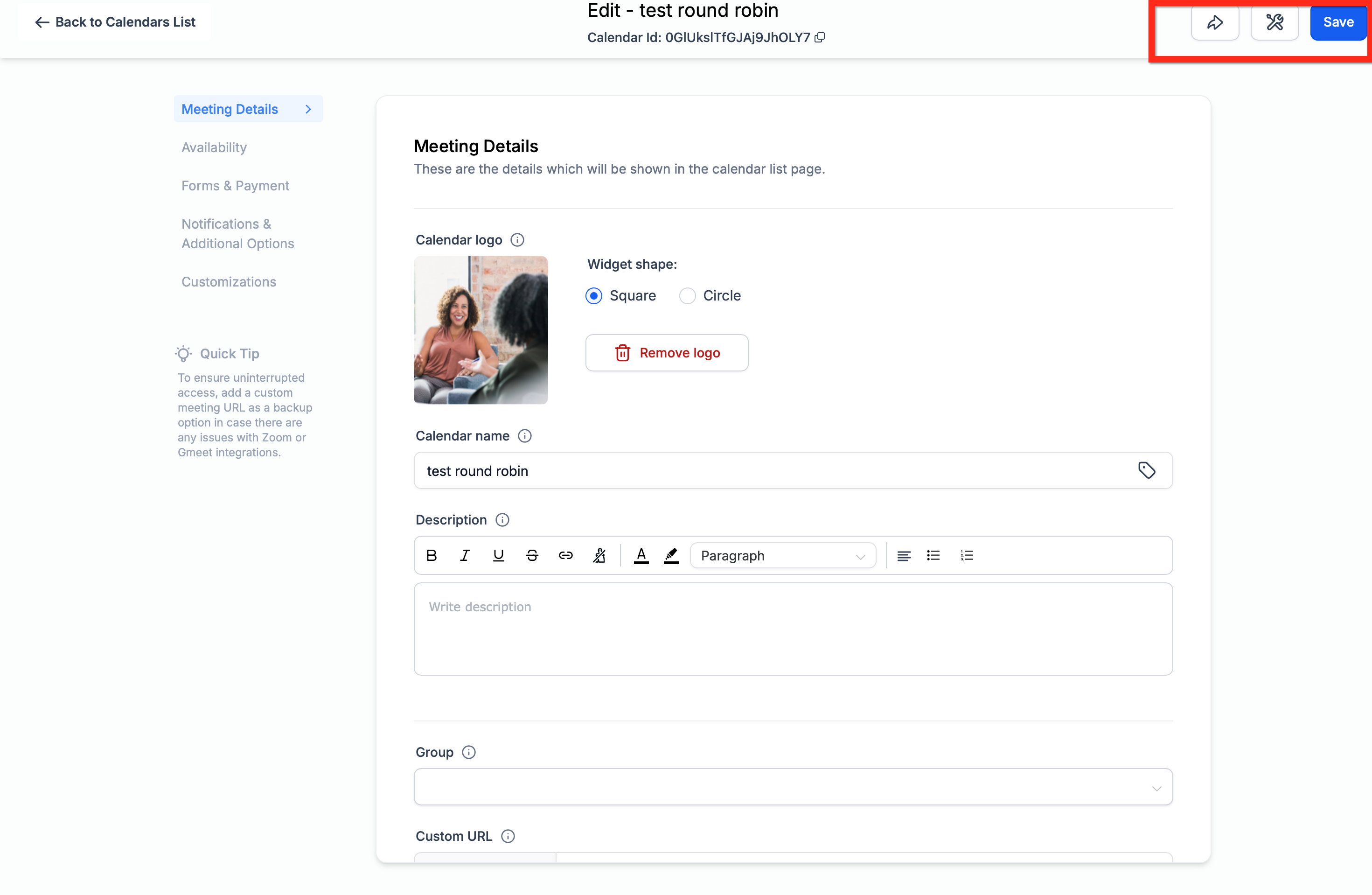
This opens diagnostics directly, without leaving the calendar editor.
Once the tool is open:
Step 1: Select a date on the calendar grid. The tool generates every potential slot for that day based on your availability windows and meeting intervals.
Step 2: Hover over any unavailable time slot to see a tooltip with the reason code and a plain-language explanation.
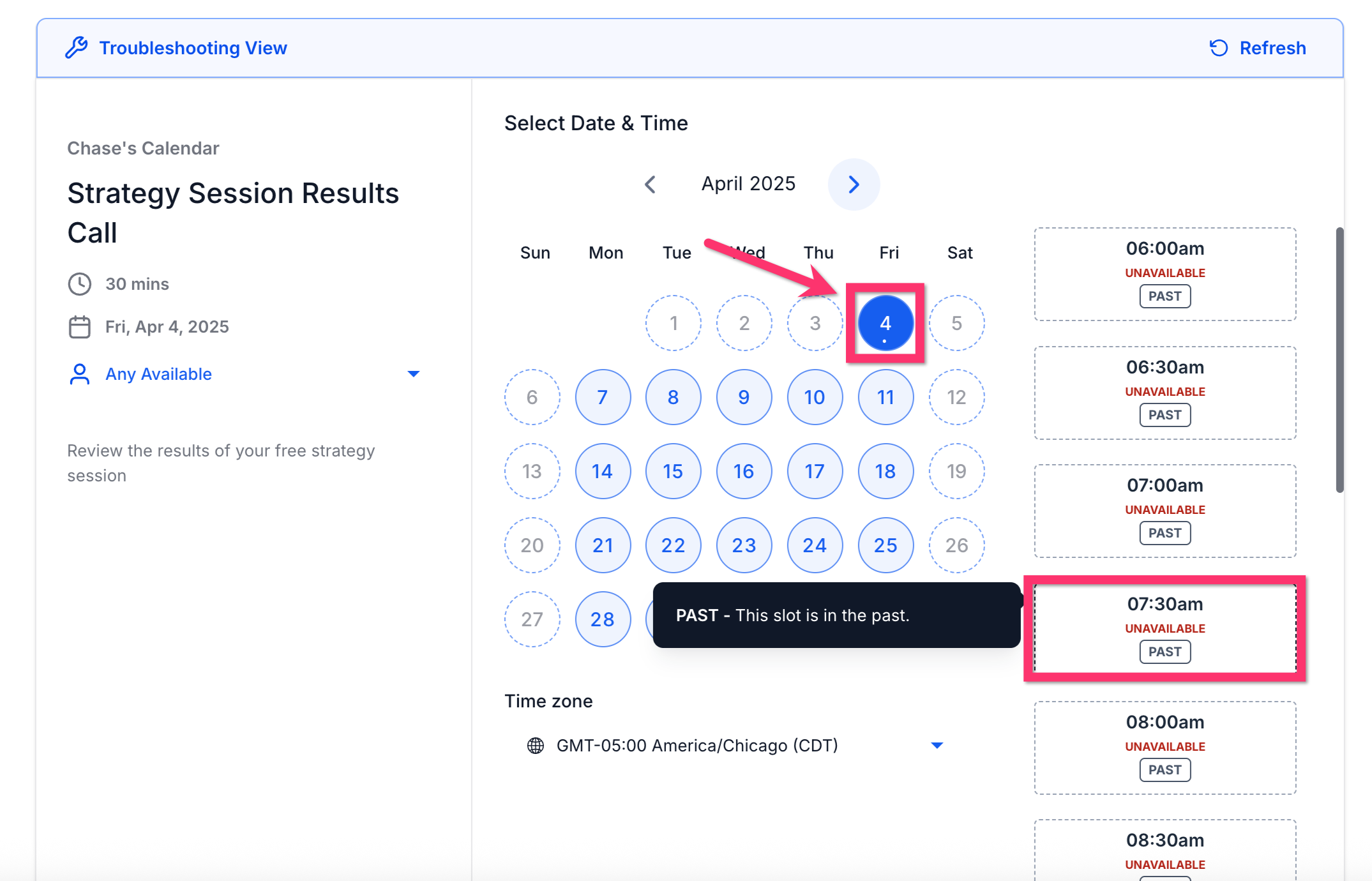
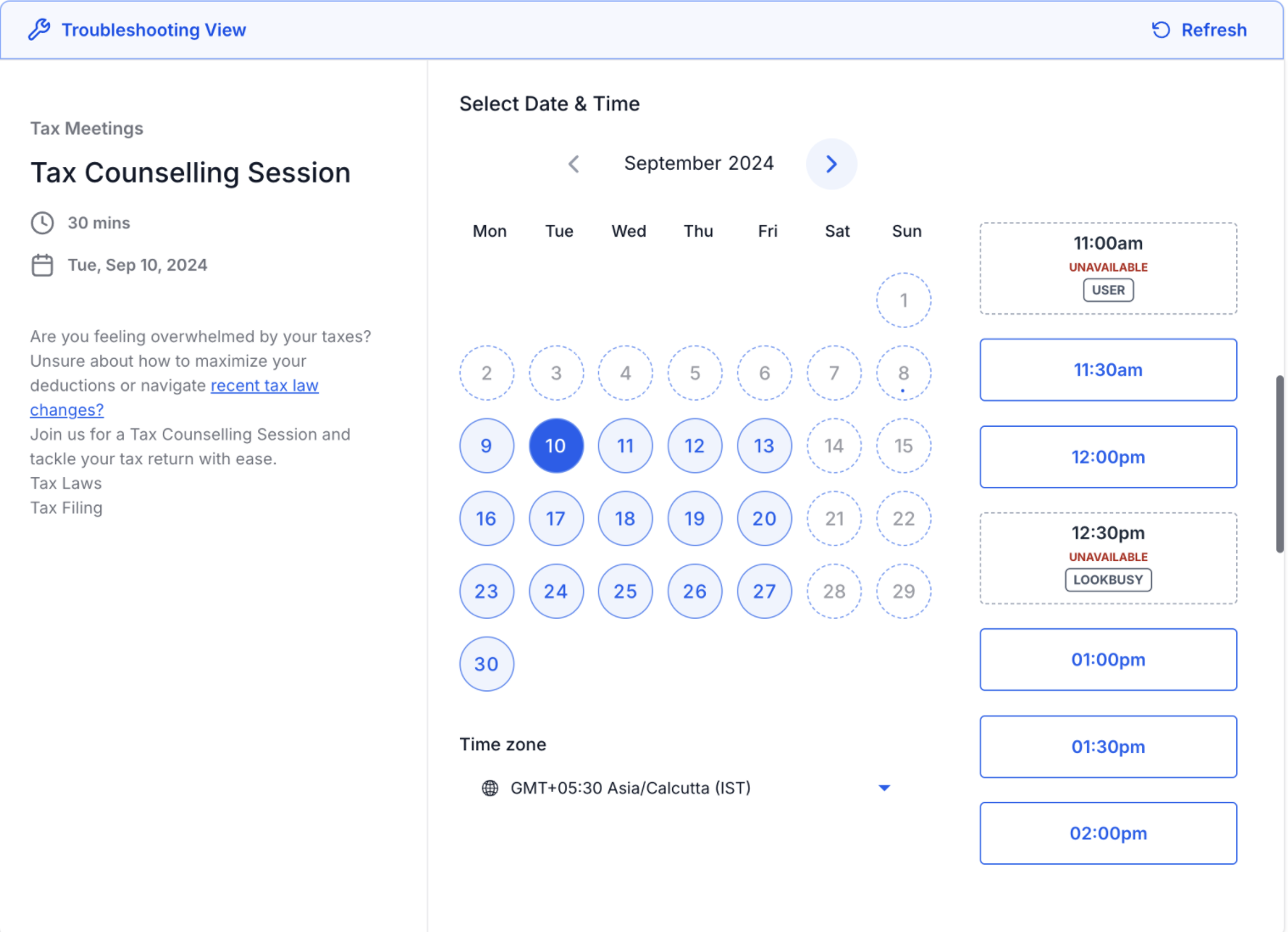
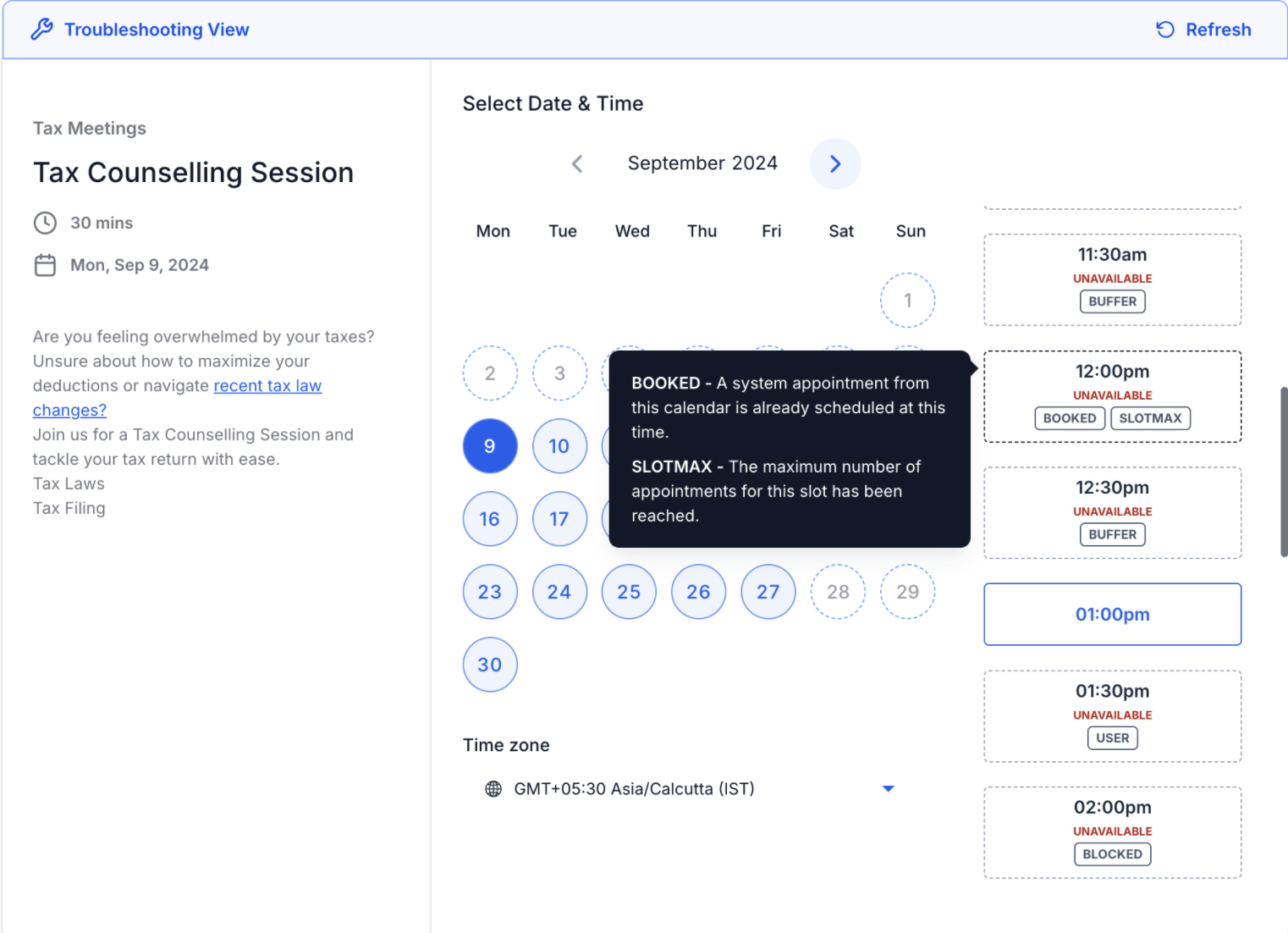
Available slots show as bookable; unavailable slots are marked with the code that's blocking them. This lets you compare what a patient sees on your live booking widget against what the calendar thinks is happening behind the scenes.
If Google or Outlook sync is broken, appointments can fail to appear on your calendar or fail to block off time correctly, which leads directly to double bookings. Before digging into individual slot codes, confirm the integration itself is healthy:
Go to Calendar Settings > Connections.
Confirm Google or Outlook shows as Connected.
Reconnect if needed, and make sure the correct calendar is selected.
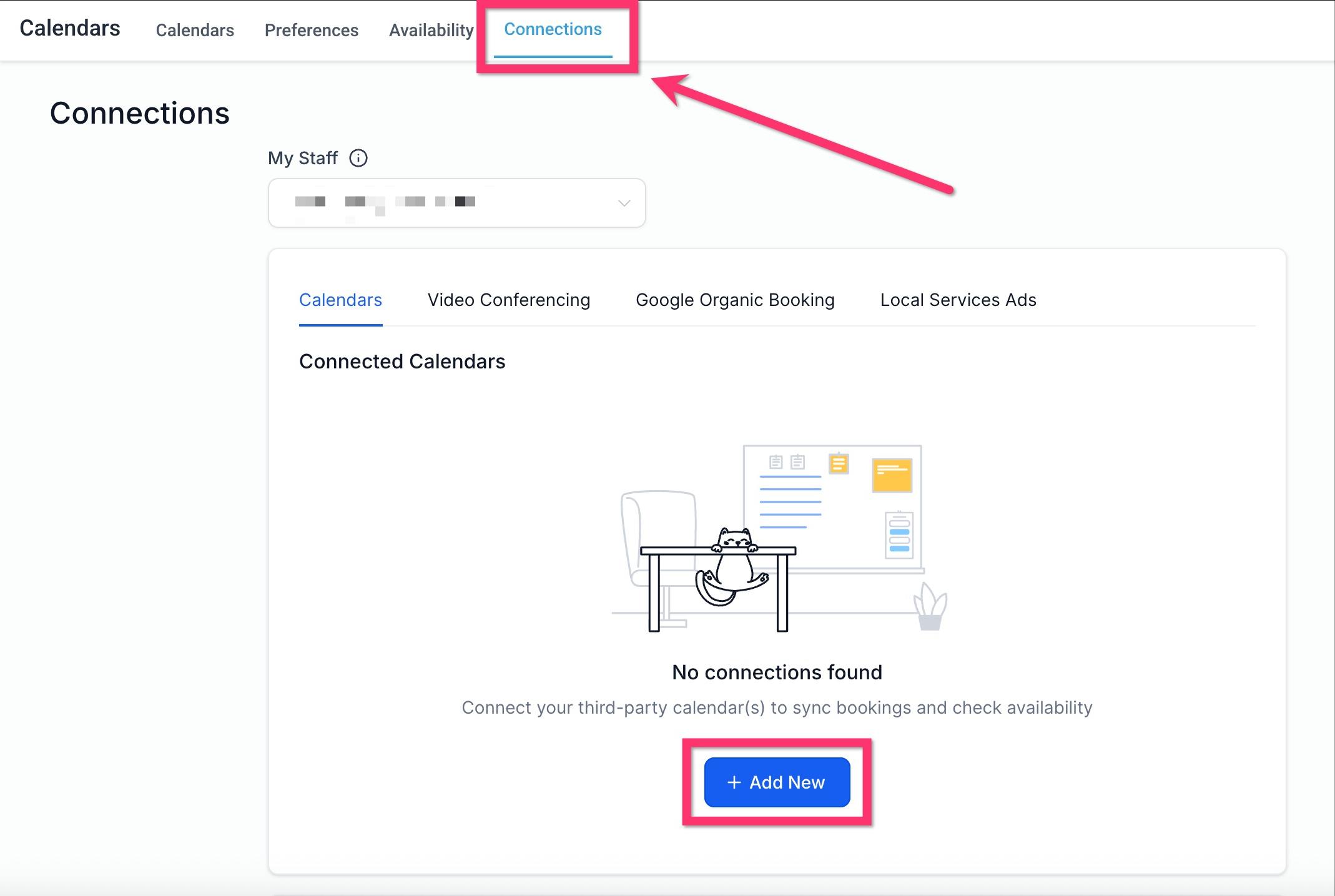
If a connected Google or Outlook calendar was deleted on the provider's side, Aesthetix CRM will show an error banner. You can clear this yourself without contacting support:
In Settings > Calendars, click the Connections tab.
Click Fix This.
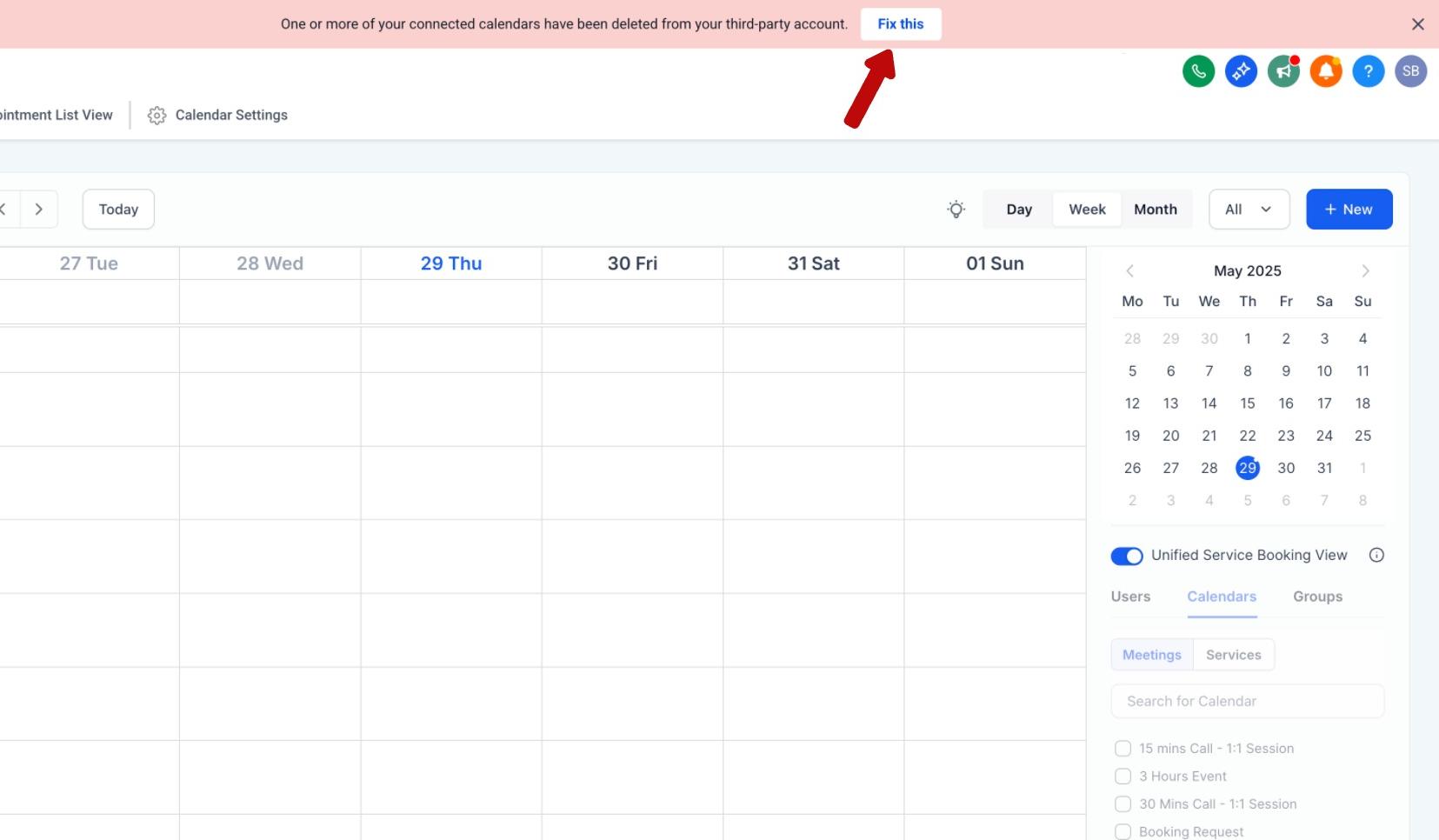
Review the list of deleted calendars in the modal. Each item shows which calendar was deleted and where it's connected in your account.
Click Remove Deleted Calendars to clear all the broken connections in one action.
Reconnect or select a valid replacement calendar if the staff member still needs sync.
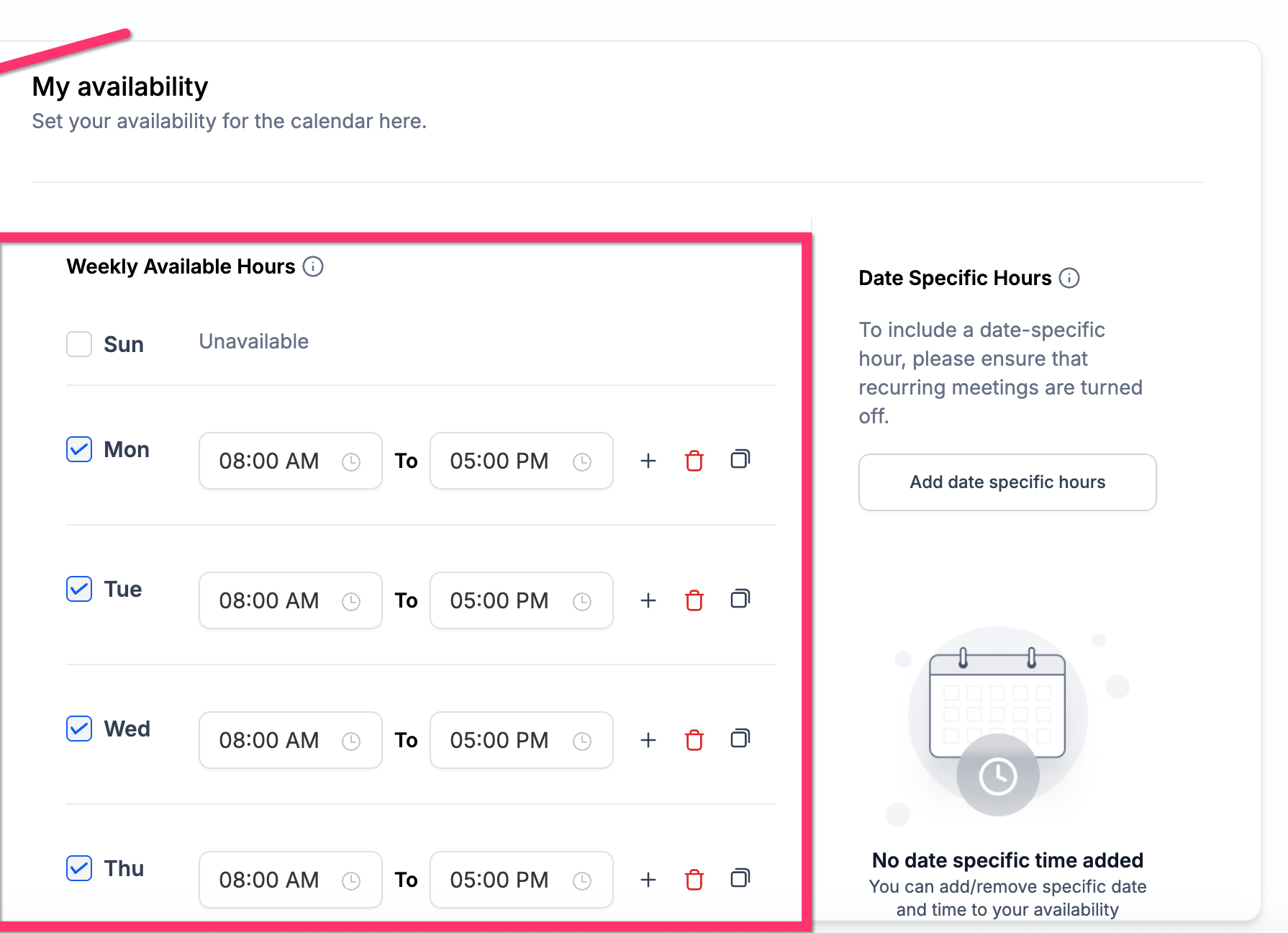
Even when a calendar is connected correctly, a staff member with no defined working hours will show as unavailable across the board, and the Troubleshooting Tool will flag it. To review and fix availability:
Go to Calendars > Calendar Settings.
Find the calendar assigned to the staff member and click Edit.
Open the Availability tab.
Add or adjust the available time blocks for the relevant days.
Every unavailable slot in the tool shows a code explaining exactly why it's blocked:
Code | What it means |
|---|---|
USER | No user is available: they're either blocked by another event or outside their set availability. |
COLLECTIVE | One or more required users are unavailable for a collective (team) appointment. |
CONFLICT | A third-party calendar event (Google/Outlook) is blocking this slot. |
BOOKED | An appointment is already scheduled in Aesthetix CRM at this time. |
BLOCKED | Manually blocked-off time has been added for this duration. |
NOTICE | The slot violates your minimum scheduling notice requirement. |
TOOFAR | The slot falls outside the allowed booking date range. |
DAYLIMIT | The maximum number of appointments allowed for that day has been reached. |
SLOTMAX | The maximum number of bookings allowed for that specific slot has been reached. |
BUFFER | A pre- or post-appointment buffer is blocking this slot. |
DURATION | The appointment length doesn't fit in the remaining open time. |
PAST | The slot is in the past. |
LOOKBUSY | The slot is hidden because of the calendar's "Look Busy" setting. |
NO SEATS | The maximum number of seats for a class or group slot has been reached. |
RESOURCE | A required resource, such as a treatment room or piece of equipment, is unavailable. |
Double bookings usually happen when multiple staff members are synced to the same calendar, or when their individual availability windows overlap in a way that lets two patients land on the same slot.
Use the Troubleshooting Tool to see which staff members are in conflict for a given slot.
Adjust overlapping availability, or split staff onto separate calendars to prevent the overlap from happening again.
Some booking failures trace back to revoked permissions or missing access scopes on a staff member's connected Google or Outlook account, not a calendar setting at all.
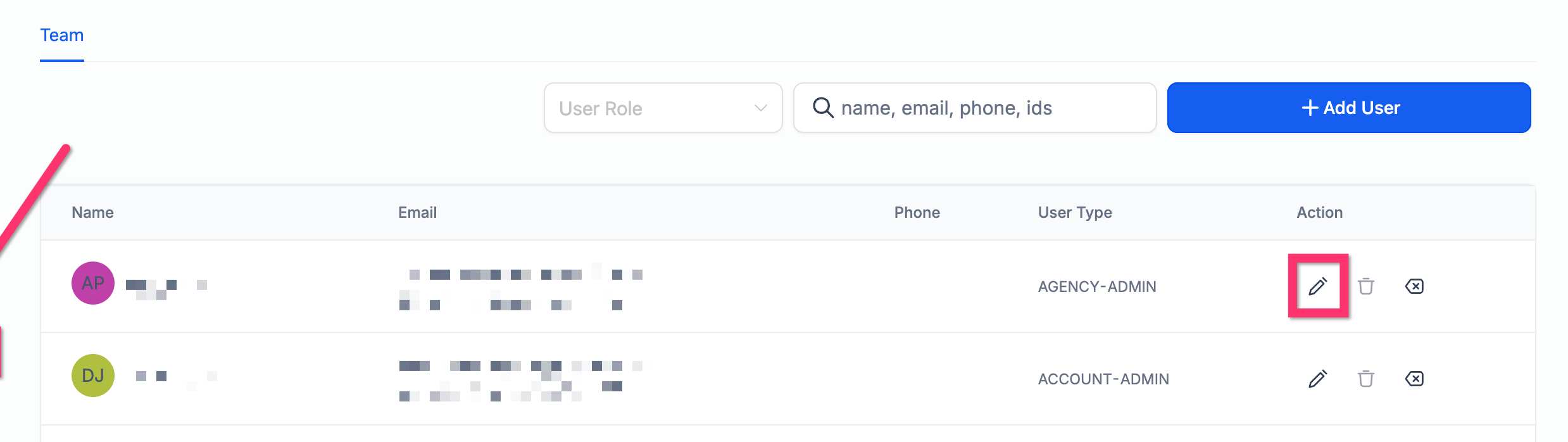
Go to Settings > My Staff.
Find the staff member, select Edit, then open Calendar Configuration.
Click Calendar on the left ribbon and confirm every required permission scope is still granted.
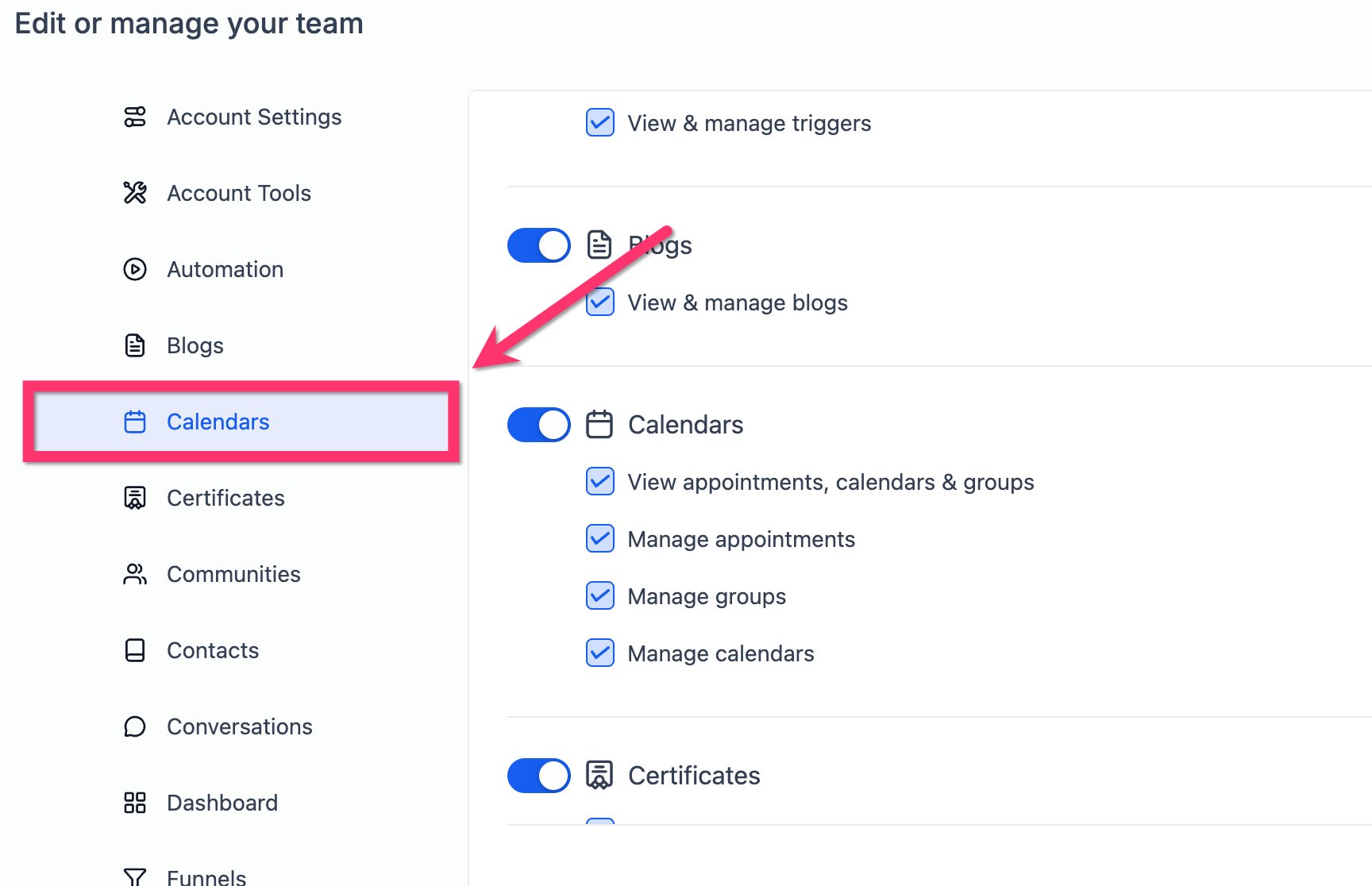
If a scope was revoked (often after a password change or a provider security prompt), the staff member will need to reconnect their calendar to restore full sync.
The Troubleshooting Tool first checks a calendar's availability windows and meeting intervals to generate every potential slot for the day, then evaluates which of those slots are actually bookable.
For example, if a calendar's availability is set from 10 AM to 12 PM and 6 PM to 8 PM with 60-minute meeting intervals, only four slots exist for that day: 10 AM, 11 AM, 6 PM, and 7 PM. The tool will only ever show availability or a blocking code for those four slots, nothing in between. If the calendar has no availability set for a given day, such as Saturdays, no slots will appear at all for that day.
Do I need to enable the Troubleshooting Tool separately? No. It's built into every calendar and is automatically available from Calendar Settings.
Why is a time slot showing as unavailable when I expect it to be open? The assigned staff member is outside their set availability, or the slot is blocked by a conflict such as a synced third-party event, an existing booking, a buffer, or a scheduling restriction. Hover over the slot in the tool to see the exact code.
Why does my calendar show no available times at all? This is usually caused by one of three things: no staff member is assigned to the calendar, no availability has been set for the assigned staff, or the calendar's Google/Outlook sync has been disconnected.
Can I use this tool on Team or Round Robin calendars? Yes. It works on Service, Team/Collective, and Round Robin calendars, and will show you which specific staff member is causing a booking failure on a shared calendar.
Does the tool show workflow or automation errors? No. It only surfaces calendar-specific configuration issues. If a workflow or automation tied to booking isn't firing correctly, that needs to be checked separately in Workflows.
Can I view slot availability in a patient's timezone? No. The Troubleshooting Tool always displays availability based on the logged-in user's timezone, not the timezone of the person booking.
What's the fastest way to fix a "deleted calendar" error? Go to Calendar Settings > Connections and click Fix This. The tool lists every broken connection and lets you remove them all in a single action, then you can reconnect a valid calendar.
A staff member's calendar was working and suddenly stopped syncing. What should I check first? Check Calendar Settings > Connections to confirm their Google or Outlook account still shows as Connected. If it does, check My Staff > Calendar Configuration to confirm none of their permission scopes were revoked, which commonly happens after a password change on the provider's side.
