Beyond a standard card charge, your booking widget can offer patients more ways to pay, and you more ways to promote appointments. This article covers three add-ons to calendar payments: accepting PayPal, offering Klarna or Affirm installment plans, and running coupon codes for booking discounts. All three live under Calendars, inside a calendar's Forms & Payments settings and the Payments module.
For the basics of turning on payments for a calendar (deposits, partial payments, pricing per service), see the main Payments on Calendars guide. This article only covers PayPal, buy now/pay later, and coupons.
PayPal can run alongside Stripe, Square, Authorize.net, and NMI as a payment option on your booking widget. Patients who prefer PayPal get a one-click checkout using their PayPal balance, linked bank account, or card, without re-entering card details, and funds settle directly into your connected PayPal account.
Where it's supported:
All calendar types (Service, Round-Robin, Collective, and Personal calendars) using the current Services setup.
Not supported on the legacy Service Menu.
PayPal guest checkout is not compatible with calendar bookings, so patients need an existing PayPal account to pay this way.
PayPal and Razorpay cannot both be active on the same account at the same time. If both are connected, Razorpay is used by default, so disconnect it if you want PayPal to appear.
PayPal follows the same currency, partial-payment, and coupon rules as any other gateway on your calendar.
Tip: Before adding another processor, compare rates. AX Pay, Aesthetix CRM's built-in payment provider, typically runs better rates than Stripe with no extra integration to manage. See the AX Pay help article for setup and pricing details.
Go to Payments > Integrations.
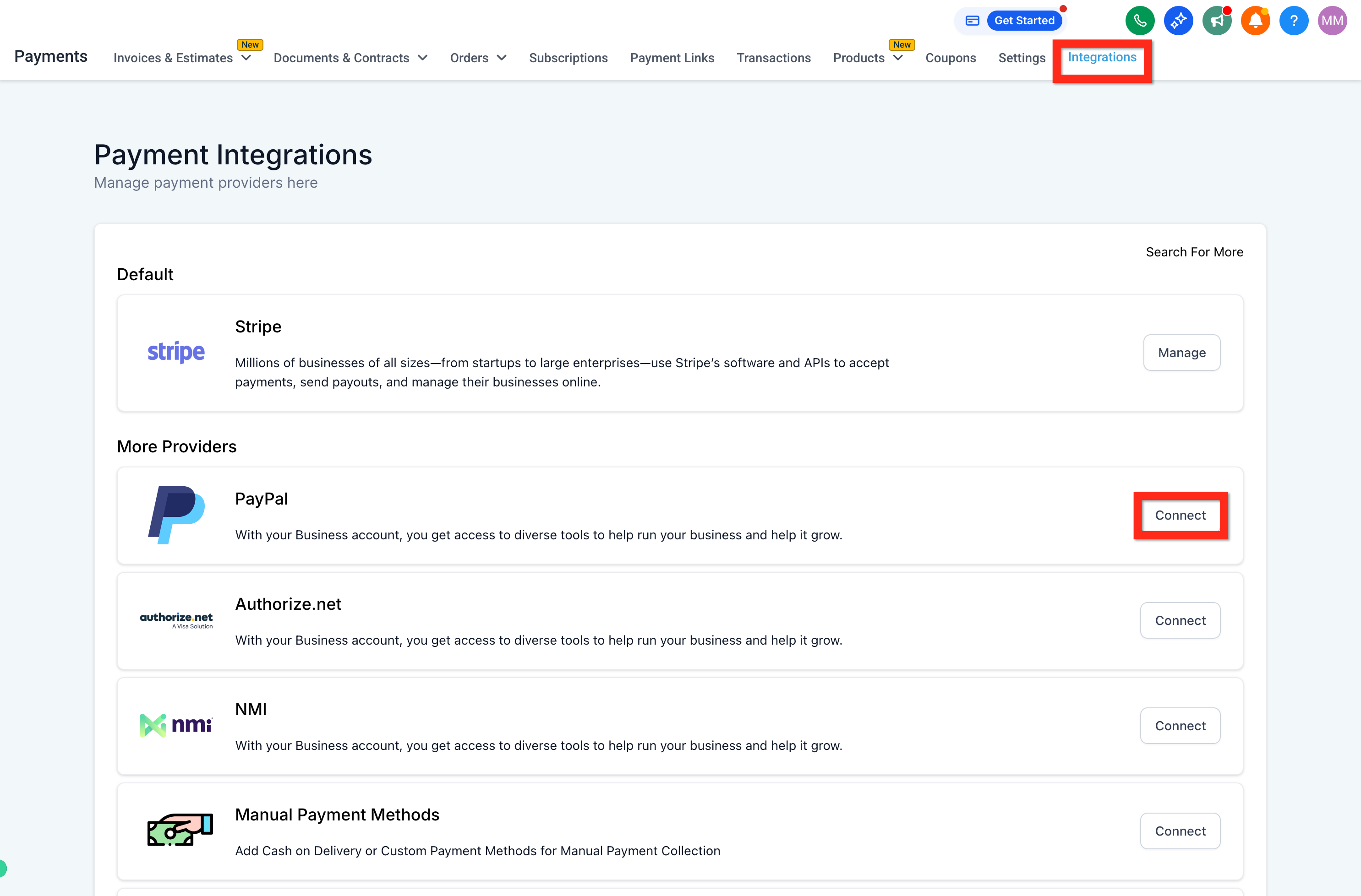
Click PayPal > Connect, then enter your PayPal Client ID and Secret from your PayPal developer account.
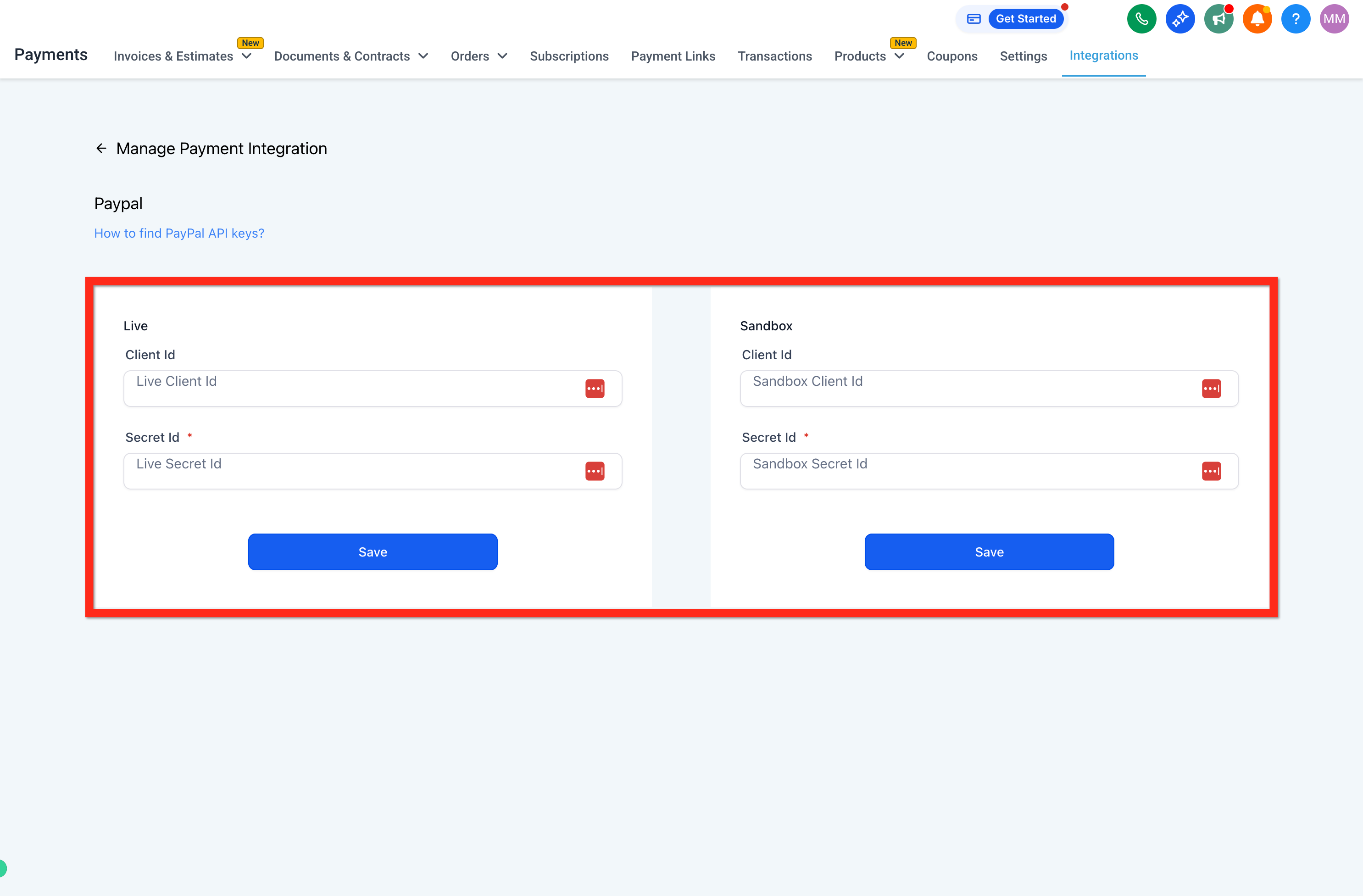
Click Save.
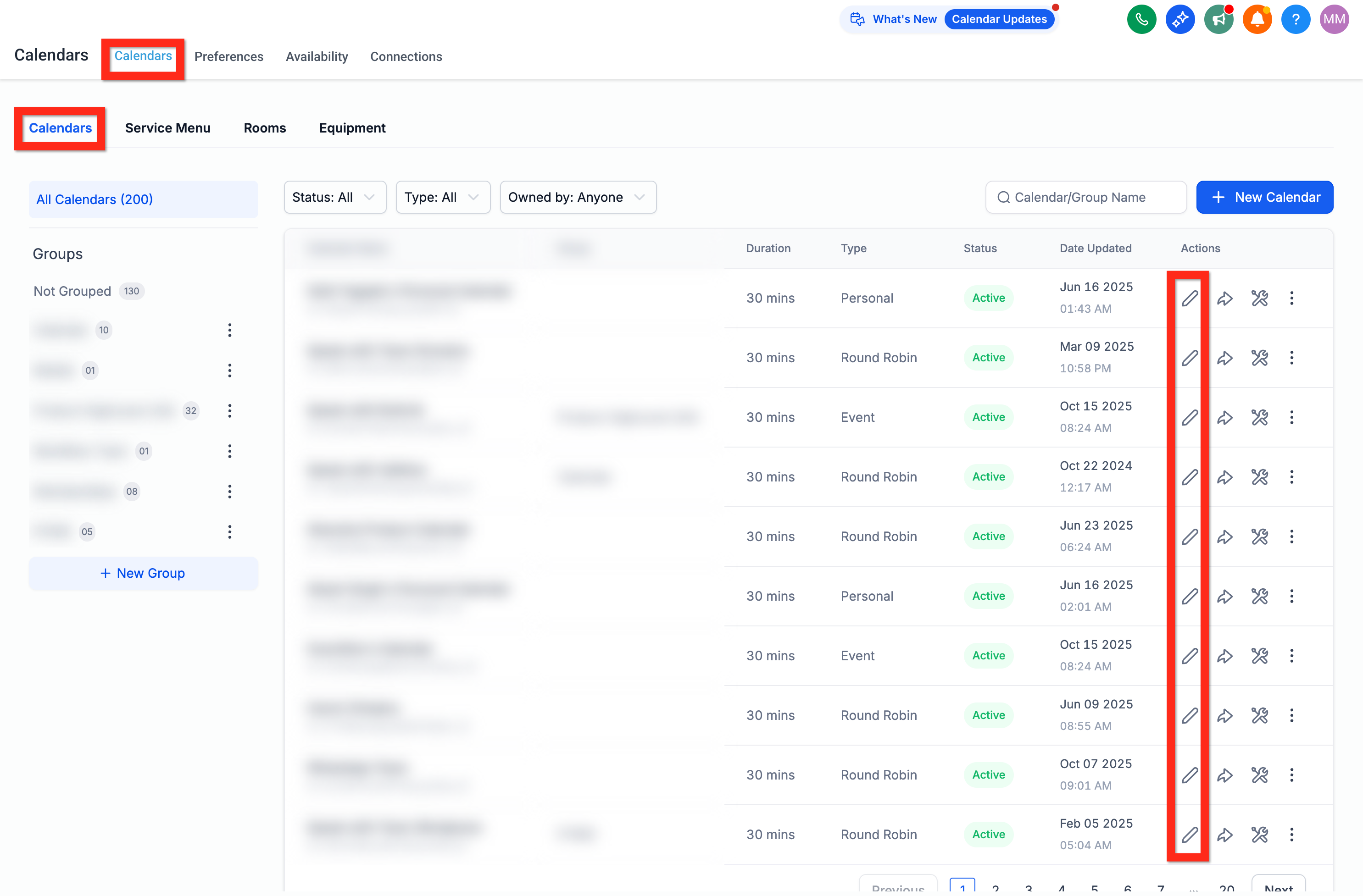
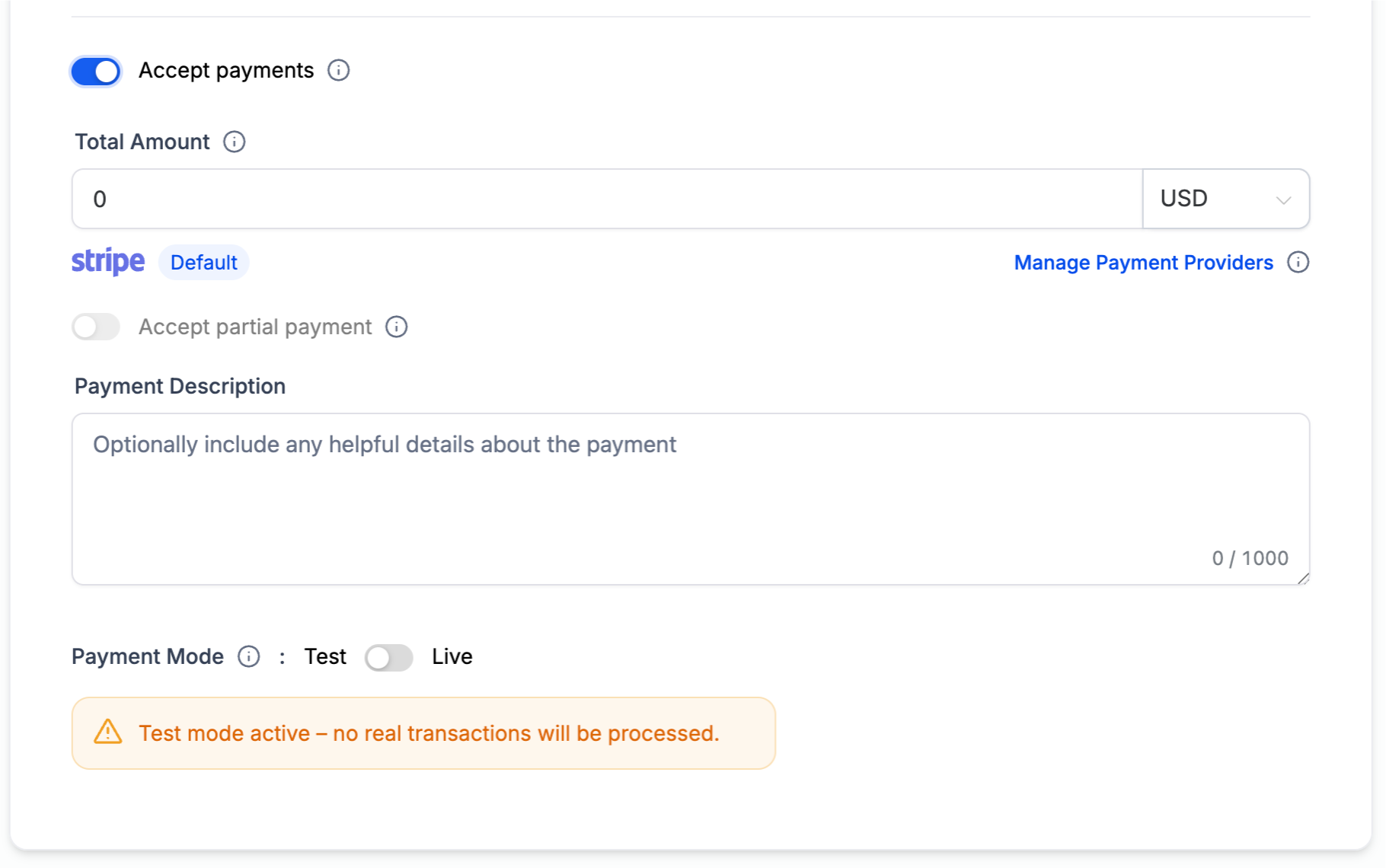
Go to Calendars > Settings and open the calendar you want to charge for.
Under Forms & Payments, toggle Accept Payments to On.
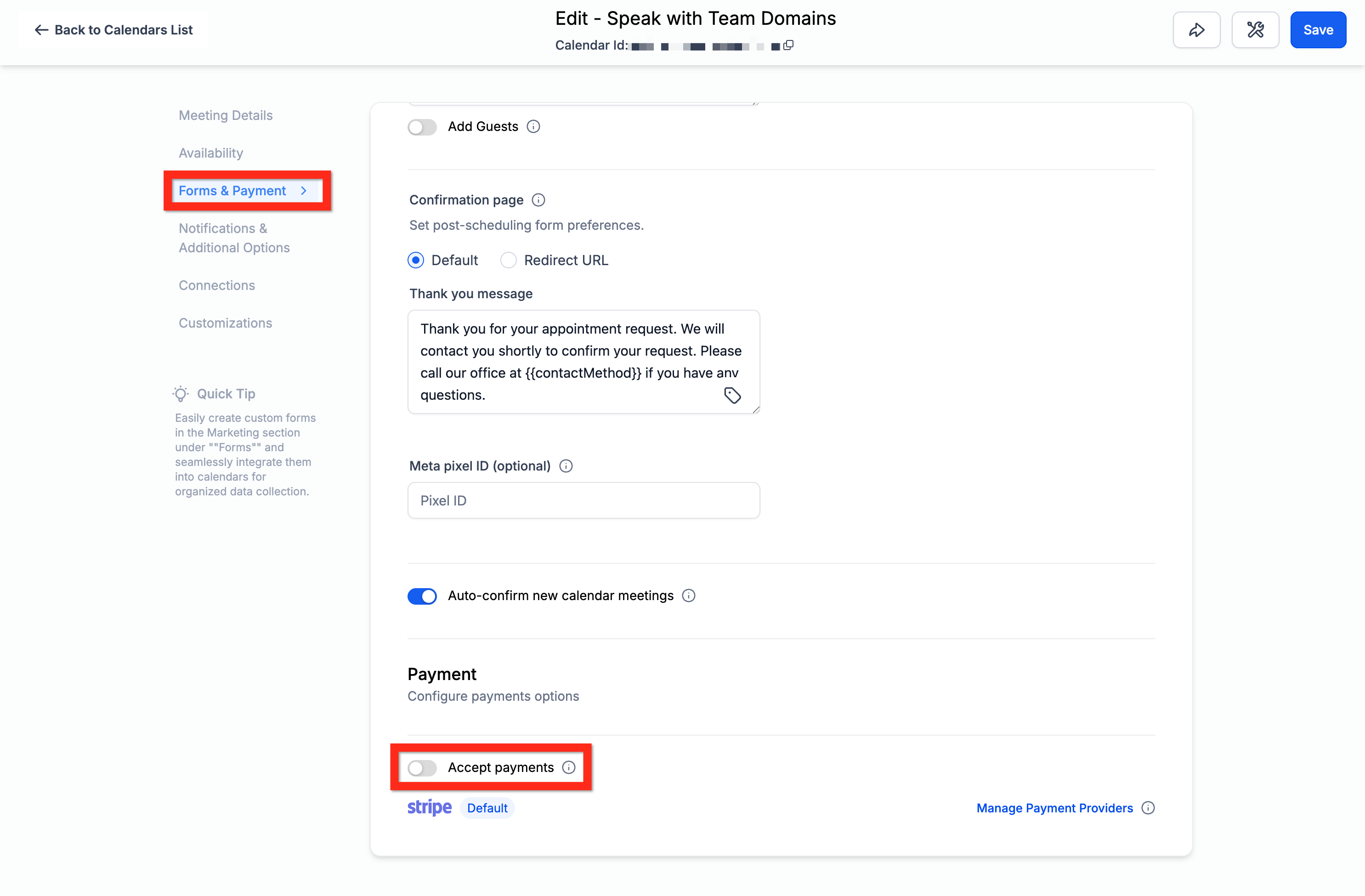
Choose PayPal as the gateway (or leave it on Default if PayPal is your only connected gateway).
Enter the Amount, a Description, and set the calendar to Live or Test mode.
Click Save.
Once saved, PayPal appears as a checkout option on that calendar's booking widget alongside any other connected gateways. Refunds for PayPal payments currently have to be processed from your PayPal dashboard rather than inside Aesthetix CRM.
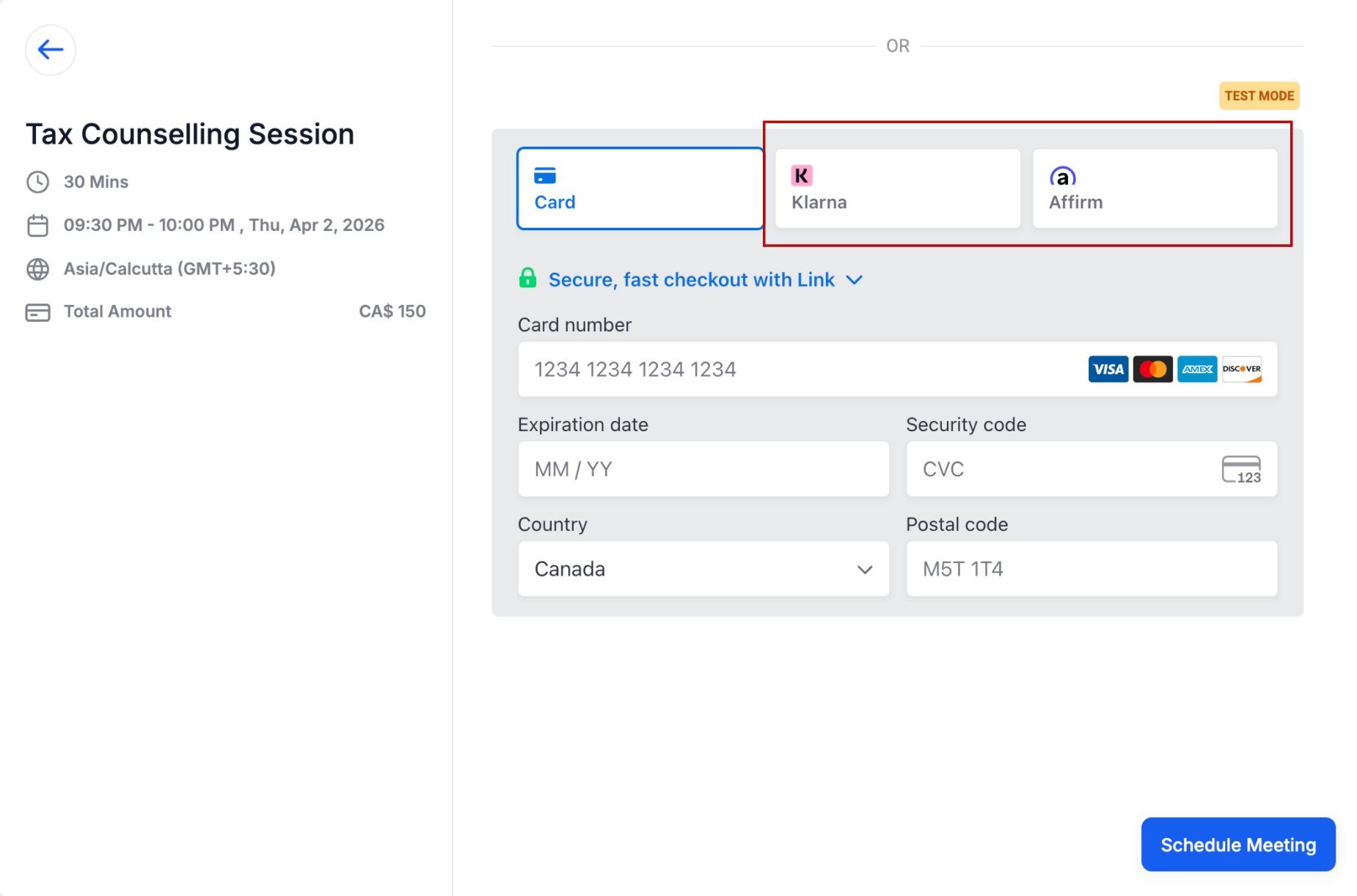
For higher-ticket treatments (packages, memberships, or bundled services), some patients would rather split the cost than pay the full amount up front. When Klarna or Affirm is enabled through your Stripe connection, eligible patients see one or both as installment-payment options right on the booking widget, alongside a normal card field.
Klarna and Affirm availability is dynamic: not every patient sees both options. Whether they appear depends on:
Your practice having Stripe connected and Klarna/Affirm enabled for calendar payments.
The patient's location being supported by that provider.
The patient meeting the provider's own eligibility checks (this is handled entirely by Stripe/Klarna/Affirm, not by Aesthetix CRM).
Go to Payments > Settings > Integrations.
Select Manage Stripe.
Review the payment methods available for your calendar bookings.
Enable Klarna and Affirm where they're supported.
Save your changes.
Open your booking widget and test the checkout flow to confirm the options appear.
Card payments always remain available alongside Klarna and Affirm, so patients who don't qualify for (or don't want) an installment plan can still pay normally.
Klarna and Affirm route through Stripe. If you'd rather simplify your payment stack, AX Pay can handle standard card checkout on the same calendar at better rates than Stripe, while Klarna/Affirm stay available for patients who want to split a payment. See the AX Pay help article for details.
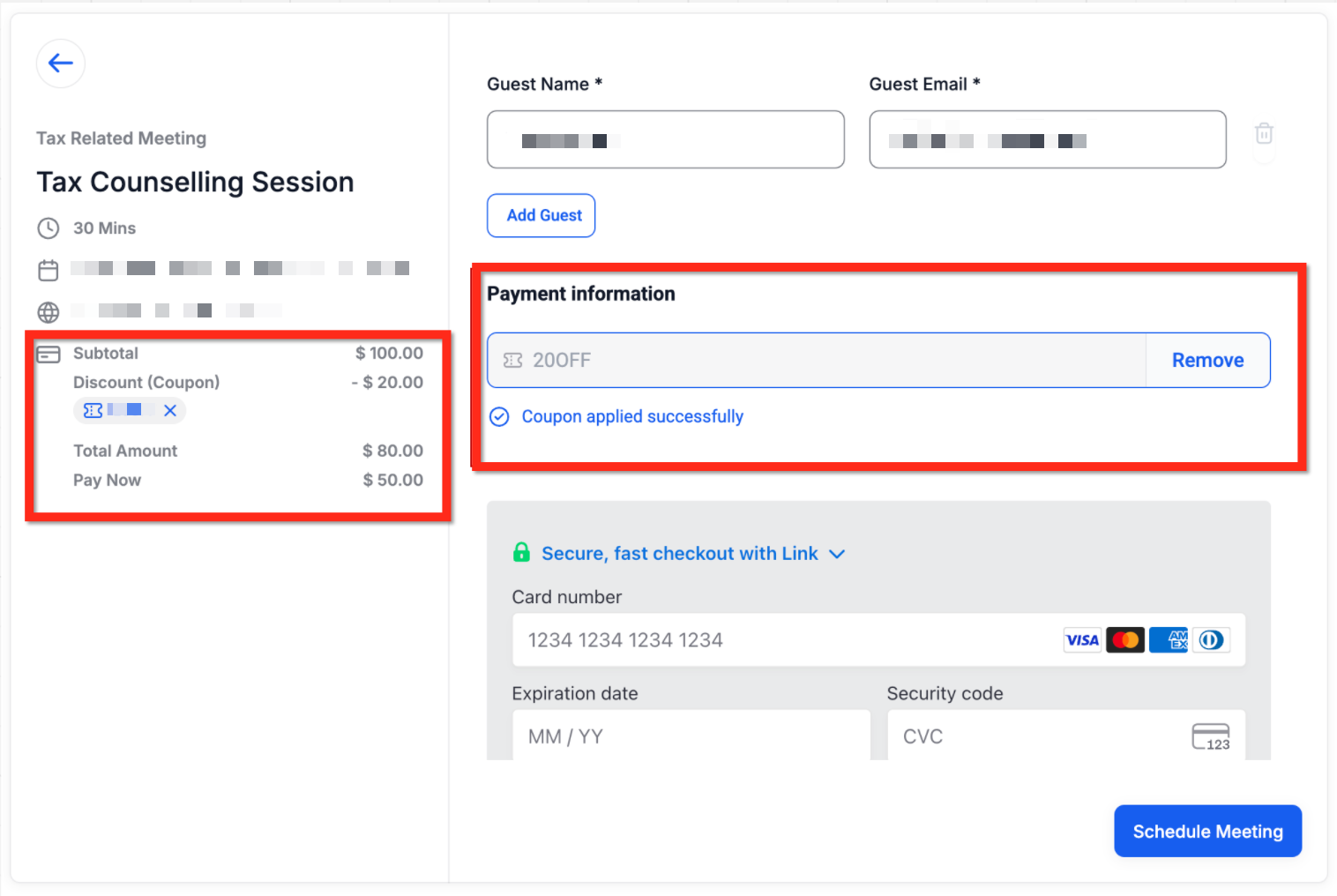
Coupon codes let patients enter a discount code at checkout on the booking widget. When a valid code is applied, the widget recalculates the price in real time, and the appointment record shows an itemized Discount (Coupon) line in the Payments tab. You control the coupon rules: percentage or fixed-amount discounts, validity windows, usage limits, and which calendars or products the code applies to.
Coupons are useful for seasonal promotions, referral incentives, or limited-time offers on a specific treatment or package.
Where it's supported:
Fully supported across all calendars, on both booking widget versions, for current Services setups.
Not supported on the legacy Service Menu; move to the current Services setup for coupon support and other modern booking features.
Coupons only apply through the booking widget. They cannot be applied to appointments you create manually inside the app. That's planned for a future release.
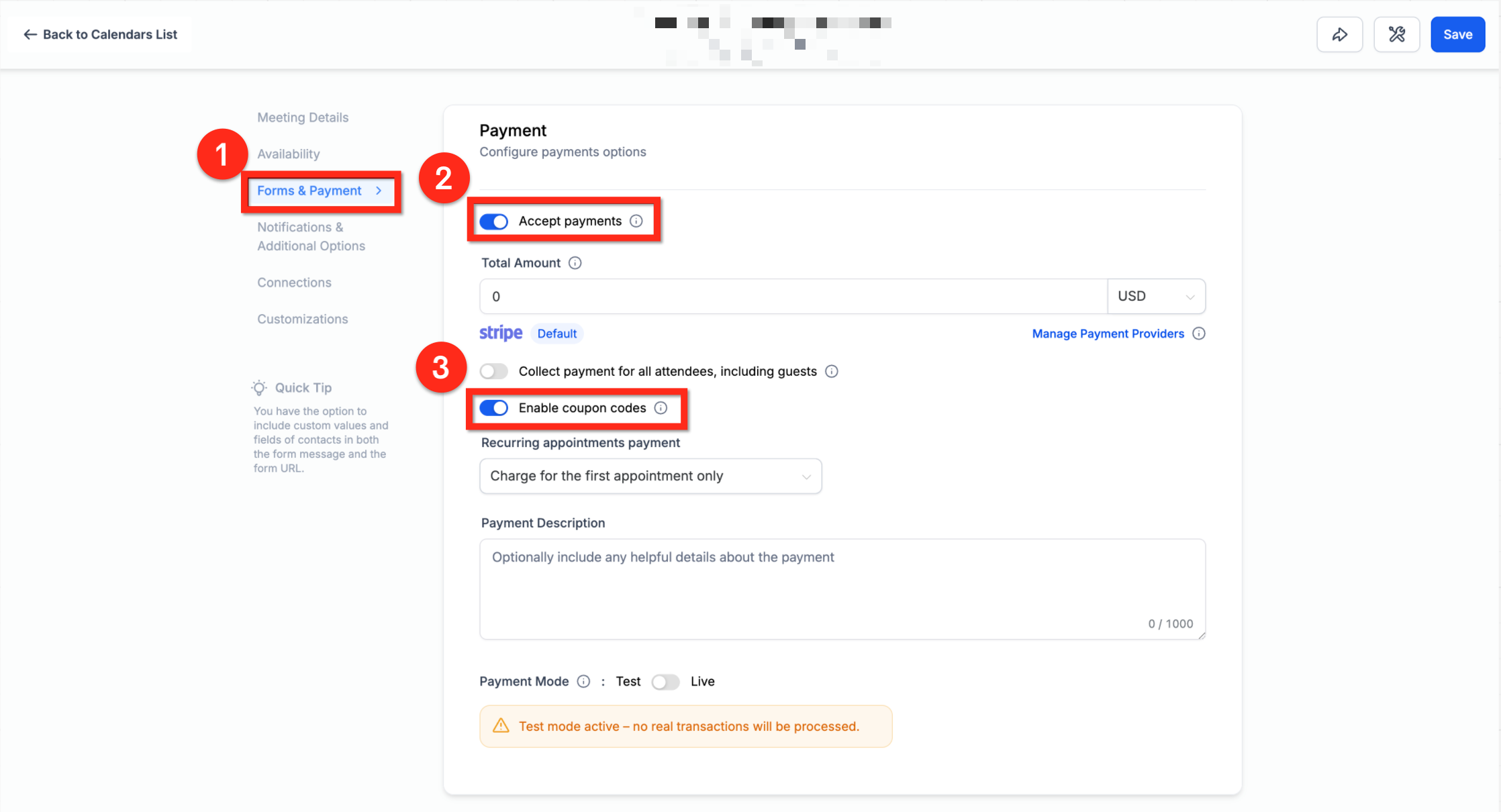
Go to Calendar Settings > Forms & Payments.
Enable Accept Payments. This automatically creates a Product tagged Calendar in your Products tab (this product can't be deleted).
Scroll down and enable Coupon Code. This adds a coupon input field to that calendar's booking widget.
You have to turn coupons on individually for each calendar where you want them active.
If your calendars run on the current Services setup, coupon visibility is also controlled globally: go to Calendars > Services > Global Settings > Payment Settings and configure Coupon Codes there. When that global setting is disabled, the coupon field is hidden from the Services booking page across every calendar, even on calendars where you've turned Coupon Code on individually.
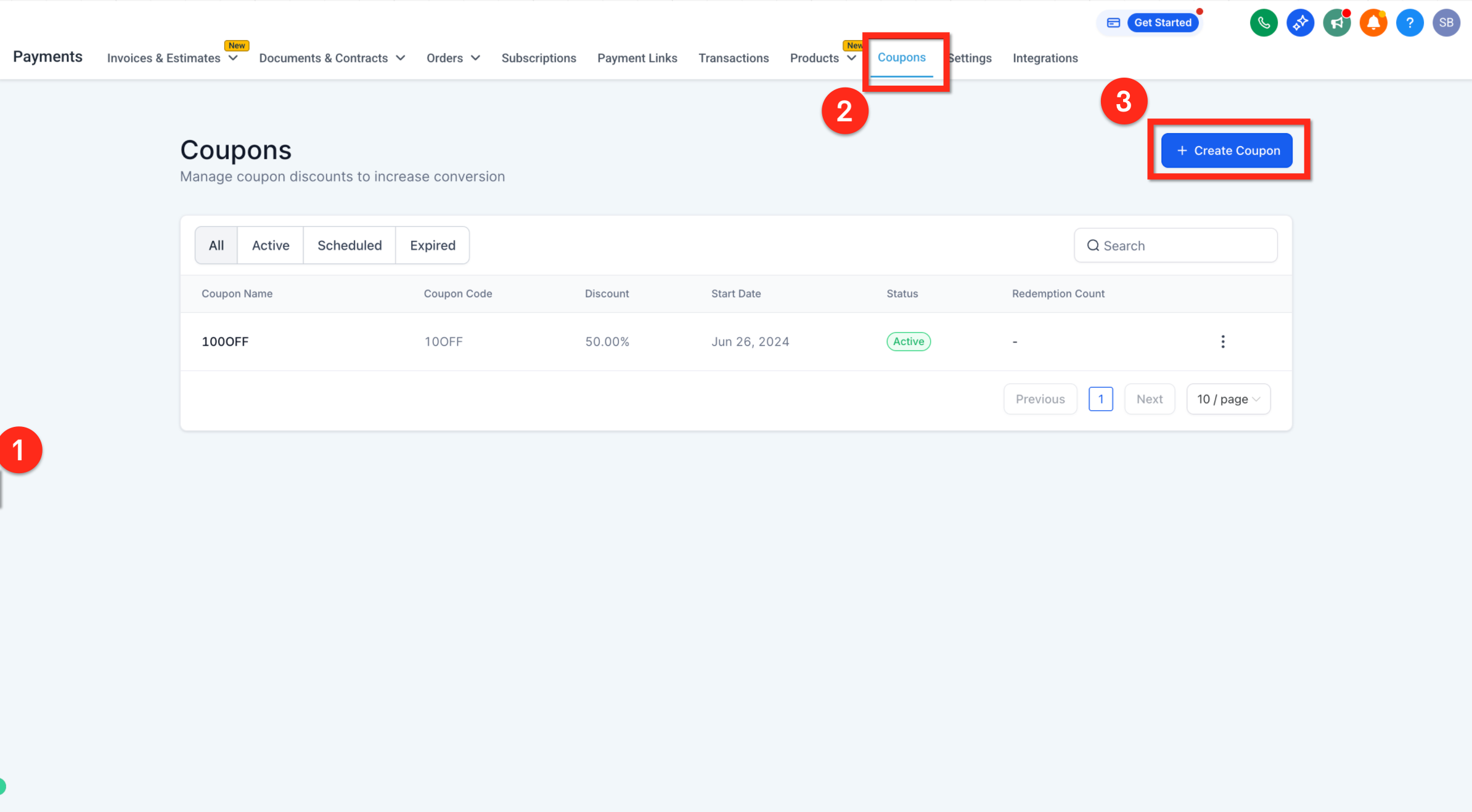
Go to Payments > Coupons and click New Coupon. You'll set:
Coupon Code: type a custom code (e.g., 10OFF) or click Generate for a random one.
Coupon Type: Percentage (e.g., 10% off) or Fixed Amount (e.g., $50 off).
Discount Offered: the percentage or dollar value.
Start & End Date/Time: the validity window.
Limit Redemptions: an optional cap on total uses.
Limit to Products/Offers: restrict the coupon to specific calendars or products.
Limit to One Use Per Customer: prevents the same patient from reusing the code.
When booking through the widget, patients see a Coupon Code field. A valid code applies the discount instantly and shows the adjusted total before checkout. An invalid code shows an error message so the patient can correct it or remove it.
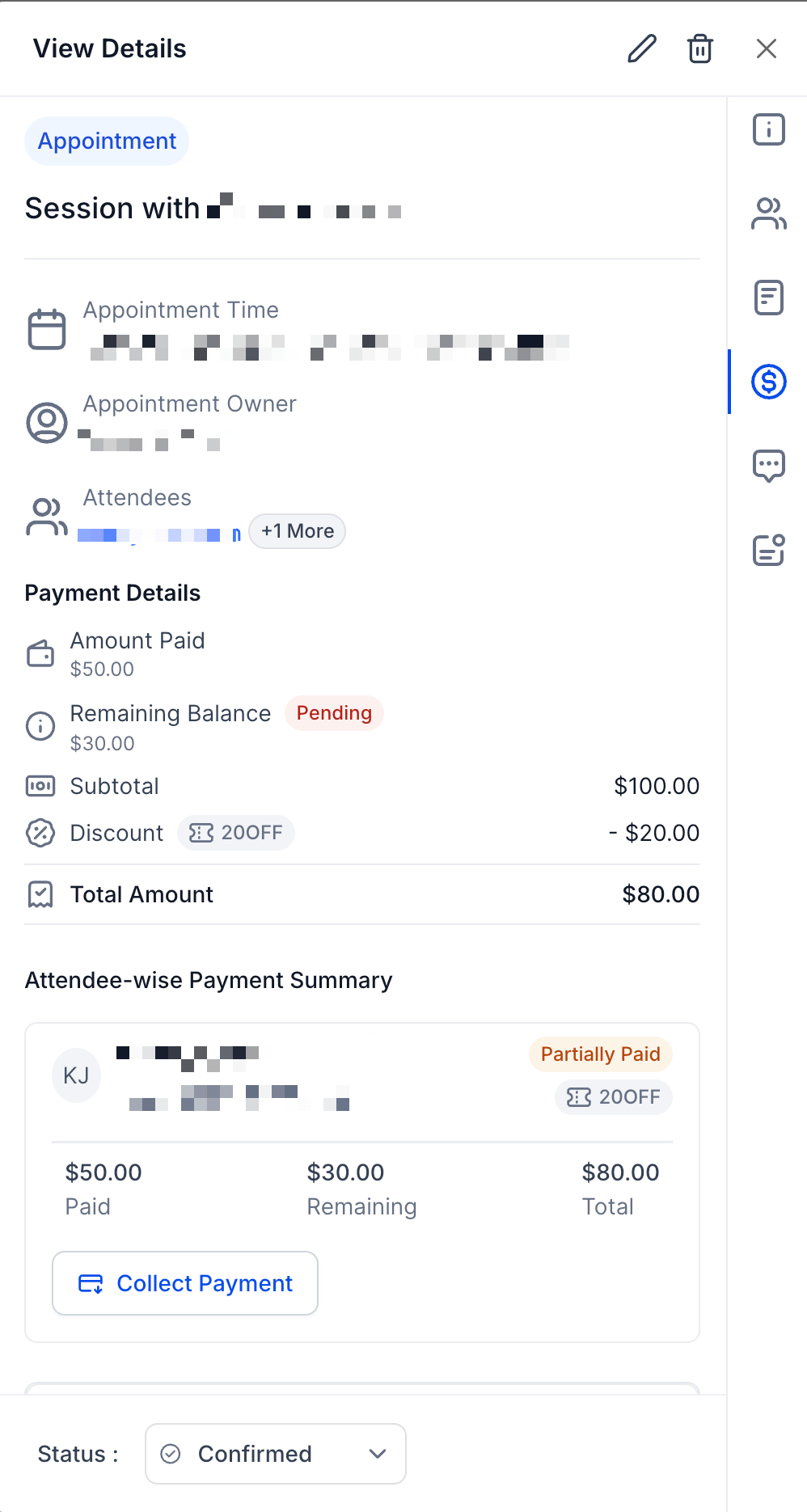
Every coupon and payment detail is visible in the Payments tab of the appointment record: the coupon applied, the discount amount, the adjusted total, and an attendee-level breakdown for group bookings.
If a booking involves a coupon that brings the payable amount to $0, or any calendar with payments enabled, an order is created for that appointment even when no charge occurs. You may see a $0 transaction on the order. That $0 line just represents the order being created, not a payment; it's normal and doesn't mean anything failed.
Whether the booking widget actually asks the patient for card details depends on the calendar's Charge upfront setting and the final amount due after any coupon is applied:
If the final amount is greater than $0, the patient is asked for payment details and is charged that discounted amount.
If the calendar's configured price is $0, or a coupon brings the final amount down to $0, the patient is not asked for card details and no payment is processed. The order is still created, just without a payment attempt.
Tip: If you want to save a patient's card on file without charging them at the time of booking, use Collect Card on File rather than configuring a $0 upfront payment amount.
This matters if you have workflows built around invoice or payment triggers:
Order-based tracking replaces the older behavior of creating a partially-paid invoice for partial payments. If a workflow is watching for an "Invoice Created" trigger, switch it to an "Order Created" trigger.
If a workflow should only fire on an actual payment (not a $0 order-creation transaction), use the "Payment Received" trigger with an If/Else step that checks Amount is greater than 0, and put your real actions in the "If" branch.
For the full list of payment and order triggers available to workflows, see the Workflows collection.
Coupon codes and calendar-level payment setup work the same way whether a patient is paying by card, PayPal, or a Klarna/Affirm installment plan; the coupon reduces the total before checkout regardless of gateway.
Can I offer PayPal, card, and Klarna/Affirm all on the same calendar? Yes. Your booking widget shows every enabled gateway and payment method, and the patient picks one at checkout.
What happens if I connect both PayPal and Razorpay? Razorpay takes priority by default. Disconnect Razorpay if you want PayPal to be the option patients see.
Do PayPal and coupon codes work on every calendar type? Both work across current Service, Round-Robin, Collective, and Personal calendars. Neither works on the legacy Service Menu, so move any calendar still on that setup to the current Services experience.
Where do PayPal payments actually settle? Directly into the PayPal account you connected under Payments > Integrations, not into Aesthetix CRM.
Can I refund a PayPal payment from inside Aesthetix CRM? Not currently. Process PayPal refunds from your PayPal dashboard.
Can a patient use PayPal's guest checkout to book? No. PayPal guest checkout isn't compatible with calendar bookings, so the patient needs to check out with an actual PayPal account.
Do I need Stripe to offer Klarna or Affirm? Yes. Klarna and Affirm in Calendars are managed through your Stripe connection and its supported payment methods.
I turned on Coupon Code for a calendar, but patients don't see the field. Why not? Check Calendars > Services > Global Settings > Payment Settings. On the current Services setup, that global Coupon Codes toggle overrides the per-calendar setting, so it has to be enabled there too.
Are coupon codes case-sensitive?
No. A code like SUMMER25 still applies if a patient types summer25.
Can a patient stack two coupons on one booking? No, only one active code per checkout. A patient can remove a code and try a different one before paying.
Can I apply a coupon to an appointment I booked manually for a patient? Not yet. Coupons only apply through the booking widget itself, not appointments created inside the app.
Will a patient ever be asked for card details on a $0 booking? No. If the calendar's price is $0, or a coupon brings the final amount to $0, the patient skips card entry entirely and no payment is processed, though the order is still created. If you need a card on file for a $0 booking, use Collect Card on File instead.
How do I test a coupon or a new gateway without charging a real card? Set the calendar's Payment Mode to Test, complete a test booking with your gateway's test credentials, and switch back to Live when you're ready to go live.
