Aesthetix CRM lets you collect a deposit instead of full payment at booking, charge based on how many people are attending, and control how payments work for recurring appointment series. These options live inside a calendar's settings, under Settings > Calendars > Forms & Payments, and they work alongside the payment gateway you've already connected.
Instead of requiring a patient to pay the full service price at the moment of booking, you can collect just a deposit, a flat dollar amount or a percentage of the total, and settle the remaining balance later. This is one of the most effective tools available for reducing no-shows: patients see the full cost of the appointment up front, but only a smaller amount is charged to secure the slot.
Partial payment is available on every calendar type, including Service Calendars, Service Menus, Event Calendars, Round Robin, Collective, and Class calendars.
Tip: When you connect a payment gateway for calendar deposits, consider using AX Pay, Aesthetix CRM's own payment processor. AX Pay offers better rates than Stripe and integrates natively with your calendars. See the AX Pay article for setup details.
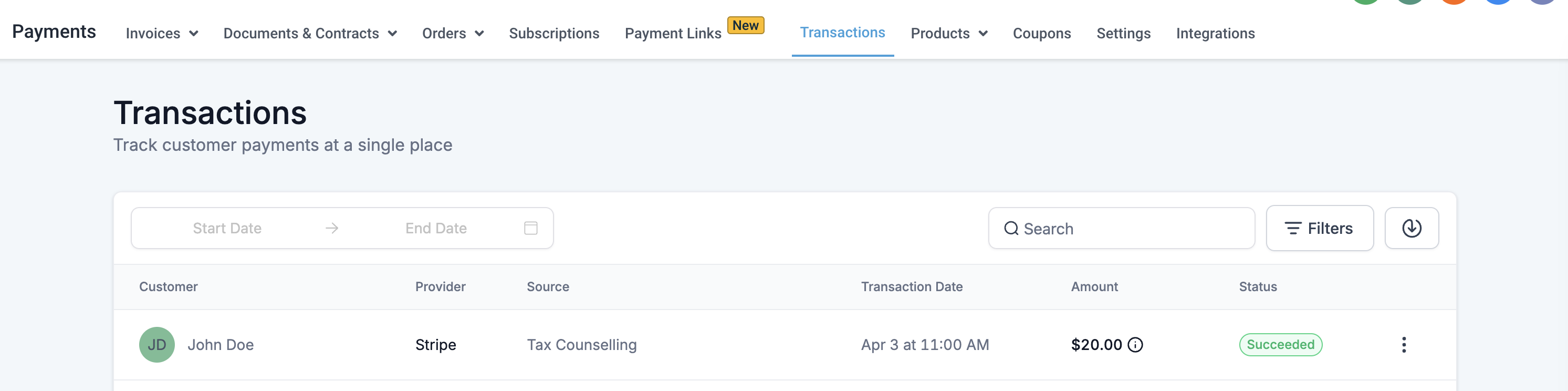
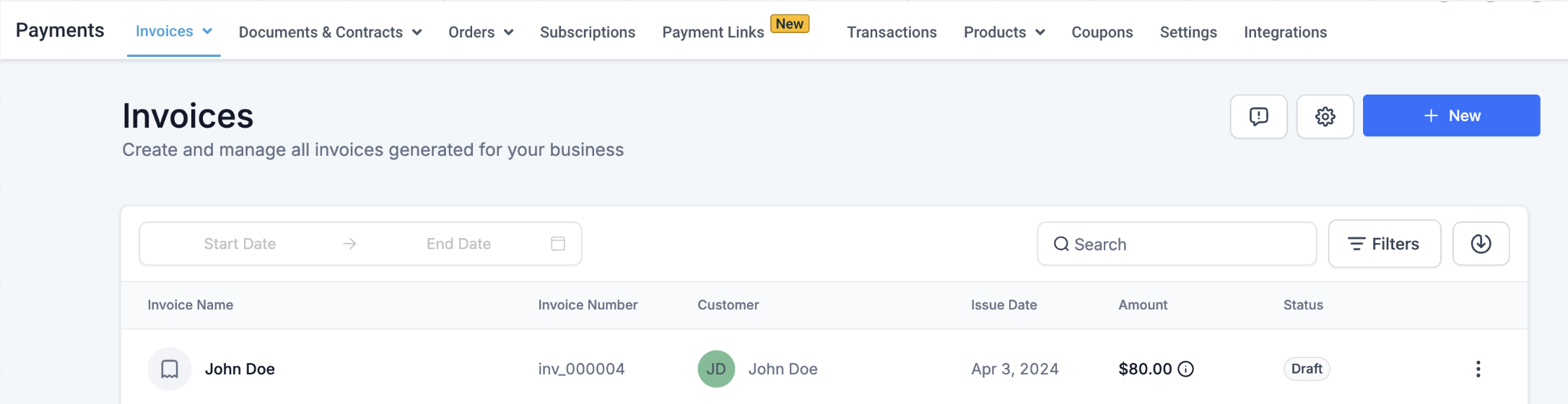
When a partial payment is collected, two records are created:
Transaction: the deposit amount charged to the patient at the time of booking.
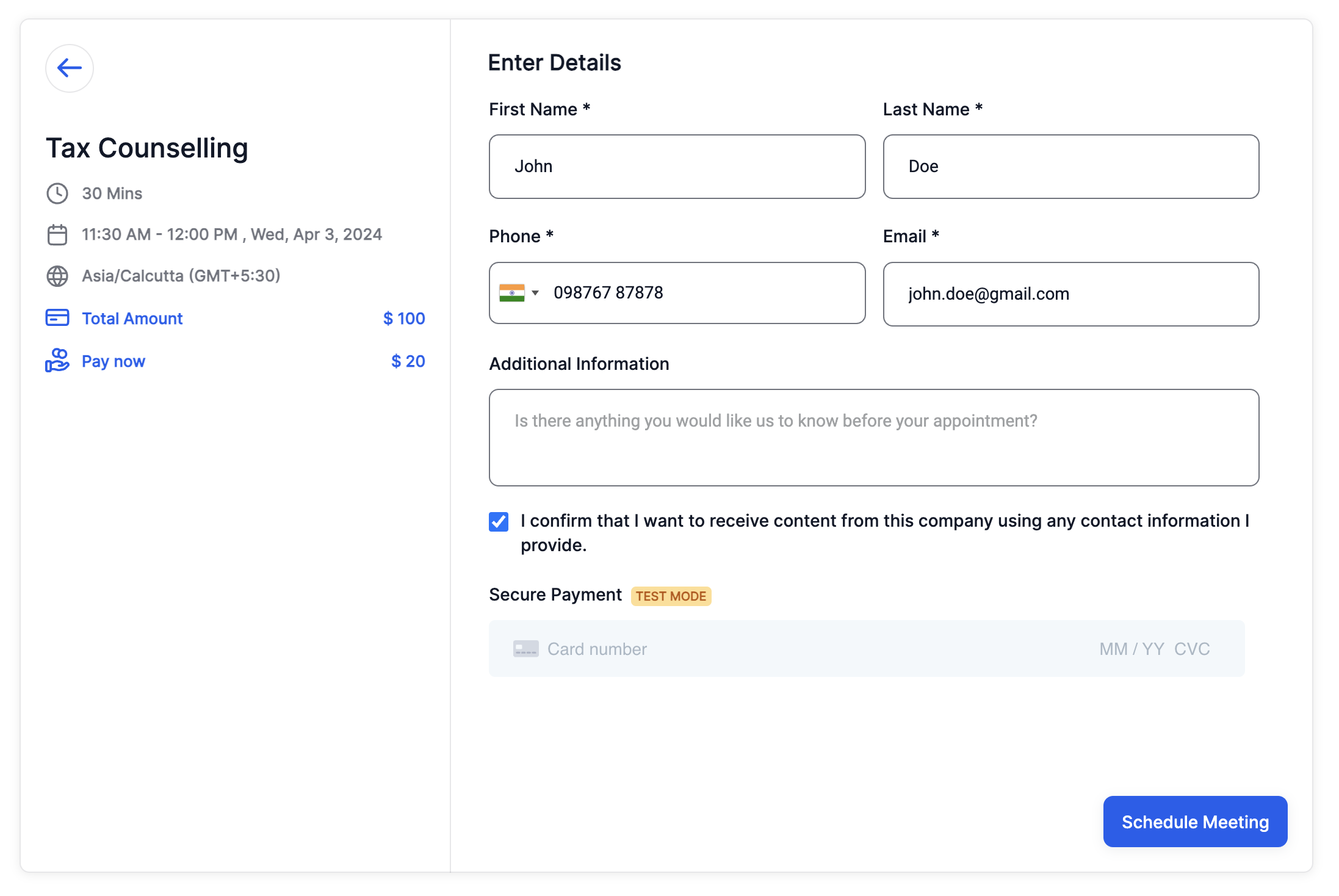
Invoice: the remaining balance still owed (Total Amount minus Deposit Amount). This invoice is created in draft status and is not sent automatically. You collect it manually when you're ready.
Connect a payment gateway. Go to the Payments area and confirm a gateway such as Stripe, NMI, or Authorize.net (or AX Pay) is integrated before configuring calendar payments.
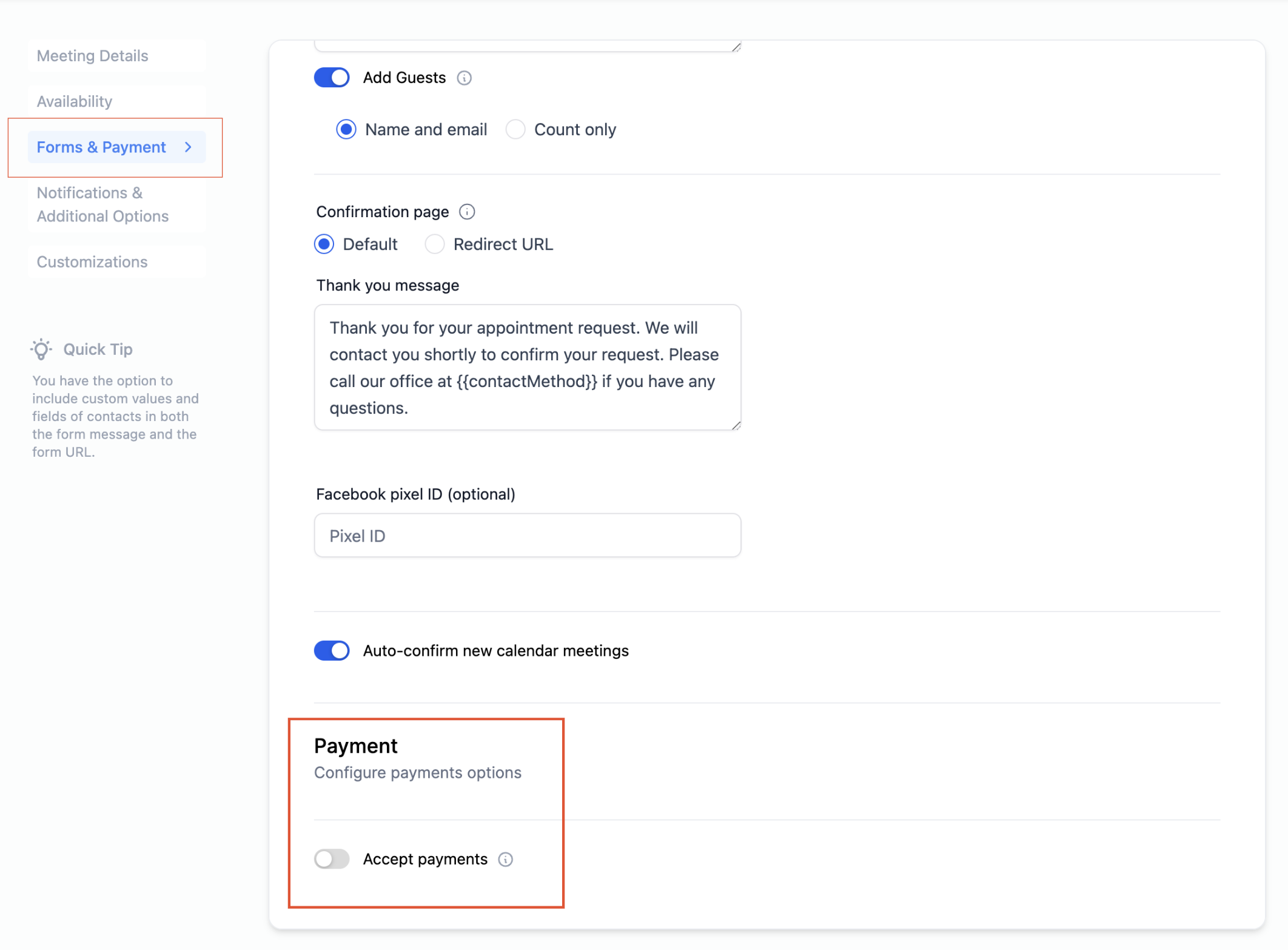
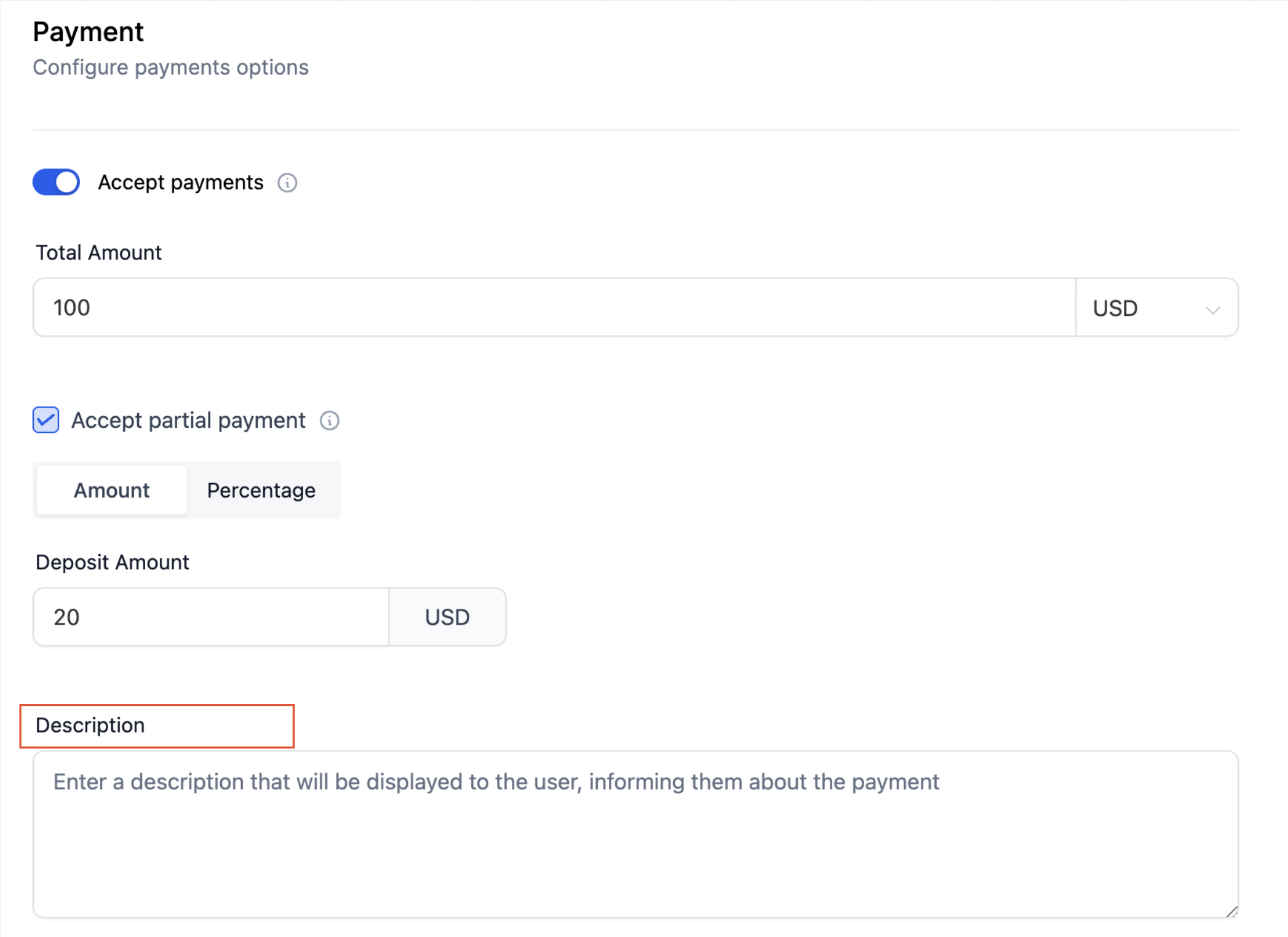
Turn on Accept Payments. Open the calendar's settings and go to the Forms & Payments tab, then enable the Accept Payments toggle.
Enter the total amount and currency. Set the full price of the service or appointment.
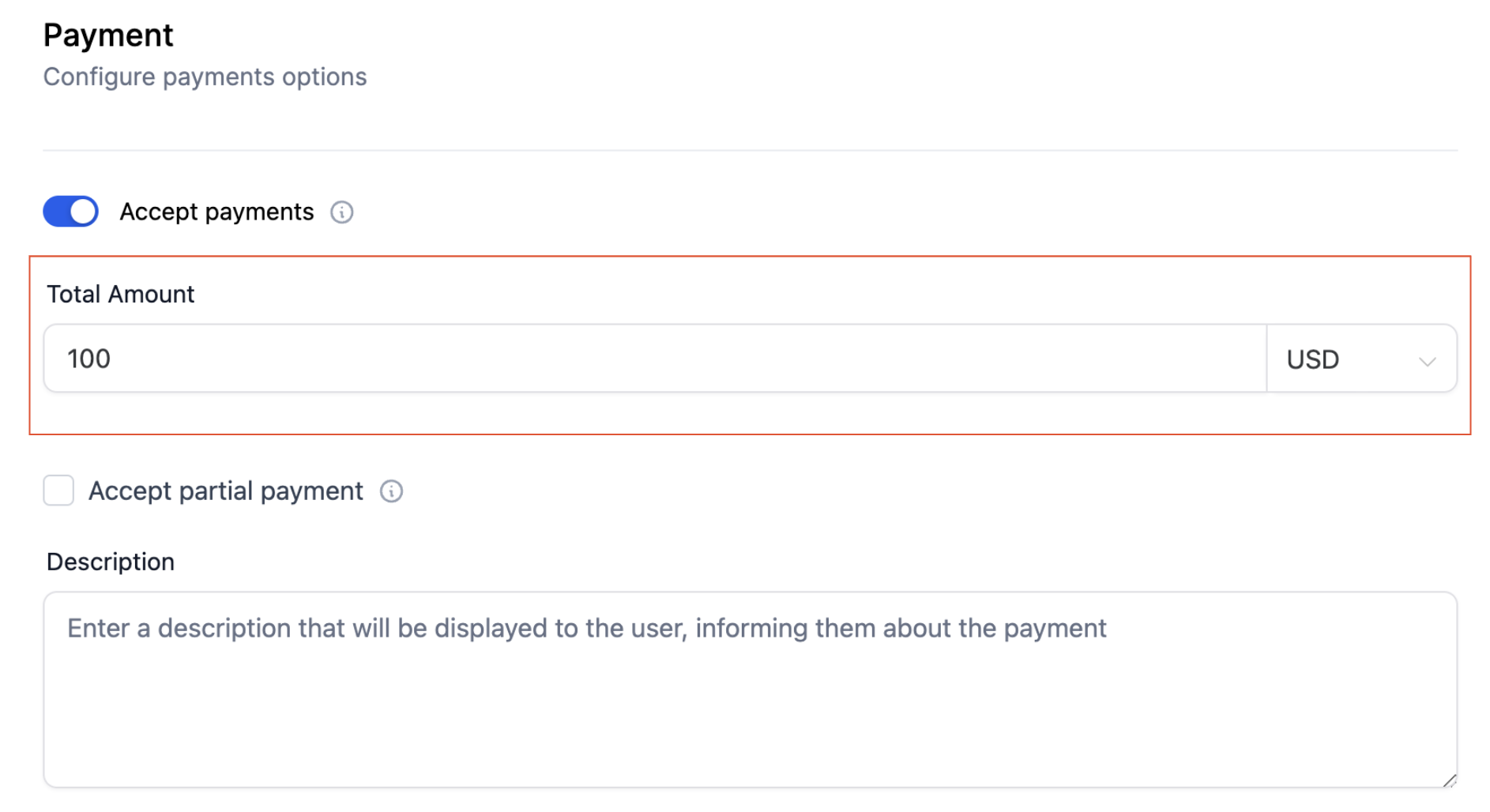
Turn on Accept Partial Payment. Check the box to enable deposits for this calendar.
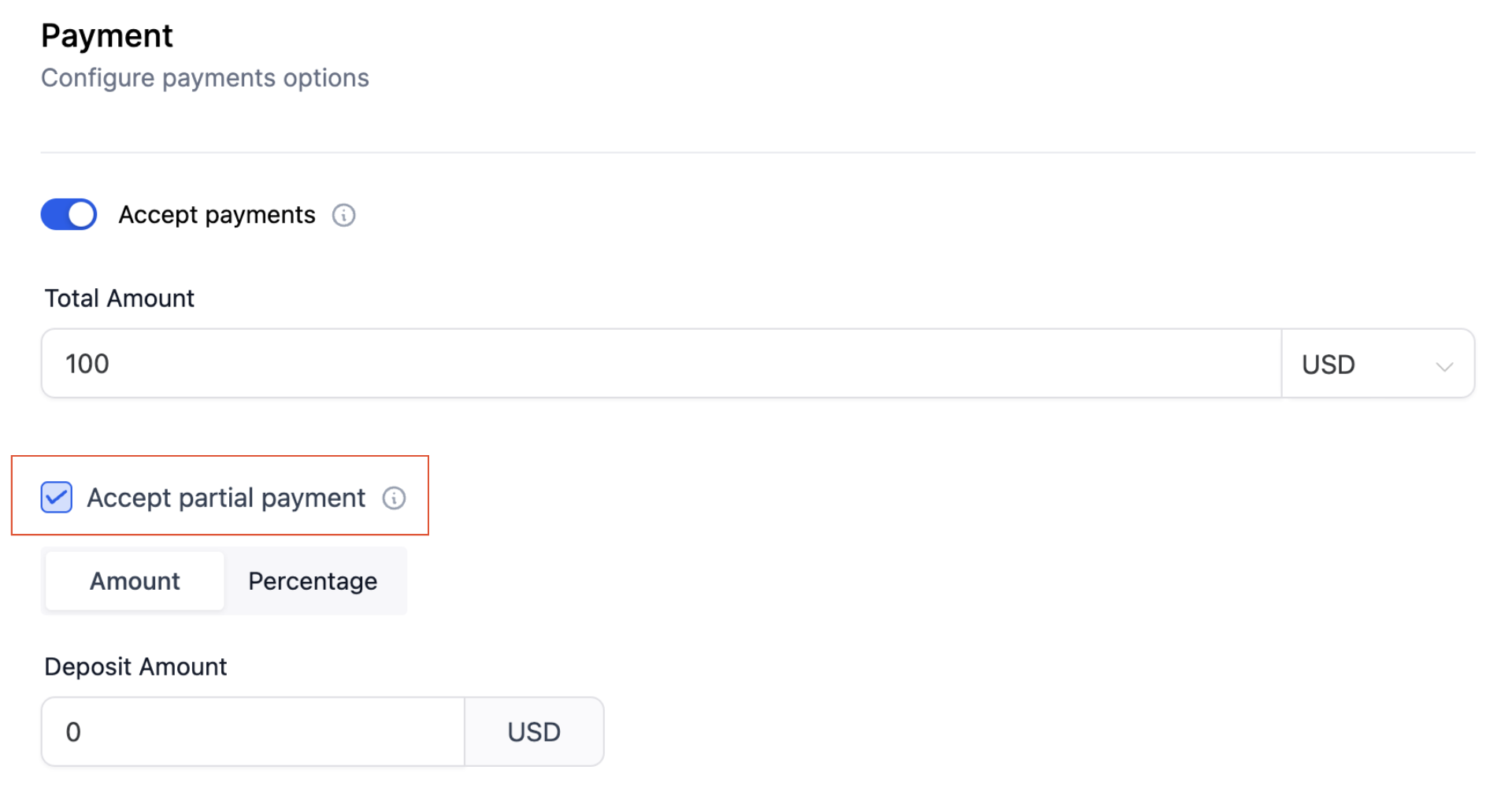
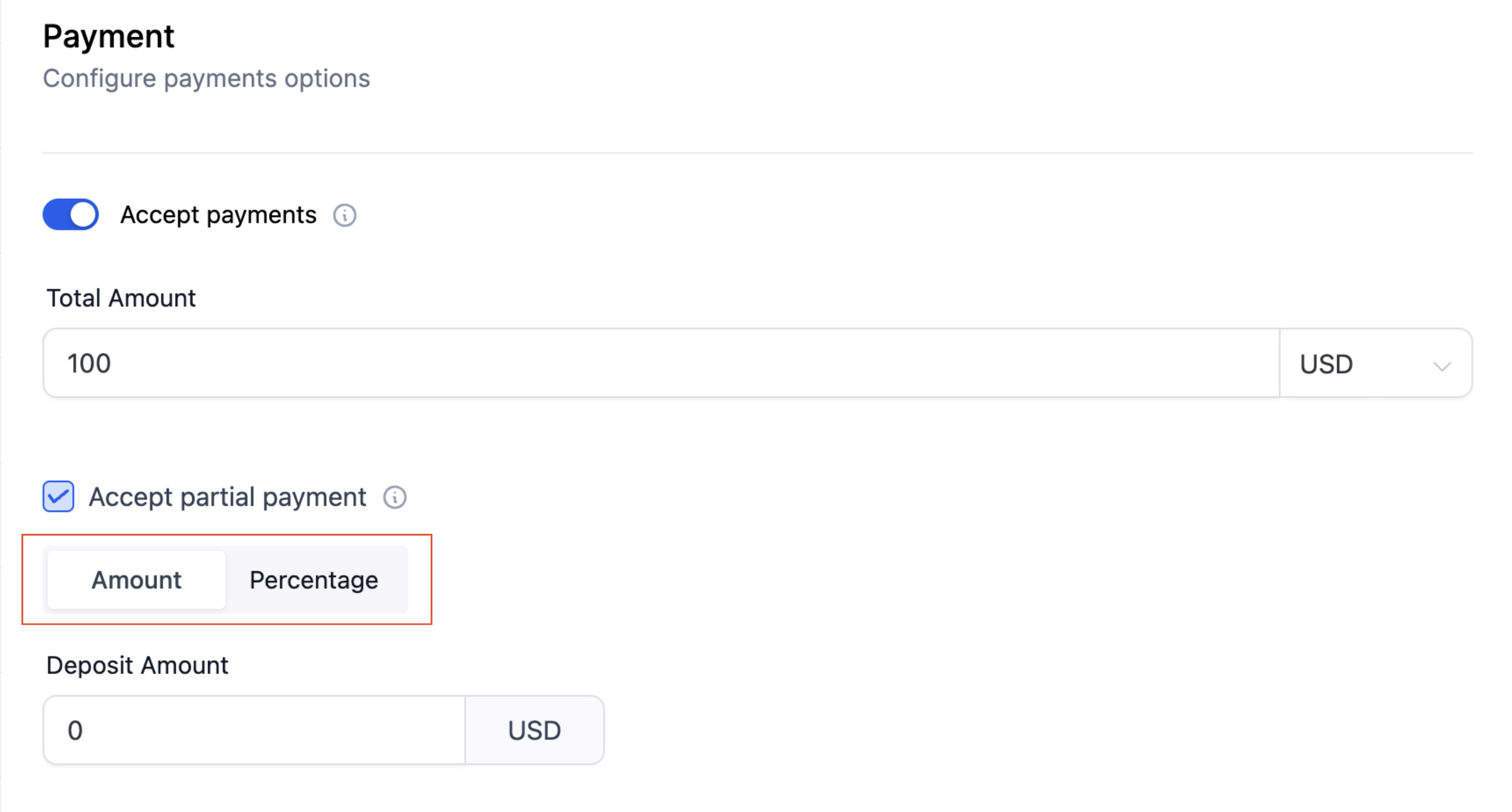
Choose Flat Amount or Percentage. A percentage is calculated automatically off the total amount you entered.
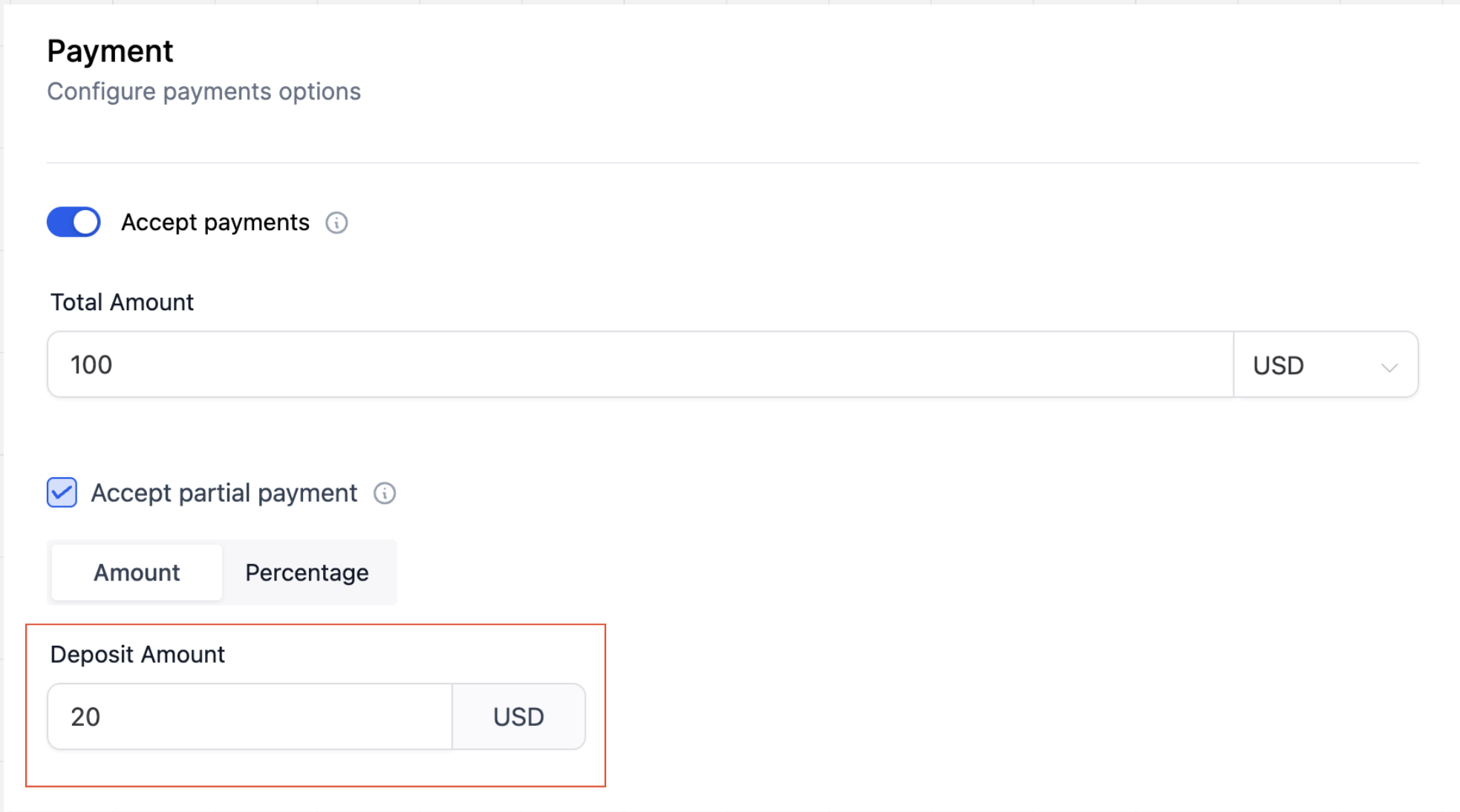
Enter the deposit amount or percentage. This is what the patient pays at the moment of booking.
Add a description (optional). Use this to explain the deposit to patients on the booking page, for example, noting that the remaining balance is due at their visit.
Save your changes.
The remaining balance is not charged automatically. To collect it, go to Payments > Invoices, find the drafted invoice created at booking, and send it to the patient (or collect payment in person or over the phone) once you're ready. Patients are not automatically notified that a balance is pending, so your front desk should track and follow up on these manually, for example, at check-in or a day before the appointment.
For group appointments, such as group facials, injectable parties, wellness classes, or multi-person consultations, you can require the booker to list every attendee and charge based on the total headcount rather than a flat per-booking fee.
What this gives you:
Accurate payment totals based on how many people are actually attending.
A complete guest list attached to the appointment record.
Optional guest email collection for confirmations and reminders.
Fewer billing questions and disputes after the fact.
Go to Settings > Calendars.
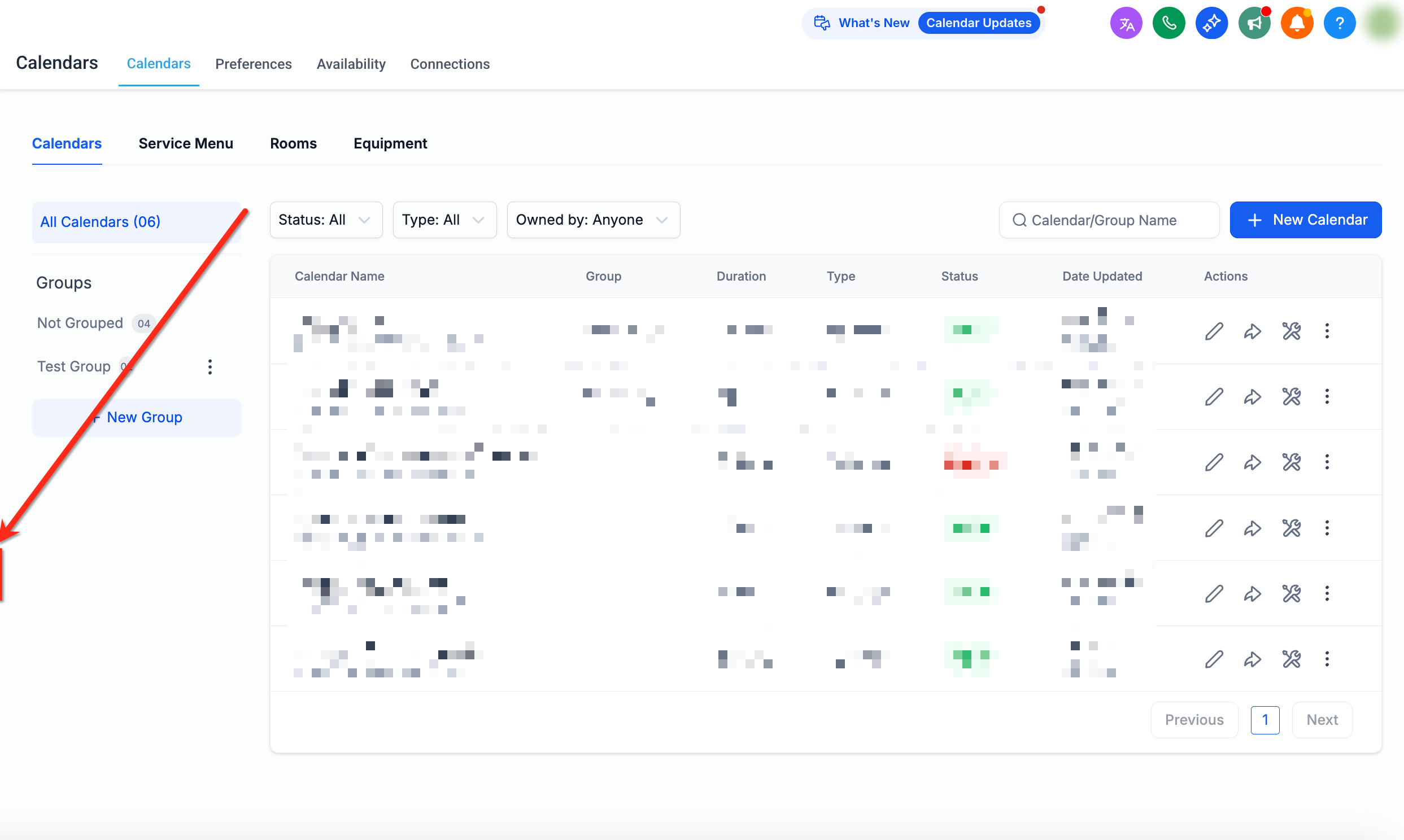
Click Edit next to the calendar you want to update.
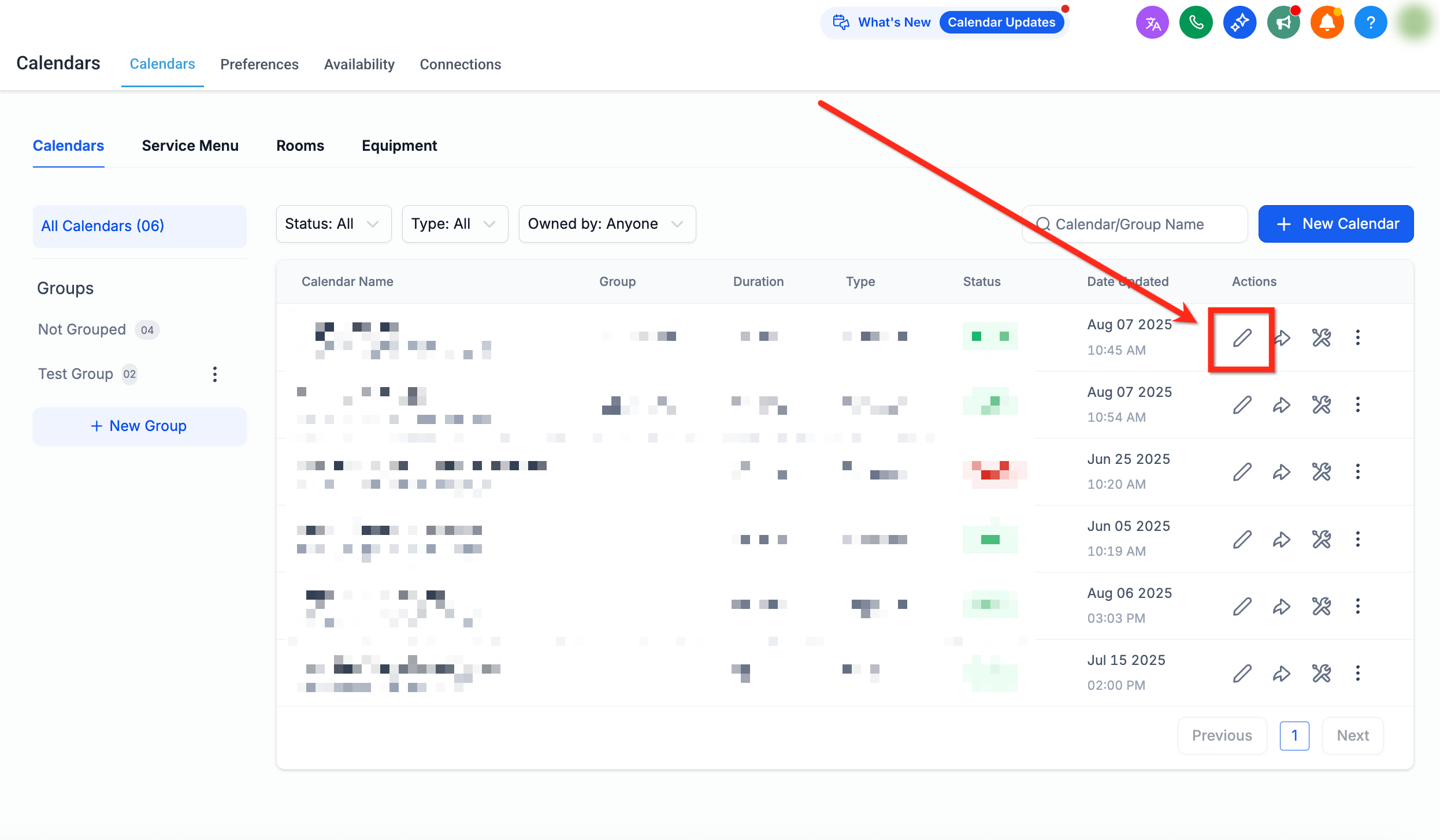
Open the Forms & Payment tab.
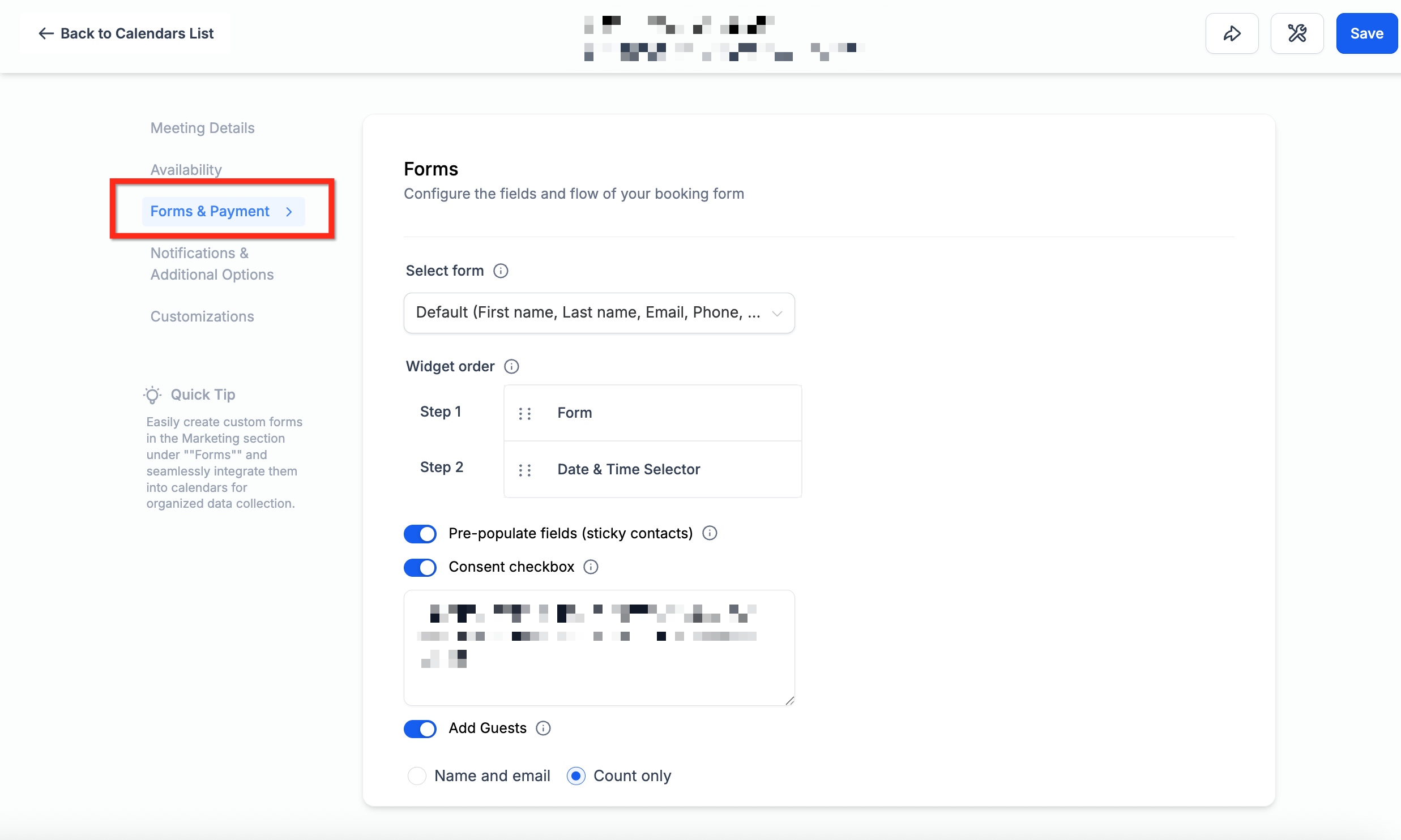
Scroll to the Add Guests section and toggle on Require Guests for Booking if you want guest details to be mandatory before a booking can be completed.
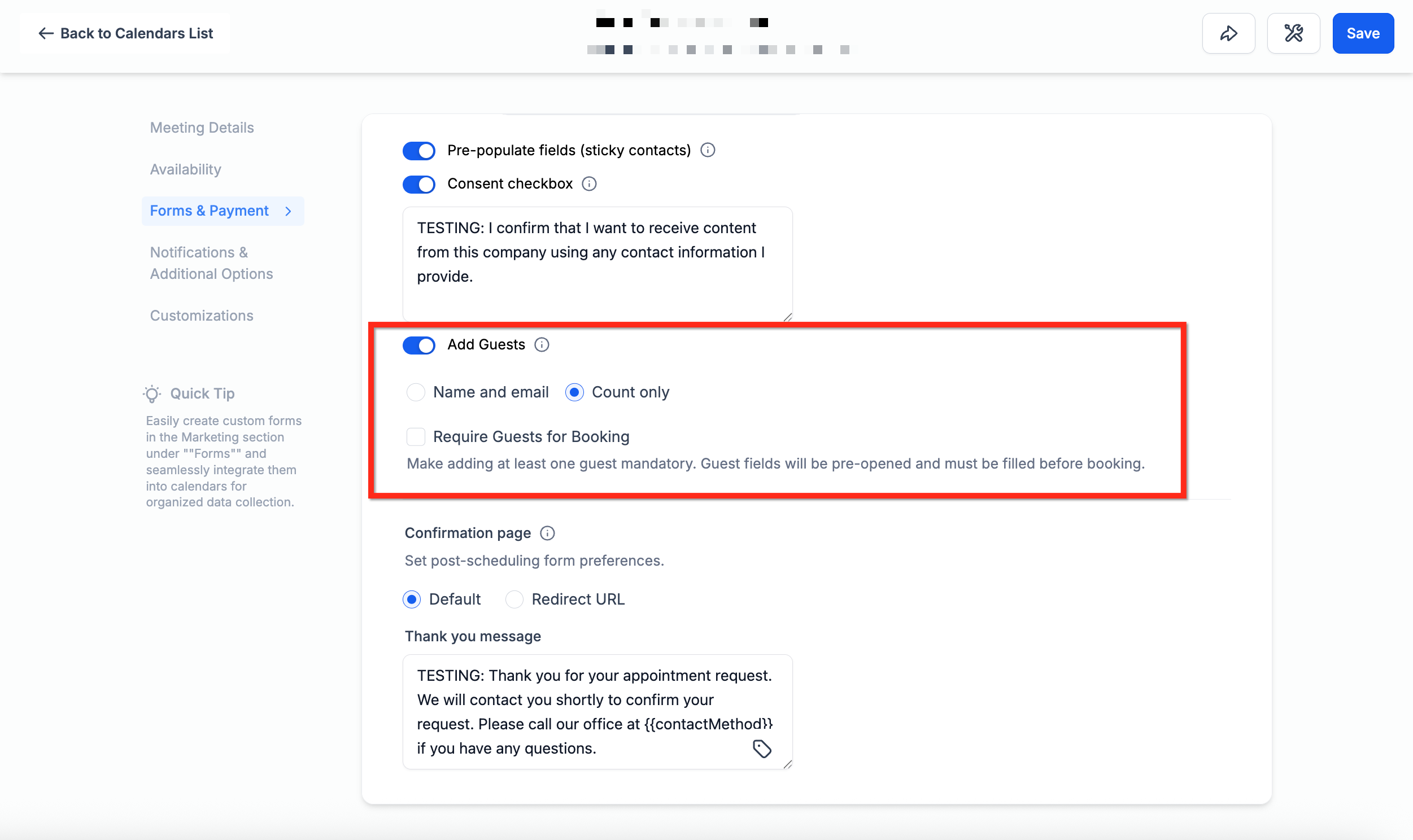
When Require Guests for Booking is on, choose what information you want to collect from each guest:
Name & Email - collects the guest's name and email address.
Name & Phone - collects the guest's name and phone number.
Name, Email & Phone - collects all three guest details.
Guest Count Only - collects just the number of guests without creating individual guest contacts.
Calendars that were already collecting guest details before this option existed continue using Name & Email. New calendars default to Name, Email & Phone.
Scroll to the Payments section and enable Accept Payments for all attendees to charge based on total attendee count.
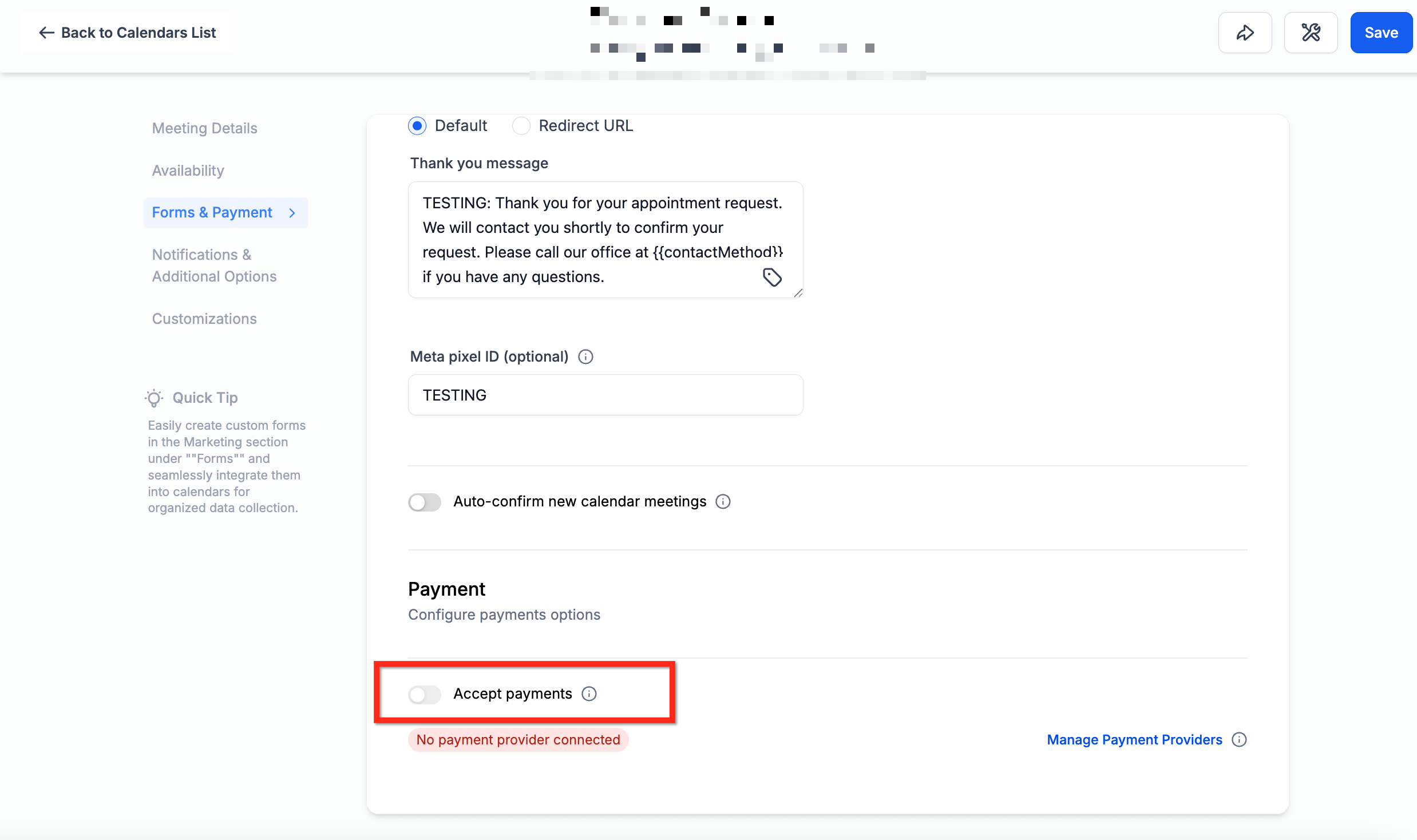
Guest name capture and per-attendee pricing can be turned on independently of each other. You can require guest details without charging per person, or charge per person without requiring guest names.
When you collect individual guest details (any option other than Guest Count Only), Aesthetix CRM automatically creates a contact record for each guest, or matches them to an existing contact, using the email address and/or phone number provided at booking. If you select Guest Count Only, only the total number of guests is recorded and no individual guest contacts are created.
A newly created guest contact inherits the primary booker's timezone. If a guest already exists as a contact in your CRM, their existing timezone is left unchanged.
How the price is calculated: Total charge = Service Price x (1 booker + number of guests). The booker is charged the full attendee-based total at the time of booking through your connected payment gateway.
Guests only receive their own confirmation emails if their email addresses are collected on the form and a workflow is set up to send them. If a guest cancels but the primary booker still attends, refunds or adjustments have to be handled manually since the original charge was based on the attendee count at the time of booking.
If guest names or contact details are being collected for a specific patient's treatment, treat that intake information the same as any other patient data your front desk handles, and keep it limited to what's needed for the appointment. For deeper intake questions beyond name and email, use a linked form instead of the guest fields.
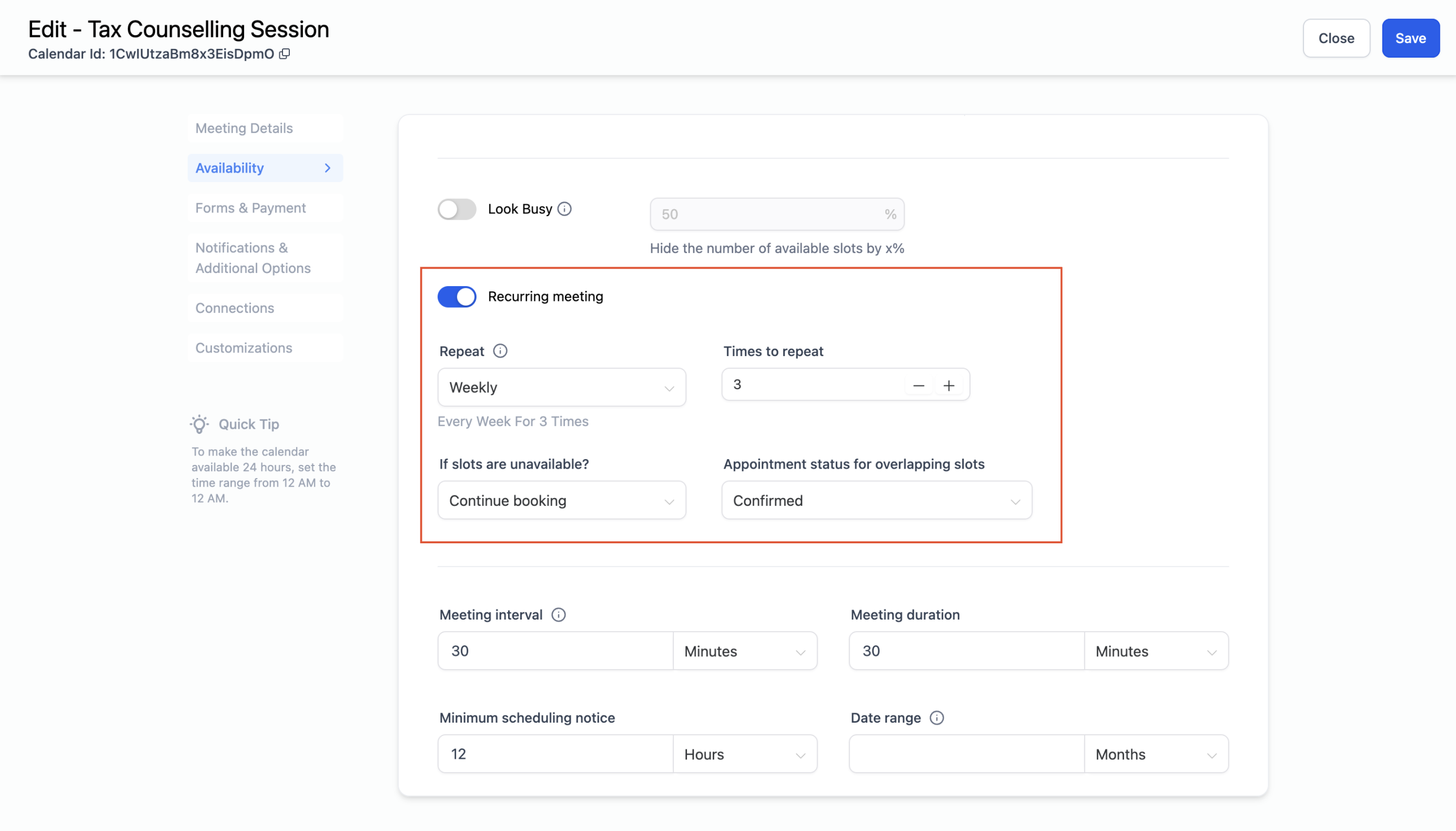
Recurring appointments repeat on a set schedule, daily, weekly, or monthly, and are booked as a series rather than one at a time. When a recurring calendar accepts payments, you choose one of two ways the booking widget handles charges:
Option | What happens |
|---|---|
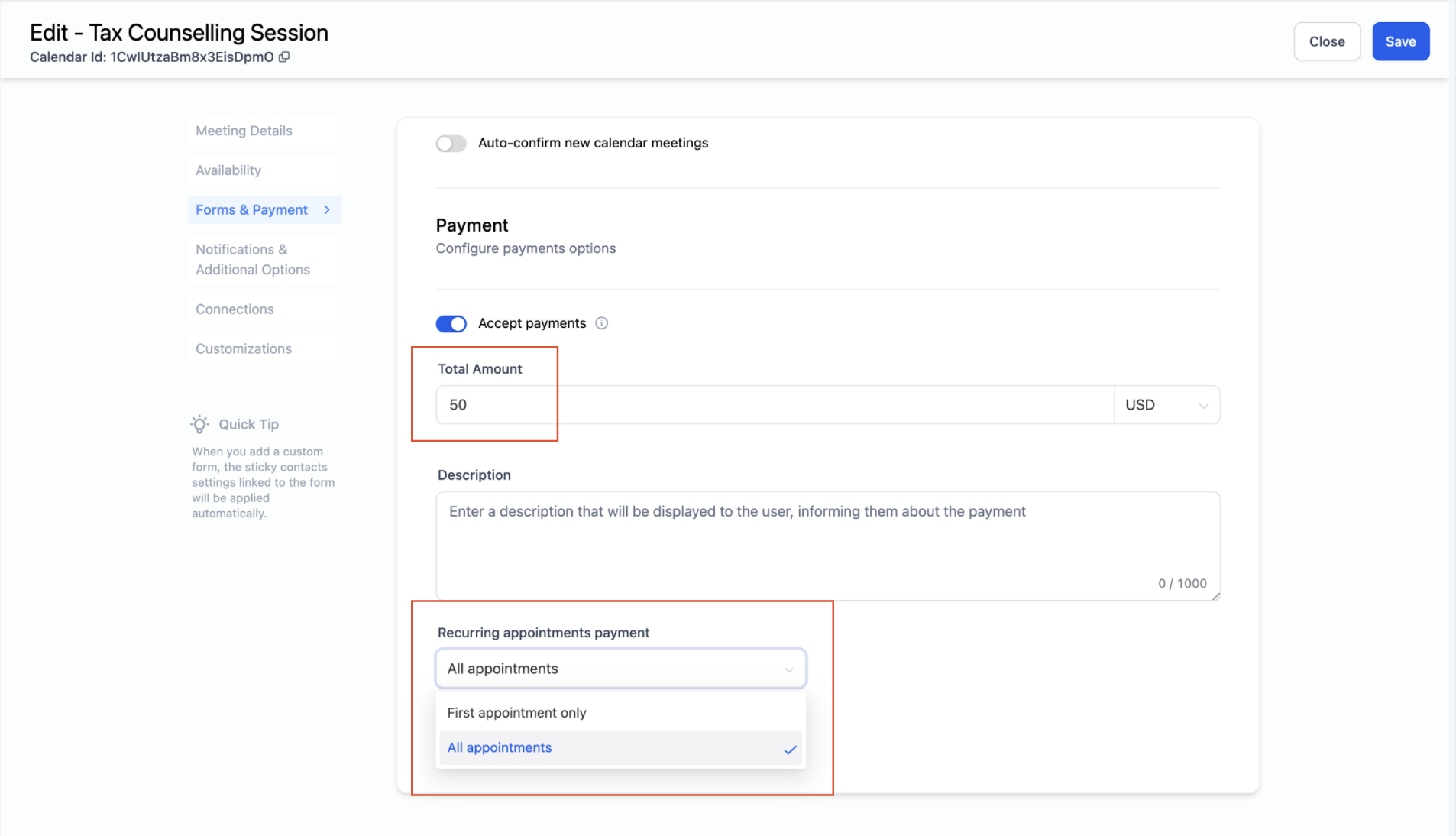
Collect Payment for First Appointment Only | The patient is charged for just the first appointment in the series at booking. For example, three recurring visits at $50 each results in a $50 charge upfront; the remaining two are collected manually later. |
Collect Payment for All Appointments | The full series total is charged upfront. Three visits at $50 each results in a $150 charge at booking. The actual amount owed can shift if fewer appointments end up being scheduled, depending on availability. |
Recurring calendars do not support partial payments. Deposits are only available on non-recurring calendar types.
Open the calendar's settings and confirm Recurring Meetings is enabled under the Availability tab, and that a payment gateway is connected under Payments > Integrations.
Go to the Forms and Payments tab. Under Accept Payments, choose either Collect Payment for First Appointment Only or Collect Payment for All Appointments.
Click Save.
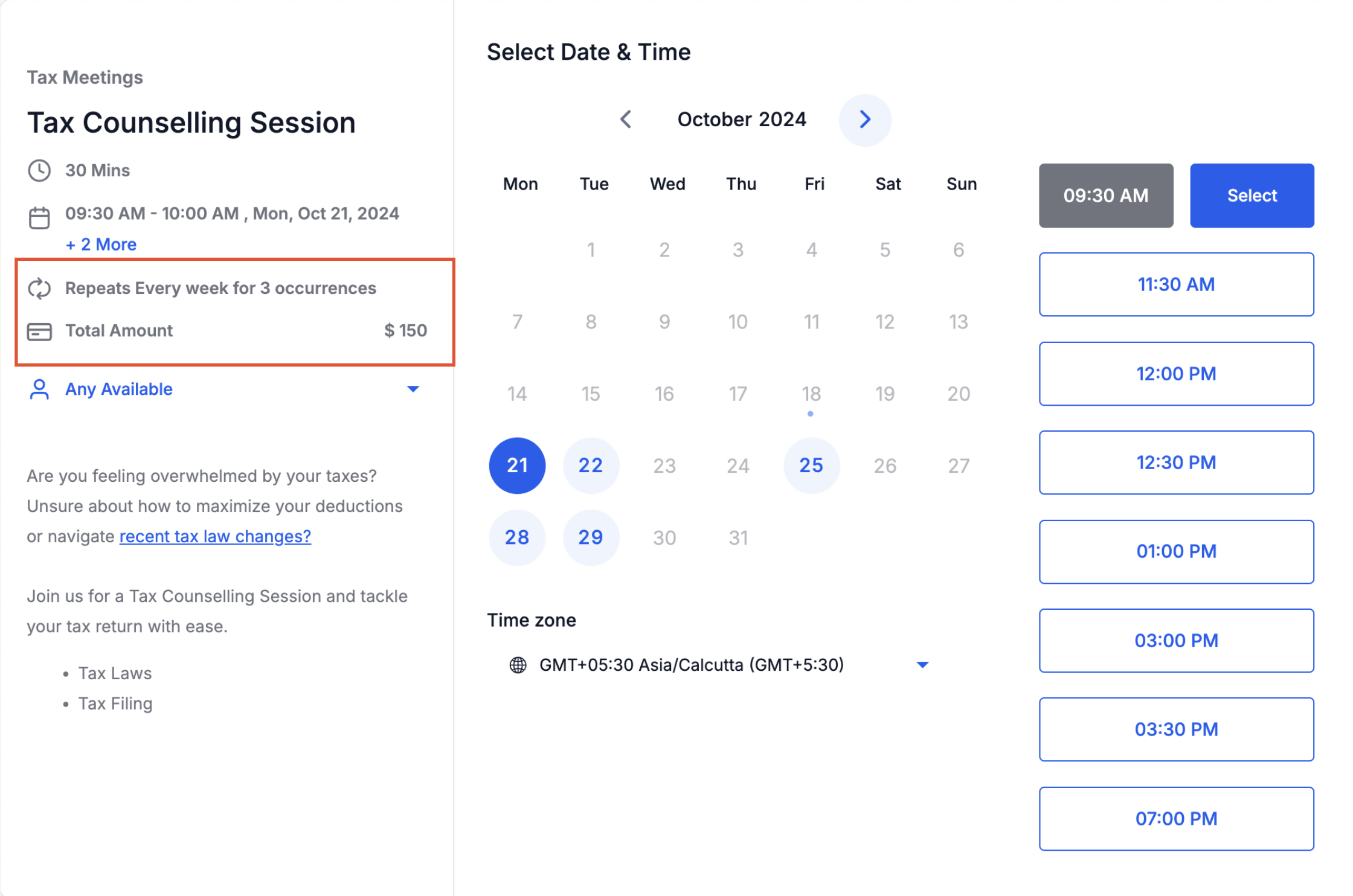
Once saved, every new booking on that calendar follows the option you selected.
Which calendar types support deposits and partial payments? All calendar types support partial payments, including Service Calendars, Service Menus, Event, Round Robin, Collective, and Class calendars. Recurring calendars are the one exception and do not support partial payments.
Do patients get notified when a balance is still owed? No. Patients are not automatically notified about a pending balance. Your team needs to check Payments > Invoices and follow up to collect the remaining amount.
Which payment gateways work with calendar deposits and per-attendee payments? Stripe, NMI, and Authorize.net are supported, along with AX Pay, Aesthetix CRM's own payment processor. Connect your gateway under the Payments area before turning on calendar payments.
Can I require guest information without charging per attendee, or the other way around? Yes. Requiring guest details and charging per attendee are separate toggles. You can enable either one on its own or turn both on together.
How is the total calculated for a group booking with guests? The system multiplies your service price by the total number of attendees (the booker plus any guests added), then charges that full amount to the booker at the time of booking.
What information can I collect from each guest? You can choose Name & Email, Name & Phone, Name, Email & Phone, or Guest Count Only, which records just the headcount without creating individual guest contacts.
Does Aesthetix CRM create a contact record for every guest? Only when you collect individual guest details. The guest is created as a new contact or matched to an existing one using their email and/or phone number. Choosing Guest Count Only skips contact creation entirely.
What timezone does a new guest contact get? A guest contact created during booking inherits the primary booker's timezone. If the guest already existed as a contact, their existing timezone is left unchanged.
What happens if a guest cancels but the rest of the group still comes in? The original charge already reflects the attendee count at booking, so any refund or adjustment for a cancelled guest has to be handled manually.
Can I collect a deposit on a recurring appointment series? No. Recurring calendars only offer the choice between charging for the first appointment or charging for the full series upfront. Deposits are not available on recurring calendars.
Will guests get their own confirmation email? Only if you're collecting guest email addresses on the booking form and have a workflow set up to send guest-specific confirmations or reminders.
Where do I go to collect a balance that's still outstanding after a deposit? Go to Payments > Invoices, locate the draft invoice created when the deposit was collected, and send or collect it manually. The invoice stays in draft status until you take action on it.
