Reserve with Google lets patients book an appointment directly from Google Search, Google Maps, or your Local Services Ads listing, without ever leaving Google. Once connected, those bookings land straight in your Aesthetix CRM calendar. You'll find and manage the connection from your calendar's Connections settings, alongside your other calendar sync options like Google Calendar, Outlook, iCloud, Zoom, and Calendly.
When a prospective patient searches for your practice on Google or sees your Local Services Ads listing, they can tap a "Book Online" button (or a button for a specific service) right there in the search results or on Maps. Instead of getting sent to a separate website to hunt for a booking page, they're taken straight into a booking flow tied to your connected calendar. The appointment is created automatically, and availability stays in sync so there's no risk of double-booking.
This is especially useful for capturing high-intent traffic: someone who's already searching for a med spa or aesthetics provider near them can book a consult in a couple of taps instead of bouncing to your website first.
Reserve with Google has a few requirements, and one important limitation to know up front:
You need an active Local Services Ads account.
Google currently limits this integration to accounts categorized under Home Services, Legal, or Real Estate. As of this writing, most medical-aesthetics practices won't have a Local Services Ads category that qualifies, so this integration may not be available for every practice. Check your Local Services Ads account category before starting, and don't be surprised if the option isn't there yet: Google controls eligibility, not Aesthetix CRM.
Your business location must be within the United States.
Your business name and address must exactly match what's on file in your Local Services Ads account. Even small mismatches (an abbreviated street suffix, a missing suite number) can cause verification to fail.
You need at least one active service calendar to connect. This must be a native Aesthetix CRM calendar. If your practice books appointments through an EMR-synced calendar instead of a native one, Reserve with Google won't have a calendar to attach to, and neither will AI Employee if you're using it to handle inbound booking conversations. Both features depend on a native service calendar.
Open your integrations section and locate Reserve with Google. It will show whether the connection is available, pending, or already active.
Select Reserve with Google to open the connection flow. The system will confirm that a calendar is required before you can continue.
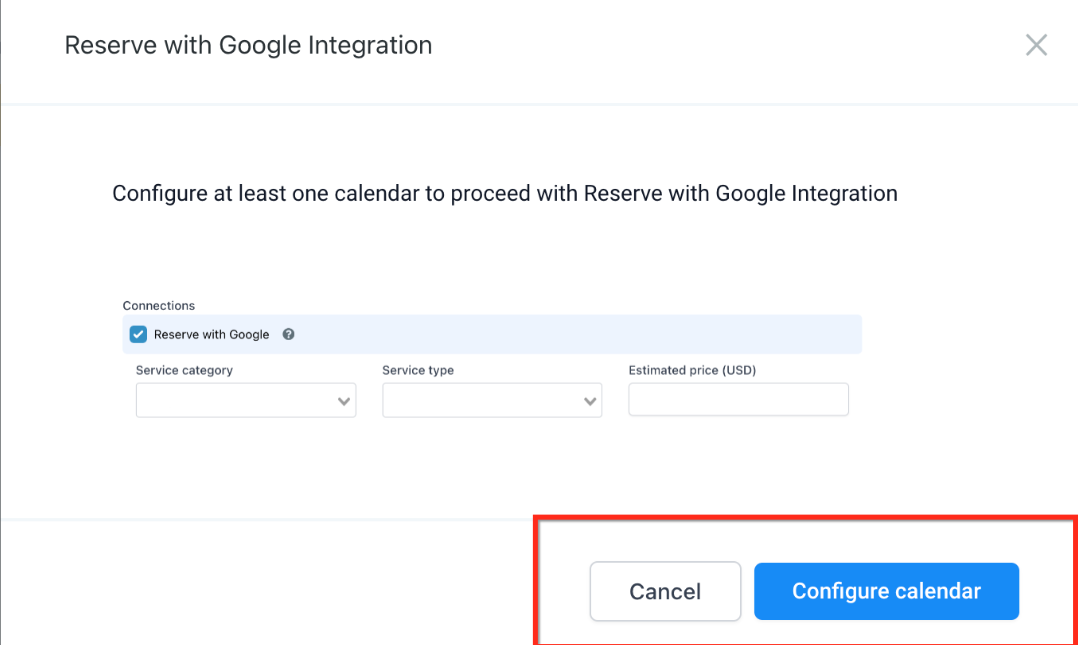
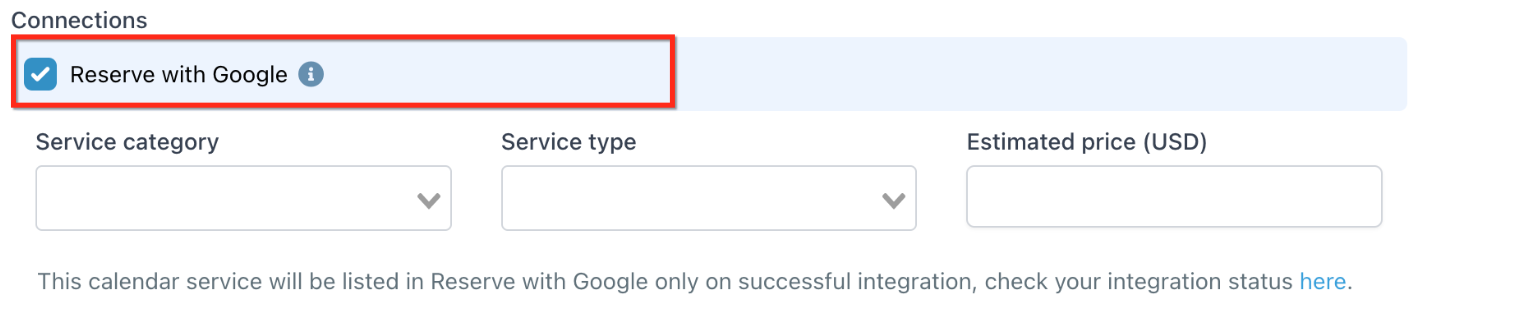
Choose the calendar that should receive Google bookings. This determines where new appointments land and which services are available to book. While configuring the calendar for this integration, you'll set:
A service category
A service type
An estimated service price
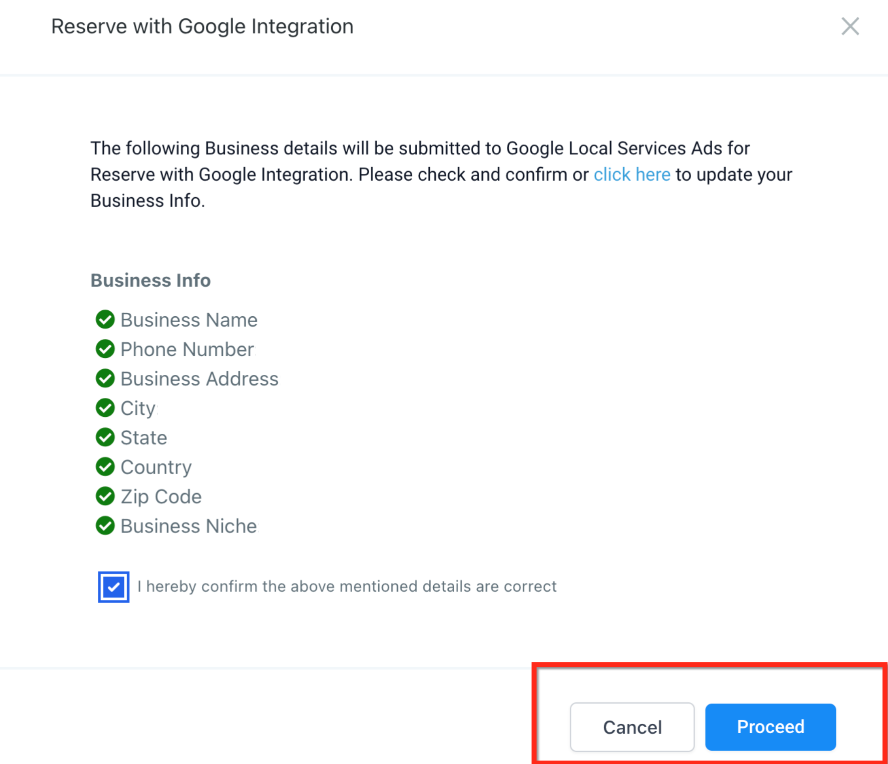
Review your business details before submitting. These are sent to Google for verification, so they must match your Local Services Ads business profile exactly, down to punctuation and abbreviations.
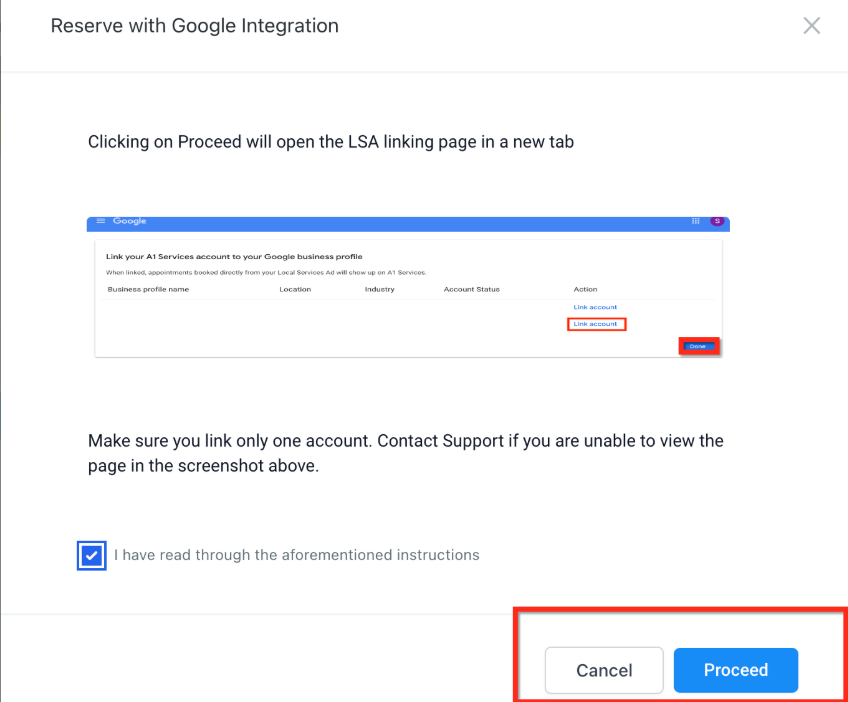
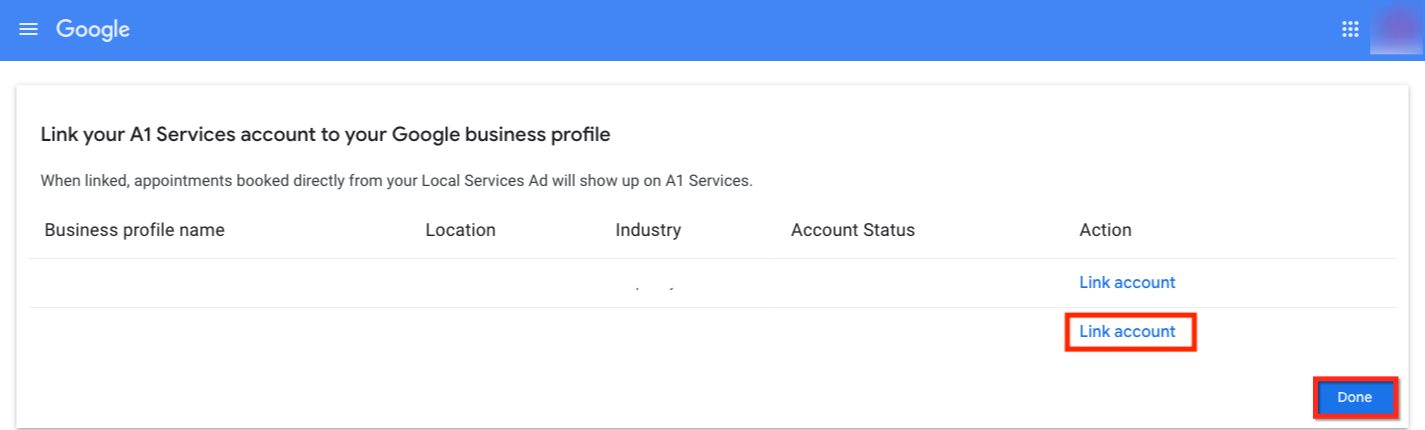
After confirming your business information, a new browser tab opens where you sign in and link your Local Services Ads account. Only link one account during this process.
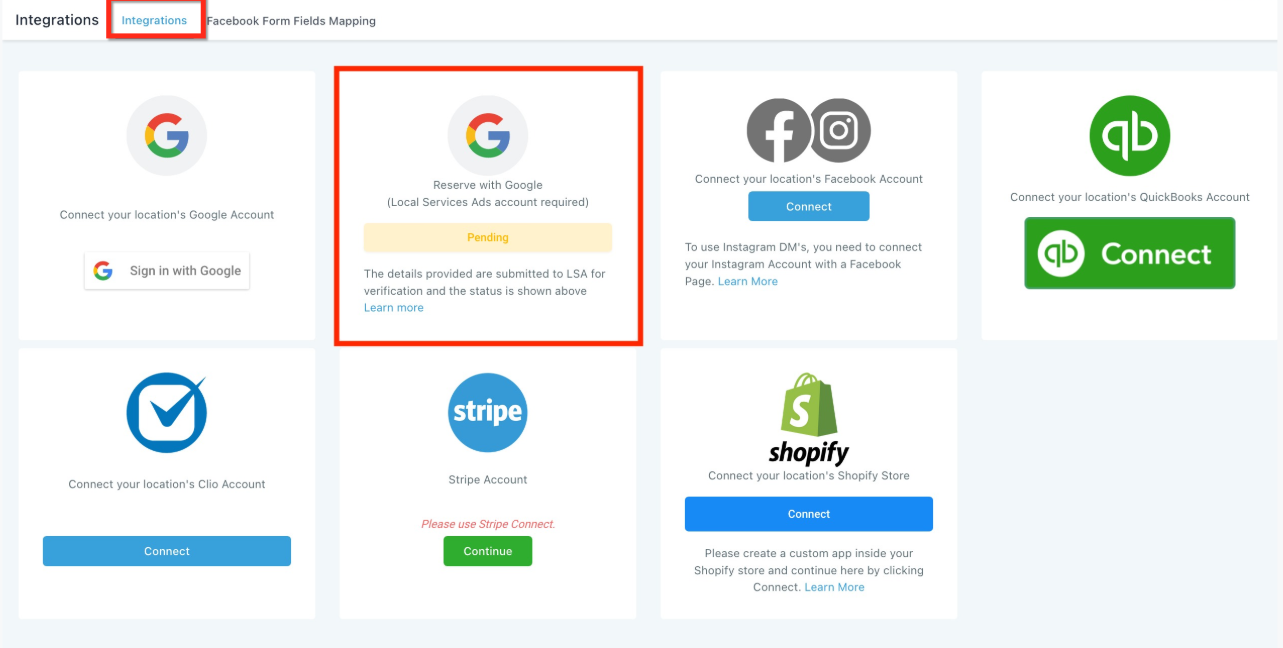
Once submitted, your integration status will show as one of the following:
Status | What it means |
|---|---|
Pending | Verification is in progress. This can take up to 48 hours. |
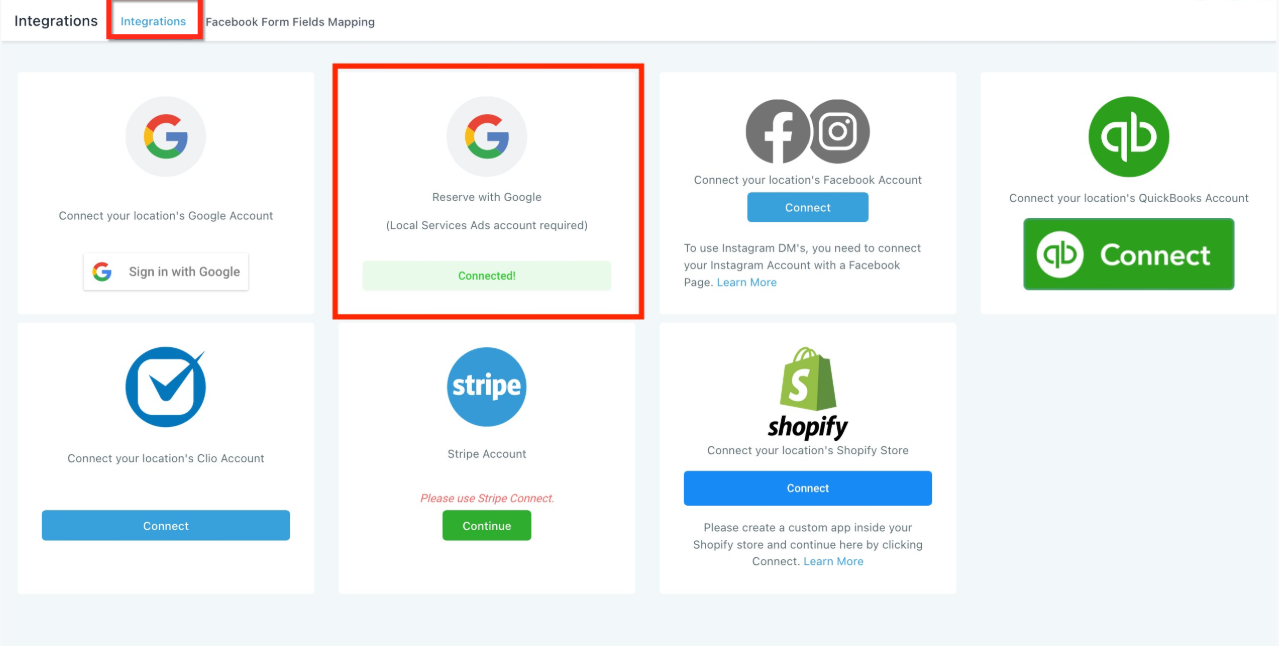
Connected | The integration is active and ready to accept bookings. |
Not Matched | Your business details don't align with what Google has on file. |
If your status shows Not Matched, double-check your business name and address against your Local Services Ads account, correct any mismatch, and reconnect.
Once verification completes, the integration shows as connected and Reserve with Google starts accepting bookings automatically. No manual activation step is required after verification succeeds.
Once connected, you can control how booking buttons appear on your business listing using two feed types. You can use one or both, depending on how you want services presented to patients.
Booking feeds are managed from the same calendar connection settings where you set up the integration.
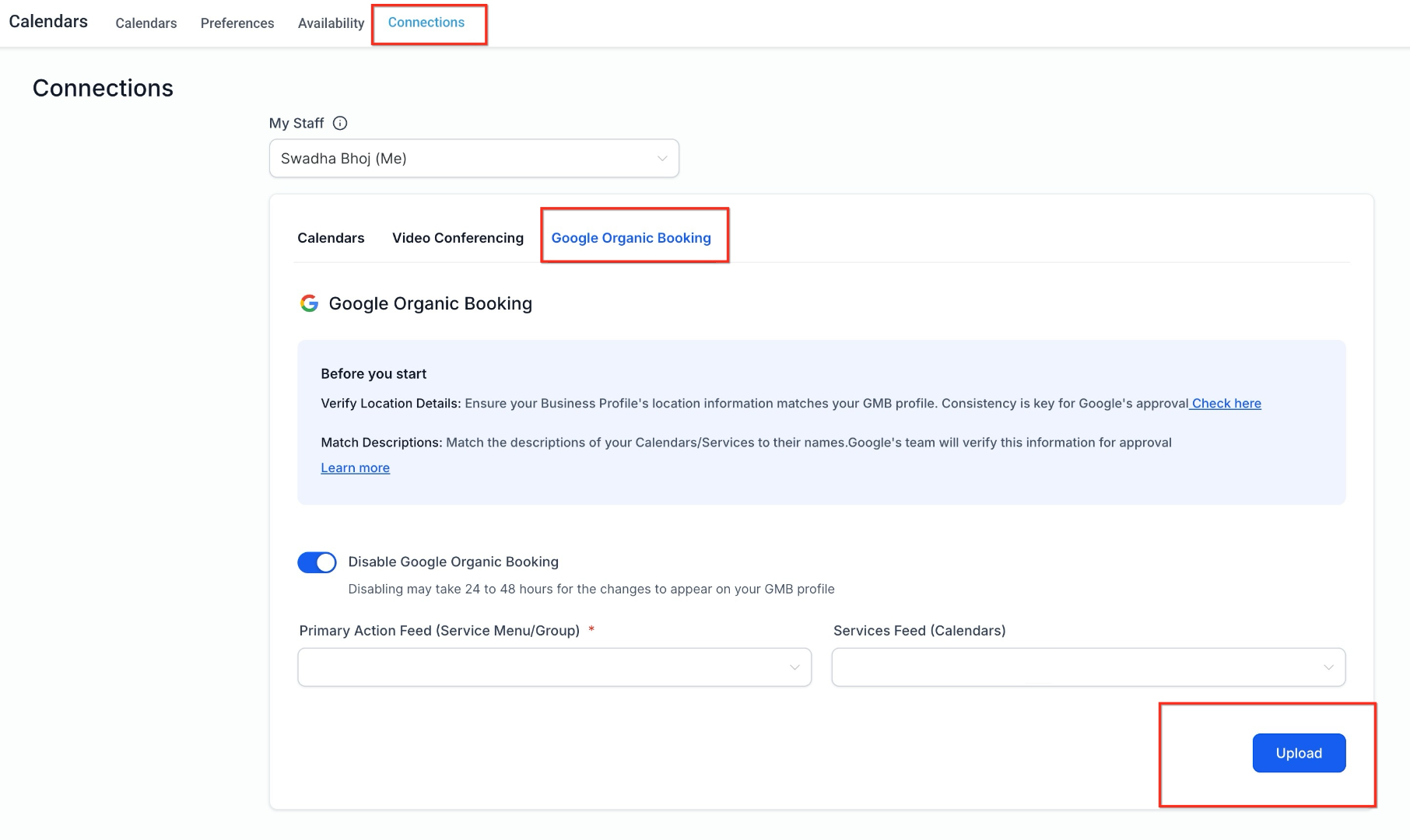
This feed controls the main "Book Online" button shown on your business listing. Patients who tap this button are taken to a general service menu or a grouped booking page, so you'll need a service menu or grouped calendar set up before enabling it.
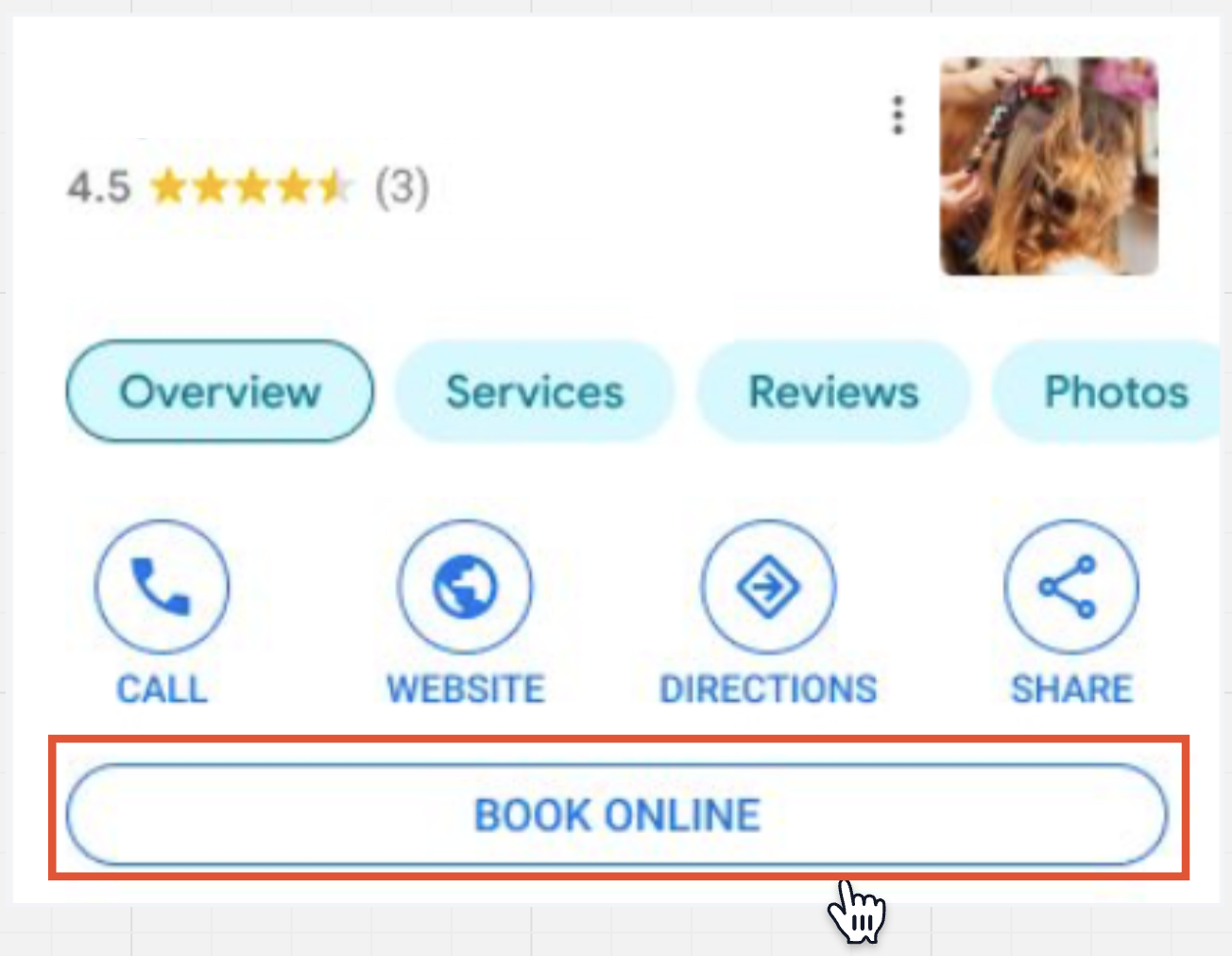
This feed lists individual services directly on your business listing, each with its own booking button. Patients can pick a specific service, like a consult or a particular treatment, and book it immediately without browsing a menu first. Each service you select links directly to its corresponding booking calendar.
Once you've selected which services to include, upload the booking information so Google can review and publish it. Verification after upload typically takes several days, so booking buttons won't appear on your listing right away.
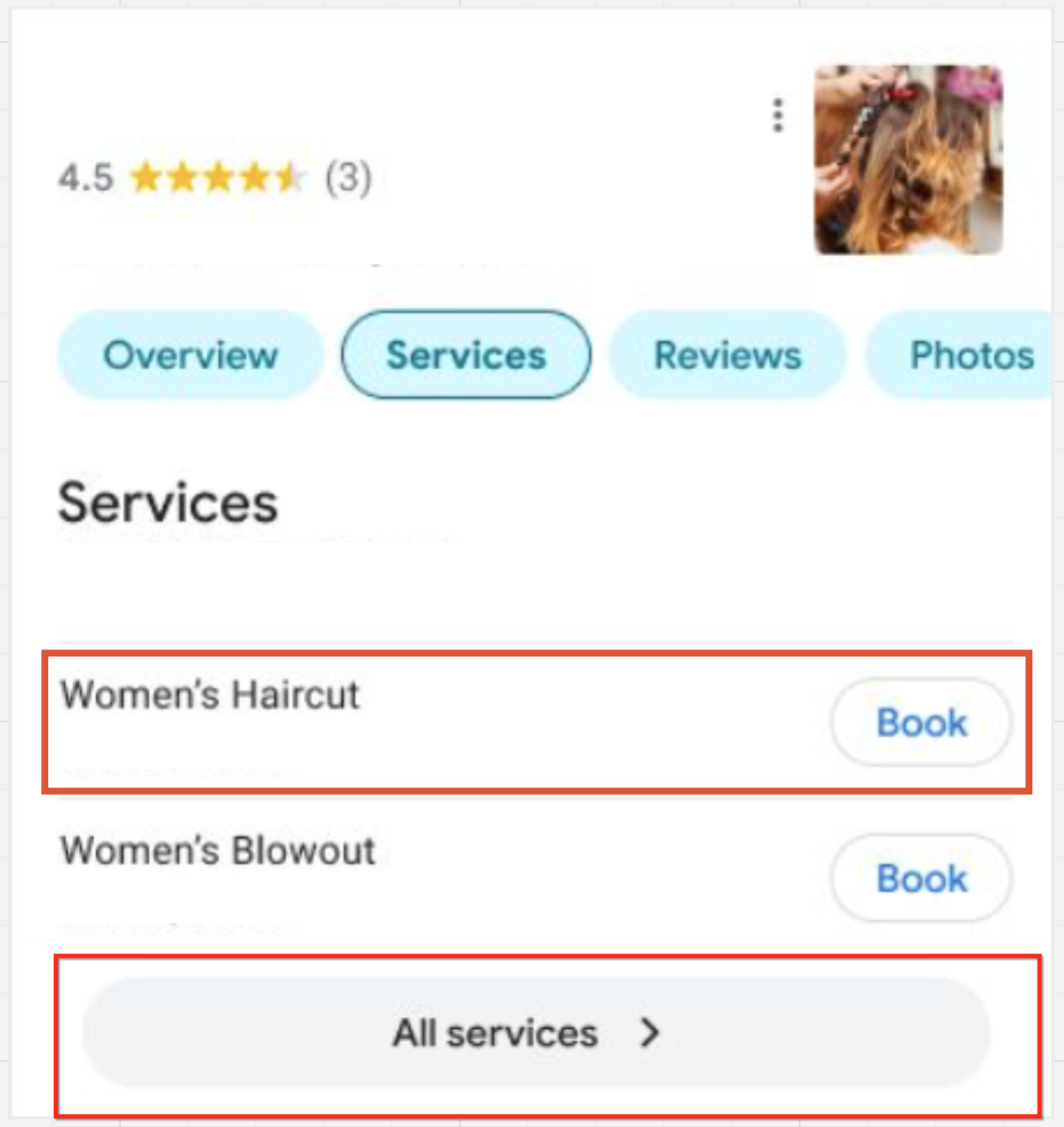
Make sure each service you select has a clear name and description that match each other. Mismatched or vague service details are the most common cause of approval delays.
Once patients start booking through Google, those appointments appear automatically in your connected calendar. Availability syncs continuously between Google and Aesthetix CRM, so double bookings shouldn't happen as long as the connected calendar is your calendar of record for that service.
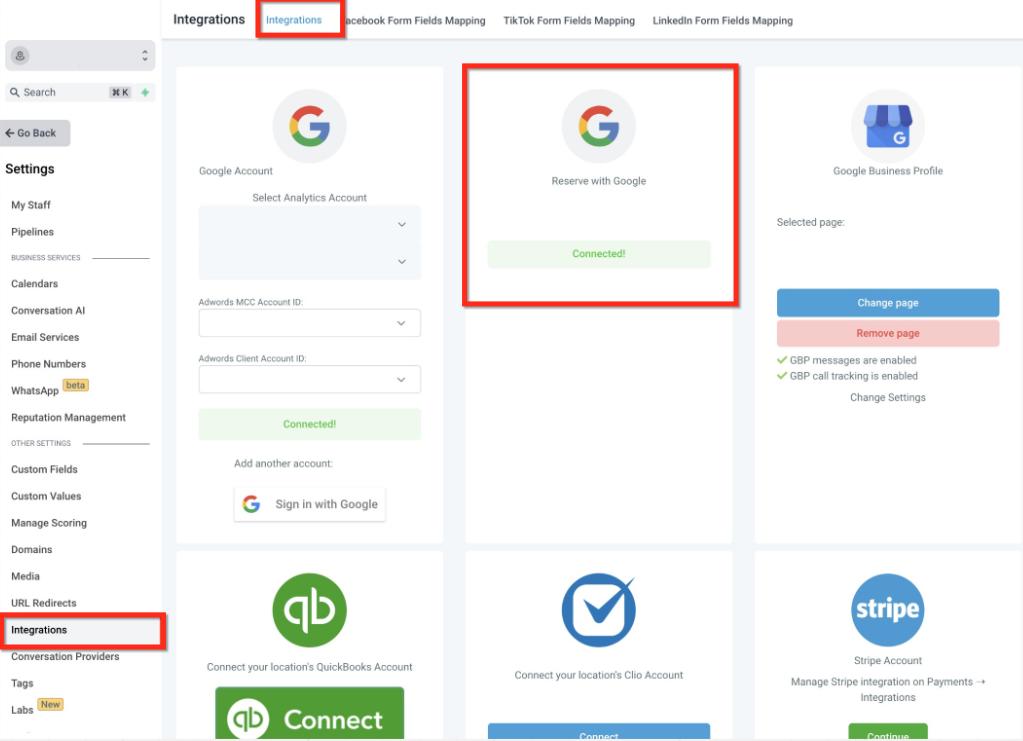
You can disconnect Reserve with Google at any time from your integrations section. A confirmation prompt appears before the connection is removed.
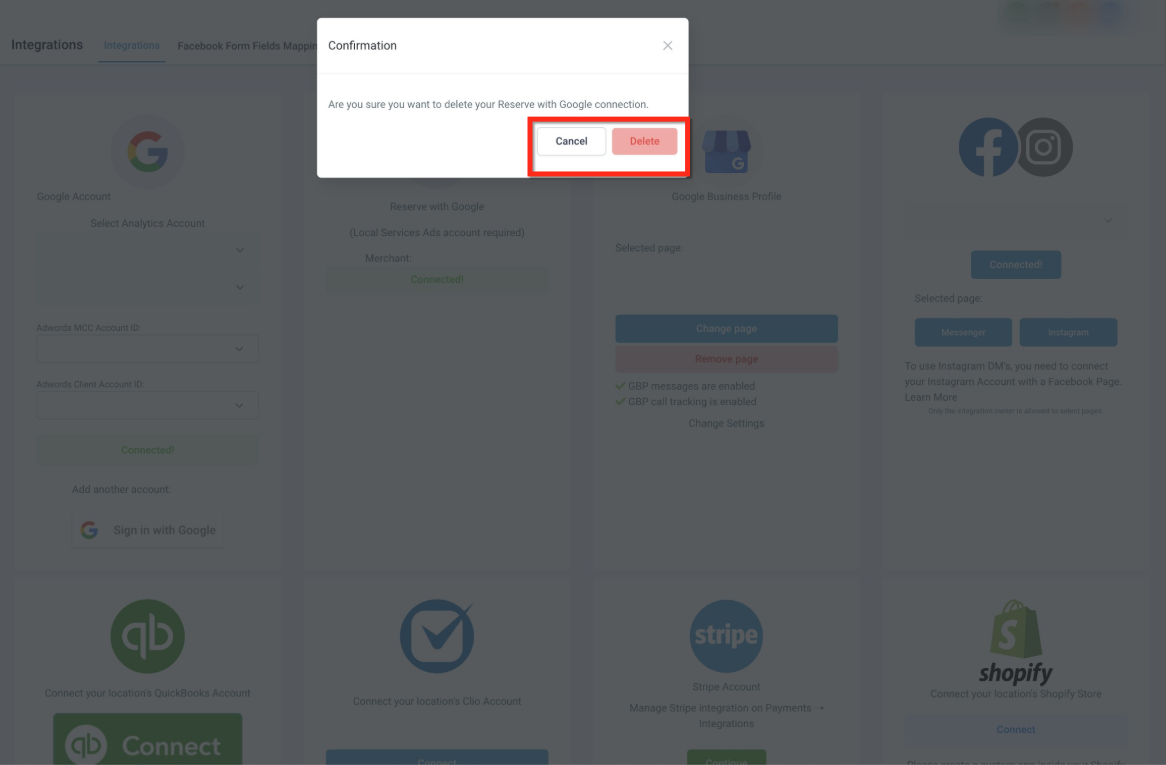
After removal:
Google booking links are disabled.
New appointments stop syncing from Google.
Existing appointments and calendar data already in Aesthetix CRM remain unchanged.
Which business types can use Reserve with Google? Google currently limits this integration to Local Services Ads accounts categorized as Home Services, Legal, or Real Estate. Most aesthetics practices won't qualify under today's categories.
Is Reserve with Google available outside the United States? No. It's currently supported only for businesses located in the United States.
Why does my integration show "Not Matched"? Your business name or address doesn't exactly match what's on file in your Local Services Ads account. Correct the mismatch in Local Services Ads, then reconnect.
How long does verification take? Account verification for the connection itself can take up to 48 hours. Booking feed uploads (the services you display on your listing) typically take several days to review and publish.
Can I link more than one Google account? No, only one Local Services Ads account can be linked per integration.
Can I use both the Primary Booking Action Feed and the Individual Services Feed at the same time? Yes. You can display a general "Book Online" button and individual service booking buttons together if you configure both feeds.
Do patients need a Google account to book? No. Patients can book directly from Search or Maps without creating an account.
What happens if my services aren't approved? Services can be delayed or rejected if the name and description don't clearly match. Update the details and re-upload to resolve most rejections.
Does this replace my calendar embed or online booking widget on my website? No. Reserve with Google is an additional booking channel that surfaces directly in Google Search and Maps. Your existing calendar embeds on your funnels and website continue to work the same way.
What happens to appointments already booked if I remove the integration? They stay exactly as they are in your calendar. Removing the integration only stops new Google bookings; it doesn't touch historical or existing appointment data.
