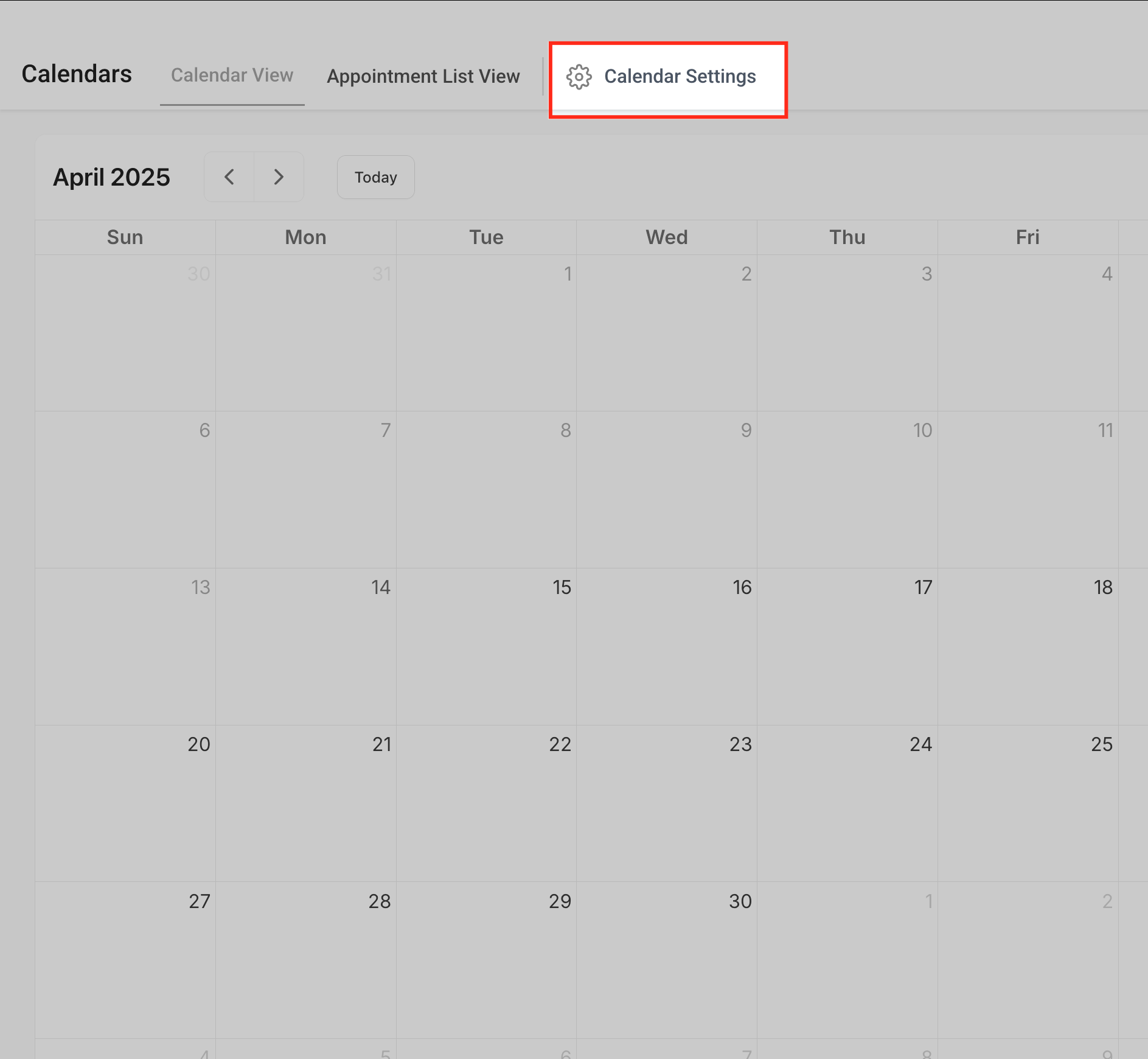
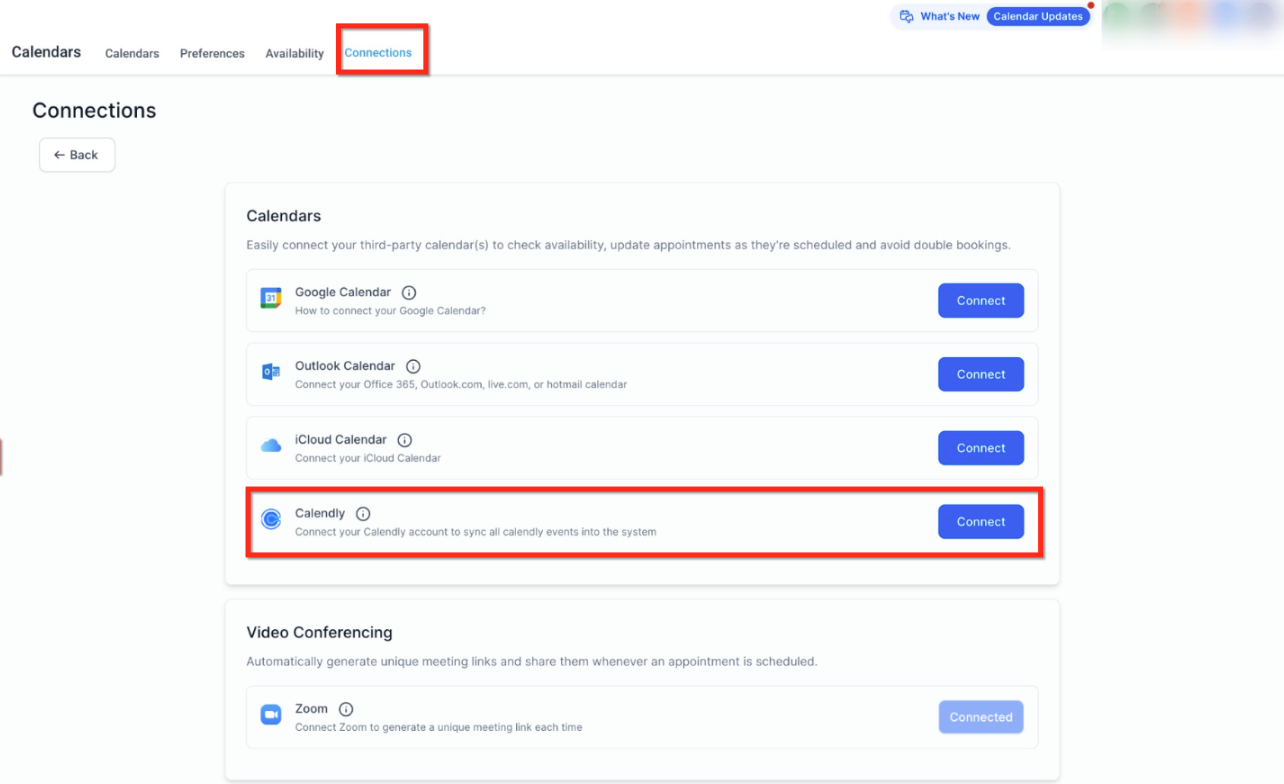
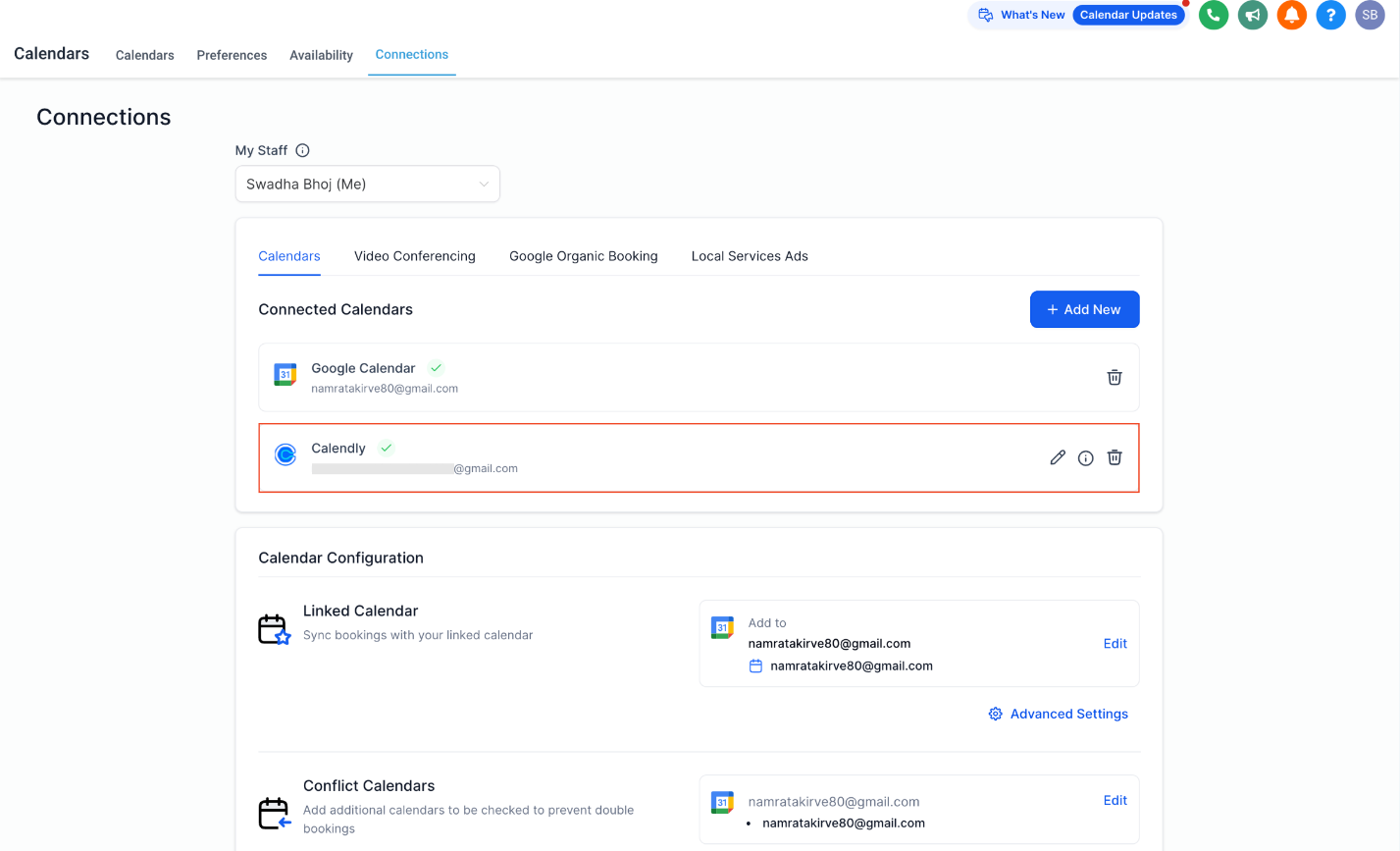
If your practice books some appointments through Calendly, you can connect that account to Aesthetix CRM so those bookings automatically appear as appointments and create patient contacts. The connection lives under Calendars > Calendar Settings > Connections, alongside your other synced calendars (Google, Outlook, iCloud, Zoom).
Calendly sync is a one-way import: events flow from Calendly into Aesthetix CRM, but nothing flows back. Any changes to an appointment (reschedules, cancellations, edits) must be made inside Calendly itself.
Once connected, Calendly becomes another feed into your calendar and contact database:
New Calendly bookings automatically import as appointments
Patient contacts are created from the guest details on each booking
Appointments are assigned to a team member based on calendar ownership
You can sync shared (round robin) or personal Calendly calendars
Workflows and automations can trigger off these new bookings, the same as any other appointment
Because Calendly appointments are not booked through a native Aesthetix CRM calendar, AI-driven appointment booking (AI Employee) does not work against Calendly-synced calendars. If you want AI to handle booking automatically, use a native Service Calendar instead and reserve Calendly for calendars you manage manually or for team members who prefer working inside Calendly directly.
Synced | Not Synced |
|---|---|
Event date and time | Cancelled or rescheduled events (changes made in Calendly do not update the appointment in Aesthetix CRM) |
Guest name and email | Historical events created before the integration was connected |
Appointment title | Attachments or notes |
Source (tagged as "Calendly") | Custom Q&A fields beyond phone number |
The Calendly calendar the event belongs to | |
Phone number, when available from the meeting location or a form field |
You'll need an active Calendly account (see plan requirements below) and at least one calendar you're part of. Only events on the calendar(s) you select will sync.
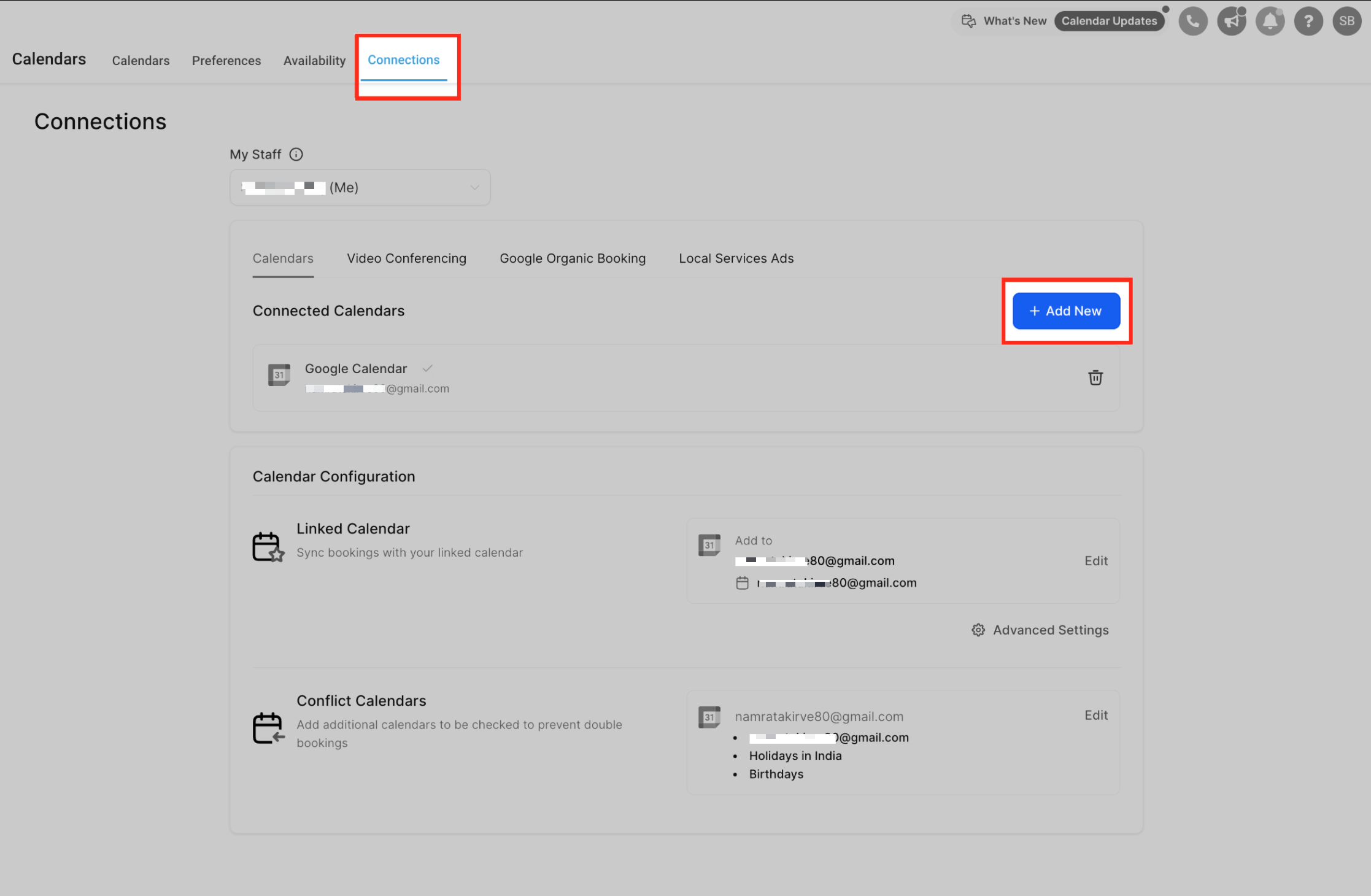
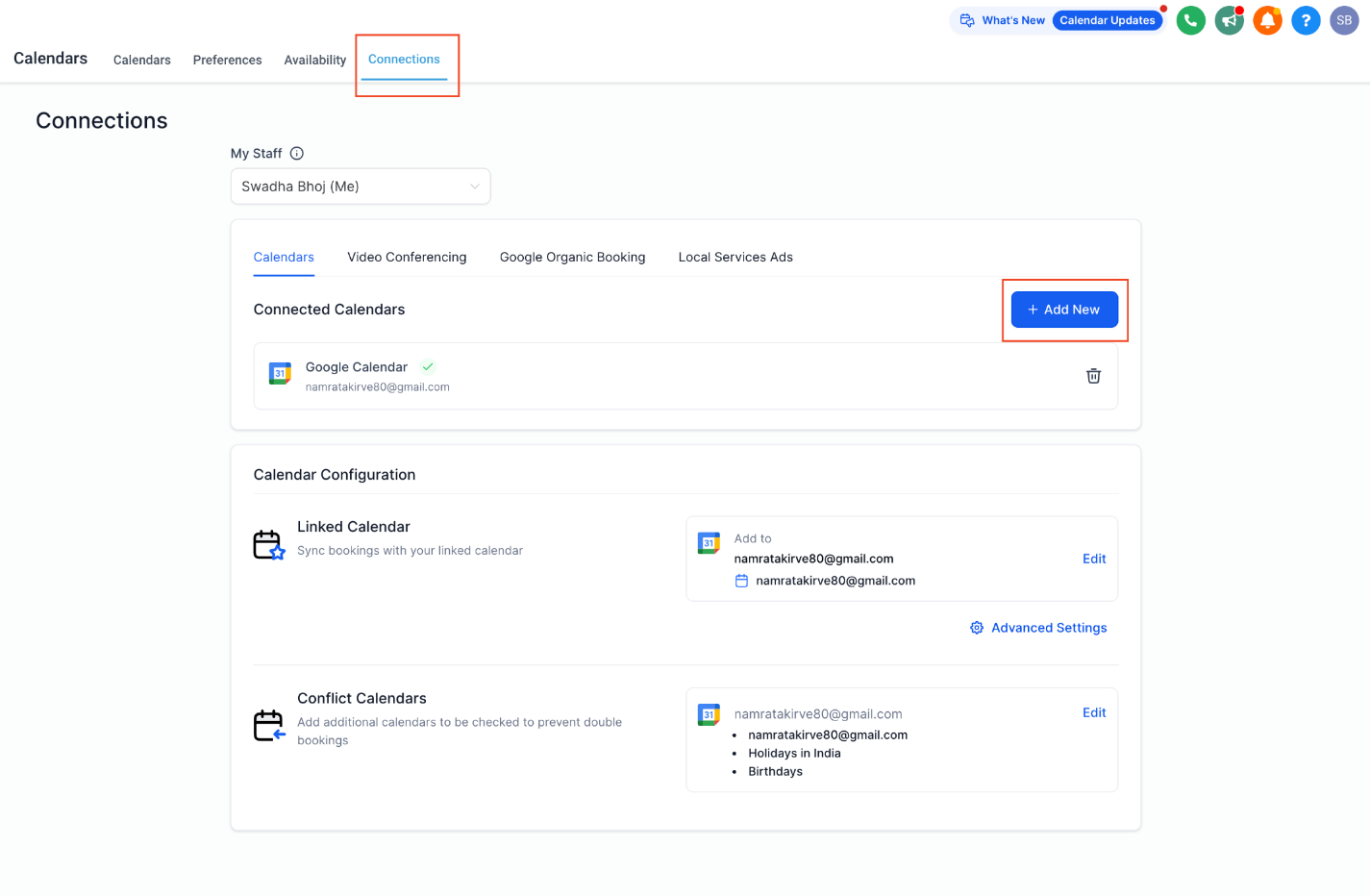
Go to Calendars > Calendar Settings, then open the Connections tab.
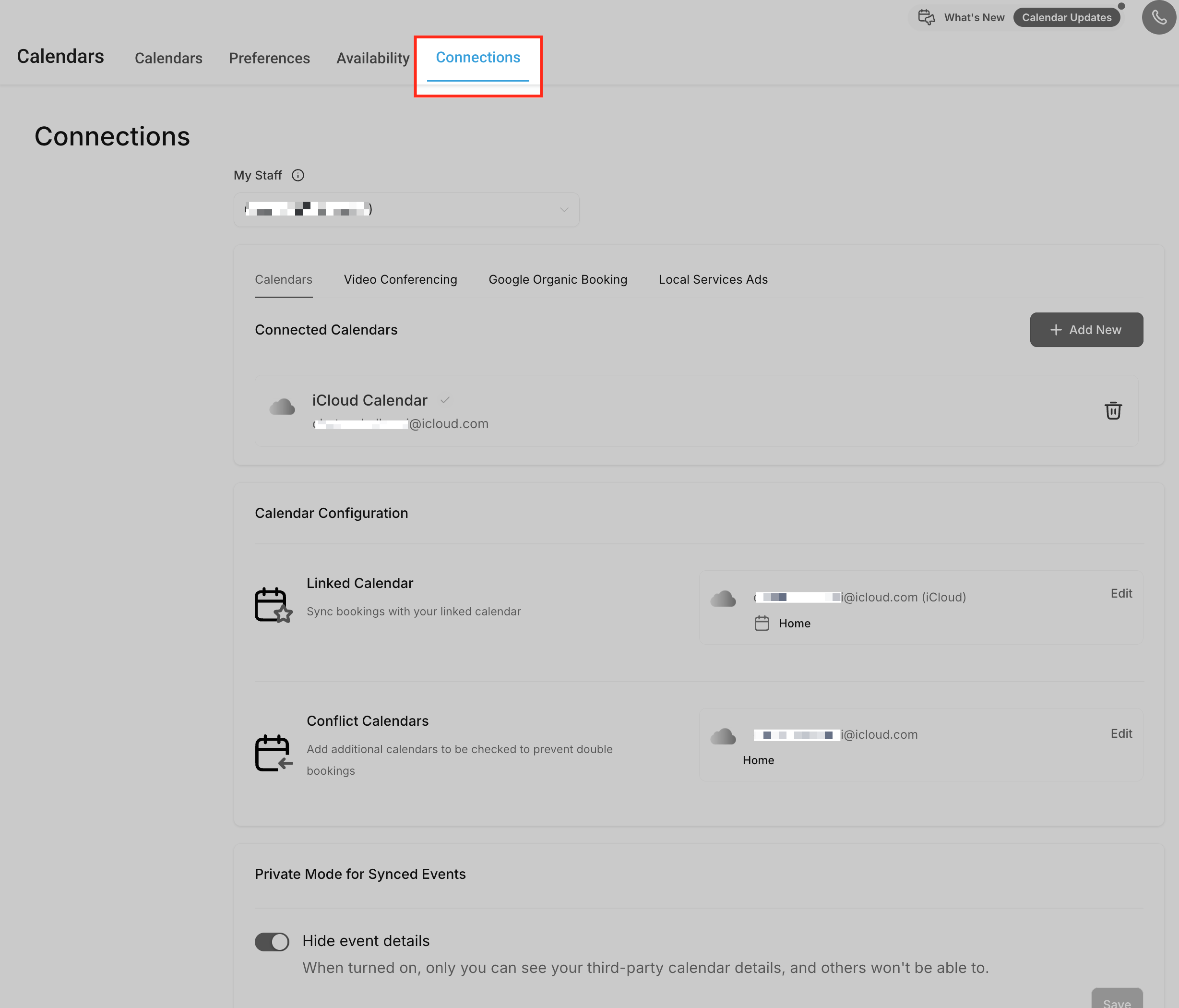
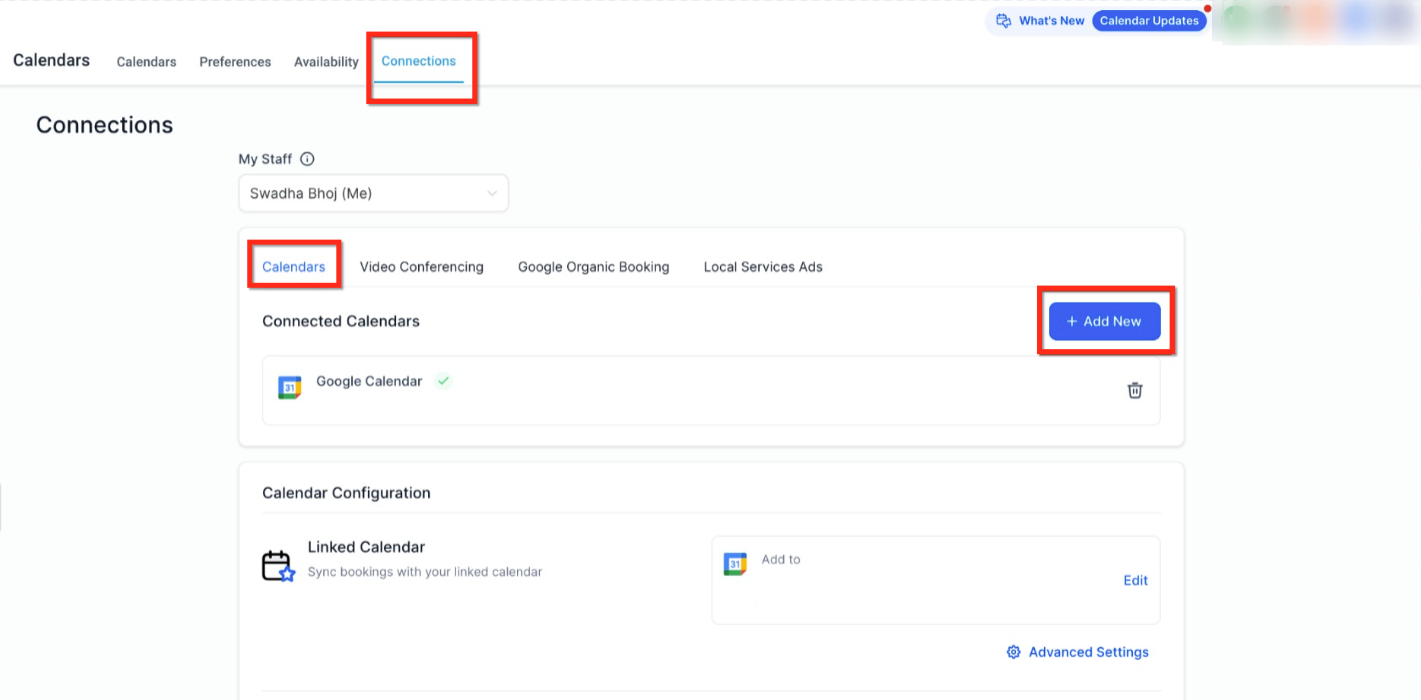
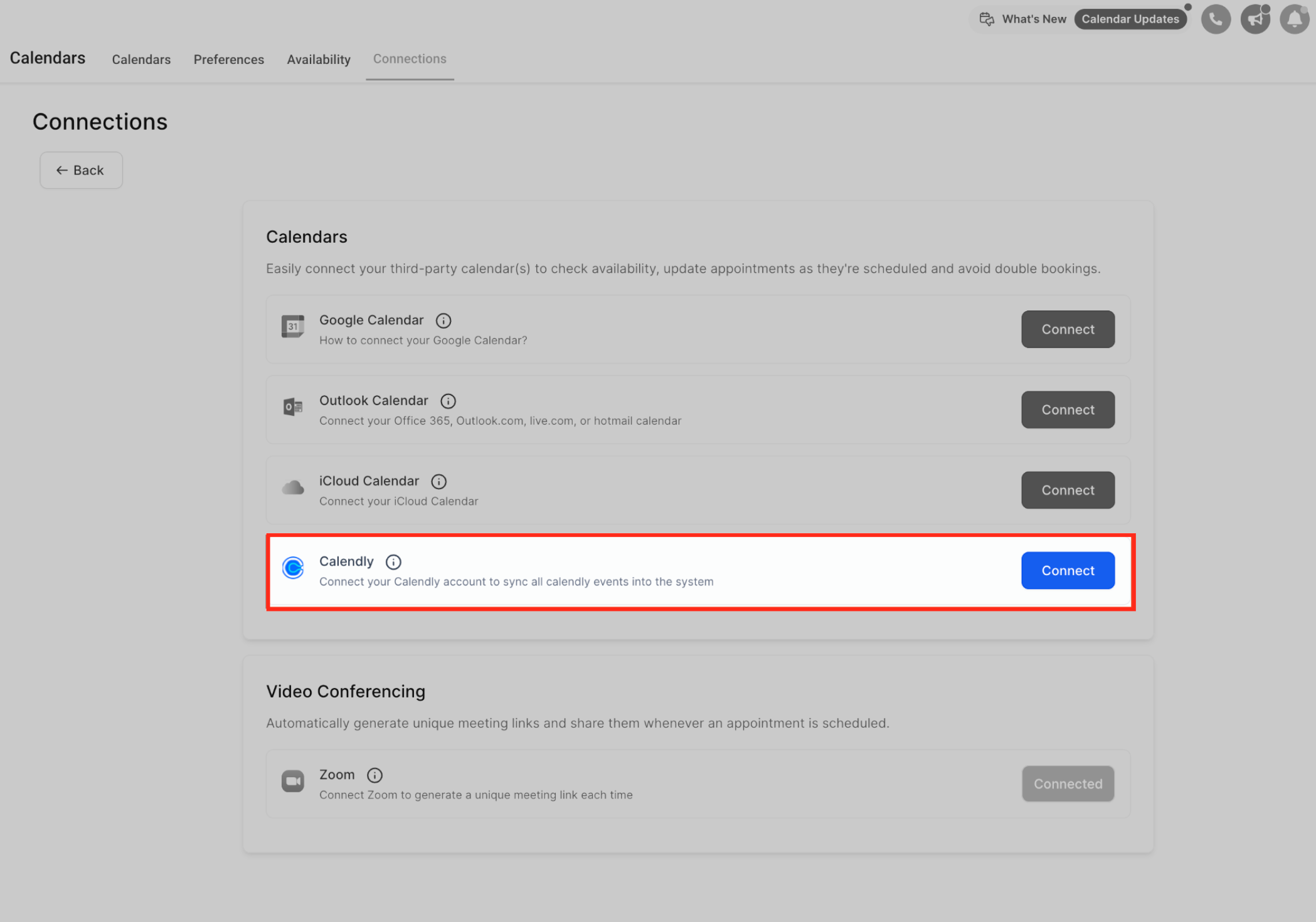
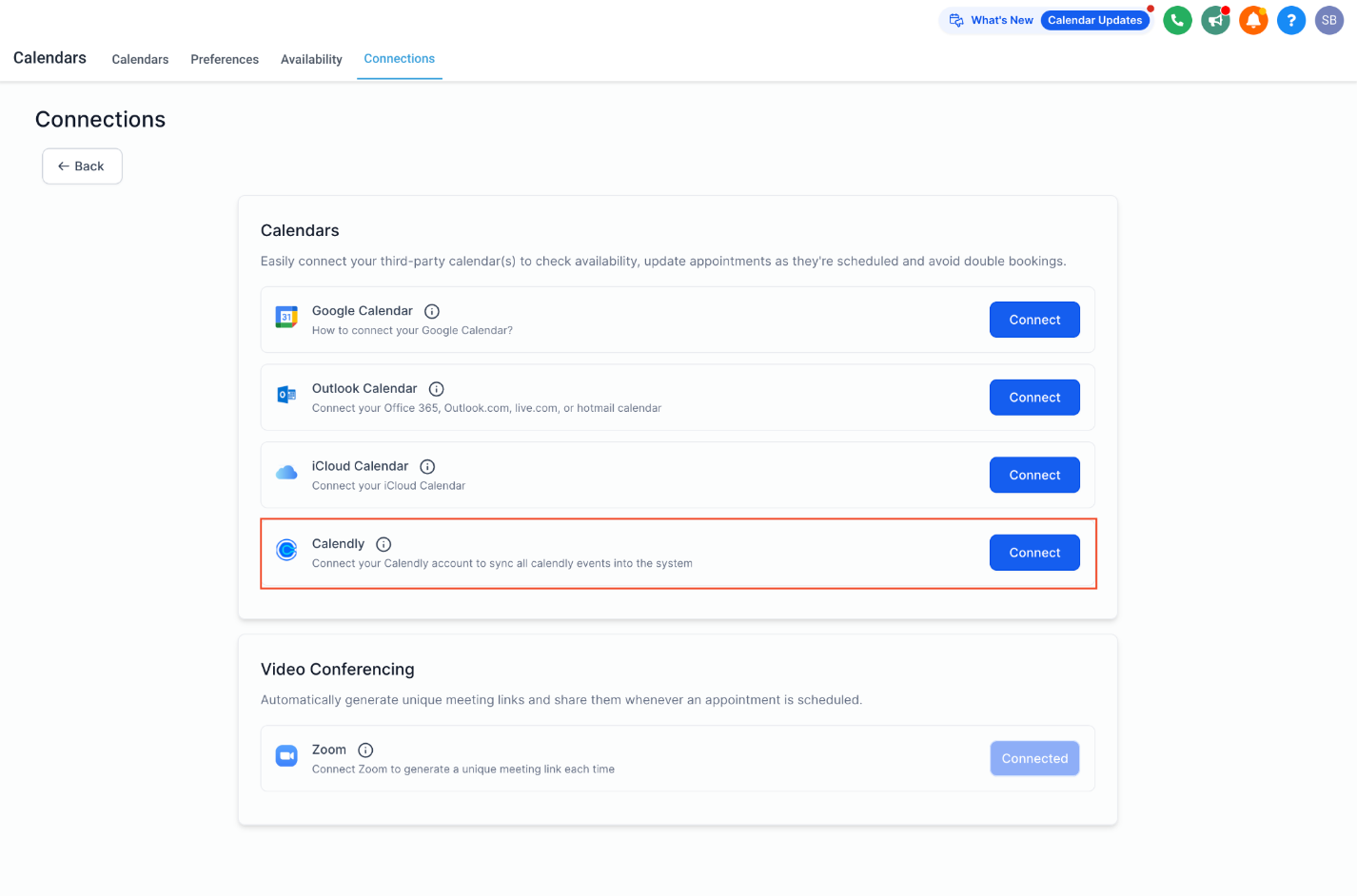
Click + Add New, then find Calendly in the list of calendar providers and click Connect.
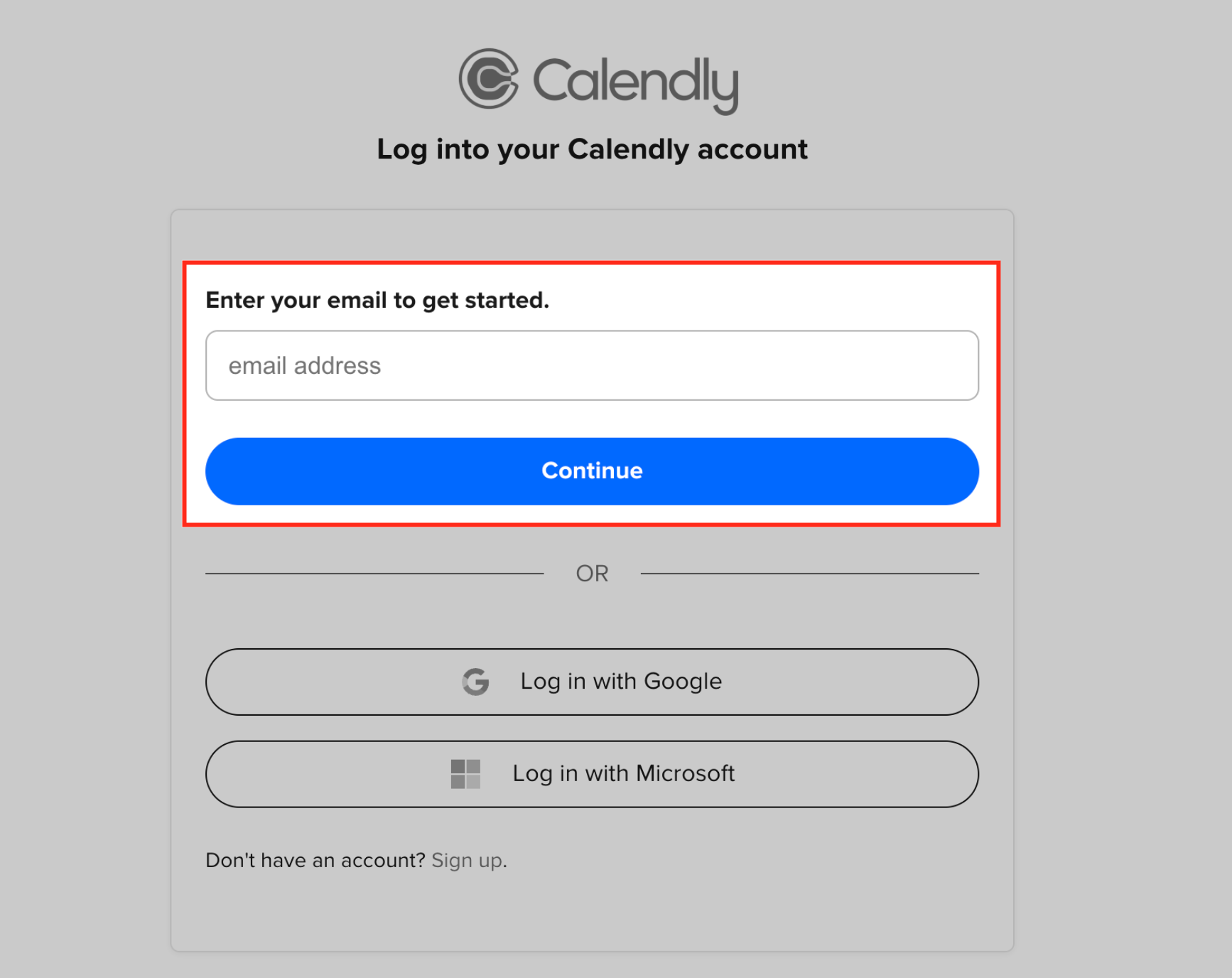
Log into Calendly and grant access. Enter the email tied to your Calendly account (or sign in with Google or Microsoft, if linked) and click Continue.
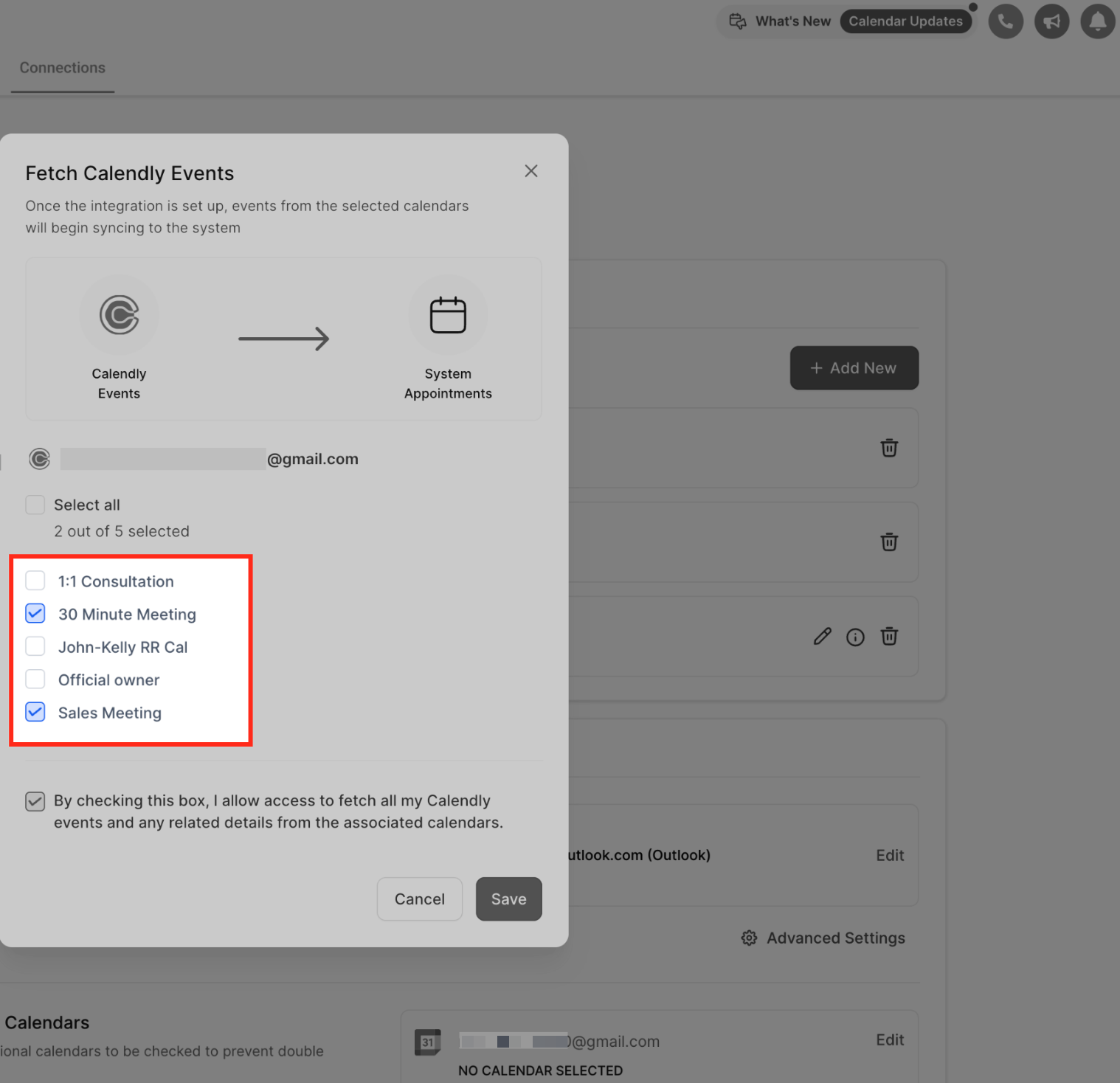
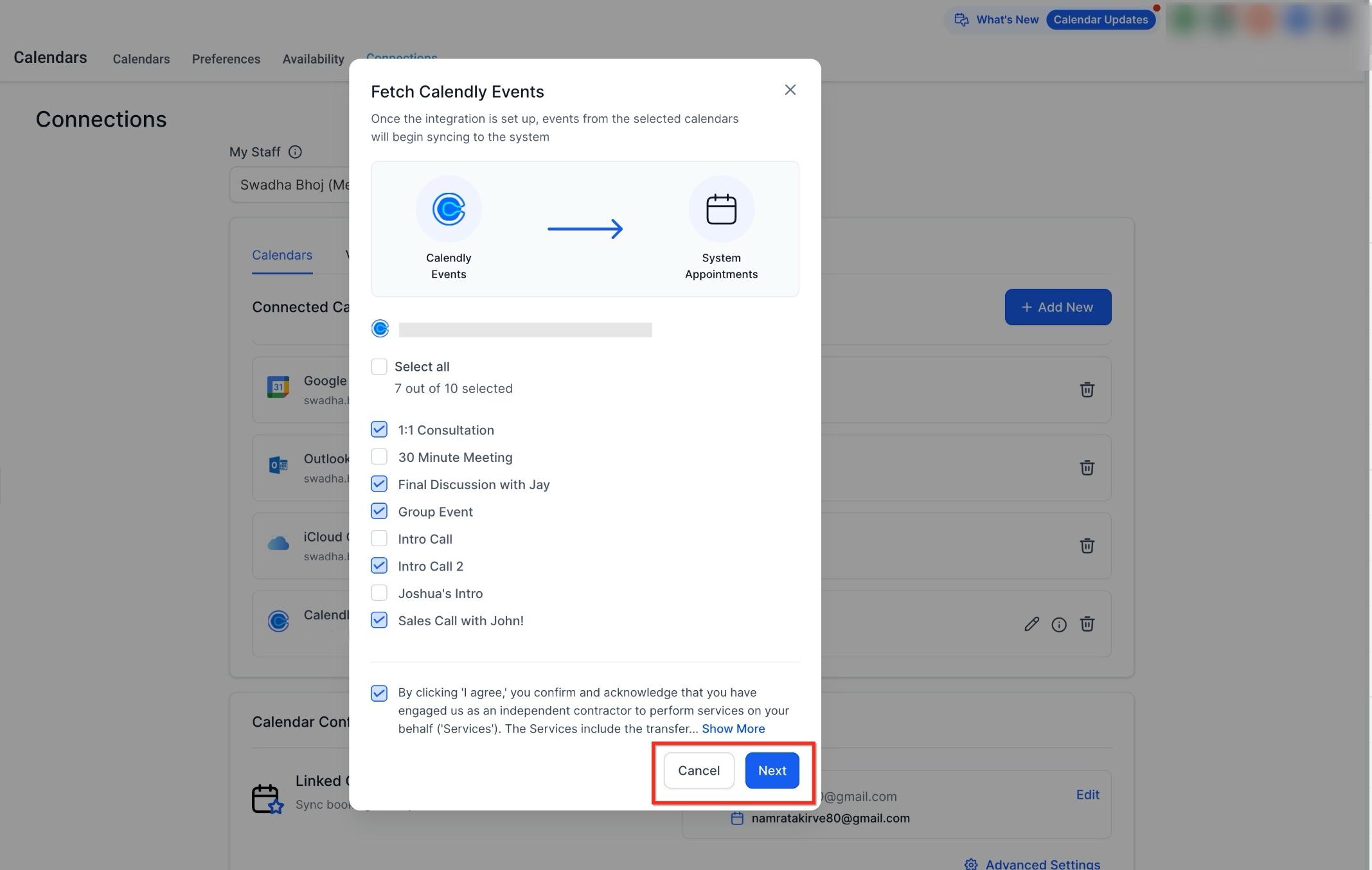
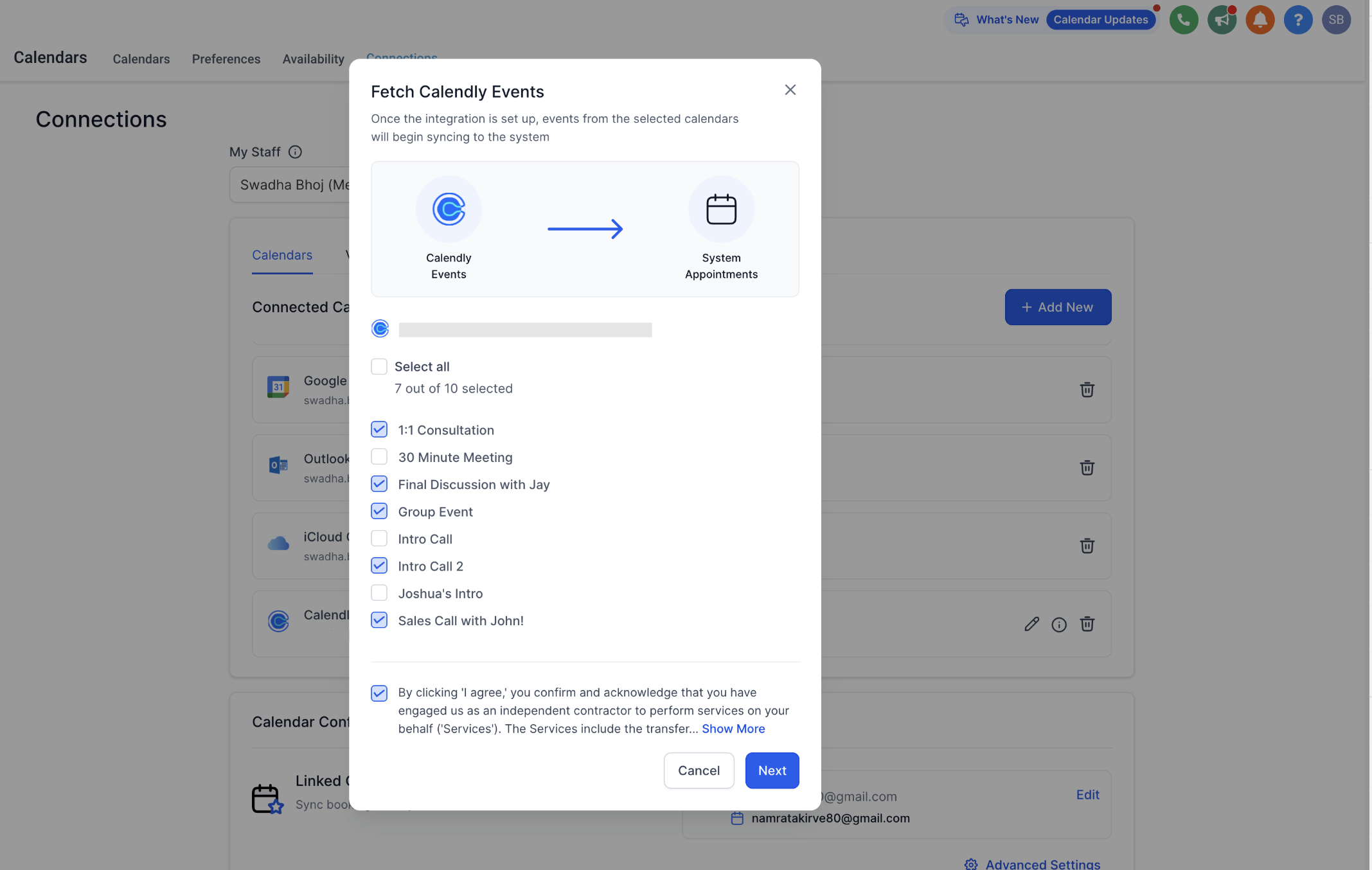
Choose which Calendly calendar(s) you want to sync. Only events from the calendars you select here will pull in as appointments.
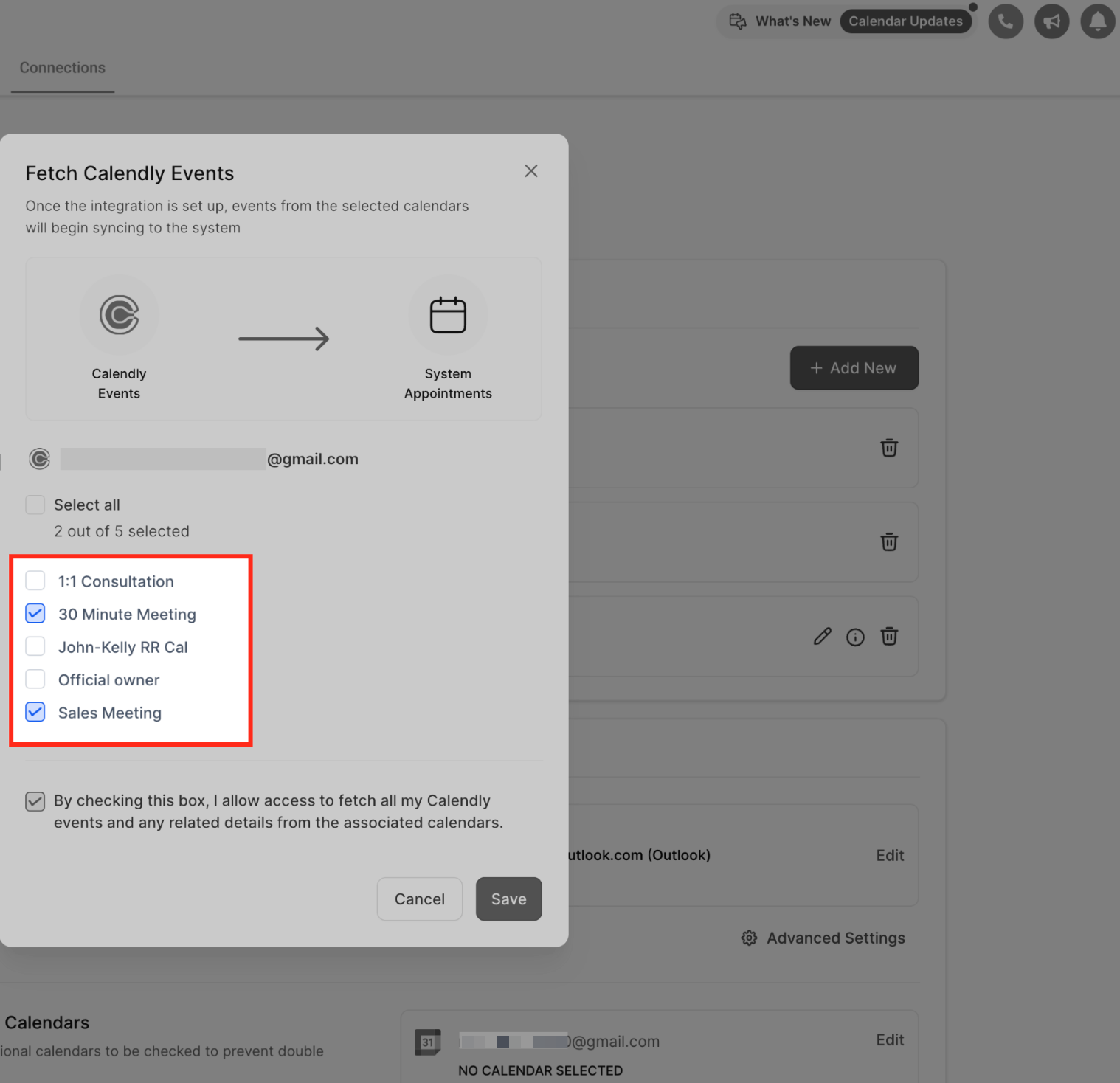
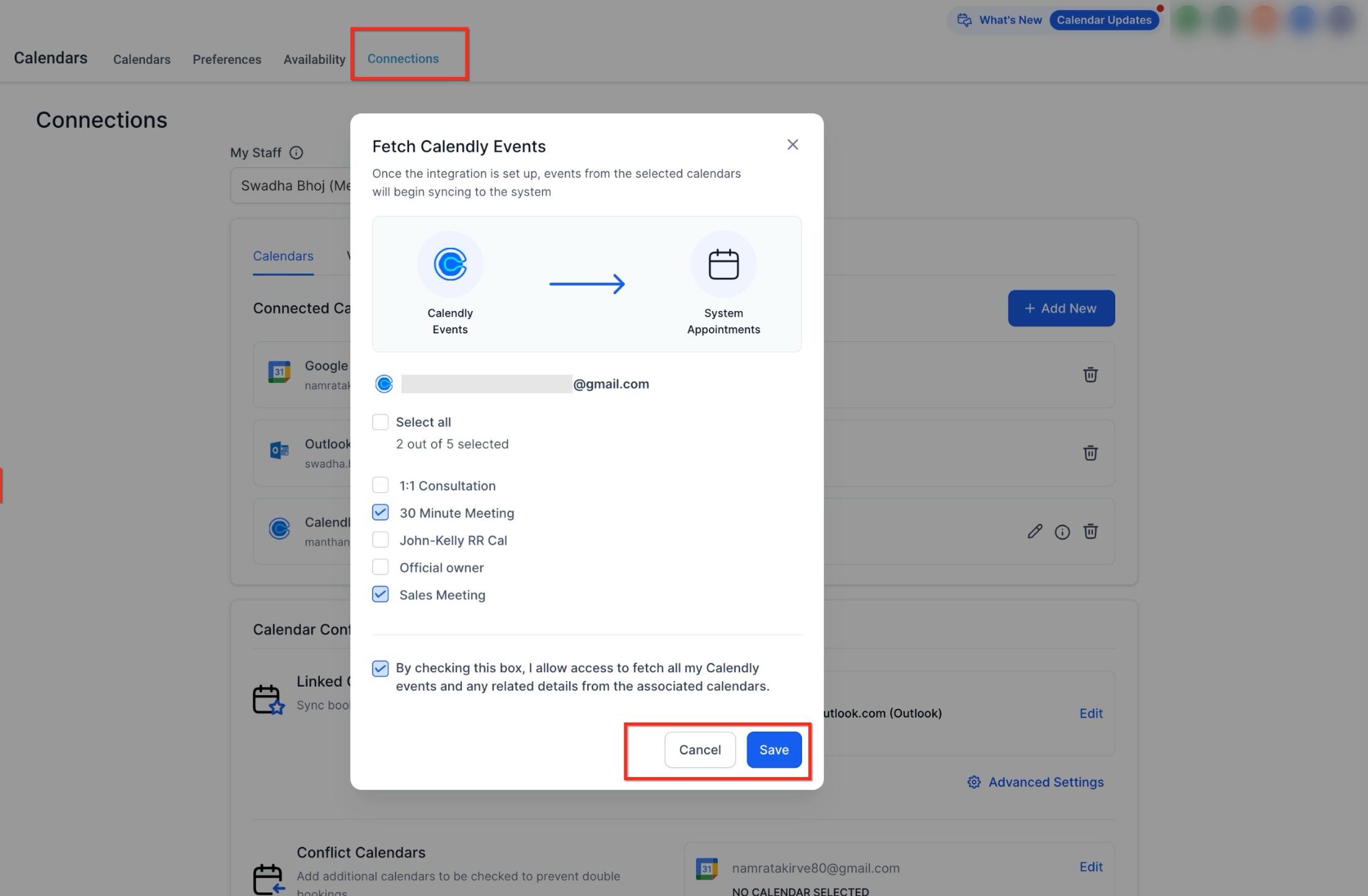
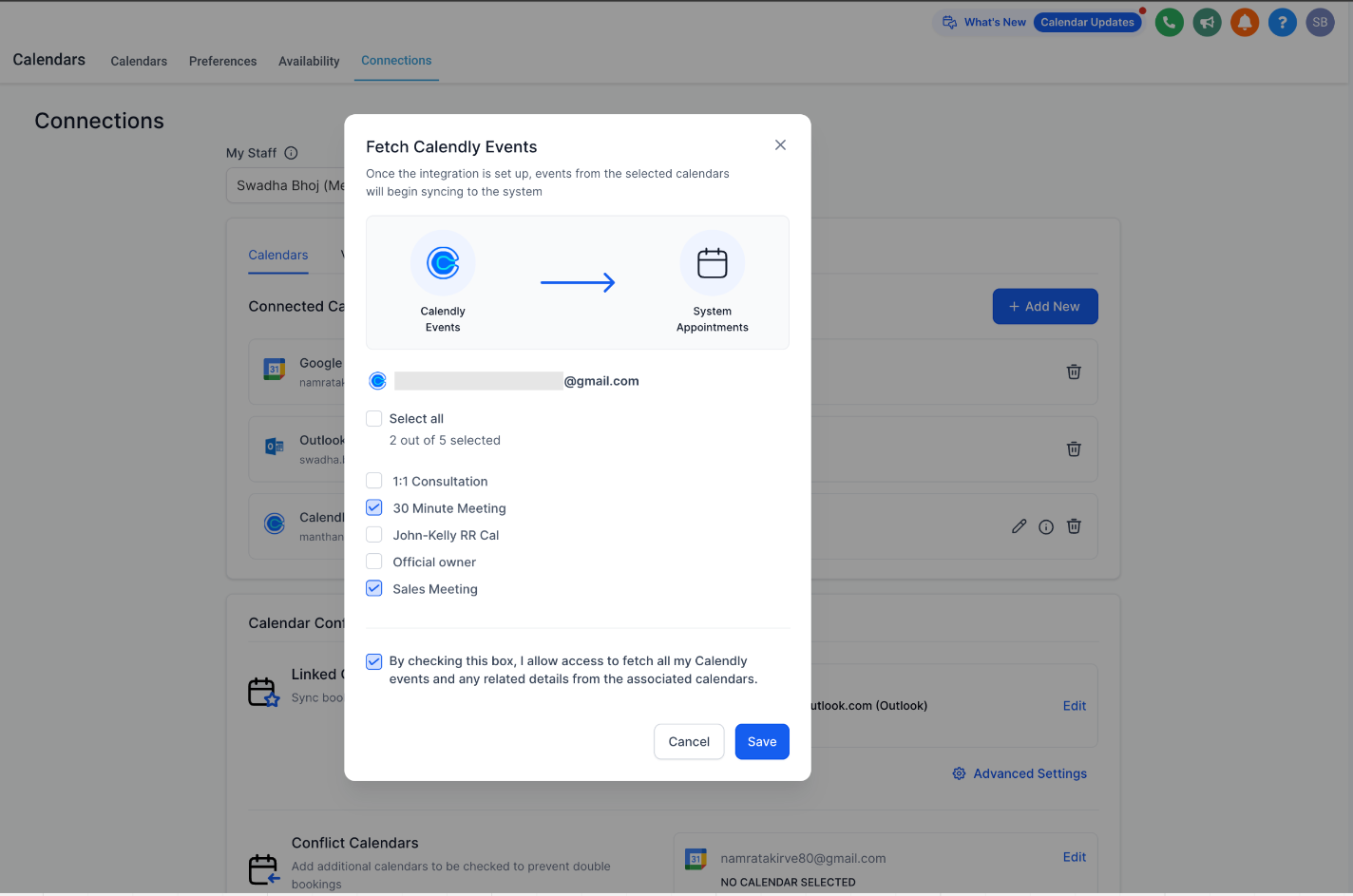
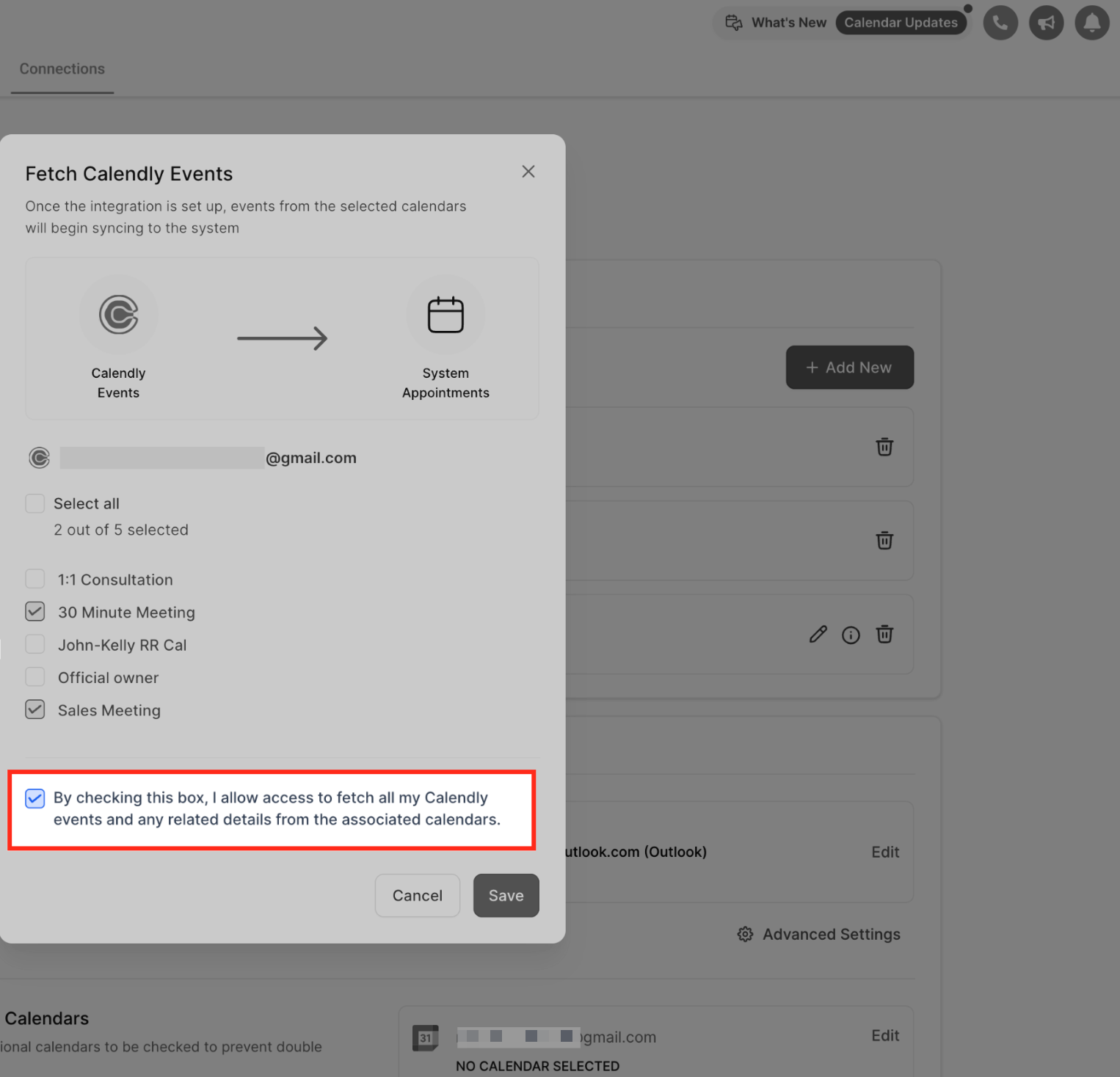
Check the consent box to allow Aesthetix CRM to fetch your Calendly events and click Save.
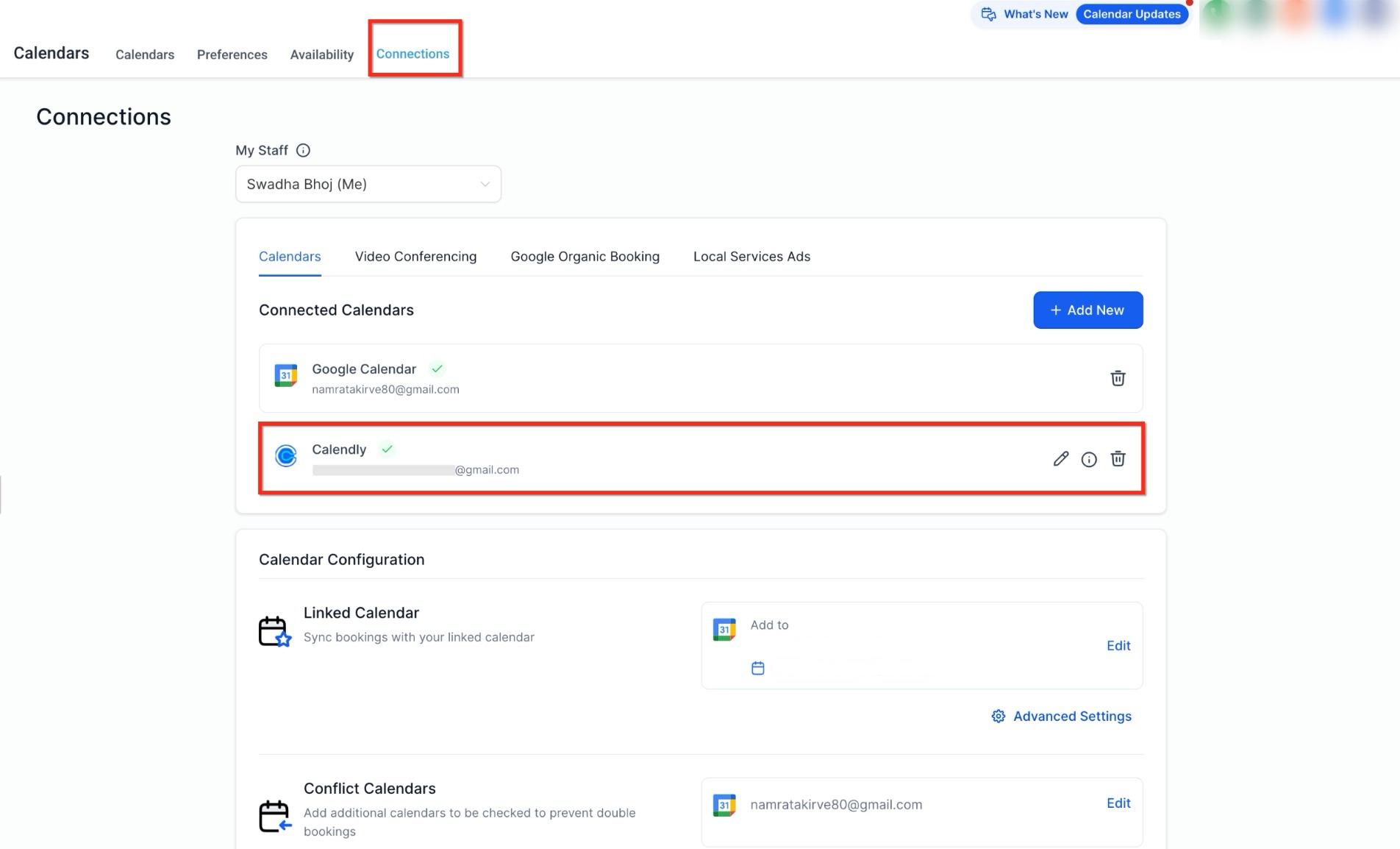
We automatically import both upcoming events and any past events created within the last 180 days at the time you connect your Calendly account. After that, only new events going forward will sync.
Workflows and automations only trigger for future events going forward. Past events pulled in during that initial 180-day import do not trigger workflows, even though they appear as appointments.
One-way only. Events created in Aesthetix CRM never show up in Calendly, and events pulled in from Calendly can't be edited from inside Aesthetix CRM. Any correction has to be made in Calendly.
New events only. Syncing begins the moment the integration is connected and a calendar is selected. Events created before that point are not imported.
Real time. New Calendly bookings appear in Aesthetix CRM in real time or near real time.
Contacts. Every synced Calendly event is treated as a full appointment, not a blocked time slot. If the event has a guest, a patient contact is created automatically from their name and email (or matched to an existing contact).
Appointment ownership. For a personal Calendly calendar, the team member who connected that Calendly account owns the appointment. For a shared calendar (like a round robin), the appointment owner is assigned randomly from among the connected team members.
Contact assignment. A patient's Assigned User field updates to match the owner of their most recent appointment, so follow-up tasks and automations route to the right team member.
Deselecting and reselecting a calendar. If you remove a calendar from the sync, new events from it stop coming in. If you reselect it later, only new events going forward sync again (both upcoming and any created within the prior 180 days at the moment of reconnecting); anything booked while it was disconnected in between is not backfilled.
Workflow triggers. Only future events trigger workflows and automations. Past events imported during the initial (or a reconnect) 180-day lookback do not fire workflows, even though they show up as appointments.
Because Calendly appointments carry patient identifying details (name, email, phone), treat synced guest information the same way you treat any other appointment data that touches PHI: keep access to Calendly connections limited to the team members who need it.
Aesthetix CRM can pull a guest's phone number from Calendly in a couple of ways, depending on how the event type is set up:
Automatic sync from the meeting location. If the guest's phone number is entered in the Calendly meeting location field and the Calendly form has no separate phone question, Aesthetix CRM syncs that number to the contact automatically.
Mapping choice when a form phone field exists. If the Calendly booking form includes a phone number question (Q&A), you'll see a mapping screen where you choose the source: a form field value, the meeting location phone (if present), or Do not sync.
No phone source. If the selected Calendly event type has no phone field at all (neither location nor form), the phone sync step is skipped with no prompt.
Shared calendars. If any team member updates the phone sync setting on a shared calendar, that change applies to every user linked to it.
Your preferences change, or a new team calendar gets added. You can update the sync selection at any time.
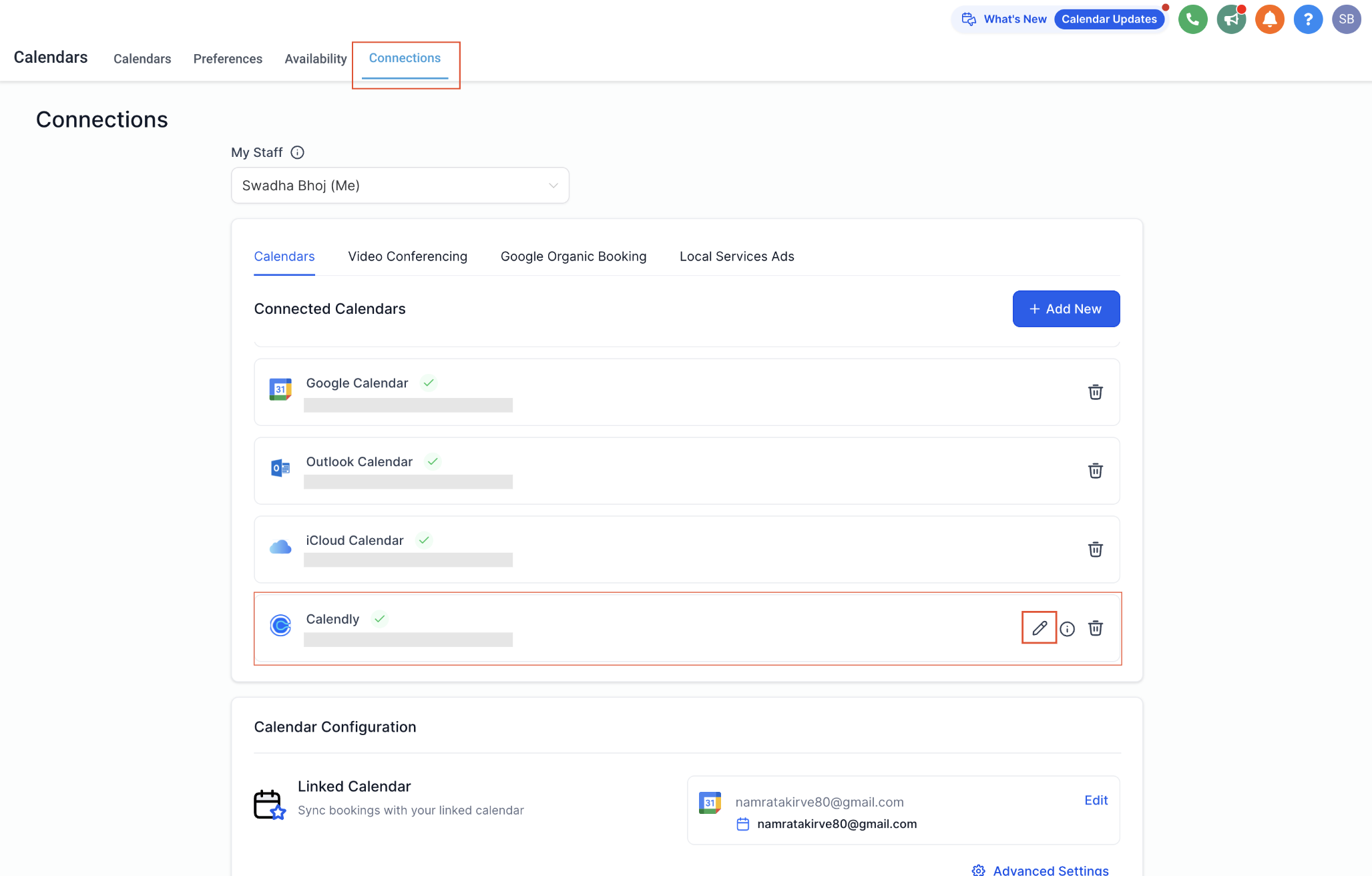
Go to Calendars > Calendar Settings > Connections, find your Calendly integration, and click the pencil (edit) icon.
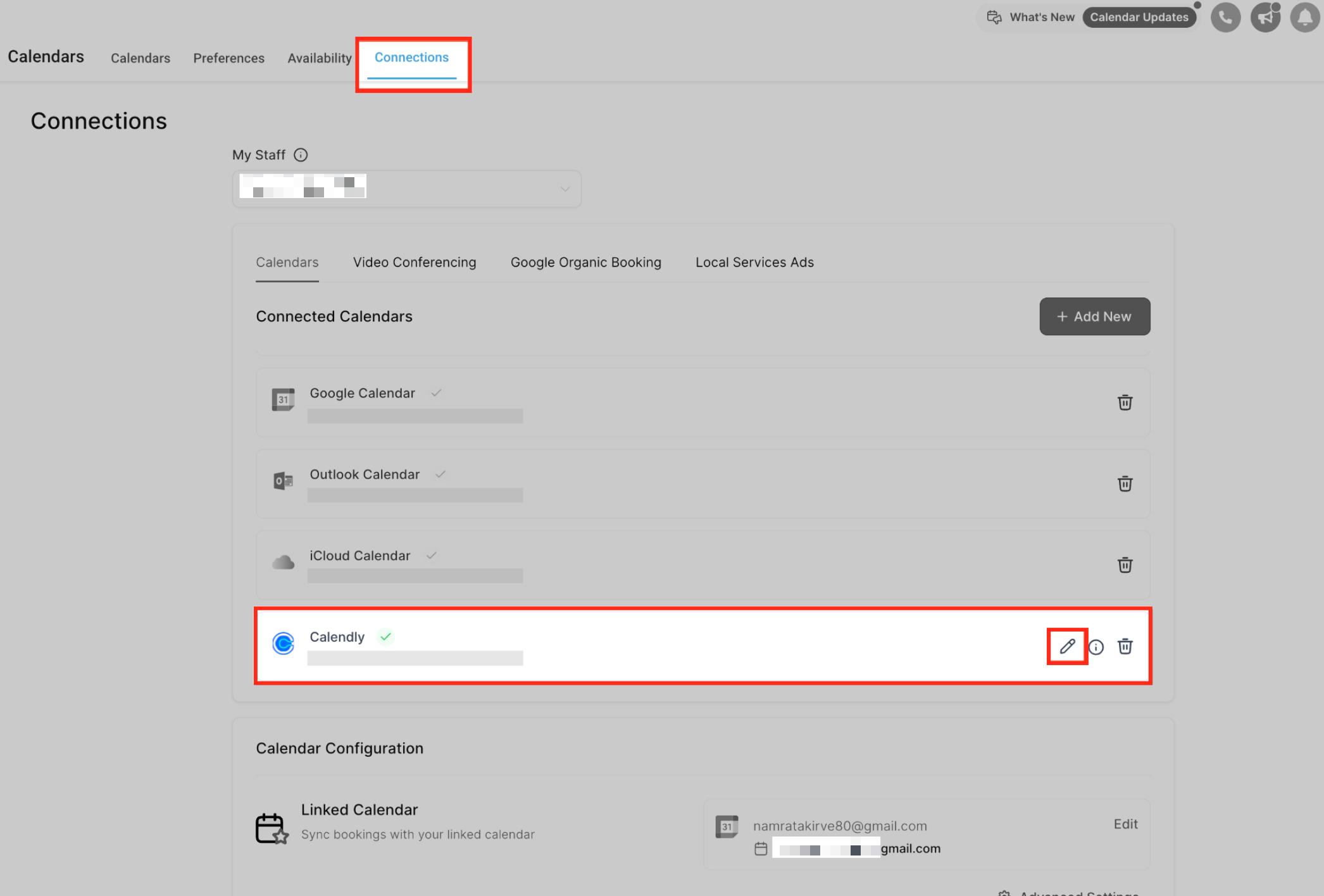
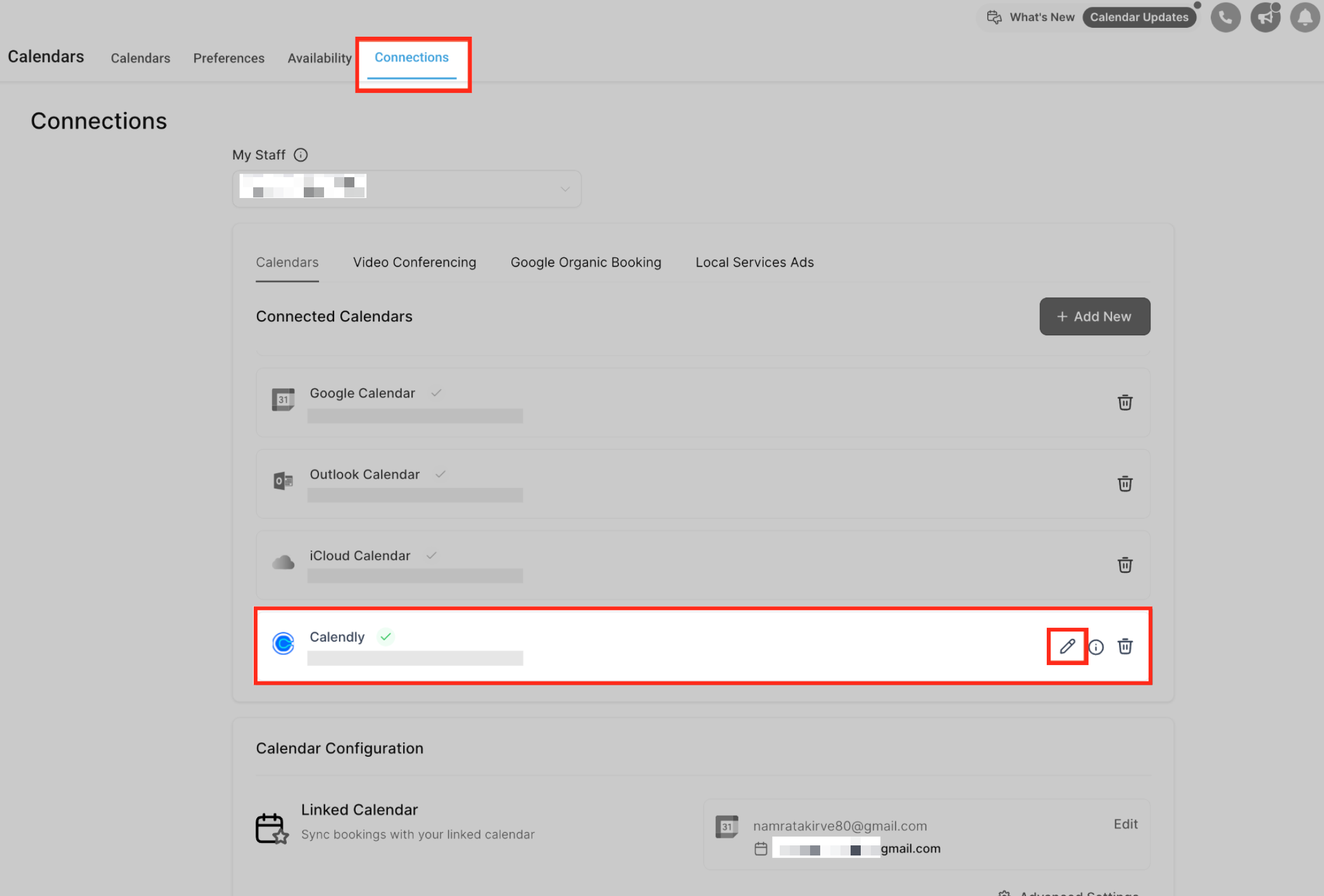
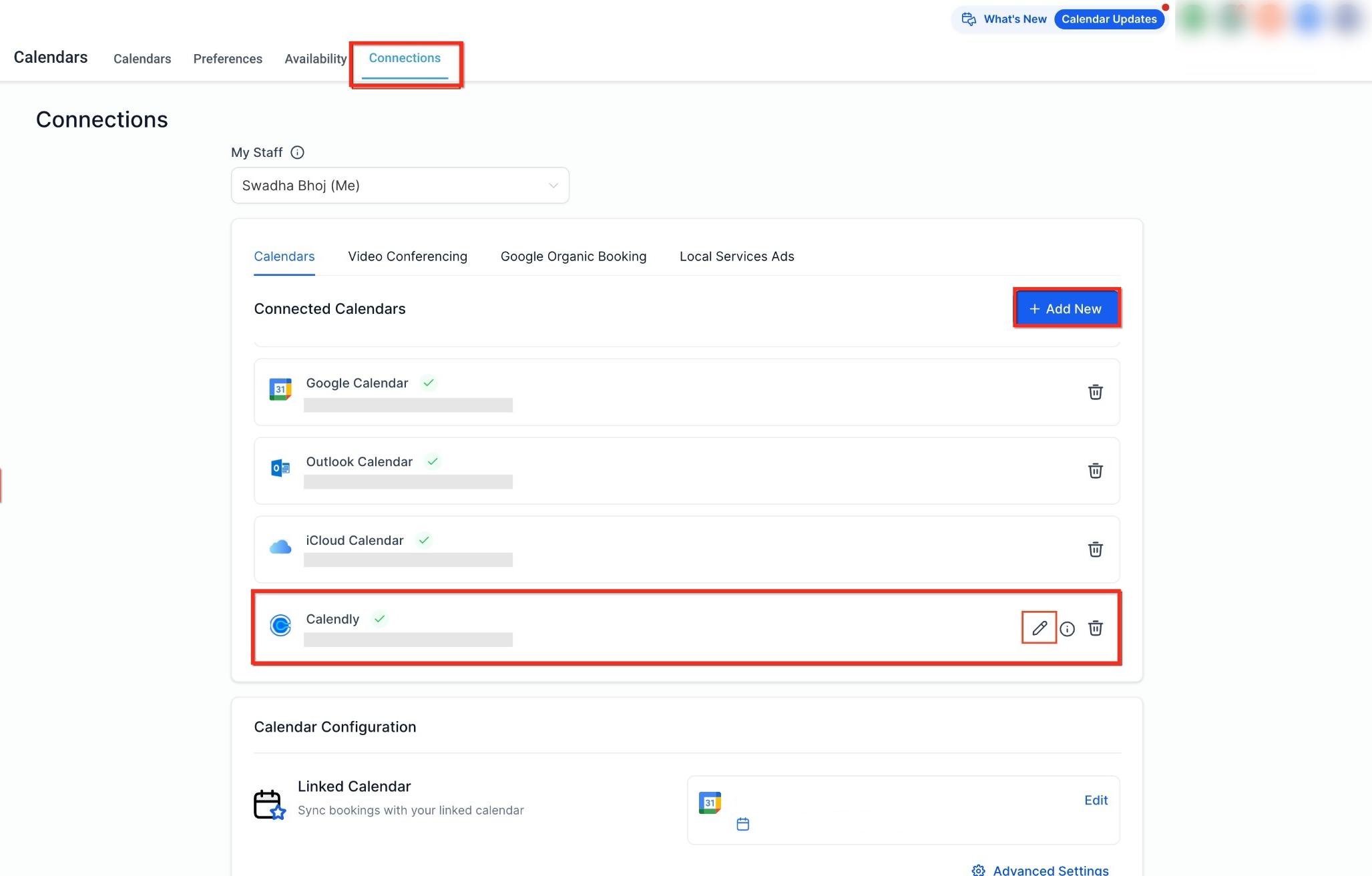
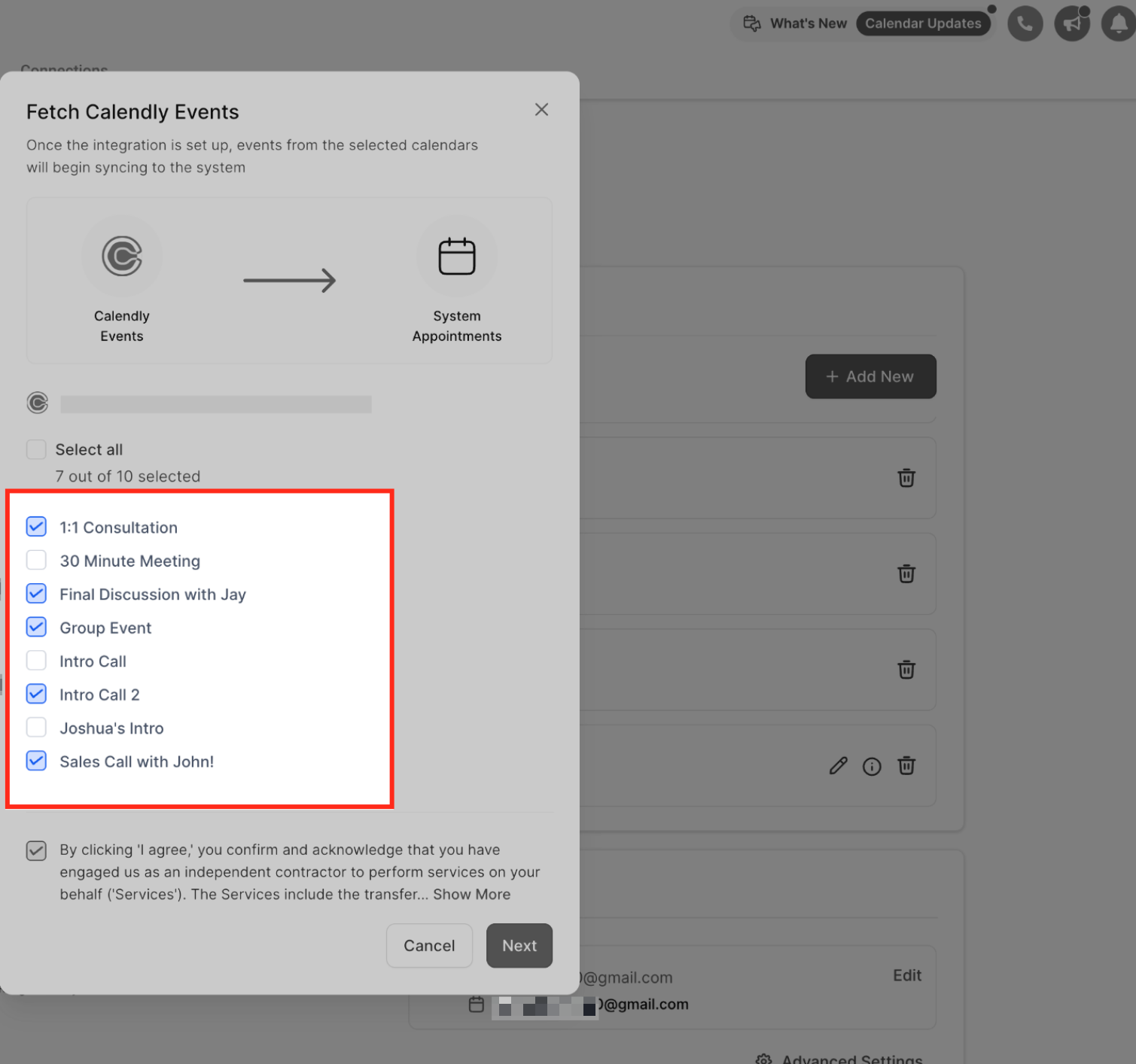
Check or uncheck the calendars you want synced, then save. Only the calendars selected here continue syncing going forward.
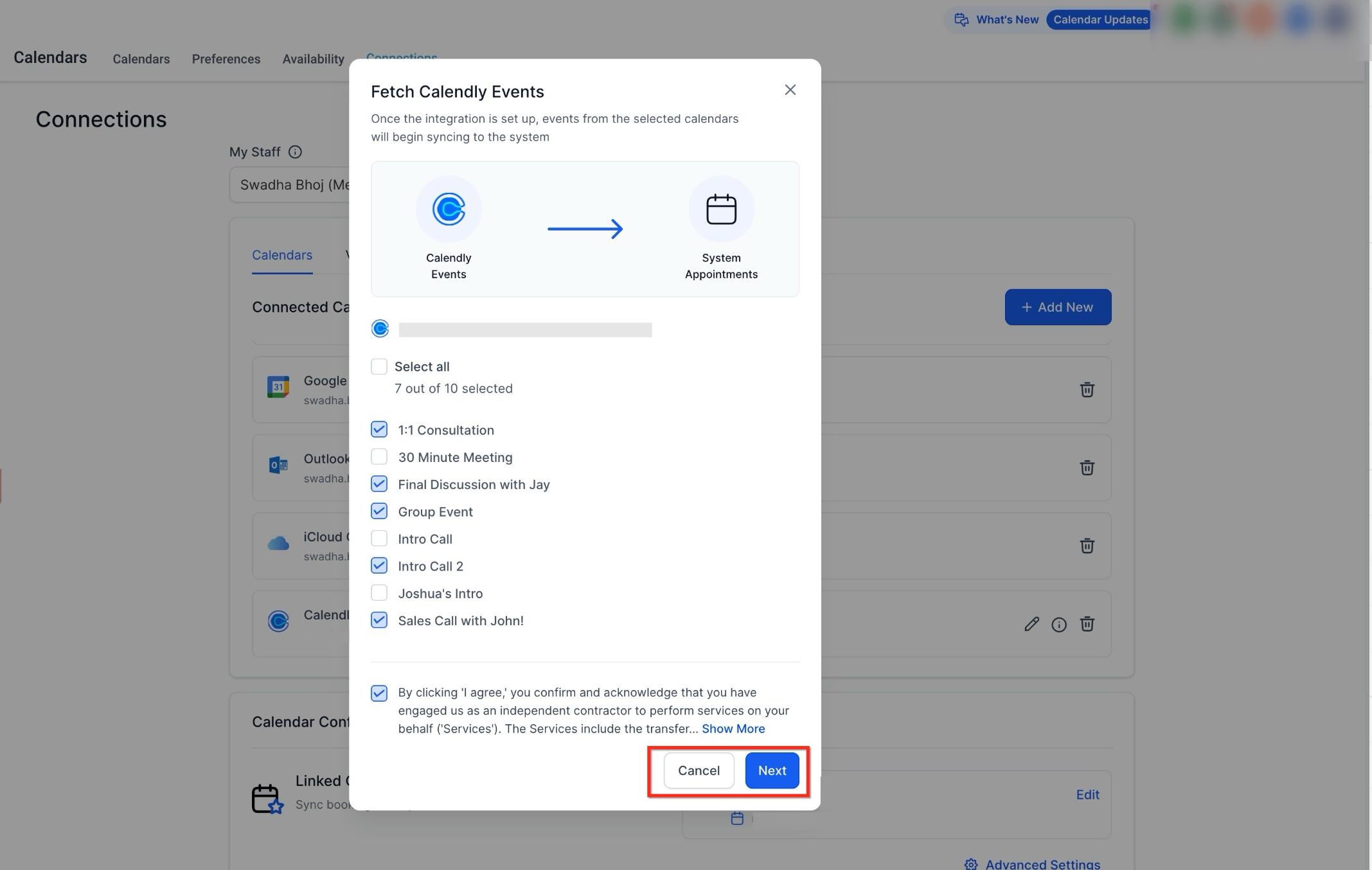
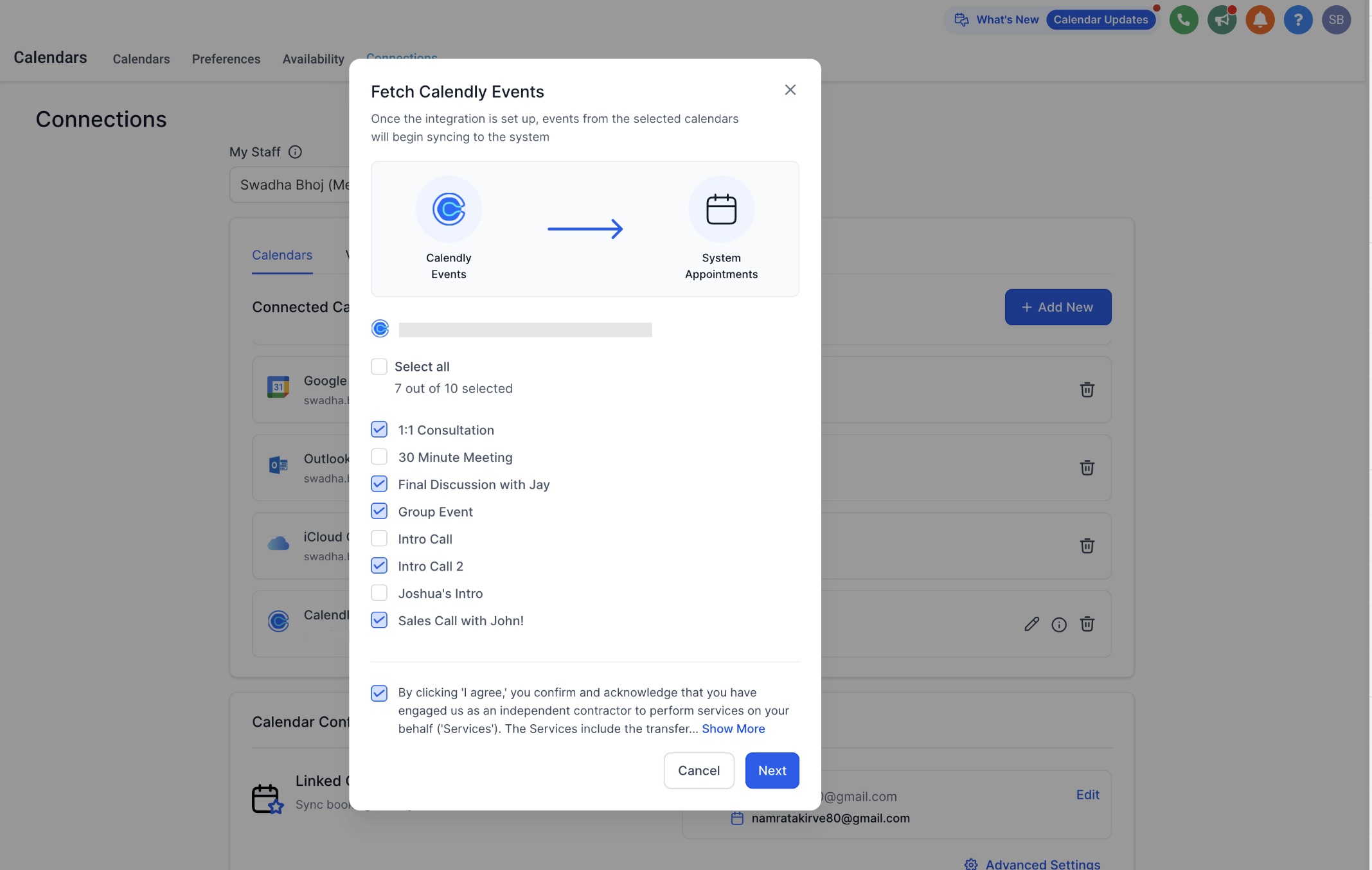
Events from a newly added calendar only begin syncing from the moment you save the change. No historical events are pulled in retroactively.
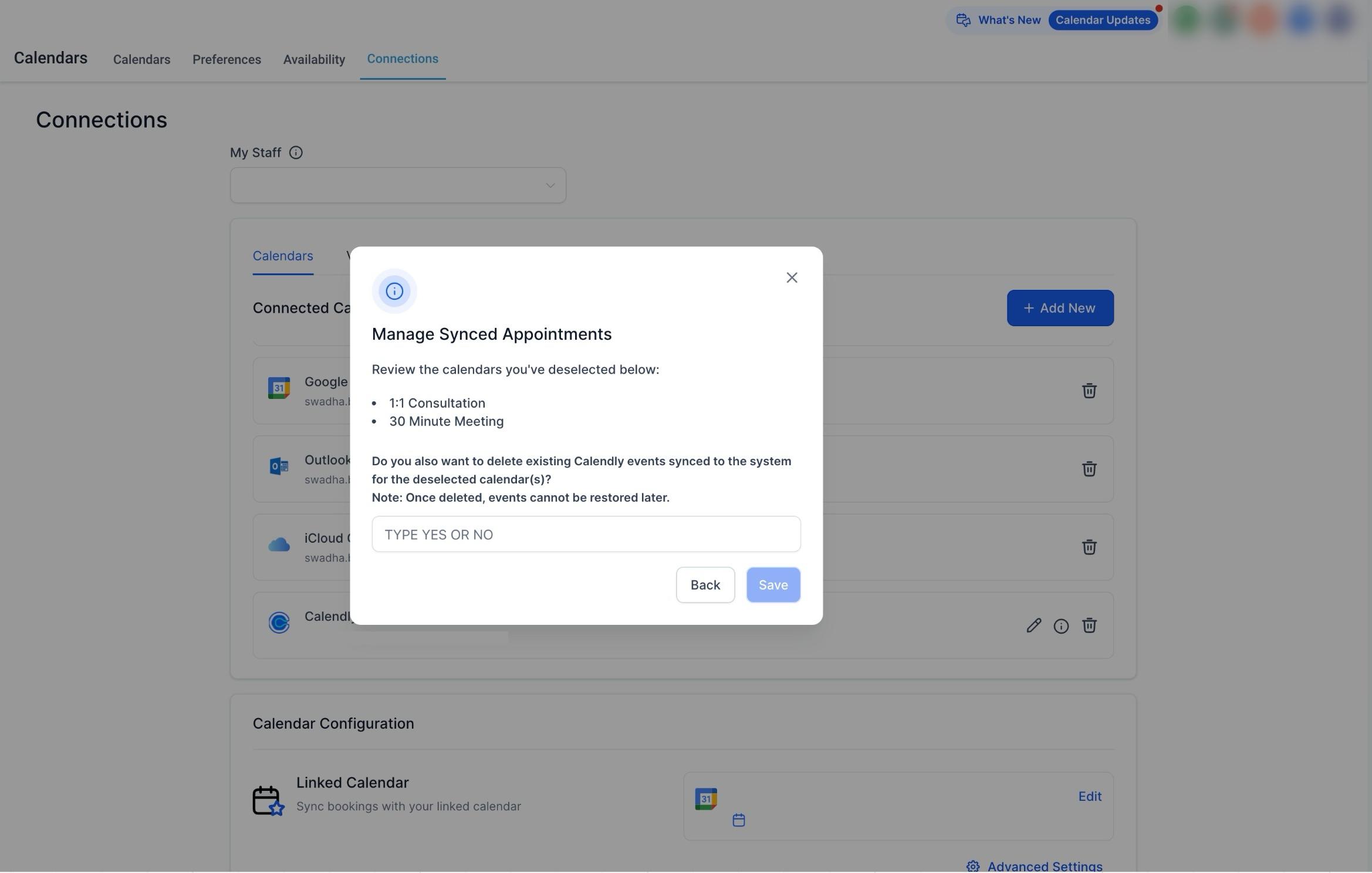
When you deselect a calendar or remove the Calendly integration entirely, you'll be prompted to choose whether to also delete the appointments that were already synced from it.
Deleting events from a single calendar
Deselect the calendar and choose whether to delete its previously synced events.
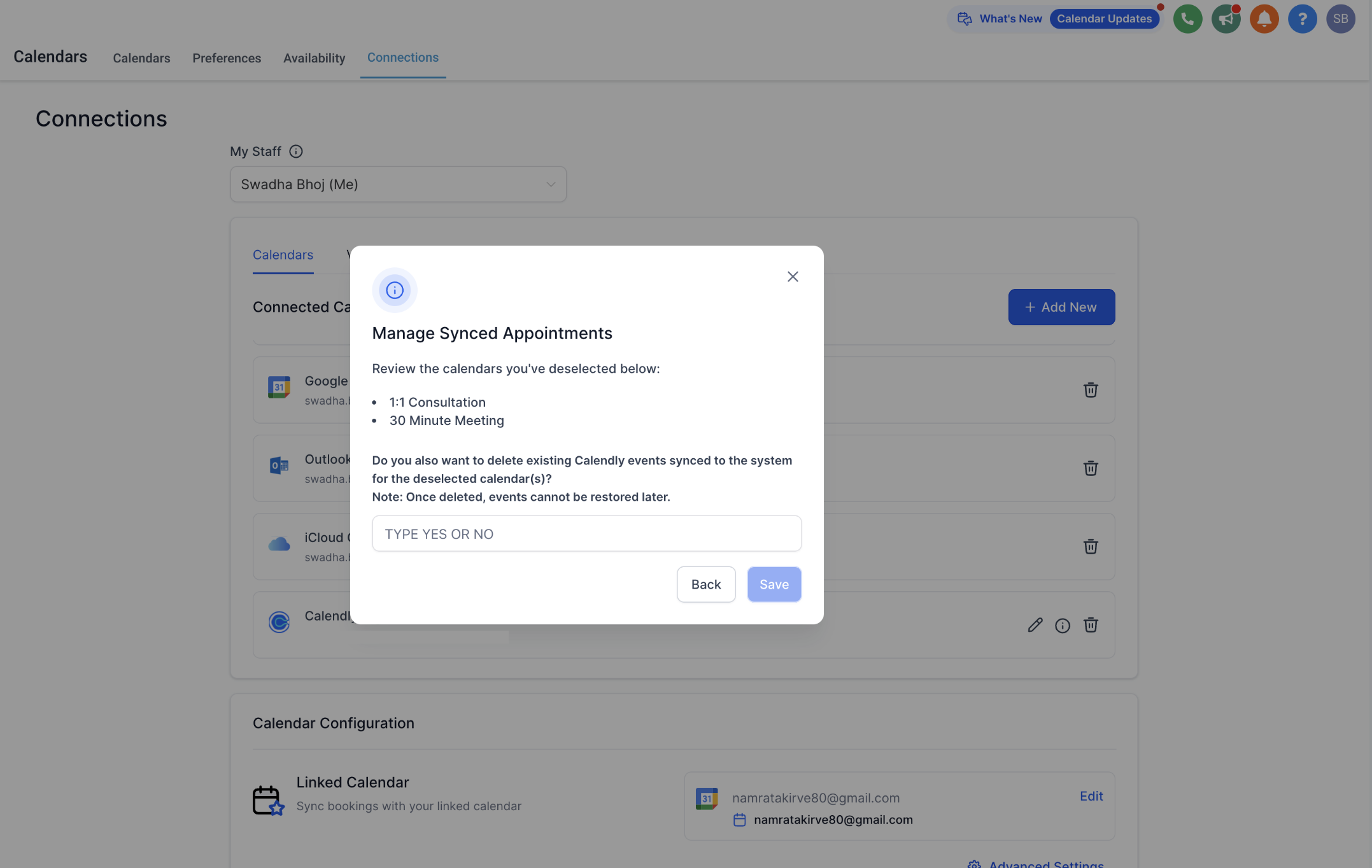
Deleted events cannot be restored. On a shared calendar, events are only removed once every connected team member on that calendar chooses to delete them; if even one keeps the calendar connected, the shared events stay visible.
Disconnecting Calendly completely
Remove the integration and choose whether to delete all synced events across every connected calendar.
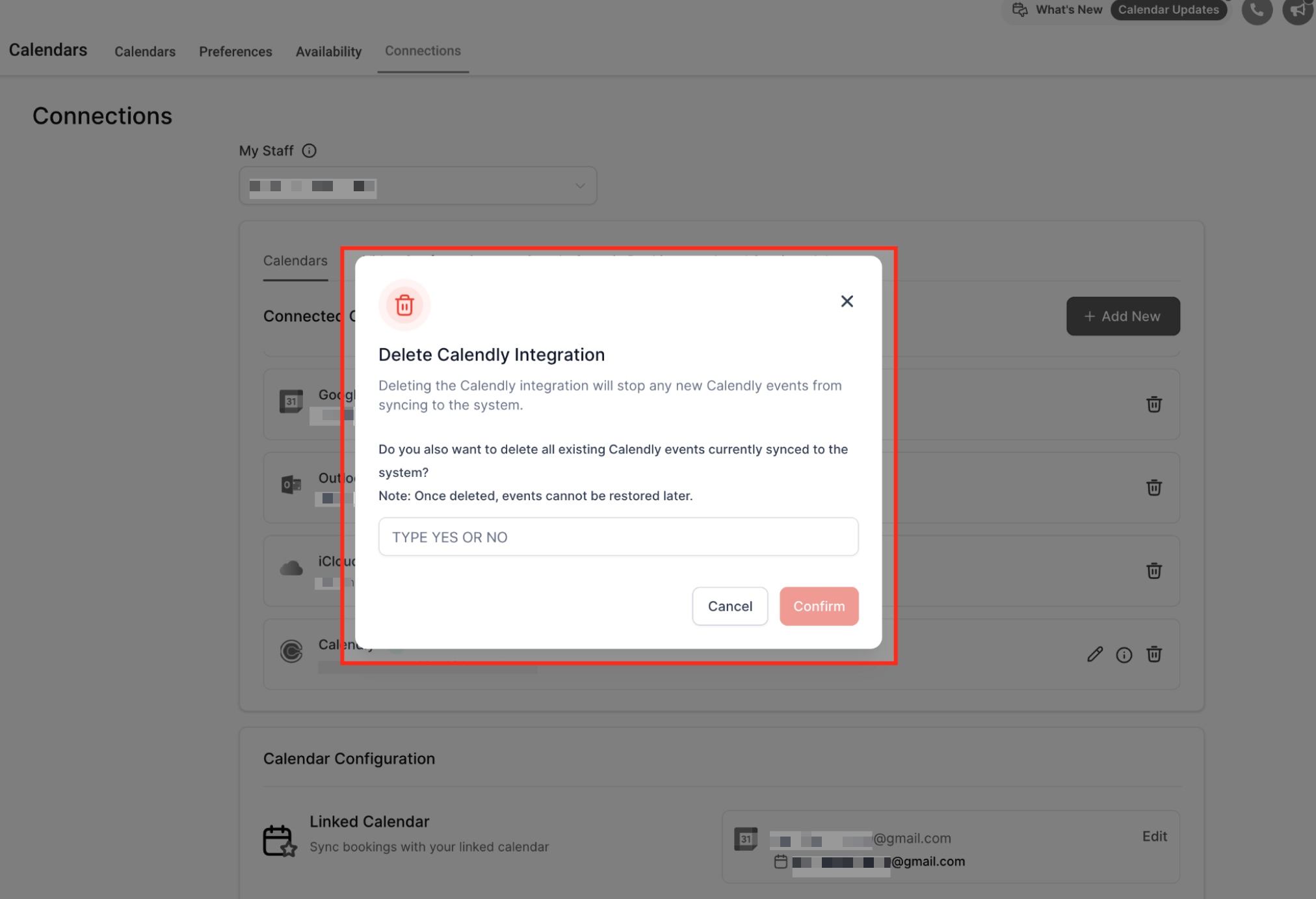
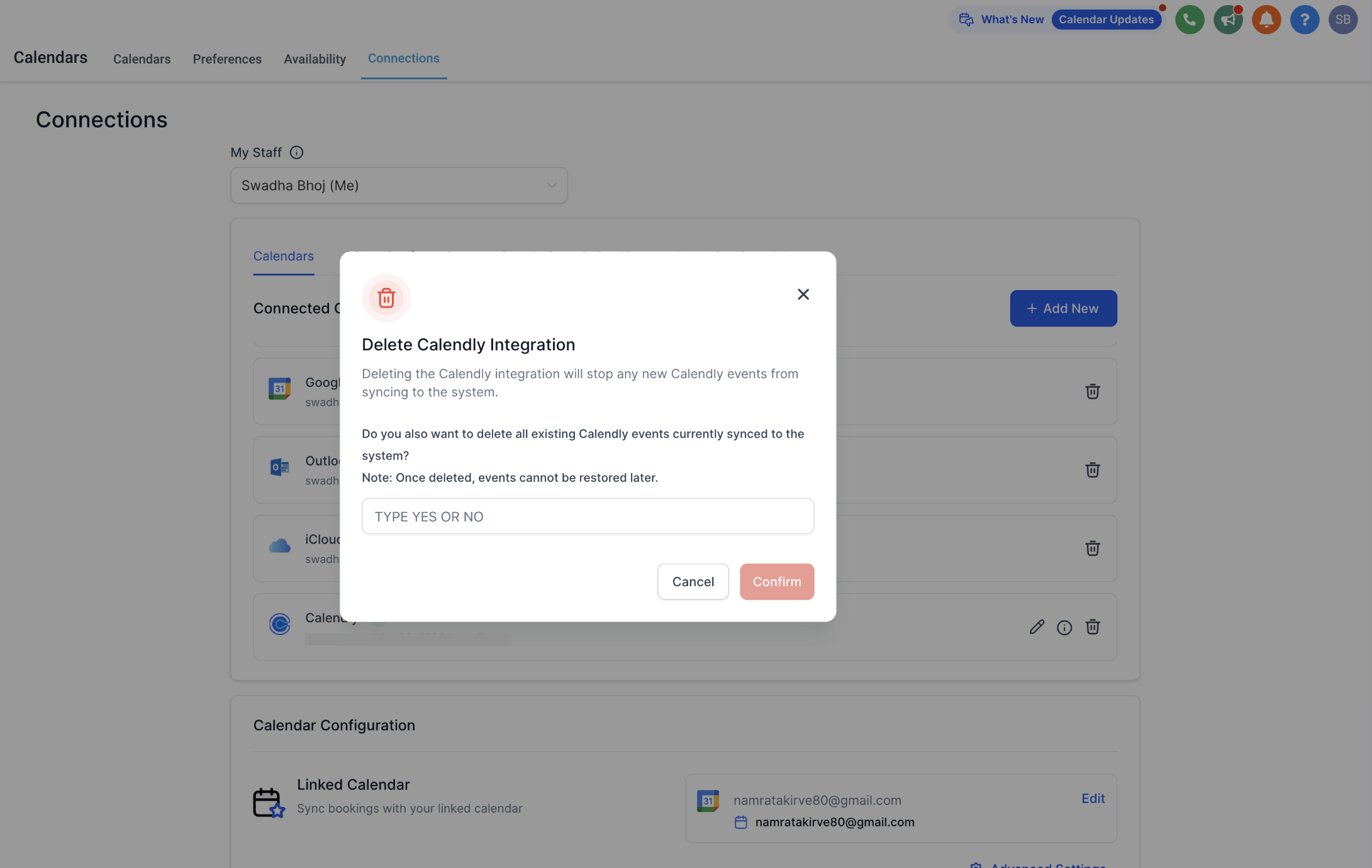
This deletion is permanent. If you reconnect Calendly later, the same import rule applies: upcoming events and anything created within the prior 180 days sync back in, but nothing from the gap in between.
Each team member can connect only one Calendly account per Aesthetix CRM account.
The same Calendly account can be connected by more than one Aesthetix CRM user, and can be connected across multiple Aesthetix CRM accounts you belong to.
Only Calendly's Standard, Teams, and Enterprise plans are supported. Calendly's Free and Essentials plans are not compatible.
If you connect Calendly during a trial and don't upgrade to a supported Calendly plan afterward, the integration stops working once the trial ends.
Events synced from Calendly cannot be edited in Aesthetix CRM; changes must be made in Calendly.
Only the guest's name, email, and (when available) phone number sync. Other custom Q&A fields from the Calendly form are not imported.
Past events created before you connected the integration are never backfilled.
Workflows only trigger for future Calendly events; past events pulled in through the 180-day lookback do not fire workflows.
Can I connect more than one Calendly account to a single team member? No. Each team member can connect only one Calendly account per Aesthetix CRM account.
Can the same Calendly account be used by more than one team member or connected to more than one account? Yes. A single Calendly account can be linked to multiple users, and to multiple Aesthetix CRM accounts you belong to.
Which Calendly plans work with this integration? Standard, Teams, and Enterprise. Calendly's Free and Essentials plans are not supported.
What happens if I connect Calendly during a trial period? You can connect it during the trial. If you don't upgrade to a supported Calendly plan once the trial ends, the sync stops working.
Can I edit or reschedule a Calendly appointment from inside Aesthetix CRM? No. This is a one-way sync. Any change, including reschedules and cancellations, has to be made directly in Calendly.
Why don't my older Calendly bookings show up after I connect the integration? Only events created after the integration is connected (plus up to 180 days of history at the moment of connecting) are imported. Anything booked earlier is not backfilled.
Who gets assigned as the owner of an appointment synced from a shared Calendly calendar? One of the connected team members on that shared calendar is assigned randomly as the appointment owner.
If I deselect and later reselect a calendar, do I get the events I missed while it was disconnected? No. Only new events created after you reselect the calendar (plus the 180 day lookback at that moment) will sync. Events booked during the gap are not recovered.
Does AI appointment booking work with Calendly-synced calendars? No. AI-driven booking only works with native Aesthetix CRM calendars. Use a Service Calendar if you want AI to handle scheduling automatically.
What happens to synced events if I disconnect Calendly entirely? You'll be asked whether to delete all previously synced events across every connected calendar. That deletion is permanent, and reconnecting later only restores upcoming events and recent history, not the gap in between.
Will workflows fire for Calendly events that were imported from before I connected the integration? No. Workflows and automations only trigger for future Calendly events. Past events pulled in during the initial (or a reconnect) 180-day lookback appear as appointments but do not fire workflows.
