Aesthetix CRM can generate a unique Zoom or Google Meet link for every appointment automatically, so your team never has to create or copy/paste a meeting link for a virtual consult. Once a video conferencing account is connected, you just set it as the meeting location on a calendar and the link handles itself. This lives under Settings > My Profile > Calendar Settings, and under Calendar Settings > Connections > Video Conferencing.
Dynamic (auto-generated, one-time-use) video links are available on these calendar types:
Calendar type | Dynamic video link support |
|---|---|
Personal (Booking) Calendar | Yes |
Round Robin Calendar | Yes |
Collective Calendar | Yes |
Service Calendar | Yes |
Unassigned / Class Calendar | No (use a static link, see below) |
If you book virtual consults through an EMR-synced calendar instead of a native Aesthetix CRM calendar, dynamic links will not generate, and automated booking through the AI Employee also only works with native calendars, not the EMR. Keep virtual consult calendars native for the video link and AI booking automation to work correctly.
Any user can connect their own Zoom account. The connection is per user, and it takes about a minute.
Go to Settings > Calendar Settings (or My Profile > Calendar Settings).
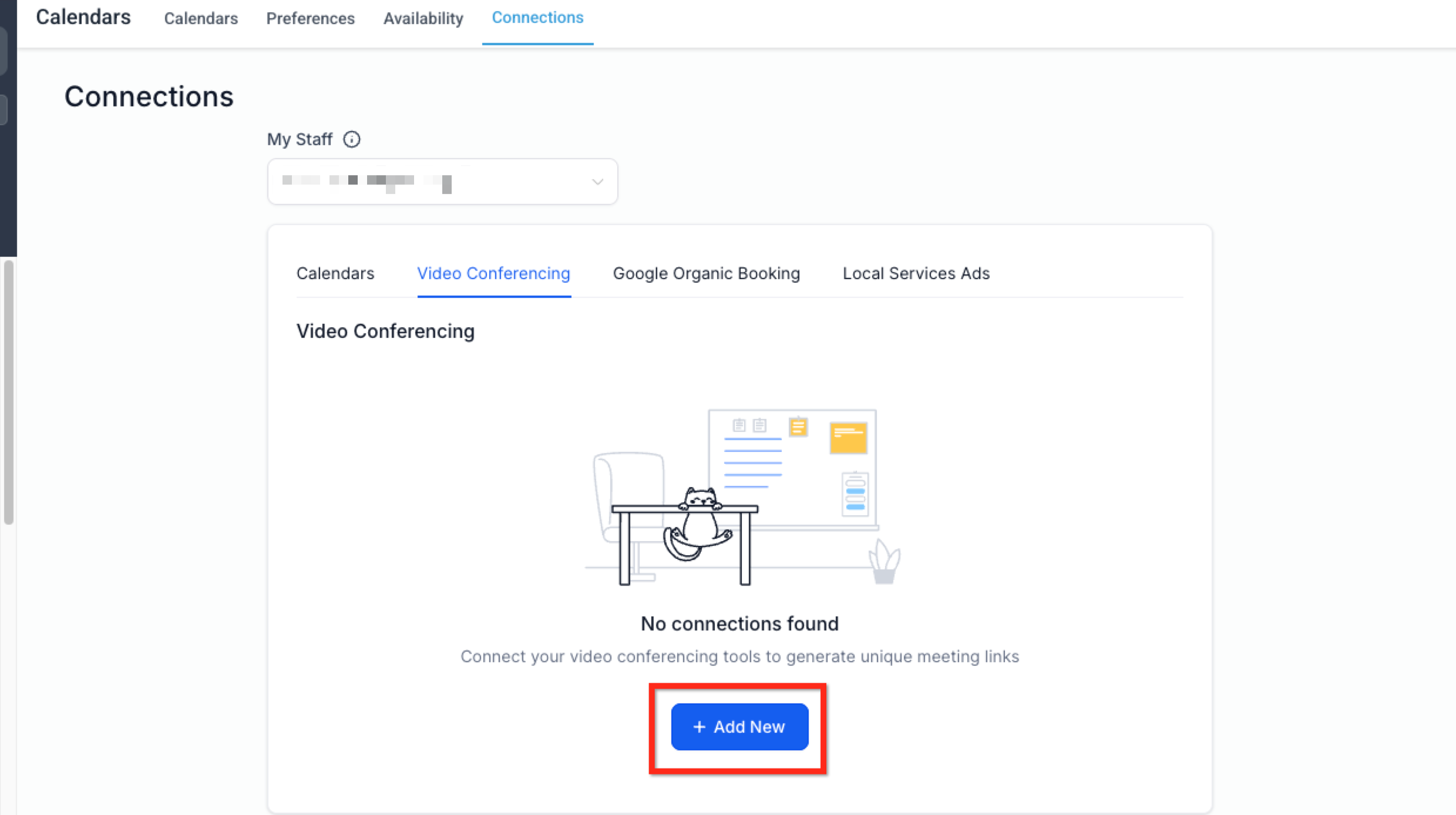
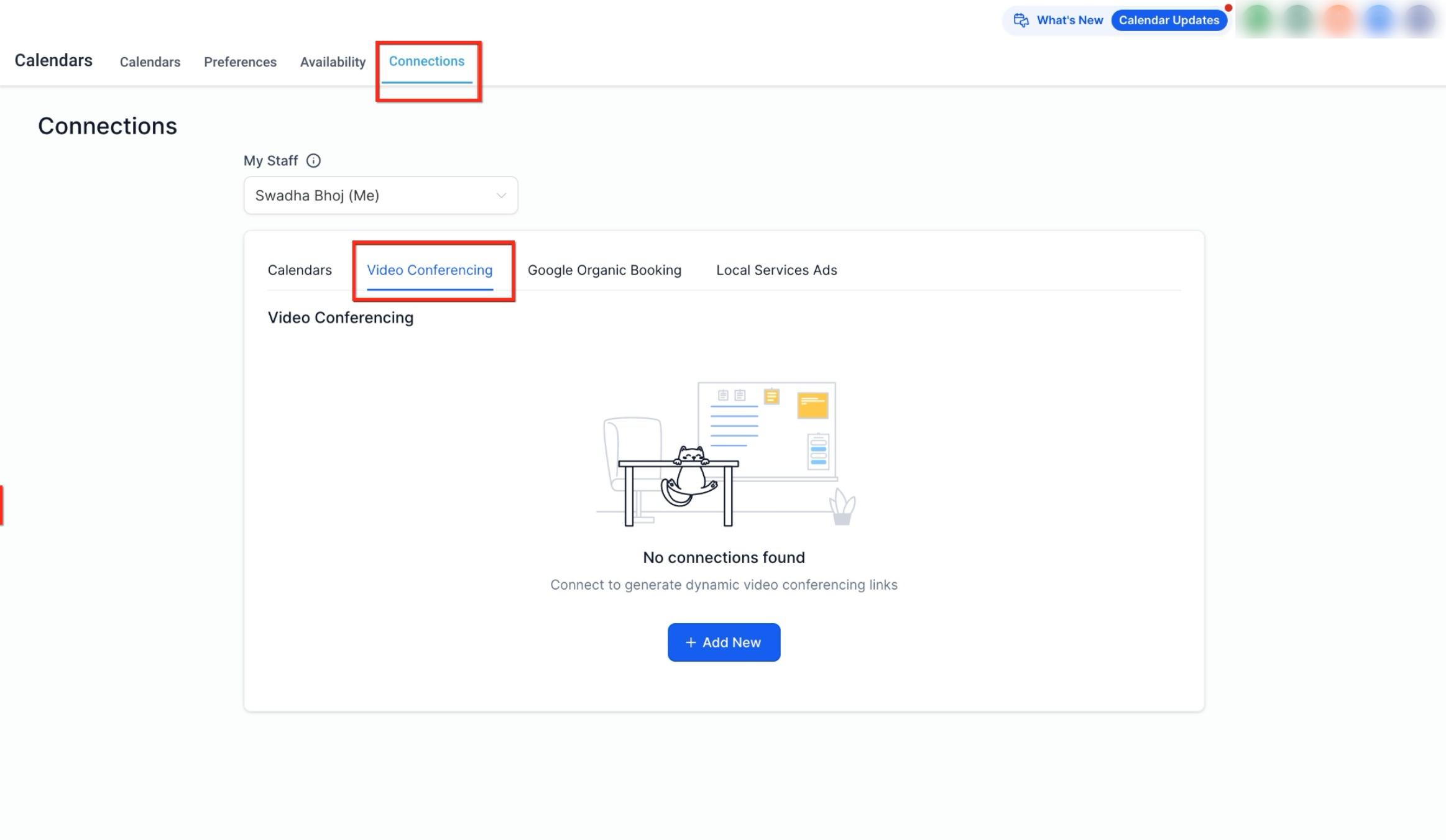
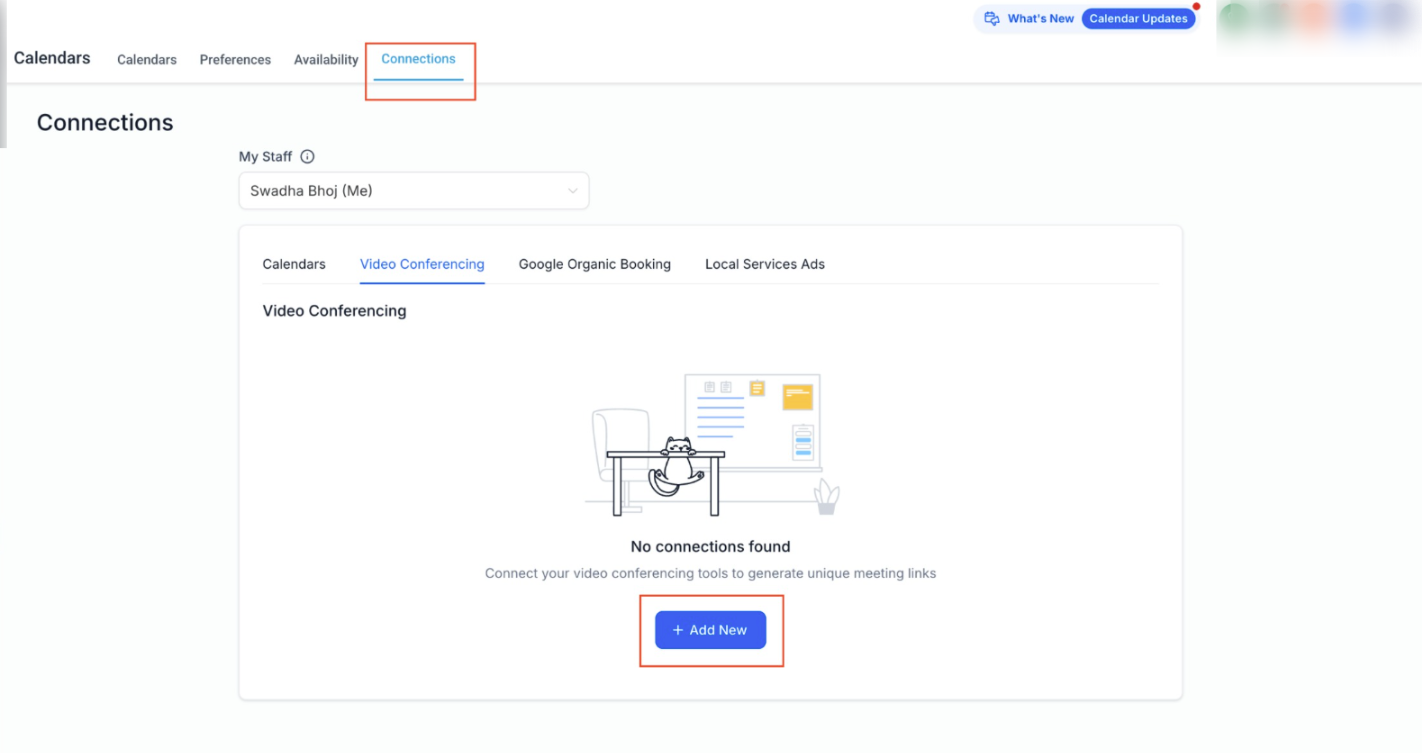
Click the Connections tab, then select Video Conferencing.
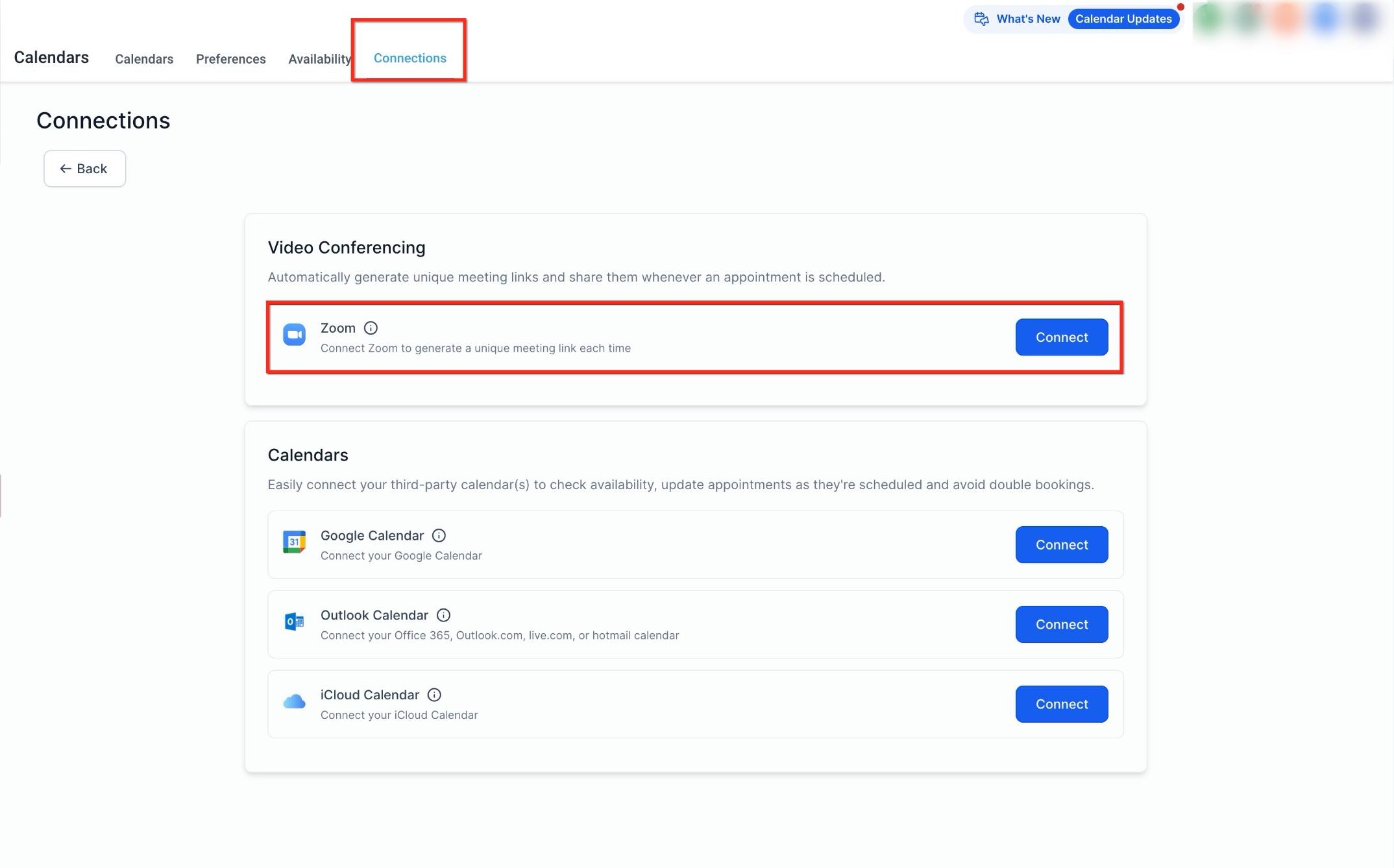
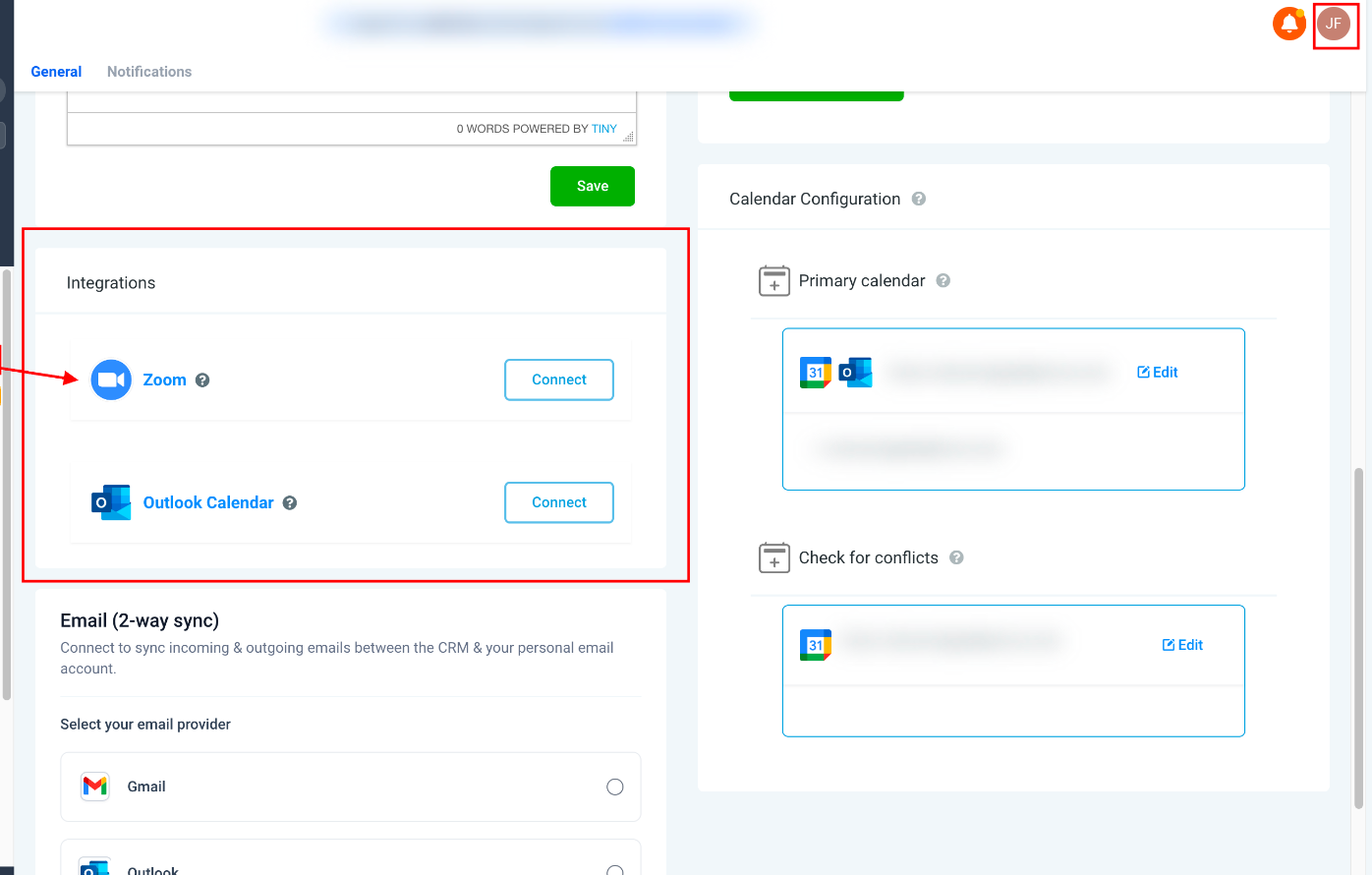
Click + Add New, then click Connect next to Zoom.
You'll be redirected to Zoom. Enter your Zoom login credentials and click Sign In.
Grant Aesthetix CRM permission to access your Zoom account by clicking Allow.
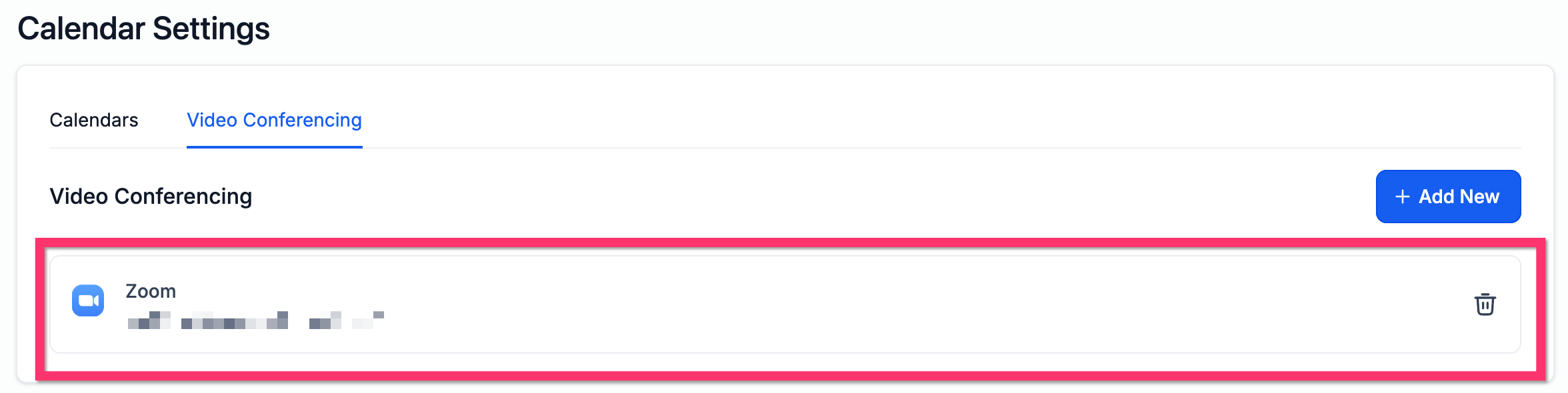
You're returned to the platform, where Zoom now appears as a connected account.
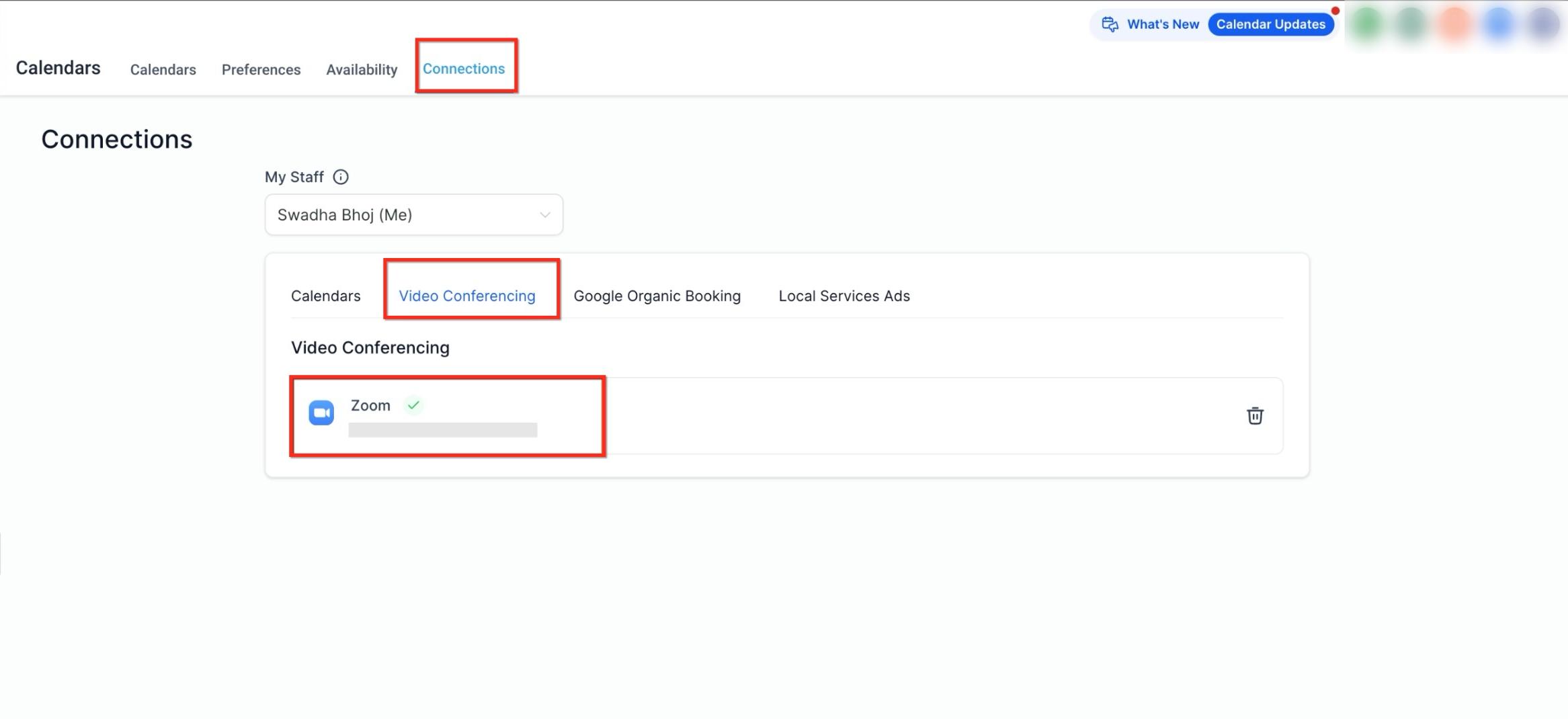
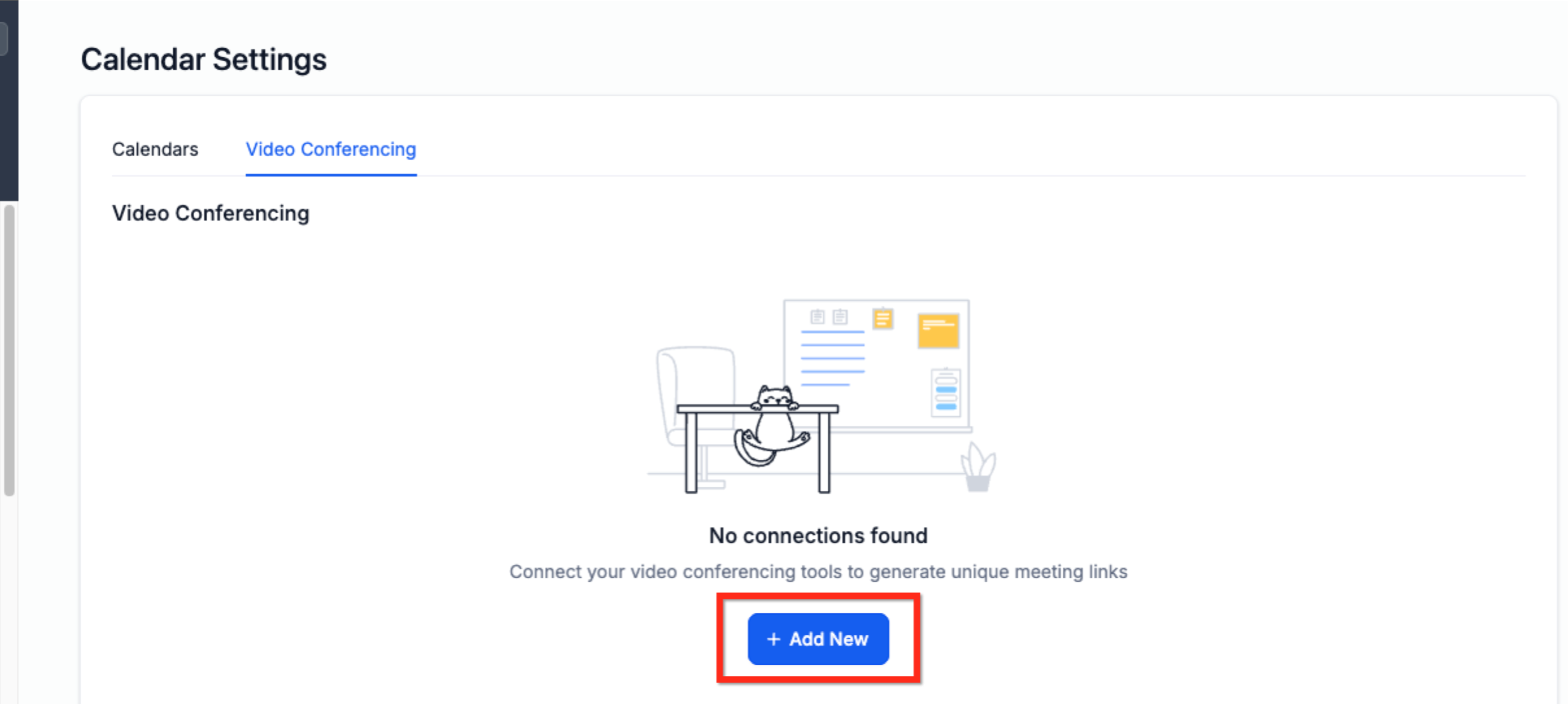
Check or update your connection: Go to My Profile > Calendar Settings > Video Conferencing to confirm Zoom is connected, disconnect it, or switch to a different Zoom account.
Older accounts: If your calendar settings still show a User Availability tab instead of Connections, connect Zoom from there instead: Settings > My Profile > User Availability > Meeting Location, choose Connect Zoom, click Connect, then log in to your Zoom account.
Dynamic Zoom links are only created when the connected Zoom account is selected as the meeting location on the calendar.
A user can connect one Zoom account per Aesthetix CRM account. The same Zoom account can be shared across multiple users and, if your practice has more than one location, across multiple locations too.
Zoom connections are tied to a user's unique ID in the backend, not their email address. If a user profile is ever deleted and restored by support, it may get a new ID that can no longer reconnect to the same Zoom account. If that happens, simply disconnect and reconnect Zoom under Connections > Video Conferencing.
It is not recommended to connect different Zoom accounts to the same user across multiple accounts, or to try sharing one Zoom account across many users who each need independent scheduling.
Zoom does not pull existing events from Zoom into your calendar, and it does not recognize pre-generated meeting links created directly in Zoom. Always create the meeting from the appointment booking, not from Zoom itself.
A single user is limited to 100 Zoom API requests (create, update, delete) per rolling 24-hour period, which resets at midnight UTC.
Google Meet works a little differently than Zoom: there's no separate Google Meet login. It's enabled automatically as soon as a Google Calendar account is connected and synced.
How it works: Once a Google Calendar is connected and set as your linked calendar, every new appointment gets its own Google Meet link attached directly to the calendar event, with no extra setup required.
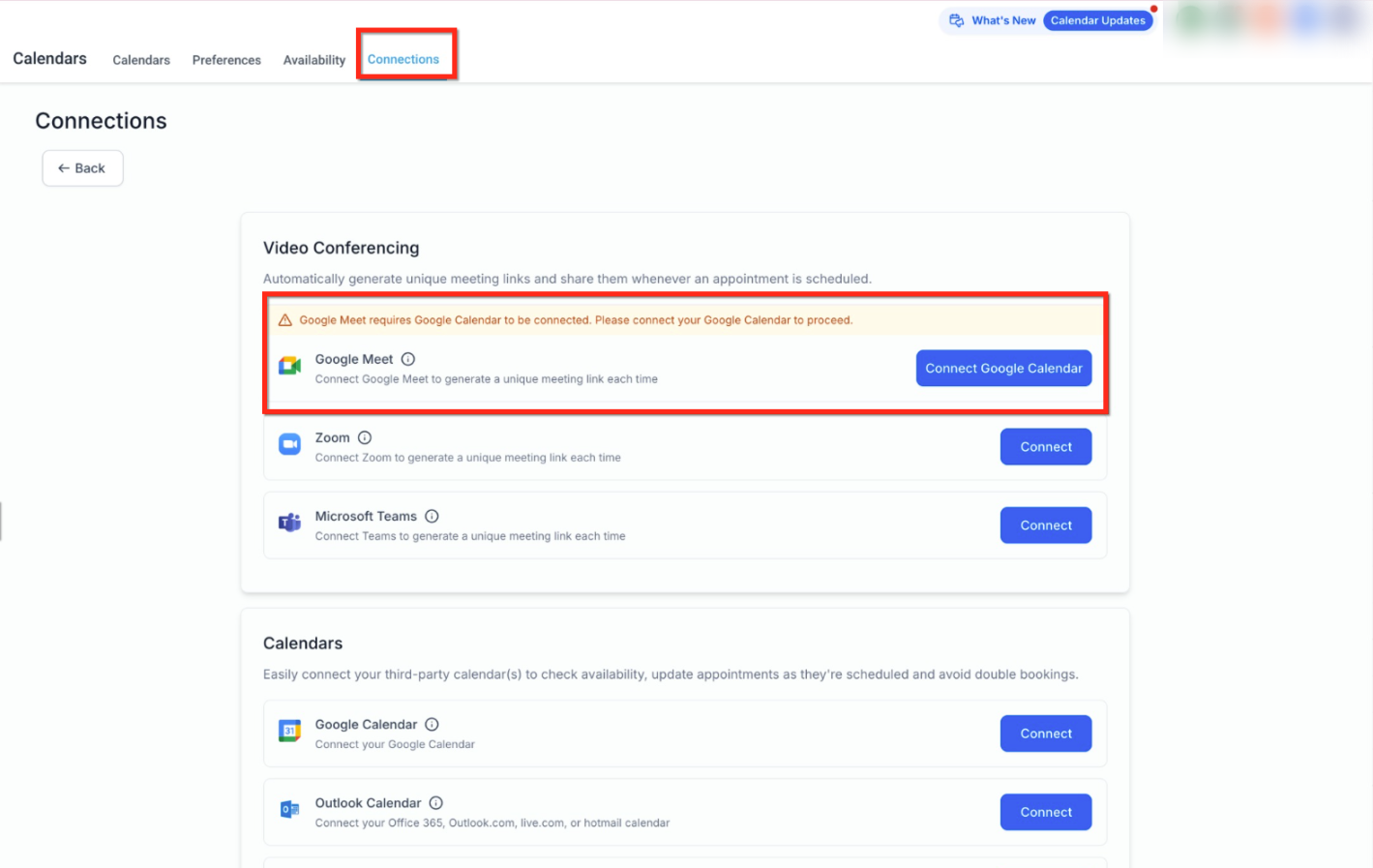
To connect Google Meet:
Go to Calendar Settings > Connections > Video Conferencing.
Select Google Meet and proceed to connect your Google Calendar.
Choose your Google account and grant the requested permissions.
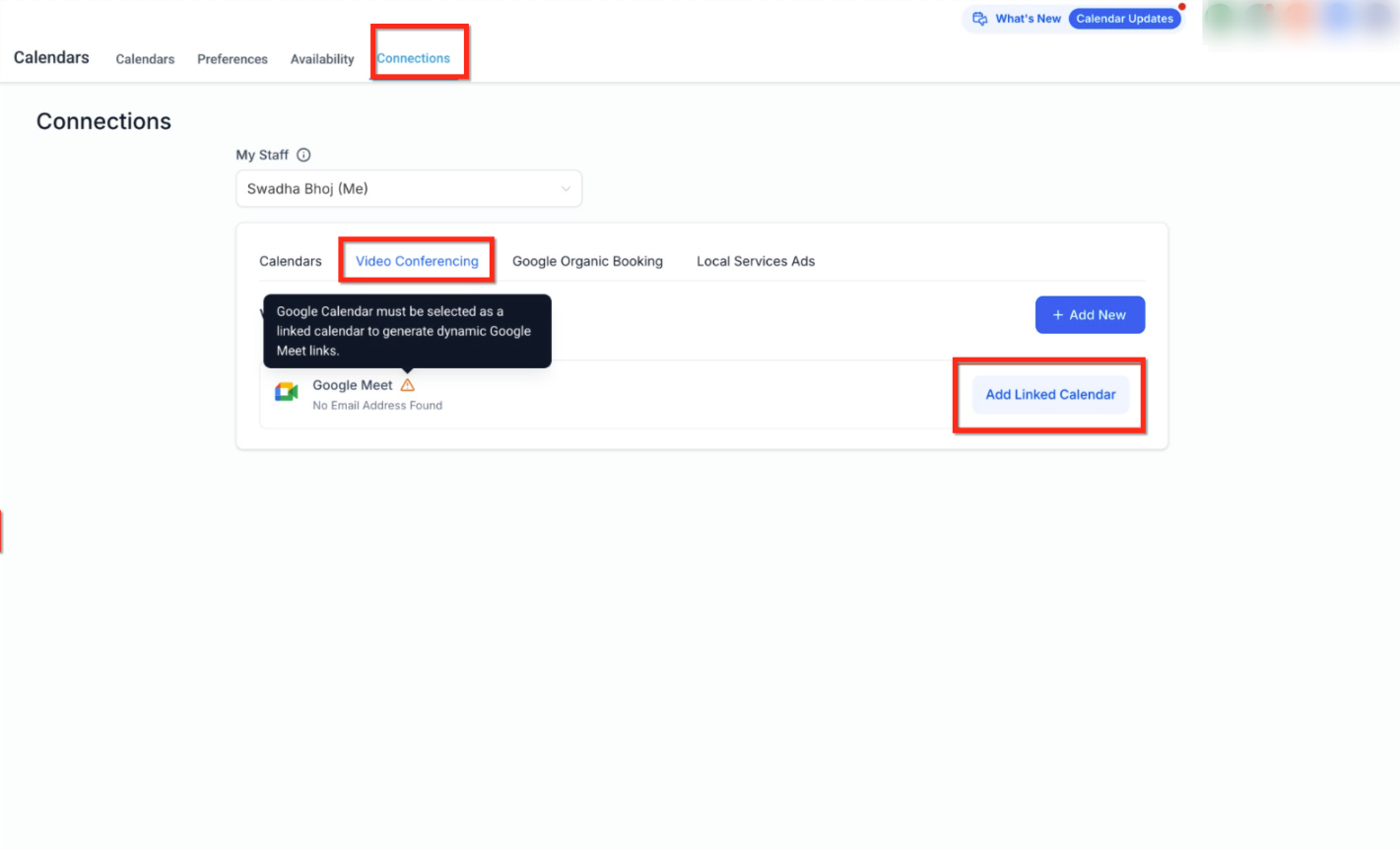
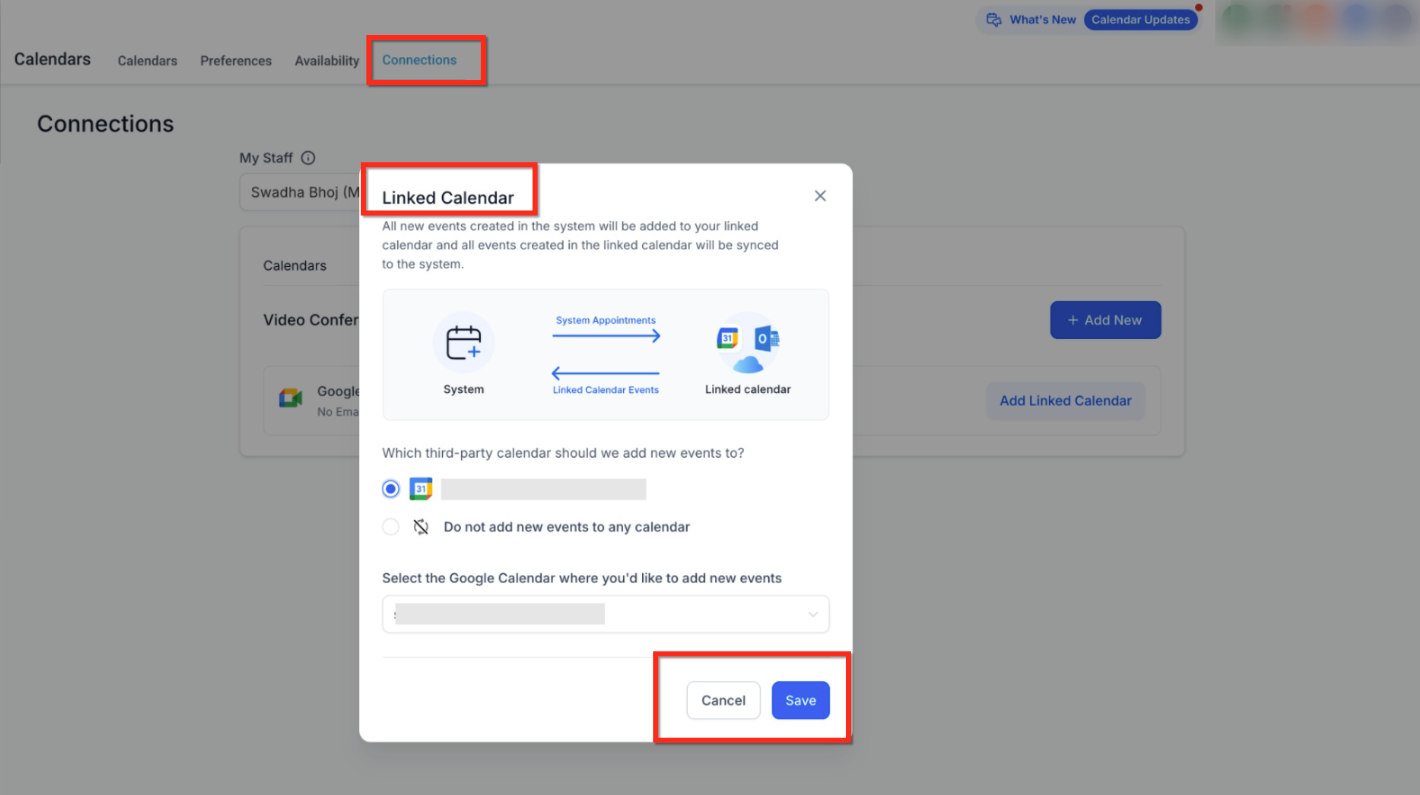
Make sure links actually generate: For Google Meet links to be created, the connected Google Calendar must also be set as your linked calendar under Connections. When it is, appointments sync both ways (bookings sync out to Google, events created in Google sync back in), and a Meet link is generated automatically for each one. If no linked calendar is selected, Google Meet will show as connected but links will not generate.
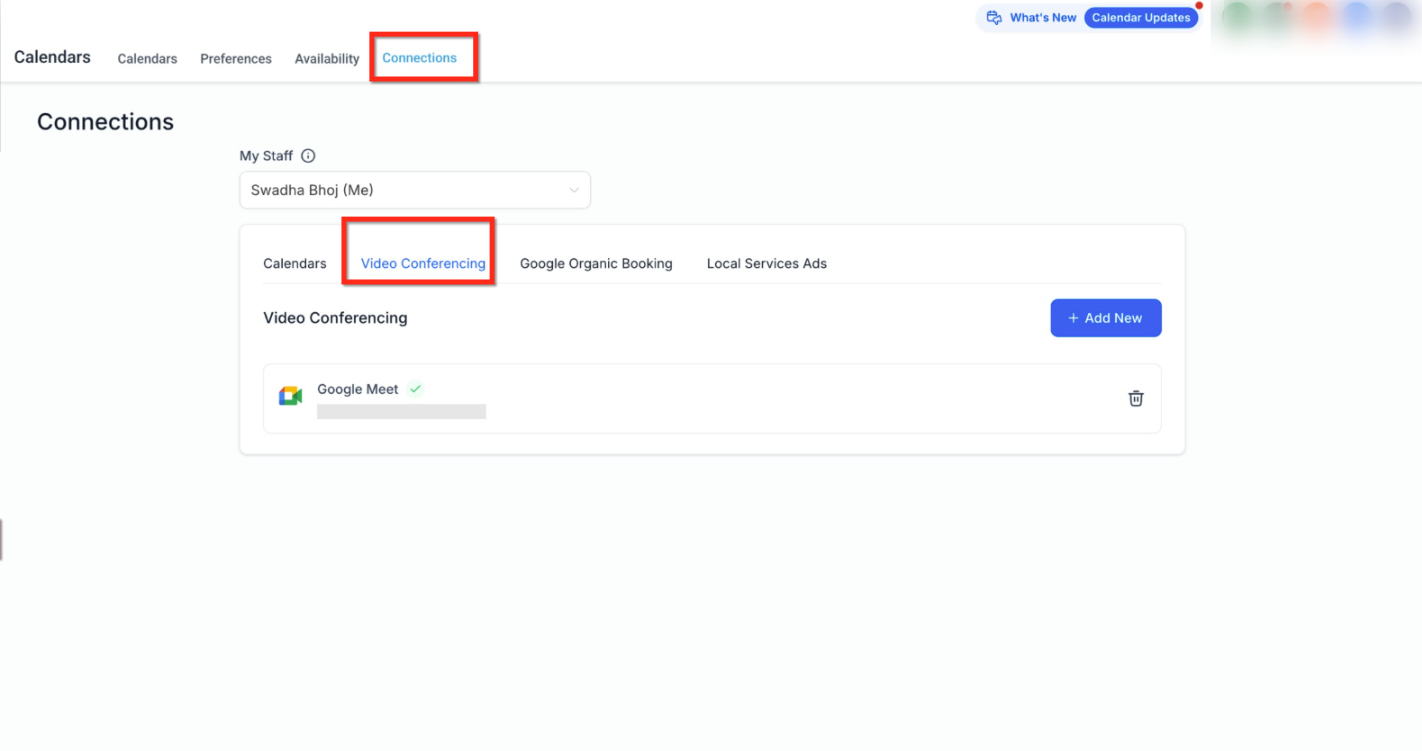
Removing Google Meet: Google Meet and your Google Calendar connection are tied together. Disconnecting the Google Calendar removes Google Meet, and disconnecting Google Meet removes the calendar connection. After removal, new appointments will no longer include a video link.
Once Zoom or Google Meet is set as a calendar's meeting location, you can pull that link into your confirmation and reminder messages using the meeting location merge field, {{appointment.meeting_location}}. This is commonly built as a workflow so patients automatically receive the link by email and text ahead of a virtual consult. For full detail on building and editing workflows, see the Workflow Builder guides; the basic recipe looks like this:
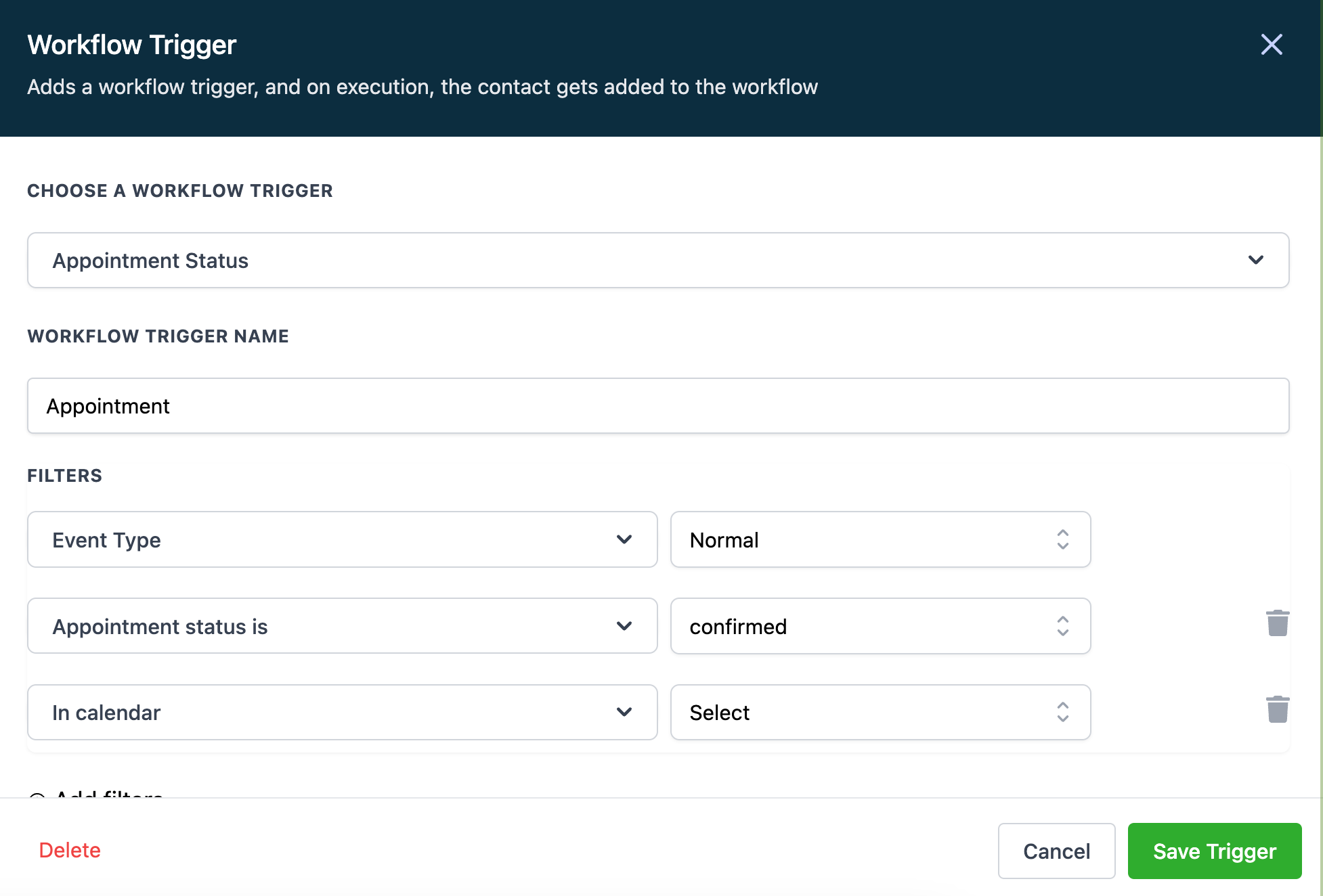
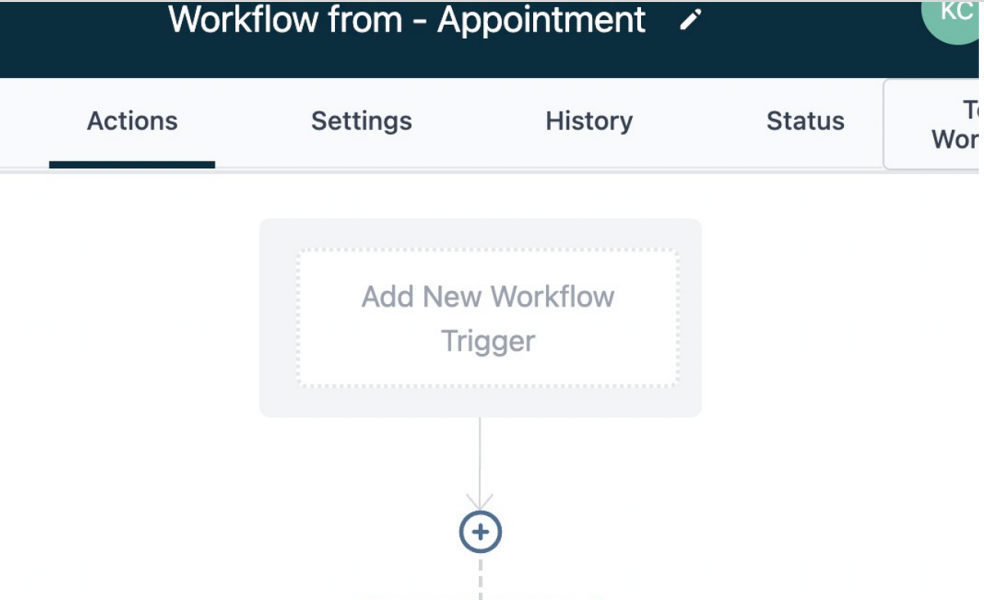
Create a new workflow and click Add New Workflow Trigger.
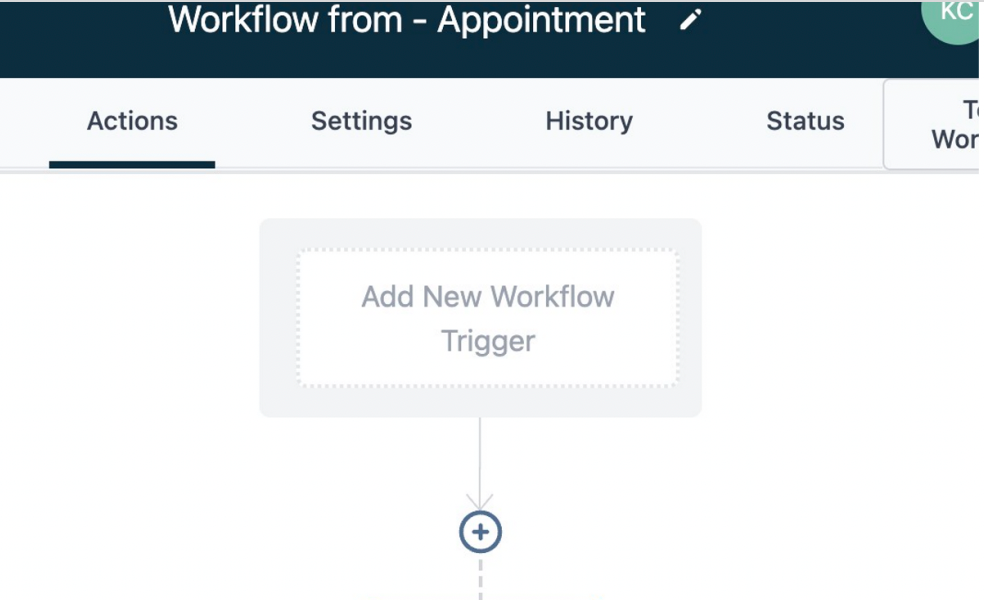
Select Appointment Status as the trigger and set your filters: event type (one-time, recurring, or either), appointment status (use auto-confirm if you want every booking to fire this), and optionally narrow it to specific calendars or users.
Click Add your first Action.
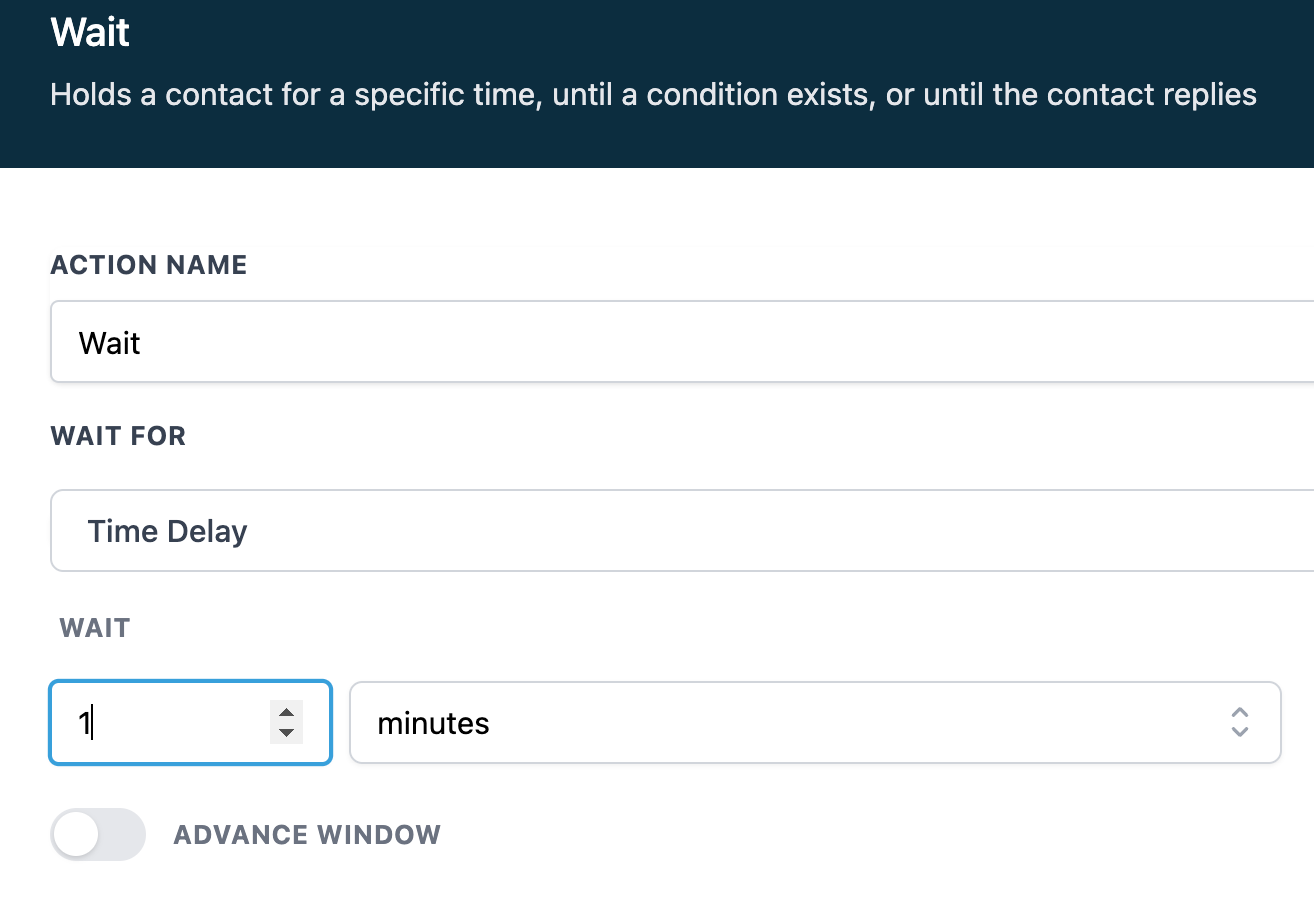
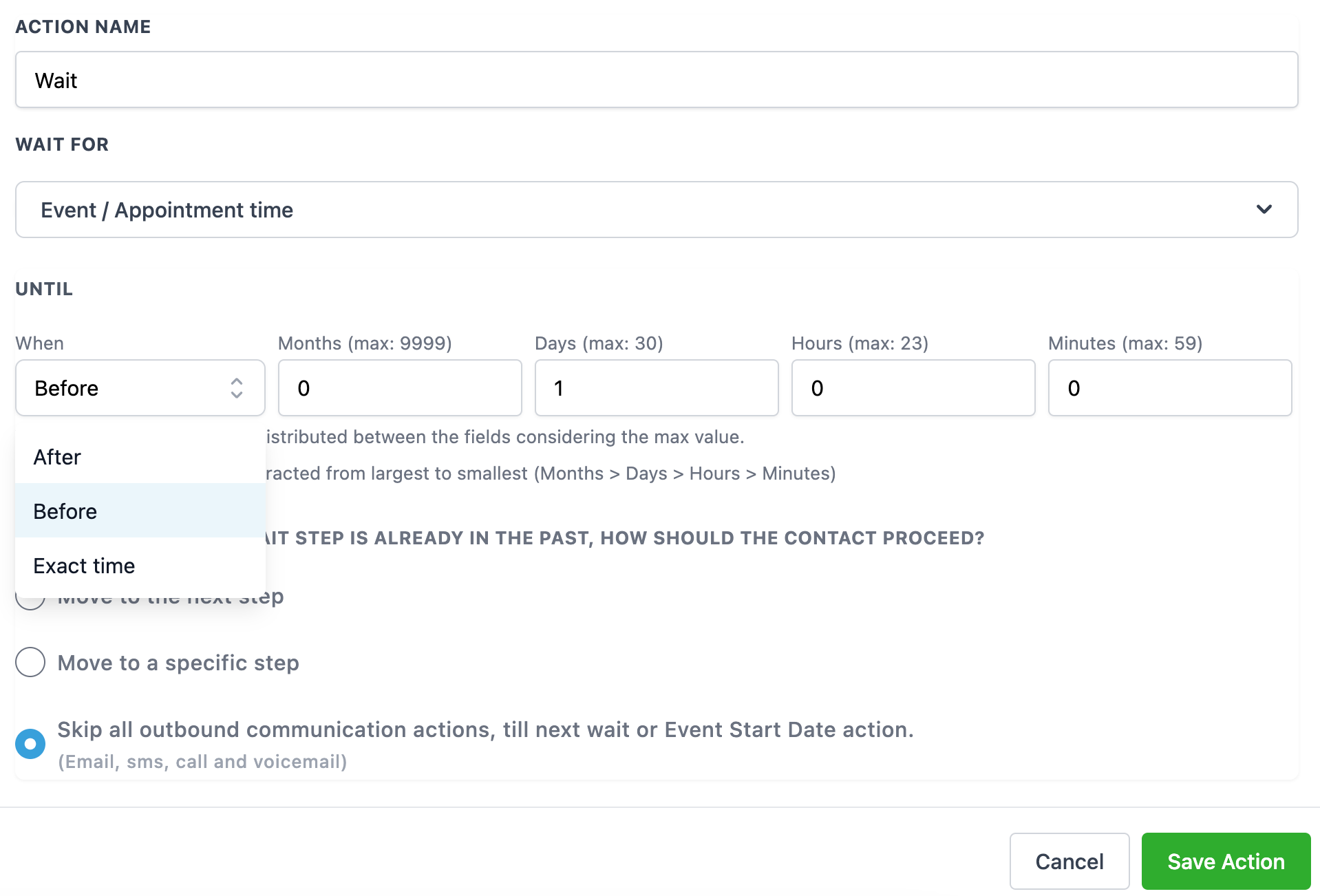
Add a one-minute Wait step first. This gives the system time to finish writing the meeting location value before the next action runs.
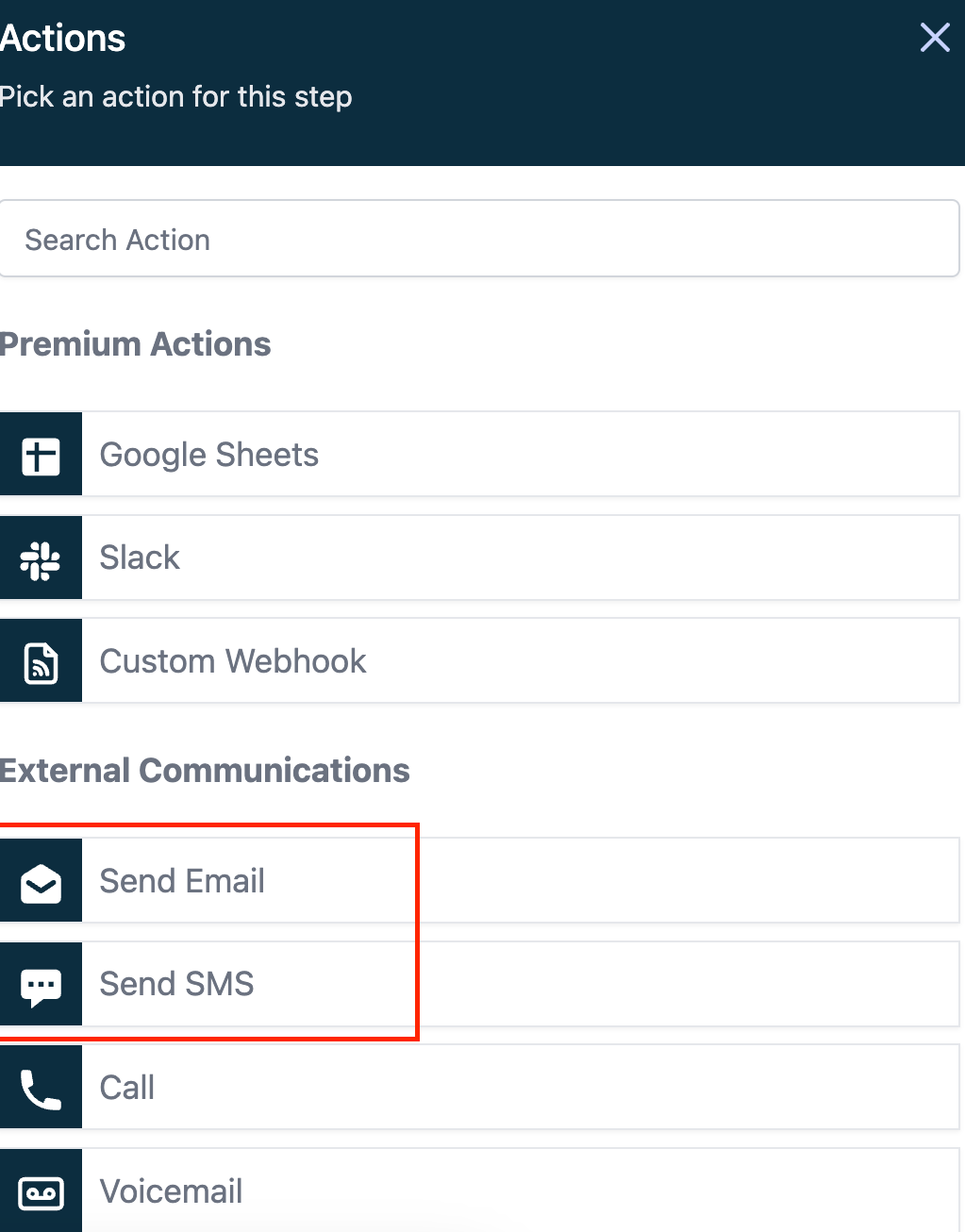
Add a Send Email/SMS action to notify the patient at their listed email and phone number. Include {{appointment.meeting_location}} in the message so the video link is inserted automatically.
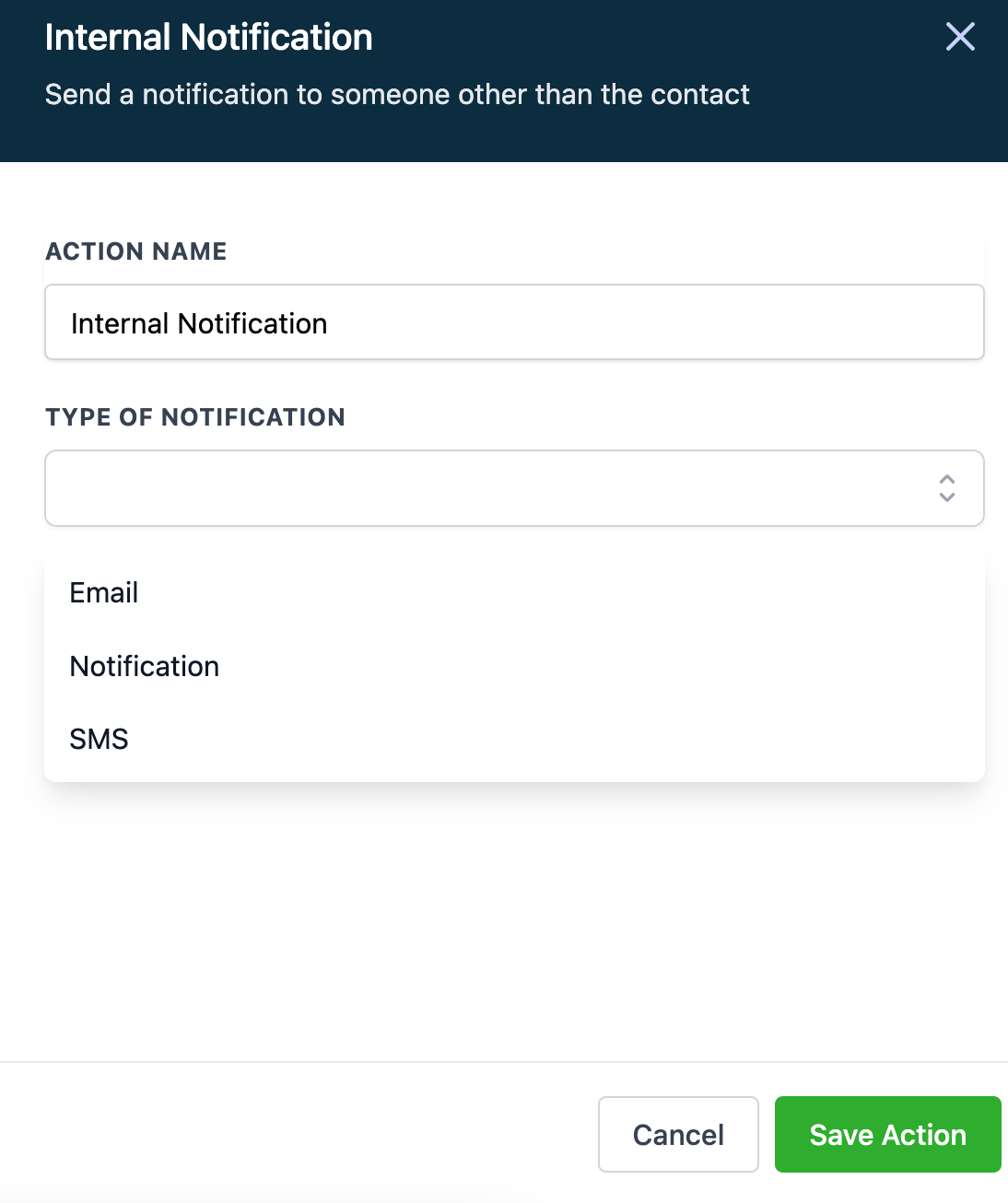
Optionally, add an Internal Notification action to alert the assigned provider or front desk by email, SMS, or in-app notification. If you send an internal notification email, use a dedicated address like [email protected] so it's not confused with patient replies.
Add an Event/Appointment Time wait step to control when reminders go out (for example, 24 hours before the appointment), and choose what happens next: move to the next step, jump to a specific step, or skip outbound messages until the next wait step.
How links behave with changes to a booking:
Edited (same date/time): the existing link keeps working.
Deleted or canceled: the link is dropped, unless another appointment is booked in the same time slot with the same link.
Rescheduled: a new link is generated, unless another appointment already occupies that time slot, in which case the existing link is reused.
Multiple bookings in the same slot: if your calendar allows more than one appointment per slot, all of them share the same link.
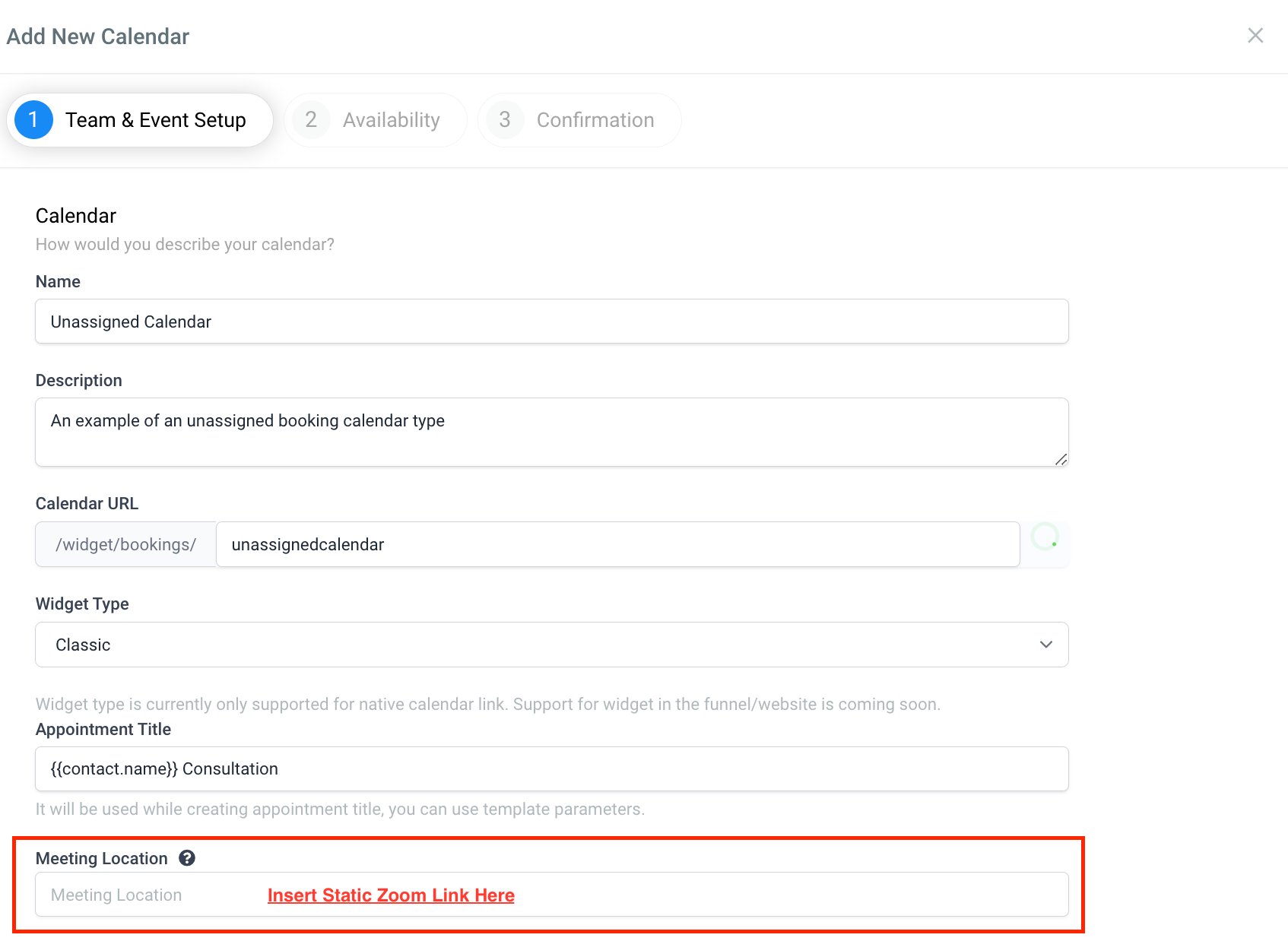
Unassigned (class-style) booking calendars don't support dynamic links. If you need a video link on one of these, add a static, pre-generated Zoom link manually under the calendar's meeting location setting in Team and Event Setup.
If your virtual consult involves any discussion of a patient's health information, make sure the video platform you connect is one you have a signed Business Associate Agreement (BAA) for, such as Zoom for Healthcare, and avoid pasting clinical details into the calendar's meeting location or notification templates. A standard free Zoom or Google Meet account is fine for general consultations but is not automatically HIPAA-covered.
I don't have a Calendar Settings or Profile tab. This means you're not set up as a user on the account yet. Go to My Staff > + Add Employee > Add Employee > Save to add yourself, then the Profile and Calendar Settings tabs will appear.
Do I need a paid Zoom account to connect it? No. A free Zoom account works fine for the integration. Paid Zoom plans mainly add longer meeting durations and extra Zoom-side features.
Can multiple users share the same Zoom account? Yes. The same Zoom account can be connected across multiple users and, for multi-location practices, across multiple locations. Each user can still only have one Zoom account connected to their profile at a time.
Can I use both Zoom and Google Meet at the same time? Yes, you can have both connected in your account. Only one video conferencing option can be active as the meeting location on a given user or calendar at a time, so pick whichever you want that calendar to use.
Which calendars generate a fresh video link for every booking? Personal, Round Robin, Collective, and Service calendars all support dynamic links. Unassigned calendars need a manually added static link instead.
Why isn't my Google Meet link showing up? Google Meet links only generate when a connected Google Calendar is also set as your linked calendar. Double check that setting under Connections if links aren't appearing.
Why is the meeting link missing from a confirmation email or text?
Confirm the meeting location on the calendar is set to Zoom or Google Meet, and that your message template actually includes the {{appointment.meeting_location}} merge field.
What happens if I disconnect Zoom or Google Meet? Any appointments already booked keep their existing link. New bookings made after disconnecting will not include a video link until you reconnect an account.
Does rescheduling an appointment change the video link? Usually yes, a new link is generated for the new time. The exception is when another appointment already occupies that new time slot, in which case the existing link for that slot is reused.
Can I add a Zoom link to an unassigned or class calendar? Not automatically. Unassigned calendars don't get dynamic links, so add a static, pre-generated Zoom link to the meeting location field manually.
Is there a limit on how many meeting links can be created per day? Yes. Each user is limited to 100 Zoom create/update/delete requests within a rolling 24-hour period that resets at midnight UTC. This is rarely an issue for a typical med spa's booking volume.
