Connecting Outlook keeps your provider's real availability accurate in both directions, and connecting Microsoft Teams lets Aesthetix CRM generate a video meeting link automatically every time someone books a virtual consult. Both connections are managed from Settings > Calendars > Connections in your account.
When an Outlook calendar is connected, appointment bookings can sync in both directions based on how you configure it. New appointments booked through Aesthetix CRM can be written directly to that Outlook calendar, and existing Outlook events can be used to block off availability so your front desk never double-books a provider.
You need an active Outlook (Microsoft) account: Office 365, Outlook.com, live.com, or Hotmail calendars are all supported.
You must be logged into your Aesthetix CRM user profile, and writer access is required if you want appointments sent back to Outlook.
Not supported: stand-alone or on-premises Microsoft Exchange servers, and Outlook Desktop events that aren't synced to the cloud. If you're not sure whether your events will sync, log into Outlook Calendar online (outlook.office.com/calendar) with your credentials. If your events show up there, they'll sync successfully once connected.
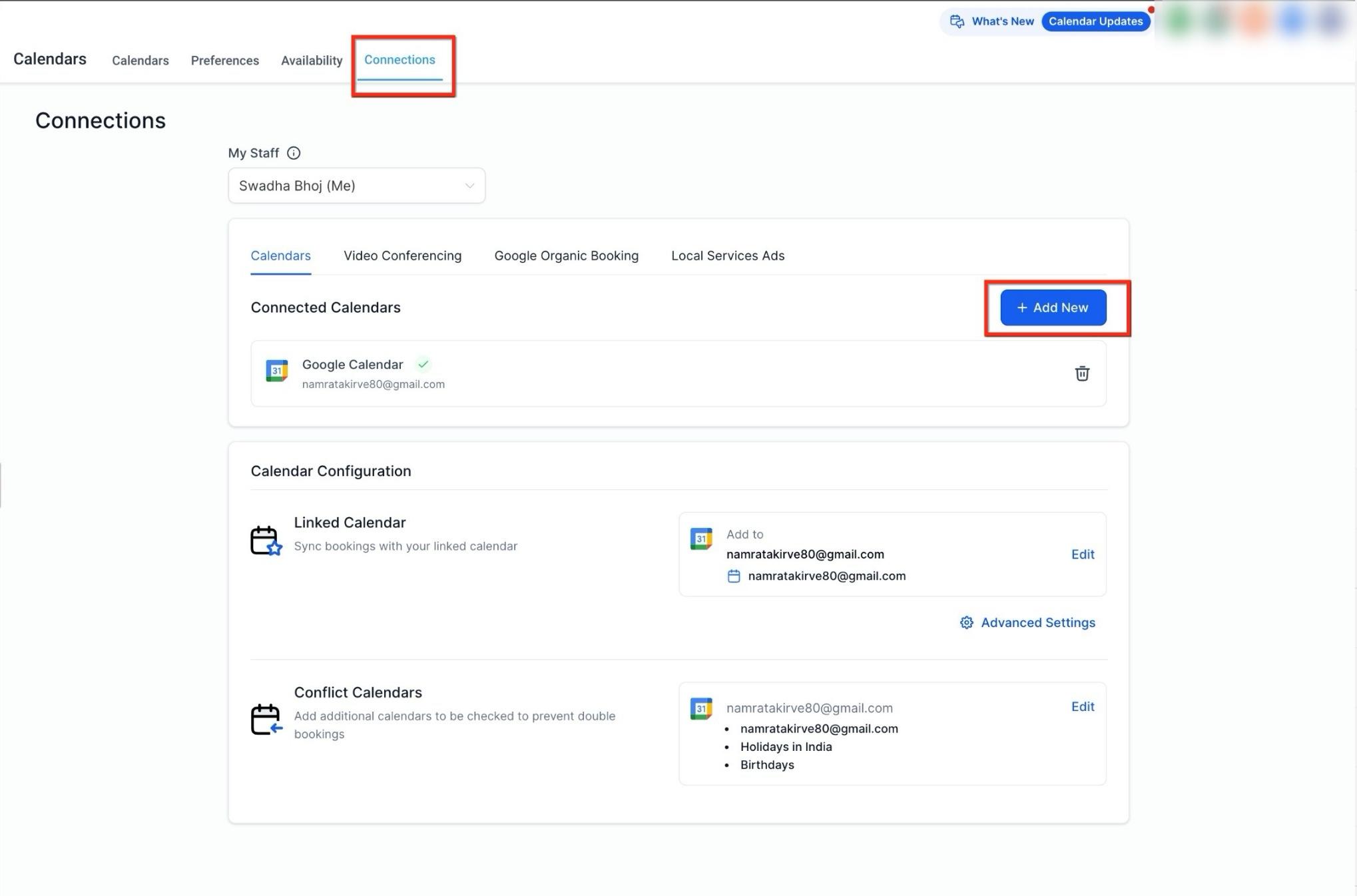
Go to Settings > Calendars > Connections. This is the central hub for every external calendar you connect.
You can also reach the same connection option from Settings > My Profile, under the Integrations section, if you only want to connect your own personal account.
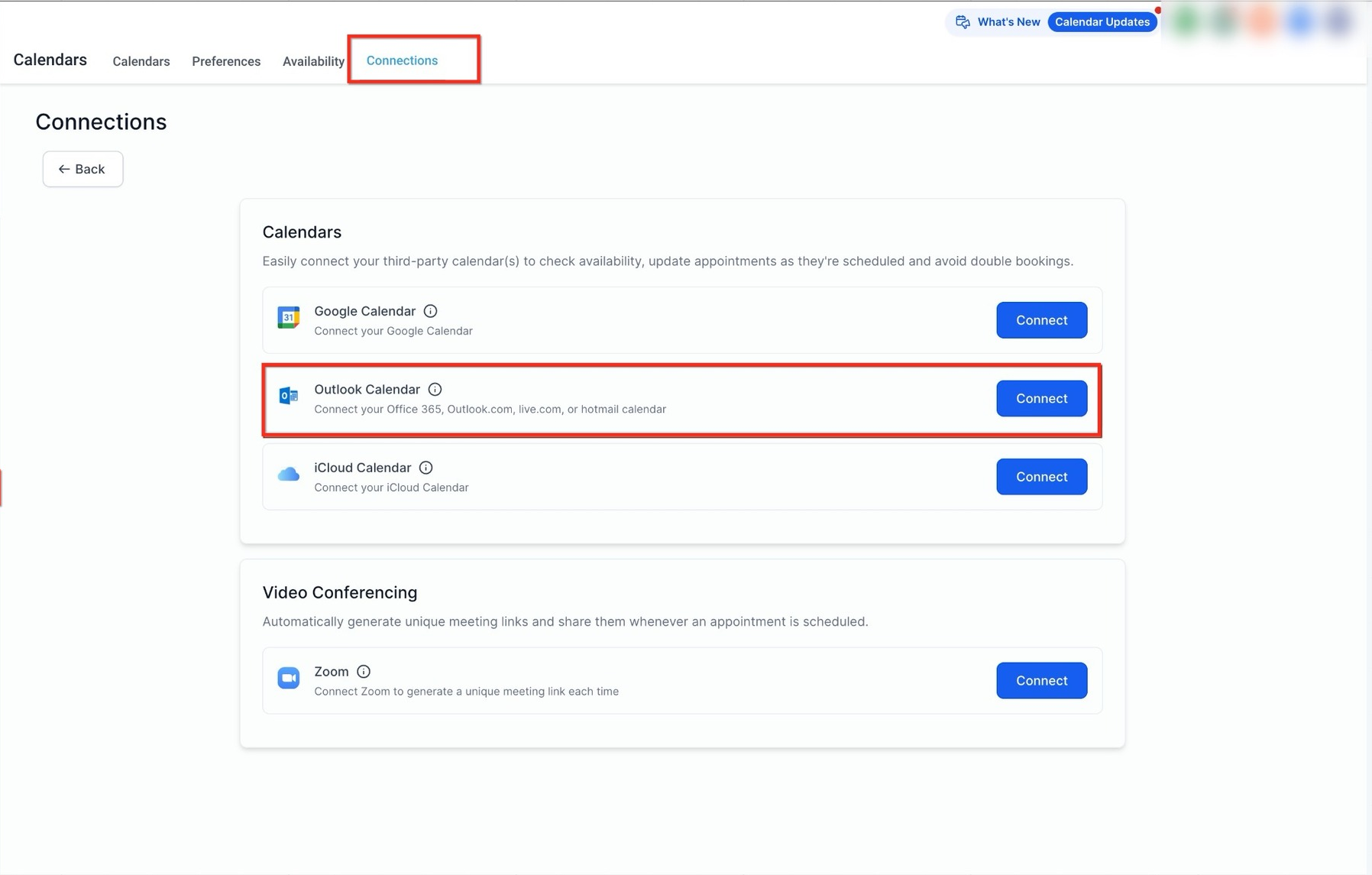
From the Connections tab, click + Add New (or Connect next to Outlook Calendar) to start the connection.
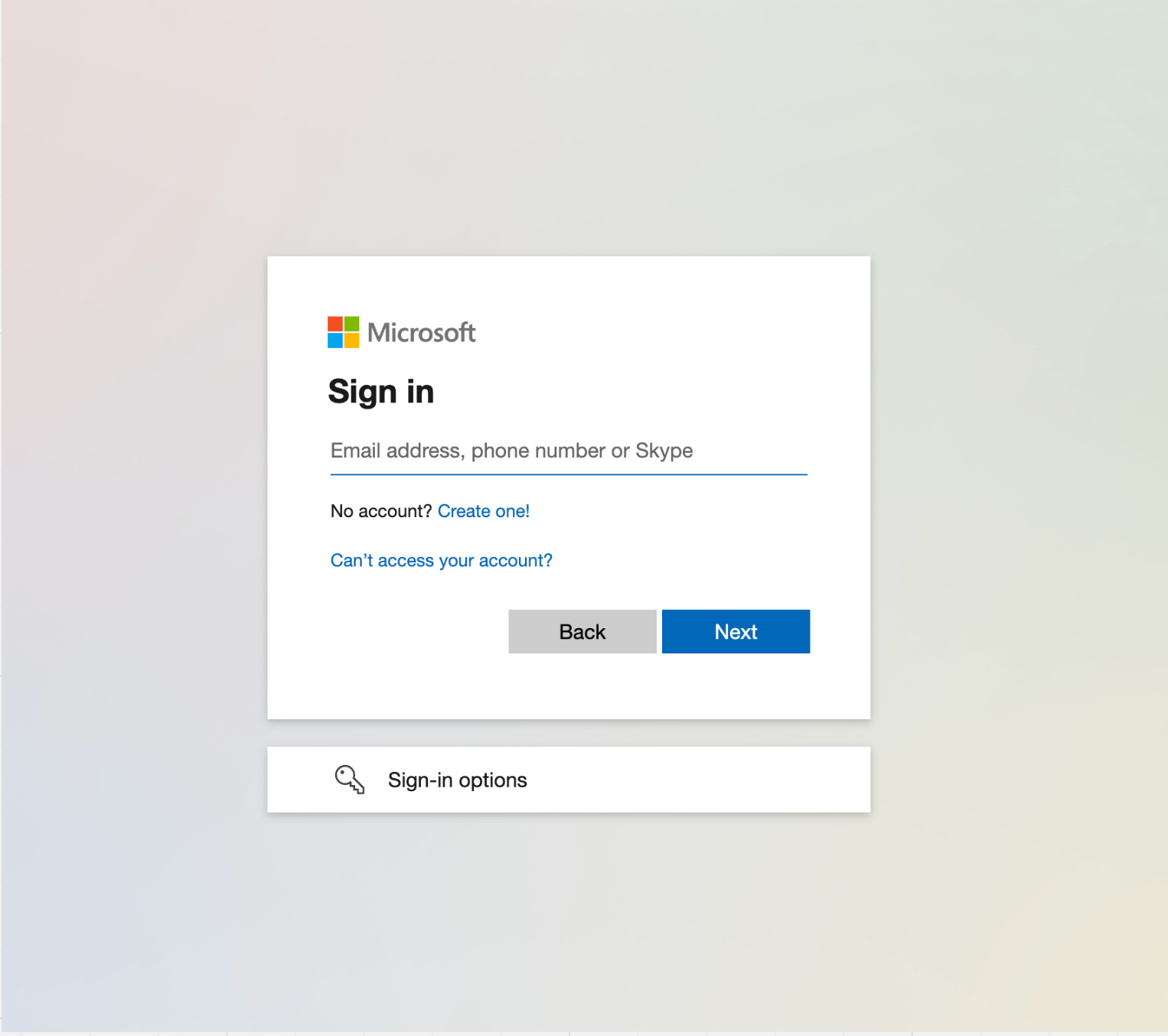
Sign in with your Outlook credentials and approve the permissions requested.
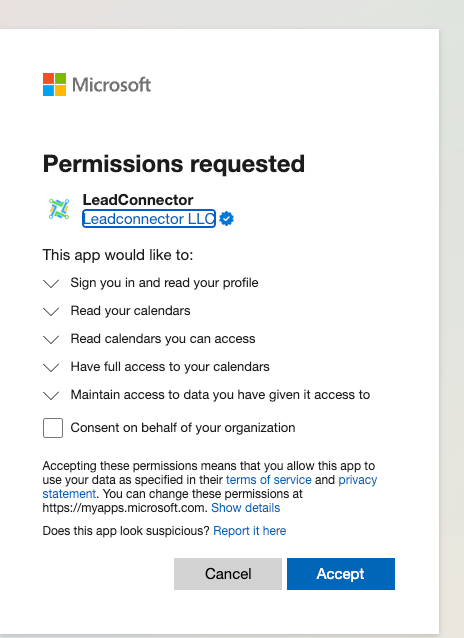
You may see a consent screen that references "LeadConnector" while granting access. That's expected. LeadConnector is the underlying technology platform Aesthetix CRM is built on, and this screen is part of the standard, secure Microsoft authentication flow. It's safe to proceed.
Once authenticated, your Outlook calendar appears as a connected calendar and is ready to configure.
Some organizations require an administrator to approve new third-party app connections before they can be completed. If your organization has this policy turned on, you'll see a Need Admin Approval screen during Step 3 instead of the normal Microsoft sign-in flow.
When this happens, a Microsoft 365 administrator (or a designated reviewer with the right role) needs to sign in to the Microsoft Entra admin center and approve the pending consent request for Aesthetix CRM. Once approved, return to Step 3 and sign in again to finish connecting the calendar.
After connecting, two settings control how your Outlook calendar behaves inside Aesthetix CRM: the Linked Calendar and the Conflict Calendar.
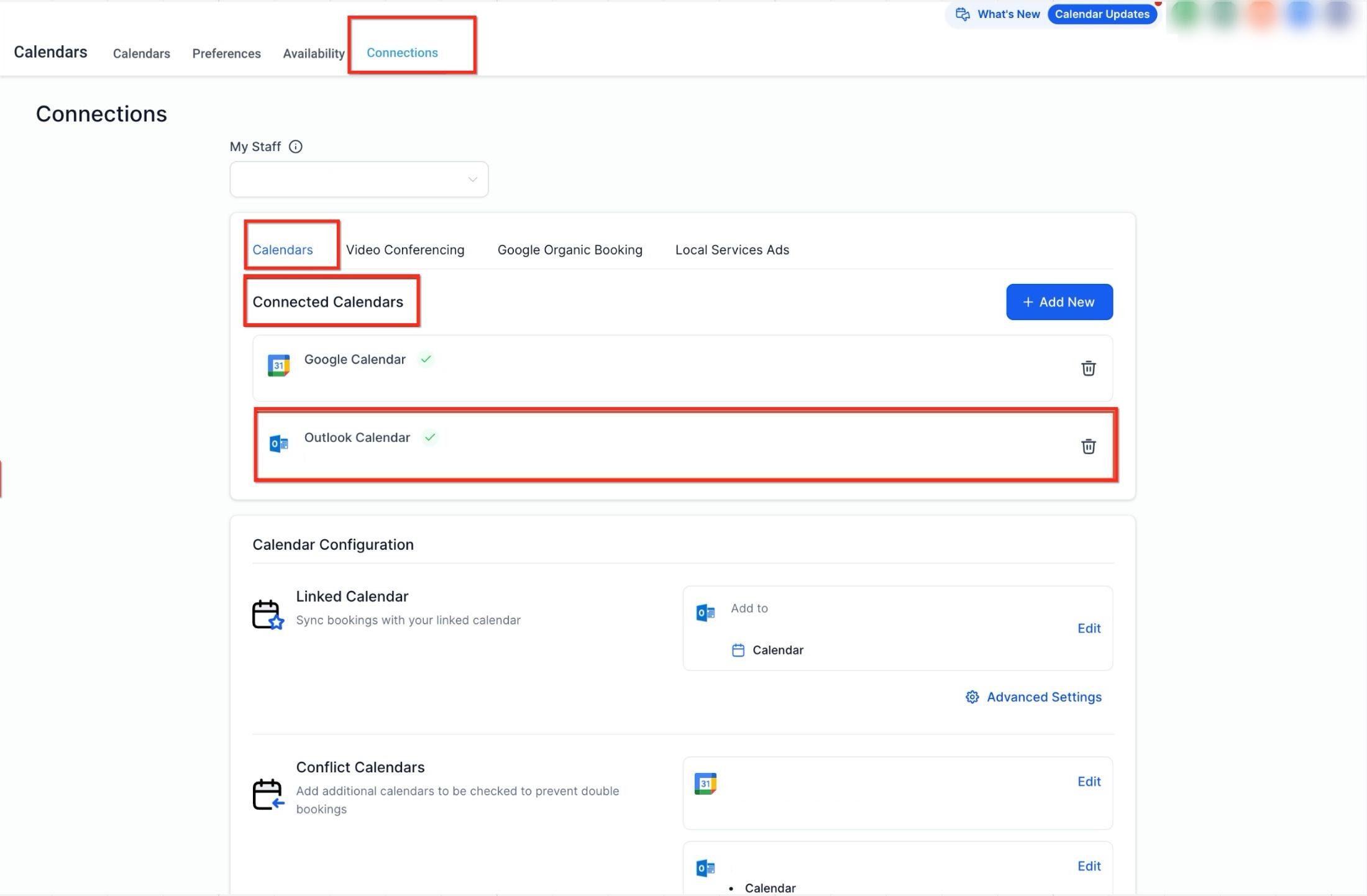
The Linked Calendar reads all events from the selected Outlook calendar and writes new appointments back to it. Click the edit button under Linked Calendar (sometimes labeled Primary Calendar) to choose which of your Outlook calendars should receive new bookings and send its events back into Aesthetix CRM.
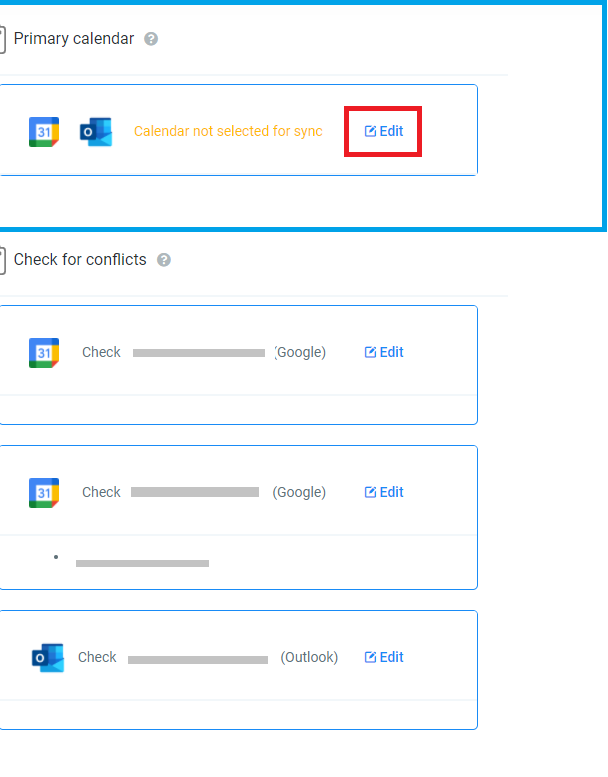
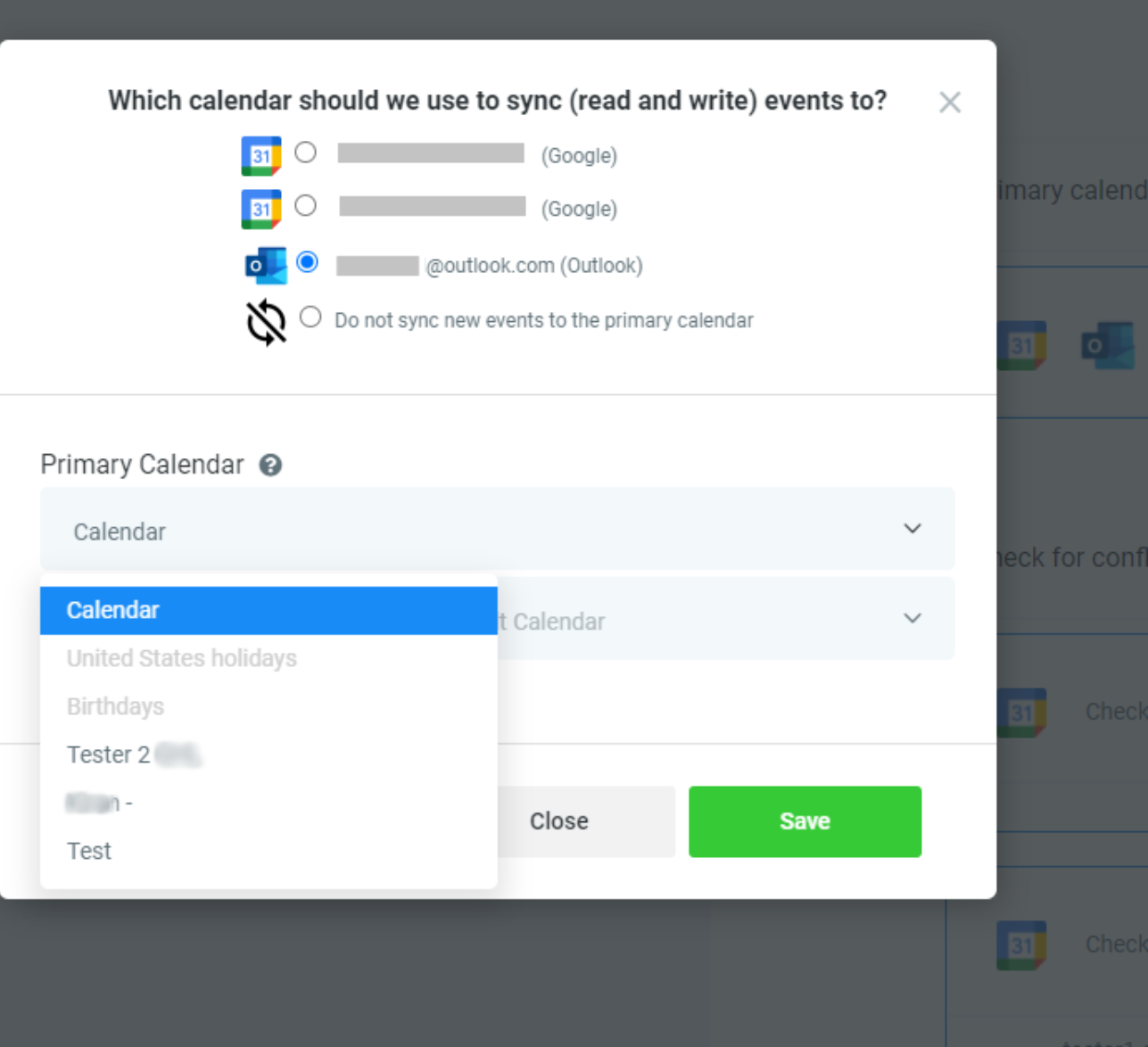
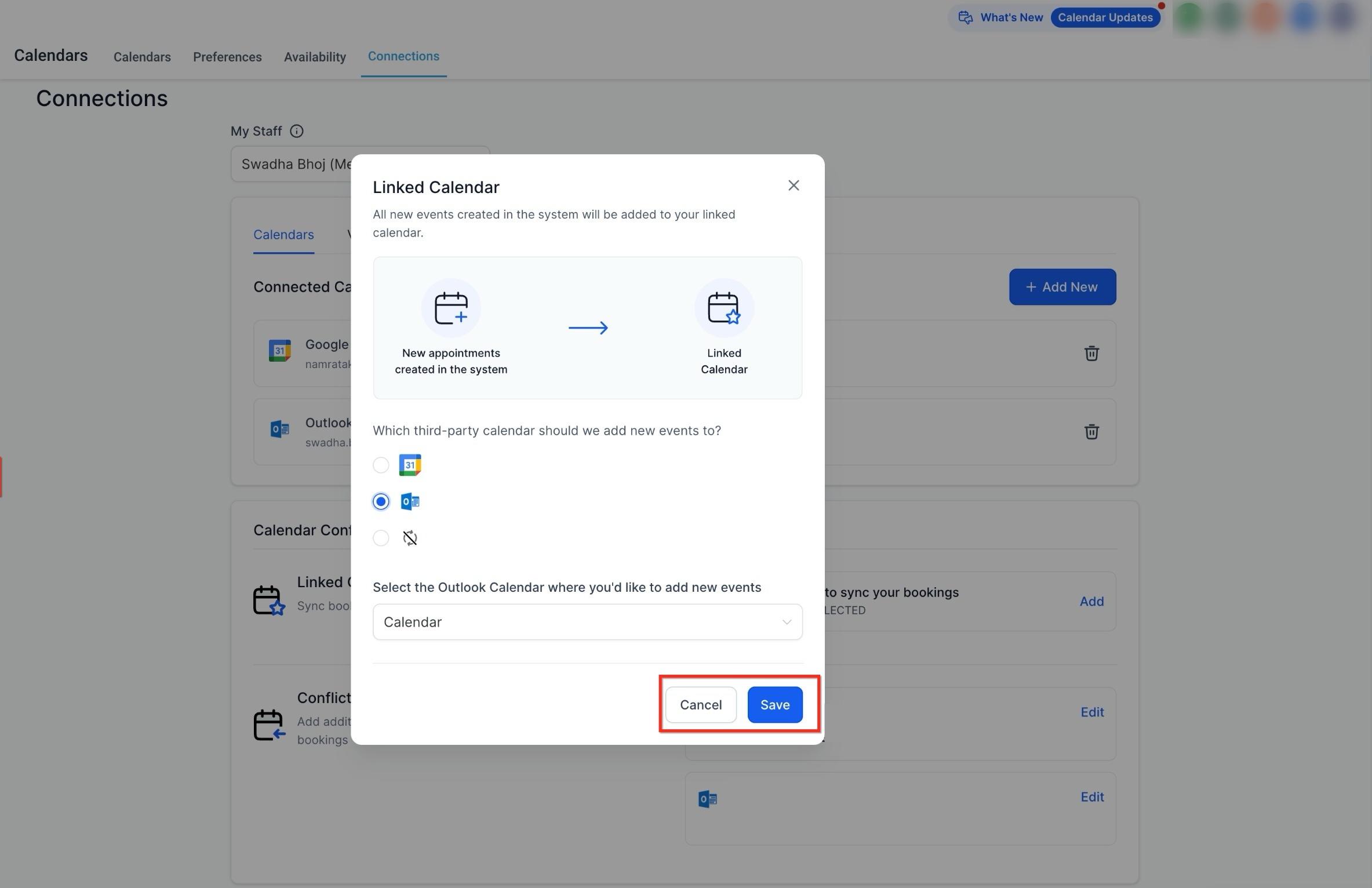
If appointments stop syncing in either direction, edit the Linked Calendar, set it to "Do not sync events," save, then reselect the same calendar. This resets the connection and typically resolves the issue.
The Conflict Calendar is read-only: it checks for busy time so Aesthetix CRM can block those slots from being booked. Events marked busy on that Outlook calendar block availability; events marked free do not. You can add multiple calendars here to keep availability accurate across every calendar a provider uses.
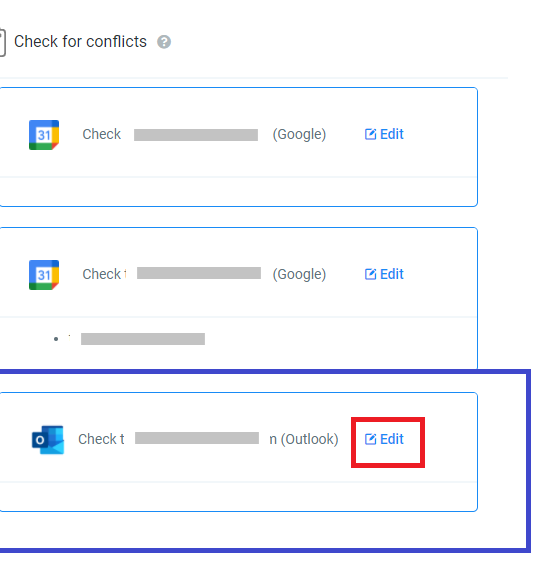
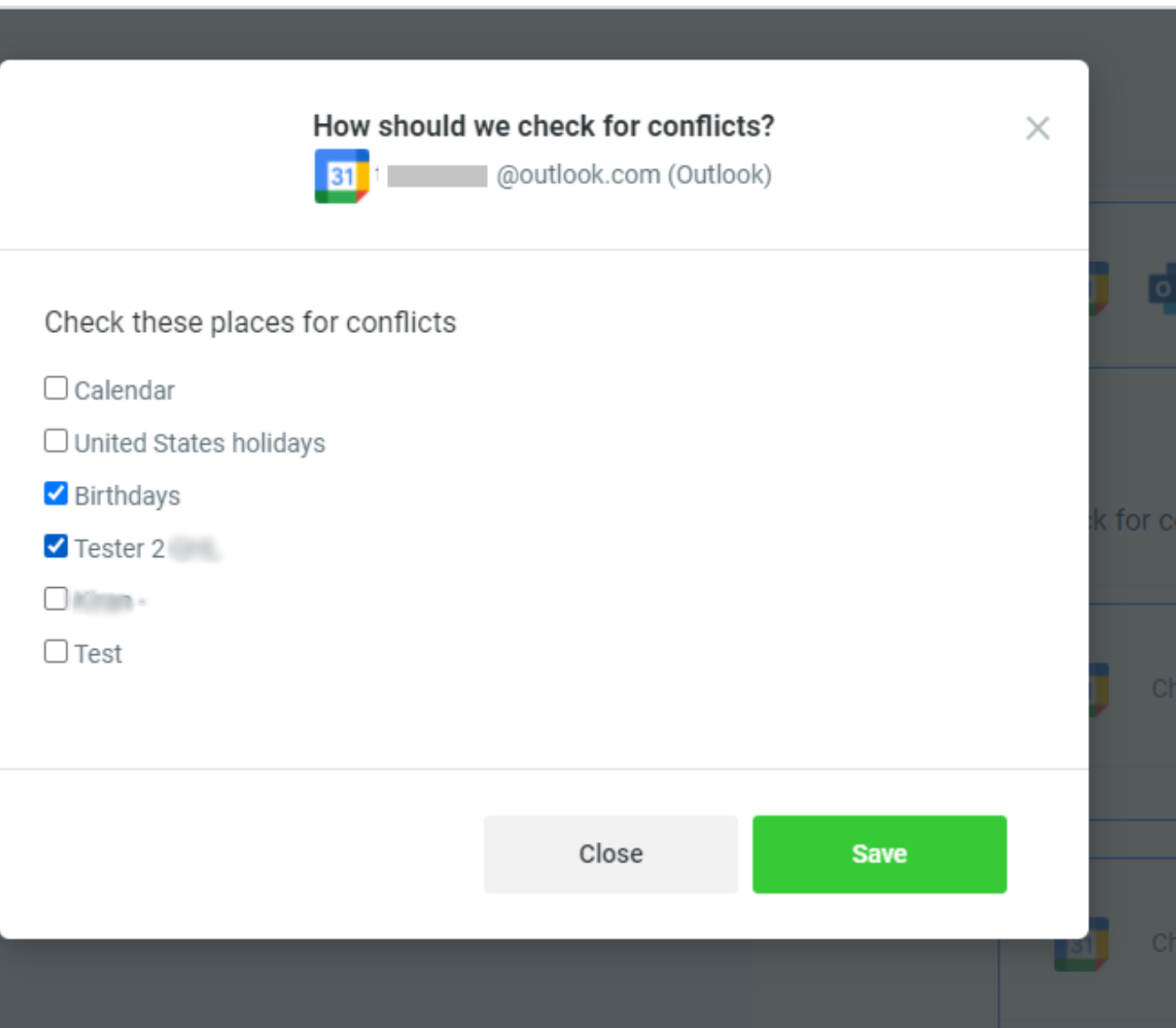
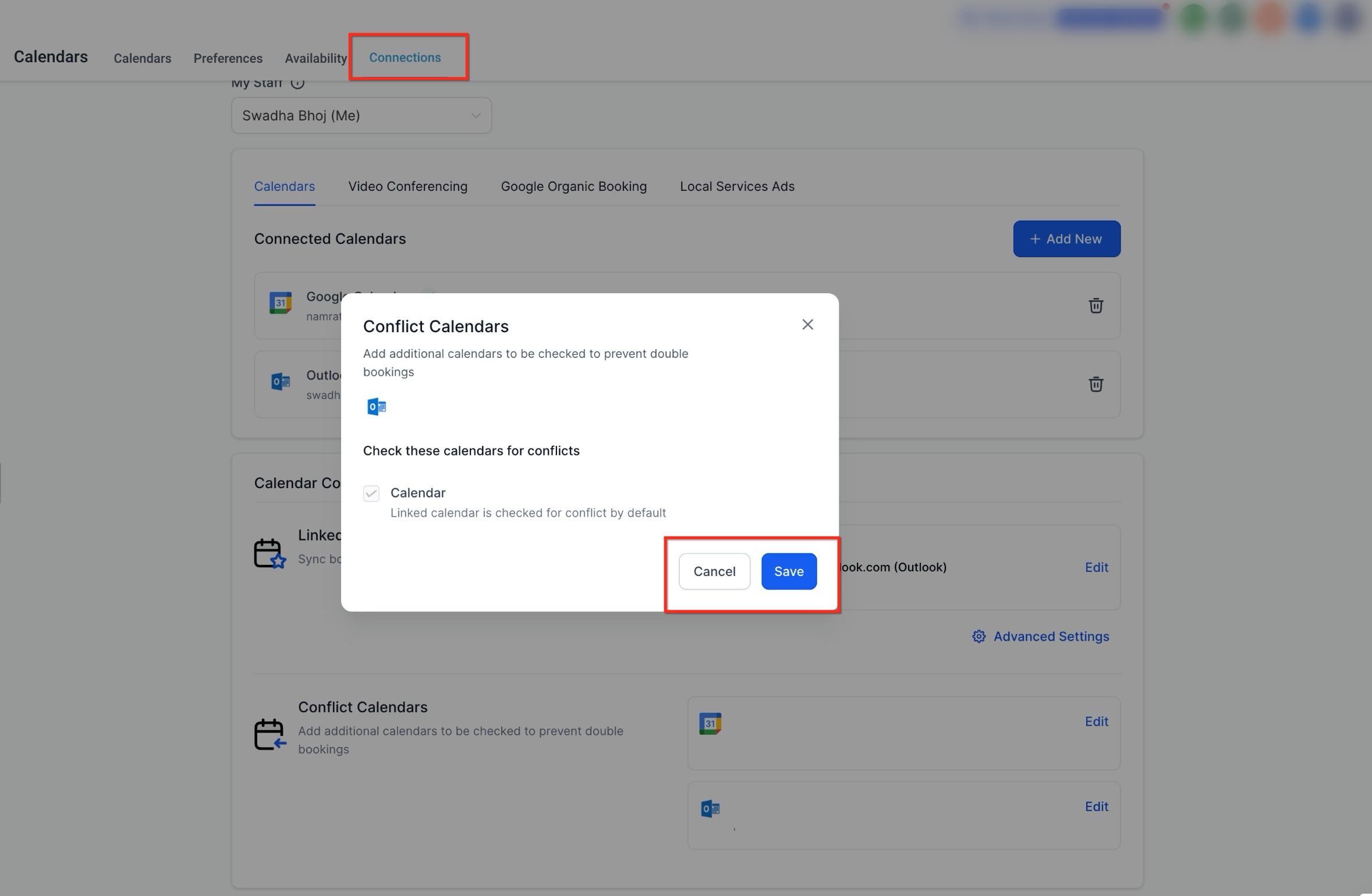
Once configured, availability updates automatically going forward. Busy Outlook events block time slots, free events stay visible without blocking anything, and new bookings sync without delay. Only events created after the connection is completed sync automatically; events that existed beforehand are not backfilled.
Each user can connect one Outlook account per account/location, and the same Outlook account cannot be connected to two different users within that same account. If you try, you'll see a message explaining that the account is already linked elsewhere.

Workaround: if a second team member needs visibility into that same Outlook calendar, connect a separate Outlook account under their own login, then share the original calendar to the new account directly from Outlook's calendar sharing settings.
If your practice runs more than one location under the same login, the same Outlook account can typically be connected in each location separately using the same email address.
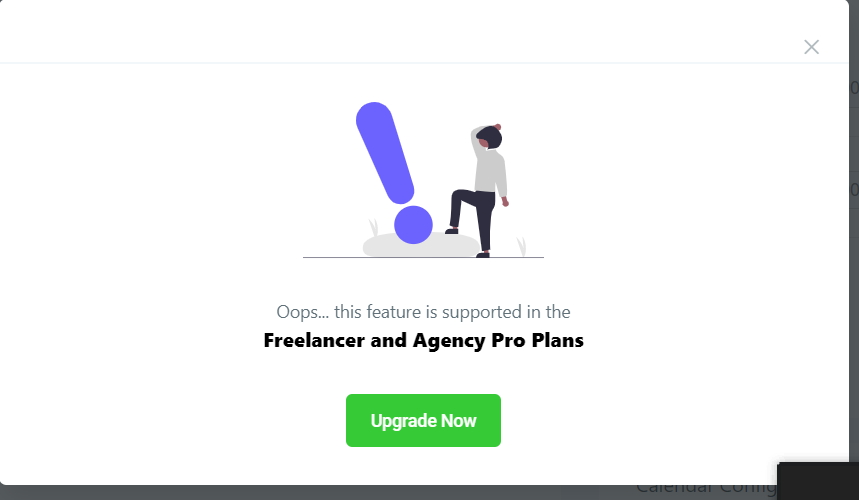
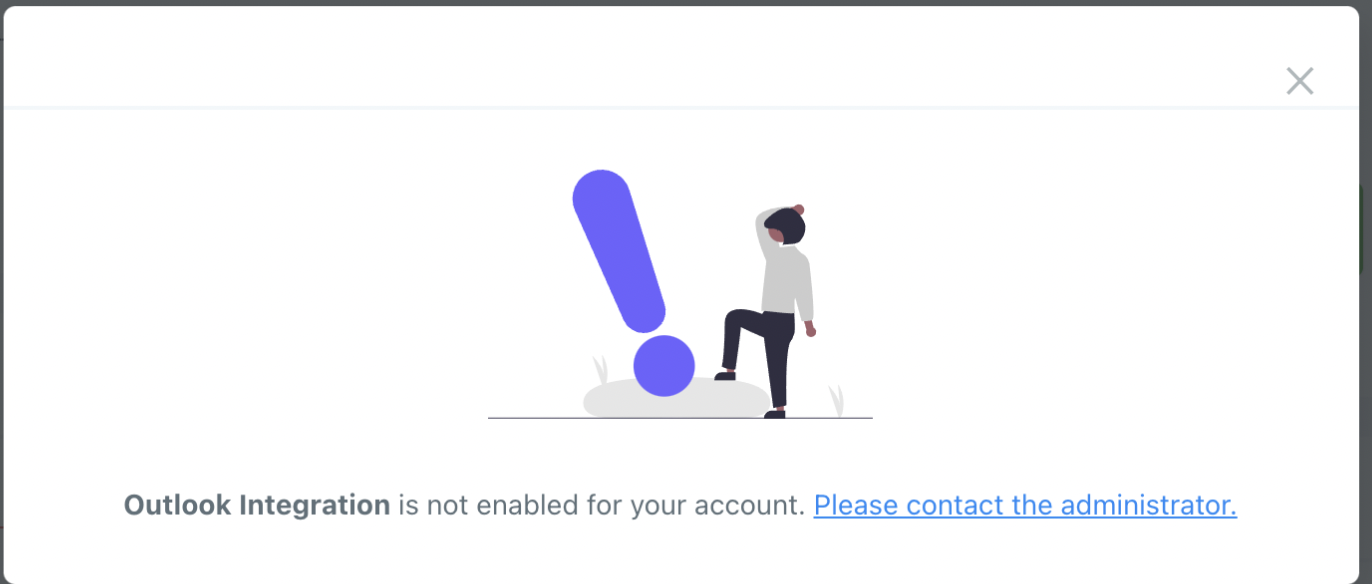
Only an admin or a user with permission to manage calendar connections can set up Outlook integration for their own profile. If a teammate's role restricts this, they'll see a message letting them know the feature isn't enabled for their account and to contact an administrator.
If your Outlook calendar was deleted on the Microsoft side and Aesthetix CRM shows an error banner, click Fix This on the banner to review the broken connection, then select Remove Deleted Calendars to clear it and restore a clean setup. Disconnecting Outlook entirely automatically removes it from both the Linked Calendar and Conflict Calendar slots.
Appointment details written to a connected Outlook calendar can include patient names and treatment types. Since Outlook lives outside Aesthetix CRM's HIPAA-eligible environment, keep this in mind when choosing what appears in your appointment titles, and limit who has access to the connected Outlook mailbox.
Outlook integration currently works with Round Robin, Collective, and Service Calendars. It does not work with Event Calendars, which only support Google Calendar sync.
Connecting Microsoft Teams lets Aesthetix CRM generate a unique, dynamic meeting link automatically whenever Microsoft Teams is chosen as the meeting location on a booking. That link is added to the calendar invite and shared with the patient, so nobody has to create a meeting link by hand.
You'll need access to the Microsoft Teams account (Work or School / Organization and Education account) you want to use for consults.
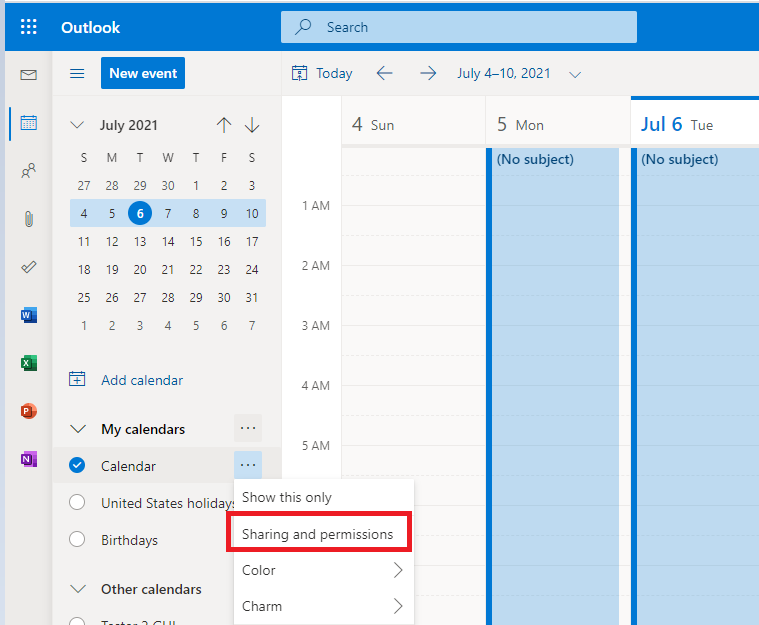
Open Settings > Calendars > Connections, then switch to the Video Conferencing tab. If no video conferencing tool is connected yet, you'll see the option to add one there.
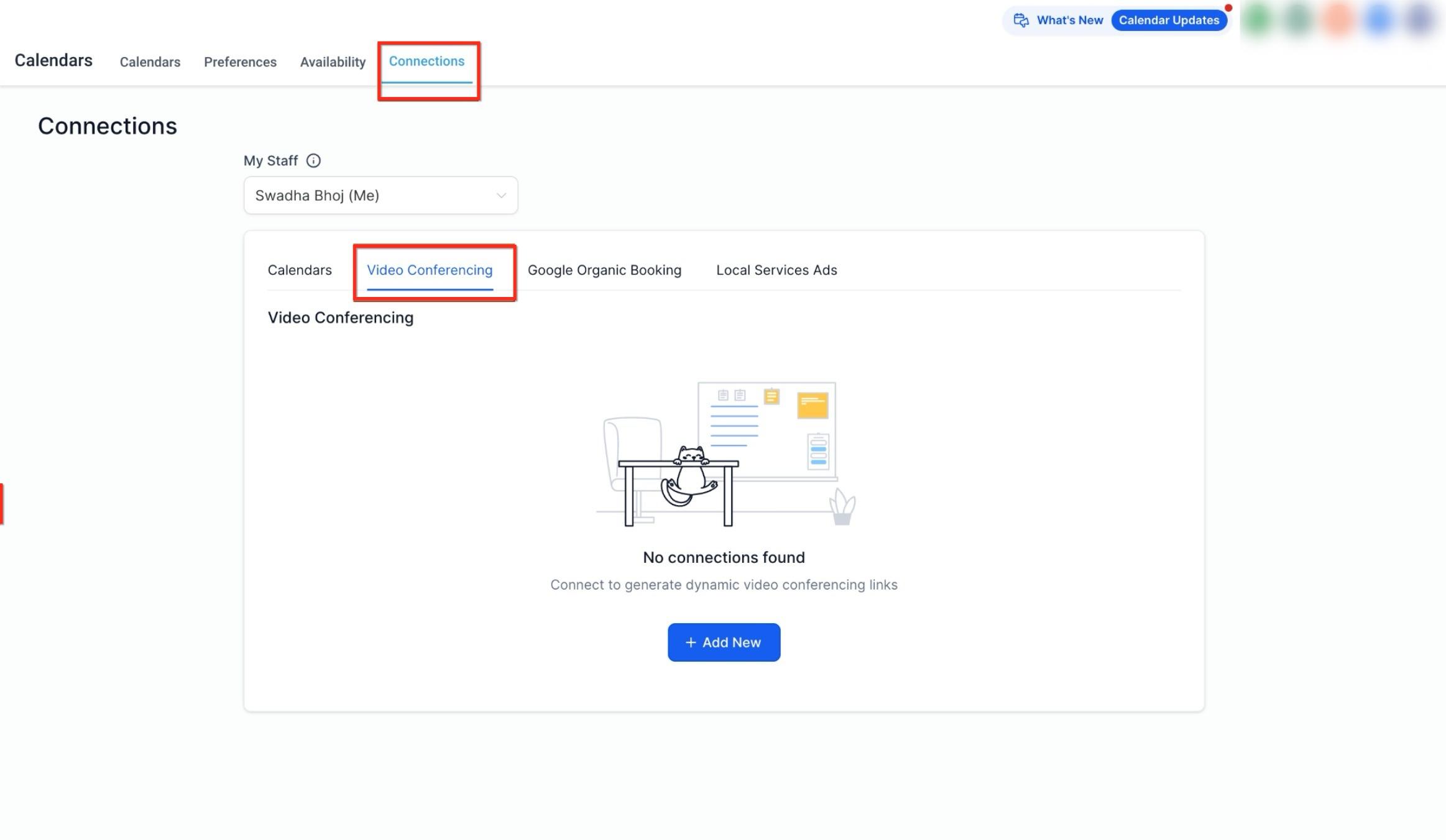
There are two menus that lead to the same connection:
From the "My Profile" menu
Go to Settings > My Profile.
Under Video Conferencing connections, click Add New.
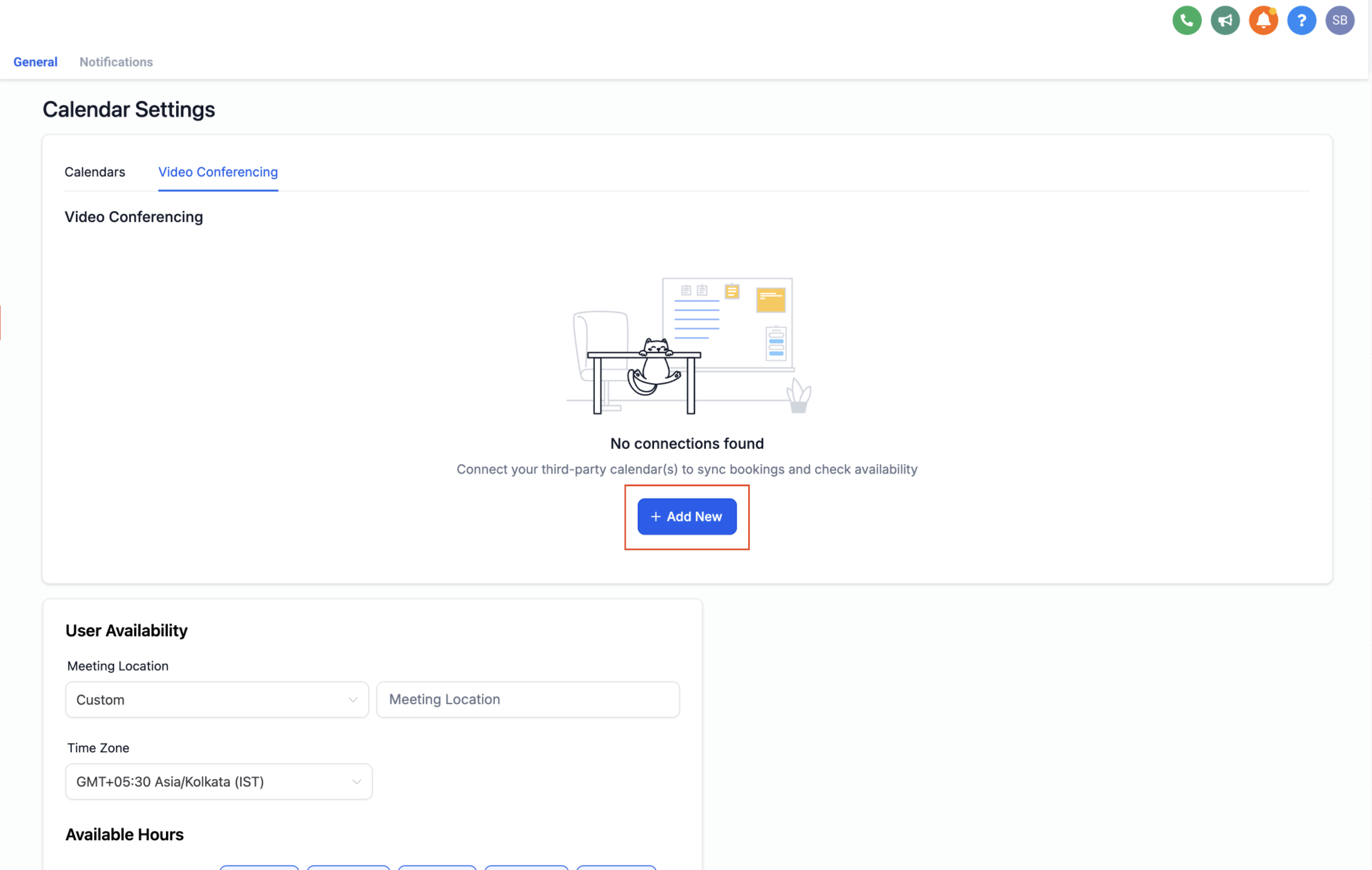
Select Microsoft Teams and click Connect.
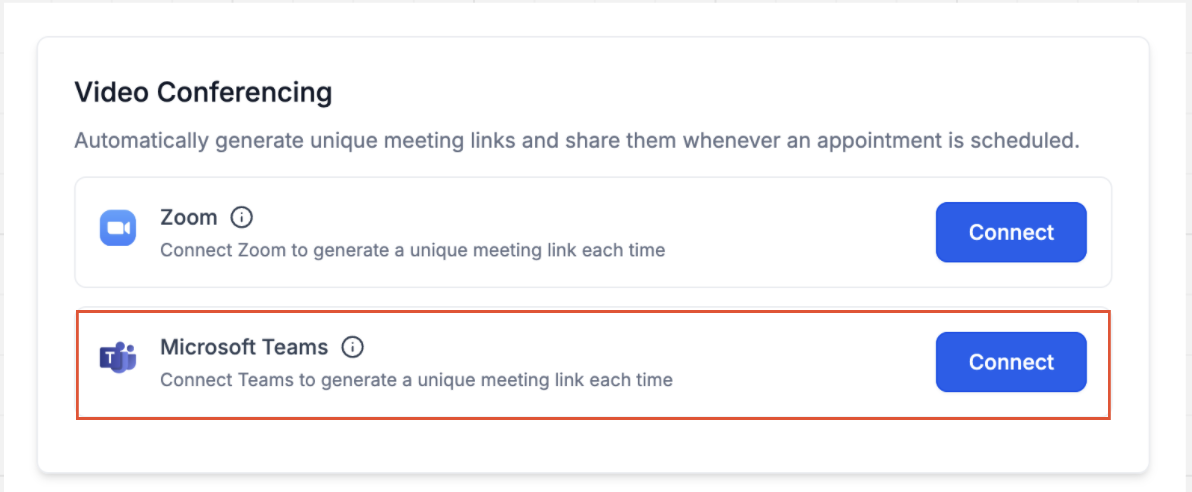
Sign in with your Microsoft Teams credentials. Your account is now connected.
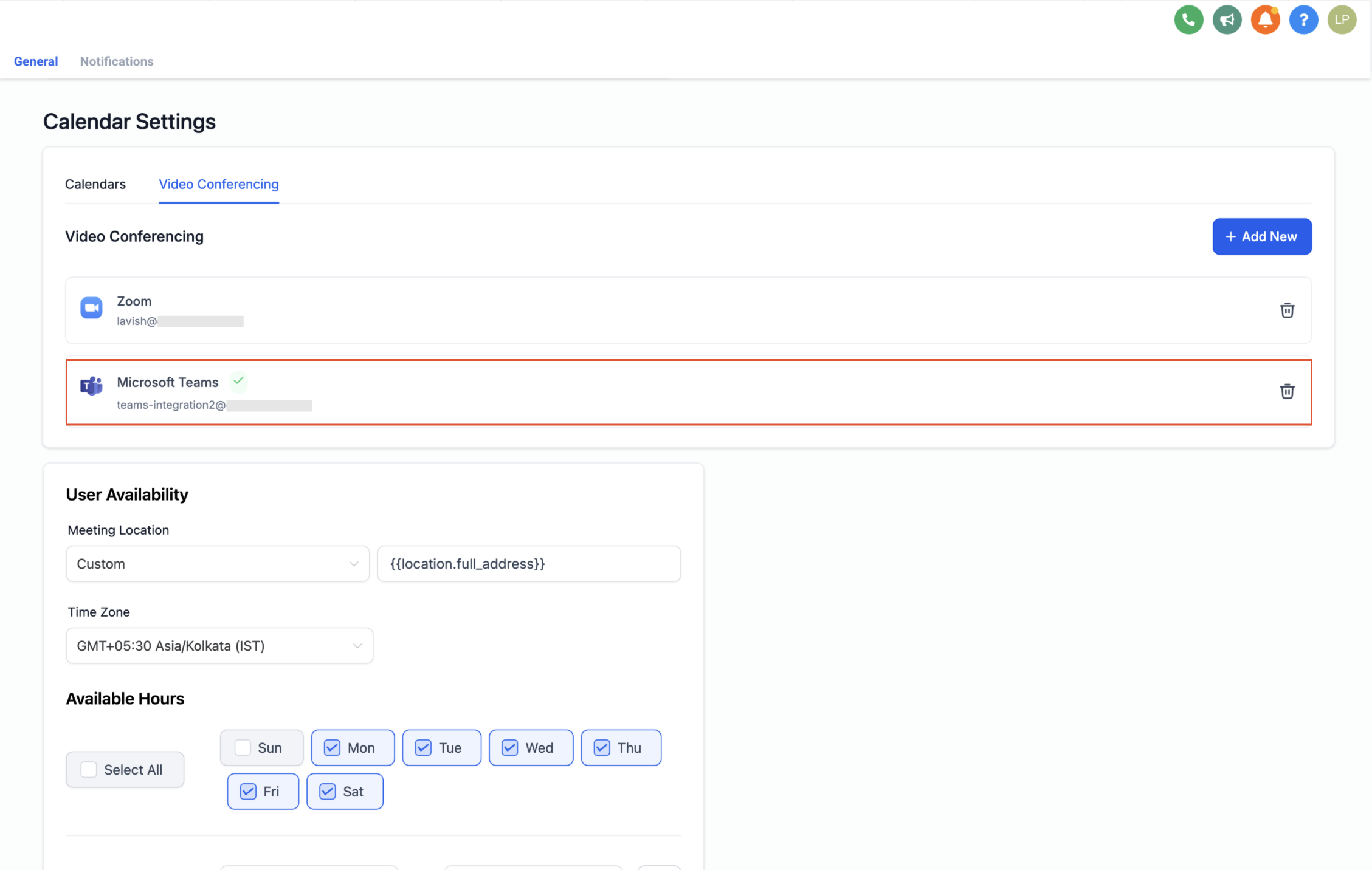
From the "Calendars" menu
Go to Calendars > Calendar Settings > Connections.
Open the Video Conferencing tab.
Click Add New, then click Connect next to Microsoft Teams.
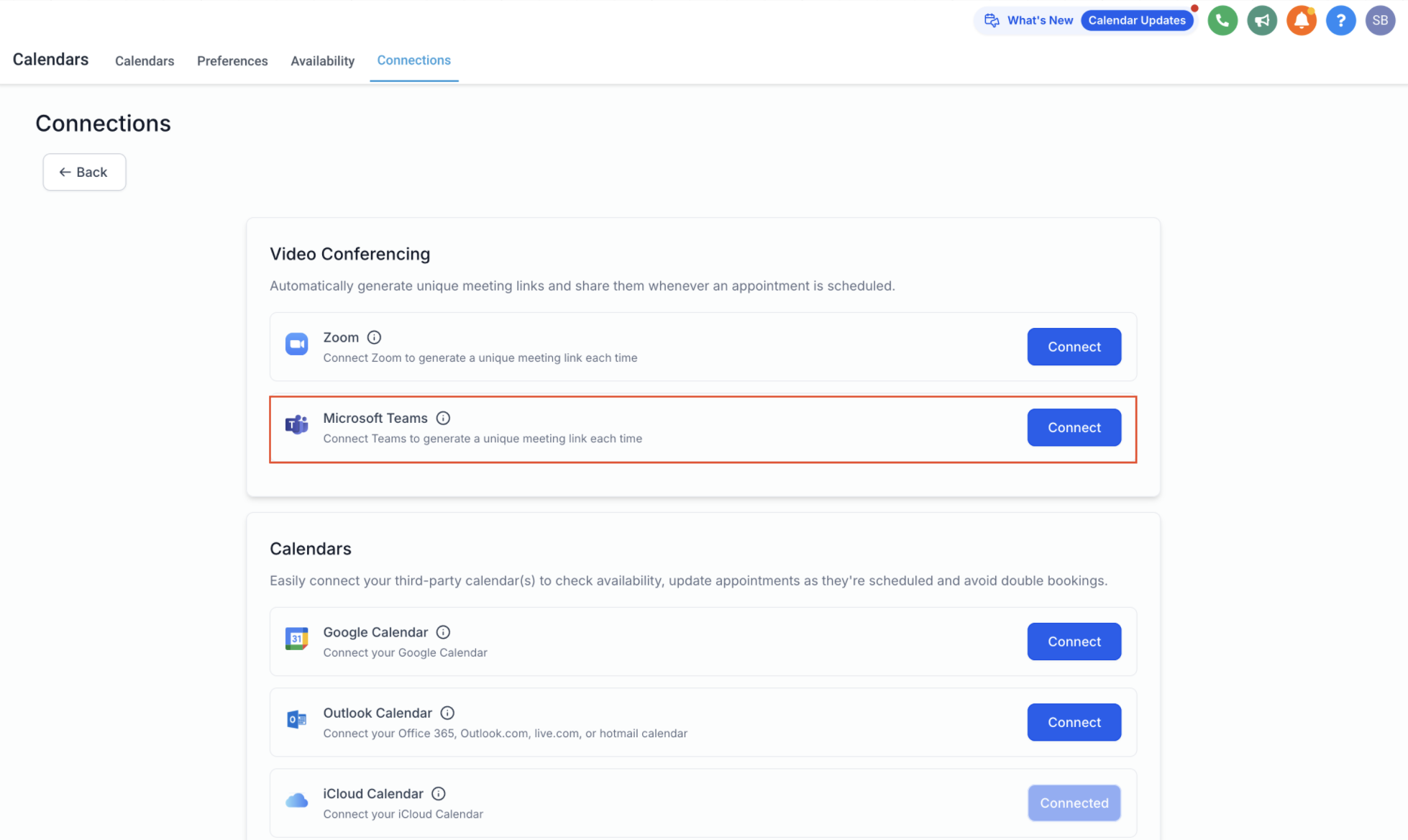
Sign in with your Microsoft Teams credentials. Your account is now connected.
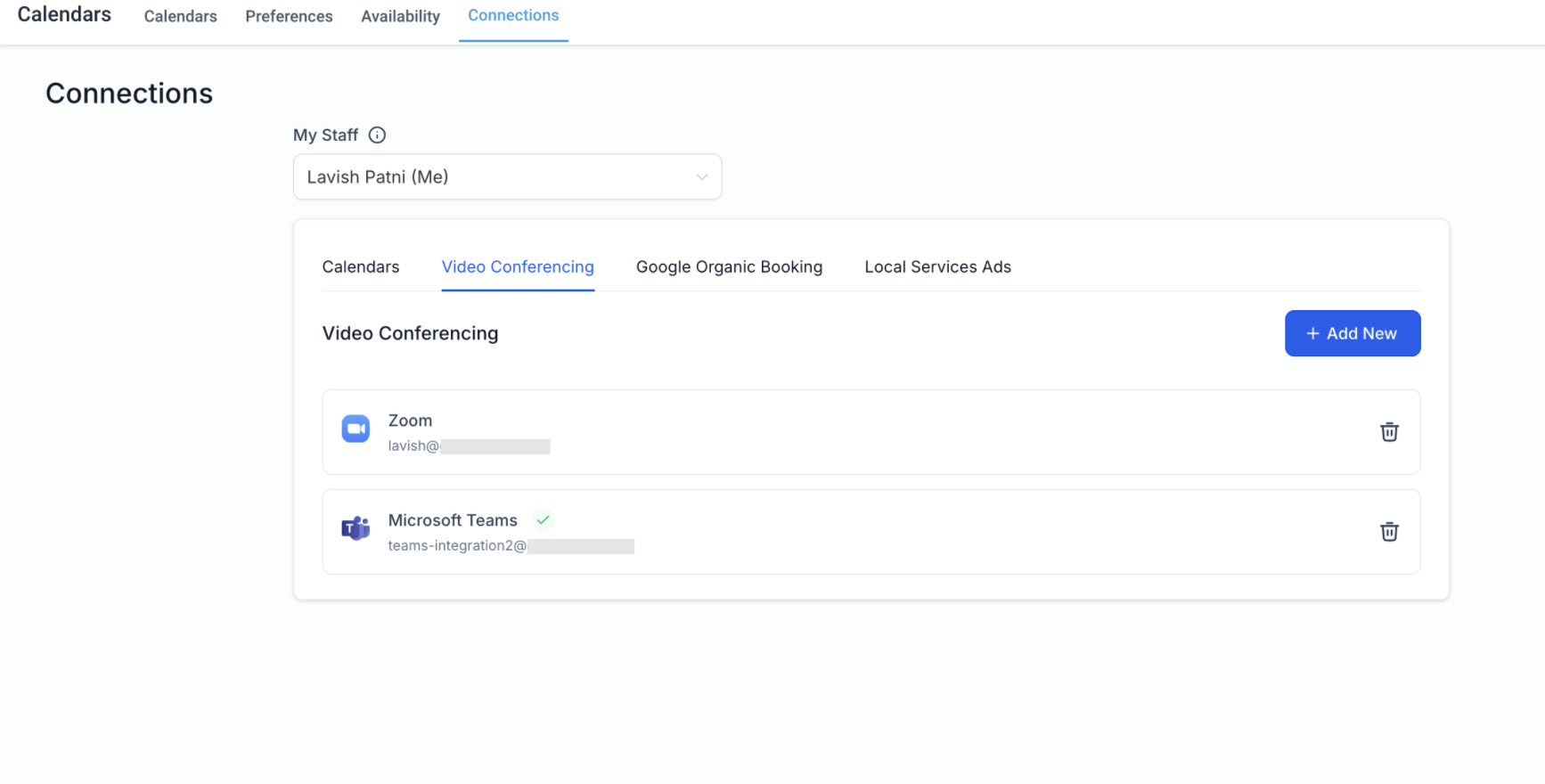
Connecting the Teams account doesn't automatically turn on dynamic links everywhere. You still need to tell the specific calendar to use it:
Confirm your Microsoft Teams integration is connected.
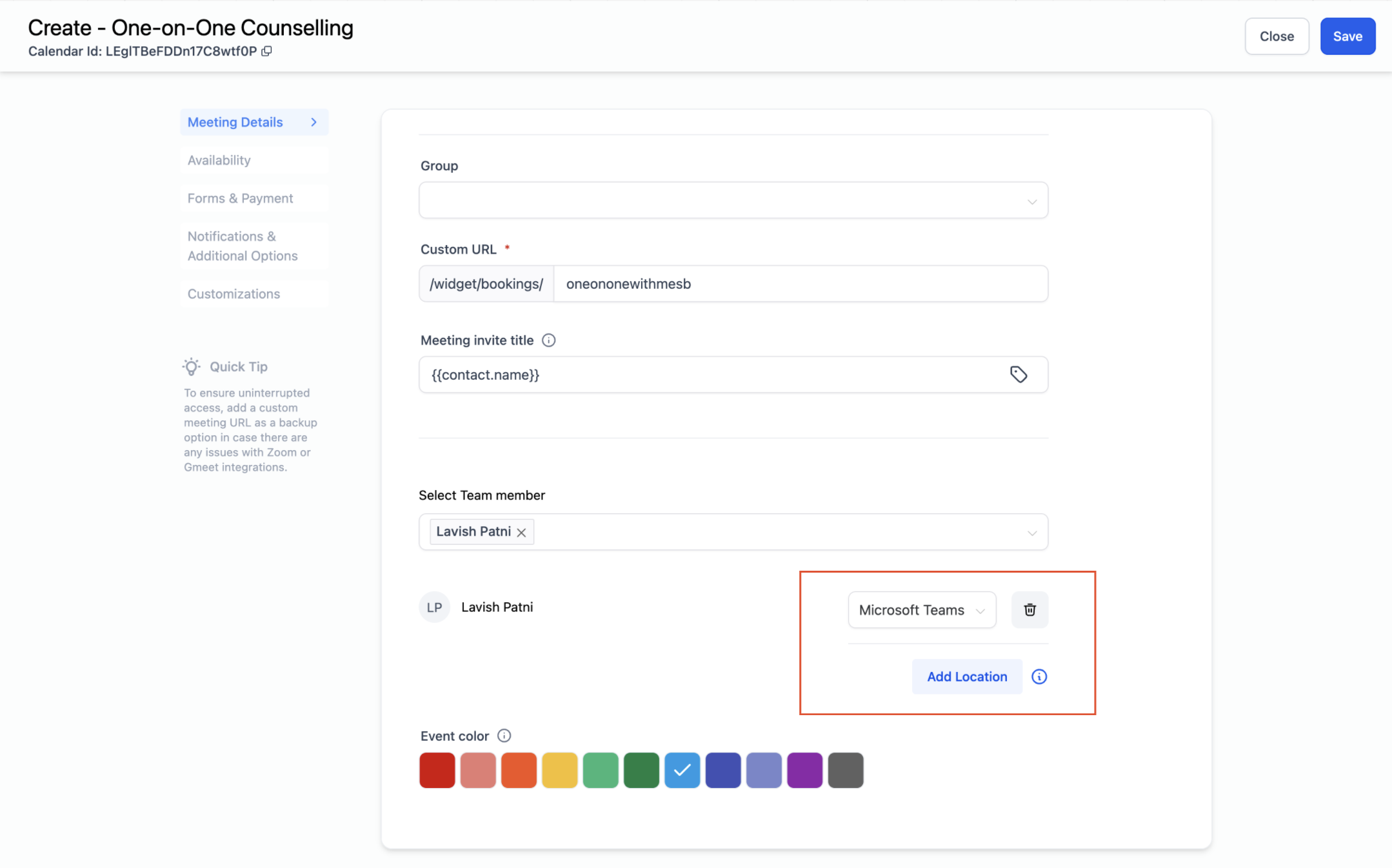
Go to Calendar Settings and edit the calendar you want to update.
Open the Meeting Details tab and scroll to Team Members.
Choose the team member (make sure they've connected Microsoft Teams themselves), select Microsoft Teams as the meeting location, and click Save.
Connecting an Outlook calendar does not automatically connect Microsoft Teams. They're separate connections; set up Teams under Video Conferencing on its own.
To see appointments on your Outlook calendar, make sure that calendar is both connected and selected as the Linked Calendar under Calendar Connections.
Each user can connect one Microsoft Teams account per location, but the same account can be reused across multiple locations and by multiple users at once.
Dynamic links are only generated when the connected Teams account is selected as the meeting location on a calendar.
If Microsoft Teams is disconnected and later reconnected, Aesthetix CRM automatically generates Teams links for upcoming appointments that were created while it was disconnected and were missing a link.
To remove or switch the connected account, go to Connections > Video Conferencing, remove or reconnect a different Teams account, then confirm the meeting location setting on any calendars that should generate Teams links.
Personal Booking, Round Robin, Collective Calendars, and Service Calendars support Microsoft Teams and automatically generate a fresh link for every booking. Class Booking Calendars support is coming soon.
Event Calendars don't auto-generate links. Instead, generate a meeting link manually inside Microsoft Teams, set the calendar's meeting location to Custom, and paste that link in. Because it's pasted manually, the same static link is reused for every booking rather than a unique one per appointment.
For automated booking flows where an AI assistant confirms and schedules the appointment for you, see the AI Employee guides; automated booking only works with native (non-EMR) calendars, the same calendar types that support Outlook and Teams sync described here.
Does Outlook integration work with Event Calendars? No. Event Calendars only support Google Calendar sync. Outlook works with Round Robin, Collective, and Service Calendars.
Can I connect more than one Outlook account? You can connect multiple Outlook accounts across different users, but each individual user can only connect one Outlook account per location, and only one calendar can be set as the Linked Calendar at a time.
What happens if I disconnect Outlook? Aesthetix CRM stops receiving availability and event data from that calendar, and it's automatically removed from your Linked Calendar and Conflict Calendar settings. Calendar-based scheduling accuracy may be affected until you reconnect.
Will my existing Outlook events show up after I connect? No. Only events created after the connection is completed sync automatically; nothing is backfilled.
Can I use Google Calendar and Outlook at the same time? Yes. You can set your Linked Calendar to one provider and pull Conflict Calendar data from Google, Outlook, or both.
Can I write appointments to both Google and Outlook at once for the same user? No. A user can only write new appointments to one Linked Calendar at a time, though you can still check conflicts against multiple calendars.
Why do I see a "Need Admin Approval" screen instead of the Microsoft sign-in prompt? Your organization has a policy requiring an administrator to approve new third-party app connections. A Microsoft 365 administrator needs to review and approve the request in the Microsoft Entra admin center before you can finish connecting Outlook.
Do I need to create Microsoft Teams meeting links manually after connecting? No. Once connected and selected as the meeting location on a supported calendar, Aesthetix CRM generates a unique link for every new booking automatically.
Will old bookings get a Teams link after I connect? No. Only bookings created after the Teams connection is active will include an automatically generated link.
Can multiple team members share the same Microsoft Teams account? Yes. The same Teams account can be connected across multiple users and multiple locations, though each user can only have one Teams account connected per location at a time.
What if my Outlook calendar shows an error banner because it was deleted? Click Fix This on the banner, review the broken connection, then select Remove Deleted Calendars to clear it and reconnect a working calendar.
