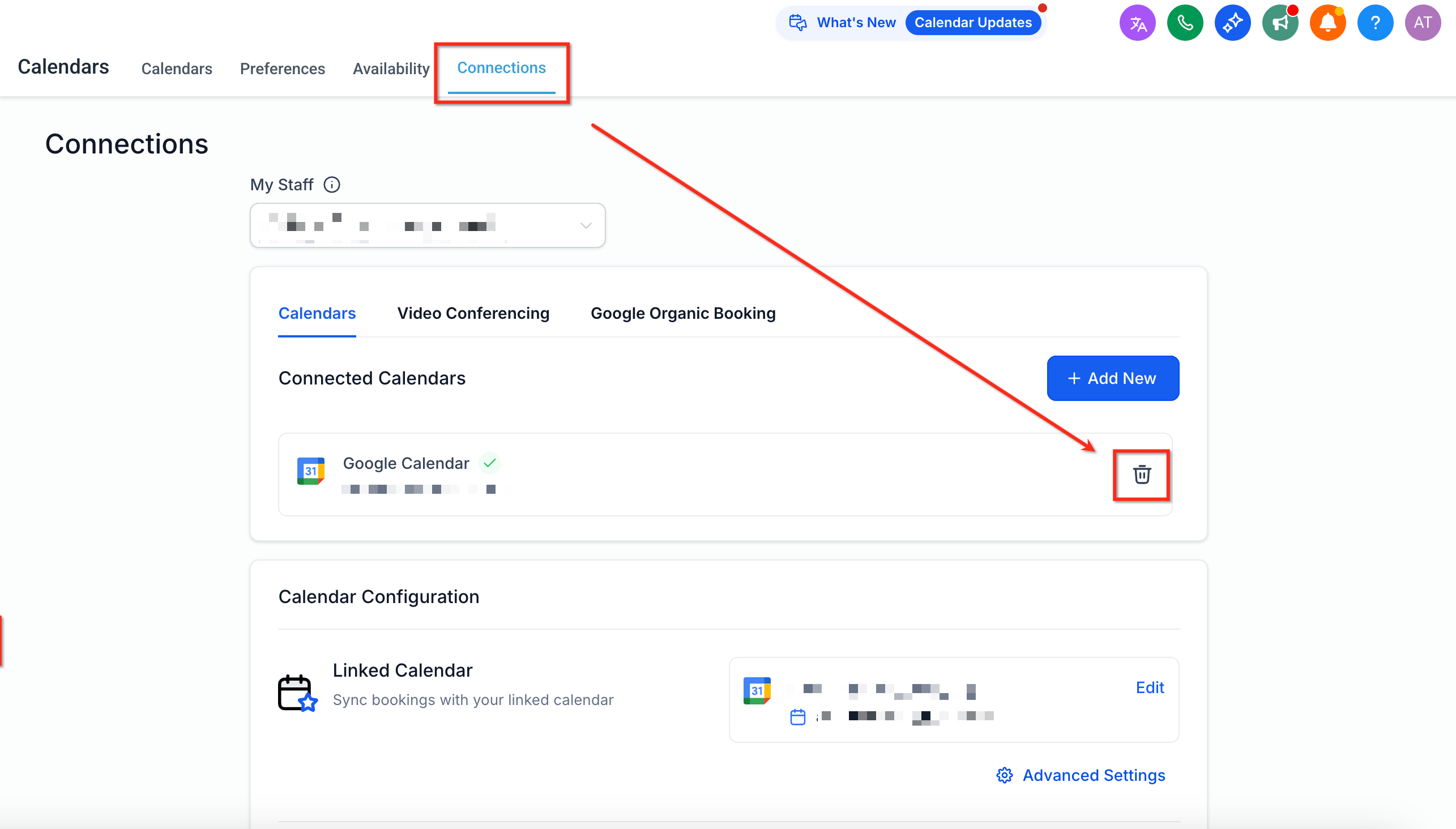
Connecting Google Calendar keeps your Google account and Aesthetix CRM in sync in both directions, so booked patient appointments show up on your Google Calendar and events you create in Google block off your availability in the system. This prevents double bookings and keeps your day accurate no matter which calendar you glance at. Connections are managed under Settings > Calendars > Calendar Settings > Connections, or from Settings > My Profile > Calendar Settings for a single user's own account.
Real-time appointment syncing between Google Calendar and Aesthetix CRM.
Two-way sync keeps both platforms aligned, so patient bookings appear on your Google Calendar automatically.
Avoid double bookings by using a Google calendar as a conflict calendar.
Multi-user support, with each team member selecting their own calendar.
Automatic catch-up syncing: appointments created while your calendar was disconnected sync over automatically once you reconnect. Connecting a new calendar or switching your selected calendar also resyncs upcoming appointments.
Google Meet links are generated automatically for appointments when Google Calendar is your linked calendar.
You need a valid Google account, either a personal Gmail account or a Google Workspace (G Suite) account both work.
Calendar connections are tied to each individual user's profile, not to account-wide settings. Every provider or staff member who wants their Google Calendar synced needs to connect their own account.
The calendar you're connecting should not be shared with conflicting permissions from another source.
Decide what level of access you need:
If you want appointments created in Aesthetix CRM to also be added to your Google Calendar, you need writer access to that calendar.
If you only want to pull your existing Google events into Aesthetix CRM to block availability, read-only access is enough.
HIPAA note: Synced calendar events can carry over appointment titles and descriptions to your Google Calendar, which is outside your Aesthetix CRM environment. Keep event titles generic (for example, a patient's name and appointment length) and avoid putting treatment details, diagnoses, or other PHI in calendar descriptions that sync externally.
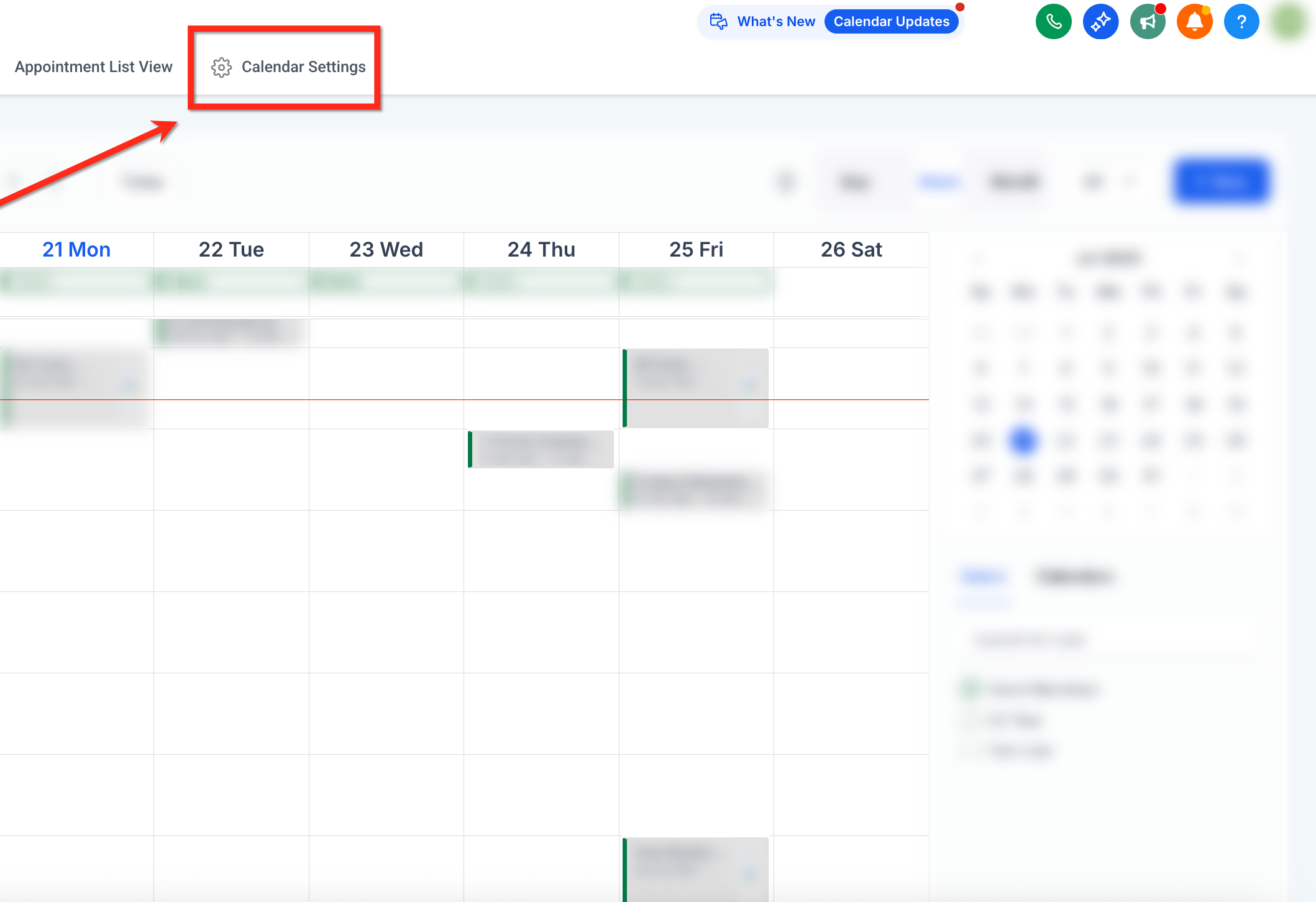
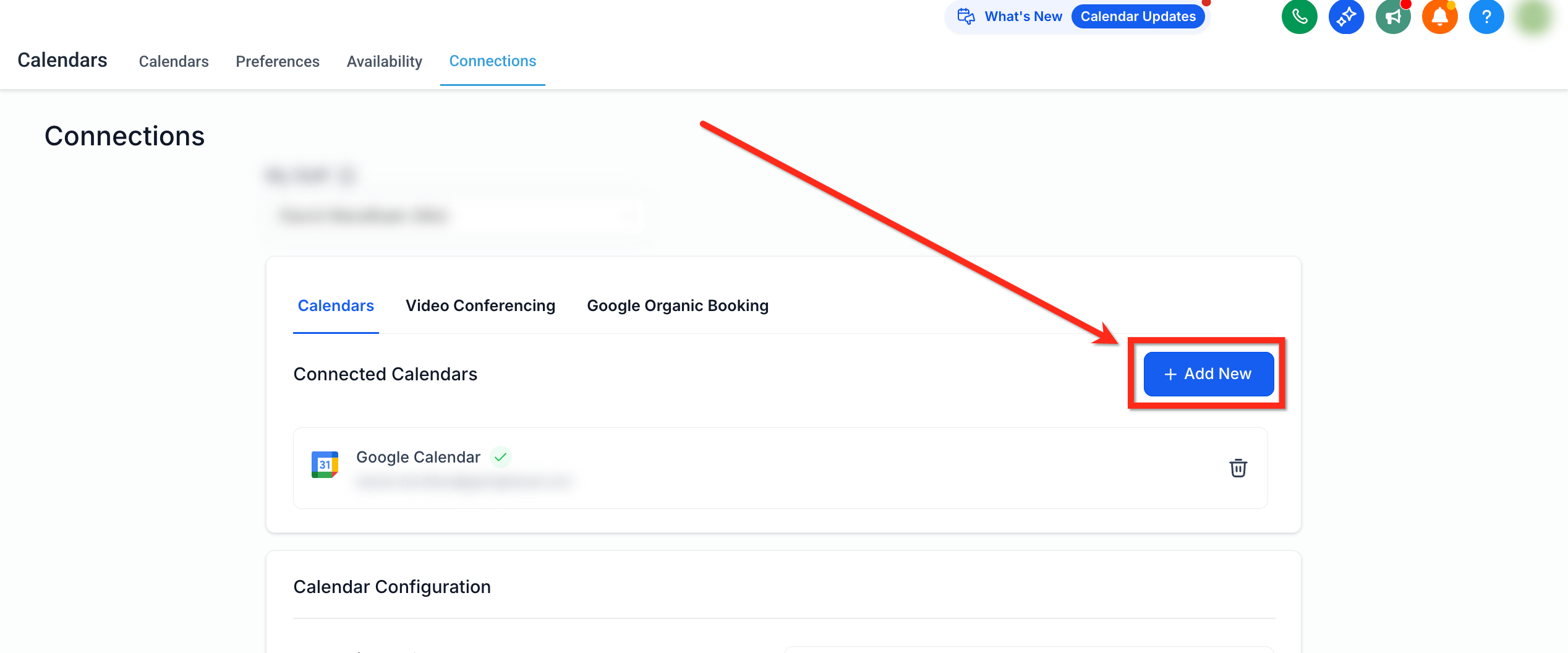
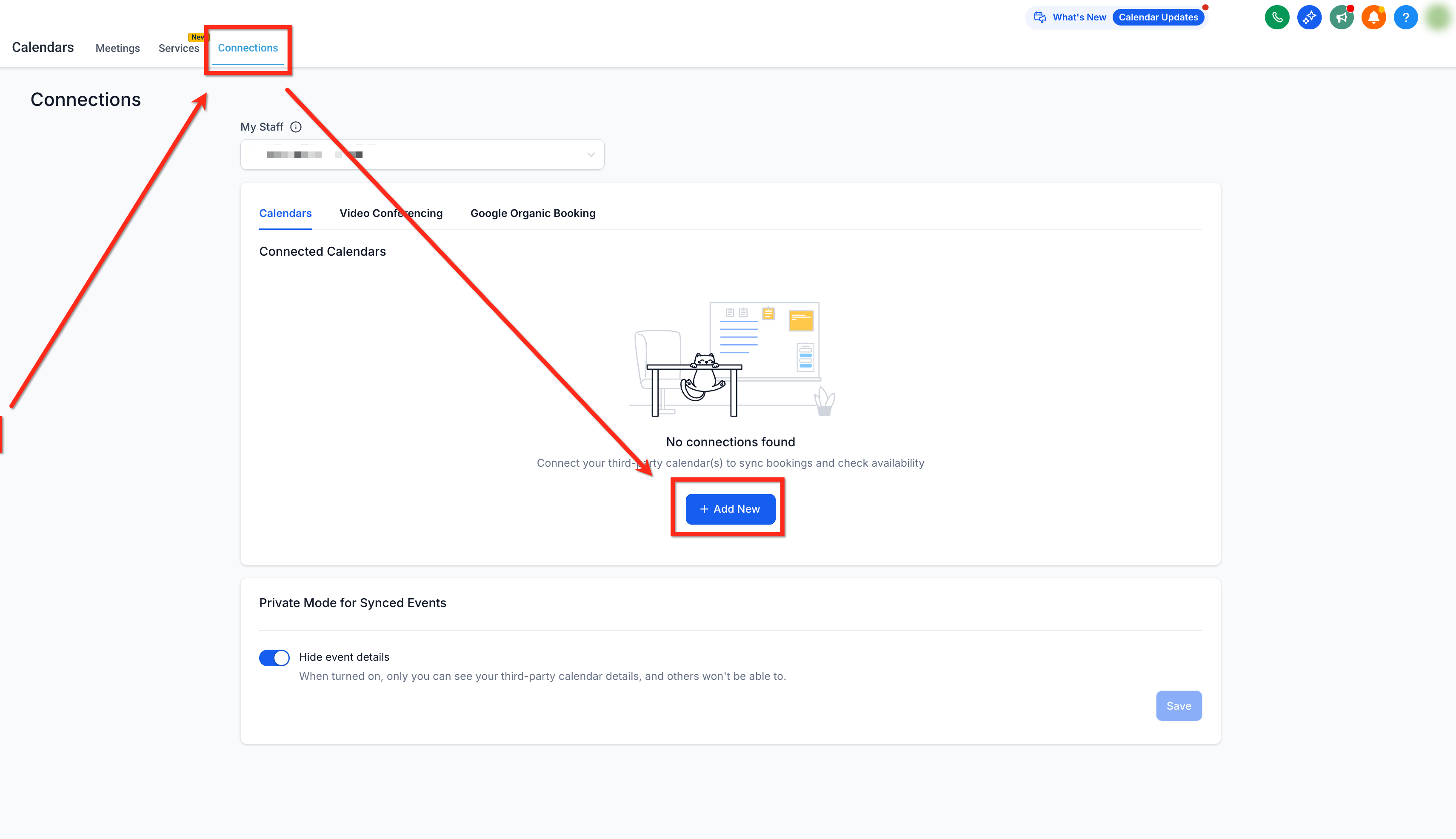
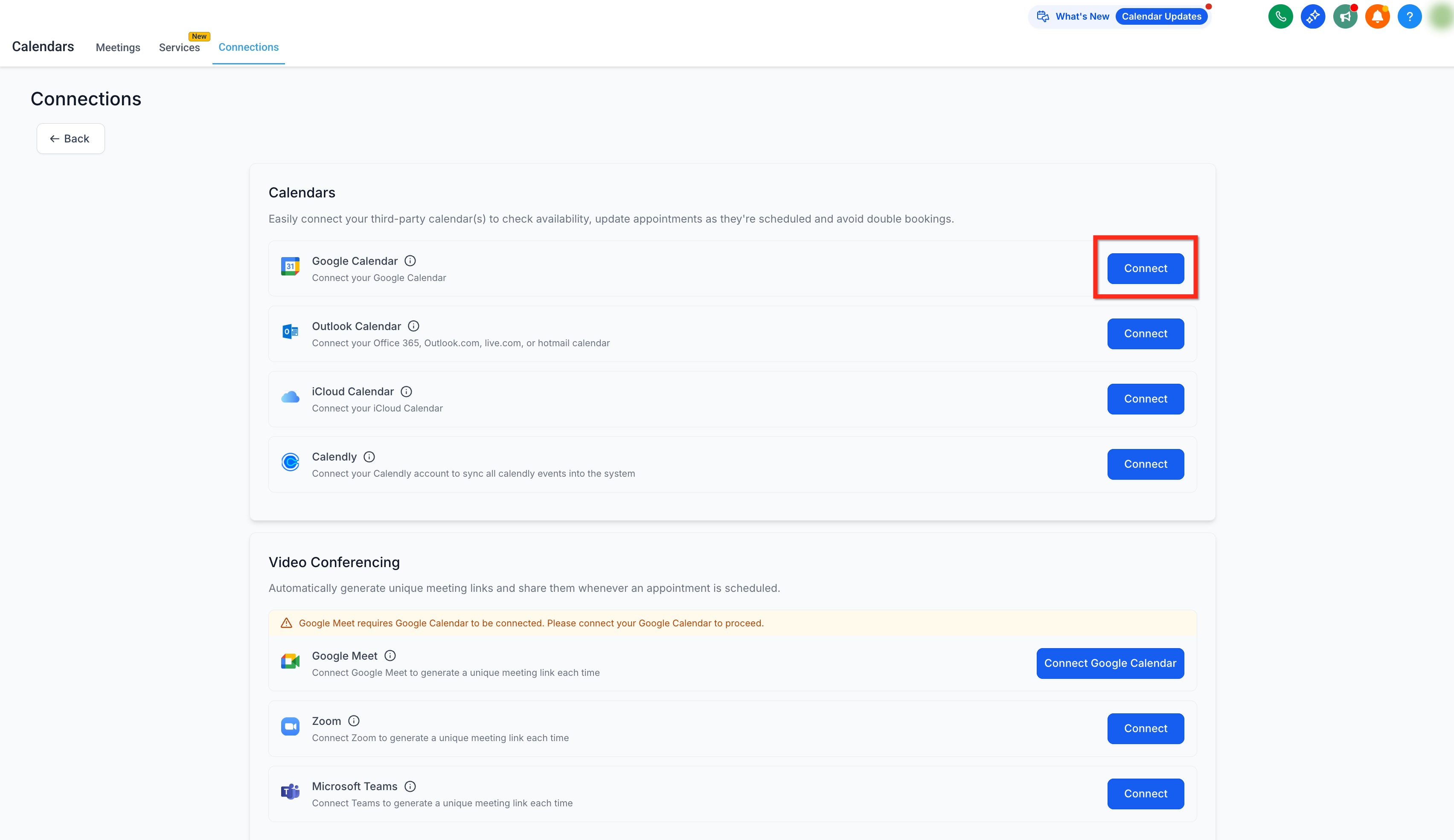
Go to Settings > Calendars, open Calendar Settings, click the Connections tab, and select + Add New.
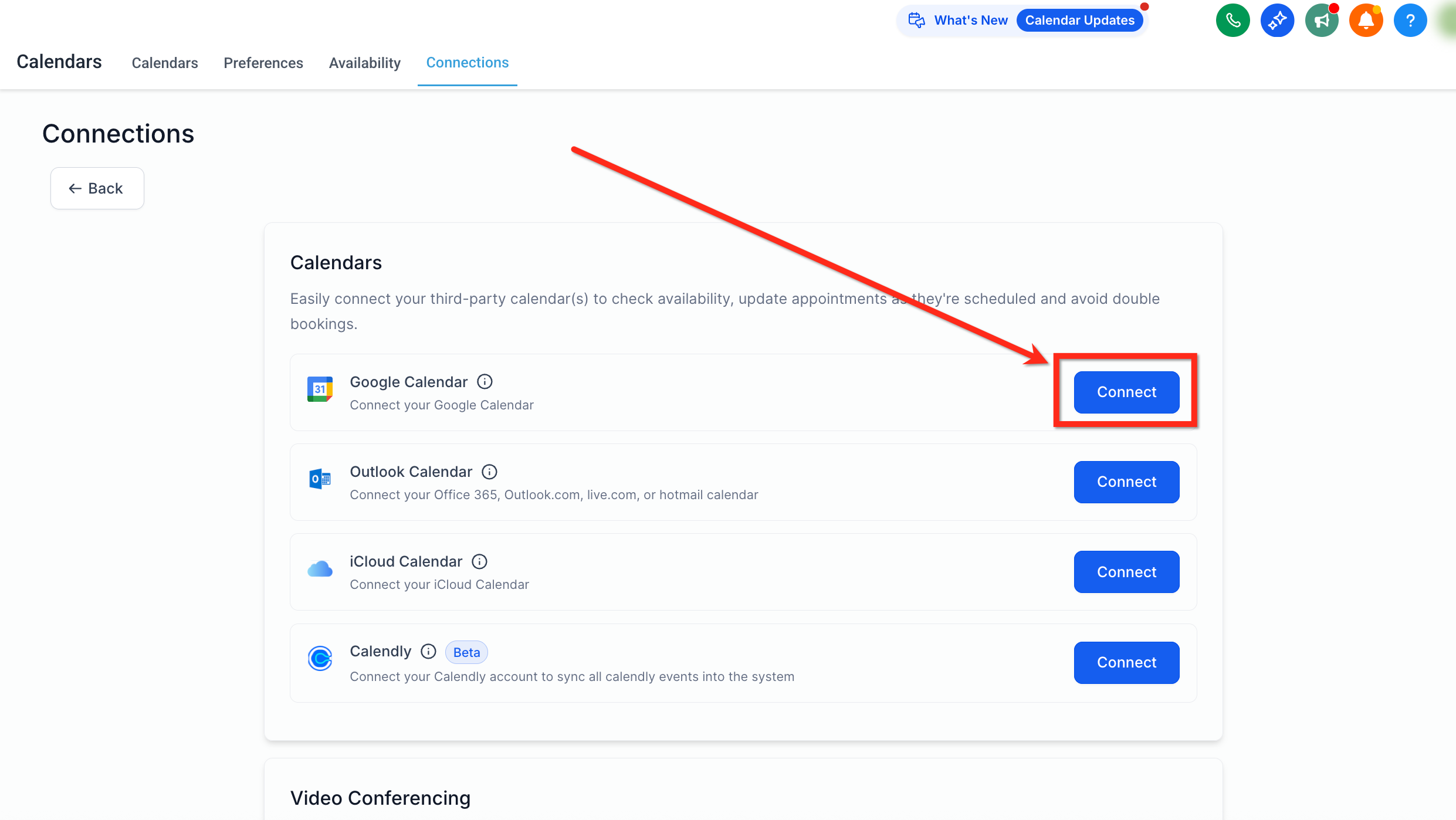
Find Google Calendar in the list and click Connect.
Choose the Google account you want to use and accept the requested permissions, including calendar read/write access, profile, and email access.
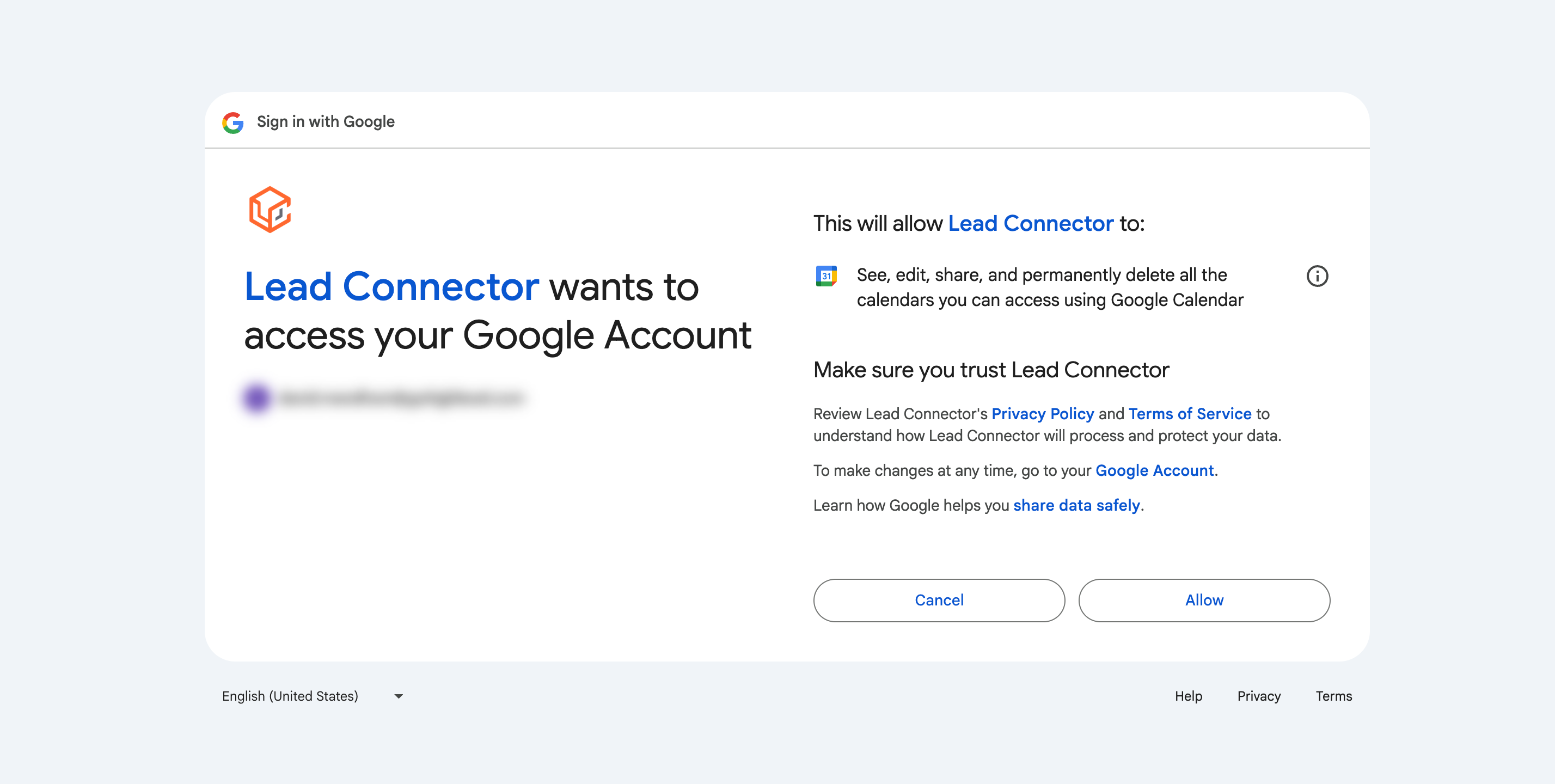
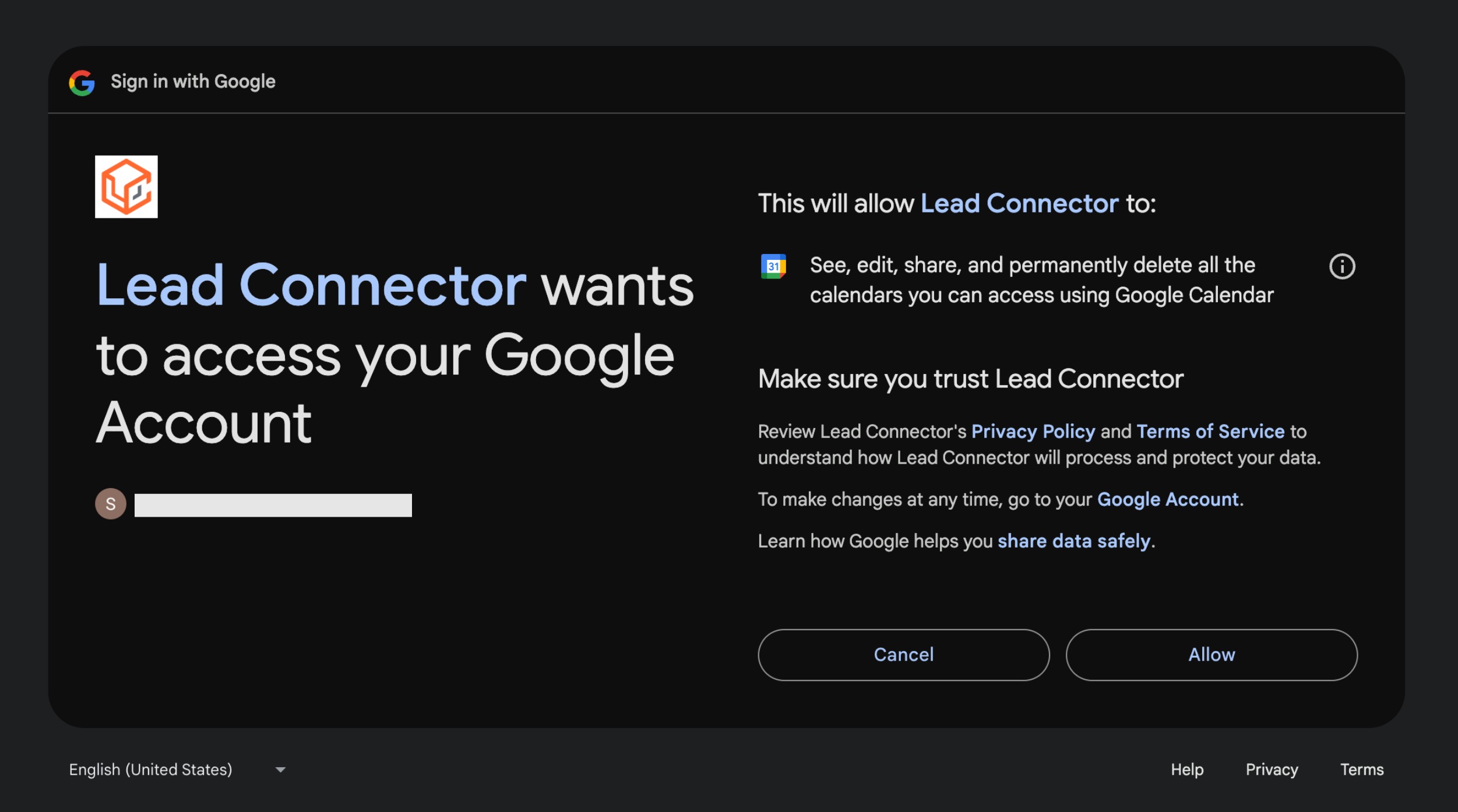
Google may only grant some of the requested permissions during connection. If you don't accept everything, syncing may fail. If that happens, check Settings > Integrations > Google for a missing-permissions warning and click Reconnect to grant what's missing.
To add another calendar, or a calendar for another team member, click + Add New again on the Connections page.
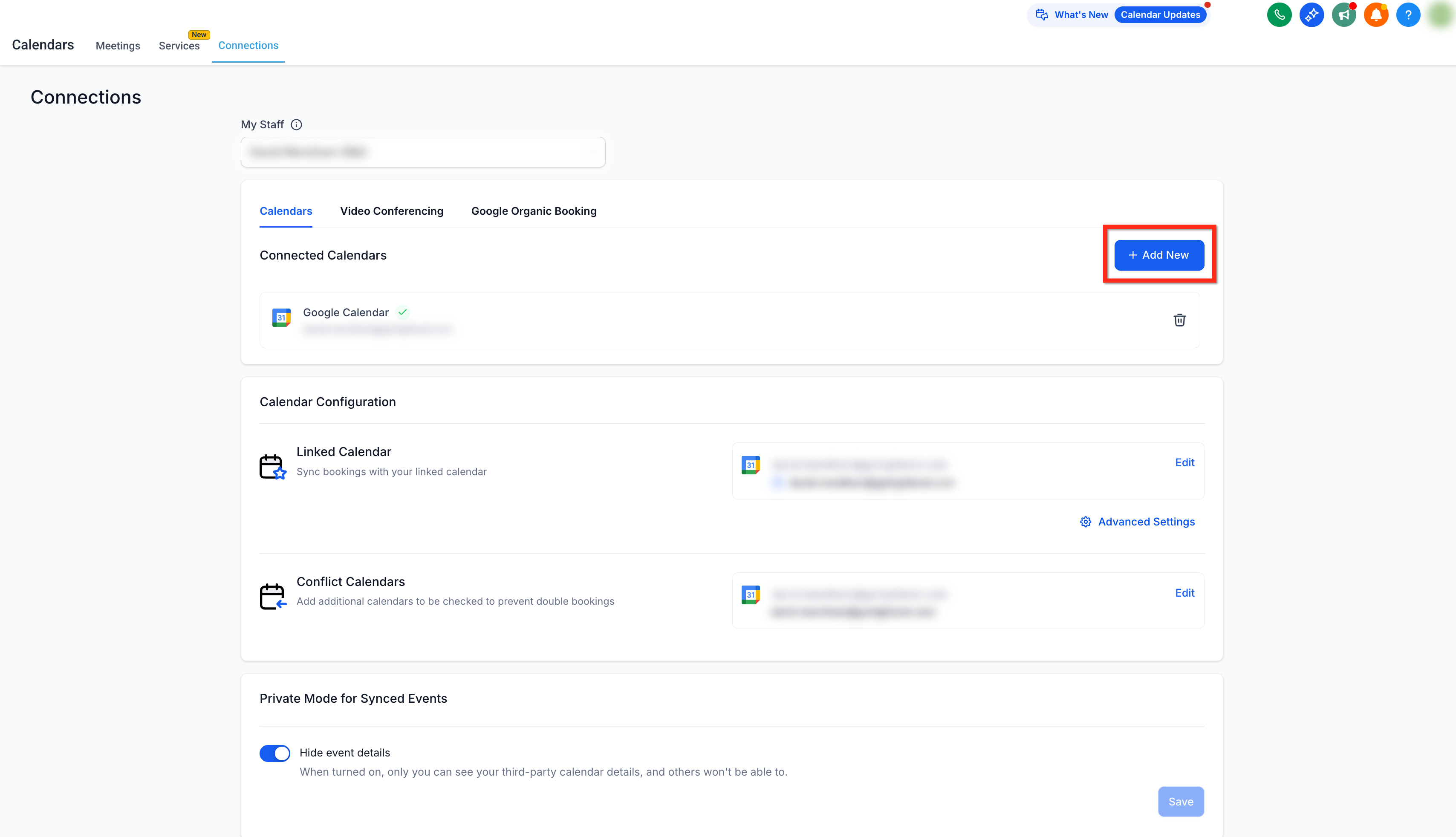
Once your Google account is connected, finish setup under Calendars > Calendar Settings > Connections by choosing a Linked Calendar and, optionally, one or more Conflict Calendars.
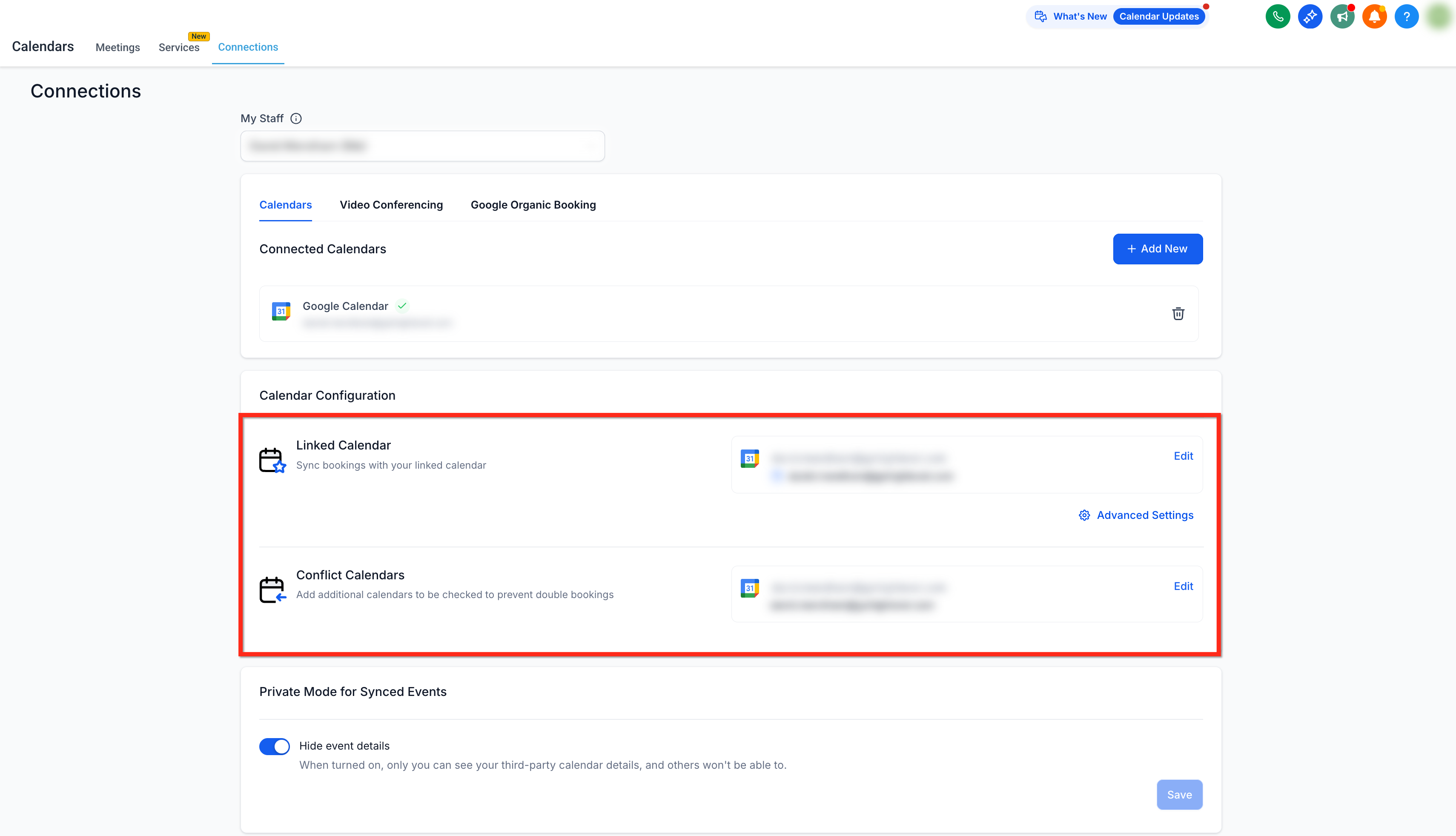
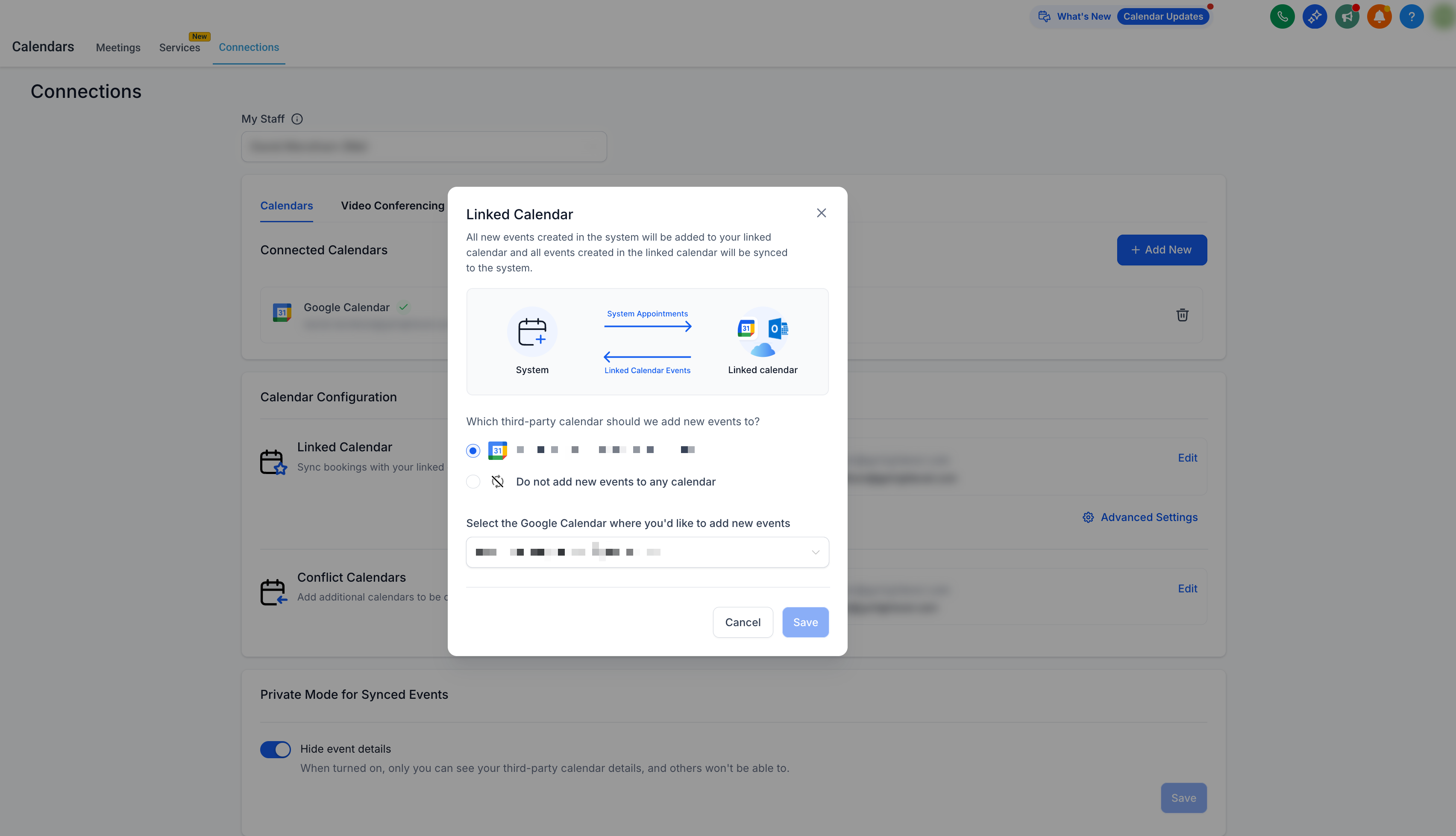
All new appointments created in Aesthetix CRM sync out to your linked calendar, so you can see them directly in Google Calendar. Writer access is required for a calendar to be selected as your linked calendar. Your linked calendar is automatically added as a conflict calendar too, meaning events created on the Google side are pulled into Aesthetix CRM and events created in Aesthetix CRM push out to Google. You can adjust sync behavior under Advanced Settings if you need finer control.
Connecting your Google Calendar automatically enables Google Meet. To have Aesthetix CRM generate a unique Google Meet link for each virtual appointment, make sure your Google Calendar is set as the linked calendar. If no Google Calendar is set as the linked calendar, Google Meet links will not be generated.
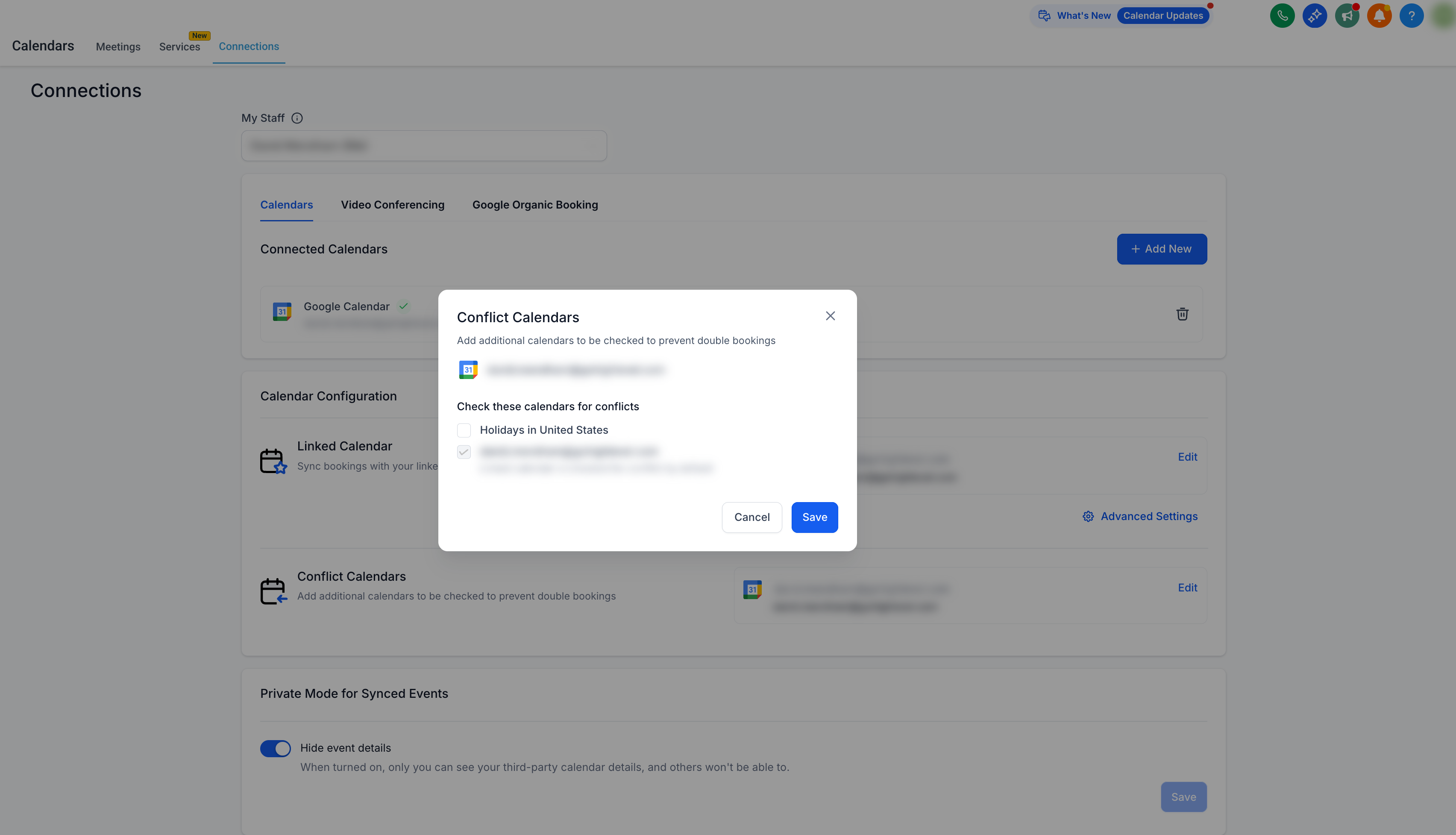
Events from any calendar added as a conflict calendar sync into Aesthetix CRM to block your availability for that time. Availability is only blocked when an event is marked Busy on the Google side; events marked Free still appear in Aesthetix CRM but don't close off the time slot. You can add multiple conflict calendars, which is useful if a provider keeps a personal calendar and a practice calendar and wants both checked before a patient can book.
If you see the message "You need to have writer access to sync appointments to the selected Google Calendar. Please check with the Google Calendar owner in case syncing is required," the fix depends on who owns the Google calendar.
If someone else owns the Google calendar (a shared or team calendar):
The owner of the Google calendar needs to log into Google and go to calendar.google.com.
Hover over the calendar, click the three-dot icon, and choose Settings and Sharing.
Scroll to Share with specific people, click Add People, and enter the email address of the Google account that's connected in Aesthetix CRM.
Set the permission level to Make changes to events, then click Send to save.
Once the permission is granted, the calendar should sync correctly with Aesthetix CRM.
If you already own the Google calendar and still see the writer-access error, the original connection likely didn't capture full write permissions. Disconnect the calendar and reconnect it, making sure to accept every permission Google requests during the authentication step (see Re-Integrating below).
Reintegration is recommended when:
Calendar events stop syncing.
Google account permissions were changed or revoked.
A calendar was disconnected and needs to be reconnected.
You're seeing open authorization errors or sync issues.
If your Google account still shows as connected but syncing has stopped, check Settings > Integrations > Google first for a missing-permissions warning and use Reconnect to re-run the Google authorization and grant anything that's missing. After you reconnect, Aesthetix CRM automatically syncs any unsynced upcoming appointments that were created while the integration was disconnected, no manual edits are needed to trigger that catch-up sync.
Note that reconnecting a Google account has to be done by the person who owns that Google login. It can't be completed by someone using a "login as" or impersonation view of another user's account.
You can remove a connected Google Calendar from either of two places.
From your profile: go to Settings > My Profile, open Calendar Settings, and click the delete icon next to the connected Google account.
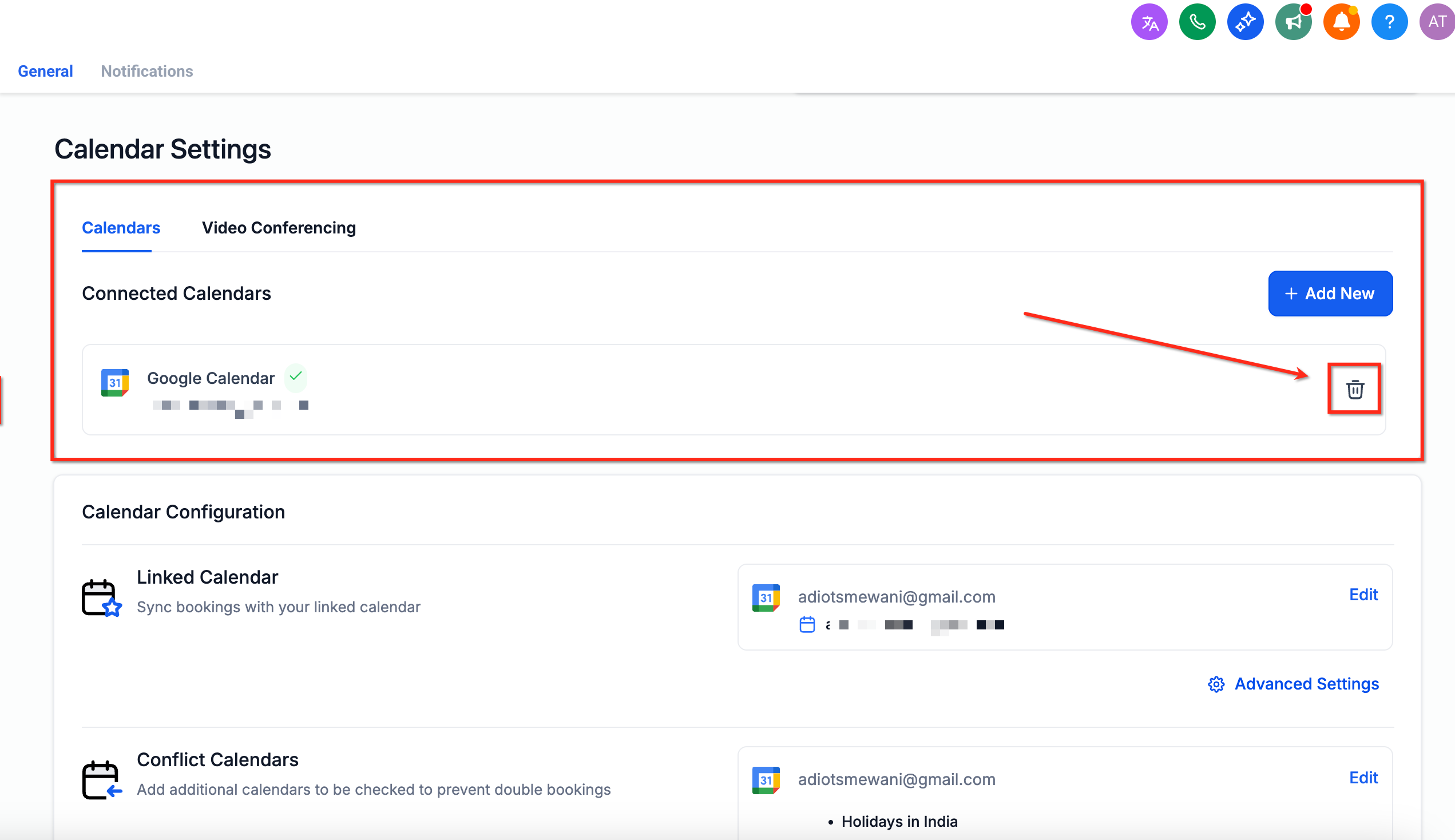
From Calendar Connections: go to Settings > Calendars > Calendar Settings > Connections, and under Connected Calendars, click the delete icon next to the Google account.
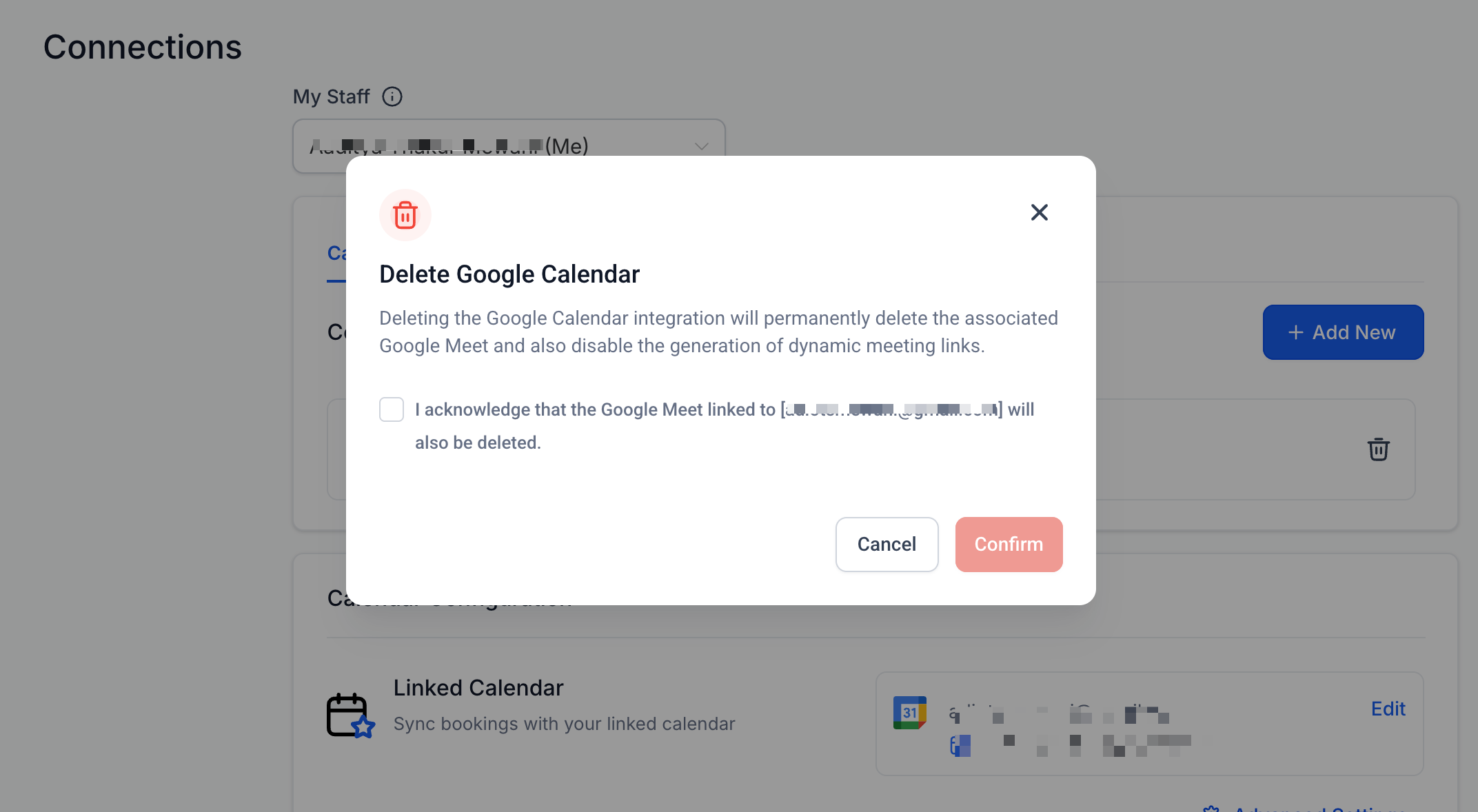
Check the acknowledgement box on the confirmation pop-up and click Confirm.
Reconnect from either the My Profile section or the Calendar Connections section, whichever you used above. Click + Add New under Calendar Settings and follow the same connection steps described earlier in this guide, making sure to grant every requested permission.
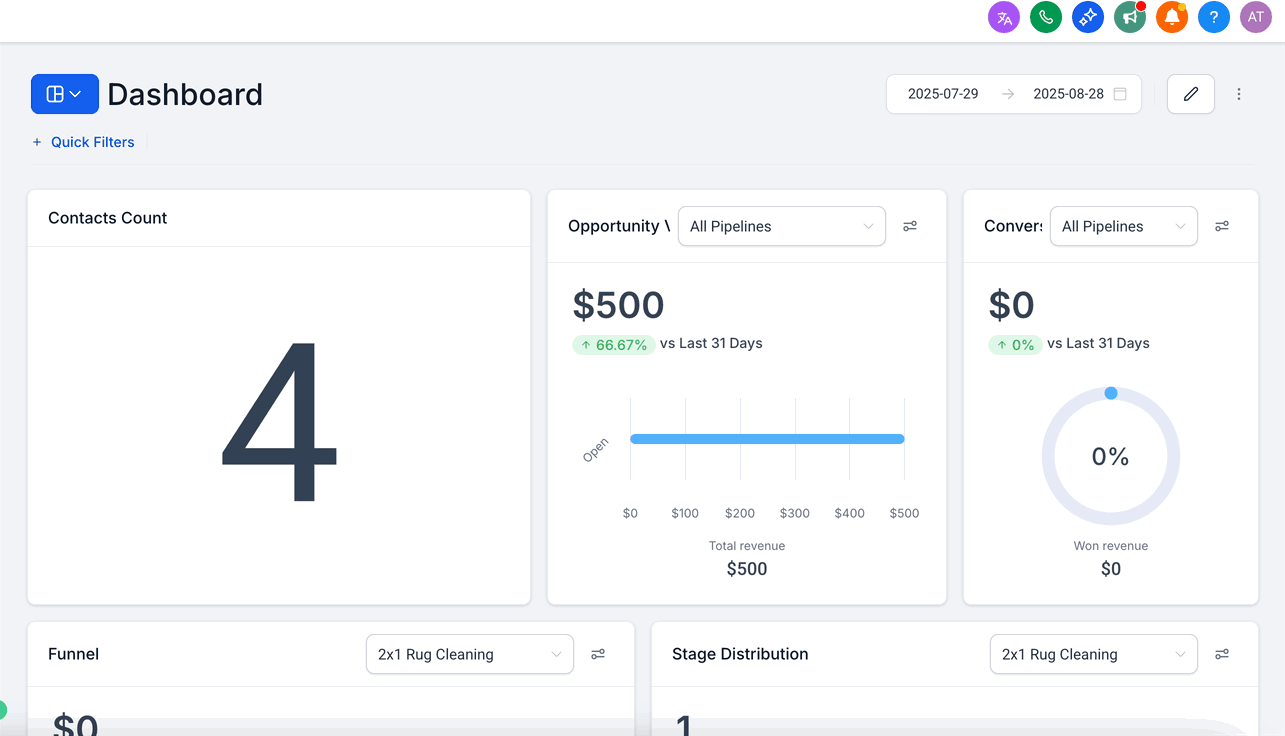
After reintegrating, create a test appointment and confirm it appears on both Aesthetix CRM and your Google Calendar. If sync issues continue after testing, reach out to support for further help.
Google Organic Booking, also called Booking Redirect, lets patients find and book directly from your Google Business Profile listing, without going through your website or a paid ad. When someone searches for your practice or a service you offer and your Google Business Profile has booking enabled, they can book an appointment straight from the search results page or your Google Maps listing.
What you need:
A Google Business Profile for your practice.
Your Aesthetix CRM business profile name and address should match your Google Business Profile.
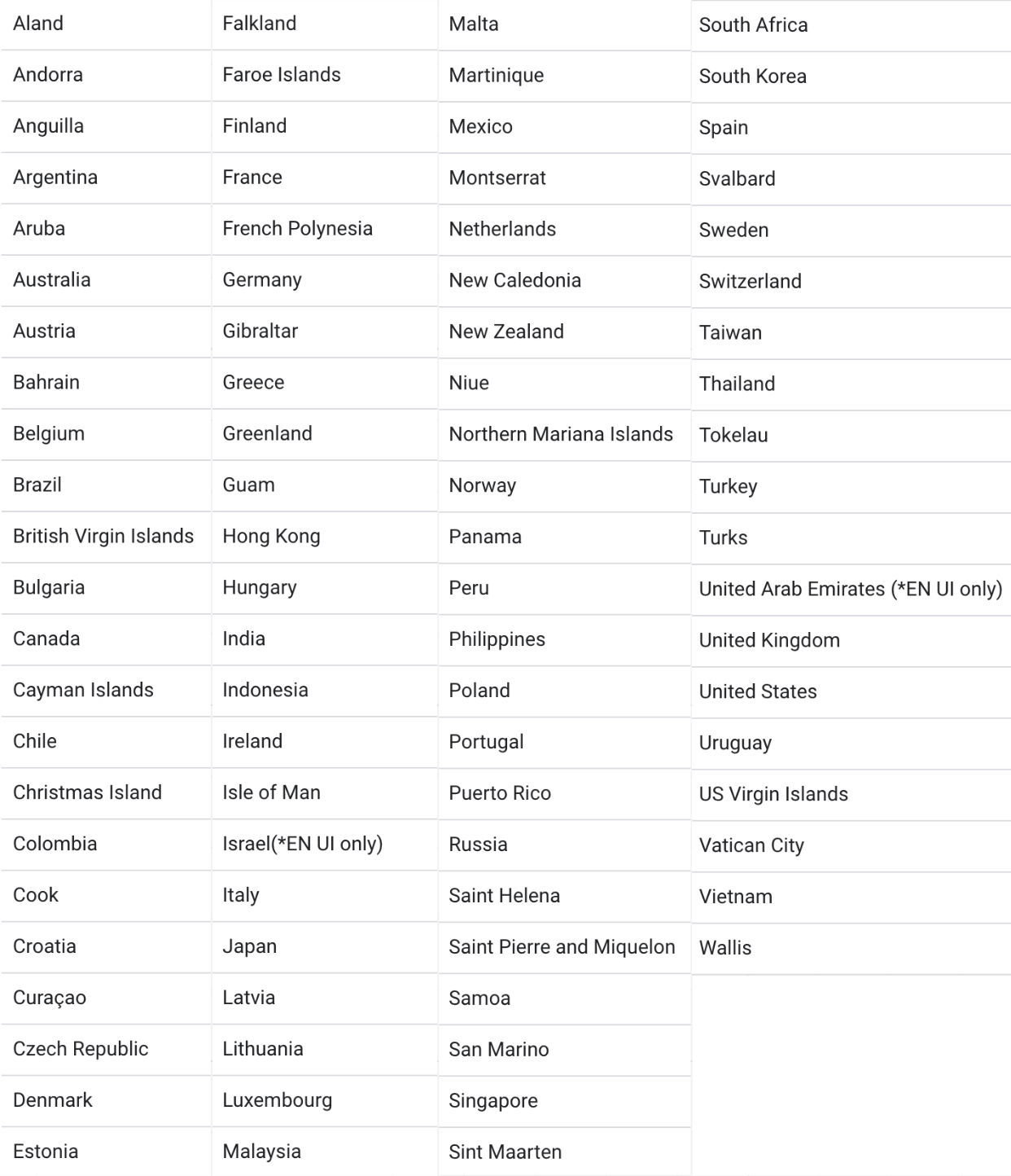
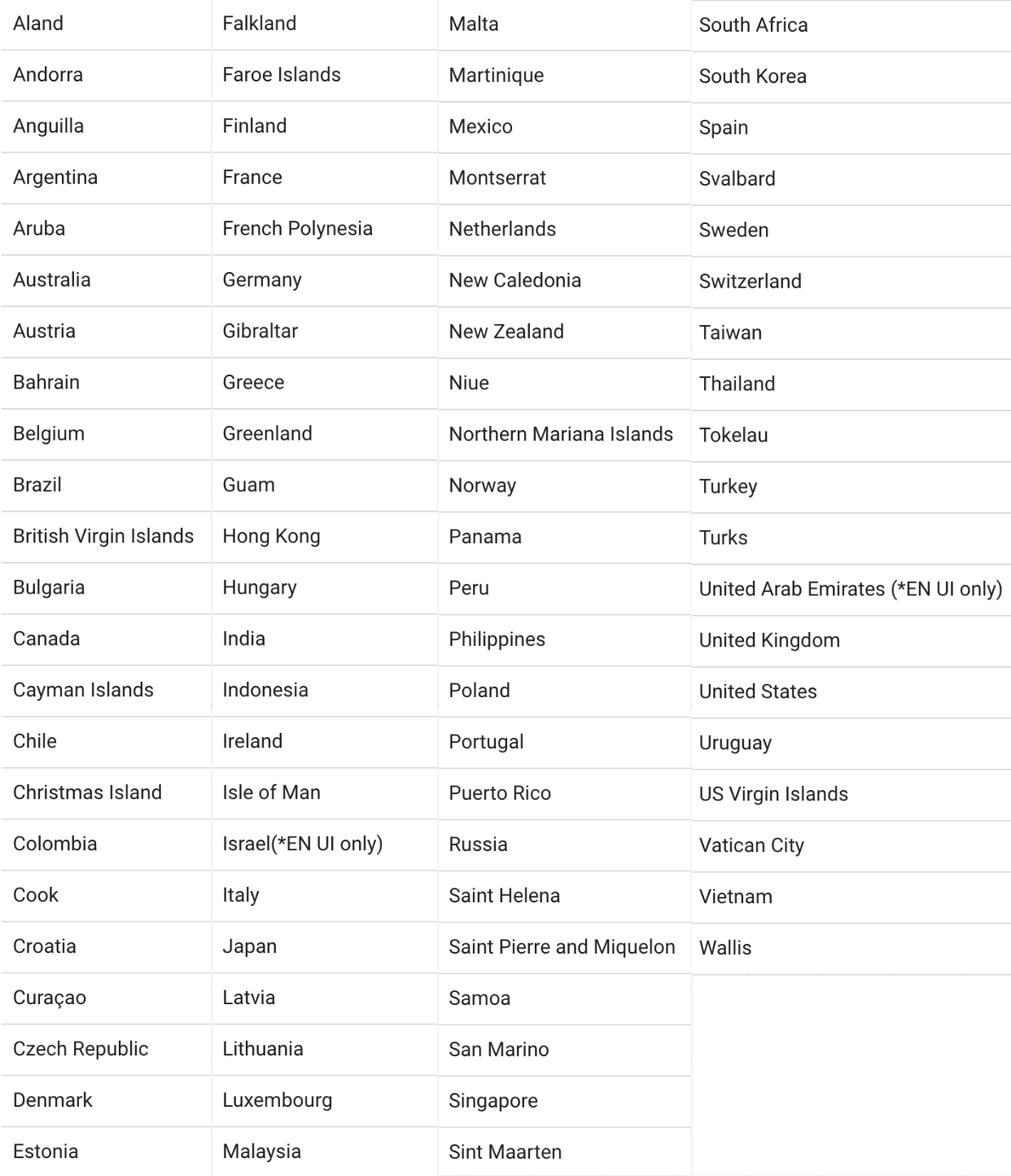
Your practice must be located in one of the supported countries listed below.
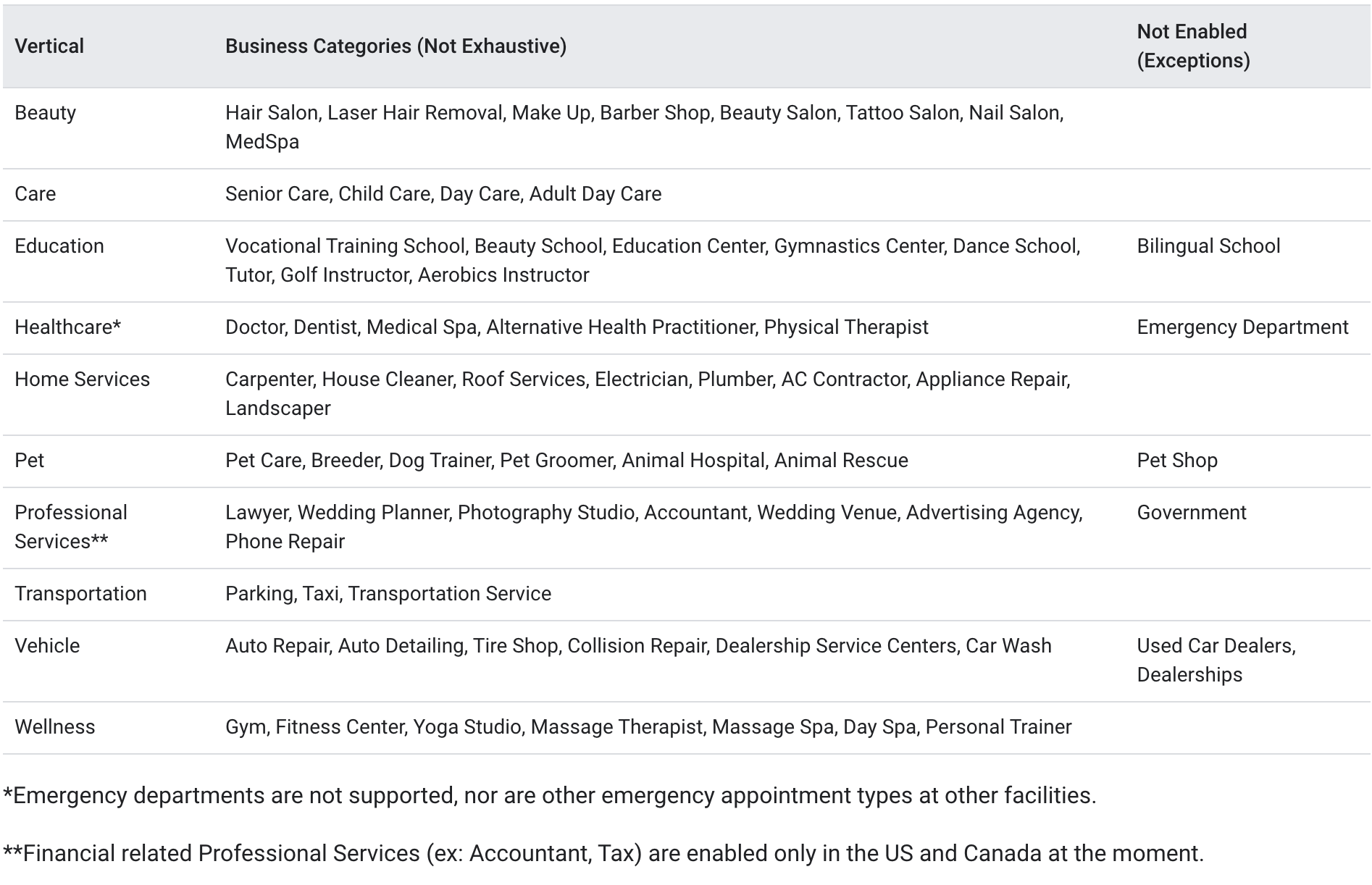
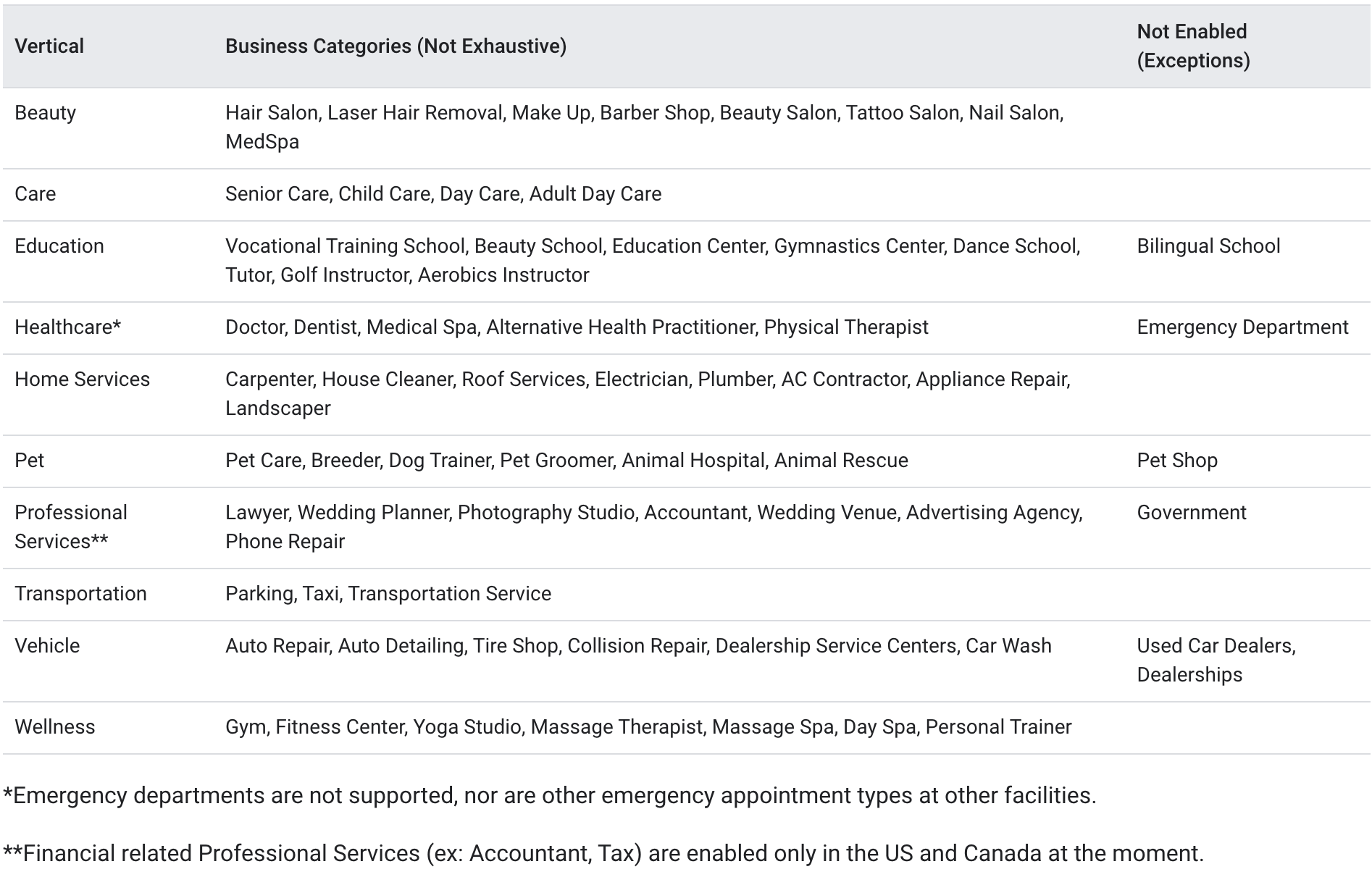
Who is this applicable for?
Google supports this feature for most business verticals, with some exclusions.
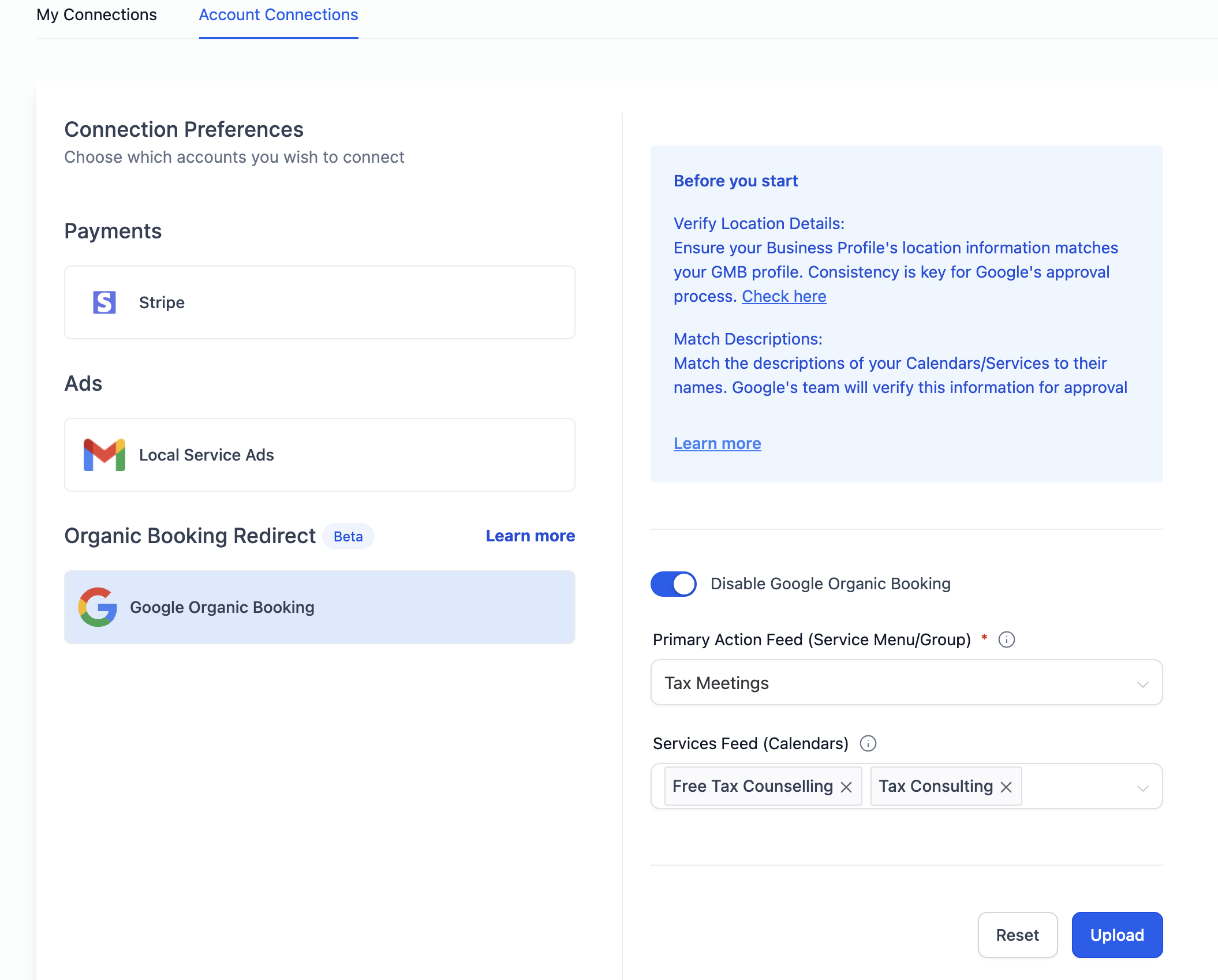
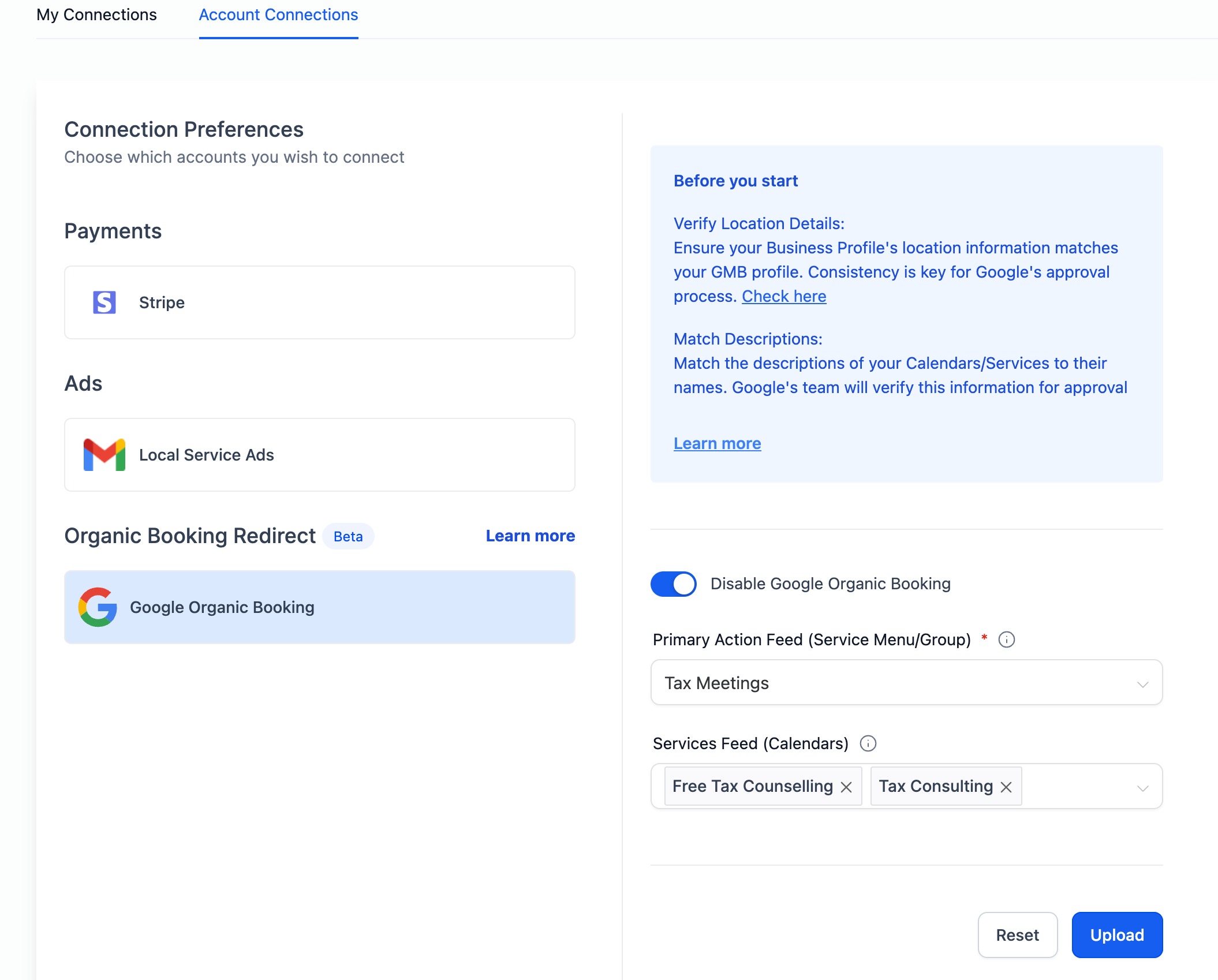
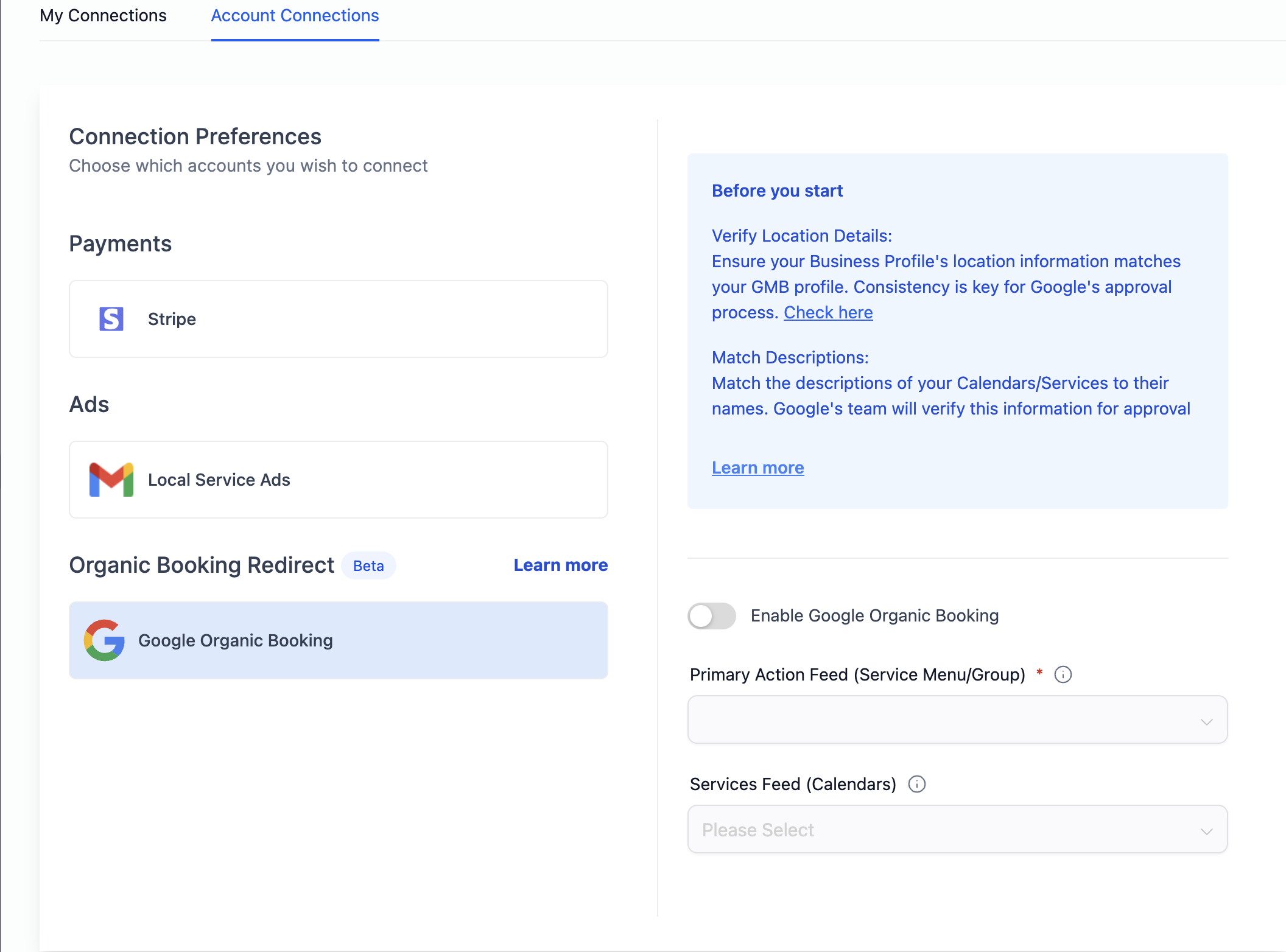
Go to Calendar Settings > Connections > Organic Booking Redirect.
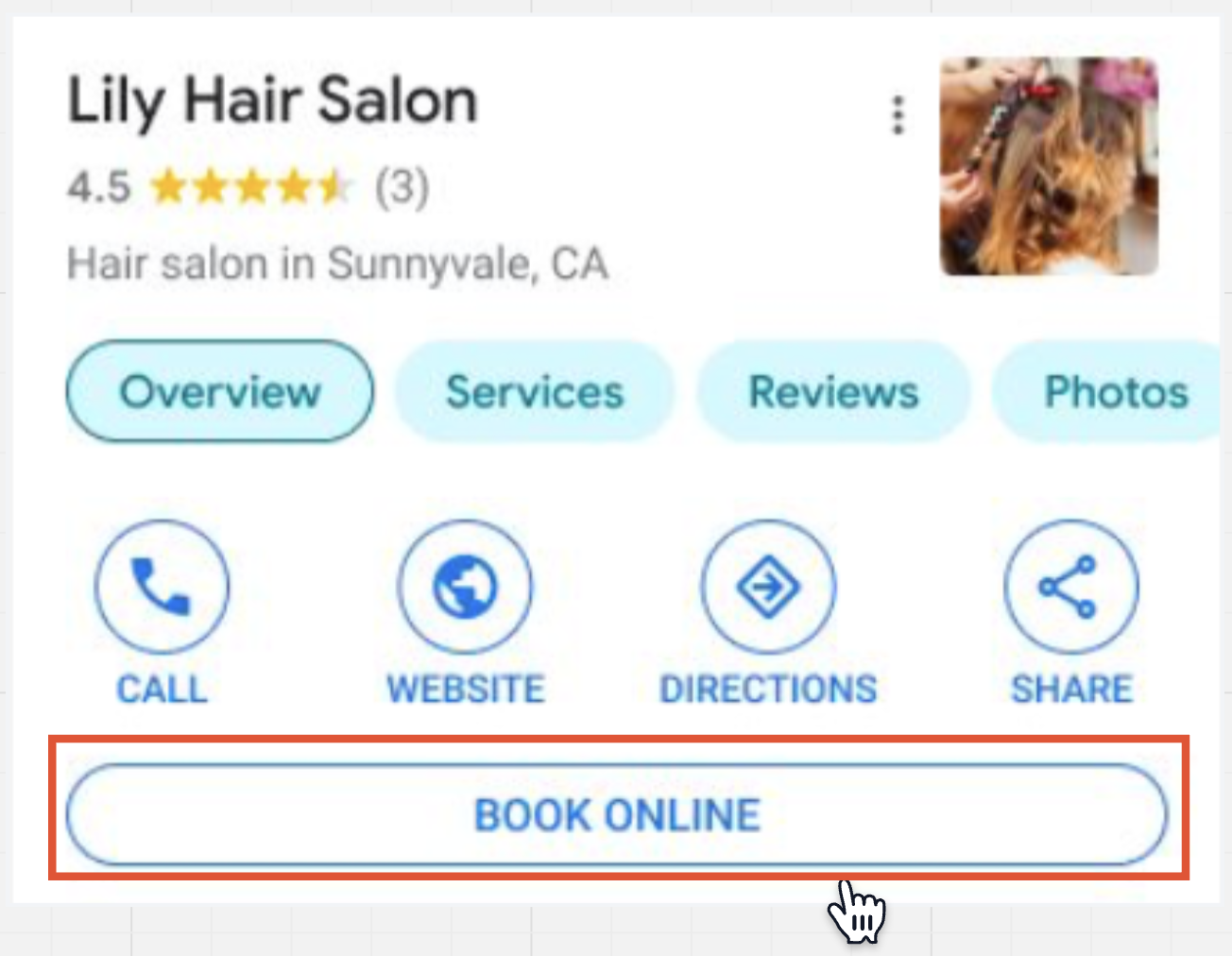
Step 1: Primary Action Feed (Book Online Button)
Set up a Service Menu or a group of services so patients can easily choose what they want to book.
Upload the Primary Action Feed link. This is the link Google attaches to your "Book Online" button, so make sure it's active and easy to use.
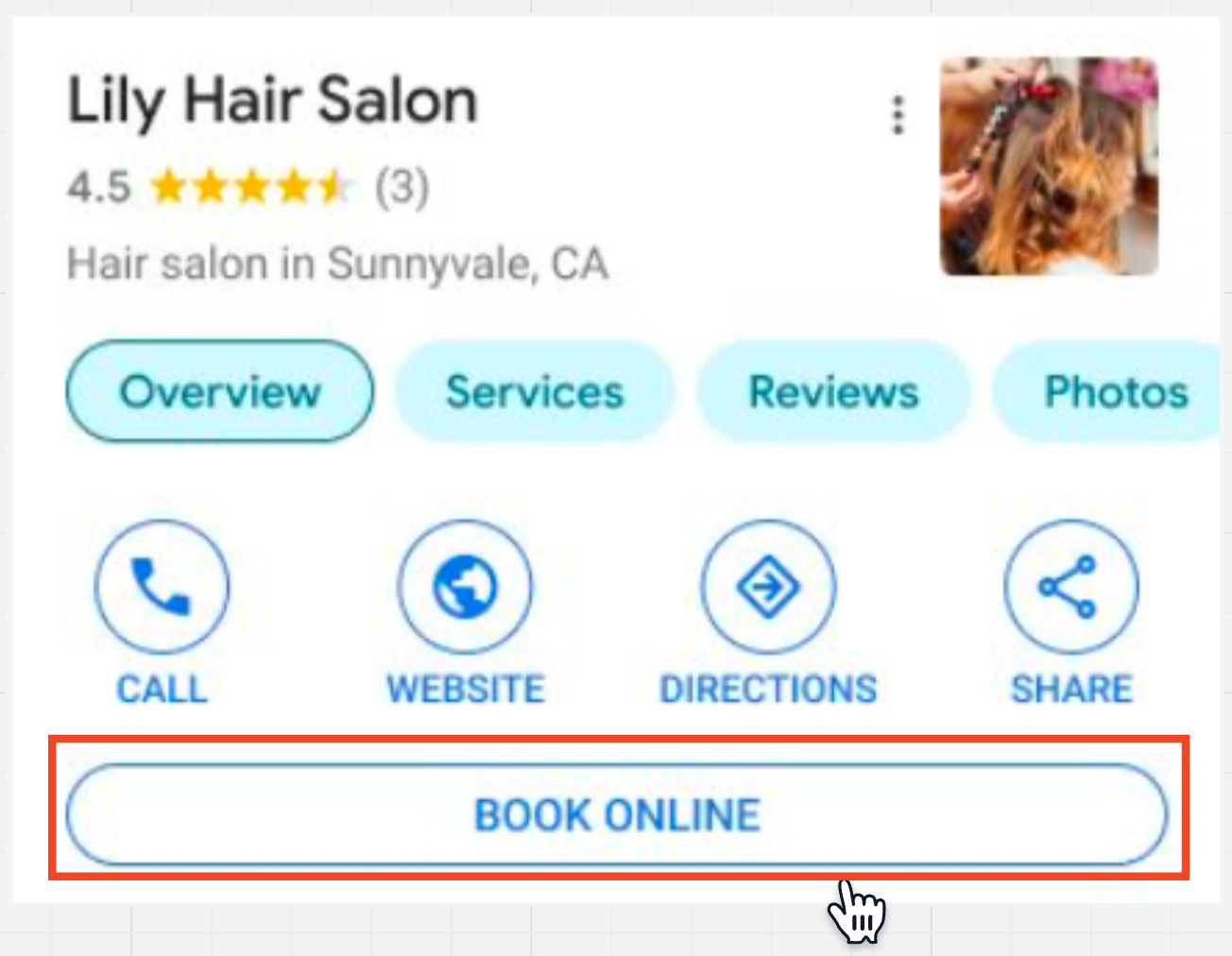
Step 2: Individual Service Booking
Any calendar you've created in Aesthetix CRM can be listed here, and will show up under the Services tab on Google.
If you only want certain calendars shown, select those specific calendars in the Individual Service Booking dropdown.
Make sure each calendar you select has a clear description that matches its name. Google validates this before approving your feed, and a mismatch will hold up verification. Initial verification of feeds and profiles usually takes one to two weeks.
Once approved, the calendars you've uploaded appear on Google as individual bookable services.
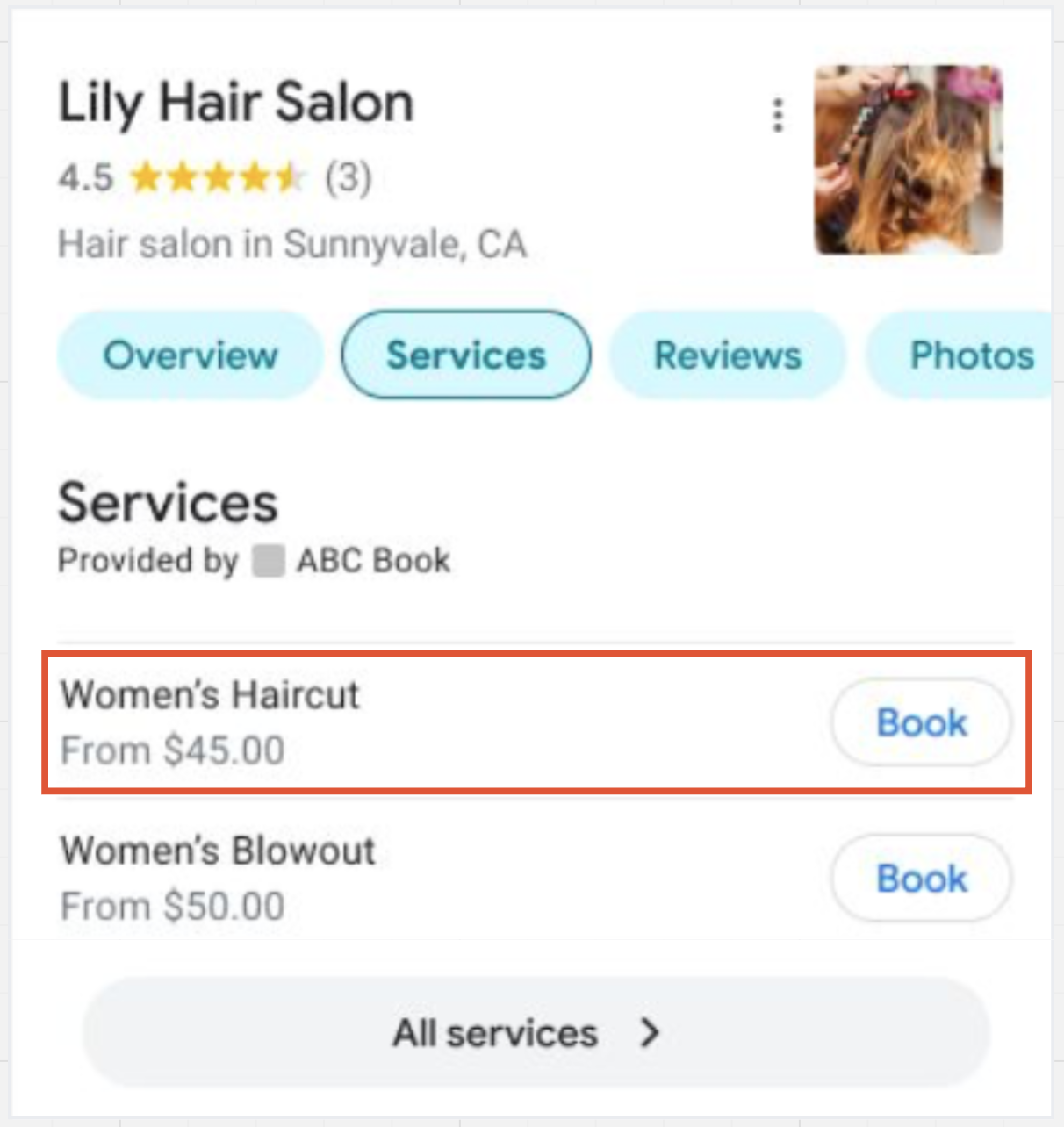
Tips for Success
Keep service and calendar descriptions clear and matched to their names.
In the Primary Action Feed, select only a service menu or group, and use individual calendars only for the Individual Service Booking links.
Update your offerings and descriptions as your services change, since stale listings can hurt approval and patient trust.
You can turn this off at any time with a toggle in Calendar Settings. Disabling it stops Aesthetix CRM from uploading any feed to Google, and patients will no longer be able to discover or book directly from your Google Business Profile listing.
To disable:
Go to Calendar Settings > Connections.
Find the Google Organic Booking section.
Toggle the switch off.
Country | Country Code |
|---|---|
Aland | AX |
Andorra | AD |
Anguilla | AI |
Argentina | AR |
Aruba | AW |
Australia | AU |
Austria | AT |
Bahrain | BH |
Belgium | BE |
Brazil | BR |
British Virgin Islands | VG |
Bulgaria | BG |
Canada | CA |
Cayman Islands | KY |
Chile | CL |
Christmas Island | CX |
Colombia | CO |
Cook Islands | CK |
Croatia | HR |
Curacao | CW |
Czech Republic | CZ |
Denmark | DK |
Estonia | EE |
Falkland Islands | FK |
Faroe Islands | FO |
Finland | FI |
France | FR |
French Polynesia | PF |
Germany | DE |
Gibraltar | GI |
Greece | GR |
Greenland | GL |
Guam | GU |
Hong Kong | HK |
Hungary | HU |
India | IN |
Indonesia | ID |
Ireland | IE |
Isle of Man | IM |
Israel (English UI only) | IL |
Italy | IT |
Japan | JP |
Latvia | LV |
Lithuania | LT |
Luxembourg | LU |
Malaysia | MY |
Malta | MT |
Martinique | MQ |
Mexico | MX |
Montserrat | MS |
Netherlands | NL |
New Caledonia | NC |
New Zealand | NZ |
Niue | NU |
Northern Mariana Islands | MP |
Norway | NO |
Panama | PA |
Peru | PE |
Philippines | PH |
Poland | PL |
Portugal | PT |
Puerto Rico | PR |
Russia | RU |
Saint Helena | SH |
Saint Pierre and Miquelon | PM |
Samoa | WS |
San Marino | SM |
Singapore | SG |
Sint Maarten | SX |
South Africa | ZA |
South Korea | KR |
Spain | ES |
Svalbard | SJ |
Sweden | SE |
Switzerland | CH |
Taiwan | TW |
Thailand | TH |
Tokelau | TK |
Turkey | TR |
Turks and Caicos | TC |
United Arab Emirates (English UI only) | AE |
United Kingdom | GB |
United States | US |
Uruguay | UY |
US Virgin Islands | VI |
Vatican City | VA |
Vietnam | VN |
Wallis and Futuna | WF |
This list is updated periodically by Google, so check back if your country isn't listed yet.
Why isn't my calendar syncing? Check Settings > Integrations > Google for a missing-permissions warning and click Reconnect if any required permissions weren't granted.
I don't see my Google Calendar listed. What should I do? Make sure you're logged into the correct Google account. Log out of all Google accounts in your browser and reconnect using the correct one.
What causes Google Calendar sync to break? The most common causes are an expired authorization token, the calendar being deleted on the Google side, or permissions being revoked after the initial connection.
What if a connected Google Calendar was deleted and I see an error banner? Use the banner's Fix This option to open a modal listing the deleted calendar instances and where they're connected. Click Remove Deleted Calendars to clean up the broken connections, then reconnect or select an active calendar as needed.
Can I use one Google Calendar connection across multiple team members? No. Calendar connections are user-specific. Each provider or staff member needs to connect their own Google Calendar.
Can I sync multiple Google Calendars? Yes. You can connect multiple Google Calendars, configure one as your Linked Calendar for bookings, and add the others as Conflict Calendars to prevent double bookings.
Do I need a specific type of Google account? No. Both personal Gmail accounts and Google Workspace (G Suite) accounts work with this integration.
Will I lose any appointments if I disconnect and reconnect my calendar? No. Disconnecting and reconnecting doesn't delete past or upcoming appointments that were already synced.
Why aren't Google Meet links being generated for my appointments? Google Meet links only generate when Google Calendar is set as your linked calendar. Check your Connections settings and confirm the correct calendar is selected.
What countries does Google Organic Booking support? See the Supported Countries table above. Google updates this list periodically, so a country that isn't supported today may be added later.
