Every calendar in Aesthetix CRM has a set of booking widget policies that control how patients interact with your scheduling links after they book. You'll find these settings inside Settings > Calendars, on the individual calendar you want to configure. This guide covers three of them: the cancellation and reschedule policy, multiple meeting locations, and one-time booking links.
By default, a booked patient can cancel or reschedule their own appointment at any time using the links sent with their confirmation. The Cancellation & Reschedule Policy setting lets you put a time limit on that self-service window, for example cutting it off 24 or 48 hours before the appointment so your front desk isn't dealing with last-minute changes. Once the window closes, patients are prompted to contact your practice directly to make any changes.
Go to Settings > Calendars and open the calendar you want to configure.
Scroll to the Notifications and Additional Options section.
Turn on Allow Cancellation of Meeting and Allow Rescheduling of Meeting.
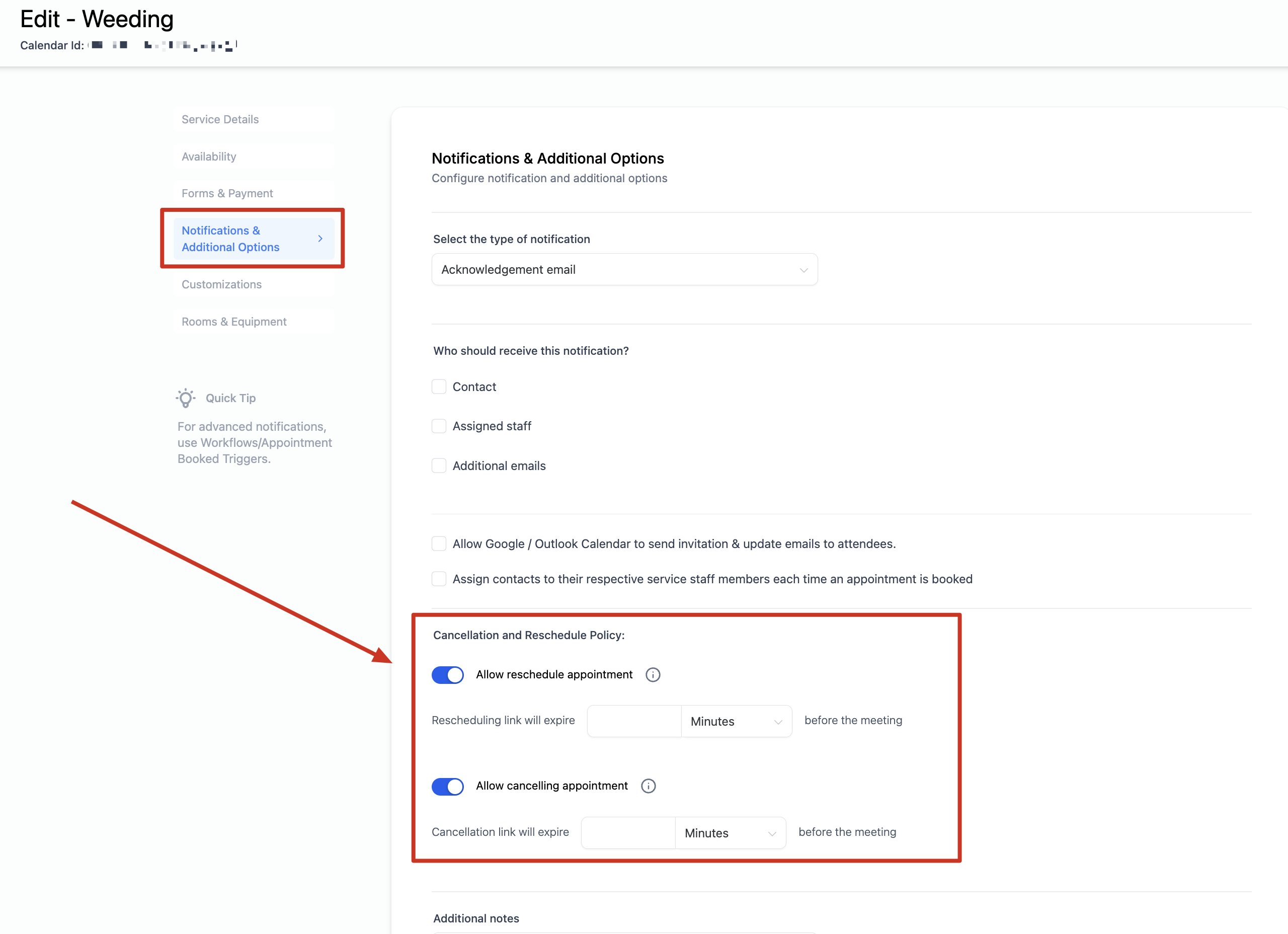
Enter the time range after which the cancellation and reschedule links should stop working. Leave this field blank if you want the links to remain valid indefinitely.
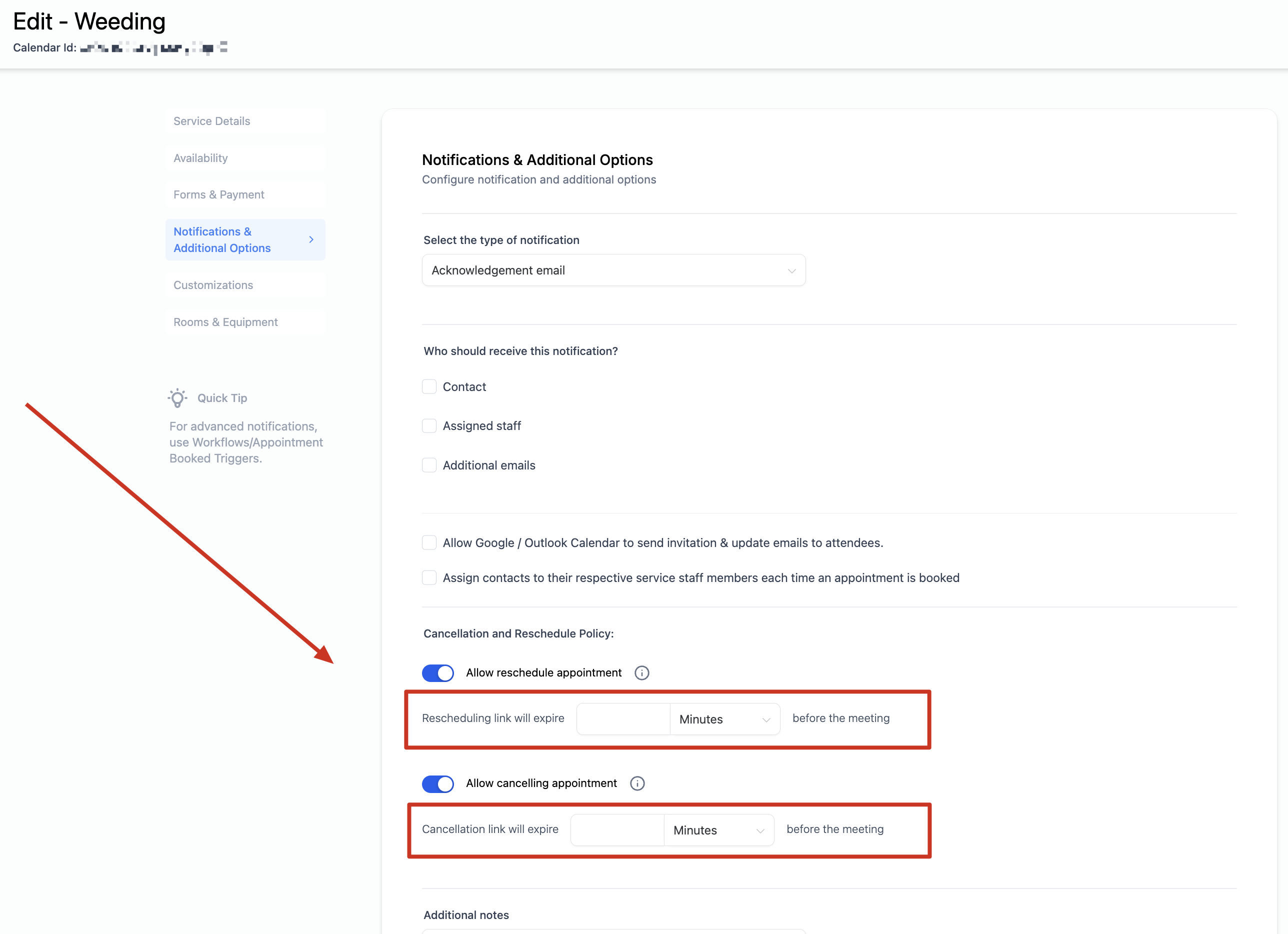
When this policy is turned on, a cancellation link and a reschedule link are automatically added to the appointment's additional notes and included in the calendar invite sent to the patient. Once the time window you set has passed, those links expire and the patient can no longer use them to make changes on their own.
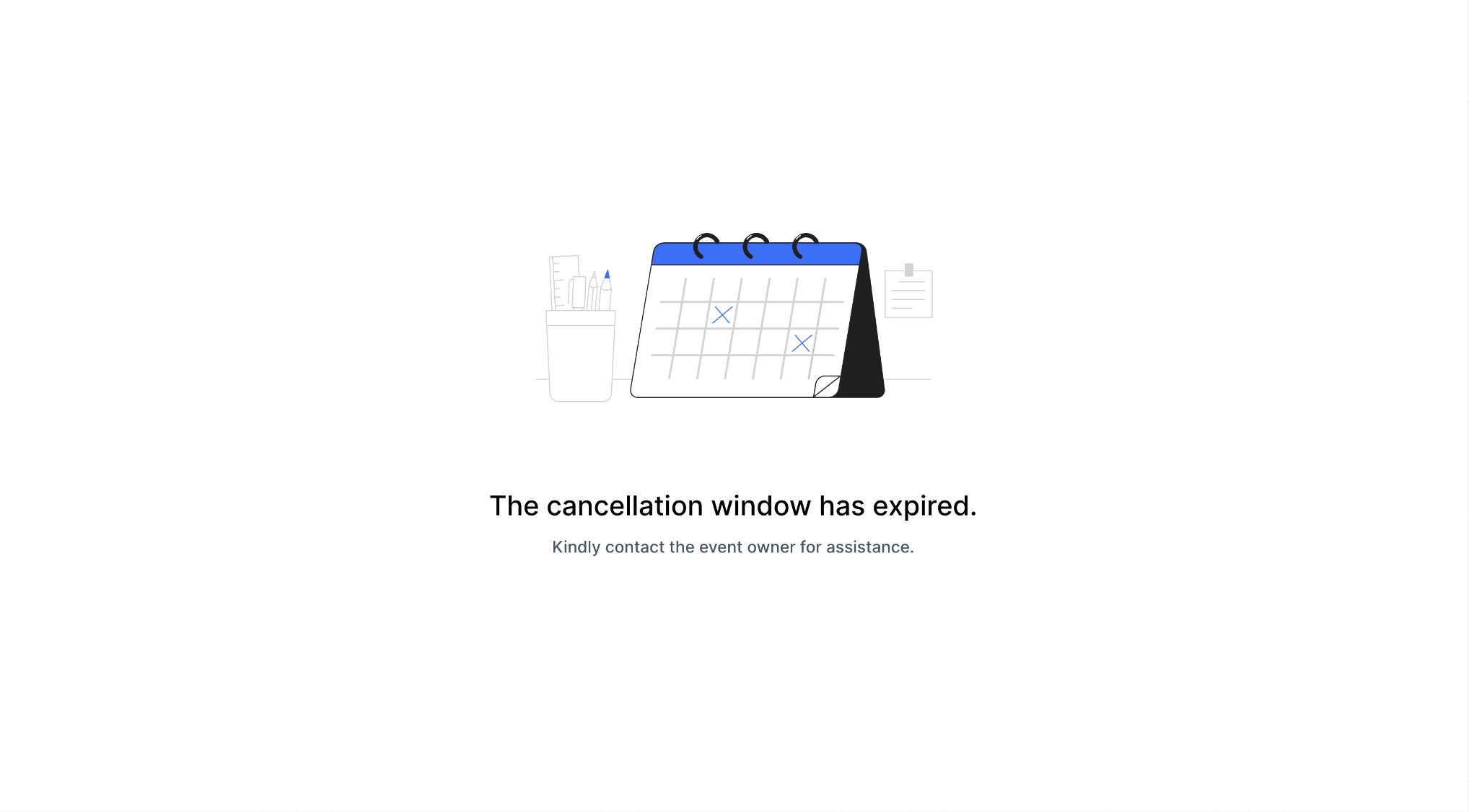
The cancellation and reschedule links live in the additional notes section of the appointment, which gets pulled into the calendar invite automatically, so patients always have them on hand.
You can also pull these links into your own messaging using the custom values {{appointment.reschedule_link}} and {{appointment.cancellation_link}} inside a workflow, for example to include them in a reminder text the day before an appointment. These values only populate when the workflow is triggered by an appointment-based event, such as Appointment Status or Customer Booked Appointment. Workflows triggered by a form submission or a pipeline stage change won't have appointment context, so the merge fields will render blank in that case.
Because these links go straight to the patient by email or text, keep the surrounding message simple and avoid layering in any additional health information beyond the appointment itself.
If your practice offers a mix of in-person visits, phone consults, and video calls, the multiple meeting locations feature lets patients pick how they'd like to meet right on the booking widget, instead of you sorting it out after the fact.
Limitations to know before you start:
Multiple meeting locations can only be configured on Event Calendars and on Round Robin or Service Calendars that have a single team member.
This feature is only supported on the newer booking widget (Neo).
Go to Settings > Calendars and open the calendar you want to configure.
For an Event Calendar, scroll to the meeting location section.
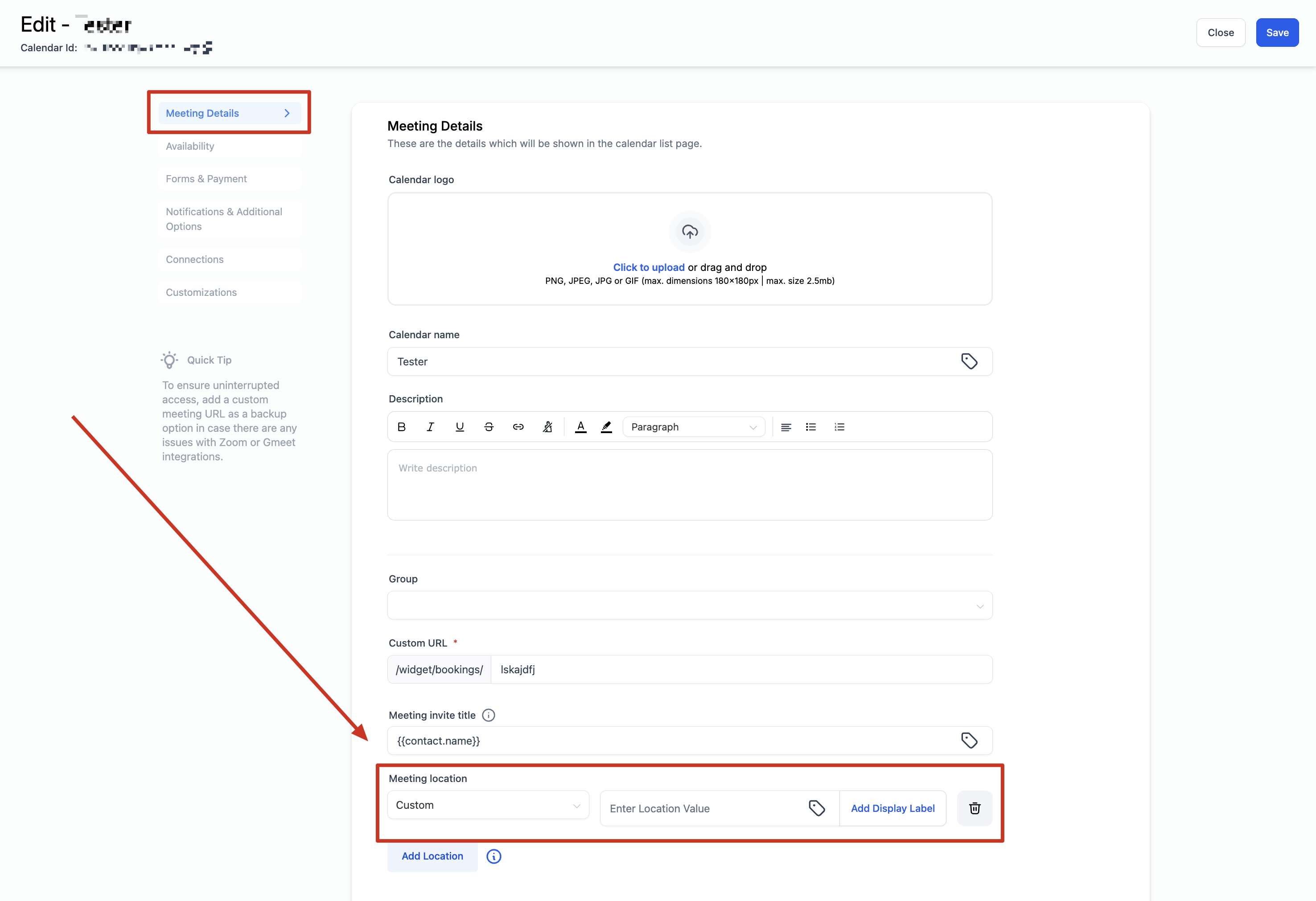
For a Round Robin or Service Calendar, scroll to the team members section instead, since locations are set per team member.
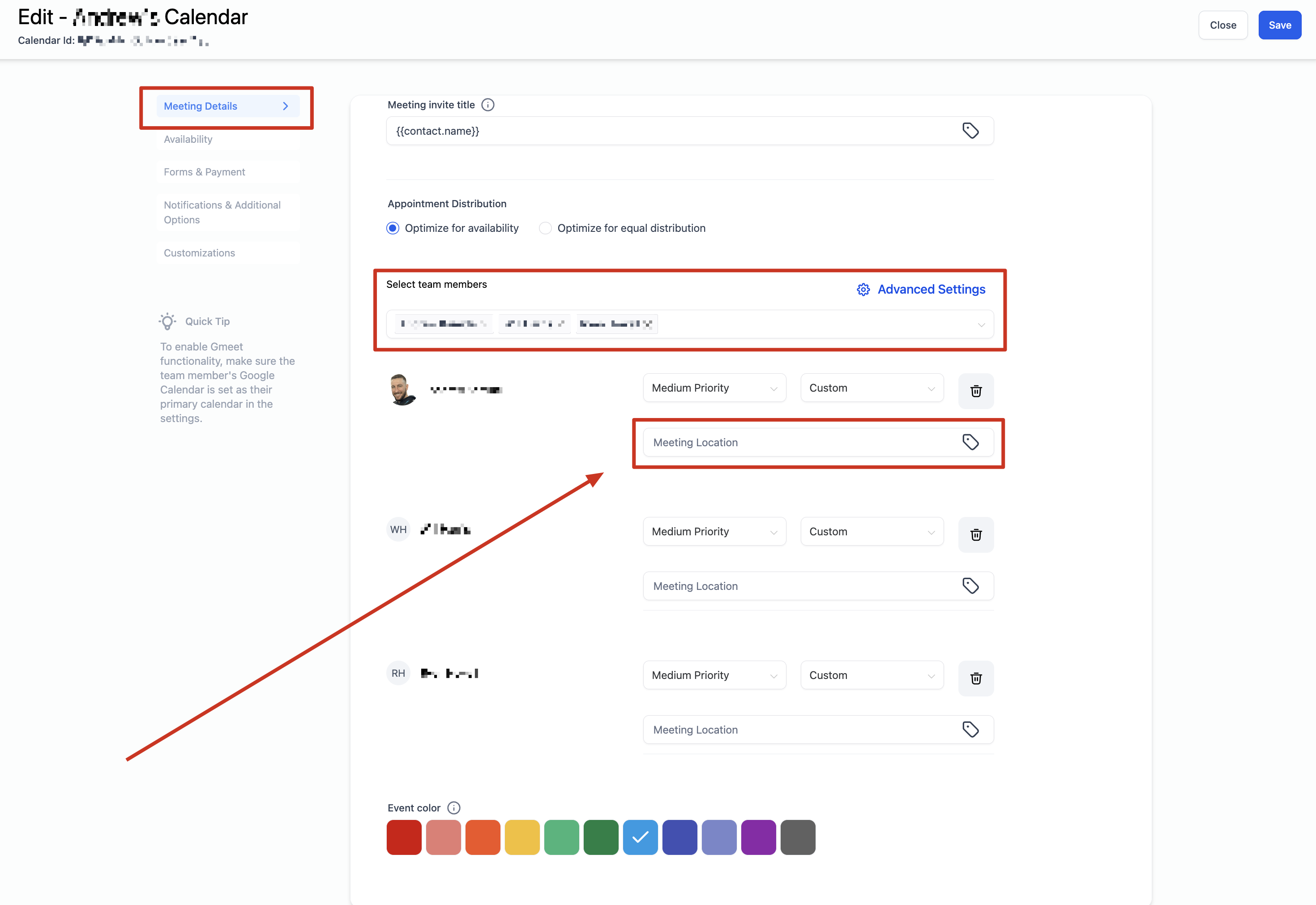
Click + Add Location.
Choose and configure each location you want to offer (see the location types below).
If you choose Custom, you can add a display label instead of showing the raw value up front. For example, if the location is your office address but you'd rather not publish it before booking, enter the address and label it something like "Downtown Office." The booking widget shows the label until the appointment is confirmed, then reveals the full address to the patient.
Click Save.
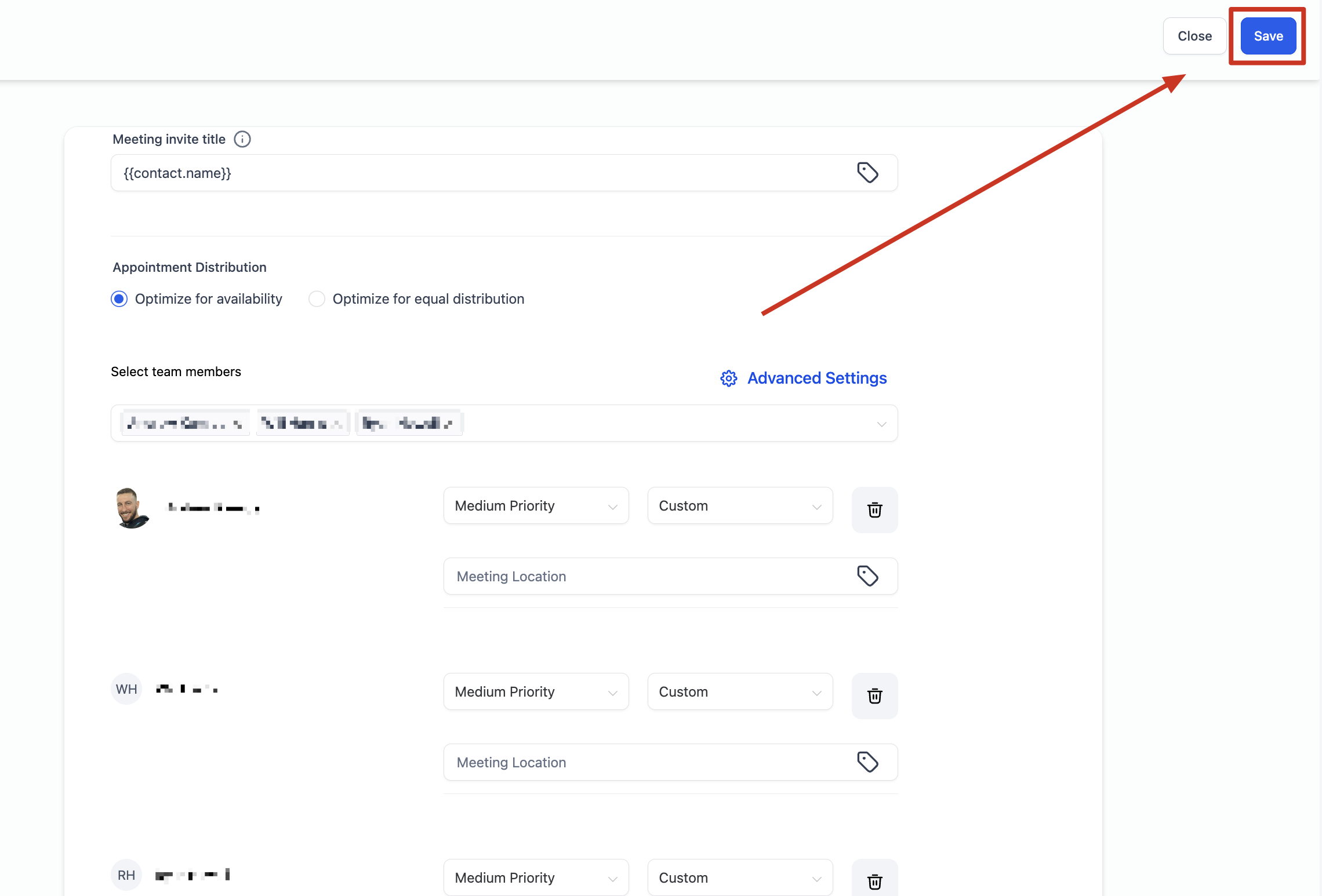
Event Calendar:
Type | What it does |
|---|---|
Phone | Defaults to your account's phone number, but you can edit it to any number. |
Address | Defaults to your practice's business address, but you can edit it to any address. |
Custom | Enter any free text, such as a specific room, a message for patients, or a static video link. Event Calendars do not generate dynamic Zoom or Google Meet links. |
Ask the booker | Lets the patient type in their preferred location. When combined with other location types, this shows up as "Elsewhere" on the widget. |
Round Robin & Service Calendar:
Type | What it does |
|---|---|
Phone | Same as above, editable per team member. |
Address | Same as above, editable per team member. |
Custom | Same free-text option as above. |
Zoom | Generates a unique Zoom link per booking, as long as Zoom is connected under My Profile > Calendar Settings > Video Conferencing. |
Google Meet | Generates a unique Google Meet link per booking, as long as Google is connected and Google Calendar is selected as the linked calendar under My Profile > Calendar Settings. |
Ask the booker | Same as above, shown as "Elsewhere" when other locations are also offered. |
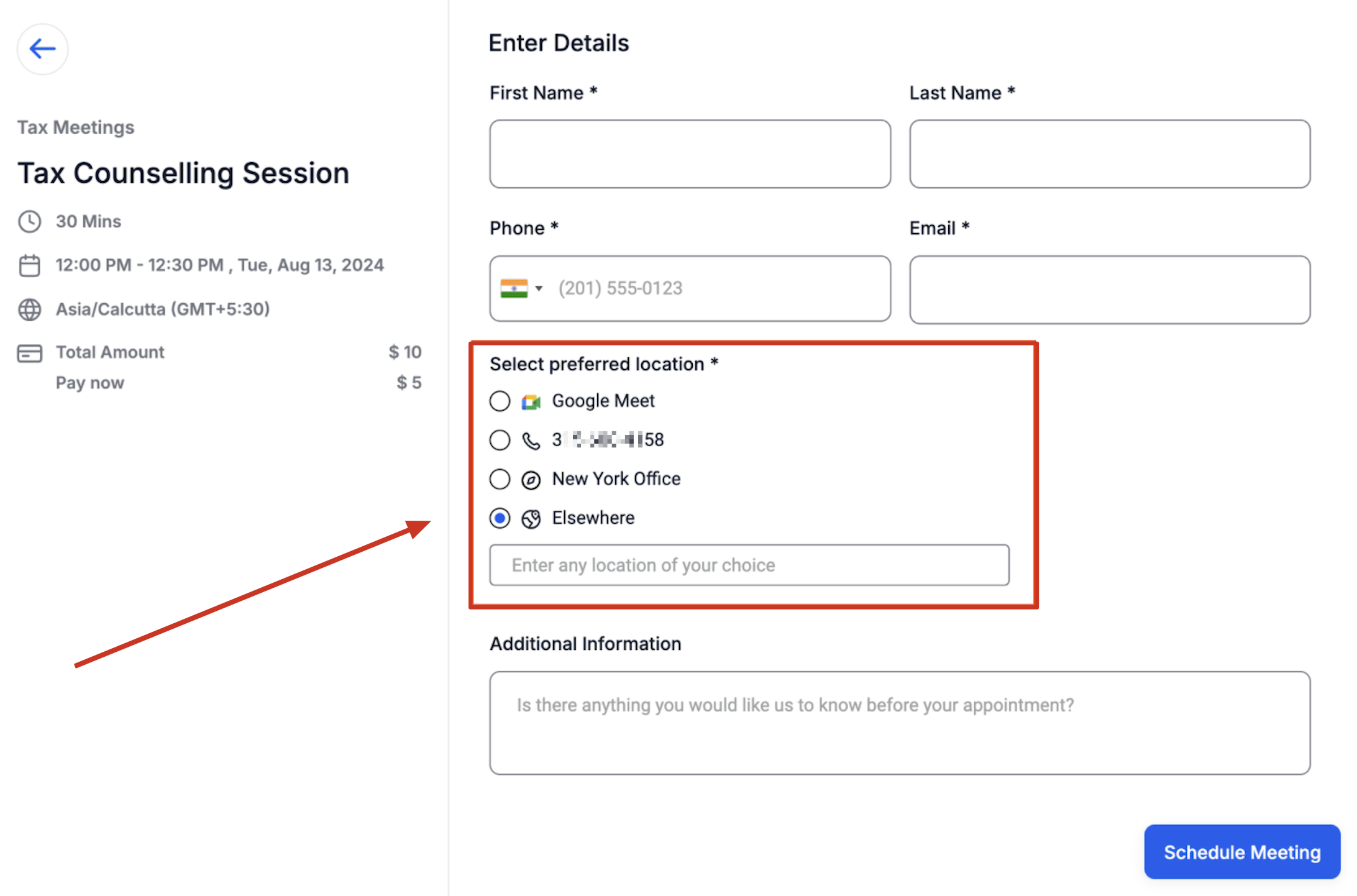
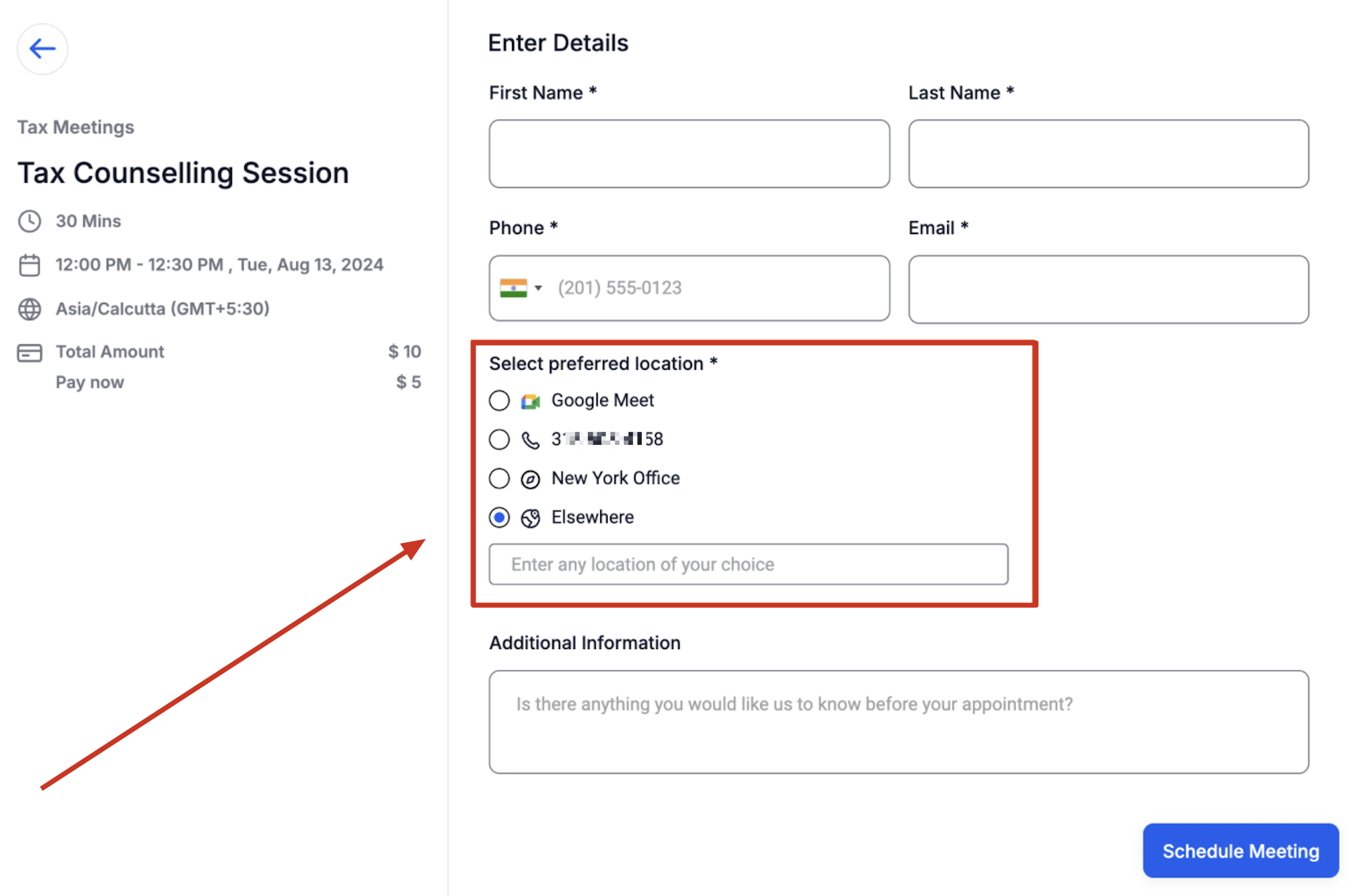
Every location you've configured shows up as a selectable option on the booking widget. Whatever the patient picks carries through everywhere the meeting location is referenced: the confirmation page, the confirmation email, workflows, and the appointment details inside Aesthetix CRM.
Aesthetix CRM can display a consent checkbox on your calendar's booking widget, giving patients an affirmative way to consent to how you'll use the information they provide when scheduling. You write the disclosure text yourself, so you can tailor it to whatever you collect during booking, such as a phone number used for appointment reminders.
Note: Aesthetix CRM gives you the tools to collect and manage consent, but the language you use and your legal obligations depend on your practice and jurisdiction. Consult your legal counsel for compliance guidance before publishing a consent message.
When enabled, the checkbox appears on the booking widget alongside the message you wrote. Patients review it and select the checkbox before completing their booking.
Once a patient books with the checkbox selected, Aesthetix CRM stores the consent details with that appointment, including the exact consent text they agreed to and the IP address it was captured from. You can review it in two places:
Appointment List: Open the menu on the appointment and select View Consent.
Contact Activity: Open the patient's contact record and review the appointment activity. Appointments with recorded consent show an indicator you can open for the details.
The consent checkbox is set per calendar, so turn it on individually for each calendar where you want patients to see it.
Go to Settings > Calendars and open the calendar you want to configure.
Open Advanced Settings.
Go to the Form & Confirmation tab.
Locate Consent Checkbox and toggle it on.
Review and edit the consent message shown beside the checkbox so it matches what your practice needs patients to acknowledge.
Click Save Changes.
A one-time link is a single-use version of your scheduling link. It works exactly like your regular booking link, except it automatically expires the moment someone books through it. This is useful when you want to send a specific patient a link to grab a spot without exposing your full open availability, and without worrying about that link getting forwarded and used by someone else.
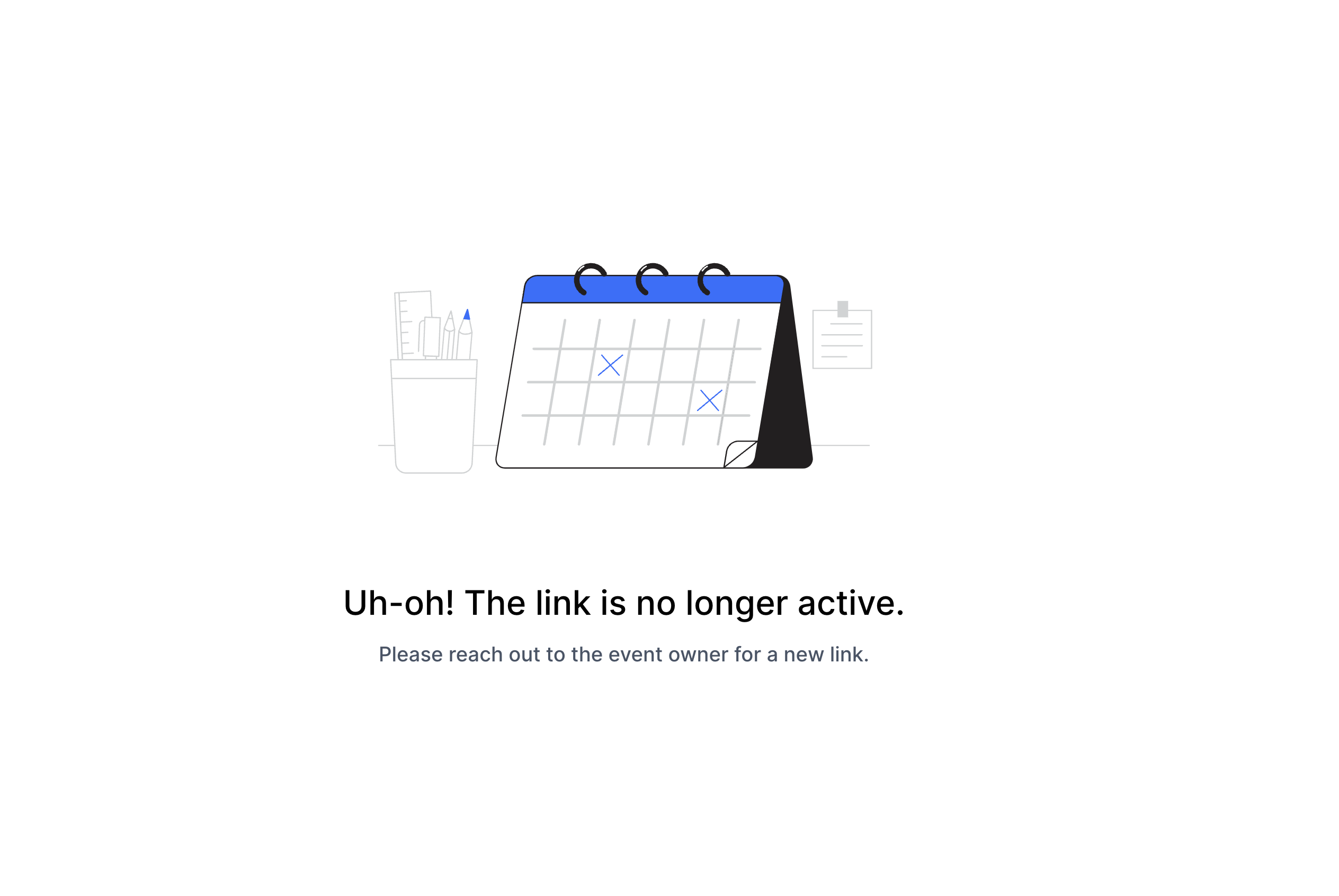
Once a patient books through a one-time link, anyone who tries to use that same link again is prompted to contact your practice directly instead of being able to self-schedule.
Open the calendar you want to use under Settings > Calendars.
In the top-right corner, click Share.
Select the One-Time Link tab.
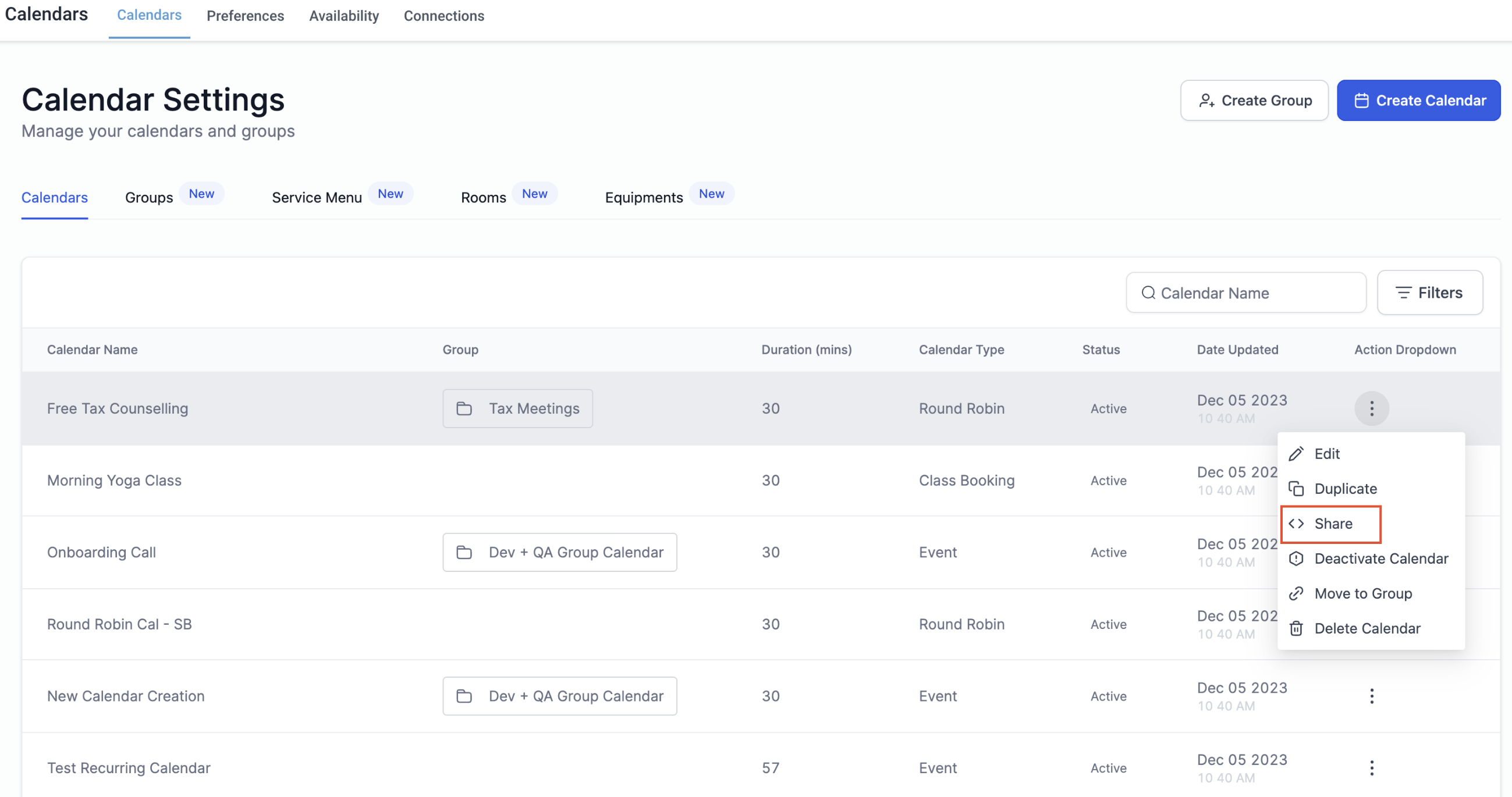
Click Copy to grab the link and send it to your patient however you'd like (text, email, or a direct message).
To create a fresh link for someone else, click Generate New Link. This does not affect the original permanent or scheduling links for that calendar, which remain available under the same Share menu.
Once the link has been used to book an appointment, it's done. If the same link is opened again, the person is told the link has expired and directed to contact your practice for further scheduling.
One-time links are a good fit for outreach texts, direct messages, or any situation where you're personally offering someone a spot rather than posting an open link. If your booking flow also collects a deposit or payment at the time of scheduling, that setup lives under Payments, not here, so check that section for coupons and checkout configuration.
Does the cancellation and reschedule policy apply retroactively to appointments already booked? No. It only affects the links generated after you turn the setting on. Existing confirmations that already went out keep whatever link behavior was active when they were sent.
What happens if I leave the cancellation window blank? The cancellation and reschedule links never expire, so patients can use them any time up until the appointment.
Can I use the reschedule and cancellation custom values outside of an appointment-triggered workflow?
No. {{appointment.reschedule_link}} and {{appointment.cancellation_link}} only populate on workflows triggered by appointment-based events, like Appointment Status or Customer Booked Appointment. Any other trigger type leaves them blank.
Which calendar types support multiple meeting locations? Event Calendars, and Round Robin or Service Calendars with exactly one team member. Service Calendars with multiple team members are not currently supported for this feature.
Do I need Zoom connected to offer video appointments as a location? Only if you want Aesthetix CRM to generate a unique Zoom link per booking automatically. Otherwise, you can add a static video link as a Custom location, though it won't be unique to each appointment.
Can a patient type in their own preferred meeting location? Yes, using the "Ask the booker" location type. If you've also added other locations, this option appears as "Elsewhere" on the booking widget.
Is a one-time link the same as my regular scheduling link? No. Your regular scheduling and permanent links stay open indefinitely and can be booked from repeatedly. A one-time link expires the instant it's used once.
Can I reuse a one-time link after someone books with it? No. Once it's used, it's expired for good. You'd need to generate a new one-time link to send to the next person.
Do these settings affect the appointment reminders patients already receive? No. Reminders are controlled separately through your notification and workflow settings. These policies only govern the cancellation, reschedule, and one-time booking links themselves.
Where do I find these options if I manage multiple calendars? Each policy is set per calendar, so you'll need to open each individual calendar under Settings > Calendars and configure it there. There is no account-wide default that applies to every calendar at once.
Is the consent checkbox required to accept bookings? No. It's an optional setting per calendar. If your practice doesn't need an extra disclosure at booking, you can leave it off.
Can I use different consent language on different calendars? Yes. The consent checkbox and its message are both configured per calendar, so you can tailor the wording to what each calendar collects.
Where do I check whether a specific patient gave consent? Open the appointment from the Appointment List and select View Consent, or open the patient's contact record and check the appointment activity for the consent indicator.
