Custom Forms let you collect intake and consent information from a patient before their appointment is confirmed. When a form is attached to a calendar, the patient completes it right after choosing a time slot, and every answer is saved to their contact record automatically. This is set up from Calendars > Calendar Settings, on the Forms & Payment tab of an individual calendar.
You'll need a form already built before you can attach one. If you haven't created your intake or consent form yet, see the Forms guides for how to build one.
Pairing a form with your booking flow gives you structured data the moment an appointment is scheduled, instead of chasing it down afterward.
Pre-visit qualification. Ask screening questions (medical history, treatment goals, prior procedures) to filter out appointments your practice isn't the right fit for.
Automated record keeping. Mapped form fields write straight to the patient's contact record, no manual data entry required.
Personalization. Use the answers to tailor reminders, provider assignments, or which services you recommend.
Fewer back-and-forth calls. Get the details you need up front instead of following up after booking.
Consent and compliance. Add waivers, consent checkboxes, or agreement language patients must accept before their visit is confirmed.
Workflow triggers. Custom field answers can kick off automations, such as routing a patient to a specific nurture sequence based on the treatment they're interested in.
Once a form is attached, it becomes part of the booking flow itself, not just a follow-up step.
Show/hide field logic still works based on how the patient answers earlier questions.
Disqualify-lead logic is evaluated before the appointment is created. If the form's rules disqualify the lead, no appointment is created and no payment is collected.
After submission, the form can redirect the patient to a URL or show a custom message, depending on how the form's rules are configured.
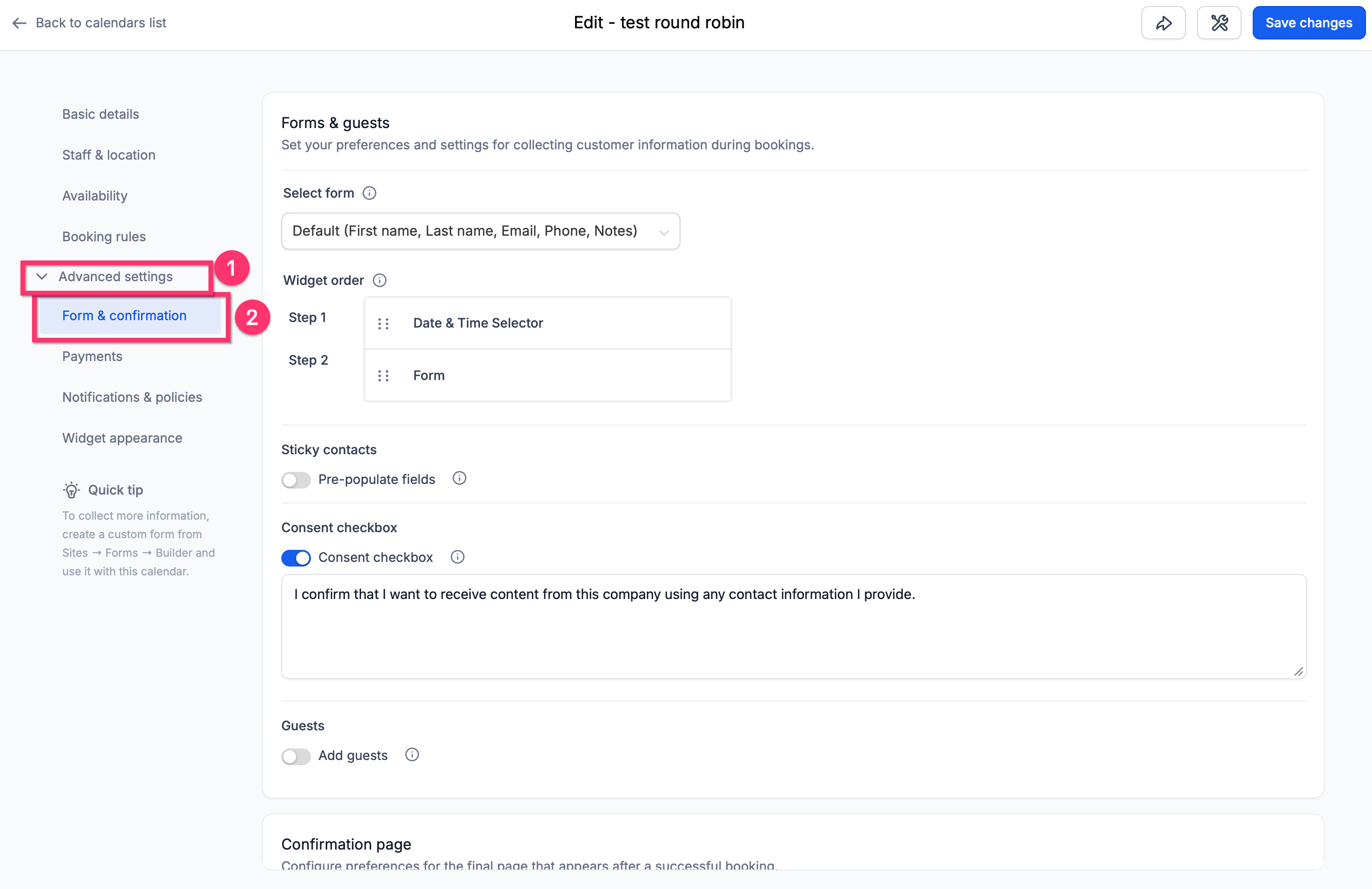
On the calendar, you can choose what a patient sees right after they submit the attached form:
Option | What happens |
|---|---|
Default | The standard Aesthetix CRM confirmation page displays. |
Redirect URL | The patient is sent to a URL you specify (for example, a thank-you or pre-visit instructions page). |
Use custom form rules | The booking flow follows whatever redirect or custom message rules are configured inside the form itself. If the form has no redirect or message configured, it falls back to the default confirmation page. |
Taking a deposit or payment at booking? Use AX Pay, Aesthetix CRM's built-in payment processor, for better rates than Stripe. See the AX Pay help article for setup details.
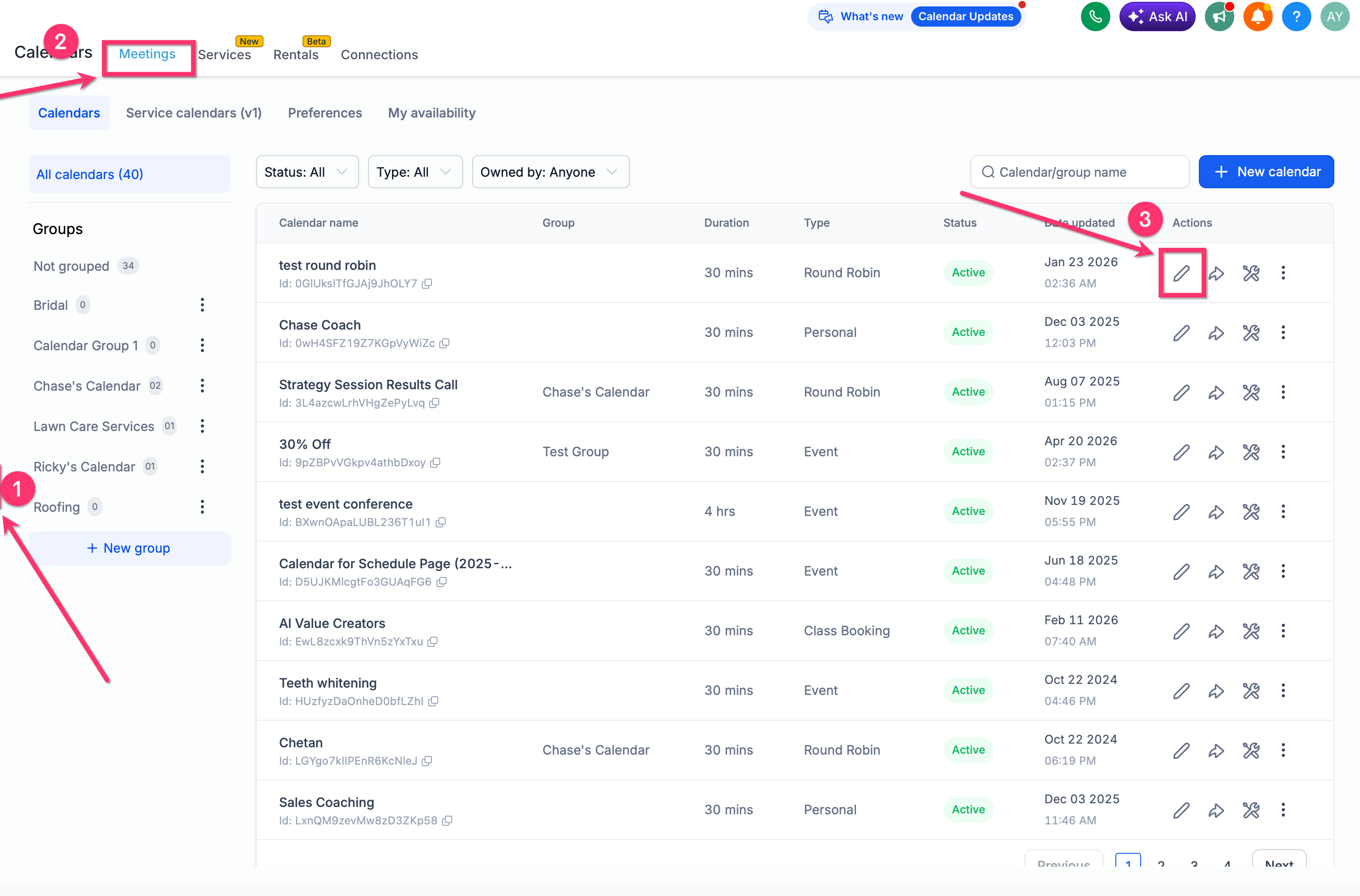
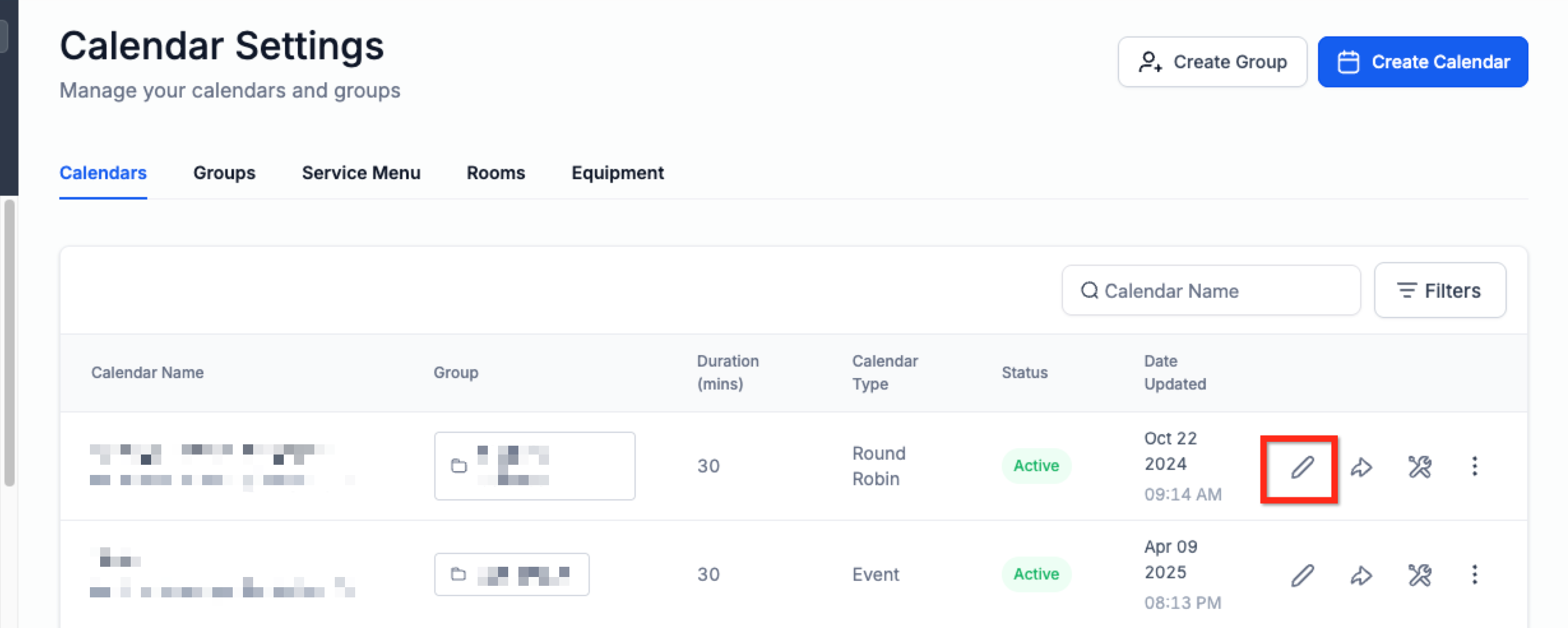
Go to Calendars, then click Calendar Settings in the secondary navigation.
Find the calendar you want to edit and click Edit next to its name.
Open the Forms & Payment tab in the left-side panel.
Under Select Form, choose the form you want attached to this calendar.
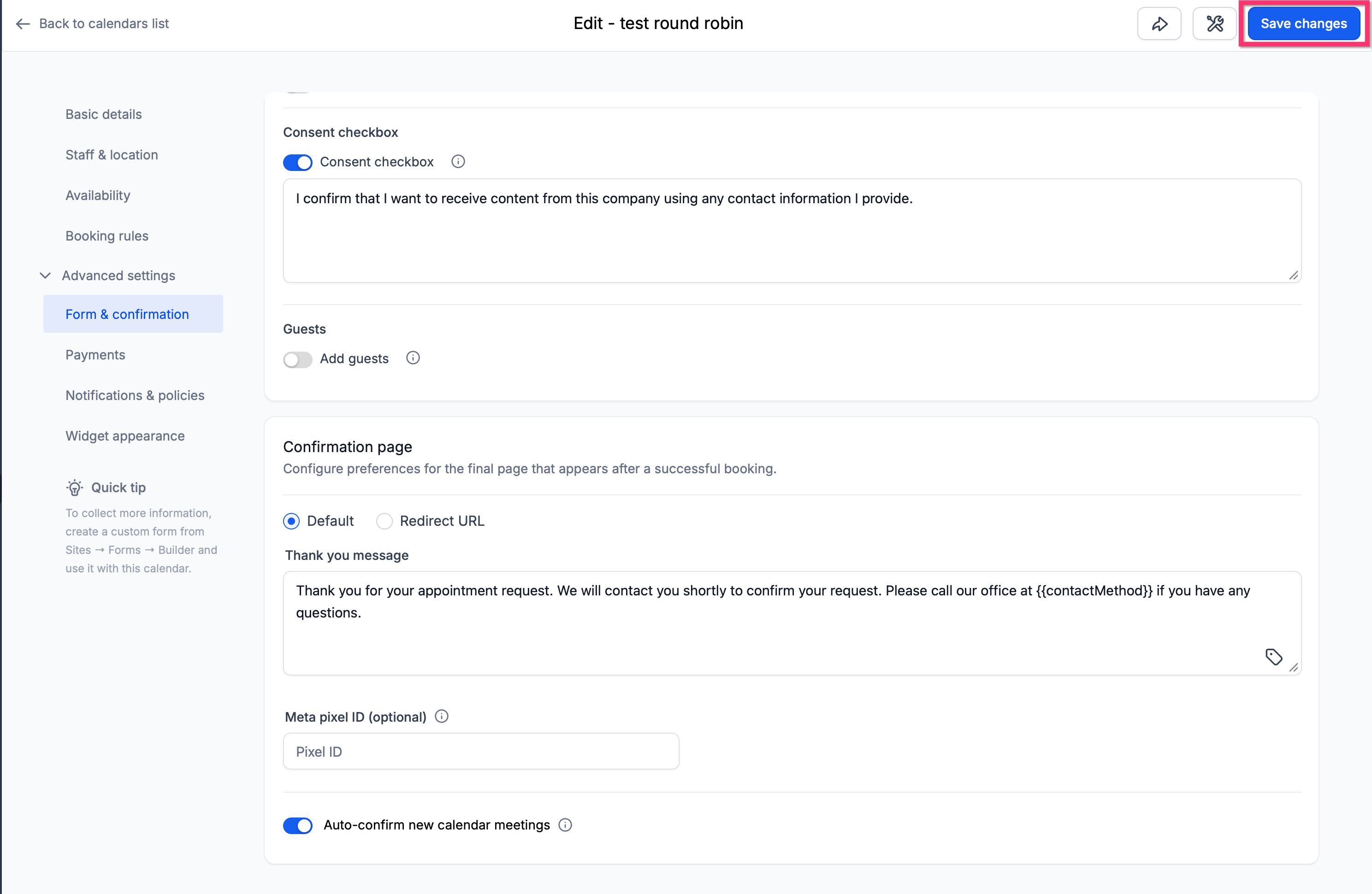
Click Save in the upper right corner.
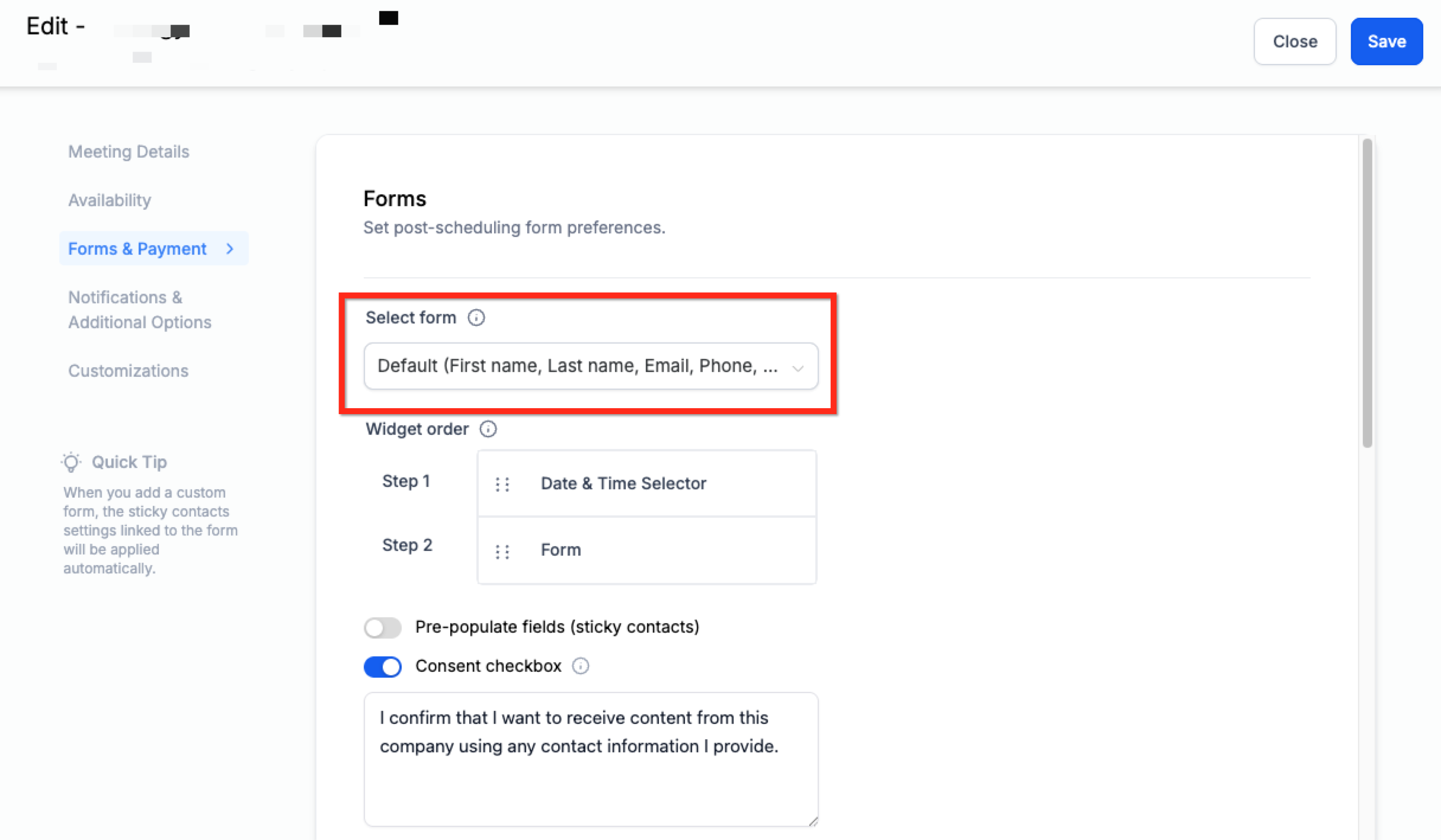
If your practice runs several appointment types or provider calendars, you can reuse one intake form across all of them to keep your data consistent.
A form can be assigned to more than one calendar, but each calendar needs its own setup:
Open Calendar Settings for the next calendar.
Click Edit.
Choose the same form from the Select Form dropdown, then save.
Forms are not applied automatically across calendars. Even if you're reusing the exact same form, you have to attach it to each calendar individually. This is intentional, it gives you control over which form appears on which booking flow.
Once a patient submits a custom form during booking, their answers show up right on the appointment itself, so you don't have to leave the calendar to see what they said.
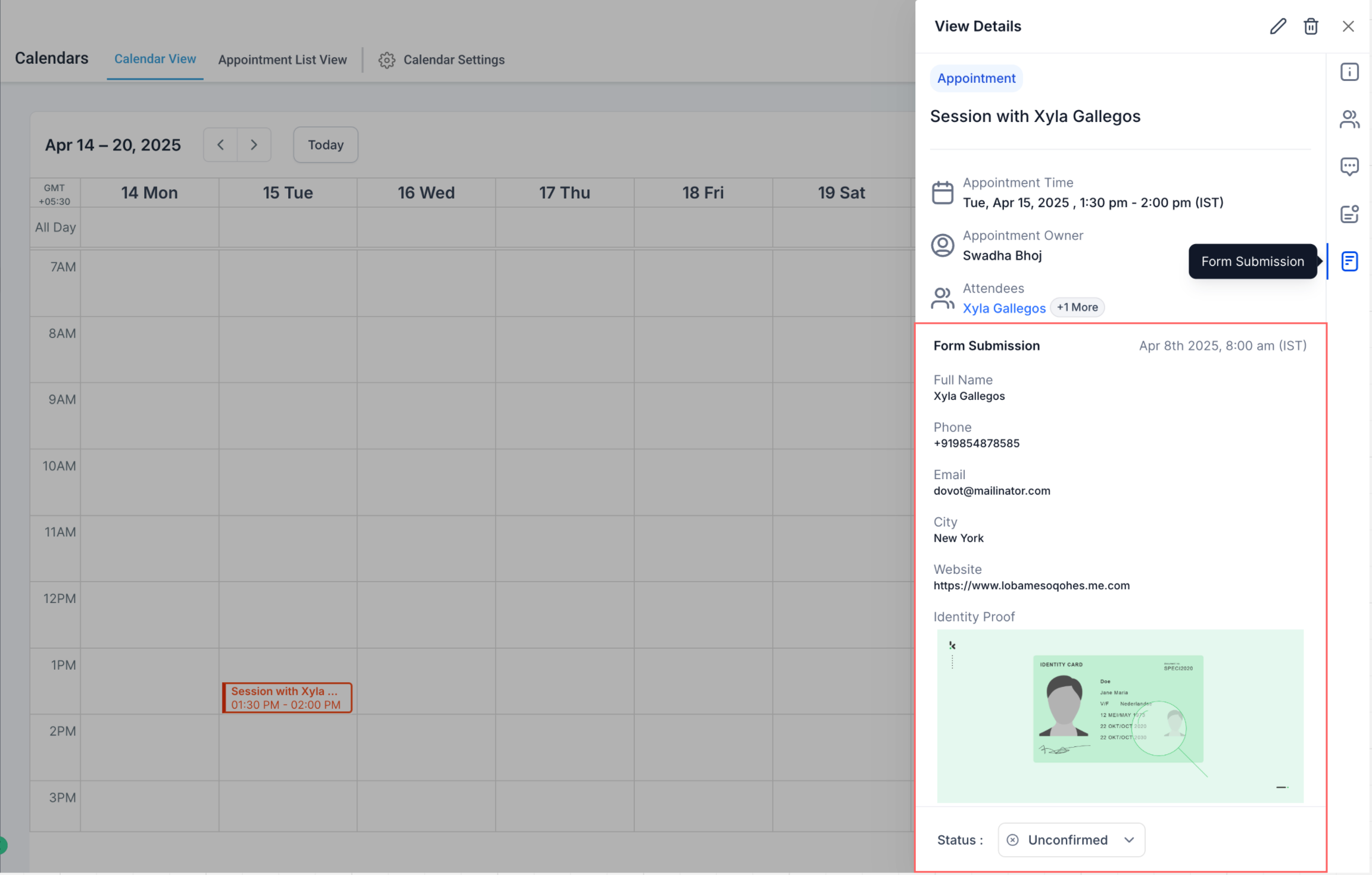
How to view it:
Open an appointment from Calendars, Contacts, or Inbox, wherever you normally work.
Click the appointment to open the appointment modal.
If the appointment has a custom form attached to it, a Forms tab appears in the modal.
Click the Forms tab to see the full submission laid out the same way it appears in the Forms module.
What's supported:
Custom forms built in the Forms builder and attached to a calendar's Forms & Payment tab appear here.
The default booking form (just name, email, and phone) does not show up in the Forms tab. That basic info is already visible in the appointment's Contact Details section instead.
A few practical notes:
The submission is read-only from the appointment modal. To correct or update an answer, go to the Forms module or the patient's contact record.
Submissions only populate for appointments where the patient actually completed and submitted the form. If someone abandons the booking flow before clicking the final booking button, nothing is written to the contact record.
This view works no matter where you opened the appointment from, Calendars, Contacts, or Inbox all show the same Forms tab when applicable.
Because intake and consent forms often carry protected health information (medical history, treatment details, insurance notes), treat form submissions the same way you'd treat any other PHI in a patient's chart: limit who on your team can view them and avoid pasting answers into channels outside the CRM.
Reviewing a patient's intake and medical history before their first consult.
Confirming consent language was accepted before a procedure appointment.
Qualifying leads on screening questions so front desk staff aren't scheduling appointments your practice can't fulfill.
Giving providers context on treatment goals before walking into the room.
Can I attach more than one custom form to a single calendar? No. Only one custom form can be attached to a calendar at a time.
Does the form appear before or after the patient picks a time slot? After. The patient chooses a time first, then completes the form to confirm the booking.
Can I use the same form on multiple calendars? Yes, but you have to attach it separately in each calendar's Forms & Payment settings. It isn't applied automatically to other calendars.
What happens to the patient's answers? They're saved to the patient's contact record automatically, as long as the form's fields are mapped to custom fields.
Why isn't my form showing up in the Select Form dropdown? Make sure the form is saved and has at least one field. If it still doesn't appear, refresh the calendar settings page.
If I edit the form later, does it update on the calendar automatically? Yes. Changes to the form reflect wherever it's attached. Be careful about deleting fields that automations or workflows rely on.
Will a patient's answers be saved if they don't finish booking? No. Form data is only written to the contact record once the patient completes the booking by clicking the final confirmation button. If they abandon the flow before that, nothing is saved.
Why don't I see a Forms tab on some appointments? The Forms tab only appears when a custom form submission is tied to that appointment. Appointments booked with just the default name/email/phone form won't show a Forms tab, since that basic info already lives in Contact Details.
Can I edit a submission from the appointment modal? No, submissions display read-only there. Make edits in the Forms module or directly on the patient's contact record.
Is this feature limited to appointments booked a certain way? It works for any appointment created through a calendar that has a custom form attached, whether the booking came from your website widget, a funnel, or a manual entry tied to that calendar.
