Recurring appointments let a single booking repeat automatically at regular intervals, daily, weekly, or monthly, so you don't have to schedule each visit in a treatment series or package one at a time. They're set up from Calendars, either on the calendar itself or on an individual appointment.
Aesthetix CRM offers two methods for setting up recurrence, and they work differently:
Calendar-level recurrence. You configure the recurrence rules once in the calendar's settings. This applies whenever a patient books through your booking widget or scheduling link, or when your team creates an appointment using the default Date & Time tab in the in-app appointment modal.
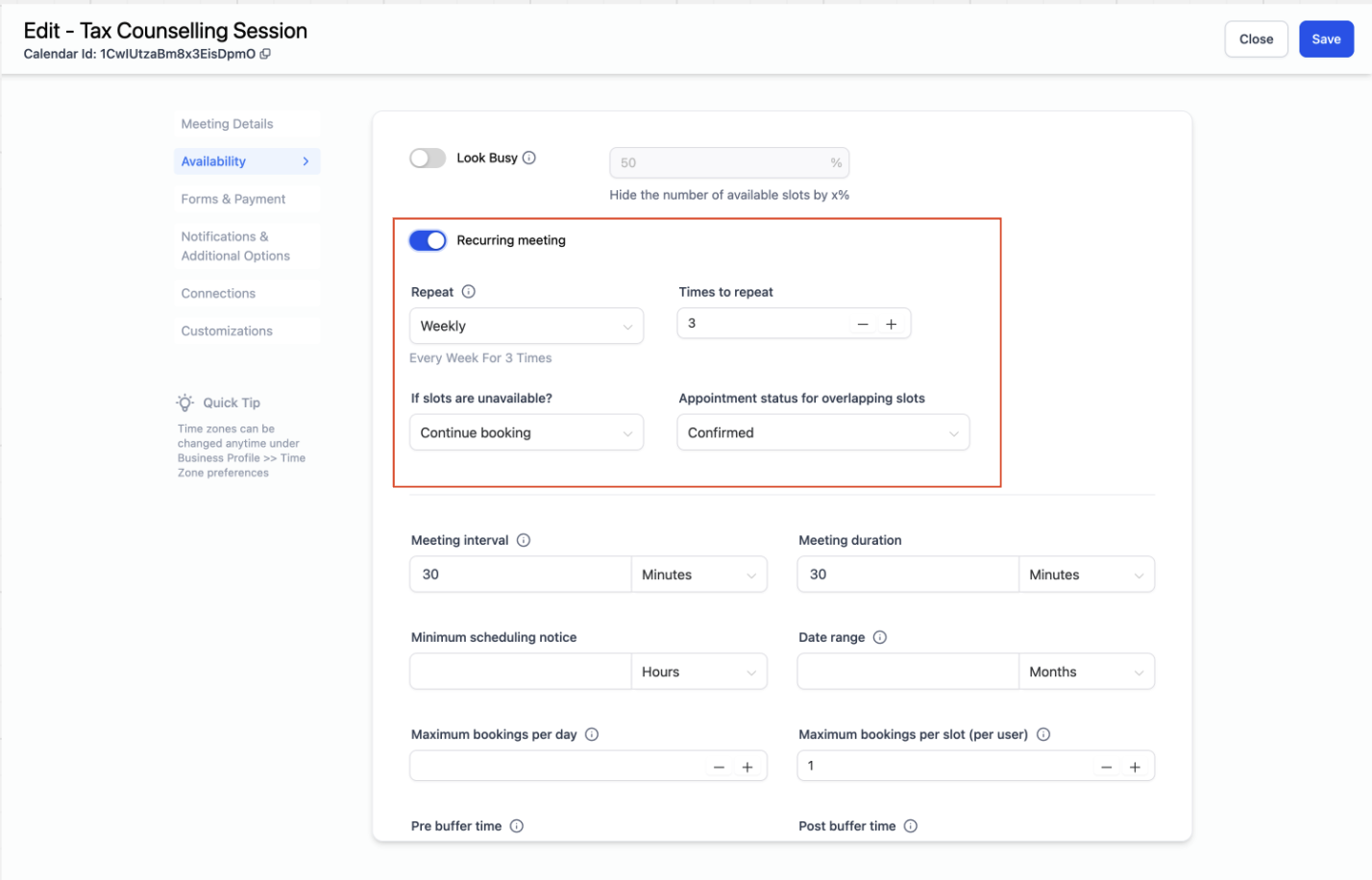
Custom recurrence. When your team creates an appointment using the Custom Date & Time tab in the in-app appointment modal, you can set a recurrence rule for that specific appointment series. This overrides whatever recurrence is configured on the calendar itself.
Custom recurrence has one important trade-off: your actual availability isn't checked. The system books slots purely based on the recurrence rule you set, even if you're already booked elsewhere at that time.
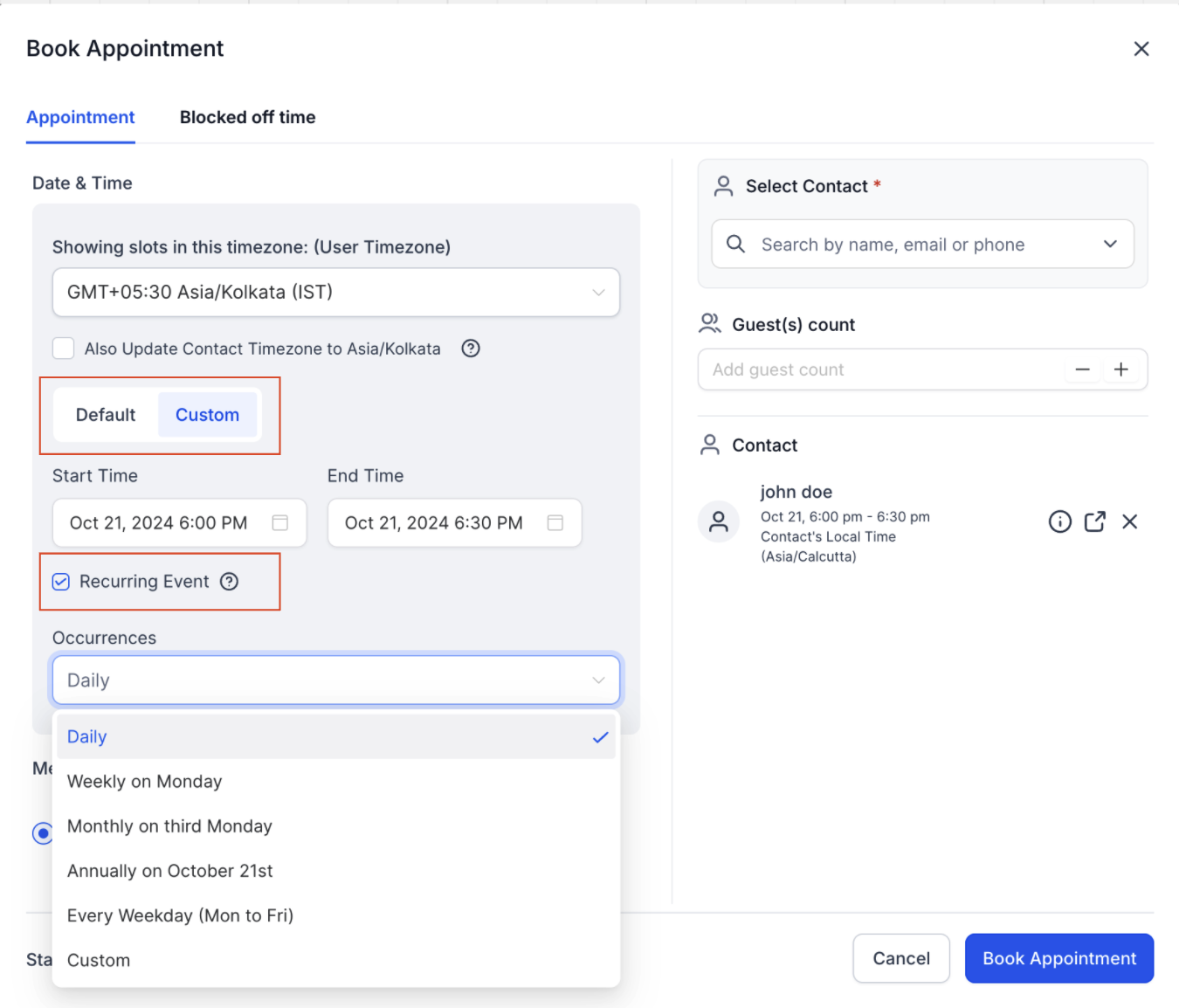
Use this method when you want every booking on a given calendar, such as a "Series Treatment" or "Package Follow-Up" calendar, to offer recurring slots automatically.
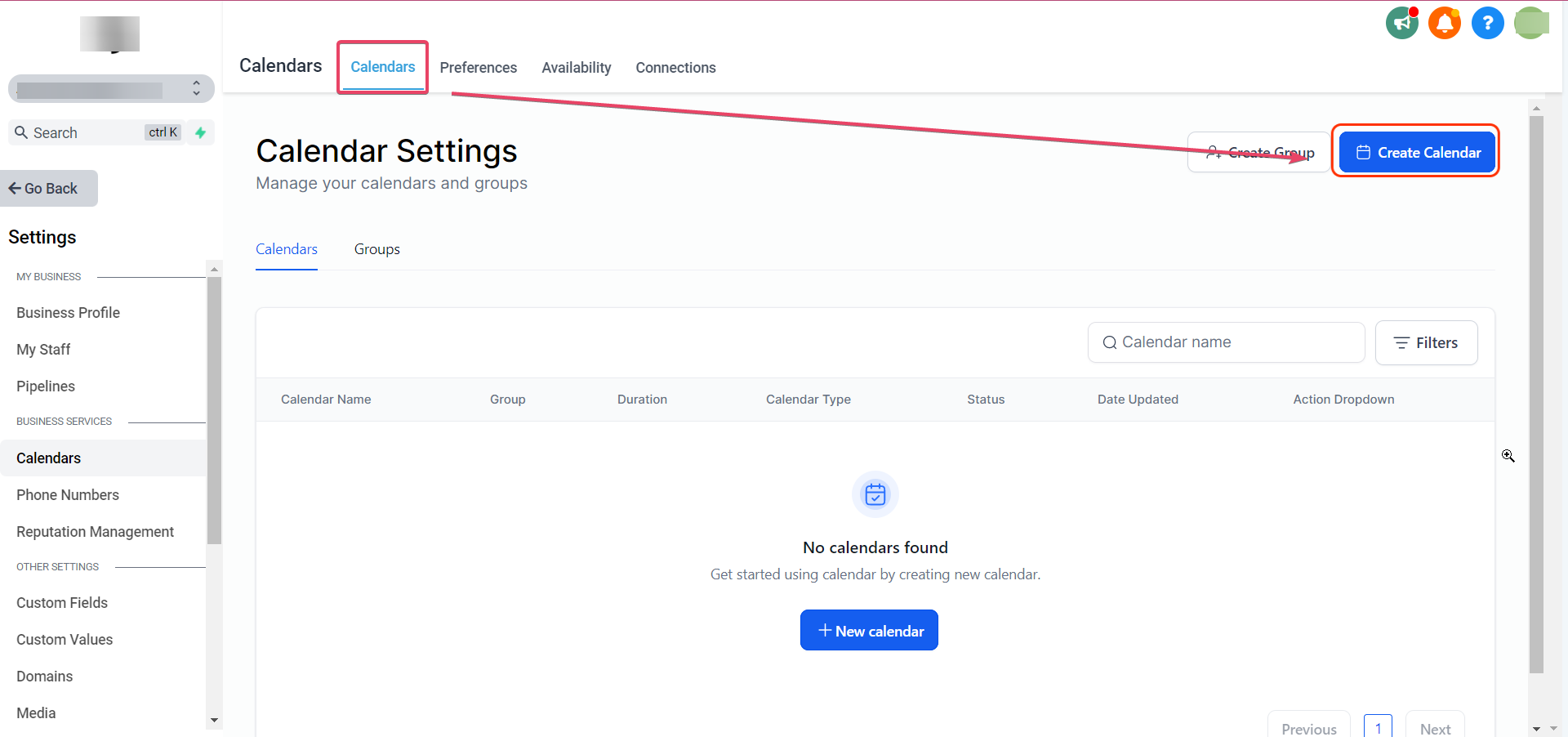
Go to Settings > Calendars.
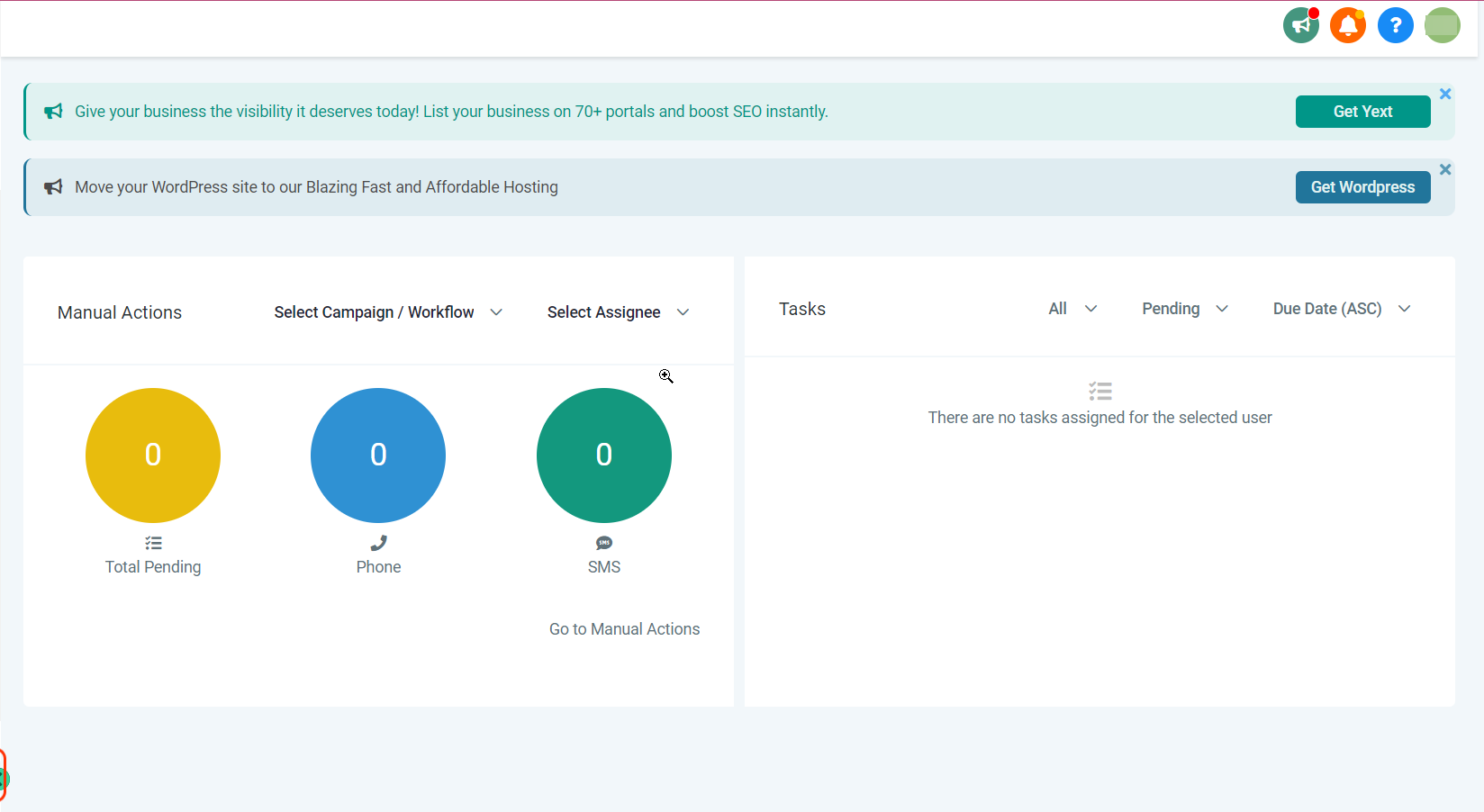
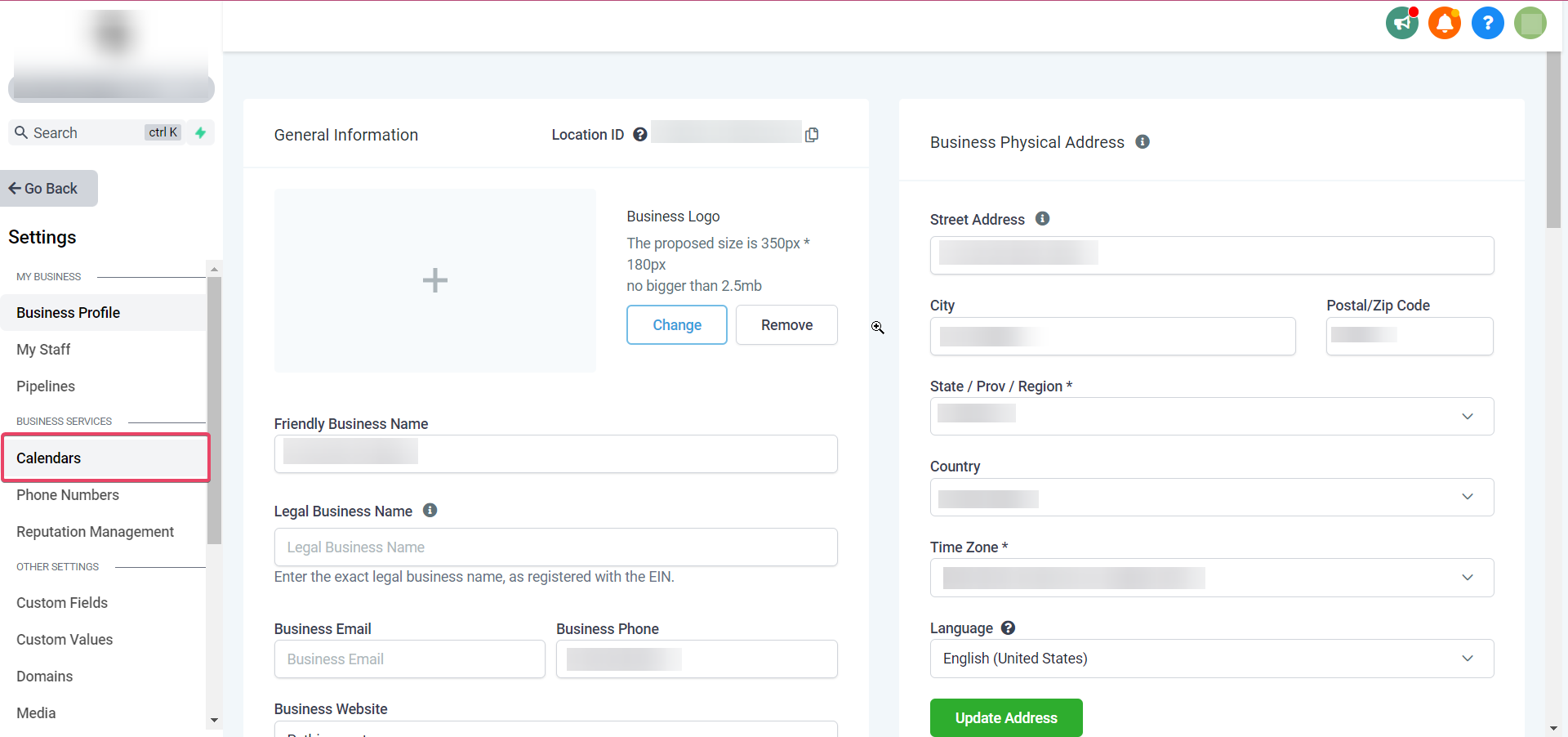
Click Create Calendar to start a new one, or open an existing calendar's settings to edit it.
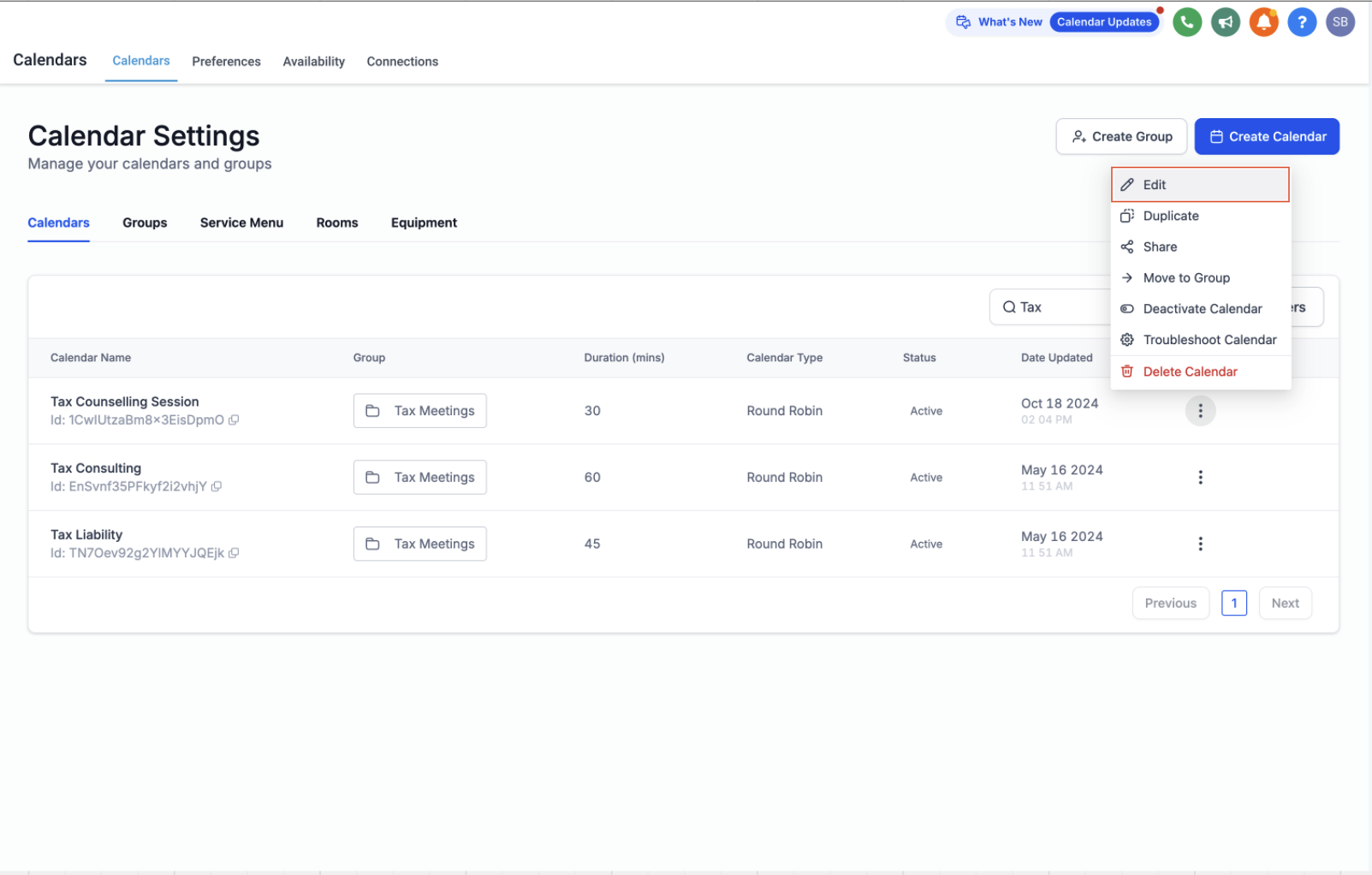
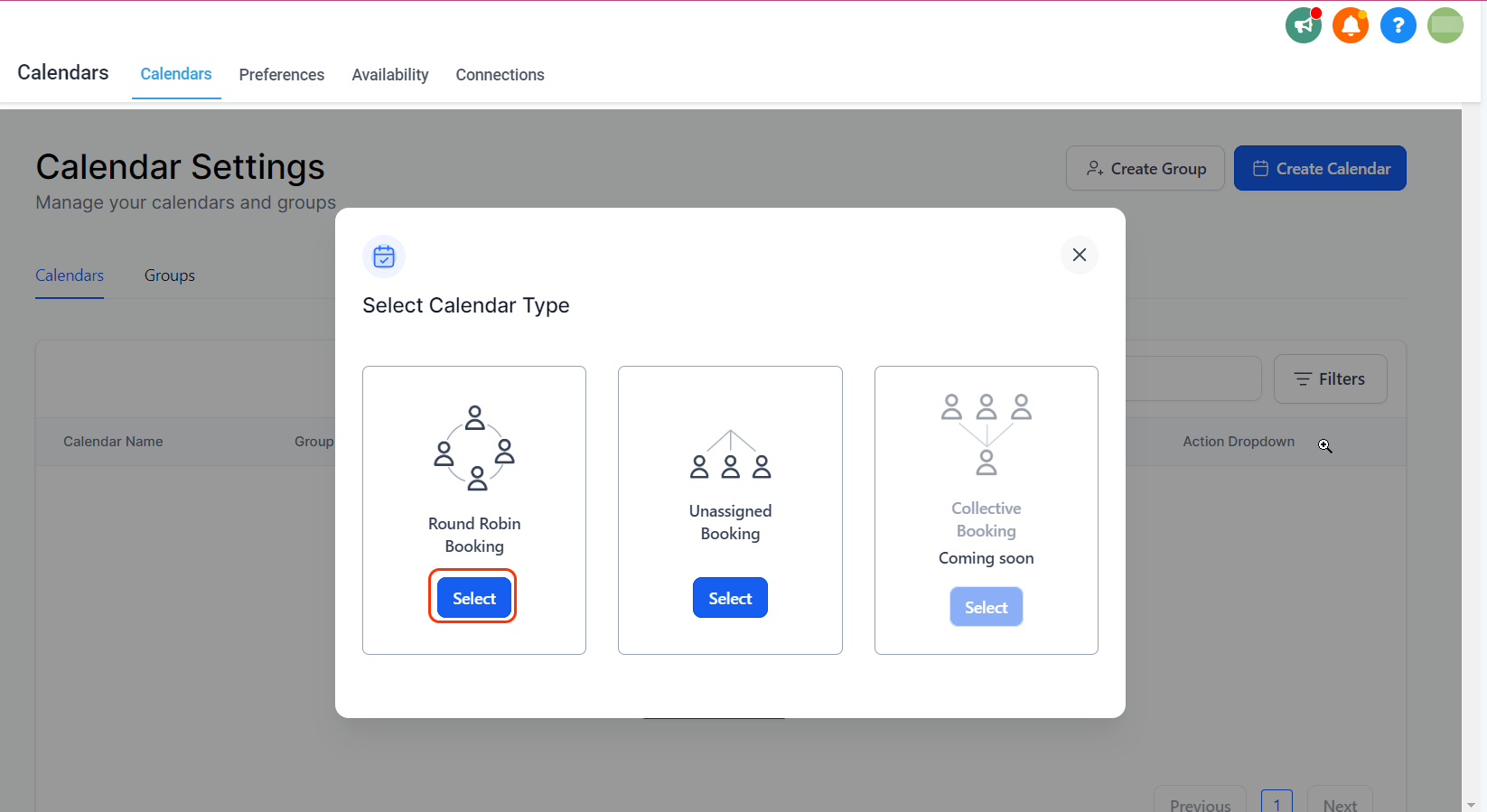
Choose a calendar type. Recurring appointments work on every calendar type except Service Calendars. If you're creating a Round Robin calendar, select it here, and note that a Round Robin calendar used for recurring bookings can only have one team member assigned.
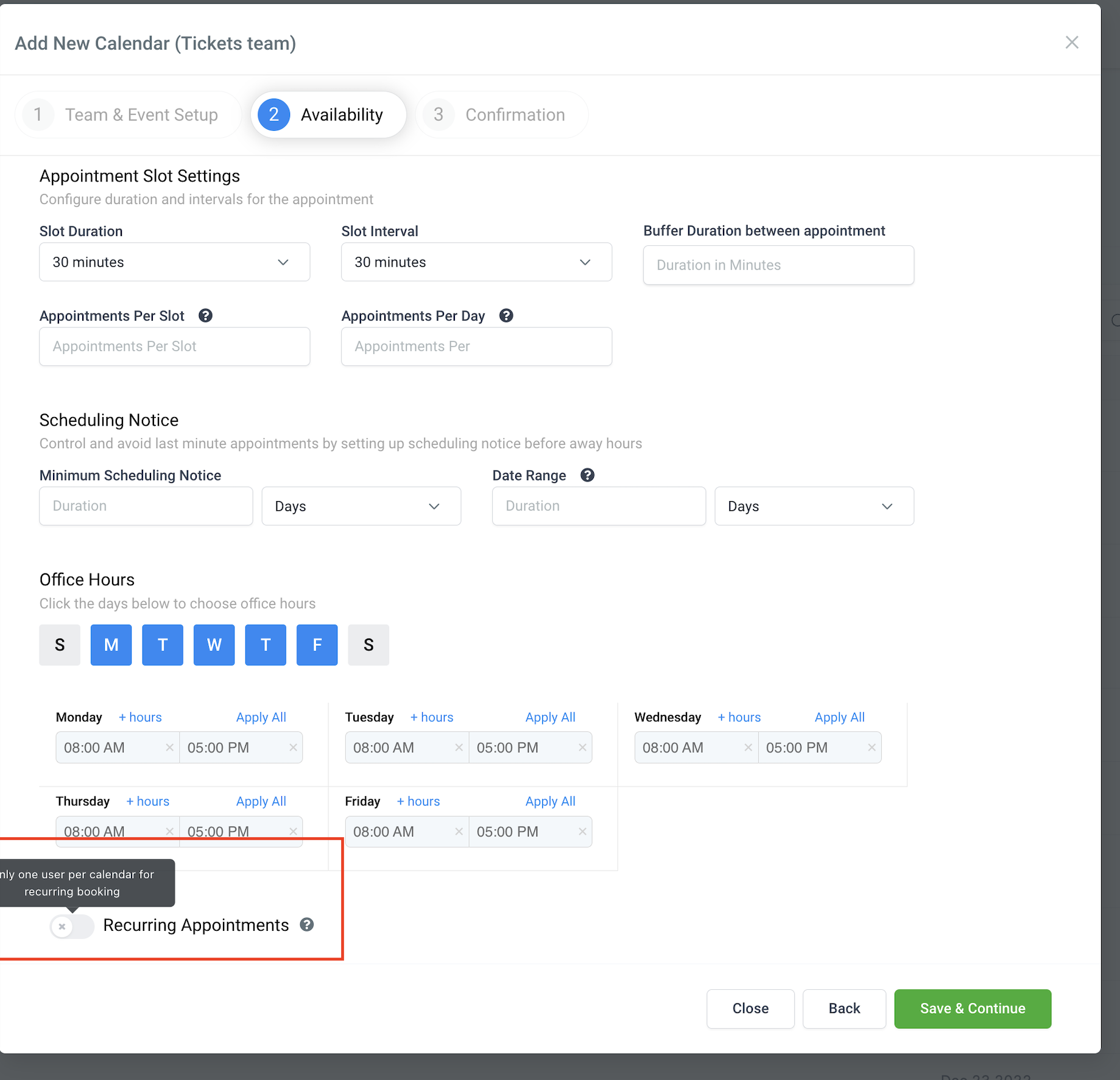
Confirm the calendar has no date-specific hours configured, and only one team member assigned. This is required for recurrence to behave correctly.
Open the Availability tab and toggle on Recurring Appointments (also labeled Recurring Meeting).
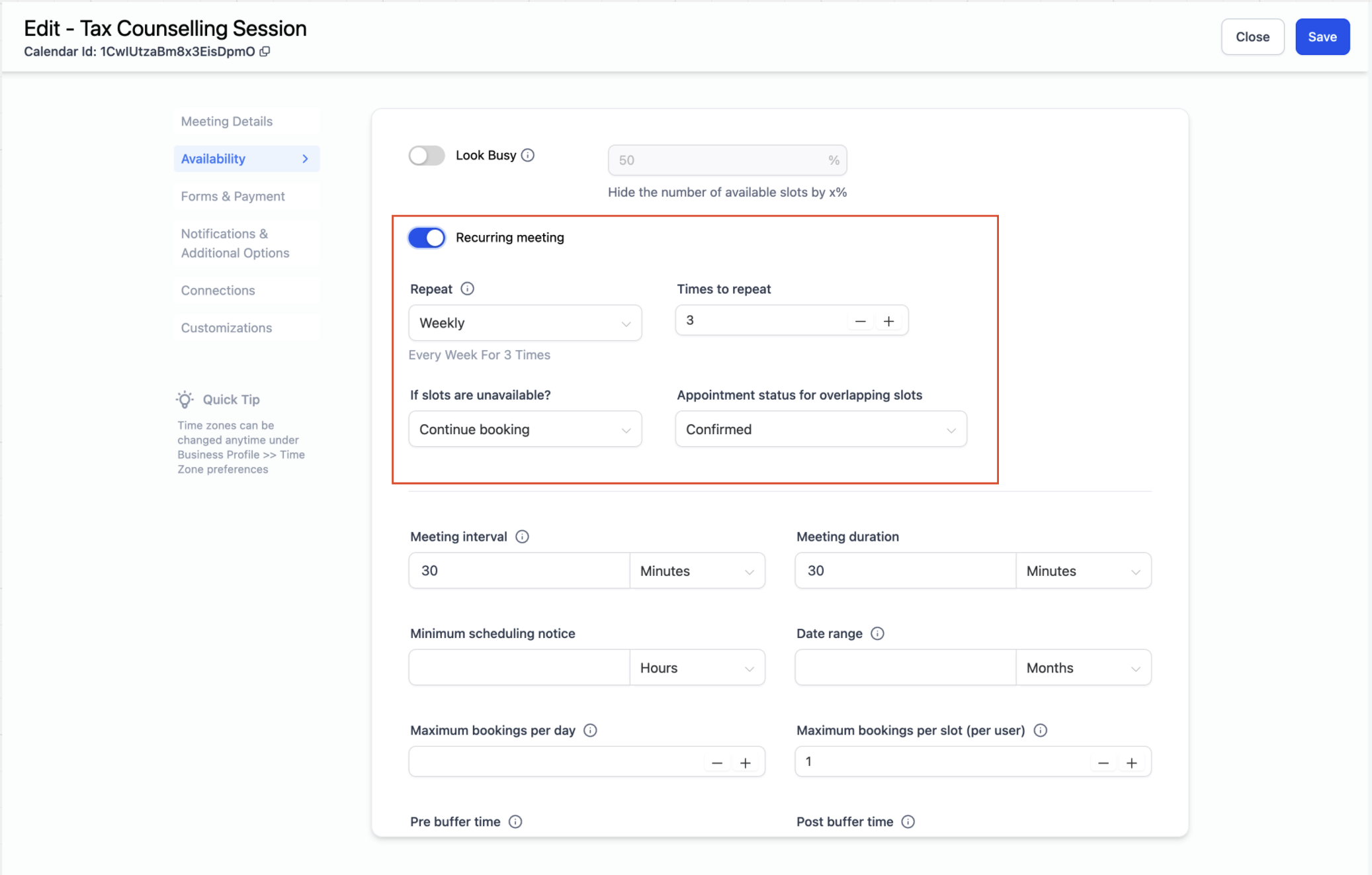
Configure the recurrence settings for your use case, covered below, and click Save.
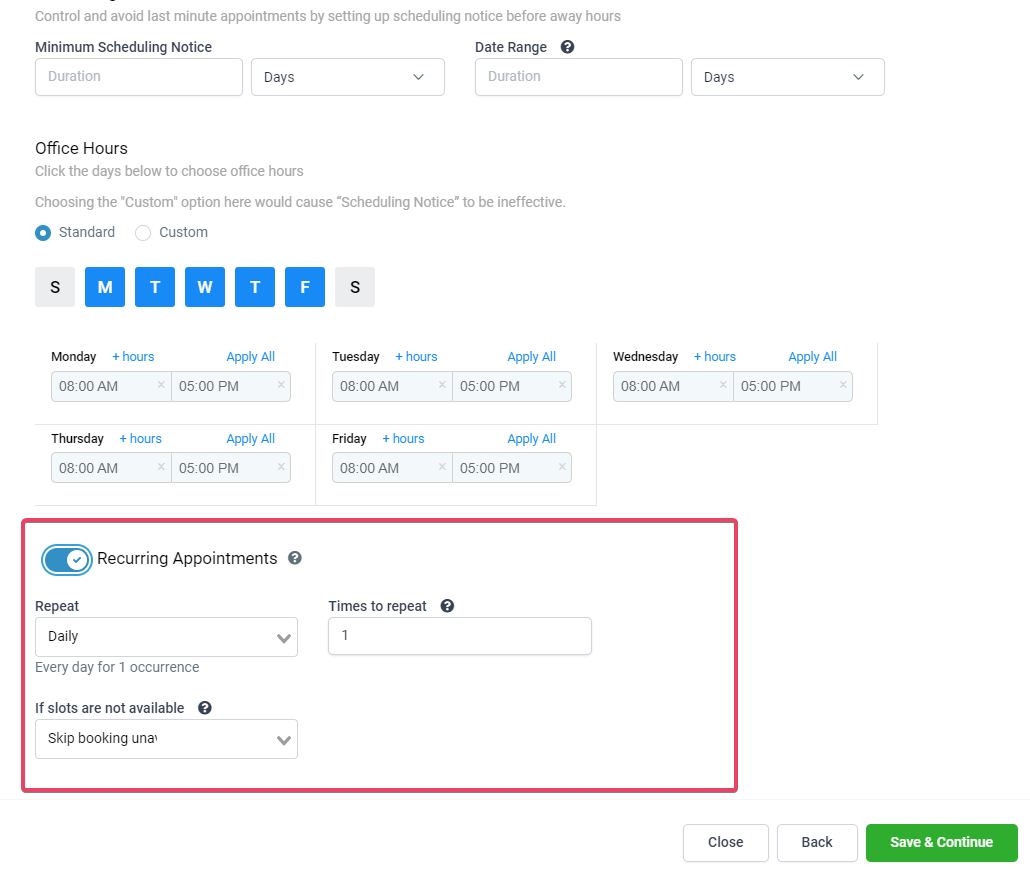
Because Service Calendars, your primary calendar type for individual patient bookings, don't support recurrence at all, most practices set up a separate Round Robin or Team calendar specifically for treatment series and packages rather than trying to enable recurrence on their main booking calendar.
Setting | What it does |
|---|---|
Repeat | Choose the frequency: Daily, Weekly, Monthly, or Custom. |
Times to Repeat | How many occurrences to book. Daily repeats every day, Weekly repeats on the same day each week, Monthly repeats on the same date each month, and Custom lets you define your own pattern. |
The maximum number of recurrences allowed is 24. These settings apply when appointments are booked through your booking widget or scheduling link, or through the default Date & Time tab in the in-app appointment modal.
When a recurring booking hits a slot you're already booked for, you control what happens through the If Slots Are Not Available dropdown:
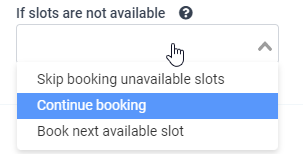
Skip Booking Unavailable Slots. Only available slots get booked, and unavailable ones are simply skipped. For example, if a patient needs 10 visits and 3 of the recurring slots are unavailable, only 7 appointments will be booked.
Continue Booking. Appointments are booked even when the slot is already taken, creating a double-booking. You choose whether these overlapping appointments should land as Confirmed or Unconfirmed.
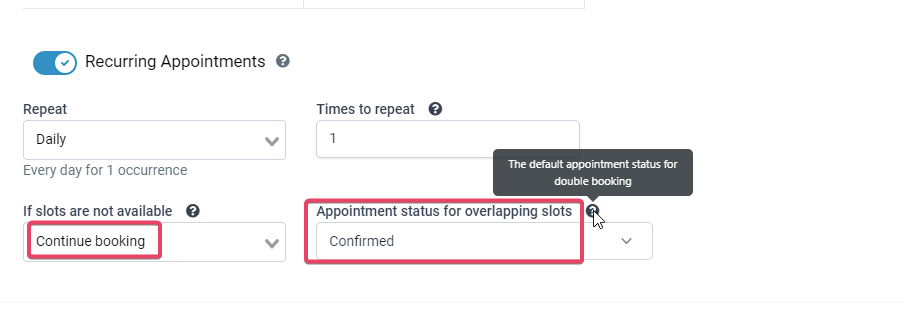
Book Next Available Slot. Unavailable slots are skipped and the system searches for the next open slot to fill the recurrence rule instead. Using the 10-visit example, the system would find 3 additional available slots elsewhere to still book all 10 appointments. If three consecutive slots in a row are unavailable, the system stops searching and drops the remaining bookings, so review the schedule carefully after using this option.
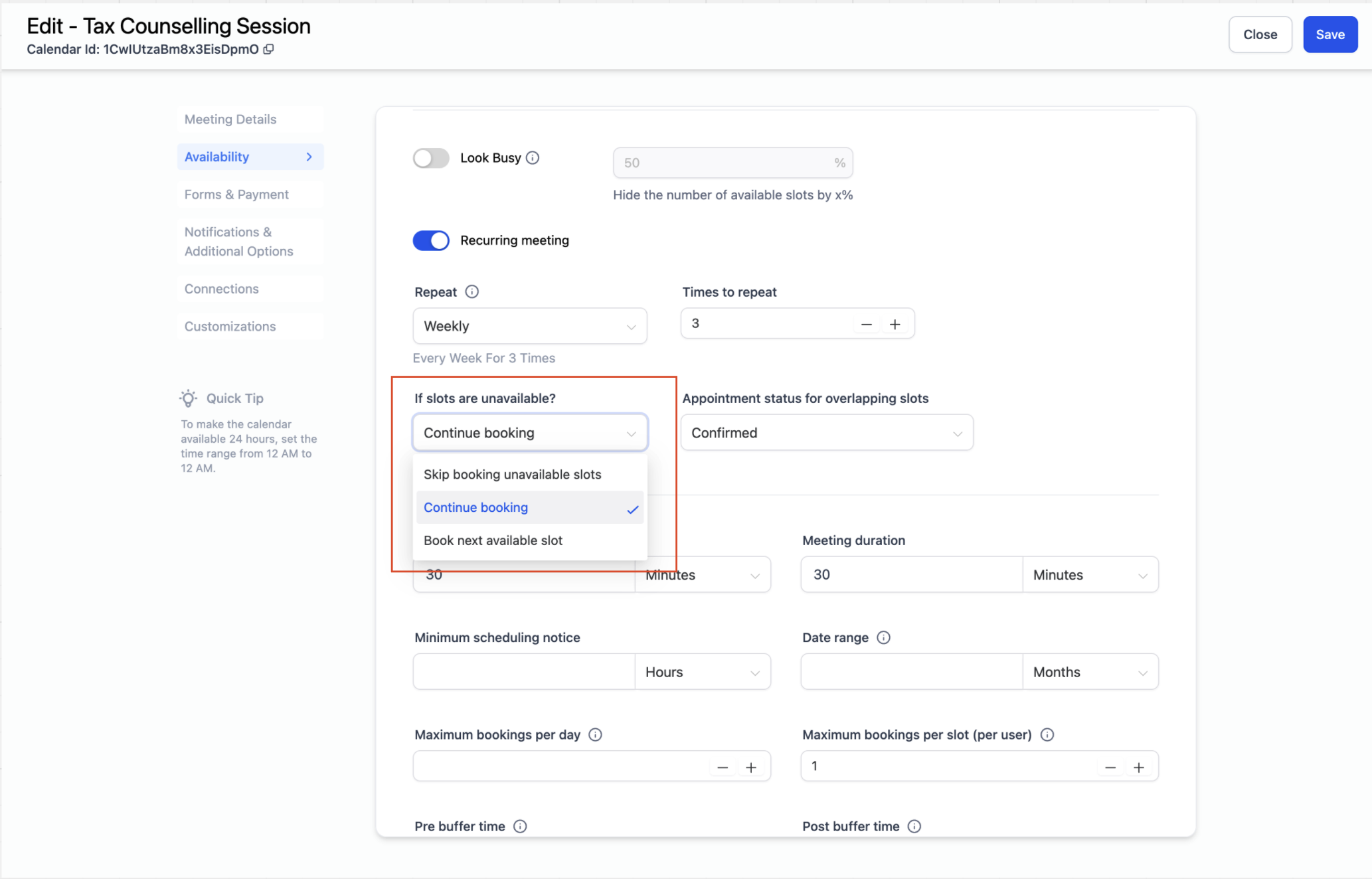
Recurring appointments can only be booked into standard time slots. Custom slots don't offer a recurring booking option. Recurring appointments also can't be booked from the Opportunities/pipeline view; the recurring calendar will still appear in the booking dropdown there, but only a single time slot will be offered.
When your team books manually inside Aesthetix CRM, you have two tabs to choose from in the appointment modal.
The Default tab follows whatever recurrence is already configured on the calendar. If the calendar has recurring appointments enabled, it displays the available recurring slots; on a standard calendar, it shows just a single slot.
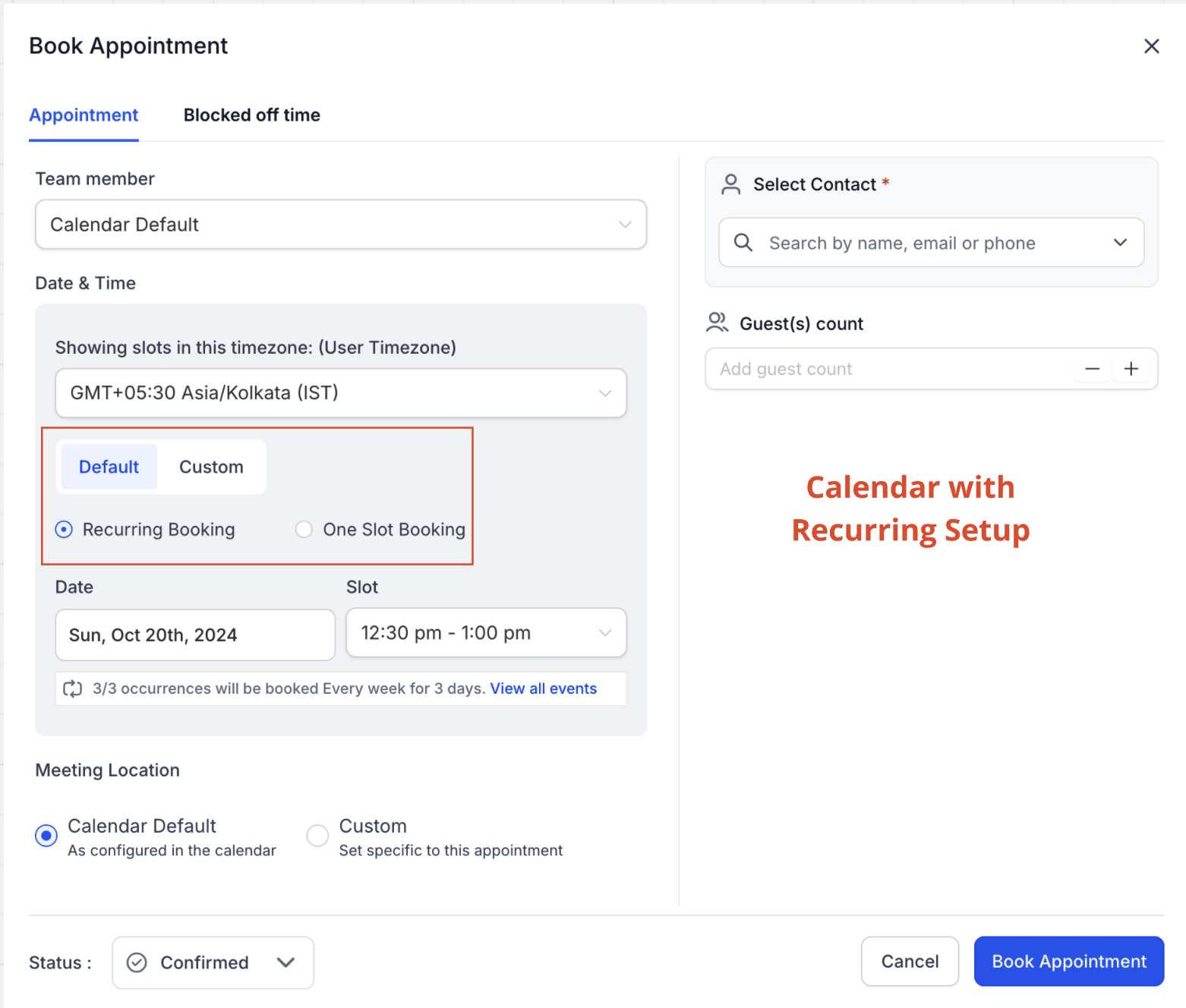
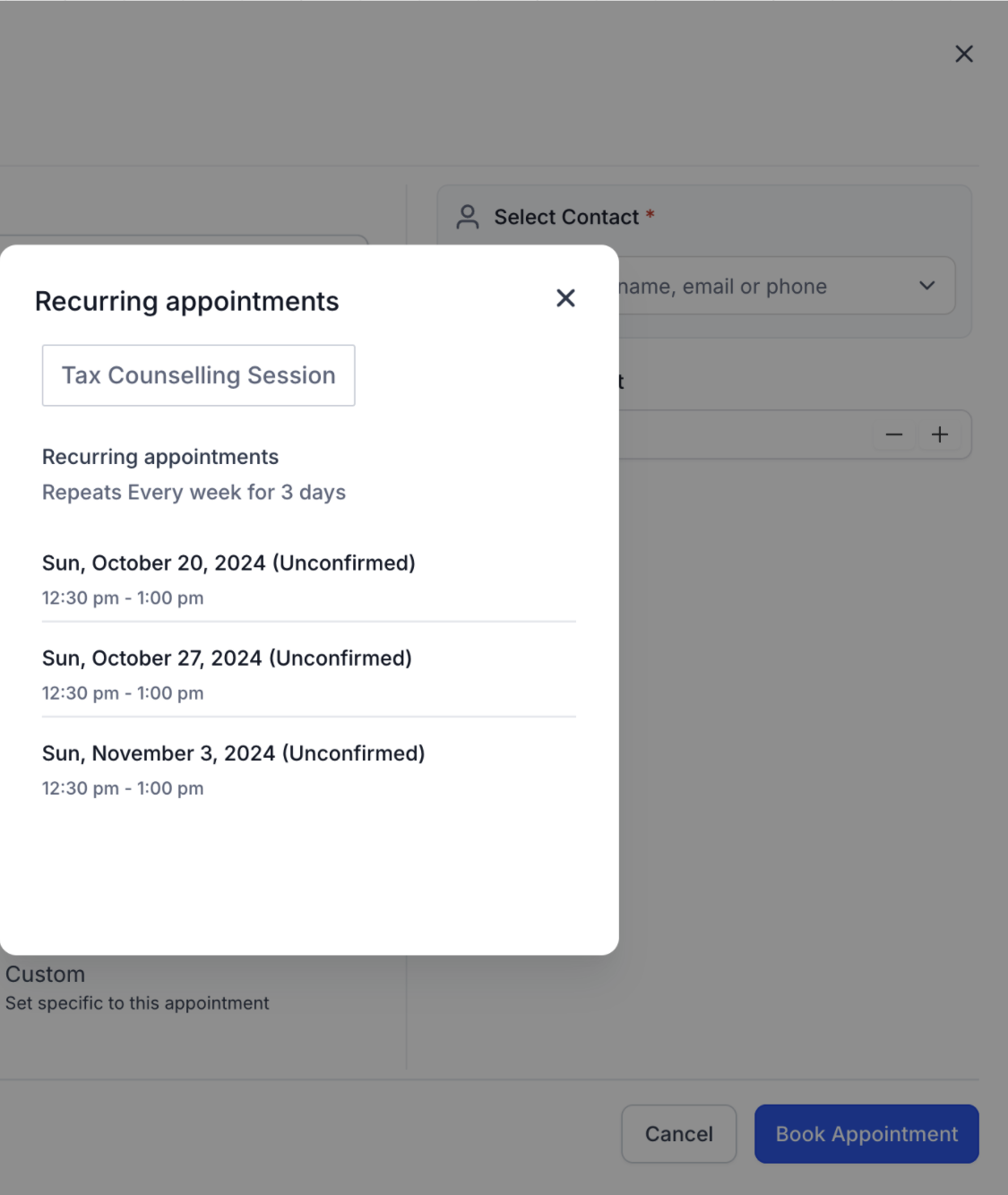
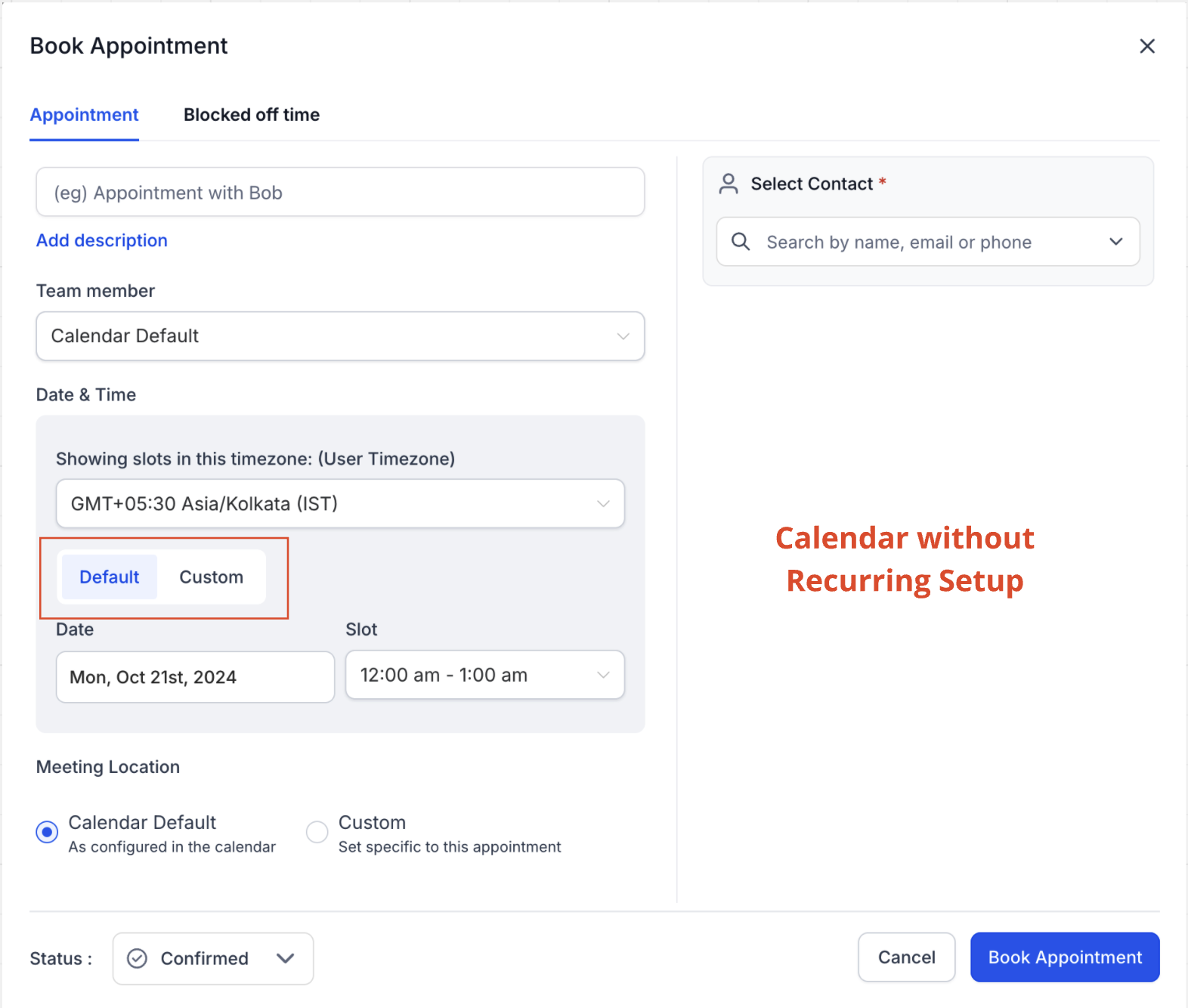
The Custom tab lets you define a recurrence rule specifically for the appointment you're creating, independent of the calendar's own settings. This custom rule applies only to that one series and doesn't affect any other appointments or the calendar configuration. You can use it regardless of whether the calendar has recurring turned on, though it isn't available for class booking calendars or Service Calendars.
Custom recurring appointments override all default rules and availability checks. The bulk edit and delete enhancements described below are only available for custom appointments created this way.
Steps to create a custom recurring appointment:
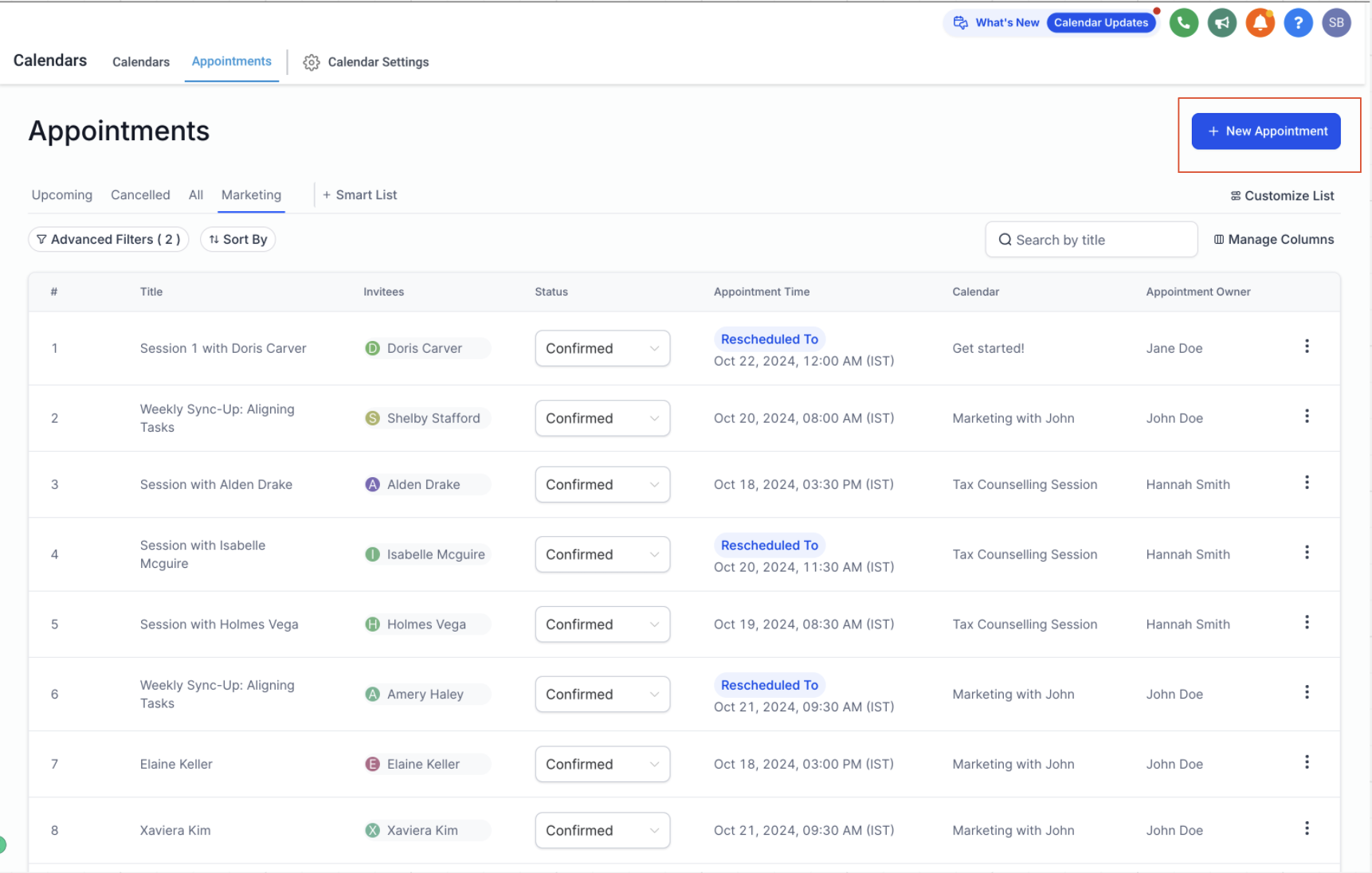
Go to Create New Appointment and select the calendar, team member, and patient contact.
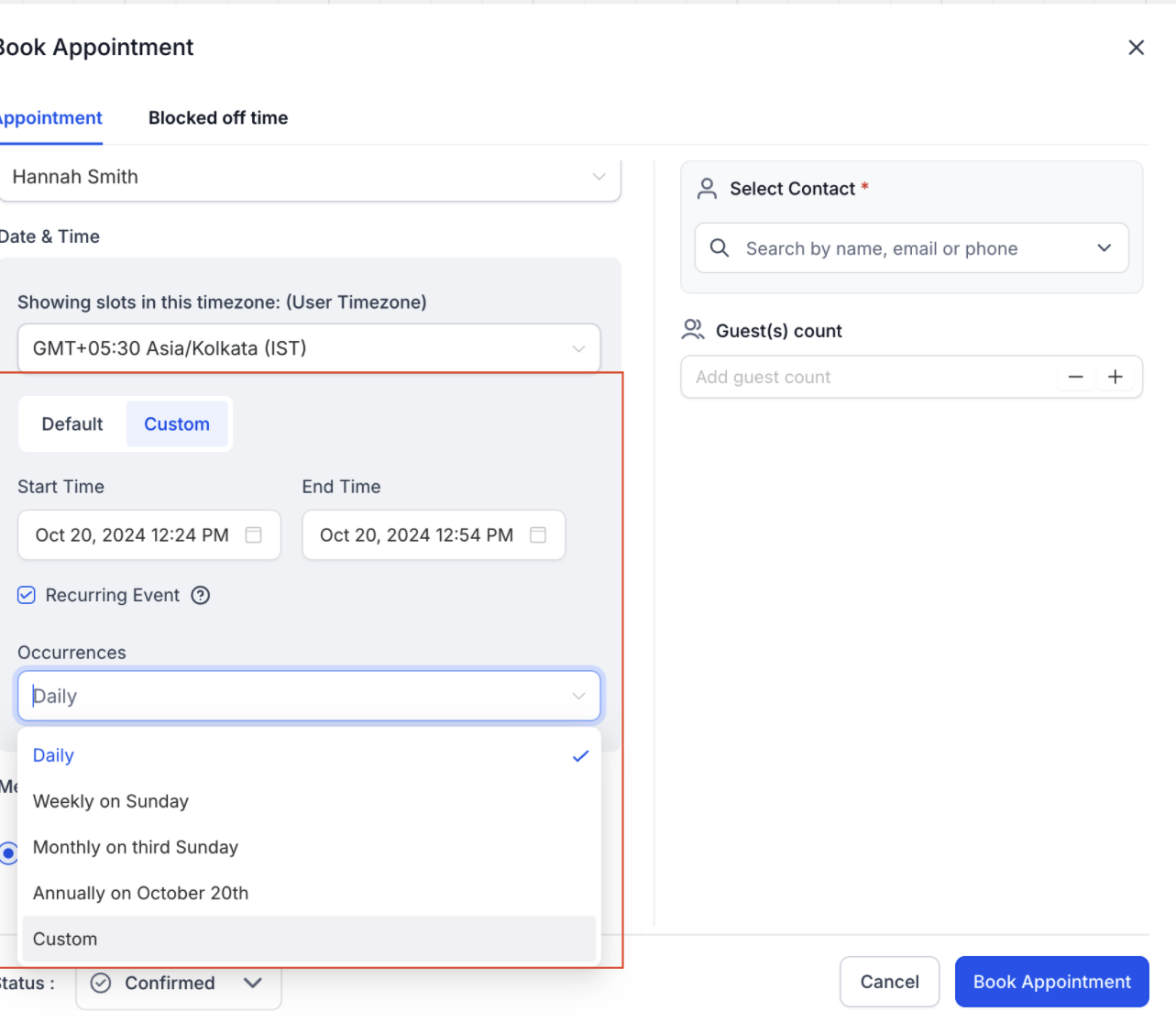
In the Date and Time section, choose Custom, check the Recurring Event checkbox, then pick a recurrence pattern from the dropdown or click Custom to build your own.
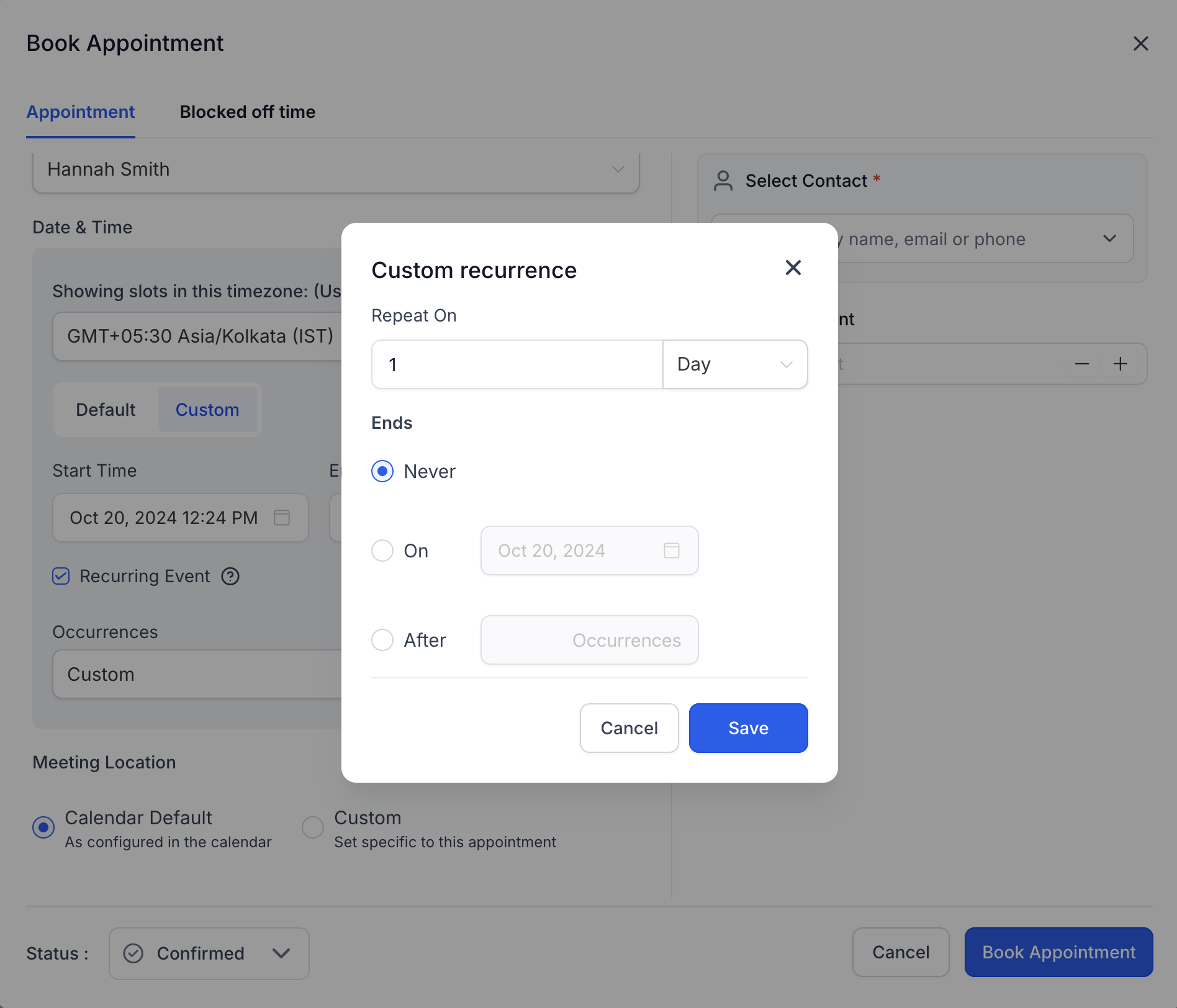
Set when the recurrence should end:
Never: the recurrence continues indefinitely.
On a Specific Date: pick an end date.
After X Number of Occurrences: it stops after the number you specify.
Review the settings and click Create Appointment.
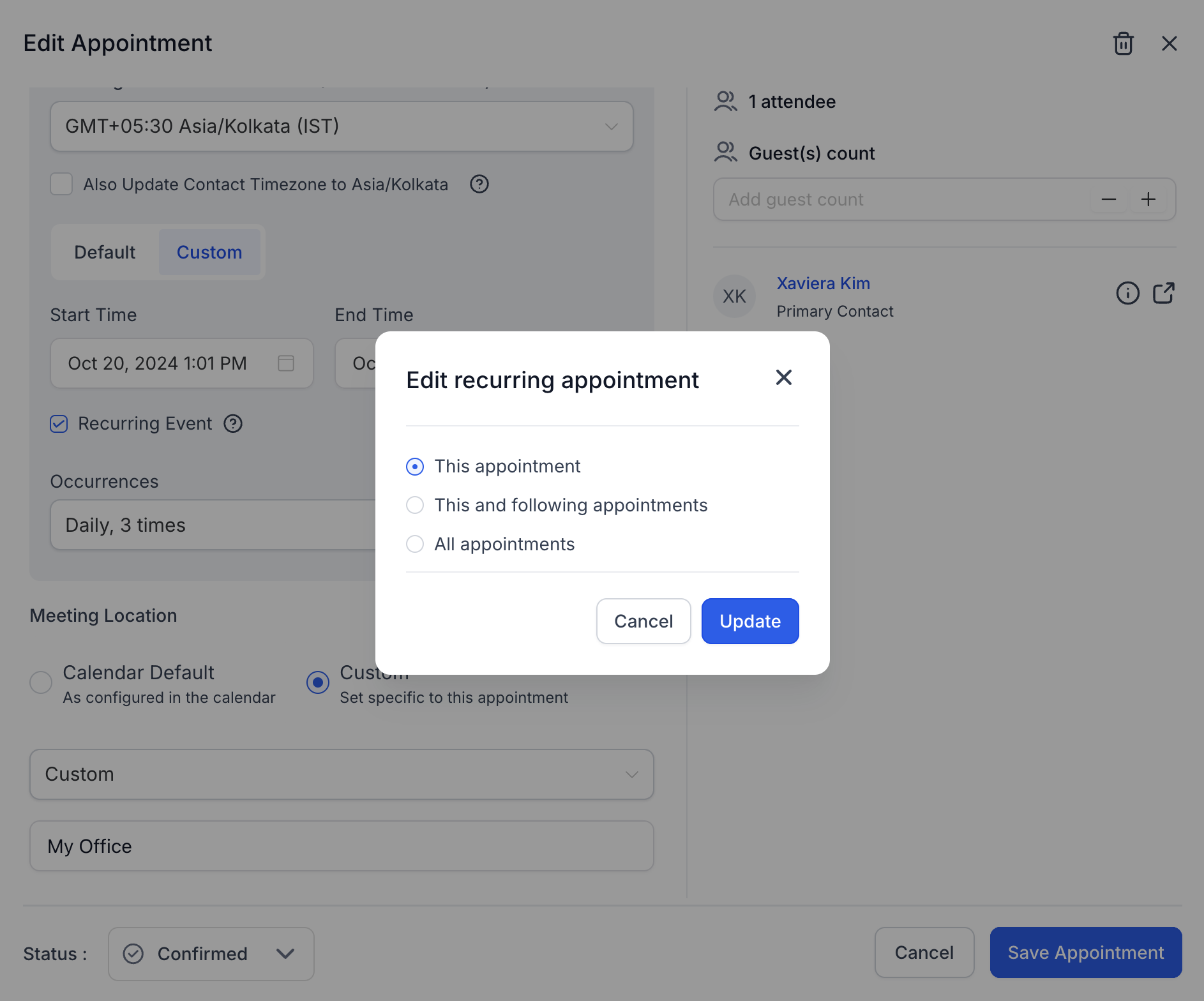
All instances created this way are linked to the original appointment. From any occurrence, you can:
Edit or Delete All Occurrences, changing or removing every instance in the series.
Edit or Delete a Specific Occurrence, affecting only that one visit.
Edit or Delete Future Occurrences, updating everything from that point forward while leaving past visits untouched.
AX Pay tip: Recurring calendars can't collect payment at the time of booking (see the FAQ below). If a series or package needs to be paid for, collect it on a single non-recurring appointment, invoice, or order form instead, and process it through AX Pay, Aesthetix CRM's built-in payment processor with better rates than Stripe. See the AX Pay help article for setup.
When a custom recurring appointment is created through the in-app modal, only the first appointment in the series shows up in the Appointment List View, the Contacts tab, and the Conversations tab. Later occurrences aren't individually visible in those views.
Workflow triggers currently fire only for the first custom recurring appointment in a series. Later occurrences don't trigger workflows on their own; see the Workflows collection for how appointment triggers and event-type filters work.
Calendar notifications aren't sent for custom recurring appointments.
Service Calendars and class booking calendars don't support custom recurring appointments.
Canceling or rescheduling a custom recurring appointment through the cancellation/reschedule link, or from the Contacts or Conversations tab, affects the entire series, not just one visit.
Only one meeting link (Zoom, Google Meet, or Microsoft Teams) is generated for the whole series, not a fresh one per occurrence.
If you sync your calendar to Outlook (set up under Connections), appointments created in Aesthetix CRM and synced to Outlook won't sync back if changed in Outlook, and frequently deleting appointments can affect the sync.
If your practice also uses AI-driven booking, keep in mind that AI appointment booking only works with native Aesthetix CRM calendars, not the EMR calendar, so recurring setups apply the same way there as with manual booking. See the AI Employee documentation for how automated booking respects your calendar's recurrence and availability rules.
Do recurring appointments work on Service Calendars? No. Service Calendars, the calendar type most practices use for individual patient bookings, don't support recurrence at all, whether it's calendar-level or custom. Use a Round Robin or Team calendar instead for treatment series and packages.
What's the difference between calendar-level and custom recurrence? Calendar-level recurrence is configured once on the calendar and applies to every booking made through the widget, scheduling link, or the default appointment modal tab. Custom recurrence is set per-appointment in the modal's Custom tab, overrides the calendar's own settings, and ignores your existing availability.
How many times can an appointment repeat? Up to 24 occurrences. This cap applies to both calendar-level and custom recurrence.
Will my existing workflow triggers fire for recurring appointments? Not automatically. Appointment triggers include an Event Type filter with three options: Normal (fires only for non-recurring appointments, the default), Recurring (fires only for appointments booked on a calendar with recurring turned on), and Any (fires for both). If you want a workflow to react to recurring bookings, add or update that filter on your trigger step.
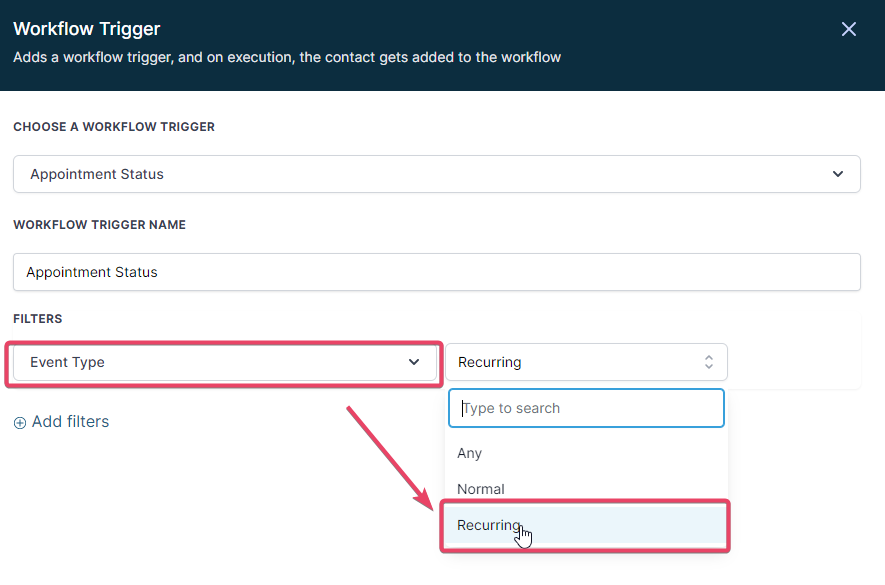
Can I bulk edit or cancel recurring appointments? No. Bulk update, cancel, and reschedule aren't available for recurring appointments; changes have to be made per-occurrence or through the Edit/Delete All, Specific, or Future Occurrences options.
Will each occurrence in a series get its own Zoom or Google Meet link? No. Only one meeting link is generated for the entire series, whether it's Zoom, Google Meet, or Microsoft Teams; every occurrence shares that same link.
How do recurring appointments sync to my connected calendar? If calendar sync is turned on (managed under Connections), each occurrence syncs to your connected Google, Outlook, or iCloud calendar as its own individual event, not as a single repeating event.
Can patients pay when booking a recurring appointment or series? No, payment collection isn't currently available on calendars with recurring turned on. Charge for the series on a separate non-recurring appointment, invoice, or order form, and use AX Pay to process it at better rates than Stripe.
Can I book a recurring appointment from the Opportunities or pipeline view? Not with a recurring option. A calendar with recurring enabled still appears in the booking dropdown from Opportunities, but only a single time slot can be booked there, not the full recurring series.
What happens if several slots in a row are unavailable when booking a series? It depends on your Unavailable Slots setting. Skip Booking Unavailable Slots books only what's open and drops the rest. Continue Booking double-books over the conflict. Book Next Available Slot searches for a replacement slot, but if three consecutive slots are unavailable it stops searching and the remaining occurrences in that stretch won't be booked, so it's worth double-checking the schedule afterward.
