Calendar preferences control how the calendar looks and behaves for you personally, from the day your week starts to which timezone appointment times are displayed in. These settings live under Calendars > Calendar Settings > Preferences, and none of them change your practice's actual availability, booking rules, or scheduling logic. They only change what you see.
Click Calendars in the left navigation.
Click Calendar Settings.
Click Preferences.
This tab holds your personal display settings and is split into a few groups.
Account Preferences
Week Starts On. Choose the day your calendar week begins. Sunday and Monday are the most common choices, but you can pick whichever fits how your front desk plans the week.
Widget Preferences
Language. Choose the language your calendar information displays in. English is the default.
Time Format. Switch between 12-hour (AM/PM) and 24-hour time in the Appointment Widget, whichever your staff or patients are more comfortable reading.
View Options
Week Starts On. The same start-of-week control also appears here for the calendar view itself, so you can set it independently of the widget if needed.
Click Save once you've made your changes.
The View Appointments In setting lets each team member choose their own timezone for how appointment times display, separately from the practice's actual scheduling. This is a per-user setting: it does not touch availability, booking links, confirmations, or reminder logic for anyone, including you. It only changes what time you personally see on the screen.
Where this affects the display:
Calendar View
Appointment List
Contact records (Appointments section)
Conversations
This is useful if a provider works remotely in a different timezone than the practice's front desk, or if a manager wants to check the schedule while traveling without doing timezone math in their head.
You can update this from your profile or from Calendar Settings.
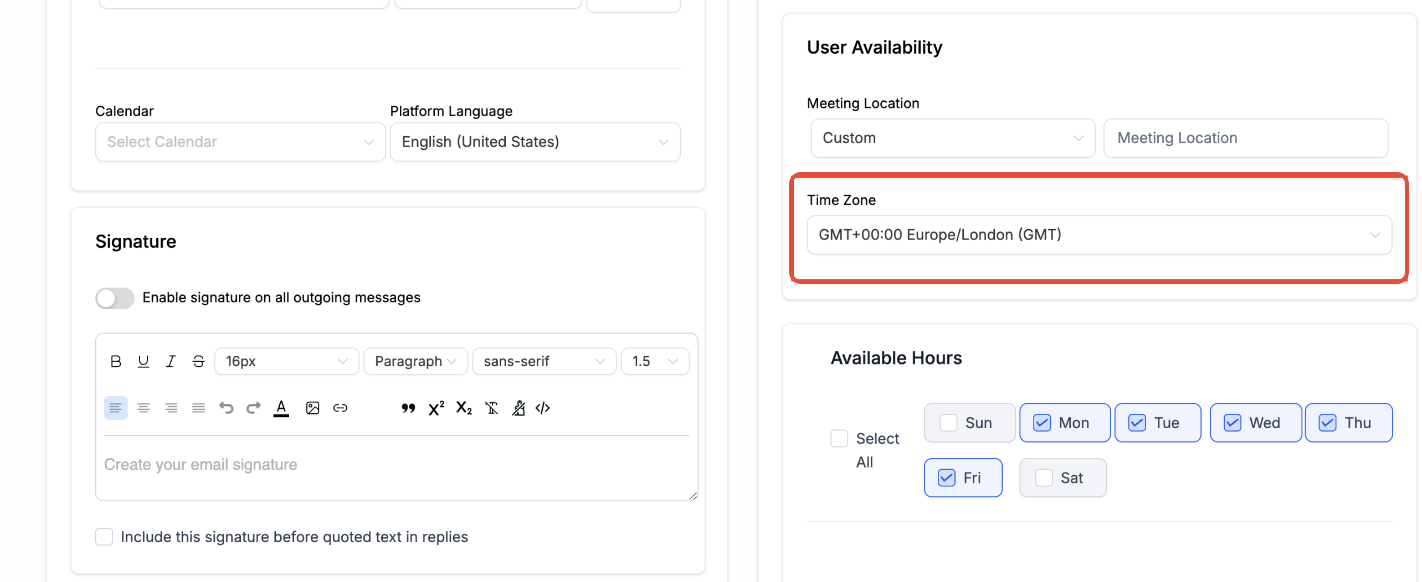
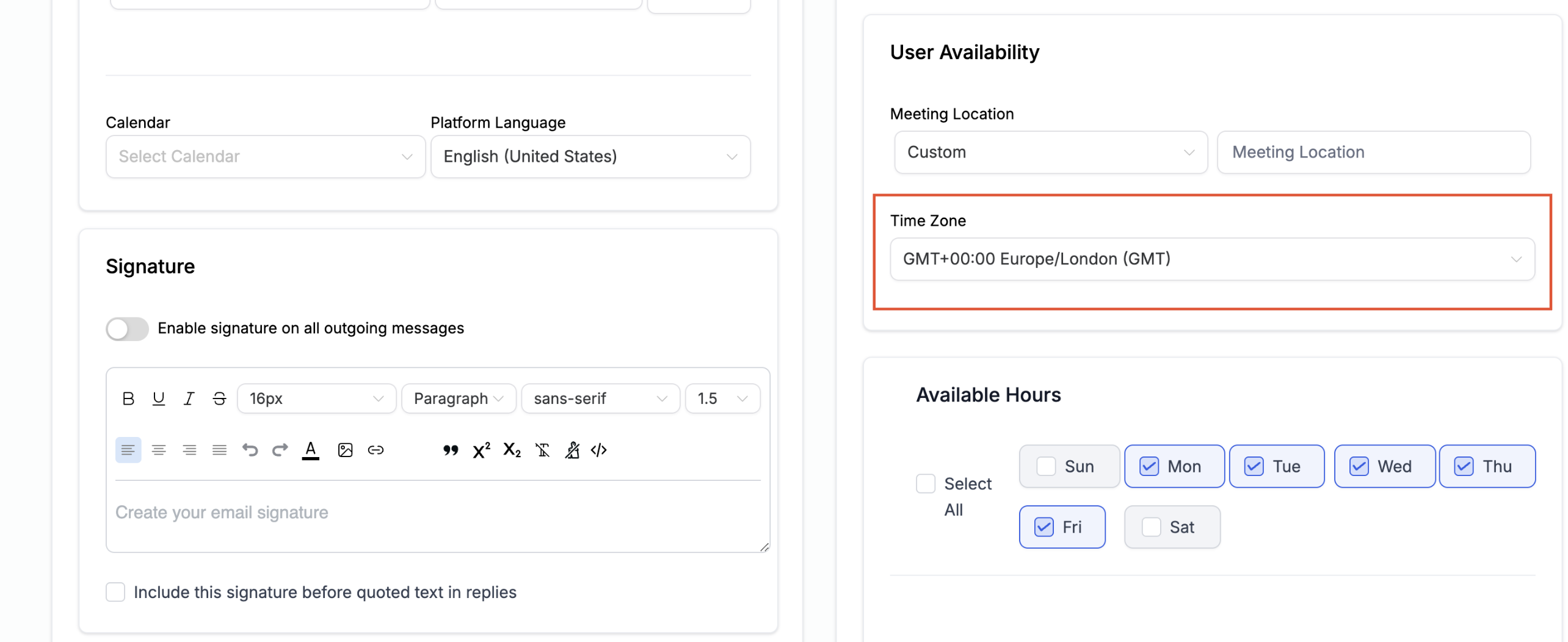
Open your profile settings and locate the timezone field under your availability or preferences section.
Alternatively, go to Calendars > Calendar Settings > Preferences and locate View Appointments In.
Select your preferred timezone from the dropdown.
Click Save Preferences.
You can change this setting again at any time, and it takes effect immediately.
The currently selected timezone is always visible so you can confirm which one you're looking at.
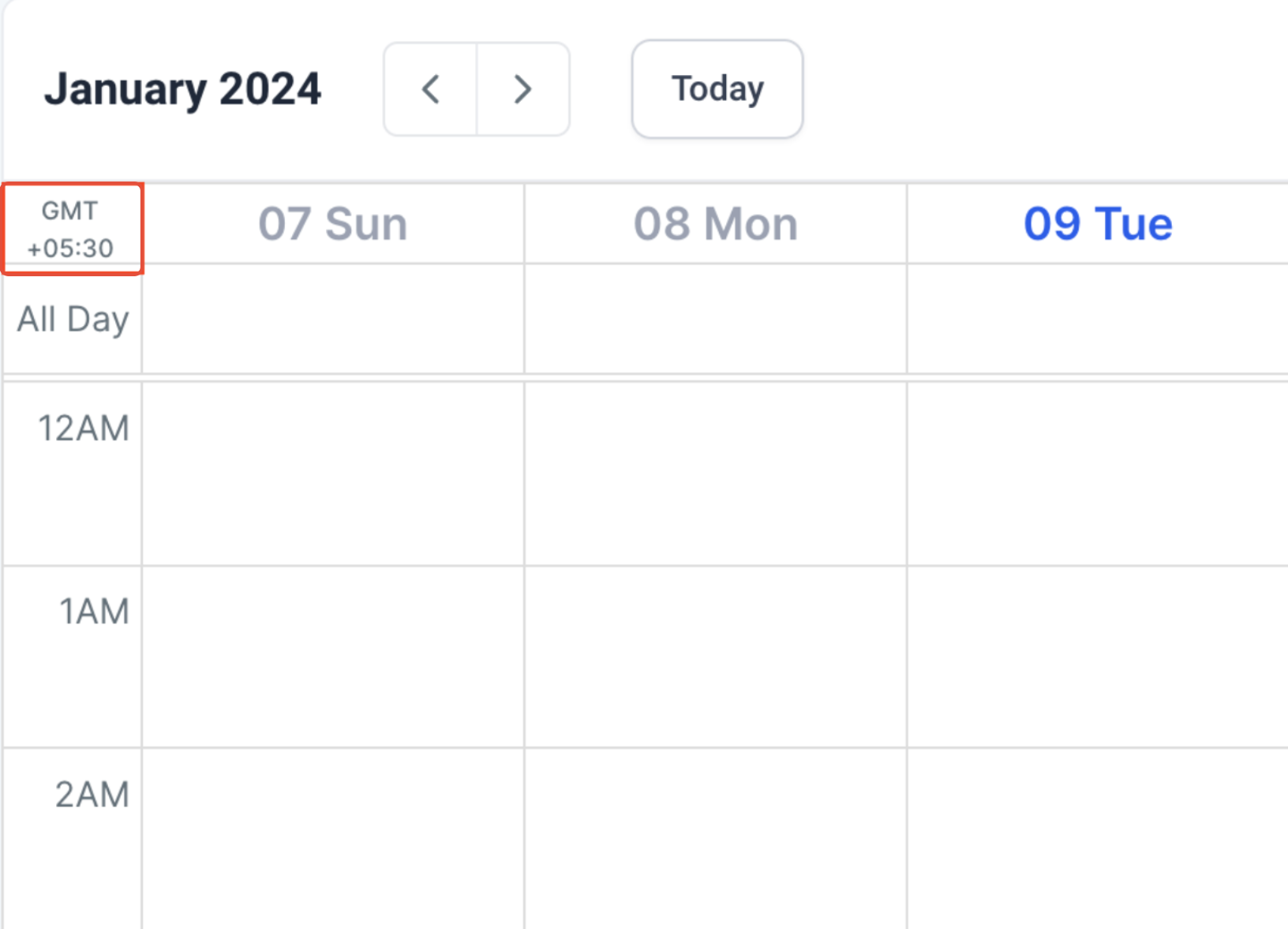
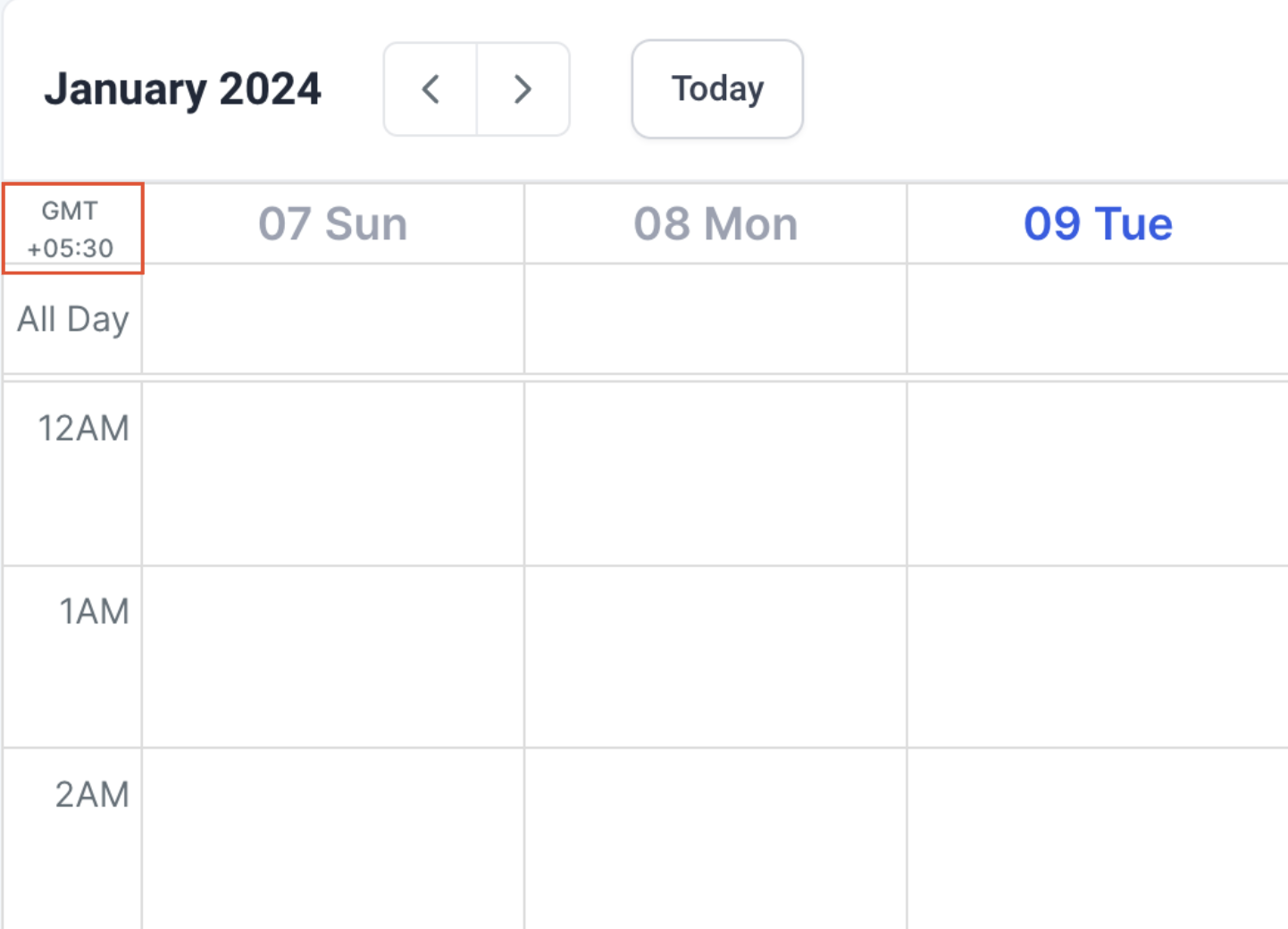
Calendar View shows it in the calendar header.
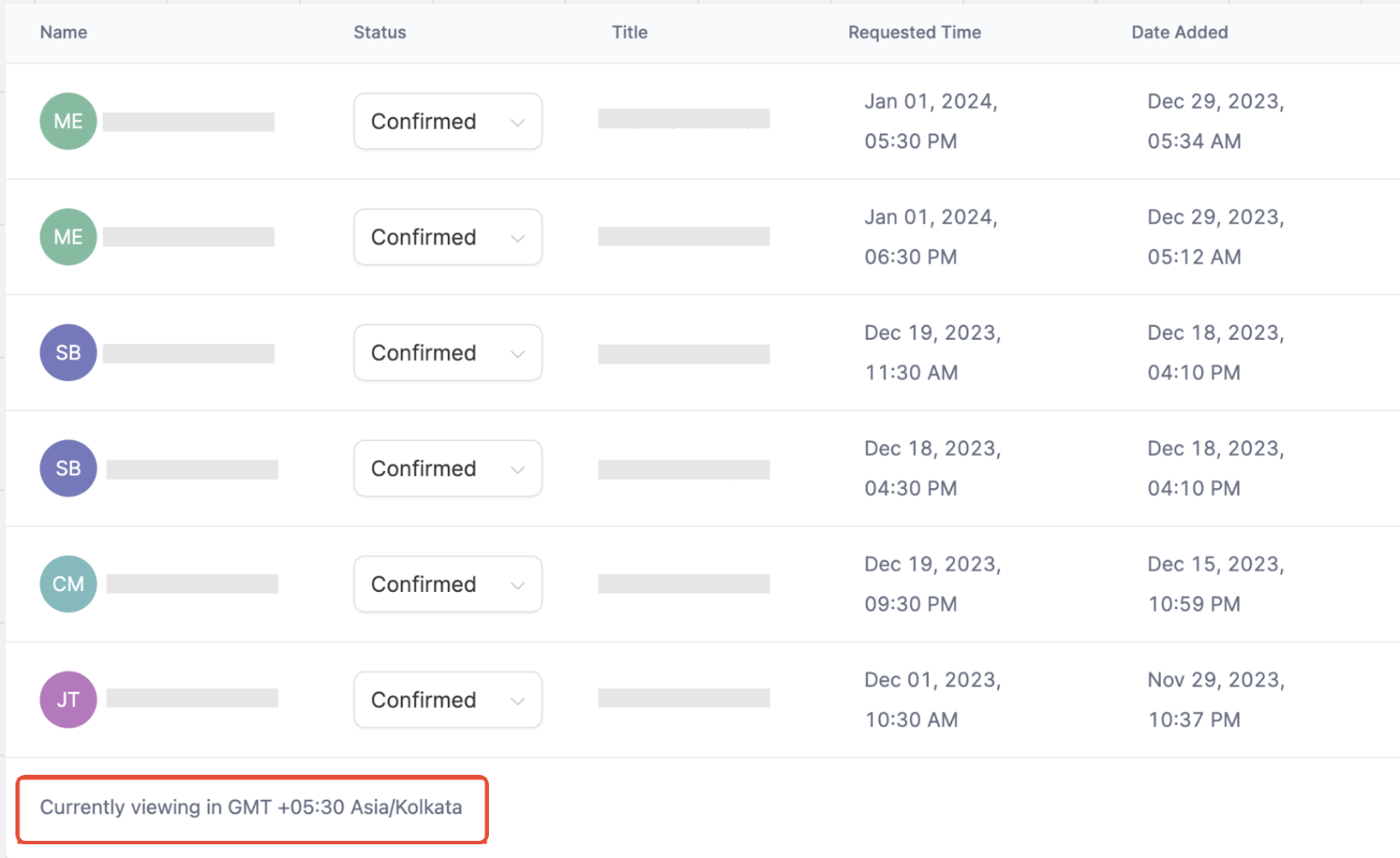
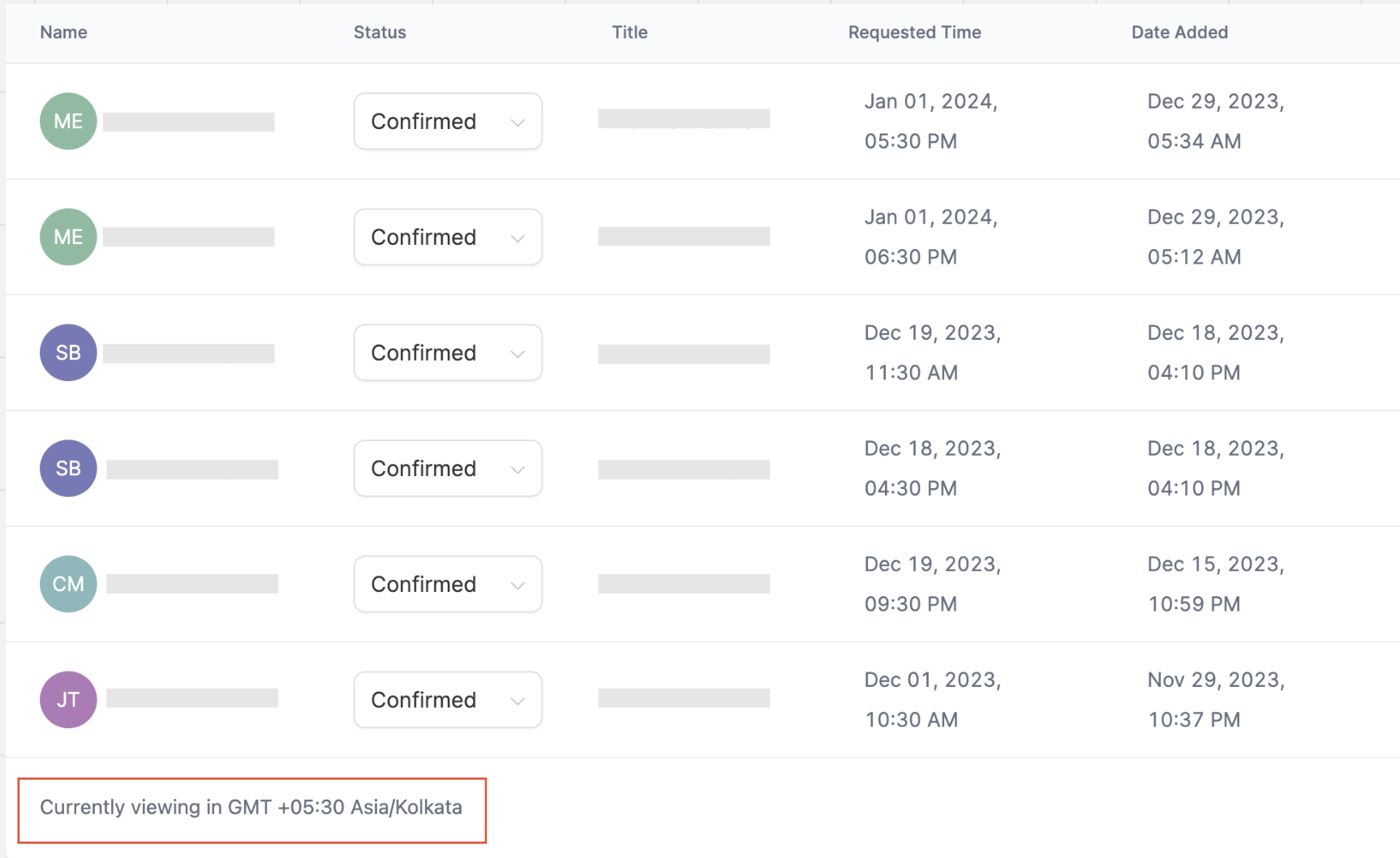
Appointment List shows it at the bottom of the page.
Once you've set a viewing timezone, every appointment time on your screen converts automatically. For example, if your practice operates on Eastern time but a provider is traveling on the West Coast, that provider can switch their view to Pacific time and see every appointment already converted, with no manual math required. A front desk staffer at the practice location can keep their view on Eastern time. Both people are looking at the same appointments, correctly converted for each of them.
Viewing timezone only affects display. It does not modify:
Provider availability hours
Appointment duration
Scheduling rules
Booking links
Confirmation or reminder logic
Your actual availability windows are configured separately under Settings > My Profile > User Availability.
If your calendar is synced to an external calendar (Google, Outlook, iCloud, Zoom, or similar), that connection is managed separately under Calendar Settings > Connections, not in Preferences.
Separate from your own viewing timezone, Aesthetix CRM also lets a contact pick their own timezone when they book an appointment through a calendar widget or booking link. This is called Contact Timezone, and it's enabled by default.
How Contact Timezone works:
Enabled (default). Contacts see a timezone selector when booking, and the appointment is created relative to the timezone they choose. For example, a contact in New York who books a 5:00 PM appointment with a practice based in Los Angeles gets an appointment created for 5:00 PM Eastern, which the practice sees as 2:00 PM Pacific on its own calendar.
Disabled. The timezone selector is removed from the booking widget, and every appointment books directly into your practice's configured timezone, regardless of where the contact is located.
This is useful if your practice sits near a timezone border, or regularly draws patients from other time zones who might otherwise book into the wrong slot without realizing it.
Go to Settings > Business Profile.
Scroll to the General section.
Enable the Disable Contact Timezone checkbox.
With this box checked, contacts no longer see a timezone dropdown on your calendar widgets, and all appointments book directly into your practice's timezone.
Before disabling Contact Timezone, confirm your practice's timezone is set correctly, since every appointment will book against it once the contact-facing selector is gone.
Go to Settings > Business Profile.
Under Business Physical Address, locate the Time Zone field and set it to your practice's actual timezone.
This is a different setting from the personal View Appointments In timezone covered above: your practice's Business Profile timezone determines what timezone appointments are actually booked in, while View Appointments In only changes how times are displayed on your own screen.
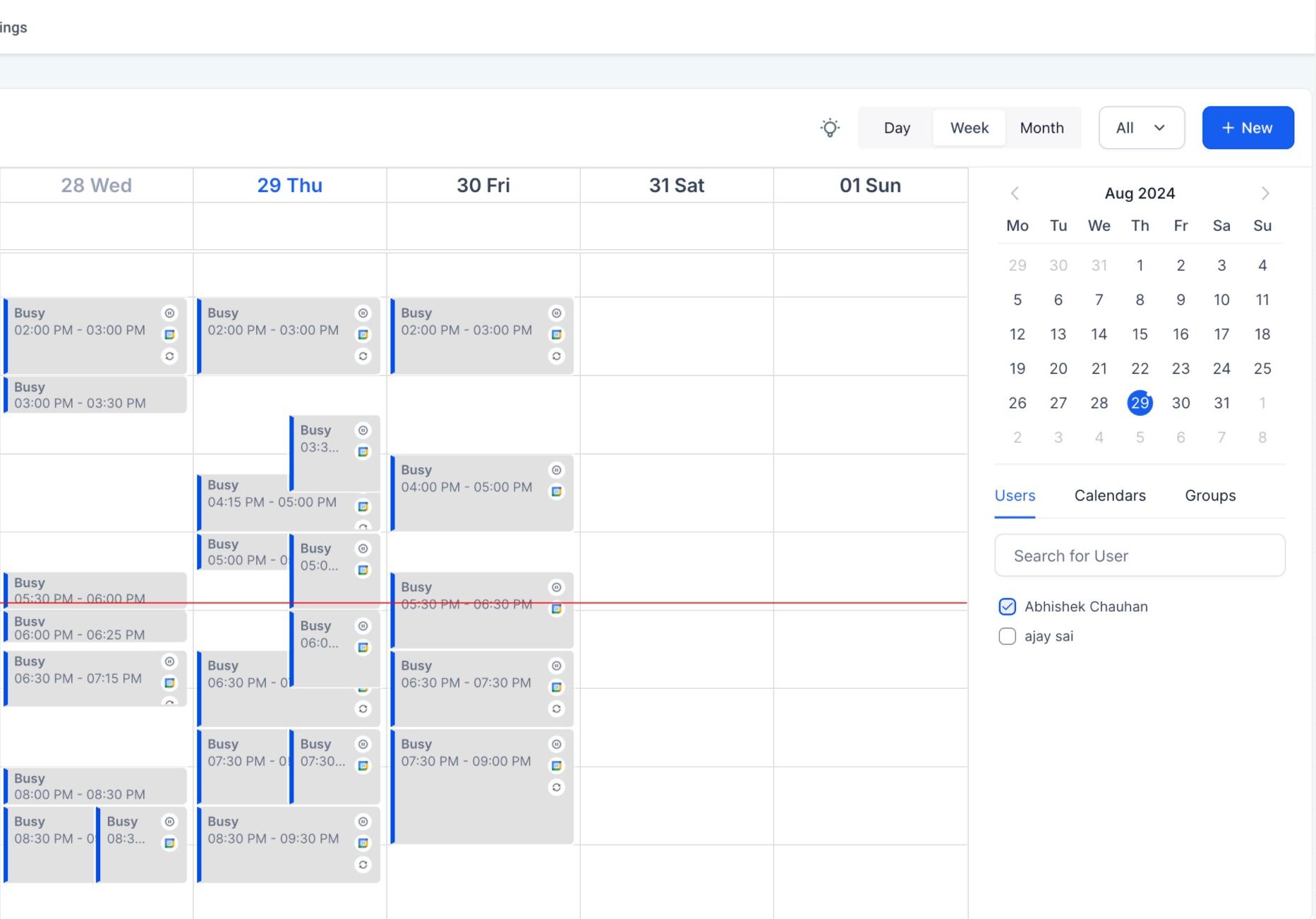
If you've connected a personal Google or Outlook calendar to Aesthetix CRM, Private Mode for Synced Events lets you keep the details of those synced events confidential. When enabled, only the person who connected the calendar can see the event details. Everyone else viewing your calendar in the platform sees the time slot marked as busy, without the event title, description, or attendees.
This is meant to protect your personal calendar privacy, for example, a personal appointment or a family commitment synced in from Google, not to hide patient appointment data booked directly in Aesthetix CRM.
You can turn Private Mode on or off from either of two places.
From My Profile
Go to Settings > My Profile.
Scroll to the Calendar Configuration section.
Find Private Mode for Synced Events and enable or disable it.
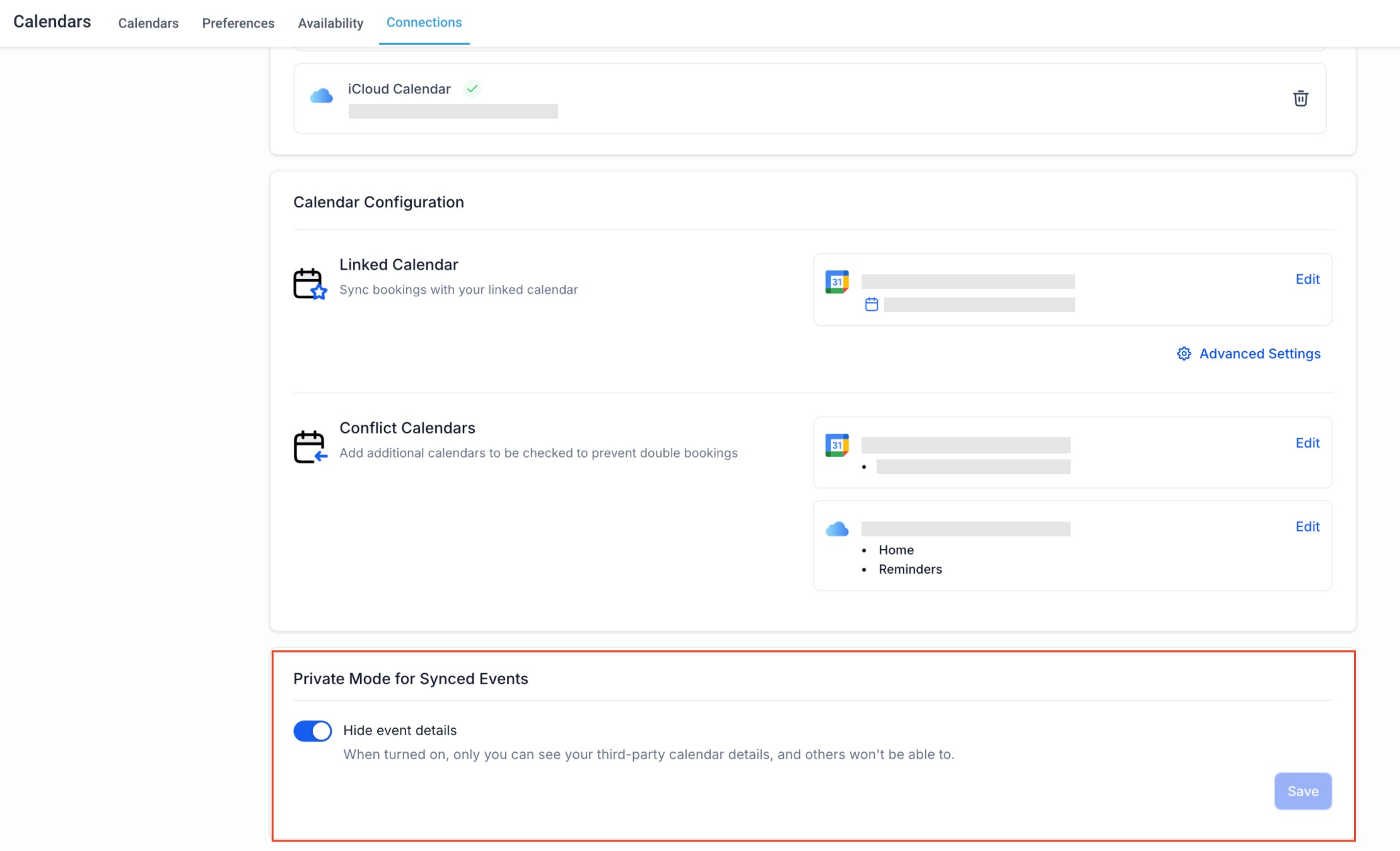
From Calendar Settings > Connections
Go to Calendar Settings > Connections.
Scroll to Private Mode for Synced Events.
Enable or disable it as needed.
This setting is enabled by default for all users, so your synced personal events stay visible only to you unless you turn it off.
Supported calendars. This applies only to Google and Outlook. iCloud does not support private or public event settings, so all iCloud-synced events remain visible to everyone with calendar access, regardless of this toggle.
Events already marked private in Google or Outlook are hidden automatically in Aesthetix CRM by default, whether or not you've turned on the Private Mode toggle here.
When Private Mode is turned on, all of your synced events, both the ones already marked private and the ones marked public in Google or Outlook, appear to others as simply "Busy" instead of showing any event details.
Does changing my viewing timezone affect my actual availability? No. It only changes how appointment times are displayed to you. Your availability hours, booking links, and scheduling rules stay exactly as configured.
Will other team members see appointments in my selected timezone? No. Viewing timezone is a personal, per-user setting. Each team member controls their own view independently.
Can I select any timezone, or only the ones tied to my practice? You can select any available timezone, not just your business timezone or your device's local timezone.
Why do my appointment times look different from a coworker's screen? You're likely each set to a different viewing timezone. Check Calendar Settings > Preferences > View Appointments In to confirm what yours is set to.
I want to go back to viewing appointments in the practice's business timezone. How do I do that? Go to Calendar Settings > Preferences > View Appointments In and select your practice's configured business timezone from the dropdown.
Can I stop contacts from choosing their own timezone when they book an appointment? Yes. Turn on Disable Contact Timezone under Settings > Business Profile > General. Once enabled, contacts no longer see a timezone selector on your booking widgets, and every appointment books directly into your practice's configured timezone.
Does Private Mode hide patient appointment information from my staff? No. Private Mode only affects personal events synced in from an external calendar like Google or Outlook. Appointments booked directly in Aesthetix CRM, including patient consults and treatments, are managed through normal calendar permissions, not this toggle.
Why can I still see the details of a synced iCloud event even though Private Mode is on? iCloud doesn't support private/public event settings on its end, so Aesthetix CRM can't selectively hide those event details. All iCloud-synced events remain visible.
Does changing my Week Starts On preference change anything for my patients? No. It only changes how the week is laid out on your own calendar view and widget. Patient-facing booking pages follow your practice's configured availability, not this personal display preference.
Where do I set up the actual sync to my Google, Outlook, iCloud, or Zoom calendar? That's a separate step under Calendar Settings > Connections, not under Preferences. Preferences only controls display once a connection already exists.
