Aesthetix CRM can read your Google, Outlook, iCloud, or Calendly calendar to keep your booking availability accurate and stop double-bookings before they happen. This guide covers Linked Calendars and Conflict Calendars, pre and post appointment buffers, and the Look Busy setting, all found under Settings > Calendars.
These three settings work together but do different jobs:
Connected Calendar: Grants Aesthetix CRM permission to read (and optionally write) events from an external calendar account. This is the first step and lives in the Connections tab.
Linked Calendar: Imports events from a connected calendar into Aesthetix CRM so your true busy times show on your booking widget.
Conflict Calendar: Marks a connected calendar as a blocker, automatically making any overlapping Aesthetix CRM booking slots Unavailable.
You need Admin or Manager access to your account, plus an active Google Calendar, Office 365, Outlook.com, or Calendly login for each user you're connecting.
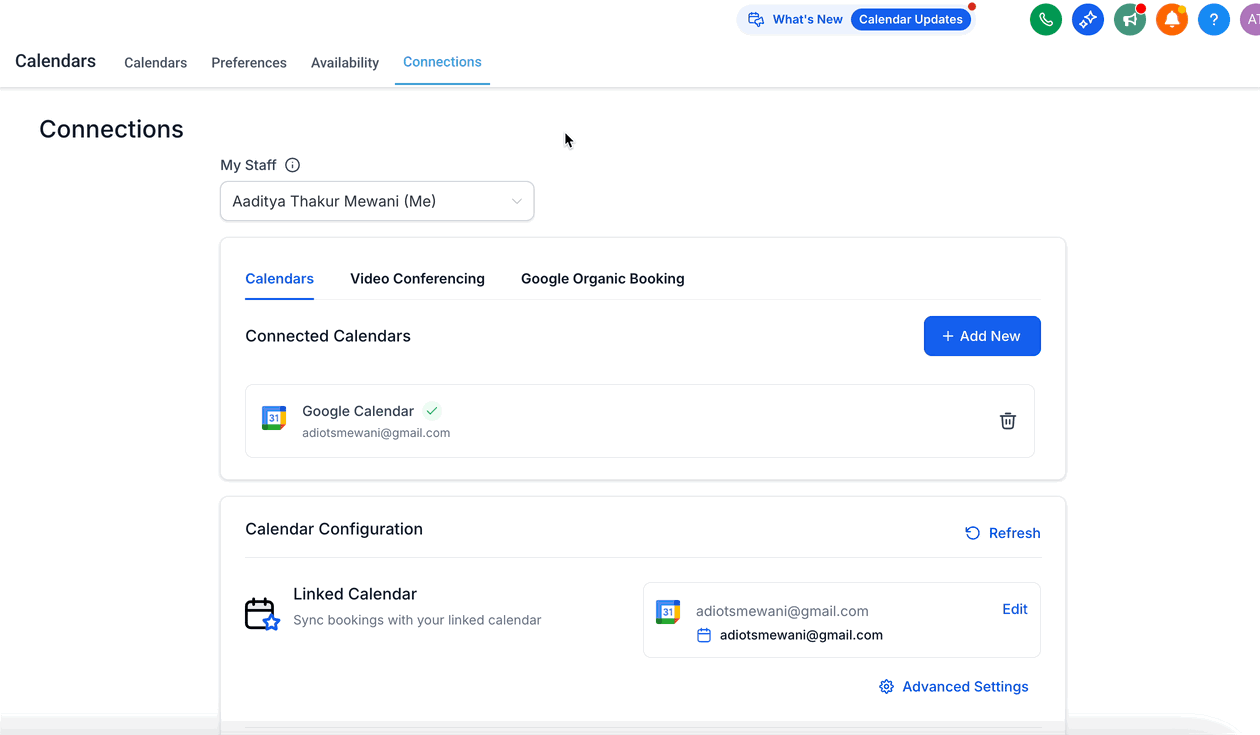
From your account sidebar, go to Settings > Calendars, then click the Connections tab.
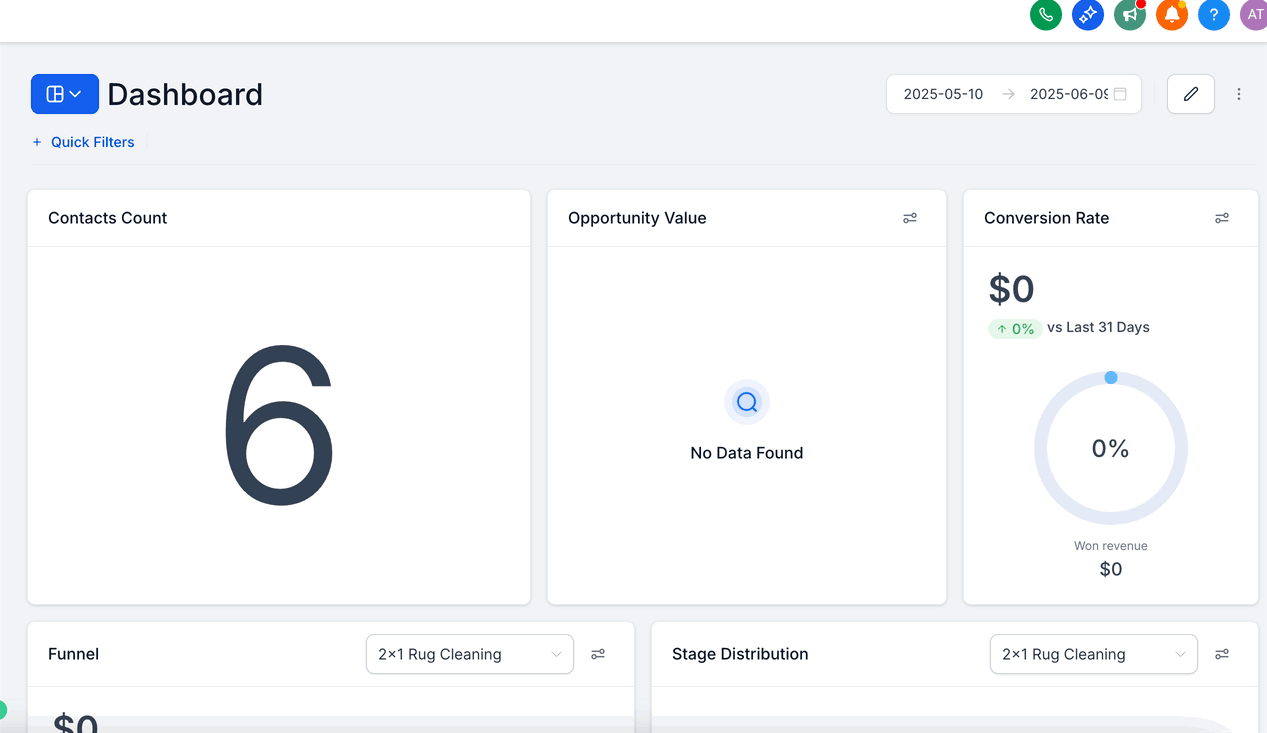
Under Connected Calendars, click + Add New.
Choose your provider: Google, Outlook, iCloud, or Calendly.
Sign in and grant Aesthetix CRM permission to read events (and write, if you plan to sync bookings back to that calendar).
Once connected, you'll see the account listed with its provider icon.
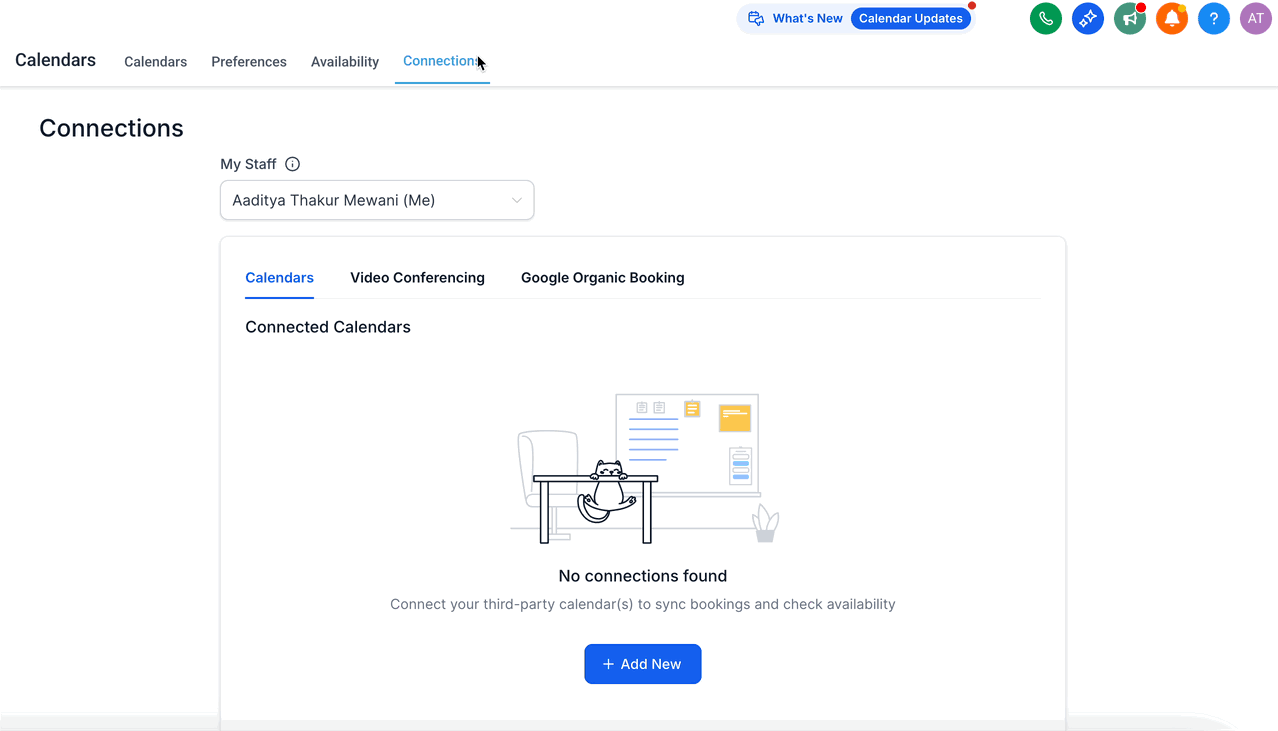
If a connection breaks (an expired or revoked login, or a deleted calendar on the provider's side), you'll see a red "Reconnect your integration" banner or a red-outlined calendar tile. Click Reconnect to re-authorize access, or Fix This if the banner mentions a deleted calendar, then Remove Deleted Calendars to clean up the broken connection. Once you reconnect, Aesthetix CRM automatically pushes any unsynced upcoming appointments to the external calendar, and if you switch to a different calendar within the same integration, future appointments resync to the newly selected calendar automatically.
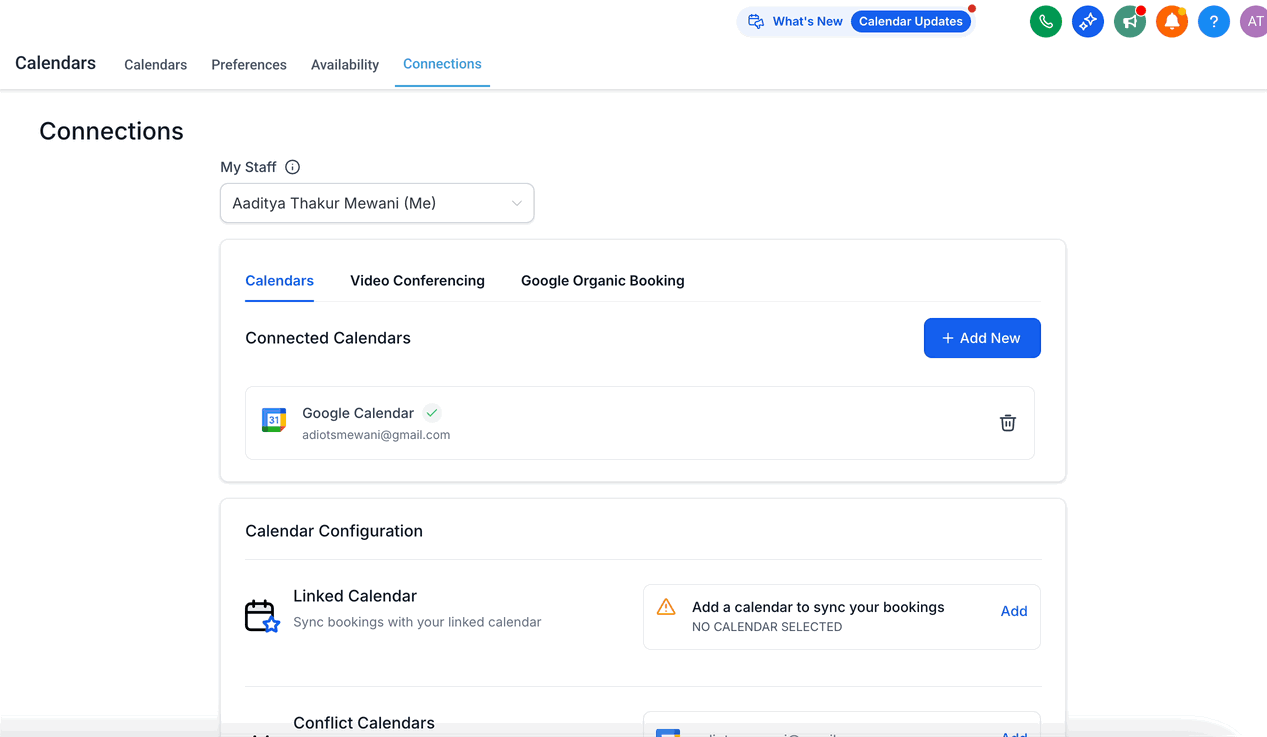
Once a calendar is connected, turn it into a Linked Calendar so its events show up as busy time in Aesthetix CRM:
In the Calendar Configuration section, under Linked Calendar, click Add.
Choose one of your connected calendars to import events from.
Click Save.
A few important notes:
Write access is required. You can only select a calendar as a linked calendar if you granted write permission when connecting it.
Linked calendars default to also being conflict calendars. Any event created on the third-party calendar is fetched into Aesthetix CRM, and any event created in Aesthetix CRM is pushed to the third-party calendar.
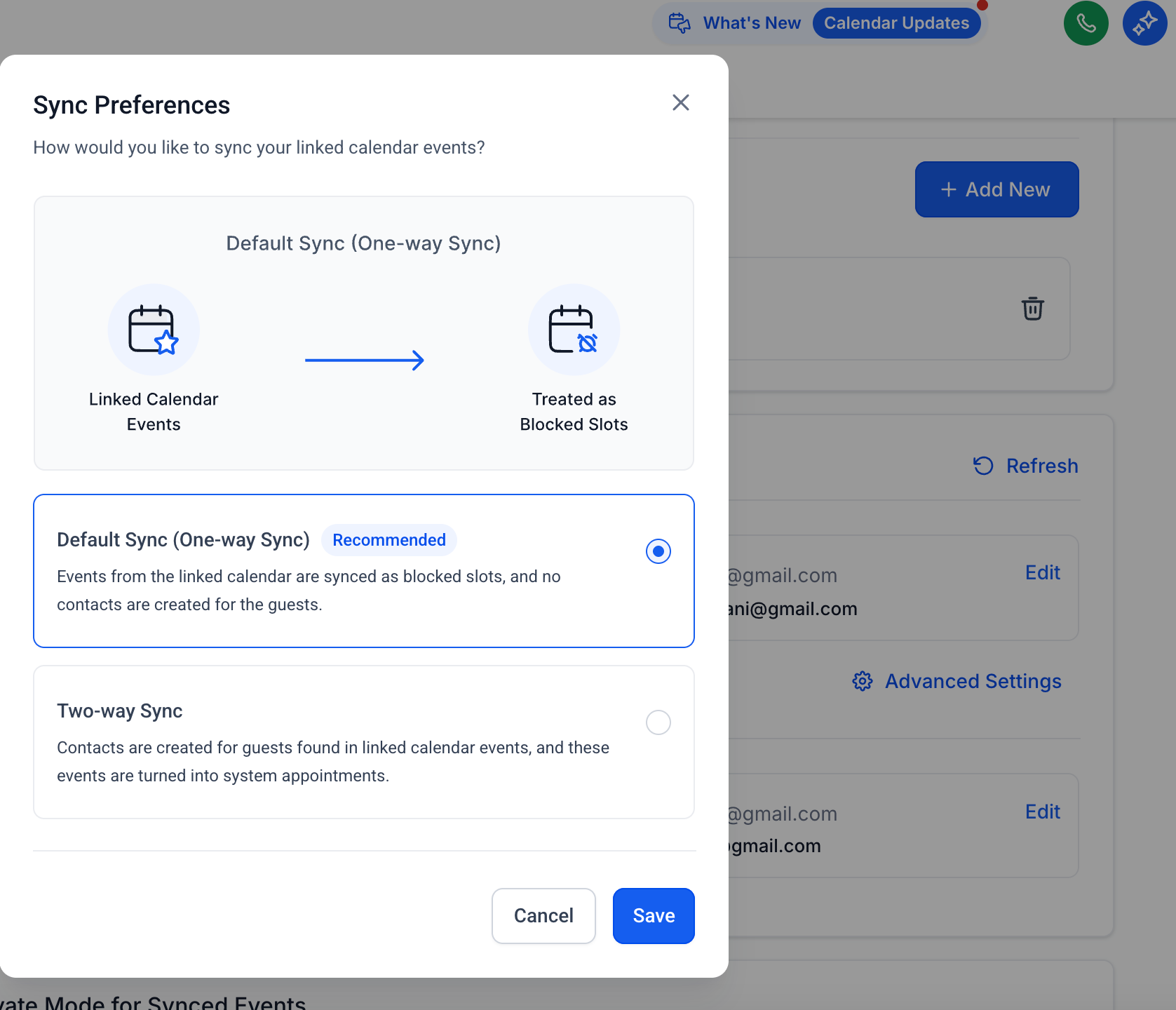
You control how that two-way relationship behaves under Sync Preferences (Advanced Settings), covered next.
Events created in Aesthetix CRM sync to the linked calendar (for example, Google).
Events created on the linked calendar sync back to Aesthetix CRM, but only as blocked time.
No contact is created for guests on the external event.
No workflows or automations are triggered.
Events created in Aesthetix CRM sync to the linked calendar.
Events created on the linked calendar sync back to Aesthetix CRM as full appointments, not just blocked slots.
A contact is created for any guest found on the external event.
Automations and workflows can trigger, just like any appointment created inside Aesthetix CRM.
For example: a front-desk staffer creates a Google Calendar event from 1:00 PM to 2:00 PM called "Consult with Dr. Reyes" and adds Dr. Reyes as a guest.
Default Sync: A blocked time from 1:00 to 2:00 PM appears in Aesthetix CRM so no one else can book that slot.
Two-Way Sync: A real appointment is created in Aesthetix CRM for that same window, a new contact record for Dr. Reyes is created, and any workflows tied to new appointments fire for that contact.
Because two-way sync can auto-create contact records from external calendar events, avoid putting patient names or treatment details directly in personal calendar event titles if you don't want that information pulled into your CRM as a contact.
Conflict Calendars block your Aesthetix CRM availability whenever the connected calendar shows an event marked Busy. Events marked Free are still pulled in, but they don't close off booking slots. No appointment is created for these events, Aesthetix CRM simply reads your third-party calendar and blocks the matching time.
You can add multiple calendars as conflict calendars, which is useful for linking a personal calendar so family commitments or other obligations automatically block your booking slots without needing a linked, two-way connection.
Checking availability: When a patient requests an appointment, Aesthetix CRM checks both your Linked and Conflict calendars. Any overlapping event renders that slot Unavailable on your booking widget.
Write-back: If write-back is enabled on a linked calendar, new Aesthetix CRM bookings are pushed out to the external calendar, and cancellations or reschedules update it too.
Status changes don't push out: Marking an appointment as Showed or No Show does not trigger an update to the external calendar. This avoids sending unnecessary "event updated" notifications from the third-party provider while still tracking status inside Aesthetix CRM.
Calendar view: On the Calendar tab, external events display as shaded blocks, Aesthetix CRM bookings appear as colored events, and blocked time shows as Unavailable.
Buffers add extra time before and/or after an appointment, useful for room turnover, charting, or prepping for the next patient. Buffers are set per calendar, so you can fine-tune them by service type.
Open the calendar you want to add buffers to. For a new calendar, go to Advanced Settings; for an existing one, click Edit.
Go to the Availability section.
Find Pre Buffer Time and Post Buffer Time.
Enter the duration for each.
Save your settings.
Open the calendar and click Edit.
Go to Availability and scroll to Pre and Post Buffer.
Set both values to 0.
Save. Appointments booked on that calendar going forward won't carry any buffer.
Buffers only apply to appointments created inside Aesthetix CRM, or through third-party calendar events where Allow Contact Creation (two-way sync) is enabled. Blocked slots or events synced from third-party calendars are still factored into buffer calculations, so a buffer never overlaps a blocked slot.
Buffers also affect what patients see as bookable. For example, a 30-minute appointment with a 15-minute buffer on each side effectively removes 30 minutes from your open availability around it, so the next visible open slot is a full 30 minutes after the existing booking ends.
Using both pre- and post-buffers on the same calendar (double buffering) can eat into your bookable time more than expected. What looks like a large open window on your calendar may not actually be bookable, because the buffer on either side of adjacent appointments removes usable time from the middle. If you're trying to maximize bookable slots, consider using only one buffer (pre or post) per service type rather than both.
A few other things to know about buffers:
Buffers set on an individual schedule affect that user's availability across every calendar they're part of, not just the one you edited.
In a Round Robin calendar, if team members have different buffer settings on their other calendars, appointments can distribute unevenly among them.
In a Collective calendar, one team member's buffer settings on an unrelated calendar can block slots that would otherwise look open, since the buffer time still occupies that window.
Buffers can also show as visual blocks in the Day and Week calendar views, so pre and post buffer time is visible right alongside each appointment. Showing or hiding these blocks on the calendar doesn't change your buffer settings, it only affects what's displayed.
Buffer blocks are hidden by default. To show them next to your appointments:
Go to the Calendar tab and open Calendar view.
Click Manage view.
Turn on Show Buffer Time.
Use the Users, Calendars, or Groups filters to pull up the schedule you want to check.
Pre and post buffer periods then appear as distinct blocks next to each appointment in the Day and Week views. Turning Show Buffer Time back off only hides those blocks, it does not remove the underlying buffer or free up that time for booking.
Look Busy hides a percentage of your open slots on the public booking widget to make your schedule look more in demand and create a sense of urgency for prospective patients. It only affects what shows on the widget, your full schedule is still available and bookable through the in-app appointment view.
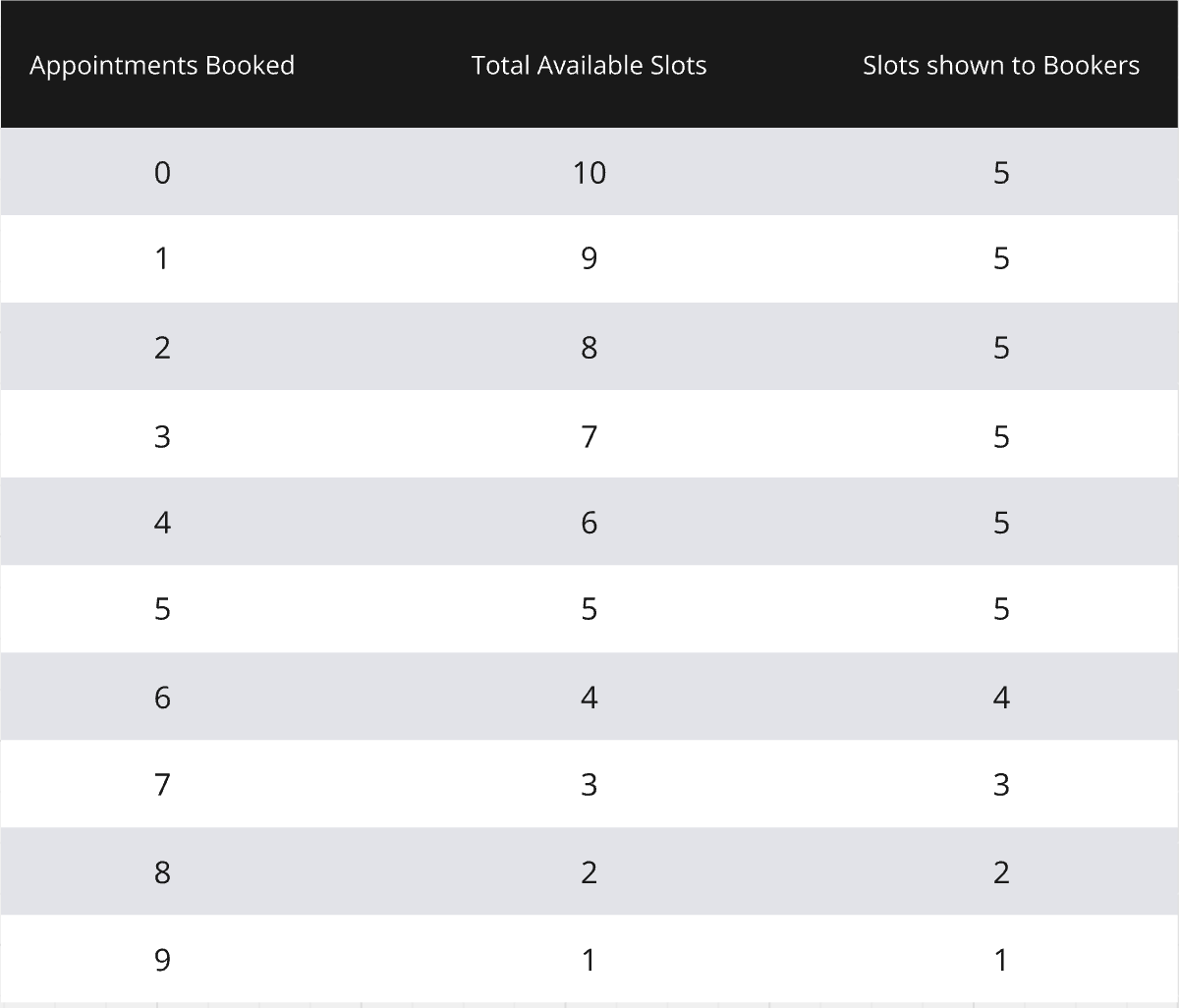
When enabled, you choose a percentage of slots to hide. That percentage is randomly hidden from the widget. As real bookings come in, the number of visible slots stays the same until actual remaining availability catches up to what's displayed, then the widget shows your true availability.
For example, if you have ten open slots in a day and hide 50%, patients browsing your booking widget will only see about five of them.
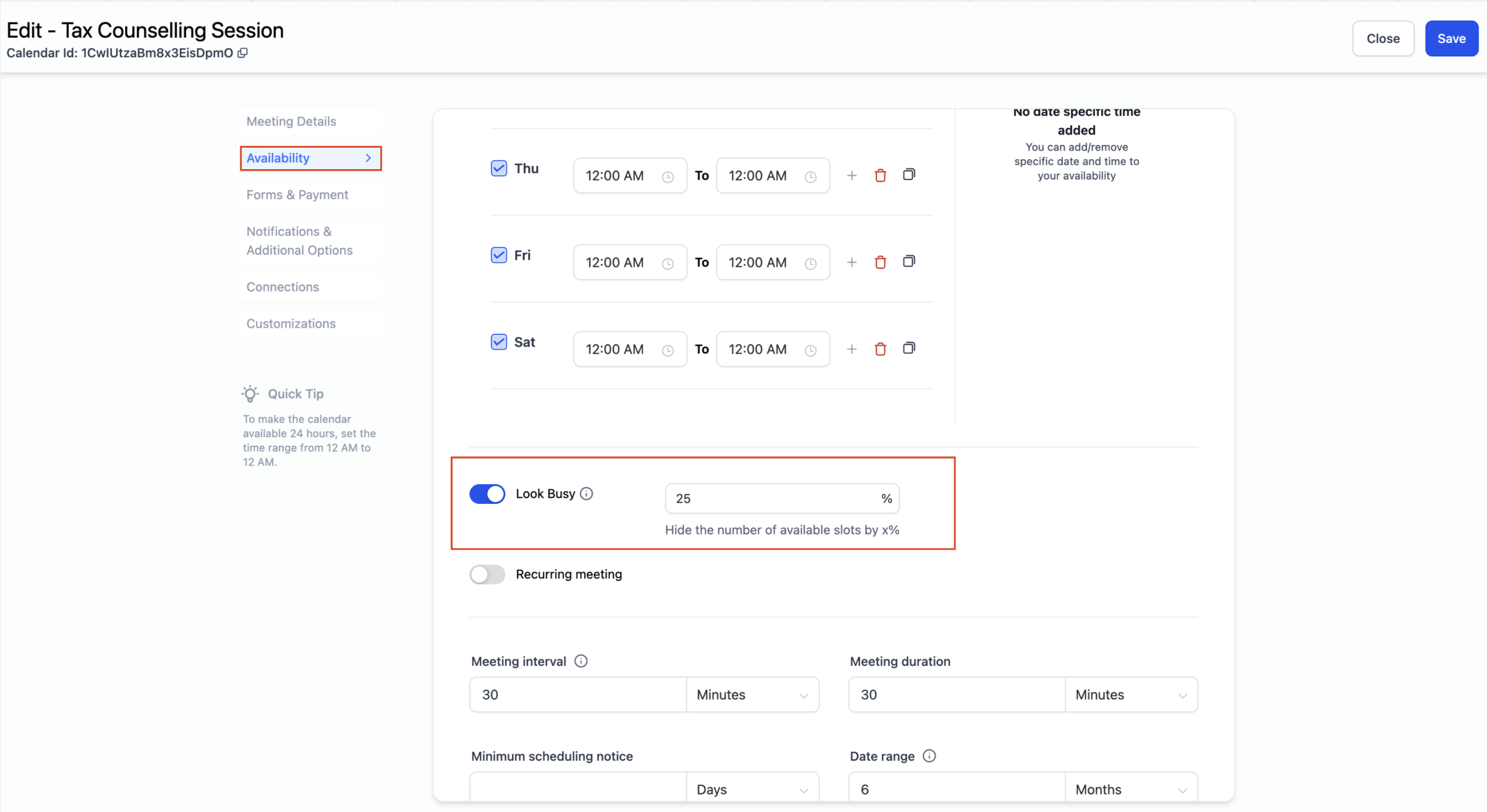
Go to Calendar Settings and select the calendar you want to adjust.
Open the Availability tab.
Find the Look Busy option.
Turn it on and enter the percentage of slots to hide.
Click Save.
Look Busy works on Event, Round Robin, Collective, and Service calendars. It is not currently supported for class bookings or the service menu. All slots always show in the in-app appointment view regardless of this setting. For recurring appointments, a future occurrence can appear hidden due to Look Busy even though it still books correctly based on the recurrence pattern and the first slot's date and time.
Limit write-back to one calendar. Enabling write-back on more than one linked calendar for the same user can create duplicate external events.
Use personal calendars as conflict calendars. This blocks off personal time without pulling those events into Aesthetix CRM as appointments or contacts.
Match time zones. Make sure your external calendar's time zone matches your Aesthetix CRM profile to avoid slots showing at the wrong time.
Reauthorize after password changes. If you change your Google, Outlook, or iCloud password or security settings, reconnect the calendar in Aesthetix CRM so the integration doesn't break silently.
Pick one buffer direction where possible. Using only a pre- or post-buffer, instead of both, keeps more slots bookable on busy calendars.
Issue | Likely Cause | Fix |
|---|---|---|
Integration shows a red "broken" banner | OAuth token expired or revoked | Go to Settings > Calendars > Connections, click Reconnect, and re-authorize. |
External events aren't appearing in Aesthetix CRM | No Linked Calendar selected, or sync is off | Under Calendar Configuration > Linked Calendar, click Edit and confirm Sync Events is on. |
Patients can still book during a time you're busy elsewhere | Conflict Calendar isn't enabled for that connection | Under Conflict Calendars, click Edit, toggle Use as Conflict Calendar, then save. |
Aesthetix CRM appointments aren't showing up on your external calendar | Write-back is off | Edit the Linked Calendar settings and enable Write Back Appointments, then save. |
Duplicate events appear on your external calendar | Write-back is enabled on more than one connected calendar | Disable write-back on secondary calendars, or unlink the ones you don't need. |
Can I see my buffer time on the calendar itself?
Yes. Pre and post buffer time can display as visual blocks in the Day and Week calendar views, right next to the appointment they belong to, so you can see prep and transition time at a glance without opening the appointment.
What's the difference between a buffer and a blocked calendar event?
A buffer is transition time your practice reserves automatically before or after an appointment. A blocked event, or a synced event from a Conflict Calendar, represents a separate period when a provider is unavailable for another reason entirely.
Do events synced from an external calendar automatically show buffer blocks?
Not necessarily. A synced event only carries a visible buffer once it's brought in as a full appointment through two-way sync, not when it's pulled in as blocked time from a Conflict Calendar. Don't confuse a buffer block with a separate blocked or busy period coming from an external calendar.
Do I need to link a calendar to use it as a conflict calendar? No. A calendar becomes a conflict calendar automatically once it's linked, but you can also add a connected calendar purely as a conflict calendar without full linking, useful for a personal calendar you only want to block time from.
Do buffers apply to appointments booked outside Aesthetix CRM? No, buffers only apply to appointments booked through Aesthetix CRM. The exception is when two-way sync is enabled and a third-party event is converted into a real appointment rather than treated as blocked time, in which case buffers do apply.
Can I change a buffer after an appointment is already booked? Yes. Buffer settings can be edited at any time, and changes apply based on the most current settings.
Why are my staff getting an uneven number of bookings in a Round Robin calendar? This usually happens when team members have different buffer settings on their other calendars. Uneven buffers can shift how availability is distributed across the team.
Will marking an appointment as No Show update my Google or Outlook calendar? No. Status changes like Showed or No Show stay inside Aesthetix CRM and don't push an update to the external calendar, so you won't trigger a third-party "event updated" notification.
Does Look Busy affect how many slots I can actually book? No. Look Busy only changes what's visible on your public booking widget. Every slot is still bookable and fully visible in the in-app appointment view.
Can I use Look Busy on class bookings? Not currently. Look Busy supports Event, Round Robin, Collective, and Service calendars, but not class bookings or the service menu.
What happens if I connect a new calendar to replace an old one? Aesthetix CRM automatically resyncs future appointments to the newly selected calendar, so you don't need to manually recreate upcoming bookings.
Should I worry about patient information syncing into external calendars? Be mindful with two-way sync: appointment details written to your linked calendar can include patient names. Treat any calendar connected to Aesthetix CRM as carrying protected health information and secure that external account accordingly.
Where do I set up the initial calendar connection? Connecting Google, Outlook, iCloud, or Calendly for the first time happens under the Connections settings for your calendars. Once connected, return here to configure it as a Linked or Conflict Calendar.
