Calendar availability controls exactly when a calendar can accept patient bookings. In Aesthetix CRM, you manage it from Calendars > Calendar Settings, then open a calendar and select the Availability tab. This article covers weekly working hours, date-specific overrides, bulk editing availability for multiple providers, and the related slot settings that shape your booking page.
If your practice uses Aesthetix AI to handle appointment booking for patients, keep in mind that AI booking only works with your native Aesthetix calendars, not calendars tied to an EMR. Accurate availability settings here are what the AI Employee reads from to offer real, bookable time slots.
Your calendar's availability is built from two layers that work together:
Weekly Working Hours set your regular, recurring schedule (for example, every Monday, Wednesday, and Friday from 9 AM to 5 PM). This is your default pattern and repeats every week until you change it.
Date-Specific Hours override the weekly pattern for individual dates, such as holidays, staff time off, or a special extended-hours event.
Date-specific hours always take precedence over weekly working hours. If you set specific hours for a particular date, those hours replace the default weekly schedule for that day entirely, they don't add to it.
Go to Calendars > Calendar Settings, select the calendar you want to edit, and click the pencil icon to open it.
Click Availability in the left menu.
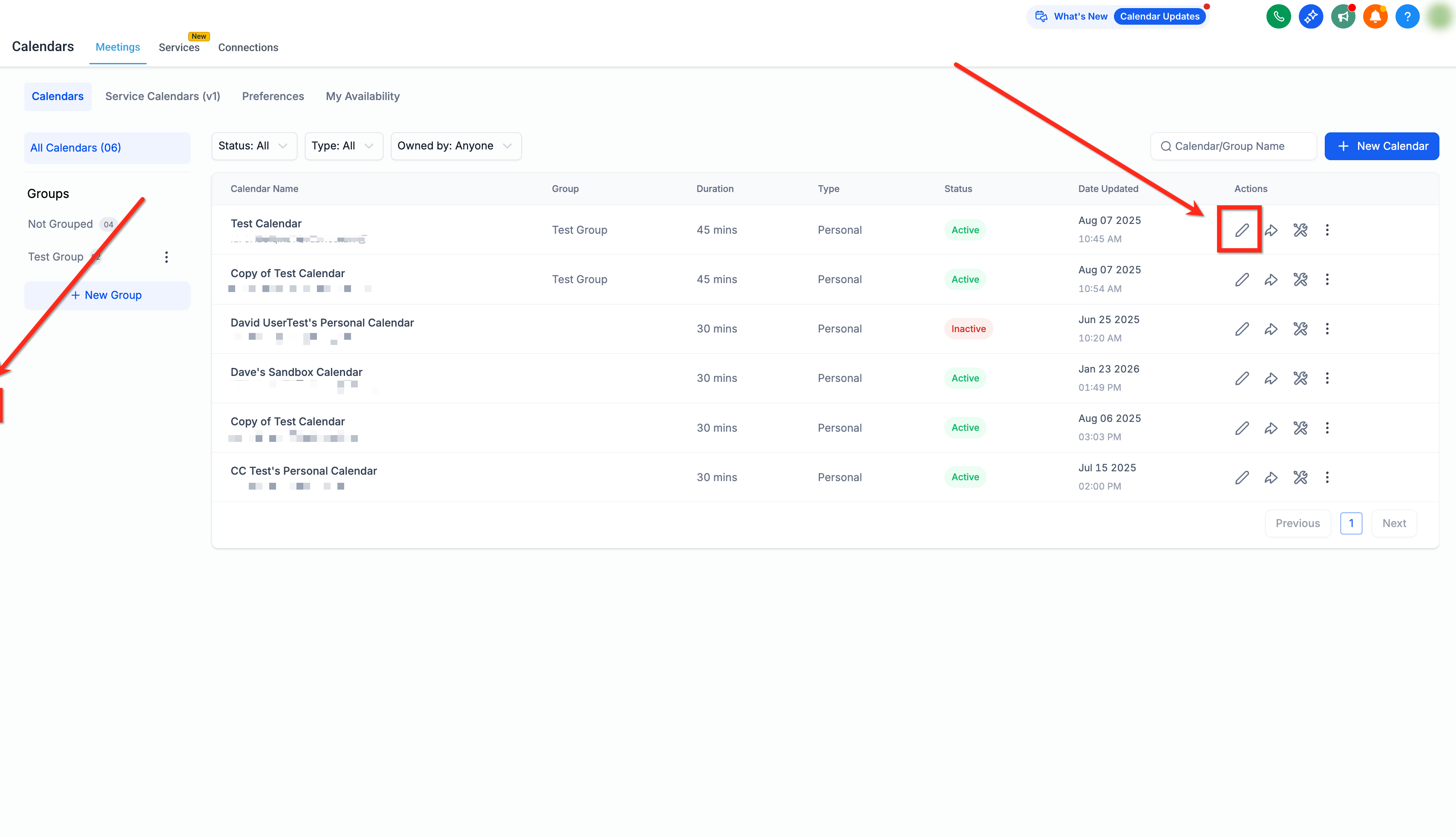
Under Booking Availability, click the staff member's name (or My Availability for your own schedule) to open the availability panel.
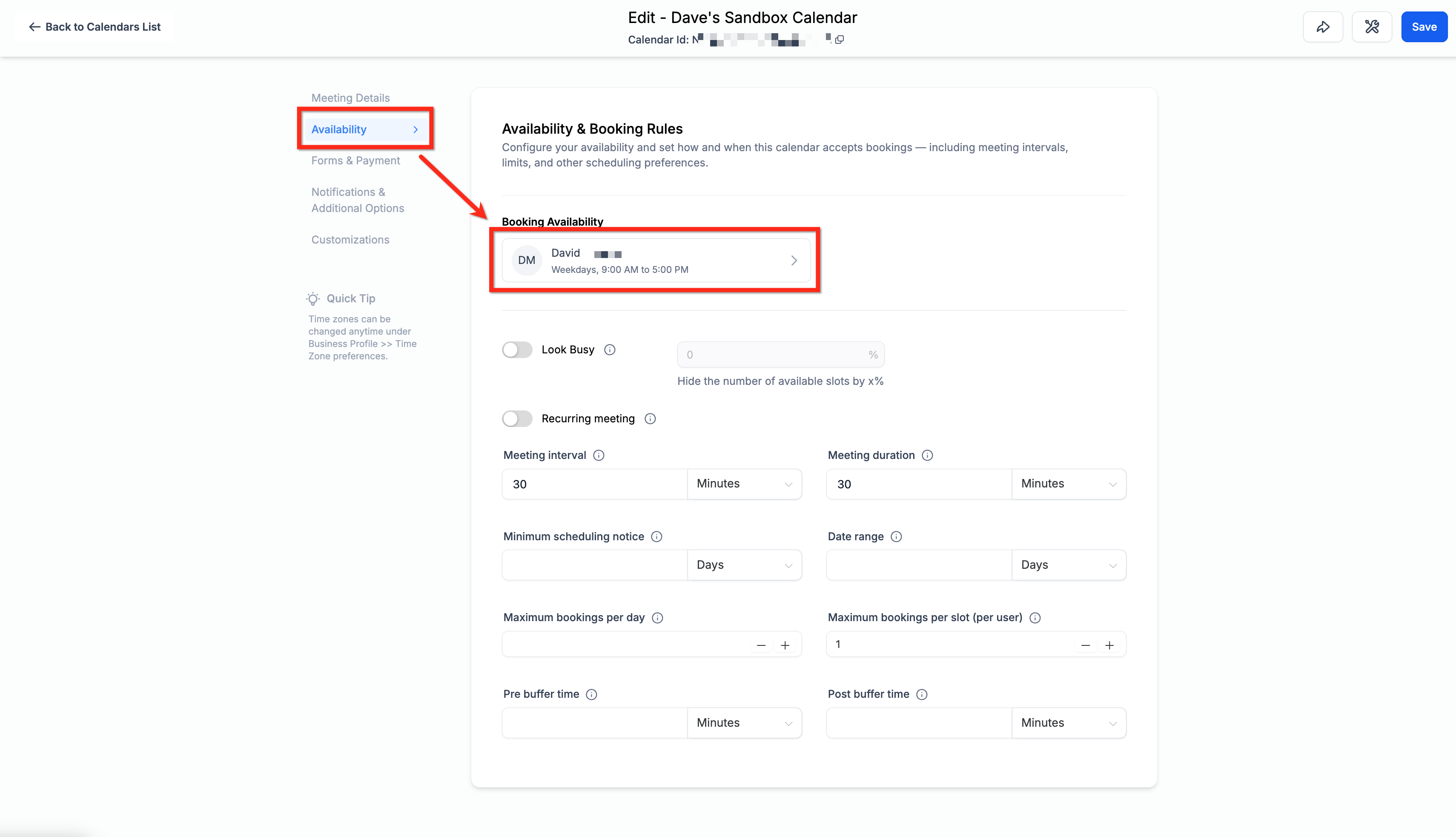
Set your time zone. This only affects how times display for you personally, your patients don't need to be in the same time zone to book.
Check the boxes for your Work Days, then click Edit under Weekly Working Hours to set start and end times for each day.
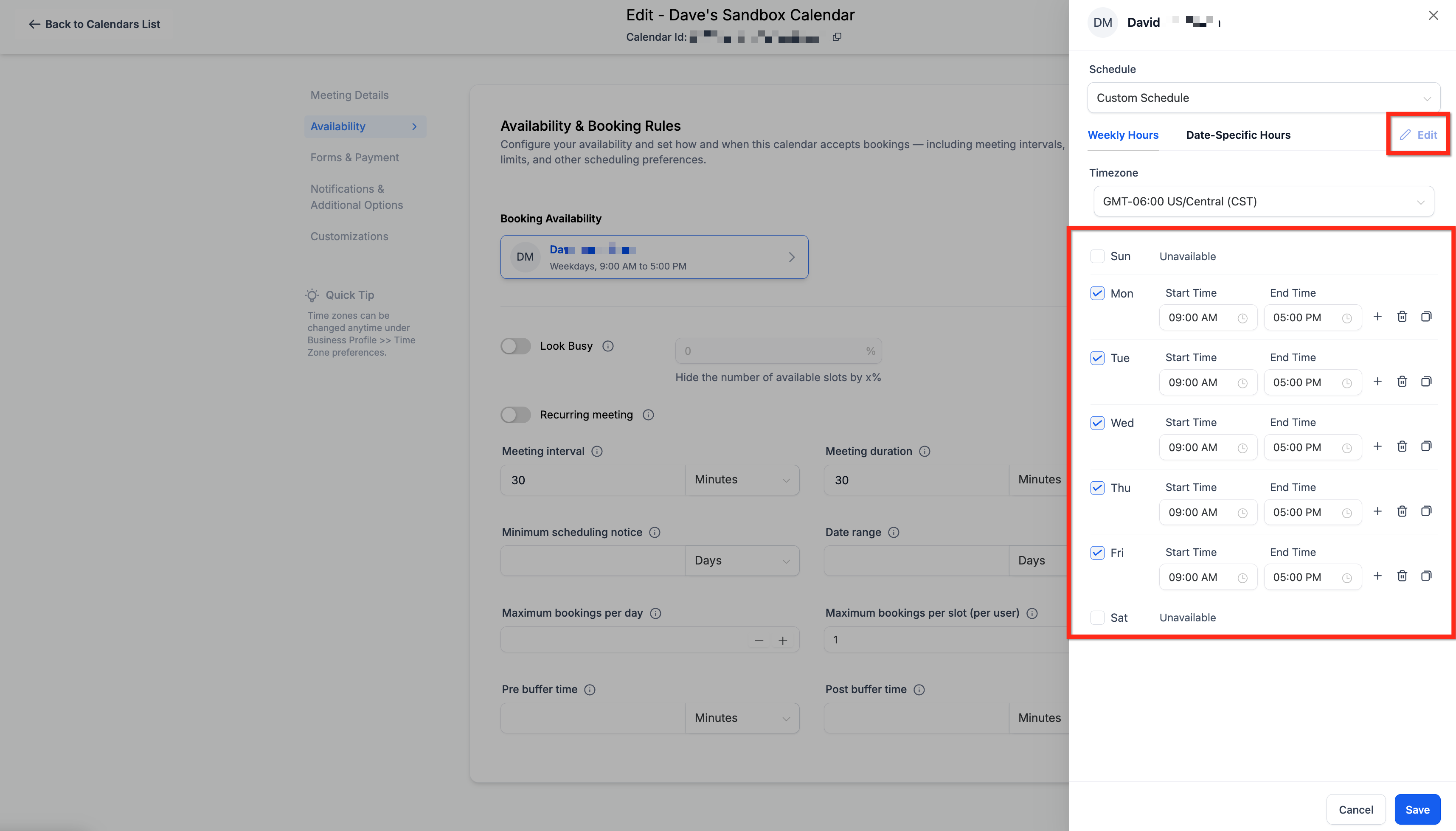
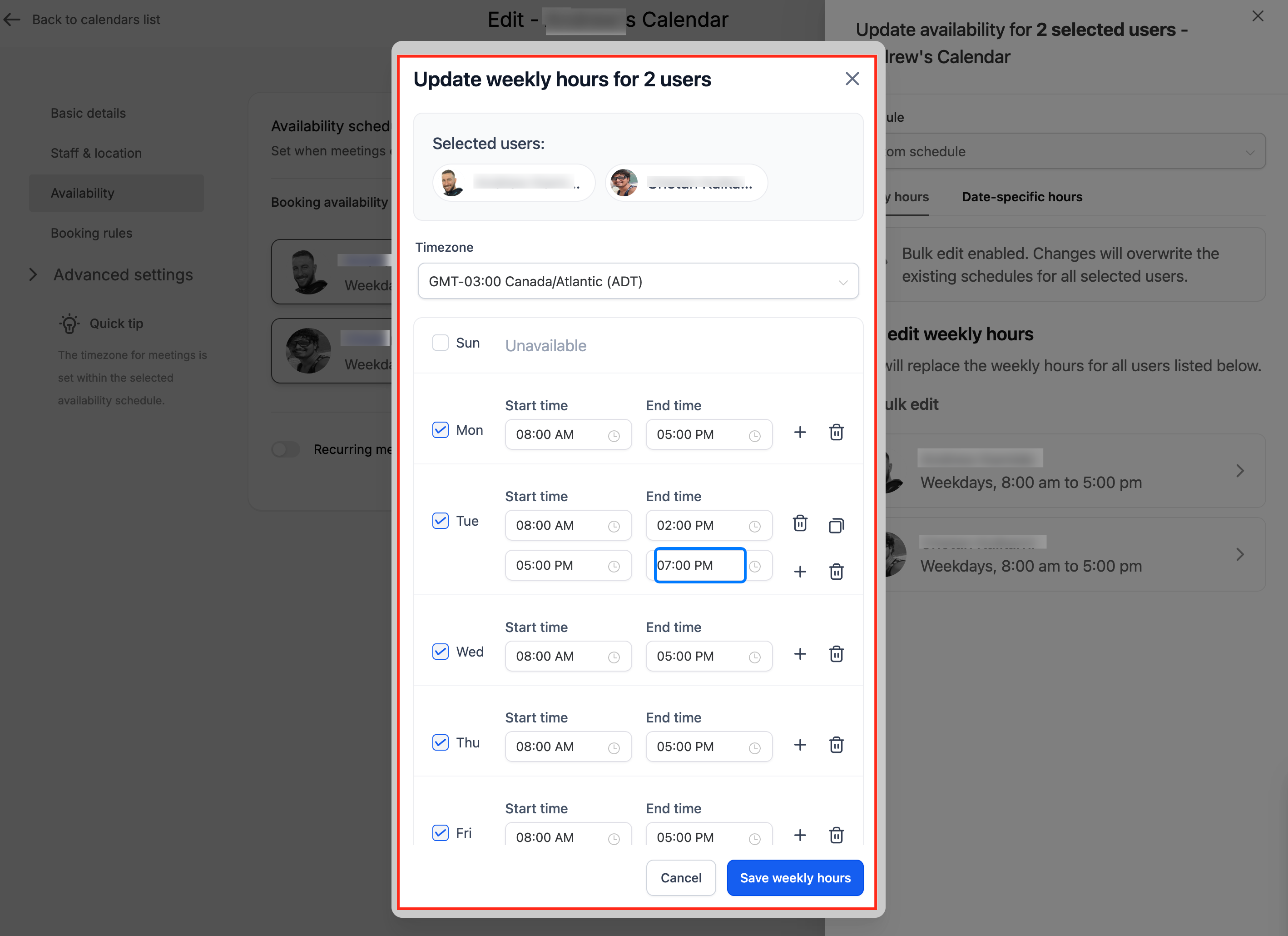
(Optional) Click Add Time to split a work day into two separate blocks. For example, you could offer appointments from 9 AM to 1 PM, break for lunch or room turnover, then reopen from 3 PM to 6 PM.
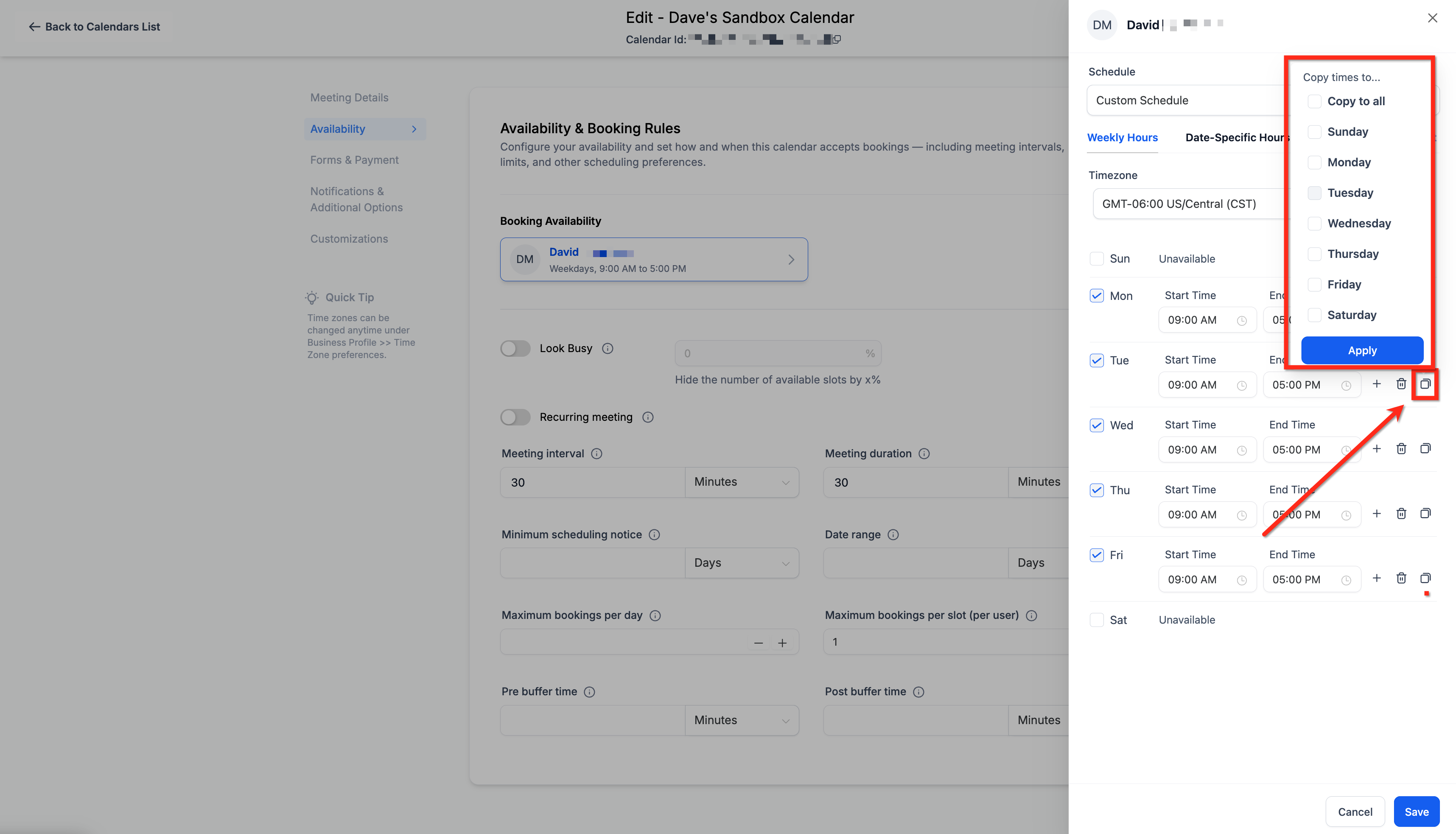
(Optional) Click Copy to all to apply one day's hours across the rest of the week instead of setting each day individually.
Click Save Availability to apply your changes.
Use date-specific hours to handle exceptions without touching your regular weekly schedule:
Holidays and closures: Mark your practice as unavailable on days like Thanksgiving, Christmas, or a scheduled office closure.
Provider time off: If a specific injector or esthetician has a personal appointment on a given day, mark them unavailable for that window without creating a manual block on every slot.
Extended hours: For a promotional event, open house, or holiday rush, extend your normal hours on a specific date without changing your standing weekly schedule.
To add date-specific hours:
From the calendar's Availability tab, find the Date-Specific Hours section and click + Add Date-Specific Hours.
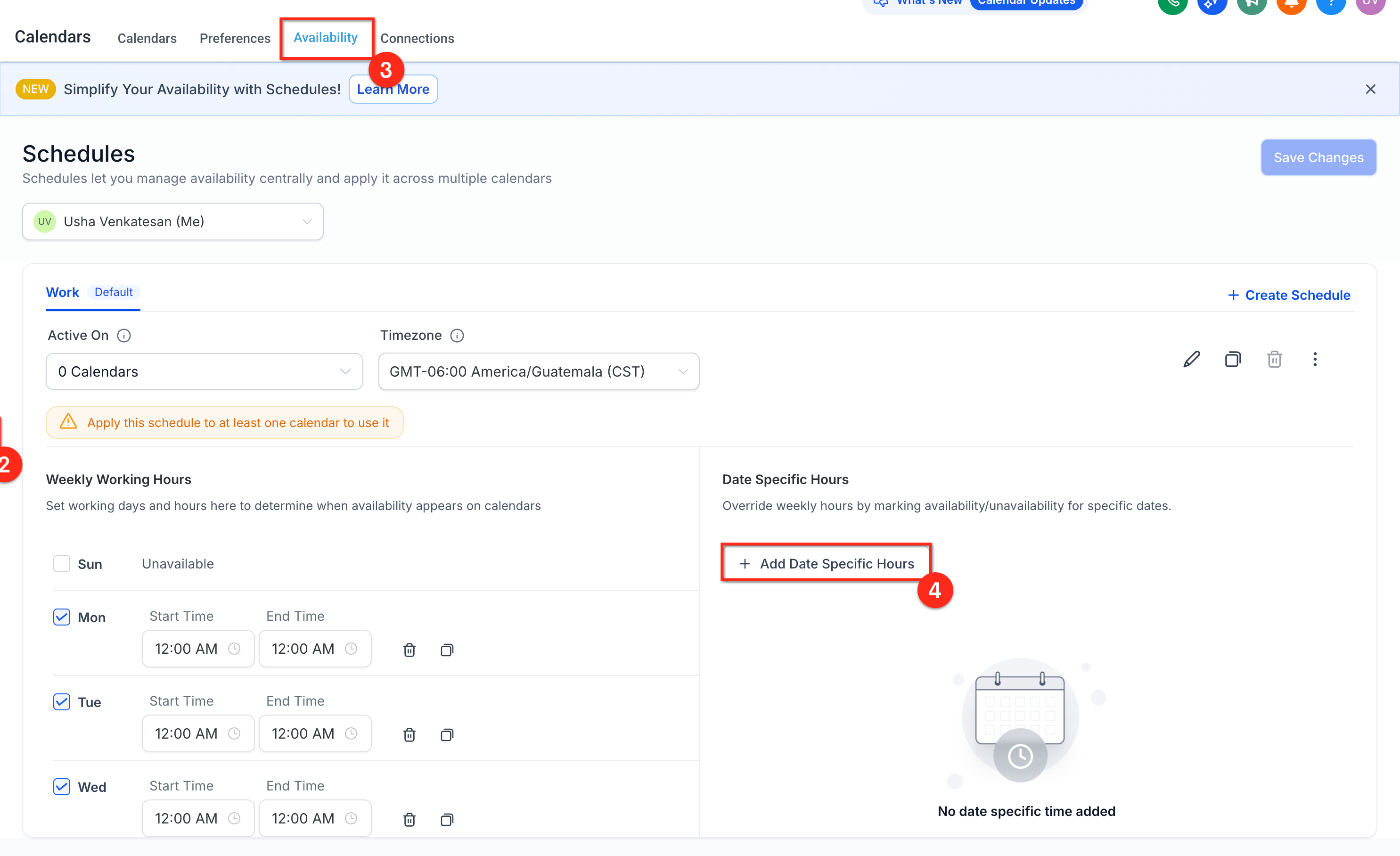
In the date picker, select one or more dates you want to override.
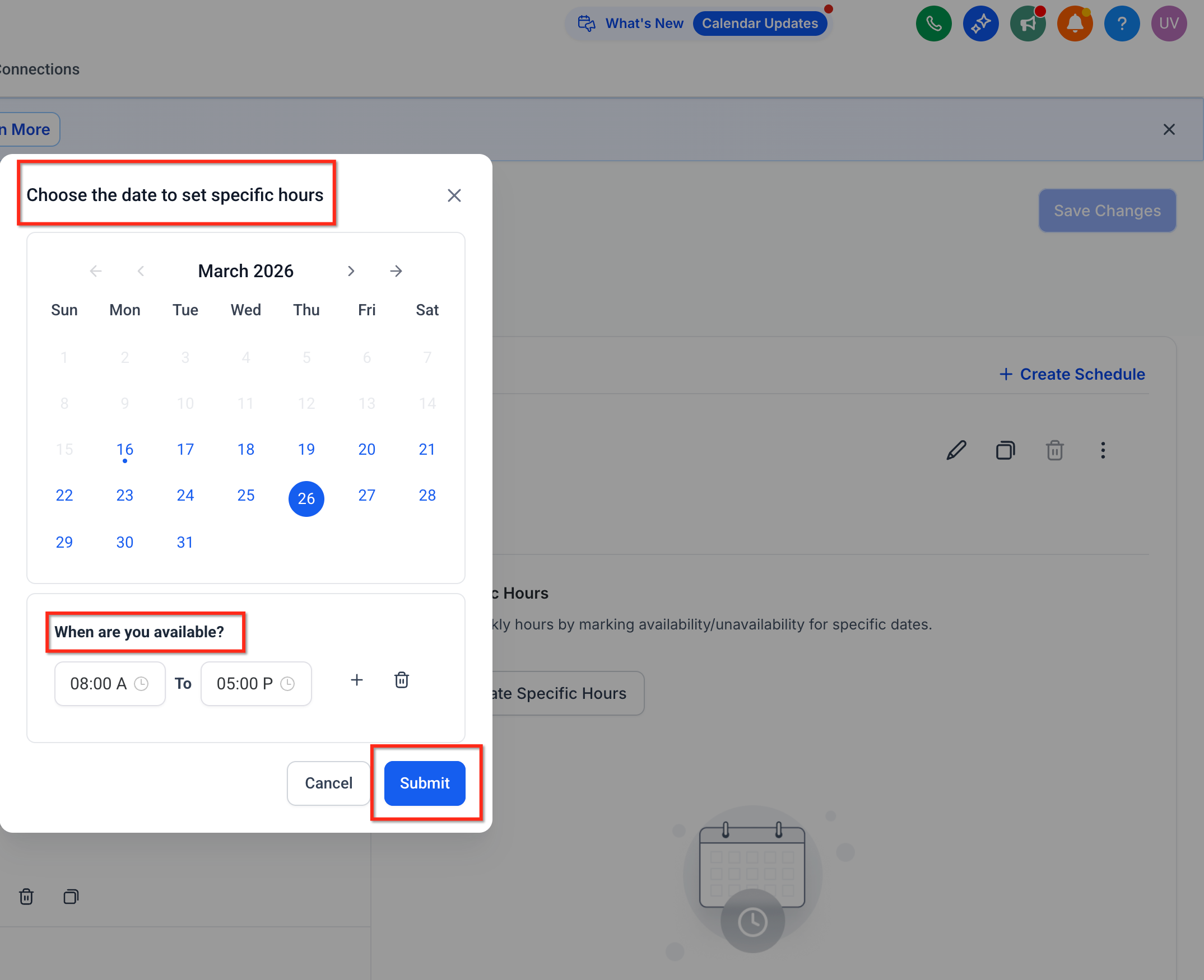
Set the start time and end time for those dates.
Save to apply the same hours across all selected dates.
Date-specific hours may not be available on every account yet as the feature rolls out.
Remember that date-specific hours fully replace the weekly schedule for that day rather than adding to it. If your weekly hours are 9 AM to 5 PM, but you want to accept bookings until 8 PM on a specific Tuesday for a late event, set date-specific hours for the full 9 AM to 8 PM window on that date, not just the extra 5 PM to 8 PM. If you only enter 5 PM to 8 PM, the calendar will treat that Tuesday as available only during those three hours and show 9 AM to 5 PM as unavailable.
When you save date-specific hours across several dates, Aesthetix CRM groups your selections to keep the list organized. Consecutive dates appear as a single grouped range, and non-consecutive dates appear as separate groups. For example, if you select January 2, 3, 4, 5, 8, and 9, you'll see January 2 to 5 as one grouped entry and January 8 to 9 as another. You can edit or delete each grouped entry independently later.
If your practice has several providers on one calendar, Bulk Edit lets you update availability for multiple team members at once instead of opening each person's schedule individually. It supports both Weekly Working Hours and Date-Specific Hours, and it's especially useful when your team shares a similar schedule or all need the same one-time exception, such as a practice-wide holiday closure or a special weekend event.
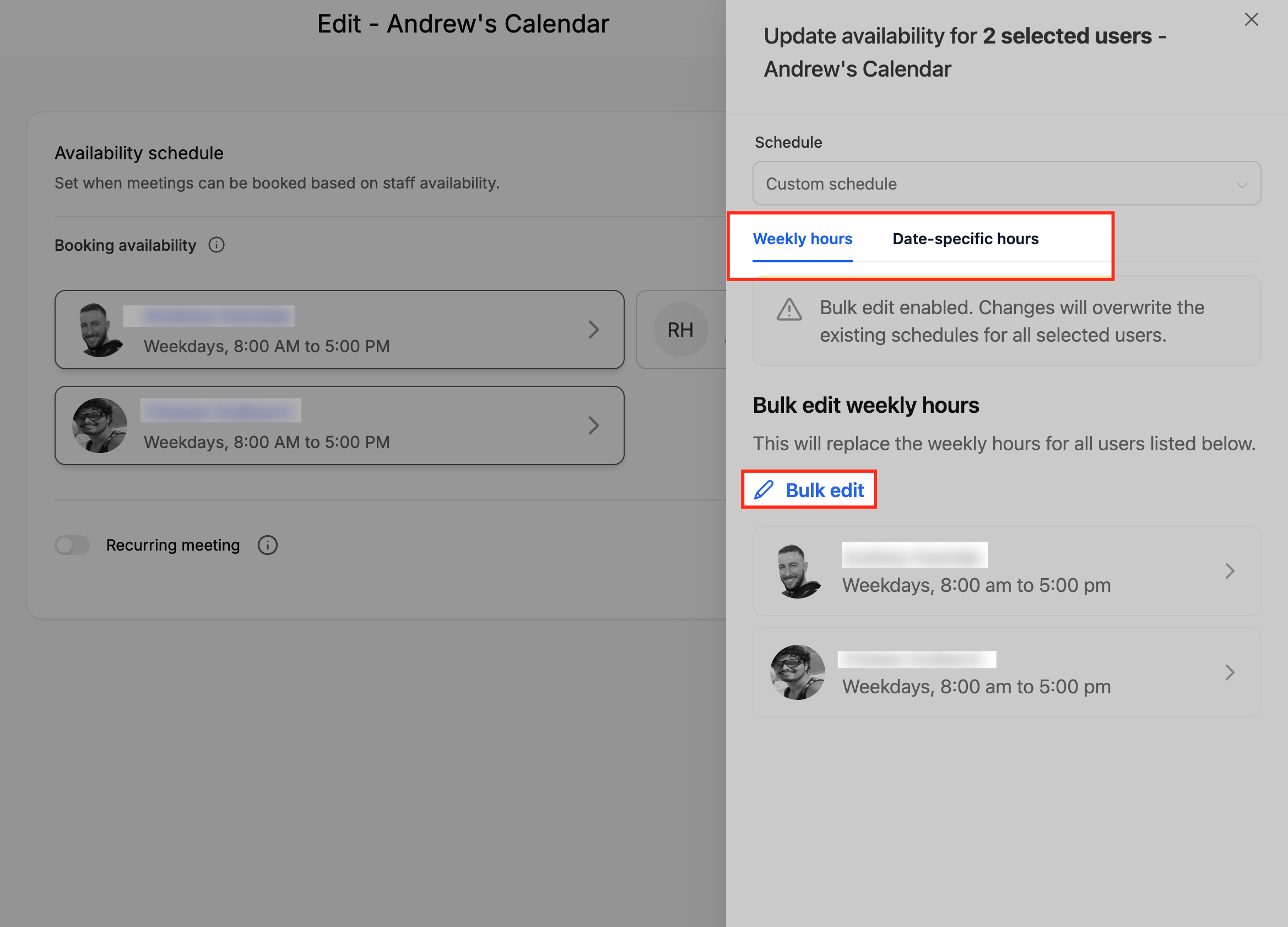
Bulk edit uses section-specific save behavior: updating Weekly Working Hours only touches the recurring weekly schedule, and updating Date-Specific Hours only touches the date-based exceptions. Editing one section won't overwrite or delete the other, which helps prevent accidental schedule loss when adjusting several providers at once.
To bulk edit availability:
Go to Calendars > Calendar Settings and select the calendar you want to update.
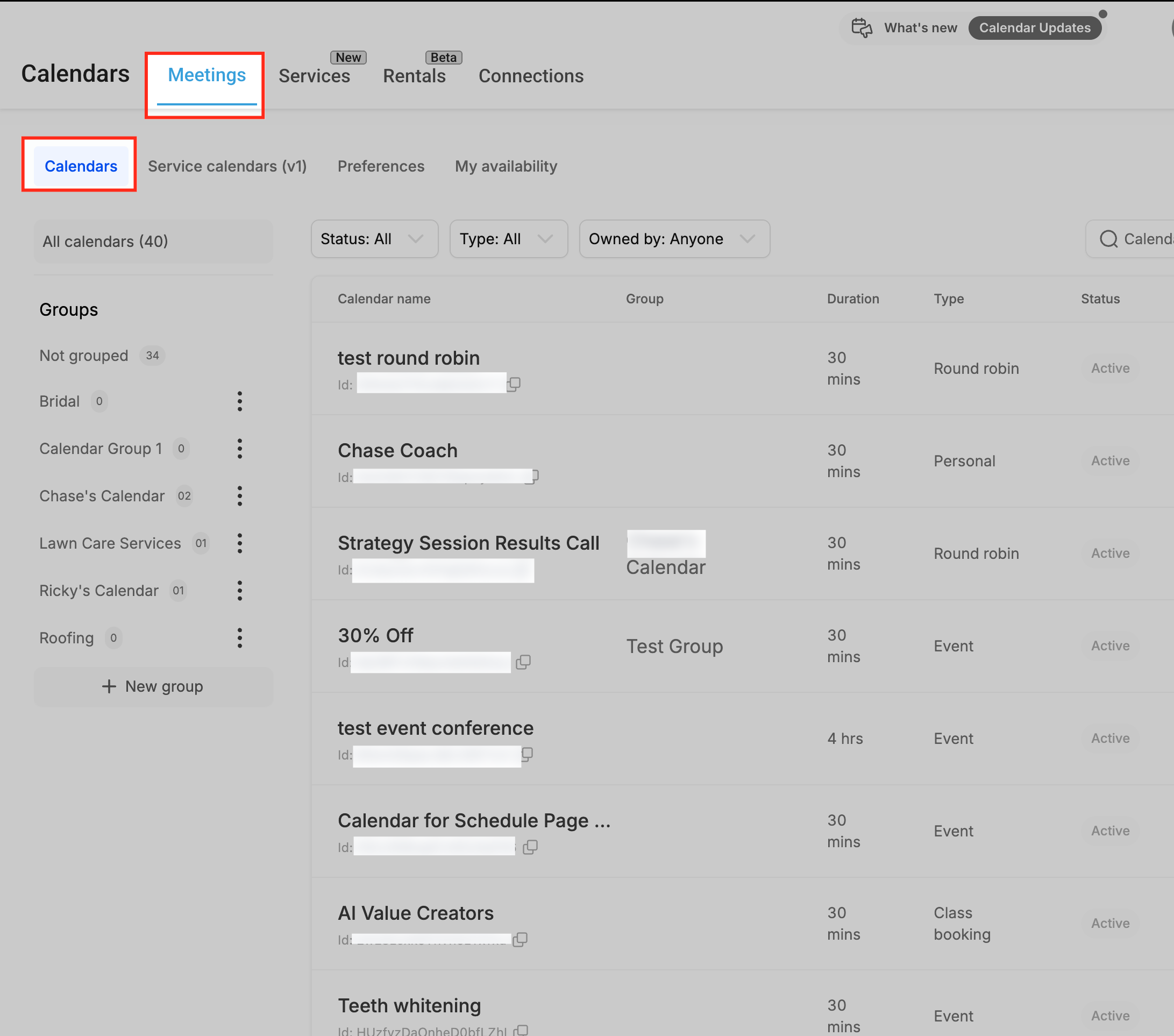
Click the pencil icon to edit the calendar.
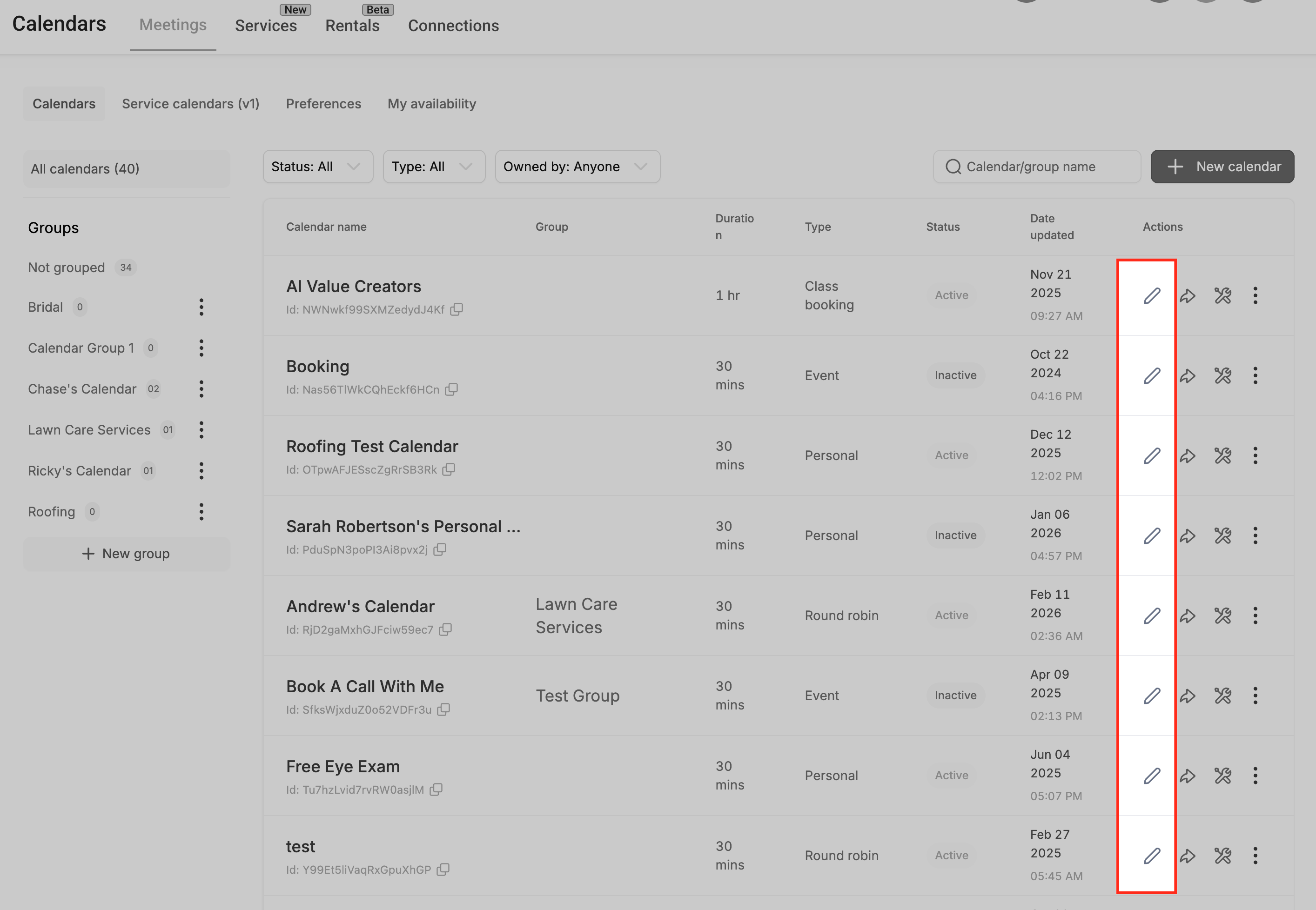
Go to the Availability tab.
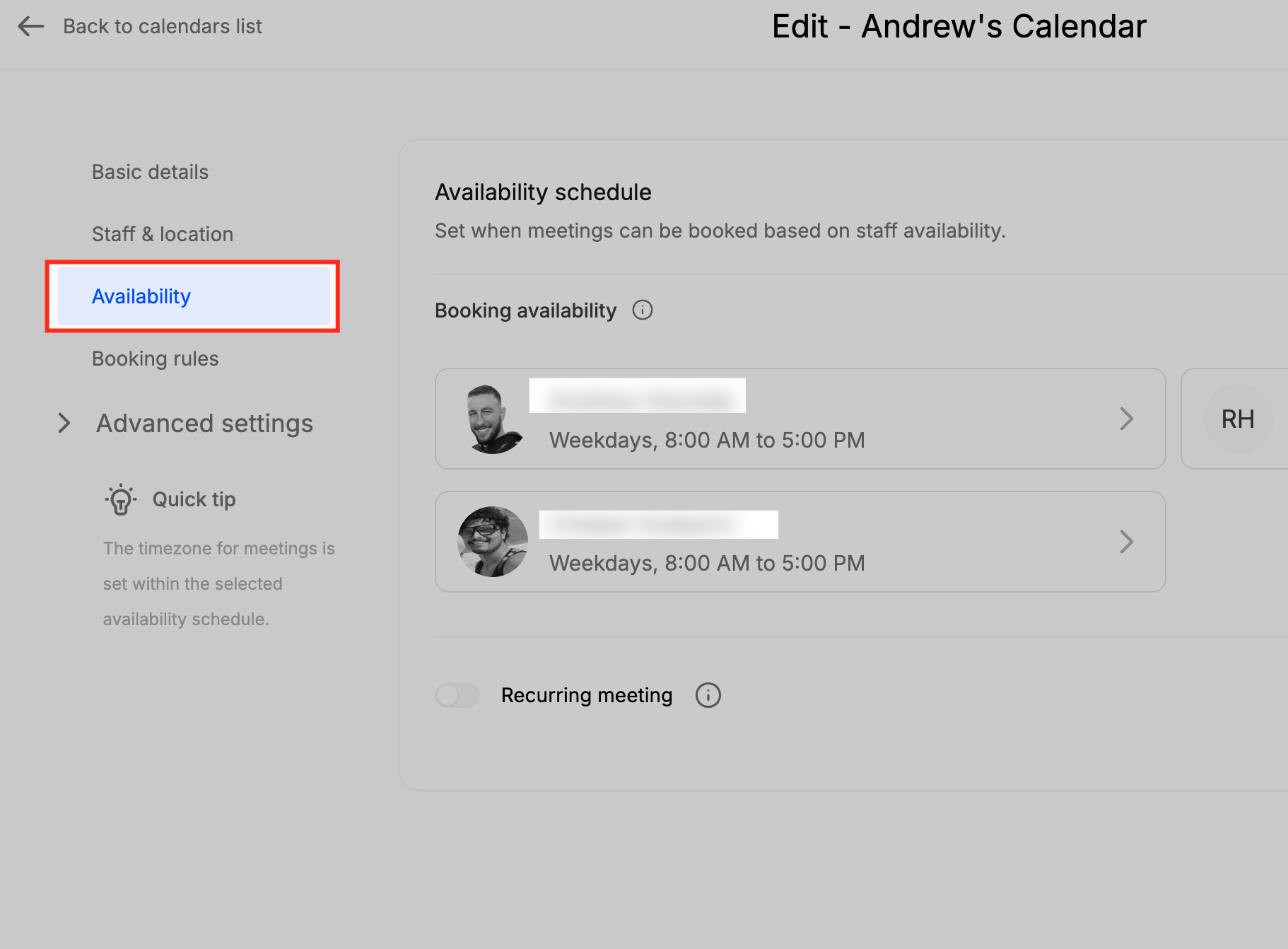
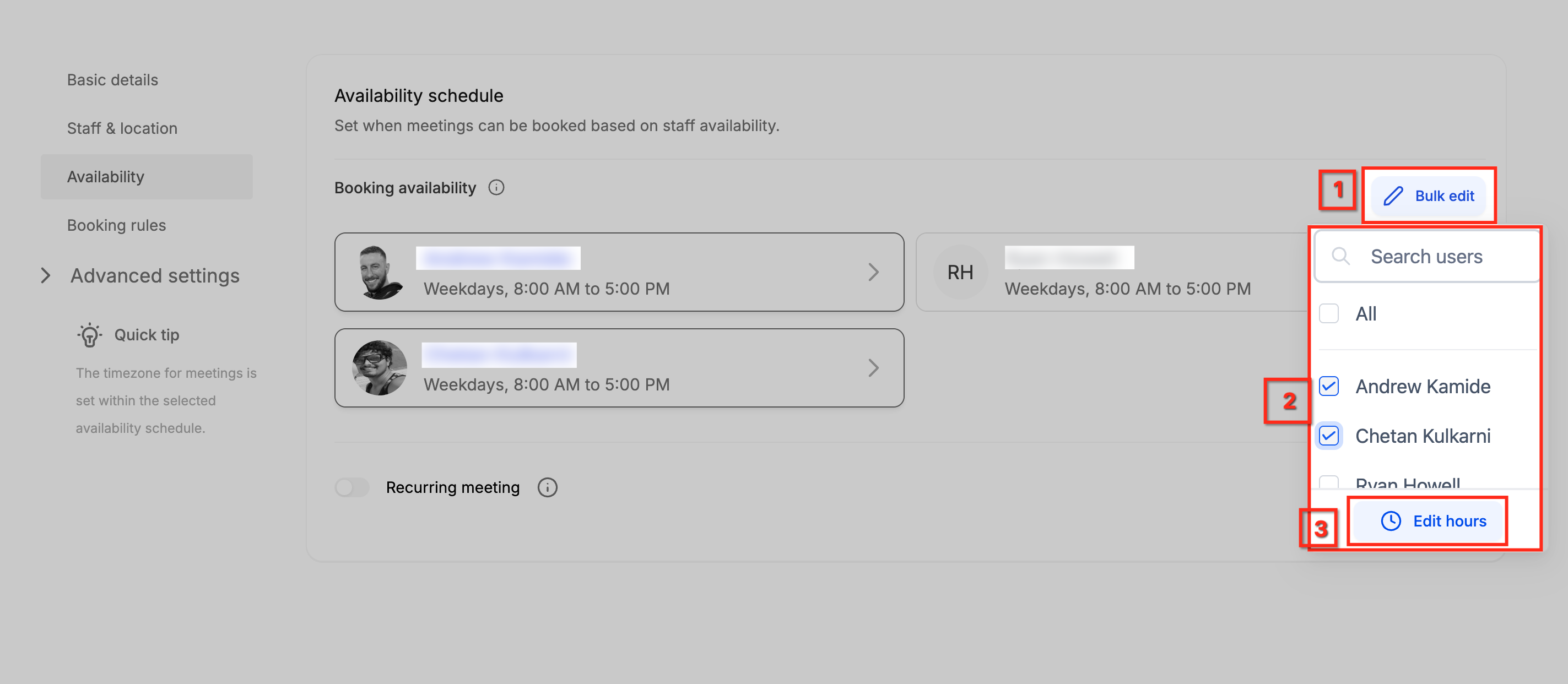
Click Bulk edit, select the team members you want to update, then click Edit hours.
Update either Weekly Working Hours or Date-Specific Hours for the selected group.
Review the selected providers and the changes you're making, then click Save Changes.
Only the section you edited is updated. Saving Weekly Working Hours won't remove existing Date-Specific Hours, and saving Date-Specific Hours won't change the weekly schedule.
Beyond working hours, a few other calendar settings affect which slots actually show up on your booking page. These live in the calendar's general settings alongside Availability:
Setting | What it does | Med-spa example |
|---|---|---|
Slot Duration | How long each appointment lasts once booked. | A 15-minute Botox touch-up vs. a 60-minute facial each get their own duration. |
Slot Interval | How often new booking slots start. | A 30-minute interval offers slots at 9:00, 9:30, 10:00. A 15-minute interval on the same hours offers 9:00, 9:15, 9:30, 9:45. |
Buffer | Time blocked off before or after an appointment so slots aren't booked back-to-back. | Add a 15-minute buffer after a chemical peel to sanitize the treatment room before the next patient. |
Appointments per Slot | How many bookings can land in the same time slot. | Set to 10 for a group skincare workshop or informational seminar where multiple patients attend together. |
Appointments per Day | The maximum number of appointments allowed in a single day. | Cap an injector's day at 12 appointments to protect against burnout and keep visit quality high. |
Minimum Scheduling Notice | How much advance notice is required before a booking. | Require 24 hours notice so your team has time to prep the room and pull the patient's chart. |
Date Range | How far into the future patients can book. | Open a calendar 8 weeks out for routine visits, or limit a seasonal promotion's booking window to a few weeks. |
Office Hours | The outer bounds during which any appointment can be scheduled. | Keeps bookings inside your actual practice hours even if a provider's personal working hours are broader. |
Event Color | A visual color tag for the appointment type on your calendar view. | Color-code injectables, laser treatments, and consults so your front desk can scan the day at a glance. |
The Buffer, Slot Interval, Appointments per Day, and Date Range settings apply to the whole calendar rather than per appointment type. If you need different values for different services (for example, a longer buffer after laser treatments than after a quick consult), the most reliable approach is creating a separate calendar for that service, since these settings can't be split within a single calendar.
Changing these settings does not retroactively affect appointments that are already booked. Slot Duration, Minimum Scheduling Notice, and Office Hours changes only apply going forward to new bookings.
For calendar types (Service Calendars, Round Robin, Collective, and so on), see the calendar setup guides in this collection. To sync your personal calendar (Google, Outlook, iCloud, or Zoom) with Aesthetix CRM, see the Connections settings. Intake forms attached to a booking flow are managed in Forms, and calendar booking widgets embedded on your website are covered under Funnels & Websites.
By default, the Date Range setting counts every calendar day, including weekends and days you're closed. On a practice that only works Monday through Friday, a short Date Range can leave the booking page looking empty if a patient visits on a Friday, since Saturday and Sunday use up the window before Monday arrives.
The Count available days only toggle fixes this. When it's turned on, the calendar skips any day outside your availability schedule and keeps counting forward until it reaches the full number of days you configured, starting after your Minimum Scheduling Notice period ends. Patients always see the number of working days you set, not a blank calendar.
Important: This toggle reads directly from your Availability settings. If a calendar has no Weekly Working Hours or Date-Specific Hours configured, turning it on will make the booking page show no open dates at all.Go to Calendars > Calendar Settings and click the pencil icon to edit the calendar you want to update.
Select Booking Rules in the left menu.
Find the Date Range field.
Toggle on Count available days only directly below it.
Click Save Changes.
The toggle is off by default on every calendar. Turning it on doesn't change the number you've set for Date Range, it only changes how that number gets counted.
Toggle off (default): the date range counts every calendar day starting today, including weekends and days with no availability, regardless of your schedule.
Toggle on: the date range counts only the days that are part of your availability schedule, skipping past anything else.
Example: your practice is open Monday through Friday and Date Range is set to 2 days. A patient visits your booking page on a Friday.
Toggle off: Saturday and Sunday get counted as the two days. Neither has availability, so the widget shows no open dates.
Toggle on: Saturday and Sunday are skipped, and the patient sees the following Monday and Tuesday instead.
Minimum Scheduling Notice is applied first and always counts real calendar days, weekends included, even with the toggle on. Once that notice period ends, the calendar starts counting available days from there.
Date-Specific Hours (covered above) are respected by the toggle. A day marked available through a date-specific override counts even if it falls outside your normal weekly schedule, for example a Saturday you opened for a promotional event. A day that's part of your weekly schedule but marked unavailable through a date-specific override, such as a holiday closure, gets skipped in the count.
For round robin and collective calendars, a day counts as available if at least one assigned team member has availability on it. If one provider works Monday and Wednesday while another works Tuesday and Thursday, all four days can count toward the window, each showing only that day's available provider.
A fully booked day still counts. The toggle checks whether a day is part of your availability schedule, not whether every slot on it is already taken. A fully booked day still counts as one of your available days, it just won't show any open times.
Configure availability first. A calendar with no Weekly Working Hours or Date-Specific Hours set up will show no dates on the booking page once this toggle is on.
Service Calendars use their own version of this setting. For a Service Calendar with a Range Based booking window, the same toggle is available under Global Settings > Service Settings. It doesn't apply when Date Based is selected instead, since that option uses fixed start and end dates rather than a rolling range. See the Service Calendars guides in this collection for setup steps specific to that calendar type.
Can I set a schedule that repeats every two weeks instead of every week? Weekly Working Hours only support a standard weekly repeat. For a biweekly pattern, use Date-Specific Hours to manually set the applicable days, or set a recurring reminder to update the calendar every two weeks.
Why did my Weekly Working Hours disappear after I added Date-Specific Hours? They didn't disappear, Date-Specific Hours simply take priority and fully replace the weekly schedule for that date. To extend a day rather than shrink it, enter the entire window you want available (for example, 9 AM to 8 PM), not just the additional hours.
Can I set different buffer times for different appointment types on the same calendar? No, Buffer applies to the whole calendar. If different treatments need different buffer times, create a separate calendar for the service that needs a longer or shorter buffer.
How do Appointments per Slot and Slot Interval work together? Slot Interval controls how often new slots start, and Appointments per Slot controls how many bookings each of those slots can hold. If Appointments per Slot is 2 and Slot Interval is every 30 minutes, two patients can book each 30-minute slot.
Does changing Minimum Scheduling Notice affect appointments that are already booked? No. Changing the notice window only applies to new bookings made after the change. Existing appointments keep their original booking terms.
Will Bulk Edit accidentally overwrite a provider's Date-Specific Hours when I update Weekly Working Hours? No. Save behavior is section-specific, updating Weekly Working Hours only changes the recurring schedule and leaves Date-Specific Hours untouched, and vice versa.
I updated availability but slots still aren't showing on the booking page. Why? Availability is only one factor. Connected calendar syncs, conflict calendars, buffers, appointment limits, and other calendar settings can all still block certain slots from appearing even after availability looks correct.
Can I mark myself unavailable for just a few hours on one date without losing my normal schedule? Yes. Add a Date-Specific Hours entry for that date covering only the unavailable window, or remove the time block entirely to mark the whole day unavailable. Your Weekly Working Hours for every other date stay unchanged.
Does Bulk Edit change appointments that are already on the books? Bulk Edit updates availability settings going forward. It does not describe changes to existing booked appointments, so review your calendar after saving if you need to confirm how the update affects upcoming bookings.
Does turning on Count Available Days Only change the number I set for Date Range? No. If your Date Range is set to 5 days, it stays 5 days. The toggle only changes whether those 5 days are counted as calendar days or as days pulled from your actual availability schedule.
I turned on Count Available Days Only and now my booking page shows no dates. What's wrong? Check that the calendar has Weekly Working Hours or Date-Specific Hours configured. The toggle reads directly from your Availability settings, so a calendar with no availability set up will show no open dates once it's on.
Does Minimum Scheduling Notice start counting available days too once I turn this toggle on? No. Minimum Scheduling Notice always counts real calendar days, weekends included, even with the toggle on. It's applied first, and only after that period ends does the calendar start counting your available days for the Date Range window.
