Calendar Groups let you bundle related booking calendars (like all your injector consults or all your laser treatments) under one shared landing page, so patients can pick a provider or service without you having to manage a dozen separate links. Groups live under Settings > Calendars in Aesthetix CRM, alongside your individual calendars.
This guide covers moving a calendar into a group, deleting a calendar that belongs to a group, assigning unassigned (round-robin) calendars to a group, and showing multiple calendars together without creating a group at all.
Click Settings.
Click Calendars.
Click the three dots on the calendar you want to move into a group.
Click Move to Group.
Select the group you want to move the calendar into from the dropdown.
Check the box to confirm.
Click Select to finish.
Once a calendar is assigned to a group, it appears under that group's shared booking page alongside the other calendars in the same group. You can move a calendar between groups at any time by repeating these steps and choosing a different group from the dropdown.
Deleting a calendar removes it entirely, including from any group it belongs to. Make sure you actually want to delete the calendar (not just remove it from the group) before proceeding, since this can't be undone.
Click Settings.
Click Calendars.
Click the three dots on the calendar you want to delete.
Click Delete Calendar.
If you only want to reorganize your groups rather than remove a calendar for good, use the Move to Group steps above instead.
Groups aren't limited to standard calendars. You can also assign an Unassigned Calendar (or any round-robin calendar) to a group, which is useful if you want a pool of providers to share one booking page alongside your other group calendars.
Go to Settings > Calendars.
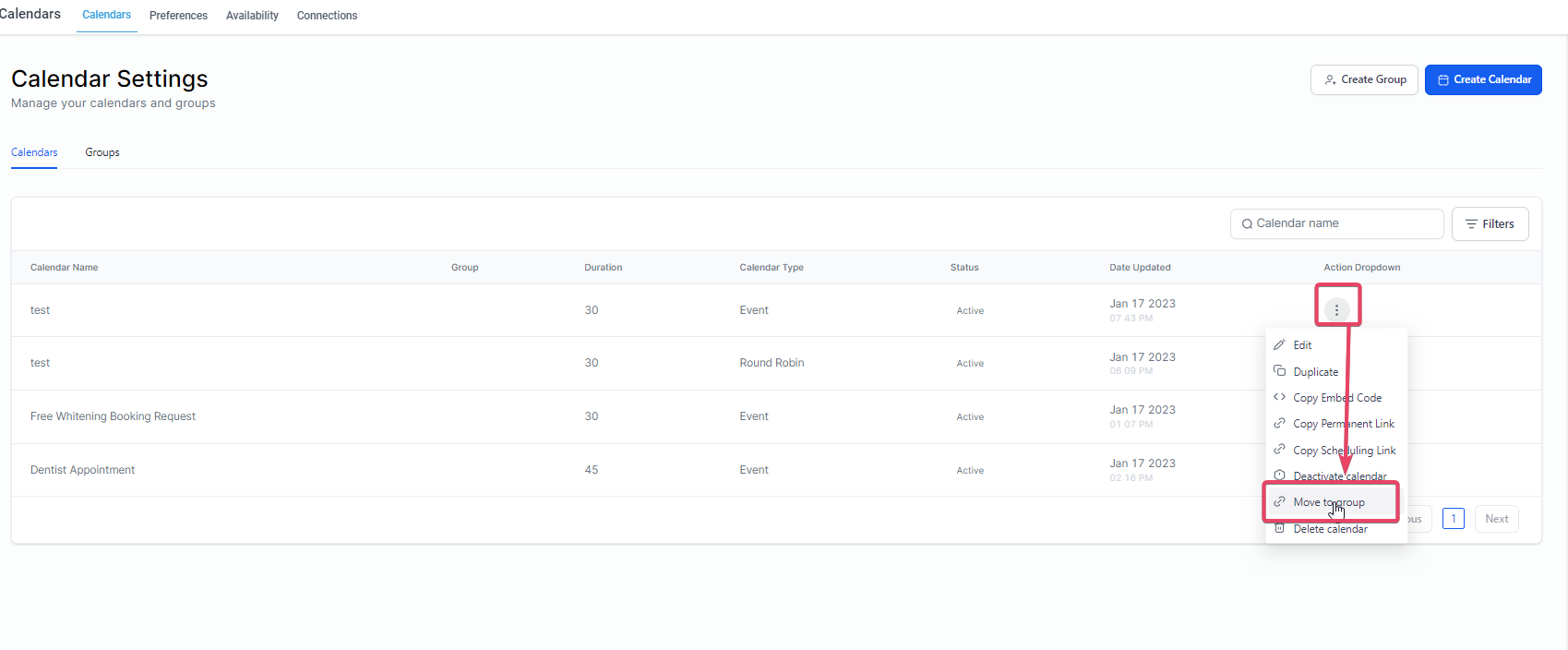
Click the three dots on the right side of the calendar you want to assign, then click Move to Group.
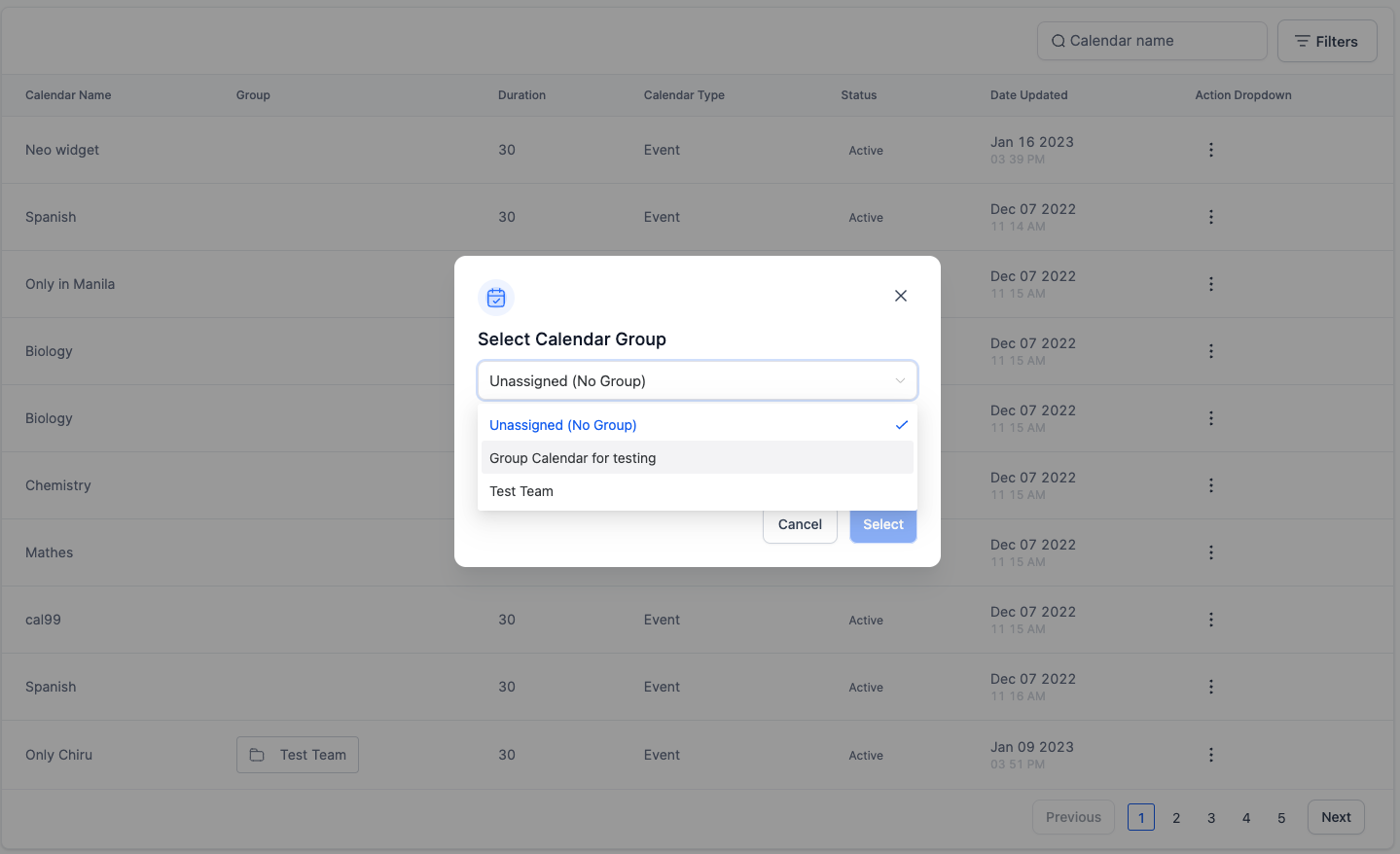
In the pop-up, select the group you want to assign the calendar to, then click Select.
Keep in mind that Unassigned Calendars route bookings to a pool of providers rather than one specific person. If you're using AI-driven booking automation through your AI Employee, note that automated booking only works with native calendars in Aesthetix CRM, not with your EMR calendar, so make sure the calendar you're assigning routes patients the way you expect before connecting it to any automation.
If you just want to display more than one calendar on a page without formally grouping them, you have two options that don't require creating a Calendar Group.
Open each calendar's link in a new tab by clicking the link icon next to each calendar.
Copy the calendar ID from one calendar, then go to the other calendar's link, add a comma after its ID, paste the first calendar's ID after the comma, and press enter to reload the page. The page will now show both calendars side by side.
Go to Settings > Appointment Widget and copy the embed code from the first calendar.
On your website or funnel page, add a Custom JS/HTML element, click Open Code Editor, and paste the calendar embed code. (For general embed setup, see the Funnels & Websites guides.)
In a new tab, go back to Settings > Appointment Widget, switch the calendar dropdown to the second calendar, and copy its calendar ID.
Return to the tab with your Custom JS/HTML element open, add a comma after the existing calendar ID in the code, paste the second calendar's ID after the comma, then save.
Save your page and preview it to confirm both calendars display correctly.
You can set a custom, human-readable slug for an Unassigned Calendar's public booking link (for example, /consult instead of a long system-generated ID). This makes links easier to share, brand, and remember, which is especially helpful when an Unassigned Calendar is routing patients to a pool of providers rather than one named person.
The standalone booking link you copy from the calendar's settings.
Website or funnel embeds using the booking widget.
Buttons, emails, and text messages that link directly to the calendar.
Group booking pages, if the calendar also belongs to a group. The group link and the individual calendar's custom slug are separate and both remain shareable.
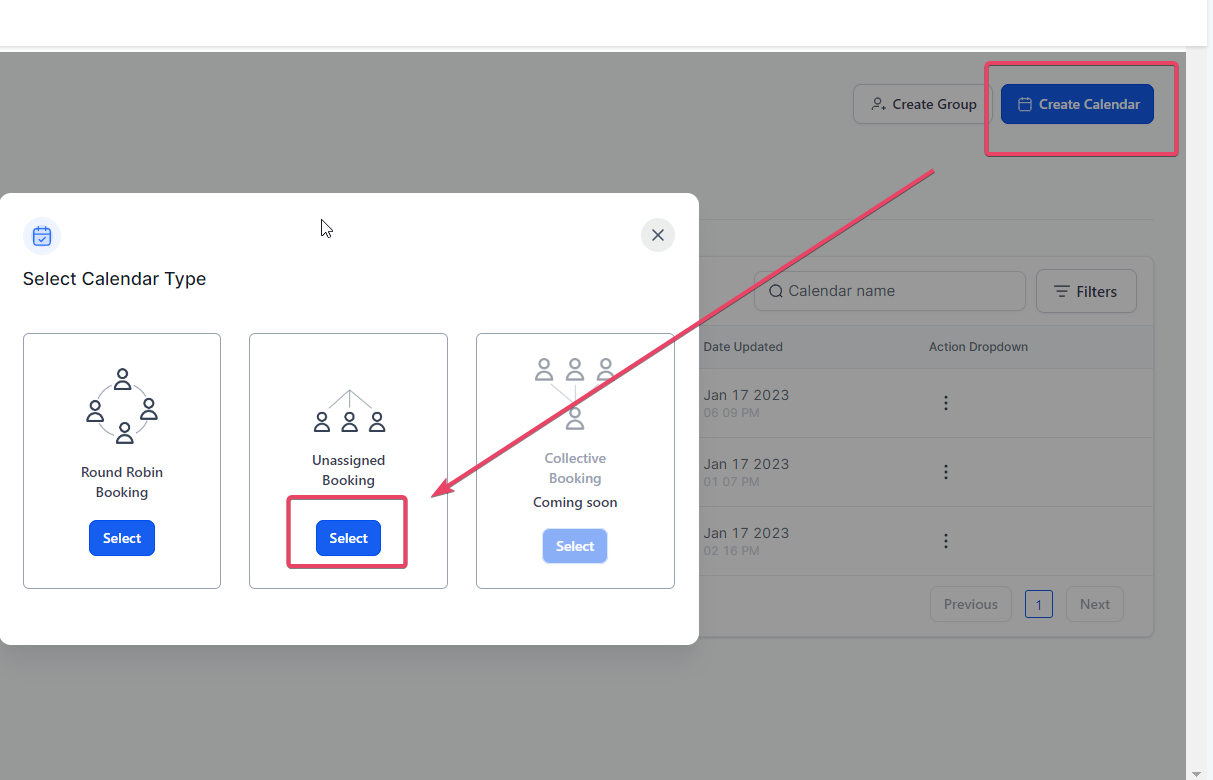
Go to Settings > Calendars.
Click Create Calendar, or open an existing Unassigned Calendar to edit it.
Select Unassigned Booking as the calendar type.
In Team & Event Setup, find the Calendar URL text box and type in the custom slug you want for the calendar's link.
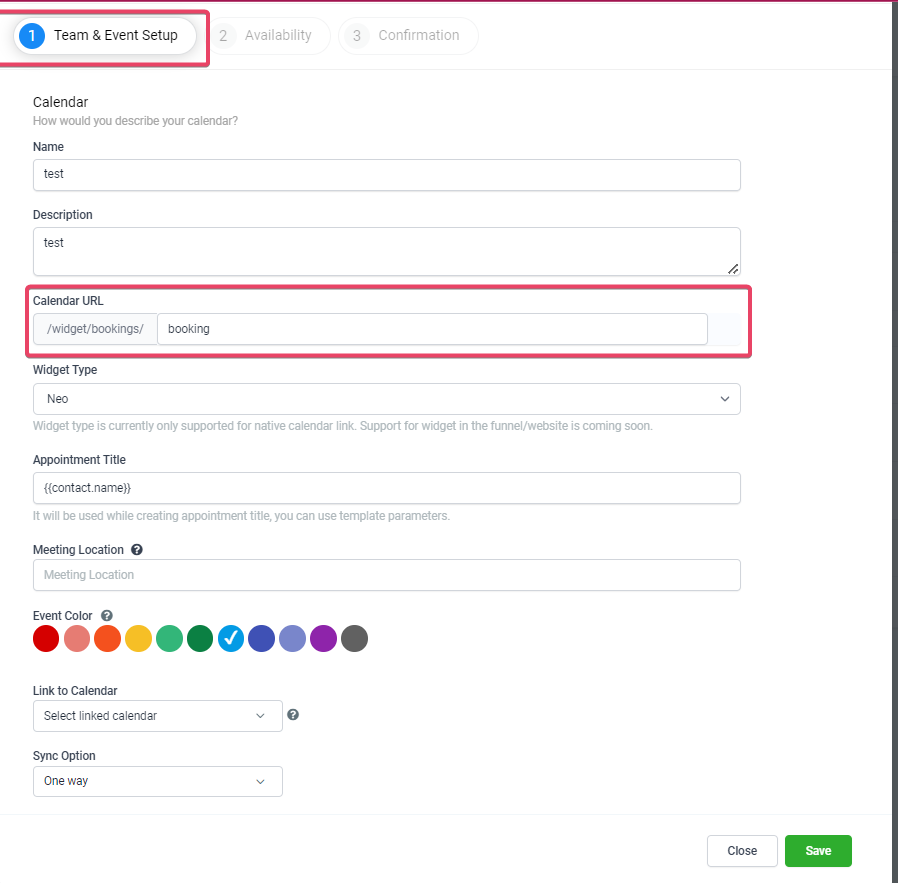
Aesthetix CRM checks availability automatically as you type. A checkmark means the slug is available and you can save.

If you see an X instead, the slug is already taken. Adjust it (add a location or service prefix, for example) until it's unique, then save. The calendar's link will use the URL exactly as you configured it.

Keep slugs short, lowercase, and hyphenated (for example, consult or botox-consult).
Avoid spaces and special characters.
If you run multiple locations, use location prefixes to avoid collisions (for example, downtown-consult).
Keep a simple list of the slugs you've already used so you don't accidentally duplicate one across calendars.
Test new links in a private/incognito browser window before sharing them with patients.
Editing a custom URL after you've already shared it creates a new public link, and the old link may stop working. Before renaming a slug, check everywhere it's been used, including your website, funnels, email campaigns, text messages, and ads, and update each placement. After the change, test the new link in a private window to confirm it works.
Editing calendar URLs requires permission to manage Calendars on your account. If a team member can't edit a calendar's slug, check their user permissions in Settings.
Can I move a calendar from one group to another later? Yes. Repeat the same steps used to move a calendar into a group, and simply select a different group from the dropdown.
What happens if I delete a calendar that's in a group? The calendar is removed entirely, and it no longer appears in the group's shared booking page. This can't be undone, so only delete a calendar if you don't need it anymore, not if you just want to reorganize your groups.
Can Unassigned Calendars be added to groups? Yes. Unassigned Calendars and other round-robin calendars can be assigned to a group the same way as any other calendar, using the three-dot menu and Move to Group.
Do I have to use a Calendar Group to show more than one calendar on a page? No. You can display multiple calendars on the same page using calendar links with comma-separated calendar IDs, or by embedding more than one calendar's widget code on a website or funnel page.
What characters can I use in a custom calendar URL? Use lowercase letters and hyphens only. Avoid spaces, special characters, or very long strings, since these can cause validation to fail.
Can two calendars share the same custom URL? No. If a slug is already in use, you'll see an unavailable indicator when you try to save it. Choose a different variant, such as adding a location or service prefix.
What happens if I change a custom URL after sharing it? The old link may stop working once the slug changes. Update every place the old link was used (website, funnels, emails, texts, ads) and test the new link in a private browser window before sharing it again.
How does a custom URL interact with a Group booking link? They're separate. A calendar's individual custom URL still works even if that calendar also belongs to a group with its own shared Group booking link.
Who can edit a calendar's custom URL? Any user with permission to manage Calendars on your account. If someone can't make changes, check their user permissions in Settings.
Does adding a calendar to a group affect its automated booking behavior? No, grouping is purely organizational for how the booking page displays. If you're using AI-driven booking automation, remember it only works with native calendars in Aesthetix CRM, not calendars synced from your EMR.
