A Calendar Group combines several individual calendars under a single booking link, so a prospective patient can choose a provider, location, or service without you having to hand out separate links for each one. Calendar Groups live in Settings > Calendars > Groups, or from the Calendar tab by selecting Go to Calendar Settings.
A Calendar Group is a container that groups multiple individual calendars under one shared booking link. It does not create individual calendars for you: you need to set up your individual calendars first, then assign them to a group. Once a group exists, patients booking through its link can pick from the calendars you've added, such as a specific injector, provider, or treatment room.
Calendar Groups are separate from Class and Collective calendar types. Each calendar type has its own structure and behavior, so you'll use a different booking flow if you need those instead of a group.
Combine multiple calendars into a single booking link instead of managing several separate links.
Let patients choose between providers, injectors, or services when they book.
Organize calendars by department, location, or service line.
Reduce link clutter on your website, funnels, and outbound messages by replacing multiple individual calendar links with one group link.
You can reach the Groups screen two ways. Both lead to the same setup flow.
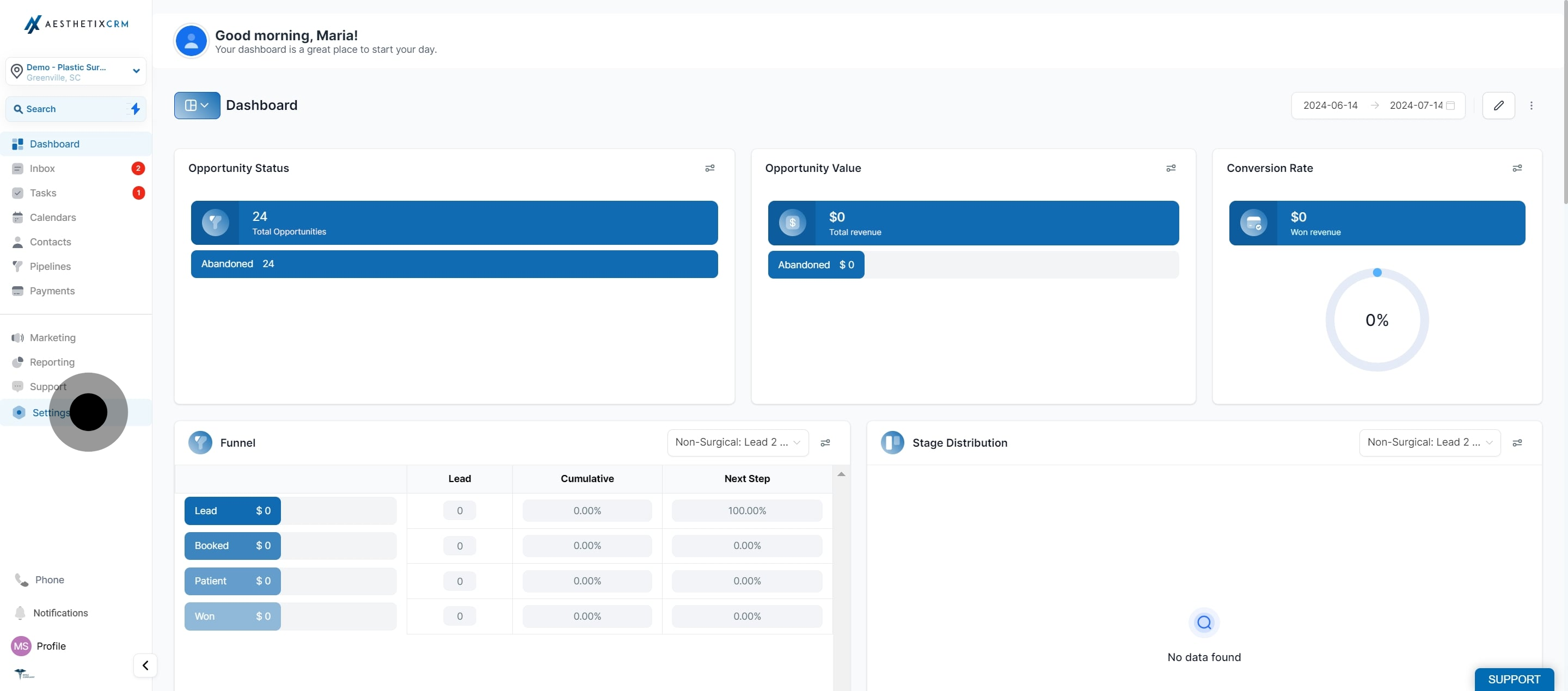
Click "Settings."
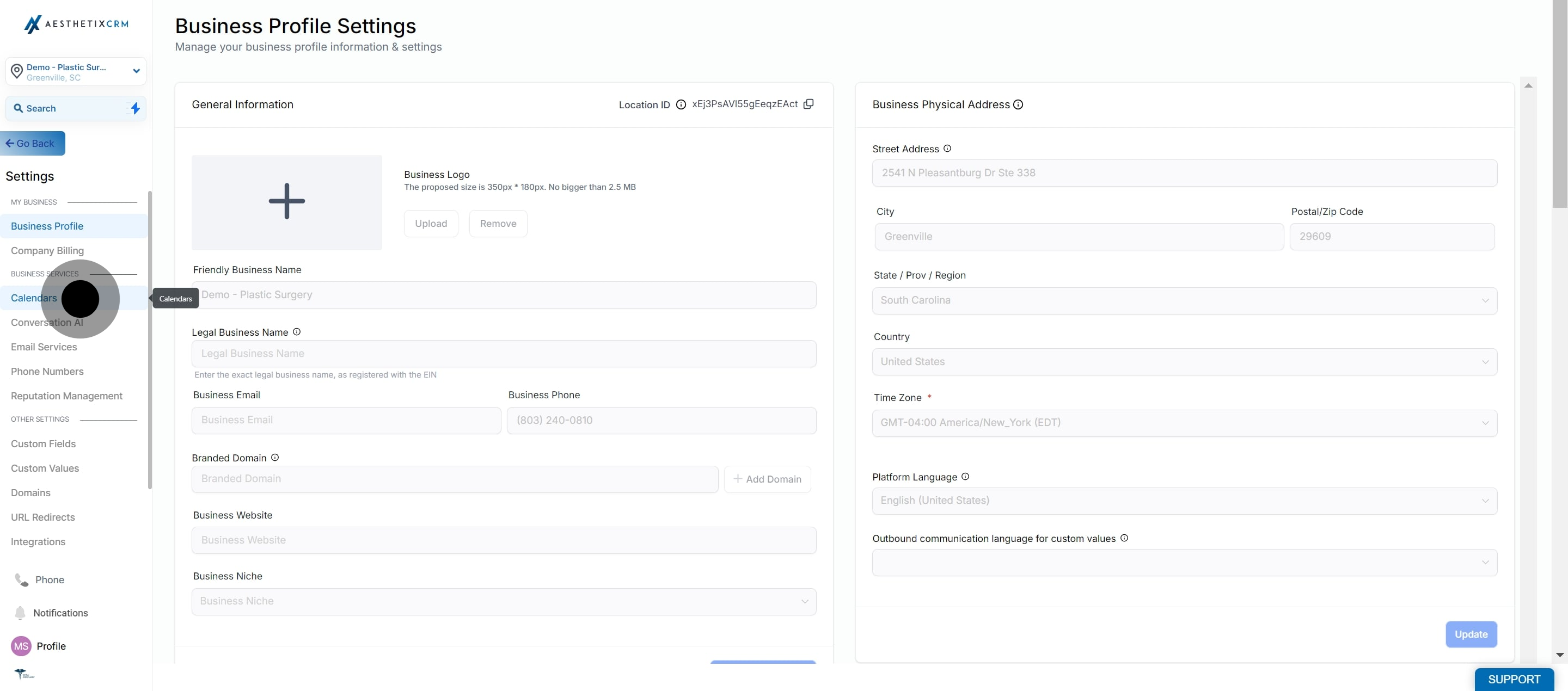
Select "Calendars" from the menu.
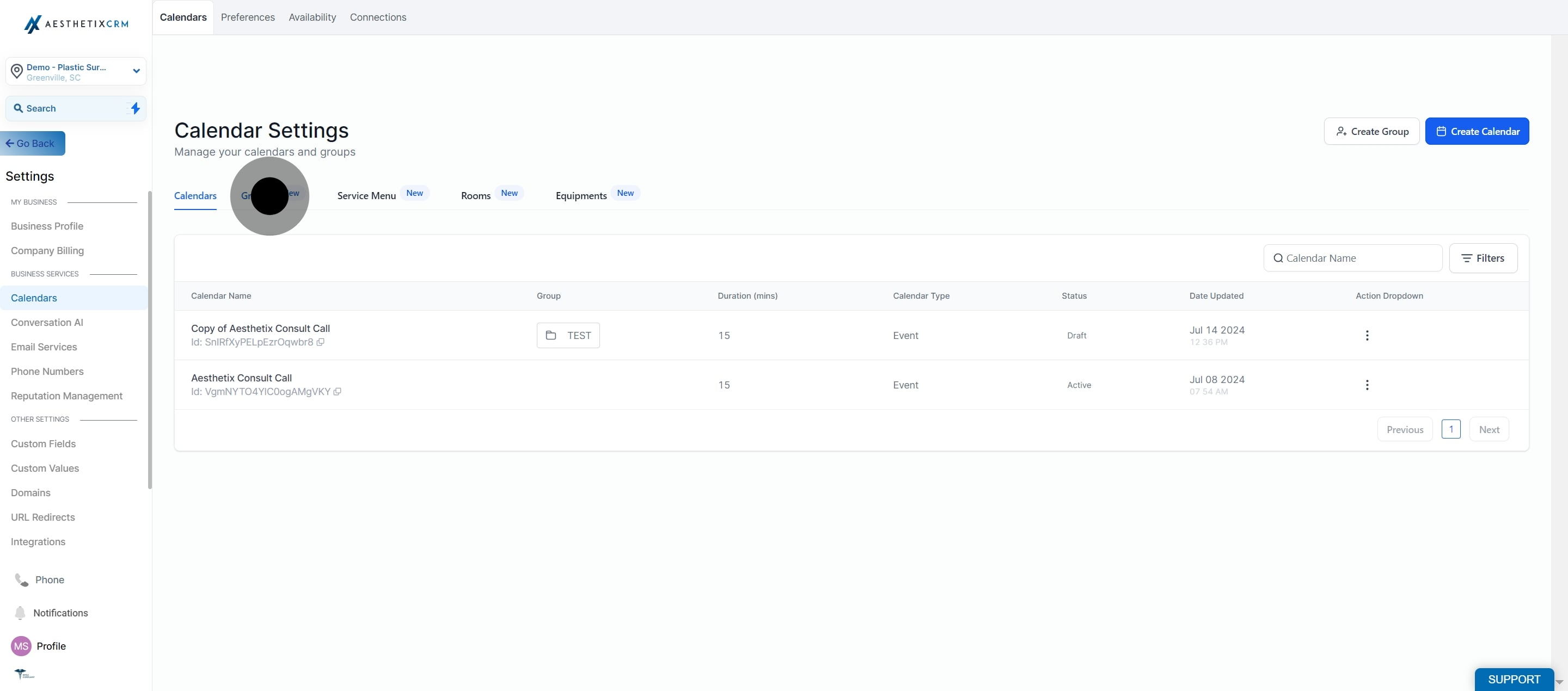
Click on "Groups."
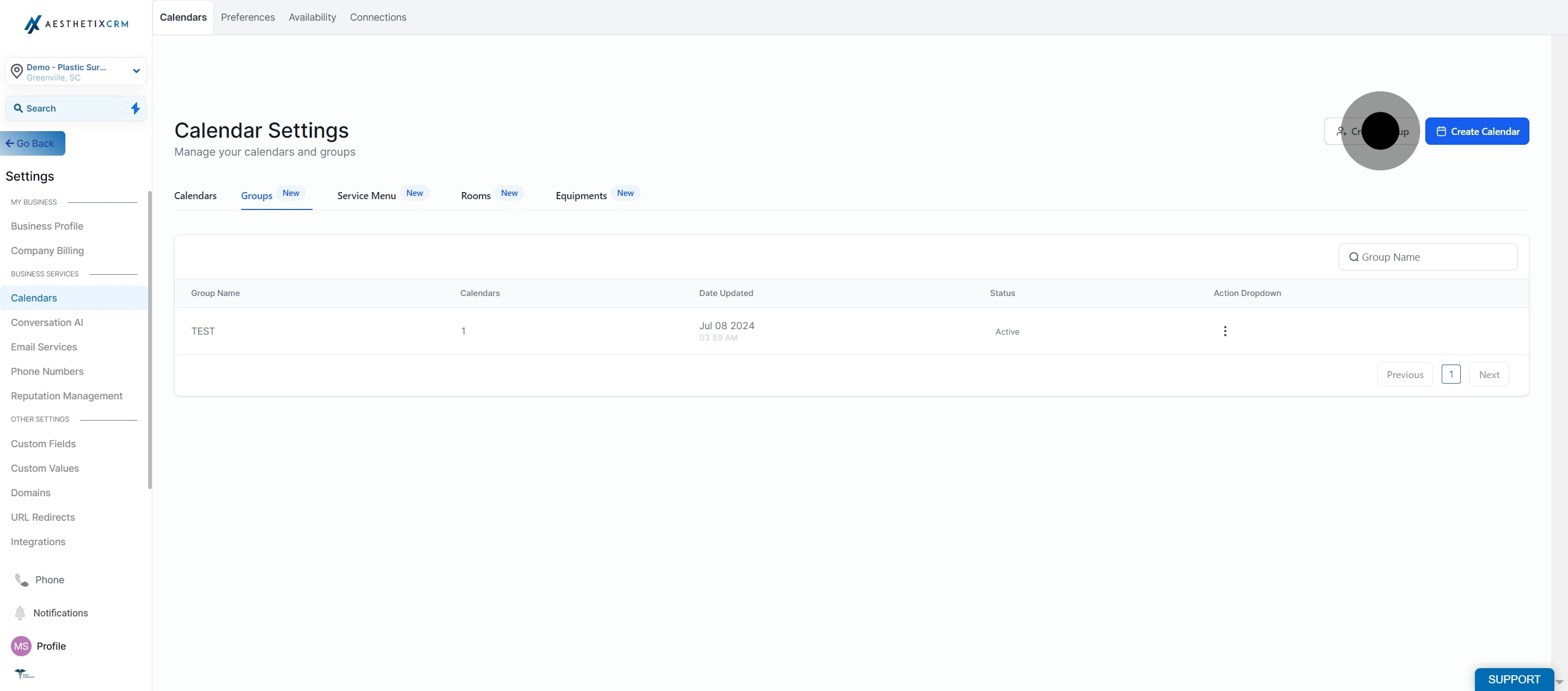
Click "Create Group."
Enter a name for your group, for example "Injectors" or "Facial Treatments."
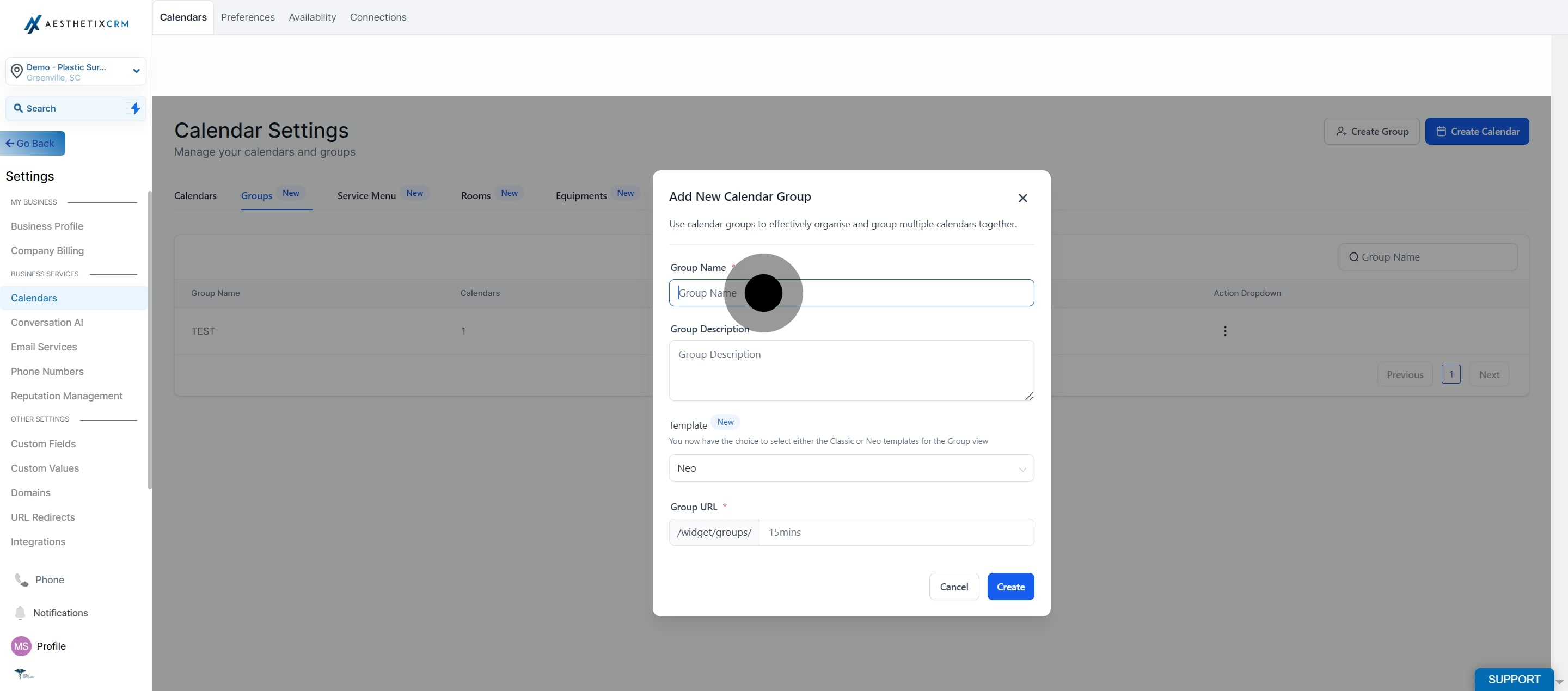
Add an optional description for the group.
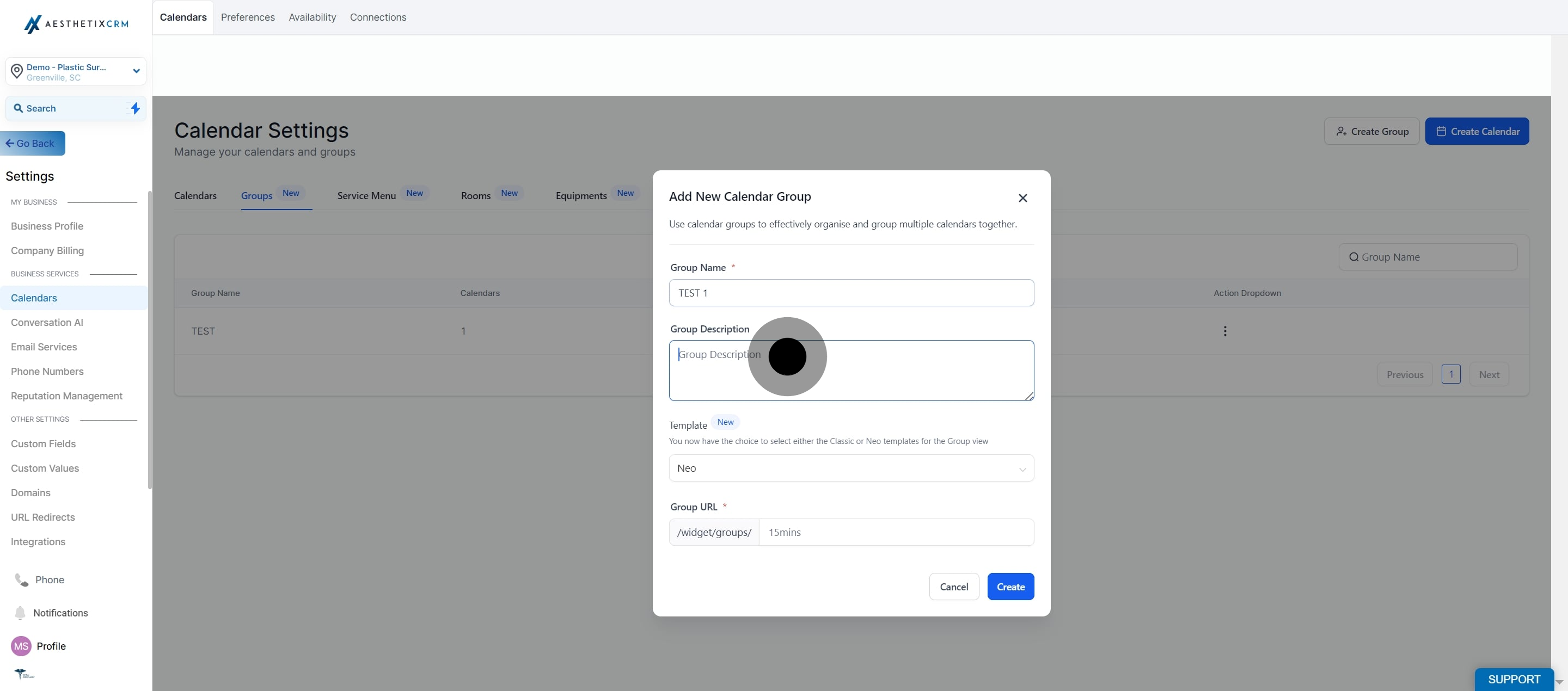
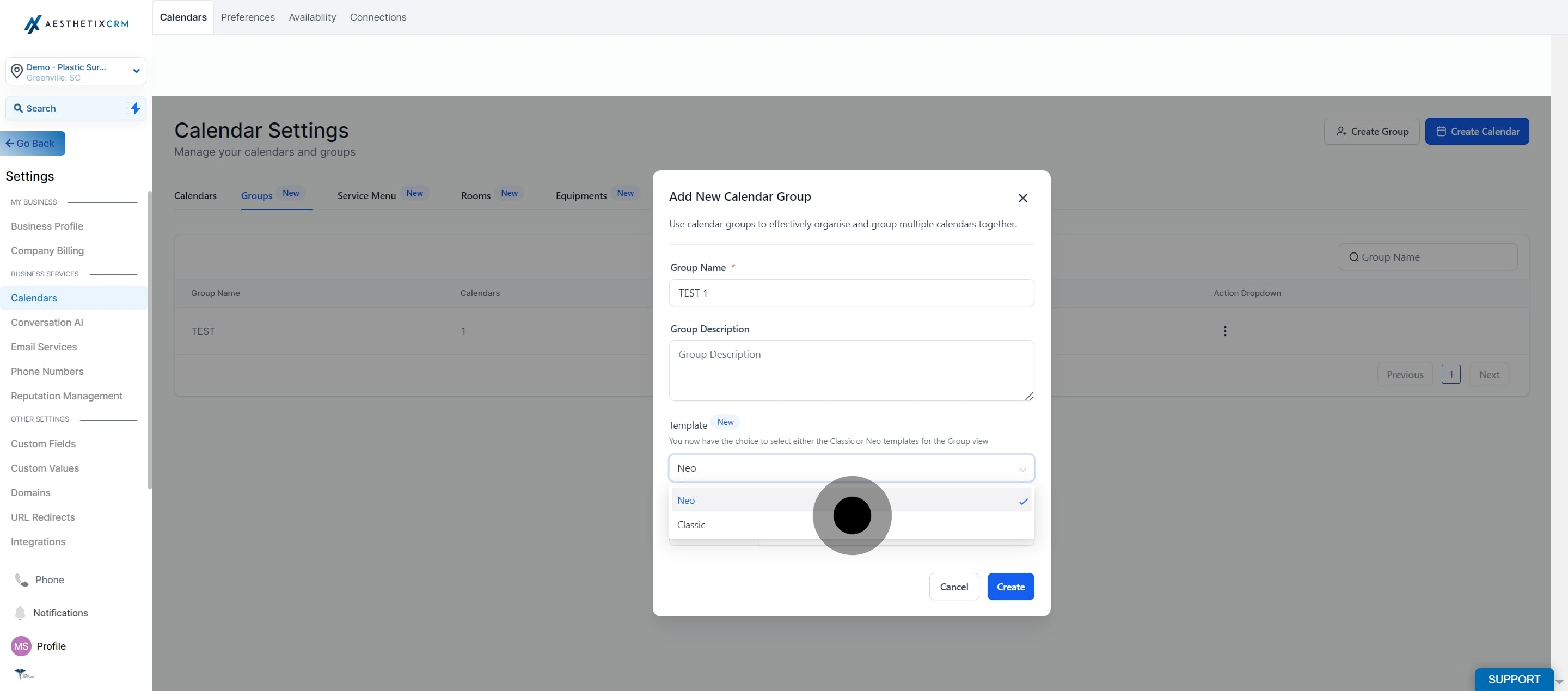
Select a template for the group view (Classic or Neo).
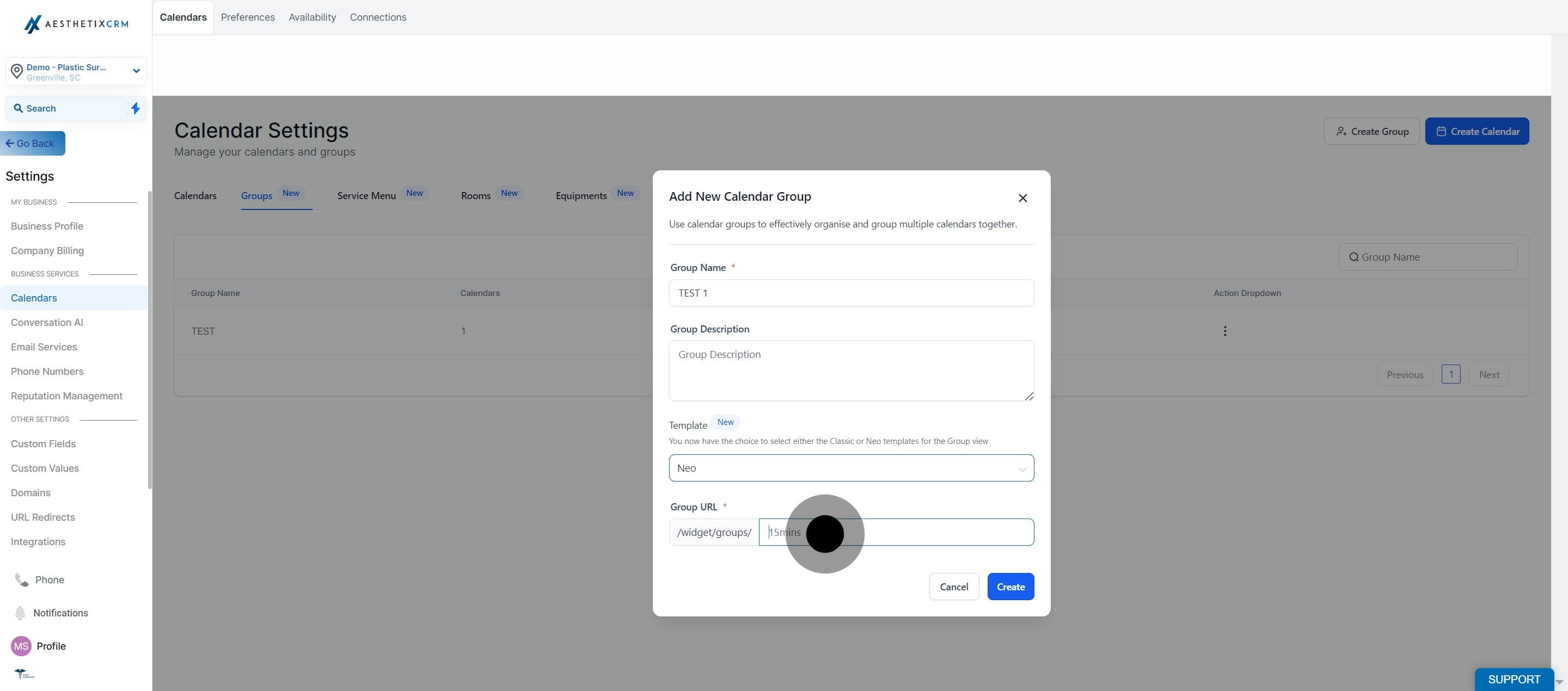
Set the group URL slug.
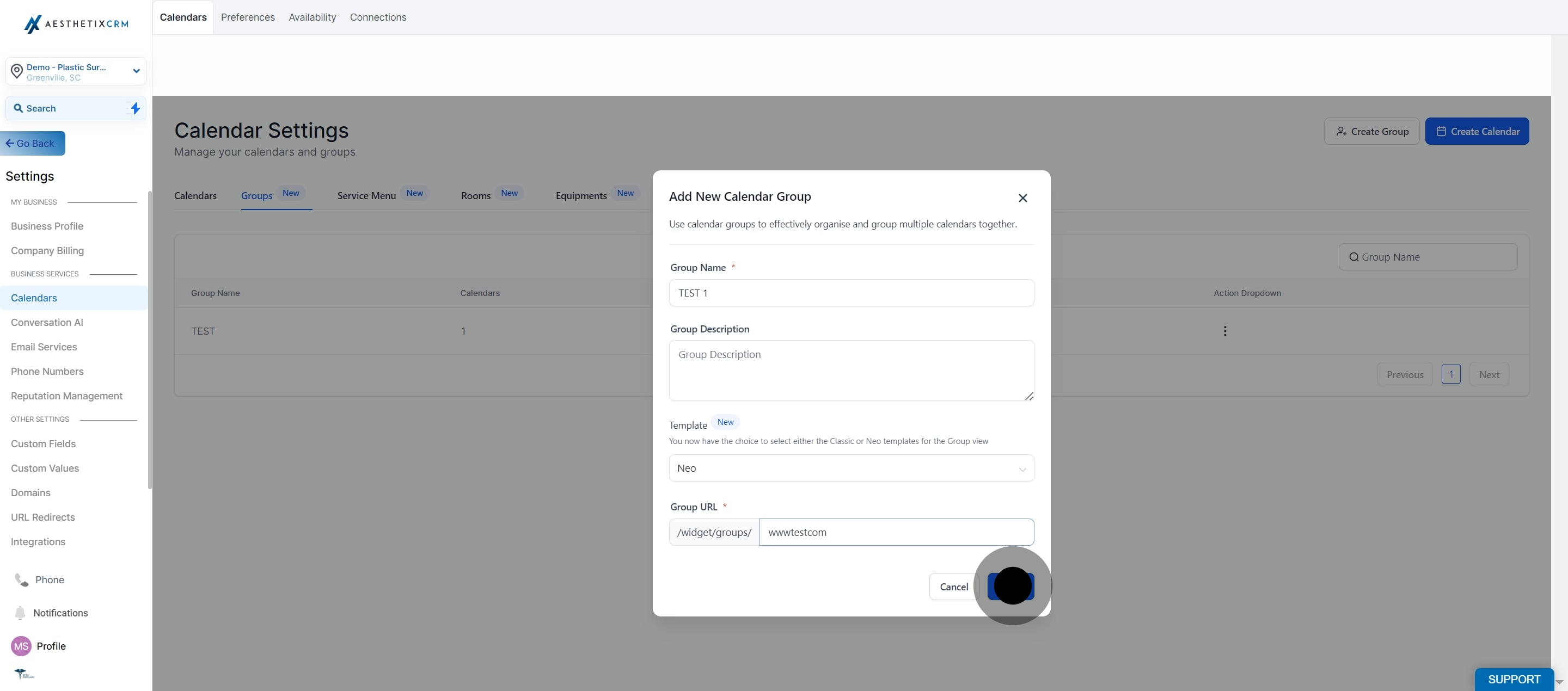
Click "Create" to finish.
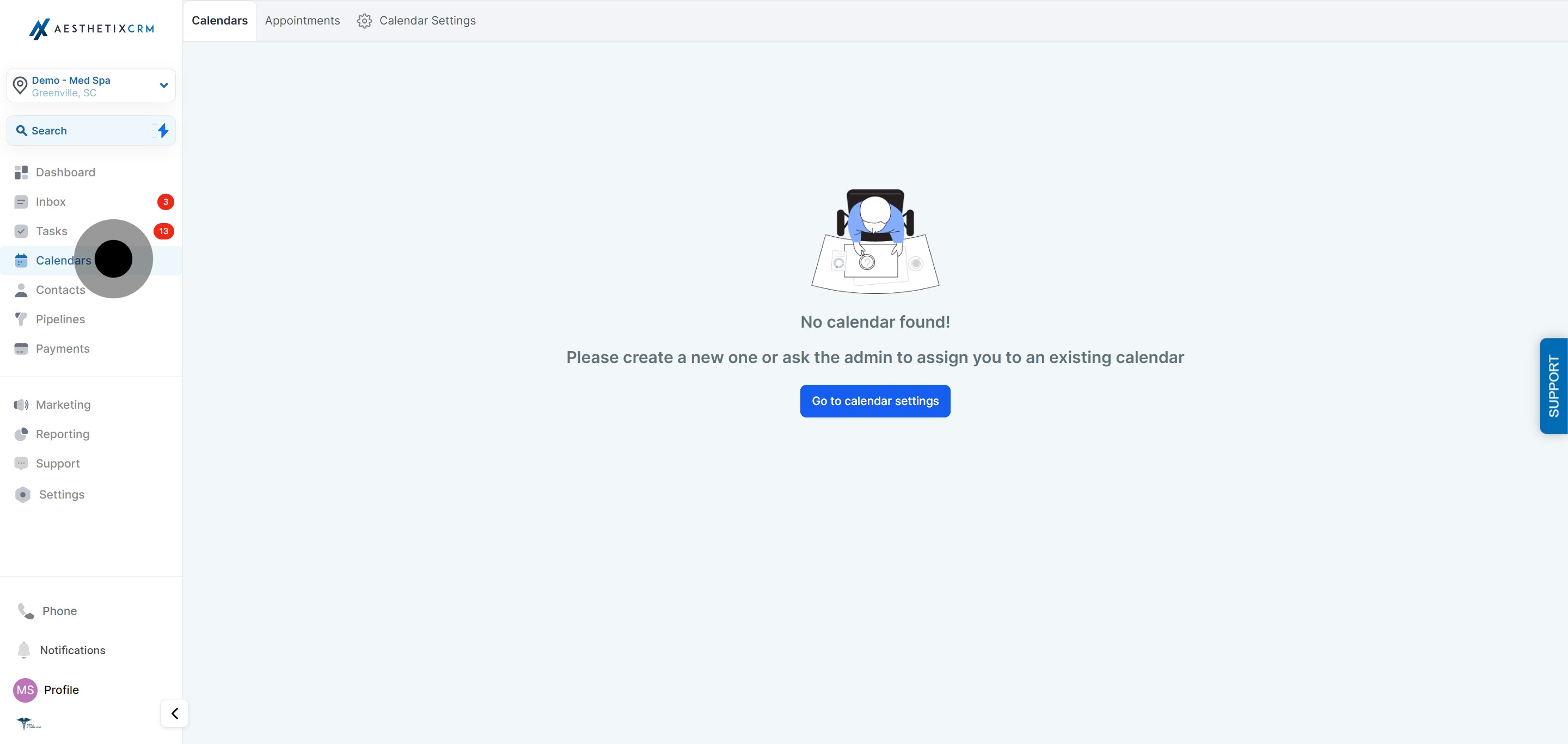
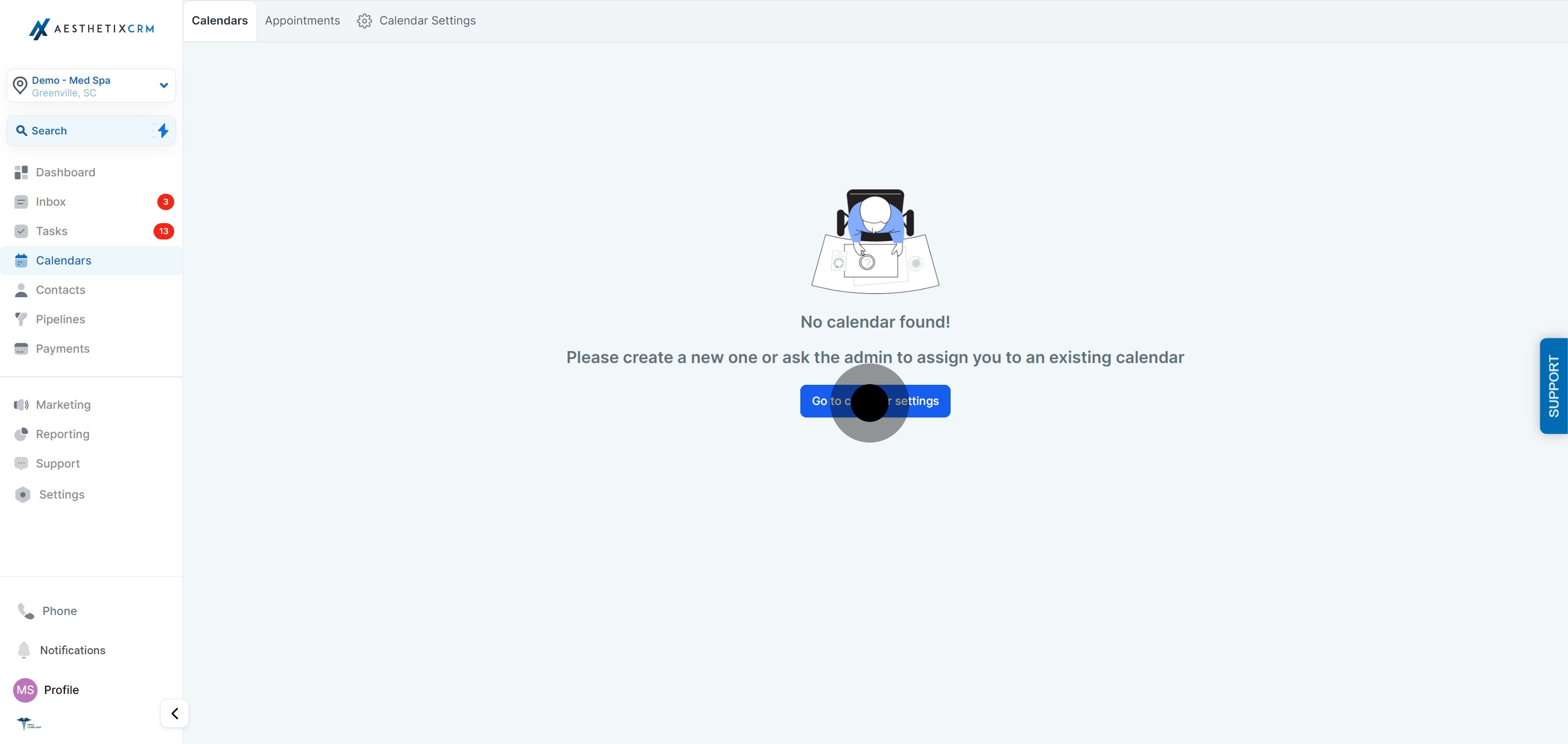
Click "Calendar" in the left navigation, then select "Go to Calendar Settings."
Confirm you've landed on Calendar Settings.
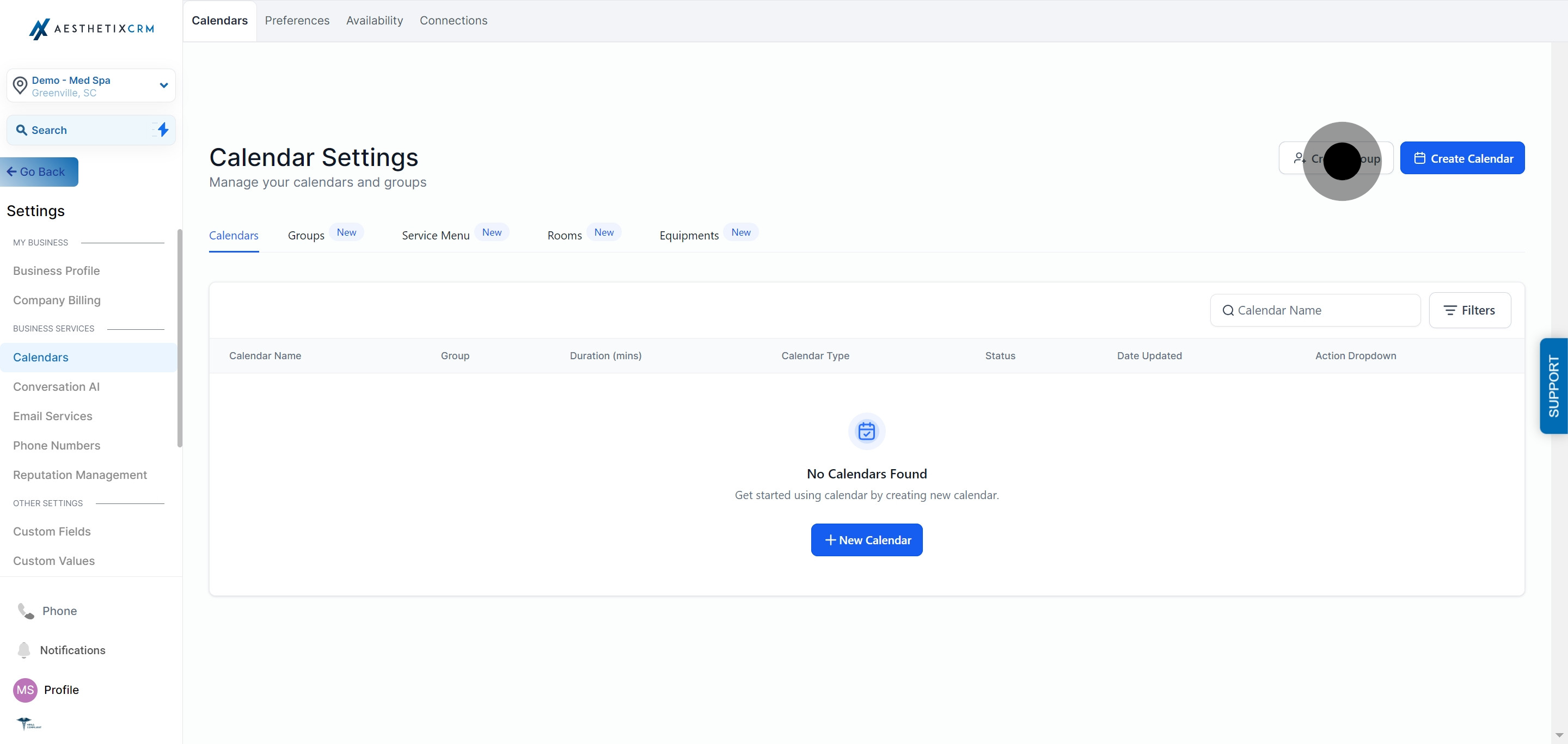
Click "Create Group."
Enter your group name.
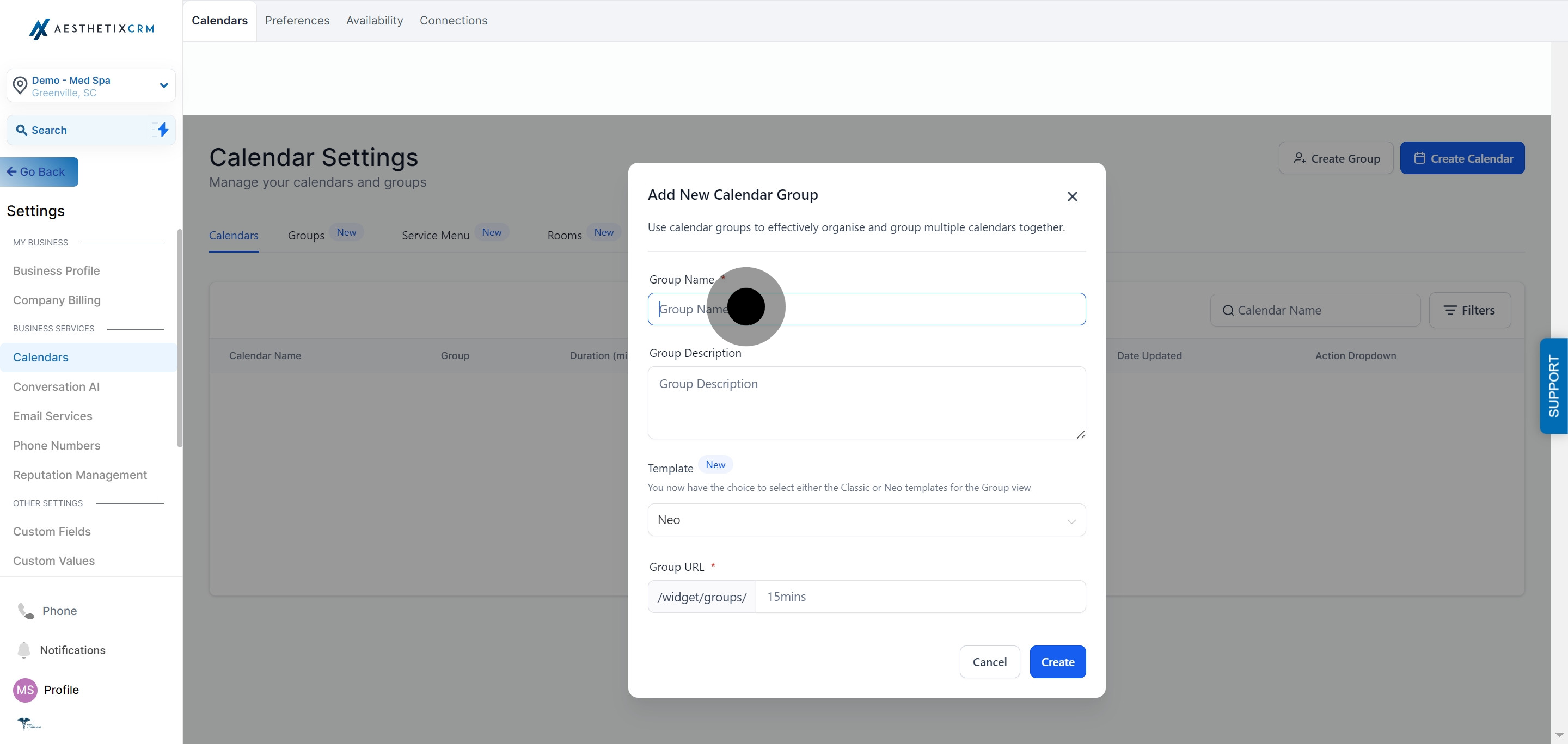
Write a description for the group.
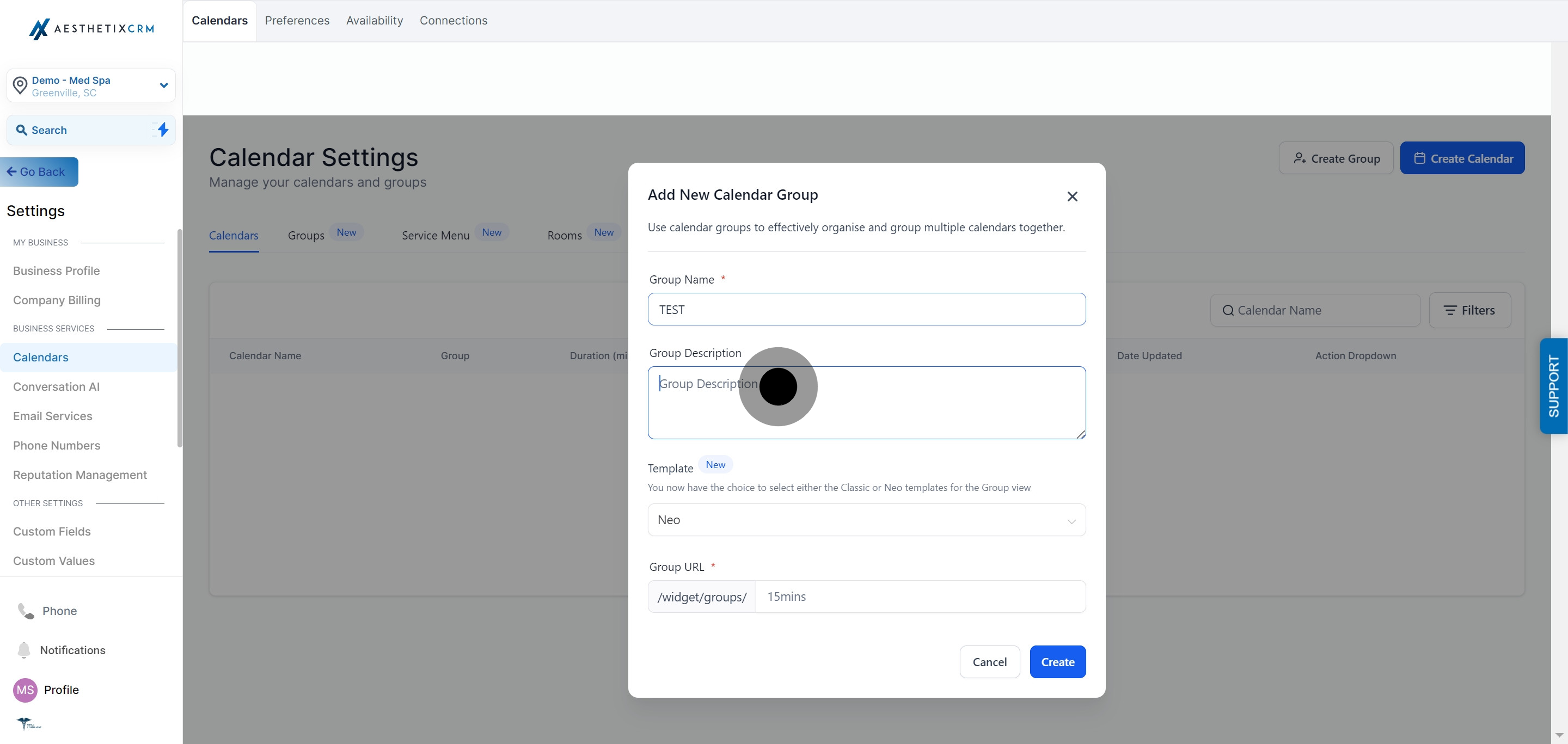
Select a template from the available options.
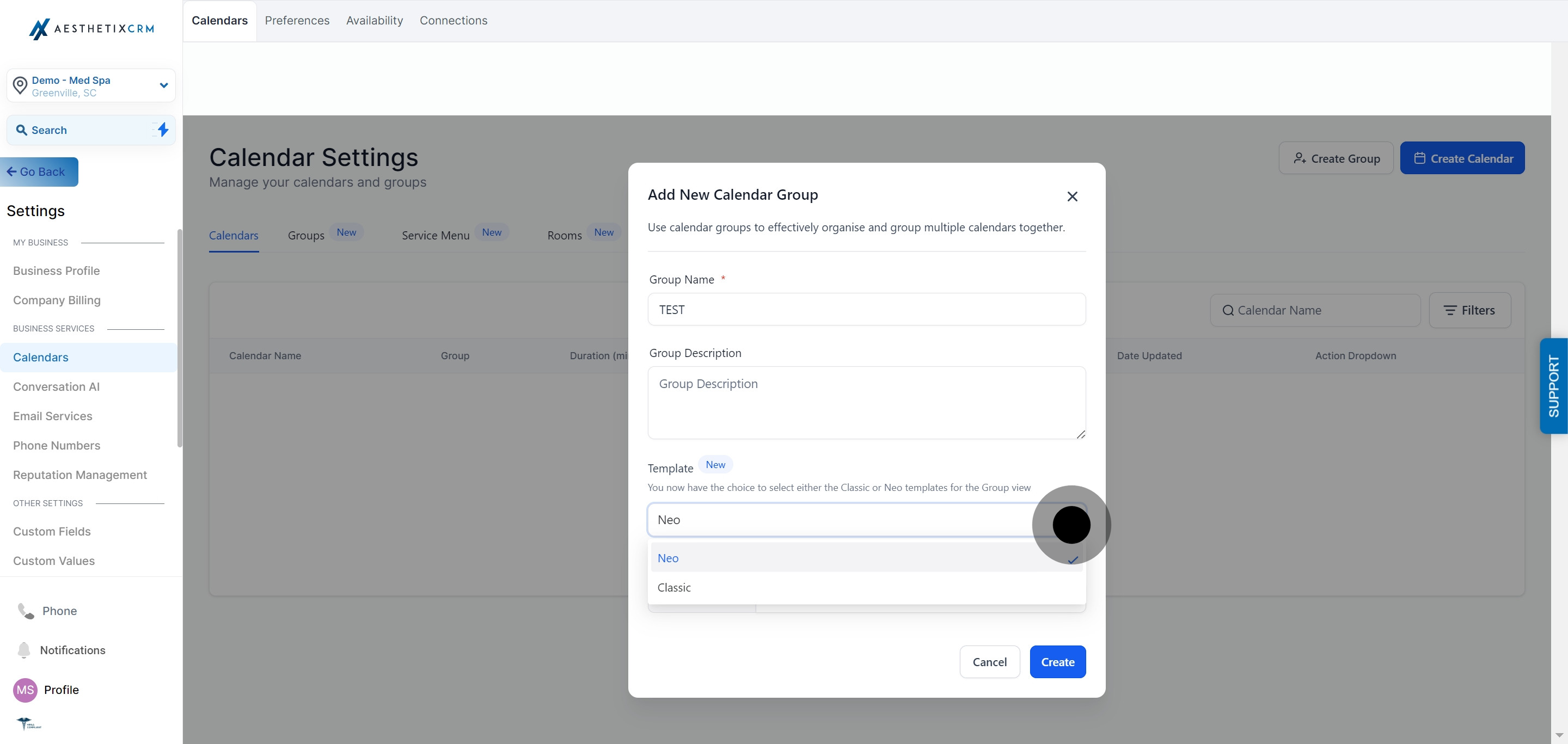
Enter your group URL.
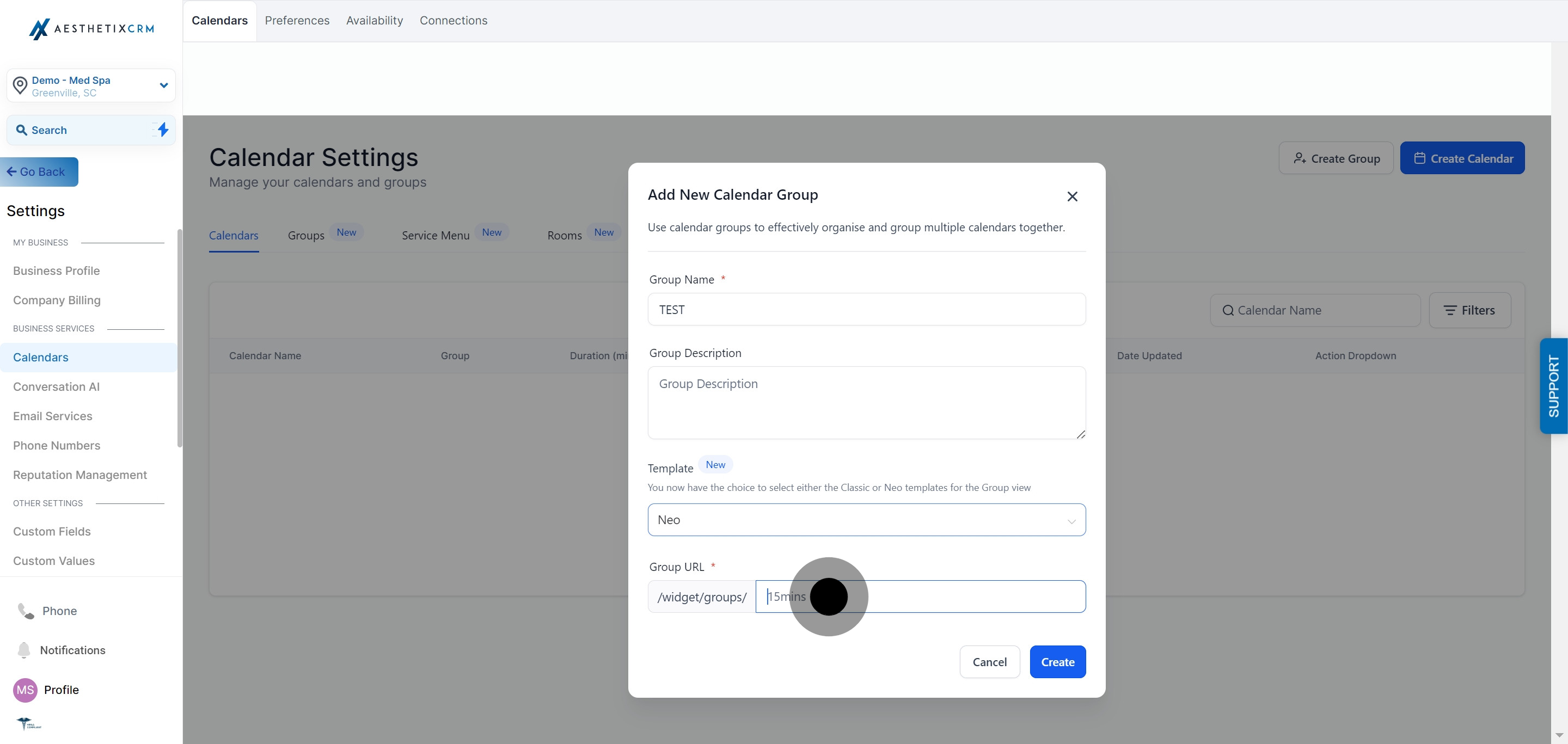
Click "Create" to finish.

After you click Create, a popup appears with two options:
Choose Calendars: select the individual calendars you want to add to the group directly from the popup, then click Confirm.
I'll Do It Later: skip this step and add calendars to the group afterward from the group's settings.
If no calendars appear in the popup, make sure you've created your individual calendars first. Calendar Groups can only pull in calendars that already exist.
Each team member whose calendar is part of a group needs a Primary Calendar configured in their own calendar settings for appointments to sync to a personal calendar like Google or Outlook. Connecting Google, Outlook, iCloud, Zoom, or Calendly accounts is handled in the Connections sub-collection, not inside the group itself.
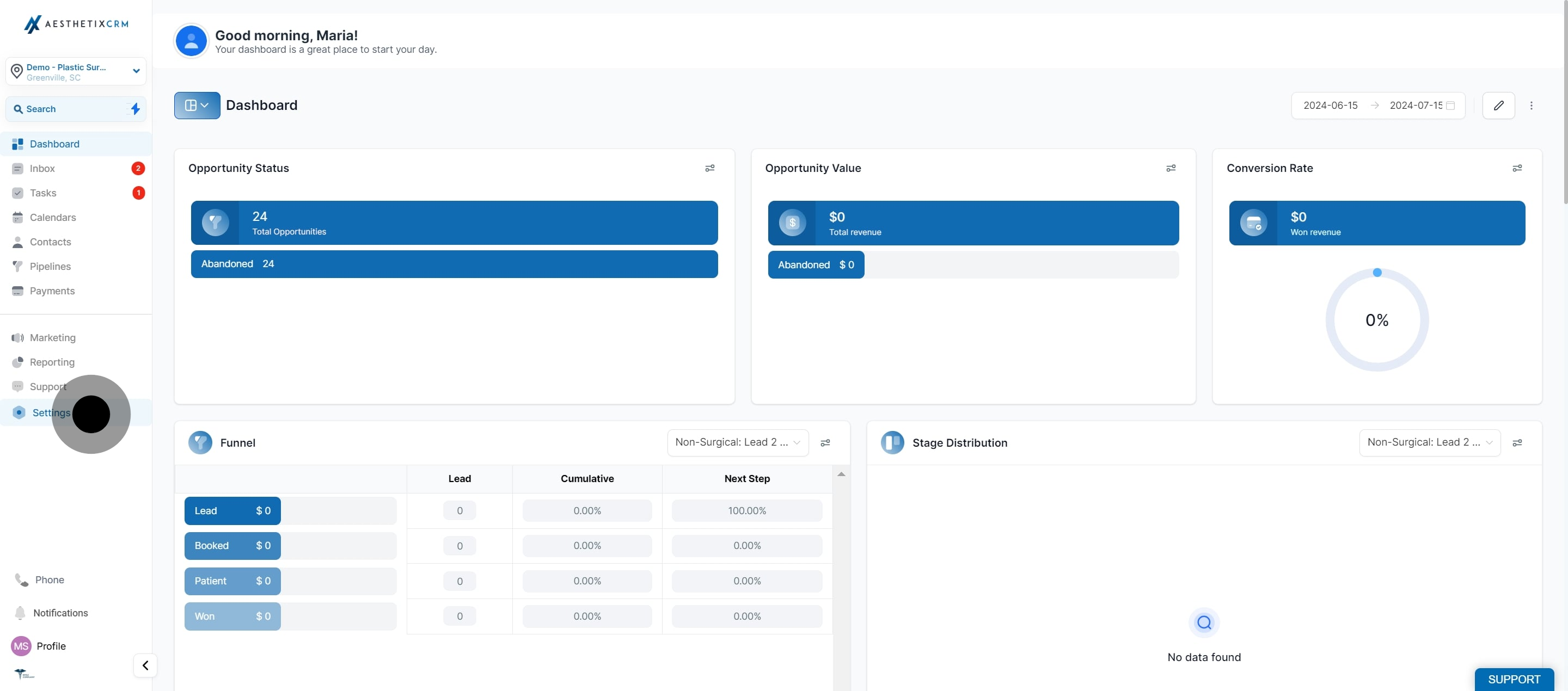
Click "Settings."
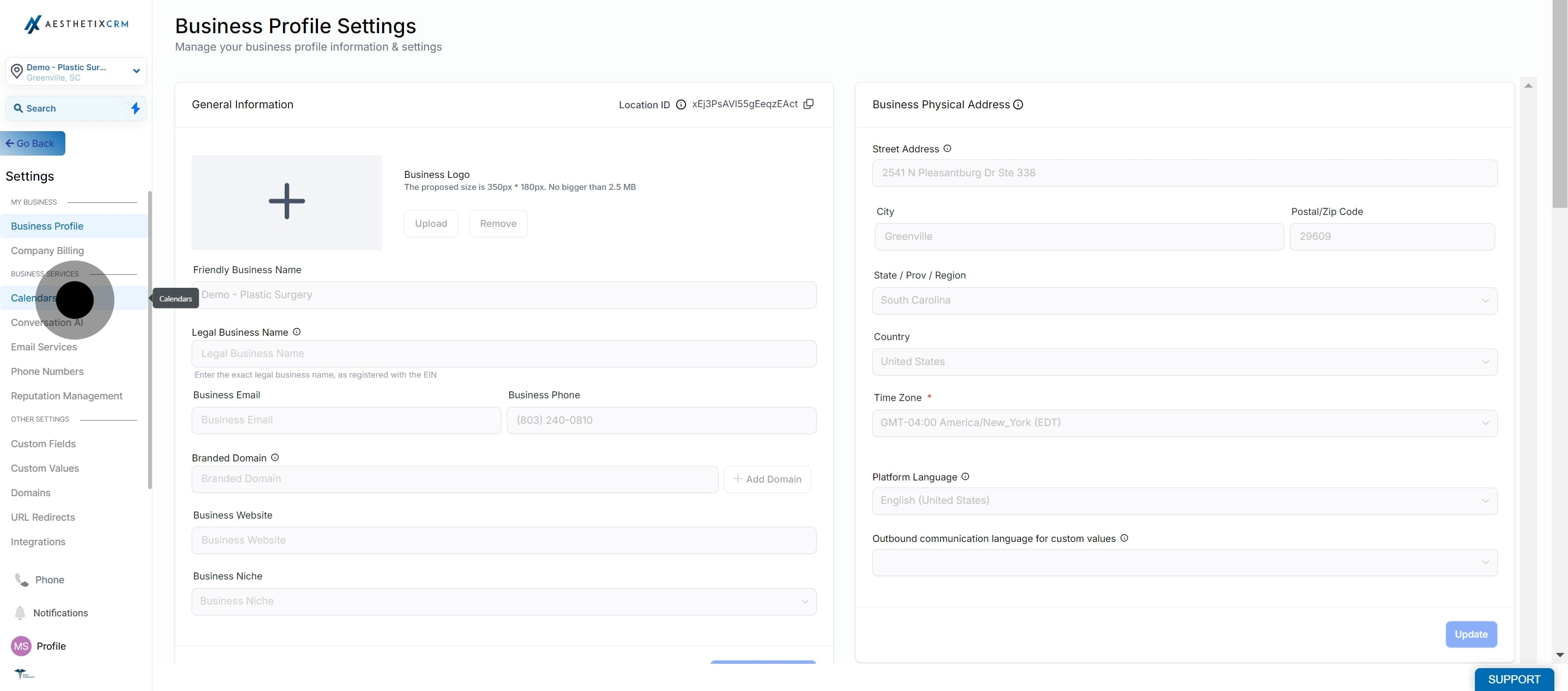
Select "Calendars" from the menu.
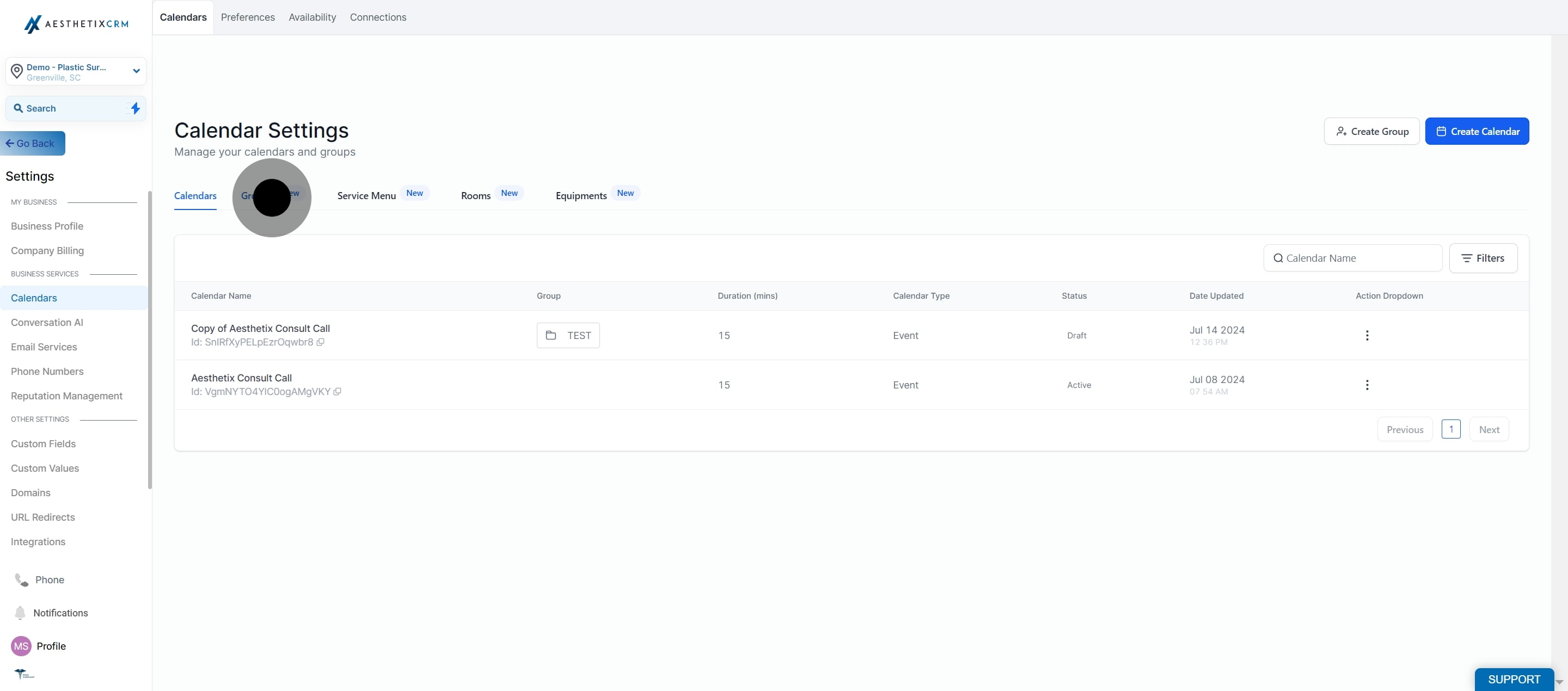
Click on "Groups."
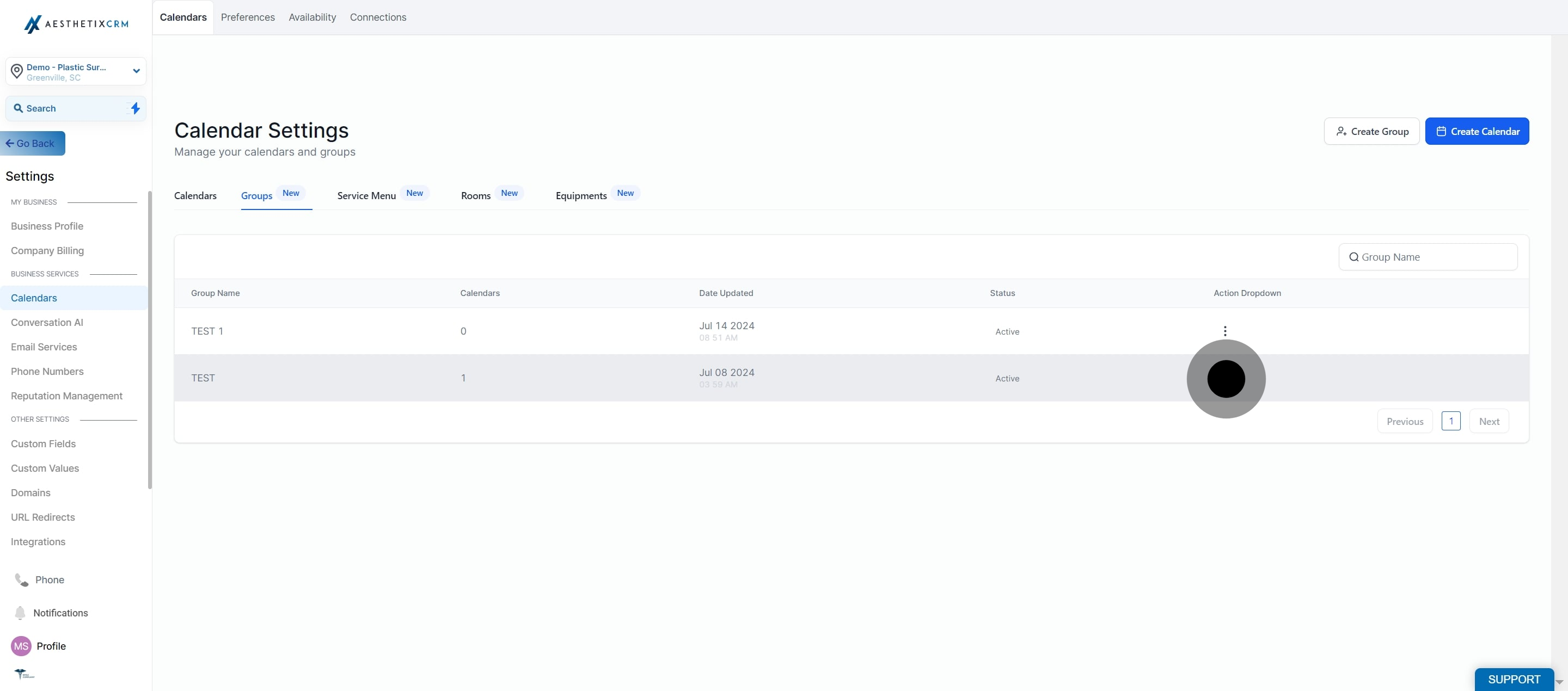
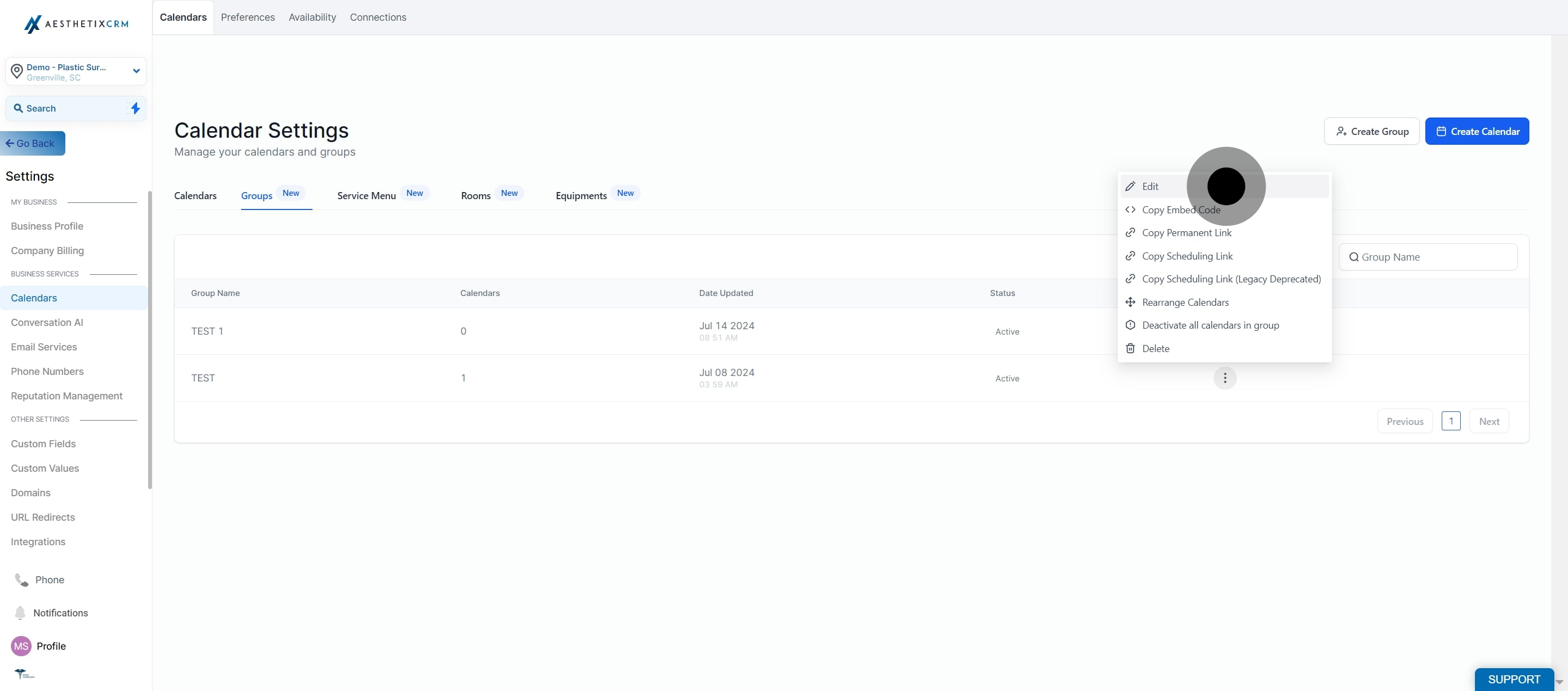
Find the group you want to edit and click the three dots next to it.
Click "Edit."
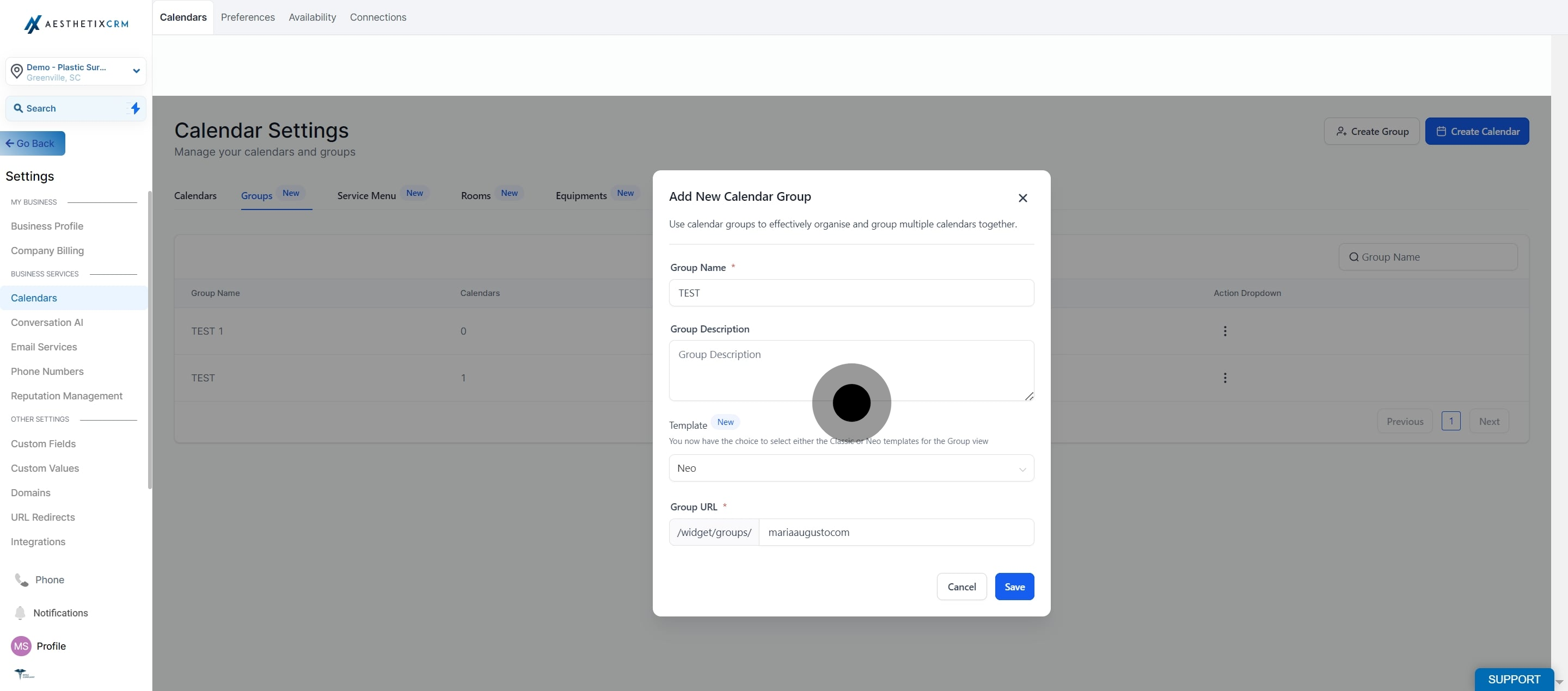
Make the changes you want to the group's name, description, template, URL, or the calendars assigned to it.
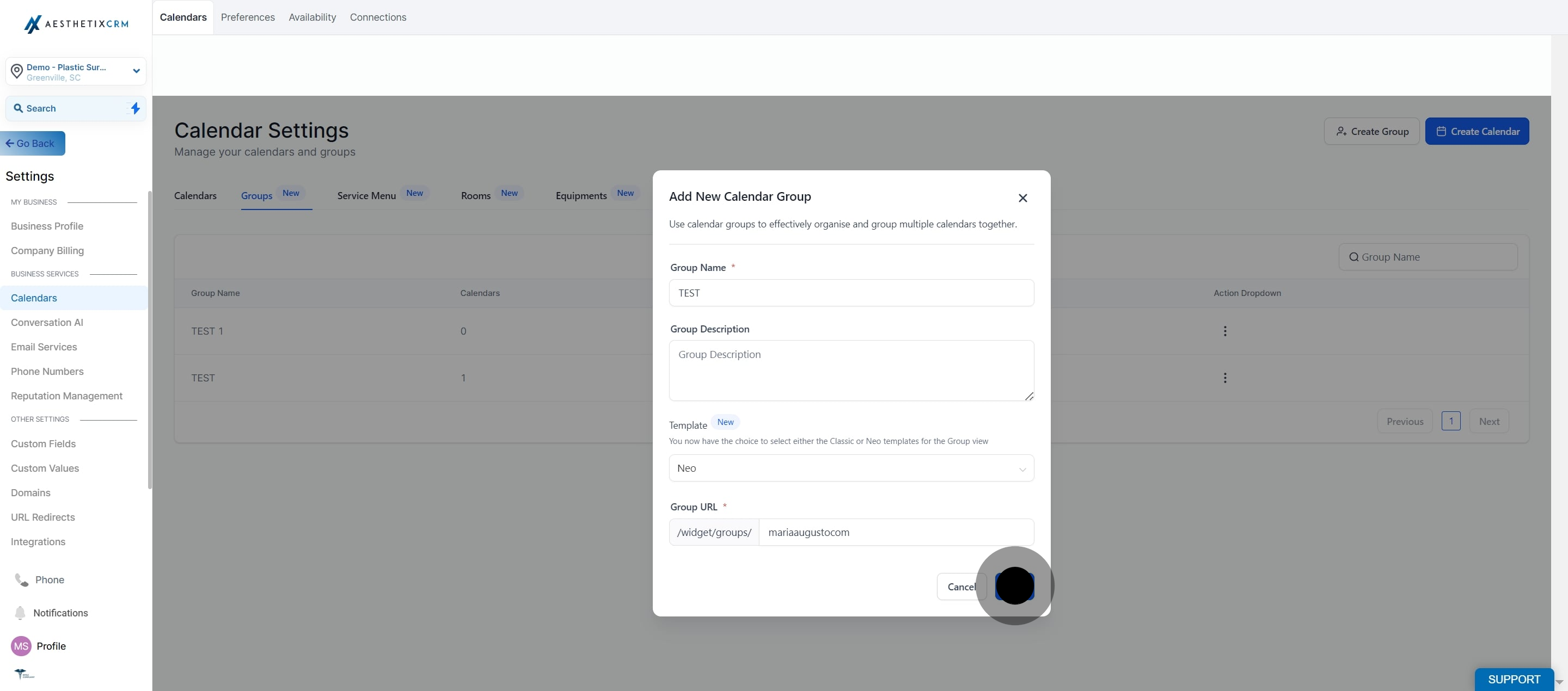
Click "Save" to apply the updates.
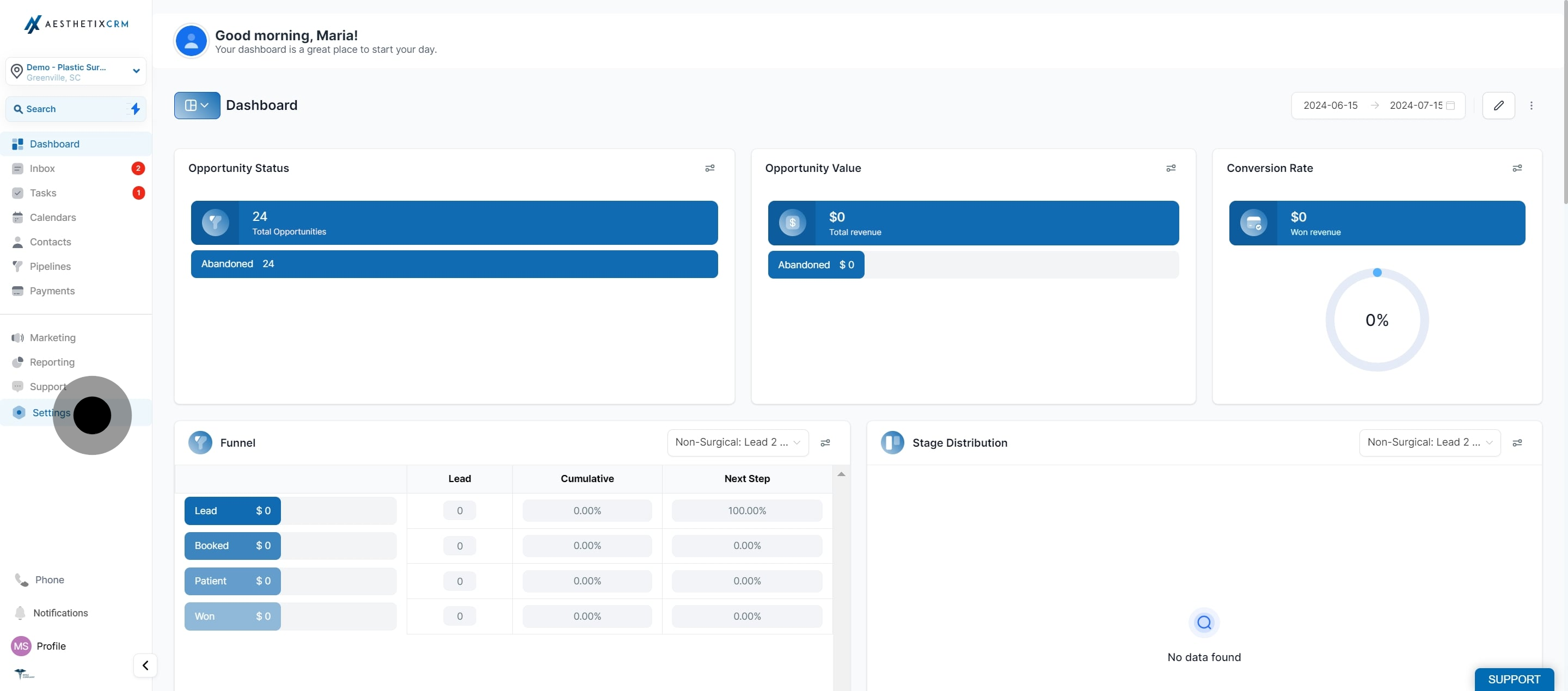
Click "Settings."
Select "Calendars" from the menu.
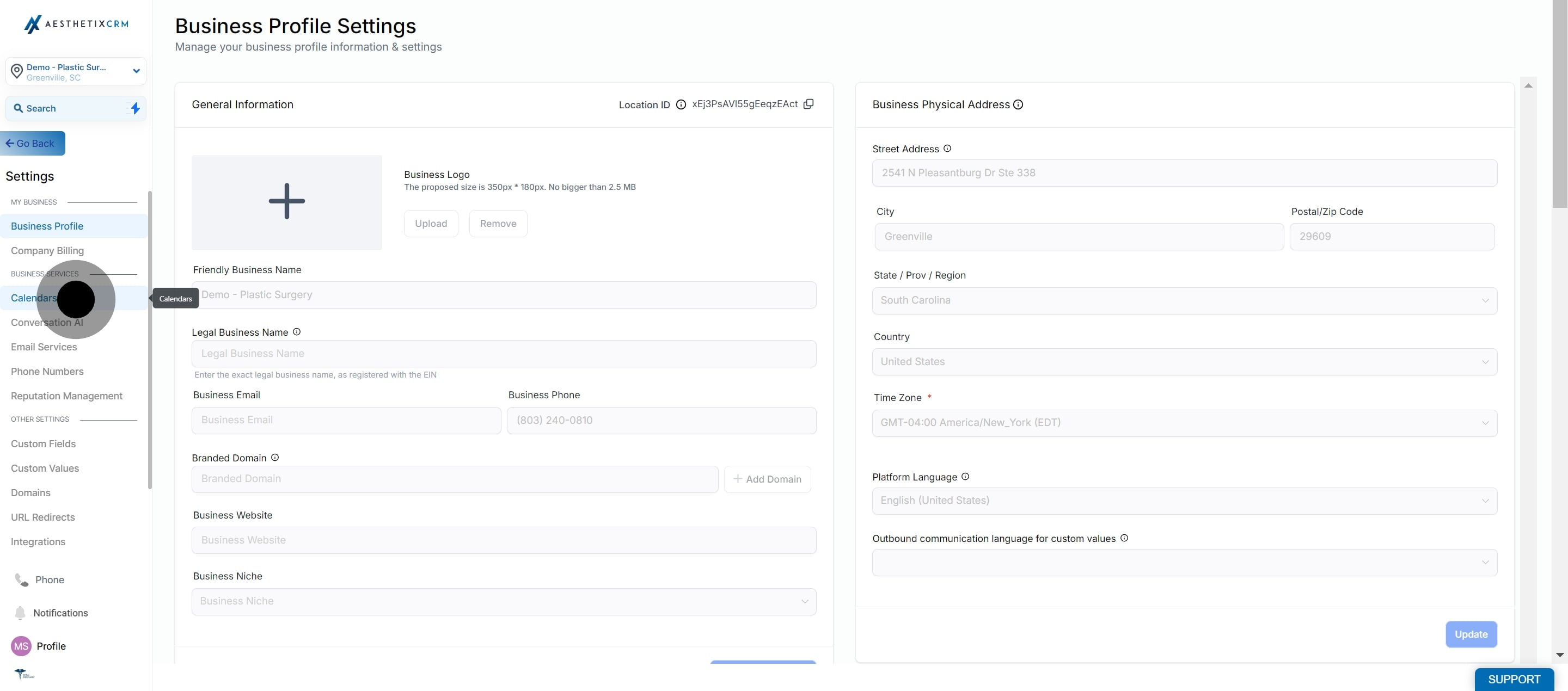
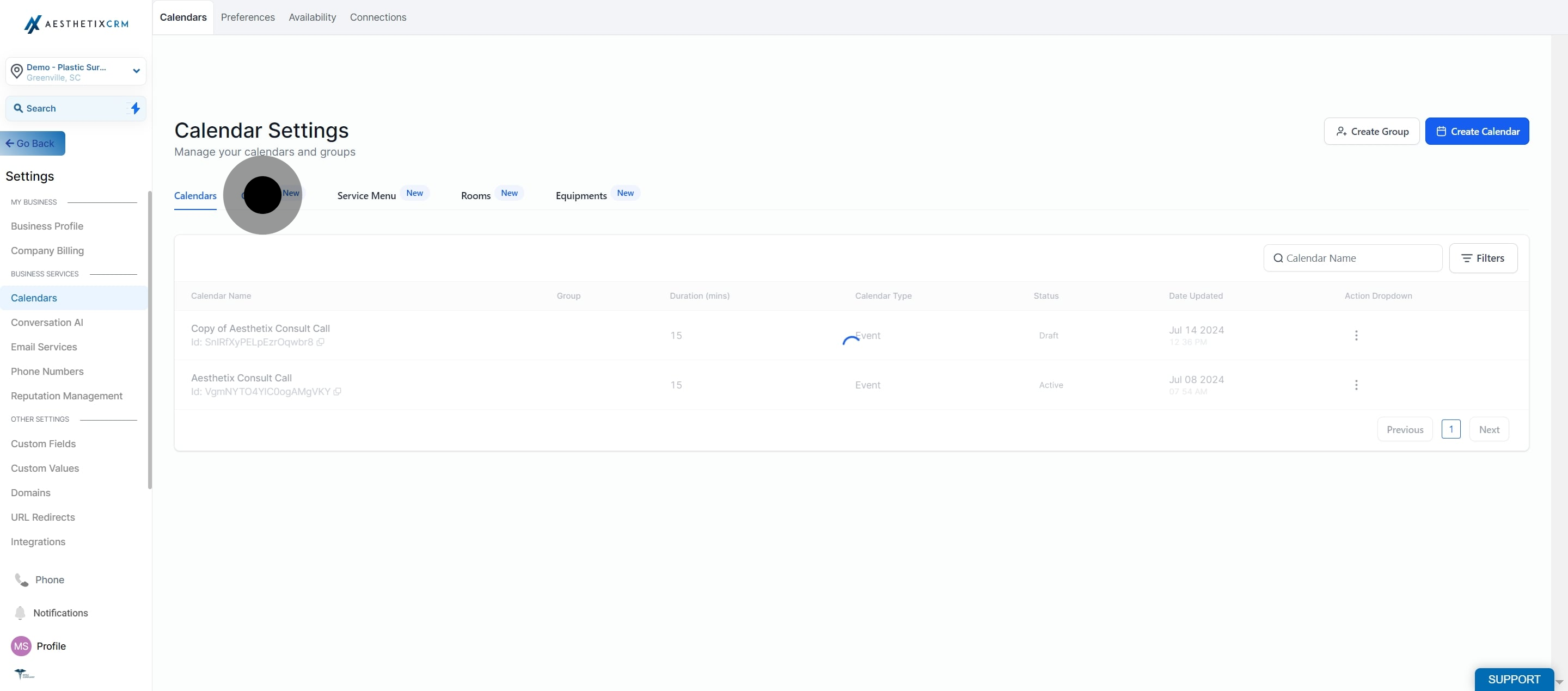
Click on "Groups."
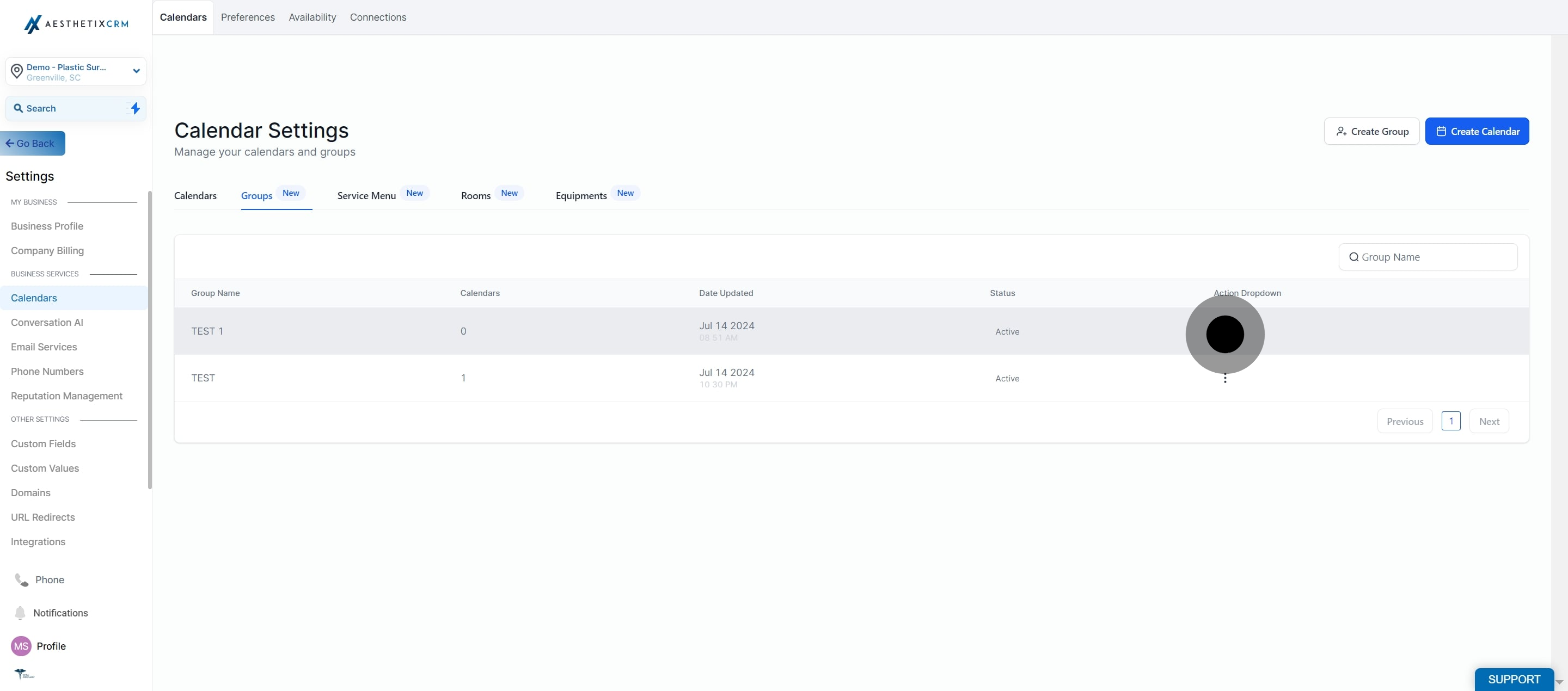
Find the group you want to delete and click the three dots next to it.
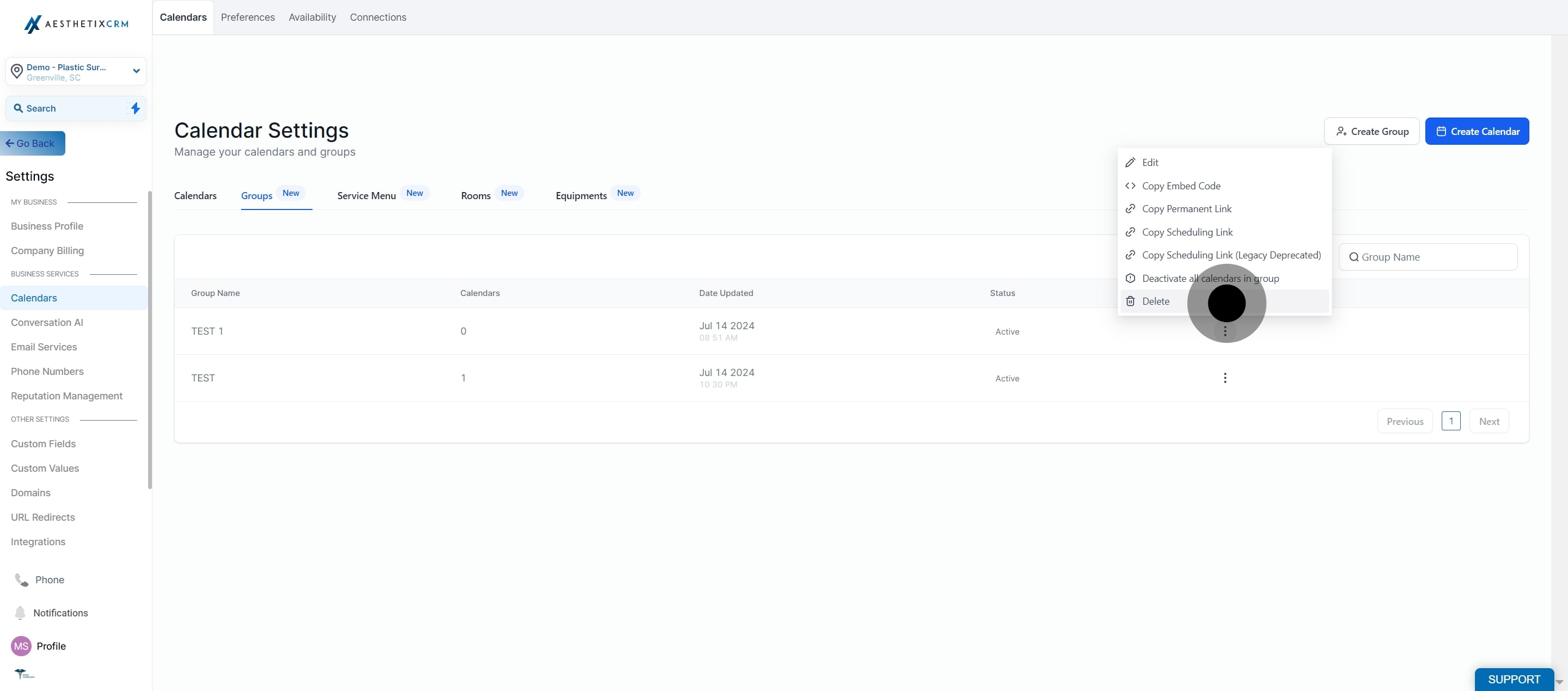
Click "Delete."
Confirm by clicking "Delete" again.
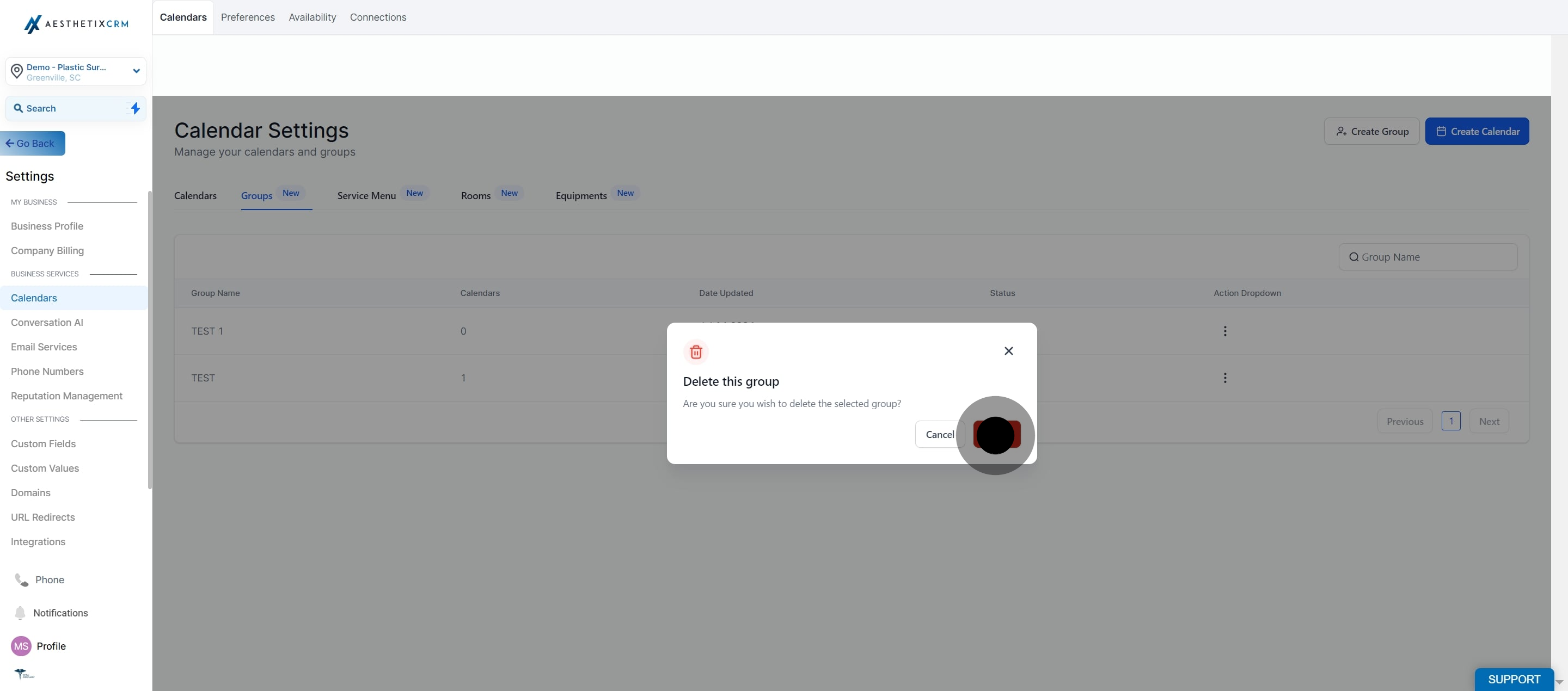
Deleting a group removes the group link itself, not the individual calendars inside it. Those calendars, and their own booking links, remain intact and usable on their own. On the flip side, if you delete an individual calendar that happens to be inside a group, the group keeps existing but that calendar simply stops showing up as a booking option. It's worth checking your group's calendar list after deleting any individual calendar to make sure the group still offers the options you expect.
Deactivating a group is a softer option than deleting it: it turns off booking for every calendar in the group at once, without deleting anything, which is useful when your practice is closed for a holiday or a provider is temporarily unavailable.
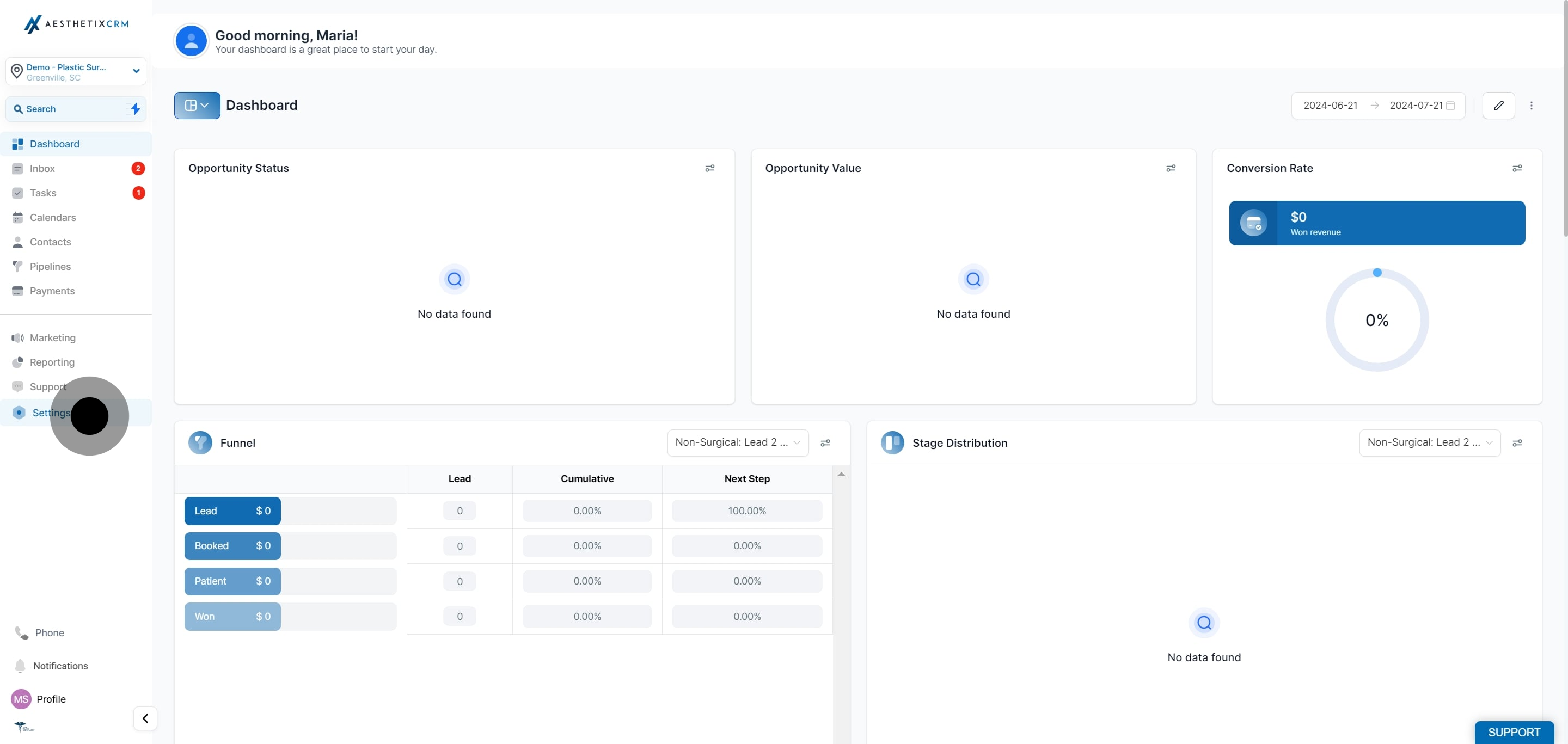
Click "Settings."
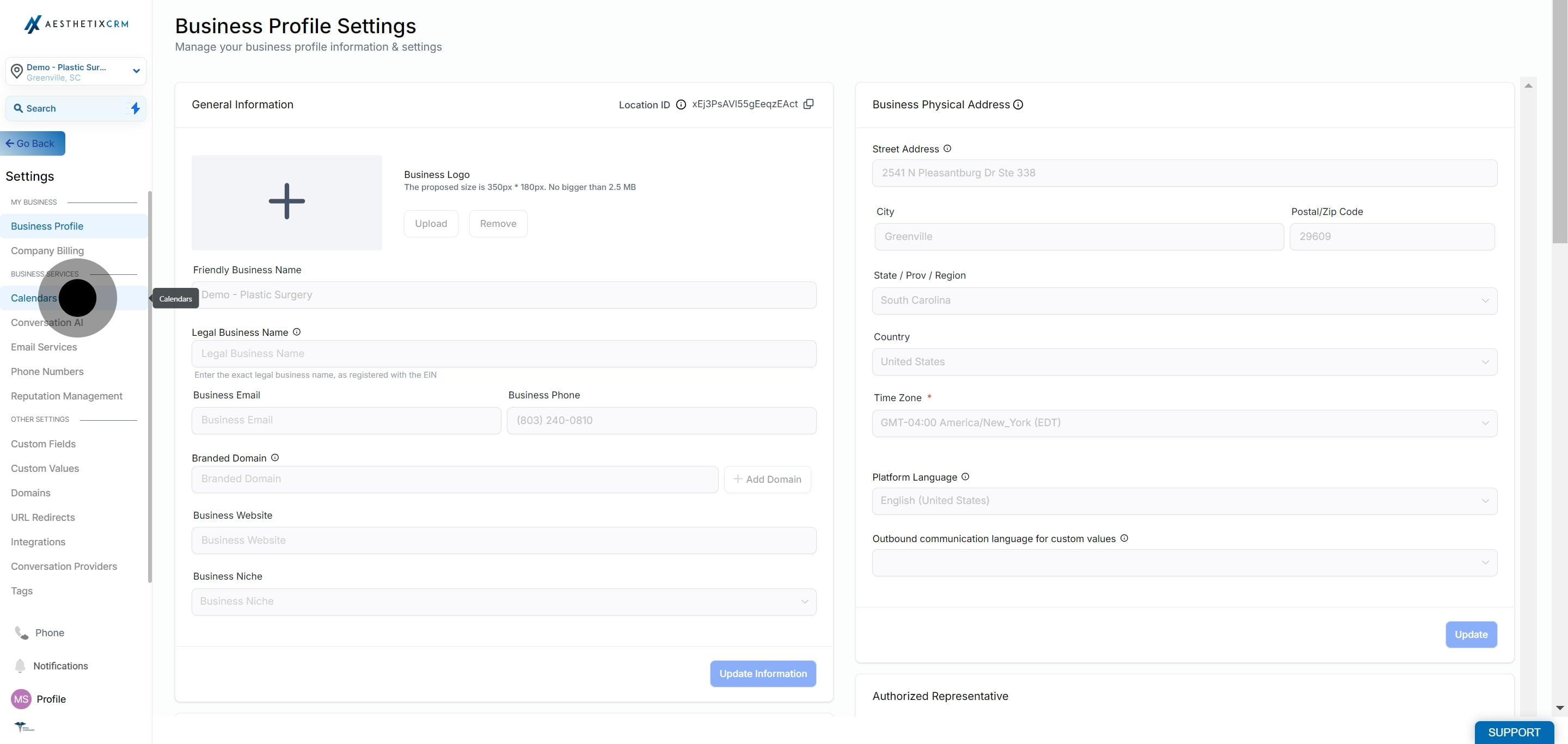
Click on "Calendars."
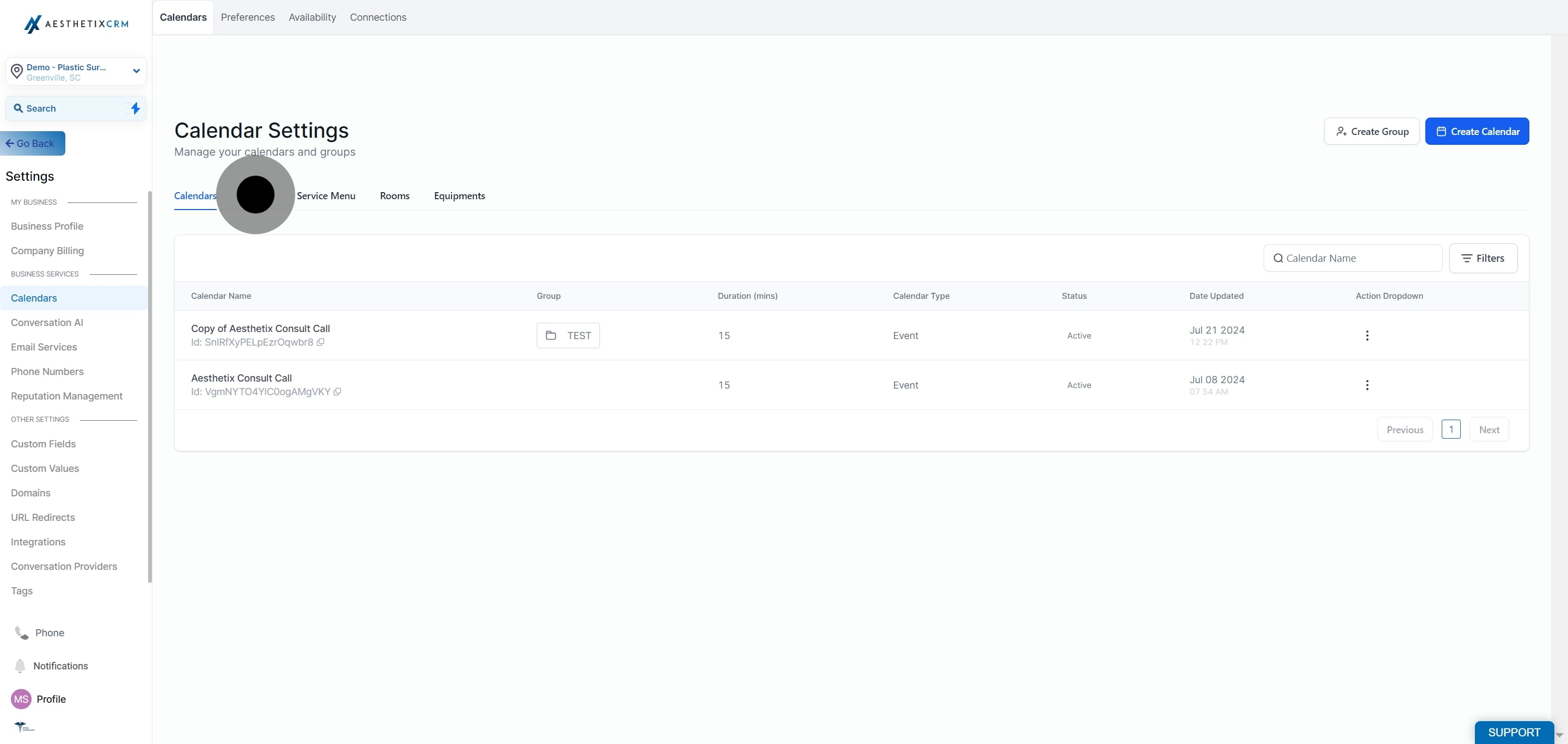
Click on "Groups."
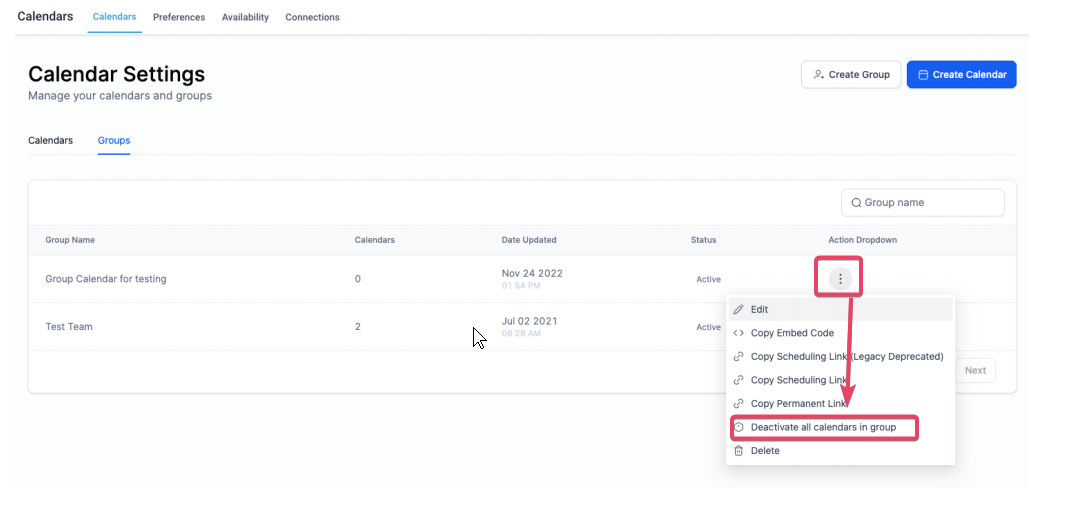
Find the group you want to deactivate and click the three dots next to it.
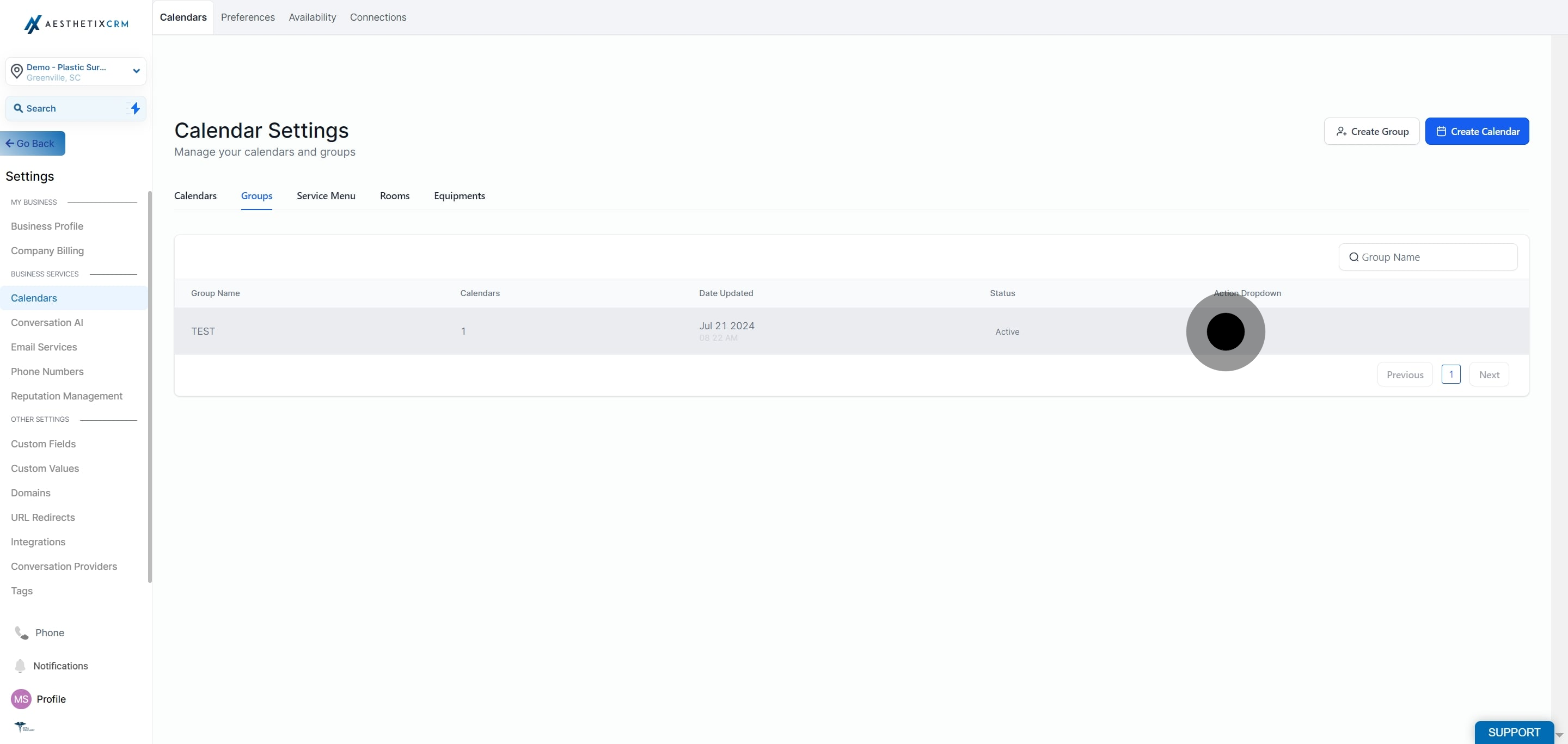
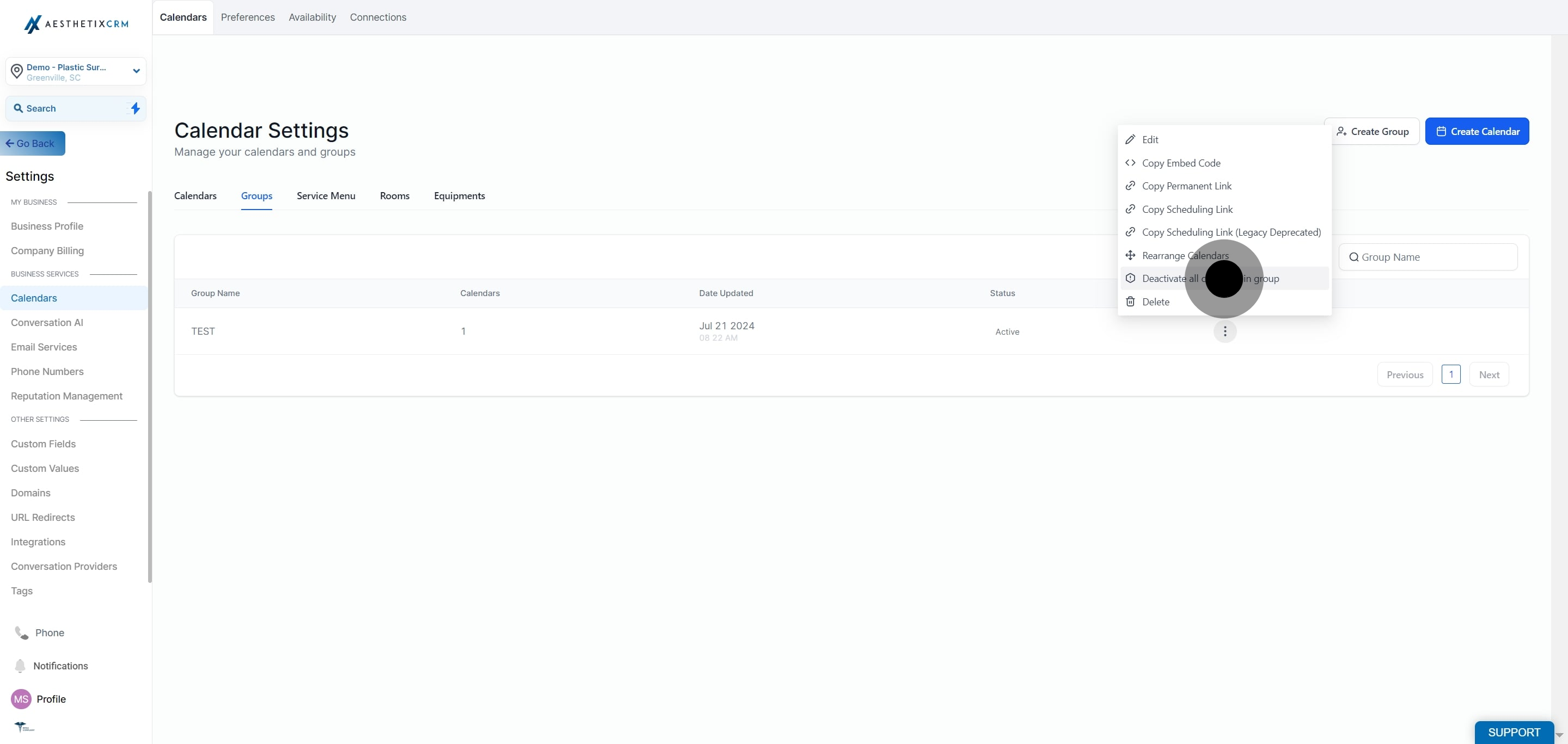
Click "Deactivate all calendars in group."
Click "Save" to confirm.
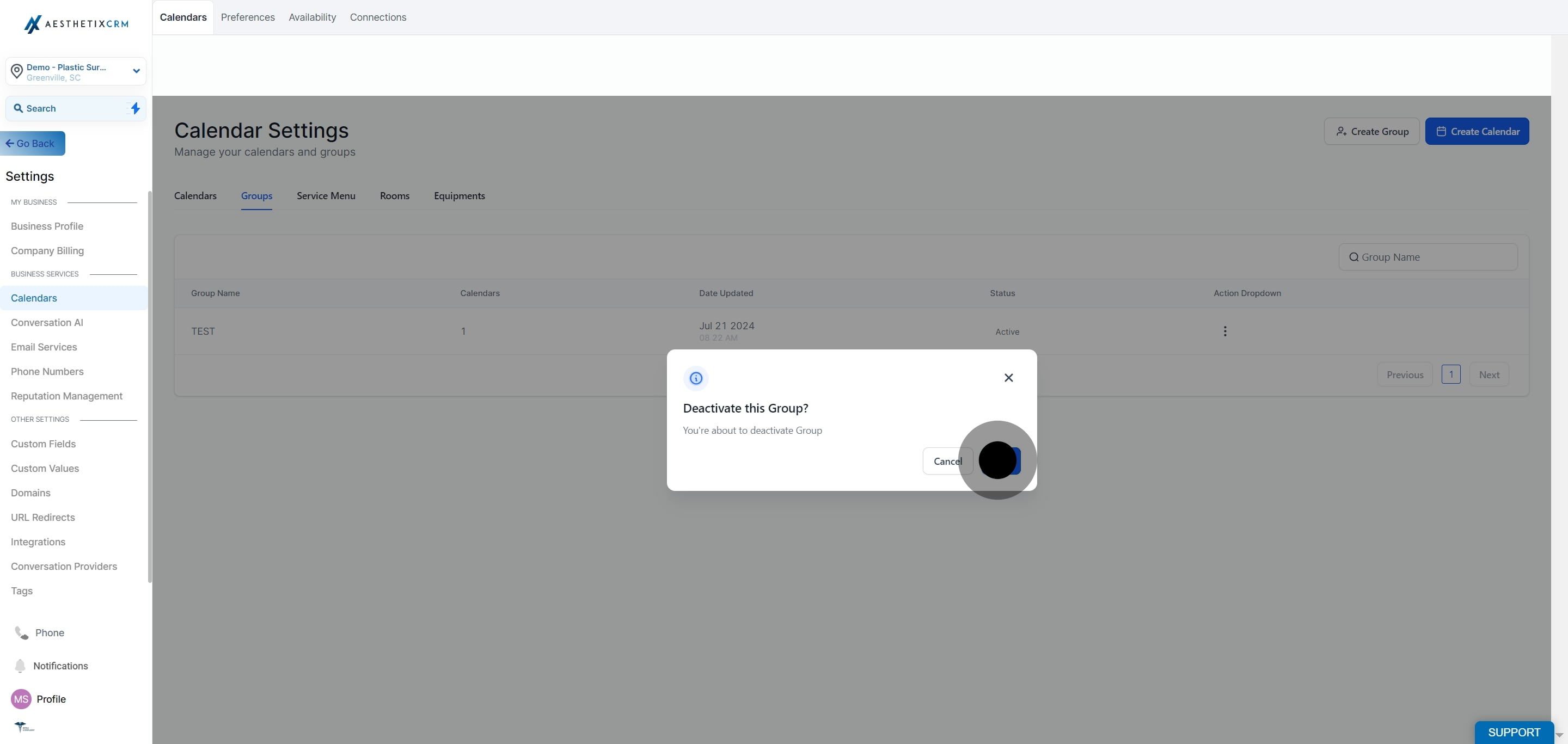
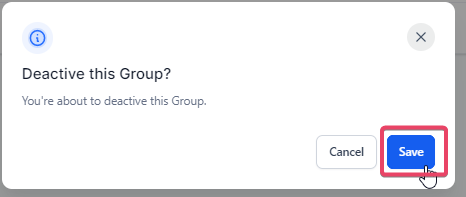
Clicking the three dots next to a group opens an options drawer where "Deactivate all calendars in group" appears alongside Edit and Delete. Selecting it opens a confirmation popup before the change takes effect.
Calendar Groups can't create individual calendars for you. Set up your individual calendars first, then add them to a group.
Class and Collective calendar types cannot be added to a Calendar Group. Those types use their own booking flows.
If a group looks empty, double check that you've created individual calendars and added them, either during group creation or afterward through Edit.
Embedding a group's booking link on your website or a funnel page is handled the same way as any other calendar link, covered under Funnels/Websites.
Do Calendar Groups create individual calendars automatically? No. You need to create your individual calendars first, then assign them to a group. Groups are containers, not a way to generate new calendars.
Can I add Class or Collective calendars to a group? No. Calendar Groups only work with individual calendar types. Class and Collective calendars have their own separate structure and booking flow.
What happens if I delete a calendar that's part of a group? The group itself keeps working, but the deleted calendar no longer shows up as a booking option inside it. Check your group's calendar list after deleting any individual calendar.
What's the difference between deleting a group and deactivating it? Deleting removes the group link permanently, though the individual calendars inside it are unaffected. Deactivating turns off booking for every calendar in the group temporarily, without deleting the group or its calendars, so you can reactivate it later.
How do I add calendars to a group after I've already created it? Open the group, click the three dots next to it, choose Edit, then add or remove the calendars you want included and click Save.
Can group calendars sync with Google, Outlook, or other external calendars? Yes, as long as each team member has a Primary Calendar configured in their own calendar settings. That connection is what allows appointments to sync to a personal Google, Outlook, or other external calendar.
Can I show multiple calendars to patients without creating a formal group? In most cases a Calendar Group is the simplest way to offer patients a choice of providers or services from one link. If you only need to link out to a couple of individual calendars separately, you can always share their individual links instead.
What templates are available for the group booking page? You can choose between the Classic and Neo templates when creating or editing a group. Both control how the group's booking page looks to patients; pick whichever matches the rest of your booking pages.
Who can create or edit Calendar Groups? Anyone with access to Settings > Calendars in your account can create, edit, delete, or deactivate a group, so it's worth limiting that access to staff who manage your scheduling setup.
