Event Calendars let you publish a bookable schedule for a shared event, such as a patient seminar, open house, or group treatment session, without tying the booking to a specific staff member. You'll find them in Calendars > Calendar Settings in your account.
Most calendar types in Aesthetix CRM assign bookings to a provider or staff member. Event Calendars work differently: bookings are managed at the calendar level instead of being tied to a person's availability. This makes them a strong fit for public or shared events where availability depends on the event itself, not on any one team member's schedule. It also makes Event Calendars one of the simplest calendar types to set up.
No host required. Create a bookable schedule without assigning it to a specific staff member.
Simple to launch. You don't need to build the calendar around any individual's connected calendar or availability.
Simple booking experience. Share a booking link or embed code so patients and prospects can register through a dedicated scheduling page.
Flexible meeting location. Add a physical address for in-person events, or paste a static virtual meeting link for online events.
Focused external sync. Bookings sync only with the one external calendar you connect to that specific Event Calendar.
Event Calendars behave differently from personal, team, and other calendar types. Understanding these differences before setup helps you avoid sync surprises, unsupported meeting-link expectations, and confusion around calendar conflicts.
Event Calendars have no assigned user, so meetings can't be assigned to a specific staff member.
Because no user is assigned, dynamic meeting link tools (Zoom, Google Meet, Microsoft Teams) are not supported.
To offer an online event, copy a static conferencing link from your meeting platform and paste it into the meeting location field instead.
Meetings do not sync to any staff member's personal calendar from Calendar Settings > Connections.
Conflict calendars added under Calendar Settings > Connections are not considered when checking availability for Event Calendars.
Meetings sync only to the calendar you select under External Sync for that specific Event Calendar.
Events are fetched from, and pushed only to, that one selected external calendar.
Only one Google Calendar can be connected using External Sync for an Event Calendar.
Use Event Calendars for patient seminars, open houses, expos, workshops, webinars, and other shared events where anyone on your team could staff the session.
Use them when you don't want (or need) to assign the booking to a specific provider.
Use them when you want a faster setup that doesn't depend on any one team member's availability settings.
Don't use Event Calendars if bookings need to rotate between providers or depend on individual staff availability. For that, use a Round Robin or Service Calendar instead.
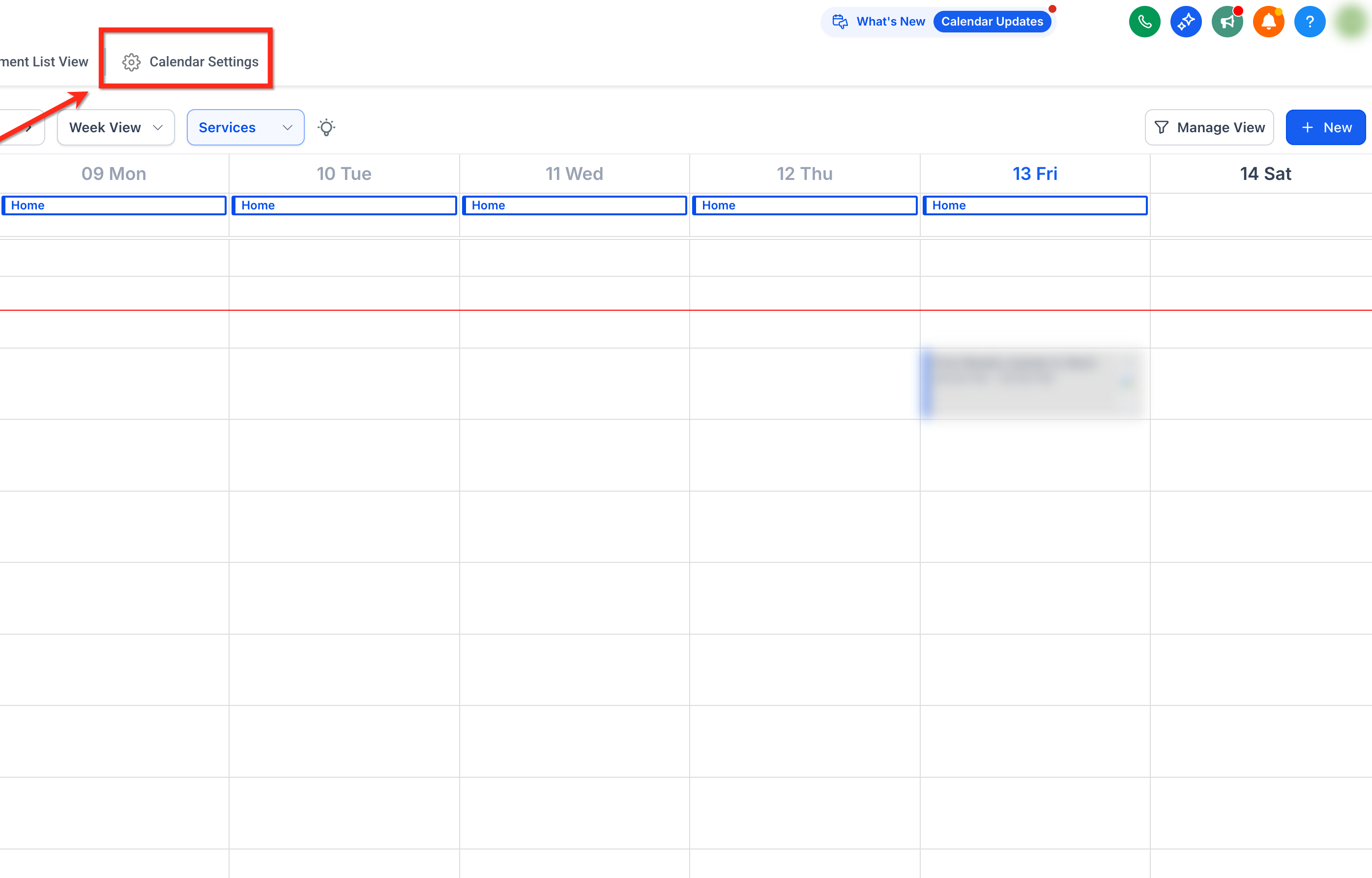
Go to Calendars in the left-hand navigation, then click Calendar Settings in the top navigation bar.
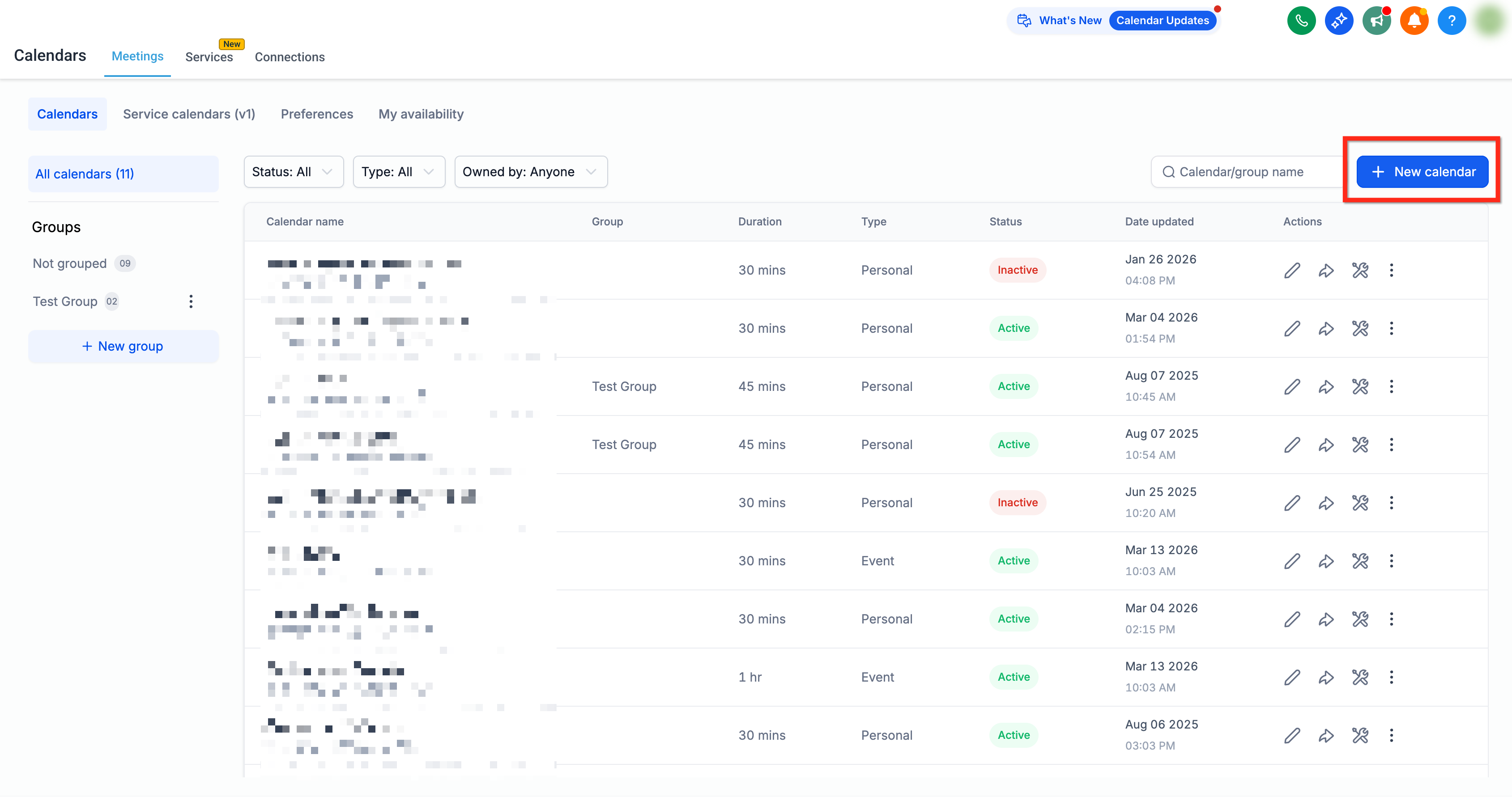
Click + New Calendar in the top-right corner.
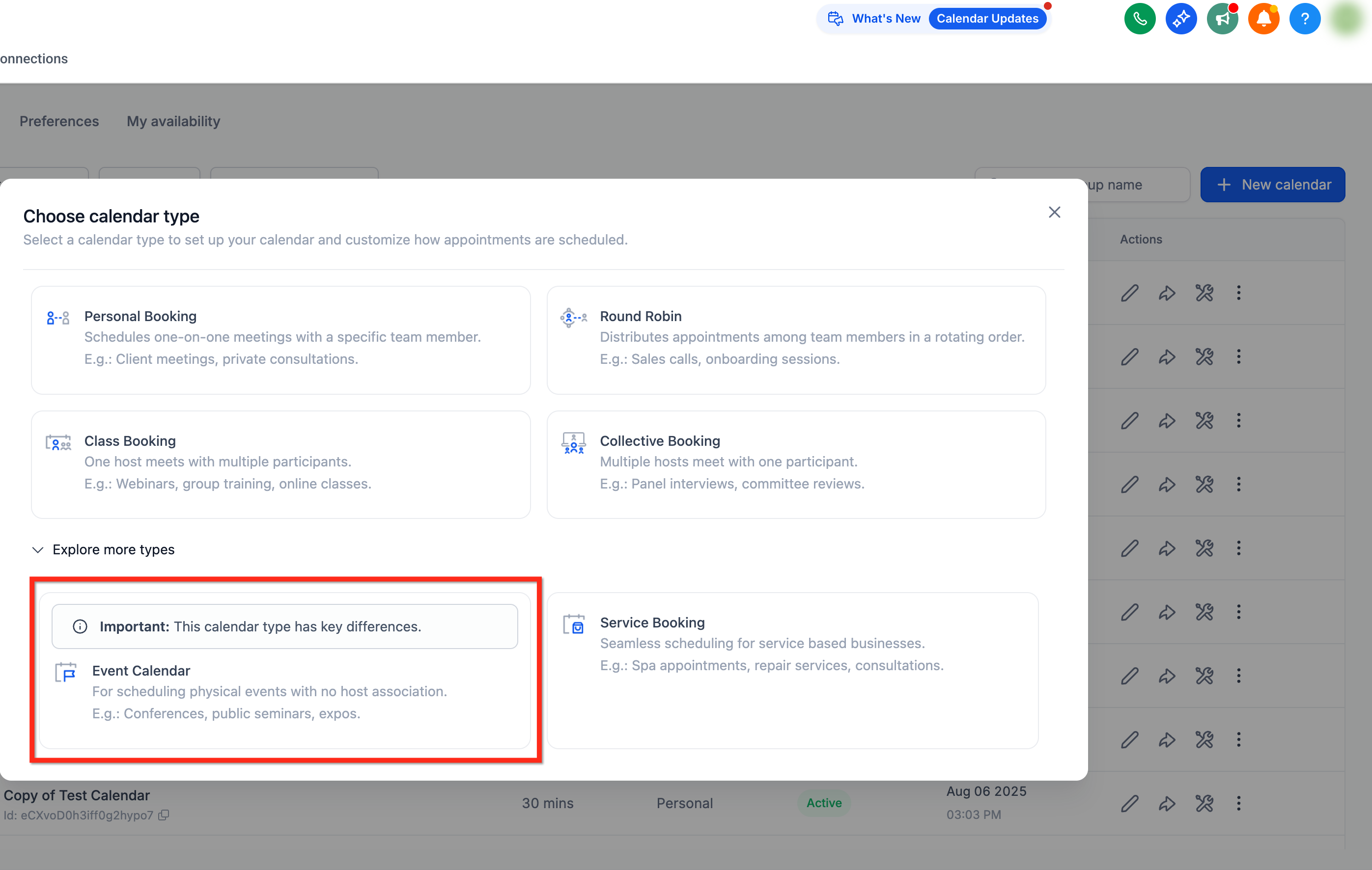
In the calendar type pop-up, open the dropdown for more calendar types and select Event Calendar.
Enter a Calendar Name, optionally add a Description, and customize the Custom URL if you want to change the booking widget link.
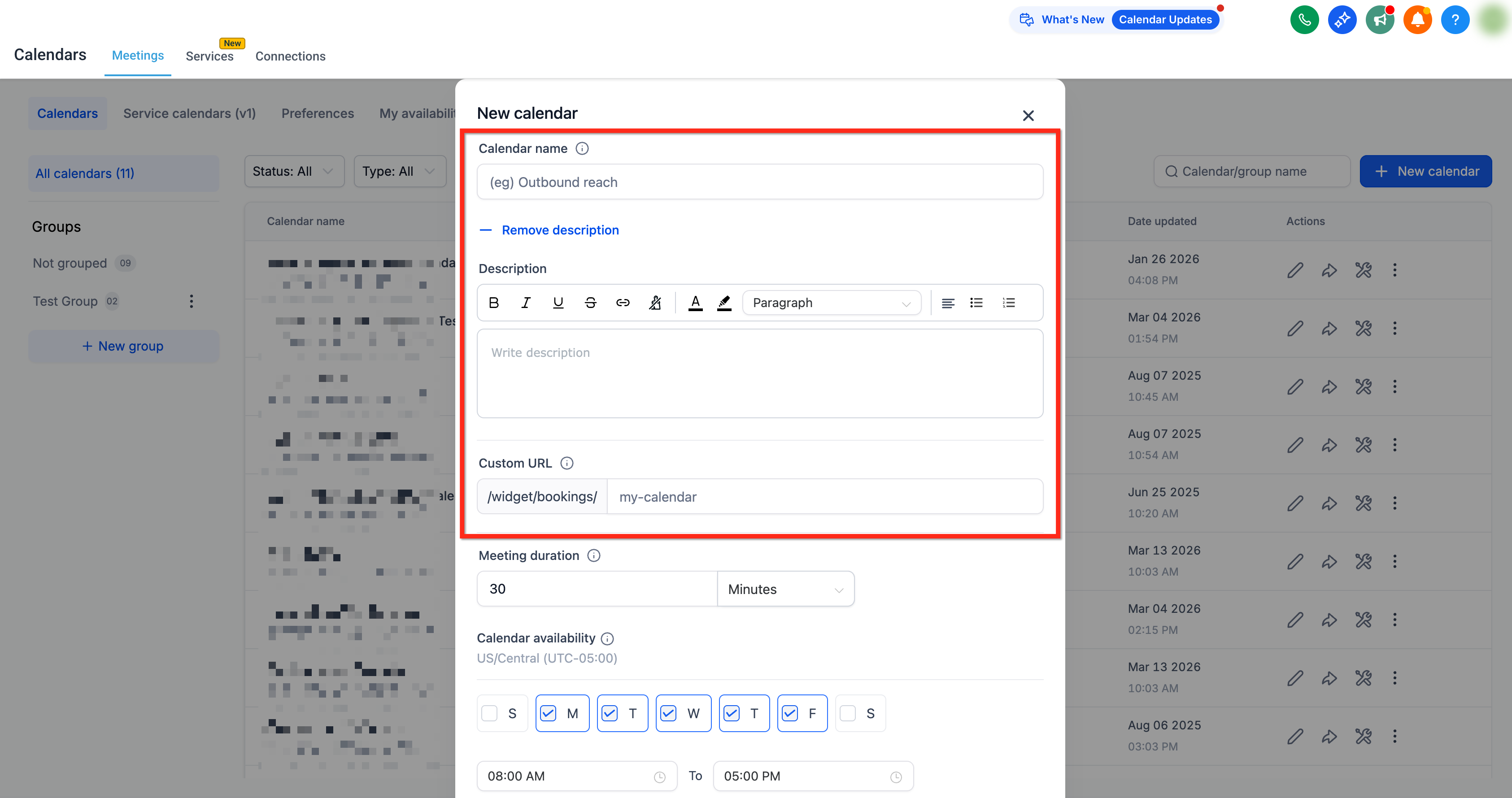
Set the Meeting Duration and configure Availability by selecting the days and times the event can be booked.
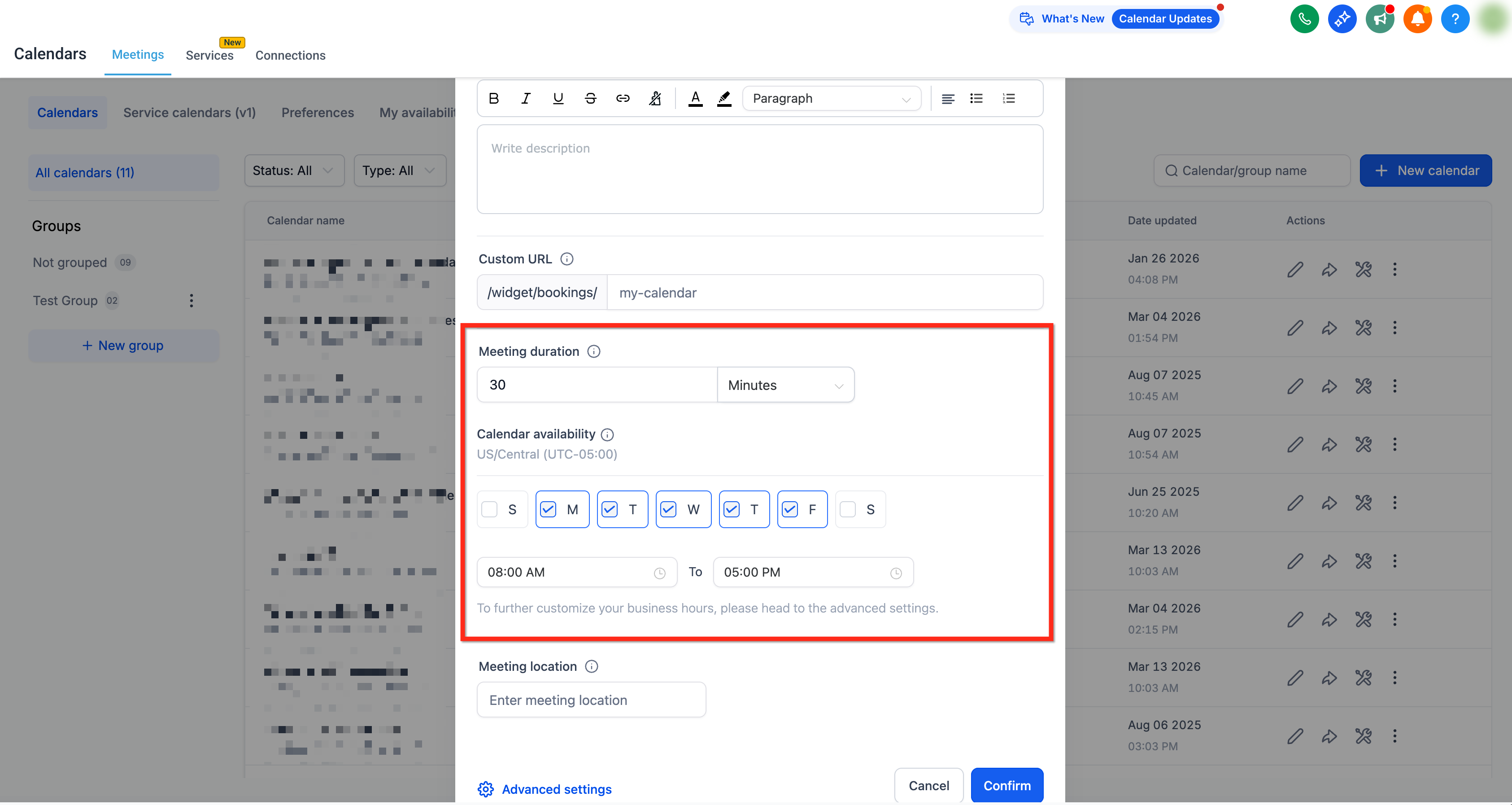
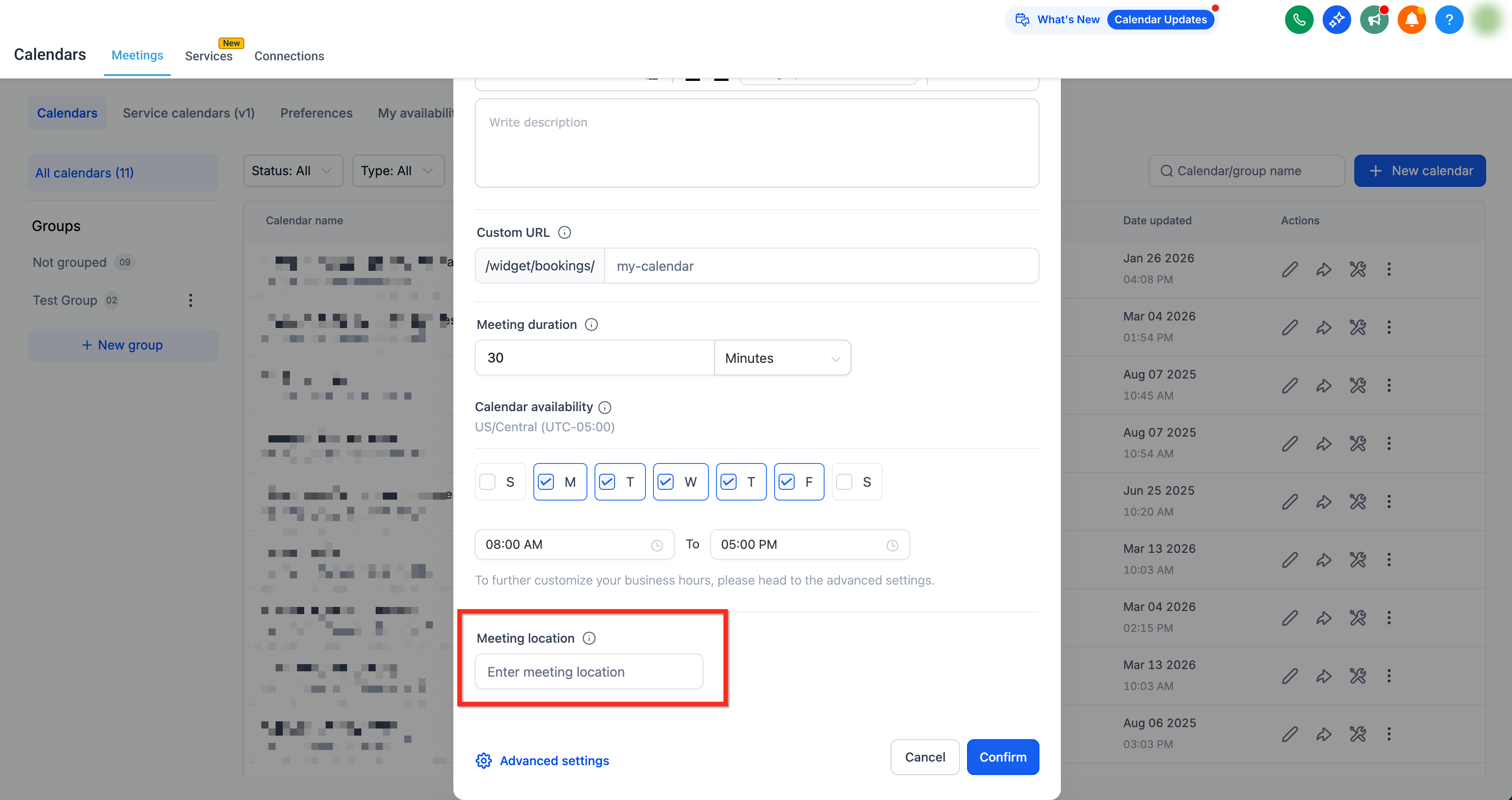
Add the Meeting Location. For in-person events, enter the physical address. For virtual events, paste a static conferencing link.
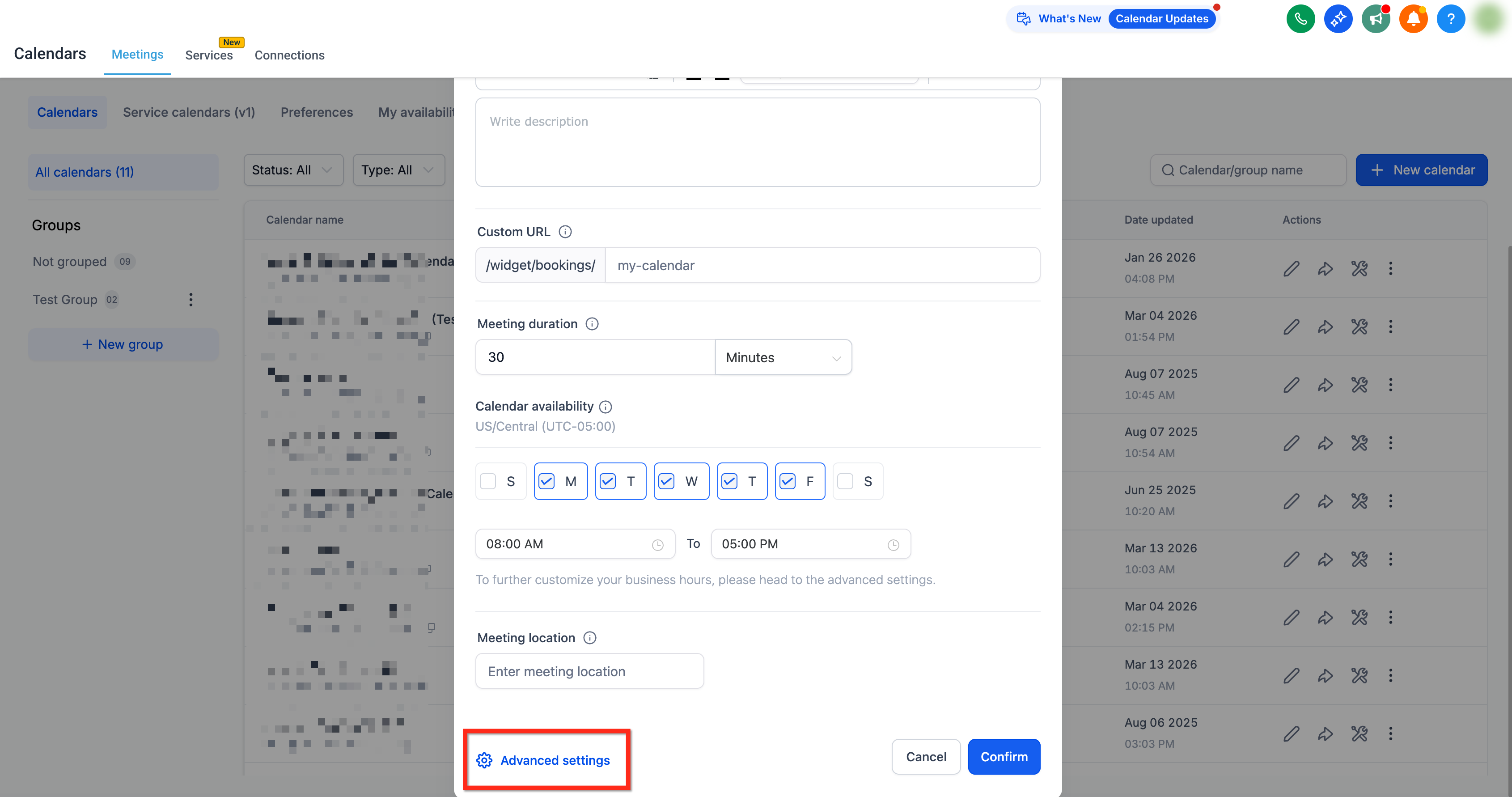
Click Advanced Settings if you need to configure additional options.
Click Confirm to create the Event Calendar. Once you see the success message, copy the booking link or embed code to share with patients or add to your website.
Once the calendar is live, you can embed the booking widget on your website or funnel pages, or share the direct link through email, SMS, and social posts.
Can Event Calendars use dynamic virtual meeting links like Zoom, Google Meet, or Microsoft Teams? No. Dynamic meeting links aren't supported because Event Calendars don't have an assigned user. Use a static conferencing link in the meeting location field instead.
Where do Event Calendar bookings sync? Only to the external calendar you select under External Sync for that specific Event Calendar. They don't sync to any staff member's personal calendar.
Can an Event Calendar sync with more than one Google Calendar? No. Only one Google Calendar can be connected using External Sync per Event Calendar.
Do conflict calendars affect Event Calendar availability? No. Conflict calendars added under Calendar Settings > Connections aren't considered for Event Calendars, since availability isn't tied to any individual's schedule.
Can I assign an Event Calendar booking to a specific provider after it's booked? No, Event Calendars are designed to stay unassigned. If you need bookings tied to specific providers, use a Service Calendar or Round Robin Calendar instead.
What's the best use case for an Event Calendar at a med spa? Anything where the event itself, not the provider, is the draw: a Botox 101 seminar, a seasonal open house, a laser demo day, or a webinar. If a patient needs a specific injector or aesthetician, choose a different calendar type.
Can I use AI appointment booking with Event Calendars? AI-assisted booking works with native calendars, and Event Calendars are a native calendar type, but since there's no assigned user, AI booking flows work best when paired with calendar types built around individual provider availability. Check the AI Employee documentation for details on setting up automated booking.
Where do I set up calendar sync with Google, Outlook, iCloud, or Zoom? Calendar connections are managed under Calendar Settings > Connections. See the calendar sync documentation for setup steps for each provider.
Can I embed the Event Calendar booking widget on my website? Yes. After creating the calendar, copy the embed code from the success screen and add it to any page in your website or funnel builder.
Do I need to set staff availability hours for an Event Calendar? No. Since there's no assigned user, availability is set directly on the calendar itself under the Availability settings, not through an individual's working hours.
