A Collective Booking calendar schedules an appointment that needs more than one staff member present at the same time. Aesthetix CRM checks every assigned team member's availability and only opens a slot when all of them are free. You'll find it under Calendars > Calendar Settings.
This calendar type is a good fit whenever a patient visit requires more than one provider or staff member in the room (or on the call) at once, such as a consult that involves both a provider and a patient coordinator, or a treatment that needs a nurse alongside the injector.
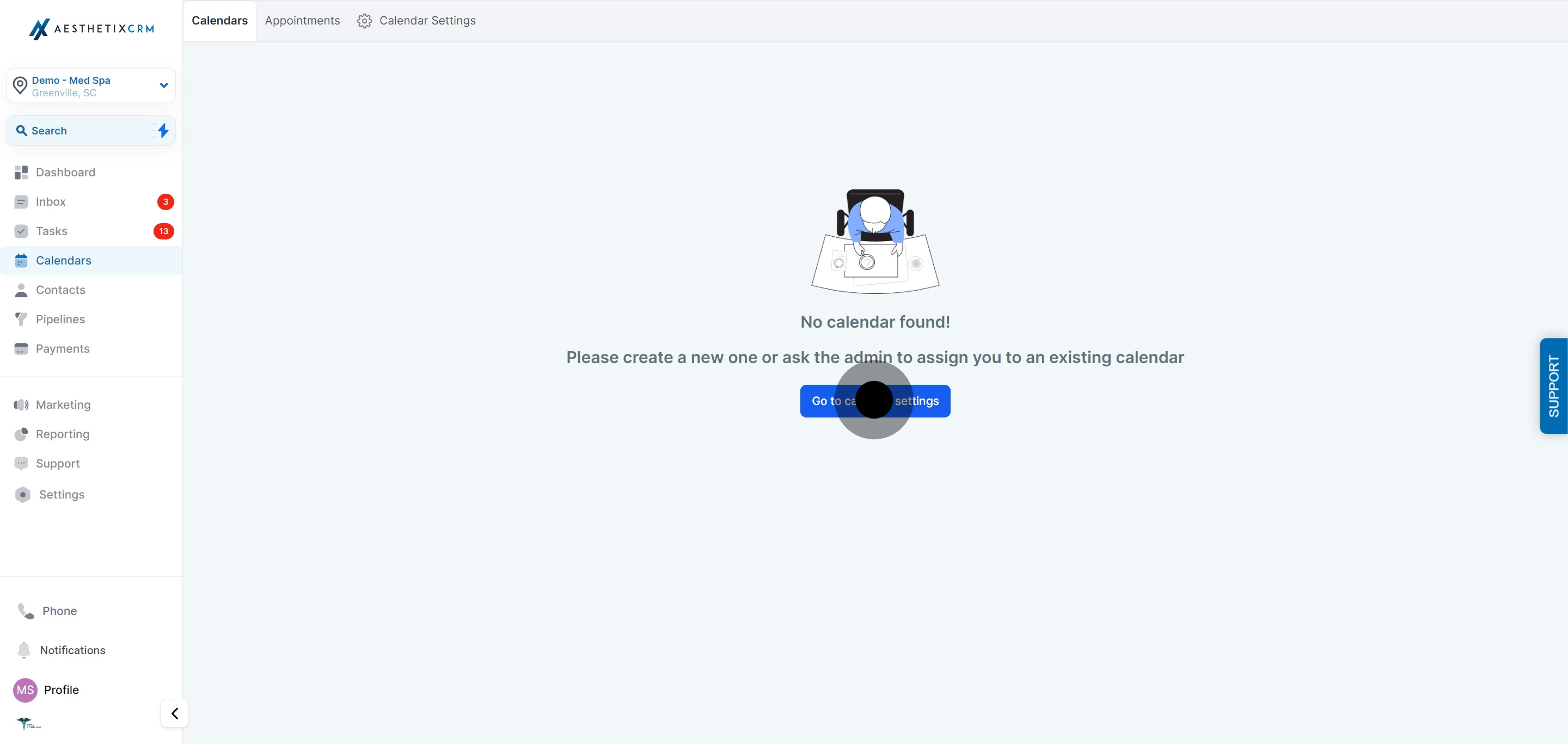
Click on Calendar, then select Go to Calendar Settings.
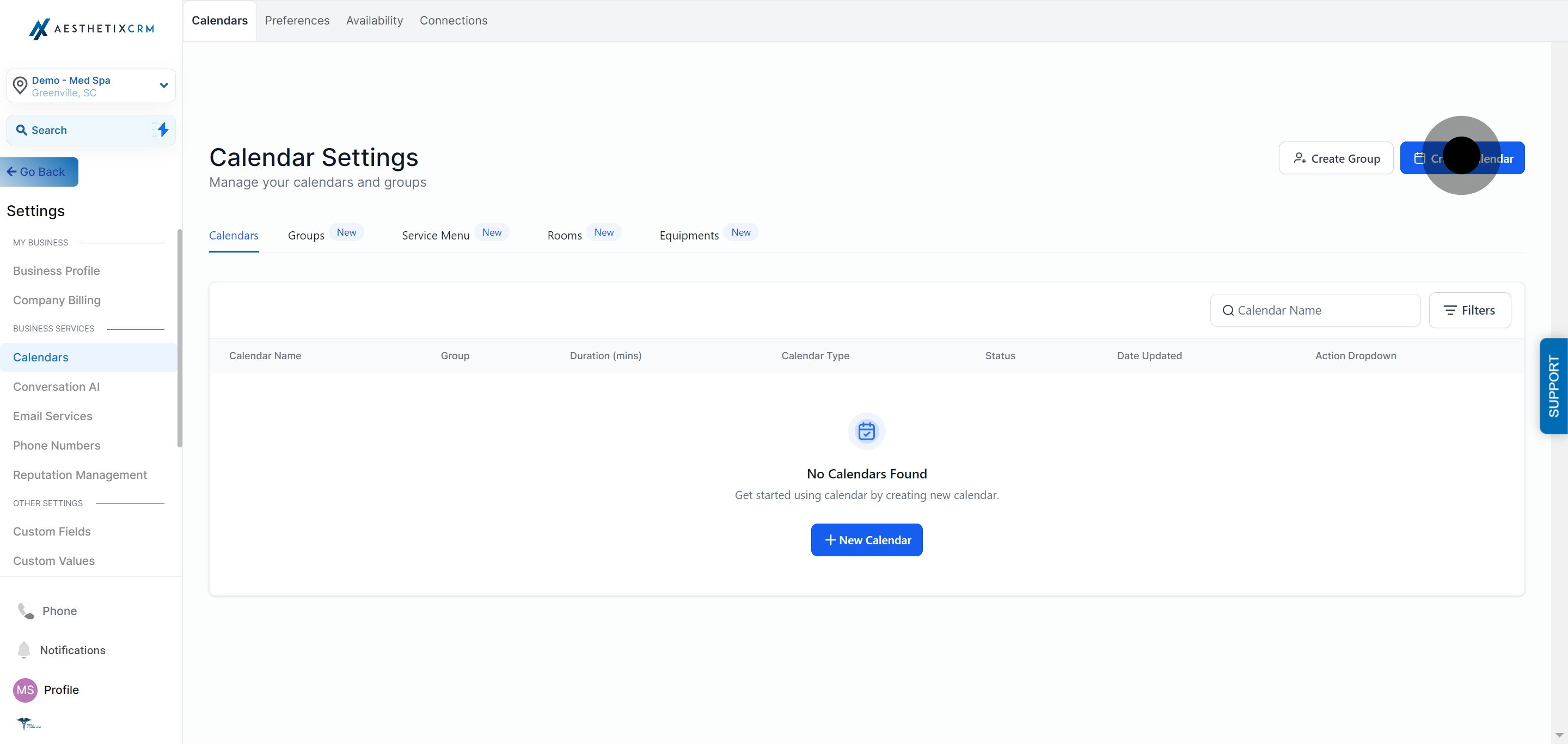
Click Create Calendar.
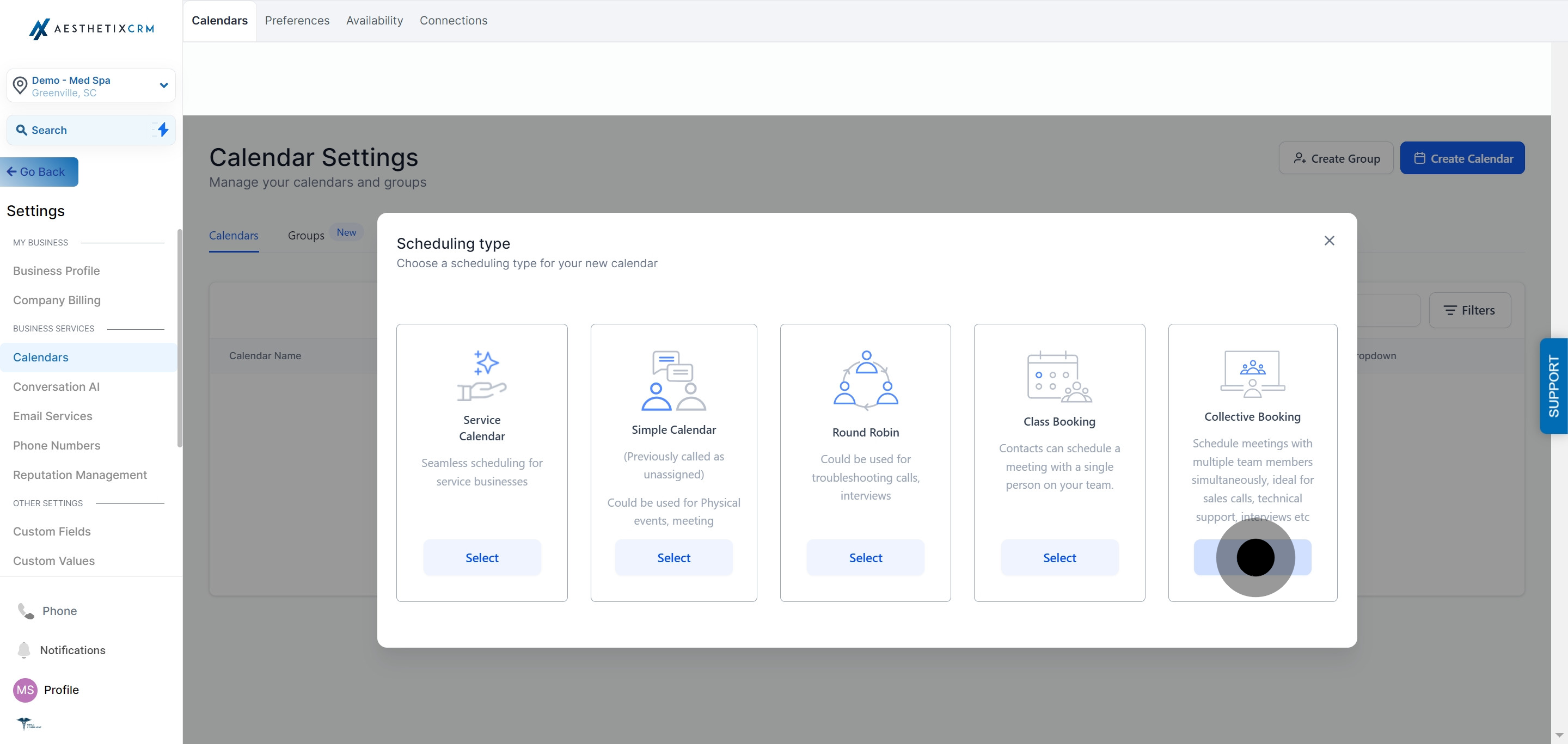
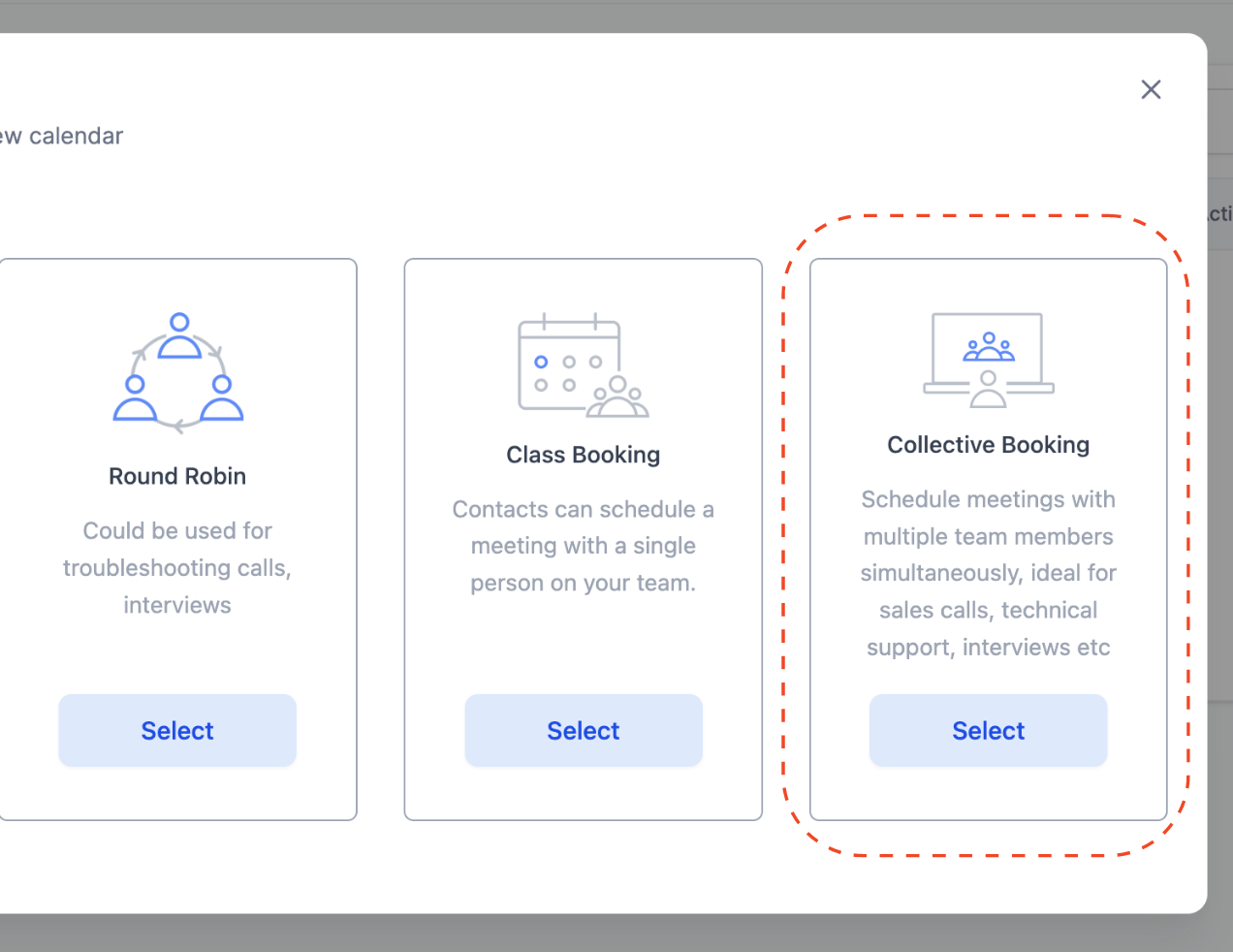
Choose Collective Booking from the calendar type options.
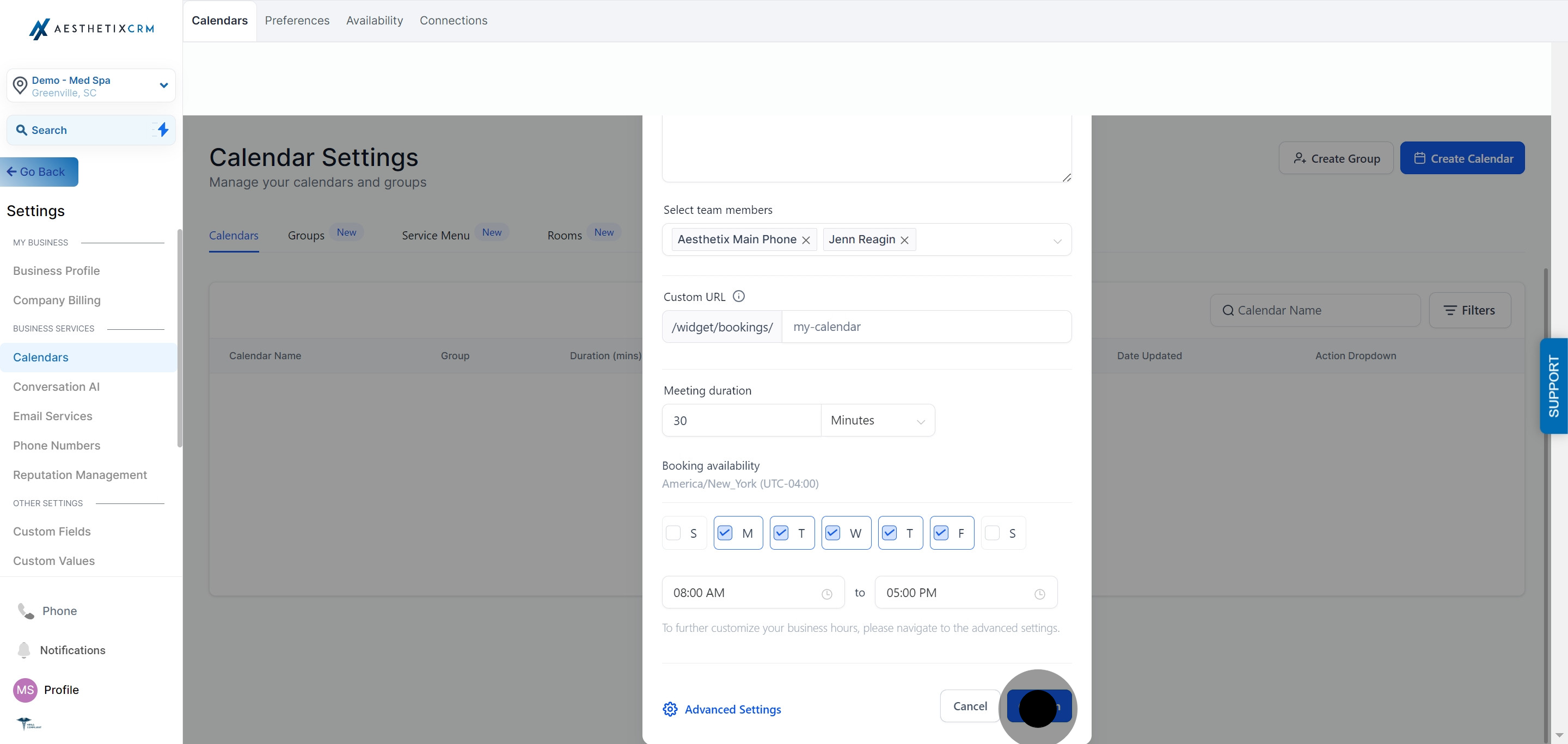
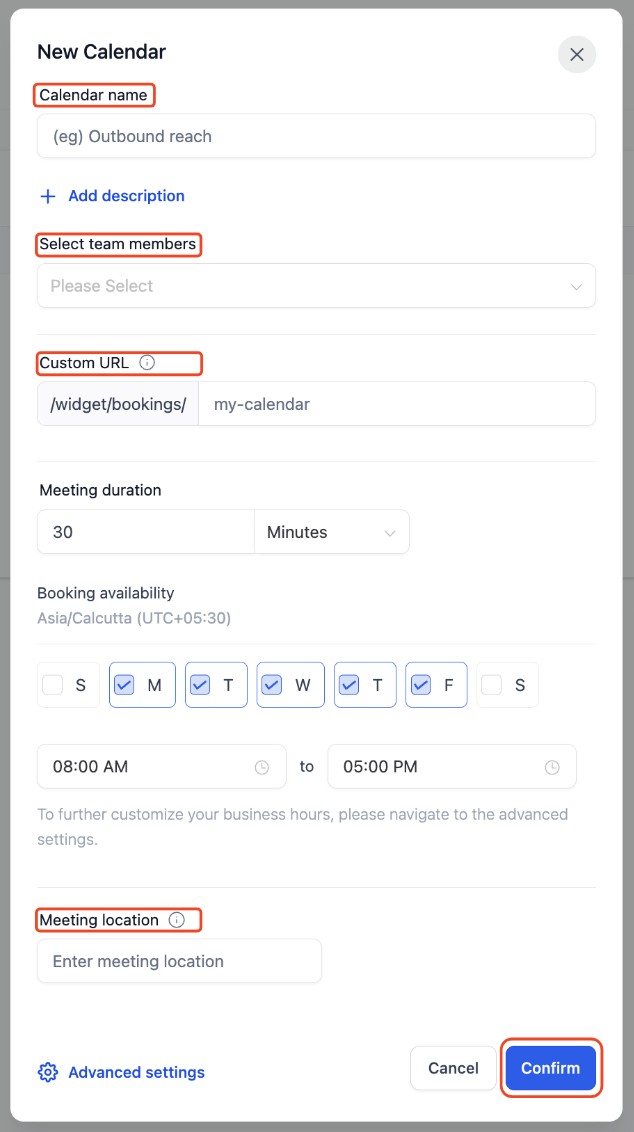
Add the mandatory details for the calendar:
Calendar Name
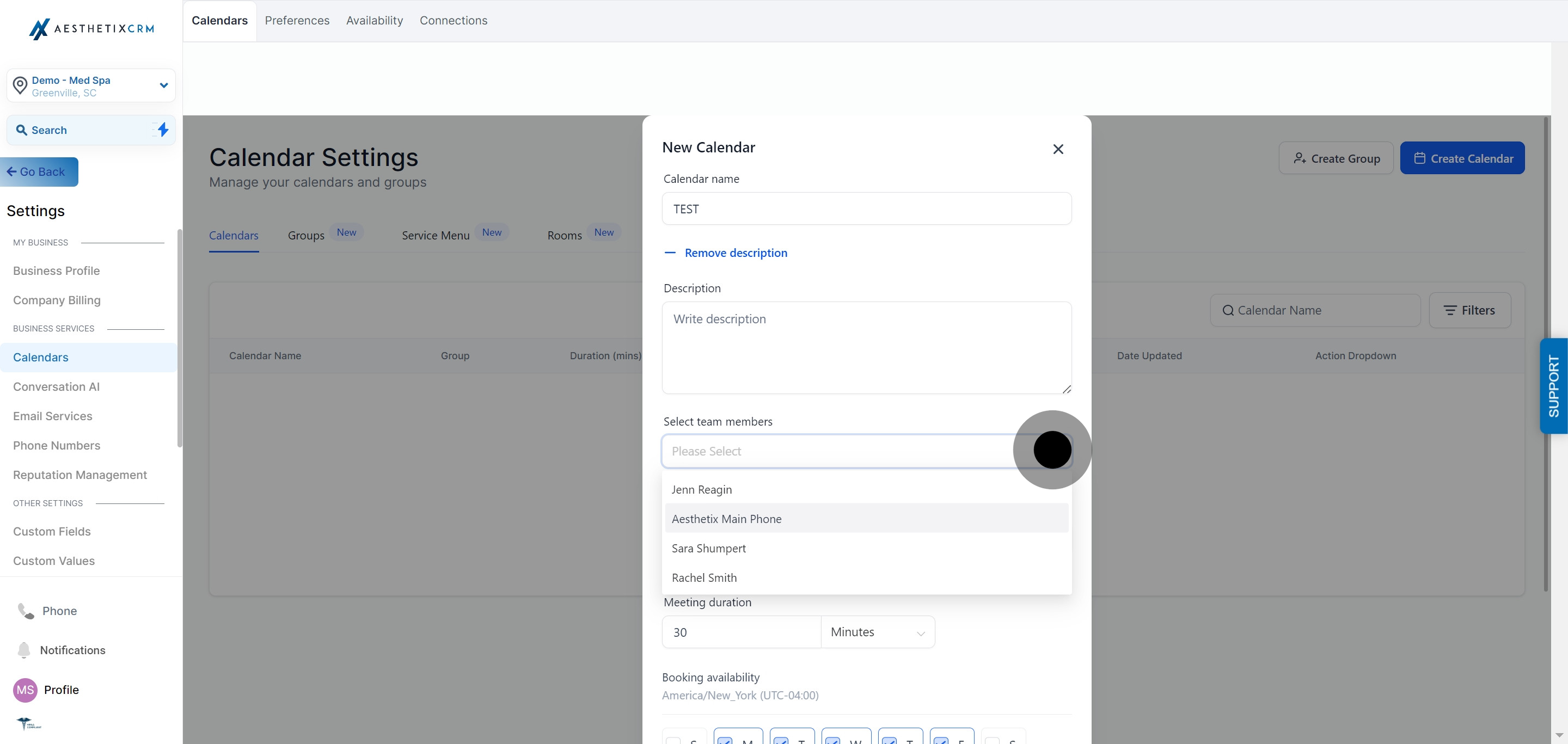
Team members: select at least 2 team members. A Collective Booking calendar requires a minimum of two.
Custom URL: this is auto-generated from the calendar name. Edit it manually if you'd rather use something else.
Meeting Location: not required, but recommended. If you leave it blank, the primary owner's default meeting location is used instead.
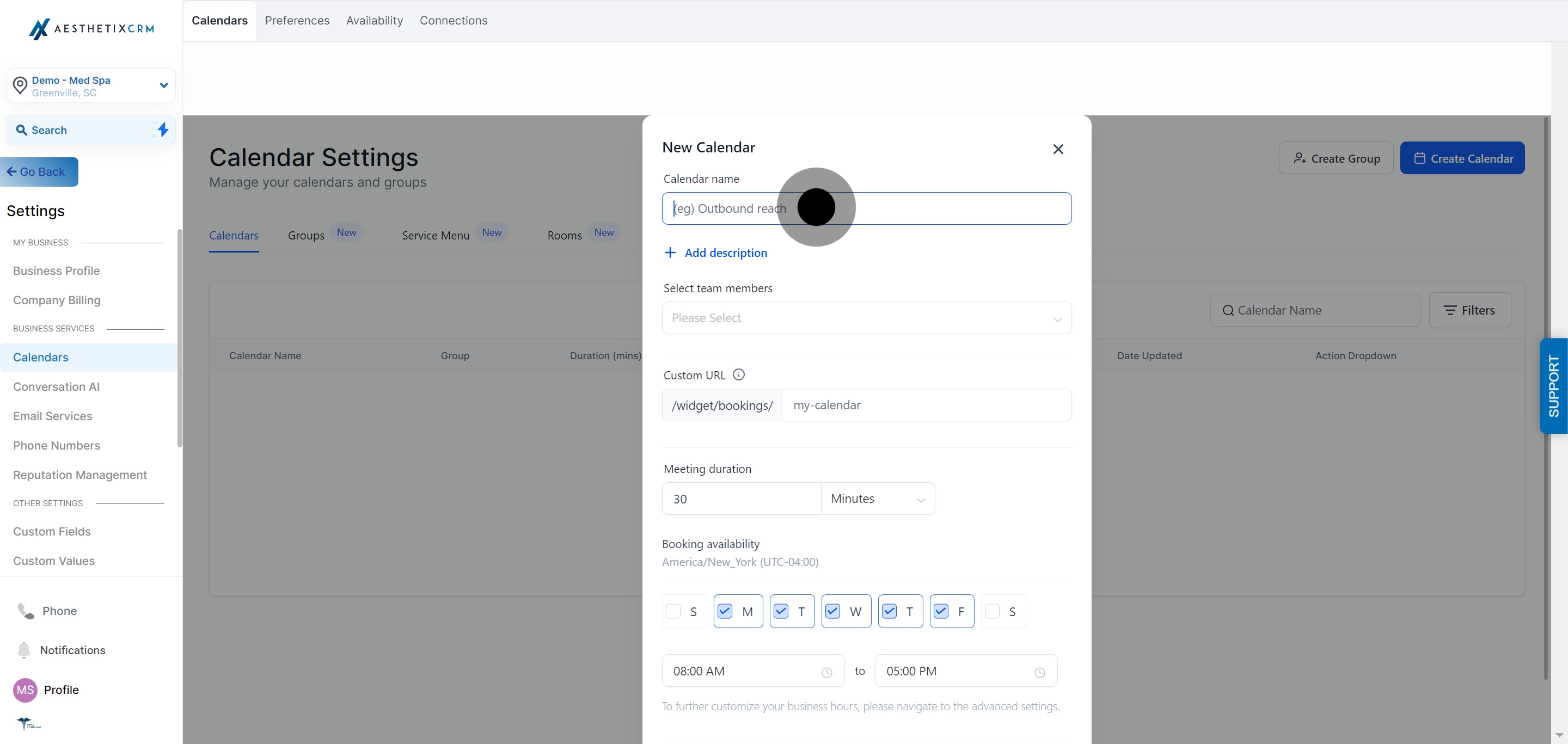
Enter the Calendar Name in the designated field.
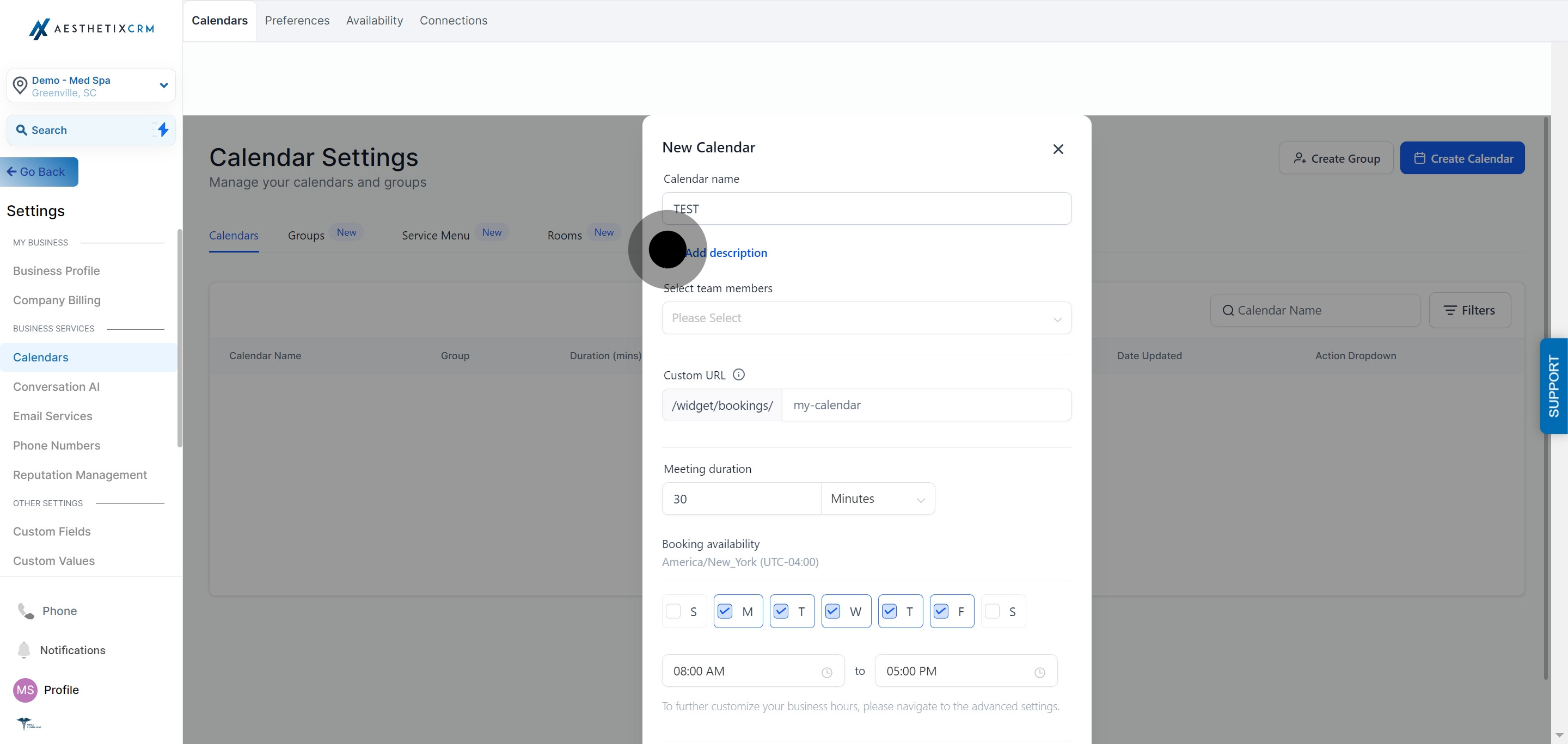
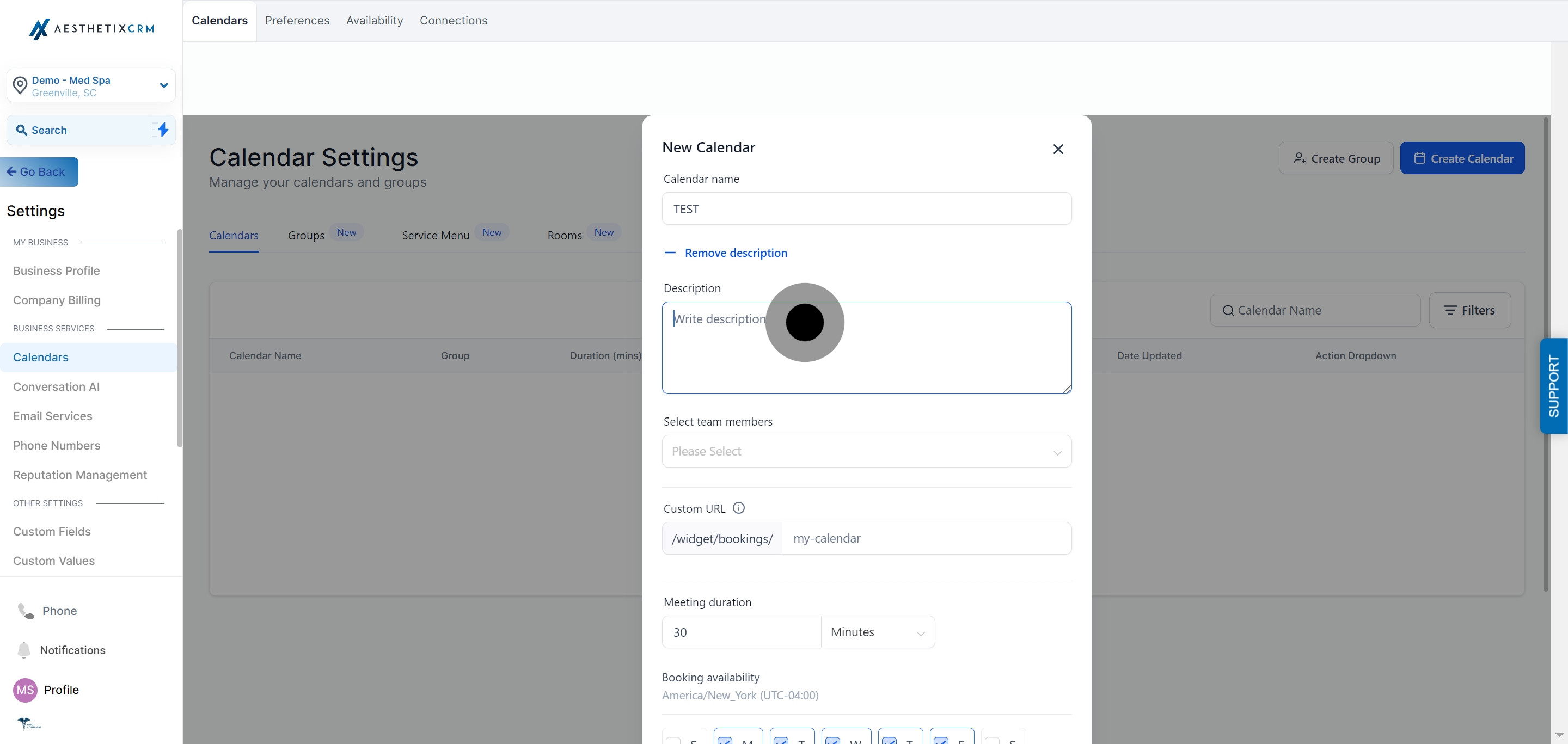
Click Add description to give the calendar a short internal description.
Select each team member who should be part of the collective calendar.
Review or edit the custom URL.
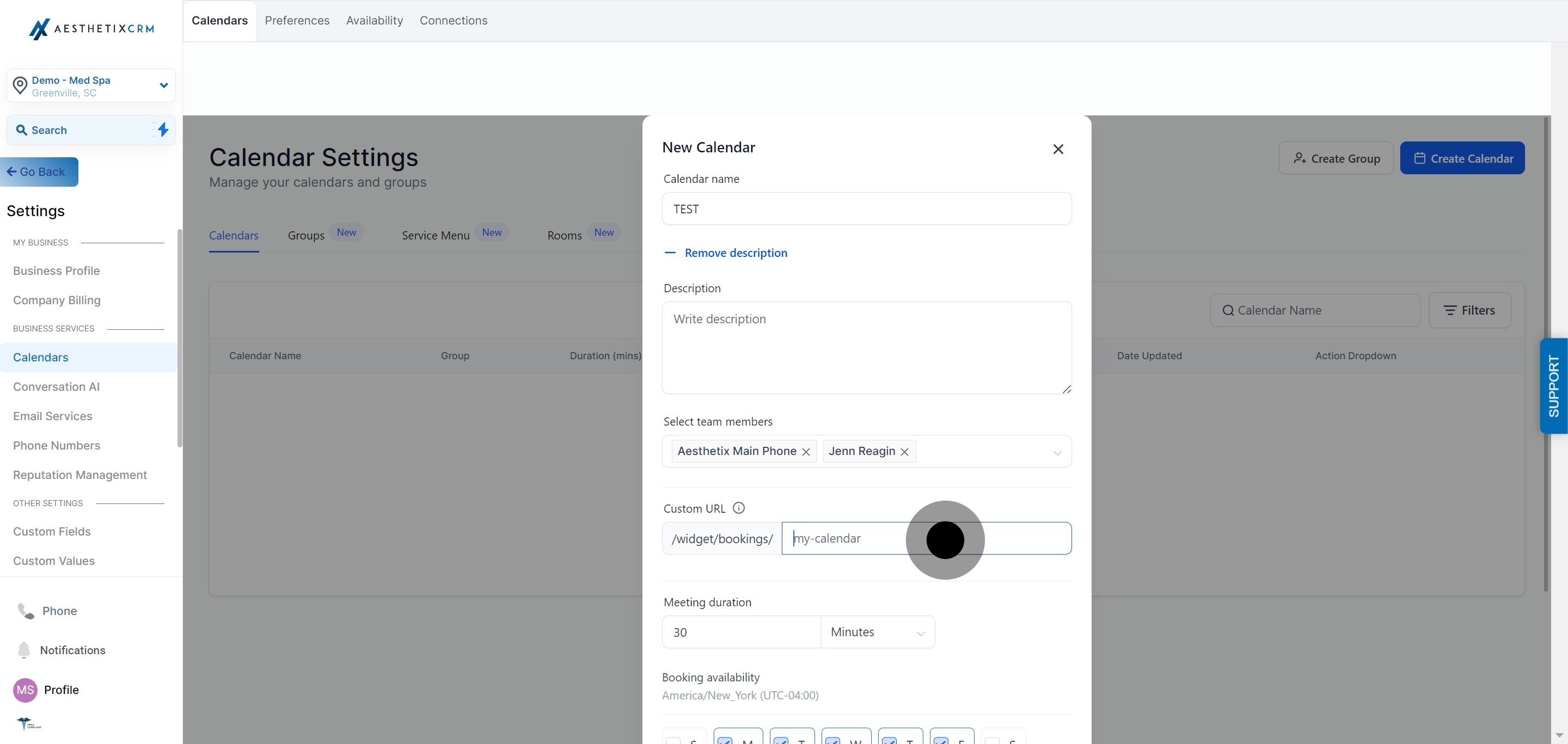
Set the meeting duration.
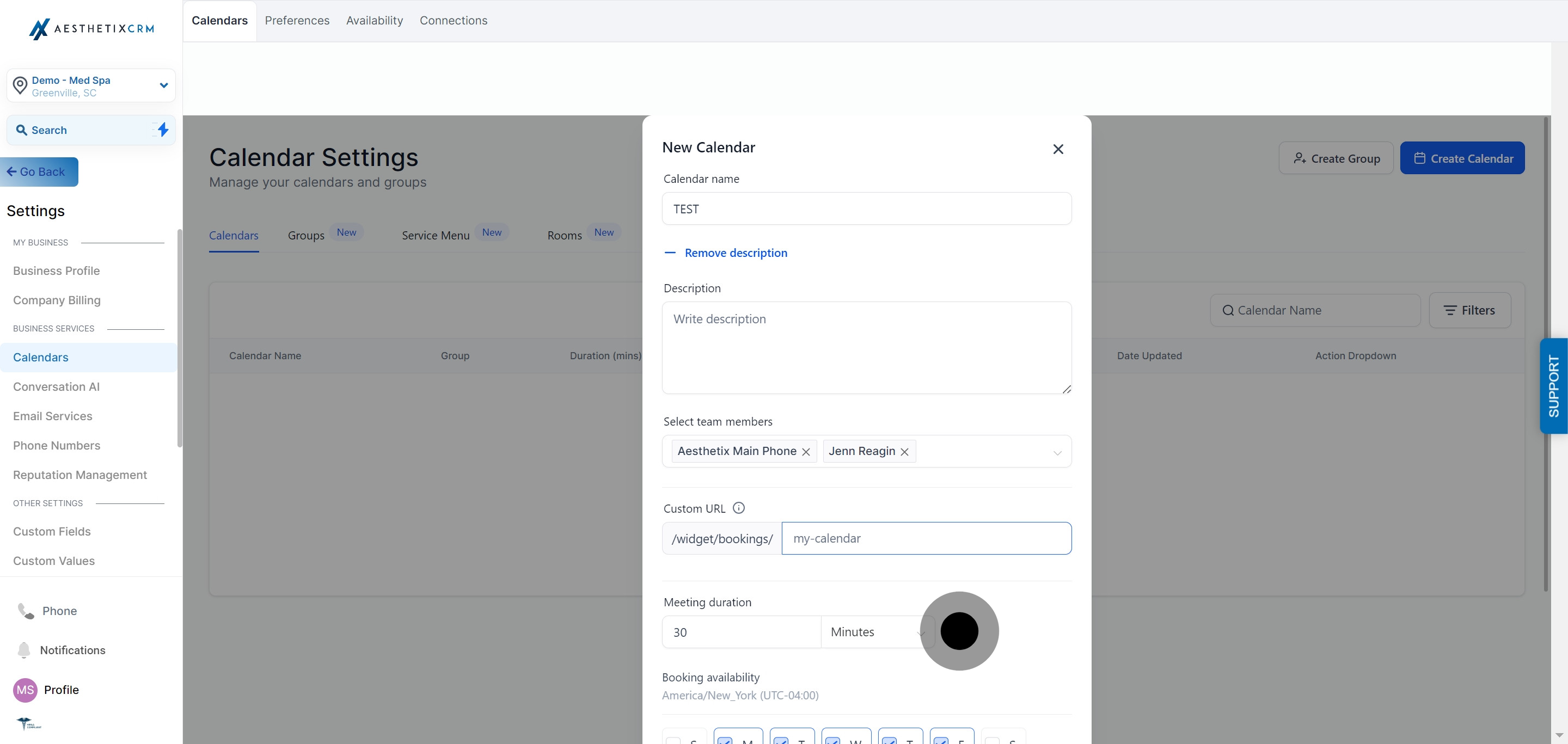
Set the booking availability.
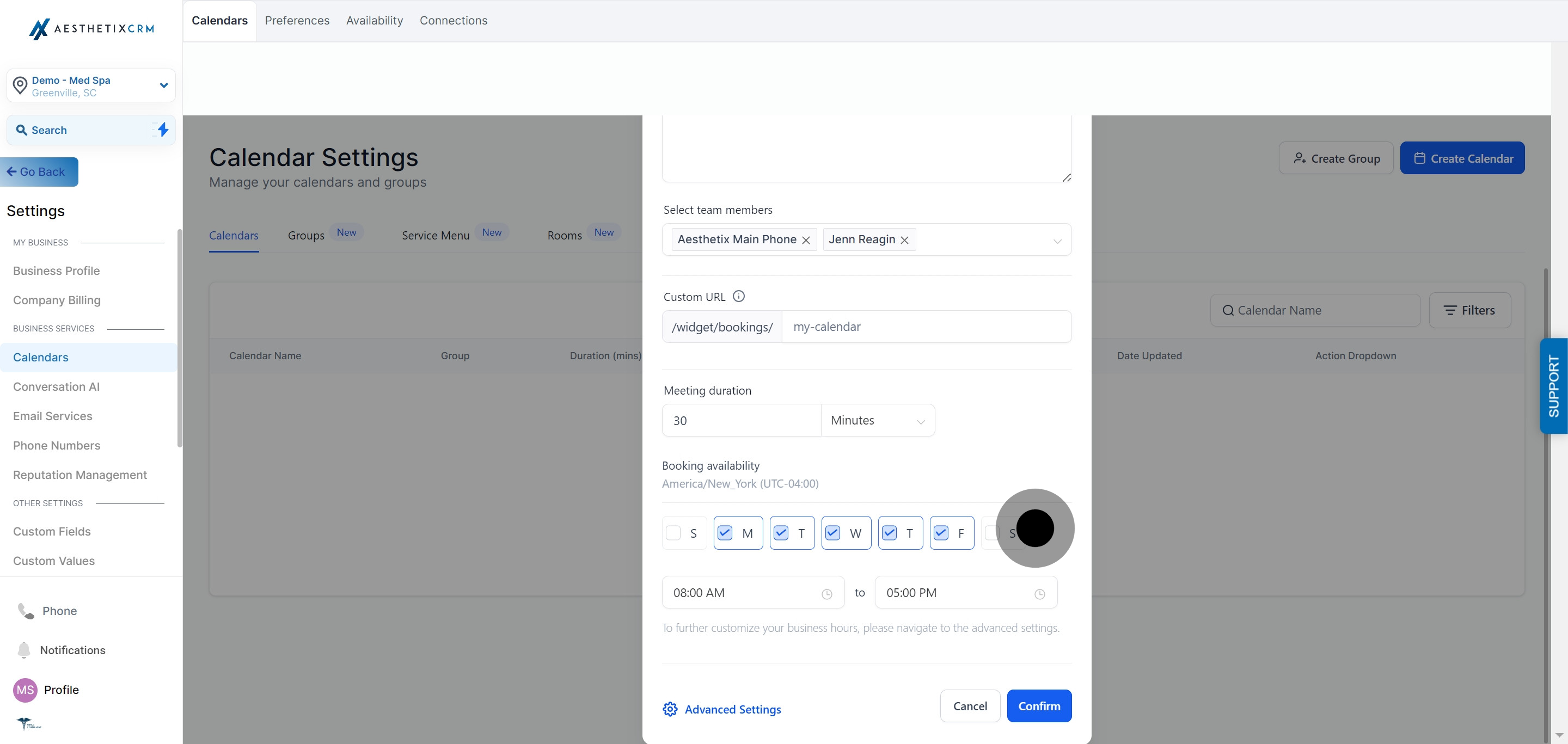
Enter the start time and end time for availability.
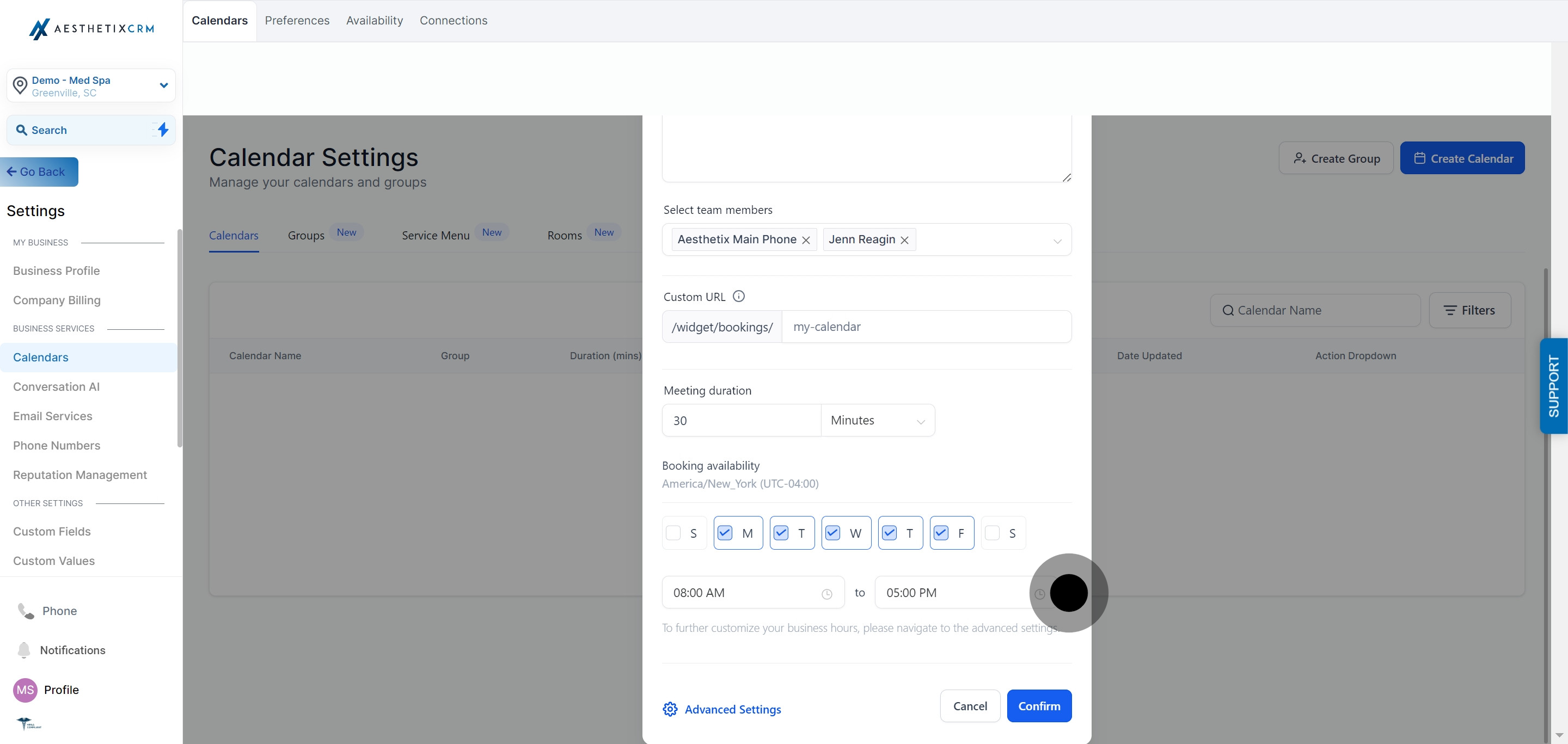
Click Confirm to finish setup and create the calendar.
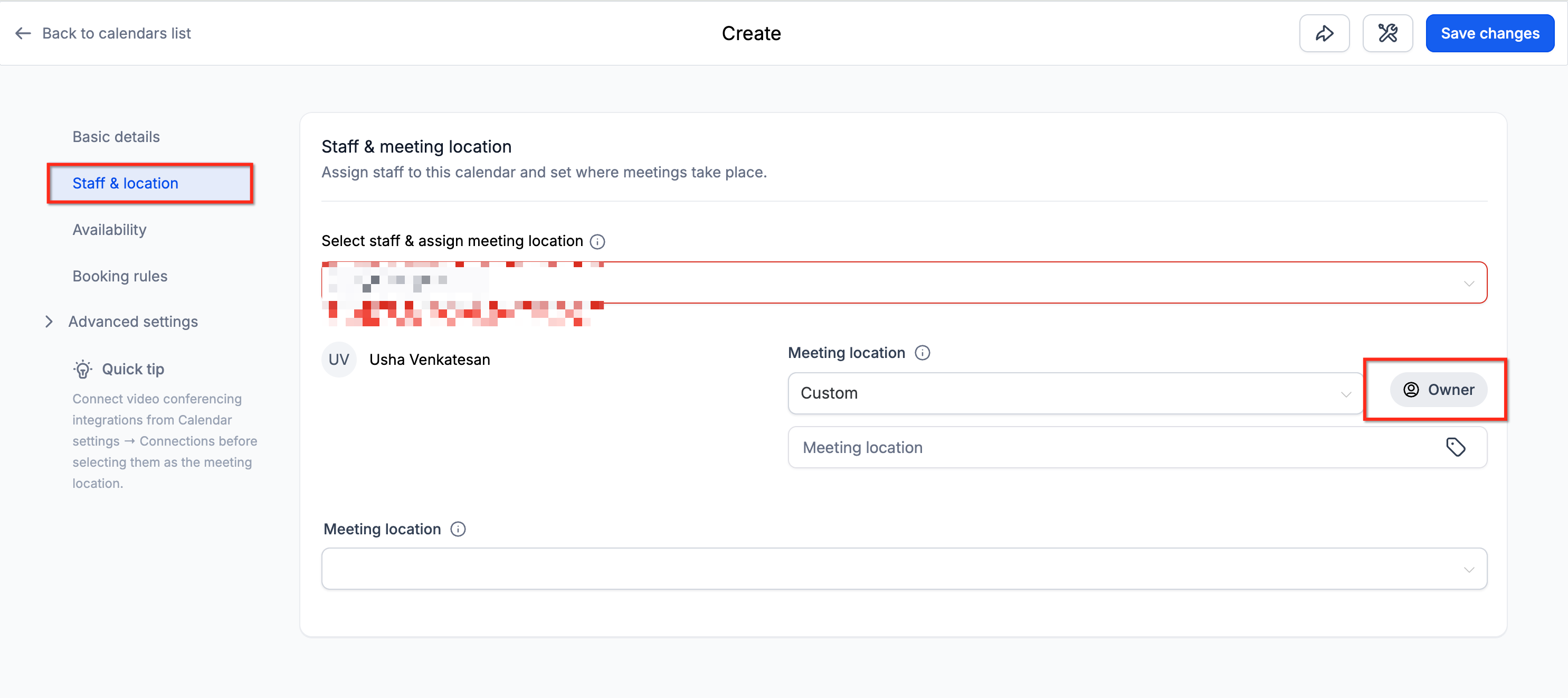
After the calendar is created, click Edit calendar any time you need to adjust it. Settings are grouped into sections for easier navigation. Payments, notifications and policies, widget appearance, external sync, and booking channels are all found inside Advanced settings.
Tip for practices offering multiple services: if your practice offers several distinct services (for example, a consult, a laser treatment, and an injectable appointment), you have two ways to organize them:
Separate calendars: create one Collective Booking calendar per service so you can assign different staff, availability windows, and meeting preferences to each.
One shared calendar with a service selector: use a single collective calendar and add a custom intake form with a service-selection dropdown, so patients choose the service type at booking and you route the appointment internally with contact assignment, tags, or automations.
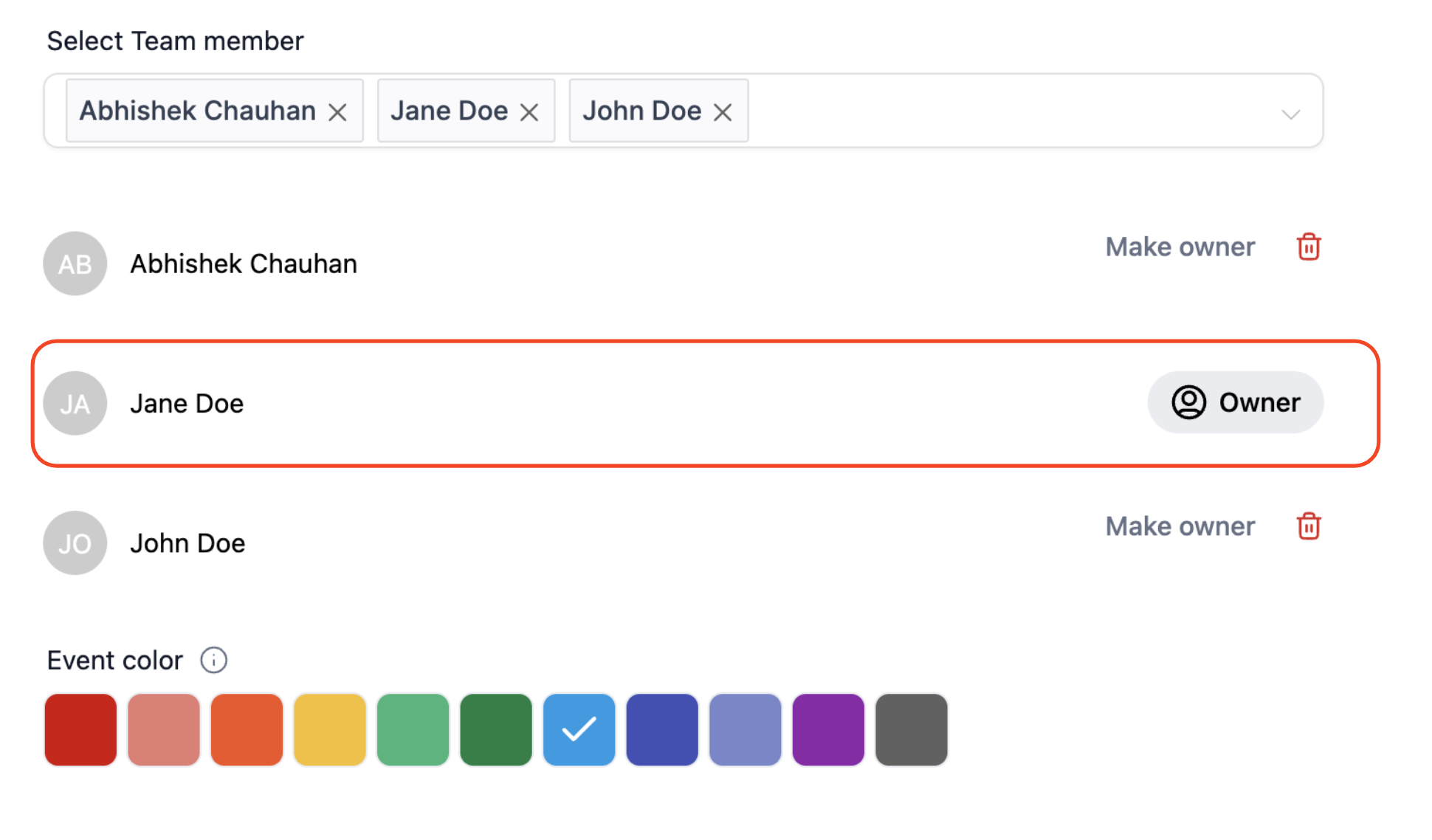
The Primary Owner is the team member who leads the appointment. This person is also the appointment owner, and if contact assignment is enabled, the patient's contact record is assigned to them.
By default, the first team member added to the collective calendar becomes the Primary Owner. The Primary Owner cannot be deleted from the calendar while they hold that role.
To change the Primary Owner:
Open Edit calendar, then go to Basic details (or the section that lists meeting and owner details).
You'll see a Make owner option next to every team member who isn't currently the Primary Owner.
Click Make owner next to the team member you want to promote.
The owner updates immediately and is marked with an Owner label next to their name.
Note: a Primary Owner cannot be deleted from the collective calendar. To remove that team member, change the Primary Owner to someone else first, then remove them.
Only the assigned Primary Owner receives the email notification for a booked collective appointment. However, every team member on the calendar receives a calendar invite through their connected third-party calendar (Google, Outlook, or iCloud), so the whole team stays aware of the appointment. Calendar syncing itself is set up separately in Calendars > Connections.
Payments continue to work normally on a Collective Booking calendar if enabled. When a paid booking is required, the patient must complete payment first, and the appointment is only confirmed once the payment goes through.
Tip: if you're taking payment at booking, consider AX Pay, Aesthetix CRM's built-in payment processor. AX Pay offers better rates than Stripe and connects directly to your calendars, forms, and invoices. See the AX Pay help article for setup details.
If you use AI-driven appointment booking through the AI Employee, keep in mind that AI booking only works with native Aesthetix CRM calendars, including Collective Booking calendars. It cannot book directly into an EMR-connected calendar. If your practice's Collective Booking calendar is EMR-based, route those bookings through a form or staff confirmation instead.
Collective Booking is built for any appointment that needs more than one person's calendar to line up. A few examples for a med spa or aesthetics practice:
Use Case | Slot Intervals | Slot Availability | User Availability |
|---|---|---|---|
New Patient Consult | Interval is based on the length of the consult. | Slots open only when both the provider and the patient coordinator are free at the same time. | The system checks both team members' availability. |
Injector + Nurse Treatment | Interval matches the estimated treatment length. | Slots open when both the injector and the assisting nurse are free. | The system checks the availability of both staff members. |
Multi-Provider Procedure | Interval is based on the shortest available slot across all providers involved. | Slots open only when every provider on the procedure is free simultaneously. | The system checks all assigned providers. |
Front Desk Onboarding Call | Interval matches the call length. | Slots open when both the front desk lead and the treatment coordinator are free. | The system checks both team members. |
Case Review Meeting | Interval is based on the shortest open slot among attending staff. | Slots open when all attending staff are free at the same time. | The system checks every attendee's calendar. |
How many team members can I add to a single Collective Booking calendar? You can add up to 100 team members to a collective calendar. Keep in mind that the more team members you add, the fewer overlapping open slots you'll typically find, since every added person must be free at the same time.
Do payments work with Collective Booking calendars? Yes. If payments are enabled on the calendar, the patient pays first and the appointment is only booked once payment is confirmed.
Can I use Collective Booking for virtual appointments? Yes. Collective Booking works for both virtual and in-person appointments. Just make sure the Meeting Location field reflects the correct details (a video link for virtual, or your practice address for in-person).
Can I remove a team member from an existing Collective Booking calendar? Yes, except for the Primary Owner. If the person you want to remove is currently the Primary Owner, change the Primary Owner to a different team member first, then remove them.
I changed the Primary Owner, but an existing appointment still shows the old owner. Why? Booked appointments reflect the calendar settings that were in place at the time they were booked. Any appointment booked after you change the Primary Owner will show the new owner.
Can I change the Primary Owner on an appointment that's already booked? No. There's no way to change the owner details on an appointment that has already been booked.
Can I edit or reschedule a booked collective appointment? Yes, you can edit details like date and time. You cannot, however, change which team members are attached to an already-booked appointment.
Does Collective Booking work with AI appointment booking? Yes, as long as the calendar is a native Aesthetix CRM calendar and not connected to an EMR. AI booking through the AI Employee cannot book into EMR-linked calendars.
